

Two hundred thousand active installs is a strange number. It means Popup Builder is not the loudest plugin in its category (OptinMonster spends more on ads, Bloom rides Divi’s coattails, Convert Pro has the prettier landing page) and yet it sits quietly on more sites than most of them combined. The plugin has been shipped by Sygnoos for years, runs entirely on your own server, and ships sixteen distinct popup types from a single, slightly old-school admin screen.
This walkthrough covers what Popup Builder actually does, where it loses to its slicker rivals, and the developer surface (one shortcode, an sgpb-prefixed hook family, a single custom post type) you need if you plan to extend it.
Table of contents
- What Popup Builder actually is
- Sixteen popup types, one workflow
- Triggers and conditions
- Walking through the admin
- Installation and a first popup in ten minutes
- A real scenario: rescuing checkout abandoners
- Developer reference
- Performance, compatibility, gotchas
- Where Popup Builder loses
- Pricing and licensing
- Final thoughts
What Popup Builder actually is
Popup Builder is a general-purpose WordPress popup plugin from Sygnoos. The free core is on WordPress.org with the install count quoted above. It registers a single custom post type called popupbuilder, where each popup you build is one CPT entry, and it surfaces everything through a single shortcode, [sg_popup id="123"]. That is the entire mental model.
You should mentally separate it from three plugins it gets compared to. Bloom from Elegant Themes is email-opt-in focused, very tight scope, beautiful templates, no general-purpose popups for things like age gates or video lightboxes. OptinMonster is SaaS, billed monthly, with the visual editor and the analytics dashboard most people are paying for. Convert Pro from Brainstorm Force is closer in scope to Popup Builder but built around a drag-and-drop visual editor with a heavier UI. Popup Builder sits in a different spot: cheap once paid-for, fully self-hosted, no monthly bill, and the editing experience is whatever the Gutenberg block editor gives you plus a meta box.
Popup Builder also predates the "fancy" generation of popup plugins. The admin still looks like a 2019 WordPress plugin in places, which I will note in the screenshots section. That isn’t a flaw, exactly. It just means you trade visual polish for a very stable, very well-known piece of code that has been hammered on by a quarter of a million sites.
Sixteen popup types, one workflow
The number of popup types matters because the type you pick determines what fields the editor exposes. You don’t build a "Web Push Notification" popup by configuring a generic popup. You pick the Web Push Notification type and the editor swaps in the push-subscription UI.
Free tier, available the moment you install the plugin from WordPress.org:
- Image popup. Drop an image, optionally link it. Lightbox-style.
- HTML popup. Your block editor content goes in a modal, full freedom.
- Facebook popup. Embeds a Facebook page-like widget. Increasingly dated; Meta keeps changing the embed contract.
- Subscription popup. Built-in email capture into the plugin’s own All Subscribers table. No Mailchimp sync at this tier.
Pro tier, unlocked through the paid extensions:
- Video popup (autoplay support, YouTube and Vimeo).
- Web Push Notification popup, which uses the browser’s Push API and asks visitors to subscribe.
- Exit Intent popup, triggered by the same mouseleave event everyone uses, with a small bounce-detection window.
- Mailchimp popup, talks to the Mailchimp API rather than the in-plugin subscriber table.
- WooCommerce popup, can fire on add-to-cart, cart total threshold, or after purchase.
- Login popup, modal login/register form, useful for membership sites that don’t want to ship visitors to
/wp-login.php. - Age restriction popup, a date-of-birth gate.
- Countdown popup, evergreen or fixed-date countdown timers.
- Iframe popup, embed an external page.
- Restriction popup, locks content behind an action like share or email submission.
- ConvertPlus popup, designed to mirror layouts from the ConvertPlus plugin.
- Geographic location popup, IP-based country/region targeting.
That’s the sixteen. Some you will use every site, some you might never touch. The point is they share one workflow: pick a type, fill in the type-specific options, set triggers and conditions, save. Whatever you build comes back out as [sg_popup id="123"] or fires automatically based on the rules you set.
Triggers and conditions
The trigger answers "when does the popup appear?" The condition answers "to whom, and on which page?" Popup Builder splits the two cleanly.
Triggers (the Events tab):
- Time delay (N seconds after page load).
- On page exit, the exit-intent trigger.
- After scrolling a percent or pixel value down the page.
- After clicking a specific element or anything matching a CSS selector.
- On inactivity, after N seconds without movement or input.
- On hover over an element.
- On form submit.
- WooCommerce add-to-cart event.
- A custom JavaScript event, which lets you fire from your own code with
jQuery(window).trigger('sgpbOpenPopup', {id: 123}).
Conditions (the Conditions tab):
- Pages, posts, categories, tags, or custom post types.
- Mobile only, desktop only.
- Logged-in or logged-out.
- First-time vs returning visitor (cookie-based).
- After N visits (also cookie-based).
- Specific WordPress user role.
- Geographic targeting, Pro add-on.
- Referrer-based targeting, Pro add-on.
- UTM parameter targeting, Pro add-on.
You can chain conditions with AND/OR, and you can stack triggers; a popup can be set to fire on exit intent or after 30 seconds, whichever happens first. The fact that geographic and UTM targeting are paywalled is worth knowing up front. If your use case is "show this offer only to Canadian traffic from a specific Facebook campaign," you are buying an add-on.
Walking through the admin
There are only a few screens that matter day to day.
The All Popups list is where everything lives. Each row is a popup with its title, type, total views, status, ready-to-paste shortcode, the CSS class hook, and an actions column. Brand-new installs land on the empty state, which is the screenshot below:
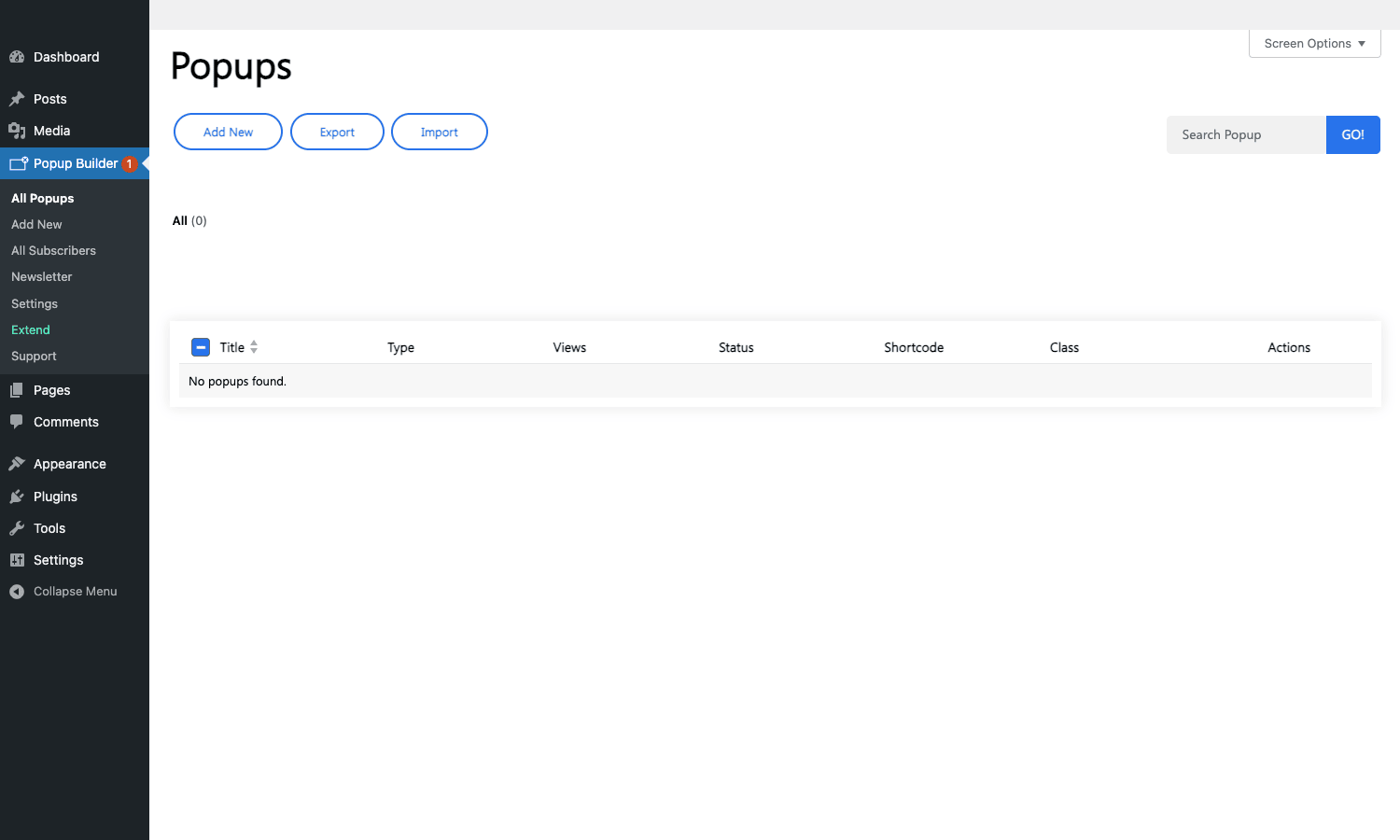
The first thing I noticed on a fresh install is how no-frills this list is. There is no preview thumbnail, no impressions chart inline; just a plain WP_List_Table. That’s part of the trade. It loads instantly and gives you the shortcode in a column you can copy from.
Add New opens the regular block editor for the popupbuilder post type. The popup’s content (image, HTML, form fields, whatever the type allows) lives in the post body. Below the editor is a single Main Options meta box, vertically tabbed into Display Rules, Events, and Conditions. The right sidebar reuses Gutenberg’s Status / Publish / Slug / Template panel. There is no separate "popup options" panel; everything is in that one meta box.
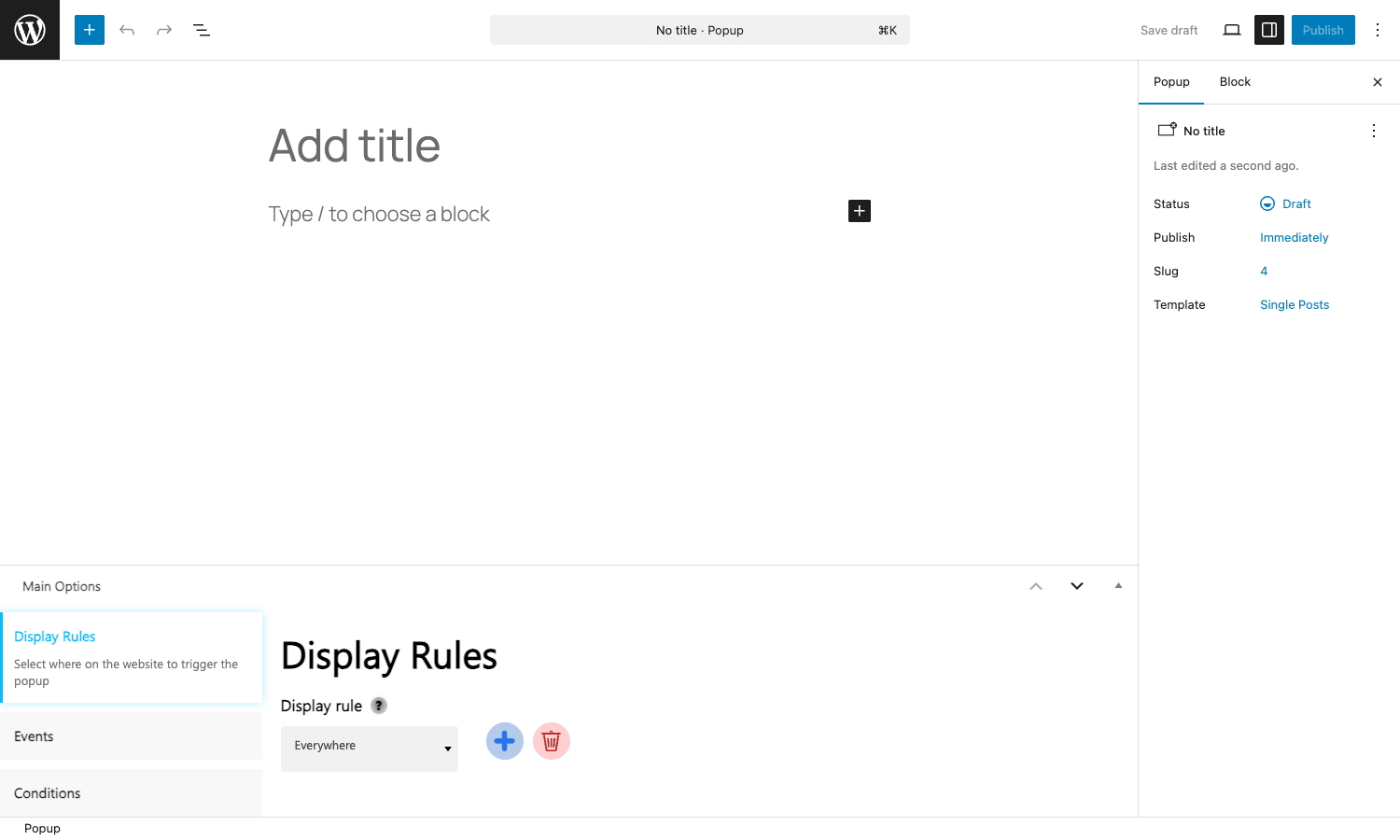
That Display Rules dropdown defaults to Everywhere. You can scope to specific URLs, exclude pages, target post types, or even use regex. Most people never leave Everywhere for site-wide announcement popups, and that’s fine. For per-page logic you typically embed the shortcode instead.
The Settings page is dry but worth keeping a tab open for:
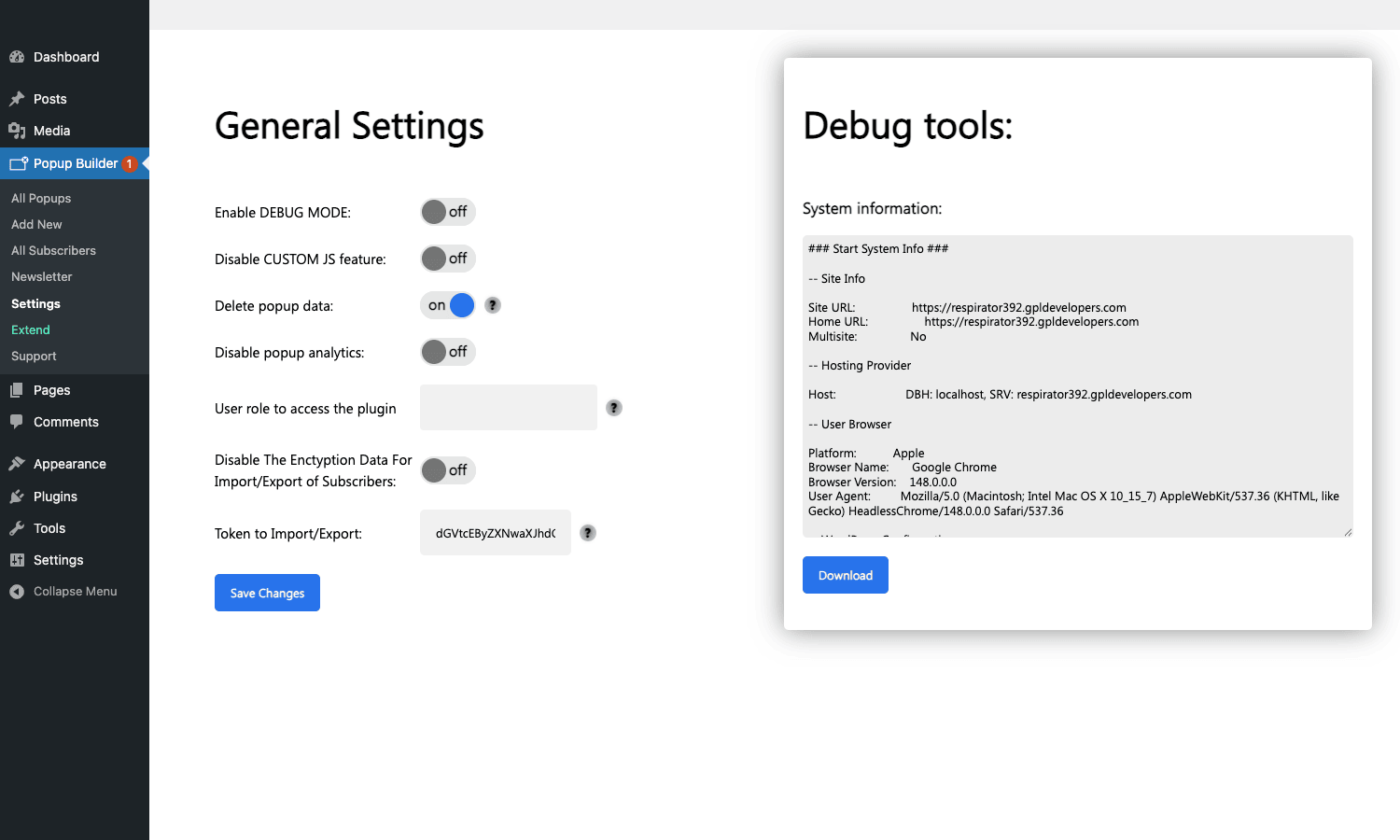
A few flags here that bite if you don’t know them:
- Enable DEBUG MODE dumps verbose JS logs in the browser console. Helpful when a popup refuses to fire and you cannot tell whether the trigger or the condition is the culprit. Turn it back off in production; the console noise is not free.
- Disable CUSTOM JS feature kills the ability to attach inline JavaScript to popup open/close. If you don’t need it, disabling it removes a small attack surface.
- Delete popup data, when ON, removes all subscribers, popups, and analytics on plugin uninstall. Treat this as a destructive flag.
- User role to access plugin restricts who in
wp-admincan edit popups. Leave it blank and only administrators can; set it toeditorif your content team needs in. - Token to Import/Export is the bearer-style token for the subscriber-list import/export. Treat it like a password.
The right column ("Debug tools") prints a system info dump, with site URL, host, browser/user agent, and WordPress configuration. The Download button packages it as a text file, which is what support will ask for if you open a ticket.
Installation and a first popup in ten minutes
If you’ve installed any WordPress plugin before, skip ahead. For everyone else:
- From the WordPress dashboard, go to Plugins -> Add New.
- Upload the zip (free version: from WordPress.org; Pro with add-ons: from the GPL Times Popup Builder package).
- Activate. A new top-level menu titled Popup Builder appears in the admin sidebar.
- Go to Popup Builder -> Add New. Pick Image for the first one, just to keep things simple.
- Upload your image in the block editor, set a click URL if you want it linked.
- Scroll to the Main Options meta box. Under Display Rules, leave it as
Everywherefor now. - Click the Events tab. Pick On Page Load with a 3-second delay.
- Click the Conditions tab. Add a condition: User Status = Not Logged In, so it only annoys new visitors.
- Publish the popup. WordPress saves it like a normal post.
- Visit the front of your site. Wait three seconds. Popup appears.
Total elapsed time: under ten minutes once you’ve done it once. The second popup, you can shave it to two.
If you want the popup tied to a specific element instead of a global trigger, copy the shortcode from the All Popups list. It looks like this:
<a href="#" class="newsletter-cta">Get the weekly update</a>
[sg_popup id="123" event="click"]
Drop both in a page or post. Click handler attaches automatically because the shortcode renders a tiny piece of JS that delegates a click listener to whatever sibling element matches the popup’s click selector.
A real scenario: rescuing checkout abandoners
Generic feature bullets are forgettable, so here is one extended walkthrough that ties most of Popup Builder’s machinery together. Imagine a WooCommerce store that ships physical goods, average order value around $80, and the analytics show roughly 70 percent of visitors who hit /cart/ never make it to /checkout/. Standard ecommerce problem. We want to catch those abandoners with a discount popup.
The popup is a coupon: 10 percent off, "Wait! Use code STAY10". It fires only on the cart page, only when the visitor moves their cursor toward the browser’s tab bar (exit intent), and only once per visitor in any 30-day window. New visitors and returning visitors both qualify; logged-out only, because logged-in repeat customers don’t need bribing.
In Popup Builder this maps to:
- Type: HTML popup. The body is a flex container, a discount headline, the coupon code rendered as a copy-to-clipboard span, and a single button labeled "Apply at checkout."
- Display Rules: URL contains
/cart. - Events: On Page Exit (exit intent). Free-tier sites would substitute "After 15 seconds on page" since the Exit Intent trigger is Pro.
- Conditions:
- User status = Not Logged In.
- Page condition: WooCommerce cart page only.
- Frequency: show once per 30 days (this is the "After N visits" rule inverted).
Saved. Tested in an incognito window. Cursor up to the tab bar, popup fires. Coupon code visible. The store’s checkout abandonment dropped because (a) the offer is generous enough to overcome the friction that made the visitor leave and (b) the timing catches them at the last possible moment.
This is the use case I keep coming back to for Popup Builder, because it tests four parts of the plugin at once. The HTML popup type (no template lock-in). The exit-intent trigger (the headline Pro feature). The page-specific Display Rule. The compound condition (logged-out and cart page and frequency capped). Almost every real-world popup is some variation of this stack.
A quick aside about exit intent on mobile: it doesn’t work the way you want. Mobile browsers don’t fire a mouseleave on the viewport edge because there is no mouse. Popup Builder, like every other plugin, falls back to "after a long-ish inactivity timer" on touch devices, which is not the same thing. I forgot this once and assumed my mobile exit popup was broken; really it was just waiting for the inactivity threshold. Test on actual devices, not the desktop browser’s mobile emulator.
Developer reference
This is the bit most articles skim over. Popup Builder’s developer surface is small but coherent, all prefixed with sgpb.
Custom post type
Popups are stored as popupbuilder posts. Standard WP_Query works fine:
$popups = get_posts( array(
 'post_type' => 'popupbuilder',
 'posts_per_page' => -1,
 'post_status' => 'publish',
) );

foreach ( $popups as $popup ) {
 error_log( sprintf( 'Popup #%d: %s', $popup->ID, $popup->post_title ) );
}
Each popup’s settings (type, triggers, conditions) are stored as post meta on the popupbuilder row. The keys are namespaced (sgpb-popup-type, sgpb-conditions, etc.) and serialized arrays, so it’s easier to use the plugin’s own helper class than to read post meta directly.
Shortcode
Only one shortcode exists, but it takes several attributes:
[sg_popup id="123"]
[sg_popup id="123" event="click"]
[sg_popup id="123" event="hover"]
[sg_popup id="123" event="onload" delay="3"]
When event is omitted the popup fires per its admin-configured trigger. Setting event="click" makes the immediate sibling element a click target, regardless of what was configured in the editor. The shortcode is render-cheap; it injects a small data attribute that the plugin’s front-end JS picks up.
Hooks
The core extension points, in order of usefulness:
// Register a custom popup type.
add_filter( 'sgpbAddPopupType', function( $types ) {
 $types[] = 'webinarReminder';
 return $types;
} );

// Add the human-readable label for that type.
add_filter( 'sgpbAddPopupTypeLabels', function( $labels ) {
 $labels['webinarReminder'] = __( 'Webinar reminder', 'mytheme' );
 return $labels;
} );

// Add a new condition row to the Conditions meta box.
add_filter( 'sgpbAdditionalConditionBuilder', function( $conditions ) {
 $conditions[] = array(
 'name' => 'subscriberTier',
 'label' => __( 'Subscriber tier', 'mytheme' ),
 'type' => 'select',
 'options' => array(
 'free' => 'Free',
 'pro' => 'Pro',
 'team' => 'Team',
 ),
 );
 return $conditions;
} );

// Bolt a custom meta box onto the popup editor.
add_filter( 'sgpbAdditionalMetaboxes', function( $boxes ) {
 $boxes[] = array(
 'id' => 'webinar-extra',
 'title' => 'Webinar details',
 'callback' => 'my_webinar_meta_box_callback',
 );
 return $boxes;
} );

// Enqueue extra JS/CSS on the popup editor screen.
add_filter( 'sgpbAdminJsFiles', function( $files ) {
 $files['my-popup-helper'] = array(
 'src' => plugins_url( 'js/my-popup-helper.js', __FILE__ ),
 'deps' => array( 'jquery' ),
 'version' => '1.0',
 );
 return $files;
} );

add_filter( 'sgpbAdminCssFiles', function( $files ) {
 $files['my-popup-helper'] = array(
 'src' => plugins_url( 'css/my-popup-helper.css', __FILE__ ),
 'deps' => array(),
 'version' => '1.0',
 );
 return $files;
} );
Two more hooks worth knowing about:
// Modify the data passed to the advanced targeting JS before render.
add_filter( 'sgpbAdvancedTargetingSavedData', function( $data, $popup_id ) {
 if ( 123 === (int) $popup_id ) {
 $data['utmCampaign'] = 'fall-launch';
 }
 return $data;
}, 10, 2 );

// Iterate every transient the plugin sets (handy for a cache purge tool).
add_filter( 'sgpbAllTransients', function( $transients ) {
 error_log( sprintf( 'Popup Builder is holding %d transients', count( $transients ) ) );
 return $transients;
} );

// Add a column to the subscribers admin table.
add_filter( 'sgpbAlterColumnIntoSubscribers', function( $cols ) {
 $cols['custom_segment'] = __( 'Segment', 'mytheme' );
 return $cols;
} );
Programmatic open/close from JavaScript
The plugin exposes a simple jQuery event API on the front end:
// Open a popup from anywhere on the page.
jQuery(window).trigger('sgpbOpenPopup', { id: 123 });

// Close a popup.
jQuery(window).trigger('sgpbClosePopup', { id: 123 });

// Hook into the open event for analytics.
jQuery(window).on('sgpbDidOpen', function (event, popup) {
 if (window.gtag) {
 window.gtag('event', 'popup_open', { popup_id: popup.id });
 }
});
That last block is the one you actually want in production. Forwarding popup opens and closes to your analytics layer is how you get real engagement numbers, because the in-plugin view counter only tracks page-load views, not popup interactions.
REST and admin AJAX
Popup Builder uses admin-ajax rather than the WP REST API for most front-end logic (subscriber submissions, view counter increments). The endpoints are nonced and the action names are also sgpb-prefixed. You can intercept submission server-side with add_action('sgpb_after_subscription_form_submission',...) if you need to push a captured email to a third-party CRM that doesn’t have an existing Popup Builder integration.
A small example, pushing every new email into a custom logging table for downstream processing:
add_action( 'sgpb_after_subscription_form_submission', function( $data ) {
 global $wpdb;
 $wpdb->insert( $wpdb->prefix. 'my_email_log', array(
 'email' => sanitize_email( $data['email'] ),
 'popup_id' => (int) $data['popup_id'],
 'created_at' => current_time( 'mysql' ),
 'source' => 'popup-builder',
 ) );
} );
The hook fires after Popup Builder has saved the row into its own subscribers table, so you are duplicating data, not replacing the built-in storage. That’s the safe pattern; trying to short-circuit the plugin’s own save tends to break the success-message UX.
Integrating with form plugins
If you already use WPForms for your contact and lead forms, you don’t have to duplicate that work in Popup Builder. Build the form in WPForms, embed its shortcode in an HTML popup, and let WPForms handle the submission. Popup Builder becomes the "container" and WPForms handles the actual capture + integration with your CRM. The benefit is one source of truth for form entries instead of two parallel subscriber lists.
Performance, compatibility, gotchas
Popup Builder ships a single front-end JS bundle per page that has any popup configured to load. It’s not asynchronous by default. On a page with three popups, you still get one script tag.
Three things to watch for:
The custom JS feature has a footgun. If you turn it on and paste broken JavaScript into a popup’s "On Open" callback, it will throw on every page that renders the popup. The error shows up in the browser console; the plugin doesn’t try to syntax-check. Disable Custom JS at the global level if you aren’t actively using it.
The view counter is lazy. It increments on each page load that includes the popup, not on each popup open. Real engagement numbers require wiring your own analytics events as shown above.
Subscriber data is plaintext by default. Email addresses in the All Subscribers table sit in the database as-is. The Settings page has a flag, "Disable The Encryption Data For Import/Export of Subscribers," which controls whether export files get token-wrapped. It does not encrypt at rest. If you collect emails through Popup Builder and need GDPR-style handling, build a deletion routine that drops rows from the wp_sgpb_subscribers table when a deletion request comes in.
Caching plugins can break exit intent in surprising ways. A page cache that strips trailing JS, or a JavaScript optimizer that defers everything, can delay the exit-intent listener attachment past the moment a visitor leaves. If you run WP Rocket or LiteSpeed Cache, exclude the Popup Builder JS handle from JS deferral. WP Rocket exposes this under File Optimization -> JavaScript -> Exclude Files. The handle is sgpb-public.
Multisite is mostly fine, but settings don’t sync. Each subsite has its own popups, its own subscriber table, and its own settings. There is no network-wide admin. For a network of 50 sites you would need to script popup deployment yourself.
The Facebook popup type is fragile. Meta has been steadily deprecating the page-plugin embed; the iframe sometimes renders a smaller box than expected, and on some logged-out states it renders nothing at all. If a campaign hinges on the Facebook popup type, test it weekly. Honest answer: most sites that try it once switch back to the HTML popup with a Facebook link inside.
Plugin updates can reset the All Subscribers table column order. Not data loss, just an annoyance: if you’ve added a custom column with sgpbAlterColumnIntoSubscribers the order can flip on update. Pin the filter priority (add_filter('sgpbAlterColumnIntoSubscribers', $cb, 999)) and the columns will sort the way you set them.
Where Popup Builder loses
Honest section. Popup Builder is good but not the best at everything.
-
The visual editor is not Convert Pro’s. Convert Pro from Brainstorm Force has a drag-and-drop builder that previews in real time. Popup Builder’s editor is the standard WordPress block editor plus a meta box. If your marketing team expects to design popups visually without touching HTML, Convert Pro is the better fit.
-
Templates are sparser than OptinMonster’s. OptinMonster ships dozens of conversion-tested templates with the look already done. Popup Builder ships fewer, and the ones it ships look more "WordPress plugin from 2019" than "high-converting SaaS landing page." Designers will want to override the styling, which is fine, but plan for the design work.
-
Analytics are basic. A view counter and per-popup totals. No A/B testing, no funnel reports, no comparison between two popups for the same campaign. OptinMonster does this natively. For Popup Builder you forward open events into Google Analytics or PostHog and segment from there.
-
Bloom is free if you already have Divi. This is the one that catches people. Bloom ships in the Divi/Elegant Themes membership at no extra cost. If you’re already paying for Divi, the email-opt-in portion of Popup Builder’s value is duplicated. Bloom has a narrower scope (opt-ins only), but if that’s all you need, Bloom is a saner choice for Divi-shop owners.
-
OptinMonster’s onboarding is more guided. You sit down in OptinMonster and the product walks you through your first campaign. Popup Builder gives you an empty list and trusts you to figure it out. Faster for experienced users, slower for first-timers.
None of this is fatal. It’s just where the trade-offs are. If you want best-in-class visual editing pay for Convert Pro. If you want best-in-class templates and A/B testing pay OptinMonster monthly. If you want a one-time license, a self-hosted plugin, and sixteen popup types from a 200,000-install codebase, Popup Builder is the right answer.
Pricing and licensing
The free version on WordPress.org gives you Image, HTML, Facebook, and Subscription popups. It is fully functional for basic use cases. Plenty of sites never need anything else.
Premium pricing from popup-builder.com is tiered. The Single tier covers one site, the Plus tiers cover more sites and bundle add-ons together, and there is a Lifetime option. Add-ons (Advanced Targeting, Advanced Closing, Mailchimp, Exit Intent, GeoTargeting, ConvertPlus templates) are sold individually if you only need one or two.
Popup Builder is GPL-licensed, which is what makes the GPL Times distribution possible. You won’t get support from Sygnoos directly through that route; that’s the cost-of-entry difference.
For a hobby site or a small business with one popup campaign at a time, the free WP.org build is enough. For an agency running ten clients, or a single site running geographic targeting plus exit intent plus WooCommerce add-to-cart events, you want Pro one way or another.
Final thoughts
A popup plugin’s job is to interrupt a visitor at the right time, with the right message, and then get out of the way. That’s a deceptively complex requirement, because "right time" means trigger logic, "right message" means content type, and "get out of the way" means clean uninstall + sensible defaults. Popup Builder gets most of it right. The trigger and condition system is fine-grained without becoming an essay to configure. The sixteen popup types cover almost every "I need a popup for X" request a real site has. The sgpb developer hooks are coherent enough that you can extend the plugin without forking it.
The slicker SaaS competitors will probably keep winning the marketing battle, partly because they have monthly-revenue budgets and Popup Builder has license-fee budgets. That’s the freemium asymmetry, and it’s why this kind of plugin is worth knowing. A 200,000-install free core funds the Pro line, the Pro line funds development, and the whole thing stays on your server with no ongoing dependency on someone else’s API. If you’ve been paying OptinMonster monthly out of habit, the Popup Builder line is worth a single afternoon of testing to see if your popup work has actually graduated past what a self-hosted plugin can do.