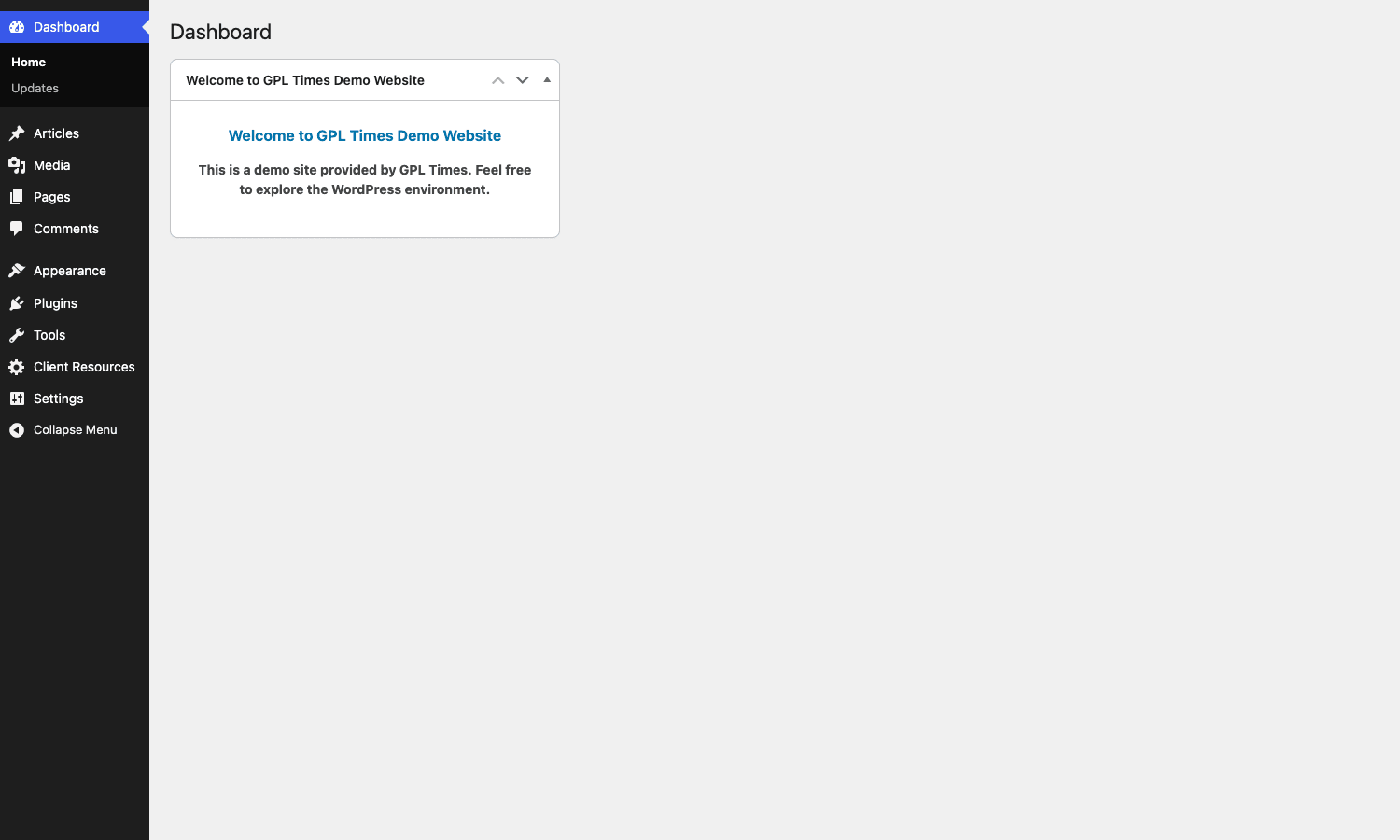
I’ve handed a WordPress admin to clients more times than I’d care to count. Most of them only ever needed to click into Pages, edit a few words, click Update, and log out. Half of them ended up in Tools, opened Site Health, scrolled the recommendations panel, and then emailed me at midnight asking if their site was broken. The other half clicked into Plugins, deactivated something they shouldn’t have, and went quiet for a week.
So I tried fixes. A custom mu-plugin with twenty remove_menu_page() calls that I’d copy-paste between sites. The free White Label CMS plugin, which is fine until a client needs ONE extra item shown and you have to dig into per-role overrides that don’t exist. The Members plugin plus a hand-rolled WordPress role, where you spend an hour mapping capabilities to menu items. WP Adminify, which is closer to the right shape but tries to be a dashboard plugin first and a menu editor second. And honestly? Just praying.
Admin Menu Editor Pro is what I should have started with. It’s a focused tool: drag-and-drop the WordPress admin menu, set who can see each item per role (or per user), brand the chrome with your own logo, save the whole thing as a JSON config and import it on the next site. No PHP. No mu-plugin. No "wait, which capability does the Tools menu check again?" rabbit hole.
This is a long walk through how it works, what’s actually different about it compared to the alternatives, and the parts where it has rough edges. Whether you’re an agency handing admins to clients or a developer extending the editor itself, you’ll know by the end whether it fits the work in front of you.
Table of Contents
- What is Admin Menu Editor Pro?
- The "client view" problem: what agencies actually need from admin customization
- Key features at a glance
- Installation and the first ten minutes
- A guided tour of the editor
- Per-role vs per-user: the priority gotcha that trips everyone
- Building a client admin from zero in 20 minutes
- What it can’t hide (and why a custom user role still matters)
- Branding the admin: where Admin Menu Editor stops
- Admin Menu Editor vs White Label CMS vs Adminify: when each one wins
- Developer reference: hooks, filters, shortcodes
- Performance, compatibility, and the gotchas
- Pricing and licensing
- FAQ
- Final thoughts
What is Admin Menu Editor Pro?
Admin Menu Editor Pro is a WordPress plugin by Janis Elsts (the developer behind w-shadow.com, who’s been shipping it for over a decade) that lets you rebuild the WordPress admin menu using a visual drag-and-drop editor. You can rename items, hide them, move them between top-level and submenu positions, change icons, add custom items that point to any URL inside or outside the admin, and set per-role permissions for everything.
The free version on WordPress.org gets you about half of that. The Pro version adds per-role and per-user permissions, plugin and meta-box visibility, an admin customizer for branding the WordPress admin, login-redirect rules, a tweaks tab that hides things WordPress puts there by default (Help tabs, Screen Options, profile fields), and the Branding add-on for replacing the WordPress logo on login and dashboard.
The plugin’s positioning is honest: it’s a menu editor first. It’s not a security plugin (it doesn’t lock you out of pages you reach by direct URL unless the underlying WordPress capability allows it), and it’s not a full admin theme (it customizes the menu, not the colors of every screen). What it does, it does better than any other tool in the category, and it does it without dragging in a hundred unrelated features.
If you want the GPL-licensed version that ships with all the Pro modules and add-ons, Admin Menu Editor Pro on GPL Times is where I grabbed the copy used in this walkthrough. Install it, switch on the modules you want, and the rest of this article is the path I’d take next.
The "client view" problem: what agencies actually need from admin customization
Skip this section if you’ve never handed a WordPress admin to a non-developer. If you have, you know the shape of the problem.
A client logs into WordPress for the first time. They see fourteen menu items, half of which mean nothing to them. They see a Tools menu they don’t need, an Appearance menu where the wrong click changes their theme, a Plugins menu where the wrong click can take the site offline, and a Settings menu deep enough to ruin their week. The handoff conversation always includes some version of "don’t touch X, Y, or Z." That conversation should not exist. The admin should already not show X, Y, or Z to a client.
The five things an agency-style client admin actually needs:
- A short menu with only the items the client uses. For a marketing-site client that’s usually Pages, Media, and a "Help" link. For an e-commerce client it’s Products, Orders, Customers.
- No way to break things. Tools is gone. Plugins is gone. Appearance is restricted to maybe a Widgets sub-item.
- Clear, plain language. "Posts" becomes "Articles" or "Blog". "Pages" becomes "Website Pages". Custom post types use the names the client uses internally.
- A custom link or two, pointing at internal documentation, a contact form for support, or a third-party SaaS the client uses every day.
- A "looks like ours" feel. The WordPress logo on login is replaced with the client’s logo. The dashboard widget pointing at WordPress.org news is gone. The footer says "Built and maintained by Agency Name."
The free remove_menu_page() approach handles #1 badly. Capability juggling with the Members plugin handles #2 but creates a permissions tangle. None of them handle #3, #4, or #5 well. Admin Menu Editor Pro handles all five from one interface and keeps the config portable as a JSON export, so the same client view can be rolled out to ten sites in an afternoon. That’s the agency angle, and it’s what the plugin was built for.
Key features at a glance
Rather than dump the marketing list, here’s what actually changes the day-to-day experience.
- Drag-and-drop menu rebuild. The signature feature. Reorder top-level items, drag submenu items between parents, drop items into a separator, all from one screen. The implementation is the cleanest in the category. Items show drag handles, sit in tidy droppable lanes, and snap into place without weird flicker.
- Per-role visibility checkboxes. Each menu item has a checkbox per role: Administrator, Editor, Author, Contributor, Subscriber, plus any custom role you’ve added. A single click toggles visibility for that role. Hidden items are dimmed so you can see the full menu shape while still knowing what’s hidden.
- Per-user overrides. When a single user needs to see something their role doesn’t (or vice versa), the "Choose users…" picker adds a per-user actor. User overrides take priority over role rules. More on the gotcha below.
- Custom menu items. Add a top-level item pointing to any URL: an internal admin page, an external SaaS, a help center, a custom plugin screen, or a target=_blank link to your agency dashboard. Pick from the full Dashicons set or upload your own icon.
- Custom icons and colors. Pro lets you upload a custom icon URL for any menu item. Combined with the Admin Customizer module, you can recolor the entire menu chrome.
- Plugin visibility per role. Hide specific plugins from the Plugins screen for non-admin roles. Useful when you’ve installed thirty plugins and only want the client to see the two they interact with.
- Meta-box visibility. Hide specific meta boxes from the post editor on a per-role basis. SEO boxes, custom field boxes, anything registered via
add_meta_box(). - Dashboard widget visibility. Same idea for the dashboard. Hide the WordPress News widget, hide that one plugin’s promo widget, leave only the widgets the client should see.
- List-table column visibility. Choose which columns show up on Posts, Pages, Users, Media list tables per role.
- Role editor. A built-in WordPress role-capability matrix where you can grant or revoke capabilities without writing PHP. Lighter than the dedicated User Role Editor Pro, but enough for most agency setups.
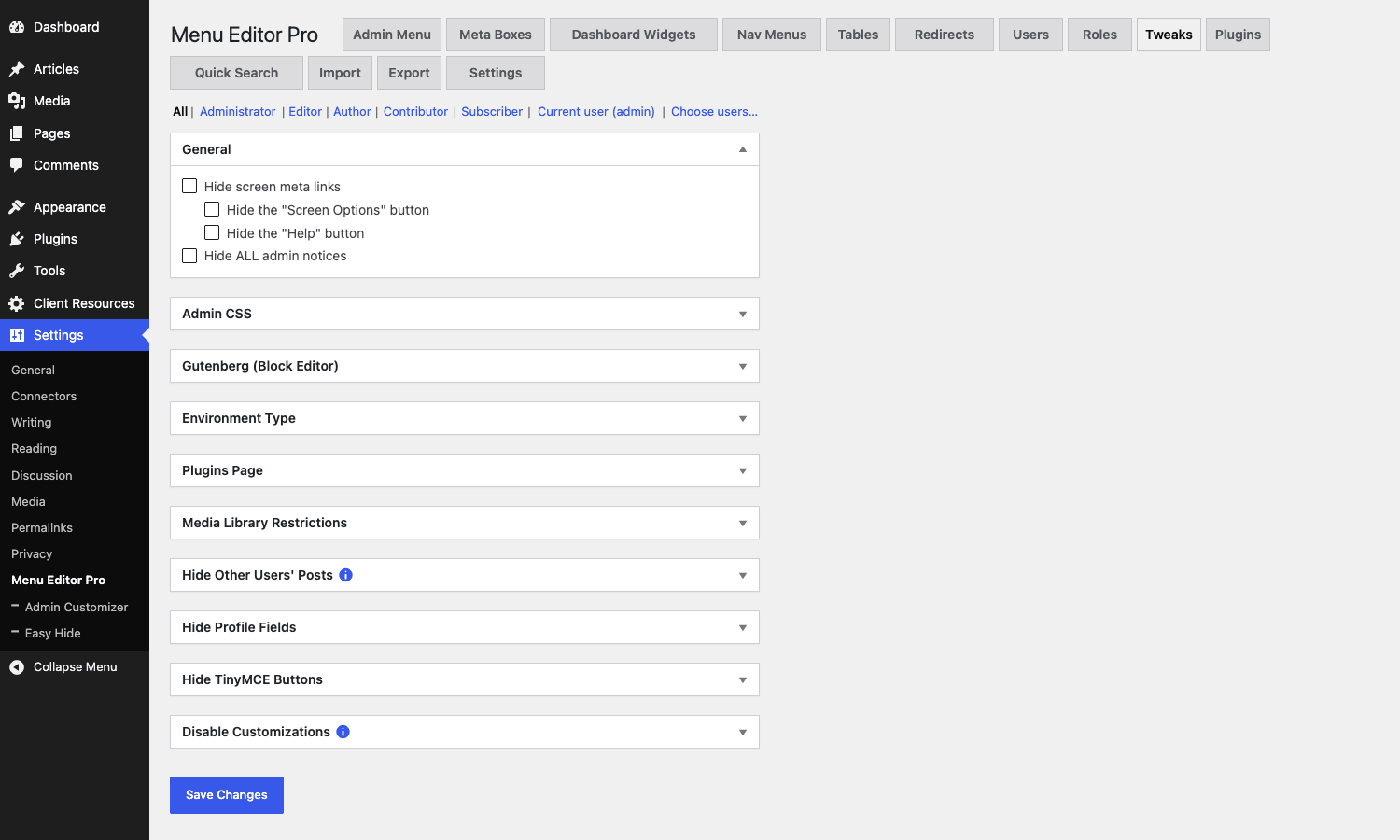
- Tweaks. A tab of "hide the WordPress quirks" toggles. Hide Screen Options, hide Help tab, hide profile fields, hide TinyMCE buttons, hide admin notices, hide the Gutenberg welcome panel. Per-role.
- Login and logout redirects. Send each role (or specific user) to a custom URL after login or logout. Editor logs in, lands on
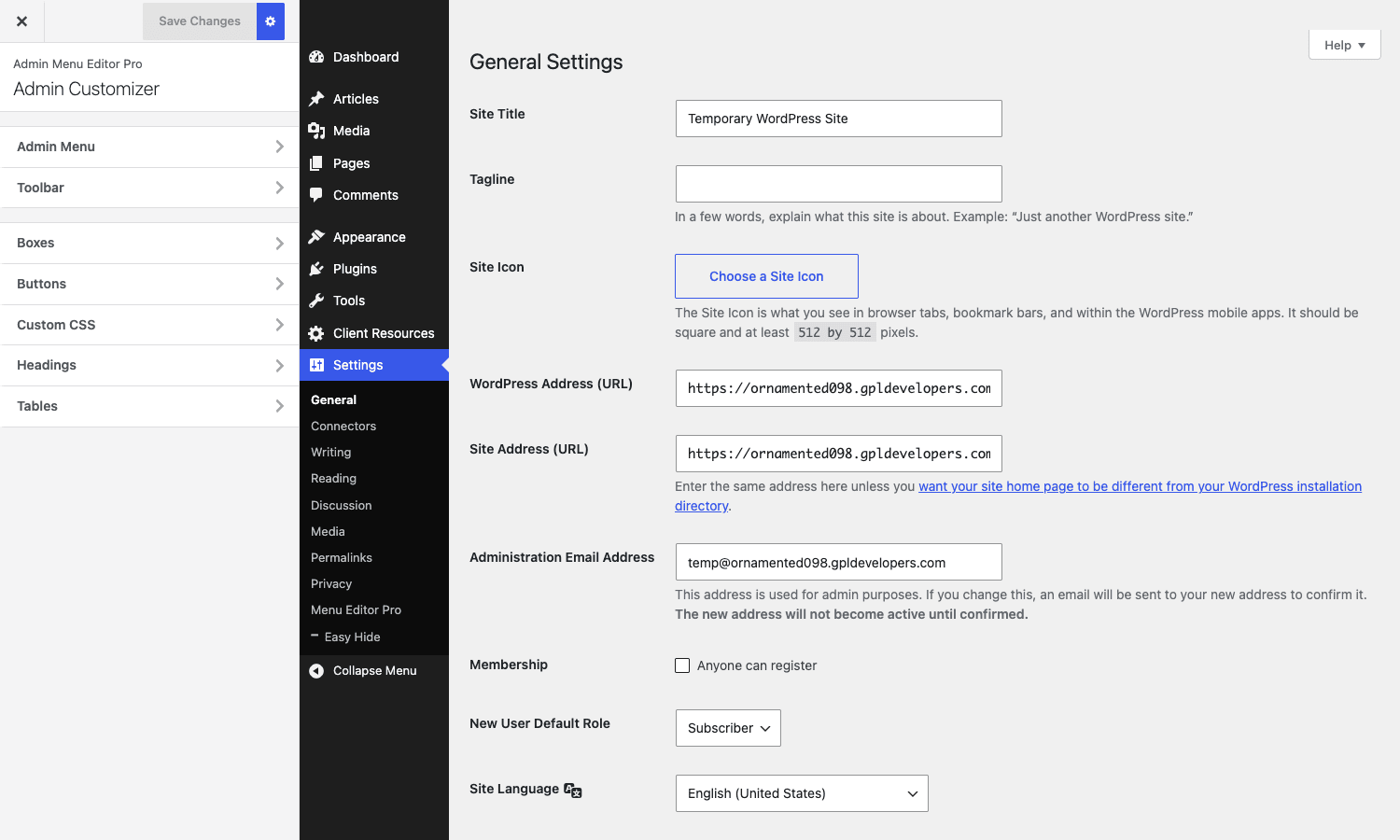
/wp-admin/edit.php. Subscriber logs in, lands on a custom front-end profile page. - Admin Customizer (Pro). A live-preview editor for buttons, headings, tables, custom CSS, and toolbar. Click any element in the preview, edit its style on the left, save.
- Branding add-on (Pro). Replace the WordPress logo on the login screen, replace the favicon, replace the WordPress.org link in the toolbar.
- Import/export. Save your full config (menu, permissions, tweaks, redirects, branding) as a JSON file. Import it on another site. The agency-multiplier feature.
- Multisite support. The editor knows the difference between the per-site admin menu and the network admin menu, and stores them separately.
That’s the practical list. Most of it is on by default; modules like Plugin Visibility and the Admin Customizer can be toggled off if you don’t need them.
Installation and the first ten minutes
Install Admin Menu Editor Pro the way you install any WordPress plugin: Plugins -> Add New -> Upload Plugin -> select the zip -> Activate.
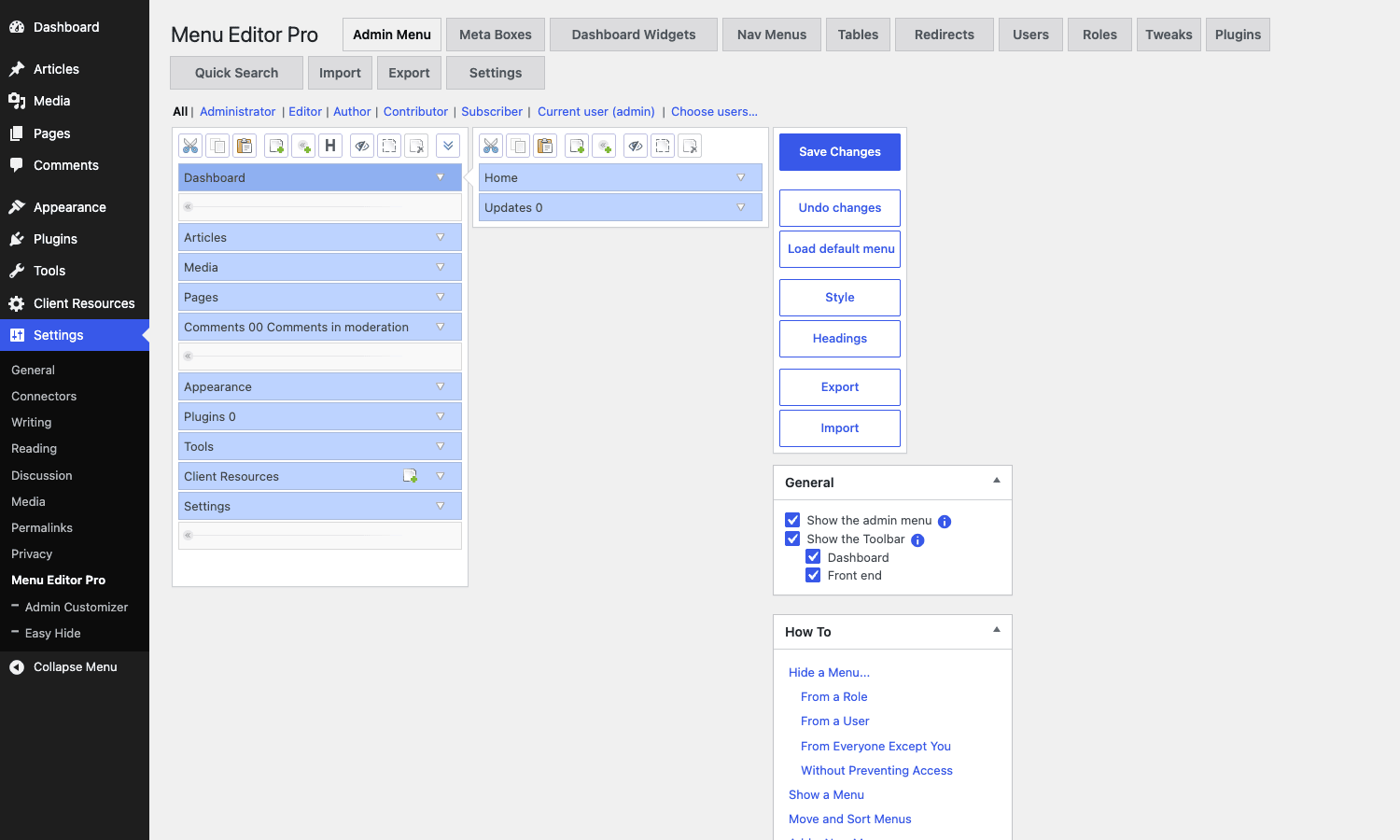
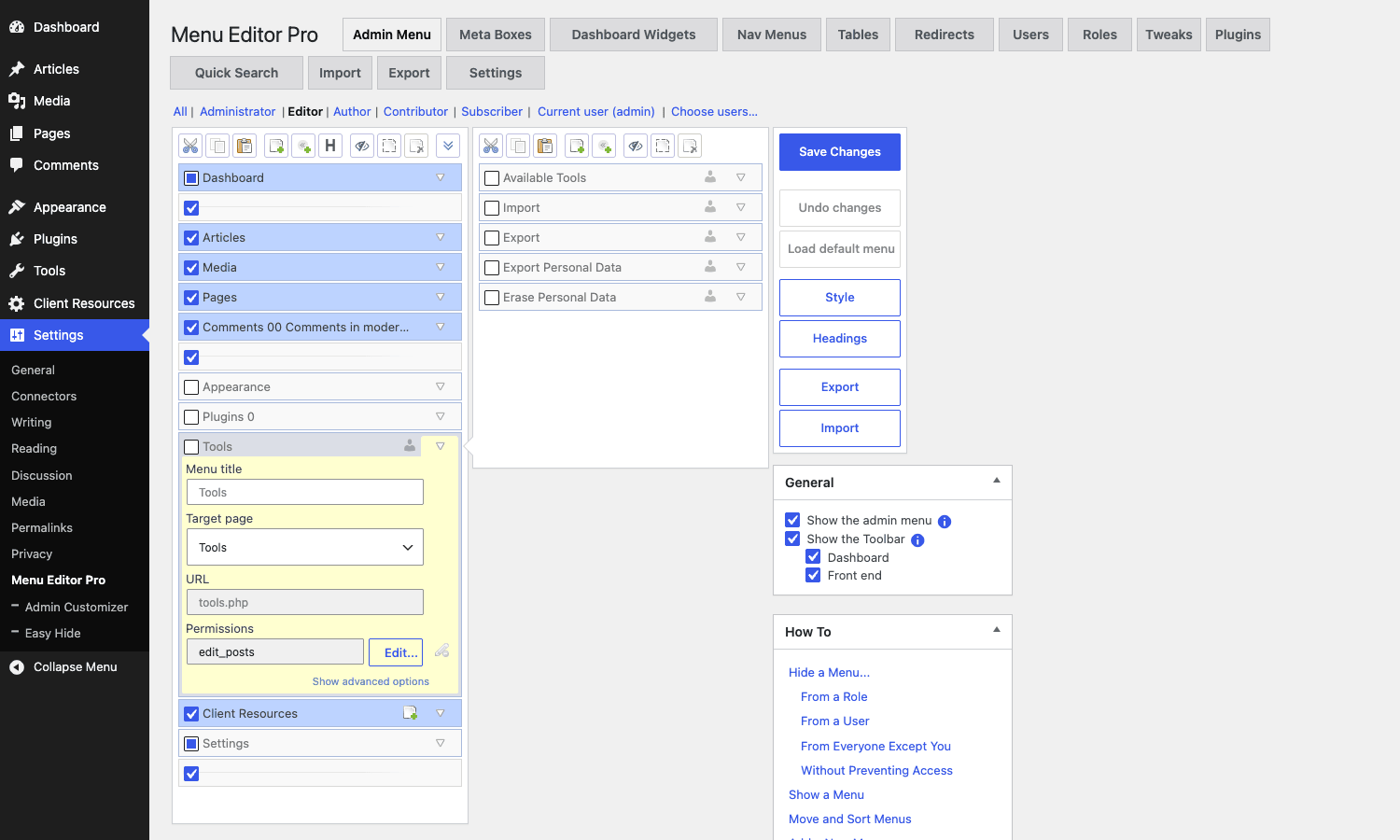
When you activate, the editor lives at Settings -> Menu Editor. The first time you open it, you’ll see the current admin menu rendered as a stack of draggable rows on the left, an empty submenu column in the middle (it populates when you click an item), and a toolbar of buttons at the top of each column for cut/copy/paste/hide/delete/new menu/new separator.
The actor selector chips above the editor (All | Administrator | Editor | Author | Contributor | Subscriber | Current user (admin) | Choose users...) are how you tell the editor "show me what this role sees." Click "Editor" and the menu re-renders with checkboxes next to each item showing what’s visible to Editors. Uncheck Tools, save, and Tools no longer shows up for Editor-role users.
Three things worth knowing in the first ten minutes:
- Save Changes commits everything. There’s no per-tab save. The big blue button on the right saves the menu, role permissions, tweaks, redirects, all of it. There’s also an "Undo changes" button that reverts to the last save. Use it.
- "Load default menu" is a reset. It rebuilds the menu from whatever WordPress and your active plugins currently register. Click it if you’ve installed new plugins and the editor is showing the old menu shape.
- The "Permissions: edit_posts" field on each item is the raw WordPress capability. Per-role checkboxes set the AME-level visibility, but if you also change the capability here, every plugin and theme that checks that capability respects it. They’re separate layers and they both matter. More on that in the "What it can’t hide" section.
A guided tour of the editor
There are fourteen tabs in the Pro editor across the top: Admin Menu, Meta Boxes, Dashboard Widgets, Nav Menus, Tables, Redirects, Users, Roles, Tweaks, Plugins, Quick Search, Import, Export, Settings. You don’t need most of them on most sites. Here’s what they actually do.
Admin Menu is the headline screen. The left column is top-level menu items; the middle column is the submenu of whichever item you’ve clicked; the right column is action buttons (Save, Undo, Load default, plus a few utility tools).
Click any item, then the small downward arrow on the right of that row to expand the inline editor. You’ll see Menu title (rename it), Target page (the WordPress slug or URL it goes to), URL (the actual destination), Permissions (the WordPress capability), and a row of toggle switches for "open in new window," "include in admin search," and so on. Pro adds an "extra capability" field below permissions that accepts compound expressions like manage_options OR user:johndoe.
Meta Boxes lists every registered meta box across post types with per-role checkboxes. This is the cleanest way to hide, say, the Yoast SEO meta box from Contributors without writing PHP. The list refreshes every time you visit the tab so newly-registered boxes (after activating a new plugin) show up.
Dashboard Widgets is the same idea for the dashboard. Click "Welcome" off and the WordPress welcome panel never appears for that role.
Nav Menus controls visibility of front-end Appearance -> Menus locations, not the admin menu itself. Slightly confusing naming but it’s exactly what it sounds like.
Tables is the list-table column toggle. Choose which columns Editors see on Posts, Pages, Users, Comments. Useful when you have ten meta columns from Admin Columns Pro and want the client to see two.
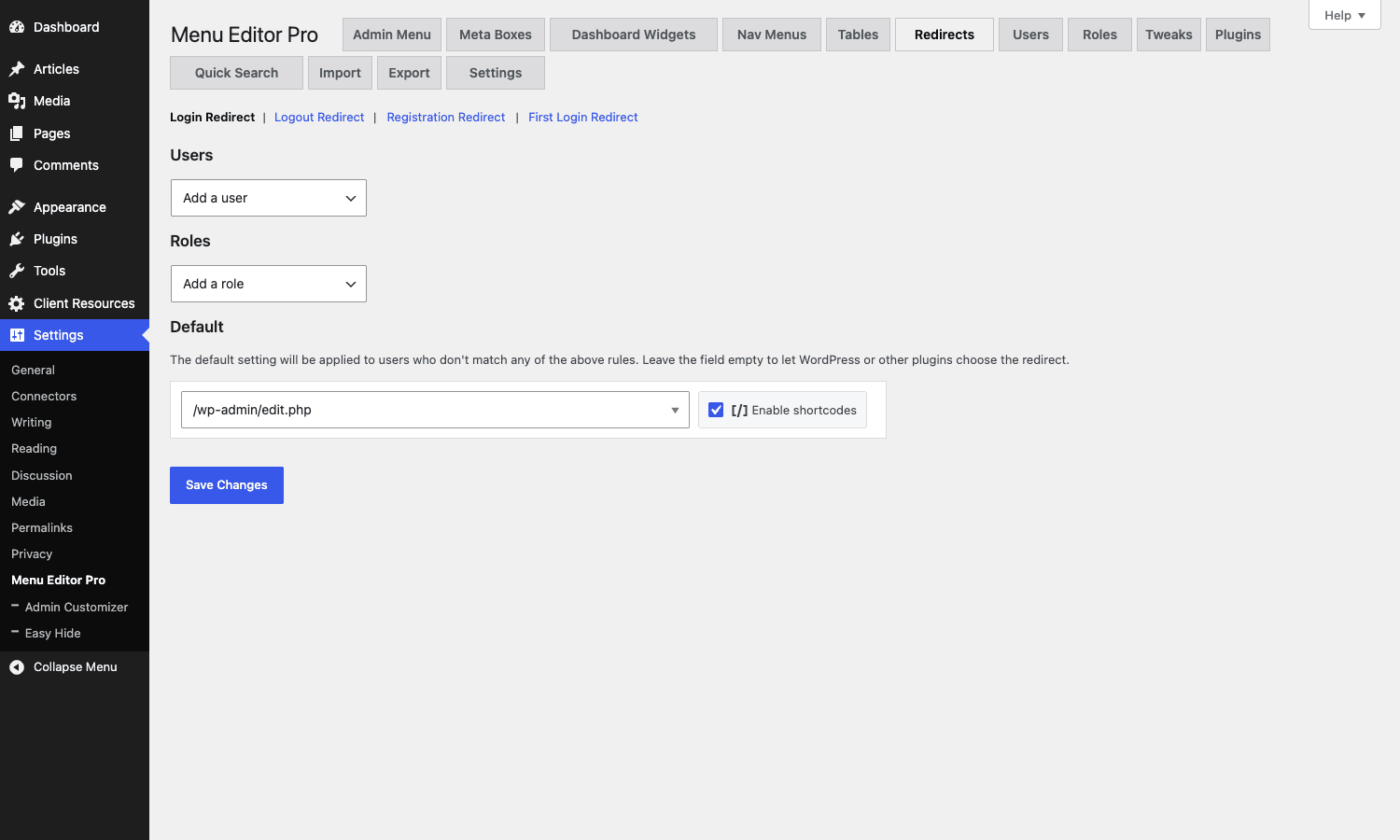
Redirects is one of the most underused features. Set a per-role login redirect (where they land after logging in), logout redirect (where they go after logging out), registration redirect (where new users land), and first-login redirect (a special one-time URL for first-time logins). I use it constantly for client sites where the dashboard isn’t where the client should land.
Users lets you choose which users non-admins can see on the Users screen. Hide your own admin account from the client’s view. Or hide users in a specific role.
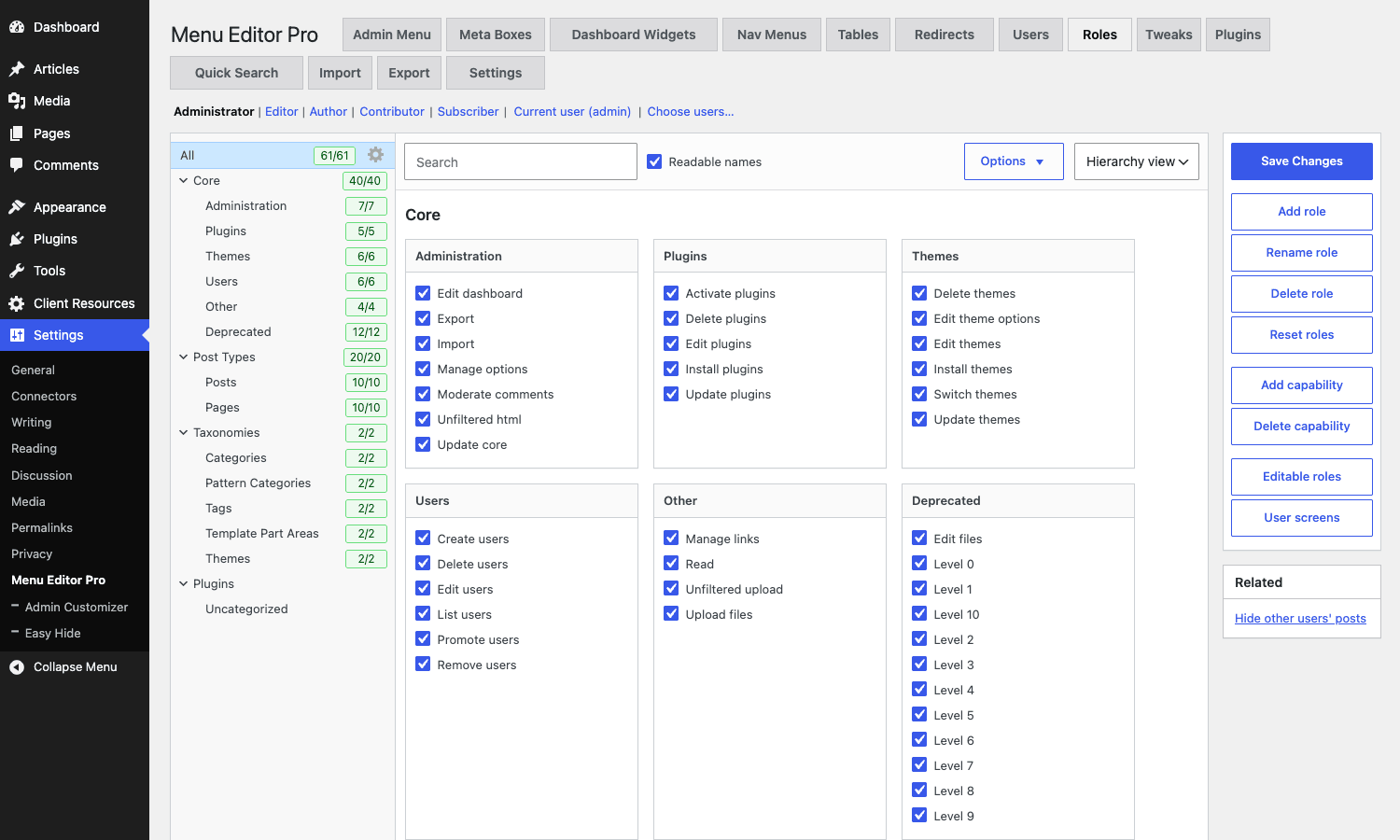
Roles is the built-in role editor. A capability matrix where you check and uncheck capabilities per role. Same job as the User Role Editor plugin, lighter touch.
Tweaks is the WordPress-quirks tab. Hide screen meta links, admin notices, Gutenberg welcome panel, profile fields, TinyMCE buttons, the entire admin bar, the help tab. Per-role.
Plugins controls plugin visibility on the Plugins screen.
Quick Search is a settings page for the in-admin search overlay (Pro adds a global search you can open with a keyboard shortcut). I never use this. Your mileage may vary.
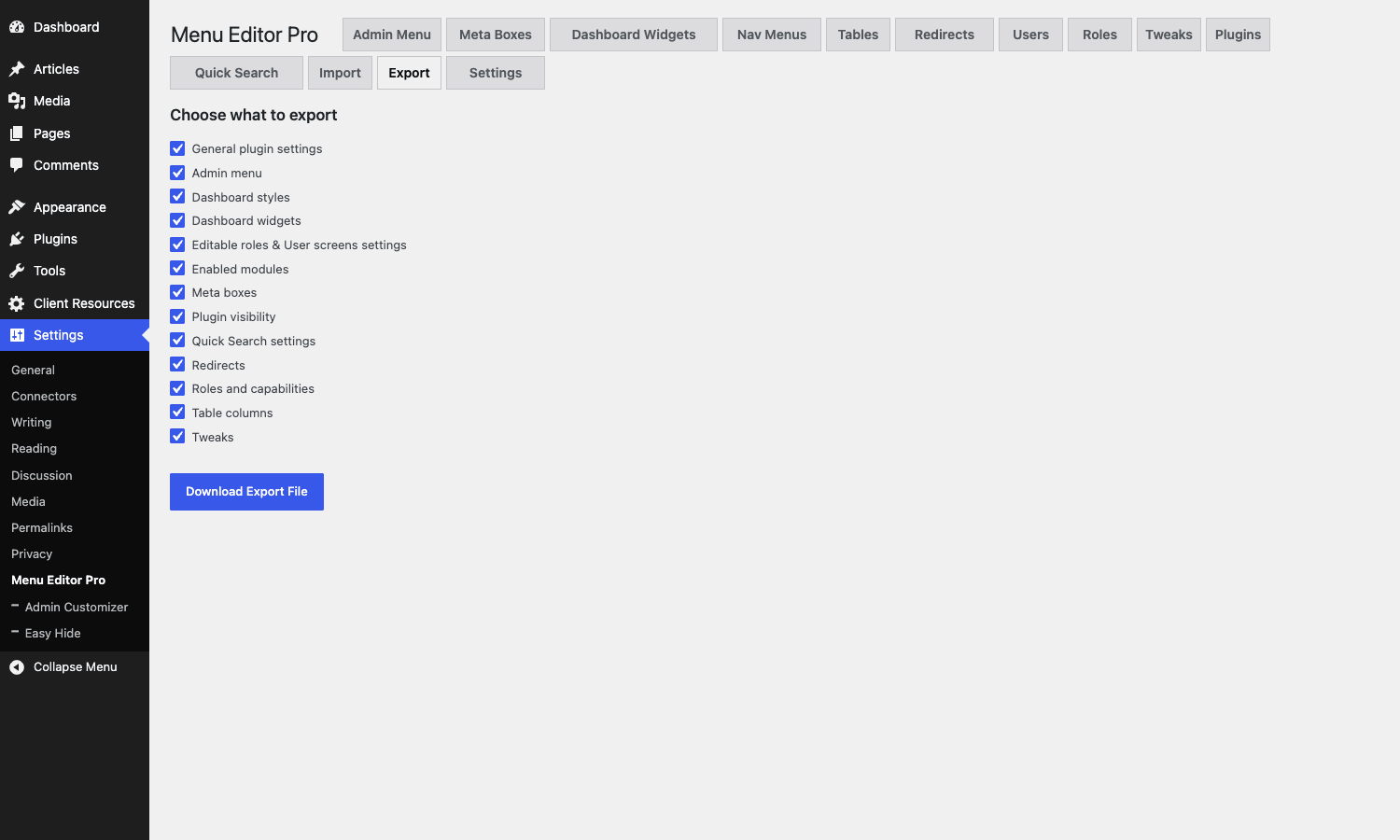
Import / Export is the agency superpower. Export the full config as JSON, import it on the next site. Includes menu structure, all role permissions, all tweaks, branding, redirects. Saves hours per site.
Settings is the plugin’s own settings: which modules are enabled, license info, who can access the editor itself (default: anyone with manage_options), and a few smaller toggles.
Per-role vs per-user: the priority gotcha that trips everyone
This one bites people. Hard.
Admin Menu Editor Pro stores three layers of permission rules: a default rule for "All" (which is roughly the underlying WordPress capability), per-role rules (Editor can see Tools, Author cannot), and per-user rules (this specific user gets a different override). The layers stack with a fixed priority: per-user wins over per-role, per-role wins over the default.
That sounds simple. Where it goes wrong is when an agency builds a client view by hiding Tools for Editor, then later adds a per-user override that grants the same Editor user access to one specific tool submenu. The submenu shows up. But the parent Tools menu was hidden at the role level, so the submenu has nowhere to render. The Editor logs in and can’t see the tool anywhere even though their user override grants access.
The fix is to always think about the rule chain as: per-user fills in what per-role allows, which fills in what default allows. If you’ve hidden a parent item at the role level, your per-user override has to also include the parent. The editor doesn’t warn you when this happens. Future versions might, but as of now you have to know to look for it.
A second gotcha lives in the extra capability field. That field accepts a small expression language: standard WordPress capabilities (edit_posts), virtual user capabilities (user:johndoe), boolean operators (AND, OR, not). Pro lets you say things like manage_options OR user:client_jane to make a menu visible to admins OR specifically to one client user. Very powerful, but the syntax is parsed strictly. If you write editor (the role name) instead of a capability, nothing happens. Roles aren’t capabilities. You need to use a capability that role has (like edit_others_posts for Editor) or use the user: shortcut.
The takeaway: when in doubt, pick role-level rules and stop there. Bring in per-user overrides only for actual exceptions, and remember to also extend the parent menu’s permissions when you do.
Building a client admin from zero in 20 minutes
This is the workflow I actually use on agency sites. It looks long written out. In practice it takes about twenty minutes per site after the first one.
- Install the plugin. Activate. Open Settings -> Menu Editor.
- Pick the actor. Click the "Editor" chip in the actor selector above the menu. Everything from here is "what the Editor role sees."
- Uncheck everything the client doesn’t need. Tools, Settings, Comments (if they don’t moderate), Appearance (unless they manage menus), Plugins, Users (unless they invite teammates). Each uncheck is instant.
- Rename what’s left. Click Posts, expand the editor, set Menu title to "Articles" (or "Blog" or whatever the client calls it). Save Pages as "Website Pages." Save Media as "Files." Use plain language.
- Add a Help item. Click "New menu" in the toolbar. Set Menu title to "Help & Support." Set URL to your support form, your docs site, or your contact email (use a
mailto:URL and it opens the email client). Set the icon todashicons-sos. - Switch to "All" and verify the admin view. Make sure your changes don’t affect the Administrator role’s menu. The actor selector lets you preview each role’s view live.
- Hide dashboard widgets. Go to Dashboard Widgets tab. As Editor, uncheck the WordPress News widget, the site health widget, any plugin promo widgets. Leave the At a Glance widget. Save.
- Set the login redirect. Go to Redirects tab. Add a rule for the Editor role: redirect to
/wp-admin/edit.php(or wherever they should land first). Save. - Tweak the chrome. Tweaks tab. Hide Help tab, hide Screen Options, hide TinyMCE more-tags button, hide admin notices for the Editor role.
- Export. Import/Export tab. Download the JSON. Save it to your agency’s shared drive as
client-baseline.json.
On the next client site, you start at step 1, then jump to "Import" with that JSON. You’re done in five minutes. The baseline is the multiplier; per-client tweaks (custom URLs, custom logo, specific menu items) layer on top of it.
What it can’t hide (and why a custom user role still matters)
This is the part the marketing copy glosses over and I think you should hear out loud.
Admin Menu Editor hides menu items. It does not, by default, block access to the underlying admin URL.
That means: if you hide the Tools menu from Editors, an Editor who knows that tools.php is the URL can paste that into their browser and reach the Tools screen anyway. The menu is gone. The page is not.
The reason is by design. The plugin is a menu editor, not a permissions engine. WordPress itself decides whether tools.php is reachable based on the current user’s capabilities (edit_posts for tools.php by default). The menu is just a navigation aid. Hiding the link doesn’t block the page.
There are two ways to actually block access:
- Use AME’s "Permissions" field on each menu item. If you set the capability of the Tools menu to
manage_options(admin-only), then non-admin roles can’t load the page because WordPress itself blocks them. AME provides a UI for this, but you have to know to use the Permissions field instead of (or in addition to) the per-role visibility checkbox. - Adjust the role’s capabilities. Use the Roles tab, find the capability that controls the screen you want to block, and remove it from the role. The page then 403s for that role even if they paste the URL directly.
For an agency client view, option 2 is usually the right answer. Build a custom role (call it "Client Editor") that has only the capabilities the client needs (edit_posts, upload_files, manage_categories), and skip everything else. Then assign the client to that role. AME’s menu editor cleans up the chrome; the role itself enforces what’s reachable.
Don’t hide the Plugins menu from a client and then leave them with the activate_plugins capability. They can still load /wp-admin/plugins.php by URL and deactivate things. The menu hides; the capability is what blocks.
I wish Admin Menu Editor had a "lock down all hidden items" master toggle that adjusted capabilities for the matching items. It doesn’t. You do that manually via the Permissions field or the role editor. Calling that out so you don’t get caught.
Branding the admin: where Admin Menu Editor stops
The Branding add-on (separately enabled inside Pro) covers the login screen logo, the admin toolbar logo, the favicon, and a couple of color tokens. It doesn’t:
- Recolor the entire admin (the Admin Customizer covers the menu chrome but not every screen). For a fully-themed admin, you reach for a dedicated white-label plugin like White Label Pro.
- Replace the WordPress version in the admin footer (some white-label plugins do this; AME’s Tweaks tab can hide the version string but not replace it).
- Hide all "Powered by WordPress" mentions everywhere. The login screen and dashboard widgets are covered; everything else needs custom CSS via the Admin CSS module in Tweaks.
If full white-labeling is the requirement, treat AME as the menu + permissions layer and pair it with a dedicated branding plugin (or a full admin suite like WP Adminify Pro, which bundles white-label, login design, and a menu editor in one). The two coexist cleanly: AME handles "what does the client see" and the branding plugin handles "what does it look like."
For most agency cases, the Branding add-on plus the Admin Customizer is enough. Login logo, custom dashboard widget, custom footer text, "Maintained by Your Agency" link to your support page. That’s the 80% case.
Admin Menu Editor vs White Label CMS vs Adminify: when each one wins
There are three plugins agencies reach for. I’ve shipped client work with all three over the years. Here’s an honest pick-by-need breakdown.
Admin Menu Editor Pro wins when the core job is "rebuild the menu and lock down what each role sees, per page, with import/export portability." If you want drag-and-drop reorder, custom items pointing anywhere, granular role-and-user visibility, and a JSON config you can ship to ten sites, this is the answer. The editor itself is functional but visually dated. You can tell it was first designed in 2012. The UX has aged.
WP Adminify Premium wins when you want a modern admin dashboard look, dark mode, custom login pages, and a menu editor as one part of a bigger admin suite. Adminify’s UI is the prettiest of the three. Its menu editor is good but not as deep as AME’s per-role permissions. If your client wants the admin to "feel modern" first and per-role permission detail second, Adminify is the easier sell.
White Label Pro wins when full white-labeling is the priority: login screen, dashboard, every WordPress branding mention. Its menu editor is lighter than AME’s but the branding coverage is broader.
The free White Label CMS plugin gets you most of the branding for free, but its menu editor is weaker than any of the three Pro options. Fine for a single site you’ll never touch again. Not enough for an agency.
My default stack: Admin Menu Editor Pro for the menu and permissions layer, plus a small custom mu-plugin for any client-specific branding tweaks the AME Branding add-on doesn’t cover. Adminify when the client wants a "modern" admin. White Label Pro when the deliverable is "the WordPress brand never shows up anywhere."
Developer reference: hooks, filters, shortcodes
Admin Menu Editor Pro stores its config as a single ws_menu_editor row in wp_options, holding a serialized PHP array of the full custom-menu structure plus per-role permission grants. The plugin replaces WordPress’s default admin-menu walker with its own walker at priority PHP_INT_MAX - 10 + 1 (set in includes/menu-editor-core.php), so it wins against plugins that register late on the admin_menu action.
Most of the time you’ll modify menus through the visual editor. But when you want to programmatically inject items, change capabilities for one item, or react when AME has finished building the merged menu, the plugin exposes a deep set of hooks.
Actions
admin_menu_editor-menu_built fires after the merged custom menu is computed but before it replaces WordPress’s $GLOBALS['menu']. This is the best place to mutate the final menu programmatically.
add_action('admin_menu_editor-menu_built', function ($merged_menu, $editor) {
 // Inject a programmatic item that's not in the saved config.
 if (current_user_can('manage_options')) {
 $merged_menu[] = array(
 'menu_title' => 'Server Status',
 'page_title' => 'Server Status',
 'capability' => 'manage_options',
 'file' => 'tools.php?page=server-status',
 'icon_url' => 'dashicons-cloud',
 'position' => 99,
 );
 }
}, 10, 2);
admin_menu_editor-menu_replaced runs after AME has swapped its walker into $GLOBALS['menu']. Use this for audit logging of menu replacements.
admin_page_access_denied fires when AME blocks a user from a page their role isn’t allowed to load. Hook this to write to a log so you can spot users hitting walls they shouldn’t be.
add_action('admin_page_access_denied', function () {
 $user = wp_get_current_user();
 $screen = get_current_screen();
 error_log(sprintf(
 '[AME] Access denied: user=%s, page=%s',
 $user->user_login,
 $screen? $screen->id : $_SERVER['REQUEST_URI']
 ));
});
admin_menu_editor-settings_changed fires after Save Changes. Useful for triggering a config-export or syncing the JSON to a shared store across multiple sites.
Filters
admin_menu_editor-capability filters the capability that AME returns to WordPress for each menu item. Use this to dynamically promote or demote permissions per request.
add_filter('admin_menu_editor-capability', function ($capability) {
 // Demote any 'manage_options' menu to 'edit_posts' when the user is on staging.
 if (defined('WP_ENV') && WP_ENV === 'staging' && $capability === 'manage_options') {
 return 'edit_posts';
 }
 return $capability;
});
admin_menu_editor-virtual_caps adds synthetic capabilities for the current user. AME uses this to support the user:username syntax in the Extra Capability field.
add_filter('admin_menu_editor-virtual_caps', function ($caps, $user) {
 // Grant a synthetic capability to users whose email ends in @agency.com.
 if (str_ends_with($user->user_email, '@agency.com')) {
 $caps['agency_staff'] = true;
 }
 return $caps;
}, 10, 2);
You can then set the Extra Capability on a menu item to agency_staff and AME makes it visible to anyone with that synthetic cap.
ame_pre_set_custom_menu is the last hook before the menu is written to wp_options. Use it for programmatic config management, e.g. forcing a specific menu structure regardless of what an admin saves.
admin_menu_editor-tabs lets you register a custom tab in the editor.
add_filter('admin_menu_editor-tabs', function ($tabs) {
 $tabs['agency-tools'] = 'Agency Tools';
 return $tabs;
});

add_action('admin_menu_editor-section-agency-tools', function () {
 echo '<h3>Agency-only settings</h3>';
 echo '<p>This tab is only registered programmatically.</p>';
});
admin_menu_editor-script_data is a bag of PHP-side data exposed to the editor’s JavaScript. Use it to pass server-side state into the editor UI without rolling your own AJAX endpoint.
custom_admin_menu_capability filters the capability required for a single AME-added custom menu item. Hook this when a third-party plugin adds capabilities and you want AME’s custom items to inherit them.
Shortcodes
AME ships four shortcodes for dynamic content in menu fields:
[ame-wp-admin]outputs the current admin URL. Useful inside custom menu URLs.[ame-home-url]outputs the site home URL.[ame-user-info field="display_name"]outputs the current user’s profile field.[ame-count-bubble count="3"]renders a numeric badge next to a menu item.
The [ame-count-bubble] shortcode is the one I reach for most. If you have a custom "Pending Reviews" menu item, you can drop [ame-count-bubble count="3"] into the title and the menu shows a red bubble with "3" the way Comments shows pending count. Combine with a apply_filters('admin_menu_editor-count_bubble_value',...) callback to drive the number from your own data source.
Storage
The whole config lives in wp_options under the ws_menu_editor row. It’s a serialized PHP array. You can read it directly:
$config = get_option('ws_menu_editor');
$menu_tree = $config['tree']; // The merged custom menu structure
$role_permissions = $config['actor_permissions']; // Per-role permission map
Don’t write to this option directly unless you know what you’re doing. Use the AME admin UI or the ame_pre_set_custom_menu filter. The schema is internal and has changed across major versions; direct writes can corrupt the editor on the next save.
The plugin also registers admin-only AJAX endpoints (wp_ajax_ws_ame_set_screen_options) for per-user editor preferences. There’s no REST API for menu config; all editor I/O is form POST inside the admin.
Performance, compatibility, and the gotchas
A handful of real things to watch for.
Hook priority and late-registering plugins. AME’s walker runs at PHP_INT_MAX - 10 + 1. The vast majority of plugins register their admin menu at the default priority (10) or somewhere below 100. AME wins. There are rare plugins that register at PHP_INT_MAX or use their own walker (some all-in-one suites, custom-built admin frameworks) where AME loses the race. The symptom is "I hid this menu item in AME but it still shows up." The fix is the Extra Capability field, which is checked at user_has_cap time, after the walker has run.
Dynamically-added plugin submenus. Some plugins add submenu items on admin_menu priority higher than PHP_INT_MAX - 10 + 1, or they add items via add_submenu_page() inside their own callback that runs after AME’s walker. AME has a separate "Extra capability check" fallback on user_has_cap to catch most of these, but a stubborn few still slip through. The community workaround is to add a tiny mu-plugin that re-runs the AME visibility check.
Multisite menus. AME stores the network admin menu (network_admin_menu actions) separately from the per-site menu. Network super-admins get a "Network Admin Menu" toggle in the editor. Per-site admins editing their own menu won’t accidentally rewrite the network menu.
Custom icons disappear after a plugin update. If you added a custom menu item with a Dashicons class that a plugin had registered, and then that plugin is updated and removes the class, the icon falls back to the default Dashicon (a calendar). Use either the official dashicons-* set or upload a custom icon URL. Don’t depend on third-party Dashicons subclasses.
Performance is fine. AME is largely a config-driven plugin; the walker work happens once per admin page load and adds a few milliseconds. There’s no measurable front-end impact (the plugin doesn’t touch the front end). On the admin side it adds maybe 5-15ms to the menu render, indistinguishable in normal use.
Page builders and AME. Elementor Pro, Divi, Beaver Builder all register their admin menus through the normal admin_menu action and AME edits them correctly. The exception is when a builder uses an "in-frame" admin (Elementor’s editor is in an iframe and doesn’t show the admin menu while editing). AME doesn’t affect that view.
Backups before bulk changes. Before a major restructure, hit Export and save the JSON. That’s your rollback. AME has Undo Changes for the last save only; if you save twice and then realize you broke something, Undo doesn’t help. Export is your seatbelt.
Cache plugins. AME doesn’t generate front-end output, so page caching plugins (WP Rocket, W3 Total Cache, LiteSpeed) don’t interact with it. Object caching is supported; AME’s config reads honor the WordPress object cache layer.
Pricing and licensing
Admin Menu Editor Pro is a commercial plugin sold by Janis Elsts at adminmenueditor.com. The official site sells single-site, multi-site, and developer licenses with annual renewals for support and updates. The plugin itself is GPL-licensed, which means you can use the same code on as many sites as you want; the license fee is what buys you direct support and version updates from the vendor.
The GPL Times distribution carries the same Pro zip the vendor ships, including the Branding and Toolbar Editor add-ons, available without per-site license metering. If you’re rolling AME out across an agency’s client portfolio and the per-site math from the vendor doesn’t work for you, the GPL Times copy of Admin Menu Editor Pro is the lower-friction path. Documentation, hooks, and the editor UI are identical.
If you only have one or two sites and want first-party support from the developer, buying direct from adminmenueditor.com is the right call. The plugin is one person’s long-running labor of love and supporting that work is meaningful.
FAQ
Why does the Tools menu still show up even after I hid it for editors?
Two likely causes. First, check that you saved the config (the big blue Save Changes button on the Admin Menu tab). Second, the plugin that registers the Tools menu may be hooking admin_menu at a priority higher than AME’s walker. Use the menu item’s Extra Capability field (set to manage_options to make Tools admin-only) instead of (or in addition to) the per-role visibility checkbox. The Extra Capability check runs at user_has_cap time, after the walker, so it catches stragglers.
Can a hidden menu item still be reached by URL?
Yes, by design. AME hides menu links. WordPress decides whether the underlying URL (e.g. tools.php) is reachable based on capability, not menu visibility. To actually block the URL, either set the AME Permissions field on that menu item to a capability the role doesn’t have, or use the Roles tab to remove the capability from the role entirely. Hide the link AND adjust the capability; the menu and the page are separate layers.
Does Admin Menu Editor Pro work with WordPress multisite?
Yes. The plugin stores the per-site admin menu and the network admin menu separately. Super-admins editing the network admin get the "Network Admin Menu" config; per-site admins editing their menu work in the per-site config. Each site can have its own customizations without affecting the network admin.
Why are my custom menu items missing the icon after enabling a plugin?
Either the Dashicons class you chose was a custom one registered by a different plugin that’s no longer active, or the icon URL points at an asset that’s been moved. Re-edit the item, pick from the built-in Dashicons set under "Change icon," and save. If you want a custom icon, upload an SVG or PNG to the media library and paste its URL in the icon field; that avoids the Dashicons-class dependency entirely.
Can I import a menu config from one site to another?
Yes. The Export tab generates a JSON file with the entire AME config (menu structure, all role permissions, redirects, tweaks, branding). On the destination site, go to Import, upload the file, save. The import is non-destructive by default; it merges with whatever AME config the destination site has. If you want a clean replace, hit "Load default menu" first.
Does Admin Menu Editor Pro affect site performance?
The plugin runs on the admin side and adds a few milliseconds to the admin menu render. It does nothing on the front end. There’s no measurable impact on Time To First Byte, Core Web Vitals, or page load for end users. Admin pages may load 5-15ms slower than vanilla WordPress, which is invisible in practice.
How does Admin Menu Editor Pro compare to the free version?
The free version (on WordPress.org) gets you the menu reorder, rename, hide-everywhere, and custom-menu features. Pro adds per-role permissions, per-user overrides, plugin and meta-box visibility, the Admin Customizer, login redirects, branding, the Tweaks tab, list-table column visibility, and import/export. If you’re a single developer working on your own site, free is fine. If you’re an agency or you need per-role rules, Pro is the upgrade.
Will Admin Menu Editor Pro break my site if I disable it?
No. The plugin doesn’t modify your WordPress database or files beyond the wp_options row holding its config. If you deactivate it, the admin menu reverts to whatever WordPress and your active plugins register by default. The custom menu config remains in wp_options and is restored if you reactivate. If you want to fully remove the config, the plugin has an uninstall hook that clears its options on deletion.
Final thoughts
Admin Menu Editor Pro is the plugin I quietly install on every client site now. Not because it’s flashy, not because it has the prettiest UI (it doesn’t), but because it solves a problem that every agency hits and every agency tries to solve with PHP first. The drag-and-drop editor is the cleanest in the category. The per-role and per-user permission model, once you understand the priority order, is genuinely flexible. The JSON export is the single feature that pays for the plugin on the second site you ship it on.
The two things I’d change if I were Janis: ship a visual rule-chain debugger so the per-user-over-per-role-over-default priority is visible when troubleshooting, and modernize the editor UI to match what a 2026 WordPress admin should look like. Neither blocks the plugin from doing its core job well.
If you’ve been hand-rolling admin customizations with remove_menu_page() calls in a custom mu-plugin, swap them out for Admin Menu Editor Pro and pick up an afternoon of your life back per site. If you’ve been wrestling with the Members plugin to hide things from clients, swap that part too. Use Members (or the free WordPress role API) for capability shaping, and let AME handle the visual menu and the per-role chrome. The two together are a tidy stack.
For a deeper look at the surrounding admin-UX tooling, the Admin Columns Pro walkthrough covers list-table customization the same way this post covers menu customization, and the Frontend Admin Pro write-up covers how to push the admin further by exposing parts of it on the front end for non-developer users. Together they’re the three plugins I reach for when an admin UX needs to feel less like WordPress and more like a tool built for the client in front of me.