

WordPress is a comfortable place for admins. For everyone else, it’s a labyrinth. Once your members, vendors, or contributors need to actually submit content, you have to decide: do I teach them the dashboard, or do I build a custom frontend that hides it? Frontend Admin Pro is the plugin that picks the second option for you. It turns any combination of ACF, Pods, Toolset, or native WordPress fields into a frontend form your users can fill out, with permissions, notifications, redirects, multi-step flows, payments, and a submissions approval queue all configured in the form builder.
This is the kind of plugin you reach for the moment a project moves past "I’ll manage everything myself" and into "I have users, and they need to do things." I want to walk through what it does, where it fits, how to set it up, and where the depth is. There’s a lot.
Table of contents
- What is Frontend Admin Pro
- Key features at a glance
- How it works for end users
- Installation and first form
- The form builder: fields, settings, and permissions
- Frontend dashboard and hiding wp-admin
- Real-world use cases
- Developer reference
- Performance, compatibility, and gotchas
- Pricing and licensing
- Frequently asked questions
- Final thoughts
What is Frontend Admin Pro
Frontend Admin Pro (you’ll see it called "Frontend Admin (Premium)" inside the WordPress plugins screen, and it used to be branded "ACF Frontend Pro" before the rename) is a plugin by Shabti Kaplan at DynamiApps. The pitch is short: take any admin form WordPress normally renders in wp-admin, and render it on the frontend instead.
That covers a lot more than it sounds like. WordPress is full of admin forms. The post editor is one. The user profile edit screen is another. The taxonomy edit screen, the WooCommerce product editor, the ACF options page, the user registration screen, even the "publish post" status toggle. Frontend Admin Pro can render any of those on a public page, gate access by user role or capability, route the submission to a specific post type, fire an email notification, and send the user wherever you need them next.
The plugin ships its own copy of the Advanced Custom Fields (ACF) Pro field UI under the hood, so you do not need ACF installed for the basic flow to work. If you do have ACF (or Pods, or Toolset, or MetaBox.io), those field groups are picked up automatically and become available inside the form builder.
The free version on wordpress.org covers the basics: new post, edit post, edit profile, user registration, custom field display. The Pro version adds the workflow bits that make this a real product, things like email notifications, modal forms, payment fields, multi-step forms, an approval queue, WooCommerce product editing, options pages, and the frontend dashboard wrapper that hides wp-admin from non-admins.
Key features at a glance
- A visual form builder for admin forms. Drag in fields, set permissions, save. The form gets a shortcode and a Gutenberg block. No
acf_form()calls in your theme. - Every WordPress object is editable. Posts, pages, users, taxonomies, comments, WooCommerce products, ACF options pages. One form per surface.
- All the ACF field types out of the box. Repeater, flexible content, gallery, relationship, post object, taxonomy, user, Google Map, date pickers, color picker. Plus core WordPress fields like Featured Image and Post Slug.
- Permissions per form and per field. Gate the whole form by role, capability, login state, or specific user. Mark individual fields read-only or hidden for specific roles.
- Notifications and redirects. Send an email when the form is submitted, with submitted values mapped into the body. Redirect to a thank-you page, the newly created post, or stay on the same page.
- Modal forms. Open any form inside a popup so it does not push the rest of the page around.
- Multi-step forms. Break a long form into pages with progress indicators.
- Approval queue. Save the submission as a pending draft, review it from the admin, then publish.
- Payments at submission. Charge through Stripe or PayPal as part of the form. Useful for paid job postings, paid classifieds, and similar.
- Hide the WordPress dashboard. Pro can hide
wp-adminfor non-admin users and route them to a frontend dashboard you build. - First-class page-builder support. Gutenberg block, Elementor widget, Bricks element. Use whichever you prefer.
- Webhooks and Mailchimp. Pipe submissions to external services on the way out.
How it works for end users
The user-facing flow is the part most plugins get wrong. People who sign up to your site to post a job, edit their profile, or submit a recipe should not see a dashboard. They should see a form that looks like the rest of your site.
In Frontend Admin Pro, the experience for a typical end user looks like this:
- They land on a public page, say
/submit-job/, that contains the shortcode\[frontend_admin form="42"\](or the equivalent Gutenberg block). - If they are not logged in, the plugin can either show them a login prompt, redirect them to your login page, or display the form anyway if the form is set to allow guests.
- If they are logged in and meet the form’s permission rules, they see the form. The form looks like a standard styled form, not the WordPress admin.
- They fill it out and submit. AJAX handles the round-trip, so they see inline validation errors without a page reload.
- On success, depending on your configuration, the form either redirects them to a thank-you page, redirects them to the newly created post, refreshes the form for another submission, or shows an inline success message.
- If the form is set to require approval, the submission goes to a queue in
wp-adminwhere you (the site owner) approve or reject it. The actual post is not created until you approve.
The same flow handles edit forms. If the user has already submitted a post and you give them an "Edit my post" form, they see their existing values pre-filled and can update them.
For developers and admins, the experience is different but equally simplified. You build a form once in the form builder, drop the shortcode into a page, and you’re done. No theme code, no PHP, no custom templates.
Installation and first form
Frontend Admin Pro is a regular WordPress plugin zip. Upload it through Plugins → Add New → Upload Plugin, activate, and you’ll see a new "Frontend Admin" item in the WordPress admin sidebar with a blue diamond icon.
The first time you open it you land on the Welcome tab. The interesting screens are under the same menu though:
- Settings: global plugin settings (uploads privacy, frontend dashboard, APIs, CSV, PDF, payments)
- Forms: the list of all forms you’ve built
- Submissions: the approval queue (Pro)
- Account: license + Freemius account management
Let’s build a "submit a job listing" form, which is a good first project because it touches every part of the plugin.
Step 1: create the post type (optional)
If you do not already have a job_listing post type, register one. You can do this with Toolset Types (no code), with JetEngine, or with ACF Pro’s built-in post-type registrar, or with a small PHP snippet using register_post_type(). The post type doesn’t have to be job_listing specifically, Frontend Admin Pro accepts any registered public post type.
Step 2: add ACF fields (optional but useful)
If you want extra structured data beyond title, content, and featured image, create an ACF field group and attach it to the post type. Common fields for a job board: Salary Range, Job Type (select), Application Email, Application URL, Apply By date.
Step 3: build the form
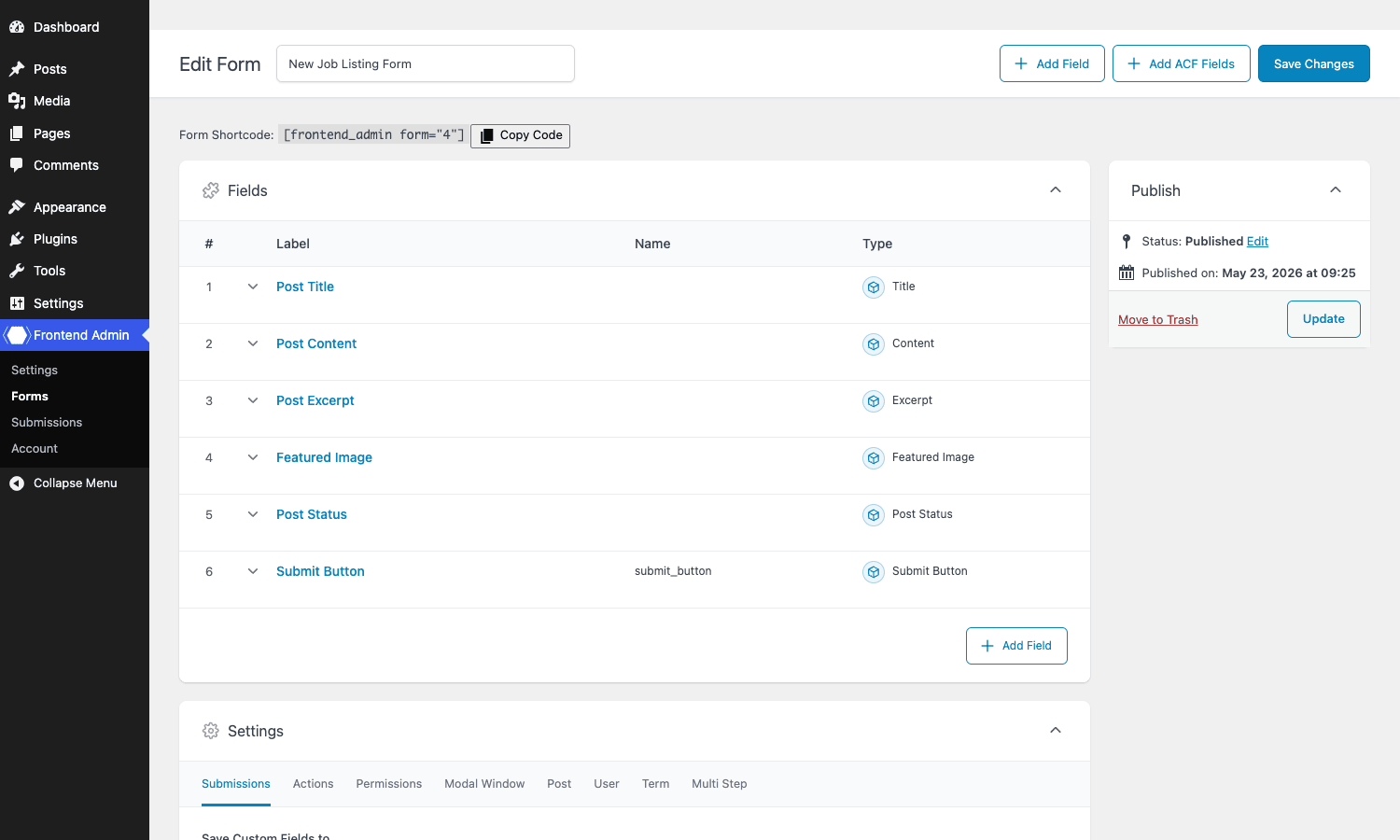
Go to Frontend Admin → Forms → Add New Form. Name it ("New Job Listing Form" is a fine name), then in the Select Type dropdown pick New Post Form. Hit Publish, and the form builder loads.
You will see two postboxes: Fields at the top, Settings below. The Fields panel auto-populates with the standard post fields: Post Title, Post Content, Post Excerpt, Featured Image, Post Status, Submit Button. You can add more with Add Field (for native WordPress fields like Categories, Post Author, custom taxonomies) or Add ACF Fields (which pulls in your ACF field groups).
Step 4: configure the form’s behavior
The Settings panel below the fields has eight tabs:
- Submissions: where the form’s data is saved, how submission titles are formatted, approval workflow
- Actions: redirect URL, success and error messages, email notifications
- Permissions: who is allowed to see the form
- Modal Window: render the form as a popup
- Post: what post type the form creates or edits, what status to set, term assignments
- User: only for user-related forms (which role new registrants get, etc.)
- Term: only for taxonomy forms
- Multi Step: split the form into pages
For a job listing form you mainly care about Post, Actions, Permissions, and Submissions.
Step 5: embed the form
When you save the form, the form builder shows a shortcode like \[frontend_admin form="42"\] at the top. Copy that into any page or post and the form renders. If you prefer the block editor, drop in a "Frontend Admin Form" block and pick the form from the dropdown. Elementor and Bricks users get a matching widget/element.
That’s the entire setup. You can extend with email notifications, approval queues, payments, and styling, but the core flow takes about ten minutes.
The form builder: fields, settings, and permissions
This is the part that justifies the plugin. The form builder doesn’t try to reinvent ACF, it uses the ACF field UI verbatim, which means anyone who’s ever built an ACF field group already knows how to use it.
Fields panel
Each row in the Fields list is one form input. You can drag to reorder. Click the label to expand the field’s full configuration: label, name (auto-generated, the key used to save the value), instructions, conditional logic, validation rules, wrapper width, custom CSS classes.
The dropdown to add a field is grouped:
- Native fields: Post Title, Content, Excerpt, Featured Image, Categories, Tags, Post Status, Slug, Author, Comments toggle, Custom taxonomies you’ve registered.
- User fields: First Name, Last Name, Display Name, Email, User Role, Password, Description, Locale, Website.
- ACF fields: every ACF field type, plus existing field groups you’ve already built.
- Layout helpers: HTML, Heading, Submit Button, Reset Button, Divider, Tab (multi-step pages).
Two fields deserve a callout. The Featured Image field renders a real media-library uploader on the frontend, with drag-and-drop support and the WordPress crop/edit overlay if the user has the right capability. The Repeater field works exactly like ACF Pro’s repeater, with add-row and remove-row buttons, which is unusual for a frontend form plugin.
Settings: Submissions tab
This tab controls where the form’s data is saved and whether you want a copy stored separately.
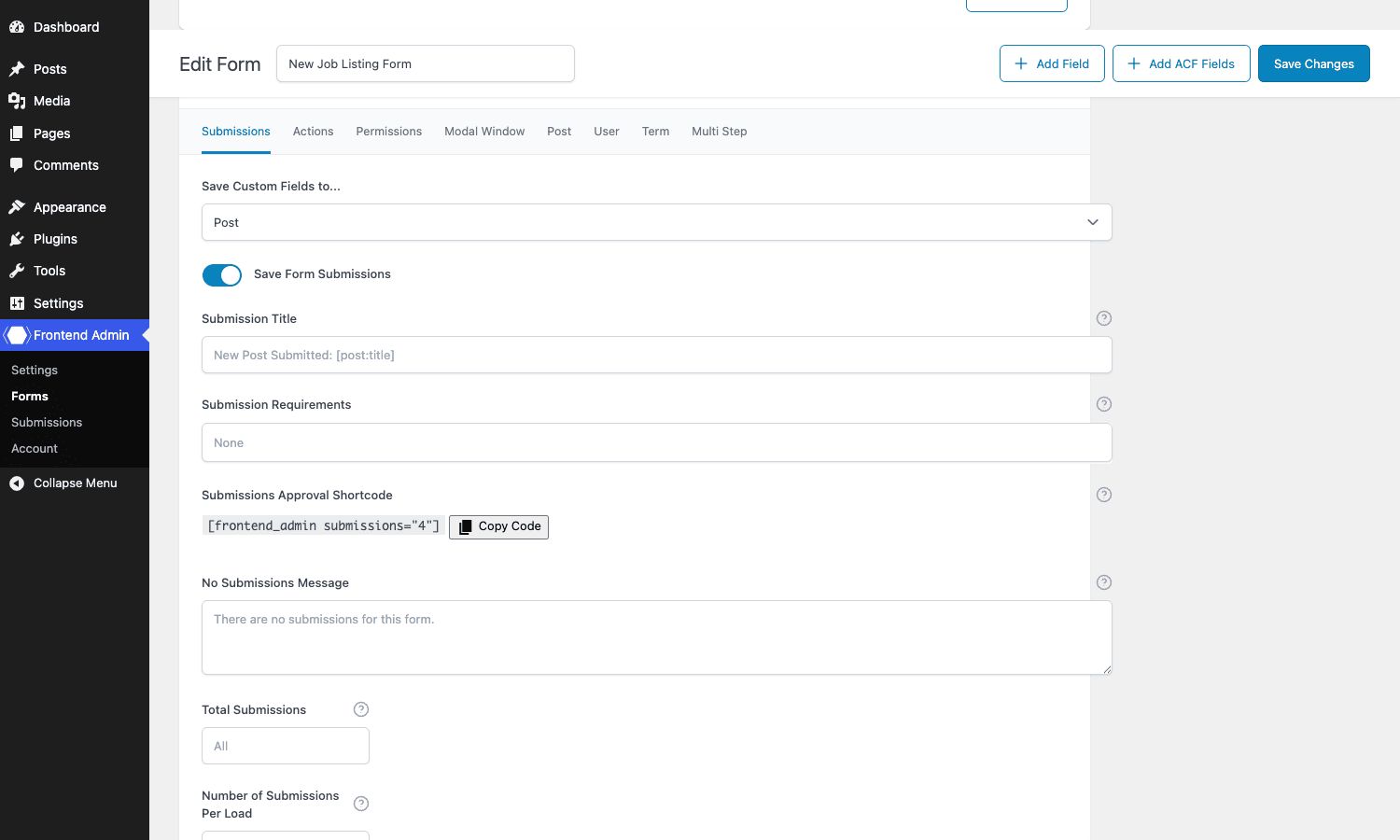
Save Custom Fields to lets you target Post, User, Term, Options, or a custom destination. Save Form Submissions toggles whether each submission is also saved as a separate record (a custom post type called fea_submission) for auditing or approval. The Submission Title template uses tokens like [post:title] and [user:display_name] to label each submission row.
There is also a Submissions Approval Shortcode here. Drop that anywhere and the user with the right capability sees the queue of pending submissions for this form.
Settings: Actions tab
This is the redirect-and-message control.
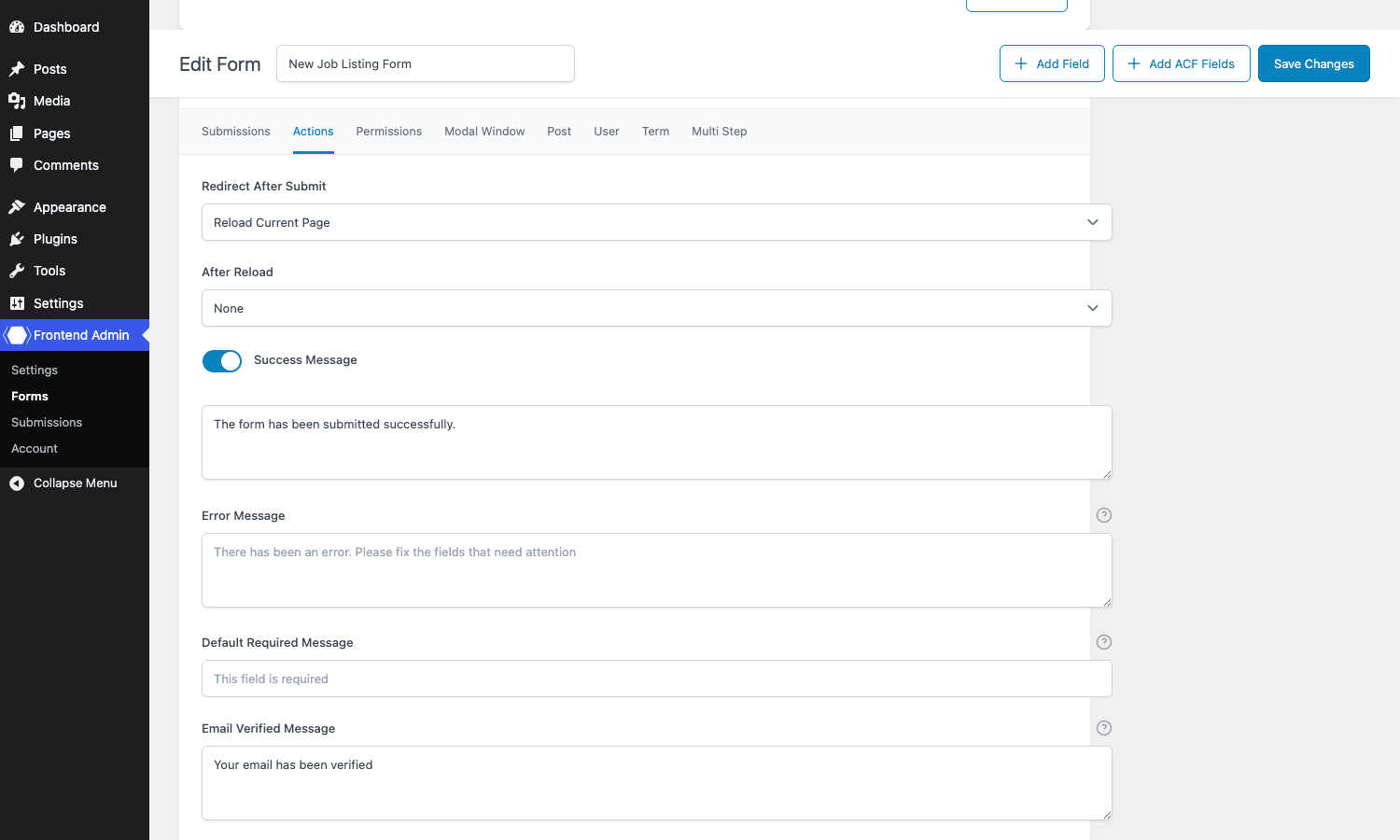
Redirect After Submit has options for: stay on the page, reload, go to the new post, go to a custom URL. The custom URL field accepts shortcode tokens, so you can route to /account/?last_post=[post:ID] and read the query string on the destination page.
Success Message and Error Message are inline strings shown via JavaScript right next to the submit button. Email Verified Message appears when the form requires email verification before continuing.
Settings: Permissions tab
Permissions are where Frontend Admin Pro shows its depth.
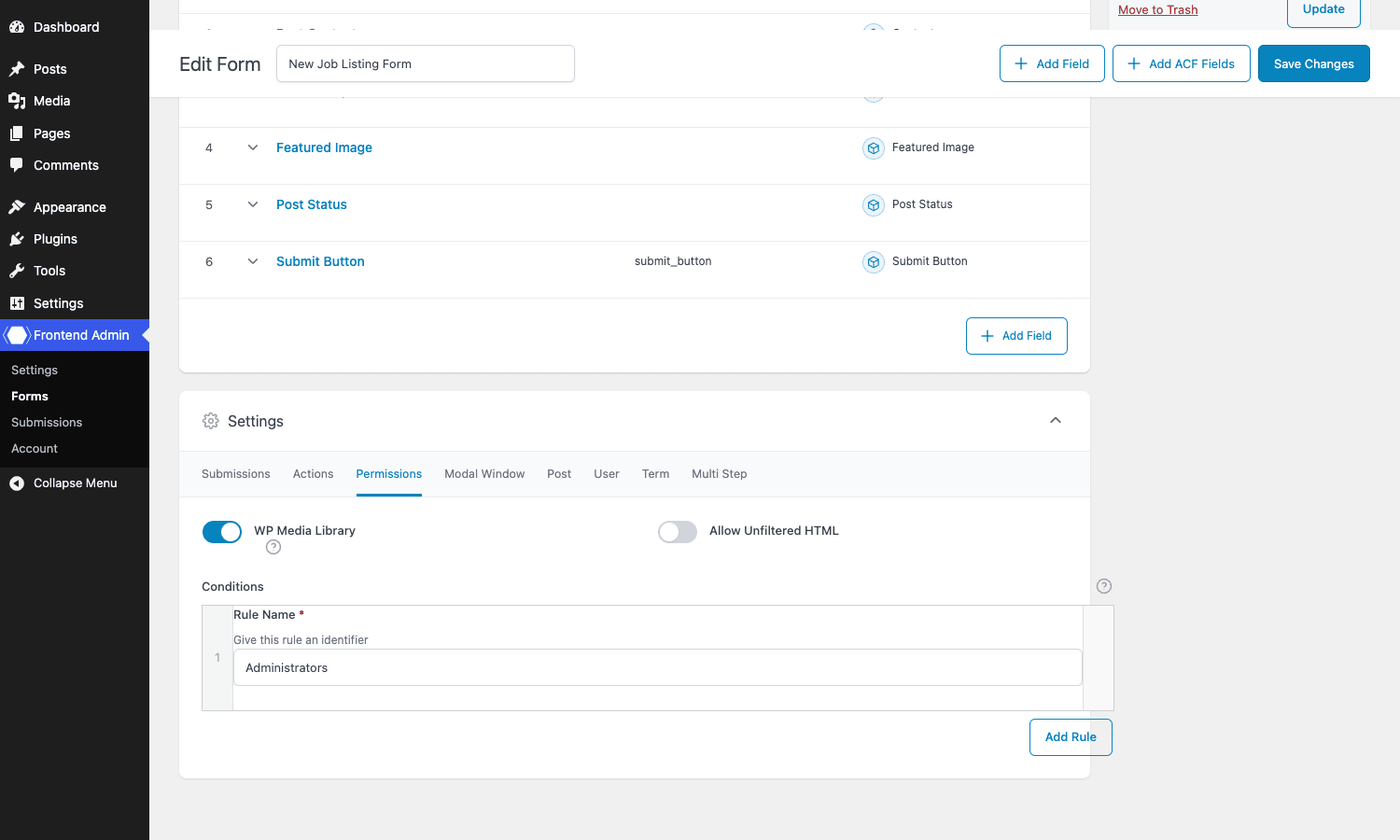
At the top, two binary toggles: WP Media Library (does the form grant access to the media library when an image field is in use) and Allow Unfiltered HTML (override the default WP stripping for trusted roles).
Below, a Conditions builder lets you stack rules. Each rule has a name, an operator (Show / Hide / Require Login), and a set of conditions joined with AND/OR. Available condition fields include current user role, current user capability, specific user, login state, profile field value, ACF field value, and (Pro) MemberPress membership.
You can build things like: "show this form if the user is logged in, has the vendor role, and has fewer than three published job listings." Or: "hide this form if the user is the post’s author" (so you don’t double-submit your own job).
Settings: Post tab
For New Post / Edit Post forms, this tab picks what gets saved.
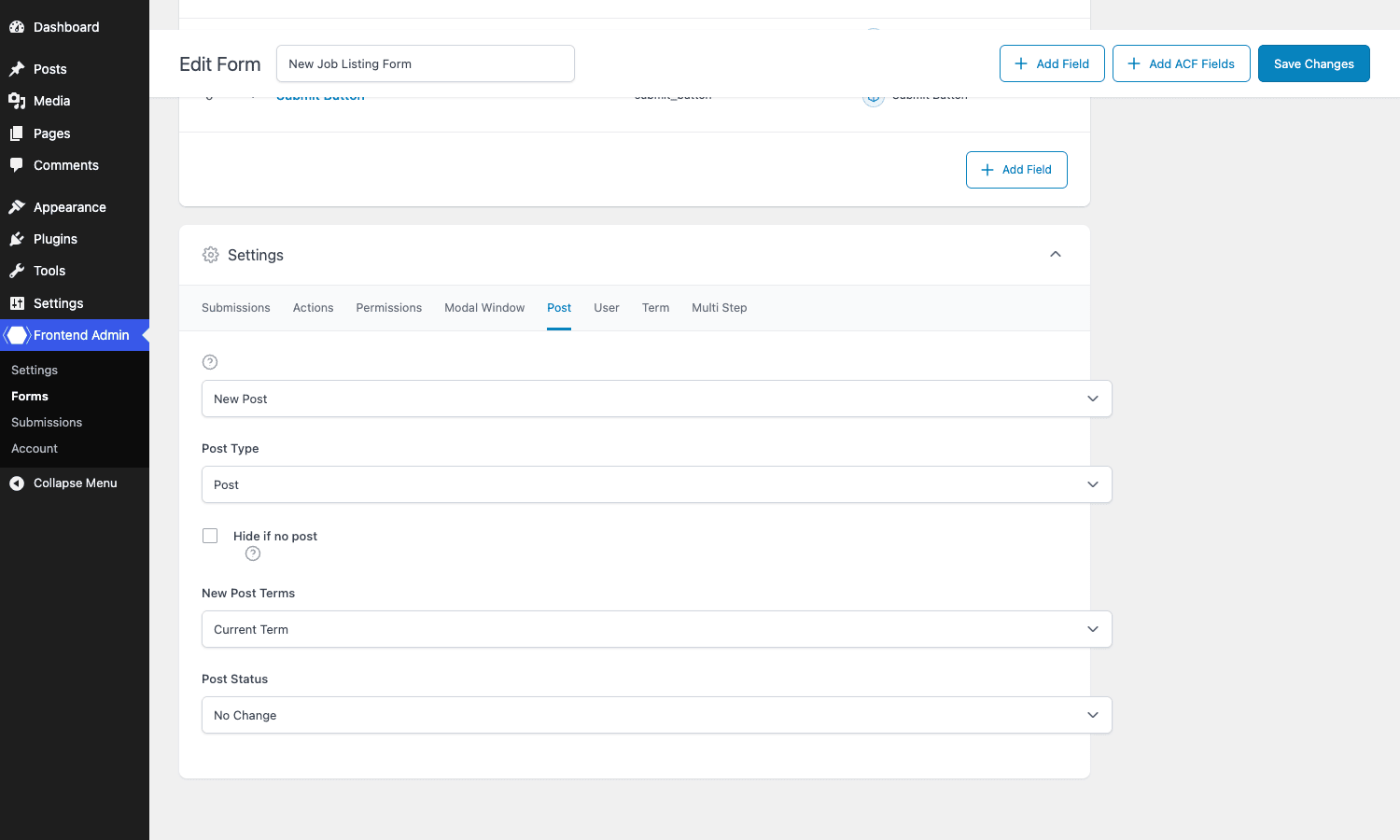
Submit Action (New Post / Edit Post / Duplicate Post) determines whether this form creates new content or edits existing content. Post Type is the target. Post Status can be set to any status, including Draft, Pending Review, or a custom status registered by another plugin. Setting status to Pending Review is the simplest moderation flow: posts arrive in the admin’s queue but aren’t public.
For Edit Post forms, this tab also has a Post to Edit picker that supports several modes: edit the current post (when the form is embedded on a single post), edit a specific ID, edit a post selected by the user via dropdown, or edit "any post the current user can edit."
Settings: Modal Window tab
Toggle "Open in Modal" and the form becomes a popup. You can configure the trigger (a button you add as a separate block, or "open automatically on page load"), the popup width, animation, and close behavior. This is the right answer when your form is long and you don’t want a frontend page dedicated to it.
Settings: Multi Step tab
Split the form into named steps. Each step gets its own tab in the builder. The frontend renders a progress bar (configurable: dots, numbers, percent) and Previous/Next buttons. Validation runs per step, so users can’t advance with missing required fields. Useful for onboarding flows, complex job application forms, and anything over about ten fields.
Frontend dashboard and hiding wp-admin
This is the feature that often clinches the decision for membership and vendor sites.
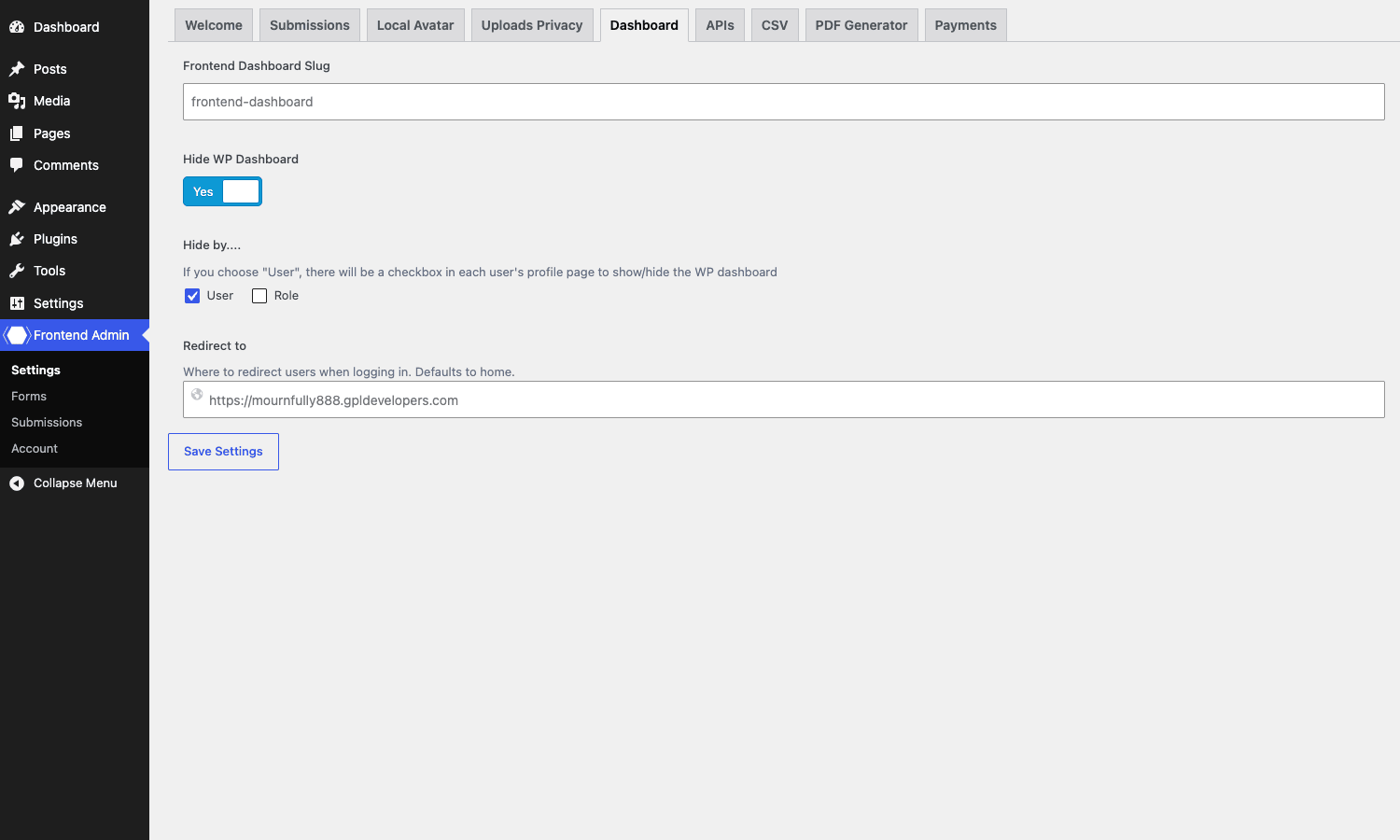
Under Frontend Admin → Settings → Dashboard you can enable a setting that hides wp-admin from any user whose role is below a chosen threshold (or for specific users), and redirects them to a public page when they try to access the dashboard. The default page slug is frontend-dashboard, and that page can contain any combination of forms, the user’s existing posts, the submissions queue, and (Pro) account/subscription management.
In practice, you build a page with:
- A welcome heading
- A list of the current user’s existing posts (using a custom query or a JetEngine listing)
- An "Edit my profile" form
- A "Submit new post" button (modal-triggered)
- A "Logout" link
The user sees only that page. They don’t know wp-admin exists. For sites built around contributors, vendors, or paying members, this is exactly the right boundary.
The redirect target can be different per user (per-user override on the profile page) or per role. The Hide by… option lets you decide whether the gating is by individual user or role. Combine this with Profile Builder Pro or MemberPress for membership level routing.
Real-world use cases
The plugin’s flexibility makes it easy to lose track of what it’s actually for. Here are five scenarios I’ve seen this used to build, each one a separate site type.
1. User-submitted blog (community magazine, dev.to clone)
Users register, get a customer-level role, and submit drafts via a frontend "Write a post" form. The form requires login, sets post status to Pending Review, and uploads a featured image. The admin reviews and publishes from wp-admin. Users can edit their own drafts but not other people’s. Combine with BuddyBoss Platform if you want a full community layer around it.
2. Vendor product editor for WooCommerce
For a marketplace where vendors manage their own product listings, the WooCommerce form action lets them add products from the frontend, set price, description, image, attributes. The submissions tab can require approval before products go live. This is a lighter-touch alternative to WC Vendors or Dokan if you only need product editing and not the full marketplace machinery.
3. Job board with paid listings
A job-board site charges $49 to post a listing. The form is set to New Post, post type job_listing, with a Stripe payment field set to $49. The post status starts as Draft. Stripe’s webhook handles the post publish on successful payment, or the Submissions Approval workflow can do the same thing manually. Pair with WP Job Manager if you want the full job-board frontend (search, filtering, applications) and use Frontend Admin Pro only for the submission flow.
4. Front-end profile editor
The most common "I need this yesterday" use case. Users want to edit their profile without seeing wp-admin. Build an Edit User Form with First Name, Last Name, Avatar (Local Avatar pro feature), Description, Website, and Password. Embed on /account/. Hide wp-admin for the user’s role. Done.
5. Frontend recipe submission (with structured data)
Recipe sites where readers submit their own recipes need structured fields: ingredients (repeater), prep time, cook time, servings, cuisine (taxonomy), image. ACF field group handles the structure, Frontend Admin Pro renders the editor, post status starts as Pending Review, the editor reviews and publishes. Optionally use Multi Step to break the form into "Recipe details / Ingredients / Method / Photo."
Developer reference
The plugin is built with developer hooks in mind. There’s a clear frontend_admin/ namespace, and most of what you’d want to customize has a filter or action attached.
Action: do something after a form is submitted
The headline hook. Fires after a successful submission of any form.
add_action( 'frontend_admin/form/on_submit', function( $form_data, $form_id, $post_id ) {
 // $form_data is an array of submitted values keyed by field name
 // $form_id is the admin_form CPT post ID
 // $post_id is the ID of the post/user/term that was created or edited
 if ( $form_id == 42 ) {
 // form 42 is the job listing form
 $email = $form_data['application_email']?? '';
 if ( $email ) {
 wp_mail( $email, 'You have a new job application', 'See your dashboard.' );
 }
 }
}, 10, 3 );
There’s also a more specific variant per save target: frontend_admin/save_post, frontend_admin/save_user, frontend_admin/save_term, frontend_admin/save_product, frontend_admin/save_options. Use those when you know which type the form targets.
Filter: gate access to a form at runtime
The Permissions tab covers most cases, but if you need PHP logic the frontend_admin/show_form filter is the escape hatch.
add_filter( 'frontend_admin/show_form', function( $show, $form ) {
 // Only show form ID 42 if the user has at least one published post
 if ( $form['ID'] == 42 ) {
 $count = count_user_posts( get_current_user_id(), 'post', true );
 if ( $count < 1 ) {
 return false;
 }
 }
 return $show;
}, 10, 2 );
Return false to hide. The form is replaced with whatever you’ve set in the form’s "if not allowed" message field.
Filter: rewrite the post-submit redirect
When the Actions tab’s static redirect URL isn’t dynamic enough, hook into the URL right before the redirect.
add_filter( 'frontend_admin/forms/redirect_url', function( $url, $form, $args ) {
 if ( $form['ID'] == 42 &&! empty( $args['post_id'] ) ) {
 // Redirect to the newly created post with a confirmation flag
 $url = add_query_arg( 'submitted', '1', get_permalink( $args['post_id'] ) );
 }
 return $url;
}, 10, 3 );
Filter: custom validation that returns errors to the user
Validation rules in the form builder cover required, regex, character limits. For business rules ("salary must be at least $20k for this category"), use the validate filter.
add_filter( 'frontend_admin/forms/validate_form', function( $errors, $form, $values ) {
 if ( $form['ID'] == 42 ) {
 $salary = isset( $values['salary_min'] )? (int) $values['salary_min'] : 0;
 if ( $salary > 0 && $salary < 20000 ) {
 $errors[] = array(
 'name' => 'salary_min',
 'message' => 'Salary must be at least $20,000 per year.',
 );
 }
 }
 return $errors;
}, 10, 3 );
Errors are an array of { name, message } objects. Each one displays under the named field on the frontend, the same way the built-in validation messages do.
Filter: sanitize a value before save
If you need to clean or transform input before it hits the database, intercept individual field values.
add_filter( 'frontend_admin/forms/sanitize_input', function( $value, $field, $form ) {
 if ( $field['name'] === 'application_url' ) {
 // Normalize URLs to always have a scheme
 if ( $value &&! preg_match( '~^https?://~', $value ) ) {
 $value = 'https://'. $value;
 }
 }
 return $value;
}, 10, 3 );
Filter: customize the notification email
The form’s Actions tab can map submitted values into the email body, but the headers, attachments, and message itself are filterable.
add_filter( 'frontend_admin/wp_mail_headers', function( $headers, $form ) {
 if ( $form['ID'] == 42 ) {
 $headers[] = 'Reply-To: noreply@example.com';
 $headers[] = 'Cc: jobs-team@example.com';
 }
 return $headers;
}, 10, 2 );

add_filter( 'frontend_admin/wp_mail_attachments', function( $attachments, $form ) {
 if ( $form['ID'] == 42 ) {
 // attach the PDF version of the submission (Pro)
 $attachments[] = WP_CONTENT_DIR. '/uploads/submissions/job-42.pdf';
 }
 return $attachments;
}, 10, 2 );
Action: react to approval-queue status changes
Pro’s approval workflow exposes the status change as an action.
add_action( 'frontend_admin/submission/change_status', function( $submission_id, $new_status ) {
 if ( $new_status === 'approved' ) {
 $linked_post = get_post_meta( $submission_id, '_fea_linked_post', true );
 if ( $linked_post ) {
 // notify the original submitter that their post is live
 $author_id = get_post_field( 'post_author', $linked_post );
 $user = get_user_by( 'id', $author_id );
 if ( $user ) {
 wp_mail( $user->user_email, 'Your post is live', get_permalink( $linked_post ) );
 }
 }
 }
}, 10, 2 );
Filter: customize the submissions table columns
If you’ve enabled "Save Form Submissions" and you want to surface custom columns in the submissions list table:
add_filter( 'frontend_admin/submissions/admin_columns', function( $columns, $form ) {
 if ( $form['ID'] == 42 ) {
 $columns['application_email'] = 'Applicant Email';
 $columns['salary_min'] = 'Salary';
 }
 return $columns;
}, 10, 2 );
Shortcodes you can use directly
\[frontend_admin form="42"\]: render a form\[frontend_admin field="field_key" post_id="123"\]: render the read-only value of a single field (useful for displaying submitted data on a thank-you page)\[frontend_admin submissions="42"\]: render the approval queue for a form\[acf_frontend...\]: legacy alias forfrontend_admin, accepts the same parameters
The Gutenberg block (frontend-admin/forms) gives you the same options through a UI.
REST API touchpoints
The plugin exposes a small set of REST routes (registered in main/admin/module.php) for the internal admin UI: form save, form load, submission status change. They’re authenticated against manage_options. The frontend form submission itself still goes through admin-ajax.php rather than REST, because that path predates REST and stayed for backward compatibility.
If you want a fully programmatic submission endpoint, the cleanest way is to write your own REST route in your theme and call frontend_admin_save_post() (a helper the plugin exposes) inside it. That mirrors what the AJAX handler does.
Performance, compatibility, and gotchas
The plugin is built on top of a forked ACF runtime, so its frontend payload is roughly the size of ACF Pro plus a thin form wrapper. On a real-world page with one form, expect about 100 KB of JavaScript and 30 KB of CSS, gzipped. Page Speed Insights treats it like any ACF-driven page.
A few things to know going in:
- It loads its own ACF. If you also have ACF Pro installed, the plugin detects this and steps out of the way (it does not double-register field types). If you don’t have ACF, the plugin’s bundled ACF runtime still works. Either path is fine.
- The
\[frontend_admin\]shortcode runs indo_shortcode, not in a block render filter. So it works in Classic Editor, Gutenberg, Elementor, and Bricks alike. If you’re embedding inside a block theme’s template, wrap the shortcode in a Shortcode block (not a Paragraph block) or it gets stripped by the block renderer. - AJAX submissions use the WordPress nonce system. That means if your form is on a fully-cached page, the nonce can expire and submission will fail with a generic error. The plugin includes a refresh-nonce-on-load script, but you can also exclude the page from caching to be safe.
- Image uploads obey the user’s
upload_filescapability. Default WordPress denies this to Subscribers and Customers. The "WP Media Library" toggle in the Permissions tab grants the cap on the fly for the form’s duration. If you’d rather not grant the cap, use a plain "file" field instead (Frontend Admin Pro handles file uploads outside the media library separately). - WooCommerce product edits require WooCommerce’s product permissions. A user editing a product needs at least the Shop Manager role’s product caps. The plugin doesn’t override WC’s own gating.
- Multilingual. Tested with WPML and Polylang. Form configurations live in the
admin_formCPT, which both translators handle natively. Field labels can be wrapped in__()if you load them from PHP, but the form builder’s labels are saved as plain text in postmeta, so the recommended pattern is to duplicate the form per language (WPML’s normal CPT translation flow) rather than wrap strings. - No bundled spam protection. If your form is public-facing (job postings, signups), add reCAPTCHA via the form’s reCAPTCHA field (Pro) or honeypot via the validate filter. A spam form on a public site fills your database quickly.
- Edit forms preload the current value. For a user editing their own profile, the form loads pre-filled. Make sure the user has the capability to read the field, otherwise the field appears empty.
Pricing and licensing
Frontend Admin Pro is sold by DynamiApps in three site-count tiers (Personal, Plus, Pro) with annual and lifetime options, plus a free version on wordpress.org that gives you the form builder and basic post/user/term submission without email mapping, payments, multi-step, modal, or the approval queue.
Frontend Admin Pro on GPL Times is available under the GPL license, like every product in the store. The plugin code is identical to what DynamiApps ships, the difference is the distribution model.
Frequently asked questions
Do I need ACF Pro to use Frontend Admin Pro?
No. The plugin ships its own copy of the ACF field runtime and the field type registry. You get the same field types either way. If you already have ACF Pro installed (or Pods, Toolset Types, MetaBox.io), Frontend Admin Pro detects them and uses their field groups instead of its own. Either path works.
Can users edit posts they did not create?
Yes, if the Permissions tab allows it. The Edit Post form has a "Post to Edit" picker with options for "current post," "specific ID," "any post the user can edit (by capability)," or "any post (admin override)." For a user editing their own posts only, the typical setup is: form is set to "edit any post by the current user," and you embed it on a page that lists their posts with edit links.
Does it work with WooCommerce?
Yes. The plugin includes a WooCommerce integration in the pro/woocommerce/ folder. There’s a New Product Form and an Edit Product Form, and the form picker exposes Woo-specific product fields like SKU, price, sale price, stock, attributes, variations (basic), gallery images. The output is a real WooCommerce product, indexed normally.
How is this different from the free acf_form() function in ACF Pro?
The free acf_form() function renders an ACF field group on the frontend, and that’s about all it does. There’s no form-builder UI, no permission gating, no email notifications, no multi-step flow, no approval queue, no modal mode, no submissions table, no payments. You configure it via PHP arguments in your theme’s template files. It’s a primitive, not a product. Frontend Admin Pro is the product around that primitive.
Does it integrate with my membership plugin?
The Permissions tab has built-in support for MemberPress, and conditional rules can check membership level. For other membership plugins (Restrict Content Pro, Paid Memberships Pro, LearnDash), use the frontend_admin/show_form filter to hook in custom logic, or rely on plain role-based gating (most membership plugins assign a custom role per membership level, which the role-based rules pick up automatically).
Can submissions trigger Zapier or other webhooks?
Yes, Pro includes a webhook integration. In the form’s settings you can add one or more webhook URLs and Frontend Admin Pro POSTs the submission’s data as JSON. There’s also a Mailchimp signup field for the common case of adding the submitter to a list.
Does it have anti-spam?
A reCAPTCHA field type is included in Pro. Add it as a regular field. You’ll also want to consider a honeypot (a hidden field that real users don’t fill but bots do) for an extra layer. The frontend_admin/forms/validate_form filter is the right place to reject submissions where the honeypot is filled.
Can it edit ACF Options Pages from the frontend?
Yes, this is a Pro-only feature. The form type "Edit Options Form" lets you pick an options page and render its fields as a frontend form. Useful for letting a client edit homepage hero copy, footer text, or site-wide settings without giving them admin access.
What happens to submitted data if I uninstall the plugin?
Posts created via the plugin stay (they’re regular WordPress posts). User accounts created via registration forms stay. Submissions stored separately (the fea_submission CPT) stay in the database unless you explicitly delete them. The plugin doesn’t run a cleanup on deactivation, by design.
Final thoughts
Frontend Admin Pro is one of those plugins that solves a clearly defined problem so completely that you don’t think about the problem after you install it. Where you’d previously fight acf_form(), write a custom REST endpoint, build a custom template, write validation, write redirect logic, hook up email, you now configure a form and embed a shortcode.
It pairs especially well with ACF (because the field UI is the same), with WooCommerce (because there’s a real vendor-style product editor), with WP Job Manager (for paid listings with payment fields), and with membership plugins (because the permissions builder is a real gating layer). If you’ve ever found yourself thinking "the user needs to do this thing but I don’t want them in wp-admin," this is the plugin.
The Pro version is what you actually want. The free version is fine as a demo, but everything that makes this a real product (email notifications mapped from submitted values, multi-step, modal, the approval queue, the frontend dashboard, payments) is Pro-only. The free tier exists mostly so you can test that the builder works before paying.
A few honest critiques: the global Settings page leans heavily on YouTube video tutorials when it could surface more inline help. The Submissions list table doesn’t sort by date by default. The email-mapping UI in the Actions tab takes a couple of read-throughs to internalize. None of these are deal-breakers, they’re just rough edges.
For the kind of site this is built for, contributor magazines, vendor marketplaces, job boards, recipe sites, community-edited directories, it’s hard to find a more complete answer. The combination of ACF-level depth, a real permissions layer, multi-step support, payments, and a frontend dashboard wrapper covers what would normally require three or four separate plugins glued together with custom code.