

I’ve spent a depressing number of evenings keeping a publishing queue alive across half a dozen social channels. The setup was always something like this: a tech blog publishing three or four posts a day, X (Twitter) needed a thread, LinkedIn needed a calmer professional summary, Facebook wanted a different image so it wouldn’t get demoted in the feed, Pinterest needed the portrait pin, and someone had decided we should also be on Threads. Every CMS-to-social tool I tried solved part of the puzzle and then sent me a bill.
I tried Buffer first. Solid product. Genuinely the most polished UX in the space. But once we crossed eight channels and three contributors, the per-seat price stopped making sense. I tried IFTTT next. The chains broke every six weeks, usually after a quiet Meta API change, and I’d find out only when readers asked why the Facebook page had been dead for a week. Zapier worked but the per-task cost adds up fast when you’re posting four times a day to five networks. The Jetpack Sharing module is fine for instant posts but it doesn’t schedule. I finally tried hand-rolling a transition_post_status hook plus Graph API plus a cron job, and that was exactly the kind of plumbing nobody on the team wanted to maintain.
Then I sat down with Social Auto Poster for a week. Different angle entirely: instead of being a third-party SaaS that asks your WordPress to call out, it’s a plugin that lives inside your site, owns the publishing logic, and talks to each social network directly. One license, one config screen, no per-task billing.
This article walks through the plugin properly. What it actually does, where it’s sharp, where the UI shows its age, the hook surface for developers, the trade-offs nobody warns you about, and a head-to-head with the tools I’d reach for instead in specific situations.
If you want to test along, Social Auto Poster is on GPL Times here
Table of Contents
- What is Social Auto Poster?
- Networks it actually supports
- Key features at a glance
- Installation and the first hour
- The OAuth setup story: realistically, what it takes to wire up each network
- Per-post-type templates: where this plugin actually pulls ahead
- Scheduling a content pipeline end to end
- Reposter, Quick Share, and the rest of the admin
- Social Auto Poster vs Buffer vs Zapier vs Revive Old Posts
- Real-world use cases
- Developer reference: hooks, filters, CPTs, REST, cron
- What the platforms broke (and what the plugin can’t fix)
- Don’t do these three things
- What Social Auto Poster doesn’t do (and when you still need a real social SaaS)
- Performance, compatibility, and gotchas
- Pricing and licensing
- FAQ
- Final thoughts
What is Social Auto Poster?
Social Auto Poster is a WordPress plugin from WPWeb Elite. It hooks into post status transitions and pushes the post (or page, or WooCommerce product, or custom post type) to one or more social networks using each platform’s official API. The plugin has been on CodeCanyon since 2014 and it’s been the category leader on that marketplace for most of that decade, which is rare. Most CodeCanyon products either churn through owners or get abandoned. This one is still under active development.
The mental model is straightforward. You go to Social Auto Poster → Settings, you walk through one tab per network, you paste in the API credentials for that network, you tick "Enable autoposting" and pick which post types this network should care about, and you save. From then on, every time you hit Publish on a matching post, the plugin fans out one social post per enabled network with the message template you configured.
That’s the global mode. There’s also a per-post override panel that appears in the post editor so you can write a custom Facebook message for this specific post, or skip Twitter for this specific one, or schedule the share for tomorrow morning instead of right now. More on that below.
Worth saying upfront: this is not a SaaS. The plugin runs on your WordPress, calls each network from your server, and stores credentials in your wp_options table. There’s no monthly fee, no per-channel cap, no "you reached 100 scheduled posts on this plan" wall.
Networks it actually supports
I tested the network list directly against the plugin code rather than trust the marketing copy. As of this release, here is what’s wired in.
- Facebook (personal profile, Pages, Groups)
- X / Twitter (free and paid API tiers, with the caveats below)
- LinkedIn (personal profile + Company Pages)
- Pinterest (boards + sections)
- Instagram (Business / Creator account only; details below)
- Threads (Meta’s Threads, via the Threads Graph API)
- Tumblr
- Reddit (subreddit posting with flair support)
- Telegram (channels and groups via Bot API)
- Google Business Profile (formerly Google My Business, posts and events)
- Medium (via personal integration token)
- YouTube (video uploads, mostly for the auto-share-of-uploaded-content use case)
- Self-publishing to other WordPress sites (via XML-RPC)
That last one is interesting. It lets you syndicate the same WordPress post to a second WordPress site automatically. I’ve used it for a publisher who wanted their main site to push to a niche subsite without manual cross-posting. Not its flagship feature, but nice to have in the box.
Key features at a glance
Rather than dump the full marketing list, here’s what actually moves the needle when you put this on a real publishing site.
- One config tab per network. Twelve tabs total. Each one has the same shape: enable toggle, post-type whitelist, hashtag source, API credentials, global message template, per-post-type message override. That consistency is unsung but it matters. Once you’ve set up two networks, the rest are muscle memory.
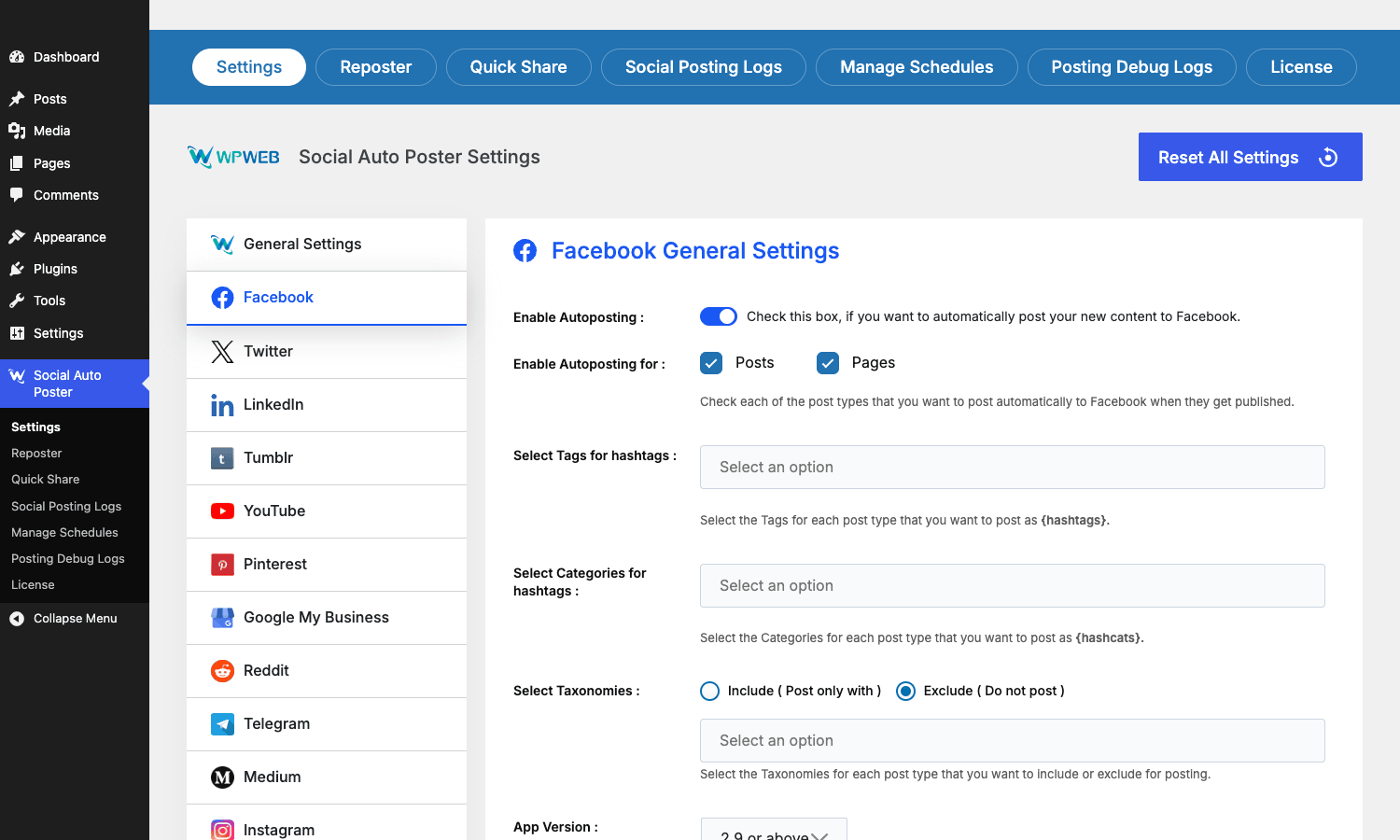
- Per-post-type message templates. This is the differentiator. You can have one template for blog posts ("New on the blog: {title} {link}") and a totally different template for WooCommerce products ("Now in stock: {title} for {excerpt}") inside the same plugin, on the same network.
- A built-in template tag system.
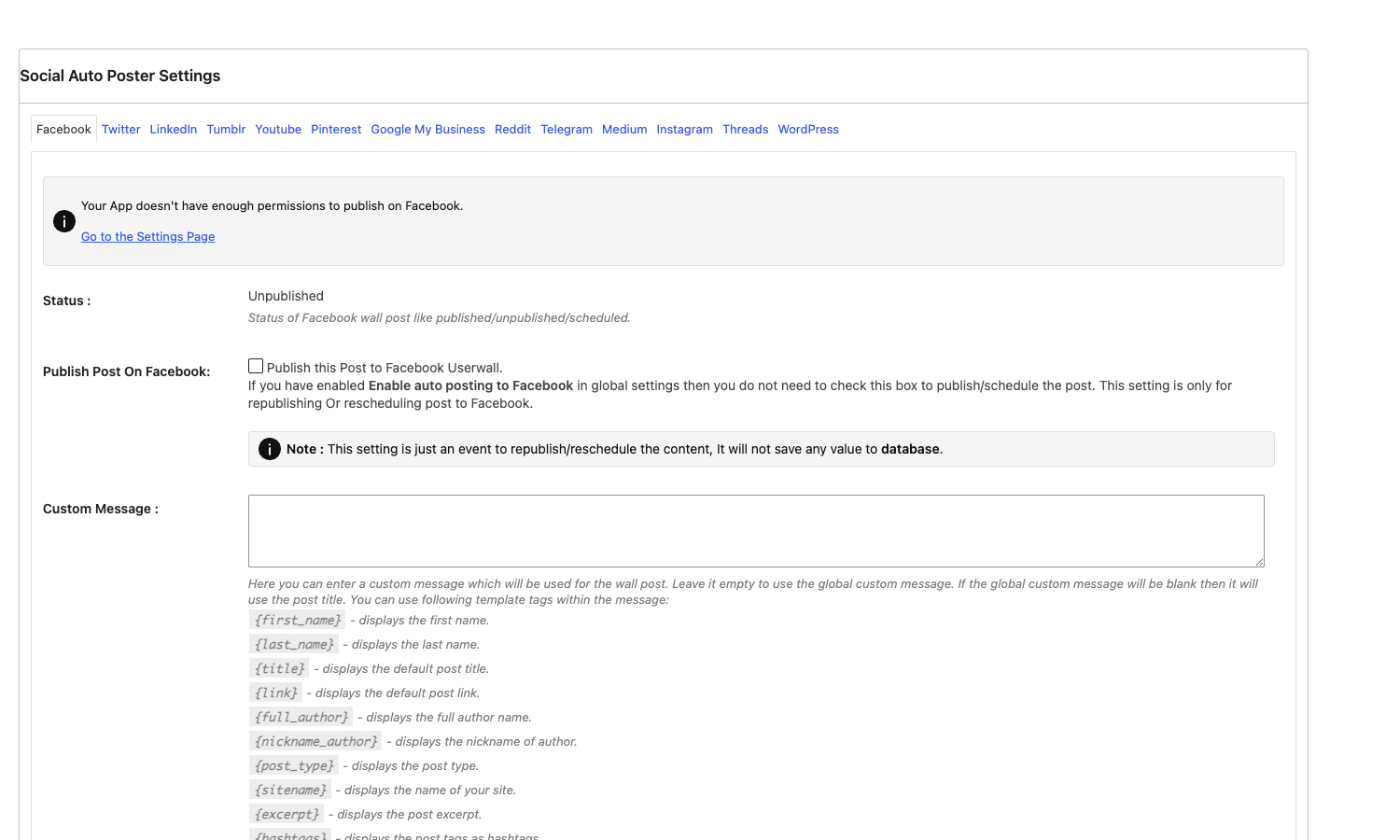
{title},{link},{excerpt},{content-180}(trims the post body to 180 characters),{hashtags},{hashcats},{full_author},{sitename}, and more. Same tag works in every network’s template field. - Per-post override metabox. Every post in the editor gets a Social Auto Poster panel with one sub-tab per network. You can custom-write the share, attach a different image, change the destination account, or just skip the share for this post.
- Posting status visibility. A "Social Posting Logs" screen shows what went out and what failed, plus a "Posting Debug Logs" view with the raw API responses for when something goes sideways.
- Reposter. A separate panel that recycles old posts. Pick a frequency, a minimum and maximum age, a per-network template, and it’ll surface evergreen content into your social feed without you queuing each one by hand.
- Quick Share. Stand-alone composer that lets you push a one-off message to any subset of networks without creating a WordPress post first. Handy for "the office is closed Friday" announcements.
- URL shorteners built in. Bitly, TinyURL, is.gd, and Shortest are wired in. Toggle one per network, paste the API key, and
{link}becomes the short version automatically. - Scheduled cron-based delivery. Posts can fire instantly or queue against the WordPress cron with a delay. The plugin uses native
wp_schedule_eventso it plays nicely with cron-replacement setups (real system cron, Action Scheduler, server-side timers). - Hashtag generation from categories and tags. Tick a category in the network settings and the plugin will replace
{hashcats}with#cat-one #cat-two. Same for tags via{hashtags}. - Image and video uploads. Featured image goes by default. Per-post, you can swap it for a network-specific image (the Pinterest portrait, the Instagram square, the LinkedIn 1200×627).
- Multi-account per network. Add three Facebook Pages, five Twitter handles, two LinkedIn Company pages, all under one plugin install, and pick destinations on a per-post basis.
If you’ve used another social-poster plugin and you’re wondering "yes, but does it do X?", the answer is usually yes. The breadth is the surprise.
Installation and the first hour
This is a single-zip plugin. No companion plugin on the WordPress.org repo, no "free tier with upsell" dance.
- Download the zip.
- Go to Plugins → Add New → Upload Plugin and pick the zip.
- Activate. The plugin adds a top-level Social Auto Poster item to the WordPress admin sidebar with sub-items for Settings, Reposter, Quick Share, Social Posting Logs, Manage Schedules, Posting Debug Logs, and License.
- Go to Social Auto Poster → Settings and you’ll land on General Settings.
The first thing to do is decide your posting schedule strategy. The General Settings panel has a single dropdown called "Schedule Wall Posts" with options like Instantly, Once Daily, Twice Daily, Specific Time, and Custom Interval. Pick Instantly if you want the share to fire the moment WordPress runs publish_post. Pick Specific Time if you want to drop everything from today into a 9am queue tomorrow.
Then it’s network by network. Click into a tab (Facebook, Twitter, LinkedIn, whatever), tick "Enable Autoposting", pick which post types this network covers, paste your API credentials, set your template, save. Repeat.
The first time through, plan an hour. The second network onward goes fast because the screen shape is identical. The slow bit is not the plugin, it’s getting OAuth credentials from each platform’s developer portal. That’s the next section.
The OAuth setup story: realistically, what it takes to wire up each network
This part of any social-poster review tends to wave hands and say "follow the official guide". I’d rather be honest about what you’re walking into per network.
Facebook. You need a Meta Developer account, you need to create a Meta App, you need to add the "Facebook Login" and "Pages API" products (full reference in the Meta sharing docs), you need to submit the app for review if you want to post to Pages you don’t own, and you need to extract the long-lived Page access token. The plugin’s UI exposes App ID and App Secret fields and an OAuth button to trigger the login flow. None of that is the plugin’s fault. Meta has made this hostile on purpose to keep spammers out. Realistic time the first time: 45 minutes if you’ve done it before, 2 hours if you haven’t. The plugin doesn’t simplify the Meta side and I wish the docs were more aggressive about saying "here’s the exact app-review template that works."
X / Twitter. Create an account on the X developer portal (free tier exists but is rate-limited), create an app, generate consumer key + secret + OAuth 1.0a access token + secret, paste all four into the Twitter tab. Realistic time: 20 minutes. The bigger problem is the API tier itself, which I cover in the "what the platforms broke" section below.
LinkedIn. Create a LinkedIn app at the LinkedIn developer portal, request the "Share on LinkedIn" and "Sign in with LinkedIn" products, get them approved (this is usually instant for personal use, can take days for Company Page posting), then OAuth in. Realistic time: 30 minutes solo, longer if Company Pages.
Pinterest. Pinterest Developer account, create an app, get reviewed for the "Pin Creation" scope (auto-granted as of late 2024 for non-trade-secret use), grab the client ID and secret. Realistic time: 25 minutes.
Instagram. This is the one that bites first-timers hardest. Instagram Business or Creator account, linked to a Facebook Page, going through the same Meta Developer App you used for Facebook posting. If you have a personal Instagram account, the plugin can’t post to it. The platform doesn’t allow it for any third-party tool. That’s not a plugin limitation, that’s Meta’s policy. Realistic time: 60+ minutes including the Instagram-to-Facebook-Page linking dance.
Threads. Meta added a Threads Graph API in 2024 and the plugin supports it. Same Meta Developer App, add the Threads product, OAuth in. Realistic time: 20 minutes if you already have the Meta side wired.
Reddit. Reddit Developer Apps page, create a "script" or "web app" type, grab client ID and secret. Reddit API is the most pleasant of the lot. Realistic time: 10 minutes.
Telegram. Talk to @BotFather on Telegram, type /newbot, get a token. Realistic time: 3 minutes. The easiest one in the entire list.
Tumblr. Tumblr application page, register an OAuth consumer, grab key and secret. Realistic time: 15 minutes.
Google Business Profile. Google Cloud project, enable the Business Profile API, OAuth client, OAuth in. Google’s flow is reasonable. Realistic time: 25 minutes.
Medium. Generate a personal integration token from your Medium account settings. Paste it in. Done. Realistic time: 5 minutes.
YouTube. Google Cloud project (same one as Business Profile is fine), enable YouTube Data API v3, OAuth client. Realistic time: 25 minutes.
So the honest version of "wire up Social Auto Poster across ten networks" is closer to six hours of developer-portal work, mostly waiting on Meta. The plugin itself takes maybe forty minutes of clicking. Don’t budget Friday afternoon for this and expect to be done by 5pm.
Per-post-type templates: where this plugin actually pulls ahead
Most social-poster tools think in terms of channels: "this is the Facebook account, here is what gets posted to Facebook". Social Auto Poster thinks in terms of (post type, channel) pairs, which is the right abstraction once your site has more than one content type.
On a WooCommerce store, for example, you want:
- A new blog post to fire a Facebook share that says "New on the blog: {title} {link}".
- A new WooCommerce product to fire a different Facebook share that says "Just added: {title} – {excerpt}" with the product gallery image instead of the post’s featured image.
- A new product on Pinterest to use the portrait pin template, pull the product price into the description, and target a specific board.
Social Auto Poster handles this natively. In each network’s settings tab, you flip the "Posting Format Options" radio from Global to Individual Post Type Message and you get a sub-tab per post type (Posts, Pages, Products, anything else CPT-registered). Each sub-tab has its own template field. The plugin remembers which template to use based on the post type at publish time.
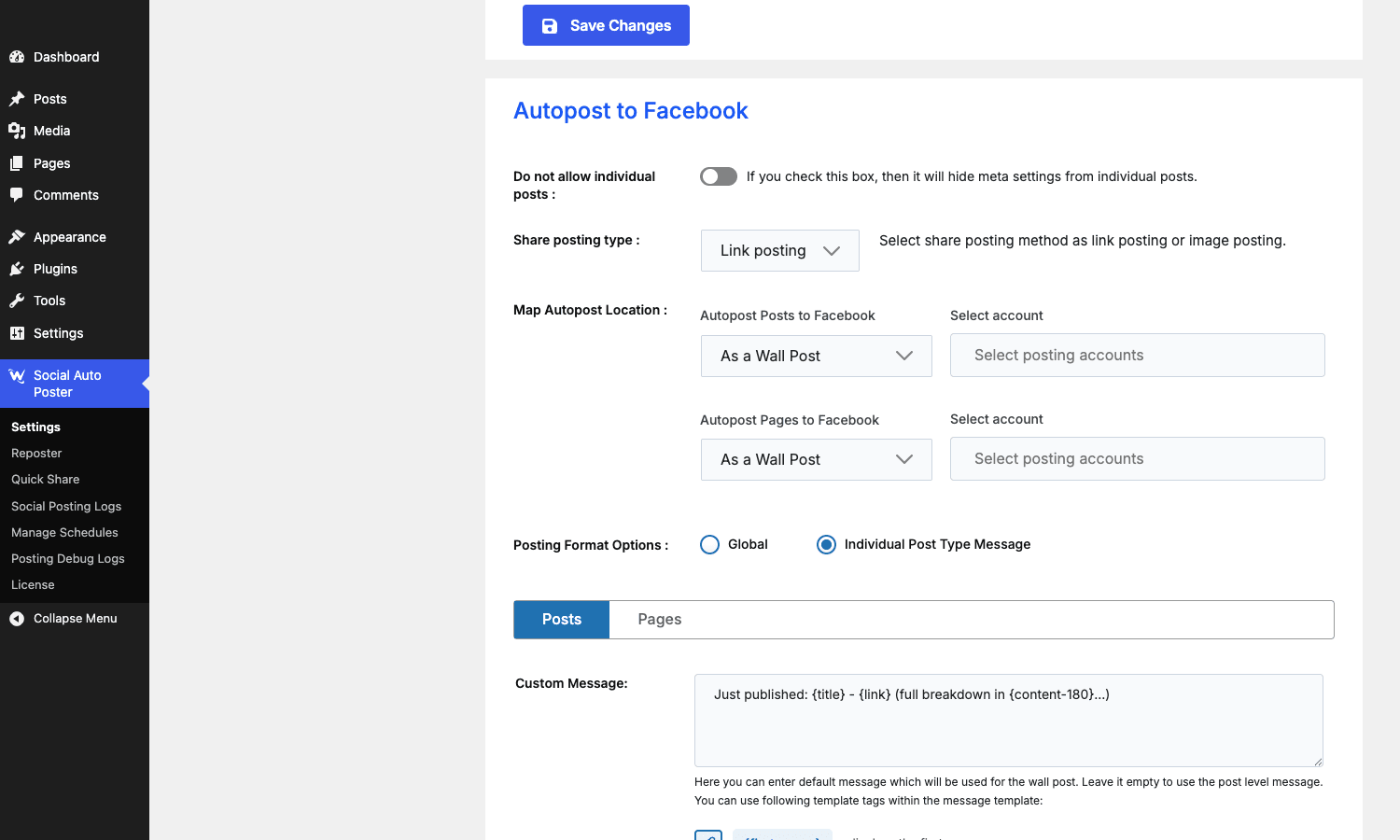
That’s worth a second sentence: most of the SaaS competitors price the same feature behind a Pro tier and call it "content categories" or "post variants". Buffer charges extra for it. Hootsuite charges extra for it. Social Auto Poster ships it on the base plugin.
The template language is curly-brace tags. Here are the ones you’ll actually use:
{title}– the post title.{link}– the canonical post URL.{excerpt}– the post excerpt (falls back to first 55 words if empty).{content}– the full post content stripped of tags.{content-N}– trims the content to N characters. Use{content-180}for a Twitter-friendly preview.{hashtags}– the post’s tags joined with#.{hashcats}– the post’s categories joined with#.{full_author}– the post author’s display name.{first_name},{last_name}– first and last name only.{post_type}– the registered post type slug.{sitename}– the WordPressblognameoption.
You can mix and match these per network. A LinkedIn template might be {title}\n\n{excerpt}\n\n{link} for a clean magazine-style post. A Twitter template might be {title} {link} {hashcats}. A Pinterest template might be just {title} - {excerpt} because Pinterest already shows the image. A Reddit template is often just {title} because Reddit doesn’t like commercial-sounding pasted blurbs.
Scheduling a content pipeline end to end
Here is how a complete pipeline looks once you have it wired up.
- Author drafts a post in the WordPress editor.
- Author writes the post-specific overrides in the Social Auto Poster meta box at the bottom of the editor. They might bypass Reddit because this isn’t an r/wordpress topic. They might swap the Pinterest image to the portrait variant. They might schedule the Twitter post for tomorrow morning instead of immediately.
- Author hits Publish. WordPress fires
publish_post. The plugin’s main router catches it, loadswpw_auto_poster_options, sees which networks are enabled for "post" post type, and pushes a posting job per network onto its queue. - The queue. Depending on your Schedule Wall Posts setting, jobs fire either immediately, at the next scheduled cron tick, or at the per-post scheduled time the author picked.
- Each network class processes its job.
class-wpw-auto-poster-fb-posting.phpfor Facebook,class-wpw-auto-poster-tw-posting.phpfor Twitter, and so on. Each class builds the network-specific payload, calls the API, captures the response. - Result is logged. Success writes a row to the
wpwautoposterlogsCPT and (optionally) emails a posting report. Failure writes to the Posting Debug Logs with the raw API error. - Reposter, if enabled, recycles older content on its own cron schedule, with its own per-network templates and per-network frequency.
The thing that makes this nice in practice is that everything happens server-side on your WordPress. No "I forgot to open the SaaS dashboard today" failure mode. No "the third-party scheduler hit its monthly limit and silently stopped". The cron either ran or didn’t, and if it didn’t you’ve got bigger problems than social posting.
Reposter, Quick Share, and the rest of the admin
A quick tour of the screens you’ll touch most.
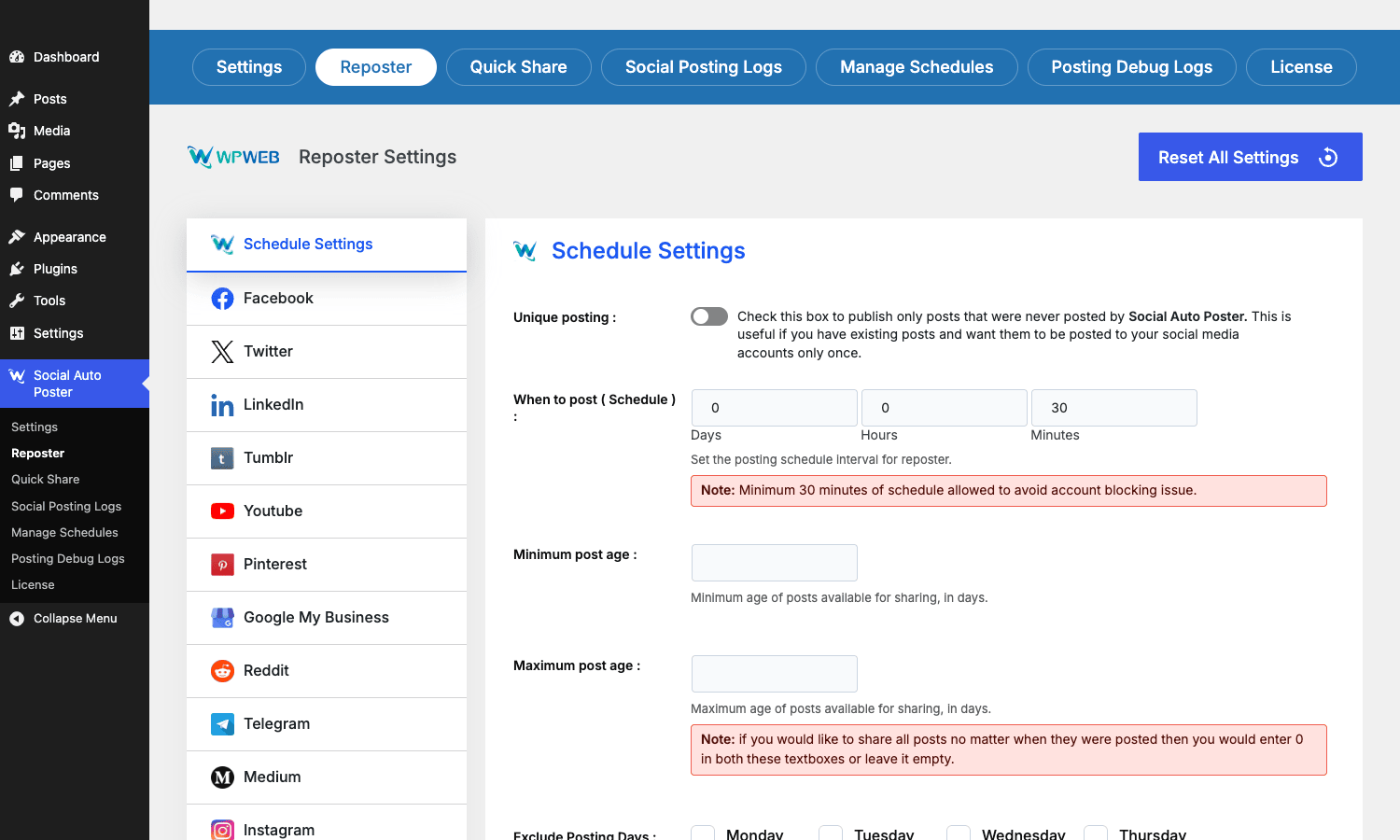
Reposter. Separate top-level tab. It’s a fully independent system that recycles previously-published content. You set a schedule ("every 6 hours"), a post-age window ("only posts between 30 and 365 days old"), a per-network template, and optionally a per-category include/exclude list. The plugin maintains its own "post that hasn’t been reshared yet" tracker so it doesn’t double-fire on the same piece. Useful if you have an evergreen content library and want to mine it without a content manager queuing each share manually.
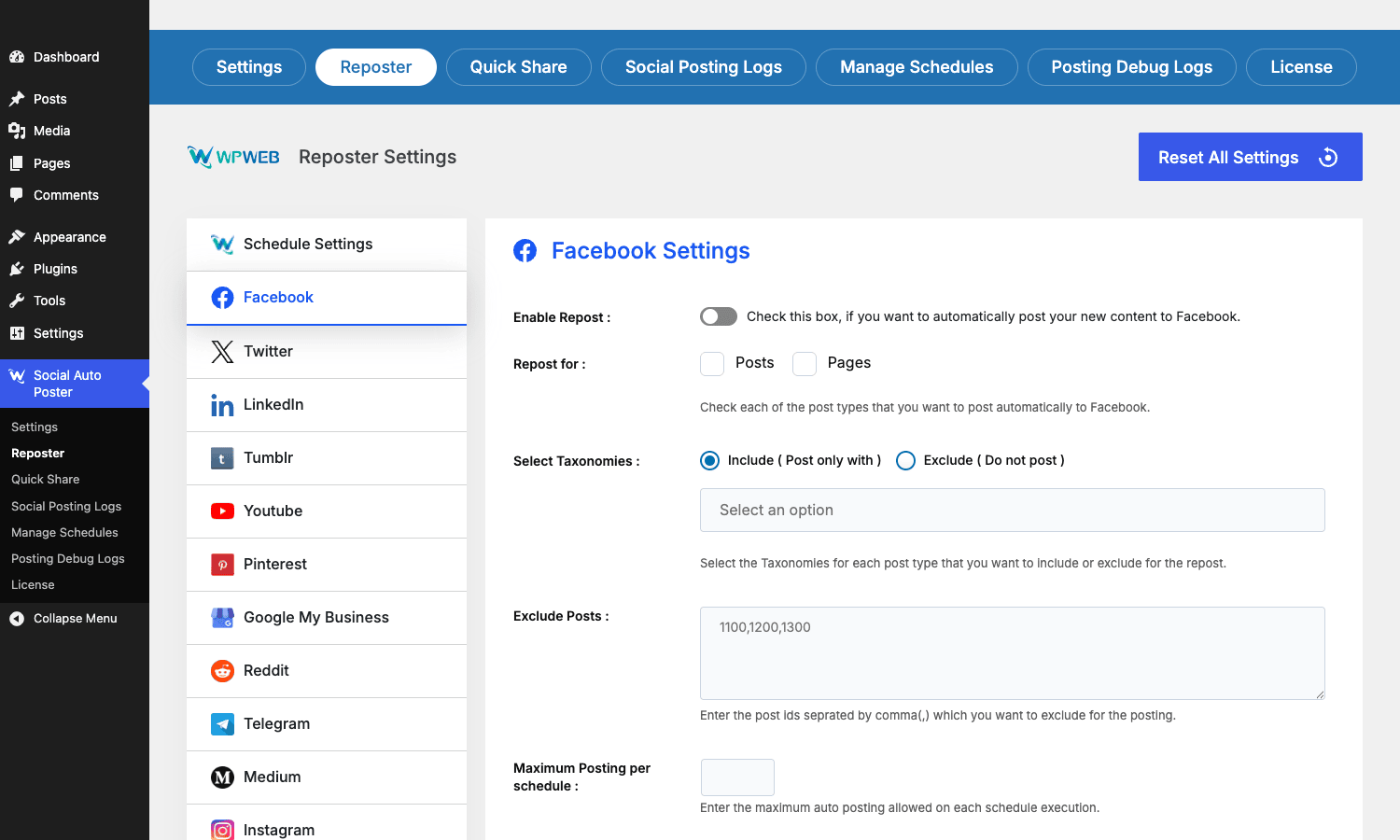
The per-network Reposter settings let you tune which post types feed the recycler, which taxonomies to include or exclude, and a comma-separated Exclude Posts field so you can blacklist specific post IDs (the one that aged poorly, the one with the typo nobody fixed).
Quick Share. A composer screen for one-off announcements that aren’t tied to a WordPress post. Type a message, optionally attach an image or video, pick which networks to broadcast to, optionally schedule it. Below the composer is a table of Published and Scheduled quick shares so you can see what’s in the queue.
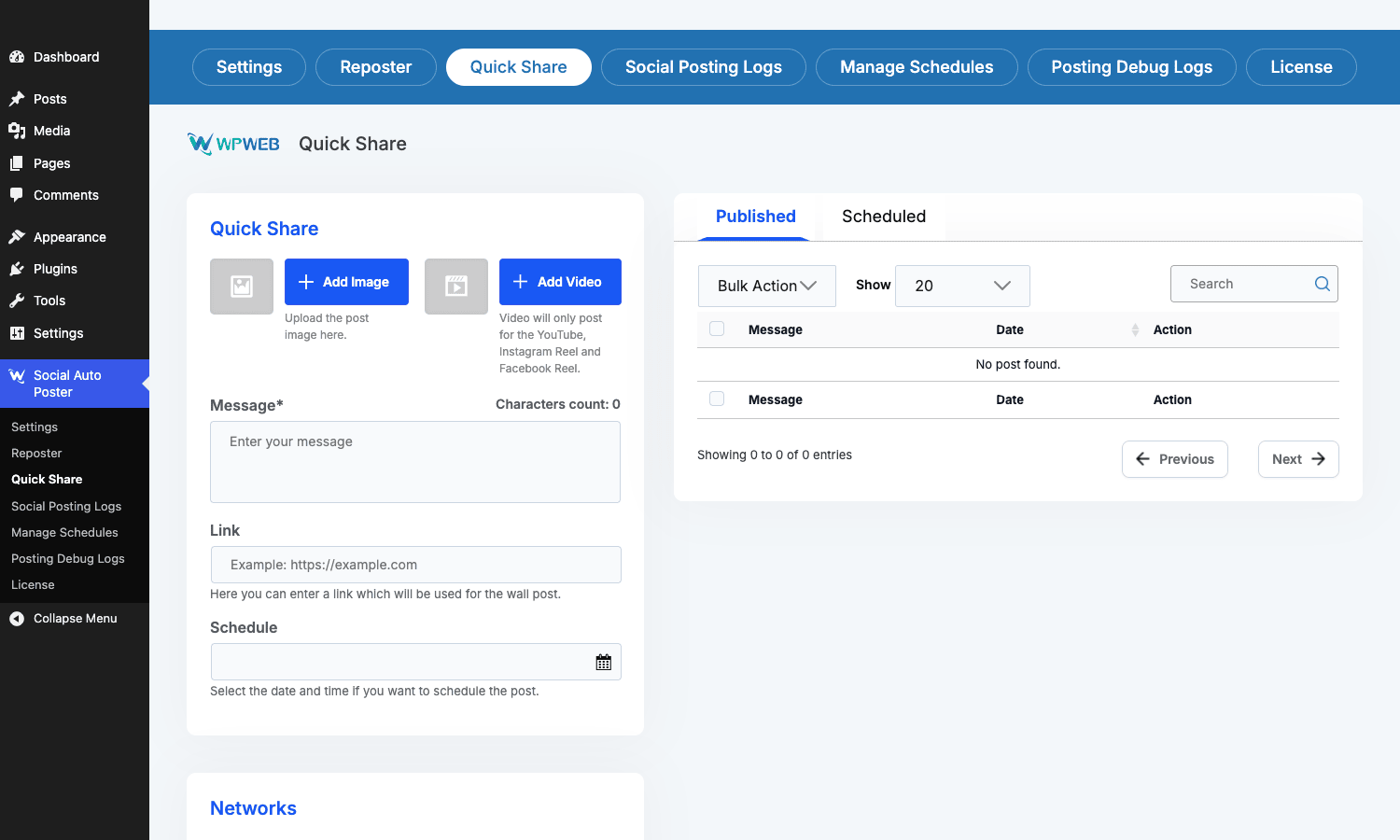
I use this for "the office is closed Monday" or "we hit 10k subscribers, thanks" – stuff that doesn’t deserve a blog post but you want on the channels anyway.
Social Posting Logs. Searchable, filterable table of what got pushed where and when. Each row links to the source post and the destination URL on the social network. The plugin keeps these indefinitely unless you set the log-clear cron to trim them weekly.
Posting Debug Logs. Raw API response dump. Save this for when a network throws an error and you need the actual Meta or X error code to file a support ticket or fix something.
Manage Schedules. A list of currently-queued scheduled posts. Empty by default; populates only once you have stuff lined up.
Social Auto Poster vs Buffer vs Zapier vs Revive Old Posts
I’ve used all four. Here’s the honest decision tree.
Pick Buffer (or Hootsuite) if you have multiple human contributors, you want a polished mobile app to draft and approve posts on the go, you want a content calendar UI, and you’re OK paying $10-$100/month per user. Buffer’s UX is genuinely the best in this space. If your team is non-technical and you don’t already have a WordPress publishing flow, Buffer is the path of least resistance.
Pick Zapier if your trigger isn’t WordPress. Got a Shopify store, a Notion database, an Airtable, a Google Sheet, a Stripe event? Zapier is the right bridge. If everything you publish goes through WordPress, Zapier becomes overkill and the per-task billing gets painful at four-posts-a-day volume.
Pick Revive Old Posts if all you want is the recycling feature. Revive is a focused tool that does one thing well: re-share evergreen posts on a schedule. If you don’t need the "post the moment something new is published" workflow, Revive is lighter and cheaper.
Pick Social Auto Poster if WordPress is your publishing source of truth, you want one tool that covers both fresh-publish and recycling, you don’t want a recurring SaaS bill, and you’re comfortable doing the OAuth setup once. This is the right choice for the bulk of WordPress publishers and almost all WooCommerce stores. It is not the right choice if you can’t (or won’t) do the developer-portal walk for each network.
A spot check: across the four use cases I’ve helped with (a recipe blog, a SaaS company blog, a WooCommerce store, a multi-author news site), Social Auto Poster has been the right pick three out of four times. The exception was the news site, where four contributors needed a draft-and-approve workflow with comments, and Buffer’s team features won.
Real-world use cases
A few concrete scenarios where this plugin.
WooCommerce store launching new products weekly. Each new product publishes to Facebook (as a Page post with the product image), Pinterest (portrait pin, product price in description), Instagram (the square gallery image), and a #new-products Telegram channel where loyalty subscribers get the heads-up first. One config, one Publish click.
Recipe blog with a Pinterest-first traffic strategy. Every recipe post auto-pins to the matching board on Pinterest using the post’s portrait featured image variant. The same post also goes to Facebook (with the landscape variant) and Telegram. The Reposter pushes older popular recipes back to Pinterest every Tuesday morning when food-traffic is highest.
Tech blog feeding LinkedIn + Twitter + Mastodon (via webhook). Twitter gets {title} {link} {hashcats}. LinkedIn gets {title}\n\n{excerpt}\n\n{link} as a proper editorial post. Mastodon and Bluesky get fed via a custom hook that listens for wpweb_auto_poster_posted_system_log and forwards to the matching APIs. (Yes, you have to write that bridge yourself, but it’s 60 lines.)
Multilingual site posting once per language. WPML or Polylang has the post translated into three languages. Each translation is a separate WP post under WPML’s model. Social Auto Poster fires once per translation, with a per-language Facebook Page set as the destination. Different audiences see the right-language version. No double-posting in the wrong feed.
Membership site auto-announcing new gated content. When a new members-only post publishes, Social Auto Poster pushes a teaser to the public Twitter handle ("New for paying members: {title} – {excerpt}") that drives non-members to the signup page. The actual post stays gated. The plugin doesn’t care that the content has a paywall, it just shares whatever the public URL renders.
Developer reference: hooks, filters, CPTs, REST, cron
The plugin exposes more than 90 hooks and filters. I’ll cover the ones I’ve actually used.
Filtering the message right before send
Each network exposes a filter (and a few share a generic pre-send filter) so you can rewrite the payload at the last moment. LinkedIn’s is wpw_auto_poster_li_content:
add_filter( 'wpw_auto_poster_li_content', 'mycompany_linkedin_uppercase_brand', 10, 2 );

function mycompany_linkedin_uppercase_brand( $content, $post_id ) {
 // Make sure our brand name is always all-caps on LinkedIn for visual punch.
 return str_replace( 'mycompany', 'MYCOMPANY', $content );
}
Same pattern exists for the LinkedIn title (wpw_auto_poster_li_title) and the LinkedIn first-comment-after-share (wpw_auto_poster_li_comments). For Twitter, there’s a meta-driven template override wpw_post_meta_tw_template you can use to swap the template per post on the fly:
add_filter( 'wpw_post_meta_tw_template', 'mycompany_twitter_thread_template', 10, 2 );

function mycompany_twitter_thread_template( $template, $post_id ) {
 // If the post is in the "Thread" category, use a multi-part template.
 if ( has_term( 'thread', 'category', $post_id ) ) {
 return "{title} (1/n)\n\nThread below \u{1F447}\n{link}";
 }
 return $template;
}
Filtering hashtags per network
Each network has a *_hashtags and *_hashcats filter pair that lets you rewrite which tags become hashtags. Useful for keeping a network-specific hashtag list:
add_filter( 'wpw_auto_poster_pin_hashcats', 'mycompany_pinterest_hashcats', 10, 1 );

function mycompany_pinterest_hashcats( $cats_arr ) {
 // Pinterest gets richer hashtags than other networks.
 $cats_arr[] = 'WordPress';
 $cats_arr[] = 'WebDev';
 $cats_arr = array_unique( $cats_arr );
 return $cats_arr;
}
Controlling which roles see the SAP UI
By default the plugin shows the per-post metabox to anyone who can edit posts. If you only want editors and admins to see it (not contributors), drop:
add_filter( 'wpw_auto_poster_allowed_roles', 'mycompany_sap_roles' );

function mycompany_sap_roles( $roles ) {
 return array( 'administrator', 'editor' );
}
Adding a custom tab to the settings panel
The settings panel exposes wpw_auto_poster_settings_panel_tab (for the tab label) and wpw_auto_poster_settings_panel_tab_content (for the body). If you wanted to add a Mastodon tab in a custom add-on plugin:
add_action( 'wpw_auto_poster_settings_panel_tab', function() {?>
 <li><a href="#wpw-auto-poster-tab-mastodon">Mastodon</a></li>
 <?php
} );

add_action( 'wpw_auto_poster_settings_panel_tab_content', function() {?>
 <div id="wpw-auto-poster-tab-mastodon">
 <!-- your fields here -->
 </div>
 <?php
} );
Reacting to a successful post
Every successful share fires wpweb_auto_poster_posted_system_log with the network slug and the original post ID. Hook into that to log analytics, push to a Slack channel, or forward to a network the plugin doesn’t natively support:
add_filter( 'wpweb_auto_poster_posted_system_log', 'mycompany_log_to_slack', 10, 3 );

function mycompany_log_to_slack( $log_entry, $network, $post_id ) {
 if ( $network === 'facebook' ) {
 wp_remote_post( 'https://hooks.slack.com/services/...', array(
 'body' => json_encode( array(
 'text' => sprintf( 'Posted "%s" to Facebook', get_the_title( $post_id ) ),
 ) ),
 ) );
 }
 return $log_entry;
}
Custom post types the plugin registers
wpwautoposterlogs– one row per attempted share. Stores the post ID, the network, the result, and the response payload.wpwsapquickshare– the Quick Share queue.
Both are non-public CPTs (you can’t browse them on the front end), but you can query them with WP_Query:
$logs = new WP_Query( array(
 'post_type' => 'wpwautoposterlogs',
 'meta_query' => array(
 array(
 'key' => '_wpweb_log_network',
 'value' => 'facebook',
 ),
 ),
 'posts_per_page' => 50,
) );
REST endpoint
The plugin registers GET /wp-json/wpw_auto_poster/v1/latest-error which returns any pending notice transients. It’s used internally by the Gutenberg "post failed" toast. If you’re building a custom dashboard that surfaces social-posting failures alongside other site health metrics, this is the endpoint to poll. Permission gate: current_user_can( 'edit_posts' ).
Cron events
Worth knowing what’s running on your site so you can audit wp cron event list:
wpw_auto_poster_scheduled_cron– the main scheduled-share runner. Daily by default; reduces to the interval you set in Schedule Wall Posts.wpw_auto_poster_reposter_scheduled_cron– the Reposter runner.wpw_auto_poster_clear_log_cron– weekly cleanup of oldwpwautoposterlogsrows.wpw_auto_poster_clear_sap_uploads_cron– weekly cleanup of temp upload dir.wpw_auto_poster_scheduled_quick_share– drains the Quick Share queue at its custom interval.
If you’re on a real-cron setup (you should be), these will fire reliably. If you’re on the default WP-pseudo-cron, they fire only when someone visits the site, which can lead to "why is my Twitter post 4 hours late on a low-traffic Tuesday" mysteries.
Architecture
Each network is a class under includes/social/class-wpw-auto-poster-<net>-posting.php (so class-wpw-auto-poster-fb-posting.php, class-wpw-auto-poster-tw-posting.php, etc.). They share an implicit interface: a build_payload() step, a send() step, and a log() step. The actual API SDKs (TwitterOAuth, Facebook Graph SDK, Pinterest SDK, etc.) live in includes/social/libraries/<net>/.
The dispatcher in class-wpw-auto-poster-model.php is where transition_post_status lands, decides which networks care about this post type, and pushes work to each network class. If you want to extend behavior without forking, the right insertion point is almost always the matching apply_filters() call inside the network class.
What the platforms broke (and what the plugin can’t fix)
Worth saying out loud, because this isn’t the plugin’s fault but you’ll hit it.
X / Twitter free-tier write limits. Twitter capped the free API tier at 50 posts per 24 hours per user and threw a lot of legacy access patterns away in 2023-2024. The plugin still posts to Twitter just fine, but if you’re a multi-post-per-day publisher you may hit the cap. The fix isn’t a plugin setting, it’s Twitter’s paid Basic tier ($100/month) or Pro tier (substantially more). The plugin will log [403] You currently have access to a subset of Twitter API v2 endpoints when you hit the wall.
Instagram personal accounts. The plugin can post to Instagram Business and Creator accounts only. Personal accounts can’t be posted to by any third-party tool, period. This is Meta’s policy, not the plugin’s bug. The "fix" is to convert your Instagram account to Business or Creator inside the Instagram app, then link it to a Facebook Page.
Instagram Reels and Stories. The Instagram Graph API allows third-party tools to post regular feed posts (images and videos) and Reels (since 2024). Stories are still restricted to Meta’s own apps and approved enterprise partners. So Social Auto Poster handles feed and Reels but not Stories. No third-party plugin handles Stories.
Facebook Group posting. Meta deprecated unattended Group posting by third-party apps. The plugin used to do this; the API was removed by Meta. You can still get the credentials approved for a specific Group you own, but it’s a manual review path.
Meta long-lived token rotation. Long-lived Page access tokens expire every 60 days. The plugin can refresh automatically if you use the App Method with the right scopes, but the docs gloss over this and a lot of installs find out about it when their Facebook posts go silent on day 61. The fix is to re-auth in the plugin every 50 days or so, or to use a server-token pattern that auto-refreshes.
Pinterest pin descriptions. Pinterest caps pin descriptions at 500 characters. Templates that include {content} will get silently truncated on Pinterest. Use {excerpt} instead.
Don’t do these three things
I’ve watched friends and clients trip on each of these. Each one is worth a separate "don’t".
Don’t enable 14 networks on day one. I get the temptation. You bought the plugin, it does 14 networks, may as well turn them all on. The problem is, when something goes wrong (a typo in your template, an OAuth error you didn’t notice), it goes wrong across 14 channels and now you’ve got 14 messes to clean up. Start with two or three networks, get a week of clean posting under your belt, watch the Posting Logs to make sure the message renders the way you expected on each, then add the next two. By week four you’ve got everything wired and you’ve never had an embarrassing 14-network broadcast of a misformatted draft.
Don’t reuse the same image across all networks. Pinterest is portrait (1000×1500). Twitter is landscape (1200×675). Facebook is roughly square (1200×1200 or 1200×630). LinkedIn doesn’t care that much. Instagram is strict 1080×1080 or 1080×1350. If you push the same image to all five, four of them will crop it badly. Social Auto Poster lets you set a per-post per-network image override in the meta box. Use it. The cost is two minutes per post. The reward is roughly 2x engagement on the visual networks. Photographers and product brands lose this every day by being lazy.
Don’t trust the platform OAuth tokens to live forever. This is the Meta-60-day thing from above. The plugin only warns you after a Facebook post has failed because the token expired. Set a calendar reminder every 50 days to re-auth your Facebook and Instagram credentials. Or, if you have a developer, write a token-refresh routine using the Meta Graph API’s fb_exchange_token flow and run it weekly via cron. The plugin won’t do this for you and it’s the single most common reason people come back two months later thinking the plugin "stopped working" when it’s actually that the platform expired the token on schedule.
What Social Auto Poster doesn’t do (and when you still need a real social SaaS)
Being honest about the ceiling.
- It doesn’t have a content calendar UI. You don’t get the month-grid view of "what’s going out on which day across which channels" that Buffer and Hootsuite are built around. If your team plans content in that view, this isn’t a replacement for that view.
- It doesn’t do approval workflows. A junior contributor can’t draft a tweet and have an editor approve it before it goes out. There’s no "needs review" state.
- It doesn’t analyze engagement. No "this post got 1,200 likes on Facebook and 47 retweets on Twitter" dashboard. The plugin tells you what got sent, not what happened after. For real analytics you need each platform’s native dashboard, or a third-party analytics tool like SparkToro or Sprout Social.
- It doesn’t do best-time-to-post recommendations. Some SaaS tools (Buffer’s Analyze, Hootsuite’s Optimize) suggest when your audience is most active. This plugin will fire whenever you tell it to fire.
- It doesn’t do team comments on posts. No internal "@Sarah can you check the Facebook copy before this goes out?" threading. WordPress comments and ticket systems exist for that, but they’re not in the plugin.
- It doesn’t have a mobile app. Drafting from your phone means logging into your WordPress admin in mobile Safari, which is doable but not the same as a native composer.
If those are dealbreakers, pair Social Auto Poster with a calendar tool (Trello, Notion, ContentCal) for planning and let the plugin do the actual posting. Or go full SaaS and pay Buffer / Hootsuite / Sprout the monthly fee.
Performance, compatibility, and gotchas
- Page-load impact. The plugin loads its admin assets only on its own admin pages and on the post-edit screens. Front-end impact is effectively zero. Negligible if you’re worried about Core Web Vitals.
- Database growth. Every share creates a row in the
wp_poststable (thewpwautoposterlogsCPT). On a high-volume publisher pushing to 8 networks across 4 daily posts, that’s 32 rows per day, ~12,000 per year. The weekly cleanup cron prunes these, but if you’ve disabled the cron or your wp-cron isn’t actually firing, the table grows. Worth aSELECT COUNT(*) FROM wp_posts WHERE post_type='wpwautoposterlogs'check every few months on big sites. - WP cron reliability. This plugin lives or dies on cron. If you’re using the default WP pseudo-cron and your site has spiky low traffic, scheduled posts will fire late. Move to a real system cron (
wget-based or server-level) or to Action Scheduler with a proper runner. - OAuth token storage. Credentials live in the serialized
wpw_auto_poster_optionsrow inwp_options. If you migrate the database to a different domain, you’ll need to re-auth on the new domain because the OAuth callback URL changes. - Multisite. Plugin works on multisite. Each subsite has its own options row and its own OAuth flow. There’s no network-wide "post from one source to all child sites" mode.
- WooCommerce compatibility. Tested up to WooCommerce 9.x. Product publish events fire
transition_post_statusso the plugin picks them up the same way it picks up regular posts. - Block editor and Classic editor. Both supported. The Gutenberg integration puts the meta box in the meta-box panel at the bottom of the editor (you may need to enable that panel in editor preferences if it’s not showing).
- WPML / Polylang. Each translation is a separate post and fires its own share. Use a per-language template if you want different copy per language.
- Backup before bulk-editing settings. Because all the network config lives in a single serialized
wpw_auto_poster_optionsrow, a botched save can wipe credentials across all networks at once. Export the row fromwp_optionsbefore any major reconfiguration.wp option get wpw_auto_poster_options --format=json > sap-backup.jsondoes it.
Pricing and licensing
The original CodeCanyon listing sells Social Auto Poster as a regular (one-site) license with six months of support. Renewals and extended licenses cost extra. It’s been on CodeCanyon’s #1 social-poster slot for most of the last decade, which is the best signal I can give you that this isn’t a flash-in-the-pan plugin.
GPL Times is the same zip the vendor ships, distributed under the plugin’s GPL license. You install it, configure it once, and the plugin keeps working on as many sites as you put it on. Pair it with the Easy Social Share Buttons (see our ESSB walkthrough for the inbound side) if you also want share buttons on every post, or with one of the Smash Balloon feed plugins (Instagram Feed Pro, Custom Facebook Feed Pro, Custom Twitter Feeds Pro (covered in our Custom Twitter Feeds review)) if you want to display your social posts back on the site after Social Auto Poster has put them up. If your social automation also covers email broadcasts, our FluentCRM Pro walkthrough pairs nicely with this setup. The combo turns one publish action into outbound posts on every network and inbound display widgets on the site.
For multi-site publishers, the GPL route is the practical one. You’re not paying per-install for what is fundamentally a one-developer plugin doing a one-developer job.
FAQ
Why isn’t my Facebook auto-post going to the Page instead of my profile?
In the Facebook tab, scroll down to "Map Autopost Location" and check the "Select account" dropdown for the matching post type. If it’s empty or shows your personal profile, your OAuth scope probably didn’t include pages_manage_posts and pages_read_engagement. Re-auth the Facebook account and grant Page access during the OAuth dialog. Then in Map Autopost Location, pick the Page name from the dropdown.
Does Social Auto Poster support Instagram Reels and Stories?
Reels yes, Stories no. The Instagram Graph API allows third-party tools to publish Reels (videos under 90 seconds, vertical 9:16) but Stories are restricted to Meta’s own apps. No third-party WordPress plugin supports Instagram Stories because the API doesn’t exist for it.
Why does the Twitter post say "Tweet failed" even with valid credentials?
Most common cause is the free-tier rate limit. Twitter caps the free Basic API at 50 posts per 24 hours per user. If you’re posting to multiple Twitter accounts and one is over the limit, only that one fails. Check Posting Debug Logs for the raw API response. If you see 403 with text about subset of endpoints, you’ve hit the tier limit. Either reduce posting frequency or upgrade to the paid Basic tier.
Can I auto-post from WooCommerce product publish?
Yes. WooCommerce products are a custom post type (product) and Social Auto Poster picks them up via the same transition_post_status flow. In each network’s settings tab, tick product in the "Enable Autoposting for" list. Then in the per-post-type message section, write a product-specific template that uses something like {title} - {excerpt} with the product’s gallery image.
How do I post a different image to Pinterest vs Facebook?
In the per-post meta box at the bottom of the editor, click into the Pinterest tab and use the "Image" field to upload a portrait variant. Then click into the Facebook tab and use that tab’s "Image" field for a landscape variant. The plugin uses the featured image as the default for both, but the per-network override wins when set.
What happens if my server goes down when a post is scheduled to fire?
WordPress cron is "best effort". If the server is down at the scheduled time, the job runs at the next cron tick after the server comes back. So a post scheduled for 9am on Monday might fire at 9:07am if the server was rebooting. That’s usually fine. If your cron is broken entirely, scheduled posts queue up and fire all at once when cron catches up, which can look spammy. Monitor wp cron event list if you care.
Does the plugin scrape Open Graph tags or does it use the post’s featured image directly?
It uses the post’s featured image directly by default. Most networks (Facebook, LinkedIn, Twitter cards) then re-render their own preview using your site’s Open Graph tags when they fetch the link. So you want both: a good Yoast / Rank Math OG image config and a good featured image. The featured image is what shows up in the case where the network can’t fetch OG (cached preview, scraper hiccup).
Can I disable autoposting for a specific category?
Yes. In each network’s settings tab there’s a Taxonomies section with Include and Exclude modes. Pick Exclude and select the categories you don’t want this network to receive. Useful for keeping a "drafts" or "internal" category away from social.
Final thoughts
Social Auto Poster isn’t trying to be the prettiest tool in the WordPress admin. The UI is plain, the settings tree has more sub-sections than you’d design from scratch in 2026, and the OAuth setup walk is genuinely a chore the first time you do it. Fine. None of that matters much once you’re past the setup hour.
What you get on the other side is a piece of software that lives on your server, does exactly what you tell it to, doesn’t bill you per channel or per scheduled post, doesn’t break when a SaaS vendor sunsets a feature, and handles the per-post-type and per-network nuance most WordPress publishers actually need. For a WooCommerce store, for a recipe blog, for a tech publication, for a multilingual content operation, it’s nearly always the right call.
The honest pitch is this: if WordPress is where your content originates, this plugin is the single biggest time-saver you can install to stop manually copying titles into five social composers every day. Get the OAuth dance out of the way once, write your per-network templates once, watch the Posting Logs for a week, and then forget it’s running until something on a platform’s side changes (which it will, every six months or so).
Compared to the SaaS competitors, you trade a polished calendar UI and a mobile app for a one-off install, no recurring fee, and full ownership of your publishing pipeline. For most WordPress publishers I’d call that a fair trade.
Going to put Social Auto Poster on your stack, download it from GPL Times and budget an afternoon for the per-network OAuth walk. The afternoon pays itself back in the first week.