

A buyer lands on your WooCommerce store wanting 200 units of one product. Your store offers them exactly one thing: an Add to Cart button, at the single retail price, for one unit. YITH WooCommerce Request a Quote is built for exactly this buyer. There’s no field for "I need a bulk price", no way to ask "can you do better at volume", and no path that doesn’t end at a checkout built for someone buying one of something. So the buyer closes the tab and emails a competitor who has a quote form. That’s the gap this plugin fills, and it’s a bigger gap than most store owners realize until they watch a five-figure order walk out the door.
YITH WooCommerce Request a Quote turns that dead end into a conversation. It lets a customer add products to a quote list instead of a cart, send you a request, and then accept and pay the price you send back. You can hide the price and the Add to Cart button on the products that need it, and replace them with an Add to quote button. This post is a long, honest walk through how it works, every tab in the admin, the full quote lifecycle, the developer hooks worth knowing, and the places I’d tell you to be careful.
Table of Contents
- What is YITH WooCommerce Request a Quote?
- Key features
- Hiding prices and the Add to Cart button
- Choosing who sees the quote button
- The quote request flow, end to end
- A tour of every settings tab
- The request form and form integrations
- Turning a quote into a paid order
- Real-world use cases
- Developer reference: hooks and shortcodes
- Don’t make these quote-flow mistakes
- YITH Request a Quote vs wholesale pricing plugins
- Performance, compatibility, and gotchas
- Troubleshooting
- Pricing and licensing
- FAQ
- Final thoughts
What is YITH WooCommerce Request a Quote?
YITH WooCommerce Request a Quote is a WooCommerce extension from YITH, the Italian team behind a long catalog of WooCommerce add-ons. Its one job is to add a quote-request workflow on top of your existing store. Customers collect the products they’re interested in into a quote list, fill out a short form, and send you a request. You review it, set the prices, and send a quote back that the customer can accept and, if you enable it, pay online.
The plugin requires WooCommerce, and nothing else. You don’t bolt it onto a separate cart system or a CRM. It runs inside your normal WooCommerce install and reuses pieces you already have.
Here’s the part people get wrong, so I’ll say it plainly. Quotes are stored as WooCommerce orders, not as some separate quote database. When a request comes in, it becomes an order with a custom status, and you manage it in a filtered orders view called Quote Requests. There’s only one custom post type in the whole plugin, and it’s for PDF quote templates, not for the quotes themselves. That design choice matters, because it means every quote inherits WooCommerce’s order machinery: line items, totals, taxes, the customer record, and the payment flow. You’re not learning a parallel system.
I like that the plugin stays in its lane. It does not try to be a wholesale pricing engine, a CRM, or a checkout replacement. It adds quoting, and it leans on WooCommerce for the rest.
Key features
Rather than dump the marketing list, here’s what actually changes how your store behaves once this is on.
- Hide the price and the Add to Cart button. Globally, per product, or per user role. You can run a store where guests see no prices at all and only logged-in trade customers see a quote button.
- An Add to quote button that sits where the cart button used to be, or alongside it. Customers build a quote list the same way they’d build a cart.
- A front-end Request a Quote page, generated from the
[yith_ywraq_request_quote]shortcode, where the customer reviews their list, sets quantities, and submits the request form. - Five quote order statuses that track a request through its life: new, pending, accepted, rejected, and expired.
- PDF quotes that customers can download from My Account, built from an editable PDF template (the plugin’s only custom post type).
- Quote payment, so an accepted quote turns into a payable WooCommerce order without re-entering anything.
- Quote expiry, so a price you quoted doesn’t stay valid forever.
- Four form integrations. The request form can be the plugin’s default form, or a Contact Form 7, Gravity Forms, Ninja Forms, or WPForms form if those are installed.
- An Exclusion List to control exactly which products show (or hide) the quote button.
- Cross-sells on the quote page, so a customer building a quote sees related products you’d like to add.
- Elementor and Gutenberg widgets plus a stack of shortcodes for placing quote elements anywhere.
Most of this is in the premium tier, which is the one worth talking about, because the quote-payment and PDF pieces are where the workflow actually pays back the setup time.
Hiding prices and the Add to Cart button
This is the feature most people install the plugin for, so let’s start here.
YITH Request a Quote can hide the price, the Add to Cart button, or both, and swap in an Add to quote button instead. You’ll find the controls under YITH » Request a Quote » General Options. A single setting decides which products are affected, and you can combine it with the Exclusion List for fine-grained control.
Where this shines: a product where the price genuinely depends on the order. Custom-cut materials, made-to-order furniture, bulk industrial supplies, anything priced on volume or spec. For those, a fixed retail price is either wrong or actively misleading, and a quote button is the honest option.
The catch: hiding prices adds friction. A visitor who would have bought instantly now has to ask, wait, and come back. That’s fine for a $4,000 custom job and terrible for a $19 accessory. The whole point of the per-product and per-role controls is so you don’t apply this bluntly.
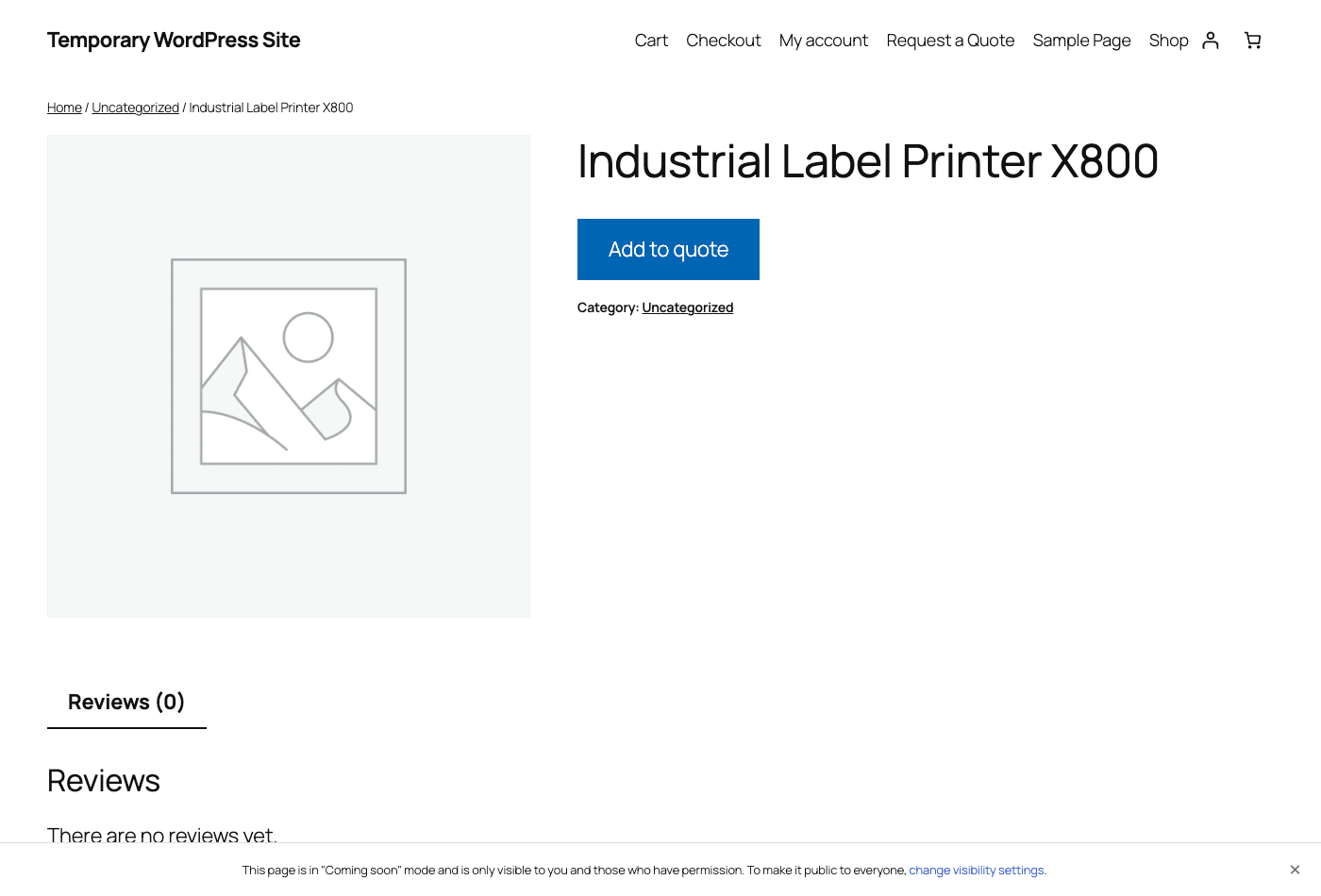
You might be wondering whether a quote-only product still works as a normal WooCommerce product. It does. The product still has a page, images, description, categories, and SEO. It just shows no price and an Add to quote button instead of Add to Cart. On the demo store, a product with an empty price field rendered exactly that way: no price line, one quote button.
Tip: if you only want quoting on a handful of products, leave the global setting alone and use the Exclusion List in "Products in the Exclusion List only" mode. That flips the logic so the quote button shows only on the products you pick, and the rest of your catalog behaves normally.
Choosing who sees the quote button
The audience controls are where this plugin earns its B2B reputation, and they’re worth understanding before you touch anything else.
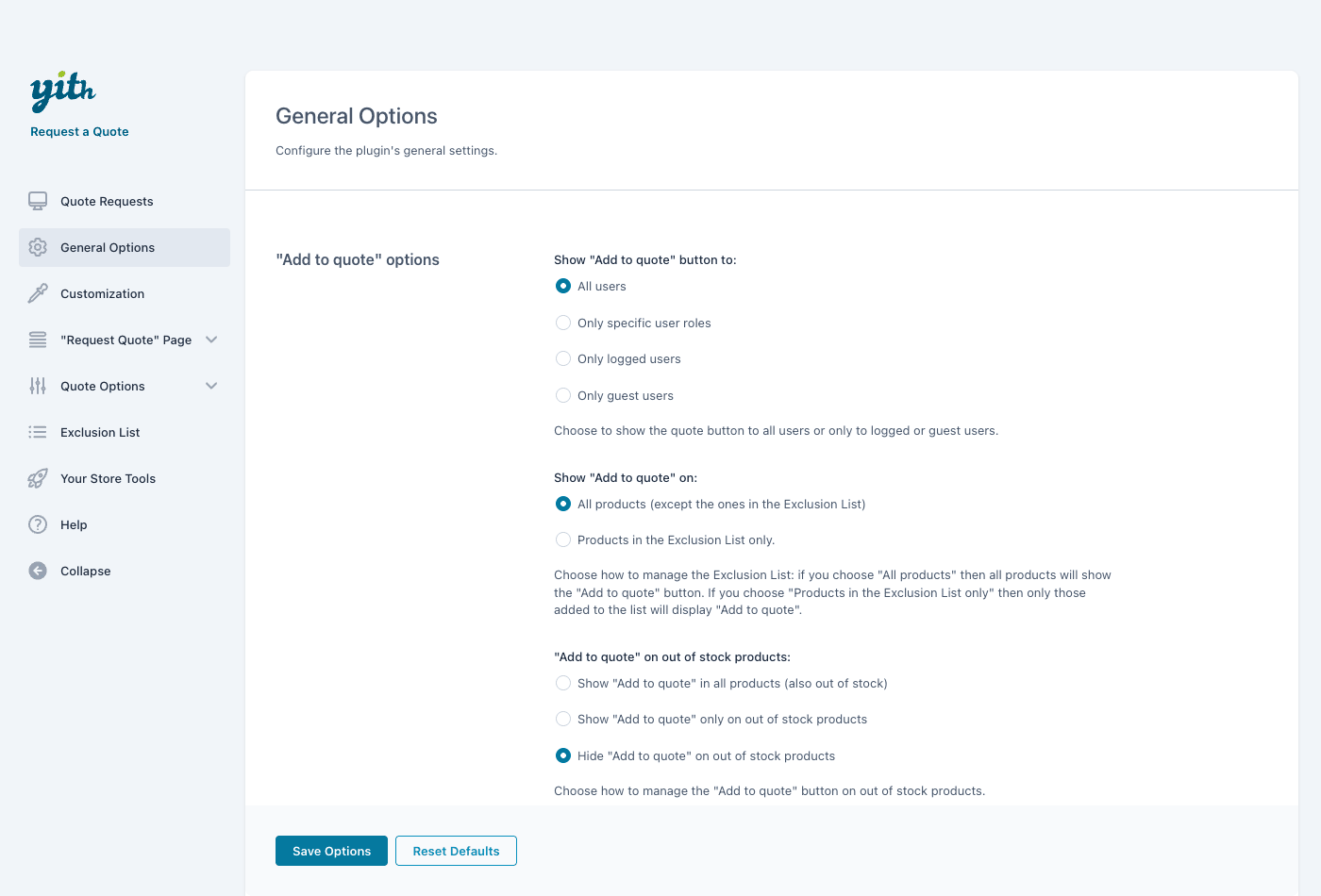
Under General Options, the "Show ‘Add to quote’ button to" setting gives you four audience modes:
- All users. Everyone, logged in or not, sees the button.
- Only specific user roles. Pick the roles, for example a custom
wholesale_customerrole, and only they see it. - Only logged users. Anyone with an account sees it; guests don’t.
- Only guest users. The inverse, which is rarer but useful if your account holders already get fixed pricing.
There’s a second control, "Show ‘Add to quote’ on", that decides which products the button appears on: all products except those in the Exclusion List, or only products in the Exclusion List. And a third, "Add to quote on out of stock products", lets you show the quote button on everything, only on out-of-stock items, or hide it on out-of-stock items. That last one is genuinely clever. You can keep a sold-out product live and let people request a quote or a restock instead of bouncing off a dead "out of stock" page.
Heads-up: role-based visibility depends on you actually having roles set up. If your whole customer base is the default WooCommerce "customer" role, "Only specific user roles" won’t segment anyone. Pair this with a role manager or your membership plugin first if you want true trade-only pricing.
The quote request flow, end to end
Let me walk the whole journey once, from the customer’s first click to a paid order, because the individual settings make a lot more sense when you see where they land.
- Add to quote. The customer clicks the Add to quote button on a product page (or a shop loop). The product drops into their quote list. A mini quote widget or item counter can show how many items are in the list, the same way a cart icon shows cart count.
- Review the list. The customer opens the Request a Quote page (default slug
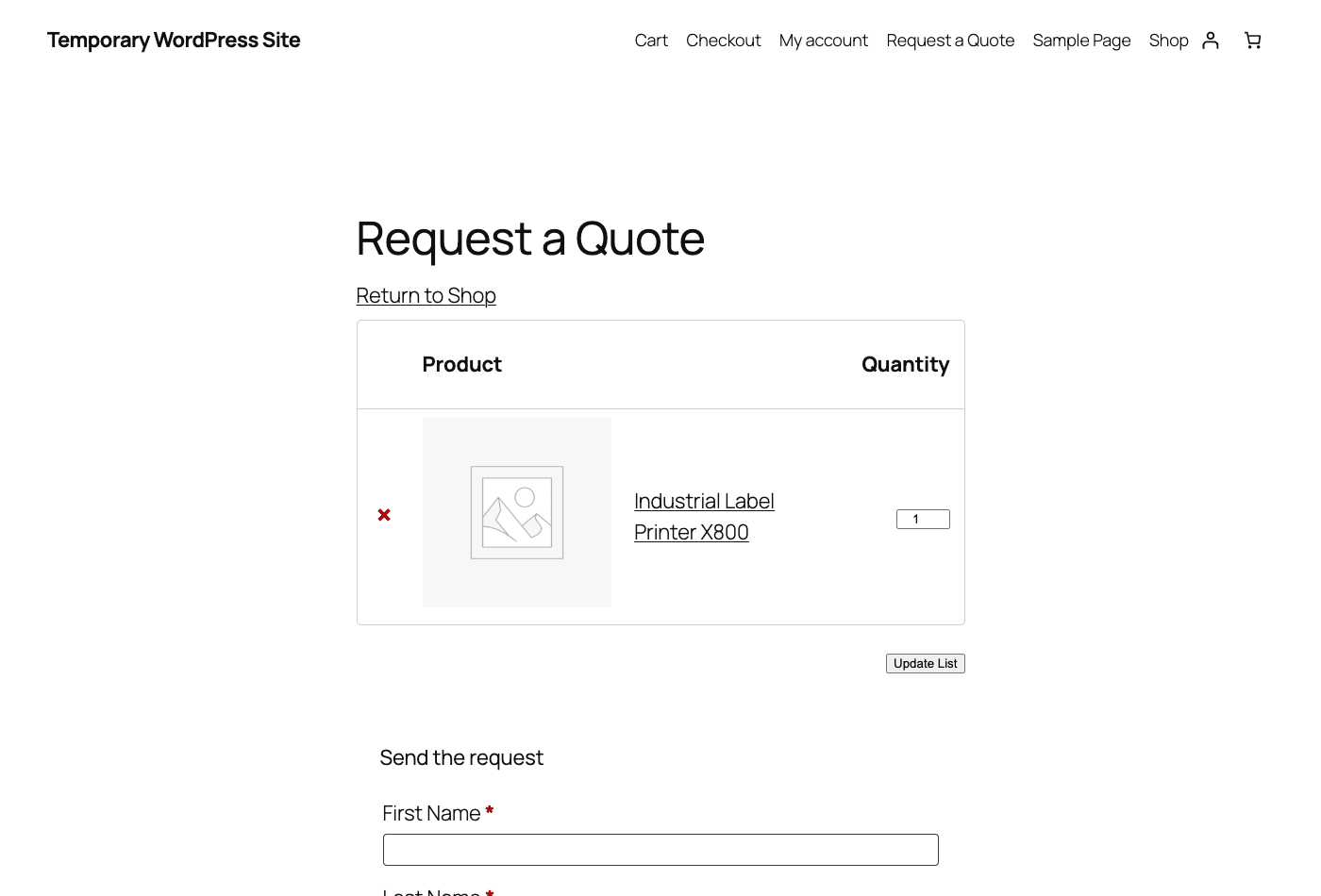
/request-quote/, created from the main shortcode). They see a Product and Quantity table, can change quantities, remove rows with the × control, and click Update List to recalculate. - Send the request. Below the list is a Send the request form. By default it asks for First Name, Last Name, Email, and a Message. The customer fills it and submits.
- Admin review. The request lands in your Quote Requests list as an order with the
wc-ywraq-newstatus. You open it, set or adjust the line-item prices, add notes, and decide what to charge. - Send the quote. You send the quote back to the customer. The status moves to pending while you wait on them. The customer gets an email, and if you’ve enabled PDF quotes, they can download a PDF from My Account.
- Accept or reject. The customer accepts (status becomes
wc-ywraq-accepted) or rejects it (wc-ywraq-rejected), optionally with a reason. If they sit on it past the deadline you set, it can move towc-ywraq-expired. - Pay. If quote payment is enabled, the accepted quote becomes a payable WooCommerce order. The customer pays through your normal gateways and you’ve closed the loop without a single re-keyed line item.
The thing I appreciate here is that step 7 isn’t a separate invoice tool. Because the quote was an order the whole time, "turn it into a sale" is just letting the customer pay the order. No export, no copy-paste into a different system.
A quick install note, since I’m folding setup into this flow: install the plugin like any other (upload the zip under Plugins » Add New » Upload Plugin, activate, and make sure WooCommerce is active first). On activation the plugin creates the Request a Quote page for you, so the front-end flow above works out of the box before you’ve touched a single setting.
A tour of every settings tab
The admin lives at YITH » Request a Quote. Here’s what each tab does, including the ones I didn’t screenshot.
- Quote Requests. Not a settings tab, this is the inbox. It’s a filtered WooCommerce orders view showing every incoming quote and its status. This is where you spend your day if quoting is a real channel for you.
- General Options. The audience and visibility controls covered above: who sees the button, on which products, and how out-of-stock products behave.
- Customization. The look of the buttons (more below).
- "Request Quote" Page. Split into Page Options (which page is the quote page, return-to-shop behavior, cross-sells) and Form Options (the request form itself).
- Quote Options. Split into Quote Settings (general quote behavior and expiry), Quote PDF (PDF download toggle and the template editor), Quotes in My Account (the customer’s quote list under My Account), and Quote Payment (the accept-then-pay flow).
- Exclusion List. Per-product include or exclude control for where the quote button appears.
- Your Store Tools and Help. YITH’s cross-promo and support links. You can ignore these.
Customization
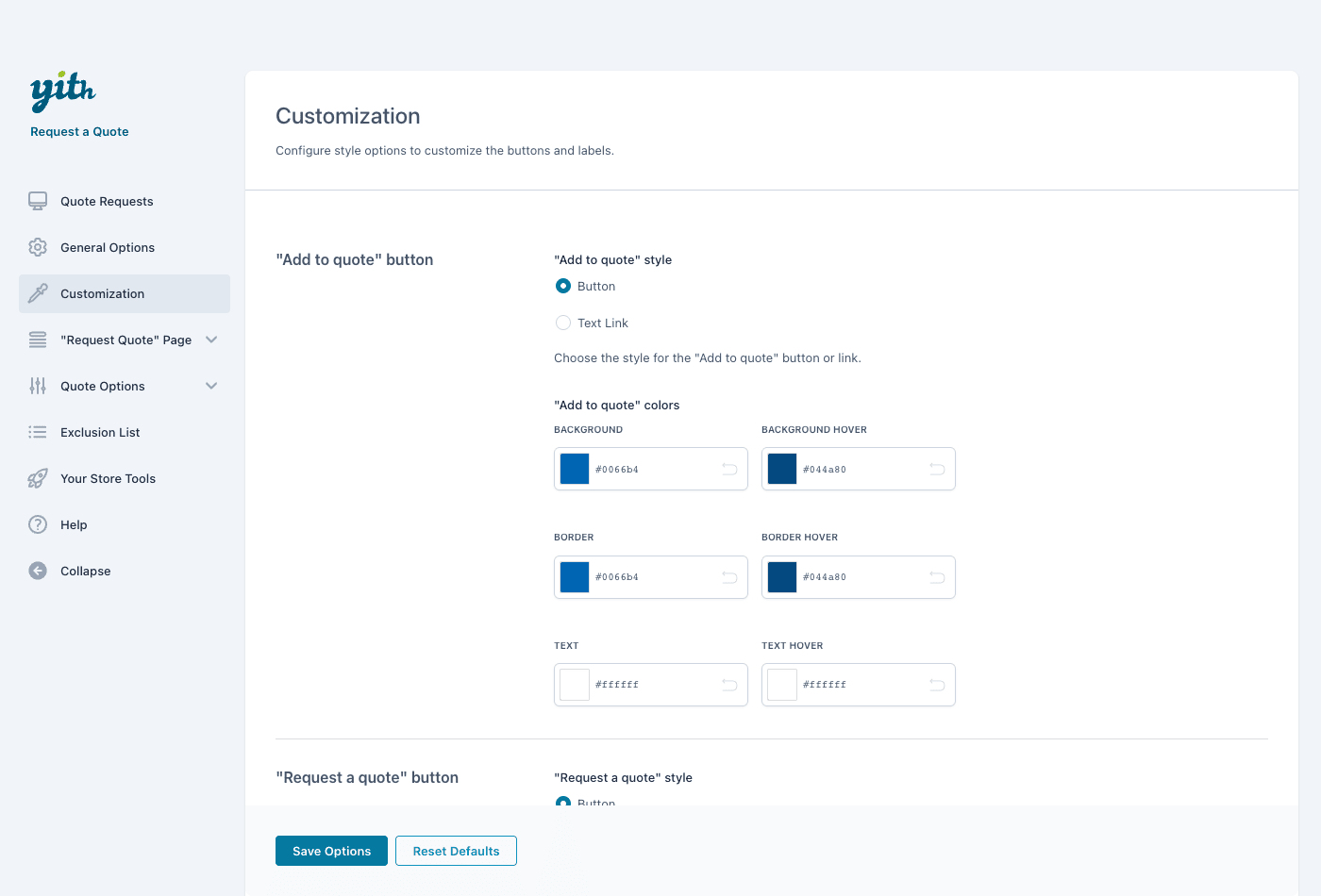
Under Customization, you control how the buttons look. The "Add to quote" display can be a Button or a Text Link, and you get six color controls for it: background, background hover, border, border hover, text, and text hover. The "Request a quote" button gets the same set of controls.
Tip: match the Add to quote button to your theme’s primary button, not its secondary one. If the quote button looks less important than Add to Cart, customers read it as a downgrade. On a quote-only store, it’s the only button, so it should look like the main action.
Quote Settings, expiry, and My Account
The Quote Settings sub-tab is where you set the general behavior of a quote, including how long an accepted-or-sent quote stays valid. Quote expiry is one of those settings that sounds optional until the first time a customer accepts a stale price. Set it.
Quotes in My Account adds a section to the customer’s account where they can see their past and pending quotes, view a single quote, and (if enabled) download the PDF. For repeat B2B buyers this is the difference between "where’s my quote" emails and a self-service history.
The request form and form integrations
The form is the data-capture half of the whole plugin, so it gets its own tab under "Request Quote" Page » Form Options.
By default you use the plugin’s built-in form. There’s a Default form fields table listing each field with its Name, Type, Label, "Connect to" mapping, Required toggle, and Activate toggle. The defaults are first name, last name, email, and message. You can add fields with the Add field button, reorder and edit them, and use Restore Default to reset. The "Connect to" column is the useful bit: it maps a field to a WooCommerce billing field so the data lands in the right place on the order.
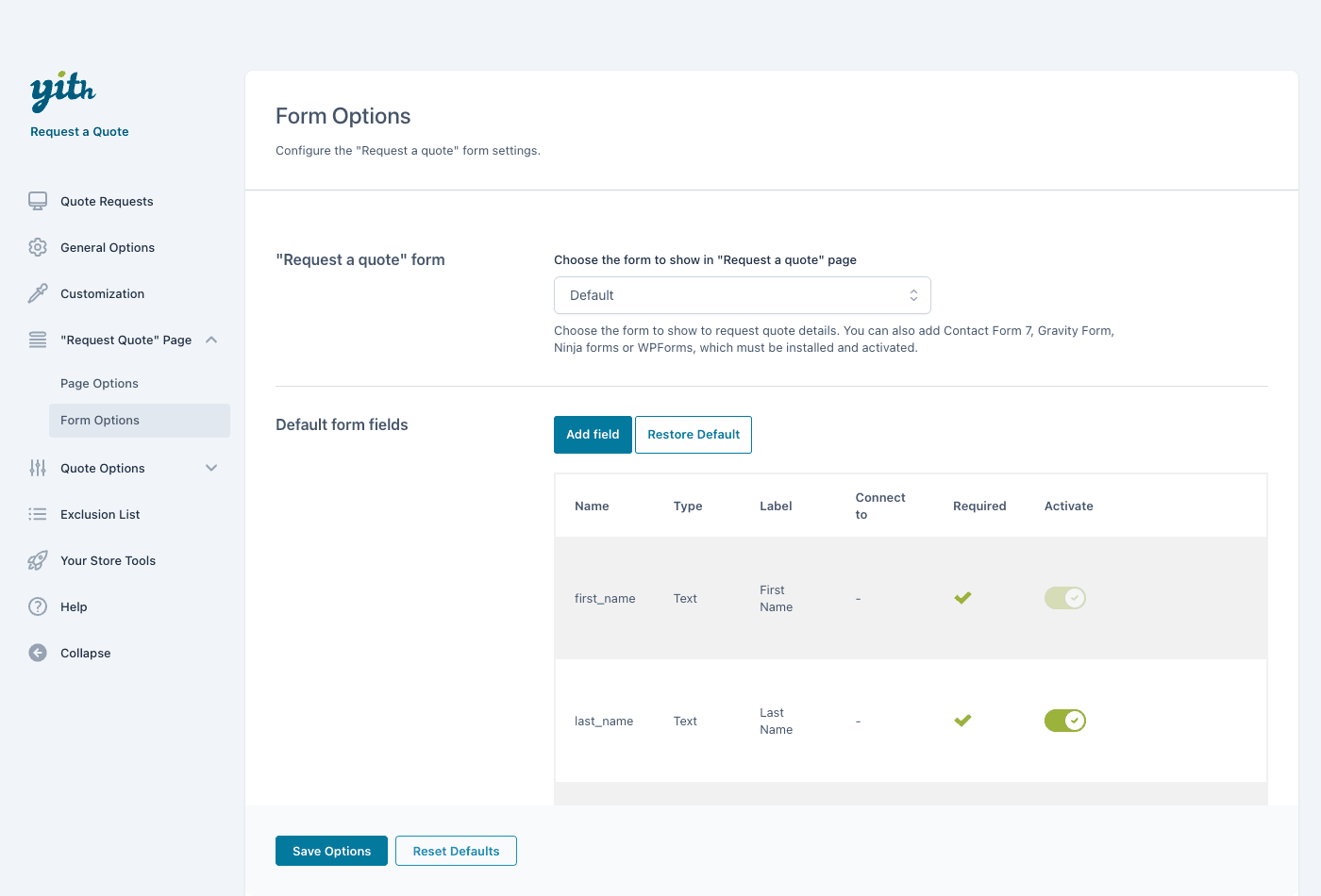
If the default form is too limited, the "Choose the form to show" dropdown lets you swap it for a form from one of four supported plugins, when they’re installed: Contact Form 7, Gravity Forms, Ninja Forms, or WPForms. This is the right call if you already run one of those and want conditional logic, file uploads, multi-step forms, or your existing notification routing. You build the form in that plugin and point the quote page at it.
Note: swapping in a third-party form means that plugin owns validation and field mapping, not YITH. If your CF7 or Gravity form doesn’t pass an email back in a way the quote can use, the quote object won’t have a customer email to send to. Test a full submission before you go live, not just the form’s own "message sent" confirmation.
Here’s the front-end result: the quote list table on top, the Send the request form below it.
Turning a quote into a paid order
This is the feature that separates YITH Request a Quote from a glorified contact form, so it deserves its own section.
When a request arrives, it’s a WooCommerce order with the wc-ywraq-new status and no agreed price yet (or list prices as a starting point). You open it in Quote Requests, adjust the line items, and set what you’ll actually charge. Then you send the quote. The customer receives it, and the status moves to pending.
From there the customer can accept or reject. An accept moves the order to wc-ywraq-accepted; a reject moves it to wc-ywraq-rejected, and you can capture a reason so you learn why deals fall through. If you’ve set an expiry and the customer never responds, the quote can lapse to wc-ywraq-expired on its own.
The payoff is Quote Payment. Enable it under Quote Options, and an accepted quote becomes a payable order. The customer pays with your normal WooCommerce gateways, the same Stripe or PayPal or bank-transfer setup the rest of your store uses. Nothing gets re-entered, because the order has been the source of truth the entire time.
I’ll be honest about a limitation here. Because quotes ride on WooCommerce orders, your Orders screen and your Quote Requests screen are looking at the same underlying data with different filters. On a busy store, an admin who isn’t paying attention can get confused about which order is a real sale and which is an open quote. The custom statuses help, but it’s worth a quick team briefing so nobody fulfills a quote that hasn’t been accepted yet.
Real-world use cases
Quoting sounds abstract until you see yourself in it. Here are a few stores where this plugin is the obvious fit.
If you run a trade-supply store, you probably have one price for the public and another for contractors. Set the Add to quote button to "Only specific user roles", give your trade accounts a wholesale role, hide retail prices from them, and let them request a quote on a full pallet. They get a real number for their order size; walk-in retail customers still buy at list price with a normal cart.
For a custom-furniture maker, a fixed price is a lie, because the price depends on wood, finish, and dimensions. Make those products quote-only, add custom fields to the request form (timber type, dimensions, delivery postcode), and the quote you send back is grounded in the actual job rather than a guess.
If you sell high-ticket equipment, the buyer almost never clicks Buy Now on a $12,000 machine without talking to someone first. A quote button matches how that sale actually happens. The accept-and-pay flow then lets them complete the purchase online once they’re ready, instead of you chasing a wire transfer.
For a printing or signage business, every job is a spec: quantity, size, material, finish. The request form captures the brief, the quote page collects the products, and you reply with a real estimate. It beats a generic "contact us" form because the customer has already told you what they want and how many.
If you stock products that go out of stock often, the "Add to quote on out-of-stock products" option keeps those pages working. Instead of a dead end, an interested buyer requests a quote or a restock and you capture the lead.
Developer reference: hooks and shortcodes
Now the part developers actually scroll to. Everything below is verified against the plugin source. Two things to set expectations up front: there is no REST API (zero registered REST routes) and no WP-CLI command in this plugin. If you need to drive quotes programmatically, you do it through WooCommerce‘s order APIs and the standard actions and filters below, not a dedicated endpoint.
Shortcodes
The plugin registers twelve shortcodes. These are how you place quote elements outside the auto-generated page.
[yith_ywraq_request_quote]          The main quote list/table page (the Request a Quote page)
[yith_ywraq_request_quote_table]    Just the quote table, no form
[yith_ywraq_button_quote]           An "Add to quote" button, place anywhere
[yith_ywraq_quote_request_form]     The request form on its own
[yith_ywraq_quote_sent]             The post-submit "quote sent" content
[yith_ywraq_myaccount_quote]        The customer's quotes in My Account
[yith_ywraq_myaccount_quote_list]   The My Account quotes list
[yith_ywraq_single_view_quote]      View a single quote
[yith_ywraq_mini_widget_quote]      A mini quote widget
[yith_ywraq_widget_quote]           A quote widget
[yith_ywraq_number_items]           The count of items currently in the quote
[yith_ywraq_cross_sells]            Cross-sells on the quote page
A common pattern is splitting the table and form across a custom layout. Drop [yith_ywraq_request_quote_table] into one column and [yith_ywraq_quote_request_form] into another, instead of using the all-in-one shortcode.
Filters
The price and presentation filters are the ones you’ll reach for most. These signatures are exact, including argument counts.
Customize the price HTML rendered for each row in the quote list:
add_filter( 'yith_ywraq_product_price_html', 'my_ywraq_price_html', 10, 3 );
function my_ywraq_price_html( $subtotal_html, $_product, $raq ) {
    if ( ! $_product->get_price() ) {
        return '<span class="quote-on-request">Price on request</span>';
    }
    return $subtotal_html;
}
Filter the computed item price or total before it’s displayed:
add_filter( 'yith_ywraq_product_price', 'my_ywraq_item_price', 10, 3 );
function my_ywraq_item_price( $price, $_product, $raq_item ) {
    // Apply a flat 10% trade discount to every quoted line.
    return $price * 0.9;
}
Add a CSS class to each quote-table row, handy for styling specific products differently:
add_filter( 'yith_ywraq_item_class', 'my_ywraq_row_class', 10, 3 );
function my_ywraq_row_class( $class, $raq_content, $key ) {
    return $class . ' my-custom-quote-row';
}
Change where the customer is sent after they add a product to the quote:
add_filter( 'yith_ywraq_redirect_url', function ( $redirect ) {
    return home_url( '/request-quote/' );
} );
Change the "Return to Shop" label on the quote page:
add_filter( 'yith_ywraq_return_to_shop_label', function ( $label ) {
    return 'Keep browsing';
} );
Override where the plugin looks for templates, so you can keep customizations in your theme:
add_filter( 'yith_ywraq_locate_template', 'my_ywraq_template', 10, 2 );
function my_ywraq_template( $plugin_path, $path ) {
    $theme_file = get_stylesheet_directory() . '/ywraq/' . basename( $path );
    return file_exists( $theme_file ) ? $theme_file : $plugin_path;
}
There are more single-argument label and URL filters in the source (for table totals, rejection-reason labels, the return-to-shop URL, and similar). Grep the source for yith_ywraq_ before relying on any I haven’t shown, and one filter is named with a hyphen rather than an underscore, so quote it exactly if you use it.
Actions
Inject content into the quote email around the items table:
add_action( 'yith_ywraq_email_before_raq_table', function ( $order ) {
    echo '<p>Thanks for your request. Here are the items you quoted:</p>';
} );

add_action( 'yith_ywraq_email_after_raq_table', function ( $order ) {
    echo '<p>This quote is valid for 14 days.</p>';
} );
Run code before the My Account quotes list renders (no arguments):
add_action( 'yith_ywraq_before_my_quotes', function () {
    echo '<h3>Your quote history</h3>';
} );
The PDF and quote template also expose header, content, and footer hooks (yith_ywraq_quote_template_header, _content, and _footer), each passing the quote’s order ID, so you can pull per-quote data when customizing the generated document:
add_action( 'yith_ywraq_quote_template_header', function ( $order_id ) {
    $order = wc_get_order( $order_id );
    echo '<p>Quote reference: ' . esc_html( $order->get_order_number() ) . '</p>';
} );
For most integration work, remember the underlying object is a WooCommerce order. To find quotes programmatically, query orders by the custom statuses (wc-ywraq-new, wc-ywraq-pending, wc-ywraq-accepted, wc-ywraq-rejected, wc-ywraq-expired) with wc_get_orders(). That, plus the filters above, covers nearly everything you’d want to automate.
Don’t make these quote-flow mistakes
I’ve seen each of these cost a store money, so let me be blunt about them.
Don’t hide prices across your whole catalog by reflex. It’s tempting to flip the global "hide price" switch and feel very B2B about it. But hiding the price on products that sell fine at list price just adds friction and kills impulse purchases. A customer who’d have bought a $25 accessory in one click now has to ask and wait, and most won’t. Hide-price and quote-only belong on B2B, custom, and high-ticket items. Use the per-role, per-product, and Exclusion List controls so your easy money stays easy.
Don’t let quote requests sit unanswered. A quote request is a hot lead with stated intent and a stated quantity. The entire value is in a fast reply. If nobody owns the Quote Requests inbox, you’ve just built a slower checkout with no payoff, and the buyer who waited two days has already bought from someone who replied in two hours. Assign an owner and turn on email notifications so a request never goes quiet.
Don’t quote without an expiry. If you send a price and the customer accepts three weeks later after your material costs jumped, you’re bound to a stale number, and either you eat the loss or you start the relationship by walking back your own quote. Set an expiry so a quoted price can’t become a liability.
Don’t trust WordPress’s default mail for quote emails. Quote notifications go through wp_mail(), and on a bare host those land in spam or fail silently. A customer who never sees their quote assumes you ghosted them. Configure proper SMTP before launch; our guide to fixing WordPress email with WP Mail SMTP walks through it.
YITH Request a Quote vs wholesale pricing plugins
This is the comparison that confuses buyers most, so let me draw the line clearly: quote-request and tiered-wholesale-pricing are two different jobs.
A wholesale plugin like B2BKing or WooCommerce Wholesale Pro sets fixed, rule-based prices: this role pays 20% less, this customer group sees this price tier, buy 50 units and the unit price drops automatically. The price is decided in advance by your rules, and the customer self-serves at checkout. There’s no negotiation and no human in the loop.
YITH Request a Quote is for when the price isn’t decided in advance. The customer asks, you reply with a number, and there’s a human deciding what to charge for this specific request. That’s a fundamentally different sales motion.
Here’s how the two approaches and a plain contact form compare on the things that matter.
| What you need | Plain contact form | YITH Request a Quote | Wholesale pricing plugin |
|---|---|---|---|
| Structured quote object | No, just an email | Yes, a real WooCommerce order | N/A, prices are automatic |
| Quote statuses | 0 | 5 (new/pending/accepted/rejected/expired) | N/A |
| Accept then pay online | No | Yes, via Quote Payment | Self-checkout at the tiered price |
| PDF quote document | No | Yes, editable template | No |
| Audience targeting | None | 4 modes (all/roles/logged/guest) | Per role or customer group |
| Form options | The one form | 4 integrations (CF7/Gravity/Ninja/WPForms) | N/A |
| Placement shortcodes | 1 | 12 | Varies |
Put numbers on it and the split gets obvious. A wholesale plugin is great when the discount is a rule you can write down in advance: trade buyers get a flat 20% off, a 100-unit break drops another 10%, done. A quote is for the deal you can’t write a rule for, the one-off 200-unit job you might price at 12% margin to win it or 35% because it’s a rush with custom specs. One is a pricing table, the other is a negotiation. The honest takeaway: if your prices are fixed and rule-based, a wholesale plugin is the better tool and quoting just adds steps. If your prices are negotiated or spec-dependent, a contact form loses you the structured order, the accept-pay flow, and the PDF, and a wholesale plugin doesn’t fit at all. Plenty of stores run both, wholesale pricing for catalog items and quotes for the custom jobs.
On cost, YITH sells this as a yearly premium license. The same premium plugin is available as GPL on GPL Times, which is the cheaper route if you’re comfortable handling updates yourself.
Performance, compatibility, and gotchas
This is a light plugin in performance terms. It’s not running on every page load the way a cache or a page builder is; the quote logic mostly fires on product pages, the quote page, and admin order screens. I wouldn’t expect it to move your Core Web Vitals.
A few real-world notes.
It requires a recent WooCommerce, so keep WooCommerce current before installing. Because quotes are orders, the plugin works with WooCommerce’s modern order storage, but if you’re on an older store with custom order-table tweaks, test the Quote Requests filter after upgrading.
Theme compatibility is usually fine, because the buttons hook into standard WooCommerce template actions. The exception is heavily customized product templates (some page builders rebuild the add-to-cart area entirely). If the Add to quote button doesn’t appear, your theme is probably overriding the WooCommerce template that the button hooks into, and you’ll place it with the [yith_ywraq_button_quote] shortcode instead.
The form integrations are only as reliable as the form plugin behind them. The default form is the safe choice; reach for CF7 or Gravity only when you need their extra power.
Troubleshooting
The Add to quote button isn’t showing. Check three things in order: the audience setting (are you logged in as a role that’s allowed to see it?), the product setting (is this product excluded, or is the Exclusion List in "only these products" mode?), and your theme (is it overriding the WooCommerce add-to-cart template?). If the first two are right and it still won’t show, drop [yith_ywraq_button_quote] directly into the product short description as a workaround.
Prices won’t hide. The hide-price controls and the audience controls are separate. Hiding the price for "all users" is different from showing the quote button to "all users", so confirm both are set the way you intend. Also check for a caching layer; a cached product page can keep serving the old price after you change the setting, so purge your cache.
Quote emails aren’t arriving. This is almost always deliverability, not the plugin. Test with an SMTP plugin and a real mailbox. If the email is being generated but landing in spam, that’s your sending domain, not YITH.
A third-party form submits but no quote is created. The mapped email field probably isn’t reaching the quote. Re-check the field mapping in the form plugin and make sure an email value is being passed through, because the quote needs a customer to attach to.
The Quote Requests list is empty after a real submission. Confirm the request actually completed (some demo and staging environments block outgoing mail, which can make a submission look like it failed). On production with working mail, a completed request appears as a wc-ywraq-new order.
Pricing and licensing
YITH WooCommerce Request a Quote is sold by YITH as a premium plugin on a yearly license, which covers updates and support for the term. The free version on WordPress.org covers the basics; the premium tier is the one with quote payment, PDF quotes, the form integrations, quote expiry, the Exclusion List, and the My Account quote area, which is to say the features that make this a real workflow rather than a fancier contact form.
The same premium plugin is available as GPL on GPL Times. You get the identical files; the trade-off is that you handle updates yourself rather than getting them pushed through a license key. If you want to evaluate the full quote-to-payment flow before committing to a yearly renewal, that’s the practical way to do it.
FAQ
Does YITH Request a Quote replace my normal WooCommerce checkout?
No. It runs alongside it. You decide per product (or per role) which items use the quote flow and which keep the standard Add to Cart and checkout. Most stores run both, with quoting reserved for custom or high-volume products.
Can customers pay for a quote online once they accept it?
Yes, with Quote Payment enabled. An accepted quote becomes a payable WooCommerce order that the customer pays through your existing gateways. The trade-off is that this is a premium feature; the free version stops at the request, with no accept-and-pay loop.
Are quotes stored as a separate post type?
No, and this trips people up. Quotes are WooCommerce orders with custom statuses. The plugin’s only custom post type is the PDF quote template. That’s actually good news, because it means quotes inherit all of WooCommerce’s order tooling.
Can I hide prices from some customers but not others?
Yes. The audience setting supports four modes: all users, specific roles, logged-in users only, or guests only. A common setup is showing real prices to retail customers and a quote button to a wholesale role. The catch is you need those roles to actually exist; out of the box, every customer shares one role.
Does it work with my forms plugin?
It integrates with four: Contact Form 7, Gravity Forms, Ninja Forms, and WPForms, when they’re installed. You can also use the plugin’s own built-in form, which is the more reliable choice unless you specifically need conditional logic or file uploads.
Will hiding prices hurt my SEO?
Quote-only products keep their full page, title, description, images, and meta, so they’re indexed like any product. What you lose is the price showing in rich results and shopping feeds, which is a real cost if those drive traffic. That’s a reason to keep quoting scoped to products that genuinely need it, not your whole catalog.
Can I generate a PDF of the quote?
Yes. The premium version lets customers download a quote as a PDF from My Account, and there’s an editable PDF template so the document matches your branding. The honest limitation is that the template editor is functional rather than fancy; for a heavily designed quote you may end up tweaking CSS.
Is there a REST API or WP-CLI command?
No to both. There are zero REST routes and no CLI commands. To work with quotes in code, you query WooCommerce orders by the custom quote statuses and use the plugin’s filters and actions.
How do I stop quotes from expiring at a bad time?
Set the expiry deliberately in Quote Settings rather than leaving it at a default you didn’t choose. Too short and engaged buyers lose their quote; too long and you’re bound to stale prices. For most stores, one to four weeks is a sensible window.
Can I show the quote button on out-of-stock products?
Yes, that’s a dedicated setting. You can show the quote button on all products, only on out-of-stock items, or hide it on out-of-stock items. Showing it on sold-out products is a neat way to capture demand instead of losing the visitor.
Final thoughts
I came into this expecting a thin "hide the price" plugin and found a real quote-to-cash workflow instead. The smartest decision YITH made was building quotes on top of WooCommerce orders, because it means the accept-and-pay flow isn’t a bolt-on; it’s the same order the customer requested, now payable. The audience controls, the form integrations, and the PDF quotes round it out into something a serious B2B or custom-product store can run a sales channel on.
It’s not flawless. The reliance on WooCommerce orders can blur the line between quotes and real sales on a busy admin, the PDF template editor is more functional than polished, and the hide-price feature is easy to over-apply. But none of those are dealbreakers, and most are matters of using the controls the way they’re meant to be used.
If your store keeps losing buyers who needed a price you couldn’t show them on a page, YITH WooCommerce Request a Quote on GPL Times is the most direct way to turn that dead end into a real conversation, and a payable order at the end of it. Set the audience controls first, scope the hidden prices to the products that earn it, and answer every request fast. And if part of your catalog would sell better to the highest bidder than at a fixed price, our YITH WooCommerce Auctions review covers running timed auctions instead. Do that, and the quote button becomes one of the better-converting things on your store.