

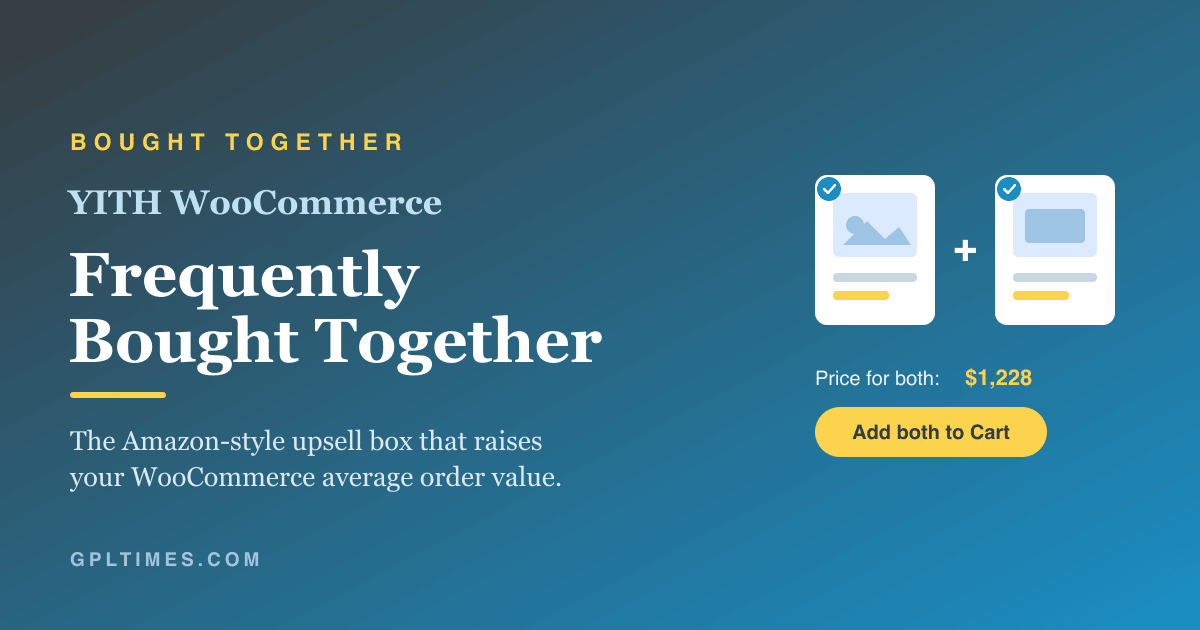
Picture a store with traffic you’d be happy with. A few thousand sessions a week, a decent conversion rate, products people actually want. And yet the average order sits stubbornly flat at around forty dollars, one item per cart, checkout after checkout. The traffic is fine. The problem is that nobody is leaving with the second thing they were always going to need anyway.
That second thing is exactly what YITH WooCommerce Frequently Bought Together is built to sell. It drops an Amazon-style box right on the product page, the one with a couple of suggested items, checkboxes, and a single "Add all to cart" button, and it nudges the shopper to grab the camera and the lens in one click instead of one alone.
I’ve spent a fair amount of time wiring upsells into WooCommerce stores, and the bought-together box is one of the few that doesn’t feel pushy. It works because it shows the customer something they were probably going to buy regardless. This is a long, honest walkthrough of what the plugin does, how to set it up without torching your margins, every setting that matters, the developer hooks worth knowing, and the places where this approach quietly fails.
Table of Contents
- What is YITH WooCommerce Frequently Bought Together?
- Why average order value is the number to chase
- Key features
- How the bought-together box works
- A guided tour of the settings
- Choosing the suggested products: related vs custom
- Adding a bundle discount without wrecking your margin
- Where to place the box
- Real-world use cases
- YITH Frequently Bought Together vs Product Bundles
- Don’t make these bought-together mistakes
- Developer reference
- Performance, compatibility, and gotchas
- Troubleshooting
- Pricing and licensing
- FAQ
- Final thoughts
What is YITH WooCommerce Frequently Bought Together?
YITH WooCommerce Frequently Bought Together is a WooCommerce upsell plugin made by YITH, the studio behind a long shelf of WooCommerce extensions. Its one job, and it really is mostly one job, is to add a box to your product pages that suggests items often purchased alongside the product being viewed, then lets the shopper add the whole group to the cart at once.
If you’ve ever bought anything on Amazon, you already know the pattern. You land on a product, and below the buy button sits a little cluster of thumbnails joined by plus signs, a combined price, and an "Add all three to Cart" button. Each item has a checkbox, so you can uncheck the ones you don’t want and the total updates live. That’s the entire concept, transplanted onto WooCommerce.
The plugin is a single-purpose tool, and I mean that as a compliment. It doesn’t try to be a page builder or a marketing suite. It adds the box, gives you control over what goes in it, lets you attach a discount, and gets out of the way.
One requirement up front: it needs WooCommerce. The plugin header literally lists woocommerce as a required plugin, so on a plain WordPress install it won’t activate until WooCommerce is present. That’s the only hard dependency.
The official store listing is on YITH’s own site, and the GPL copy you can install and configure end to end lives at YITH WooCommerce Frequently Bought Together on GPL Times. Same plugin, delivered through the GPL store.
Why average order value is the number to chase
Skip ahead if you live and breathe store metrics. If you don’t, here’s the two-minute version, because the whole point of this plugin only clicks once you internalize it.
There are three ways to grow store revenue. Get more visitors. Convert more of them. Or get each buyer to spend more. The first two are expensive and slow. More traffic means more ad spend or more SEO patience. Better conversion means redesigns, A/B tests, and trust-building that takes months.
The third lever, average order value (AOV), is the cheap one. You already paid to acquire the visitor and you already earned their trust enough to buy. Getting them to add one more relevant item to the cart costs you almost nothing.
Here’s the math that makes me care. Say you sell an $899 camera, and you offer a $329 lens in the bought-together box. If even 15 percent of camera buyers tick that lens, your average order on that product climbs by roughly $49 (15 percent of $329) without a single extra visitor. Run that across a catalog and it compounds. A homepage banner pushing the lens won’t come close to that attach rate, because the banner shows up before anyone has committed to the camera. The bought-together box shows up at the exact moment of decision.
That timing is the whole trick. The customer is already convinced they want the main product. You’re just answering the question they were about to ask anyway: "what else do I need to make this work?"
Key features
Rather than dump the marketing list, here’s what actually moves the needle.
- The bought-together box itself. A product-page widget showing the main product plus suggested items, each with a checkbox, a live combined total, and a one-click "add all" button. This is the core, and it renders on the frontend with no theme surgery on most setups.
- Four ways to source the suggested products. Per product, you pick whether the box pulls from WooCommerce’s related products, your cross-sells, your up-sells, or a fully custom hand-picked list. That last one is where the real conversions live.
- A per-bundle discount. You can knock a percentage or fixed amount off when the group is bought together, and the discount surfaces in the cart and checkout under a name you set. Optional, and off until you enable it.
- A central Linked products screen. One admin list shows every product in your store that has an FBT combo attached, so you can see and manage your whole bought-together strategy from a single page instead of opening products one at a time.
- Customizable labels. The total label and the add-to-cart button label change wording depending on how many items are in the group ("Price for both" vs "Price for all three"), and you can rewrite every one of those strings.
- Placement control. A dropdown picks where on the product page the box appears (above the tabs, and other hook positions), plus shortcodes and builder widgets if you want it somewhere custom.
- Two shortcodes.
[yith_wfbt]and[ywfbt_form]let you drop the box manually into a layout, a custom template, or a page builder text block. - Elementor and Gutenberg integration. Dedicated widgets and a block place the box visually, no shortcode typing required.
- Multivendor support. It plays with YITH’s multi-vendor setup, so vendors on a marketplace can configure their own FBT combos for their own products.
How the bought-together box works
Let me walk through the actual flow, because it helps to see the whole shape before we get into individual settings.
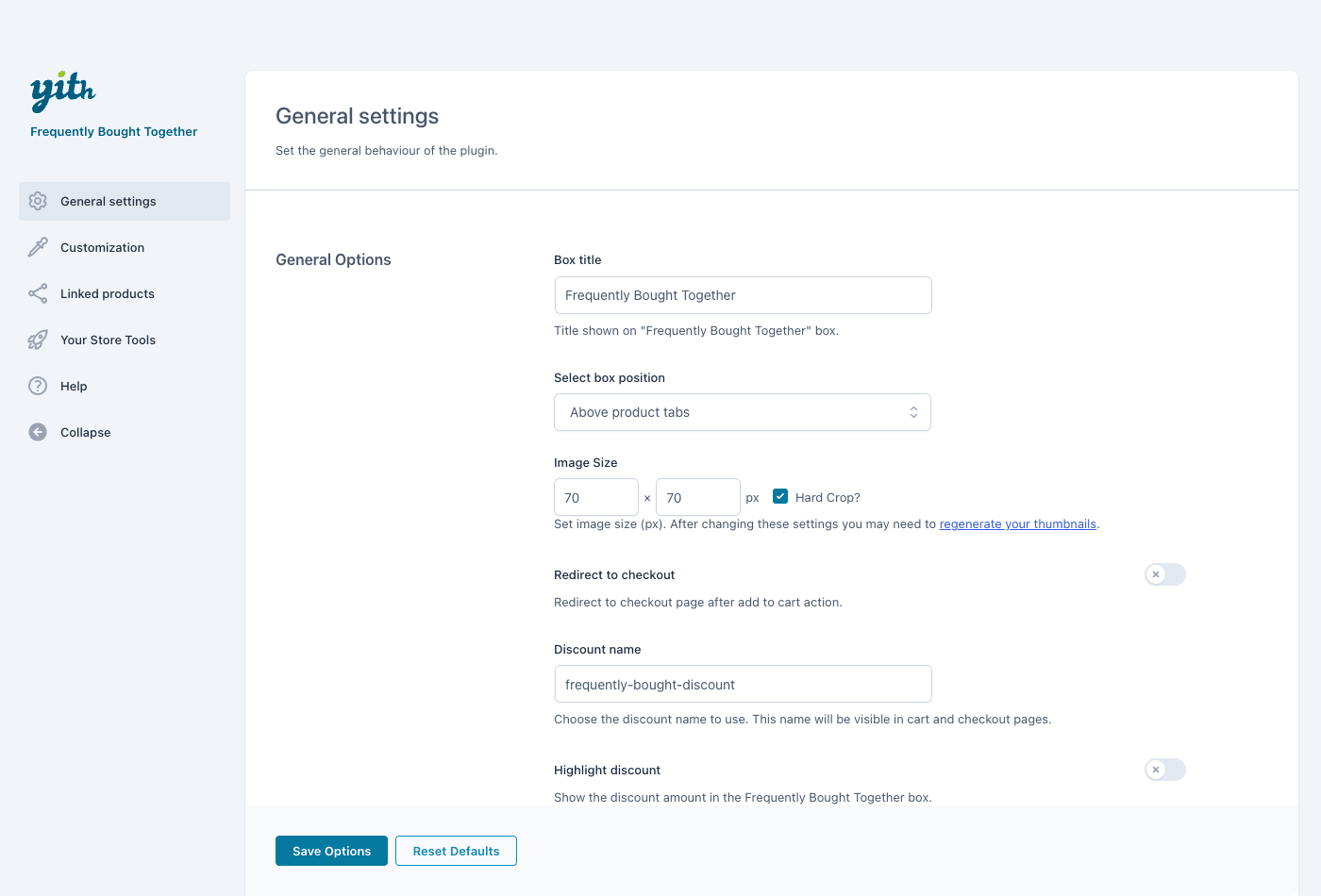
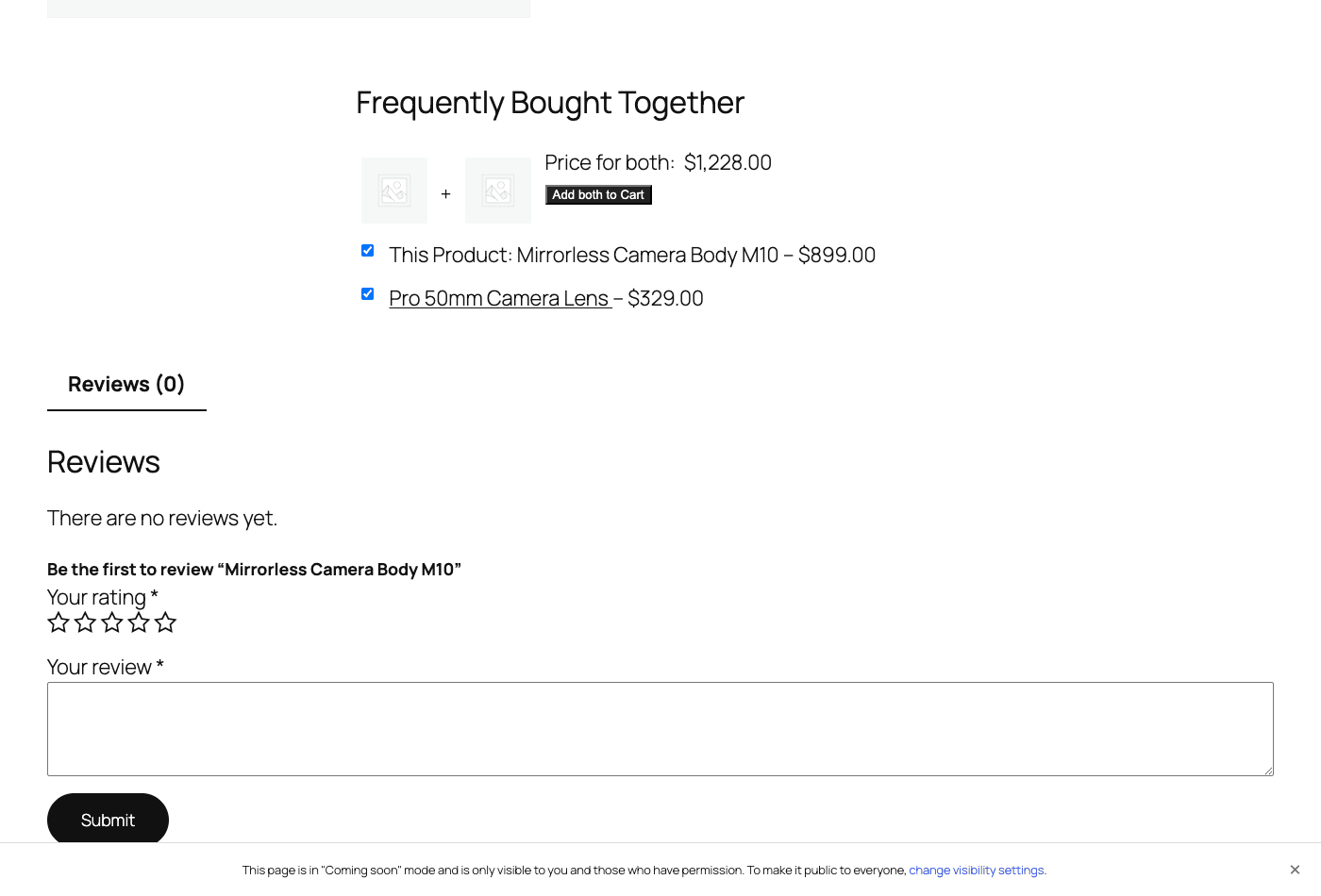
A shopper lands on a product page. If that product has an FBT combo configured (and the group has at least two products in it), the plugin renders a "Frequently Bought Together" heading, the product thumbnails joined by "+" signs, a combined price like "Price for both: $1,228.00", and an "Add both to Cart" button. Below that sits a checkbox list: "This Product:" followed by the main product, then a line for each suggested item with its own price.
The customer ticks the items they want. As they check and uncheck boxes, the combined total recalculates live in the browser. When they hit the button, every checked item drops into the cart in one go, and if you’ve enabled a bundle discount, it gets applied at that moment.
Heads-up: the box only renders when the group has two or more products. The template explicitly bails out if the count drops below two. So a "combo" of just the main product with no companions shows nothing at all, which is actually the correct behavior, but it surprises people who set up a product and then wonder why the box is missing.
Installation, the short version. Upload and activate the plugin, confirm WooCommerce is active, and a new "Frequently Bought Together" tab appears in the YITH menu and inside each product’s Product data panel. There’s no setup wizard to sit through. You configure the global look once, then attach combos to individual products. That’s genuinely it, which is why I’m not giving installation its own section. The work is in deciding what to suggest, not in clicking "Activate."
A guided tour of the settings
The admin lives under a YITH panel (the Frequently Bought Together entry in the YITH menu). It’s organized into a few tabs, and I’ll go through the ones that matter.
General settings
This is where you set the global behavior of every box on the site. The screenshot above shows the panel, and here’s what each control does.
- Box title. The heading shown above the box. Defaults to "Frequently Bought Together," which is what shoppers expect, so I’d leave it unless you have a strong brand voice reason to change it.
- Select box position. A dropdown of hook positions on the product page. "Above product tabs" is the default and a sensible one. We’ll dig into placement strategy in its own section below.
- Image Size. The pixel dimensions for the product thumbnails in the box, with a Hard Crop checkbox. Hard crop forces the thumbnails to an exact ratio so they line up neatly. Without it, mismatched aspect ratios can make the row look ragged.
- Redirect to checkout. A toggle. When on, clicking "Add all to Cart" sends the customer straight to checkout instead of leaving them on the product page. Useful for a fast funnel, risky if you’d rather they keep browsing. I usually leave this off so the shopper can add more.
- Discount name. The label the bundle discount shows up under in the cart and at checkout. Defaults to
frequently-bought-discount. Give it something a customer will understand, like "Bundle saving," because they will see this string. - Highlight discount. A toggle that surfaces the discount amount inside the box itself, so the saving is visible before the customer adds anything. If you’re running a discount, turning this on is the whole point. A saving nobody sees doesn’t convert.
- Loader Image. The spinner shown while the total recalculates. Cosmetic, leave the default unless it clashes with your theme.
Customization
This tab controls the wording. The clever bit here is that the labels adapt to how many items are in the group.
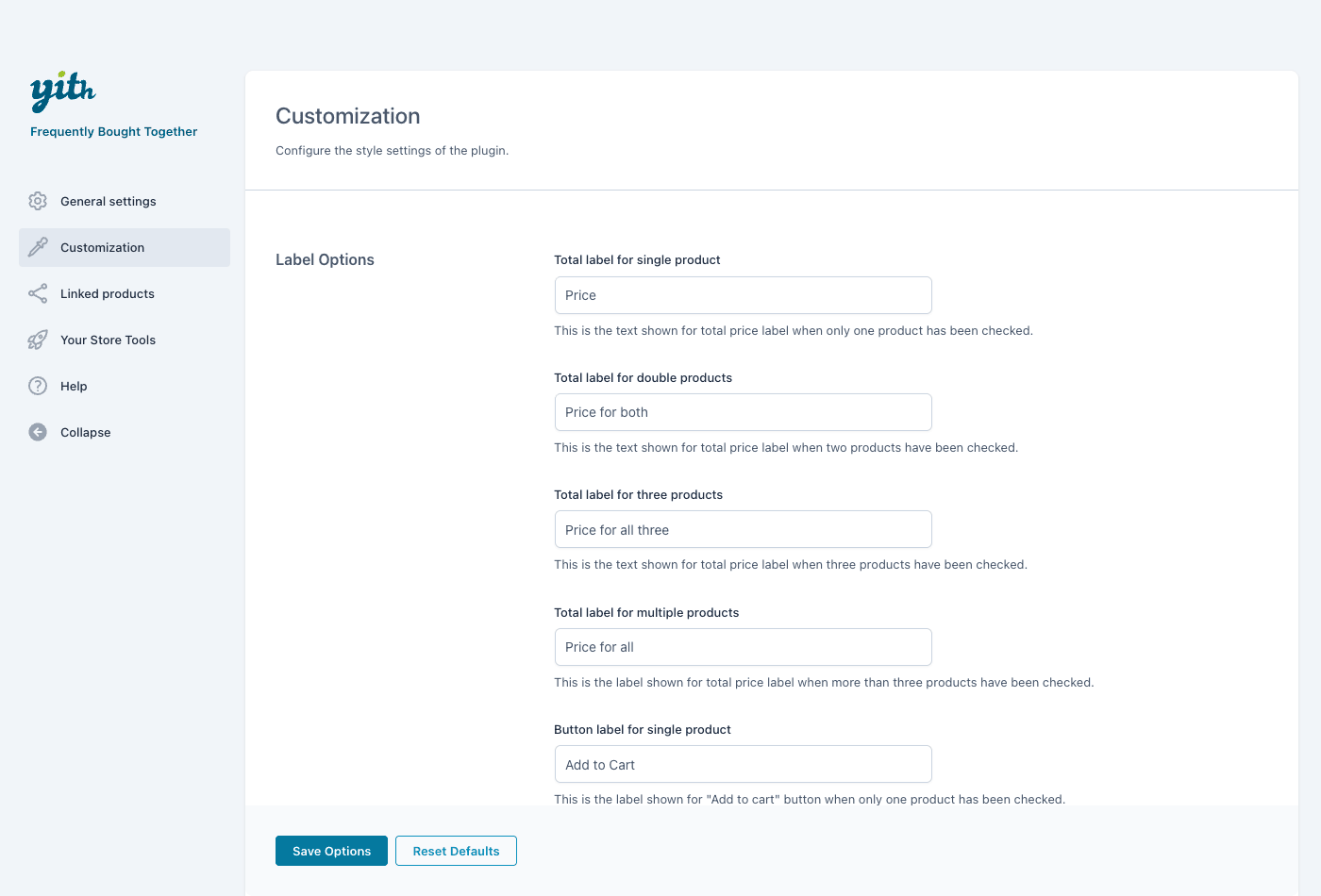
The Label Options let you set:
- Total label for a single product (default "Price").
- Total label for two products (default "Price for both").
- Total label for three products (default "Price for all three").
- Total label for multiple products (default "Price for all").
And the matching Button label strings for one, two, three, and many items ("Add to Cart," "Add both to Cart," and so on).
It’s a small touch, but it reads naturally to the shopper. "Add both to Cart" feels human in a way that a generic "Add selected" never does. If you sell in a non-English market, this tab is where you’d translate the customer-facing copy without touching code.
Linked products
This is my favorite tab, and it’s the one a lot of FBT plugins skip.
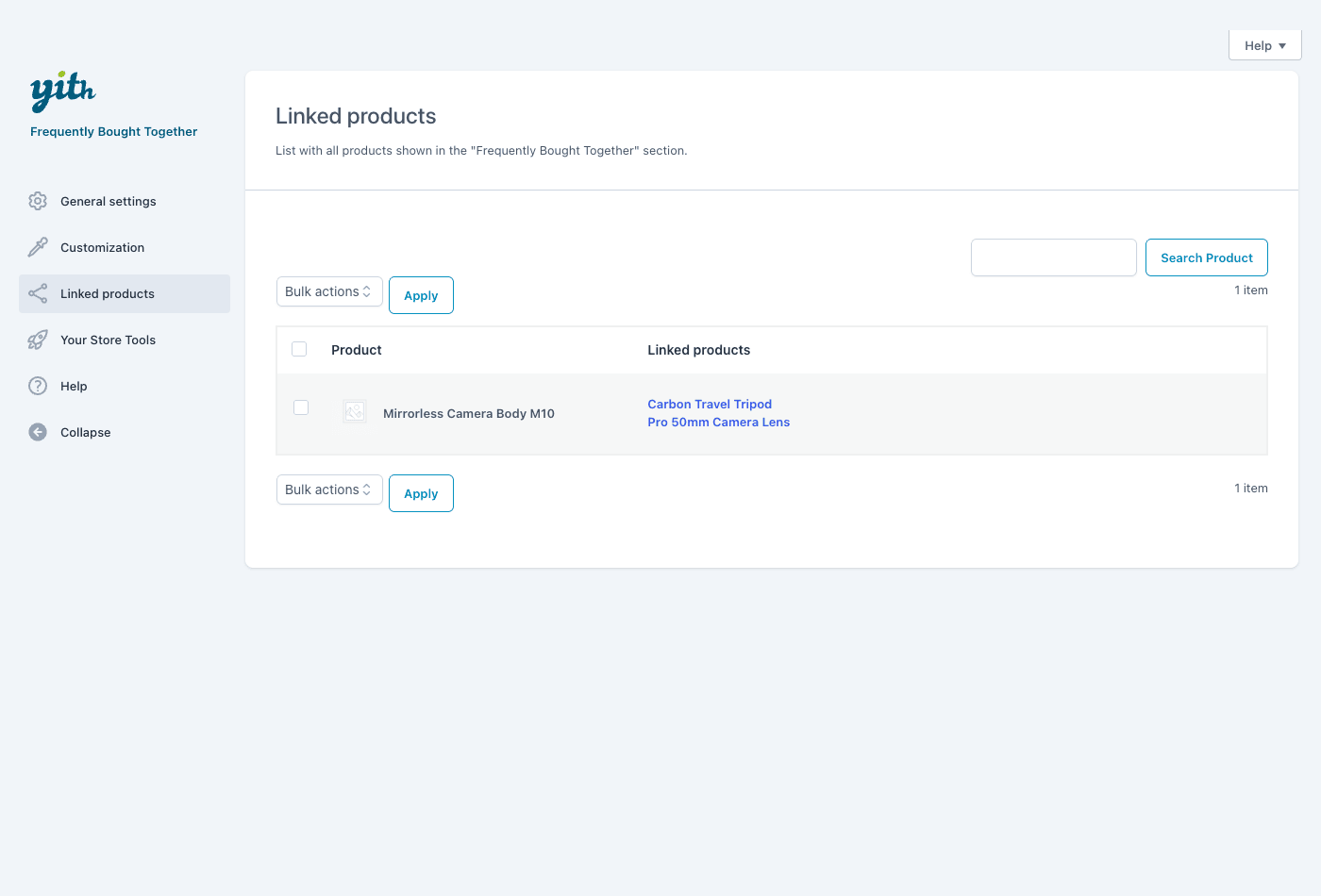
The Linked products screen is a single table showing every product in your store that has an FBT combo, with a column for the product and a column for its linked products. In the demo it shows the "Mirrorless Camera Body M10" linked to "Carbon Travel Tripod" and "Pro 50mm Camera Lens." There’s a search box and bulk actions.
Why does this matter? Because once you’ve set up combos across thirty or forty products, you lose track of which ones have suggestions attached. This screen is your map. You can audit your whole bought-together strategy from one page, spot the products that should have a companion but don’t, and clean up combos you set up months ago and forgot. Without this view, FBT becomes a "set it and forget where you set it" mess.
There are also "Your Store Tools" and "Help" tabs in the panel, which are the usual YITH cross-promotion and documentation links. Nothing you need to configure there.
Choosing the suggested products: related vs custom
This is the single most important decision in the whole plugin, so it gets its own section.
When you open a product and go to Product data » Frequently Bought Together, the first control is Products type, and it has four options for where the box pulls its suggestions from.
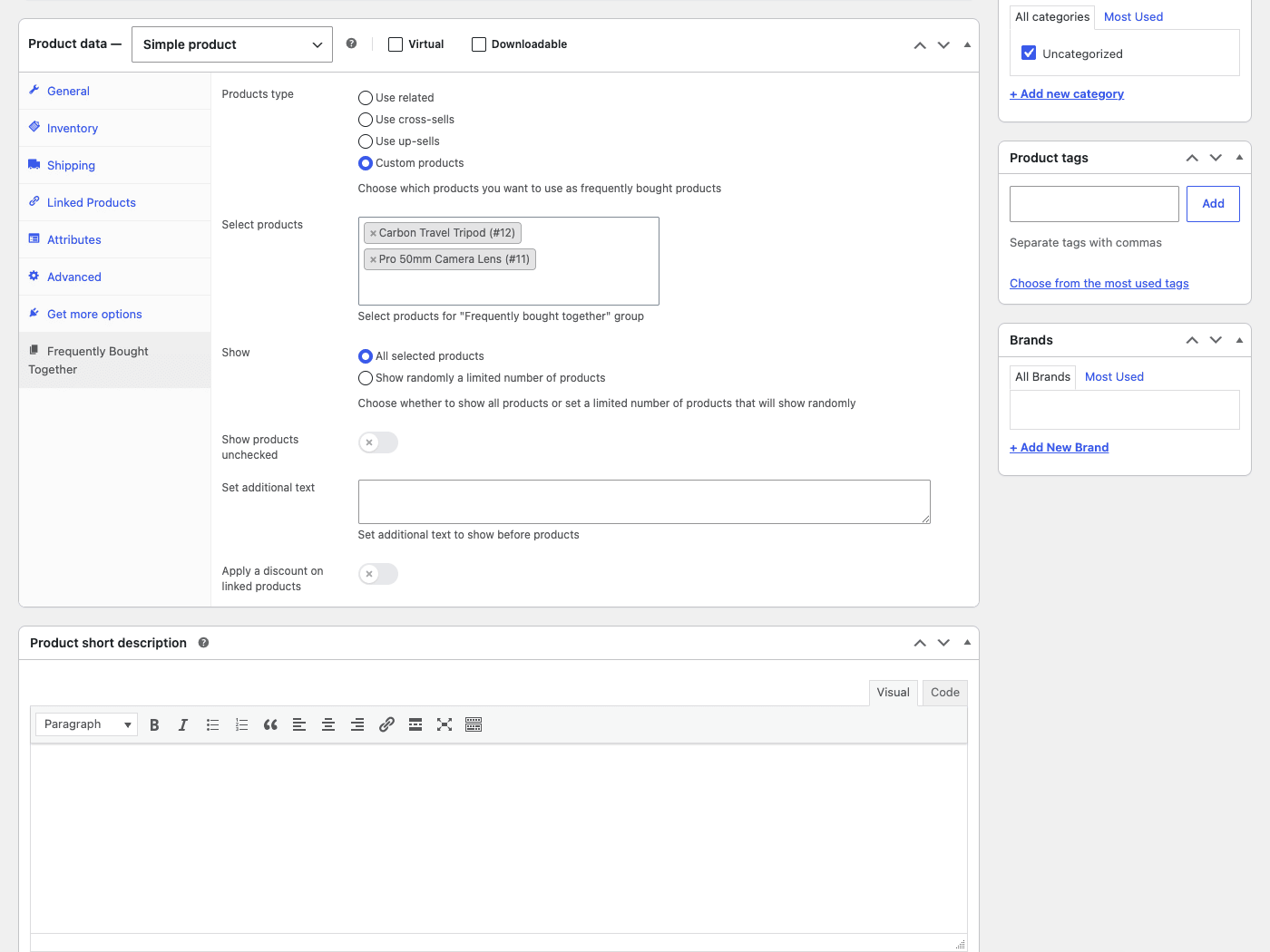
| Source mode | What it pulls | Best for |
|---|---|---|
| Use related | WooCommerce’s automatic related products (by category and tag) | Quick rollout across a big catalog where curating each combo isn’t realistic |
| Use cross-sells | The cross-sell products you set on the product | Reusing cross-sells you already maintain, kept in sync |
| Use up-sells | The up-sell products you set on the product | Pushing higher-tier alternatives as companions |
| Custom products | A hand-picked multi-select list you choose right here | Your hero SKUs, where the combo actually makes sense |
My honest take: the auto modes (related, cross-sells, up-sells) are convenient and tempting, but related products in particular are a blunt instrument. WooCommerce picks them by shared category and tag, which means a camera body might suggest another camera body, not a lens. Two cameras side by side in a "bought together" box is nonsense, and the customer knows it.
For your best-selling products, use Custom products and pick the companions by hand. A camera gets a lens, a tripod, and a memory card. A coffee machine gets descaler and filters. You know your catalog better than a category match does.
Below the source picker, you get a few more controls:
- Select products. The multi-select search box that appears when you choose Custom products. This is where you pick exactly what goes in the box.
- Show. Either show all the selected products, or "Show randomly a limited number of products." The random option is nice for stores with a long companion list, because it keeps the box from getting overwhelming while rotating fresh suggestions.
- Show products unchecked. A toggle to start the suggestion boxes unchecked. By default the companions are pre-ticked, which maximizes attach rate but can feel a touch aggressive. Unchecking by default is the more honest setting, at the cost of some conversions. Pick your principle.
- Set additional text. A free text field shown before the products, useful for a line like "Complete your kit" or "Customers usually add."
- Apply a discount on linked products. The per-product discount toggle, which we’ll cover next.
You might be wondering whether you have to configure every single product by hand. You don’t. Set the popular ones with Custom products, and let the rest fall back to "Use related" if you want broad coverage. A focused dozen hand-picked combos will outperform a hundred auto-generated ones.
Adding a bundle discount without wrecking your margin
A discount is optional in FBT, and I want to be careful about how I recommend it, because this is where stores lose money quietly.
The discount works through a dedicated class in the plugin that applies a saving to the linked products when the group is bought together. You enable it per product with the Apply a discount on linked products toggle, and it shows up in the cart and checkout under the Discount name you set in General settings. Turn on Highlight discount and the saving appears right in the box, which is what actually drives the extra ticks.
The catch: the discount is a real reduction in revenue, and it stacks on top of whatever sale price the linked products already have. On a three-item combo, a careless percentage can shave the margin off all three at once. If your lens is already on a 20 percent sale and you add a 15 percent bundle discount on top, you may have just sold it below cost.
So before you flip the toggle, do the worst-case math. Take the lowest sale price each linked product could hit, subtract the bundle discount, and confirm you still clear your margin floor. If you sell physical goods with shipping baked into thin margins, a small fixed discount is safer than a percentage, because a percentage scales with the basket and a fixed amount doesn’t.
Tip: a discount isn’t always necessary. The convenience of one-click "add all" converts on its own, because you’ve removed the friction of hunting down the lens separately. Try the box with no discount first, watch the attach rate, and only add a saving if the numbers say you need the extra push. If you do want richer coupon logic across the whole store rather than just bought-together groups, a dedicated tool like WooCommerce Smart Coupons handles cart-wide rules that FBT’s single bundle discount isn’t designed for.
Where to place the box
Placement is a setting, but it’s also a strategy, so it’s worth more than a one-liner.
The Select box position dropdown in General settings controls where the box hooks into the product page. "Above product tabs" is the default, which puts the box below the add-to-cart area but above the description and reviews tabs. That’s a strong spot, because the shopper has just seen the price and the buy button and is in a buying frame of mind.
The other hook positions let you push it higher (right under the price) or lower (after the tabs). Higher gets more eyes but can crowd the main buy button. Lower is calmer but a chunk of shoppers never scroll that far.
If the dropdown positions don’t land where your theme needs them, you have two escape hatches. Drop the [yith_wfbt] shortcode into a custom template or a page builder text widget, or use the Elementor widget or Gutenberg block to place the box visually anywhere on the layout. On a heavily customized theme, the shortcode is often cleaner than fighting the hook position.
My rule of thumb: keep it close to the add-to-cart button. The whole psychological advantage of FBT is that it appears at the moment of decision. Bury it at the bottom of the page and you’ve thrown that advantage away.
Real-world use cases
Theory is fine, but let me put this in concrete terms with a few personas.
If you sell cameras and gear, this is the textbook case. A camera body is useless without a lens, and most buyers know they need one but haven’t decided which. Put a recommended lens, a tripod, and a memory card in a custom combo on every body. The attach rate on accessories that the customer genuinely needs is high, and the AOV jump is real money because the companions aren’t cheap.
For a skincare or cosmetics store, routine is the angle. A cleanser pairs with a moisturizer and an SPF. Customers buying one product in a routine often want the matching steps, but they don’t always know which products in your range go together. The box does the curation for them. A small bundle discount here can also encourage the full routine purchase over a single product trial.
If you run a coffee shop online, consumables are your friend. Sell a machine, suggest descaler, filters, and a bag of beans. These are repeat-purchase items, so the bought-together box doubles as a first nudge toward a habit. The descaler especially is something buyers don’t think about until the machine clogs, so surfacing it at purchase is a genuine service, not just an upsell.
For a print shop or stationery store, think kits. A planner pairs with sticker packs and pens. A picture frame pairs with hanging hardware. These are low-consideration add-ons where the convenience of one-click checkout beats the friction of searching the catalog for the matching item.
If you sell software or digital downloads, the model still works for add-ons and extended licenses. A plugin pairs with a priority-support add-on or a companion extension. There’s no shipping margin to worry about, so a bundle discount is lower risk here than on physical goods.
The thread through all of these: FBT shines when the companion is obvious and needed. It struggles when you’re reaching for any old product to fill the box.
YITH Frequently Bought Together vs Product Bundles
People mix these up constantly, and picking the wrong one wastes a real amount of setup time, so let me draw the line clearly.
These are three different tools for three different jobs.
| YITH Frequently Bought Together | WooCommerce Product Bundles | Native cross-sells | |
|---|---|---|---|
| What it is | An optional, customer-chosen add-on box on the product page | A fixed bundle sold as one product | Suggestions shown on the cart page |
| Customer control | Ticks individual items, picks what to add | Buys the whole bundle as-is | Clicks through to a separate product |
| Combined add-to-cart | Yes, one button adds all checked items | N/A (it’s a single product) | No, each is a separate add |
| Bundle discount | Yes, optional per-product | Yes, priced as a unit | No |
| Source modes | 4 (related, cross-sells, up-sells, custom) | You build the bundle by hand | Set per product |
| Minimum to display | 2+ products in the group | 1 (it’s a product) | Any |
| Shortcodes | 2 ([yith_wfbt], [ywfbt_form]) |
Bundle is a normal product | None of its own |
Here’s how I decide.
Use YITH Frequently Bought Together when the items are optional companions. The customer wants the camera; the lens and tripod are nice-to-haves they choose. The flexibility (tick what you want) is the feature. This is the Amazon model. The math is why it wins for AOV: attach a $329 lens to even 15% of your $899 camera orders and the average order value climbs faster than a 5% sitewide coupon ever would, while a fixed bundle forces the extra on the 85% who only wanted the body and would have bought it anyway.
Use WooCommerce Product Bundles when you’re selling a fixed package as a single SKU. A "starter kit" that’s always the same three items, priced and inventoried as one product. The customer buys the kit, not a mix of their own choosing. If you need a customer to configure a kit from choices (pick a size, then a color, then an add-on), that’s closer to WooCommerce Composite Products territory, which is a configurable-kit builder rather than an upsell box.
Native cross-sells are the weakest of the three for AOV. They only appear on the cart page, after the decision is mostly made, with no combined add and no discount. They’re free and fine as a baseline, but they don’t compare to a product-page box with a one-click add.
If you want a broader upsell toolkit (order bumps, post-purchase upsells, quantity discounts) rather than just the bought-together pattern, a suite like Iconic Sales Booster covers more upsell surfaces, though it’s a heavier tool than a single-purpose FBT box.
Don’t make these bought-together mistakes
The plugin is easy to set up, which is exactly why it’s easy to set up badly. Here are the failure modes I’ve seen cost stores money and trust.
Don’t stuff the box with irrelevant products. "Frequently bought together" only converts when the items genuinely go together. A camera with a lens makes sense. A camera with a phone case makes the shopper trust you less, because it’s obviously a desperate grab for an extra sale. On the auto "related" mode, WooCommerce can surface random same-category items, so for your hero SKUs always curate with Custom products. A junk combo doesn’t just fail to convert, it signals "this store recommends anything to pad my cart," and that suspicion costs you the wider sale.
Don’t set a bundle discount that eats your margin. The discount stacks on top of any existing sale price, and on a three-item combo a careless percentage can wipe the margin on all three at once. I’ve watched a store accidentally sell a 15-percent-bundled combo of already-discounted items below cost during a sale. Model the worst-case discounted total before you enable the toggle, and prefer a fixed amount over a percentage on thin-margin physical goods.
Don’t put FBT on products that have no natural companion. A one-off service or a standalone SKU with nothing to pair just shows a lonely box, and below two items it won’t render at all. Use the per-product control, not a blanket rollout.
Don’t promise FBT on variable or external products without checking. The plugin skips variable and external product types by default. If your hero product is variable, the box won’t behave the way you assume out of the box, and a developer filter is needed to change that. Plan for it instead of discovering it live.
Developer reference
This is where the plugin is quietly capable. It exposes a clean set of filters and actions under the yith_wfbt_ prefix. A few facts to set expectations first: there is no custom post type (combo data is stored as product meta and a relationship, not a separate CPT), no REST API (zero registered REST routes), and no WP-CLI commands. There are exactly two shortcodes. So everything below is filters, actions, and those shortcodes.
Shortcodes
// Render the Frequently Bought Together box for the current (or a given) product.
echo do_shortcode( '[yith_wfbt]' );

// Render the FBT form (the checkbox group + add-all button).
echo do_shortcode( '[ywfbt_form]' );
Drop either into a page builder text block, a custom template, or a widget when the hook-position dropdown doesn’t put the box where you need it.
Filters
Adjust the price shown per item in the box. Useful if you display tax-inclusive or membership pricing.
add_filter( 'yith_wfbt_price_to_display', function ( $price, $product, $variation ) {
    // $price is the raw per-item price; $product is the WC_Product; $variation may be set.
    return $price;
}, 10, 3 );
Rewrite the combined-total HTML. This filter hands you everything you need to render a custom total, including the discount and the full product list.
add_filter( 'yith_wfbt_total_html', function ( $html, $total, $total_discount, $product_id, $products ) {
    if ( $total_discount > 0 ) {
        $html .= '<span class="my-saving">You save ' . wc_price( $total_discount ) . '</span>';
    }
    return $html;
}, 10, 5 );
Tune the computed bundle discount. Cap it, floor it, or recompute it against your own rules.
add_filter( 'yith_wfbt_total_discount', function ( $total_discount, $discount ) {
    // Never let the bundle discount exceed a hard ceiling.
    return min( $total_discount, 50.00 );
}, 10, 2 );
Decide whether a product may join the box. Return false to exclude a specific product from being addable.
add_filter( 'yith_wfbt_product_can_be_added', function ( $can, $product ) {
    if ( ! $product->is_in_stock() ) {
        return false; // don't offer out-of-stock companions
    }
    return $can;
}, 10, 2 );
Change which product types are skipped. By default the plugin excludes variable and external products. This is the hook to override that.
add_filter( 'yith_wfbt_product_types_to_skip', function ( $types ) {
    // $types defaults to array( 'variable', 'external' ).
    // Remove 'variable' if you want variable products eligible.
    return array_diff( $types, array( 'variable' ) );
} );
Change the redirect URL after the group is added. Pairs with the "Redirect to checkout" toggle.
add_filter( 'yith_wfbt_redirect_after_add_url', function ( $url ) {
    return wc_get_cart_url(); // send them to the cart instead of checkout
} );
Rename the "This Product:" label on the main product line.
add_filter( 'yith_wfbt_this_product_label', function ( $label ) {
    return __( 'Main item:', 'your-textdomain' );
} );
Hide the box entirely for specific products at render time, with full context.
add_filter( 'yith_wfbt_hide_form', function ( $hide, $product, $products ) {
    // Hide the box for products in a category you don't want upselling.
    if ( has_term( 'clearance', 'product_cat', $product->get_id() ) ) {
        return true;
    }
    return $hide;
}, 10, 3 );
Modify the SQL WHERE clause for the linked-products query. This is an advanced hook for filtering which combos the linked-products query returns.
add_filter( 'yith_wfbt_linked_products_where', function ( $where ) {
    return $where; // append your own conditions carefully
} );
There are a few more filters the plugin exposes that are worth knowing by name even if you rarely touch them: yith_wfbt_total_price_text, yith_wfbt_save_discount_text, yith_wfbt_stylesheet_paths (for pointing the plugin at your own template CSS), and yith_wfbt_filter_group_products_front. Grep the source before wiring an example to any of these, since their signatures vary.
Actions
Hook into the moment the group is added to the cart. This is the one to use for analytics and AOV tracking, because it fires with the products that were actually added.
add_action( 'yith_wfbt_group_added_to_cart', function ( $products_added, $main_product, $offered ) {
    // $products_added = items added; $main_product = the hero; $offered = what was offered.
    // Fire a GA4 / Meta Pixel event here to measure FBT attach rate.
    error_log( 'FBT group added: ' . count( $products_added ) . ' items' );
}, 10, 3 );
That single action is genuinely the most valuable hook in the plugin. If you want to know your real-world attach rate (the percentage of buyers who actually take the upsell), wire your analytics event here. Without measuring it, you’re guessing whether FBT is earning its place.
There are also yith_wfbt_end_item (fires inside the item loop in the template) and yith_wfbt_premium_init (after the premium plugin initializes), plus a dynamic per-field admin action yith_wfbt_product_panel_before_field_{$field_key} for injecting custom controls into the product panel. Those are template and admin-extension hooks, so reach for them when you’re customizing the rendering or the settings UI.
Builder integration
If you build product pages with Elementor or Gutenberg, you don’t need the shortcodes. The plugin registers an Elementor widget and a Gutenberg block that drop the FBT box into the layout visually. The classes behind them are YITH_Elementor / YITH_Elementor_Widget and YITH_Gutenberg, and there’s a YITH_WFBT_Multivendor class that wires the per-vendor configuration for marketplace setups.
A note for builders: if your developer docs question is really about how WordPress hooks and filters work in general, the WordPress plugin hooks reference is the canonical starting point, and the WooCommerce documentation covers the product and cart APIs these filters sit on top of.
Performance, compatibility, and gotchas
The plugin is lightweight by nature. It adds a box and some JavaScript to recalculate the total client-side. There’s no heavy background processing, no cron jobs grinding away, and no custom database tables to bloat. On a normally configured store you won’t feel it in your page load.
A few real-world notes.
The combined total recalculates in the browser. That’s good for responsiveness (no page reload when you tick a box) but it means the math runs client-side. Test it with your tax and currency settings, especially if you’re tax-inclusive, because the displayed total has to match what the cart actually charges. The yith_wfbt_price_to_display filter exists precisely for reconciling display price with your tax setup.
Variable and external products are excluded by default. Worth repeating from the anti-patterns section because it’s the single most common "why isn’t my box showing" cause. If your catalog is mostly variable products, plan for the yith_wfbt_product_types_to_skip filter from day one.
Theme compatibility depends on the hook. The "Above product tabs" position uses a standard WooCommerce hook that most themes respect. A heavily customized theme that removes or moves the default WooCommerce single-product hooks can swallow the box. If it doesn’t appear where you expect, that’s usually the cause, and the shortcode is your reliable fallback.
It needs WooCommerce, full stop. The header declares woocommerce as a required plugin, so it won’t activate without it. There’s no graceful degradation, and there shouldn’t be, since an FBT box without products makes no sense.
Multisite and multivendor. It works on multisite per-site like any normal plugin, and the dedicated multivendor class means it slots into a YITH marketplace cleanly, letting individual vendors set their own combos.
Troubleshooting
The handful of issues people actually hit, with the fix for each.
The box doesn’t appear on a product page. Three things to check, in order. First, does the combo have at least two products? Below two, the template bails and renders nothing. Second, is the product a variable or external type? Those are skipped by default. Third, does your theme keep the standard WooCommerce single-product hooks? If it’s a custom theme, drop the [yith_wfbt] shortcode into the template manually.
The discount isn’t applying. Confirm two things: the Apply a discount on linked products toggle is on for that specific product, and you’ve configured the discount value. The global Discount name only sets the label; the per-product toggle is what actually enables the saving. Then check the cart, where the discount surfaces under your configured name.
The discount applied, but it’s bigger than I expected. Remember it stacks on sale prices. A product already on sale plus a bundle discount compounds. Use the yith_wfbt_total_discount filter to cap the maximum saving if you need a hard ceiling.
The thumbnails look ragged in the box. Turn on Hard Crop in the Image Size setting so every thumbnail renders at the same aspect ratio. Without hard crop, mixed image ratios make the row uneven.
The labels read awkwardly ("Price for all" when there are only two items). Check the Customization tab; the labels are count-specific, and if you’ve only edited the "multiple" string but not the "two" string, you’ll get a mismatch. Set all four.
The box shows the wrong products. You’re probably on an auto source mode (related / cross-sells / up-sells) that’s pulling items you didn’t intend. Switch that product to Custom products and hand-pick the companions.
Tax shows differently in the box than in the cart. This is a display-vs-charge mismatch in a tax-inclusive store. Use yith_wfbt_price_to_display to align the per-item price shown in the box with how your store charges.
Pricing and licensing
YITH sells this as a premium plugin on a yearly license model, like most of their catalog. The license gets you the premium features (the discount engine, the four source modes, the customization options, builder integration) plus updates and support for the license term, billed annually. There’s a free version of the concept on the YITH side with a narrower feature set, but the discount and the richer source modes are premium territory.
On GPL Times, the same plugin is available under the GPL, which is the same code without the recurring yearly renewal. If you run a single store and want to set up bought-together combos without committing to an annual subscription, that’s the practical appeal. The YITH WooCommerce Frequently Bought Together listing on GPL Times has the current download.
I won’t quote exact dollar figures because the yearly price moves, but the framing is simple: a yearly license from the vendor versus a GPL copy from GPL Times. For a focused single-purpose plugin like this, weigh how much vendor support you actually expect to need against the renewal cost.
FAQ
Does YITH WooCommerce Frequently Bought Together work without WooCommerce?
No. WooCommerce is a hard requirement; the plugin header lists it as required and won’t activate without it. The box renders on WooCommerce product pages and adds WooCommerce products to the WooCommerce cart, so there’s no version of this that runs on plain WordPress.
How is this different from a product bundle?
A bundle is a single fixed product the customer buys as-is. FBT is an optional box where the customer ticks the companions they want and adds them in one click. The flexibility is the point. If you want a fixed package sold as one SKU, you want Product Bundles, not FBT.
Will it slow down my product pages?
Not meaningfully. It adds a box and a small amount of client-side JavaScript to recalculate the total. There are no cron jobs or custom tables. The one thing to test is that the in-browser total matches your cart’s tax math, especially in tax-inclusive stores.
Do I have to set up every product manually?
No. You can hand-pick combos with Custom products for your hero SKUs and let everything else fall back to "Use related" for automatic coverage. The honest trade-off is quality versus effort: hand-picked combos convert better, auto modes save time but can surface odd suggestions.
Can I apply a discount only when items are bought together?
Yes, that’s the per-product "Apply a discount on linked products" toggle, and the saving surfaces in cart and checkout under a name you set. Be careful: it stacks on existing sale prices, so model the worst case before enabling it on already-discounted goods.
Why isn’t my bought-together box showing up?
Most often because the combo has fewer than two products (the box won’t render below two), or because the product is a variable or external type (both skipped by default), or because a custom theme dropped the WooCommerce hook the box attaches to. The [yith_wfbt] shortcode is the reliable fallback for the theme case.
Can vendors on my marketplace set their own combos?
Yes, there’s dedicated multivendor support, so on a YITH multi-vendor setup each vendor can configure FBT for their own products rather than relying on a single store-wide configuration.
Does it support Elementor or the block editor?
Yes. There’s an Elementor widget and a Gutenberg block to place the box visually, plus the [yith_wfbt] and [ywfbt_form] shortcodes for everywhere else. You don’t have to rely on the hook-position dropdown if your layout needs the box somewhere specific.
Can I track how often customers actually take the upsell?
Yes, and you should. Hook the yith_wfbt_group_added_to_cart action and fire your analytics event there. It hands you the products that were added, so you can measure your real attach rate instead of guessing whether the box earns its place.
Does the customer-chosen aspect hurt conversions compared to a forced bundle?
In my experience it helps. Letting the shopper uncheck what they don’t want lowers resistance, so more people engage with the box at all. A forced all-or-nothing bundle gets ignored more often. You can pre-tick the companions (the default) to nudge attach rate while still letting people opt out.
Final thoughts
YITH WooCommerce Frequently Bought Together does one thing, and it does it without fuss. It puts the right add-on in front of the right shopper at the exact moment they’re deciding to buy, and it removes the friction of adding it. That’s the whole pitch, and it’s a good one, because raising average order value is the cheapest revenue you’ll ever earn.
My one real criticism is that the auto source modes are a trap for the lazy. Lean on "related products" across your whole catalog and you’ll end up with boxes full of near-duplicate suggestions that quietly erode trust. The plugin gives you Custom products precisely so you don’t have to do that, so use it on the products that matter.
If you’ve got a store with healthy traffic and a flat average order, this is one of the highest-return tweaks you can make in an afternoon, and the GPL copy of YITH WooCommerce Frequently Bought Together lets you wire up your first combo and watch the attach rate before you’ve spent a cent on more traffic. Set up five hand-picked combos on your best sellers, hook the analytics action to measure them, and let the numbers tell you where to add the next five.