

Every WordPress developer eventually accumulates a collection of "small fixes" they paste into functions.php on every site. Add a custom Gutenberg block category. Remove an emoji script. Add a custom WooCommerce checkout field. Disable XML-RPC. Force SVG uploads. The collection grows; the functions.php becomes a wall of comments-separated sections; and when the theme updates, the snippets get lost. Code snippet plugins fix this, instead of functions.php, you manage each snippet as a standalone object with its own activation toggle and conditional logic.
WPCodeBox 2 is the developer-focused entry in this category. The popular alternative (Code Snippets Pro, free version Code Snippets) targets the "I just want to paste code into WordPress without breaking my theme" audience. WPCodeBox is for developers who write more snippets, want a Monaco-grade editor (the same editor VSCode uses), conditional logic per snippet, a cloud library of community-contributed snippets, AI assistance for snippet generation, and a development workflow that respects how dev teams actually work.
This article walks through what WPCodeBox 2 actually does, the Monaco editor, the conditional logic system, the Snippet Repository (cloud library), the AI Assistant, real-world snippet patterns, the developer hook surface, and how it compares to Code Snippets Pro, WPCode, and just-using-functions.php.
Table of contents
- What WPCodeBox 2 is
- Why a snippets manager (vs functions.php)
- Installation and the editor
- The Monaco editor: syntax, autocomplete, error catching
- Snippet types: PHP, CSS, JS, HTML
- When and where snippets run
- Conditional logic
- The Snippet Repository (cloud library)
- AI Assistant
- Folders and organization
- Backup, export, versioning
- Multisite and WP-CLI
- Real-world snippet examples
- Developer reference: integration hooks
- WPCodeBox vs Code Snippets Pro vs WPCode
- Compatibility, performance, gotchas
- Pricing and licensing
- FAQ
- Final thoughts
What WPCodeBox 2 is
WPCodeBox 2 is a premium code snippets manager from WPCodeBox (a team that overlaps with the Bricks Builder community). It lets you write, organize, and run PHP, CSS, JavaScript, and HTML snippets inside WordPress without modifying theme files. Each snippet is a database record with its own metadata: type, name, description, conditional logic, activation toggle, last-modified, version history.
The plugin’s positioning is the developer tool in a market mostly catering to non-coders. The popular Code Snippets plugin (and its Pro version) targets users who want to paste in code from a tutorial without breaking the site. WPCodeBox 2 targets the developer who writes their own code, manages many snippets across many sites, wants the IDE-grade editor experience inside WordPress, and uses snippets as a real part of their workflow.
What you get with WPCodeBox 2:
- Monaco editor (the same editor VSCode uses) with syntax highlighting, autocomplete, IntelliSense for WordPress functions.
- PHP, CSS, JavaScript, HTML snippet types.
- Conditional logic per snippet (run only on certain pages, user roles, post meta, URL patterns).
- Snippet Repository, cloud library of community-contributed snippets you can browse and one-click install.
- AI Assistant, generate snippets from natural language prompts ("create a snippet that adds ‘New’ badge to products published in the last 7 days").
- Folders for organizing snippets by category.
- Versioning, track snippet changes over time.
- Backup and restore, export individual snippets or full library.
- Error catching, snippets with errors get auto-disabled instead of crashing the site.
- Multisite support.
- WP-CLI integration.
The combination of Monaco editor + conditional logic + Cloud Library + AI Assistant is what differentiates WPCodeBox from the rest of the snippet plugin market.
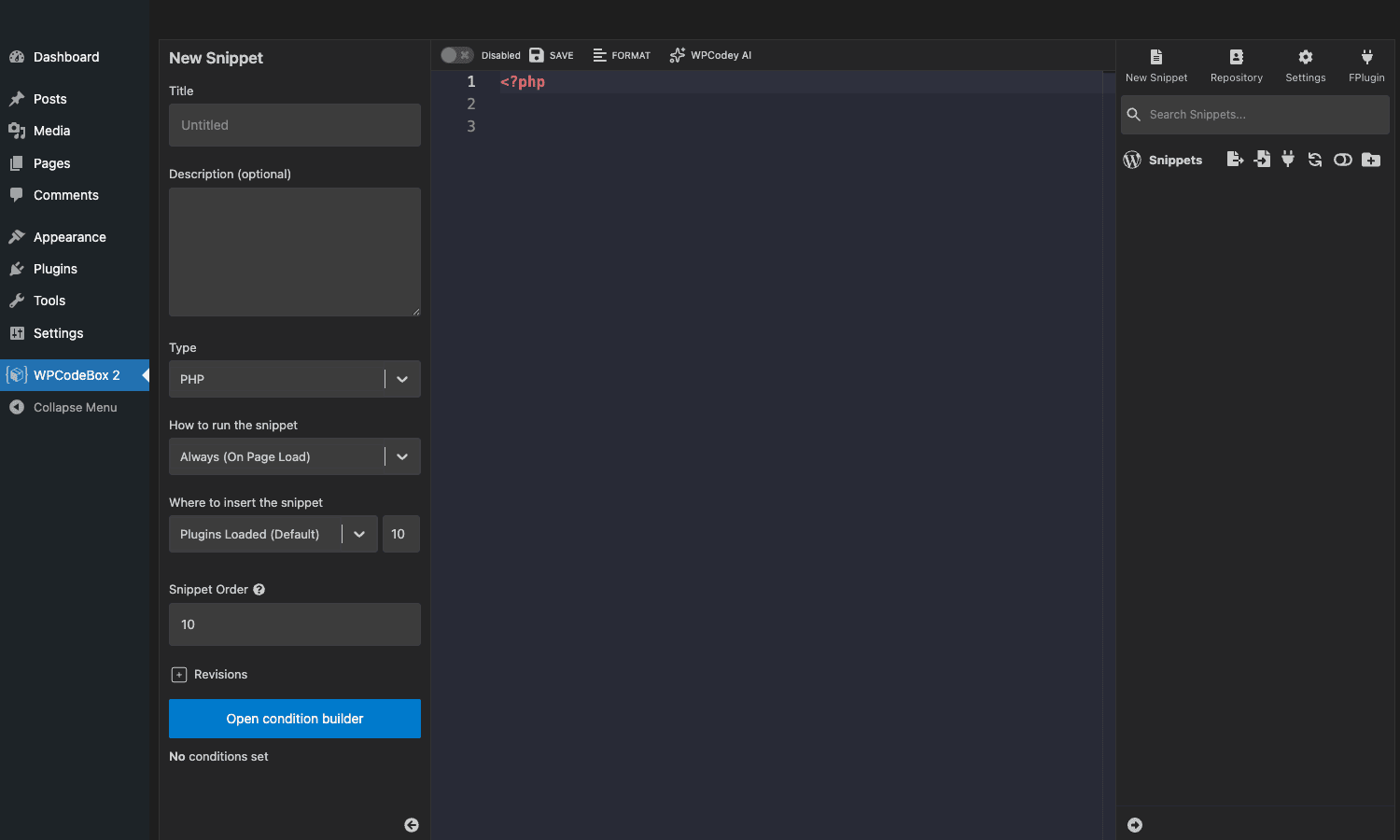
The screenshot above is the snippet editor. Left panel: metadata and configuration (title, description, type, run timing, condition builder). Right panel: the Monaco editor with PHP syntax highlighting. The dark theme matches what VSCode developers expect.
Why a snippets manager (vs functions.php)
The classic WordPress hack is "drop the code into your theme’s functions.php". This works for one snippet. It falls apart at scale:
- Theme updates erase your snippets. Unless you use a child theme (which fewer people do than they should), updating the parent theme nukes your customizations.
- One bad snippet crashes the site. A typo in functions.php breaks the whole site because PHP errors aren’t isolated to that one snippet.
- No conditional logic. Code runs everywhere unless you wrap it in
ifchecks, which is error-prone. - No discoverability. Three months later, you forget which snippet does what.
- Sharing snippets between sites means copy-paste. Manual, error-prone, version-drift over time.
- No version history. If a snippet broke something, you can’t see what changed.
A snippets manager solves all six:
- Snippets live in the database, separate from the theme. Theme updates don’t touch them.
- Each snippet has its own error boundary. A broken snippet gets auto-disabled; the site stays up.
- Conditional logic is first-class: run snippet X only on the checkout page, only for logged-in users, etc.
- Each snippet has a name, description, folder. Searchable. Documented.
- Export/import lets you sync snippets across sites in seconds.
- Versioning tracks every save.
WPCodeBox 2 is the version of this concept aimed at developers who’ll appreciate the Monaco editor and the Cloud Library, not just the basics.
Installation and the editor
Install via Plugins -> Add New -> Upload Plugin -> wpcodebox2.zip -> Activate. After activation, a WPCodeBox 2 menu appears in WP admin.
The plugin uses a React-based UI for its admin interface. The whole experience feels modern (modal-based modals, smooth transitions) compared to the typical WordPress admin. First-time users get an empty Snippets list and a "Create New Snippet" call to action.
Click New Snippet to launch the editor. The split layout:
- Left panel. Metadata: Title, Description, Type, "How to run the snippet" (always, only on admin, only on frontend, etc), "Where to insert the snippet" (plugins_loaded, init, wp_head, etc), Snippet Order (for ordering multiple snippets that hook the same point), Revisions section, and the Condition Builder.
- Right panel. Monaco code editor with line numbers, syntax highlighting, autocomplete.
- Top toolbar. Disabled/Enabled toggle, Save button, Format (auto-format code), WPCodey AI button.
The editor takes up the majority of the screen, which is what you want when actually writing code. The configuration panel is on the left as a thin column.
The Monaco editor: syntax, autocomplete, error catching
Monaco is Microsoft’s editor, the same engine that powers VSCode. WPCodeBox uses it for the snippet editor, which means:
- Syntax highlighting for PHP, CSS, JavaScript, HTML.
- Autocomplete for PHP keywords, WordPress functions, common globals.
- IntelliSense that suggests WordPress core functions as you type (add_action, apply_filters, register_post_type, etc).
- Code folding for collapsing functions and blocks.
- Multi-cursor editing (Cmd/Ctrl-click to add cursors).
- Find and replace with regex support.
- Format on save (auto-format using a PHP formatter).
- Bracket matching, indent guides, minimap for visual navigation.
For developers used to VSCode, the keyboard shortcuts and visual style are immediately familiar. No re-learning the editor.
The error catching is more interesting. When you save a PHP snippet, WPCodeBox runs it through a syntax check before activating it. If there’s a syntax error, the snippet stays disabled and an error message tells you the line number. If there’s a runtime error (the snippet activates but throws a fatal during execution), WPCodeBox catches it, auto-disables the snippet, and logs the error. The site stays up.
This is a meaningful improvement over functions.php where any error breaks the whole site. With WPCodeBox, you can experiment freely, a bad snippet is contained.
Snippet types: PHP, CSS, JavaScript, HTML
The plugin supports four snippet types:
PHP. The most common. Runs as part of the WordPress lifecycle. You write code that hooks WordPress actions/filters or runs at specific times. Example uses:
<?php
// Add a custom column to the posts list.
add_filter( 'manage_post_posts_columns', function( $columns ) {
 $columns['author_role'] = 'Author Role';
 return $columns;
} );

add_action( 'manage_post_posts_custom_column', function( $column, $post_id ) {
 if ( $column === 'author_role' ) {
 $user = get_user_by( 'id', get_post_field( 'post_author', $post_id ) );
 echo esc_html( implode( ', ', $user->roles ) );
 }
}, 10, 2 );
CSS. Loaded in the HTML <head>. Apply site-wide or to specific pages via conditions. Example:
/* Hide the WordPress admin bar on the frontend for non-admins. */
.admin-bar:not(.role-administrator) #wpadminbar { display: none !important; }
JavaScript. Loaded in <head> or before </body>. Example:
// Track external link clicks in analytics.
document.querySelectorAll('a[href^="http"]:not([href*="' + window.location.host + '"])').forEach(a => {
 a.addEventListener('click', () => {
 if (window.gtag) gtag('event', 'external_link', { url: a.href });
 });
});
HTML. Fragments inserted at configured hook points. Example: a banner that shows in the footer.
Each type has its own configuration: CSS/JS get loading-position controls (header, footer); PHP gets run-context controls (frontend, admin, AJAX, REST API).
When and where snippets run
PHP snippets have two configuration axes:
How to run the snippet (when the snippet executes):
- Always (on page load), most common.
- Only on Frontend, skip admin requests.
- Only on Admin, only run when in wp-admin.
- Only on REST API requests.
- Manually via shortcode,
[wpcb_snippet id="N"]triggers it. - On Plugin Activation, once, when the snippet is activated.
- On Plugin Deactivation, once, when the snippet is disabled.
Where to insert the snippet (which hook):
- Plugins Loaded, early, before themes load.
- After Setup Theme, after the theme is loaded.
- Init, after WordPress is initialized.
- WP Loaded, after all of WordPress is ready.
- Specific action:
wp_head,wp_footer,template_redirect, custom hook name.
These two together let you place the snippet exactly where it belongs in the WordPress request lifecycle. A snippet that needs to register custom post types runs on init; a snippet that needs to redirect users runs on template_redirect; a snippet that injects content into the head runs on wp_head. Without this control, you’d hard-code the hook in the snippet itself; with it, the snippet code stays clean and the placement is configuration.
Conditional logic
The Condition Builder is where WPCodeBox really shines for developers. Instead of writing if ( is_page() && is_user_logged_in() && ... ) in every snippet, you configure conditions visually:
- Page conditions. Front page, archive, single post, single page, specific page IDs, specific post types.
- URL conditions. URL contains specific string, URL matches regex, URL ends with specific path.
- User conditions. Logged-in/out, specific user roles, specific user IDs.
- Custom field conditions. Post meta has specific value.
- WooCommerce conditions. Cart total, product in cart, customer logged in.
- Date/time conditions. Run only between specific dates, only on certain days.
- Cookie conditions. Specific cookie present, cookie value matches.
- Custom PHP condition. Write a callback that returns true/false.
Conditions combine with AND/OR logic. Example: "Run this snippet on the checkout page AND when the user is not logged in AND when the cart total is over $100".
For developers maintaining many sites, this saves a meaningful amount of boilerplate. A snippet’s behavior is defined by its conditions, not by if-checks scattered through the code.
The Snippet Repository (cloud library)
The Repository is WPCodeBox’s cloud library, snippets contributed by other users, organized by tag, browsable from inside WordPress.
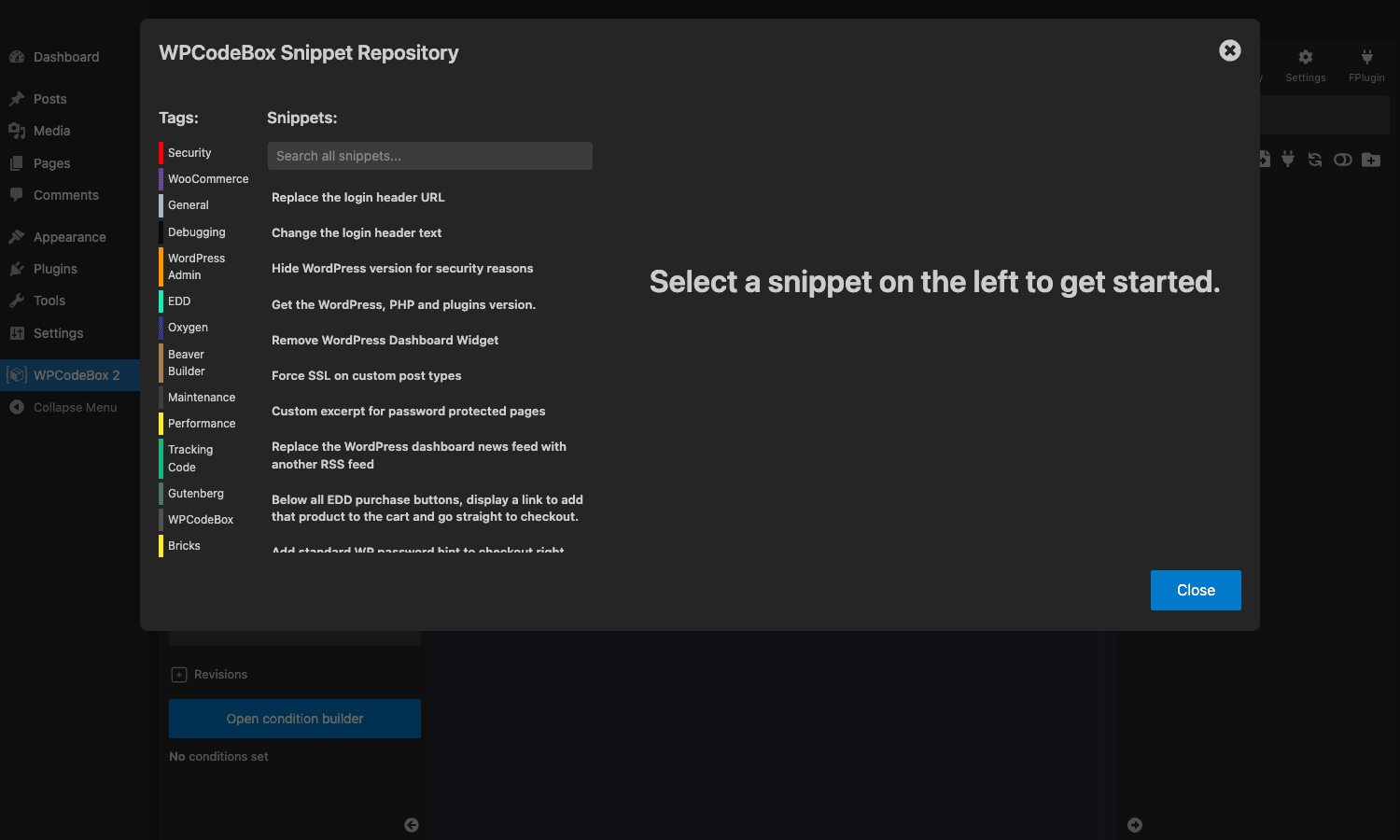
Tags include:
- Security, common WP hardening snippets.
- WooCommerce, store customizations.
- General, generic WP tweaks.
- Debugging, development helpers.
- WordPress Admin, UI customizations.
- EDD, Easy Digital Downloads.
- Oxygen, Oxygen Builder customizations.
- Beaver Builder, BB customizations.
- Maintenance, site maintenance helpers.
- Performance, speed optimizations.
- Tracking Code, analytics insertions.
- Gutenberg, block editor customizations.
- WPCodeBox, plugin-specific snippets.
- Bricks, Bricks Builder customizations.
Each snippet has a title, description, the code, and an Install button. Browse, find one that solves your problem, click Install, the snippet drops into your library ready to enable.
This is the killer feature for developers who frequently search Stack Overflow / WordPress.org for "how do I do X" snippets. Instead of copying random code from forums, you browse a curated library of working snippets, install with one click, and tweak from there.
AI Assistant
The WPCodey AI button in the editor toolbar gives you snippet-by-prompt: type what you want, the AI generates the code.
Examples:
- "Add ‘New’ badge to WooCommerce products published in the last 7 days." → AI generates the action+filter combination.
- "Disable WooCommerce checkout for products in category ‘pre-order’." → AI generates the validation logic.
- "Add a custom column to the Pages admin showing the page template." → AI generates the columns filter and rendering callback.
The AI runs on GPT under the hood. Output quality varies, for common WordPress patterns the AI nails it; for unusual or specific business logic, the AI gets the structure right but you’ll edit the details.
Use it as a starting point, not finished code. Generate the scaffold, review the logic, fix the parts that don’t match your specific situation, save.
Folders and organization
For developers managing dozens of snippets across many sites, folders matter. WPCodeBox lets you create nested folders for organizing:
- Folder: WooCommerce
- Subfolder: Checkout
- Snippet: Add custom checkout field
- Snippet: Skip checkout on digital orders
- Subfolder: Products
- Snippet: New badge for recent products
- Snippet: Hide out of stock products
- Folder: Performance
- Snippet: Disable emoji script
- Snippet: Disable embeds
- Folder: Security
- Snippet: Hide WP version
- Snippet: Disable XML-RPC
Each folder shows a count of snippets. Color coding helps you visually scan the library. For sites with 30+ snippets, organization moves from "nice to have" to essential.
Backup, export, versioning
WPCodeBox treats snippets as data worth protecting.
Versioning. Each snippet save creates a revision. You can browse revisions, compare two versions, and restore to a previous version. Useful when a snippet works, you tweak it, the tweak breaks something, revert in one click.
Export. Export individual snippets or the full library as JSON. Import into another site. This is how you sync the same library across multiple sites, one source of truth, copy to clients on demand.
Backup. The plugin’s settings have a backup option that exports all snippets to a downloadable file. Schedule this as part of your site backup routine.
Database vs file system storage. Most snippets live in the database. Some types of snippets can be saved to disk (in a managed folder) for those who prefer file-system storage. Database storage is the default.
Multisite and WP-CLI
For agencies managing many sites, WPCodeBox supports both multisite and WP-CLI.
Multisite. Network-activate the plugin; each site has its own snippet library. Or use the parent-site library as a shared default that child sites can override.
WP-CLI. Manage snippets from the command line:
wp wpcodebox list # List all snippets.
wp wpcodebox activate <id> # Activate a snippet by ID.
wp wpcodebox deactivate <id> # Deactivate.
wp wpcodebox export --all > snippets.json
wp wpcodebox import snippets.json
For automation, this is what lets you bake snippet management into a deployment pipeline. A site provisioning script can install WPCodeBox, import the agency’s standard snippet library, activate the right ones for the client’s industry, all without manual clicks.
Real-world snippet examples
A few patterns that benefit from WPCodeBox’s setup:
-
Per-client customizations. A client wants a small custom feature ("show admin notice if there’s a missing alt tag on any image"). Write the snippet, save, gone in 5 minutes. No theme modification, no plugin to maintain.
-
Replicating across sites. A common security hardening pattern (disable XML-RPC, hide WP version, remove emoji script). Build the library once on a template site, export, import on every new client site.
-
Quick fixes during incidents. Site is broken because of a recent plugin update. Inject a fix snippet that runs early and patches the issue before the broken plugin loads. Activate immediately, revert after vendor fixes the underlying issue.
-
Conditional content. Show a custom maintenance message between 2-4 AM Saturday for scheduled downtime. The Date/Time conditional + an
add_action('init', ...)snippet handles it without touching the theme. -
Custom WooCommerce logic. Add custom checkout fields, modify product prices for specific user roles, change "Out of stock" messaging. Per-snippet conditional logic keeps the snippets specific and small instead of a single mega-snippet with many branches.
-
Cloud Library curated install. Start a new site; install the Cloud Library’s "WooCommerce Performance" pack, "Security Essentials" pack, and "Admin UX" pack. ~15 snippets active in 5 minutes covering 80% of the standard hardening you’d do manually.
-
Pair with a block library like Stackable Premium. Stackable handles the visual design; WPCodeBox handles the small custom logic (custom shortcodes, dynamic content modifiers).
Developer reference: integration hooks
WPCodeBox itself has a modest hook surface (most extension happens via writing snippets, not via integrating with the plugin). The patterns developers use:
Triggering a snippet manually
// Run a specific snippet from your own code.
if ( function_exists( 'wpcodebox_run_snippet' ) ) {
 wpcodebox_run_snippet( 42 ); // Where 42 is the snippet ID.
}
Checking if a specific snippet is active
if ( function_exists( 'wpcodebox_is_snippet_active' ) ) {
 if ( wpcodebox_is_snippet_active( 'security-hardening' ) ) {
 // Snippet with this name is active.
 }
}
Programmatic snippet creation (rare, but possible)
For deployment scripts that need to inject snippets at install time. Use the wpcodebox_create_snippet function or the underlying database write. Most teams export from a template site and import via the UI instead.
Custom conditional logic types
You can extend the Condition Builder with custom condition types via filter:
add_filter( 'wpcodebox_conditions', function( $conditions ) {
 $conditions['mycustom'] = array(
 'label' => 'My Custom Condition',
 'callback' => 'mycustom_condition_evaluator',
 );
 return $conditions;
} );
The hook surface is small because WPCodeBox is itself a hook-management tool. The "integration" is using WPCodeBox to write hooks for other plugins, not integrating with WPCodeBox directly.
WPCodeBox vs Code Snippets Pro vs WPCode
The three major snippets managers.
WPCodeBox 2 is the developer-grade option. Best for teams that write many snippets, value Monaco editor + IntelliSense, want the Cloud Library + AI Assistant, manage snippet libraries across many sites. Higher price tier.
Code Snippets Pro (and the free Code Snippets) is the popular incumbent. Mature, large user base, simpler UI. Best for site owners who occasionally paste code from tutorials and want a safer way than functions.php. Lower price tier (free version handles many basic needs).
WPCode (formerly Insert Headers and Footers Pro) is a mid-tier option. Simpler than WPCodeBox, more polished than Code Snippets. Best for marketers and non-developers who need to insert tracking codes, custom JavaScript snippets, but don’t write much PHP.
The honest take:
- Developer writing many snippets per project: WPCodeBox 2.
- Site owner pasting occasional code from tutorials: Code Snippets (free).
- Marketer needing simple JS / tracking insertions: WPCode.
You’d typically pick one. Running multiple snippet managers on one site is a recipe for confusion (which snippet ran first, which one disabled).
Compatibility, performance, gotchas
- PHP version requirement. WPCodeBox 2 requires PHP 7.4+. On older PHP, install fails.
- Monaco editor size. The first load of the snippet editor downloads ~2-3 MB of Monaco assets. After that it’s cached. Doesn’t affect front-end performance.
- Snippet errors. A snippet with a fatal error gets auto-disabled with a notice. Don’t ignore the notice, fix the snippet or delete it. Letting auto-disabled snippets accumulate is bad hygiene.
- Loading order. When multiple snippets hook the same WordPress action, the Snippet Order field determines which runs first. Set it explicitly when order matters.
- Cloud Library snippets vary in quality. Community-contributed snippets aren’t curated for security. Read the code before installing one that handles sensitive data (auth, payments, user info).
- AI-generated code needs review. Don’t activate an AI-generated PHP snippet without reading it. Spot-check for security issues (SQL injection, unsanitized user input, capability checks).
- Performance impact. Each active snippet adds a tiny overhead per request. 100 active snippets is fine; 1000 would be measurable. For agencies running large snippet libraries, audit and deactivate snippets that aren’t needed.
- Caching plugin interaction. Page-cached pages may not respect dynamic snippet logic. If your snippet runs based on the current user, exclude the relevant pages from caching (WP Rocket handles per-user content correctly).
- Multisite snippet sync. If you network-activate WPCodeBox, each site has its own library. There’s no built-in "push to all sites" feature; use the export/import or WP-CLI for cross-site sync.
These are the kind of issues you find on the first agency-scale use. Address them in your team’s snippet workflow.
Pricing and licensing
WPCodeBox 2 pricing direct from wpcodebox.com:
- 1 site: $79/year.
- 5 sites: $159/year.
- Lifetime: $249 (one-time).
Lifetime is the popular choice for agencies, at $249 one-time, the math beats $79/year/site quickly.
The plugin is GPL-licensed. Reasonable if you’re running multiple developer-driven sites or want the full feature set without committing to the WPCodeBox direct license.
FAQ
Do I need WPCodeBox if I already use Code Snippets?
Maybe. Code Snippets covers the basics. WPCodeBox covers the developer-grade features: Monaco editor, AI Assistant, Cloud Library, conditional logic UI. If you’d benefit from those, WPCodeBox justifies the upgrade. If Code Snippets meets your current workflow, no urgent need.
Can I run snippets only on specific URLs?
Yes. The Condition Builder has URL-based conditions: exact match, contains, regex match. Apply per snippet.
Will it break my site if I write a bad snippet?
No (mostly). The error-catching wrapper auto-disables snippets that throw fatal errors. The site stays up. You see an admin notice with the error details.
Does it work with Bricks Builder?
Yes, WPCodeBox is closely associated with the Bricks community. Many Bricks-specific snippets in the Cloud Library. The plugin works on any WordPress install, not just Bricks sites.
Can I use it for CSS instead of the WP customizer’s "Additional CSS"?
Yes, and it’s better than the customizer for two reasons: per-snippet conditional logic (apply CSS only to certain pages) and version history (revert when a CSS change breaks something).
Does it support Gutenberg block editor customizations?
Yes. The Gutenberg tag in the Cloud Library has block-specific snippets. Write your own snippets that hook block editor PHP filters (block_categories, allowed_block_types_all, etc).
Is there a free version?
There’s a basic free version with limited features. The Pro version (which this article covers) is what unlocks Monaco editor, Cloud Library, AI Assistant, conditional logic, versioning, etc.
Can I migrate snippets from functions.php to WPCodeBox?
Yes, manually. Open functions.php, copy each function/action block to a new WPCodeBox snippet, save. After all functions are migrated, you can clean up functions.php (leave just theme essentials). Test thoroughly on staging before doing this on production.
Does it work with WPML / multilingual sites?
Yes. The plugin itself doesn’t deal with translations, but snippets can hook WPML’s APIs to add custom translation logic.
Final thoughts
The "should I be writing snippets in functions.php or in a plugin" debate is a decade old. The answer has settled: in a plugin (or in a snippets manager). Functions.php is for theme-related code; everything else should live somewhere theme-independent. WPCodeBox 2 is the most developer-friendly answer in 2026.
The plugin’s biggest practical impact is workflow speed. The Monaco editor + conditional logic UI + Cloud Library means a snippet that would’ve taken 20 minutes (open editor, write boilerplate, write logic, write conditionals, test, save) takes maybe 5. The AI Assistant compresses the first two steps for common patterns even further.
For agency teams especially, the math is compelling. If you write 5+ snippets per project and the plugin saves 10 minutes per snippet, you’re saving an hour per project. Over 30 projects a year, that’s 30 hours of dev time recovered. Plenty to justify the lifetime license.
The product’s main downside is positioning: it’s clearly aimed at developers, and the marketing reflects that. Non-developer users will look at the Monaco editor and feel intimidated. For them, Code Snippets (free) is the better entry point.
Install on staging, port one of your standard snippets, use the Cloud Library to install a security-essentials pack, and notice how the workflow speed changes. The answer is usually "noticeably faster than before."