

Most people install WPCode to paste one Google Analytics tag and never open the plugin again.
That’s a shame. The other ninety percent of WPCode Pro is where the time actually gets saved, and almost nobody looks at it. This is a long, honest walk through what the plugin does when you treat it as more than a header box: a snippet manager with guardrails, a conditional-logic engine, a conversion-pixel hub, and a 142-snippet library for people who don’t write code at all. I sat down with it on a real WordPress install, broke a few things on purpose, and took notes.
By the end you’ll know which half of this plugin you actually need, and which half you’re going to ignore (that’s fine, most people do).
Table of Contents
- What is WPCode Pro?
- Headers, footers, and body scripts without touching your theme
- The snippet Library: copy-paste fixes for non-coders
- Writing a snippet: the editor and the eight code types
- Conditional logic: show this snippet only where it belongs
- Conversion pixels and eCommerce events
- Revisions, scheduling, and the safety net for PHP snippets
- AI snippet generation: useful or gimmick?
- Don’t run unvetted PHP snippets from the internet
- Developer reference: hooks, filters, and the snippet API
- WPCode Pro vs Code Snippets Pro vs WPCodeBox
- Pricing and licensing
- FAQ
- Final thoughts
What is WPCode Pro?
WPCode Pro is a code-snippet management plugin for WordPress, made by the WPCode team (the same people behind a stack of other WordPress products you’ve probably bumped into). The free version sits on something like two million active sites, and here’s the thing most people forget: it used to be called "Insert Headers and Footers." That legacy still runs through the codebase, the older text domain is literally insert-headers-and-footers, and it explains the entire personality of the plugin.
So WPCode is two products wearing one menu.
Product one is a dead-simple box where a marketer pastes a tracking script and walks away. Product two is a snippet manager where a developer keeps fifteen PHP tweaks that used to live in a bloated functions.php. WPCode Pro adds the parts that make product two actually safe to use: a snippet Library, conditional logic, revisions, scheduling, managed conversion pixels, search-and-replace, and AI generation.
Snippets are stored as a private custom post type (wpcode, with public set to false and its own wpcode_edit_snippets / wpcode_activate_snippets capabilities), so they never show up in your sitemap or your post list. There are no public REST routes for managing them either, everything runs through admin-ajax, which keeps the attack surface smaller than you’d expect from a plugin that, by design, executes arbitrary PHP.
If you want to poke at it yourself, WPCode Pro is available on GPL Times with every Pro panel unlocked, so you can wire up a conditional rule and confirm it fires exactly where you expect before you rely on it.
Headers, footers, and body scripts without touching your theme
This is the feature that built the install base, so let’s start here.
Go to Code Snippets -> Header & Footer and you get three CodeMirror boxes: Header, Body, and Footer. Whatever you paste into Header prints right before </head> on every page of the site. Body prints right after the opening <body> tag (where Google Tag Manager wants its noscript fallback). Footer prints before </body>.
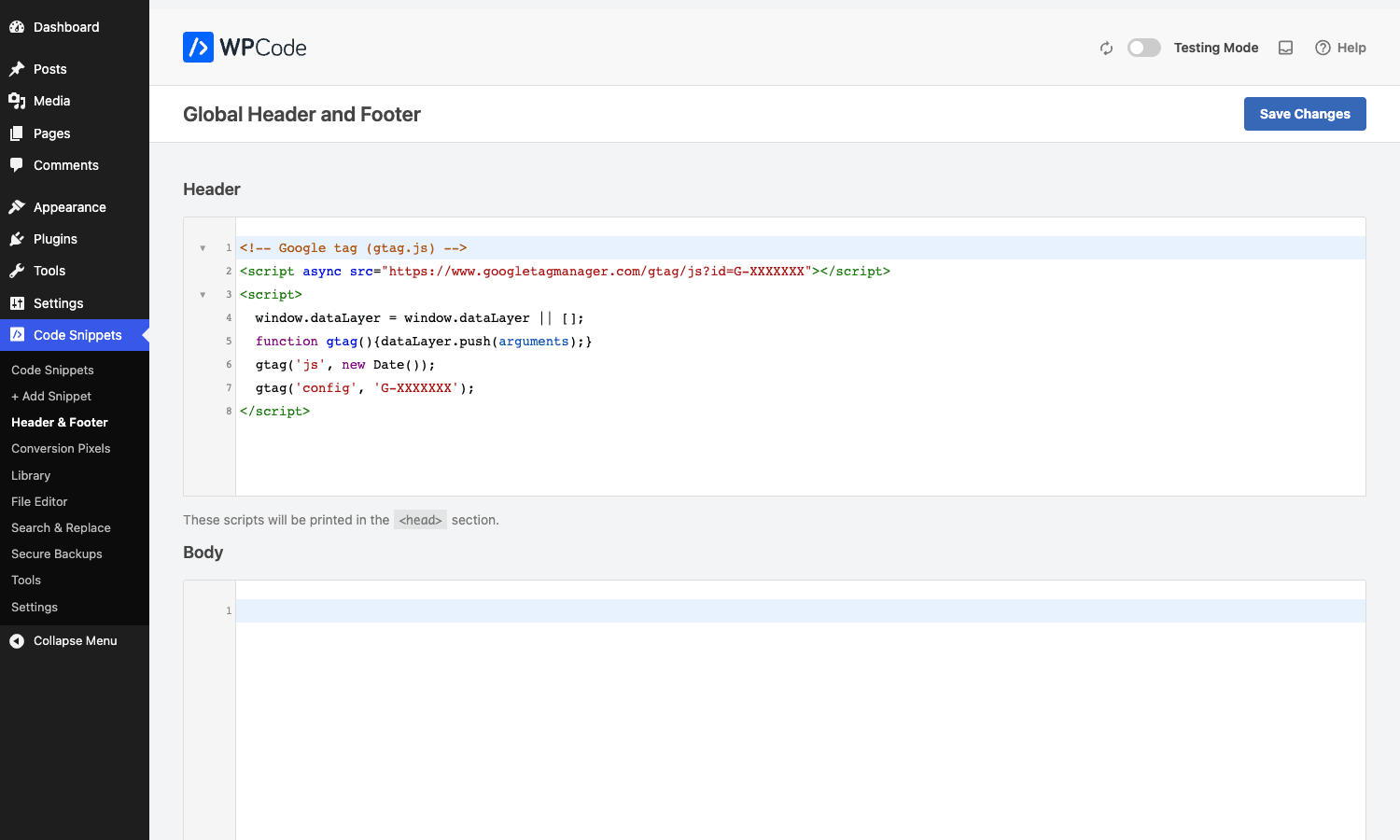
That’s it. No FTP, no child theme, no editing header.php and praying the theme update doesn’t wipe it. A page caption under the box even reminds you "these scripts will be printed in the <head> section," which is a small touch but it stops the classic mistake of pasting a body pixel into the header.
Why does this matter so much? Because the alternative is genuinely bad. Edit your active theme’s header.php directly and the next theme update overwrites it. Use a child theme and you’ve now got a child theme to maintain forever for the sake of one script tag. WPCode survives theme switches and theme updates because the script lives in the database, attached to a hook, not in a template file.
A word of caution I’ll come back to later: the Header & Footer page runs your scripts on every single page, logged-in admins included. If you paste a heavy chat widget here, you’re loading it on your own wp-admin-adjacent front-end views too. For anything heavier than a tracking pixel, build it as a real snippet with conditional logic instead. More on that below.
The snippet Library: copy-paste fixes for non-coders
Here’s the part that surprised me. WPCode ships a hosted Library of pre-built snippets, and on the install I tested it offered 142 of them.
These aren’t toy examples. They’re the exact things people Google at 11pm: "disable comments completely," "allow SVG file upload," "disable attachment pages," "remove the WordPress version for security," "disable automatic updates," "hide the admin bar." Each one is a real, vetted snippet you click to install. They’re organized into categories (Admin, Archive, Attachments, Comments, Disable, Login, RSS Feeds, Widgets) with a "Most Popular" group at the top.
For a non-coder this is the whole pitch. You don’t write the code, you don’t copy it off a random forum thread, you pick it from a list the vendor maintains and you click Use Snippet. The snippet lands in your editor pre-filled, you set where it runs, you activate it.
There’s a filter, wpcode_add_snippet_show_library, if you ever want to hide the Library tab (useful when you’re handing a site to a client and don’t want them installing things at random). And wpcode_library_import_snippet_data lets you intercept and modify a library snippet as it’s imported, which agencies use to inject their own defaults.
The honest caveat: the Library is a convenience, not a guarantee. A "disable comments" snippet that’s safe on a brochure site is destructive on a site that relies on comments for community. The Library tells you what a snippet does, but it can’t know what your site needs. Read the description before you click.
Writing a snippet: the editor and the eight code types
For everyone who does write code, the heart of WPCode is Code Snippets -> Add Snippet -> Add Your Custom Code.
You name the snippet, pick a code type, and write in a syntax-highlighted CodeMirror editor. WPCode supports eight types: HTML, Text, Blocks, CSS, SCSS, JavaScript, PHP, and Universal. PHP runs server-side. CSS and JS get printed to the page. SCSS gets compiled. The Blocks type lets you build a snippet in the block editor and drop it anywhere. Universal is the interesting one: it lets you mix HTML and PHP in a single snippet the way you would in a raw template file.
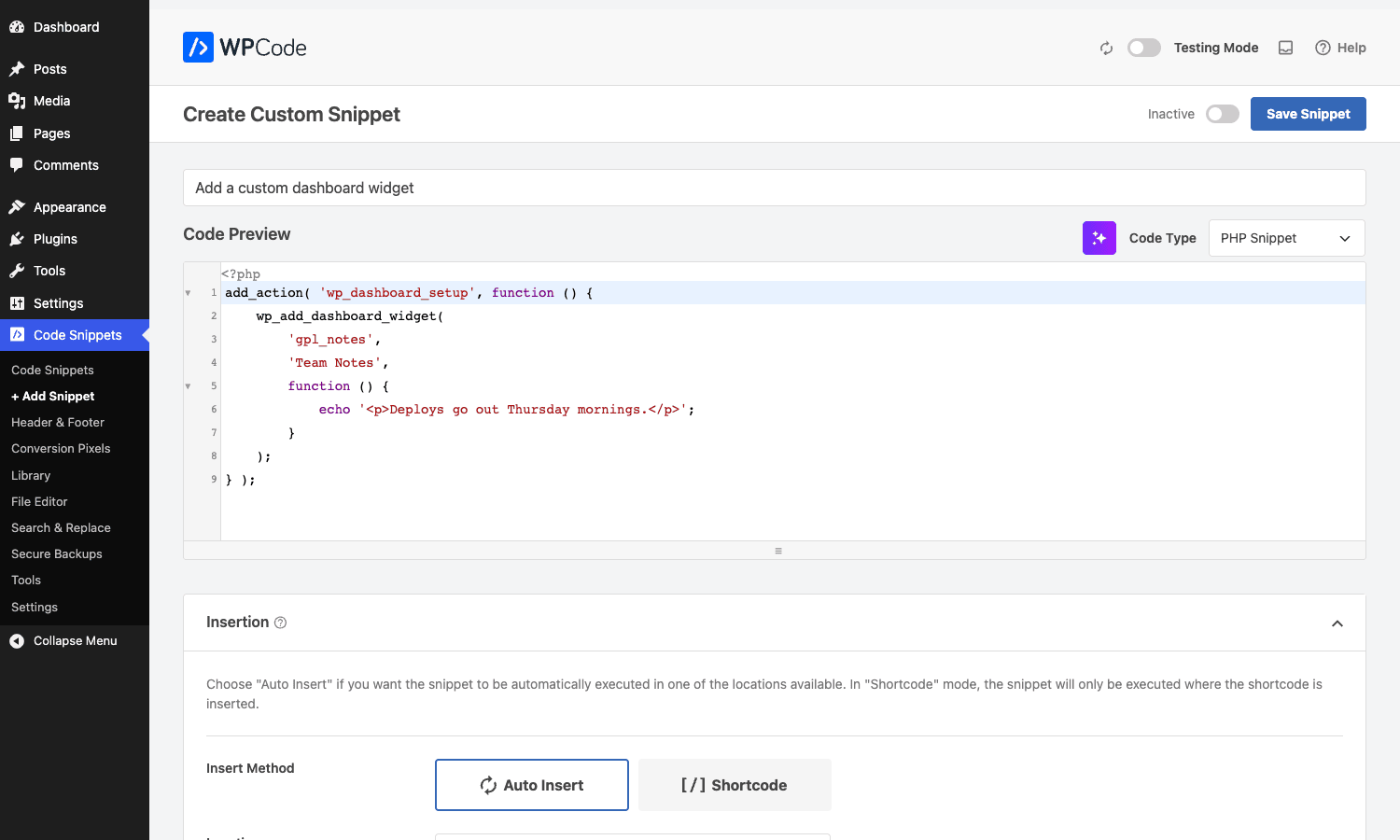
Below the editor sits the Insertion panel, and this is the decision that trips up newcomers. You choose between Auto Insert and Shortcode.
Auto Insert means WPCode runs the snippet automatically at a location you pick: site-wide header, site-wide footer, site-wide body, before or after post content, in archives, frontend-only, admin-only, or "run everywhere." There are also WooCommerce-, Easy Digital Downloads-, and MemberPress-specific insertion points if those plugins are active.
Shortcode mode means the snippet only runs where you place [wpcode id="123"]. That id is the snippet’s post ID, and the shortcode respects conditional logic too, so a shortcode snippet on a page you’ve excluded by rule simply returns nothing instead of erroring.
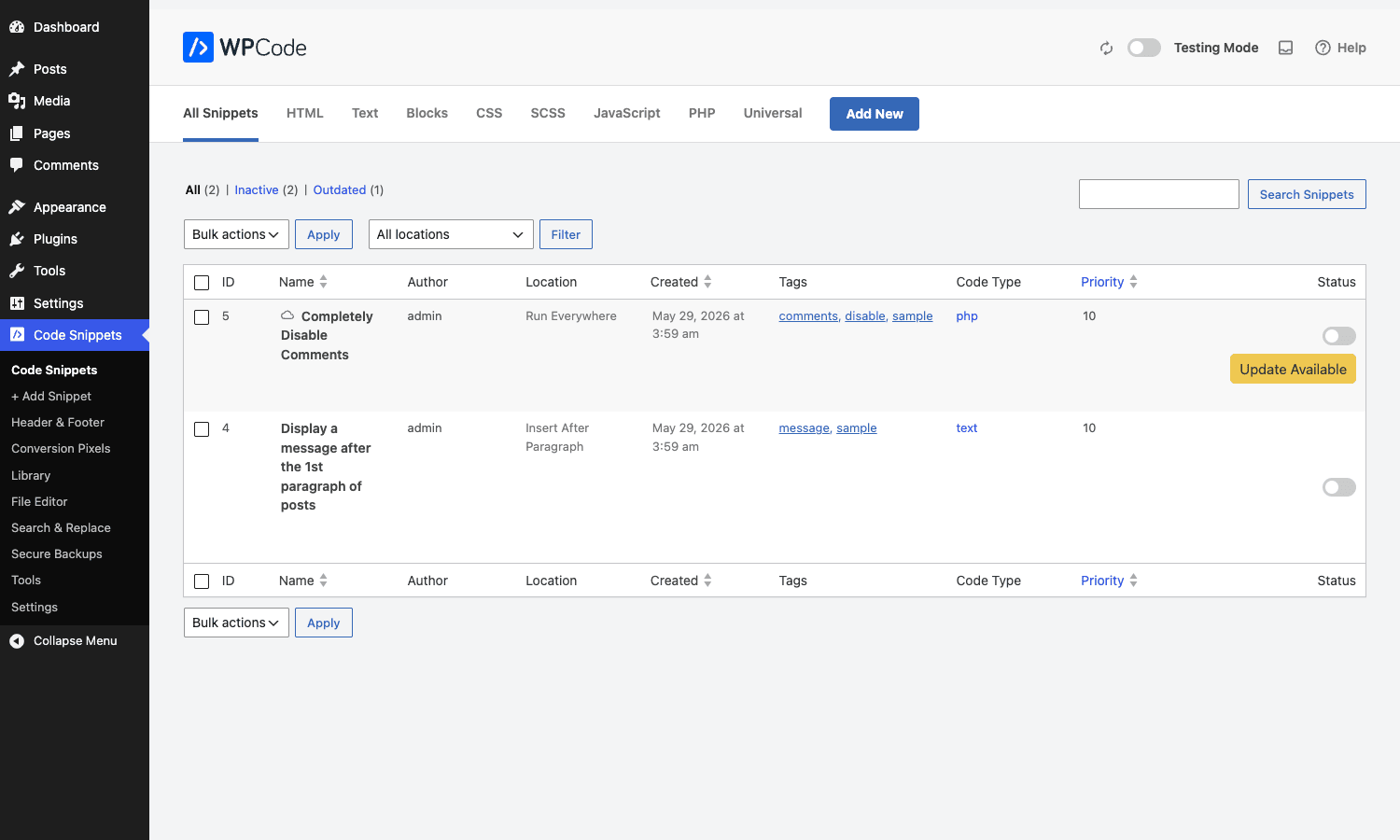
You can see every active snippet at Code Snippets -> All Snippets, with columns for location, code type, priority, and an activate/deactivate toggle. The list also flags snippets that have a Library update available, which is a nice touch for the copy-paste crowd.
Conditional logic: show this snippet only where it belongs
If the Header & Footer box is WPCode’s past, conditional logic is its present.
Open any snippet, scroll to Smart Conditional Logic, flip Enable Logic, and you get a rule builder. You pick Show or Hide, then add conditions that combine with AND inside a group and OR across groups. The list of available conditions is long, and I counted these in the dropdown on the test install:
Logged-in status, User Role, User Meta, Type of page, Post type, Referrer, Taxonomy page, Taxonomy term, Page URL, Post Meta, specific Post or Page, Page Template, Author, Device Type, Browser Type, Operating System, Cookie Name, Cookie Value, Date, Date & Time, and Day of the Week.
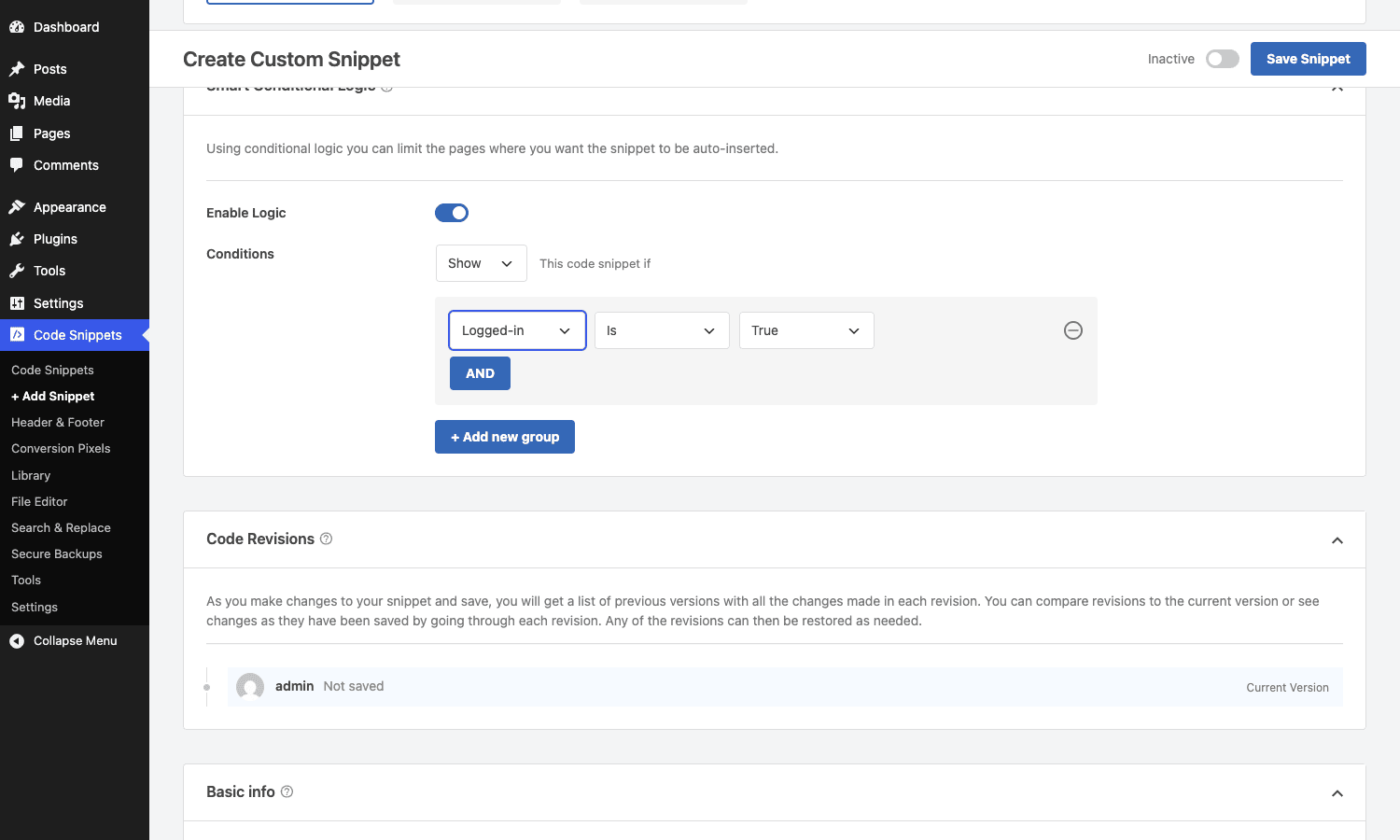
So you can express things like "show this promo banner snippet only to logged-out visitors, only on mobile, only on the pricing page, and only on weekends." That used to be a tangle of if ( is_page() && ! is_user_logged_in() && wp_is_mobile() ) inside a PHP snippet. Now it’s three dropdowns and a marketer can edit it without calling you.
Under the hood each condition is its own class (WPCode_Conditional_Page, WPCode_Conditional_User, WPCode_Conditional_Device, WPCode_Conditional_Schedule, and so on, all coordinated by WPCode_Conditional_Logic). If you build a custom integration, the wpcode_conditional_logic_admin_options filter is where you register a new condition type so it shows up in that same dropdown.
One real limitation worth naming: conditional logic gates whether the snippet runs, but for an Auto Insert PHP snippet the rules are evaluated on every page load. A site with dozens of conditional snippets is doing dozens of rule evaluations per request. It’s cheap per rule, but it isn’t free, and WPCode caches the active-snippet list per location to soften it (the wpcode_use_auto_insert_cache filter controls that). Don’t treat conditional logic as a license to ship a hundred snippets.
Conversion pixels and eCommerce events
Under Code Snippets -> Conversion Pixels WPCode Pro gives marketers a managed way to drop ad-tracking pixels without hand-writing the script tags. The page is tabbed by platform: Facebook, Google, Pinterest, TikTok, Snapchat, and Click Tracking.
You paste a Facebook Pixel ID (and optionally a Conversions API token for server-side events), and WPCode handles the script injection and the standard eCommerce events for you: AddToCart, InitiateCheckout, Purchase, and the rest, wired into WooCommerce or Easy Digital Downloads automatically. The same pattern repeats for Google Analytics / Google Ads, TikTok, Pinterest, and Snapchat.
I’ll be straight about a gotcha here. On the sandbox I tested, the deeper eCommerce-event side of Conversion Pixels showed an "available on a higher plan" notice, because the Pixels piece is a separate add-on download rather than something bundled in the base plugin files. The pixel-ID fields render fine, but if you’re buying WPCode specifically for full server-side conversion tracking, confirm your tier includes the Conversion Pixels add-on rather than assuming it’s switched on by default.
The genuine value of this feature is the eCommerce mapping. Anyone can paste a base Facebook pixel into the Header box. What you can’t easily hand-write is a correct Purchase event that fires with the right order value and currency on the WooCommerce thank-you page, without double-counting on refresh. That’s the part WPCode genuinely does better than a manual paste, and it’s the part that’s gated, so check before you buy.
Revisions, scheduling, and the safety net for PHP snippets
This is the Pro section I’d actually pay for, because it’s the part that stops you white-screening a client site at 2am.
Revisions. Every time you save a snippet, WPCode stores a version (handled by WPCode_Revisions). On the editor you get a Code Revisions panel listing previous versions with the author and timestamp, and you can compare any revision to the current one and restore it. You can see it sitting right below the conditional logic panel in the screenshot above, showing the current version. If a "small tweak" breaks a snippet, you roll back instead of trying to remember what the working version looked like.
Scheduling. The Schedule condition (WPCode_Conditional_Schedule) lets a snippet go live on a start date and switch off on an end date. Useful for a holiday banner, a Black Friday pixel, or a "site closed for the holidays" notice that you set up in November and forget about.
The safety net. This is the feature nobody notices until it saves them. WPCode’s execution layer registers a PHP shutdown function (register_shutdown_function) before it runs a PHP snippet. If a snippet throws a fatal error, that shutdown handler catches it, calls force_deactivate() on the offending snippet, stamps a _wpcode_last_error record on it, and shows you an admin notice: "WPCode has detected an error in one of the snippets which has now been automatically deactivated," with a button to view snippets with errors. So a single bad snippet deactivates itself instead of taking the whole site down.
And if you’re already locked out, there’s Safe Mode. Append ?wpcode-safe-mode to any URL and WPCode hooks the wpcode_do_auto_insert filter to stop all snippets from executing, letting you back into the admin to fix or delete the broken one. The parameter is preserved across admin links while you’re in safe mode, and it’s only available to a user who can activate snippets, so a random visitor can’t disable your snippets by guessing the URL.
That combination, auto-deactivate plus safe mode plus revisions, is the difference between "I broke the site for ten seconds" and "I broke the site for an hour while I FTP in." It’s the single best reason to manage PHP this way instead of in functions.php.
AI snippet generation: useful or gimmick?
There’s a little sparkle button in the editor toolbar that generates a snippet from a plain-English prompt, and improves an existing one.
Here’s how it actually works, because the marketing makes it sound like magic. The WPCode_AI_Handler class doesn’t talk to OpenAI directly with your key. It posts your prompt to https://wpcode.com/aiapi/v1/ and gets back generated code. So it’s a managed AI proxy, which has two consequences: you don’t manage an API key, and your prompts go through the vendor’s service.
Is it useful? For boilerplate, yes. "Add a custom dashboard widget that shows the last five orders" or "redirect 404s on the blog to the homepage" produces a reasonable starting point faster than you’d type it. For anything with real business logic, treat the output exactly like a snippet you found on a forum: read every line before you activate it. The AI doesn’t know your custom post types, your meta keys, or which plugin owns which hook on your specific site.
My honest take: it’s a genuine time-saver for the 80% boilerplate case and a liability if you trust it blindly. Which is the perfect segue.
Don’t run unvetted PHP snippets from the internet
This is the failure mode that costs people real money, so I want to spend a proper minute on it.
A PHP snippet in WPCode runs with the full privileges of your WordPress install. It can read your database, send email, hit external APIs, write files, and delete content. When you paste a snippet from a random blog or an AI prompt and click activate, you are running a stranger’s code on a server you’re responsible for. One missing semicolon white-screens the site. One wp_delete_post() in a loop with the wrong condition wipes content. One wp_remote_post() to an attacker’s endpoint quietly exfiltrates data on every page load, and you’d never see it in the rendered HTML.
The math is unforgiving. A WooCommerce store doing even modest revenue loses real money for every minute the checkout is down, and a fatal-error white screen takes the whole front end with it. A snippet that leaks customer data isn’t a downtime problem, it’s a GDPR-and-lawyers problem.
WPCode reduces the blast radius three ways. First, the auto-deactivate shutdown handler deactivates a crashing snippet instead of bricking the site. Second, Safe Mode (?wpcode-safe-mode) gets you back into a locked-out admin. Third, revisions let you roll back the change that broke things.
But none of that protects you from a snippet that runs successfully and does something malicious or destructive. The plugin’s safety net catches crashes, not bad intentions. So: read every line before you activate. Test on staging first, never paste straight onto production. Prefer the built-in Library (vendor-vetted) over a forum snippet of unknown origin. And if a snippet wants a remote URL or a hardcoded "license check," that’s your cue to walk away. WPCode makes running PHP safer. It does not make running someone else’s PHP safe.
Developer reference: hooks, filters, and the snippet API
WPCode exposes a wide hook surface. Everything below was confirmed against the plugin source, no invented hooks.
Modify a snippet’s output
wpcode_snippet_output filters the rendered output of any snippet, and wpcode_snippet_output_php targets PHP snippets specifically. Handy for wrapping or sanitizing output globally.
add_filter( 'wpcode_snippet_output', function ( $output, $snippet ) {
    // Wrap every snippet's output in a debug comment on staging.
    if ( defined( 'WP_DEBUG' ) && WP_DEBUG ) {
        $output = "<!-- wpcode #{$snippet->get_id()} -->\n" . $output;
    }
    return $output;
}, 10, 2 );
Suppress auto-insert programmatically
wpcode_do_auto_insert is the master gate. Return false and no auto-inserted snippet runs. This is exactly what Safe Mode uses.
add_filter( 'wpcode_do_auto_insert', function ( $do_insert ) {
    // Never auto-insert snippets during a WP-CLI run.
    if ( defined( 'WP_CLI' ) && WP_CLI ) {
        return false;
    }
    return $do_insert;
} );
Add a column to the All Snippets table
wpcode_code_snippets_table_columns registers the column header, and wpcode_code_snippets_table_column_value fills each cell.
add_filter( 'wpcode_code_snippets_table_columns', function ( $columns ) {
    $columns['gpl_owner'] = 'Owner';
    return $columns;
} );

add_filter( 'wpcode_code_snippets_table_column_value', function ( $value, $snippet, $column ) {
    if ( 'gpl_owner' === $column ) {
        return get_post_meta( $snippet->get_id(), '_gpl_owner', true ) ?: 'none';
    }
    return $value;
}, 10, 3 );
Register a custom conditional logic option
wpcode_conditional_logic_admin_options is where a new condition type is added to the Smart Conditional Logic dropdown.
add_filter( 'wpcode_conditional_logic_admin_options', function ( $options ) {
    $options['gpl_membership'] = array(
        'label'   => 'GPL Membership Tier',
        'options' => array(
            'free' => 'Free',
            'pro'  => 'Pro',
        ),
    );
    return $options;
} );
React when a snippet errors or saves
wpcode_snippet_error_tracked fires when the safety net catches a snippet error, which is a good place to ping your monitoring. wpcode_before_snippet_save and wpcode_snippet_after_update bracket the save lifecycle.
add_action( 'wpcode_snippet_error_tracked', function ( $error, $snippet ) {
    error_log( sprintf(
        'WPCode snippet #%d auto-deactivated: %s',
        $snippet->get_id(),
        wpcode()->error->get_last_error_message()
    ) );
}, 10, 2 );
Control caching and code types
wpcode_cache_active_snippets and wpcode_clear_cache_on_global_save govern the file cache, wpcode_file_cache_ttl sets its lifetime. wpcode_code_type_options and wpcode_default_code_type let you add or change the code-type dropdown. wpcode_editor_config filters the CodeMirror config.
The WPCode_Snippet object
When you load a snippet by ID you get a WPCode_Snippet instance with a clean public API: is_active(), execute(), force_deactivate(), get_code(), get_code_type(), get_conditional_rules(), get_auto_insert(), get_location(), get_last_error(), and more.
$snippet = new WPCode_Snippet( 123 );
if ( $snippet->is_active() && 'php' === $snippet->get_code_type() ) {
    // Run a specific snippet on demand, outside its normal location.
    echo wpcode()->execute->get_snippet_output( $snippet );
}
Smart Tags and the shortcode
The [wpcode id="123"] shortcode renders a snippet inline (it’s just add_shortcode( 'wpcode', ... )). Smart Tags like title, author_name, featured_image, custom_field, login_url, and site_url let a Text/HTML snippet pull in dynamic values; register your own with the wpcode_smart_tags filter.
One more for the modern stack: WPCode registers read-only abilities through the WordPress 6.9+ Abilities API (WPCode_Abilities_API), so an AI agent or external tool can query your snippets in a structured, read-only way without write access.
WPCode Pro vs Code Snippets Pro vs WPCodeBox
These three plugins look interchangeable from the outside. They aren’t, and the differences come down to who they’re built for.
WPCode Pro is the marketer-and-generalist tool. Its real edge is the stuff the other two barely touch: the Header & Footer box, the 142-snippet vendor Library, and managed Conversion Pixels across Facebook, Google, Pinterest, TikTok, and Snapchat. The free version’s roughly two million active installs dwarf the competition. Code type coverage is eight types including SCSS and a Blocks editor. If half your snippet users are non-coders, WPCode wins.
Code Snippets Pro is the incumbent. The free Code Snippets plugin carries 800,000+ active installs, and the Pro upgrade runs $49. Its standout is Codevault, a cloud library you sync across sites, plus a clean per-snippet editor. It loads about 50KB of admin assets and adds essentially zero front-end overhead. No conversion-pixel manager, no header/footer marketing box. It’s the safe, mature choice for someone who occasionally pastes code from a tutorial. The full walkthrough is in our Code Snippets Pro review.
WPCodeBox is the developer’s developer tool. It ships the Monaco editor (the same engine that powers VS Code) with IntelliSense, a community-contributed cloud Snippet Repository, and AND/OR conditional logic per snippet. Pricing is higher: $79/year for one site, $249 one-time for a lifetime license. No marketing pixels, no header box. If you write a lot of snippets and care about editor ergonomics, it’s the pick, and we covered it in detail in our WPCodeBox 2 review.
The quick decision: WPCode Pro for mixed teams and anyone who needs pixels or a header box, Code Snippets Pro for cheap and simple at $49, WPCodeBox for developers who’ll live in the Monaco editor at $79/year. All three keep your code out of functions.php, which is the actual point.
Pricing and licensing
WPCode Pro is sold by subscription on a tiered plan model (the test install reported its license level as "elite," which is the top tier with the widest add-on access). The exact tier you need depends on whether you want the Conversion Pixels add-on and how many sites you’re licensing, so read the plan comparison before you commit if pixels are your reason for buying.
On the GPL side, the WPCode Pro download on GPL Times gives you the full Pro plugin under its GPL license, with the Pro panels active so you can wire up conditional logic and revisions on a real install before deciding. WPCode is GPLv2-or-later, which is what makes redistribution legal in the first place. What a direct subscription buys you beyond the code is official support and automatic update delivery from the vendor; the plugin’s functionality itself is the same.
FAQ
What happens if my PHP snippet has a fatal error?
WPCode catches it. Before running a PHP snippet it registers a shutdown function, and if that snippet throws a fatal, the handler calls force_deactivate() on it, records the error, and shows an admin notice instead of letting the white screen of death take your whole site. If you’re already locked out, add ?wpcode-safe-mode to any URL to stop all snippets from running and get back into the admin. This is the single biggest reason to use WPCode over editing functions.php, where one typo brings down everything.
Does WPCode slow my site down?
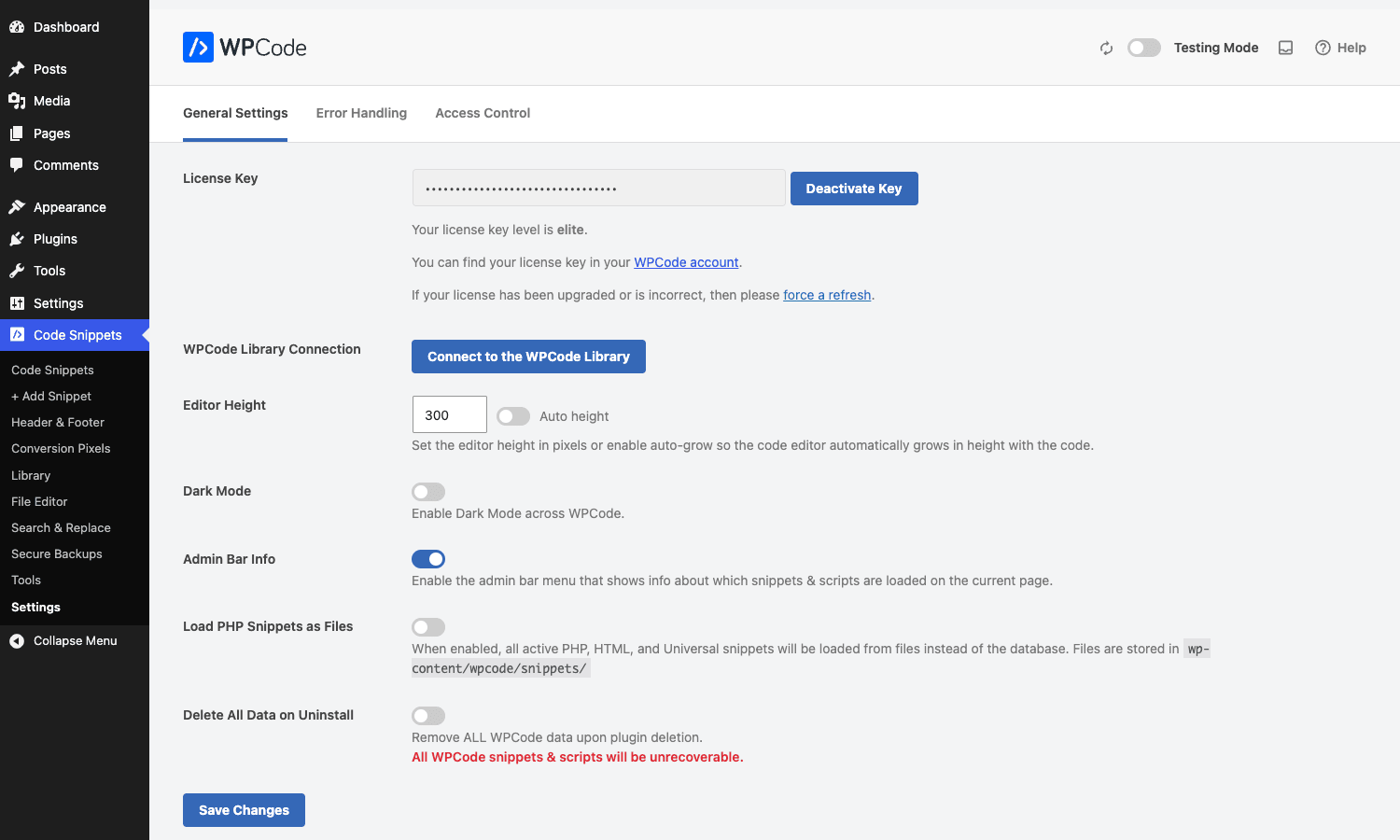
A little, and it’s honest about where. Active PHP snippets run as part of the normal WordPress hook cycle, so they cost the same as the equivalent code in your theme. The extra cost is conditional-logic evaluation, which happens per page load for auto-inserted snippets. WPCode caches the active-snippet-per-location list to soften this, and you can enable "Load PHP Snippets as Files" in Settings to serve active PHP, HTML, and Universal snippets from wp-content/wpcode/snippets/ instead of the database. The takeaway: a dozen snippets is invisible, a hundred conditional snippets is measurable.
Can I move snippets between sites?
Yes. WPCode has export/import (filtered by wpcode_export_snippet_data and wpcode_import_snippet_data), so you can export a set of snippets to a file and import them on another install. The hosted Library is the other path: install the same vetted snippets on every site from the same source. There’s no built-in central "push updates to all sites" sync like Code Snippets’ Codevault, so for fleet management you’re doing export/import or relying on the Library.
Is the GPL version really legal, and does it get updates?
WPCode is licensed GPLv2-or-later, so redistributing the plugin files is allowed, that’s how the GPL works. The GPL Times download is the genuine Pro plugin. The difference versus a direct subscription is that the vendor’s official update server and priority support come with the subscription. The code you run is the same.
Should marketers use the Header & Footer box or build a snippet?
Use the Header & Footer box for lightweight, truly site-wide tags (analytics, verification meta, a single base pixel). Build a proper snippet with conditional logic for anything heavier or page-specific, because the Header & Footer box runs on every page with no targeting. A chat widget in the header box loads on pages where you never wanted it.
Can WPCode replace a real plugin or child theme?
For small, self-contained tweaks, yes, and that’s the right tool. For anything you’d want version-controlled, tested, or reused across unrelated projects, no. A snippet that quietly does important work is invisible technical debt: it’s not in your repo, it’s not in code review, and the next developer has no idea it exists until it breaks. Use snippets for site-specific glue, build a plugin for anything that deserves a name.
Does the AI generator send my code to a third party?
Yes. The AI feature posts your prompt to wpcode.com/aiapi/v1/ and returns generated code, so prompts pass through the vendor’s service rather than calling an AI provider with your own key. It’s convenient (no key management) but worth knowing if your prompts would contain sensitive logic.
Final thoughts
WPCode Pro is two tools sharing a sidebar, and which one you reach for says a lot about you.
If you’re a marketer, you’ll live in the Header & Footer box and the Conversion Pixels page, and you’ll treat the snippet editor as a place you occasionally paste something from the Library. That’s a completely valid way to use it, and it’s why the free version is on two million sites.
If you’re a developer, the value is the safety net: the auto-deactivate shutdown handler, Safe Mode, and revisions turn "managing PHP in WordPress" from a tightrope into something you can actually hand to a junior teammate. The conditional logic engine is the bonus that lets you delete a pile of if ( is_page() ) checks and let a non-coder edit the targeting.
The one thing I’d flag before you buy: if you came specifically for the deep conversion-pixel tracking, confirm your plan tier includes the Conversion Pixels add-on, because it’s gated separately from the core plugin. For everything else, this is the snippet manager I’d hand to a mixed team without a second thought. Just promise me you’ll read the code before you click activate.