

For about eight years, the first plugin I reached for on every new WordPress build was a Google Analytics connector. It was a reflex. Spin up the site, drop in the tracking code, move on. I genuinely thought I was making a sensible default choice.
I was wrong.
The tool that replaced that reflex is Independent Analytics Pro, and the story of why matters more than the what.
The thing that changed my mind wasn’t a blog post or a privacy crusade. It was a client in Germany who got a letter. Her cookie banner was tanking opt-in rates, GA4 had just replaced the Universal Analytics property she actually understood, and her DPO wanted a list of every third party her site sent visitor data to. I had no clean answer. The data she thought was "hers" lived on Google’s servers, sampled, retained on Google’s schedule, and gated behind a consent prompt that half her visitors clicked away. We were paying in conversion rate for numbers we didn’t own.
Independent Analytics Pro is the plugin I wish I’d found before that letter arrived. It’s website analytics that lives entirely inside wp-admin, stores every row in your own database, and never phones home to a third party to render a single chart. This review is a long, honest walk through what it does well, where it’ll bite you, and the developer hooks worth knowing before you ship it on a real site.
Table of Contents
- What is Independent Analytics Pro?
- Where your data actually lives (and why that matters)
- The dashboard: what you see without leaving wp-admin
- Reports, filters, and segments
- Campaign tracking and the UTM builder
- Click tracking: outbound links, downloads, and phone taps
- WooCommerce revenue attribution
- Real-time traffic and scheduled email reports
- Don’t treat self-hosted analytics as a GDPR free pass
- Independent Analytics Pro vs GA4 vs MonsterInsights vs Matomo
- Developer reference: hooks, filters, REST, and the tracking beacon
- Performance and compatibility
- FAQ
- Final thoughts
What is Independent Analytics Pro?
Independent Analytics Pro is a self-hosted website analytics plugin built by Independent Analytics (the team at independentwp.com). The tagline on the plugin header is refreshingly plain: "user-friendly website analytics built for WordPress." That’s the whole pitch, and it holds up.
Here’s the part that separates it from almost everything else in this category. There is no Google Analytics account to connect. No GA4 property ID to paste. No OAuth handshake, no external API, no data warehouse in another company’s cloud. You install the plugin, it adds an Analytics menu to your WordPress sidebar, and it starts recording page views into tables in your own MySQL database. Every chart you see is built from data that never left your server.
It ships in two flavors. There’s a free version on the WordPress.org repo, and there’s the Pro plugin we’re looking at here, which adds the features most real sites actually want: UTM campaign tracking, click tracking, WooCommerce and EDD revenue attribution, scheduled email reports, geographic data, and automatic data pruning. The Pro plugin is licensed through Freemius, and the namespace throughout the code is IAWP with an iawp prefix, which is worth knowing if you ever go digging in the database.
If you want to try every panel I’m about to describe on a live WordPress install, Independent Analytics Pro is available on GPL Times with the full plugin and documentation intact.
Where your data actually lives (and why that matters)
I want to spend real time here because it’s the entire reason this plugin exists, and it’s the thing most "Google Analytics alternative" roundups gloss over.
When you run a typical analytics setup, a visitor loads your page, a JavaScript snippet fires, and a packet of data about that visit gets sent to a server you don’t control. The numbers you read in your dashboard are that third party’s interpretation of those packets, handed back to you through their UI. You’re a tenant looking at your own traffic through someone else’s window.
Independent Analytics inverts that. The tracking happens, but the destination is a REST endpoint on your own site (iawp/search), and the row lands in tables prefixed wp_iawp_ right next to your posts and comments. No packet leaves your infrastructure. When you open a report, the plugin runs a query against your own database and draws the chart locally.
A few practical consequences fall out of that:
- You own the raw data, not a summary of it. You can run your own SQL, export it, join it against order data, whatever. It’s just tables.
- There’s no sampling. Google Analytics 4 starts sampling reports once a property crosses certain event thresholds in the free tier. Independent Analytics queries every row, every time. On a small-to-medium site this is strictly more accurate.
- There’s no ad-blocker tax in the usual sense. Because the beacon posts to a first-party URL on your own domain rather than to a known tracker host, far fewer requests get blocked. You’ll typically see higher recorded traffic than GA on the same site, simply because more hits make it through.
- Uninstalling doesn’t orphan your history. The data is in your database. Migrate hosts, the data comes with the database dump.
This is genuinely a different model, not a reskin. The trade-off, which I’ll come back to in the anti-pattern section, is that being the data controller means the privacy responsibility is now entirely yours.
The dashboard: what you see without leaving wp-admin
The first thing you land on after activation is the Overview, and it’s built like a customizable grid of modules rather than one fixed report.
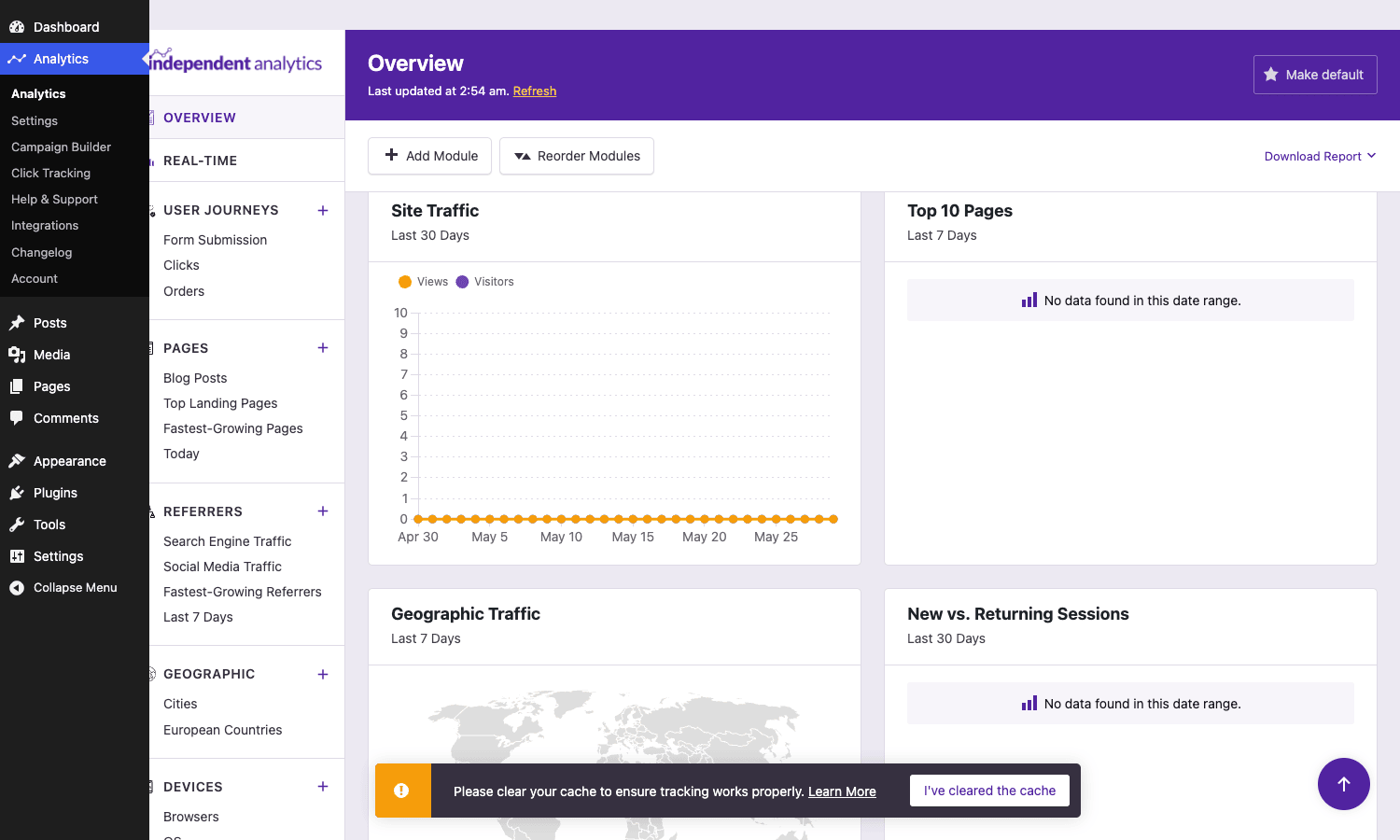
That screenshot is from a fresh demo install, so the numbers are zero. Ignore the empty charts and look at the shape of the thing. Down the left you’ve got the plugin’s own navigation: Overview, Real-Time, User Journeys (Form Submissions, Clicks, Orders), Pages, Referrers, Geographic, Devices, Campaigns, and Clicks. That nav sits inside the WordPress admin, next to your normal Posts and Pages menu, so you never context-switch out to a separate app.
The Overview itself is module-based. You can Add Module, Reorder Modules, and Make default so your preferred layout sticks. Out of the box you get Site Traffic over time, Top 10 Pages, a Geographic Traffic map, and a New vs Returning Sessions breakdown. If you only ever glance at one screen, this is a sensible one.
What I appreciate is that nothing here screams "marketing tool." It’s a clean reporting surface. No upsell tiles wedged between your charts, no "connect your account to unlock" nags blocking the data you came to read.
Reports, filters, and segments
Click into any report, say Pages, and the interface gets more interesting. This is where the plugin earns the "Pro" label.
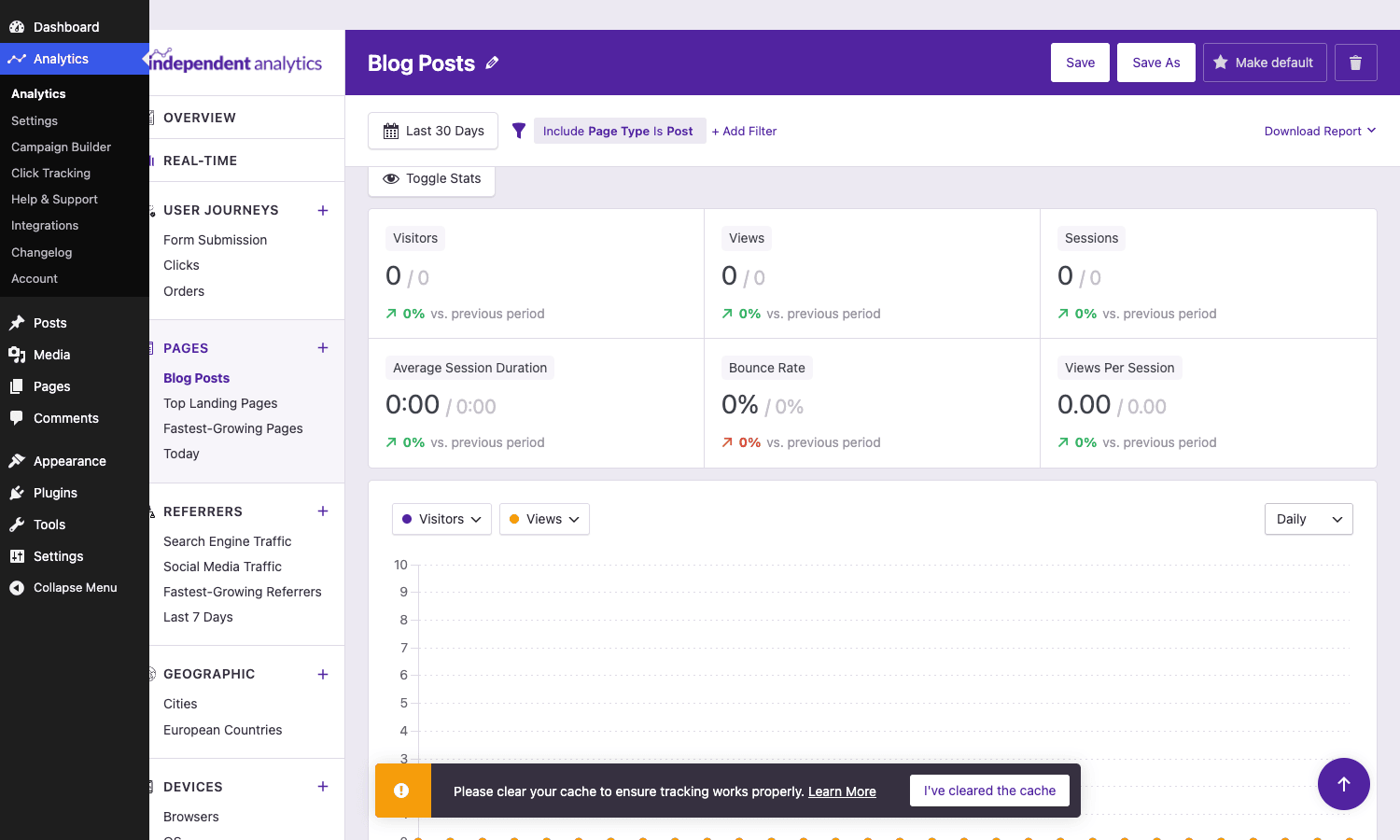
Three things to notice. First, the date control top-left ("Last 30 Days") with a comparison period baked in: every stat card shows the current number and a faded "previous period" number next to it, with a percentage delta. So you’re never reading a number in isolation, you’re reading it against last month.
Second, the filter row. The report above is filtered to "Include Page Type Is Post," and you can stack more conditions with Add Filter. This is segmentation, and it’s the part of GA4 that most people find baffling. Here it’s a plain row of dropdowns: include or exclude, pick a dimension, pick a value. Want only mobile visitors from organic search who landed on a specific category? Build it in three clicks, then Save As a named report so it shows up in your sidebar permanently.
Third, the six stat cards: Visitors, Views, Sessions, Average Session Duration, Bounce Rate, and Views Per Session. These are real, defined metrics, not vanity counts. The chart below them plots Visitors against Views and can be grouped Daily, Weekly, or Monthly.
The same filter-and-save pattern applies to Referrers, Geographic, and Devices. It’s consistent, which means once you learn one report you’ve learned all of them. That consistency is something GA4 never managed.
Campaign tracking and the UTM builder
If you run any kind of email list, paid ads, or social promotion, this is the panel you’ll use most.
UTM parameters (utm_source, utm_medium, utm_campaign, and friends) are the standard way to tag a link so analytics can tell you where a visitor came from. The problem is they’re fiddly to hand-write and easy to get inconsistent. One link says utm_source=newsletter, the next says utm_source=Newsletter, and now your reports split the same campaign into two rows.
The Campaign Builder solves the consistency problem with a form.
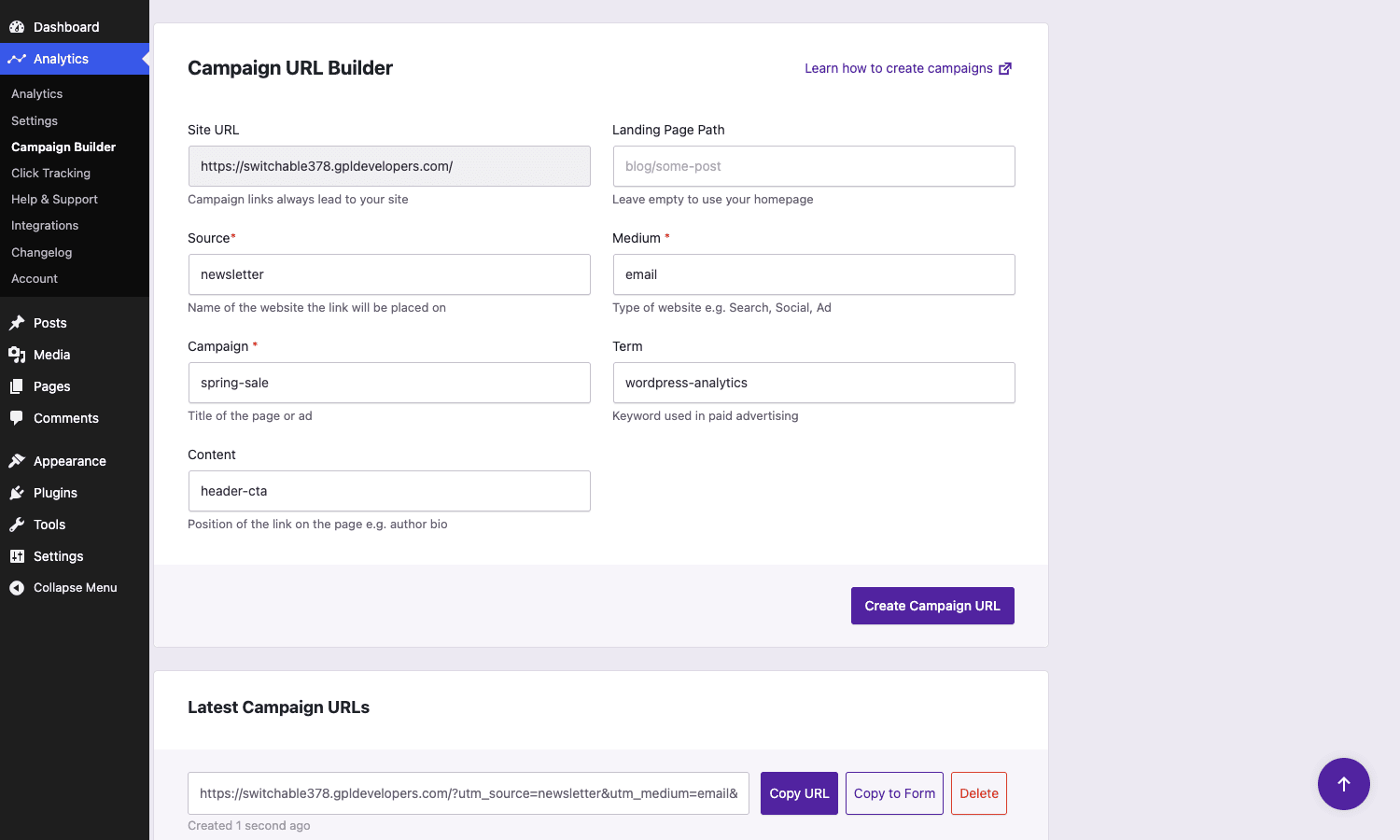
You fill in Source, Medium, Campaign, and optionally Term and Content, click Create Campaign URL, and it builds a clean tagged link. In the screenshot I built one for a newsletter promotion: source newsletter, medium email, campaign spring-sale. The generated URL drops into the "Latest Campaign URLs" list at the bottom with Copy URL and Copy to Form buttons, so you can reuse the same parameters for the next link in the series without retyping them.
Crucially, the campaigns you build here flow straight into the Campaigns report, where you see views, sessions, and (if you sell things) revenue attributed to each one. That closed loop, build the link here, read the results in the same plugin, is the bit that makes UTM tracking actually worth doing instead of an afterthought you bolt on later.
Click tracking: outbound links, downloads, and phone taps
Page views tell you where people land. Click tracking tells you what they actually do once they’re there, and it’s one of the most underused features in analytics generally.
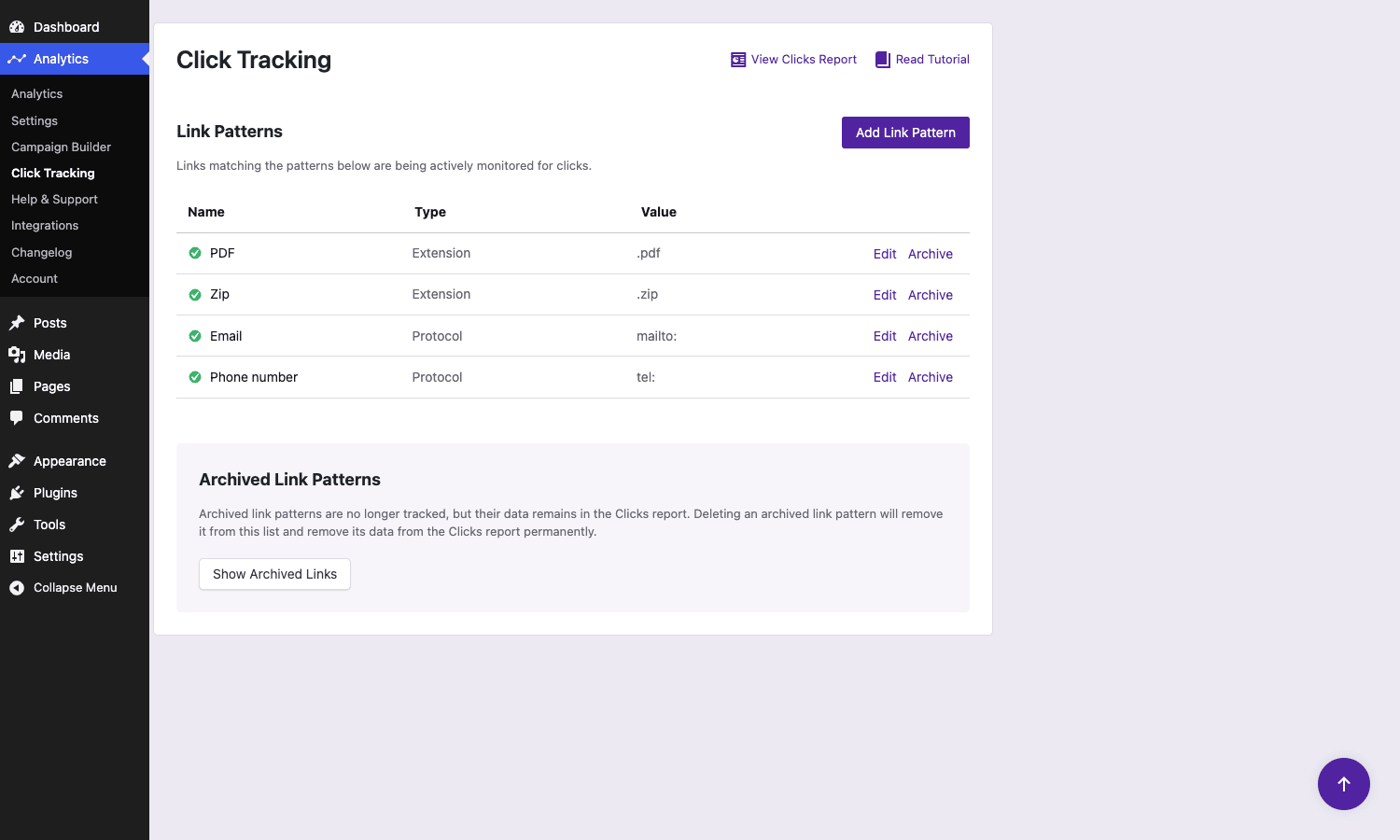
The model is "Link Patterns." Out of the box it ships four sensible ones: any link ending in .pdf, any link ending in .zip, any mailto: email link, and any tel: phone link. The moment a visitor clicks one, it gets recorded, and you can read it in the Clicks report broken down by PDFs, Zips, Emails, and Phone numbers.
You add your own patterns with Add Link Pattern. The two I set up on most sites are an "outbound" rule that catches links to any domain other than my own (so I can see which affiliate or partner links people actually use), and a rule that matches a specific button class for a key CTA. There’s also an Archive concept: archive a pattern and it stops tracking new clicks, but the historical data stays in the report. Delete it and the data’s gone for good. That distinction matters, and it’s nice that they made it explicit in the UI rather than hiding it behind a confirmation dialog.
Under the hood, click tracking runs through a small JavaScript handler that fires an iawp_click_processing action server-side when a matched click comes in, which I’ll come back to in the developer section.
WooCommerce revenue attribution
This is where Independent Analytics Pro stops being "a better page-view counter" and starts being a tool you’d actually base decisions on.
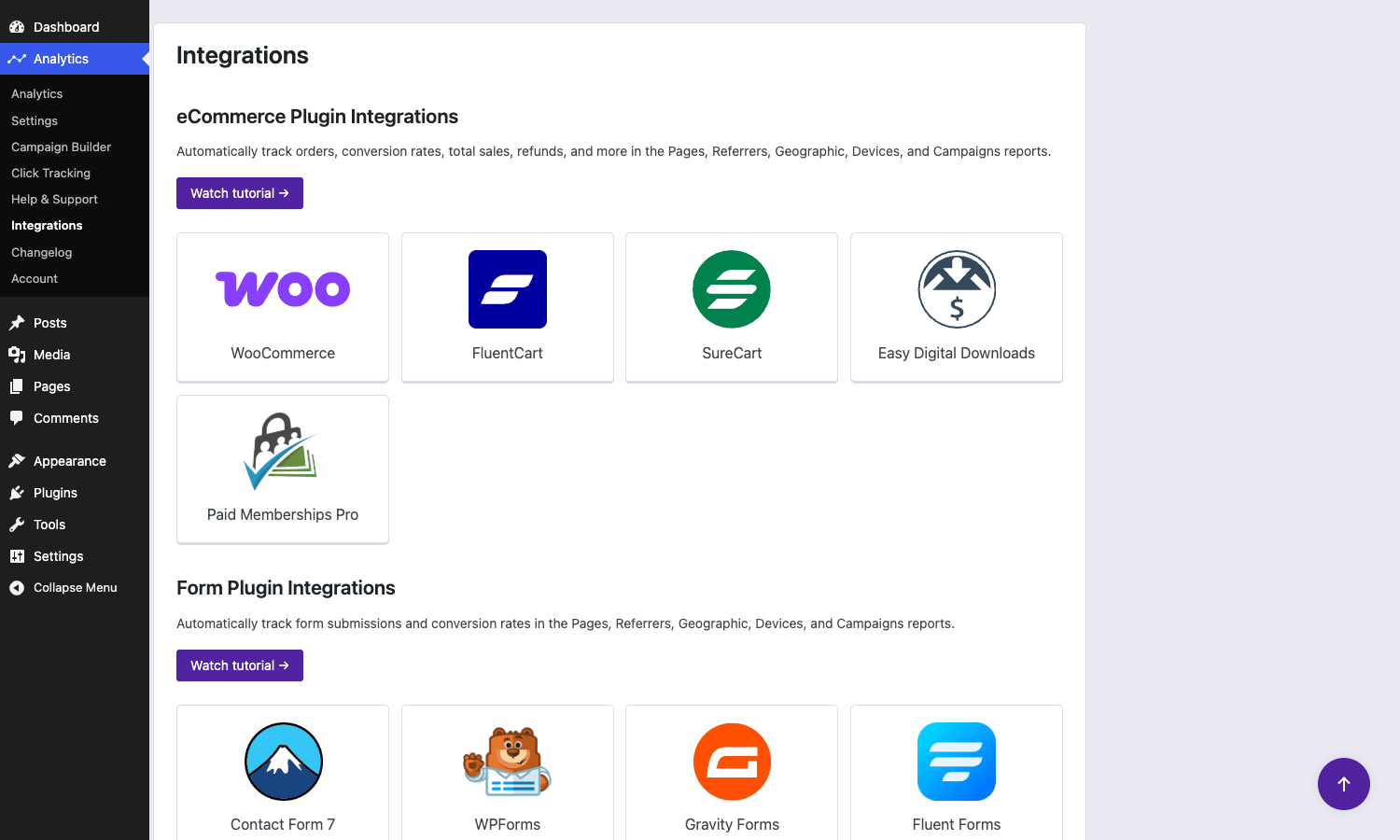
The Integrations page lights up the moment a supported store plugin is active. It tracks orders, conversion rates, total sales, and refunds across WooCommerce, WooCommerce-adjacent stores like SureCart and FluentCart, Easy Digital Downloads, and Paid Memberships Pro. On the form side it picks up Contact Form 7, WPForms, Gravity Forms, and Fluent Forms submissions automatically.
What that buys you is attribution. Because the plugin already knows which referrer, campaign, and landing page a session came from, it can answer the question that actually matters: which traffic source made me money, not just which one sent the most visitors. You can open the Referrers report, filter to a date range, and see revenue per source. You can open Campaigns and see that your spring-sale newsletter drove twelve orders while your Facebook campaign drove three. It threads the order value back through the session that produced it.
The honest caveat: this attribution is last-touch and lives entirely in your database, so it has no concept of the cross-device, cross-session, Google-Signals-enriched journey that GA4 tries (imperfectly) to stitch together. For most WordPress stores that’s a fair trade. You get attribution you can trust and audit, instead of a black-box model you can’t.
Real-time traffic and scheduled email reports
Two smaller features that punch above their weight.
The Real-Time view shows who’s on your site right now, which page they’re on, and where they came from. It’s the panel you open during a launch or when a post hits the front page of a subreddit, just to watch the numbers climb. Nothing revolutionary, but it’s instant because it’s reading your local database rather than waiting on a third party’s 24-to-48-hour processing delay.
Scheduled email reports are the feature I’d argue are worth the Pro upgrade on their own for agencies. You configure a from-address, reply-to, footer text, and a list of recipients, then the plugin emails a traffic digest on an interval (the iawp_email_report_interval controls how often). For client work this is gold. The client gets a tidy monthly traffic summary in their inbox without ever logging into wp-admin, and you didn’t have to build it. You can hit Preview email and Send test email before committing, which I always do, because nothing’s more embarrassing than a broken report landing in a client’s inbox at 6am.
Don’t treat self-hosted analytics as a GDPR free pass
Here’s the mistake I see people make the moment they switch off Google Analytics.
The reasoning goes: "the data stays on my server now, so I don’t need a cookie banner or a privacy policy update." That is wrong, and dangerously so. Self-hosted is not the same as compliant.
Under GDPR, the moment you stopped sending data to Google, you stopped being a joint controller sharing liability with a giant corporation and became the sole data controller and the processor. The buck now stops entirely with you. And an IP address is personal data. The CJEU settled that in the Breyer case years ago: a dynamic IP, combined with the realistic means to identify the person behind it, counts as personal data under EU law. If you store full IP addresses, retain them forever, and track everyone without a lawful basis, you are not "privacy-first." You’re a one-person data-protection incident waiting to happen.
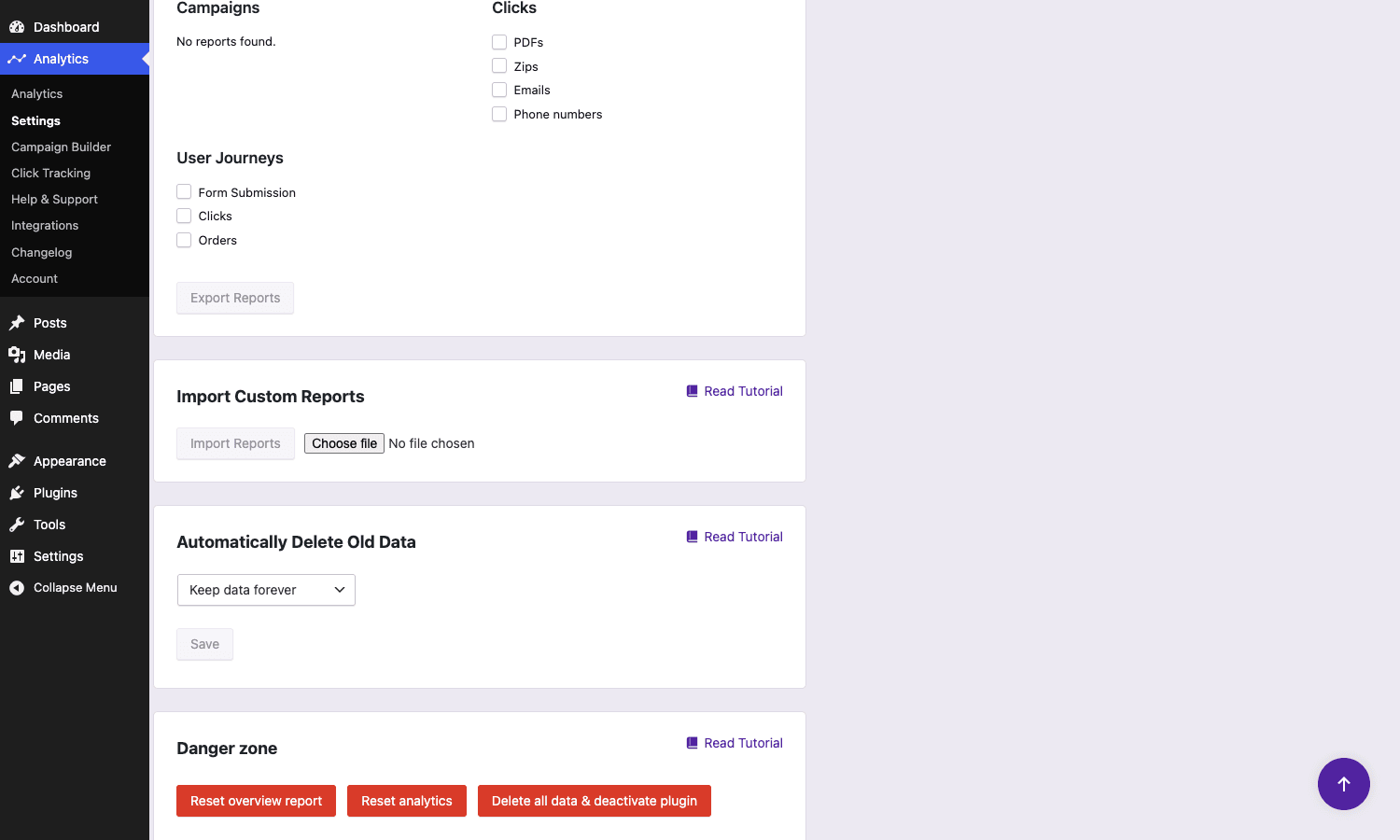
Look at that dropdown. The default for "Automatically Delete Old Data" is Keep data forever. That’s a reasonable engineering default and a terrible compliance one. Storage minimization is a GDPR principle, not a nice-to-have.
The plugin gives you the tools to do this right, you just have to actually use them. Set a retention window (30, 60, 90, 180 days, or up to four years) so old visitor data prunes itself. Configure IP handling so you’re not warehousing identifiable addresses you don’t need. And if you operate in the EU, wire it into your consent manager (the plugin registers itself with Complianz as a "statistics" category script) so tracking only fires after consent. Skip those three steps and you’ve simply moved the liability from Google’s lawyers to yours. The reputational hit of a privacy-branded tool used non-privately is worse than the fine.
Independent Analytics Pro vs GA4 vs MonsterInsights vs Matomo
Let me put real numbers on the comparison instead of hand-waving, because "it’s more private" isn’t a buying decision.
Page weight. Google’s gtag.js is roughly 45 to 50 KB of JavaScript (often more once the GA4 config and any linked products load), and it’s an extra DNS lookup and connection to a Google host. Independent Analytics fires a tiny first-party beacon to your own iawp/search endpoint. The script footprint is a fraction of gtag.js and there’s no cross-origin connection to set up. On a page where you’re fighting for every Core Web Vitals point, shaving ~45 KB of render-path JavaScript and one third-party connection is measurable. If page speed is your battle, pair it with a caching layer like WP Rocket and you’ve removed two of the heaviest third-party scripts most sites carry.
Sampling. GA4’s free tier applies sampling to non-default reports once a property crosses event thresholds (commonly cited around the 10-million-event mark for detailed exploration reports, lower for some explorations). Independent Analytics and Matomo both query every row with zero sampling. On a high-traffic site, GA4’s sampled numbers and Independent Analytics’ exact numbers will diverge, and the exact ones are the ones you can defend.
Cookies. GA4 sets _ga and related cookies by default. Independent Analytics can run without setting tracking cookies (it uses a hashed, rotating visitor identifier rather than a persistent cookie), which is the difference between needing a cookie banner and not.
Cost and model. GA4 is free but you pay in data ownership and complexity. MonsterInsights Pro is a paid GA connector, so you’re paying a subscription on top of still funneling your data to Google (the MonsterInsights setup guide walks through that GA-dependent flow). Matomo is the closest philosophical match (self-hosted, full data ownership, no sampling) but Matomo’s self-hosted install is a heavier PHP application you run and maintain separately, whereas Independent Analytics is a single WordPress plugin with no extra moving parts. Matomo’s own pricing for the managed cloud version starts around the mid-double-digits per month for low traffic and climbs with hits.
The short version: if you want zero third parties, no sampling, ~45 KB less JavaScript, and no GA account, and you don’t want to babysit a separate Matomo install, this is the sweet spot.
Developer reference: hooks, filters, REST, and the tracking beacon
This is the part I care about most, because an analytics plugin you can’t bend to your stack will eventually fight you. Independent Analytics exposes a small but well-chosen set of hooks. Here are the ones worth knowing.
The tracking endpoint
Tracking runs through a single REST route registered under the iawp namespace:
register_rest_route( 'iawp', '/search', [
    'methods'             => 'POST',
    'callback'            => [ $this, 'track_view' ],
    'permission_callback' => '__return_true', // public; anyone can record a view
] );
That iawp/search route is the beacon every front-end hit posts to. Worth knowing if a security plugin or REST-API-locking plugin (Disable REST API, miniOrange, and similar) is blocking unauthenticated REST calls: you have to whitelist iawp/search or tracking silently stops. The plugin actually detects several of these and prints a warning, which is a thoughtful touch.
Getting the real client IP behind Cloudflare
This is the single most important filter if you run behind a CDN or reverse proxy, and the most common cause of "my geo data is wrong." Behind Cloudflare, $_SERVER['REMOTE_ADDR'] is Cloudflare’s IP, not your visitor’s. Geo lookups and unique-visitor counts both break. Point the plugin at the right header:
add_filter( 'iawp_header_with_ip_address', function () {
    return 'CF_CONNECTING_IP'; // Cloudflare. Use the header your proxy sends.
} );
The plugin validates that the returned value is a clean header name (letters and underscores only) before trusting it, so you can’t accidentally inject something weird.
Naming and grouping virtual pages
If your site serves "pages" that aren’t real WordPress posts (headless routes, AJAX endpoints, app screens), the plugin tracks them as virtual pages with raw values. You can rename and group them so the reports read like English:
add_filter( 'iawp_override_virtual_page_details', function ( $cache, $resource_value ) {
    if ( str_starts_with( $resource_value, '/app/checkout' ) ) {
        $cache['cached_title'] = 'Checkout (SPA)';
        $cache['cached_type_label'] = 'App Screen';
    }
    return $cache;
}, 10, 2 );
There’s a companion iawp_convert_to_virtual_page filter that lets you turn an arbitrary tracked payload into a virtual page in the first place, which is how you’d capture something the plugin wouldn’t otherwise see.
Relocating the temp directory
By default the plugin writes its working files to a temp directory it manages. On locked-down hosts where that path isn’t writable, point it somewhere that is:
add_filter( 'iawp_temp_directory_path', function () {
    return WP_CONTENT_DIR . '/uploads/iawp-temp';
} );
You can also define the IAWP_TEMP_DIR constant in wp-config.php if you prefer config over filters; the constant wins over the filter.
Reacting to clicks server-side
When a tracked click is processed, the plugin fires an action you can hang your own logic on, say, pushing a high-value download event into a separate system:
add_action( 'iawp_click_processing', function () {
    // Runs server-side as a matched click is recorded.
    // Good place to mirror the event into your own log or queue.
} );
The view-counter shortcode
For the front end, there’s a shortcode that prints a view count for the current (or a specified) post:
[iawp_view_counter]
Handy for "12,480 reads" social-proof badges on popular articles without a separate counter plugin.
Privacy and exclusion settings
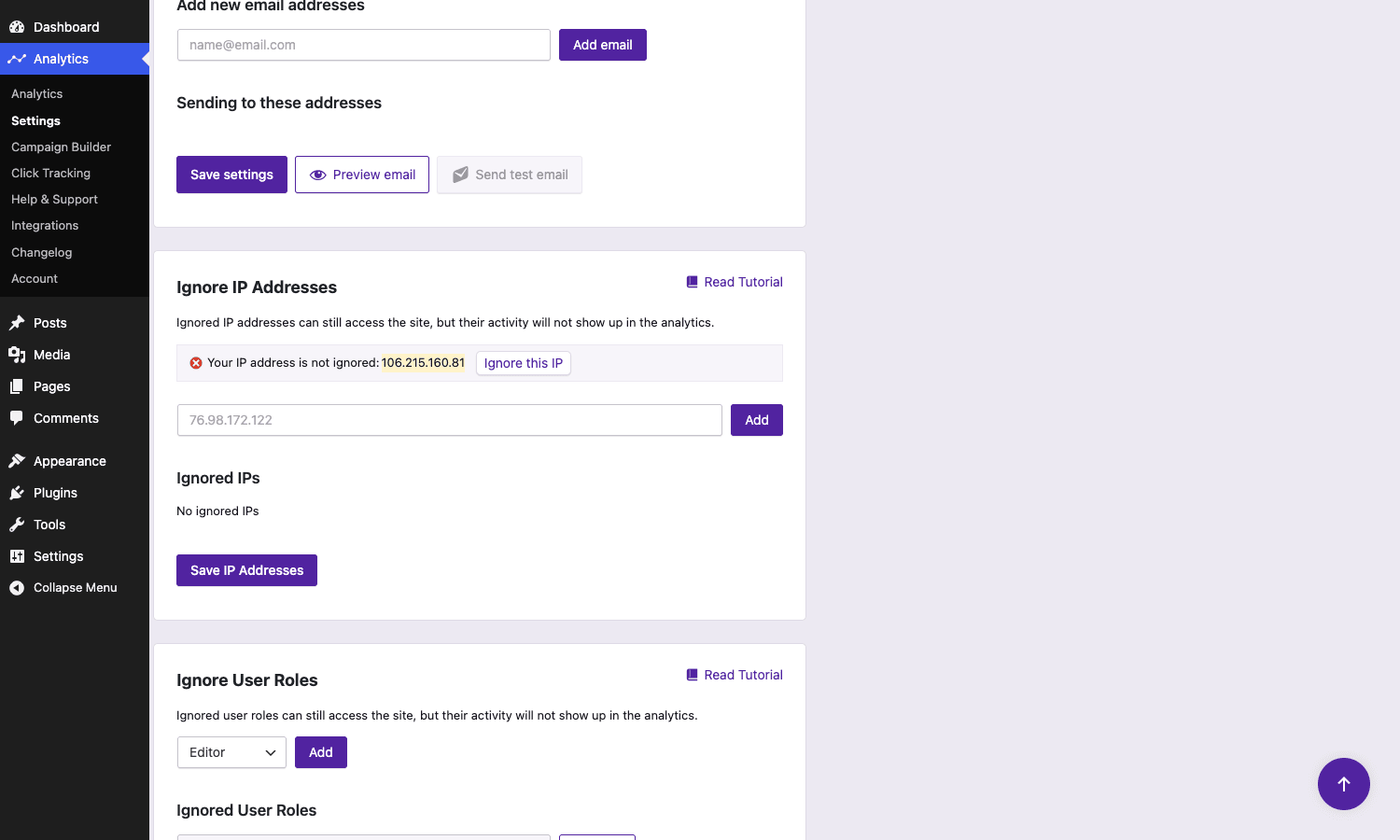
These aren’t filters, they’re real WordPress options the settings screen writes, but they’re the ones you’ll script during a multisite rollout or a migration. The ones worth knowing: iawp_track_authenticated_users (off by default, so logged-in admins don’t pollute your stats), iawp_blocked_ips, iawp_blocked_roles (defaults to excluding administrator), iawp_ignore_via_cookie, and iawp_pruning_cutoff (the data-retention window, which I begged you to set in the anti-pattern section). You can read and set them with the standard get_option/update_option API.
The plugin is also WPML-aware. It calls wpml_post_language_details and wpml_permalink so that translated pages group correctly in reports rather than splitting one article into one row per language.
Performance and compatibility
A self-hosted analytics plugin has a performance profile you need to understand before you ship it, because it’s the opposite of a cloud tracker’s.
The front-end cost is tiny. There’s no heavy SDK, just a small beacon posting to your own REST endpoint. That part is faster than Google Analytics, full stop.
The cost moves to your database. Every tracked view is a write to your MySQL server. On a low or medium-traffic site, this is nothing. On a site doing serious concurrent traffic, or on a cheap shared host with a strangled database, those writes add up, and the reports (which query across potentially millions of rows) get slower the more history you keep. This is the real argument for setting a pruning window: it’s not only a privacy measure, it keeps your tables lean and your reports fast.
Compatibility is broad. It works on standard WordPress 5.9+ and PHP 7.4+, plays nicely with page caching (the beacon fires from the browser, so cached HTML doesn’t break tracking, though you do need to clear your cache after install so the tracking script is actually present in the cached pages), and integrates with the major commerce and form plugins listed earlier. It supports multisite. The one genuine gotcha is the Cloudflare/proxy IP header issue I covered in the developer section, fix that with the filter and geo works correctly.
FAQ
Does Independent Analytics slow my site down like Google Analytics does?
On the front end, it’s lighter. There’s no ~45 KB gtag.js, no third-party connection, just a small first-party beacon. But be honest about where the cost moves: every view is a write to your own database. On a normal site that’s invisible. On a high-traffic site or weak shared hosting, the writes and the report queries against a large history table can become noticeable. Set a data-retention window to keep the tables small and you sidestep most of it.
Will it work behind Cloudflare?
Yes, but you must tell it which header carries the real client IP, or your geographic data and unique-visitor counts will be wrong (every visitor will look like they’re coming from a handful of Cloudflare IPs). Add a one-line iawp_header_with_ip_address filter returning CF_CONNECTING_IP. This is the number-one "it’s not working right" issue, and it’s a two-minute fix once you know.
Is the data accurate compared to GA4?
It’s accurate in a different way. There’s no sampling, so on your own site the counts are exact, and because the beacon is first-party, fewer hits get blocked, so you’ll often see higher traffic than GA reports. What you lose is GA4’s cross-device, cross-session modeling enriched by Google Signals. So if you need to follow one human across phone-then-laptop, GA4 guesses at that and Independent Analytics doesn’t. For most WordPress sites, exact first-party numbers beat modeled cross-device guesses.
What happens to my data if I uninstall the plugin?
The data is in your own wp_iawp_* database tables, so it’s yours regardless. There’s a "Danger zone" in settings with explicit Reset and "Delete all data & deactivate plugin" controls, so deletion is a deliberate choice, not an accident of deactivating. If you just deactivate, the tables stay. You can also export reports from the settings screen before you go.
Do I still need a cookie banner?
This depends entirely on how you configure it, which is the whole point of the anti-pattern section above. Run it without tracking cookies and with IP handling configured, and you have a strong argument for not needing a consent prompt in many jurisdictions. But "self-hosted" alone does not exempt you, IP addresses are personal data under EU law. Talk to whoever handles your compliance; don’t take a plugin review as legal advice.
Can it track form submissions and outbound link clicks?
Yes to both, in Pro. Form submissions are tracked automatically for Contact Form 7, WPForms, Gravity Forms, and Fluent Forms via the Integrations page. Outbound clicks, downloads, email links, and phone taps are handled by the Click Tracking link-pattern system, and you can add your own patterns (including a CSS class match for a specific button).
Does it support WooCommerce revenue reporting?
Yes. With WooCommerce active, it tracks orders, sales, conversion rate, and refunds, and attributes that revenue back to the referrer, campaign, and landing page that produced the session. Easy Digital Downloads, SureCart, FluentCart, and Paid Memberships Pro are supported too.
Final thoughts
I’m not going to tell you Independent Analytics Pro replaces Google Analytics for everyone, because it doesn’t. If your job depends on Google Ads attribution, BigQuery exports, or the cross-device modeling that only Google’s data graph can do, you’ll keep GA4 around. That’s a real and narrow use case.
But for the large middle of the WordPress world, content sites, small-to-medium stores, agency client sites, this is the analytics setup I now reach for first instead of last. The data stays in your database. There’s no account to connect, no sampling, ~45 KB less JavaScript on every page, and a privacy story you can actually stand behind, provided you set the retention window and IP handling instead of leaving them on the "keep forever" default.
The dashboard is clean, the filter-and-save report model is genuinely better than GA4’s segmentation, the UTM builder closes the loop on campaign tracking, and the developer hooks are exactly the ones a real integration needs. The honest catches are the database write cost at high traffic and the Cloudflare IP header gotcha, both manageable once you know about them.
If you want to poke at every report, filter, and the campaign builder on a live install before deciding, you can run Independent Analytics Pro from GPL Times on a test site and see your own traffic show up in real time. After eight years of reflexively pasting in a Google snippet, switching the default felt overdue.