

I broke a client’s store on a Friday afternoon. One plugin update, applied straight to the live site because the changelog looked harmless, and checkout died. No add-to-cart, no payment, a 500 error and a phone call I did not enjoy. The fix took twenty minutes. The trust took a lot longer. That whole disaster existed for one reason: I had nowhere safe to test the update first. WP Staging Pro is the plugin that makes that mistake almost impossible to repeat, and this is an honest, lived-in walk through how it works, where it shines, and the one footgun that can still bite you.
This is the plugin you reach for when "I’ll just update it real quick" stops being a safe sentence. It clones your live WordPress site into a private copy, lets you change anything you want there, then merges the good changes back to production. It also does full backups and migration, which is where people get confused, so we will untangle all three.
Table of Contents
- What is WP Staging Pro?
- Staging vs backup vs migration (they are not the same thing)
- What a staging site actually is
- How to create your first staging site
- Pushing staging changes back to production (carefully)
- Don’t push staging to production without a backup
- Backups, scheduled and sent off-site
- Remote Sync and temporary logins
- Settings worth knowing
- Installation and setup
- WP Staging vs Duplicator vs UpdraftPlus
- Developer reference: CLI, REST, and a modest hook surface
- Compatibility and gotchas
- Troubleshooting
- FAQ
- Final thoughts
What is WP Staging Pro?
WP Staging Pro is a WordPress staging, backup, and migration plugin by the WP-STAGING team. Its signature job is the one most plugins skip: it clones your live site into a working copy where you can test changes, then pushes the changes you approve back to production. The free version on WordPress.org has passed a million active installs, which is a lot of people who got tired of testing updates on the live site and praying. The Pro version is the one that actually completes the loop with the push-back feature, cloud backups, scheduled jobs, and server-to-server sync.
Here is the mental model. Most plugins help you do something to your site. WP Staging helps you not do something risky to your live site. That is a different category of value, and it is hard to appreciate until the first time an update would have nuked production and instead it only nuked a throwaway clone.
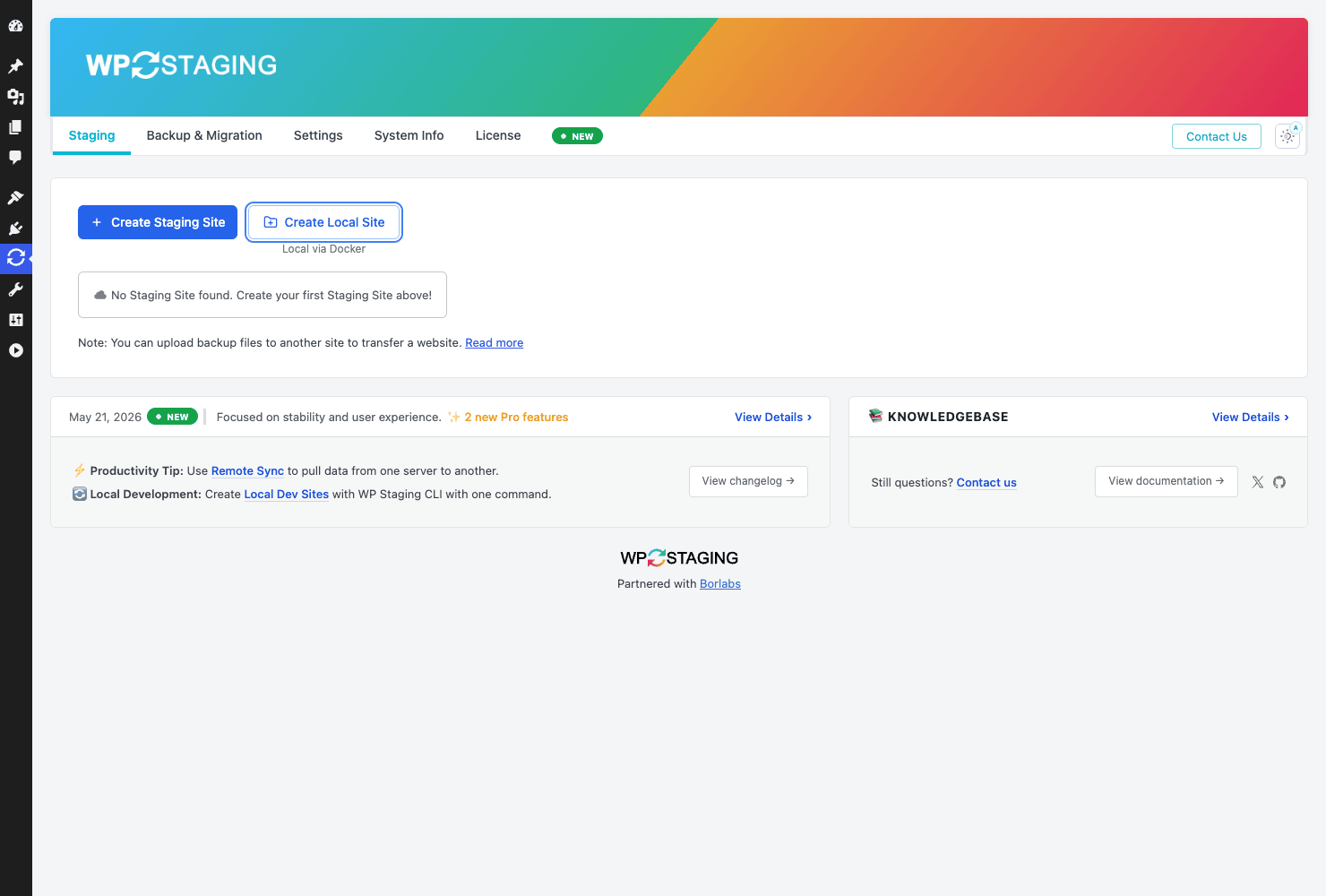
The plugin lives under a single admin menu with a handful of pages: Staging Sites, Backup & Migration, Settings, and System Info. The Staging Sites page is home base. From there you spin up a clone, open it, log into it, push it, or delete it. Two buttons sit at the top: Create Staging Site and Create Local Site (a Docker-based local dev copy, which I will come back to). It is a refreshingly small surface for a plugin that does this much.
One thing to know up front. The Pro plugin runs alongside the free WP STAGING base plugin. Both are active at the same time. That is by design, not a packaging mistake, so do not deactivate the free one thinking it is a leftover.
You can grab WP Staging Pro from GPL Times if you want a working copy to test these flows on a real install while you read.
Staging vs backup vs migration (they are not the same thing)
This is the single most useful thing this article can do for you, so I am putting it near the top. People throw these three words around like synonyms. They are not. Picking the wrong one is how you end up "restoring a backup" when you meant to test a change, or "migrating" when you meant to merge.
Staging is a safe copy of your site that you actively work in. You clone production, edit the clone (update plugins, redesign a page, write custom code), confirm nothing broke, then push the good parts back. Staging is a workflow, not a file. It lives on, you reuse it, you keep cloning fresh copies when production drifts.
A backup is a frozen snapshot. One archive containing your database and files, sitting somewhere safe, doing nothing. Its only job is to exist until the day something goes wrong, at which point you restore it and roll the whole site back in time. A backup is insurance. You do not work inside it.
Migration is moving a site from one place to another. From localhost to live, from one host to another, from a staging domain to the real domain. It is usually a one-time act: pack the site up, move it, unpack it, done.
Here is the part everyone gets wrong: a staging site is not a backup, and a backup is not a staging site. A staging clone shares your server. If the server dies, the disk fails, or someone deletes the wrong folder, your clone dies right alongside production. That is why a real backup has to leave the building, which is exactly why WP Staging Pro also ships off-site backups. Keep that distinction. It will save you one day.
| What you want to do | Reach for | Why |
|---|---|---|
| Test a plugin update, a redesign, or new code safely | Staging (clone, edit, push) | A throwaway copy that mirrors production, then merges back |
| Protect yourself against a crash, hack, or bad update | Backup (frozen, off-site) | A restore point that lives somewhere your server can’t take down with it |
| Move a site to a new host or domain | Migration (export, import) | A one-time transfer of the whole site, end to end |
WP Staging Pro does all three, which is genuinely convenient, but it also blurs the line in people’s heads. Treat them as three separate tools that happen to share one menu. If you want a dedicated deep dive on the migration side, our guide on migrating a WordPress site with Duplicator and the one on All-in-One WP Migration cover that job in full.
What a staging site actually is
Before you click anything, it helps to know what the plugin builds when you make a staging site, because the "magic" is just two boring, well-handled pieces.
Piece one: a second set of database tables. Your live site’s tables are usually prefixed wp_ (so wp_posts, wp_options, and so on). When WP Staging clones, it copies those tables into the same database under a new prefix, something like wpstg1_posts. Same database, new namespace. Your staging site reads and writes its own tables and never touches the live ones. This is clever because it means a clone does not need a second database or new credentials. It also means a giant database makes for a slower, heavier clone, which we will deal with later.
Piece two: a copy of your files. By default the clone goes into a subdirectory of your site (Pro can also use a subdomain). Your themes, plugins, and uploads get copied into that folder, and a fresh wp-config.php points the clone at its prefixed tables.
On top of those two pieces, WP Staging hardens the clone so it behaves like a sandbox and not a second live site:
- It is login-protected. Random visitors and bots can’t browse your half-finished redesign.
- It is set to noindex. Search engines are told to stay out, so you don’t get a duplicate-content copy of your store ranking in Google.
- Outgoing emails are disabled. This is the one people forget to be grateful for. When you place a test order or reset a test user’s password on staging, no real customer gets an email. No "your order has shipped" notice to someone who never ordered anything.
That last point is worth pausing on. A staging copy of a WooCommerce store is a loaded gun if emails are live. WP Staging unloads it for you by default. Good.
How to create your first staging site
Right, let’s actually build one. Go to WP Staging » Staging Sites and click Create Staging Site. A wizard opens, and it is short.
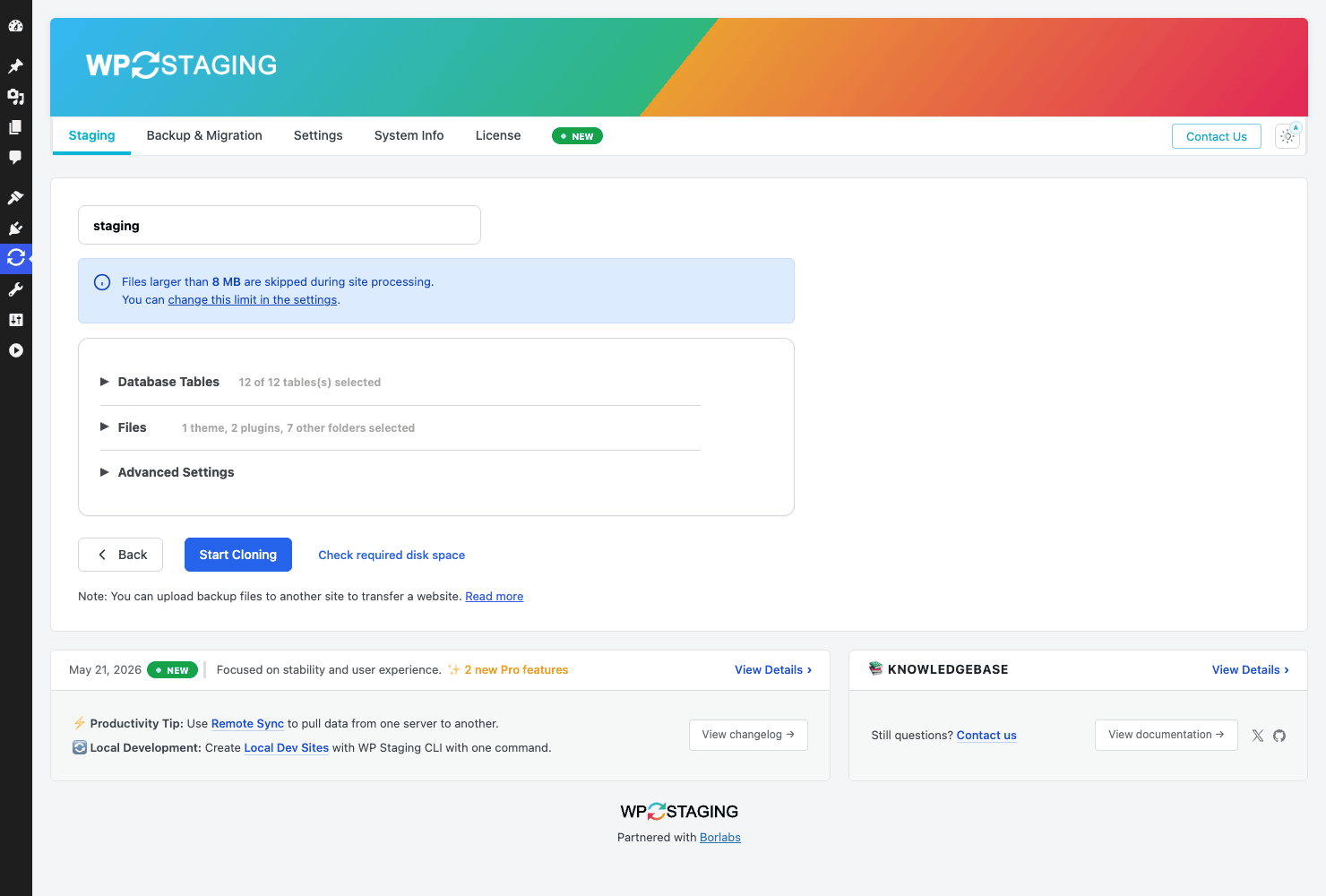
Step 1: name it. Give the clone a name, something like staging or test-update. This becomes the subdirectory (or subdomain) and the table prefix, so keep it short and lowercase.
Step 2: choose Database Tables. The wizard shows every table, selected by default (you will see something like "12 of 12 tables selected"). For a normal test, leave them all on. The reason to ever deselect is size: if you have a bloated logging table or a giant analytics table you don’t need on staging, dropping it makes the clone faster and smaller. Most people never touch this, and that is fine.
Step 3: choose Files. Same idea for the filesystem. The wizard lists your themes, plugins, and other folders (for example "1 theme, 2 plugins, 7 other folders selected"). Leave the defaults unless you have a monster uploads folder you can live without on staging.
Heads-up: there is a default that surprises people. The wizard tells you, "Files larger than 8 MB are skipped during site processing." That 8 MB file-size skip exists so a single huge backup zip or video sitting in your uploads doesn’t balloon the clone or stall it. It is sensible, but if your staging site is missing a large media file, that limit is why. You can raise it in the settings if you actually need those big files mirrored.
Step 4: Advanced Settings. Here you can set the destination (subdirectory vs subdomain on Pro), tweak the prefix, and adjust a few processing options. For a first run, skip it.
Step 5: check space, then Start Cloning. There is a Check required disk space button. Use it. Cloning copies your files and duplicates your tables, so the clone needs roughly as much free disk as your site already uses. On a cramped shared host this is the step that fails, and finding out before you start beats finding out at 80 percent.
Hit Start Cloning and the plugin works through the database and then the files, showing progress as it goes. On a small blog this is a couple of minutes. On a large store with gigabytes of uploads it can take a long while, and on under-powered shared hosting a very large clone can stall partway. That is not a bug so much as physics; copying tens of thousands of files over a slow disk is just slow. If yours hangs, the troubleshooting section below has the levers that help.
When it finishes, your new staging site shows up in the Staging Sites list with Open, Login, Push, and Delete actions. Open it, log in with your normal admin credentials, and you are standing inside an exact copy of your site that you can wreck with zero consequences. That feeling, the first time, is the whole pitch.
Pushing staging changes back to production (carefully)
This is the feature that separates WP Staging from every "make a backup copy" plugin, and it is Pro-only. Once you have tested your changes on staging and you are happy, you push them back to the live site instead of redoing the work by hand.
You start a push from the staging site’s Push action. WP Staging then asks the question that matters most: what do you want to push? You get to choose, per database table and per file group, what gets merged into production. This selectivity is not a nice-to-have. It is the entire difference between a safe push and a catastrophe, and I will explain why in the next section.
A typical sane push looks like this. You updated three plugins and tweaked the theme’s CSS on staging. So you push the plugin files and the theme files, and you push only the options and tables those changes actually touched. You do not push your whole database back, because your database includes things like wp_posts and your orders, and those have kept changing on the live site while you were busy on staging.
The push runs much like the clone: WP Staging copies the selected files over production’s files and merges the selected tables into production’s tables, with a search-and-replace pass to fix the staging URLs back to your live URL. When it is done, the changes you tested are live, and you never touched production until you were sure.
Note: there is no screenshot of a finished clone or a live push in this article, and that is deliberate honesty. Cloning is resource-heavy and the demo sandbox I tested in did not have the disk and time headroom to complete a real clone, so I am describing the push from how the feature is built rather than pretending a screenshot shows it. On a real server with room to breathe, the flow is exactly as above.
Don’t push staging to production without a backup
Here is the footgun, and it is a real one with real money attached. A push merges staging’s database tables and files over production. That word "over" is the problem.
Picture a live store. You clone it to staging on Monday. You spend three days redesigning the homepage. While you work, the live store keeps living: forty new orders come in, customers sign up, people leave product reviews. All of that lands in production’s database, in tables like wp_posts, wp_users, wp_woocommerce_order_items. Your staging copy knows nothing about any of it, because it was frozen Monday.
Now you push. If you carelessly push the whole database back, staging’s three-day-old tables overwrite production’s current ones. Those forty orders? Gone. The new customers? Gone. The reviews? Gone. You didn’t lose them to a hack or a crash. You deleted them yourself, by merging stale data over fresh data. This is the classic staging disaster, and people hit it because "push everything" feels safer than thinking about which tables changed. It is the opposite of safe.
The fix is two habits, both cheap:
- Take a fresh backup of production right before you push. WP Staging has backups built in, so this is one click. If the push goes wrong, you restore and you have lost nothing.
- Push selectively. Push the files and options you actually changed (your theme, your plugins, the specific settings), and leave the live data tables (posts, orders, users, comments) alone. They changed on production for a reason. Don’t clobber them.
If you take one thing from this entire review, take this. The push is the most powerful feature here and the most dangerous. Back up first, push only what you changed, and it goes from scary to routine.
Backups, scheduled and sent off-site
Because staging shares a server with production, WP Staging Pro also gives you proper backups that can leave that server. This is the insurance layer, and it is good enough that a lot of people buy the plugin for backups alone.
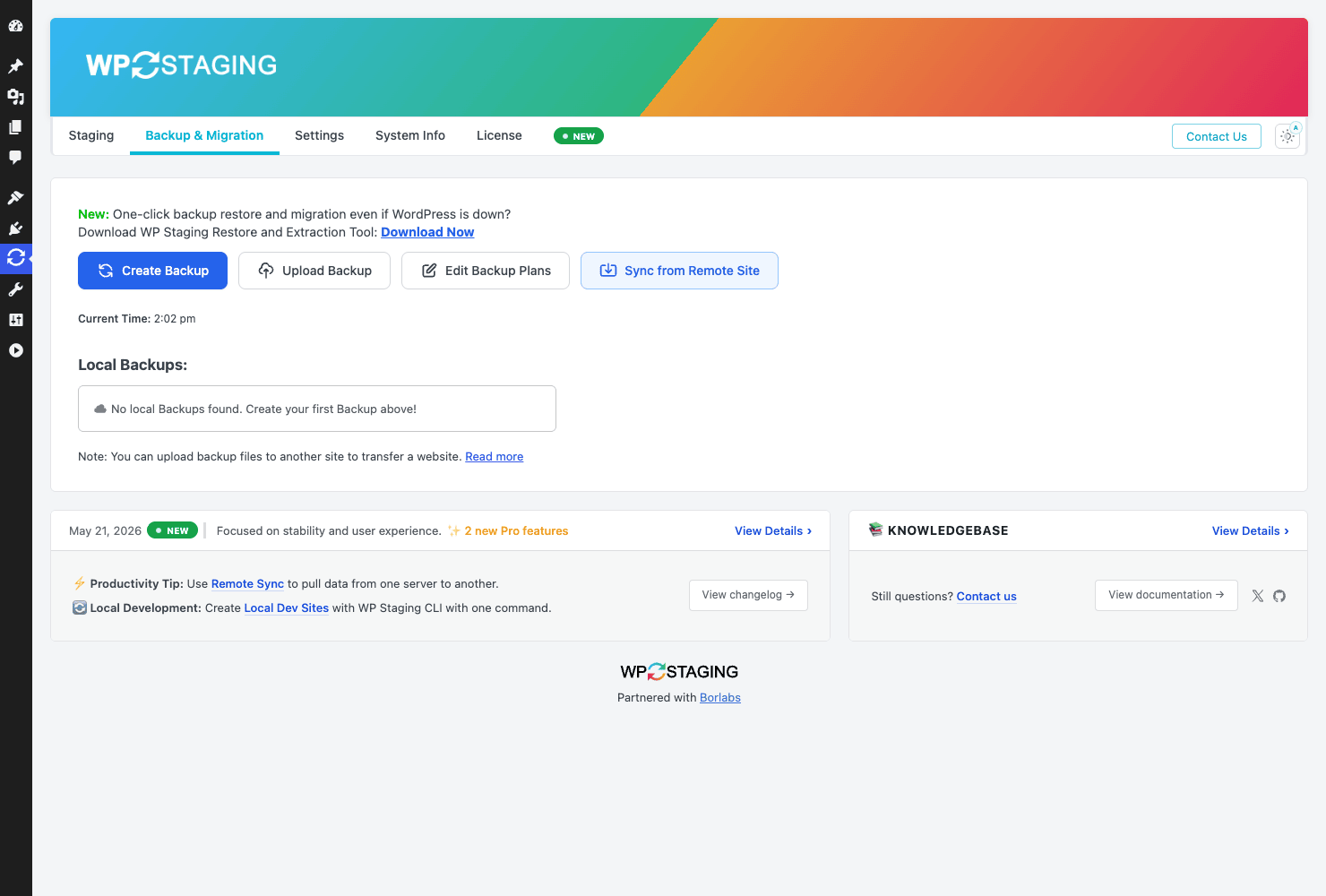
Head to WP Staging » Backup & Migration. The main actions are:
- Create Backup. Builds a single archive of your database plus files. You can include or exclude pieces (database only, files only, specific folders), which keeps backups lean if you don’t need to capture, say, your cache directory every time.
- Edit Backup Plans. This is the scheduled-backups feature. You define a plan (daily, weekly, whatever cadence you need), pick where it goes, and WP Staging runs it automatically. Set it once and forget it, which is the only kind of backup that actually happens.
- Upload Backup. Bring an archive in from elsewhere to restore or migrate from.
- Sync from Remote Site. Pull data from another server, which ties into Remote Sync below.
The standout here is the Restore and Extraction Tool. WP Staging’s restore is designed to work even if WordPress itself is down. That is a bigger deal than it sounds. Most backup plugins restore from inside wp-admin, which is useless on the exact day you need them most, when a fatal error has locked you out of wp-admin entirely. Being able to restore when the dashboard won’t load is the difference between a five-minute recovery and a frantic call to your host.
Now, the off-site part. A backup that sits on the same disk as your site is barely a backup. Under Settings » Storage Providers, WP Staging Pro connects to nine destinations so your archives land somewhere your server can’t drag down with it:
- Google Drive
- Amazon S3
- Dropbox
- OneDrive
- pCloud
- DigitalOcean Spaces
- Wasabi S3
- Generic S3 (any S3-compatible bucket)
- FTP / SFTP
Connect one (or several), point a Backup Plan at it, and you have automated, scheduled, off-site backups. That is the setup I would call non-negotiable for any site that makes money. The Generic S3 option is the quiet hero, because it means you are not locked to the named providers; any S3-compatible storage works.
Tip: keep backups in at least two places, and make one of them off-site. Local backups restore fastest, off-site backups survive a dead server. WP Staging lets you do both from one plan, so do both.
Remote Sync and temporary logins
Two Pro features deserve their own section because they solve problems the free version simply can’t.
Remote Sync moves data between two servers running WP Staging Pro. Pull production data down to a development server. Push a staged version up to a different live host. Keep a staging site that lives on a separate machine in sync with production. Under the hood this is two servers authenticating to each other and exchanging data through an internal sync route, but you experience it as "connect the two sites once, then sync on demand." If you run staging on a separate box (smart, since cloning then never competes with your live site for resources), this is how you keep it current.
Temporary Logins is the feature I did not expect to love. Under Settings » Temporary Logins, you create shareable login links that expire automatically and need no password.
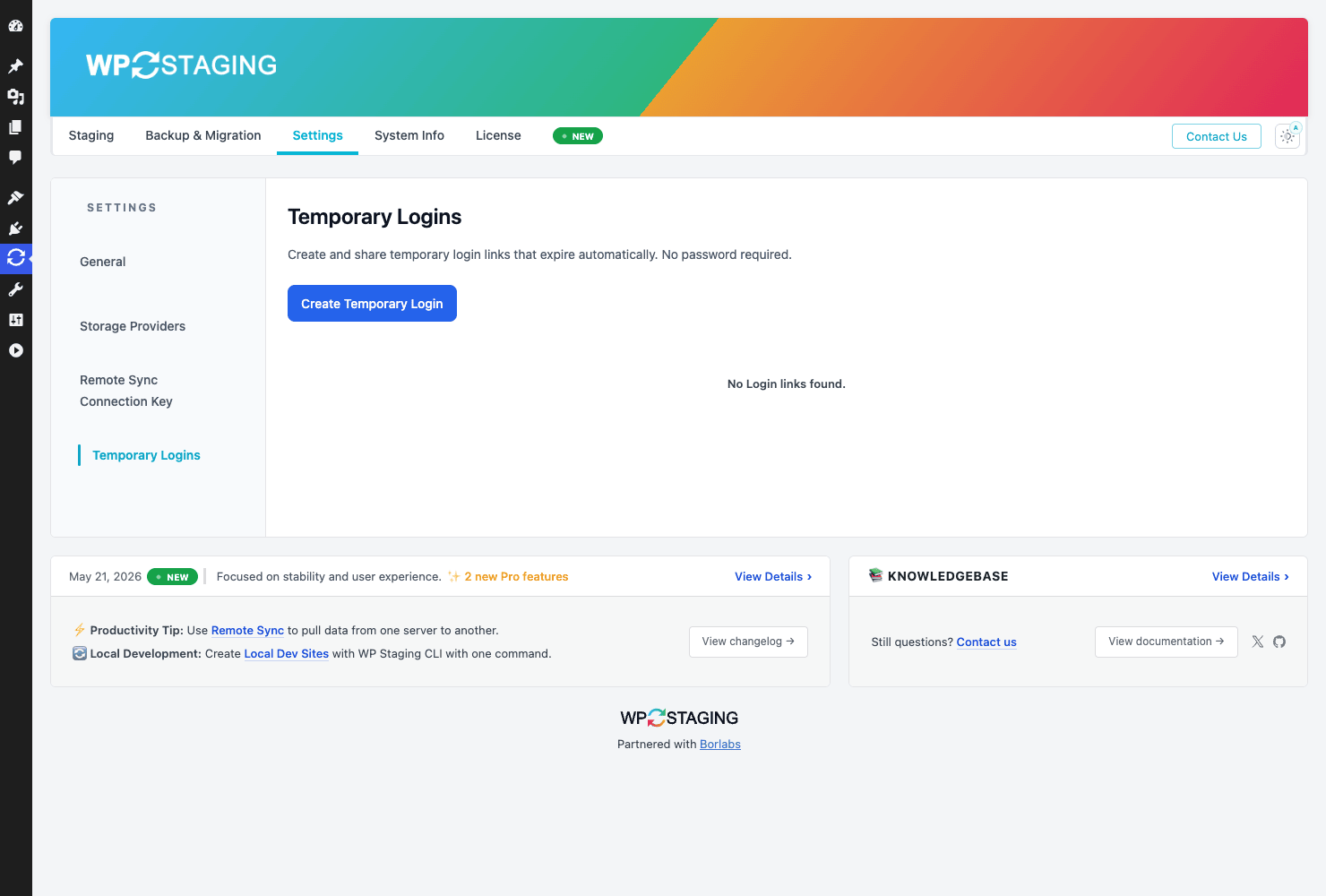
Here is the use case that won me over. A client wants to see the staged redesign. A developer needs to poke at a bug for an afternoon. Old way: create a WordPress user, set a password, email it over insecurely, then remember to delete the account next week (you won’t). New way: generate a link that logs them in as a chosen role and expires on its own. No password floating around in an email thread, no orphaned admin accounts you forgot to remove. If you run an agency, this one feature quietly removes a whole category of "wait, who still has access?" risk.
The same plumbing also powers WP Staging’s "update plugins without risk" flow, where it can check for outdated plugins, let you test the updates on staging, and then activate the approved ones. It is the staging idea applied specifically to the most common cause of a broken site: a plugin update gone wrong.
Settings worth knowing
You can ignore most of these. Five or six are worth understanding, because they are the difference between a clone that finishes and one that times out at 80 percent on a big site.
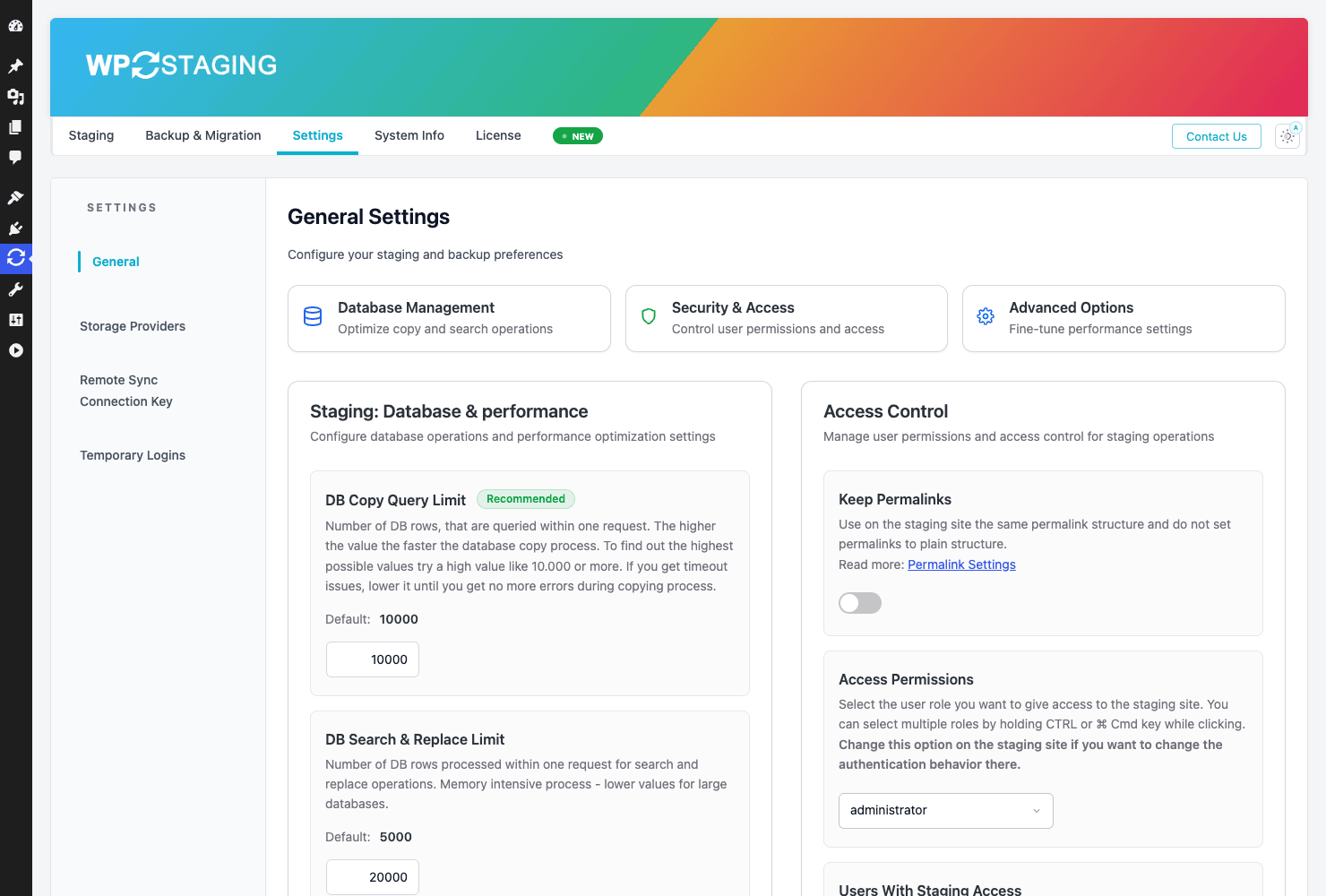
Open WP Staging » Settings. The sub-navigation runs across General, Storage Providers, Remote Sync, Connection Key, and Temporary Logins. The General tab is where the performance knobs live, grouped into Database Management, Security & Access, and Advanced Options.
DB Copy Query Limit (default around 10,000). This controls how many database rows WP Staging copies per query while cloning or pushing. Higher is faster but uses more memory per step. On a beefy server, raising it speeds up clones of large databases. On cramped shared hosting where clones run out of memory and die, lowering it is often the fix. This is the first dial to reach for when a big clone keeps failing.
DB Search & Replace Limit (default around 5,000). Same idea for the search-and-replace pass that rewrites URLs after a clone or push. Same trade-off: bigger is faster, smaller is gentler on weak hosts.
The 8 MB file-skip limit also lives here. If your staging site is missing large media and you genuinely need it mirrored, raise this. If you would rather keep clones fast and lean, leave it.
Then there is Access Control, which matters more than the performance dials if you have a team:
- Keep Permalinks. Whether the staging site keeps your live permalink structure. Usually yes.
- Access Permissions. Which user roles are allowed to access the staging site at all. Tighten this to admins on a site with many editors.
- Users With Staging Access. Name the specific users who can reach staging. This is how you stop a curious editor from stumbling into the half-built clone.
There is also a System Info page (under the menu) with server, PHP, and database diagnostics, a Download System Info & Logs button, and a Purge Backup Queue action. You will mostly ignore these until you open a support ticket, at which point the support team will ask for exactly that system info export. Knowing it is there saves a round-trip.
Installation and setup
Getting running is quick.
- Install and activate. Upload the plugin zip under Plugins » Add New » Upload Plugin, activate it. The Pro version installs the free WP STAGING base alongside it, so let both stay active.
- Add your license so you get updates and the Pro features (push, cloud backups, Remote Sync, temporary logins).
- Set who can access staging. Before you clone anything, pop into Settings » General and set Access Permissions and Users With Staging Access. Doing this first means your first clone is locked down from minute one.
- Connect a storage provider under Settings » Storage Providers if you plan to back up off-site (you should).
- Create your first staging site from the Staging Sites page, as walked through above.
That is it. No onboarding wizard demanding ten decisions before you can do anything, which, after some of the setup gauntlets I have suffered through, is a small mercy.
WP Staging vs Duplicator vs UpdraftPlus
People shopping for WP Staging usually have Duplicator and UpdraftPlus open in other tabs too, trying to work out which one they need. Short answer: they are three different jobs, and you probably want two of them.
WP Staging is the only one of the three whose main job is staging. Clone, edit, push back. The free version has crossed 1,000,000 active installs doing exactly that. Duplicator and UpdraftPlus can copy a site, but neither is built around the clone-edit-push-back loop, and neither pushes a staging site back into production the way WP Staging Pro does. If "test changes safely, then merge them live" is what you came for, this is the one.
Duplicator is a packager and migrator first. It bundles your site into an archive plus an installer script and is excellent at moving a site from A to B. Its free tier handles migration well; Duplicator Pro adds scheduled backups and cloud storage and runs in the rough region of $50 to $200 per year depending on tier. It does have a basic staging-style "create a copy" path, but pushing changes back is not its core story. For a clean one-time move, Duplicator is hard to beat, and our Duplicator migration guide covers it.
UpdraftPlus is a backup plugin first, and a very good one. Schedule backups, ship them to cloud storage, restore on demand. UpdraftPremium lands roughly in the $70-and-up per year range and adds migration (its "Migrator" add-on) and more storage destinations. What it does not do is staging-with-push. It is insurance, not a workbench. Our UpdraftPlus backup guide walks through that side.
So the measurable picture: WP Staging Pro gives you 9 off-site storage providers for backups (Google Drive, S3, Dropbox, OneDrive, Wasabi, DigitalOcean Spaces, and more), as deep a cloud list as anything in this category; a configurable DB Copy Query Limit near 10,000 rows per query and a Search & Replace Limit near 5,000 so you can tune clones to your host; and an 8 MB default file-skip to keep clones lean. WP Staging’s free tier does real staging (clone only), while push, cloud backups, scheduled plans, and Remote Sync are Pro. The honest summary: if you only need backups, UpdraftPlus is plenty. If you only need a one-time move, Duplicator is plenty. If you need a place to safely test and then merge changes back, WP Staging is the one built for that, and it happens to do backups and migration too.
Developer reference: CLI, REST, and a modest hook surface
I am going to be straight with you here, because padding a developer section with hooks nobody uses is exactly the kind of thing that makes these reviews useless. WP Staging is built to be used, not heavily extended. Its hook and filter surface is modest on purpose. The real developer value is in two places most plugins don’t offer at all: a WP-CLI command and an internal REST layer.
WP-CLI: there is a wp wpstg command. This is the genuinely interesting part. WP Staging registers a CLI command, which means you can script backups, clones, and restores from cron or a CI pipeline instead of clicking through wp-admin. That is rare for a plugin in this category and it is the headline developer feature. A nightly automated backup from the command line might look like this in spirit:
# Run a WP Staging backup from cron / CI.
# `wp wpstg` ships real subcommands, including:
#   backup-create        create a backup
#   staging-site-create  clone production into a staging site
#   staging-site-delete  remove a staging site
#   status               check the status of a running job
wp wpstg backup-create
Those subcommand names are real (they map to WP Staging’s own CLI command classes), so a cron line that runs wp wpstg backup-create nightly is a genuine, supported workflow. The exact flags for each live in the official docs; I am not going to guess at them here, but the commands themselves are what make scripted backups and clones possible.
REST API: an internal wpstg/v1 namespace. WP Staging registers REST routes, but be clear about what they are for. This is internal plumbing, not a public content or data API. The routes power the Pro features:
/two_way_syncand/authenticatedrive Remote Sync between two servers./check_magic_loginpowers the expiring Temporary Logins./wpstg_plugins_update,/wpstg_get_outdated_plugins, and/wpstg_activate_updated_pluginsrun the "update plugins without risk" workflow.
You would not build an app against these the way you would against the WordPress core REST API. They exist so WP Staging’s own features can talk to each other and to a second server. Treat the namespace as machinery, not a public interface.
Hooks and filters: a handful, mostly internal toggles. There is no deep extension framework here, and I would rather tell you that than dress up a thin list. The filters you might actually use:
// Swap the logo shown on the staging site's login screen.
add_filter( 'wpstg_login_form_logo', function ( $url ) {
    return 'https://example.com/wp-content/uploads/staging-logo.png';
} );

// Control whether WP Staging's optimizer loads your active theme
// during its background processing.
add_filter( 'wpstg_optimizer_enable_theme', '__return_true' );
And a few action hooks fire at predictable moments, most of them with no arguments:
// Do something the first time a freshly cloned staging site boots,
// e.g. drop in a "THIS IS STAGING" admin notice or flush a cache.
add_action( 'wpstg.clone_first_run', function () {
    // your code here
} );
Other filters in the set (wpstg.require_free, wpstg.bootstrap.opcache.shouldClear, wpstg.restore.download.content, wpstg.deactivation_hook.skip_mu_delete) and actions (wpstg_scanning_db, wpstg_notifications) are mostly there for internal control and edge-case overrides rather than day-to-day extension. There are no shortcodes and no custom post types, which makes sense once you remember a staging clone is stored as separate prefixed database tables plus a copied filesystem, not as content inside WordPress.
So the honest developer take: do not pick WP Staging because you want a rich API to hook into. Pick it because wp wpstg lets you automate the whole staging-and-backup routine, and Remote Sync lets you wire two servers together. That is the real value, and it is more than most plugins in this space offer. If you do want to extend it, you are really extending WordPress, not WP Staging, so the WordPress plugin developer handbook is a better map than anything in this plugin’s filter list.
Compatibility and gotchas
A few realities worth knowing before you rely on this in production.
Disk space is the constant constraint. A clone roughly doubles your site’s footprint on disk while it exists, because it copies your files and duplicates your tables in the same database. On a tight shared host, that is the wall you hit first. Run the Check required disk space step, and delete old staging sites you are done with so they don’t sit there eating space.
Big sites need the limits tuned. A multi-gigabyte store on weak hosting can stall mid-clone. The DB Copy Query Limit and DB Search & Replace Limit exist precisely for this; lowering them trades speed for survivability on memory-starved hosts. This is normal, not a defect.
Multisite is supported on Pro, though as with any multisite operation I would test the clone and push on a non-critical network first. Multisite adds shared tables and network-level config that make staging more delicate than on a single site, so go in with a fresh backup.
Object caching and full-page caching can confuse a fresh clone. If your staging site looks weird right after cloning (old content, broken styling), a stale cache is the usual suspect. Clear caches on the clone before you trust what you see.
The push is irreversible the moment it overwrites. I covered this in the anti-pattern section, but it bears repeating in the gotchas list: a push is not a preview. Back up production before every push.
Troubleshooting
The real problems people hit, and the fix for each.
Cloning hangs or times out. Almost always disk space or server limits. Check free disk first. Then lower the DB Copy Query Limit so each step is smaller. If files are the holdup, the 8 MB skip is keeping huge files out, so confirm that is not silently dropping something you need. On very large sites, run the clone during low-traffic hours so it is not fighting visitors for resources.
"Out of memory" during clone or push. Lower both the DB Copy Query Limit and the DB Search & Replace Limit, and if you can, raise PHP’s memory limit on the host. Smaller batches use less memory per step.
The staging site shows a white screen or fatal error after cloning. Usually a plugin that does not like running from a subdirectory, or a hardcoded path in a theme. Log into the clone via the Staging Sites Login action and deactivate plugins one at a time to find the culprit. Because it is a clone, you can break it freely while you diagnose.
Restore needed but wp-admin won’t load. This is the Restore and Extraction Tool’s whole reason to exist. You can run a restore from your backup even when WordPress itself is down, so you are not locked out on the worst possible day.
Emails went out from staging. They shouldn’t, since WP Staging disables outgoing email on the clone by default. If you somehow get real emails from a staging site, an SMTP plugin or a transactional-email service configured outside WordPress (sending via an API key rather than WordPress’s mail function) is bypassing the block. Disable that service on the clone.
The push didn’t include a change you made. You probably did not select that file group or table in the push step. The push is selective by design; re-run it and tick the right boxes. (And yes, back up first.)
FAQ
Is a staging site the same as a backup?
No. A staging site is a working copy that lives on the same server as production; a backup is a frozen snapshot that should live somewhere else entirely. If your server fails, your staging site dies with production, but an off-site backup survives. WP Staging Pro does both precisely because you need both. Use staging to test, use off-site backups to protect yourself.
Won’t cloning eat a ton of disk space?
Yes, while it exists. A clone roughly doubles your footprint on disk, since it copies your files and duplicates your database tables. Run the Check required disk space step before you start, and delete clones the moment you are done with them. The people who run out of room are the ones with three forgotten staging sites quietly sitting on a shared host.
What happens to orders placed on my live site while I work on staging?
They land in production’s database, and your staging clone never learns about them. That’s fine until the push: if you push your whole database back, you overwrite those live orders with stale staging data and lose them. The fix is to push selectively (only the files and settings you changed, never the live data tables) and to take a backup right before you push. Get that right and live orders are perfectly safe.
Does the free version push staging back to production, or is that Pro-only?
Push is Pro-only. The free WP STAGING plugin clones your site so you can test changes, which is genuinely useful on its own and is why it has over a million installs. But merging changes back to production, cloud backups, scheduled backup plans, and Remote Sync all require WP Staging Pro. If you only ever want to look at a test copy, free is fine. If you want to actually deploy your tested changes, you need Pro.
Can I create the staging site on a subdomain instead of a subdirectory?
Yes, on Pro. The free version clones into a subdirectory of your existing site, while Pro lets you use a subdomain. A subdomain feels cleaner and avoids some plugins that misbehave from a subdirectory path, so if you have the option, it is often the nicer choice. Either way the clone is login-protected and set to noindex.
Will running WP Staging slow down or break my live site?
Cloning is resource-heavy while it runs, so on a small shared host a big clone can compete with live traffic and feel sluggish for a few minutes. It does not change anything on production, though, so it can’t break your live site by cloning. The genuinely risky operation is the push, not the clone. If your site is large, run clones during quiet hours, or put staging on a separate server and keep it current with Remote Sync.
How many places can I send backups, and where?
Nine off-site destinations: Google Drive, Amazon S3, Dropbox, OneDrive, pCloud, DigitalOcean Spaces, Wasabi S3, Generic S3 for any S3-compatible bucket, and FTP/SFTP. You can connect more than one and point a scheduled Backup Plan at it, so automated off-site backups are a one-time setup. The Generic S3 option means you are not locked to the named providers.
Can I restore a backup if WordPress is completely broken?
Yes, and this is one of WP Staging’s best touches. The Restore and Extraction Tool is designed to work even when WordPress itself won’t load, which is exactly when most in-dashboard backup plugins are useless. A fatal error that locks you out of wp-admin is the moment you most need a restore, and this is built to function then.
Is the GPL version on GPL Times the full Pro plugin?
Yes. WP Staging Pro on GPL Times is the full Pro plugin with the push-to-production feature, cloud backups, scheduled plans, Remote Sync, and temporary logins included. The free WP STAGING plugin is on WordPress.org if you want staging-only; Pro is what unlocks the rest of the workflow.
Final thoughts
WP Staging Pro solves a problem I used to solve with luck and a held breath: changing a live WordPress site and hoping nothing breaks. Clone, test on the copy, push the good parts back, and you can exhale. The push is the standout feature and also the one place you can still hurt yourself, so back up before every push and push selectively. Do that and the worst-case outcome is a wasted afternoon, not a wasted Friday on the phone with an angry client.
The backups are a real bonus rather than a checkbox: nine off-site destinations, scheduled plans, and a restore tool that works when WordPress is dead. The developer side is honest, a wp wpstg CLI and internal sync routes rather than a deep hook API, and I respect a plugin that is built to be used cleanly instead of bristling with filters nobody calls. If you maintain WordPress sites for anyone but yourself, WP Staging Pro from GPL Times is the kind of tool you stop noticing right up until the day it saves you a Friday night. That day comes. You can read more about the plugin’s full feature set on the official WP-STAGING site and try the free version from the WordPress.org plugin page before committing.