

The market for WordPress caching plugins is genuinely crowded. WP Rocket gets most of the attention, but if you scroll down the WordPress.org "most popular" lists, the names you keep seeing are W3 Total Cache, WP Super Cache, and the one we’re going to talk about: WP Fastest Cache. The free version sits above one million active installs. The Premium add-on is what unlocks the parts most production sites actually need: image optimization, WebP conversion, render-blocking handling, database cleanup, and lazy loading.
Table of contents
- What is WP Fastest Cache?
- Free version vs Premium add-on
- Key features
- How the caching strategy actually works
- Installation and first run
- Touring the Premium admin UI
- Real-world use cases
- Developer reference: hooks, filters, file layout
- Performance, compatibility, and gotchas
- Pricing and licensing
- FAQ
- Final thoughts
What is WP Fastest Cache?
WP Fastest Cache is a WordPress page caching plugin built by Emre Vona. The first release was in 2014, and it’s been steadily updated since. The plugin’s main job: when a logged-out visitor requests a page on your WordPress site, serve them a pre-rendered HTML file directly from disk instead of running PHP and querying MySQL on every request. That’s the same job WP Rocket, W3 Total Cache, WP Super Cache, and LiteSpeed Cache do; the differentiator with WP Fastest Cache is how aggressively simple the setup is.
The free version of WP Fastest Cache is on WordPress.org with one million active installs. The Premium add-on (sold as a separate plugin you install alongside the free one) layers on the advanced features that turn it into a credible WP Rocket alternative: WebP image conversion, render-blocking CSS/JS handling, JavaScript delay, lazy loading, database cleanup, mobile-specific theme caching, and widget caching.
The official product page lives at wpfastestcache.com. The Premium license is sold one-time (not subscription), which is unusual in the caching plugin market and one of the main reasons people pick it.
Free version vs Premium add-on
A lot of WP Fastest Cache reviews you’ll find don’t separate the two. Here’s the actual split.
The free version handles static page caching via mod_rewrite, CSS minification and concatenation, JavaScript minification and concatenation, gzip compression, browser cache headers, basic CDN URL rewriting, Cloudflare API integration, mobile cache (separate cached HTML per user agent), logged-in user cache toggle, SSL support, and cache exclusion rules. That’s a complete cache plugin on its own.
Premium adds on top: lazy loading (images and iframes), WebP image conversion, full image optimization (lossy + lossless via API credits), render-blocking JS handling, "Delay JS" (push scripts to first interaction), database cleanup (transients, revisions, autoload, orphaned meta), critical CSS generation, mobile-theme cache (different cached HTML for mobile-themed sites), widget cache, and HTML "powerful minification" (more aggressive whitespace and comment stripping).
So if you’re on a small site with minimal images, the free version is genuinely enough. If you’re on a content-heavy site, an e-commerce store, or a site where image bloat matters (i.e. almost any site in 2026), the Premium add-on starts paying back its one-time fee within a few months.
Key features
The full list of what you get with WP Fastest Cache + Premium:
- mod_rewrite static caching. Cached pages served straight by Apache via mod_rewrite or Nginx with no PHP roundtrip. Fastest possible TTFB on a LAMP stack.
- Granular cache control. Cache timeout (per-site or per-page), preload (warm the cache by crawling the sitemap), per-page exclusions.
- CSS minification + concatenation. Strip whitespace and combine into one file to cut request count.
- JS minification + concatenation. Same as CSS but with a smarter parser that avoids breaking minified-already files. Both header and footer JS handled separately.
- Gzip compression. Compression at the Apache/Nginx layer for cached HTML.
- Browser caching. Adds
Cache-ControlandExpiresheaders for static files. - WebP conversion. Auto-generates a WebP copy of every uploaded image and serves it to browsers that accept WebP. Falls back to the original for browsers that don’t.
- Lazy load images + iframes. Below-the-fold images load only when the user scrolls near them. Same for embedded YouTube videos.
- Delay JS. Defer non-critical JavaScript (analytics, chat widgets, third-party tags) until the user interacts. Massive impact on Core Web Vitals’ INP score.
- Render-blocking handling. Identify and defer the CSS and JS that block first paint.
- Critical CSS. Inline above-the-fold CSS and defer the rest.
- Database cleanup. Remove post revisions, trashed contents, trackbacks, transient options, orphaned post/comment/user/term meta. Schedulable.
- CDN integration. Bunny, Cloudflare, and a generic "other CDN" URL rewrite.
- Cloudflare API integration. When you purge the local cache, the plugin calls Cloudflare’s API to purge their edge cache too.
- Cache statistics. Premium shows total cache size, item count, hit rate, and a logs view.
- Mobile theme cache. Sites with separate mobile themes get separate cached HTML per user agent.
- Widget cache. Cache the output of slow widgets independently from page cache.
- Disable emojis, disable Google Fonts, disable embeds. WordPress-shipped features that bloat the page if you don’t need them.
How the caching strategy actually works
Understanding what’s happening under the hood helps when something doesn’t work as expected.
When a logged-out visitor requests https://yoursite.com/some-page/, WP Fastest Cache’s mod_rewrite rules check /wp-content/cache/all/some-page/index.html. If that file exists and is fresh, Apache (or Nginx) serves it directly. The request never reaches PHP. The page renders in 30-80ms instead of the 500-2000ms it would take if PHP and MySQL had to do their thing.
If the cached file doesn’t exist (first visit, just purged, or excluded URL), the request goes through to PHP. WordPress renders the page normally. WP Fastest Cache uses an ob_start callback to capture the final HTML output, run it through minification and any post-processing (lazy load attribute insertion, image src rewrites for WebP), then writes the result to disk as a static file before sending it to the user.
The cache is invalidated automatically when:
- A post or page is published, updated, or deleted.
- A comment is approved or removed (only on the cached page for that post).
- A user manually clicks "Clear Cache" in the admin.
- The configured cache timeout expires (e.g. every 24 hours).
- A custom hook is triggered programmatically.
For mobile cache, the plugin writes a separate file under /wp-content/cache/wpfc-mobile-cache/some-page/index.html and uses the user-agent string to decide which file to serve.
For minified CSS/JS, the result is written to /wp-content/cache/wpfc-minified/{hash}/{filename}.css. The hash changes when source files change, which is your automatic cache-busting.
WebP images go in /wp-content/cache/wpfc-webp-images/. The plugin uses the Accept header (looking for image/webp) to decide whether to rewrite image URLs in the cached HTML.
That whole architecture is straightforward and easy to debug. If a page isn’t serving fast, check the file exists. If the WebP isn’t being served, check the Accept header logic.
Installation and first run
WP Fastest Cache Premium requires the free WP Fastest Cache plugin to also be installed and active. The Premium add-on is a separate plugin file that registers additional menu options on top of the free version.
Installation order:
- Install the free WP Fastest Cache from WordPress.org ->
Plugins -> Add New -> search "WP Fastest Cache". Activate. - Install the GPL Times WP Fastest Cache Premium zip via
Plugins -> Add New -> Upload Plugin. Activate. - Navigate to WP Fastest Cache in the admin sidebar. The plugin’s settings page opens at
/wp-admin/admin.php?page=wpfastestcacheoptions.
The first time you load the settings, none of the cache options are enabled. The plugin doesn’t auto-cache; it waits for you to opt in. Here’s the default settings panel:
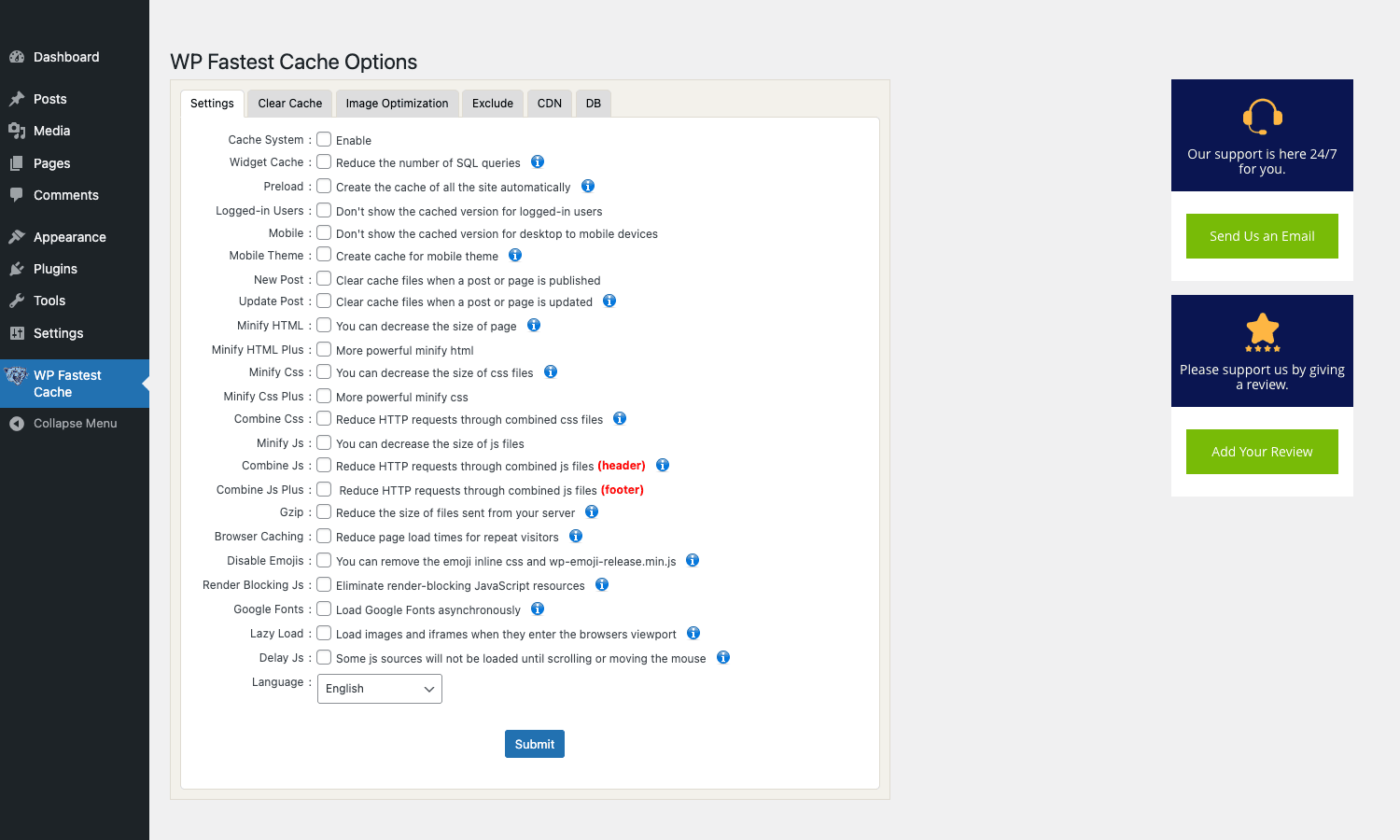
The minimum to get caching active:
- Check Cache System -> Enable.
- Check New Post and Update Post (clear cache when content changes).
- Click Submit.
That’s it. From the next page load by a logged-out visitor, cached HTML starts being written.
The rest of the toggles are progressive enhancements:
- Minify HTML / HTML Plus removes whitespace from cached HTML.
- Minify CSS / CSS Plus + Combine CSS + Minify JS / Combine JS / Combine JS Plus combine and shrink all CSS/JS files into single bundles. Recommended for first pass; revert if something breaks.
- Gzip + Browser Caching add server-level compression and cache headers.
- Disable Emojis, Render Blocking JS, Google Fonts are convenience kills for WP cruft you probably don’t need.
- Lazy Load + Delay JS are the two biggest Core Web Vitals wins; turn them on for any image-heavy site.
If your site breaks after enabling any of these, untick that one option and re-check. The plugin doesn’t bundle a "test before applying" mode, so the breakage-revert loop is how you tune it.
Touring the Premium admin UI
The Premium add-on doesn’t replace the free plugin’s UI; it extends it with new tabs and new options inside existing tabs. The settings page top-tab layout is: Settings, Clear Cache, Image Optimization, Exclude, CDN, DB.
Clear Cache tab
This is the operations dashboard:

Top section is Cache Statistics: four counters showing desktop cache size, mobile cache size, CSS minified size, and JS minified size. Each pairs a file count with a total byte size. Useful for sanity-checking that the cache is actually being written.
The two main buttons:
- Clear All Cache wipes
/wp-content/cache/all/and the mobile equivalent. - Clear Cache and Minified CSS/JS also wipes
/wp-content/cache/wpfc-minified/. Use this when you’ve changed a CSS/JS file and the cache is still serving the old version.
Below those: Timeout Rules lets you set per-URL-pattern cache lifetimes (e.g. "homepage caches for 1 hour, blog posts cache for 24 hours, individual product pages cache for 6 hours"). Clearing Specific Pages lets you wipe a URL match on demand. Reverse Proxy Cache is the integration point if you have Varnish in front of your WordPress.
Image Optimization tab
Premium adds image optimization powered by Vona’s API. The dashboard:
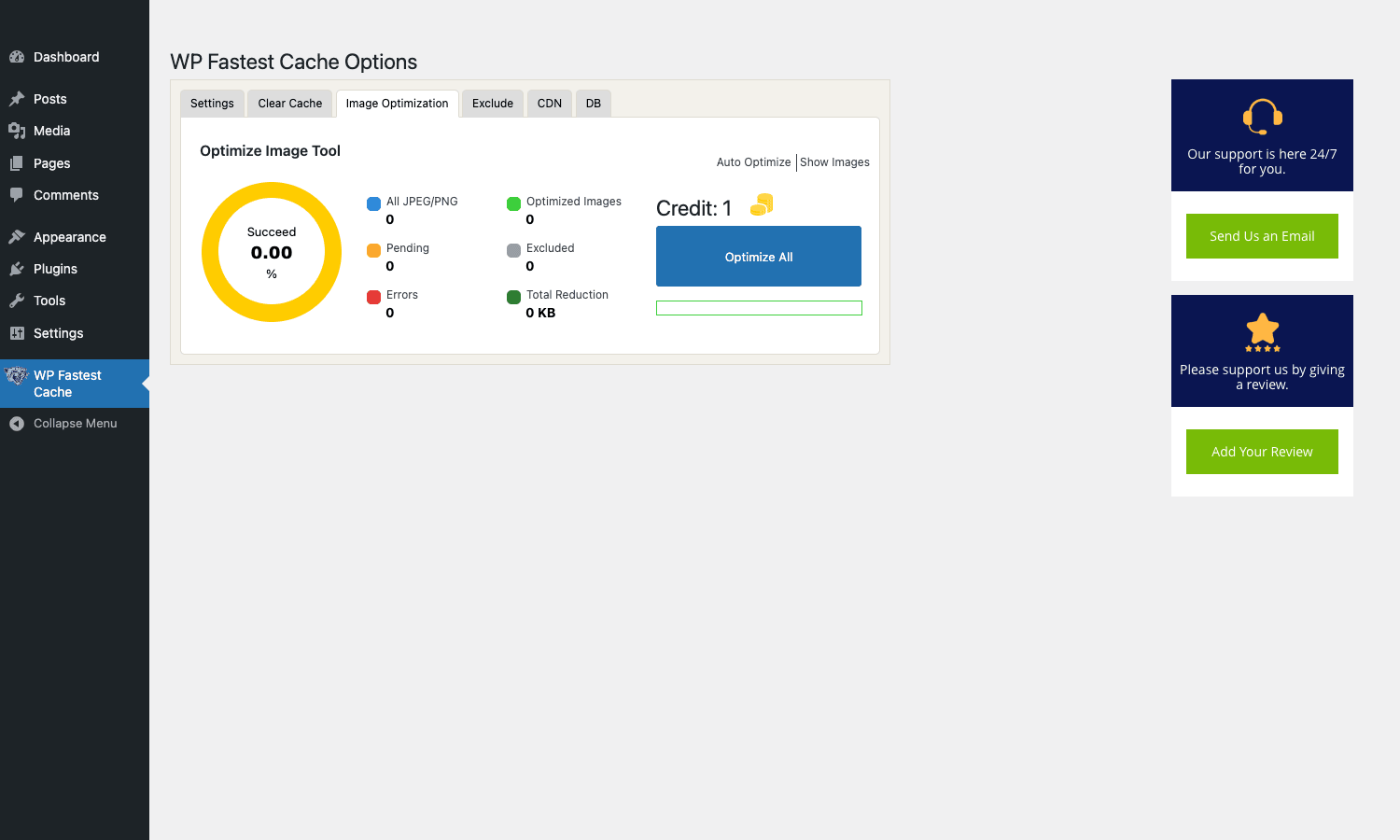
The big yellow circle shows "Succeed %". Around it: All JPEG/PNG counter, Pending counter, Errors counter, Optimized Images counter, Excluded counter, Total Reduction in KB. Each Image Optimization purchase comes with a credit balance; the credit number top right shows how many images you can still optimize.
Two modes:
- Auto Optimize: every new upload to the media library is automatically optimized.
- Optimize All: kick off a one-shot job that optimizes every existing image in your media library, paginated through the credit balance.
The plugin also auto-generates WebP copies. So a single image gets both the lossy/lossless optimization AND a WebP sibling, doubling the storage but cutting the bandwidth significantly on visitor pageloads.
Exclude tab
The exclude rules:
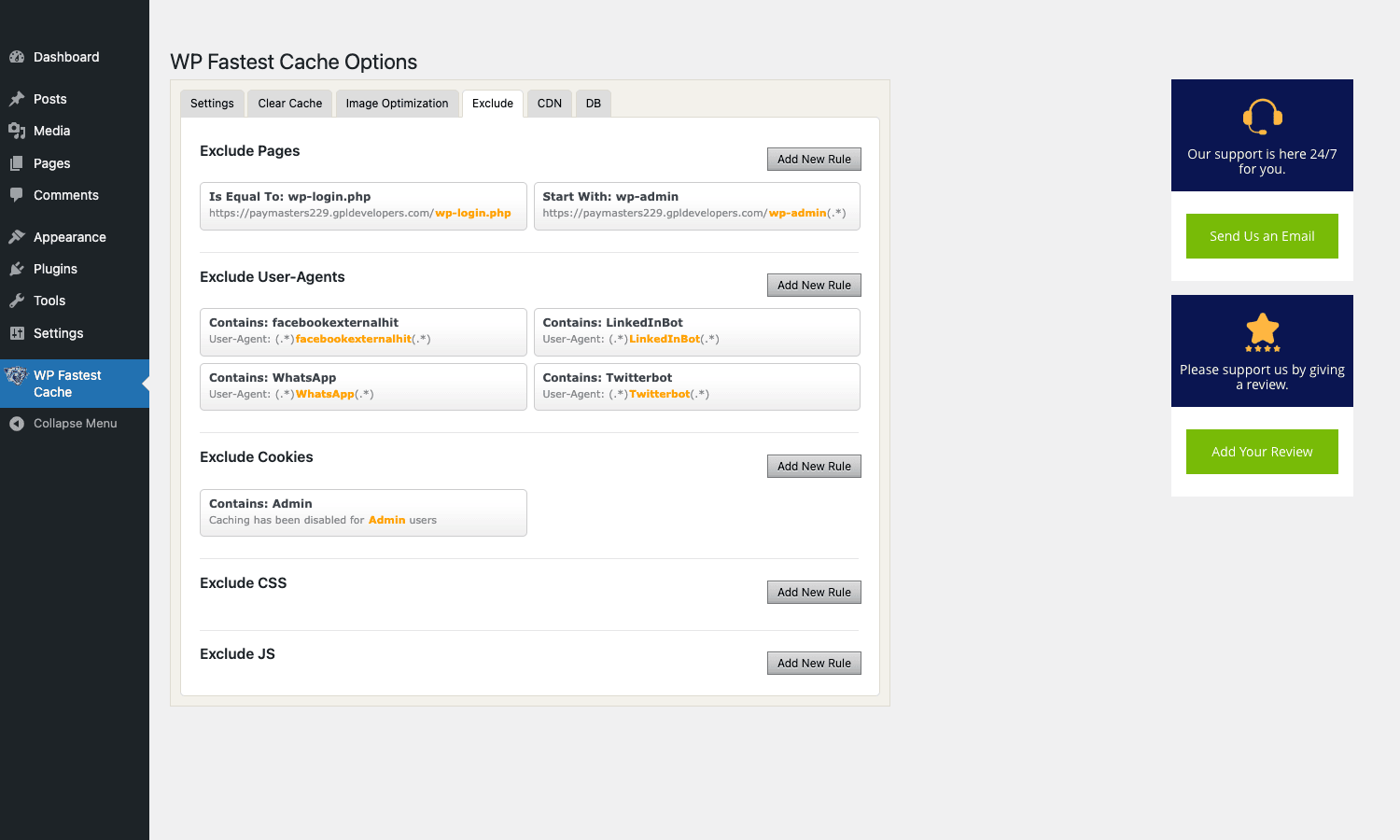
Six sub-sections:
- Exclude Pages: URL patterns that should never be cached. Pre-populated with
wp-login.phpandwp-admin/*. - Exclude User-Agents: crawler bots to never serve cached HTML to. Pre-populated with
facebookexternalhit,LinkedInBot,WhatsApp,Twitterbot(these crawlers want the up-to-the-second OpenGraph tags). - Exclude Cookies: users whose cookies match these strings get the live PHP-rendered page. Pre-populated with
Adminso admins always see fresh content. - Exclude CSS, Exclude JS: asset patterns to skip during minification. Useful when a specific JS or CSS file is breaking after concatenation.
The User-Agents pre-fill list is the kind of thing you’d otherwise have to figure out yourself; getting it out of the box saves an hour of "why is my Facebook share preview stale?" debugging.
CDN tab
CDN provider integration:
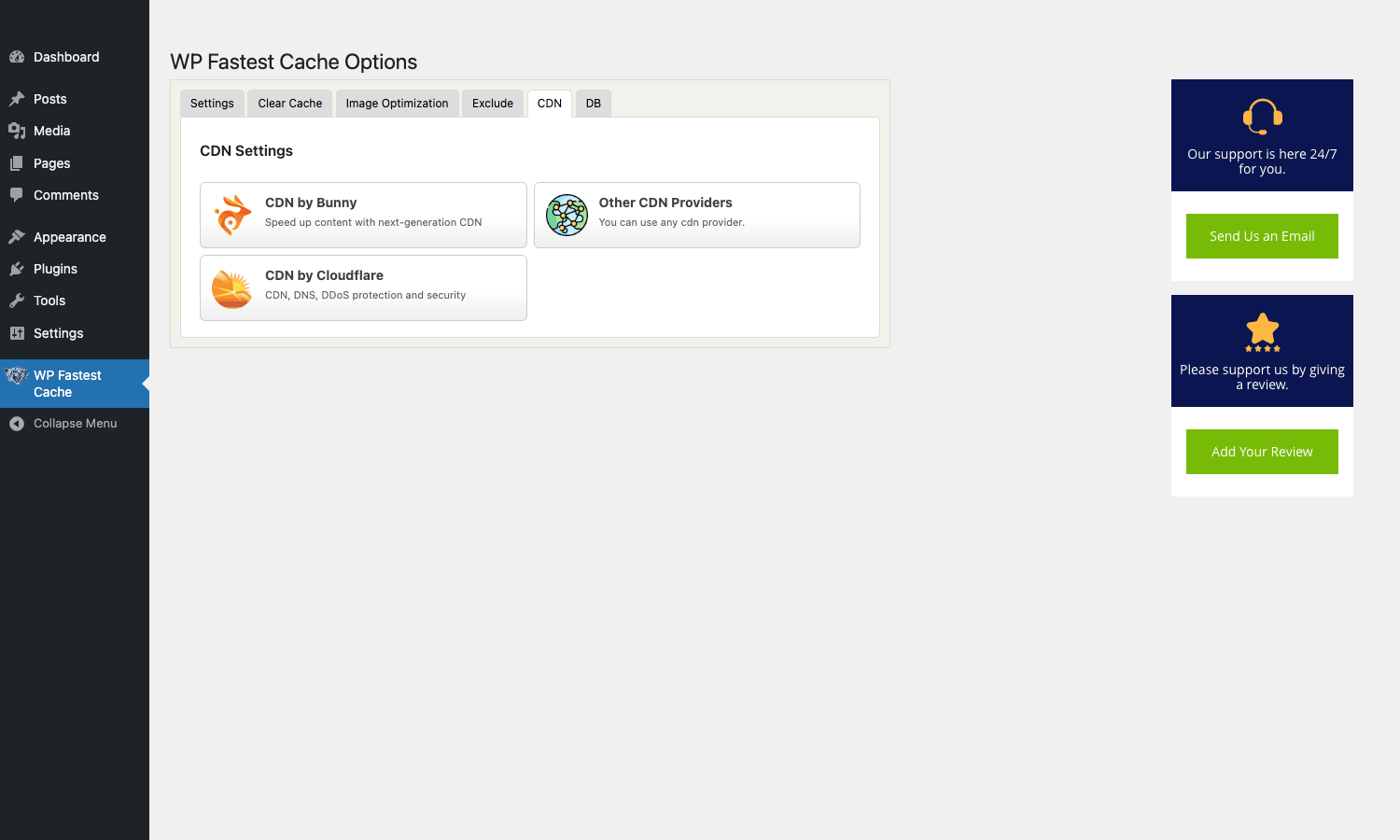
Three tiles: CDN by Bunny (the recommended next-gen CDN), CDN by Cloudflare (which the plugin also integrates with via API for cache purges), and Other CDN Providers (generic URL rewriter that works with KeyCDN, StackPath, Sucuri, AWS CloudFront, etc.).
The Cloudflare integration is the more interesting one. You connect your Cloudflare account with an API token, then every time the plugin purges its local cache, it also purges Cloudflare’s edge cache for the affected URLs. That solves the classic problem of editing a post and then waiting a month for the CDN cache to catch up.
DB tab
Database cleanup:
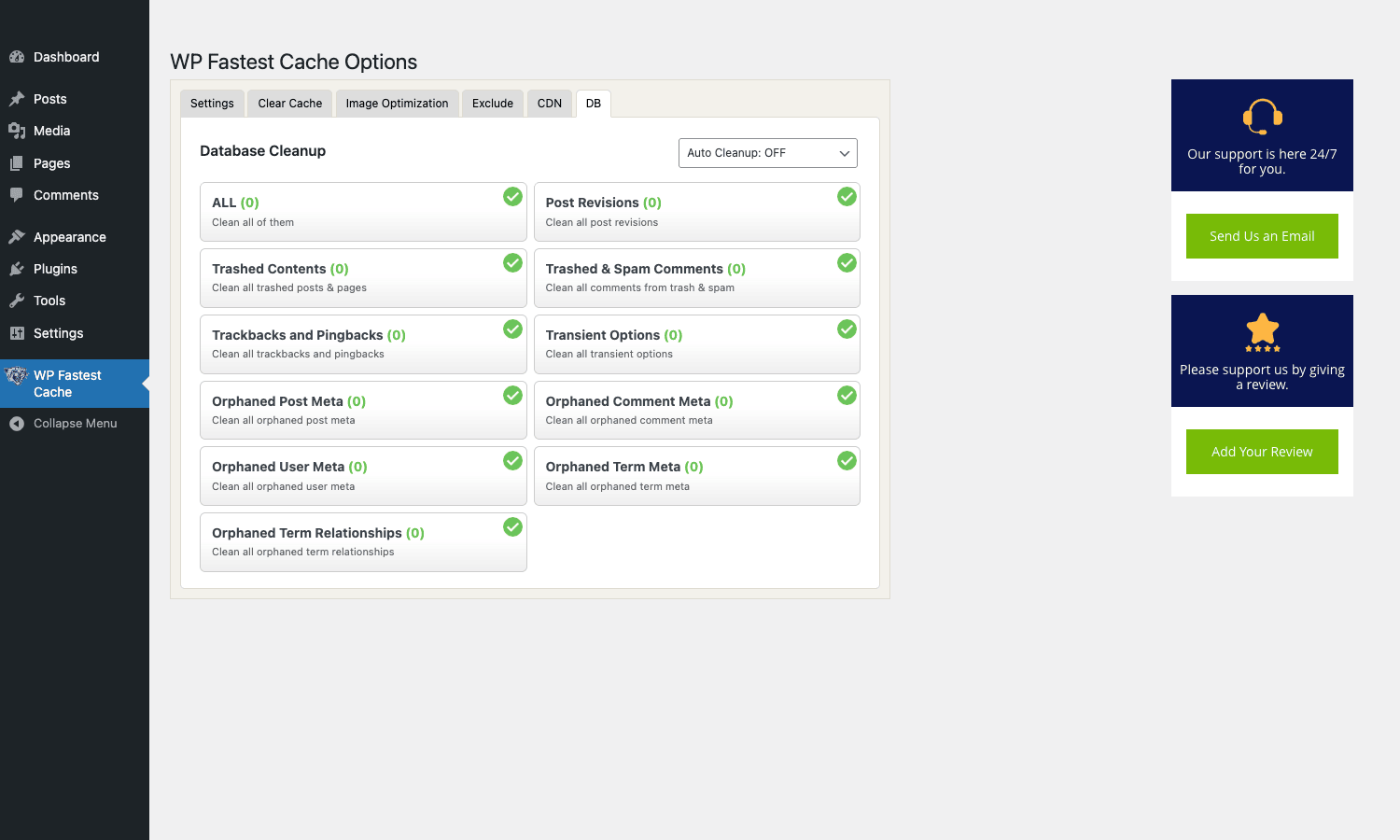
Eleven cleanup categories, each with a current count and a delete trigger:
- ALL (cleans everything below).
- Post Revisions (every post auto-save you didn’t really want kept).
- Trashed Contents (posts and pages still in trash).
- Trashed & Spam Comments.
- Trackbacks and Pingbacks.
- Transient Options (expired WordPress transients sitting in
wp_options). - Orphaned Post Meta (post meta for posts that no longer exist).
- Orphaned Comment Meta.
- Orphaned User Meta.
- Orphaned Term Meta.
- Orphaned Term Relationships.
The Auto Cleanup dropdown top right lets you schedule cleanups daily, weekly, or monthly. On a busy site with thousands of revisions and millions of expired transients, this single panel can shrink your wp_options table by 50% and noticeably speed up admin queries.
Real-world use cases
A few use cases that fit WP Fastest Cache Premium particularly well:
Small business sites + WooCommerce stores. Most small sites don’t need WP Rocket’s deeper feature set; they need page caching, image optimization, and WebP. WP Fastest Cache Premium is the most cost-effective pick. The one-time license fee beats WP Rocket’s annual renewal.
Blogs and content sites. Page caching plus lazy load plus WebP is basically the entire performance budget for a content site. WP Fastest Cache Premium handles all three without you needing a separate image optimization service.
Multi-site or agency setups. The Premium Multi license covers multiple sites for a single one-time price, which is much cheaper than per-site WP Rocket licenses for an agency managing twenty client sites.
Sites that need server-level caching plus a CDN. The Cloudflare API integration means you don’t have to manually purge Cloudflare’s cache every time you edit a post. Set it up once and forget.
Older sites on shared hosting. The plugin’s mod_rewrite approach works on every shared hosting plan that supports Apache. No need for Redis, Memcached, or any external services. Just enable, save, done.
Sites where developer control matters. WP Fastest Cache exposes a small but useful set of do_action and apply_filters hooks (we’ll get to them) so a developer can tweak caching behavior without touching plugin files.
Sites that have outgrown WP Super Cache. WP Super Cache has barely changed since 2018. The migration to WP Fastest Cache is straightforward (deactivate one, activate the other, clear cache, done) and the modern feature set is a step up.
Developer reference: hooks, filters, file layout
WP Fastest Cache’s hook surface is smaller than WP Rocket’s, but the ones it does expose are well-named and easy to use.
Actions (do_action)
// Fires whenever the entire cache is cleared (by user or by API).
add_action( 'wpfc_clear_all_cache', function() {
 // Notify your monitoring, log to Slack, etc.
 error_log( 'WPFC: Cache cleared at '. date('c') );
} );

// Fires when a specific post's cache is cleared. Useful if you want
// to also clear caches that depend on this post elsewhere.
add_action( 'wpfc_clear_post_cache_by_id', function( $post_id ) {
 do_action( 'my_app_cache_invalidate', $post_id );
} );

// Fires after a post's cache file has been created. Use to log
// cache-warm performance or trigger a downstream prefetch.
add_action( 'wpfc_create_post_cache_by_id', function( $post_id ) {
 update_post_meta( $post_id, '_wpfc_last_cached', time() );
} );

// Generic cache delete event. Catches both full and partial purges.
add_action( 'wpfc_delete_cache', function( $context ) {
 // $context is a hint about what was deleted.
} );

// Allows your code to declare the current request should bypass cache.
// Trigger via: do_action( 'wpfc_exclude_current_page' );
// e.g. if a custom query parameter is present.
add_action( 'init', function() {
 if ( isset( $_GET['fresh'] ) ) {
 do_action( 'wpfc_exclude_current_page' );
 }
} );
Filters (apply_filters)
// Mutate the final cached HTML before it gets written to disk.
// Use to inject debug HTML, swap canonical URLs, etc.
add_filter( 'wpfc_buffer_callback_filter', function( $html ) {
 // Append a debug comment for staging-only.
 if ( defined( 'WP_DEBUG' ) && WP_DEBUG ) {
 $html.= '<!-- cached at '. date('c'). ' -->';
 }
 return $html;
} );

// Mutate the minified CSS payload before it's written.
add_filter( 'wpfc_css_content', function( $css ) {
 // Strip a problematic custom property your theme adds.
 return str_replace( '--legacy-broken-var: red;', '', $css );
} );

// Force-hide the "Delete Cache" button in the WP admin toolbar
// for non-admin users.
add_filter( 'wpfc_hide_toolbar', function( $hide ) {
 return! current_user_can( 'manage_options' );
} );
Cache invalidation from code
If you need to purge the cache from a custom plugin (after a CRON updates data, or after a third-party webhook):
// Purge a single post's cache.
do_action( 'wpfc_clear_post_cache_by_id', $post_id );

// Purge everything.
do_action( 'wpfc_clear_all_cache' );
File layout
The cached files live under /wp-content/cache/:
all/– desktop cache (mirrors the site’s URL structure as folders).wpfc-mobile-cache/– mobile cache (same structure).wpfc-minified/{hash}/– minified CSS/JS bundles.wpfc-webp-images/– WebP copies of media library images.
When you SSH into a problem site, ls /wp-content/cache/all/ is usually the first diagnostic. If the folder is empty, caching isn’t actually happening (often a permissions issue). If it’s full and the homepage still feels slow, check the page’s X-Cache header to see whether the cached file is being served.
Performance, compatibility, and gotchas
Real numbers. On a default WordPress install with a default theme, expect TTFB to drop from ~500ms to ~50ms once caching is enabled. PageSpeed Insights scores typically go from the 50-60s into the 90-95 range after enabling everything in Settings, Lazy Load, Delay JS, and WebP.
HTTPS quirk. If your site uses HTTPS but the WordPress site URL is configured as HTTP (which sometimes happens after a poorly-done migration), WP Fastest Cache won’t write cache. Fix: make the WordPress site URL match the actual scheme.
Page builders. Elementor and Divi sometimes add per-request query strings that WP Fastest Cache treats as separate URLs, leading to cache bloat. Solution: exclude the query params in Exclude -> Exclude Pages, or use the plugin’s "Exclude Specific URLs" feature.
Permalinks. Cache only works if your permalinks are set to anything other than "Plain". The mod_rewrite rules depend on a normal URL structure.
Conflicts with other caching plugins. Don’t run WP Fastest Cache alongside WP Super Cache, W3 Total Cache, or LiteSpeed Cache. Deactivate (and uninstall) the previous cache plugin before activating WP Fastest Cache.
Cloudflare’s "Auto Minify" + WP Fastest Cache’s minification. Pick one. Running both is wasted CPU on Cloudflare’s side and occasionally causes broken JS. The plugin’s own minifier is sufficient.
Object caching. WP Fastest Cache is a page cache, not an object cache. If you also want to cache database queries (which is what slows down logged-in admin pages), pair it with Redis Object Cache or Memcached. They don’t conflict.
The "preload" feature. The free version’s preload is essentially a curl-loop through your sitemap. On a 10,000-page site, that takes hours. Use it overnight or schedule it for low-traffic times.
WebP fallback handling. The plugin rewrites image URLs to WebP if the browser sends Accept: image/webp. If your CDN strips the Accept header, the fallback breaks. Most modern CDNs (Cloudflare, Bunny) handle this correctly; some older ones don’t.
Multisite. The plugin runs on WordPress Multisite, but each subsite has its own cache directory. Network-wide settings live under the network admin’s WP Fastest Cache panel.
REST API. WP Fastest Cache doesn’t expose REST endpoints for managing cache; the only programmatic interface is the do_action hooks above. If you need REST cache management (for headless WordPress builds), you’d build that yourself on top of the actions.
Pricing and licensing
WP Fastest Cache Premium pricing is genuinely one of the friendlier in the WordPress caching market:
- Premium Single: ~$59 one-time. One site. Lifetime updates included.
- Premium Multi-Site: higher tiers (~$125-249) for multiple sites. Still one-time.
No subscription. No annual renewal. Pay once, get updates forever. This pricing is increasingly rare in the WordPress plugin market, and it’s why WP Fastest Cache Premium often shows up in agency stacks: one purchase covers multiple client sites at a fixed cost.
The free version is GPLv2 and remains free on WordPress.org. The Premium add-on is also GPL-licensed (WordPress requires it), which is why GPL Times can legally redistribute it.
If you’re running WP Fastest Cache on production for a real business, the official license is worth buying for the support contract and the direct update channel.
FAQ
Does WP Fastest Cache work with Nginx? Yes. The plugin generates static HTML files; Nginx can serve them directly with a try_files rule. The plugin doesn’t ship Nginx config by default, but the plugin’s docs have a snippet you paste into your Nginx server block.
Does it work with LiteSpeed? Yes, but if you’re on LiteSpeed, the dedicated LiteSpeed Cache plugin is usually a better fit because it uses LiteSpeed’s native cache layer (faster than mod_rewrite). Don’t run both.
Will it work on shared hosting? Yes, this is one of WP Fastest Cache’s main strengths. Any host that supports .htaccess and mod_rewrite (i.e. virtually all shared Apache hosts) can run it.
How does it compare to WP Rocket? WP Rocket has a smoother first-run experience (it enables sensible defaults on activation; WP Fastest Cache requires you to opt in to each toggle). WP Rocket also has slightly better page builder compatibility out of the box. WP Fastest Cache is cheaper, has a free base version, and offers a one-time license. For most sites, the two plugins produce comparable performance results.
Does it cache logged-in users? Optionally. Settings -> Logged-in Users has a toggle to enable or disable. For e-commerce sites with logged-in shoppers, leaving it disabled (the default) is safest.
Can I cache WooCommerce checkout pages? No. The plugin auto-excludes WooCommerce cart, checkout, and account pages. Same goes for EDD, MemberPress, and most other plugins that manage user-specific dynamic content.
Does it generate critical CSS? Premium does. Enable Render Blocking CSS and the plugin generates critical above-the-fold CSS automatically. For more control, consider also using Perfmatters, which has a more sophisticated critical CSS engine.
What about Core Web Vitals? Enabling Lazy Load (LCP), Delay JS (INP), and Image Optimization with WebP (CLS, LCP) is the single biggest Core Web Vitals win you can get without redesigning your site.
Can I serve cached pages from RAM instead of disk? Not directly. The plugin writes to disk and relies on the OS file cache. If you want true RAM cache, pair WP Fastest Cache with Varnish in front (the plugin has a Varnish purge integration on the Clear Cache tab).
Will my membership plugin still work? Yes. WP Fastest Cache respects cookies, so logged-in members get the dynamic version. Tested with the major membership plugins.
Final thoughts
If you’ve been running WordPress for a while, you’ve probably tried every caching plugin at some point. The reason WP Fastest Cache is still a top pick after 12 years on the market is that it does one thing extremely well (static page caching via mod_rewrite) and the Premium add-on extends it just enough to cover modern needs (WebP, lazy load, database cleanup) without becoming a sprawling do-everything plugin.
The one-time license is what makes it particularly attractive for agencies and developers who manage multiple sites. WP Rocket’s annual subscription model adds up quickly when you have ten clients; WP Fastest Cache Premium Multi-Site.
The plugin’s biggest weakness is the opt-in-everything default. You install it, and it does nothing until you tick the boxes. That’s actually the safer approach (you discover which toggles break your specific site rather than fighting auto-enabled defaults), but it means you’ll spend the first 20 minutes clicking through tabs.
Install both the free WordPress.org plugin and the Premium add-on, walk through the settings tabs in order, watch your PageSpeed score climb, and decide for yourself whether the one-time license is worth it for your stack.