

The standard WordPress install is shockingly opaque about what happens inside it. A user logs in, edits a post, deletes a category, installs a plugin, changes an admin password, and none of those actions leave a durable record by default. The "Last edited" timestamp on a post tells you the most recent change but not who made it. Errors land in debug.log if you’ve enabled it. Otherwise the site forgets. For a personal blog this is fine. For a business site, a multi-author publication, a membership platform, a WooCommerce store, or anything with compliance requirements (HIPAA, GDPR, ISO 27001, PCI), it’s a real problem.
WP Activity Log is the plugin that fixes that. It hooks every WordPress and WooCommerce action and writes a syslog-style record to a database table. You get who did what to which thing when, with full context, searchable from the WP admin. Forensic investigation after a security incident, audit trail for compliance, sanity-check during multi-author collaboration, same plugin solves all three.
This article walks through what WP Activity Log Premium actually does, the event coverage, the filtering and reporting, the email/SMS notifications, the developer hooks, the WooCommerce and other plugin integrations, and how it sits alongside firewalls like Defender or Wordfence (complementary, not redundant).
Table of contents
- What WP Activity Log is
- Free WP Activity Log vs Premium
- Installation and the first log
- What gets logged
- The Activity Log Viewer
- Filtering and search
- Reports
- Notifications: email, SMS, Slack
- Settings, retention, archiving
- Logged In Users (active session tracking)
- Enable/Disable Events
- WooCommerce and integrations
- External database storage
- Multisite support
- Compliance use cases
- Developer reference: hooks and filters
- Real-world use cases
- Compatibility and gotchas
- Pricing and licensing
- FAQ
- Final thoughts
What WP Activity Log is
WP Activity Log (formerly WP Security Audit Log) is a WordPress plugin by Melapress that logs every notable event happening on a WordPress site. It hooks into the WP core (post save, user login, plugin install, settings save, etc), into WooCommerce (order created, refund issued, product price changed), into BBPress/BuddyPress, Yoast SEO, WPForms, Gravity Forms, and a long list of other plugins via dedicated addons.
Each logged event includes:
- Timestamp (down to the second).
- Severity (Informational, Low, Medium, High, Critical).
- User (display name + role; "Unknown User" for anonymous events).
- IP address of the actor.
- Event code (a numeric identifier, 1000 for "user logged in", 1002 for "failed login", etc).
- Object (which thing was acted upon, a post ID, a user ID, a plugin slug, a settings key).
- Event type (Login, Modified, Created, Deleted, etc).
- Message (human-readable summary).
- Source (which file/function fired the event, useful for debugging).
The logs live in custom database tables (wp_wsal_occurrences, wp_wsal_metadata), separate from the standard WP options table so they don’t bloat wp_options. Retention is configurable: keep all data, keep N months, or archive after N months to a separate table.
If you’re running anything more than a personal blog, WP Activity Log is what tells you "yes, your VA published that post last Tuesday" vs "no, no one logged in from that suspicious IP". It’s also the system you point at when an auditor asks "show me the access log for the last 90 days".
Free WP Activity Log vs Premium
The free version on WordPress.org is generous. It logs ~150 standard event types covering core WordPress: user authentication, post/page/CPT changes, plugin and theme operations, user role management, settings changes, comment moderation. For a personal site or a small business that just wants a paper trail, free is enough.
Premium adds the features that businesses actually need:
- Reports, built-in report builder with PDF/CSV/Excel export. Daily summary, weekly summary, custom report templates.
- Email and SMS notifications, real-time alerts when configured events fire (e.g., "email me when admin logs in from outside the office IP range").
- Slack notifications, alerts to a Slack channel.
- Search & filters, advanced filtering by user, severity, event code, IP, date range.
- External database storage, store logs in a separate MySQL database (so they survive a WordPress site compromise).
- Multisite central log, single log across the network.
- Archive, move old events to an archive table for long-term retention.
- Logged In Users, see who’s currently logged into the site, with the ability to terminate sessions remotely.
- Add-ons, WooCommerce, Yoast SEO, WPForms, Gravity Forms, BBPress, BuddyPress, MainWP, WP Mail SMTP, Two-Factor, others.
- Activity log custom data, log arbitrary additional data alongside core events.
- Priority support from Melapress.
For compliance use cases (HIPAA, GDPR, ISO 27001), Premium is required because of the report-export and external-storage features. For everyone else, the free version covers a lot of ground but the Reports and Notifications addons are quickly worth the upgrade.
Installation and the first log
Install via Plugins -> Add New -> Upload Plugin -> wp-activity-log-premium.zip -> Activate. On first activation the plugin offers a 6-step setup wizard:
- Log severity preset, Geek (logs everything), Basic (essentials only), Custom (configure per-event).
- Front-end events, enable/disable logging of public events (comments, product views, etc).
- User role logging, which user roles to log.
- Sensitive data masking, mask passwords, tokens, credit card last digits in logs.
- Log retention, how long to keep events (3 months default).
- Setup complete, go to log viewer.
You can dismiss the wizard and configure later in Settings. Either way, the plugin immediately starts logging, your first login after activation appears as event 1000.
After activation, the WP Activity Log menu appears in WP admin with submenus for Log Viewer, Reports, Notifications, Logged In Users, Integrations, Settings, Enable/Disable Events, Help & Contact Us.
What gets logged
The plugin’s free version covers ~150 events; with all premium addons installed it’s 600+. The headline categories:
User activity, login (event 1000), logout (1001), failed login (1002), failed login from non-existent user (1003), login blocked (1004), session destroyed (1007), switched user (1008), idle session terminated (1009), password reset requested (1010), password reset (1015), profile changes (4001-4015), user created (4007), user deleted (4006), user role changed (4002).
Content changes, post created (2000), modified (2001), deleted (2002), published (2003), unpublished (2004), trashed (2008), restored (2014), draft changed (2005), revision created, custom field added/modified/deleted on post, taxonomy assigned/removed, scheduled change, password-protected, comment status changes.
Plugin and theme events, plugin installed (5000), activated (5001), deactivated (5002), deleted (5003), upgraded (5004), theme installed (5005), activated (5006), deleted (5007), customizer changes.
WordPress core settings, site URL changed (6000), permalinks changed (6005), users-can-register toggled (6001), email changed, default role changed, timezone changed.
Multisite events, site created, deleted, archived, restored, users added/removed across sites.
WooCommerce events (with addon), order created (9000), order status changed, refund issued, product created (9035), product price changed (9036), product stock changed (9034), product attribute modified, coupon created, customer profile changes, payment gateway events. ~50 distinct events.
Yoast SEO events (with addon), SEO setting changes, redirect added/modified, focus keyword change, meta description change.
Forms (with addons), WPForms or Gravity Forms form created, edited, submitted; field changes; form deleted.
File system events (heavy), file uploaded to media library, file modified on disk (with file integrity scan).
The full event list is on the Melapress knowledge base. Each event has a numeric code, a severity, and a category, all configurable.
The Activity Log Viewer
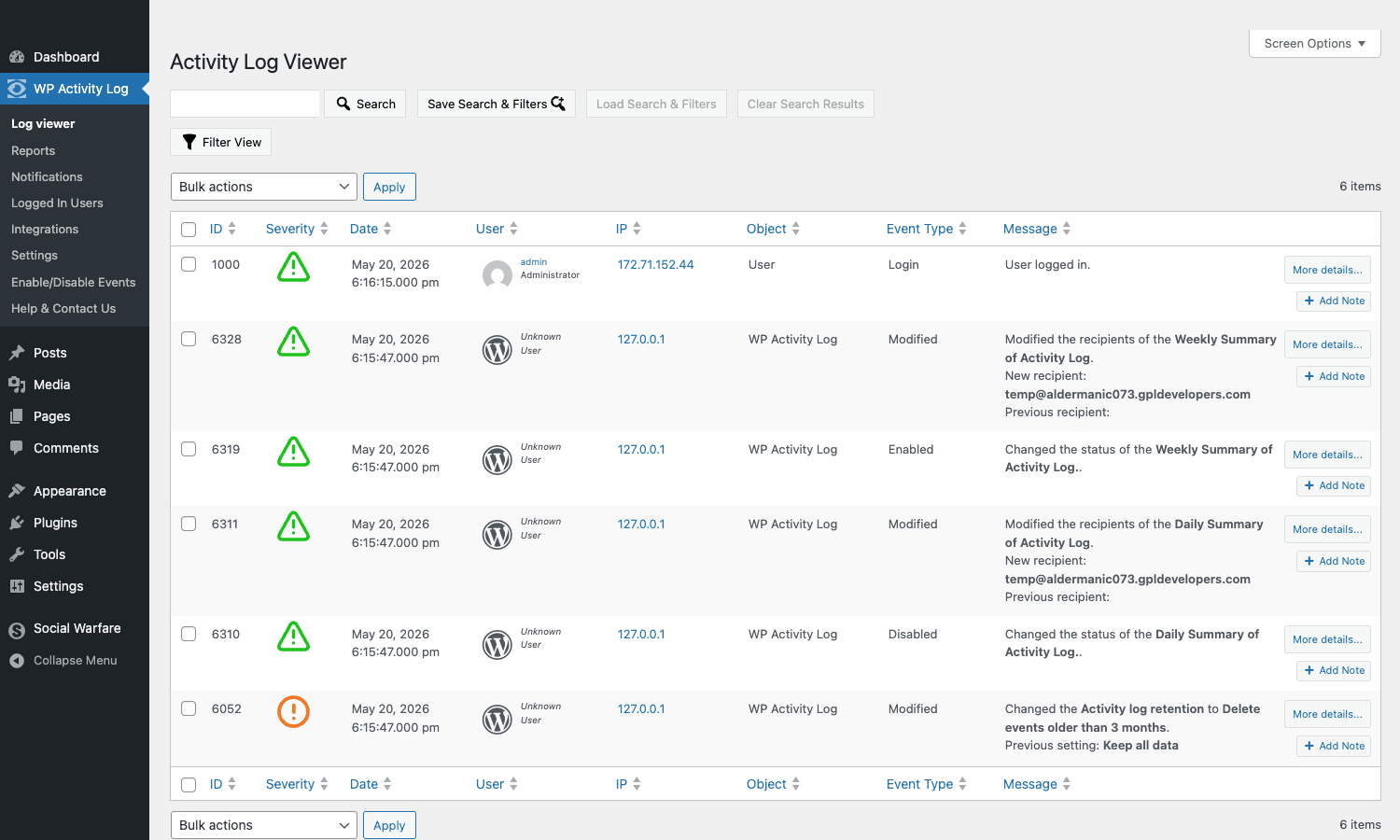
The Log Viewer is the central UI. It shows the events in reverse chronological order, paginated 20 per page, with columns for ID, Severity, Date, User, IP, Object, Event Type, and Message.
Per-row actions:
- More details, expand to see the raw event data (full message, source file, exception trace if any).
- Add note, attach a manual note to the event ("investigated, false positive, ignore future occurrences").
Bulk actions let you export selected events to CSV/PDF or delete them (admin-only by default).
The severity icons use a traffic-light pattern: green check (informational), yellow triangle (low/medium), red circle (high/critical). At a glance you can spot the red entries that need attention.
Filtering and search
The Filter View dropdown at the top lets you build complex queries:
- Date range, last hour, today, last 24h, last 7 days, last 30 days, custom range.
- User filter, specific users or all users with a specific role.
- Severity filter, Informational, Low, Medium, High, Critical, any combination.
- Event filter, by event code, by event type (Login, Modified, Created, Deleted), by object type.
- IP address filter, match a specific IP or CIDR range (useful for "show me events from outside the office network").
- Object filter, filter by post ID, user ID, plugin slug, etc.
The Save Search & Filters button lets you save a filter combo as a named view ("Suspicious activity outside business hours", "Admin actions last 7 days"). Load Search & Filters pulls a saved view back. Useful for security teams that re-check the same queries weekly.
The plugin also has a free-text search box for grepping messages. Combine search + filter to narrow to "all failed login attempts from IP 1.2.3.4 last 30 days" or similar specific queries.
Reports
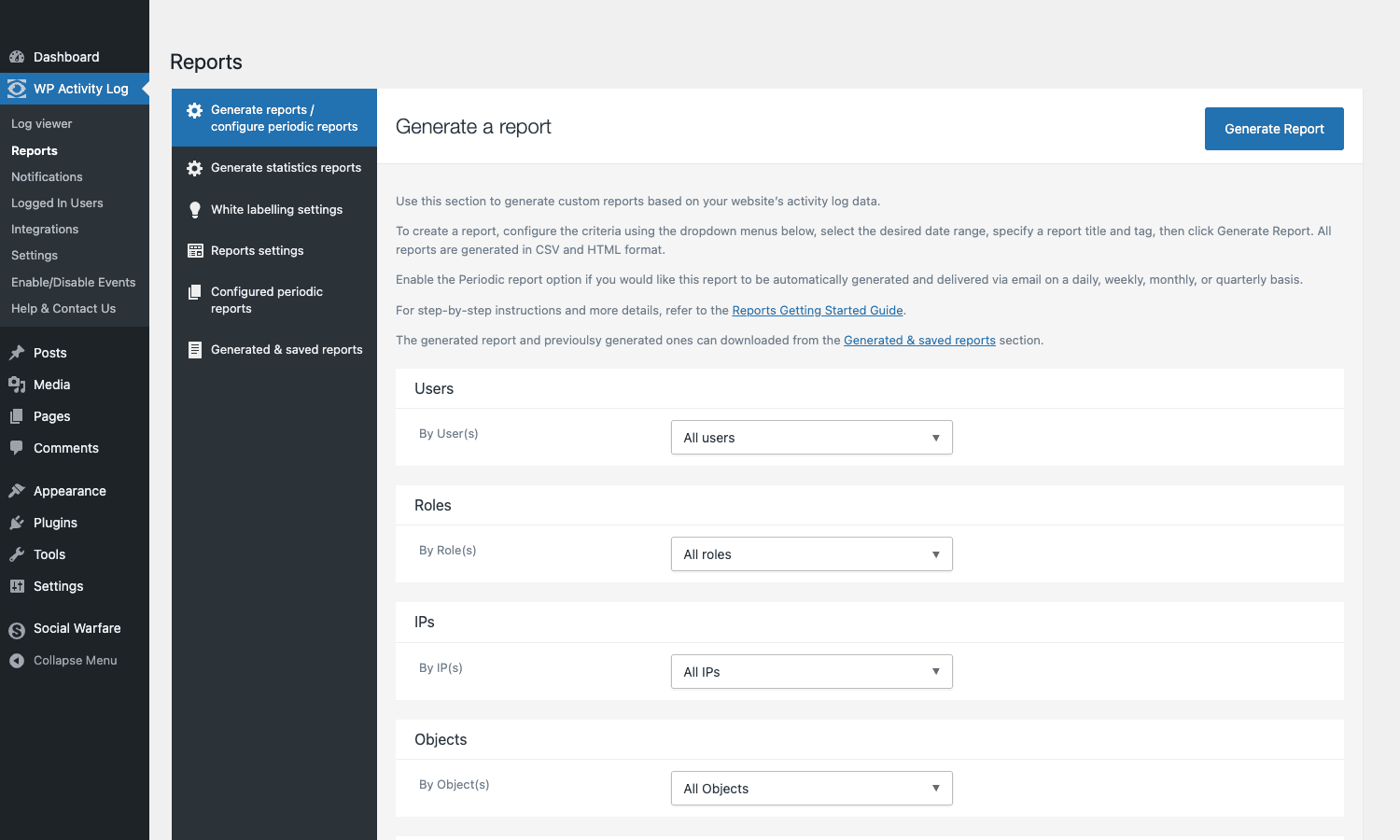
The Reports section is the killer feature for compliance use cases. It generates structured PDF/CSV/Excel reports from the log, optionally on a recurring schedule.
Report types:
- Statistical report, counts per event type, per user, per date.
- User-focused report, all actions by a specific user.
- Object-focused report, all events touching a specific post, plugin, or setting.
- IP-focused report, all events from a specific IP.
- Custom report, build your own with the filter language.
Each report can be:
- Generated on demand, pick the parameters, click Generate, download the file.
- Scheduled, daily/weekly/monthly. The plugin generates the report and emails it to configured recipients.
- Sent to multiple destinations, email, SFTP upload, Slack post.
For compliance teams, scheduled monthly reports of "all admin actions" or "all WooCommerce refunds" are the standard. Set them up once, they show up in the inbox every month, you forward to the auditor on request.
Notifications: email, SMS, Slack
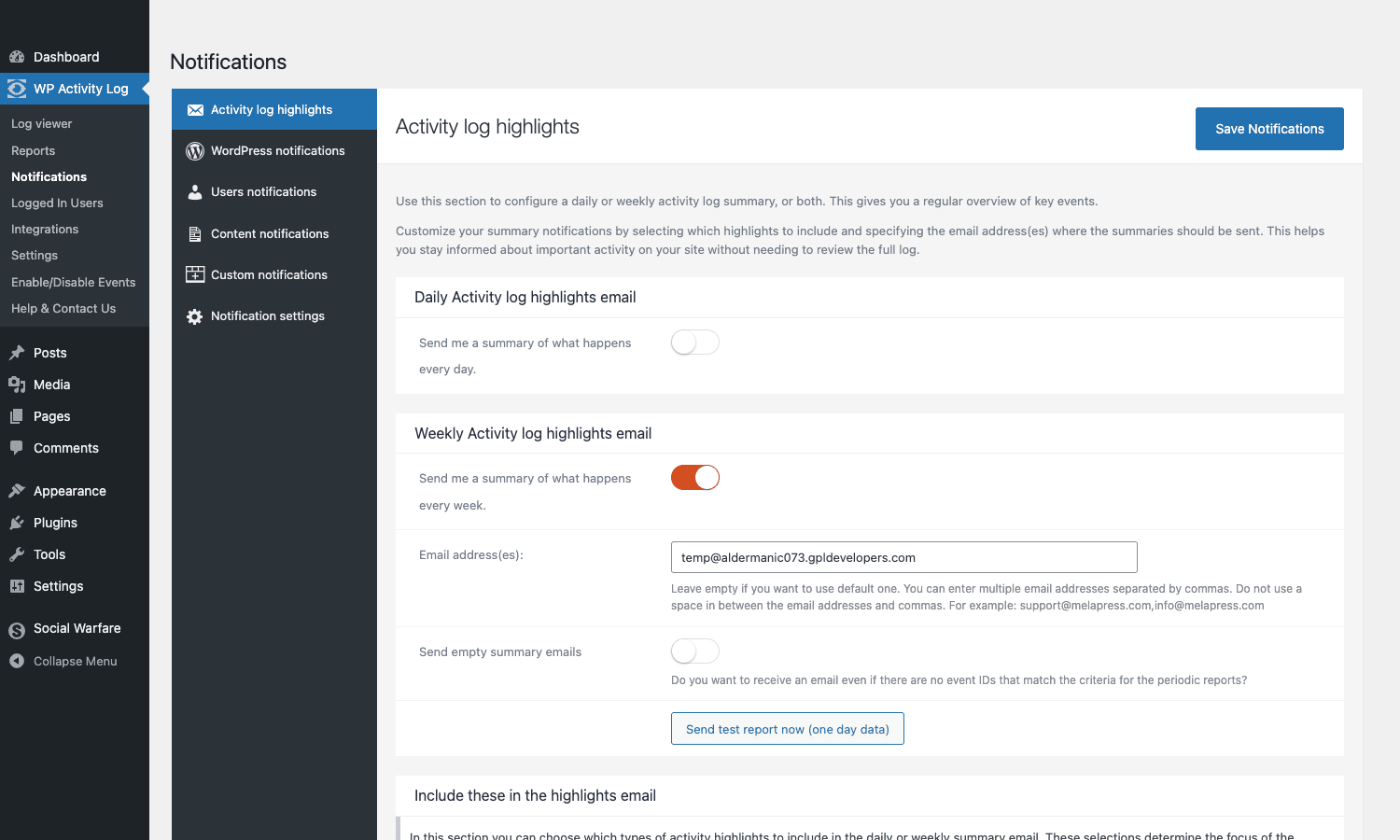
Real-time alerts for high-priority events. Configure under WP Activity Log -> Notifications.
Each notification rule has:
- Trigger condition, which events fire the notification. Can be a single event ("admin login") or a combination ("admin login + IP outside office range + outside business hours").
- Delivery channel, email, SMS (via Twilio), Slack webhook, custom webhook URL.
- Recipients, one or more addresses.
- Cooldown, minimum time between repeat notifications for the same event (prevents alert spam).
- Custom message, template with merge fields for event data.
Standard rules teams configure:
- Admin login from unknown IP. Trigger: event 1000 (login) + role Administrator + IP not in whitelist.
- Plugin deactivated. Trigger: event 5002 (plugin deactivated). Catches accidental or malicious plugin removal.
- User role escalated. Trigger: event 4002 (user role changed) + new role is Administrator. Catches privilege escalation attacks.
- Failed login burst. Trigger: event 1002 (failed login) firing 5+ times in 5 minutes for the same username.
- WooCommerce high-value refund. Trigger: WC refund event with amount > $500.
- Settings changed during deploy freeze. Trigger: any settings event between 5 PM Friday and 9 AM Monday.
The notification system is what turns the log from a passive forensic tool into an active monitoring system. Without notifications you discover the breach after the fact; with notifications you find out within minutes.
Settings, retention, archiving
Settings -> General controls the plugin’s behavior.
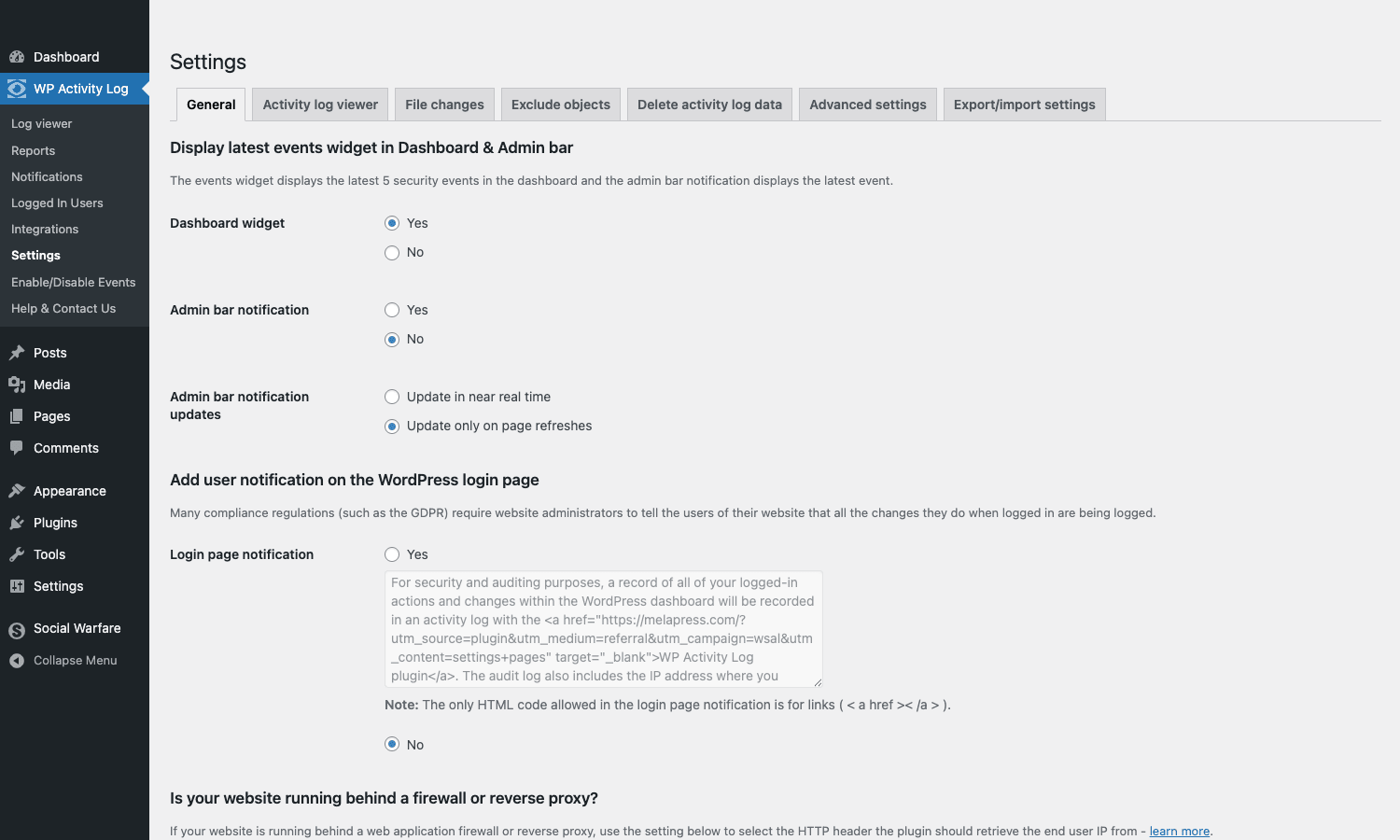
Key options:
- Display events widget in Dashboard / admin bar, see the latest events at a glance from the WP dashboard.
- Login page notification, show a "Last login was…" message on the WP login page so legitimate users notice unexpected last-login times.
- Reverse proxy detection, if your site sits behind a proxy or CDN (Cloudflare, RunCloud, similar), enable this to get the real client IP from
X-Forwarded-Forinstead of the proxy IP. - Log retention, keep all data forever, keep N months, delete events older than X, or archive older events to a separate table.
- Sensitive data masking, automatically redact passwords, tokens, secrets from logged content.
- Exclude events, exclude specific event codes from being logged (e.g., skip the noisy heartbeat events).
- Exclude users, exclude specific users or roles from being logged (e.g., skip the cron-runner user).
- Login page IP whitelist, alert when admin logs in from outside the listed IPs.
Retention deserves a separate paragraph. The log table grows fast on a busy site (a WooCommerce store can generate thousands of events per day). Default retention is 6 months; for compliance you may need 12 months or longer. The archive feature moves old events to a separate table (or a separate database via the External DB feature) so the active log stays fast. Don’t delete events you might need for forensic investigation later, archive instead.
Logged In Users (active session tracking)
The Logged In Users page shows everyone currently logged into the site, with:
- User name and role.
- Login timestamp.
- IP address.
- Active session start.
- Idle time.
- Terminate Session button, force-logout that user.
This is useful for:
- Security response. If you spot a suspicious session, kill it in one click.
- Multi-author publishing. See who’s editing right now to avoid stepping on each other’s saves.
- Membership sites. Track active member sessions.
The page also flags "multiple concurrent sessions per user" as a possible account-sharing red flag (configurable).
Enable/Disable Events
The Enable/Disable Events page lists all the event codes the plugin can log and lets you toggle each one. It’s organized by category and includes a Log Level preset (Geek = log everything, Basic = log essentials).
For most teams the right approach:
- Start with Geek to see what gets logged.
- Find events that are noise for your site (heartbeats, autosave revisions, expected cron events).
- Disable those.
- Lock in the configuration.
Common events teams disable:
- WordPress heartbeat updates.
- Auto-draft saves.
- Cron events for known background processes.
- Routine WooCommerce inventory adjustments from scheduled imports (set a separate addon for "expected" inventory changes).
The toggle interface lets you do this per event without touching code.
WooCommerce and integrations
The WooCommerce Addon is the most-installed extension. It adds 50+ WC-specific event types:
- Order created, status changed, deleted, refunded.
- Product created, modified, deleted, stock changed, price changed, attribute modified.
- Customer profile changes.
- Coupon created, modified, deleted, used.
- Shipping method changes.
- Tax setting changes.
- Payment gateway events.
- Settings changes (general WC settings, checkout settings, etc).
This is essential for any WooCommerce store. Without it, you can’t tell why a price changed or who refunded an order. With it, every WC action is on the record.
Other integrations:
- Yoast SEO, meta description changes, focus keyword changes, redirect modifications.
- WPForms / Gravity Forms / Ninja Forms, form created, modified, submissions, field changes.
- BBPress / BuddyPress, forum/community events.
- MainWP, central audit log across the entire MainWP-managed network.
- WP Mail SMTP, email send events.
- Two-Factor (WP 2FA), 2FA enable/disable, backup code usage.
- Custom integrations, write your own via the
wsal_filter_alertfilter.
Each addon is a separate plugin you install alongside the core. The bundles include WooCommerce + Yoast + Forms commonly.
External database storage
The External Database feature stores logs in a separate MySQL database, not in your main WP DB. Why this matters:
- Forensic integrity. If your WP site is compromised, an attacker can typically rewrite the WP database. They can’t rewrite a separate database they don’t have credentials for.
- Performance. A separate DB doesn’t share CPU/IO with your main WP DB. Heavy logging doesn’t slow down the site.
- Compliance. Some compliance frameworks require logs to be stored on a separate system from the application they’re auditing.
Configure under Settings -> Activity log data -> External Database. You provide host, user, password, DB name. The plugin tests the connection and migrates the schema. From that point all log writes go to the external DB; the Log Viewer reads from it transparently.
For HIPAA or PCI-DSS deployments, External Database is effectively required. For less-regulated sites, it’s a nice-to-have that adds defense-in-depth.
Multisite support
WP Activity Log is multisite-aware. The plugin can be:
- Per-site activated, each site has its own log.
- Network activated, a single network-wide log with a Site filter in the Log Viewer.
Network admins see all sites’ events in one viewer; site admins see only their own site’s events. The MainWP integration extends this further: if you manage many WP sites through MainWP, the WP Activity Log MainWP extension consolidates logs from all sites into the MainWP dashboard.
For agency operations managing dozens of client sites, the MainWP integration is the only practical way to centralize logging. Without it, you’d have to log into each site separately to check the audit trail.
Compliance use cases
WP Activity Log Premium is one of the few WordPress plugins explicitly marketed for compliance. The relevant frameworks:
GDPR. Article 30 requires "records of processing activities". The activity log provides this. The data-deletion log (when a user is deleted, when their data is exported) demonstrates compliance with right-to-erasure and right-to-portability requests.
HIPAA. Requires audit trails of access to protected health information. Configure WP Activity Log to log all access to relevant CPTs (e.g., a "patient_record" CPT) and you have the audit trail HIPAA requires.
ISO 27001. Control A.12.4 requires event logging. WP Activity Log provides the logging mechanism; you provide the policy around retention and review.
PCI-DSS. For sites handling credit cards (any WooCommerce store with a payment gateway), Requirement 10 mandates audit logs. WP Activity Log + WooCommerce addon covers the WooCommerce side; payment gateway logs come from the gateway itself.
SOC 2. Common in B2B SaaS. The Security trust service criterion requires logging of authentication and authorization events. WP Activity Log handles these for the WordPress layer.
The pattern across all of these: the compliance framework requires logging; WP Activity Log generates the log; you configure retention to meet the framework’s minimum (usually 12 months); you generate periodic reports to demonstrate ongoing compliance.
Developer reference: hooks and filters
The plugin exposes hooks at every step of the event-creation pipeline.
Filtering events before storage
// Skip logging events from a specific user (e.g., a cron-runner system account).
add_filter( 'wsal_filter_alert', function( $alert, $event_data ) {
 if ( $event_data['user_id'] === 99 ) { // System cron user.
 return null; // Returning null skips the event.
 }
 return $alert;
}, 10, 2 );
Adding custom events
// Register a custom event for a custom plugin action.
add_action( 'init', function() {
 if ( ! function_exists( 'wsal_add_alert' ) ) {
 return;
 }
 wsal_add_alert( 8801, array(
 'severity' => 'high',
 'category' => 'Custom',
 'message' => 'Critical setting %setting_name% changed from %old% to %new%',
 ) );
} );

// Trigger the custom event when the setting changes.
add_action( 'update_option_my_critical_setting', function( $old, $new ) {
 if ( function_exists( 'wsal_trigger_alert' ) ) {
 wsal_trigger_alert( 8801, array(
 'setting_name' => 'my_critical_setting',
 'old' => $old,
 'new' => $new,
 ) );
 }
}, 10, 2 );
Modifying the log query
// Restrict which logs a specific role can see.
add_filter( 'wsal_auditlog_query', function( $query ) {
 if ( ! current_user_can( 'manage_options' ) ) {
 $query->where[] = 'user_id = ' . get_current_user_id(); // Show only their own events.
 }
 return $query;
} );
Customizing email notification content
add_filter( 'wsal_email_template', function( $template, $event ) {
 if ( $event['code'] === 1000 ) { // Login event.
 $template['subject'] = sprintf( 'Login on %s by %s', get_bloginfo( 'name' ), $event['username'] );
 }
 return $template;
}, 10, 2 );
Custom retention logic
add_action( 'wsal_cleanup', function() {
 // Run custom cleanup logic when retention pruning runs.
 do_action( 'mybackup_export_old_events' );
} );
The hook list is documented in classes/ and on the Melapress developer documentation site. For any "I want to customize logging" question, the answer is usually a filter on either wsal_filter_alert (per-event) or wsal_auditlog_query (per-query).
Real-world use cases
A few patterns WP Activity Log Premium handles well:
-
Multi-author publication. A magazine or news site with 10-50 contributors. Use the log to track who published what, who edited whose draft, who scheduled what. Generate weekly reports of contributor activity for editorial review.
-
WooCommerce store audit. A large WC store with multiple staff handling orders. Track who refunded, who changed product prices, who modified shipping settings. Set up notifications on high-value refunds and bulk price changes.
-
Compliance-driven sites. Healthcare, finance, legal. The log + scheduled reports satisfy auditor requests. Use External Database storage for tamper resistance.
-
Membership platform. Use it alongside Restrict Content Pro or another membership plugin to track who accessed which gated content. Alerts on suspicious access patterns (one account from many IPs).
-
Agency client sites. Each client site has its own log; the agency uses MainWP integration to consolidate logs centrally. When a client emails "did something happen to my site last Tuesday?" the agency has the answer in 30 seconds.
-
Incident response. Site was hacked. Open the log, filter to the time window, see exactly which user account was compromised, which files were modified, which plugin was tampered with. Recover with confidence instead of guessing.
-
Sanity-checking automated tools. WP-CLI scripts, cron jobs, external integrations all leave a trail. When something unexpected happens (a category gets renamed, a plugin gets deactivated), the log tells you whether it was a human or a script.
Compatibility and gotchas
A few things to know before deploying on a serious site.
- Database growth. The log table grows fast. A busy WC store can generate 5,000+ events per day. Configure retention (or archive) early. Don’t let the table balloon into the millions of rows unmanaged.
- Reverse proxy / CDN. If you’re behind Cloudflare, RunCloud, or any reverse proxy, enable proxy detection in Settings or every event will show the proxy IP instead of the real client. Set the trusted proxy IP/range in the plugin settings.
- High-traffic sites. The plugin hooks into many WordPress actions. On a high-traffic site, this adds overhead per request. Disable the noisiest events (heartbeats, autosaves) and use External Database storage to offload write load from the main DB.
- WP-Cron dependency. Scheduled reports, retention pruning, and archiving run on WP-Cron. On low-traffic sites WP-Cron may not fire reliably. Set up a real OS cron for the WP-Cron URL if you depend on scheduled features.
- GDPR personal-data logging. The log inherently contains IPs and user IDs, which are personal data under GDPR. Document this in your privacy policy and configure data-deletion for users on right-to-erasure requests.
- Plugin conflicts with other security plugins. Generally none, but WP Activity Log + Defender + Wordfence + Sucuri all running can produce duplicate notification noise. Pick one notification source (usually WP Activity Log) and silence the others’ alerts to avoid alarm fatigue.
- Performance under WP_DEBUG. The plugin logs less when WP_DEBUG is off (some debug-only events are skipped). Don’t rely on WP_DEBUG-only events for production audit.
These are the kind of things you find in the first month at production volume. Address them on staging and you won’t see them again.
Pricing and licensing
WP Activity Log Premium is sold per-site/per-year:
- Starter: $99/year (1 site, basic addons).
- Professional: $159/year (5 sites + all addons except SMS/Twilio).
- Business: $329/year (20 sites + everything including SMS).
Larger packages exist for agency/enterprise use.
The plugin is GPL-licensed. Reasonable for agencies running many client sites or for sites that want the full feature set without per-tier licensing.
For a serious production site or anything compliance-driven, Premium is required. The free version is fine for personal blogs and small sites that just want basic accountability.
If you’re an agency running a handful of multi-author WooCommerce sites and the WP Activity Log Premium price tag feels heavy, the alternative worth shortlisting is User Activity Log Pro by Solwin Infotech, which covers most of the same WooCommerce / Gravity / Yoast / Wordfence event surface at a lower price point. It doesn’t ship with a syslog forwarder, so if SIEM integration is non-negotiable, stay on WP Activity Log Premium.
FAQ
Will WP Activity Log slow down my site?
For typical sites with reasonable retention, no. The plugin adds a few microseconds per logged action. For very high-traffic sites or stores generating thousands of events per day, configure External Database storage so log writes don’t share resources with your main DB.
Does it work with Defender / Wordfence / Sucuri?
Yes. These are complementary tools, they handle firewall, malware scanning, brute-force protection; WP Activity Log handles the audit trail. Run them together. Just silence one source of notifications to avoid duplicates.
Can it log changes to specific custom fields?
Yes, via the Custom Data feature (Premium). Configure which custom meta keys to track, and changes to them are logged with old/new values.
Does it support WPML / Polylang?
Yes. Translation changes are logged as content modifications (Yoast addon and dedicated multilingual addons add language-specific events).
Can I export the log to my SIEM (Splunk, Datadog, etc)?
Indirectly. Use the External Database feature to write logs to a separate DB, then point your SIEM at that DB. Or use the webhook notification feature to push events to your SIEM’s ingest endpoint.
How long should I keep logs?
Depends on use case:
- Personal site: 3-6 months.
- Compliance (GDPR/HIPAA): 12 months minimum, often longer.
- Forensic capability: at least 12 months.
Use the archive feature instead of deletion to keep capability without slowing the active log.
Does it log changes I make as administrator?
Yes, every admin action gets logged. The plugin doesn’t have a "trusted admin" exception (which would defeat the purpose of an audit log).
Can multiple sites share one log database?
With the External Database feature and the MainWP integration, yes. All sites write to the same DB; the MainWP dashboard provides a unified view.
Final thoughts
Activity logging is one of those features that feels unnecessary on day one and indispensable on the day something breaks. The first time a contributor accidentally deletes a category, or a plugin gets deactivated by mistake, or a price change shows up on a product without anyone remembering who made it, that’s when you wish you’d been logging since launch.
WP Activity Log Premium is the WordPress-native answer to "I want syslog for my CMS". The event coverage is broad, the filtering and reporting are deep enough for real compliance work, and the notification system catches problems in minutes rather than days. The addon ecosystem covers the major WordPress plugins (WooCommerce, Yoast, forms) so the log isn’t just core actions but also the actions inside the plugins your business actually depends on.
The plugin’s biggest "aha" moment for most teams comes during a non-incident: a colleague asks "did you change setting X yesterday?", you check the log, you have the answer in 10 seconds. The boring accountability use case is the one that justifies the install long before any security incident does.
If your site has more than one editor, a serious WooCommerce catalog, or any compliance angle, install WP Activity Log on day one of the project.