

I’ve needed to know who changed what on a WordPress site more times than I can count. A client claiming a post they wrote disappeared. A freelance editor who pushed live a draft that wasn’t ready. A multisite where someone deactivated WooCommerce on a Friday afternoon and nobody owned up to it until Monday. Without an audit log, you’re left squinting at FTP timestamps and database backups, trying to reverse-engineer a story that should have been written down the first time it happened.
This article is a long, honest walk through User Activity Log Pro by Solwin Infotech. Where. If you’ve shipped audit logging on a WordPress site before, you can skim the early sections. If you haven’t, the next twenty minutes will save you a weekend of incident response.
Table of Contents
- What is User Activity Log Pro?
- Why a WordPress audit trail matters
- What gets logged out of the box
- Installation and the first hour
- A tour of the admin (the bits worth knowing)
- User Activity Log Pro vs WP Activity Log vs Simple History: when each one wins
- The ‘forensic mode’ use case: figuring out what really happened on a Tuesday at 3am
- Email alerts: which events to fire, which to absolutely not
- Reports and scheduled exports
- The audit-log retention question: how long should you keep this stuff?
- Performance: what audit logging actually costs you on a busy site
- Don’t log everything by default, you’ll DDoS your own database
- What the plugin won’t catch (and where you still need server-level logging)
- Developer reference: hooks, filters, tables
- Pricing and licensing
- FAQ
- Final thoughts
What is User Activity Log Pro?
User Activity Log Pro is a WordPress audit and activity logging plugin built by Solwin Infotech. Its job is straightforward: every time a logged-in user (or, optionally, an anonymous visitor) does something on your WordPress site that changes data, the plugin writes a row to a custom table with who did it, when, from what IP, and what specifically changed. Then it gives you a searchable, filterable, exportable view of that history inside wp-admin.
The plugin has been on CodeCanyon for years and has settled into a wide install base in the agency and multi-author corner of WordPress. Solwin themselves are an Indian agency that ships a small catalogue of WordPress and Magento plugins. User Activity Log Pro is their flagship. The free Lite version sits on the WordPress.org repo (called "User Activity Log") and Pro is the downloadable zip we’re walking through here.
The Pro side adds the parts you actually need on a production multi-user site: email and SMS notifications when specific events fire, scheduled CSV / PDF / JSON / HTML report exports, third-party integrations for WooCommerce, Gravity Forms, Yoast, Wordfence, BuddyPress, bbPress, EDD, Contact Form 7, Autoptimize, User Switching, and a database forwarder that pushes events into Google Sheets. The Lite version logs activity and shows you a table. Past that point you’re hand-rolling everything yourself.
If you want the GPL-licensed version for evaluation, User Activity Log Pro on GPL Times is the same Pro zip Solwin sells through CodeCanyon, delivered via the GPL store. Install it on a staging site, point it at a copy of your real content, and watch what shows up in the log after a normal workday.
Why a WordPress audit trail matters
Skip this section if you’ve shipped audit logging before. If you haven’t, here’s the short version.
A WordPress site without an audit log is, by default, amnesiac. Posts get edited and the previous version is in wp_posts revisions if you’re lucky and revisions aren’t disabled. Plugin settings get updated and you have no record of who flipped which toggle. A user role gets escalated from Editor to Administrator and nobody notices for three months because Administrator users don’t get a notification. The database remembers the current state. It doesn’t remember the history that got you there.
That gap matters in four very practical situations.
Incident response. A page goes blank, an order disappears, a plugin breaks. The first question is "what changed and when". If you have an audit log, you answer it in two minutes. If you don’t, you’re tarring through server logs and asking your team in Slack.
Client trust. Agencies running sites for clients with three or four people in the admin will eventually be asked "who deleted this product". An audit log lets you answer with a name and a timestamp instead of a shrug.
Compliance. HIPAA, SOC 2, ISO 27001, PCI-DSS, GDPR. They all require some flavour of "you can prove who accessed or changed sensitive data." For sites that handle health data, payments, or PII, a WordPress audit log is the cheapest way to tick that box without rebuilding the whole site on a CMS that has it natively.
Insider risk. A disgruntled employee with admin access can do a lot of damage in five minutes. The log is what tells you afterwards whether to call a lawyer.
A solid audit log doesn’t prevent any of these problems. It just shortens the time between "something happened" and "we know exactly what".
What gets logged out of the box
User Activity Log Pro covers the common surface area of WordPress and a long tail of third-party plugins. From the plugin’s own integration files and event handlers, here’s what it tracks without any extra config:
- Posts, pages, and custom post types. Created, updated, deleted, trashed, restored from trash. The detail row includes the diff of changed fields.
- Categories, tags, custom taxonomy terms. Created, edited, deleted.
- Comments. Created, approved, unapproved, trashed, spammed, deleted.
- Media. Uploaded, edited, deleted.
- Users. Login, logout, login failed, profile updated, registered, deleted, role changed, password changed, password set.
- Plugins. Activated, deactivated, updated, installed, deleted.
- Themes. Installed, activated, updated, deleted, customizer changes.
- Widgets. Added, deleted, reordered.
- Menus. Created, updated, deleted.
- Core. WordPress version updates.
- Site options. Most option updates via
update_optionget caught. - Site Editor / FSE. Template parts, navigation menus, fonts, patterns.
- Exports. When a user runs an export.
Then the integrations file kicks in for the third-party plugins. If WooCommerce is active, the plugin loads ualp-hooks-woocommerce.php and starts logging product CRUD, order state changes, coupon edits, and WooCommerce settings changes. Same for Gravity Forms, Yoast SEO, Wordfence, BuddyPress, bbPress, EDD, Contact Form 7, Blog Designer Pro, Portfolio Designer, Autoptimize, User Switching, and User Ultra.
That third-party coverage is the thing that puts User Activity Log Pro on the shortlist for agencies. WooCommerce in particular gets the full treatment: not just "order updated" but "order #1234 went from processing to completed by user editor@site.com from IP 203.0.113.42 at 14:32." That’s the level of detail you need when a client emails you on Sunday asking why an order was refunded.
Installation and the first hour
Activation is unremarkable. Drop the zip into Plugins -> Add New -> Upload, click Activate, and User Activity Log Pro creates six custom tables in your database and adds a User Activity Log menu in the left admin sidebar.
The tables are prefixed ualp_:
wp_ualp_user_activity, the main log. One row per event.wp_ualp_user_activity_detail, extended detail per event (the diff of changed fields, serialized).wp_ualp_user_activity_login, separate session table for login/logout pairs, used for the "Logged Users" report.wp_ualp_email_notification, your email trigger rules.wp_ualp_sms_notification, your SMS trigger rules.wp_ualp_schedule_report, your scheduled report jobs.
If you’re on multisite, the wp_ualp_user_activity table includes a site_id column so each subsite’s events are partitioned. The admin pages still live per-subsite, not network-wide, which is something to know if you’re a hosting provider planning to surface a global view across all customers.
After activation, the first decision is the license key. Paste it under User Activity Log -> License Key. Without it, the plugin works but you don’t get automatic updates from Solwin’s update server.
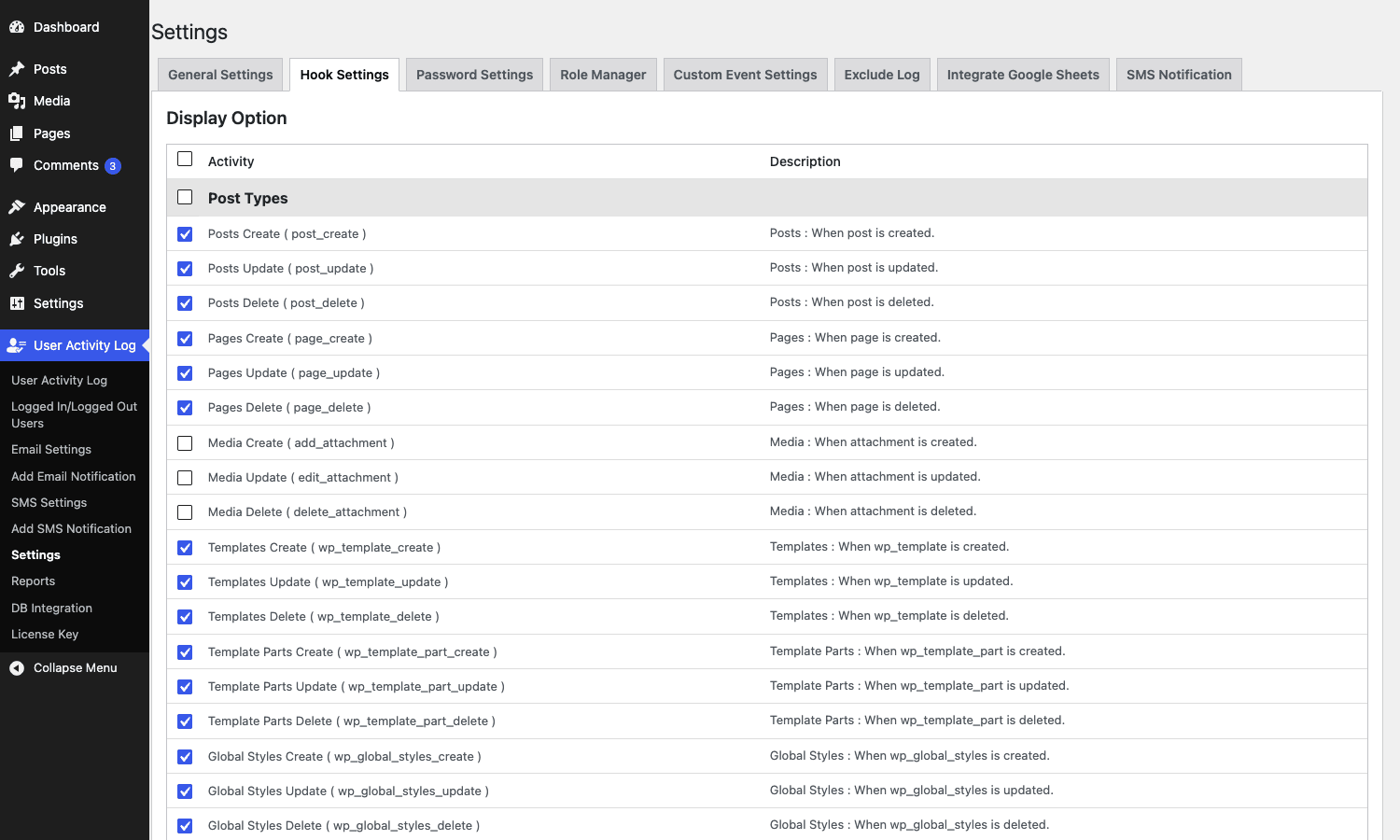
The second decision, and the one that really matters, is which event types to enable. By default the plugin enables almost everything. On a busy multi-author site or a WooCommerce store doing more than a few hundred orders a day, that’s a problem. We’ll come back to that in the "Don’t log everything by default" section because it’s the single biggest mistake people make with this plugin.
Once that’s done, log out and log back in. You should see your own login event at the top of the main log within a few seconds. If you don’t, you’ve got a caching plugin in the way and you need to exclude the admin from the cache.
A tour of the admin (the bits worth knowing)
The admin UI is, to put it gently, not the prettiest plugin you’ll use this year. It’s functional. It’s clearly 2018-era WordPress design. There are dropdowns inside dropdowns. The action buttons are textual links rather than the modern button row. None of that affects whether it does its job, but you should know what you’re walking into. If your client is the one who’ll be reading the log, expect to spend twenty minutes coaching them through it.
That said, the structure is sensible once you find your way around. The left submenu has roughly nine pages:
- Activity Log. The main
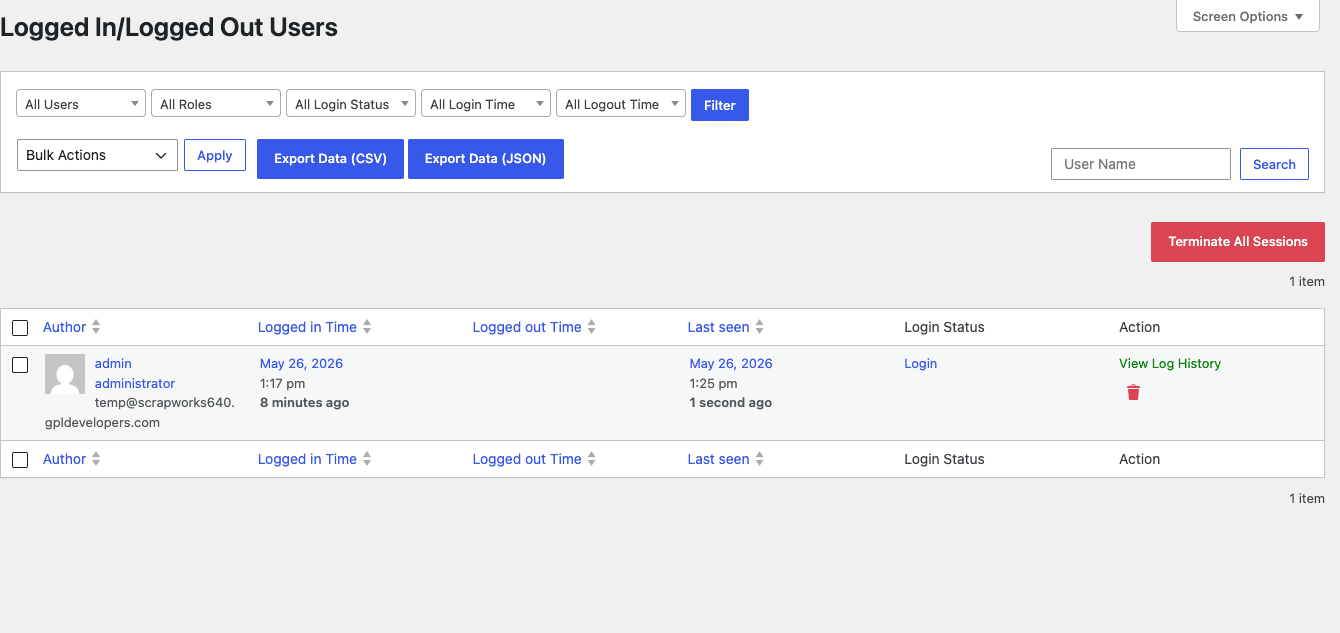
WP_List_Tableof every event, with filters at the top for user, role, type, action, and date range. This is where 90 percent of your time will be spent. - Logged Users. A separate report of currently-logged-in users and recent login/logout pairs. Useful for "is anyone still in the admin right now?"
- Email Notification Settings. Two tabs here. One for global thresholds (e.g. "email me if there are 5 failed logins in 10 minutes"), one for per-trigger rules ("email me whenever a user with role Administrator is created").
- SMS Notification Settings. Same shape as email, but routed through Twilio. Needs a SID and auth token.
- Reports. Generate or schedule a report. HTML, CSV, PDF, JSON.
- Settings. The global config. Which event types to log, how long to keep logs, what to exclude (specific users, IPs, roles, post types), what data to capture per event.
- DB Integration. Forward events into a Google Sheet via the Google Sheets API. The closest thing to a SIEM forwarder this plugin ships.
- License Key. Your purchase code.
The bit that’s actually clever and most teams miss: every row in the main Activity Log has a "Favourite" star. Click it and the row is pinned to a separate favourites view. Doesn’t sound like much, but when you’re working an incident across a hundred events and you find the one that looks suspicious, being able to flag it and move on is the difference between investigating and losing your place.
User Activity Log Pro vs WP Activity Log vs Simple History: when each one wins
This is the question most people are actually asking when they search for an audit log plugin, so let’s get it out of the way. There are three serious contenders in this category and they’re each strongest in a different situation.
Simple History is the WordPress.org free plugin. It’s the easiest install, the cleanest UI, and the closest thing WordPress has to "audit log built into the dashboard." It covers core WordPress events well, including some plugin-specific events via add-on extensions, and the log is shown right on the dashboard widget so you can’t miss it. The catch is depth. Out of the box, you don’t get email alerts, no scheduled reports, no per-event filtering of who fires what, and the WooCommerce / Gravity / Yoast coverage is shallow. If you run a single-author blog or a small business site and you just want to know "did anything change," Simple History is the right pick. Free, frictionless, done.
WP Activity Log (formerly WP Security Audit Log) is the heavyweight commercial plugin in this space. It logs more event types than anyone else (1000+ documented), supports external storage in MySQL / AWS S3 / Wasabi, has an actual SIEM bridge for Mirth / Syslog / Splunk, supports multisite as a first-class citizen, and ships with reporting that’s more polished than Solwin’s. The catch is the price (it ramps to four figures per year on the higher tiers) and the fact that you’re paying for breadth your site might never use. If you’re managing a regulated WordPress site that goes through SOC 2 or HIPAA audits, WP Activity Log is the standard answer. If you don’t have an auditor, you’re overpaying. See our WP Activity Log Premium walkthrough for the long version.
User Activity Log Pro is the sweet-spot pick. It costs less than WP Activity Log, it covers the same set of "what changed" questions for 95 percent of real sites, and it has deeper WooCommerce / Gravity / Yoast / Wordfence integration than Simple History without the enterprise pricing of WP Activity Log. The compromises are an older admin UI and the lack of native SIEM/syslog forwarding. For a freelance developer or an agency managing 5-50 client sites, this is usually the right shape.
The rough decision tree: small site, no budget -> Simple History. Regulated site with an auditor in the room -> WP Activity Log. Agency-managed WooCommerce/multi-author site that needs real coverage without the enterprise bill -> User Activity Log Pro.
The ‘forensic mode’ use case: figuring out what really happened on a Tuesday at 3am
The day you actually need an audit log is the day something has already gone wrong. Here’s the workflow that pays for the plugin in a single morning.
Scenario: a client emails on Tuesday at 9:00 saying "the homepage looks weird, half the featured products are missing." Without an audit log, you’d start by checking the homepage in wp-admin, then opening every recent post in the editor, then poking at theme files, then asking your team. Forty-five minutes minimum. With User Activity Log Pro, you open the Activity Log, set the date range to "last 24 hours," and skim down.
You spot a row at 03:47 UTC: user freelance.editor@client.com, role Author, action post_updated, post title "Featured Products Home Block." You click the row. The detail view opens up.
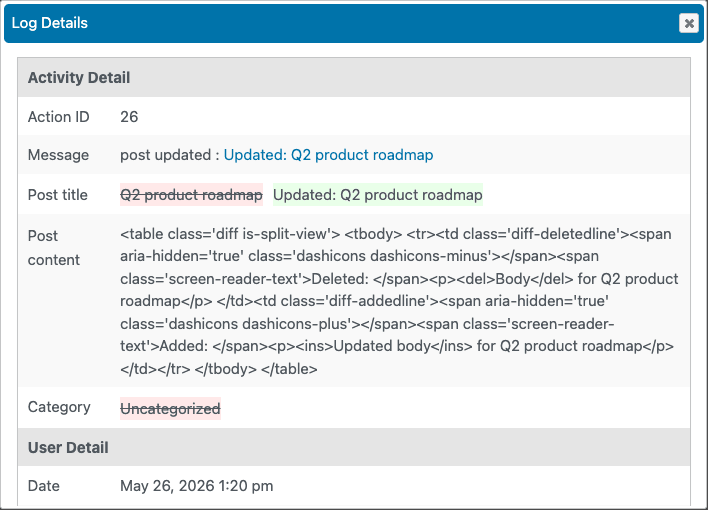
That detail view is the killer feature. It shows the diff: what the post looked like before, what it looks like now, which specific fields changed (title, content, featured image, taxonomy terms), the user agent and IP of the request, and the WordPress hook that fired. You can see exactly that the editor accidentally removed three product blocks from the homepage WYSIWYG at 3:47am, you can roll the post back from the revisions panel, and you can email the client at 9:05 with "the change was made at 03:47 by [editor], it’s reverted, here’s what they removed." Total time: 8 minutes.
That same workflow applies to "where did this order status change come from", "who deleted the discount coupon," "which user installed that plugin we didn’t ask for." The pattern is always: filter by date or by user, find the event, open the detail, read the diff, take action.
The one thing I wish were better here is the diff renderer. For long post content, the before/after blob is shown as a serialized PHP array dump, which is fine if you read PHP but rough for non-developers. Solwin would do well to wrap it in a more visual diff component. Until they do, you can pipe it through any online "PHP serialize unserialize" tool if you really need to read it like prose.
Email alerts: which events to fire, which to absolutely not
The Email Notification panel is where User Activity Log Pro stops being "log everything and search later" and starts being "wake me up when this specific thing happens." It’s the single most useful feature for agency teams who don’t want to babysit the log themselves.
There are two layers. The global Email Notification Settings tab handles thresholds: send me an email if there are N failed logins in M minutes, send me an email if there are N 404 errors in M minutes. Useful for early warning on brute-force attempts or broken redirects after a site migration.
The per-event Trigger Notification Settings tab is where the real value sits. You define a rule: when event X happens, send an email to Y, with subject Z and a templated body. Solwin gives you variables to drop into the email like [user_name], [post_title], [ip_address], [modified_date].
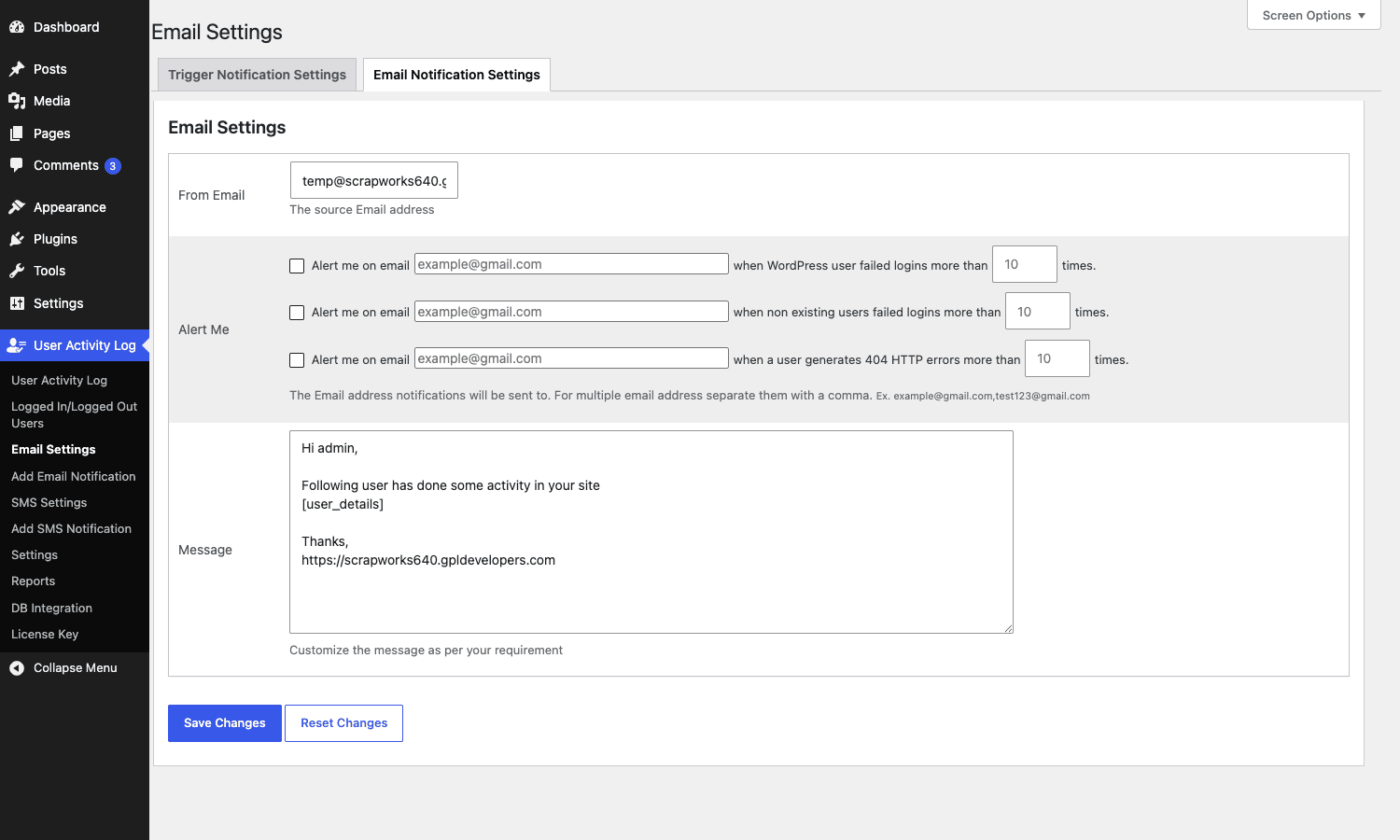
The list of events you can fire on is generous. Here’s what I actually turn on for an agency-managed site:
- New Administrator role assigned. Always. There’s no legitimate reason for this to happen silently. Whoever just gained admin should be visible to the team in real time.
- Plugin activated or deactivated. Always. Saved me twice already from a client randomly toggling a security plugin off.
- Failed login threshold exceeded. Always. The 5-failures-in-10-minutes default is a sensible starting point.
- User Administrator deleted. Always. Closing the loop on the first rule.
And here’s what I deliberately don’t turn on, because the alert noise will train you to ignore the emails:
- Every post update. You will get hundreds per day on an editorial site. Skip.
- Every WooCommerce order created. Your store already emails you. Skip the duplicate.
- Every login. Your team logs in twenty times a day. Skip.
- Every media upload. Same problem.
If you’re going to be the one reading these alerts, the rule of thumb is: only fire on events that should be rare AND surprising. Rare means it happens less than once a day. Surprising means the person triggering it probably shouldn’t have. Anything that’s expected gets logged but not emailed.
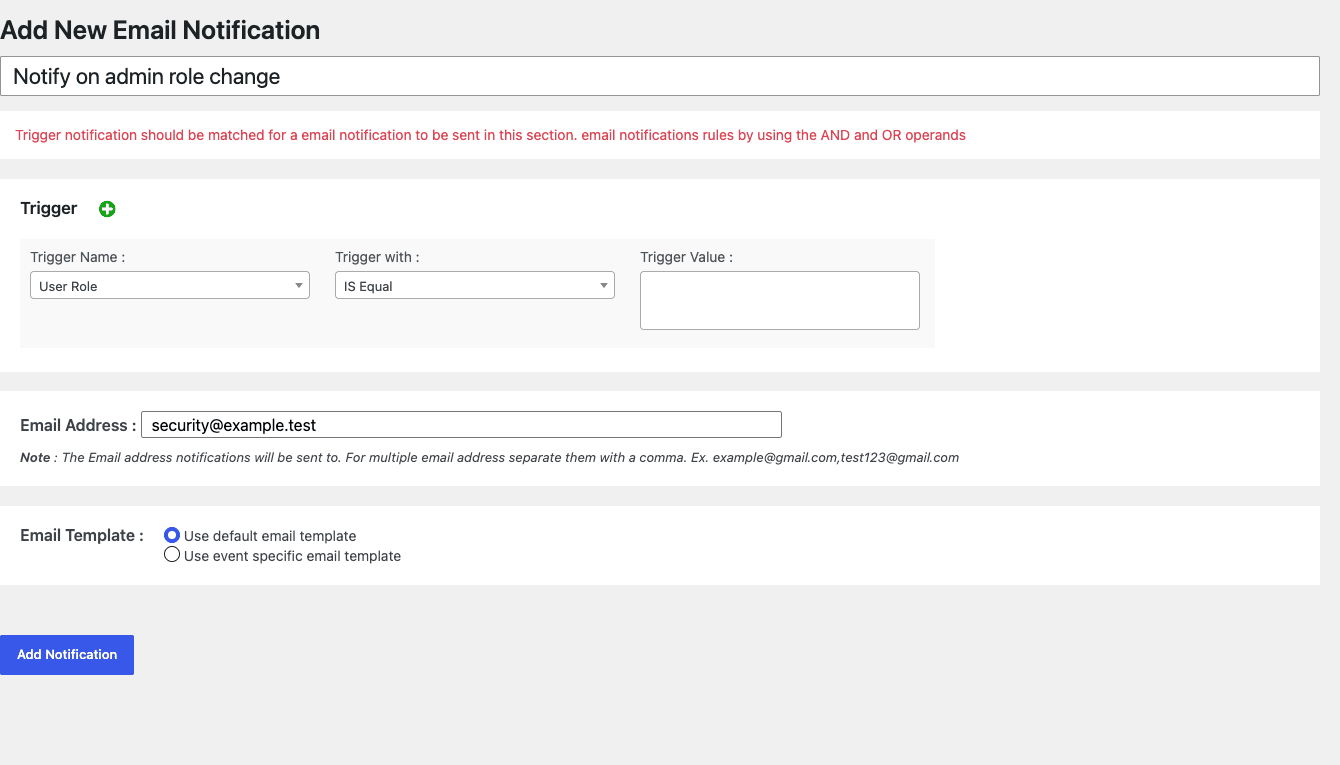
One small thing to know: User Activity Log Pro sends through the standard wp_mail() function. If you haven’t set up an SMTP plugin, you’re relying on PHP’s default mail() and your alerts will land in the spam folder roughly 70 percent of the time. Install WP Mail SMTP first, point it at a real transactional provider (Postmark, Mailgun, AWS SES), THEN turn on the alerts. Otherwise you’ll think the plugin isn’t firing when actually your server just can’t send mail reliably.
Reports and scheduled exports
The Reports page is the answer to the question "how do I prove to my SOC 2 auditor that we have an audit trail." You build a report by setting filters: date range, user, role, event type, IP address, and then pick a format. HTML for opening in the browser, CSV for opening in Excel, PDF for the auditor, JSON for piping into something else.
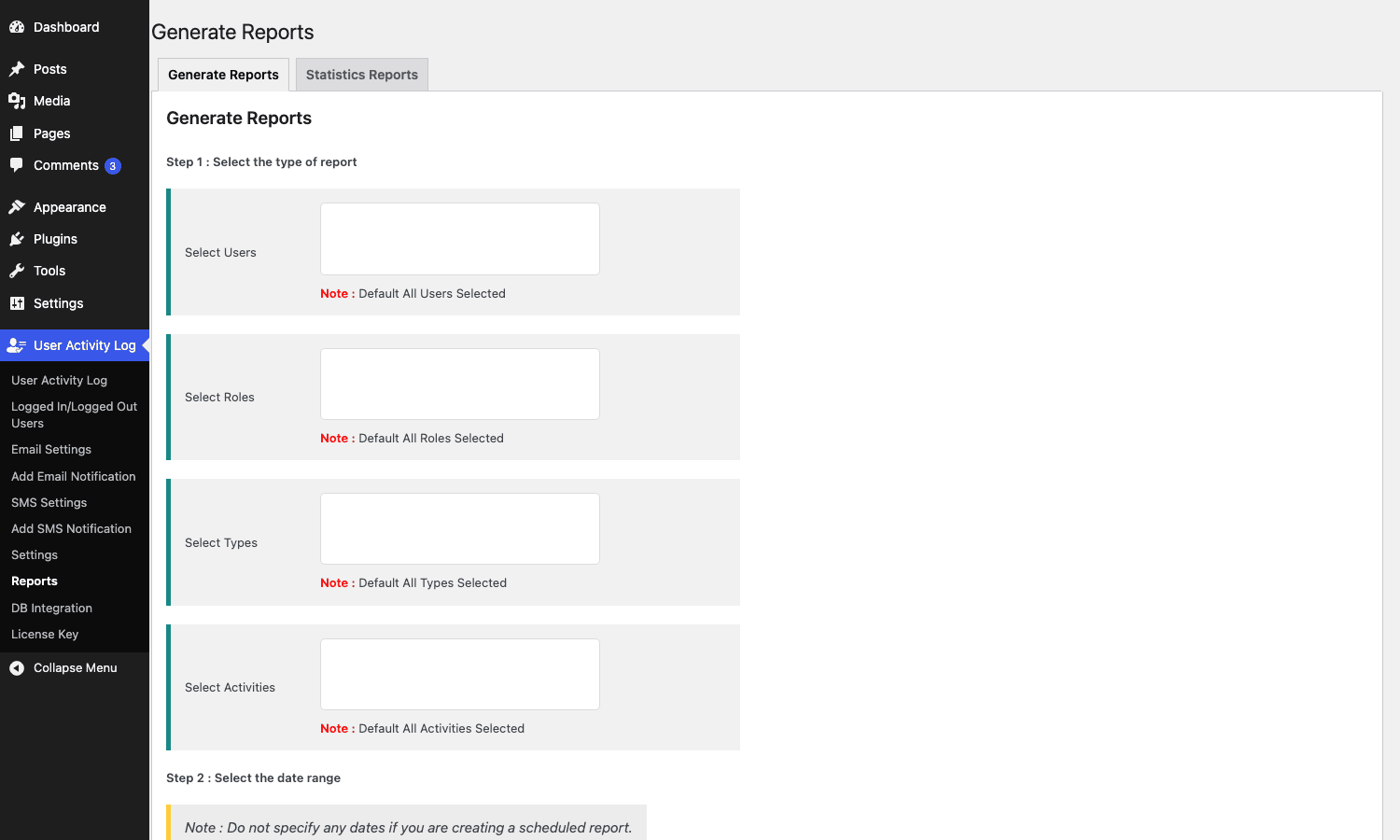
The interesting bit is the scheduling. Instead of running the report manually each month, you can schedule it daily, weekly, monthly, or quarterly, and have it emailed to one or more addresses. Useful patterns:
- A weekly digest of all administrator-level changes, emailed to the agency owner.
- A monthly WooCommerce order-events report, emailed to the client’s accountant.
- A quarterly full-log export, emailed to your compliance officer, archived in a folder structure you can hand to an auditor on demand.
PDF reports are paginated and include a header with the report metadata. Good enough for an auditor to accept. CSV reports include the same columns as the main log table, so you can open them in Excel, sort, filter, and pivot without losing detail.
The one gap is delivery. Reports go to email. If your compliance flow needs them dropped into S3, an FTP folder, or a Slack channel, you’re hand-rolling that with the ualp_export_activity_log action hook (more on hooks in the developer section).
The audit-log retention question: how long should you keep this stuff?
This is the question nobody asks until the database is 8GB and the host is sending nastygrams.
The User Activity Log Pro settings page gives you a "Delete logs after N days" toggle. The default is conservative (essentially "never"). For most sites, never is the wrong answer.
A few reference points for picking a number:
GDPR. No fixed retention requirement. You’re expected to keep audit data for "as long as necessary for the purpose," which is lawyer-speak for "make a defensible call." Most teams land on 12 or 24 months.
HIPAA. Six years from the date the record was created, full stop. Don’t argue with this one.
SOC 2. Most auditors want at least 12 months of audit log history available on demand during the audit window.
PCI-DSS. One year minimum, with at least 90 days immediately available for incident response.
Internal incident response. 90 days is the floor. Most "what happened?" questions land within 30 days, but the occasional one ("a client just noticed something from January") needs 90+ days to be useful.
If you’re an agency without a regulatory driver, 12 months is the sweet spot. Long enough to answer most questions, short enough to keep the table manageable. Turn on the auto-purge after 365 days, set it and forget it.
If you ARE regulated, do NOT use the auto-purge. Instead, set up a scheduled export (see Reports above) that dumps the log to a CSV / JSON file weekly, store those files somewhere durable (S3 with object lock, Google Drive with retention policy), and only THEN turn on the in-database purge. The exports are your long-term archive. The in-database log is your hot working copy.
Performance: what audit logging actually costs you on a busy site
Every INSERT into wp_ualp_user_activity is one extra database write per logged event. On a quiet brochure site that’s invisible. On a busy WooCommerce store with 500 orders a day, four authors editing posts, and a few hundred plugin/user/option updates per day, you’re adding several thousand writes per day.
That’s still small in absolute terms. The bigger cost is on read paths. If the log table is 10 million rows and you open the Activity Log page in the admin without filters, the query plan can choke a small database. The plugin paginates the list table view, but the count query that drives pagination still has to scan, and if your wp_ualp_user_activity table doesn’t have the right indexes, that query can take 5-10 seconds.
Three things to do:
Always filter before browsing. Don’t open the main Activity Log unfiltered on a large site. Apply a date filter (last 7 days) and a user or type filter before clicking submit. The query planner will use the column-specific indexes and respond in milliseconds.
Add an index on modified_date. The plugin creates an index by default, but if your host’s MySQL stripped it during a migration, double-check. SHOW INDEX FROM wp_ualp_user_activity should list modified_date as an indexed column.
Purge aggressively if you don’t have a compliance reason to keep history. The 365-day default I recommended above keeps the table at a manageable size. If you let it run for 5 years on a busy site, the table can hit double-digit gigabytes and even the filtered queries get slow.
The bigger gotcha: if you use a caching plugin like WP Rocket and the admin is cached (which it shouldn’t be, but accidents happen), the log page will show stale data and you’ll think the plugin isn’t logging. Make sure wp-admin is excluded from your cache. Most caching plugins do this by default. Verify it anyway.
On the front-end side, User Activity Log Pro adds no measurable load. The logging hooks fire on backend admin actions; visitor page loads don’t write to the log table unless you’ve enabled visitor 404 logging or front-end form logging. Even those are cheap (one INSERT per matching request).
Don’t log everything by default, you’ll DDoS your own database
Here’s the most expensive mistake I see teams make with this plugin. It happens roughly like this. You install User Activity Log Pro, you leave every event type checked because "more data is better than less data," you forget about it for two months, and one morning the site is down and the host emails you saying your MySQL is at 100% CPU and your database is 12GB.
The culprit is almost always one specific category: option updates. WordPress core, plus your active plugins, can call update_option() hundreds of times per page load. Most of them are harmless transients and rolling counters. If you have "log all option updates" checked, every one of those becomes a row in wp_ualp_user_activity AND a row in wp_ualp_user_activity_detail. On a busy site with a few caching plugins and a counter or two, that’s six-figure row counts per day, all of them noise.
The fix is to be ruthless on day one about what you actually log. My personal default list for a multi-author WooCommerce site:
- Posts, pages, custom post types: on.
- Users: on.
- Plugins, themes: on.
- WooCommerce events (orders, products, coupons): on.
- Comments: on, but only if you actually moderate comments.
- Media: on.
- Option updates: OFF unless you’re chasing a specific bug.
- Failed logins: on, but only the threshold alert, not every individual failure.
- Visitor 404s: OFF unless you’re doing post-migration redirect work.
- Front-end form submissions (CF7, Gravity): on if compliance needs it, OFF otherwise.
The other piece of the same mistake: don’t store the activity log in the same backup schedule as the content database. I’ve watched a team "restore from backup" after a hack and unwittingly rewind the audit trail to before the attacker’s events were logged, erasing the evidence of how the attacker got in. If you’re serious about audit integrity, the log should be exported separately (see Reports) to an append-only store, and the in-database table should be treated as a working cache, not the source of truth. That’s a small operational habit that costs nothing and saves you from a very bad day.
What the plugin won’t catch (and where you still need server-level logging)
User Activity Log Pro is a WordPress-layer plugin. It hooks into WordPress events. It does not see what happens below WordPress. That distinction matters more than people realise.
It will NOT log:
- Direct database writes. If someone with database access runs an UPDATE statement straight against
wp_posts, the post change has happened but no WordPress hook fired, so no log entry exists. - FTP / SSH file changes. If someone edits
wp-config.phpover SFTP, no log entry. If a malicious file is uploaded towp-content/uploads, no log entry. - WP-CLI commands. WP-CLI runs PHP and triggers most WordPress hooks, so most things ARE caught. But if a command runs with
--skip-themes --skip-plugins, integration hooks won’t fire and you’ll get an incomplete picture. - Pre-WordPress activity. Anything before WordPress fully boots (rare WP-bootstrap-time mu-plugin behaviour, web-server-level rewrites) isn’t visible.
- Network-level events. Failed SSH attempts, web-server-level 5xx errors, DDoS patterns. Wordfence handles a lot of this, Wordfence Security Premium is the standard pick if you don’t already have a host-level WAF.
If your threat model includes a determined insider with database or SSH access, you need server-level audit logging in addition to User Activity Log Pro. Tools like auditd (Linux), Cloudtrail (AWS), and managed-host audit dashboards (Pantheon, WP Engine, Kinsta) cover that layer. The plugin and the server log are complements, not substitutes.
Developer reference: hooks, filters, tables
If you’re a developer extending the plugin or writing custom integrations, here’s the bit you came for.
Database tables
Six custom tables under your WordPress prefix:
wp_ualp_user_activity -- main event log
wp_ualp_user_activity_detail -- per-event diff / extended payload
wp_ualp_user_activity_login -- login session pairs
wp_ualp_email_notification -- email rule definitions
wp_ualp_sms_notification -- SMS rule definitions
wp_ualp_schedule_report -- scheduled report jobs
The main log table columns:
uactid BIGINT primary key
post_id BIGINT related object id (post, user, etc.)
favorite TINYINT favourite flag
post_title TEXT cached object title
user_id BIGINT
user_name VARCHAR
user_role VARCHAR
user_email VARCHAR
ip_address VARCHAR
country VARCHAR
user_agent TEXT
modified_date DATETIME
object_type VARCHAR (post, user, plugin, etc.)
action VARCHAR (created, updated, deleted,...)
hook VARCHAR (the WP hook that fired)
description TEXT
t_session VARCHAR
site_id BIGINT (multisite)
Read queries should always filter by modified_date and one of user_id, object_type, or action. Those are the indexed columns.
Constants worth knowing
The plugin defines its constants at boot:
UALP_PLUGIN_DIR
UALP_PLUGIN_URL
UALP_TABLENAME // wp_ualp_user_activity
UALP_DETAIL_TABLENAME // wp_ualp_user_activity_detail
UALP_LOGIN_TABLENAME // wp_ualp_user_activity_login
UALP_EMAIL_TABLENAME // wp_ualp_email_notification
UALP_SMS_TABLENAME // wp_ualp_sms_notification
UALP_SCHEDULE_TABLENAME // wp_ualp_schedule_report
Use these in custom queries so you don’t hard-code the wp_ prefix.
Action hooks
The plugin fires before/after do_action() calls around every meaningful write:
do_action( 'ualpbeforeinsertlog', $data );
do_action( 'ualpafterinsertlog', $insert_id, $data );

do_action( 'ualpbeforeinsertloginlog', $user_id );
do_action( 'ualpafterinsertloginlog', $insert_id, $user_id );

do_action( 'ualpbeforeinsertlogoutlog', $user_id );
do_action( 'ualpafterinsertlogoutlog', $insert_id, $user_id );

do_action( 'ualpbeforeinsertemailnotification', $rule );
do_action( 'ualpafterinsertemailnotification', $rule_id, $rule );

do_action( 'ualp_export_activity_log', $filters, $format );
do_action( 'ualp_change_password', $user_id );
do_action( 'ualp_manage_role', $user_id, $old_roles, $new_roles );
do_action( 'ualp_general_settings_updated', $settings );
do_action( 'ualpaddcustomeventdetail', $event_data );
Practical example: forward every logged event into a Slack webhook.
add_action( 'ualpafterinsertlog', 'gpl_ualp_forward_to_slack', 10, 2 );

function gpl_ualp_forward_to_slack( $insert_id, $data ) {
 $payload = array(
 'text' => sprintf(
 '[%s] %s by %s on %s',
 $data['object_type'],
 $data['action'],
 $data['user_name'],
 $data['post_title']
 ),
 );
 wp_remote_post(
 'https://hooks.slack.com/services/T000/B000/XXXX',
 array(
 'body' => wp_json_encode( $payload ),
 'headers' => array( 'Content-Type' => 'application/json' ),
 'timeout' => 5,
 )
 );
}
If you wrap that in a check on object_type or action, you can build a focused Slack channel for "production-critical events only" without piping every comment edit into chat.
Another useful pattern: archive every event to a flat JSON file for long-term retention.
add_action( 'ualpafterinsertlog', 'gpl_ualp_archive_to_file', 10, 2 );

function gpl_ualp_archive_to_file( $insert_id, $data ) {
 $line = wp_json_encode( array_merge( $data, array( 'id' => $insert_id ) ) );
 $file = WP_CONTENT_DIR. '/audit-archive/'. date( 'Y-m' ). '.jsonl';
 if (! is_dir( dirname( $file ) ) ) {
 wp_mkdir_p( dirname( $file ) );
 }
 file_put_contents( $file, $line. "\n", FILE_APPEND | LOCK_EX );
}
Rotate that directory monthly and ship the files off-server.
Filters
The plugin exposes filters at every customisation point. The ones worth knowing:
apply_filters( 'ualp_data_diff_array', $diff, $old, $new );
apply_filters( 'ualp_post_data_diff', $diff, $post_before, $post_after );
apply_filters( 'ualp_post_serialized_array', $arr, $post );
apply_filters( 'ualp_post_meta_array', $arr, $post );
apply_filters( 'ualp_user_primary_array', $arr, $user );
apply_filters( 'ualp_user_meta_array', $arr, $user );
apply_filters( 'ualp_post_types', $types );
apply_filters( 'ualp_taxonomies', $taxonomies );
apply_filters( 'ualp_replace_key', $key );
apply_filters( 'ualp_options_array', $options );
apply_filters( 'ualp_table_list_column_default', $cols );
apply_filters( 'ualp_table_list_column_type', $type, $col );
apply_filters( 'ualp_table_list_column_label', $label, $col );
Practical example: redact email addresses from the log detail before they’re written.
add_filter( 'ualp_data_diff_array', 'gpl_ualp_redact_emails', 10, 3 );

function gpl_ualp_redact_emails( $diff, $old, $new ) {
 foreach ( $diff as $key => $val ) {
 if ( is_string( $val ) && filter_var( $val, FILTER_VALIDATE_EMAIL ) ) {
 $diff[ $key ] = '[redacted]';
 }
 }
 return $diff;
}
Useful if you’re worried about email addresses sitting in plaintext in an audit log that a third party (an auditor, a contractor) might see.
Custom events
The plugin ships a generic "custom event" trigger that you can wire to any do_action() in your site’s code or in another plugin. Under Settings -> Custom Event Trigger, point it at any hook name and provide a description template. The plugin will then write a log entry every time that hook fires.
If you’d rather do it in code:
do_action( 'ualpaddcustomeventdetail', array(
 'object_type' => 'custom',
 'action' => 'sla_breach',
 'post_title' => 'Order #1234',
 'description' => 'SLA breached: order in processing > 48h',
) );
That lets you log application-specific events (a custom workflow step, a moderation decision, an integration result) into the same searchable audit log as everything else, so investigators don’t have to look in two places.
Integration files
For deep dives, the integration files in the includes/integrations/ directory of the plugin show how Solwin wires up each third-party. The class names are predictable:
UALP_Integration_WooCommerceualp-hooks-gravityform.phpualp-hooks-wordpress-seo.php(Yoast)ualp-hooks-wordfence.phpualp-hooks-bbpress.phpualp-hooks-bubbypress.php(BuddyPress, note the misspelt filename)ualp-hooks-easy-digital-download.phpualp-hooks-contact-form-7.phpualp-hooks-autoptimizer.phpualp-hooks-user-switching.phpualp-hooks-userultra.php
If you’re integrating a plugin that’s not on this list, copy one of these files as a template, swap out the hook names, and load it from your own custom mu-plugin.
Pricing and licensing
User Activity Log Pro is sold by Solwin Infotech on CodeCanyon under the standard Envato regular and extended licences. The regular licence is single-site, the extended is for end-user products where the audit log is sold or distributed onward. Both include 6 months of support, lifetime updates by default, with optional support extension.
If you want the GPL-licensed version for evaluation or for production use under GPL terms, User Activity Log Pro on GPL Times gives you the same Pro zip Solwin ships, delivered via the GPL store. Same code, same admin pages, same integration files, same hooks. Drop it on a staging site, log a normal workday’s worth of activity, and see whether the table and the UI fit your team before you commit.
External references worth bookmarking:
- Solwin Infotech product page for the vendor’s own documentation and changelog.
- WordPress.org Plugin Handbook on hooks if you’re new to writing custom
do_action/apply_filtersextensions. - HHS HIPAA Security Rule audit guidance if you’re working in healthcare and need the actual retention rules.
FAQ
Why is the activity log table 2GB after a month?
You almost certainly left "log all option updates" enabled, or you’re on a busy WooCommerce site with every event category turned on. Open Settings, deselect option updates, deselect visitor 404 logging, and trim the categories you don’t actually need. Then run a one-time purge of entries older than 90 days. The table will shrink immediately. Long-term, set a 365-day auto-purge unless you have a compliance reason to keep more.
Can I forward logs to a SIEM (Splunk, Datadog, ELK)?
Not natively. There’s no built-in syslog / HTTP-forwarder. The closest shipping feature is the Google Sheets DB Integration. For a real SIEM, you write a custom ualpafterinsertlog action handler that POSTs each event to your SIEM’s HTTP collector. The code is roughly 15 lines (see the Slack-forwarder example in the developer section, swap the URL). If syslog forwarding is a hard requirement, WP Activity Log Premium ships that out of the box and might be the better fit.
Does User Activity Log Pro work in multisite?
Yes, with caveats. The main log table includes a site_id column so events from different subsites don’t collide. Each subsite has its own admin pages and its own settings. There is no network-wide super-admin dashboard that shows events from all subsites in one view. If you need that, you write a small custom admin page that queries the table across all sites, or you use the DB Integration to push everything into a single Google Sheet and view it there.
How do I prove the log hasn’t been tampered with (chain-of-custody)?
The plugin does not implement a cryptographic chain of custody (no hash-linking between rows, no signed entries). Anyone with database access can edit wp_ualp_user_activity directly. If your threat model requires tamper-evident audit logs, you need to export entries to an append-only store (S3 Object Lock, a write-once log service) before they could be edited. The scheduled report export is your friend here. Set a daily JSON export to S3 with Object Lock enabled, and the in-database log becomes a hot cache while the S3 archive is your forensically-defensible record.
Why am I missing some Elementor edits in the log?
Elementor saves a lot of its state through its own AJAX endpoints and a custom _elementor_data post meta blob. User Activity Log Pro logs the underlying post_updated event when Elementor saves, but the diff doesn’t decode the Elementor JSON into a readable structure. You’ll see "post updated" with a serialised blob in the detail row, which is technically correct but not actually useful for reconstructing what changed. There’s no built-in fix; if you need per-widget Elementor change tracking, you’d write a custom integration that listens to Elementor’s elementor/editor/after_save hook and writes a richer detail row.
Does it work with Gutenberg / block editor posts?
Yes. Block editor saves go through post_updated like any other post change, and User Activity Log Pro picks them up. The diff is shown as the serialised block JSON, which has the same readability problem as the Elementor case. Good enough to know "this post changed at this time by this user," not good enough to read like prose.
What about REST API writes from external apps or mobile clients?
WordPress REST endpoints fire the same internal hooks (post_updated, user_register, etc.), so User Activity Log Pro catches them. The user shown in the log is whoever authenticated the REST request via application password or OAuth. That’s exactly what you want.
Will it conflict with my other security plugins (Wordfence, Sucuri, iThemes Security)?
No conflicts I’ve hit in production. The plugin has a dedicated integration file for Wordfence, so Wordfence’s own block / firewall events show up in the User Activity Log Pro feed alongside everything else. Sucuri and iThemes don’t have dedicated integration files, but they run cleanly side-by-side.
Final thoughts
User Activity Log Pro isn’t the prettiest plugin in this category and it isn’t the cheapest. What it is, in the agency niche where it lives, is the right shape. WooCommerce / Gravity / Yoast / Wordfence integration that’s actually deep, email alerts you can configure without writing code, scheduled reports an auditor will accept, a developer hook surface that lets you bend it to a Slack channel or a SIEM with twenty lines of PHP. The compromises (older UI, no native syslog, manual SMTP setup) are exactly the kind you can work around in a week. The strengths are exactly the kind you can’t build yourself in a month.
If you’re a freelancer running a single client site, Simple History is still where I’d start. Free, on the repo, done.
If you’re running a regulated WordPress site that goes through SOC 2 or HIPAA audits, WP Activity Log Premium is still the safer pick, mostly for the syslog forwarder and the polished compliance reporting.
If you’re somewhere in the middle, managing a handful of multi-author WooCommerce sites for clients who eventually WILL ask "who deleted this product," User Activity Log Pro is the plugin I keep reaching for. Install it tomorrow, spend twenty minutes turning off the noisy event categories, set a 365-day retention, wire up two email alerts (admin-role-assigned, plugin-activated), and you’ll be in a better position than 90 percent of WordPress sites on the internet within an hour.
The day you actually need it is the day you’ll be glad it was running.