

Photo galleries on WordPress have a long history of bad implementations. NextGEN built galleries that worked but loaded so much JavaScript that the page felt slow. The default WP gallery is fine for a row of three thumbnails but falls apart at 20 images. Lightbox plugins came and went. The plugin that finally got the combination of "great UX + great layouts + fast page load + serious addon ecosystem" right is Envira Gallery.
This article walks through what Envira Gallery actually is, the layout templates (Automatic, Square, Justified, Mosaic, Slideshow, Masonry, Blocks), the lightbox behaviour, the rich addon ecosystem (Albums, Lightroom, Instagram, Watermarks, WooCommerce prints), the developer hooks, and how to use it well on a site where page-speed matters.
Table of contents
- What Envira Gallery is
- Free Envira vs Pro
- Installation and the first gallery
- The gallery builder
- Layout templates
- Lightbox behaviour
- Image management and SEO
- Albums
- Addon ecosystem
- WooCommerce prints integration
- Adobe Lightroom and Instagram imports
- Embedding: shortcodes, blocks, page builders
- Performance and lazy loading
- Developer reference: hooks and filters
- Real-world use cases
- Envira vs NextGEN vs FooGallery vs Modula
- Compatibility and gotchas
- Pricing and licensing
- FAQ
- Final thoughts
What Envira Gallery is
Envira Gallery is a WordPress plugin from the Awesome Motive team (Syed Balkhi and Thomas Griffin) that adds a dedicated photo-gallery builder to WordPress. Each gallery is a custom post type record with its own settings (layout, lightbox config, captions, image order, lazy-loading), and you embed it anywhere on the site with a shortcode, a Gutenberg block, or a page-builder widget.
What sets Envira apart from the lighter gallery plugins:
- Layout breadth. Seven first-class layouts (Automatic, Square, Justified, Mosaic, Slideshow, Masonry, Blocks) instead of just a grid.
- Lightbox quality. Smooth animations, captions, social share, deeplinking, swipe gestures on mobile.
- Addon depth. Albums, Instagram, Lightroom, Watermarks, EXIF, Tags, Proofing, WooCommerce, Schema, Protection. The addon ecosystem is what separates a serious gallery plugin from a basic one.
- Performance. Lazy loading, deferred lightbox JS, responsive image srcset. Galleries don’t slow down the page.
- Mobile-first UX. Galleries are responsive by default; the lightbox is touch-optimized.
- SEO-friendly. Schema.org ImageGallery markup, EXIF data exposure, alt tag enforcement, sitemap inclusion.
If you have a photography site, an architecture portfolio, a food blog, a real-estate site, a wedding business, or any kind of content where presenting photos well matters, Envira is the default choice.

The galleries list above shows the empty state, Envira’s onboarding is honest about not pretending you’ve already built something. Click "Create your Gallery" to start.
Free Envira vs Pro
There’s a free version on WordPress.org called Envira Gallery Lite. It includes:
- Basic gallery builder (drag-and-drop image upload + arrangement).
- Default Automatic layout.
- Basic lightbox.
- Shortcode and Gutenberg block embedding.
Pro (the full version) adds:
- All seven layout templates (Square, Justified, Mosaic, Slideshow, Masonry, Blocks).
- Full lightbox features (captions, social share, deeplinking, custom CSS).
- The entire addon ecosystem (Albums, Videos, Audio, Watermarks, Instagram, Lightroom, etc).
- Image protection (right-click disable, watermarks).
- WooCommerce integration for print sales.
- Schema markup for SEO.
- Pagination for large galleries.
- AI image generation (recent addition).
- Updates and direct support.
For any site beyond a basic blog with one or two galleries, Pro is the right tier. The Lite version is fine for hobby sites.
Installation and the first gallery
Install via Plugins -> Add New -> Upload Plugin -> envira-gallery.zip -> Activate. After activation, the Envira Gallery menu appears in WP admin with submenus for Galleries, Add New Gallery, Settings, Addons, Tools, and Envira CDN.
To create your first gallery:
- Click Add New Gallery in the Envira Gallery menu.
- Give the gallery a title (this is also used in the lightbox header).
- Drag images into the upload area, or click "Select Files from Other Sources" to pick from the WP media library, Dropbox, server file path, or Lightroom.
- Drag images to reorder. Click any image to edit its caption, alt text, title, link URL.
- Switch to the Configuration tab to pick a layout (Automatic, Square, Justified, etc) and configure column count, image spacing, image dimensions, lazy load behaviour.
- Switch to the Lightbox tab to enable/disable the lightbox, configure title/caption position, themes, and behavior.
- Switch to the Mobile tab to override settings on mobile (different layout, different image sizes).
- Click Publish.
- Embed the gallery in any page/post using
[envira-gallery id="123"]or the Envira Gallery Gutenberg block.
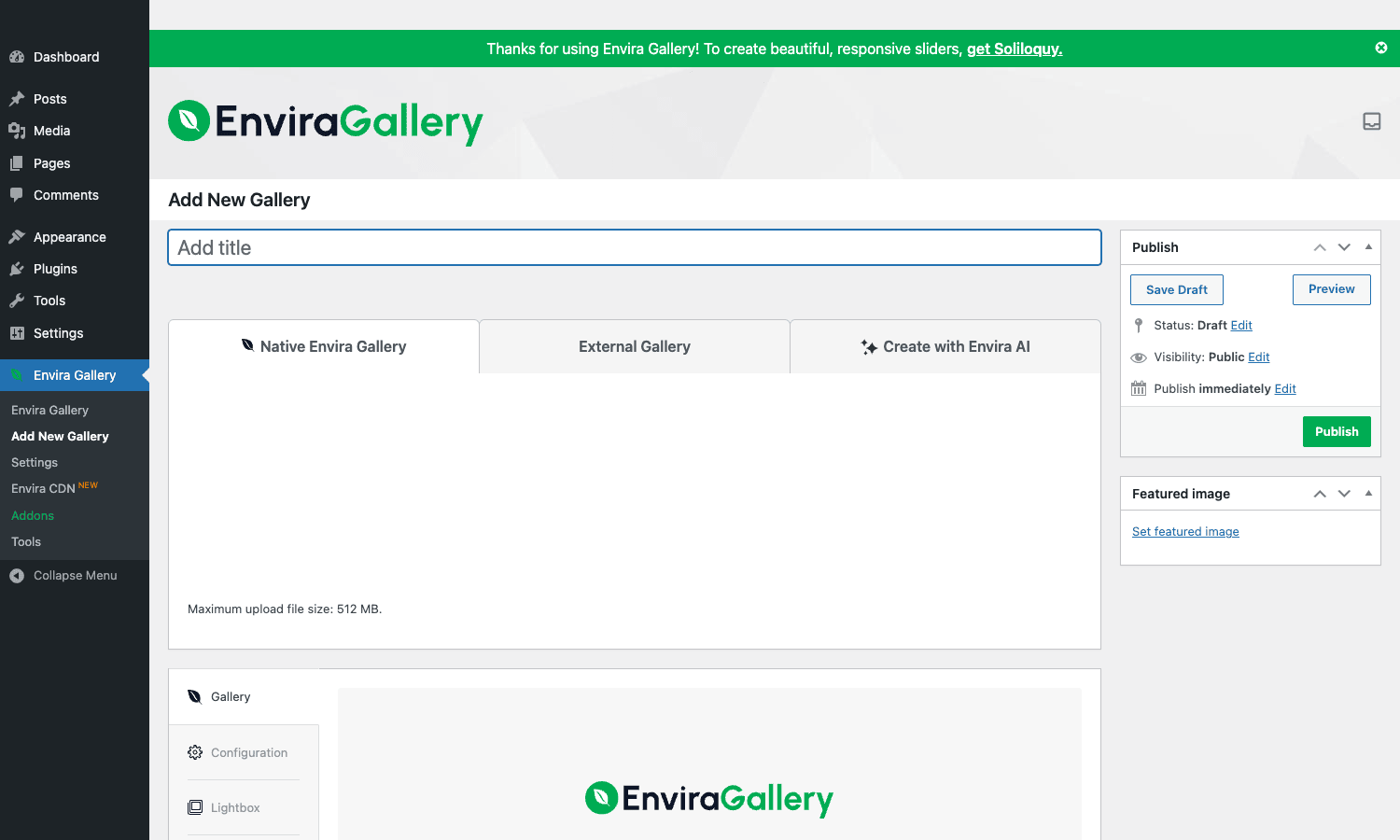
The builder above shows the three creation tabs (Native, External, Create with Envira AI) and the Gallery / Configuration / Lightbox tabs on the left.
The gallery builder
The builder is split into two main areas:
Image management at the top. Drag images directly into the upload area or click "Select Files from Other Sources" to import from various sources. The plugin handles WebP, JPEG, PNG, GIF, and SVG (with permissions). Per-image actions: edit metadata (caption, alt, title, link), set crop position, set custom URL, set position in gallery.
Configuration tabs at the bottom. Six tabs depending on which addons are active:
- Gallery, basic image management view.
- Configuration, layout, columns, image dimensions, gutter, image sizing strategy, lazy load, lightbox toggle, captions, title display.
- Lightbox, lightbox theme, image title position, thumbnail strip, image counter, social share buttons, slideshow autoplay.
- Mobile, mobile-specific overrides for column count, image dimensions, lightbox behavior.
- Misc, gallery CSS classes, custom CSS, RTL support, additional configuration.
- Standalone (Pro addon), direct gallery URLs without embedding in a page.
Per-image options include: setting the link target (URL, page, or another gallery), enabling/disabling caption per image, manual position override, alt text, title attribute.
Layout templates
The seven layout options each suit different content shapes:
- Automatic. Responsive grid where Envira picks column count and sizes based on viewport. Good default if you don’t know which layout fits.
- Square. Uniform square thumbnails (good for Instagram-style presentation). All images cropped to squares.
- Justified. Flickr-style justified rows. Each row’s images sized to fill horizontally without cropping. Great for landscape orientations.
- Mosaic. Varied aspect ratios in a tiled pattern. Good for visual variety with mixed portrait/landscape images.
- Slideshow. Single-image-at-a-time slideshow with navigation controls. Good for hero areas.
- Masonry. Pinterest-style staggered grid. Each column reflows independently. Good for varying heights.
- Blocks. Block-style layout with larger feature images interspersed with smaller ones. Best for portfolio sites.
Per-layout configuration:
- Columns (Automatic, Square, Mosaic, Blocks), number of columns.
- Image dimensions, crop size for thumbnails.
- Gutter, pixels of spacing between images.
- Margin, pixels around the entire gallery.
- Image lazy loading, defer image loading until the user scrolls.
- Lightbox, toggle on/off, theme, autoplay, transitions.
Layout choice affects both visual rhythm and page-load weight. Square is fastest because all crops are uniform; Mosaic is slower because of per-image dimensions. Most sites land on Automatic or Justified.
Lightbox behaviour
The lightbox is the modal full-screen image view that opens when a visitor clicks a thumbnail. Envira’s lightbox is built in lean vanilla JavaScript (no jQuery), opens fast, supports touch gestures on mobile, and has these features:
- Navigation. Arrow keys, swipe (mobile), thumbnail strip, image counter.
- Captions. Per-image caption shown below the main image, with title and description fields.
- Social share. Optional Twitter, Facebook, Pinterest, LinkedIn share buttons per image.
- Themes. Default, Base Light, Base Dark, Modern, Folding, Gentle Fade, Smooth, Inverted. Each has different transitions.
- Slideshow autoplay. Auto-advance with configurable delay.
- Deeplinking (with Deeplinking addon). Each lightbox image gets its own URL, so visitors can link to a specific image.
- Keyboard shortcuts. Esc to close, arrow keys to navigate, F for fullscreen (with Fullscreen addon).
Mobile lightbox is touch-optimized: pinch-zoom on the image, swipe between images, tap-to-close. The lightbox respects the device’s status bar and notch areas on iOS.
Image management and SEO
Each image in a gallery has metadata that affects SEO and accessibility:
- Alt text. Critical for SEO (Google reads it for image search ranking) and accessibility (screen readers). Envira makes this prominent in the per-image editor.
- Title attribute. Shown on hover; less important than alt.
- Caption. Visible in the lightbox and optionally below the thumbnail.
- Link URL. Where the image links when clicked (lightbox, external URL, page, gallery).
The Schema addon adds ImageGallery JSON-LD to gallery pages, which Google reads to surface the gallery as a rich result in search. Without it, your gallery pages get the same generic schema as a blog post; with it, Google understands the page is primarily a photo gallery.
Image alt text best practices that Envira makes easy to enforce: every image should have descriptive alt text, not a copy of the file name. "Sunset over Lake Tahoe in autumn" is a good alt; "IMG_4283.jpg" is bad. The builder shows alt text input in the per-image popup; train your team to fill it in for every gallery.
Albums
The Albums Addon adds a layer above galleries. An album is a curated collection of galleries; on the album page, each gallery is represented by a cover image, and clicking opens the gallery.
Albums are useful when:
- You have many galleries that naturally group (e.g., "Weddings 2024" album containing 12 wedding galleries).
- You want a top-level navigation: clients land on the album, click their gallery, then click into images.
- You’re building a photographer’s portfolio with categories (Weddings, Portraits, Landscapes) where each category is an album of galleries.
Albums are themselves custom posts (envira_album post type), embedded with [envira-album id="456"] or via the Album Gutenberg block. The Albums addon adds the album builder UI, the cover image picker, and the navigation between album and child galleries.
Addon ecosystem
The Envira addon library is the deepest in the gallery space. Here are the addons most teams reach for:
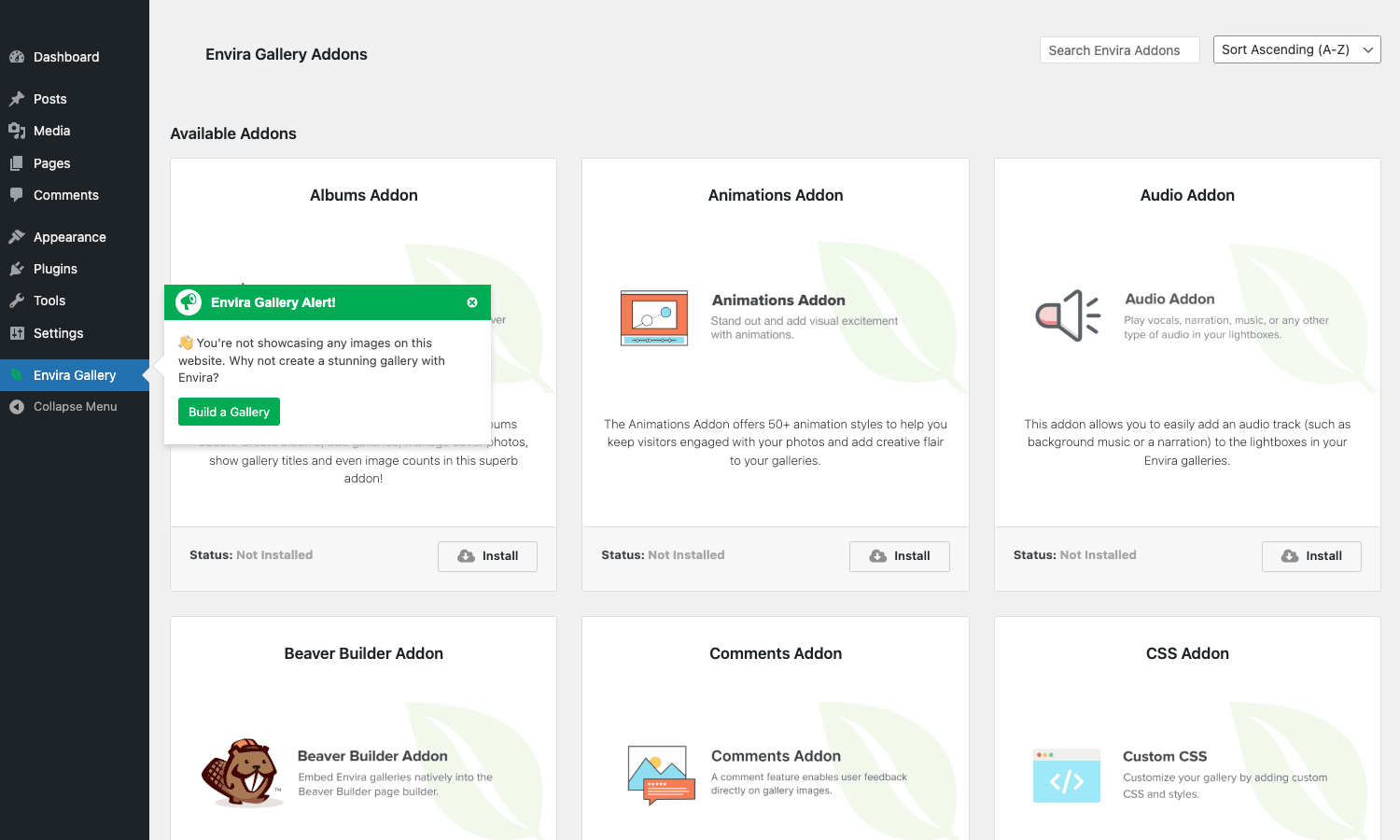
- Albums, described above.
- Videos, embed YouTube/Vimeo/MP4 in galleries; videos play in lightbox.
- Audio, attach audio tracks to galleries (background music or per-image narration).
- Watermarks, automatic watermark on upload. Configure watermark image, position, opacity.
- Pinterest, Pin It button overlay on each image in the lightbox.
- Social, Twitter, Facebook, Reddit, LinkedIn share buttons in the lightbox.
- Slideshow, fullscreen autoplay slideshows with transitions.
- Lightroom, sync Adobe Lightroom collections directly to Envira galleries.
- Instagram, pull your Instagram feed into a gallery (free Instagram embedding is limited; this addon does it properly).
- Tags, per-image tagging plus front-end tag filters.
- Standalone, galleries get their own URLs without needing to be embedded.
- WooCommerce, sell prints/downloads of gallery images.
- Zoom, per-image magnifier zoom on hover.
- Schema, ImageGallery JSON-LD for SEO.
- Protection, disable right-click, prevent direct image hotlinking.
- Proofing, client-proofing workflow (clients mark images as approved/rejected).
- Password Protection, per-gallery passwords for client galleries.
- EXIF, display camera EXIF data per image (aperture, shutter, ISO).
- Fullscreen, native browser fullscreen mode in the lightbox.
- Pagination, paginate large galleries (100+ images).
- Downloads, per-image download buttons (with optional WooCommerce gating).
- Deeplinking, direct lightbox URLs per image.
- Defaults, set site-wide gallery defaults so new galleries inherit settings.
- Dynamic, auto-build galleries from media library queries.
- Beaver Builder / Divi / Visual Composer, page-builder widgets.
- Schedule, schedule gallery publication.
You don’t need all of them. Pick the 3-5 that match your use case. A photography portfolio site might use Albums + Lightroom + Watermarks + Protection + Schema. A food blog might use Schema + Tags + WooCommerce (for selling cookbook bundles).
WooCommerce prints integration
The WooCommerce Addon turns Envira into a print-sales platform. For each image in a gallery, you can attach a WooCommerce product (or a set of variations for different print sizes). The customer sees a "Buy Print" button next to each image; clicking adds the print to their cart at the chosen size and price.
Setup:
- Install the WooCommerce addon + WooCommerce core.
- Create a WooCommerce product (variable, with print-size variations: 8×10, 11×14, 16×20, 24×36 at different prices).
- In the gallery image editor, link the image to the variable product.
- The customer sees the gallery normally + a "Buy Print" button on hover/click.
This is the standard setup for photographer portfolios that sell prints directly. Variable products handle the size/price matrix; the gallery shows the photos; the WooCommerce integration glues them.
Adobe Lightroom and Instagram imports
The Lightroom addon connects Envira to Adobe Lightroom Classic via a publishing plugin. You set up a "WordPress publish service" inside Lightroom; collections published to it automatically sync to Envira galleries. This is huge for working photographers, edit in Lightroom, click Publish, the gallery on the website updates without you touching WordPress.
The Instagram addon pulls your Instagram posts into a gallery using the Instagram Basic Display API. Configure the OAuth connection in the addon settings; the plugin syncs posts on a cron schedule. Useful for embedding your Instagram feed without using the Instagram-provided embed widget (which is slow and tracker-laden).
Both addons handle the "I update content elsewhere, the website reflects it automatically" workflow that real photography businesses run on.
Embedding: shortcodes, blocks, page builders
Three ways to embed a gallery:
Shortcode. [envira-gallery id="123"] in any post, page, or widget. The gallery ID is shown in the gallery list. Multiple parameters available (per_page, columns, etc) but defaults are usually right.
Gutenberg block. "Envira Gallery" block in the block inserter. Pick the gallery from a dropdown, render. The block sidebar exposes layout overrides.
Page builder widgets. Elementor, Beaver Builder, Divi, Visual Composer all have an Envira widget (with the relevant addon installed). Drag the widget, pick a gallery, configure overrides. The widget reads the gallery from Envira and renders it inside the builder’s layout.
Theme template tag. For deep theme customization, you can call envira_gallery( $id ) in PHP to output a gallery directly in a template file.
Performance and lazy loading
A gallery with 50 images is a lot of bytes. If you don’t manage it carefully, the page becomes a multi-megabyte load that wrecks Core Web Vitals.
Envira’s performance strategy:
- Lazy loading. Images below the fold don’t load until scrolled into view. Standard now in browsers, but Envira uses its own implementation to also lazy-load lightbox images.
- Responsive image srcset. Browser picks the right resolution based on viewport.
- Thumbnail sizing. Configurable thumbnail dimensions; smaller thumbnails for grid views, larger originals only loaded on lightbox open.
- Deferred JavaScript. Lightbox scripts loaded only when needed.
- Image compression. Per-gallery JPEG quality control via the
envira_compress_jpeg_qualityfilter (default 90). - CDN support. The Envira CDN addon offloads images to their own CDN (separate subscription). Alternatively, point your standard WordPress media library at any CDN (Cloudflare Images, Bunny, etc) and Envira inherits that.
Real-world Core Web Vitals impact: a 30-image gallery with proper lazy loading and CDN delivery typically scores 90+ on PageSpeed Insights. The same gallery without lazy loading or CDN scores 40-60.
Pair Envira with WP Rocket for page caching and you get the right combination: caching for the HTML, lazy loading + CDN for the images.
Developer reference: hooks and filters
Envira exposes hooks for almost everything the front-end does. The patterns developers use most:
Wrapping each gallery image with custom HTML
add_filter( 'envira_gallery_output_image_attr', function( $attr, $id, $item, $data ) {
 $attr['data-source'] = 'envira-'. $id;
 return $attr;
}, 10, 4 );
Modifying the gallery HTML output
add_filter( 'envira_gallery_output_html', function( $html, $data ) {
 // Wrap every gallery in a custom div for tracking.
 return '<div class="my-gallery-wrap" data-gallery-id="'. esc_attr( $data['id'] ). '">'. $html. '</div>';
}, 10, 2 );
Controlling lazy-load globally
add_filter( 'envira_gallery_lazy_load', '__return_true' );
Setting JPEG quality on resized images
add_filter( 'envira_compress_jpeg_quality', function() {
 return 82; // Down from default 90 for smaller file sizes.
} );
Adding a hook before/after the gallery output
add_action( 'envira_gallery_before_output', function( $data ) {
 echo '<div class="my-gallery-intro">Gallery: '. esc_html( $data['title'] ). '</div>';
} );

add_action( 'envira_gallery_after_image', function( $id, $item, $data ) {
 // Inject a custom badge on premium images.
 if (! empty( $item['premium'] ) ) {
 echo '<span class="badge premium">PRO</span>';
 }
}, 10, 3 );
Restricting access to galleries
add_filter( 'envira_abort_gallery_output', function( $abort, $data ) {
 if (! is_user_logged_in() &&! empty( $data['members_only'] ) ) {
 echo '<p>Sign in to view this gallery.</p>';
 return true;
 }
 return $abort;
}, 10, 2 );
The hook surface is documented on the Envira knowledge base. For any "I want to change behavior X" question, the answer is usually a filter, not a fork.
Real-world use cases
A few patterns Envira is especially good for:
-
Photographer portfolio. Lightroom -> Envira sync, multiple galleries grouped into albums, WooCommerce integration for print sales, Protection addon to disable right-click, Watermarks on auto-upload.
-
Wedding photography client galleries. Password-protect each client’s gallery (Password Protection addon), enable client-proofing (Proofing addon) so clients can mark favourites, optionally sell prints via WooCommerce.
-
Travel blog. Justified layout for landscape-heavy galleries, EXIF addon to show camera settings, Tags addon for filtering by destination, Schema addon for SEO.
-
Architecture portfolio. Mosaic or Blocks layout for varied aspect ratios, Albums to group by project, large hero galleries on the front page with Slideshow layout, deeplinking for sharing specific images.
-
Food blog. Square layout for Instagram-style consistency, Tags for filtering by recipe category, optional WooCommerce for ebook sales bundled with photos.
-
E-commerce product galleries. WooCommerce Addon to enrich product pages with gallery presentation; pair with WP All Import for bulk-importing product images and assigning them to Envira galleries.
-
Stock photo or downloads site. Downloads addon with WooCommerce for per-image paid downloads.
Envira vs NextGEN vs FooGallery vs Modula
The four major WordPress gallery plugins.
Envira Gallery has the deepest addon ecosystem and the most polished lightbox. Best all-rounder, slightly higher price. Recommended for professional photography sites and complex galleries.
NextGEN Gallery is older and more "kitchen-sink". Powerful but slower on page load. The default for many sites that haven’t switched in years. Good if you want raw breadth; bad if you care about Core Web Vitals.
FooGallery is lighter than Envira and free for most use cases. Great for simple galleries on lower-tier sites. Less addon depth.
Modula is the newest entrant. Beautiful custom-grid layouts. Smaller addon ecosystem but growing fast. Good middle option.
The honest take:
- Hobby/small blog galleries: FooGallery or Envira Lite (the free version).
- Professional photography site: Envira Pro with Lightroom + Protection + WooCommerce.
- Custom-art portfolios: Modula or Envira Pro.
- Established NextGEN sites that work: don’t migrate unless page-speed is a problem.
You can use only one of these at a time per site; they all hook the WP gallery shortcode and would conflict.
Compatibility and gotchas
A few things to know before deploying Envira on a serious site.
- WebP support. Envira handles WebP uploads but make sure your WP install also has WebP support (WordPress 5.8+). If you’re on older WP or your server’s GD/Imagick doesn’t support WebP, fall back to JPEG.
- Lazy loading + page builders. Some page builders (especially old Elementor versions) preload all images on the page, defeating Envira’s lazy loading. Update your builder and test.
- Lightbox + sticky headers. Default lightbox sits above sticky headers. If your sticky header is at z-index 99999, override the lightbox z-index via the
envira_gallery_lightbox_z_indexfilter. - Image hotlinking. The Protection addon blocks right-click but can’t stop a determined hotlinker. If your images are valuable, watermark them or move to per-image authentication.
- Lightroom sync intervals. The Lightroom publishing service syncs on demand; large collection re-publishes can take a long time. Don’t expect real-time sync for a 5,000-image collection.
- Instagram API tokens expire. The Instagram addon’s OAuth token expires every 60 days; re-authorize when prompted.
- Album cover image not respected by mobile. Mobile sometimes shows the first gallery image instead of the album cover image. Configure mobile-specific covers via the Mobile tab.
- Multisite considerations. Envira works on WP multisite but addon licenses are per-network in some plans. Check before activating.
- Image SEO requires alt text. The plugin doesn’t force you to add alt text. If you skip it, your image SEO suffers. Make alt text a content-team requirement.
These are the usual gotchas you find in the first month. Address them on staging and you won’t see them again.
Pricing and licensing
Envira Gallery is sold per-site/per-year:
- Basic: $39/year (1 site, basic addons only).
- Plus: $99/year (3 sites + Albums + Standalone + Tags).
- Pro: $159/year (5 sites + all addons except Lightroom).
- Agency: $299/year (unlimited sites + all addons).
For a single-site portfolio, Plus is usually right. For a photography business with multiple client sites, Pro or Agency.
The plugin is GPL-licensed. Reasonable if you’re running multiple sites or want the full addon set without per-addon licensing.
FAQ
Does Envira Gallery work with WooCommerce?
Yes, via the WooCommerce Addon. Each gallery image can link to a WooCommerce product so you can sell prints or downloads. Variable products handle size/price matrices.
Can I import existing NextGEN galleries?
Yes, the plugin has an "Import from NextGEN" tool in the Tools menu. It walks through each NextGEN gallery and re-creates it as an Envira gallery. Image references update automatically.
Does it support video?
Yes, via the Videos Addon. YouTube, Vimeo, MP4, and HTML5 video supported. Videos play in the lightbox alongside images.
Will it slow down my site?
When configured correctly (lazy loading on, thumbnails sized appropriately, CDN active), no. A 30-image gallery with default settings on average hosting renders in <1 second. Skip the CDN or use 4MB unoptimized images and yes, it will be slow, that’s true of any gallery plugin.
Does it work with Gutenberg?
Yes, the Envira Gallery block ships with the plugin. Pick a gallery from the block sidebar, render. The block respects per-gallery layout overrides.
Can I password-protect a gallery?
Yes, with the Password Protection addon. Each gallery gets its own password; visitors enter the password to unlock the gallery. Useful for client galleries in wedding/portrait photography.
Does Envira handle EXIF data?
Yes, with the EXIF Addon. Camera EXIF (aperture, shutter speed, ISO, focal length, camera model) shows in the lightbox below the image.
Can I sell digital downloads of gallery images?
Yes, via the Downloads Addon + Easy Digital Downloads or WooCommerce. Each image has a "Download" button that triggers a paid download flow.
Is the free version sufficient for a basic blog?
For a blog with 2-3 simple galleries, yes. The free version handles the basics. Once you need a specific layout (Justified, Mosaic) or any addon (Albums, Watermarks, Tags), you’re on Pro.
Final thoughts
Photo galleries are one of those WordPress problems where a lot of plugins technically solve the requirement but only one or two do it well at scale. Envira Gallery is the answer for "I need photo galleries that look great, load fast, work on mobile, and don’t fall apart when I have 200 images across 10 galleries". The combination of the layout templates, the lightbox quality, and the addon depth is what makes it the standard.
If you’re a working photographer, the Lightroom integration alone justifies the plugin. Editing in Lightroom and clicking Publish to update the website beats the alternatives (manually exporting JPEGs, uploading to WordPress media library, building galleries from scratch).
For everyone else (food blogs, travel sites, architecture portfolios, business sites with photo-heavy content), Envira. Justified, Mosaic, Masonry, and Blocks are layouts you literally cannot build by hand without a couple thousand lines of CSS-grid wrangling.
Install on staging, build one real gallery, test on mobile, run PageSpeed, and decide. You’ll know within an hour whether it’s the right tool for your stack.