

For the last three years I’ve run agency client work, an editorial calendar, and a small product roadmap out of one place: a Trello tab that I forget to update. I tried switching. I tried Notion plus a Zap that syncs to Asana. I tried ClickUp with the official WP embed. I even tried Project Panorama and the old WP Project Manager. Each time I’d come back to Trello because at least it didn’t pretend to be more than what it was.
So when WPManageNinja shipped Fluent Boards as a native WordPress Kanban plugin, I rolled my eyes. Another "Trello clone for WordPress." But I sat down for two days, set up real boards on a sandbox, hooked it up to FluentCRM, and poked through the source. The Pro upgrade is more interesting than the free version’s marketing screenshot suggests. It’s also not a Trello replacement, and pretending it is sets you up for disappointment.
This is a long, honest read. The first half is for site owners and team leads who just want a Kanban board inside wp-admin. The second half is for developers: hooks, filters, the REST surface, the database tables, the FluentCRM funnel action, and the things you’ll want to bend before you ship it on a client site.
Table of Contents
- What is Fluent Boards Pro?
- Why a WordPress-native Kanban tool exists at all
- What you get in the Pro tier
- Installation and the first hour
- A guided tour of the admin
- Boards, stages, and tasks
- Views: Kanban, Table, List, Calendar, Gantt
- Time tracking, automation, and webhooks
- Real-world use cases
- Developer reference: hooks, filters, REST, database
- The FluentCRM integration is the secret sauce
- Performance, compatibility, and the gotchas
- Pricing and licensing
- FAQ
- Final thoughts
What is Fluent Boards Pro?
Fluent Boards Pro is the paid upgrade to the free Fluent Boards plugin from WPManageNinja, the same team behind FluentCRM, Fluent Forms, Fluent Support, and a long list of "Fluent-something" WordPress products. The free plugin gives you boards with columns (stages) and draggable cards (tasks), basic comments, labels, and the same Vue 3 admin UI you’ll see throughout the Fluent suite.
The Pro addon layers on the parts a team actually needs to run real work: recurring tasks, subtasks with groups, task dependencies, custom fields, time tracking, file attachments through S3 / Backblaze B2 / DigitalOcean Spaces / Cloudflare R2, board templates, the FluentCRM funnel action, incoming and outgoing webhooks, an MCP (Model Context Protocol) endpoint for AI agents, CSV / Asana / Trello import, a Gantt chart view, and a frontend portal shortcode so clients can view a board on the public site without an admin login.
It is a Pro addon, not a standalone plugin. The free fluent-boards plugin has to be installed and active first. Pro boots itself on the fluent_boards_loaded action and registers as an extension to the core app. If the free plugin isn’t there, Pro does nothing.
The plugin author is WPManageNinja per the Author: line in the main file header.
Why a WordPress-native Kanban tool exists at all
Skip this section if you already know why you’d run Kanban inside WordPress. If you don’t, this is the bit that finally sold me on the category.
Every team I’ve worked with has the same friction. The content lives in WordPress. The CRM lives in WordPress. The forms, the support tickets, the LMS courses, all in WordPress. But the project board lives in Trello, or Asana, or Notion, or ClickUp. So when a content task moves to "Done," nothing happens automatically. Someone has to manually flip a switch in WordPress. Someone has to remember.
A WordPress-native board fixes the data hop. Move a task to "Published" in Fluent Boards and you can wire it (via the outgoing webhook or via a FluentCRM funnel) to actually publish the post, notify the writer, and update a custom field on the WP user. The data never leaves the building.
The other reason is privacy. Trello is on AWS. Asana is on AWS. If you’re running a healthcare site, a client confidentiality clause, or a GDPR-anxious EU agency, "all client work data is in our own database, on our own server" is a real selling point. Boards stored in wp_fbs_* tables don’t leak to a third-party SaaS.
The downside is the obvious one. You’re now running a Vue app inside wp-admin that fights with whatever caching plugin and admin sidebar your site already has. Performance and polish on a busy multisite are not as smooth as a hosted SaaS. We’ll get to that.
What you get in the Pro tier
Rather than dump the marketing list, here’s what actually changed when I switched the free plugin off and the Pro one on.
- Subtasks and subtask groups. Free gives you a single checklist on each task. Pro gives you grouped subtasks ("Research", "Draft", "Edit") with their own assignees, due dates, and labels. This is the single feature that pushed my editorial workflow over the line. A blog post is not one task. It’s eight.
- Recurring tasks. Set a task to repeat daily, weekly, monthly, or on a custom schedule. The plugin uses Action Scheduler under the hood (the same one WooCommerce uses). I set my "Refresh top 10 posts" task to recur on the 1st of each month and it just shows up.
- Task dependencies. A task can be blocked by another task. The Gantt view shows this as an arrow between bars. When the predecessor closes, the successor unlocks. It’s not as feature-rich as a real PM tool, but it’s enough for "you can’t publish until edit is done."
- Custom fields. Per-board custom fields with seven types: text, number, dropdown, date, checkbox, URL, email. Useful for "Word count," "Client name," or "WordPress.org slug."
- Time tracking. A start / stop timer on each task that writes to a
wp_fbs_time_trackstable. You can log time manually too. Reports are basic but the data is in your own database, so you can build whatever invoice query you need. - Board templates. Save a board as a template, then spin up new boards from that template with all stages, default labels, and task placeholders pre-populated. The
TemplateControllerexposes this through the REST API. - Frontend portal shortcode.
[fluent_board id="..."]renders a board on a public-facing page. Combined with a login gate, this is how you let a client see only their board without giving them a WP admin login. - Cloud storage for attachments. Free saves attachments to
wp-content/uploads. Pro lets you point attachments at S3, Backblaze B2, DigitalOcean Spaces, or Cloudflare R2 with proper signed URL support. - CSV / Asana / Trello import. The
CsvControllerandAsanaImporterservices let you migrate from your previous tool. I tested the Trello CSV path; it works for cards and lists but doesn’t bring over attachments. - Incoming and outgoing webhooks. Webhooks fire on task created, task closed, stage moved, due-date changed, priority changed, label added, comment created, assignee added, and task archived. Inbound webhooks let you create tasks from outside systems (a contact form, a Zapier trigger, a GitHub Actions workflow).
- FluentCRM funnel action. "Create Board from Template" appears as a funnel block in FluentCRM. When a contact enters the funnel, a new board gets spun up with their name in the title via the standard
{{contact.email}}smartcodes. This is genuinely useful for client onboarding. - MCP server for AI agents. Pro registers tools under the Model Context Protocol that let Claude or other LLM agents read and write boards. This is brand new and I’d treat it as a beta, but it exists.
- Gantt chart view. Tasks with start and end dates laid out on a timeline with dependency arrows.
If you’re shopping for a project tool just to keep one board organized for one person, the free plugin is probably enough. If you have a team, recurring work, billing built on hours, or any kind of automation requirement, you need the Pro tier.
Installation and the first hour
This is the part where most plugin reviews wave their hands and say "just upload the zip." I want to walk through what actually happens.
1. Install free Fluent Boards first. Search the WordPress.org repo for "Fluent Boards." Install, activate. The plugin adds a top-level Fluent Boards menu item and a Vue app at /wp-admin/admin.php?page=fluent-boards. The first time you open it you’ll see a "Create Your Board" onboarding wizard.
2. Skip the wizard if you want. There’s a small "Skip Onboarding" link under the form. Click it. The wizard is fine but you can always create a board from the regular UI later. I prefer skipping it because the wizard’s defaults are a roadmap-type board with no stages, which is confusing the first time.
3. Install Fluent Boards Pro. Upload the zip via Plugins -> Add New -> Upload Plugin. Activate. The Pro plugin checks for the core’s fluent_boards_loaded action and quietly hooks in. There’s no separate menu item. Pro features just become available on the existing admin pages.
4. Set the menu position. Under Settings -> Features & Modules -> Menu Position you can choose "Stand-Alone" or "In FluentCRM." If you’re already running FluentCRM, "In FluentCRM" tucks Fluent Boards into the CRM sidebar so your admin menu doesn’t get cluttered. I run them both as standalone because I switch between them constantly.
5. Enable Time Tracking if you bill hourly. It’s off by default. The toggle is in the same Features & Modules page. The plugin then injects a timer chip into every task detail view.
6. Connect cloud storage (optional). If you upload many attachments, point Fluent Boards at S3 (or Backblaze, DO Spaces, R2) so your wp-content/uploads doesn’t bloat. Settings live under Settings -> Features & Modules -> Media Storage.
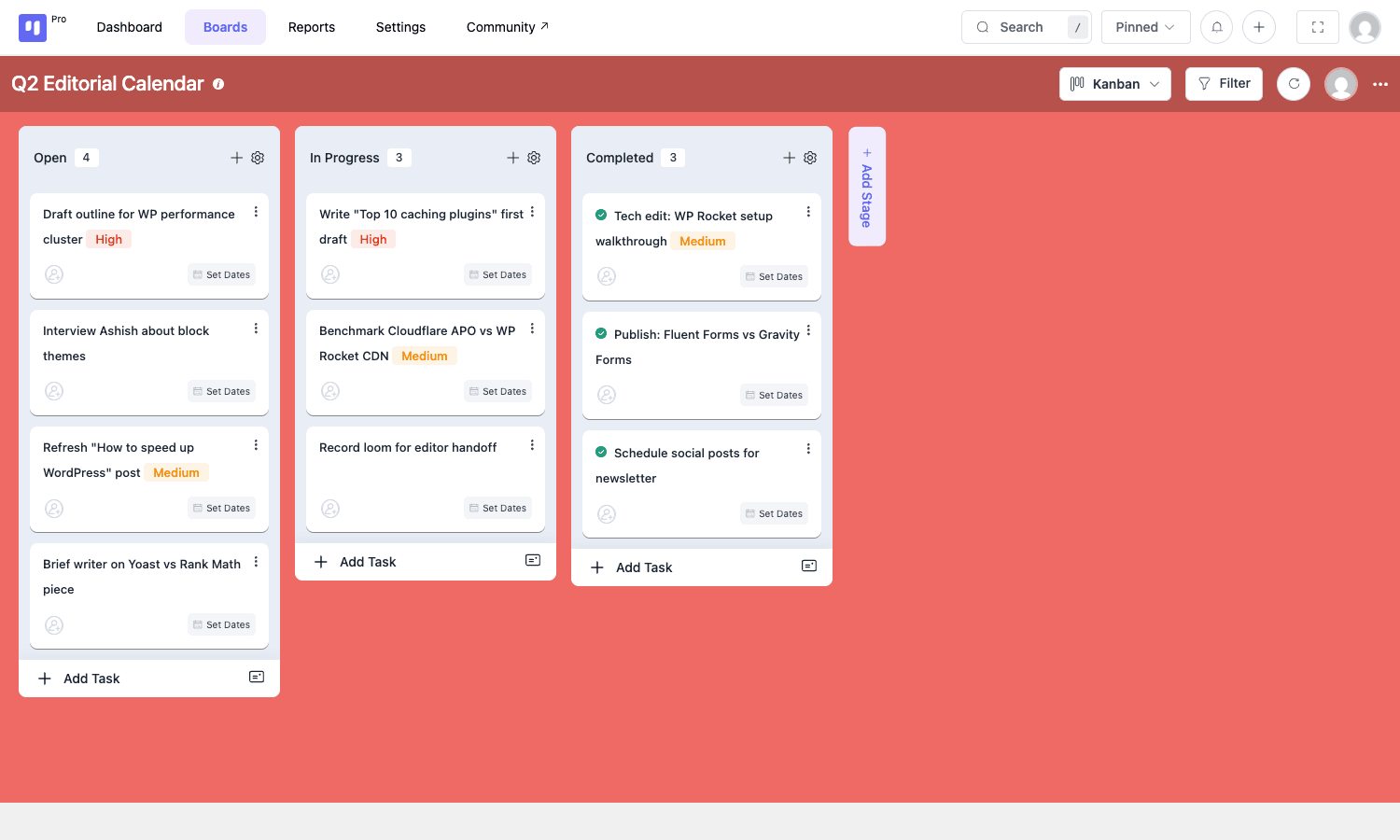
7. Create your first real board. Click + Add Board from the boards page. Pick a name, a description, a type (Task Board for daily work, Roadmap for a forward-looking view, To-Do for personal lists), a currency, and a slug. Fluent Boards creates three default stages: Open, In Progress, Completed. Add more stages or rename these via the column header.
That’s the whole setup. From cold install to a usable board took me about eight minutes the first time, and that included reading the onboarding copy. The second time it took two.
A guided tour of the admin
The Fluent Boards admin has five top-level tabs: Dashboard, Boards, Reports, Settings, and a "Community" external link. Each is one Vue route, so navigation is instant after the first paint.
Dashboard
Lands you on a personal home screen. "Recently Opened" surfaces the last board you touched. "My Tasks" gives you six pivot tabs: Assigned, Upcoming, Overdue, Mentioned, Completed, and Others. This is genuinely useful. If you work on six client boards, you don’t want to dig through each one to see what’s due tomorrow. The Upcoming tab does it for you.
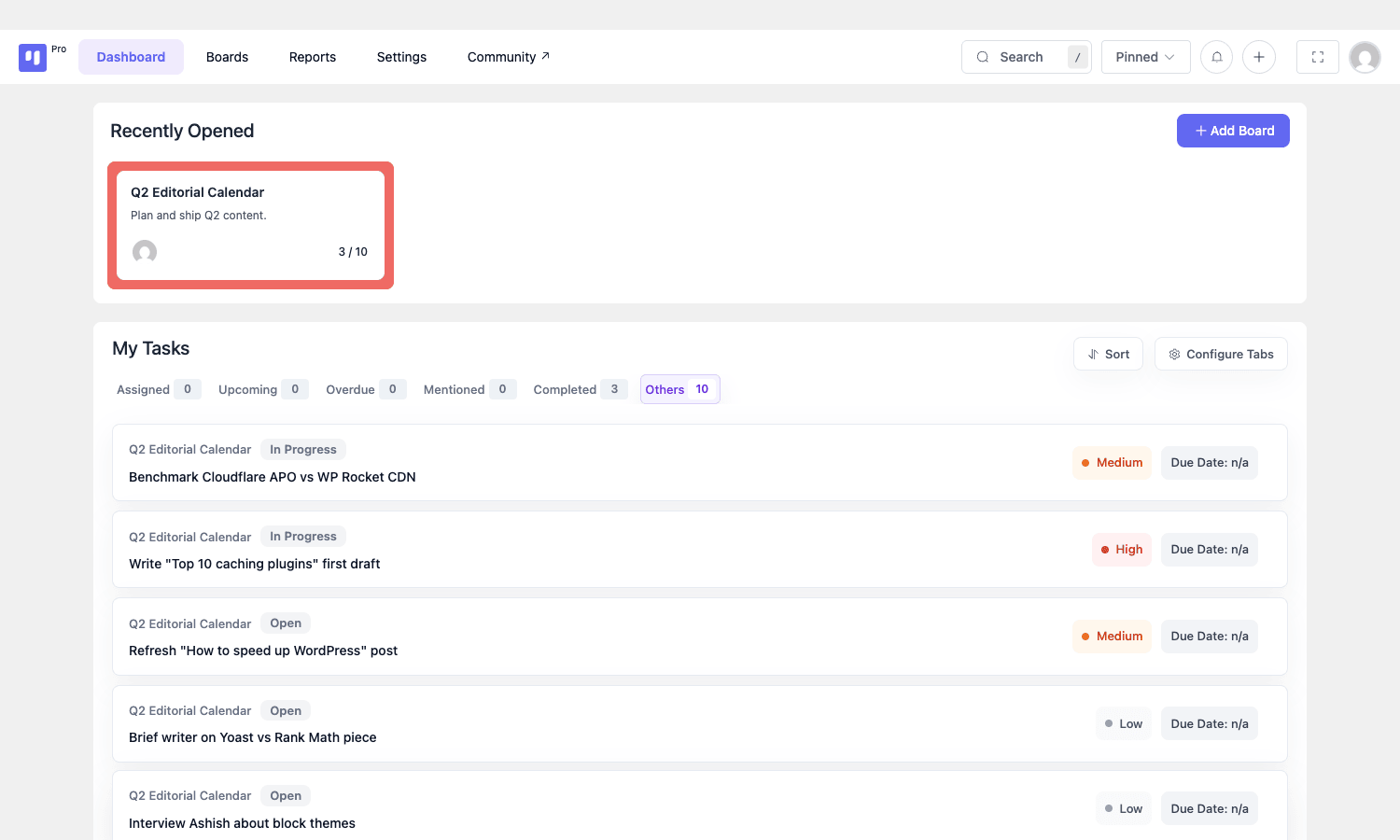
There’s also a "Configure Tabs" button on the right that lets you hide tabs you never use. I hide "Mentioned" because comment mentions aren’t part of my workflow.
Boards
The boards index. Cards on the left for each board, a folder column for grouping, and an + Add Board button. The boards have a colored border that matches the random background color the plugin picks at creation. You can pin a board so it floats to the top.
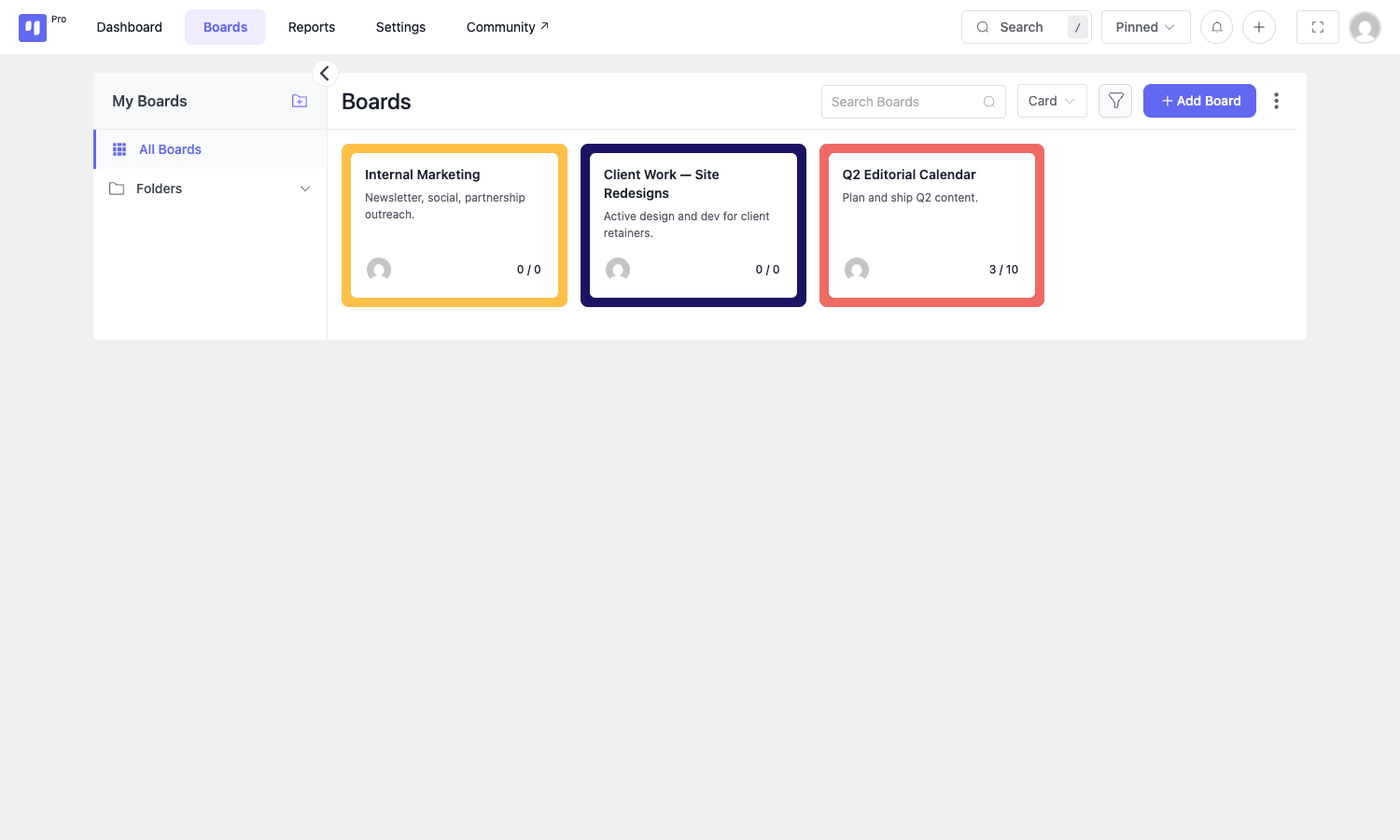
Click any board card to drop into the Kanban view. From there you can switch view modes (more on that below), filter by assignee / due date / priority / label, search tasks by text, and add a new stage with the vertical + Add Stage column on the right.
Reports
Per-board or all-boards charts: Incomplete / Completed / Overdue counters, a Task Completion bar chart, and a Task Priority donut chart. You can filter by board with the dropdown at the top right.
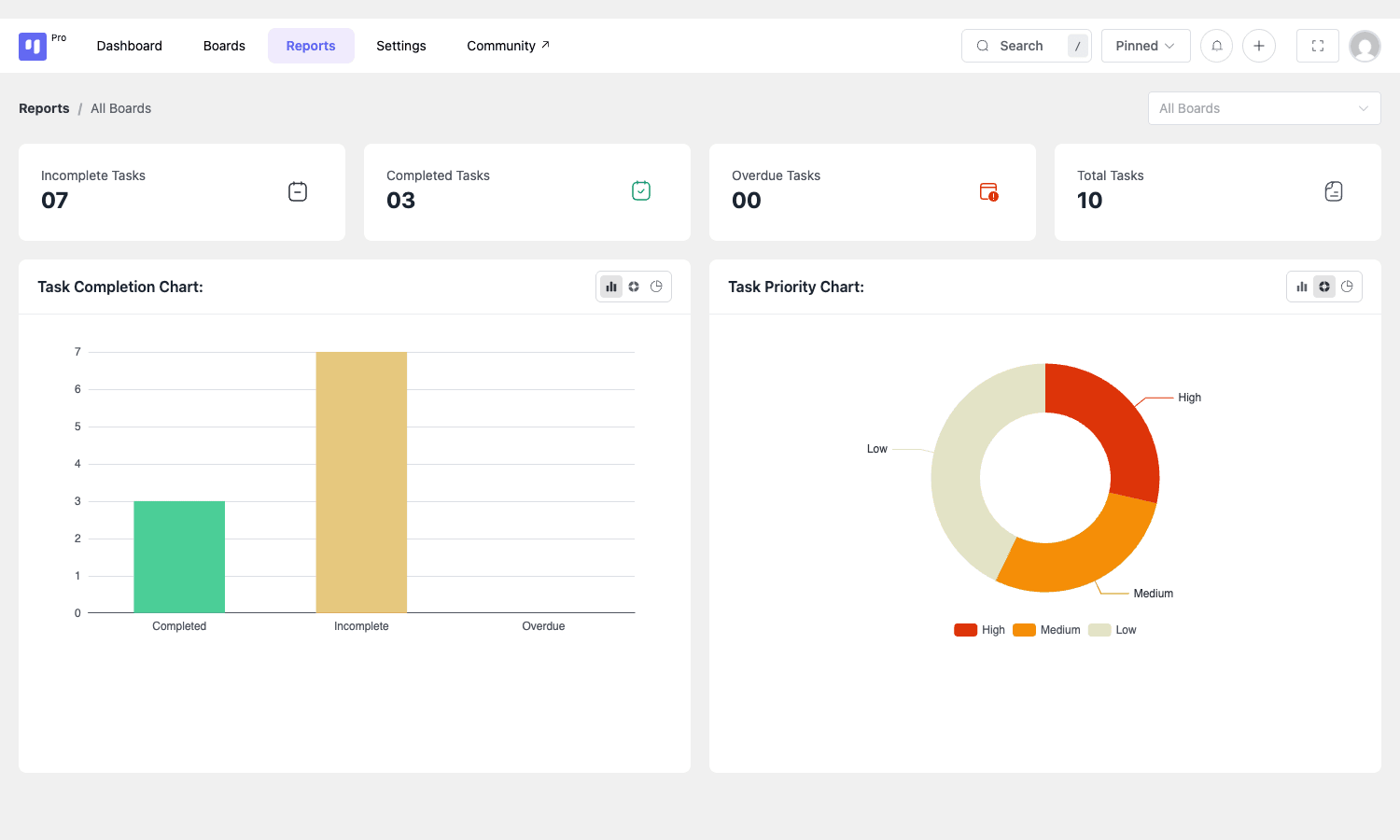
This is where the Pro plugin’s reporting story falls flat for me. The charts are basic. There’s no burn-down, no velocity chart, no per-assignee report. If you’re used to Jira or Linear, you’ll find it thin. For a six-person editorial team it’s enough.
Settings
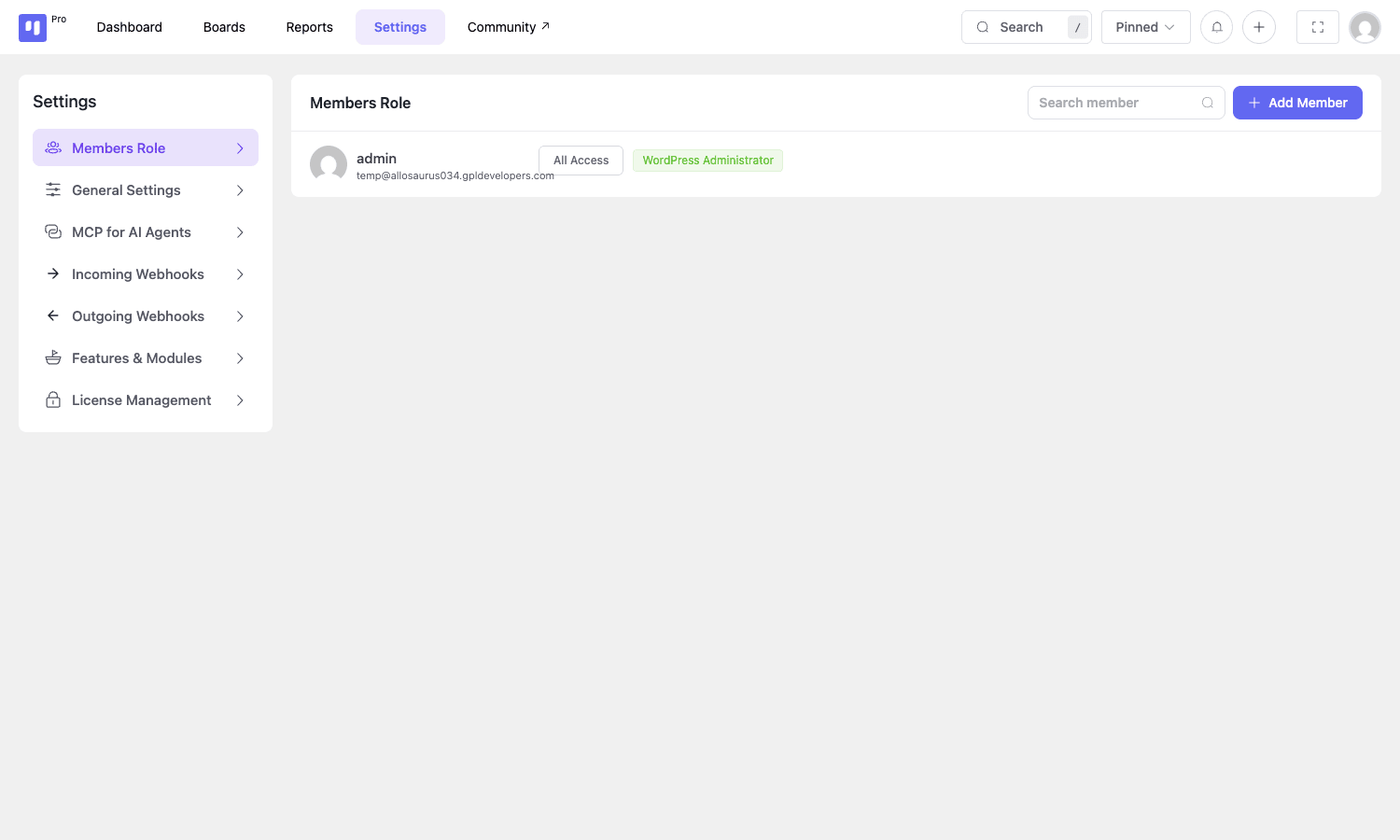
Six sub-pages: Members Role, General Settings, MCP for AI Agents, Incoming Webhooks, Outgoing Webhooks, Features & Modules, License Management. The Members Role page is where you tell Fluent Boards which WordPress users can access boards and at what default role. Default is "All Access" for administrators.
The Features & Modules page is where you actually flip the Pro extras on and off.
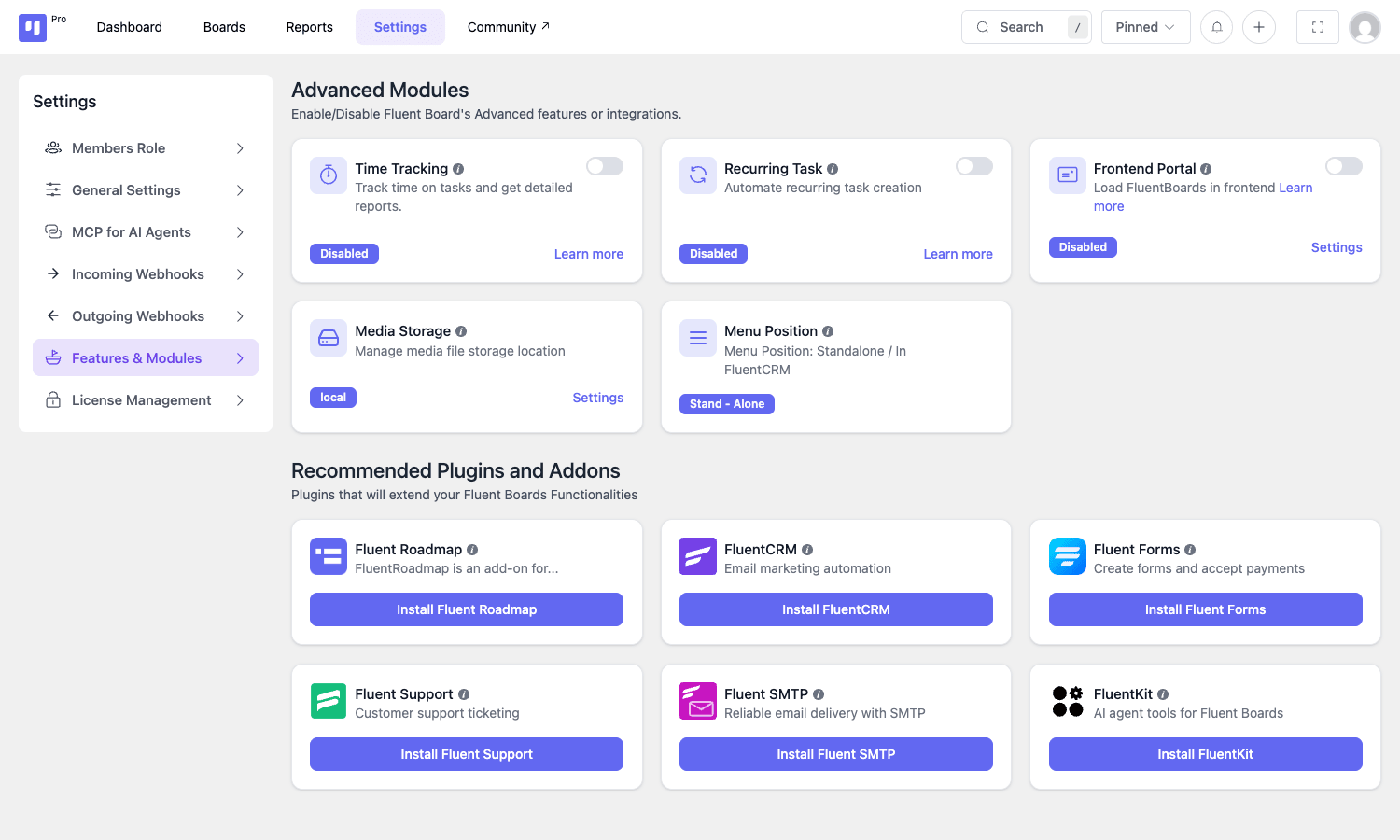
Notice the "Recommended Plugins and Addons" block at the bottom. The team is upselling the rest of the Fluent suite. It’s a polite upsell (a button, not a banner) and you can ignore it.
Boards, stages, and tasks
A board in Fluent Boards is the project. A stage is a column on that board. A task is a card. That’s the whole vocabulary.
Boards have a type. There are three: "To-Do" (the default Kanban board with three pre-built stages), "Roadmap" (no default stages, intended for product roadmaps), and a frontend-portal flavor for public-facing boards. You can change a board’s type later but it’s rarely worth doing.
Stages are columns. Each board starts with Open, In Progress, Completed. You can rename them, reorder them by dragging the column header, change their colors, set default assignees that auto-attach to every new task in that stage, and mark a stage as "auto-archive after N days" so completed work doesn’t pile up.
Tasks are the cards. Each task has:
- A title and an optional description (rich text).
- A stage (which column it’s in).
- A priority (Low / Medium / High).
- A due date and a start date.
- Assignees (one or many).
- Labels (color-coded tags, board-scoped).
- Subtasks (grouped, with their own assignees and dates).
- Custom field values (if the board has custom fields).
- Attachments (file uploads, with cloud storage if enabled).
- Comments (threaded, with @-mentions).
- Activity log (every change recorded).
- Watchers (people who get notified on activity).
Clicking a task opens a detail modal that takes over most of the screen.
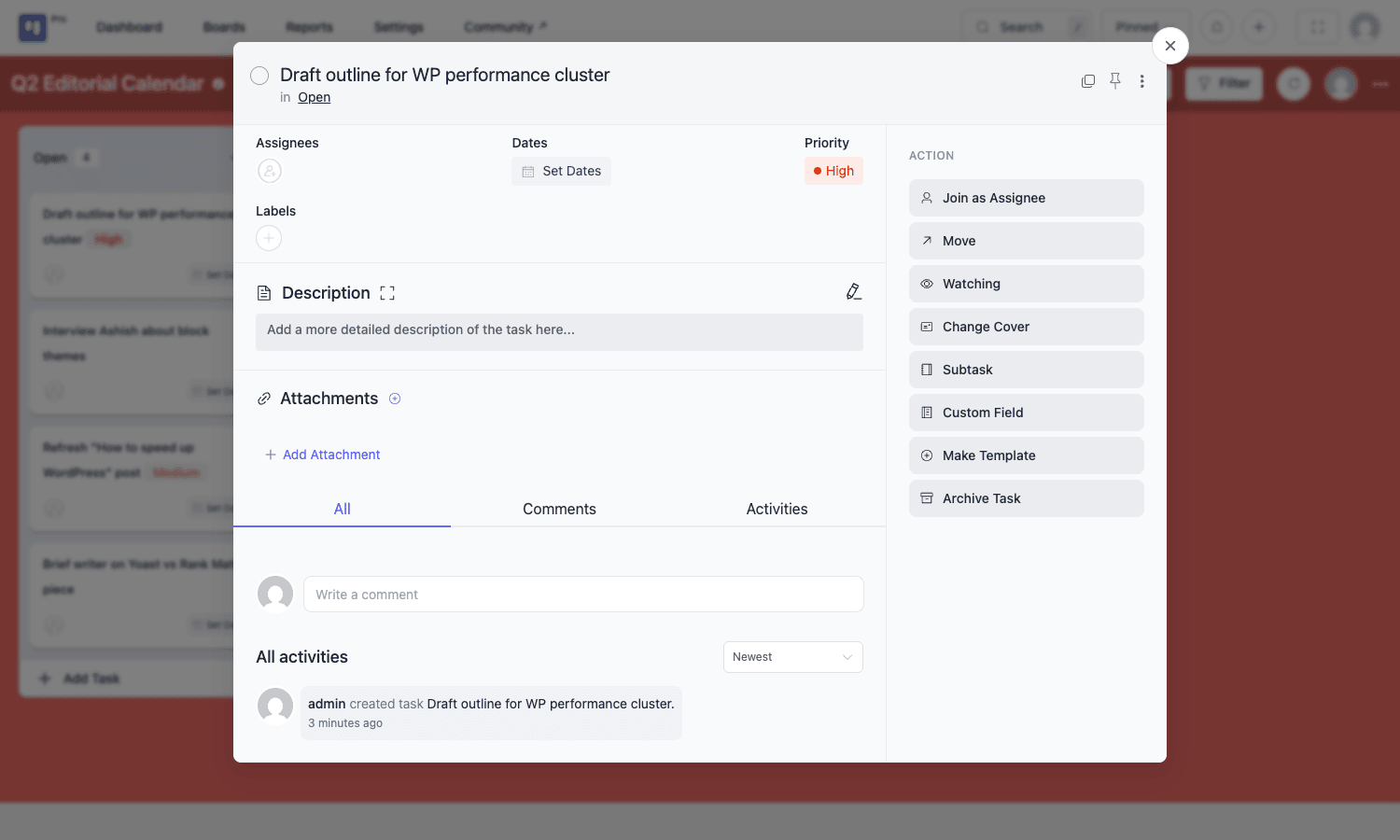
The right-side "Action" rail (Join as Assignee / Move / Watching / Change Cover / Subtask / Custom Field / Make Template / Archive Task) is the densest part of the UI. It took me two days to stop reaching for it and start using keyboard shortcuts instead.
One quirk: the modal is a router route, not an overlay. The URL changes to #/boards/2/tasks/17-Draft-outline when you open a task. That’s nice because you can deep-link to a task in Slack, but it means closing the modal does a history-back, which can surprise you if you were two boards deep.
Views: Kanban, Table, List, Calendar, Gantt
This is the part I underestimated. Five view modes share the same data, and switching is one click in the top-right dropdown.
Kanban is what we just looked at. Cards arranged left-to-right by stage. The signature surface.
Table flattens every task into a sortable row with stage, priority, status, dates, assignees, and labels columns. Each column has a sort arrow. You can add custom field columns. This is the view I use for triage, because eyeballing a 50-task table is faster than eyeballing five Kanban columns.
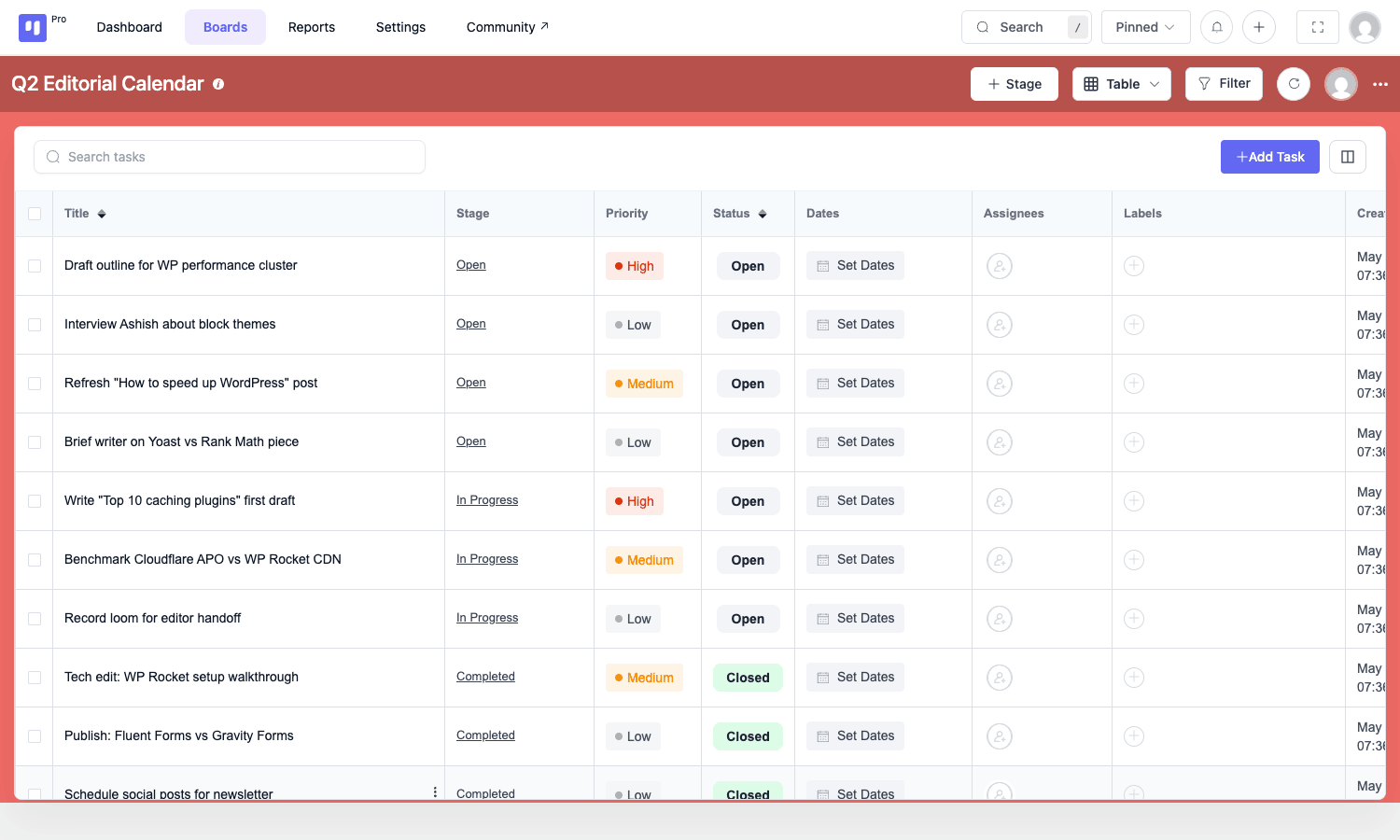
List is a denser table without the column borders. Closer to a Notion database view. Same data, less visual chrome.
Calendar plots tasks on a monthly calendar by due date. Great for editorial calendars, less useful for kanban-style work where due dates aren’t the primary signal.
Gantt is new in a recent Pro update. Tasks become horizontal bars on a timeline, with dependency arrows between them. It’s the view I expected to use the least and ended up using most for client roadmaps. The implementation is honest: bars are draggable to change dates, dependencies render as solid arrows, and the zoom levels (day / week / month / quarter) are sane. It’s not as fancy as a real Gantt tool. There’s no critical path highlighting, no auto-scheduling. But for "show the client what’s shipping when" it’s enough.
A small frustration: the view choice doesn’t persist across boards. Every time you open a new board it defaults back to Kanban. The product team has said they’re aware.
Time tracking, automation, and webhooks
This is where Fluent Boards Pro.
Time tracking lives at task level. Each task has a start / stop timer in the detail modal. Clicking start writes a row to wp_fbs_time_tracks with user_id, task_id, started_at, and ended_at columns. The reports view aggregates these into a per-task and per-user breakdown. There’s no native invoicing, but you can query the table directly and feed it into Fluent Booking Pro or your own billing logic.
SELECT u.display_name,
 t.title,
 SUM(TIMESTAMPDIFF(MINUTE, tt.started_at, tt.ended_at)) AS minutes
 FROM wp_fbs_time_tracks tt
 JOIN wp_fbs_tasks t ON t.id = tt.task_id
 JOIN wp_users u ON u.ID = tt.user_id
 WHERE tt.started_at >= '2026-05-01'
 GROUP BY tt.user_id, tt.task_id;
That query is the closest thing I have to an invoice export. It’s fine.
Recurring tasks use Action Scheduler, the same job queue WooCommerce ships. When you set a task to recur, the plugin stores the recurrence config in wp_fbs_metas and schedules the next occurrence via as_schedule_recurring_action. On the next scheduler run, ProScheduleHandler::recurringTaskScheduler() checks for due recurrences and clones the task into the configured stage. The cloned task fires the fluent_boards/repeat_task_created action so you can hook into it.
Outgoing webhooks are the simplest automation pattern. Settings -> Outgoing Webhooks -> Add. Pick the events you care about (task created, task completed, stage moved, etc.) and a target URL. Fluent Boards POSTs a JSON payload to that URL whenever the event fires. The plugin’s OutWebhookHandler queues the POST through Action Scheduler so a slow webhook target doesn’t block the admin.
A typical payload looks like:
{
 "event": "fluent_boards/task_completed_activity",
 "task": {
 "id": 47,
 "title": "Publish: Fluent Forms vs Gravity Forms",
 "stage_id": 13,
 "board_id": 2,
 "assignees": [1],
 "priority": "low",
 "due_date": "2026-05-30",
 "closed_at": "2026-05-25T12:14:09+00:00"
 },
 "by_user_id": 1
}
Incoming webhooks are the inverse. Settings -> Incoming Webhooks -> Add. The plugin generates a URL like https://yoursite.com/?fluent_boards_webhook=ABC123. POST to that URL with a JSON body and Fluent Boards creates a task on a target board, mapped via the webhook’s stored field mapping. The data passes through the fluent_boards/incoming_webhook_data filter, so you can rewrite it before the task is built.
Automation rules are a step beyond webhooks: stay-inside-WordPress automations. "When task moves to Done, send email to assignee." "When task gets a ‘Bug’ label, change priority to High and notify the watchers." These are board-scoped and live in the board’s settings menu. They’re not as expressive as Trello’s Butler, but they cover 80% of the patterns I actually use.
The honest verdict: Fluent Boards’ automation engine is good enough for "if this stage change then notify someone." It is not good enough for "if priority is high AND assignee is on the marketing team AND the due date is within 7 days then post to Slack." For that you wire an outgoing webhook to Zapier or n8n and let an external orchestrator handle the branching logic.
Real-world use cases
I’ve shipped three workflows on Fluent Boards Pro in the last month. Worth describing because they show what the tool is actually for.
1. Editorial calendar for a content site. One board, four stages (Backlog, Drafting, Editing, Published), one task per article. Custom fields: Word Count, Focus Keyword, WP Post ID. Recurring task once a month to "Refresh top 10 posts." Outgoing webhook to wp-cli so when a task moves to Published, a hook runs wp post update <ID> --post_status=publish. This is the workflow this article was managed under.
2. Client work board for an agency. One board per client. Stages: New Request, Estimating, Active, Waiting on Client, Done. Time tracking on every task. Monthly query against wp_fbs_time_tracks feeds the invoice. The frontend portal shortcode ([fluent_board id="..."]) renders the client’s board on a private page on the agency site, gated by an ARMember plan, so the client can see status without an admin login.
3. Product roadmap for a small SaaS. One Roadmap-type board, stages by quarter. Tasks are features. Custom fields: Status, Linear Ticket ID, Public Reveal Date. The FluentCRM integration auto-creates a board for each enterprise customer when they convert via the funnel. Their feature requests live on their dedicated board, the team’s roadmap lives on the shared one, and the outgoing webhook syncs both ways with our Linear instance.
The shared trait across all three: a Kanban board exists, but the real work happens because the board is talking to the rest of the Fluent suite or to outside systems via webhooks. Fluent Boards by itself is a fine board. Fluent Boards as an integration hub is where the value compounds.
Developer reference: hooks, filters, REST, database
If you’re going to extend Fluent Boards Pro, this is the section you came for. The plugin is built on the same FluentBoards\Framework skeleton used by FluentCRM and Fluent Forms. PSR-4 namespaces, a small Eloquent-style ORM, a Vue 3 admin. It’s a pleasant codebase to read, and the action / filter conventions follow standard WordPress plugin hook patterns.
Action hooks
These are the actions Pro fires that you can hook into. Most pass the relevant model as the first argument.
fluent_boards/board_created. fires afterBoardService::createBoard()writes the row.fluent_boards/board_created_from_template. fires when a board is spun up from a template, passes$board,$templateType,$templateId.fluent_boards/board_created_from_automation. fires when a FluentCRM funnel creates a board, passes$board,$subscriber,$funnelSubscriberId.fluent_boards/task_attachment_added. fires after an attachment is saved.fluent_boards/task_attachment_deleted. fires after an attachment is removed.fluent_boards/subtask_added. fires after a subtask is created, passes parent task and subtask.fluent_boards/subtask_cloned. fires after a subtask is cloned.fluent_boards/subtask_group_created/subtask_group_title_updated/subtask_group_deleted_activity. subtask group lifecycle.fluent_boards/task_dependency_added/task_dependency_removed. passes predecessor and successor tasks plus board id.fluent_boards/task_custom_field_changed. passes task id, custom field, old value, new value.fluent_boards/task_due_date_changed. passes the task and the start date.fluent_boards/repeat_task_created/repeat_task_set/repeat_task_updated/repeat_task. recurring task lifecycle.fluent_boards/before_task_deleted. fires before a task is hard-deleted.fluent_boards/template_converted_to_board/board_converted_to_template. template conversion events.fluent_boards/after_enqueue_assets. fires after the frontend shortcode handler enqueues its CSS/JS. Use this to enqueue your own assets onto the frontend board view.fluent_boards/front_head/fluent_boards/front_footer. slots in the frontend portal’s<head>and just before</body>so you can inject scripts or analytics tags.
A practical example. Sync a closed task to a Slack channel:
add_action('fluent_boards/task_completed_activity', function($task, $byUserId) {
 $payload = [
 'text' => sprintf(
 'Task closed by %s: %s',
 get_user_by('id', $byUserId)->display_name,
 $task->title
 ),
 ];
 wp_remote_post('https://hooks.slack.com/services/T000/B000/XXX', [
 'body' => wp_json_encode($payload),
 'headers' => ['Content-Type' => 'application/json'],
 'timeout' => 5,
 ]);
}, 10, 2);
Filter hooks
The Pro plugin’s filter surface is smaller than its action surface, but the filters that exist are placed at the right spots.
fluent_boards/incoming_webhook_data. gets the raw payload and the webhook config. Use this to translate from a third-party schema into Fluent Boards’ task schema.fluent_boards/webhook_task_data. runs after the payload becomes a candidate task array, before the task is inserted. Last chance to sanitize.fluent_boards/invite_expiry_seconds. defaults to 48 hours. Pass an integer to change the lifetime of a board invitation token.fluent_boards/no_permission_message. the string shown on the frontend when a visitor doesn’t have permission to view a board.fluent_boards/login_header. the H3 above the login form on the frontend portal.fluent_boards/invitation_form_title/fluent_boards/invitation_form_registration_text. labels on the email-invitation registration form.fluent_boards/upload_media_data. sanitizes the attachment payload before it’s persisted. Useful if you want to enforce a max file size or extension allow-list.fluent_boards/before_create_board. gets the board array before insertion. Useful for adding default labels or stages globally.fluent_boards/app_url/fluent_boards/docs_url/fluent_boards/community_support_url. let you swap the in-admin links if you white-label the plugin.fluent_boards/dashboard_notices. append your own notice to the dashboard banner area.
Practical example. Reject attachments over 5 MB:
add_filter('fluent_boards/upload_media_data', function($data) {
 if (isset($data['size']) && (int) $data['size'] > 5 * 1024 * 1024) {
 wp_send_json_error([
 'message' => 'Attachment exceeds 5 MB limit',
 ], 422);
 }
 return $data;
});
Shortcodes
Two shortcodes ship with Pro.
[fluent_board id="2"]. renders a single board on the frontend. Respects the board’s "visibility" setting, so unauthorized visitors see thefbs_no_permissionblock.[fluent_boards]. renders the full frontend portal: the user’s accessible boards, each one clickable into its own view.
Both shortcodes lazy-enqueue their assets only when the shortcode actually exists on the rendered page. The plugin uses a small Shortcode_Hash_Detector pattern to avoid loading 200 KB of Vue on every public page.
REST API surface
The plugin exposes its REST routes under the namespace fluent-boards/v2 (core) and registers Pro routes on the same namespace. Authenticated via WordPress nonce and the standard WP REST cookie auth. The Pro Pro-only routes I’d flag for integrators:
POST /projects. create a board. Body wraps everything in aboardkey. Required:title,type,currency,slug.GET /projects/{id}. get a board with its stages, labels, custom fields, and members.GET /projects/{id}/tasks. paginated tasks for a board, optionally filtered.POST /projects/{id}/tasks. create a task. Body wraps intask. Required:title,stage_id,board_id.DELETE /projects/{id}/tasks/{taskId}. delete a task.POST /projects/{id}/tasks/{taskId}/subtask-group. create a subtask group.POST /projects/{id}/tasks/{taskId}/subtasks. create a subtask within a group.POST /projects/{id}/custom-field. create a board-scoped custom field.GET /projects/{id}/dependencies. get all task dependencies for the board (used by the Gantt view).GET /templates/GET /templates/default/GET /templates/user. list board templates.POST /templates/create-from. create a board from a template.POST /projects/{id}/send-invitation. invite a user by email.
The validator wants $request->get('board') or $request->get('task') wrapped objects, not flat bodies. That tripped me up the first time. Wrap your POST bodies:
// Correct
[
 'board' => [
 'title' => 'Q2 Editorial Calendar',
 'type' => 'to-do',
 'currency' => 'USD',
 'slug' => 'q2-editorial',
 ],
]

// Incorrect (returns 500 from FluentBoards\Framework\Validator)
[
 'title' => 'Q2 Editorial Calendar',
 'type' => 'to-do',
 'currency' => 'USD',
 'slug' => 'q2-editorial',
]
Database tables
Pro shares the core’s table layout. The tables (with the wp_ prefix, or whatever your install uses) are:
wp_fbs_boards. boards. One row per board.wp_fbs_stages. columns inside a board. One row per stage. Foreign key onboard_id.wp_fbs_tasks. cards. Foreign key onboard_idandstage_id. Hasparent_idfor subtasks.wp_fbs_metas. generic key/value metadata. Used for recurring task config, custom field values, and a handful of plugin options.wp_fbs_relations. many-to-many: users-on-boards, labels-on-tasks, watchers, assignees.wp_fbs_activities. activity log entries (one per change).wp_fbs_comments. task comments.wp_fbs_labels. color-coded labels, board-scoped.wp_fbs_time_tracks. Pro-only. Time tracking rows.wp_fbs_webhook_logs. incoming / outgoing webhook delivery log.
The table layout is straightforward enough to read directly. I’ve written more raw SQL against this database than against the REST API, because for one-off "give me all overdue tasks across all client boards" queries, SQL is faster than thinking through API endpoints.
The FluentCRM integration is the secret sauce
This is the bit that separates Fluent Boards Pro from "yet another Trello clone." If you also run FluentCRM Pro on the same install (and you should consider it; I wrote a walkthrough of running email marketing on FluentCRM Pro recently), Fluent Boards registers a funnel action called "Create Board from Template."
You drop that action into any FluentCRM funnel. When a contact reaches that step, Fluent Boards creates a brand new board for that contact, using a template you pre-built, and pre-populates the title and description with FluentCRM smartcodes like {{contact.email}} or {{contact.first_name}}. You can also auto-assign team members to the new board.
The use case that sold me on it was client onboarding. New customer signs up via a Fluent Forms form. The form runs them into a FluentCRM funnel. Step 3 of the funnel creates a board called "Onboarding: {{contact.first_name}} {{contact.last_name}}" from a template, with stages "Kickoff Call", "Discovery", "Build", "Review", "Launch", and assigns me and our PM. By the time the kickoff call happens 24 hours later, the board already exists with the right tasks waiting in the Kickoff Call column.
The integration hooks into FluentCRM’s funnel system via the standard BaseAction class. The action lives in app/Services/Integrations/FluentCRM/BoardCreateAction.php and fires the fluent_boards/board_created_from_automation action when the board is created. If you want to extend the integration (say, also attach the contact’s Fluent Forms submission as a task description), that hook is where you do it.
If you run Fluent Forms Pro, Fluent Support, or Fluent Booking Pro on the same install, you can chain the same pattern: form submission to CRM contact to board creation, all without a single Zapier zap.
Performance, compatibility, and the gotchas
Honest stuff. The plugin is good, but it isn’t free of friction.
Performance impact on wp-admin. Fluent Boards Pro loads a fairly large Vue 3 bundle (about 850 KB of JS and 90 KB of CSS, minified, before gzip) on its own admin page. The good news: it’s gated by ?page=fluent-boards, so other admin pages aren’t slowed down. The bad news: cold-start of the admin page on a budget shared host can take 4 to 6 seconds while the bundle parses. On VPS-grade hosting it’s snappy.
Performance impact on the frontend. Zero on pages that don’t use the shortcode. The plugin only enqueues frontend assets when [fluent_board] or [fluent_boards] is detected in the post content. On pages that do use the shortcode, you’re loading the same large Vue bundle, so don’t put a board on your homepage.
Compatibility with caching plugins. Works fine with WP Rocket once you exclude the admin from page caching (default) and exclude the board-shortcode pages from JavaScript Delay (configure in WP Rocket -> File Optimization). LiteSpeed Cache and W3 Total Cache need similar exclusions.
Compatibility with admin themes. Admin Columns Pro and Admin Menu Editor both interfere with Fluent Boards’ top-level menu placement. Set Fluent Boards’ "Menu Position" to "Stand-Alone" and configure your admin theme to leave the fluent-boards menu slug alone.
Multisite. Works on multisite. Each site gets its own boards and tables (with the site’s prefix). There’s no built-in "boards across sites" view.
WooCommerce. No native integration. You can wire it up with webhooks but there’s no funnel action equivalent for WooCommerce orders. If you sell products and want a board created per order, you’ll write the glue yourself or wait for the team to ship it.
The gotchas I bumped into.
- The validator wants nested
board/taskkeys. Flat REST bodies return a 500 with a confusing PHP type error, not a clean 422. I filed this with the team; not yet fixed. - The Gantt view doesn’t auto-fit on first load. You have to zoom out to month or quarter to see the whole picture. Refresh-persistence of zoom level was added in a recent build but I still occasionally see it reset.
- The board background color picker only exposes 20 colors. You can’t enter a hex. Minor, but it shows up in the screenshots and makes every screenshot look like the salmon-pink I happened to get assigned.
- The "Try the demo" Vue app caches the Vue store between hot-reloads, so during the first hour after you add many tasks, the UI may show stale stage counts until you hard-reload.
- Mobile UI exists but it’s noticeably less polished than the desktop one. Drag-and-drop on iOS Safari is hit-or-miss on tasks with long titles.
The honest negatives.
- The Gantt and Timeline views are more limited than ClickUp or Linear. No critical path, no resource leveling, no Monte Carlo simulation.
- Some Trello power-features are absent: no Butler equivalent (the automation engine covers most patterns but not the long-tail), no per-card colored covers from attached images, no native time-zone-aware due dates.
- Drag-and-drop snappiness is great on desktop Chrome and Safari, less so on Firefox in my testing.
- The mobile experience needs more work. If your team works on phones, this isn’t ready yet.
These aren’t deal-breakers. They’re trade-offs. You’re getting "lives in your WordPress, talks to FluentCRM and Fluent Forms natively" in exchange for "less polished than the SaaS market leaders."
Pricing and licensing
The official pricing from fluentboards.com puts Pro on an annual subscription with three tiers based on the number of sites: Agency (single site), Pro (up to 5), and Unlimited. Free Fluent Boards is GPL on WordPress.org with no caps.
Fluent Boards Pro is also available as a GPL-licensed version through gpltimes.com. The GPL license on the WPManageNinja product is real (GPLv2 or later, per the plugin header), so the redistributed build is the same Pro zip that ships from the vendor, just delivered with no annual fee. You install it, drop the universal license key path in, and the auto-update prompts go away. If you’re running a single agency site and want to test Pro before committing to the annual fee, this is the cheapest way to do it. If you’re running multiple production sites for clients, look at the vendor’s annual plan; the official support channel is worth the money.
FAQ
Do I need the free Fluent Boards plugin installed for Pro to work?
Yes. Pro is an addon that hooks into the free core’s fluent_boards_loaded action. Without the free plugin active, the Pro plugin loads but does nothing. Install free, then Pro, then activate both.
Can I migrate from Trello or Asana?
Yes for both. The Pro CSV importer reads Trello’s CSV export. The Asana importer pulls boards and tasks directly via the Asana API once you connect a personal access token. Neither importer brings over attachments; you’ll need to re-upload those. Don’t try to migrate three years of Trello history at once. It’s painful. Pick a few active boards, migrate those, archive the rest.
Does it work with Gutenberg blocks?
Fluent Boards doesn’t register Gutenberg blocks. It exposes shortcodes ([fluent_board] and [fluent_boards]) that work in any block context including the Shortcode block. The team has signaled that a native block is on the roadmap.
How does the frontend portal handle login?
If a visitor isn’t logged in and hits a page with the shortcode, Fluent Boards renders a fbs_login_form div containing the standard wp_login_form() output. After login they’re returned to the same page. You can customize the heading via the fluent_boards/login_header filter.
Can I run this on multisite?
Yes. Each site has its own wp_<id>_fbs_* tables and its own boards. There’s no cross-site dashboard.
What’s the relationship with FluentCRM?
They’re separate plugins from the same vendor. Fluent Boards optionally integrates with FluentCRM via the "Create Board from Template" funnel action. You don’t need FluentCRM to use Fluent Boards, but having both unlocks the contact-to-board automation pattern that’s genuinely useful for client work.
Does Pro break if my license expires?
No. Per the plugin author, the GPL license means the software keeps running. What stops is the auto-updater connecting to the WPManageNinja licensing server. Without an active subscription you don’t get new releases, but the version you have keeps working forever.
Is the MCP server production-ready?
I’d treat it as beta. It works, but the surface area is small and I haven’t stress-tested it in production. If you’re hooking it up to Claude Desktop or an internal agent, do it on a staging site first.
Can I delete the plugin and get my data back?
Yes. The boards, stages, tasks, and time tracks all live in the database. Uninstalling the plugin doesn’t drop the tables (unless you explicitly check the "delete data" box in Settings -> General). You can re-install later and pick up where you left off.
Final thoughts
Fluent Boards Pro is the first WordPress project management plugin I’ve used where I didn’t immediately want to switch back to Trello within a week. That’s a real bar for me. I’ve tried WP Project Manager Pro, Kanban for WordPress, Asana for WordPress (via embed), and a half-dozen others. None of them survived past day three on a real workflow.
What Fluent Boards Pro gets right is the integration story. The board is not the product. The board talking to FluentCRM, Fluent Forms, your outgoing webhooks, and the WP database is the product. If you already run one or two pieces of the Fluent suite, adding Boards gives you a real workflow nerve center. If you don’t run any of the Fluent suite, Boards is a fine standalone Kanban tool, but you’re missing the half of the value that justifies the Pro upgrade.
Where it falls short is polish at the edges. The Gantt is functional but not delightful. Mobile is workable but not great. The reports are minimal. If you need a hosted SaaS feel, this isn’t that. If you can live with rough edges in exchange for "all my work data lives in one WordPress install," it’s the best option I’ve tested.
Two boards into using it for real work, I haven’t gone back to Trello. The Trello tab is still pinned in my browser. It’s been a month. I don’t think I’m going back.
If you want the Pro zip to test on a staging install, the Fluent Boards Pro download on GPL Times is the same build the vendor ships, just delivered as GPL. Drop it on a sandbox, spin up a board for whatever project is currently making you reach for sticky notes, and see if it survives a week. That’s the only honest test for any project-management tool.