

I’ve shipped a fair number of WordPress sites that needed to take a Gravity Forms submission and turn it into something public. A member directory built from a join form. A list of speakers built from a CFP form. A real-estate site where each listing was a Gravity Forms entry. Every single one of those projects started with the same question: how do I get the data back out of wp_rg_lead and onto a page that’s actually nice to look at?
The first time, I wrote a custom theme template that ran GFAPI::get_entries(), looped over the results, and built the HTML by hand. It worked. It was also brittle. The second time, I tried a stack of gform_after_submission filters that copied entries into custom post types so I could just use a normal archive page. That worked too. It also doubled my data and made edits a nightmare.
The third time I tried GravityView and never went back.
GravityView is a purpose-built View builder that sits on top of Gravity Forms entries. You point it at a form, drag fields into a layout, and it gives you a public-facing page that reads from wp_rg_lead directly, no shadow post type, no custom theme template. It does the boring part of "render this data as a table or a list" so you can focus on the part that actually matters, which is how the data looks.
This post is a long walkthrough of GravityView for anyone who’s tired of hand-rolling Gravity Forms displays. Novice-friendly first half, developer reference at the end, hooks and shortcodes covered with real code. Whether you’ve used the plugin before or you’re staring at the View Builder for the first time, by the end you’ll know what every tab does and how to extend it without hacking the core.
Table of Contents
- What is GravityView?
- Why I stopped writing custom GF templates
- Key features at a glance
- Installation and the first View
- A tour of the View Builder
- Layouts: Table, List, DataTables, Maps, and DIY
- The front-end render and how it actually works
- Front-end entry edit, delete, and duplicate
- The search bar widget
- Real-world use cases
- Developer reference: hooks, filters, shortcodes, REST
- Performance, caching, and the gotchas
- Pricing and licensing
- FAQ
- Final thoughts
What is GravityView?
GravityView is a WordPress plugin by GravityKit (the company formerly known as Katz Web Services that rebranded a few years back). It’s an add-on for Gravity Forms, which means it does nothing on its own. You need Gravity Forms running first, and once you’ve got at least one form collecting entries, GravityView gives you a UI to display those entries on the public side of your site.
The plugin registers a custom post type called gravityview. Each View is one of those posts. The post’s content is empty. The interesting bit lives in _gravityview_view_configuration post meta as a serialized array describing which fields to render, in what order, in which layout, with what widgets above and below, and which search/filter rules apply. The View’s URL (/view/your-view-slug/ by default) hits a custom front-end handler that loads the configuration, queries Gravity Forms entries via the official GFAPI, and renders the chosen template.
If you’ve ever stared at a "Members" page that needed to update every time someone joined and thought "this should not require me to manually add a row", that’s the gap GravityView fills.
The product is split across a core plugin (which is GPL-licensed you’ll find here) and a set of premium add-ons for advanced layouts (Maps, DataTables, Multiple Forms in a single View, Advanced Filter, Featured Entries, Ratings & Reviews, an Importer, and a long tail of smaller perks). The core plugin alone covers maybe 80 percent of the use cases people show up for.
On the front end, GravityView reads the form entries directly from wp_rg_lead, sorts them by whatever field you picked, and renders them through whichever layout template you chose. The Table layout produces a sortable HTML table with one column per field you dragged in. The List layout stacks each entry as a card. Both run through the active theme so the typography, link colors, and spacing match the rest of the site. No iframes, no separate stylesheet to maintain.
Why I stopped writing custom GF templates
Skip this section if you’ve already built a Gravity Forms front-end and know the pain.
Gravity Forms collects data well. Out of the box, it does almost nothing to help you display it. Entries live in wp_rg_lead (and field values in wp_rg_lead_detail), and the only public-facing UI is the admin entries page that, well, no one outside /wp-admin/ should ever see.
So when you need to expose those entries, your options are:
- Query the GF tables directly. Fast, but you have to handle pagination, search, filters, single-entry permalinks, and HTML escaping yourself.
- Use
GFAPI::get_entries()in a custom theme template. Better, but every site re-invents the same loop with slightly different bugs. - Copy entries into a custom post type via
gform_after_submission. Now you can use a normal WordPress archive. You also now have two sources of truth and a sync problem. - Use GravityView and stop writing the same code over and over.
I tried options 1, 2, and 3 across maybe a dozen sites before I gave up. The thing GravityView does that those approaches don’t is give the site owner (not the developer) a clean admin UI to change which columns show, in what order, with what filters, without touching code. That’s the unlock. Once a site is built, the developer leaves and the client wants to swap the "Phone" column for "Company". With a custom template, that’s an invoice. With a View, that’s two clicks.
The View Builder is the headline feature, and it’s better than I expected the first time I opened it.
Key features at a glance
I’m not going to paste the full feature matrix. Here’s what actually moves the needle on a real project.
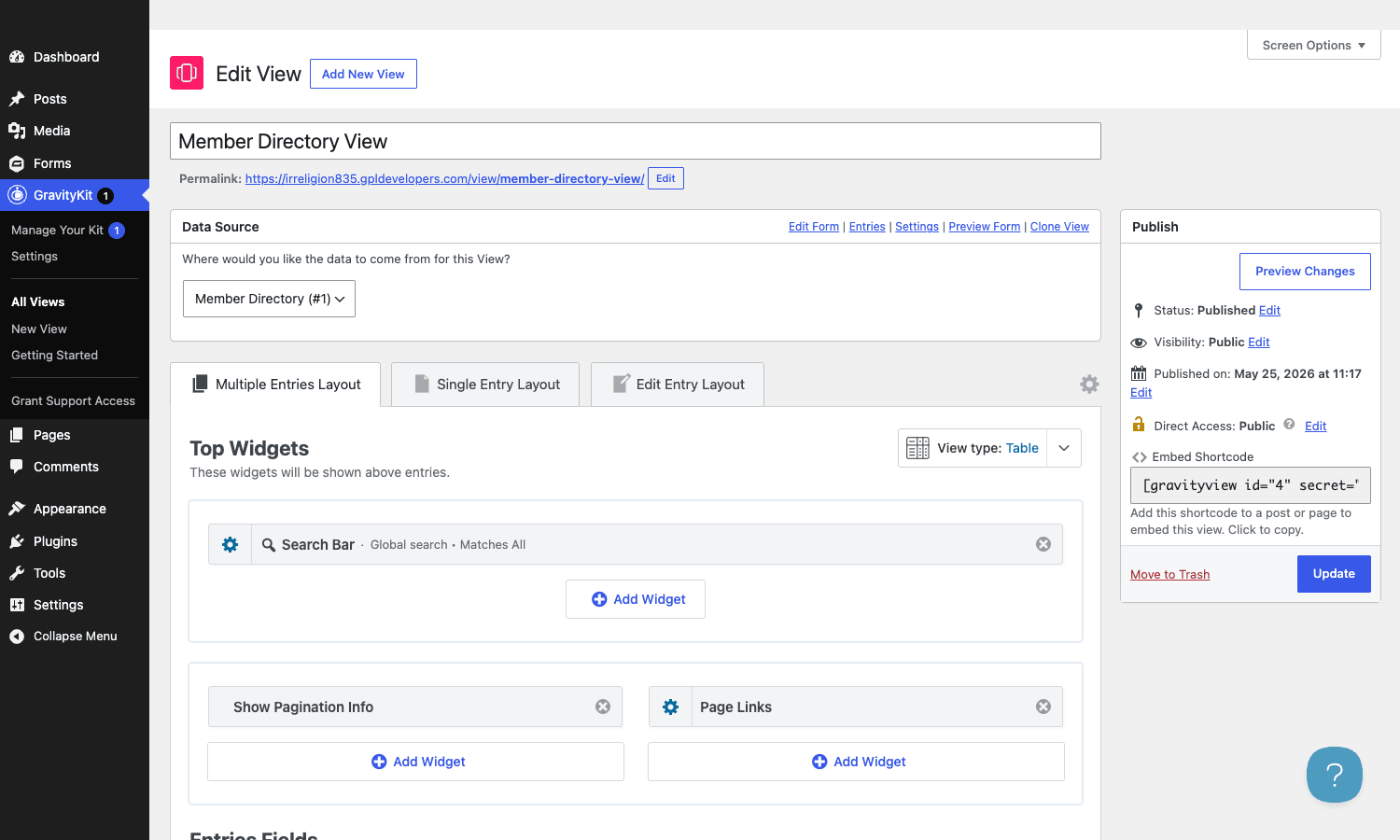
- The View Builder. A drag-and-drop interface that lets you add field columns (for Table layouts) or sections (for List layouts) without writing code. Configurable per-field: custom labels, link-to-single-entry toggle, conditional visibility, image options.
- Three editor zones per View. Multiple Entries Layout (the directory page), Single Entry Layout (the click-through detail page), and Edit Entry Layout (the front-end edit form). Each one is configured independently.
- Top Widgets and Bottom Widgets on the Multiple Entries view, sitting above and below the entries grid. Out of the box you get a Search Bar, Show Pagination Info, Page Links, Page Size, Custom Content, Gravity Forms (embed a form on the View itself), and Export Link (CSV/TSV).
- Front-end entry edit. A user with the right capability can click "Edit Entry" on the single-entry page and update their submission without ever opening
/wp-admin/. This is the feature I’d point to if someone asked me what GravityView does that nothing else does as cleanly. - Front-end entry delete and duplicate. Same flow, same capability model.
- Entry approval workflow. Mark entries Approved / Disapproved / Unapproved in the GF entries admin. The default View setting only renders Approved entries, so unmoderated submissions stay off the public page until someone approves them.
- Per-View entry filters. Filter by created-by user, entry approval status, date range, custom field criteria, all from the View Settings panel. No code.
- Sortable columns. Toggle the "Enable sorting by column" checkbox and front-end table headers become click-to-sort.
- Custom Content blocks. Free HTML and shortcode blocks anywhere in the layout. This is where you do mixed-content layouts like "image, name, then a Custom Content block with two shortcodes from Gravity Perks".
- Search Bar widget. Front-end visitors can search across all fields or scoped to specific fields. Operators like
contains,starts with,is, andbetweenare configurable per field. - CSV/TSV export. The Export Link widget exposes a
?csv=1or?tsv=1URL that streams the entries the visitor is currently viewing, filtered and searched. - Block editor block and
[gravityview]shortcode for embedding a View anywhere on the site. - GVLogic conditional shortcodes (
[gvlogic],[gvlogicelse]) for showing or hiding content based on field values. - REST API namespace at
gravityview/v1for headless use cases.
Most of this is in the core plugin. DataTables, Maps, Multiple Forms in one View, Advanced Filter, and Featured Entries are paid add-ons sold by GravityKit.
Installation and the first View
Activate Gravity Forms first. GravityView won’t activate without it, and the admin will show a notice telling you so. Once Gravity Forms is running and you’ve got at least one form with one entry, install GravityView and activate it.
The plugin adds a new sidebar item: GravityKit. Under it you’ll find All Views, New View, and Getting Started. There’s also a Manage Your Kit panel for license/extension management.
To build your first View:
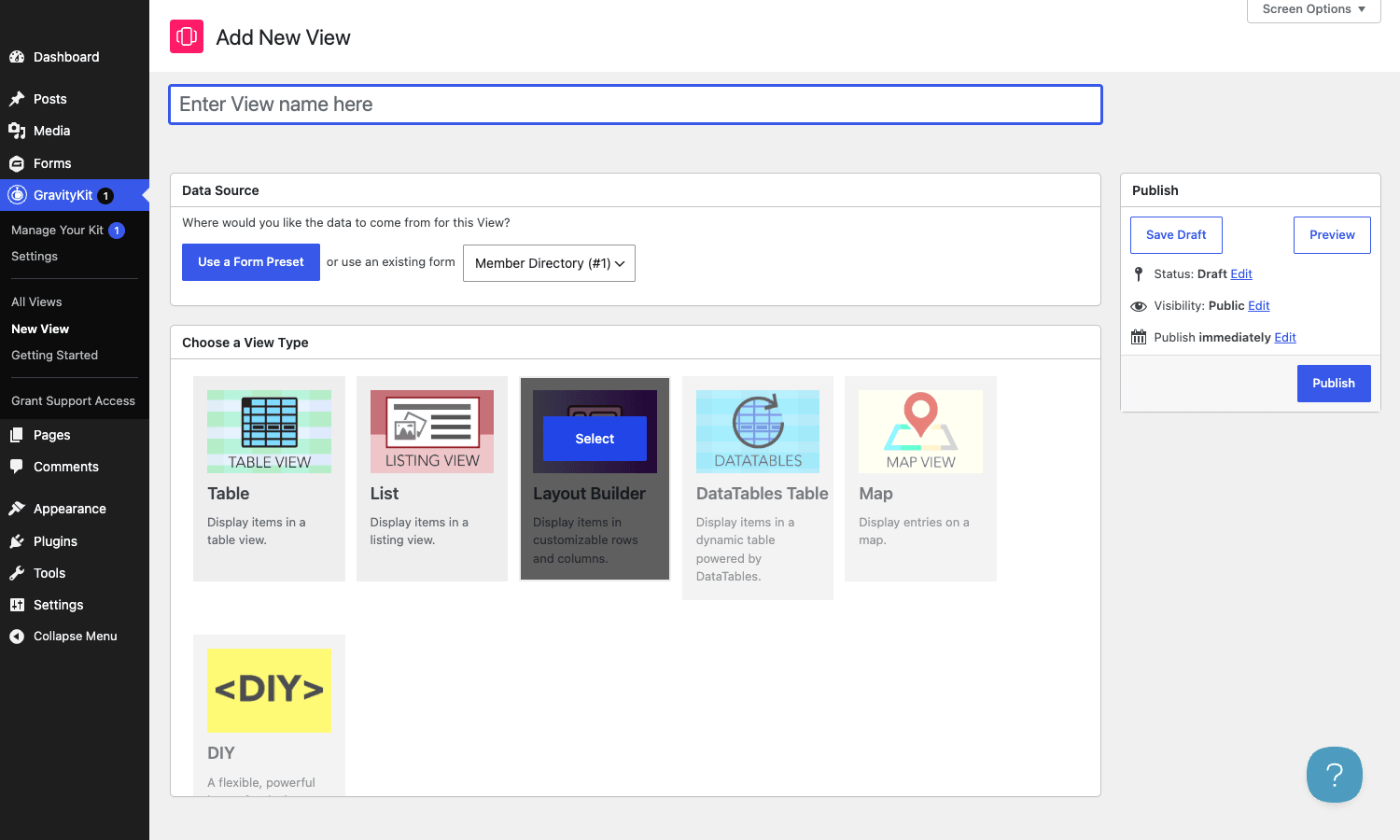
- Go to GravityKit → New View.
- Give it a title. This is the title shown on the front-end page.
- Under Data Source, pick the form you want the View to read from. The dropdown lists every published Gravity Form.
- Pick a View type. Table for a spreadsheet-like layout, List for cards, DIY for a custom grid, or the premium DataTables/Maps if you have those add-ons.
- Drag fields into the Multiple Entries Layout zone for the directory page, then the Single Entry Layout zone for the click-through detail page.
- Click Publish. The View now lives at
/view/<slug>/and is embeddable anywhere with[gravityview id=N].
That’s the whole flow. You can do a usable member directory in about 90 seconds once the form is set up.
A small thing that catches first-time users: by default, only Approved entries are displayed on the front-end. If you submit a form via the public site and don’t see it in the View, that’s why. Either approve the entry from Forms → Entries (click the small grey circle next to the entry to flip it to green/Approved), or open the View, go to Filter & Sort in the View Settings, and uncheck "Show only approved entries". The setting is on by default to prevent spam and unmoderated junk from being public, which is sane behavior, but it confuses people who haven’t read the docs.
A tour of the View Builder
The View Builder has three sub-tabs across the top: Multiple Entries Layout, Single Entry Layout, and Edit Entry Layout. The tabs are independent. Adding a column to Multiple Entries doesn’t add it to Single Entry. This is a feature, not a bug. You probably want a compact 4-column table on the directory page and a full-detail block on the click-through.
Within each tab, the layout is split into zones:
- Top Widgets. Renders above the entries. Default widgets: Search Bar, Show Pagination Info, Page Links, Page Size, Custom Content, Gravity Forms, Export Link. You can add as many as you want, and split them into 50/50 columns.
- Entries Fields. This is the core zone. For a Table layout, it’s "Visible Table Columns". For a List layout, it’s "Above Entry", "Entry Header", "Entry", "Entry Footer", "Below Entry". For DIY, it’s a fully custom grid.
- Bottom Widgets. Mirror of Top Widgets, rendered below the entries.
Each field row has a settings cog that opens an inline panel: custom label, link to single entry (toggle), only visible to logged-in users (toggle), CSS class, and per-field-type extras like image size or date format.
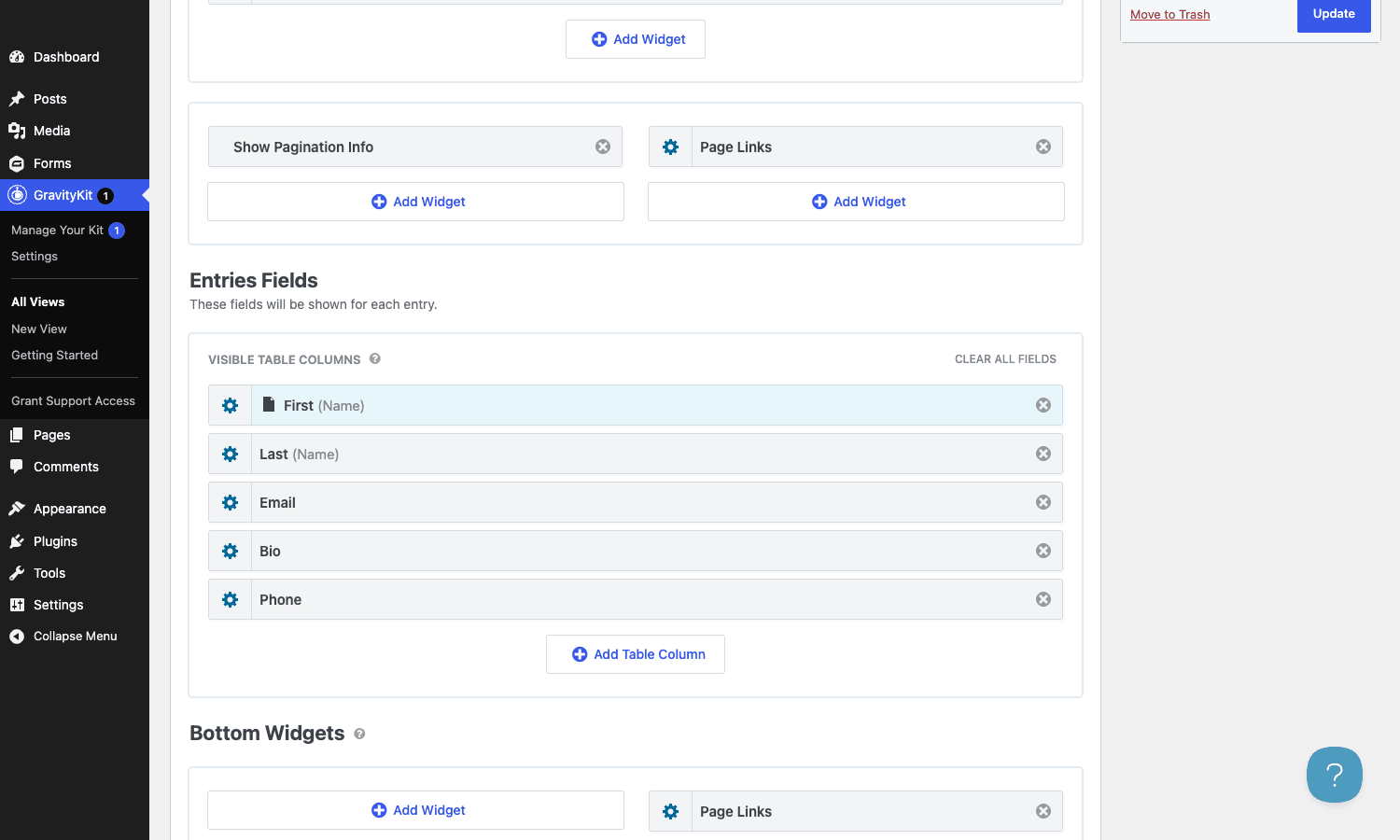
The two zones I always end up configuring are Visible Table Columns for the Multiple Entries view and the Single Entry Layout entirely.
Below the layout area sits the Settings metabox with a vertical tabs nav: View Settings, Multiple Entries, Single Entry, Edit Entry, Delete Entry, Filter & Sort, Permissions, Custom Code. The Filter & Sort tab is where the sortable columns toggle, default sort field, date range filters, and "Show only approved entries" live.
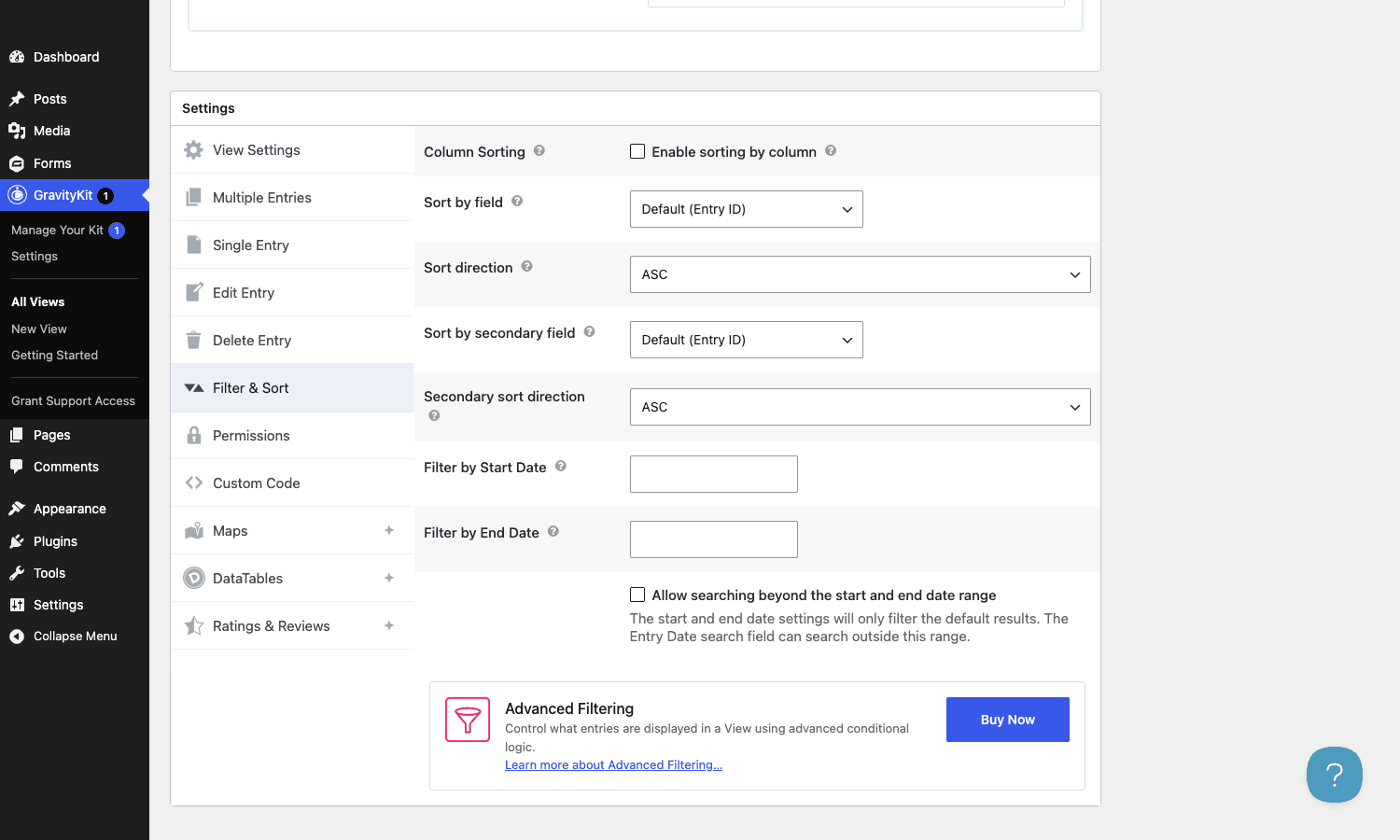
Custom Code is worth knowing about. It lets you inject CSS or JS per-View without touching theme files. It’s a small thing that saves a lot of "let me just open Customizer additional CSS for this one thing" moments.
Layouts: Table, List, DataTables, Maps, and DIY
Picking the right layout matters more than it sounds. Each one has a personality and you’ll fight it if you try to make the wrong one do the wrong job.
Table. A <table> with one row per entry, columns you control. Good for tabular data: member directories, speaker lists, support ticket queues. Sortable per column when the setting is on. Looks like a spreadsheet, behaves like a spreadsheet. This is the layout I reach for first.
List. Each entry is rendered as a section with header/body/footer zones. Good when entries have a photo, a long description, and metadata that doesn’t fit in a column. Real-estate listings, event recaps, recipe archives. The List layout is the only one in the core plugin that handles image-led layouts well.
Layout Builder (DIY). A grid of rows and columns you build manually. You drop fields into specific cells. Use this when neither Table nor List fits. The downside is it’s slower to build and you lose the automatic per-column sorting.
DataTables Table. A premium add-on that wraps the standard Table layout in the DataTables jQuery library. You get client-side sorting on every column, instant search, export buttons, and proper pagination. If you’ve got more than 50 entries and a real reader who needs to find one, DataTables is worth the upgrade.
Maps. A premium add-on that plots entries on a Google Map. You map a Gravity Forms field to the lat/lng (or it geocodes an address field for you) and each entry becomes a pin with a popup. Useful for real-estate listings, store locators, event maps.
Multiple Forms. Not technically a layout, but worth a mention. A premium add-on that lets a single View pull entries from two or more forms at once. Handy when your "Submissions" page has a Stripe membership form AND a PayPal donation form feeding the same wall of activity.
For the article’s demo View, I went with Table for the Member Directory. It’s the most common pick and shows the View Builder UX off cleanest.
The front-end render and how it actually works
The /view/<slug>/ URL hits a front-end handler that does roughly this:
- Load the
gravityviewpost and read_gravityview_view_configurationfrom post meta. - Read the View Settings (sort field, filter rules, pagination size, approval toggle, etc).
- Build a
\GV\Viewobject internally. - Call
GFAPI::get_entries( $form_id, $search_criteria, $sorting, $paging ). This goes againstwp_rg_leaddirectly. - For each entry, build a
\GV\Entryobject. - Render the chosen template (
templates/views/table.php,list.php, orgravityview-layout-builder.php) with the entries and the field configuration. - Each field value runs through
\GV\Field::value()which appliesgravityview/field/valuefilters before output.
If you want to embed a View inside a post or page rather than visit /view/<slug>/, use the [gravityview id=N] shortcode. The same render path runs, just inside the post content instead of on the dedicated View URL.
There’s also a Block Editor block (gravityview/view) that wraps the same shortcode in a Gutenberg UI. It’s useful if your client lives in the block editor and doesn’t want to hand-type shortcodes.
Search works the same way. The Search Bar widget submits a GET request to the same URL with query parameters like ?gv_search=... or ?filter_5=.... The front-end handler reads those, folds them into the search_criteria array, and re-queries.
Front-end entry edit, delete, and duplicate
This is the feature that earns GravityView its place in my toolbox. It lets the user who submitted an entry (or any user with the right capability) update or delete it from the front of the site, no admin login needed.
Open a single entry, click the Edit Entry link in the Single Entry Layout (you add it as a field), and you get the Gravity Forms front-end form pre-populated with the entry’s current values. Save, and the entry is updated. The Edit Entry Layout tab in the View Builder controls which fields are editable. You can hide read-only fields from the edit form, or display them as plain text alongside the editable ones.
The capability model is sensible. By default, an entry can be edited by:
- The user who submitted it (matched on
created_by). - Any user with the
gravityview_edit_entriescap (which admins get automatically). - Users with
gravityview_edit_others_entriesif they need to edit anyone’s entry.
For a membership site or community directory, this is the entire workflow you’d hand a member: submit your profile, come back later, click Edit Entry, update it. They never see /wp-admin/.
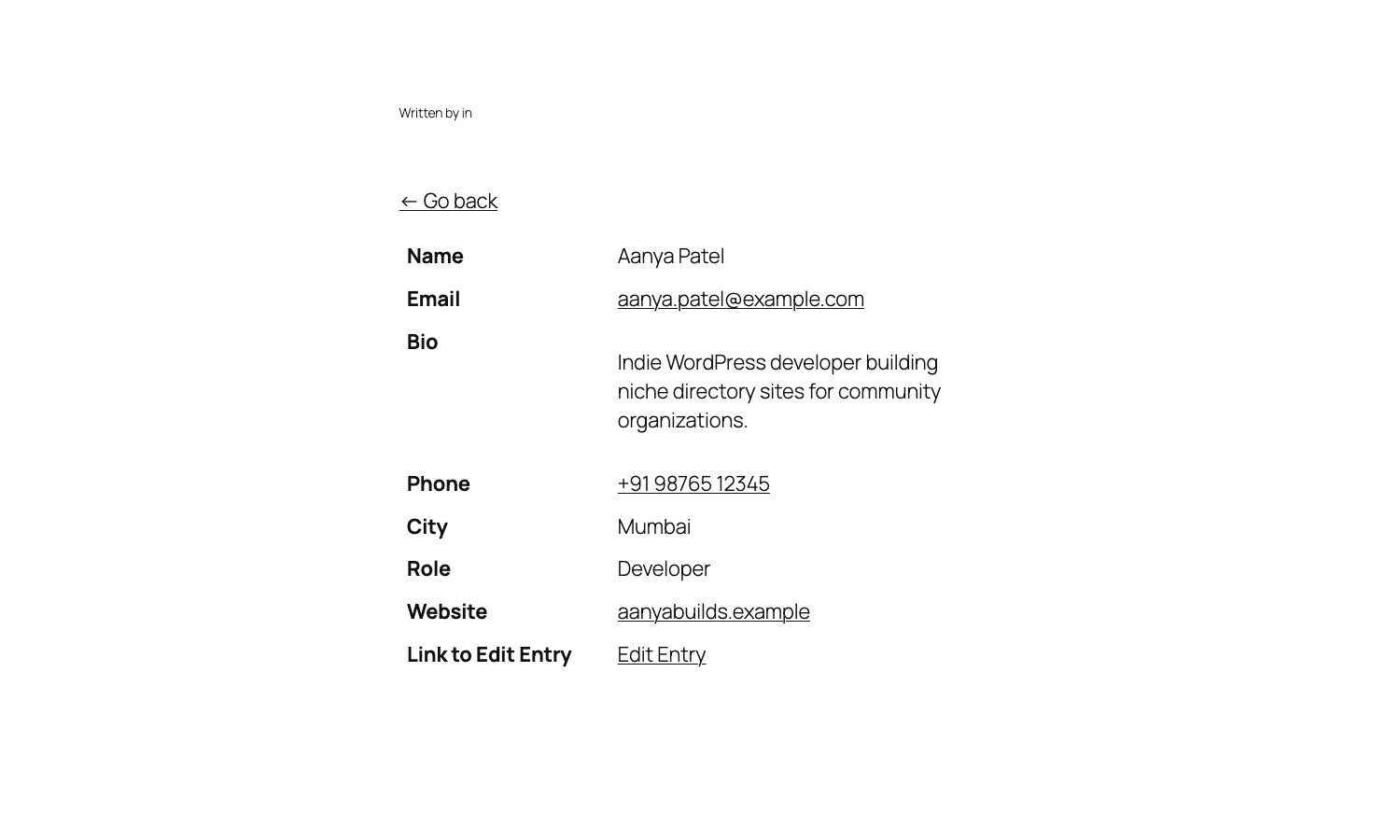
Delete works the same way through [gravityview_delete_entry_link] or the Delete Entry field. The default is to move the entry to the trash bin (you can permanently delete in the View settings), which is the right default; people accidentally click things.
Duplicate is rarer in real life. It’s useful for templates: someone fills the form for "Event 2026", later wants to use most of the same data for "Event 2027", clicks Duplicate, edits, saves. Saves them retyping.
The search bar widget
The default Search Bar is more flexible than I expected on first read. By default, it’s a "Search Everything" input that runs across all field values. But you can configure it as a per-field search bar with proper operators.
Add the Search Bar widget to Top Widgets, click its cog, and you get a Search Fields list. Each row is one search input. For each, you pick:
- The Field (Name, Email, City, Role, etc, or "Search Everything").
- The Input Type (Text, Select, Multiselect, Date, Date Range, Checkbox, Radio, etc).
- The Label (custom or inherited from the field).
If you pick "City" with Input Type "Select", the dropdown auto-populates with the unique City values from the existing entries. So you don’t have to maintain a list of cities. New city in a new entry, it appears in the dropdown.
I usually configure a Search Bar with a global search input plus one or two per-field dropdowns (Role and City, for the demo). That’s plenty for 90 percent of cases. For heavier filtering needs, the FacetWP plugin does work outside the GravityView scope, but it’s a different mental model and doesn’t read GravityView’s field configuration. For a GravityView-native faceted experience, the GravityKit Advanced Filter add-on is closer.
Real-world use cases
After enough projects, you notice the same five or six shapes that GravityView fits.
Member directories. A community has a join form. Submitted entries become a public directory of members with bio, photo, city, role. New members fill the form; admin approves; they appear. Existing members log in and edit their own entry via Edit Entry. This is what the demo View in this article is. It’s the most common use case I’ve seen.
Speaker / CFP lists. Conferences run a CFP form. Speakers can submit their proposed talks. A View renders the approved ones. The List layout works well here because each entry has a long talk description that doesn’t fit in a table cell.
Real-estate listings. A form collects property data (address, price, bedrooms, photos). A View on the Maps layout plots each property on a map with a popup. The Single Entry view becomes the listing page with the full gallery and details. Realtors edit their own listings via Edit Entry. The shape works well for Maps (premium add-on).
Support ticket triage. A "Submit a support request" form. The View is private (Permissions tab → "Show to logged-in users only"). Internal team sees a sortable, searchable table of open tickets. Each row is a ticket, with status fields they update via Edit Entry. Effectively a lightweight Trello/Help Scout, built on the forms plugin you already pay for.
Event submissions. A form collects "list your event" submissions. The View becomes the public events calendar. Add a date filter widget and people can browse by month. The DataTables layout works well here because you usually have a lot of events and people need to sort.
Recipe / project / portfolio sites. Each entry is a recipe (or project, or portfolio piece). The List layout with a featured image, title, description, and a click-through to Single Entry handles this without ever using a custom post type. The benefit over CPTs is the form-builder UI; you can change the recipe data model by editing the Gravity Form, no developer needed.
The pattern across all of these is the same: you’ve got structured data, an admin (or the visitor themselves) inputs it via a form, and you want to display it without writing PHP. That’s the GravityView sweet spot.
Developer reference: hooks, filters, shortcodes, REST
This section is the long developer reference. If you came here to extend GravityView programmatically, this is the bit to read.
Custom post type and post meta
GravityView registers a custom post type with the slug gravityview. Each View is one of those posts. The View configuration lives in two main post meta keys on that post:
_gravityview_view_configuration: a serialized PHP array describing fields per zone (directory_table-columns, single_table-columns, edit_edit-fields, header widgets, footer widgets, etc)._gravityview_template_settings: View Settings: sort field, sort direction, approval filter, pagination size, lightbox toggle, allow-edit toggle, etc._gravityview_form_id: the Gravity Forms form ID the View reads from._gravityview_directory_templateand_gravityview_single_template: the chosen layout template IDs (e.g.default_table,default_list).
You can query Views like any other post type:
$views = get_posts( [
 'post_type' => 'gravityview',
 'post_status' => 'publish',
 'posts_per_page' => -1,
] );

foreach ( $views as $view_post ) {
 $form_id = (int) get_post_meta( $view_post->ID, '_gravityview_form_id', true );
 echo $view_post->post_title. ' reads form '. $form_id. "\n";
}
Shortcodes shipped with the core plugin
GravityView ships several shortcodes, all defined in future/includes/:
[gravityview]: embed an entire View by ID. Class:\GV\Shortcodes\gravityview.[gventry]: render a single entry by entry ID, with optional field configuration overrides. Class:\GV\Shortcodes\gventry.[gvfield]: output a single field value from a specific entry. Class:\GV\Shortcodes\gvfield.[gv_entry_link]: render a link to a specific entry’s single page.[gvlogic],[gvlogic2],[gvlogic3](nested),[gvlogicelse]: conditional output blocks driven by merge tags. Class:\GV\Shortcodes\gvlogic.[gv_note_add]: entry-notes add form (when the entry notes add-on is active).[gv_pageviews]: pageviews count widget (integration with the Pageviews plugin).
The most-used one in real projects is [gvlogic]. It’s the conditional logic for Custom Content blocks:
[gvlogic if="{Role}" is="Founder"]
 <span class="founder-badge">Founder member</span>
[else]
 <span class="regular-badge">Member</span>
[/gvlogic]
The shortcode evaluates {Role} against the current entry context (it works in Custom Content blocks rendered inside a View). Operators: is, isnot, contains, starts_with, ends_with, greater_than, less_than, in, not_in, equals (alias of is), and several others.
The [gravityview] shortcode
The main embed shortcode. Attributes:
id: required, the View ID.page_size: override the View’s pagination size.sort_field: override the View’s default sort.sort_direction:ASCorDESC.search_fieldandsearch_value: pre-filter the View by a field value.start_dateandend_date: pre-filter by entry date.class: extra CSS class on the wrapper.
Example: show the first 5 Designer entries on a homepage block:
[gravityview id="123" page_size="5" search_field="6" search_value="Designer"]
(Where 6 is the field ID of the Role dropdown.)
Key filters
Filters worth knowing, in roughly the order you’ll need them.
gravityview/view/configuration/fields: modify the field configuration of a View before it renders. The most-used filter when you want to programmatically add or remove a column based on something external (a user role, a URL parameter, an A/B test).
add_filter( 'gravityview/view/configuration/fields', function( $fields, $view, $form_id ) {
 if (! current_user_can( 'manage_options' ) ) {
 // Hide the "Phone" column for non-admins.
 foreach ( $fields as $zone => $zone_fields ) {
 foreach ( $zone_fields as $key => $field ) {
 if ( $field['id'] === '4' ) { // field ID 4 = Phone
 unset( $fields[ $zone ][ $key ] );
 }
 }
 }
 }
 return $fields;
}, 10, 3 );
gravityview/field/value: filter a field’s value just before it’s rendered. Useful when you want to format something a specific way per View.
add_filter( 'gravityview/field/value', function( $value, $field, $view, $source, $entry, $request ) {
 if ( $field->type === 'phone' &&! is_user_logged_in() ) {
 return '<em>(login to see phone)</em>';
 }
 return $value;
}, 10, 6 );
gravityview/field/is_visible: show or hide a field per render. Cleaner than removing the column entirely when the toggle is conditional.
add_filter( 'gravityview/field/is_visible', function( $is_visible, $field, $view ) {
 if ( $field->id === '2' &&! is_user_logged_in() ) {
 return false; // Hide the Email column for logged-out visitors.
 }
 return $is_visible;
}, 10, 3 );
gravityview/entry/permalink and gravityview/entry/slug: control the URL of single-entry pages. By default GravityView uses the entry’s numeric ID in the URL. If you want pretty slugs (/view/members/jane-doe/ instead of /view/members/42/), enable custom slugs via gravityview_custom_entry_slug and use this filter to generate the slug from a field value.
add_filter( 'gravityview_custom_entry_slug', '__return_true' );

add_filter( 'gravityview/entry/slug', function( $slug, $entry_id, $entry, $form ) {
 // Use the entry's Name field as the slug.
 if (! empty( $entry['1.3'] ) &&! empty( $entry['1.6'] ) ) {
 return sanitize_title( $entry['1.3']. '-'. $entry['1.6'] );
 }
 return $slug;
}, 10, 4 );
gravityview_search_criteria: modify the search criteria array before the entries query runs. This is the lowest-level filter for "show different entries to different users".
add_filter( 'gravityview_search_criteria', function( $criteria, $form_ids, $view_id ) {
 // Force a logged-in user to only see their own entries on view 42.
 if ( $view_id === 42 && is_user_logged_in() ) {
 $criteria['search_criteria']['field_filters'][] = [
 'key' => 'created_by',
 'value' => get_current_user_id(),
 'operator' => 'is',
 ];
 }
 return $criteria;
}, 10, 3 );
gravityview/common/sortable_fields: control which fields appear as sort options in the View Settings dropdowns.
gravityview/template/table/entry/row/attributes: add custom attributes (like data- attributes or a class) to each <tr> in a Table view. Handy for hooking JS to entries.
add_filter( 'gravityview/template/table/entry/row/attributes', function( $attributes, $context ) {
 $entry = $context->entry->as_entry();
 $attributes['data-entry-id'] = $entry['id'];
 if (! empty( $entry['6'] ) && $entry['6'] === 'Founder' ) {
 $attributes['class'] = 'gv-row-founder '. ( $attributes['class']?? '' );
 }
 return $attributes;
}, 10, 2 );
gravityview/shortcodes/gvlogic/output: the final output of a [gvlogic] block. Useful for adding a wrapper or post-processing.
gravityview/merge_tags/modifiers/value: register custom merge-tag modifiers. GravityView ships with :phone:link, :emaillink, :reverse, :explode, :strtoupper, and several others. You can add your own:
add_filter( 'gravityview/merge_tags/modifiers/value', function( $return, $raw_value, $value, $merge_tag, $modifier, $field ) {
 if ( $modifier === 'firstword' ) {
 return strtok( $value, ' ' );
 }
 return $return;
}, 10, 6 );
After registering this, {Name:firstword} in a Custom Content block returns just the first word.
Key actions
gravityview/template/before: fires before a View renders. Good for enqueueing per-View scripts or styles.
gravityview_view_saved: fires when a View is saved from the admin. The first argument is the View post ID, the second is the success status array. Useful for logging or cache invalidation.
gravityview/edit_entry/after_update: fires after a front-end entry edit saves. Use this to send a notification, update an external system, or recompute derived data.
add_action( 'gravityview/edit_entry/after_update', function( $form, $entry_id, $edit_entry, $gravityview ) {
 // Sync the updated entry to an external CRM.
 $entry = GFAPI::get_entry( $entry_id );
 my_crm_sync( $entry );
}, 10, 4 );
gravityview/approve_entries/updated: fires when an entry’s approval status flips. Useful for sending an email when an entry gets approved.
add_action( 'gravityview/approve_entries/updated', function( $entry_id, $new_status ) {
 if ( (int) $new_status === GravityView_Entry_Approval_Status::APPROVED ) {
 $entry = GFAPI::get_entry( $entry_id );
 wp_mail(
 $entry['2'], // assuming field 2 is Email
 'Your submission is live',
 'Your entry has been approved and is now visible on the directory.'
 );
 }
}, 10, 2 );
REST API
The plugin exposes a REST namespace at gravityview/v1. The main routes:
GET /gravityview/v1/views: list all Views.GET /gravityview/v1/views/<view_id>: get a View’s config and recent entries (HTML or JSON depending onAcceptheader).GET /gravityview/v1/views/<view_id>/entries/<entry_id>: single entry.
Format negotiation is via Accept header. Headless apps usually want JSON, but the same routes can return HTML pre-rendered if you ask for text/html, which is occasionally useful for server-side composition.
The gravityview/rest/entries/html/insert_meta and gravityview/rest/entry/fields filters control what the JSON payload includes.
Capabilities
GravityView registers a dozen capabilities. The ones to know:
gravityview_full_access: admin-level access to everything.gravityview_edit_entries: can edit entries via front-end Edit Entry.gravityview_edit_others_entries: can edit entries created by other users.gravityview_view_others_entries: can see entries created by other users (relevant for Views filtered bycreated_by).gravityview_delete_entries,gravityview_delete_others_entries: same as edit, for delete.gravityview_approve_entries: can flip approval status.
You can map these to custom roles with the Members plugin or add_role() in code.
Performance, caching, and the gotchas
The big perf consideration: a View queries wp_rg_lead directly. On sites with tens of thousands of entries and no index on the searched field, this can get slow. Mitigations:
- Enable the View cache. View Settings → View Settings → check "Enable cache". Per-View HTML output gets stored in a transient and reused. The transient is cleared when an entry on the form is added/updated/deleted, so the cache stays fresh without manual purges.
- Set a sane pagination size. The default is 25. Don’t render 500 entries on a single page just because you can.
- Filter at the query level, not the render level. If you only want to show approved entries from this year, set that in Filter & Sort (which goes into
GFAPI::get_entries()‘s search_criteria and uses MySQL filters), not in agravityview/field/is_visiblecallback (which fetches all entries first and then hides them). - Avoid the "Search Everything" mode on huge datasets. It does a
LIKE %query%across all fields, which is slow without proper indexing. Use per-field search instead.
Compatibility-wise, GravityView plays nicely with most of the WordPress stack. The two areas to test on:
- Page builders. Elementor, Bricks, Divi, and Oxygen all handle the
[gravityview]shortcode fine inside a Shortcode widget. The Block Editor has a native block. WPBakery is the one to test if you’re on a legacy site. - Cache plugins. Page caching (WP Rocket, LiteSpeed, W3 Total Cache) caches the whole HTML output of a View page, which is fine for read-only public Views, but you’ll want to exclude
/view/*URLs from cache if your View shows logged-in-user-specific data or has live search. The same goes for the front-end Edit Entry pages, those should never be cached.
Gotchas worth knowing in advance:
- The "Show only approved entries" toggle is on by default. First-time builders are confused when their View is empty. Approve entries or turn the toggle off.
- Field IDs are not consecutive. A form with three fields could have IDs
1,2,5if you deleted the original second and third fields and added new ones. Always check the field ID in the Gravity Forms field settings rather than assuming. - Multi-input fields use compound IDs. The Name field’s first input is
1.3, last name is1.6, prefix is1.2. Address is1.1through1.6. When you writegravityview/field/valuefilters, make sure you’re checking the right input ID, not just the parent field ID. - The
[gravityview]shortcode does NOT execute inside Custom HTML blocks unless your theme runsdo_shortcode()on the block output. Use the dedicated GravityView block instead. - Front-end Edit Entry inherits the Gravity Forms form’s notifications. If your form sends a "thanks for submitting" email on submit, the Edit Entry save will trigger it too. Use
gform_notification_send_emailor the GravityView-specific edit hooks to suppress notifications on edits if that’s not what you want.
Pricing and licensing
GravityView is sold as a yearly license from GravityKit. The pricing tiers cover one site, up to three sites, or unlimited sites, and the higher tiers also include the premium add-ons (DataTables, Maps, Advanced Filter, Multiple Forms, Featured Entries, Importer, Ratings & Reviews, and a few others).
Compared to Gravity Forms itself, GravityView is the more expensive piece by some margin. That’s worth noting up front because new users often assume the View-building tool is a small add-on to a form plugin and price it that way in their head. It isn’t. GravityKit positions GravityView as a standalone product, and the price reflects that.
The GPL license on the plugin means you can use it on as many sites as you want once you have the source. The GravityView on this store comes from GravityKit’s official release, with the same code shipping in GravityKit’s paid distribution. If you want vendor support and one-click updates, buy directly from GravityKit. Either path, the actual plugin is the same code.
GravityView product page on GPL Times. Pair it with the Gravity Forms GPL-licensed version (since GravityView requires Gravity Forms to run), and you’ve got both halves of the directory-building stack on a staging site in five minutes.
FAQ
Does GravityView work without Gravity Forms?
No. It’s an add-on for Gravity Forms specifically and won’t activate without it. The companion plugin is required, not optional.
Can I display entries from more than one form in a single View?
The core plugin supports one form per View. To combine entries from two or more forms in a single View, you’ll need the Multiple Forms add-on from GravityKit.
Will GravityView slow down my site?
Not noticeably for read-only Views with reasonable pagination. The query is a single SELECT on the GF entries tables, comparable to a normal WordPress archive query. Enable the per-View cache and you get static-HTML speeds. The thing that slows it down is letting visitors search across thousands of entries with the "Search Everything" mode, which does a wide LIKE query; switch to per-field search if you hit that wall.
Can the same View show different fields to different users?
Yes. The gravityview/view/configuration/fields and gravityview/field/is_visible filters give you per-render control over which fields render for which user. The Permissions tab in the View Settings handles the simple cases (logged-in only, specific role only) without code.
How does the front-end Edit Entry compare to ACF Front-End Forms or similar?
Different mental model. ACF FEF gives you raw form blocks tied to a post’s custom fields. GravityView’s Edit Entry is tied to a Gravity Forms submission, so the form definition lives in the GF form editor, and the entry data is a row in wp_rg_lead. If you’re already using Gravity Forms to collect the data, you’re in GravityView’s lane. If you’re using ACF to collect, ACF FEF is the natural fit.
Can I export entries from a View as CSV?
Yes. Add the Export Link widget to Top or Bottom Widgets. It renders a download link that exports the currently-filtered set of entries. You can restrict who sees the export link via the widget settings.
Does it work with WooCommerce?
There’s no direct integration; WooCommerce and Gravity Forms are separate data models. But if you’ve got Gravity Forms entries that include WooCommerce data (via the Gravity Forms WooCommerce add-on), you can absolutely use GravityView to display them. For deep WC integration on the form side, look at Gravity Perks, which bundles several GF perks that touch on WC.
Does it have a block-editor block?
Yes. The block is gravityview/view and lets you embed a View by picking it from a dropdown, with pagination and sort options inline. It’s the cleanest way to embed for clients who live in the block editor.
Can I theme the View output?
Yes. GravityView templates are in templates/views/ and you override them by copying the file to your-theme/gravityview/views/ (the same hierarchy WordPress uses for theme templates). On top of that, the gravityview/template/* filters let you inject classes, attributes, or markup without copying the whole template.
Final thoughts
If you’ve been writing custom theme templates to display Gravity Forms entries, GravityView is the plugin that ends that habit. The View Builder is the right level of abstraction; it gives the client enough control to swap columns without your help, and it gives you the developer hooks to override anything the UI can’t do.
I do have a couple of honest gripes. The pricing is steep relative to Gravity Forms itself, and a fair chunk of what most people would consider "core" features (Multiple Forms, Maps, DataTables, Advanced Filter) are paid add-ons rather than part of the base plugin. The documentation is solid but it’s scattered across the GravityKit site, the in-plugin tooltips, and the support forum, so finding the exact thing you need sometimes takes more clicks than I’d like. Conditional logic on which fields render is also more limited than Gravity Forms’ native form conditional logic; you can do a lot through gvlogic and the visibility filters, but it’s not a UI control on every field.
None of that changes the fundamental verdict, which is: GravityView is the right tool for the "show me Gravity Forms entries on the front-end" job, and there isn’t a close second in the WordPress space. The closest competitor is rolling it yourself, and the moment you do, you remember why you stopped.
For the GPL-licensed version, GravityView on GPL Times gets you the same official zip without the yearly renewal, which is what I do on staging sites and hobby builds. Pair it with Gravity Forms and you’ve got the full directory-building stack running in about ten minutes. If you’ve already been wrestling with wp_rg_lead queries in a custom template, this is the moment to stop.