

The feedback loop on web design projects is broken at most agencies. Designer sends a PDF or a Loom video of the latest revision. Client emails back "the headline should be bigger, the button colour is wrong, the photo on slide 3 needs to be changed, and the footer text should mention our 2014 founding date". Designer tries to reconstruct which "button" and which "headline" the client meant. The next round repeats. Three rounds in, half the original direction is lost and both sides are frustrated.
SureFeedback (formerly ProjectHuddle, now owned by Brainstorm Force) solves this by turning client feedback into sticky comments directly on the live site or design mockup. The client clicks the element they want to comment on, types their feedback, the designer sees a comment with an arrow pointing at the exact element. No more "which button". The whole conversation lives where the work is.
This article walks through what SureFeedback actually is, the two project types (websites and mockups), the client experience, the admin/designer experience, the workflow patterns, the developer hook surface, and how it fits in a typical web design agency workflow.
Table of contents
- What SureFeedback is
- The two project types
- Two-plugin architecture: Admin Site and Client Site
- Installation and the Admin Site
- The dashboard: Tasks, Activity, Mockups, Websites
- Adding a website project
- The client experience on a website project
- Mockup projects: feedback on static images
- Comment threads and status tracking
- Public access vs login required
- Notifications: email and Slack
- Reminders for non-responsive clients
- White-label and branding
- Settings and configuration
- Developer reference: hooks and filters
- Real-world workflows
- SureFeedback vs InVision vs Marker.io vs Figma comments
- Performance, compatibility, gotchas
- Pricing and licensing
- FAQ
- Final thoughts
What SureFeedback is
SureFeedback is a feedback collection tool for WordPress designed for web design agencies, freelancers, and design teams. The killer feature: clients can leave sticky comments on top of live web pages or design mockups, with arrows pointing at the exact element they’re commenting on. The designer sees the comments in their WordPress admin, replies inline, and manages the conversation until the feedback is resolved.
The plugin’s positioning is the agency tool. SureFeedback is built for the workflow where designers iterate on client work and need a structured way to collect, organize, and resolve client feedback. It’s not for end-users; it’s for service providers managing client design reviews.
What you get with SureFeedback:
- Sticky comments on live websites that clients can place anywhere on the page.
- Sticky comments on design mockups (uploaded images, e.g., Figma exports).
- Threaded conversations on each comment with replies, mentions, status updates.
- Comment status tracking (open, in progress, resolved, completed).
- Visual annotations with shapes and arrows directly on the page.
- Email notifications to designer and client on new comments and replies.
- Slack notifications for the team.
- Public shareable links (no client login required).
- Password-protected projects for security.
- Multi-project organization in the WordPress admin.
- Custom branding (agencies can white-label the UI for client-facing pages).
- Reminders sent to non-responsive clients automatically.
- Approval workflows for design sign-off.
- Slack and webhook integrations for routing notifications.
The combination is what makes SureFeedback work for real agency workflows. Not just "leave a comment", but the full lifecycle of receiving, organizing, replying to, and resolving feedback.
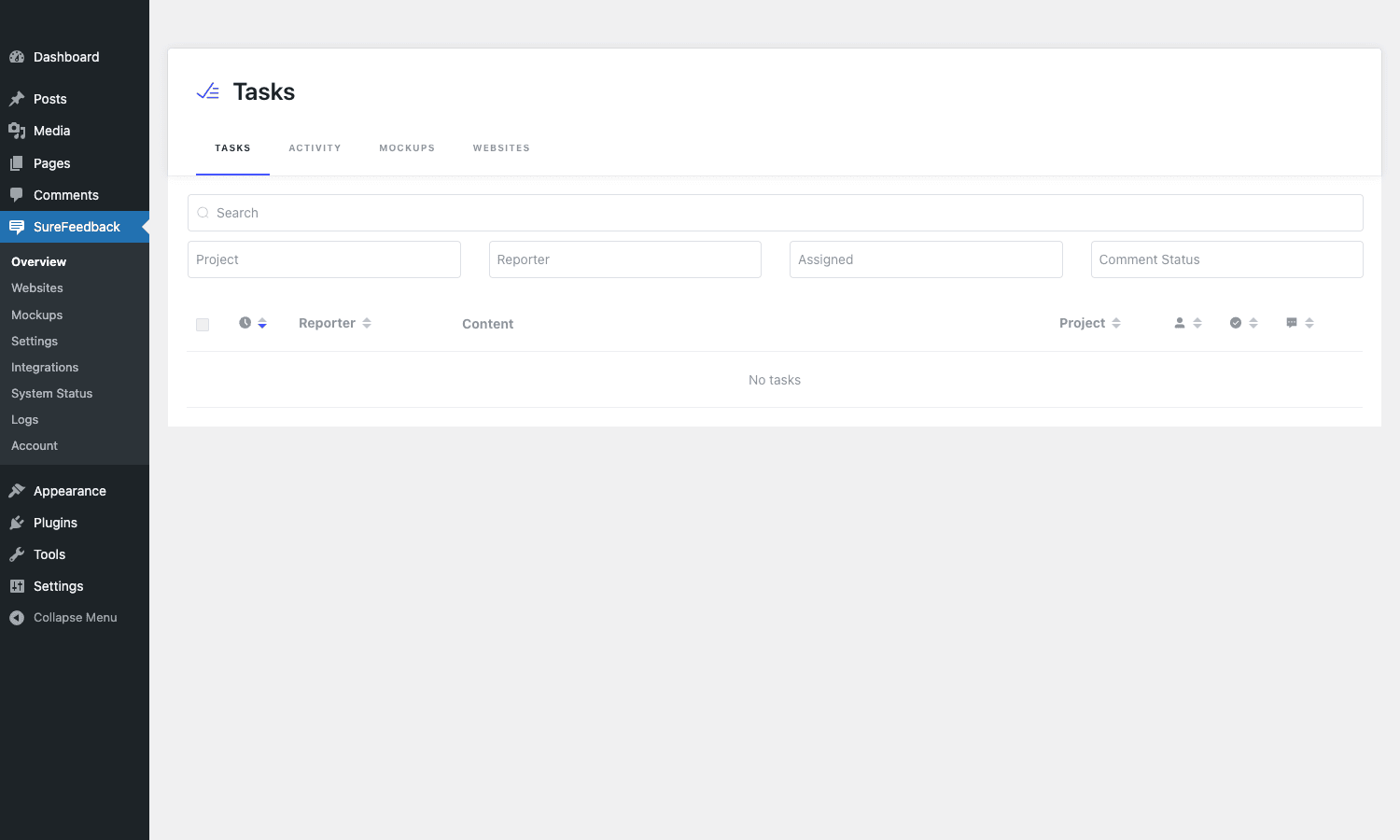
The dashboard above is the central hub. Tasks/Activity/Mockups/Websites tabs at the top; filters for project, reporter, assigned-to, status; the SureFeedback submenu (Overview, Websites, Mockups, Settings, Integrations, System Status, Logs, Account) in the WP sidebar.
The two project types
SureFeedback supports two distinct types of projects, each suited to a different stage of the design workflow.
Website Projects. Feedback on a live, working WordPress site. The client visits the site (or a staging URL), clicks elements to add comments. Useful in the development phase when the site is mostly built and the team needs targeted feedback on the live result. Each comment is anchored to a specific element on a specific page.
Mockup Projects. Feedback on static design images. The designer uploads a PNG/JPEG of a design (often exported from Figma or Photoshop). The client views the mockup and clicks anywhere to add comments. Useful in the design phase before code is written. Multiple mockups can be grouped into a single project (e.g., "Homepage", "About", "Services" mockups all under "Site Redesign").
The two work side-by-side. A typical project might start with Mockup feedback during design, then transition to Website feedback once the staging site is built.
Two-plugin architecture: Admin Site and Client Site
This is the part that confuses new SureFeedback users. The plugin comes in two flavors:
Admin Site plugin. Installs on a central agency WordPress install. This is where you manage all projects, see all comments, configure settings, and brand the experience. One install per agency.
Client Site plugin. Installs on each client’s website that’s being reviewed. The Client Site plugin connects back to the Admin Site via REST API. Comments left on the client site flow back to the Admin Site for the designer to see.
For Mockup Projects, you only need the Admin Site plugin (mockups live on the Admin Site). For Website Projects, you install the Client Site plugin on the staging site being reviewed.
The architecture lets one agency manage feedback on many client sites without each client needing their own SureFeedback license or dashboard. The client gets the comment UI; the agency gets the central management.
Installation and the Admin Site
Plugins -> Add New -> Upload Plugin -> project-huddle.zip -> Activate. The Admin Site plugin (which this article focuses on) is what you upload on the agency’s central WordPress install.
After activation, the SureFeedback menu appears in WP admin with submenus: Overview, Websites, Mockups, Settings, Integrations, System Status, Logs, Account.
On first launch you’ll want to:
- Configure global settings (email sender, branding, etc).
- Connect any integrations (Slack, webhooks).
- Create your first Mockup Project to test the workflow.
- Install the Client Site plugin on a staging site for Website Project testing.
The plugin is approachable; agencies typically get from install to first client review in under an hour.
The dashboard: Tasks, Activity, Mockups, Websites
The Overview page is the central command center. Four tabs:
- Tasks. All unresolved comments across all projects. The designer’s daily to-do list. Filter by project, reporter (who left the comment), assigned designer, status (open / in progress / done).
- Activity. Activity feed of recent events: new comments, replies, status changes, project access events.
- Mockups. List of all Mockup Projects with comment counts.
- Websites. List of all Website Projects with comment counts.
The Tasks tab is what designers live in during active project phases. Open it in the morning, see what feedback came in overnight, work through items, mark resolved. Each task links to the exact comment on the live page or mockup, so context is one click away.
Adding a website project
To set up a Website Project:
- Install the Client Site plugin on the staging WordPress site.
- The Client Site plugin asks for the Admin Site URL (your agency’s main install) and an API key from the Admin Site.
- The connection establishes; the Client Site becomes visible in the Admin Site’s Websites tab.
- Configure who has access (specific clients, the whole team, public access).
- Send the staging URL + access credentials to the client.
When the client visits the staging site (with the Client Site plugin active and JS loaded), a SureFeedback overlay appears. Click anywhere on the page; a comment dialog opens; the client types their feedback; the comment is saved with the page URL, element selector, x/y coordinates, and a screenshot.
The comment shows up immediately in the Admin Site’s Tasks tab. Designer gets an email notification. Conversation continues in the comment thread.
The client experience on a website project
What the client sees on their side:
- Visit the staging URL (no need for a WordPress account if you’ve configured public access).
- See a small SureFeedback indicator on the page.
- Click anywhere on the page to leave a comment.
- A dialog appears asking for: their comment, optionally their name + email (for non-logged-in users), and an optional screenshot annotation.
- Submit. The comment is now visible as a sticky pin on the page.
- Other comments by other reviewers are also visible (each as a pin).
- Click any pin to see/reply to that comment’s thread.
The UX is intentionally simple. The client doesn’t need to learn WordPress, doesn’t need an account, doesn’t need to install anything. Visit URL → click → type → submit. The whole feedback flow is intuitive enough that non-technical clients pick it up without training.
Mockup projects: feedback on static images
Mockup Projects work similarly but on static images instead of live web pages.
To create a Mockup Project:
- SureFeedback → Mockups → New Mockup.
- Upload images (PNG, JPEG). Each image is a "mockup" within the project. Group related mockups under one project name.
- Configure access (public link, password-protected, login required, specific users).
- Send the project URL to the client.
Client opens the URL, sees the mockups, clicks anywhere on a mockup to add a comment. Same pin-and-thread UX as Website Projects.
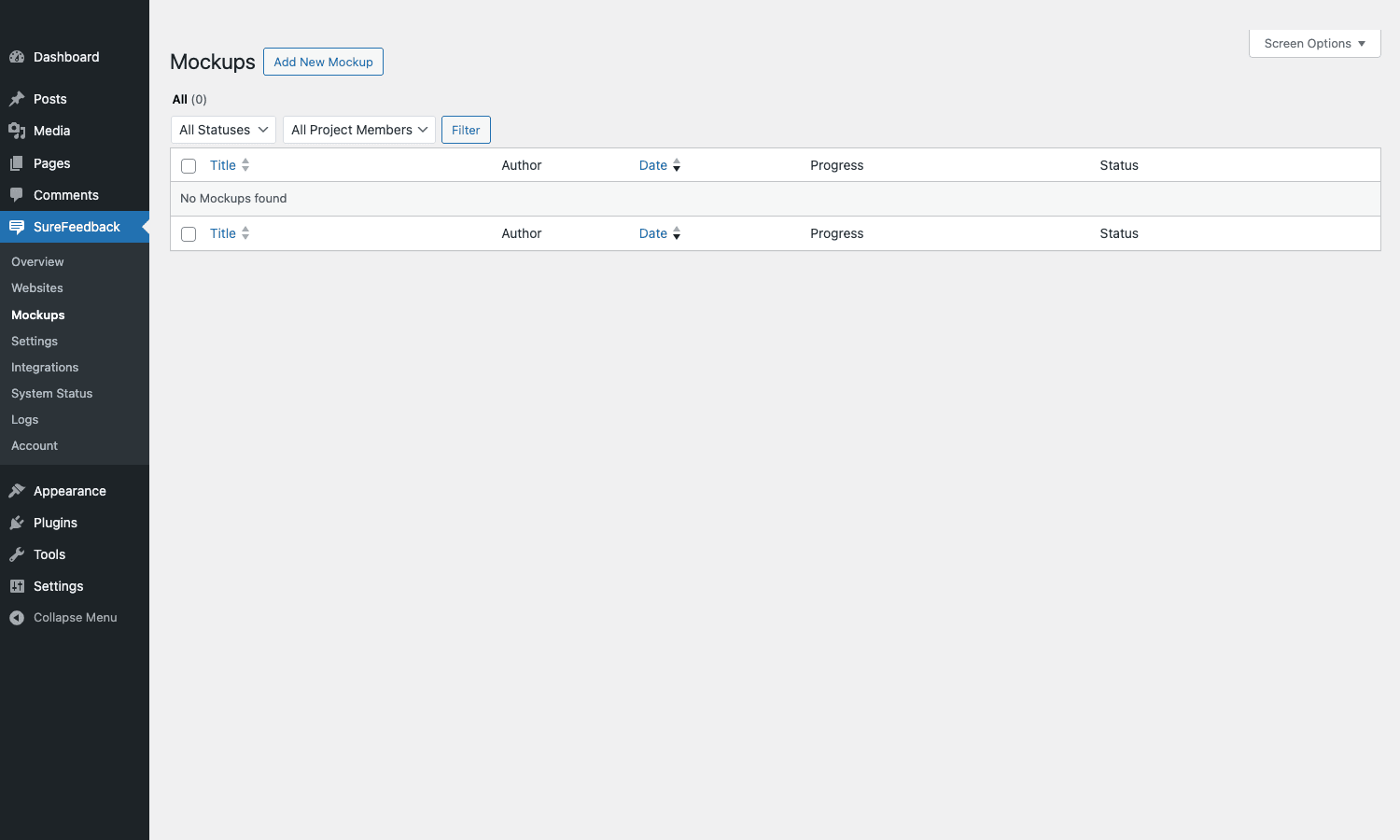
The mockup approach is what works best in the design phase before any code is written. The client gives feedback on the design intent; the designer iterates; eventually the design is approved and development begins.
Common patterns:
- One Mockup Project per client engagement, containing all mockups for the project.
- One Mockup Project per page (when the design is page-by-page).
- One Mockup Project per design round (Round 1 mockups, Round 2 mockups, etc.).
Comment threads and status tracking
Each comment is a threaded conversation. The client posts initial feedback; the designer replies asking for clarification; the client clarifies; the designer marks resolved. All in the same thread.
Comment statuses:
- Open, new feedback, designer hasn’t addressed it yet.
- In Progress, designer is working on the change.
- Resolved, designer has made the change, awaiting client confirmation.
- Completed, client confirmed the change.
- Wontfix, feedback acknowledged but not actioned (with reason).
The designer (or any team member with access) updates statuses as work proceeds. The client sees status changes and can re-open if the resolution doesn’t meet their expectations.
Status tracking gives you a clear "definition of done" per piece of feedback. Without it, the team has 50 open threads and no idea which are still active. With it, the Tasks tab shows you exactly what’s still on the punchlist.
Public access vs login required
Per-project access controls:
- Public link. Anyone with the URL can leave feedback. Easiest for clients but anyone with the URL can comment.
- Password-protected. URL + password required. Slight friction but better security.
- Login required. Reviewers need a WordPress account. Most friction but most accountable.
- Specific user list. Pre-defined list of email addresses; access requires email verification.
For most agency workflows, password-protected is the sweet spot. The client doesn’t need a WordPress account; the password keeps random visitors out; if the URL leaks, the password is the next line of defense.
For internal team reviews (not client-facing), login-required works well. Each team member’s comments are clearly attributed.
Notifications: email and Slack
When a new comment arrives, SureFeedback fires notifications:
Email notifications:
- To designer/agency on every new comment.
- To client/reviewer when designer replies.
- To configured recipients on status changes.
- Daily/weekly digest emails (configurable).
Slack notifications (with integration):
- New comments post to a Slack channel.
- Threaded replies in the channel match comment threads.
- Status changes update Slack messages.
Webhook notifications (for custom integrations):
- Send a POST request to your URL on comment events.
- Use to integrate with Linear, Asana, GitHub, custom internal tools.
The notification system is what keeps the team aware of feedback without requiring everyone to log into the dashboard constantly. New comment → Slack → team sees → designer assigns → works → resolved. The workflow is async-friendly.
Reminders for non-responsive clients
A common problem: the designer sends a design round to the client; the client gets busy; weeks pass; the project stalls. SureFeedback has automated reminder emails for this.
Configure:
- Reminder schedule (e.g., 3 days after sharing, then 7 days, then 14 days).
- Reminder email content (customizable).
- Per-project override (some clients want reminders, some don’t).
If the client hasn’t logged in to the project URL or hasn’t left a comment within the configured window, SureFeedback sends a "Hey, we’re waiting for your feedback on Project X" email. Nudges the client back into the workflow without the designer having to chase manually.
For agencies with multiple concurrent projects, this is the difference between "I have to chase 5 clients this week" and "my plugin chases them for me".
White-label and branding
SureFeedback Pro supports white-labeling. The agency can:
- Replace the SureFeedback logo with their own.
- Customize the email templates with agency branding.
- Customize the client-facing UI colors.
- Set custom domain for project URLs (e.g., feedback.youragency.com).
- Hide all references to SureFeedback from client view.
For agencies serving high-end clients, the white-label is essential. Clients see "Your Agency Feedback Tool", not "ProjectHuddle Free Tier" or "Powered by SureFeedback".
Settings and configuration
The Settings page covers global plugin behavior.
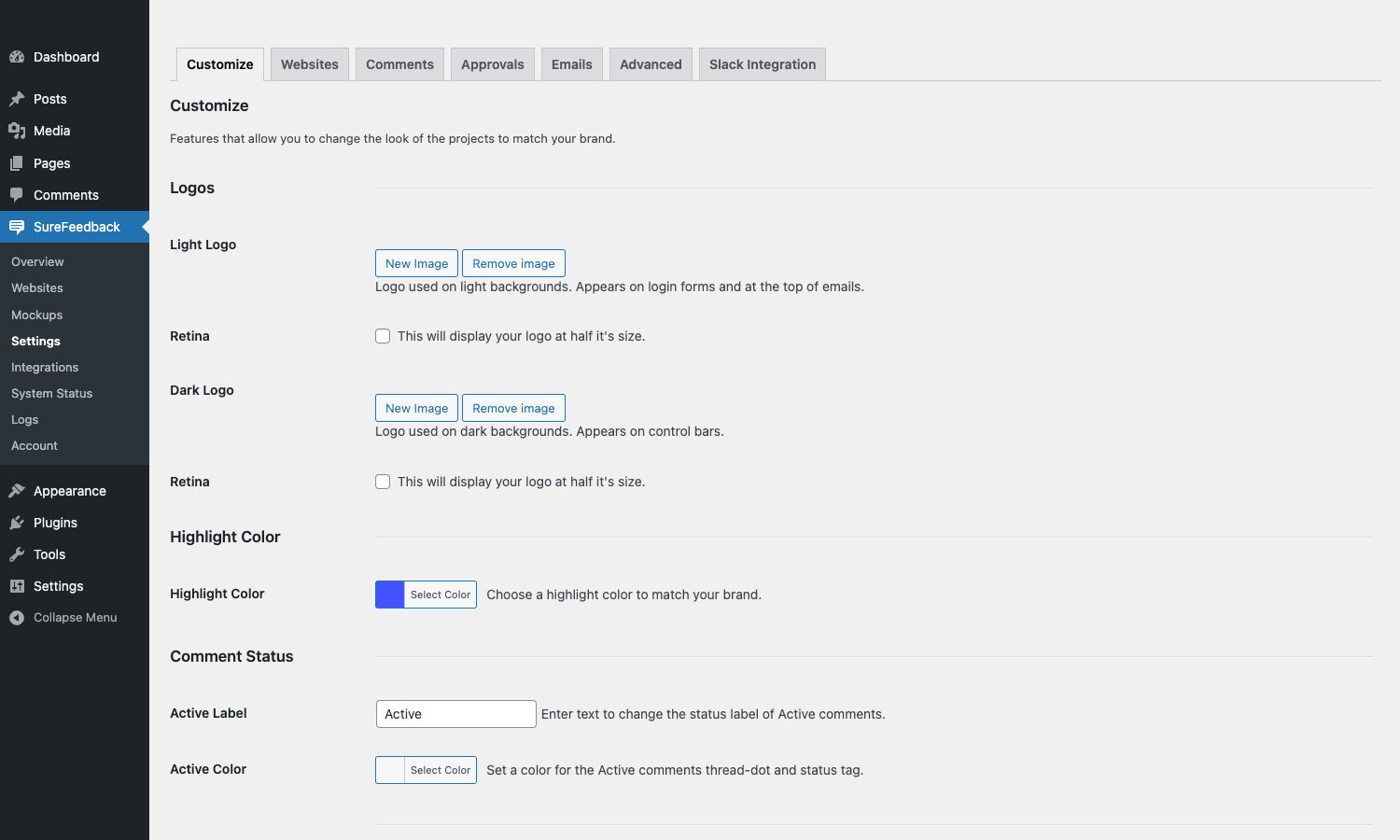
Sections include:
- General. Default project access settings, email sender, color scheme.
- Branding. White-label logos and labels.
- Email Templates. Customize notification email content.
- Reminders. Configure reminder schedules.
- Integrations. Connect Slack, webhook URLs, third-party services.
- Account. Manage your SureFeedback license.
Most settings have sensible defaults; you’ll touch them once during initial setup and rarely after.
Developer reference: hooks and filters
SureFeedback exposes hooks for the patterns developers customize most.
Customizing notification recipients
add_filter( 'ph_admin_notification_emails', function( $emails, $project_id ) {
 // Route notifications to a specific team based on project.
 if ( my_project_is_priority( $project_id ) ) {
 $emails[] = 'priority-team@youragency.com';
 }
 return $emails;
}, 10, 2 );
Hooking new comments
// Fires when a new comment is saved.
add_action( 'ph_new_comment_meta_saved', function( $comment_id, $project_id ) {
 // Sync to your CRM, fire a webhook, etc.
 do_action( 'mycrm_log_feedback', $comment_id, $project_id );
}, 10, 2 );
Custom workflow statuses
add_filter( 'ph_default_workflow_status', function() {
 return 'triage'; // Custom status instead of default 'open'.
} );
Customizing email content
add_filter( 'ph_project_emails', function( $emails, $project_id ) {
 // Add an additional internal notification email.
 $emails['internal_alert'] = array(
 'recipient' => 'team@youragency.com',
 'subject' => 'New feedback on project ' . $project_id,
 'body' => 'See the dashboard at https://feedback.youragency.com/',
 );
 return $emails;
}, 10, 2 );
Modifying reminder triggers
add_filter( 'ph_reminder_email_trigger_span', function( $span ) {
 // Default is 3 days; change to 5 days for less aggressive nudging.
 return 5 * DAY_IN_SECONDS;
} );
The hook surface is documented at the SureFeedback knowledge base. For most "I want to extend behavior X" questions, a filter or action already exists.
Real-world workflows
A few agency patterns SureFeedback handles well:
-
Design round feedback loop. Designer uploads round 1 mockups → Mockup Project → shares link with client → client leaves comments → designer addresses → designer marks resolved → client confirms → round 1 done. Repeat for round 2, 3 until approval.
-
Pre-launch staging review. Site is built on staging URL. Install Client Site plugin on staging. Send URL + password to client. Client browses, leaves comments on whatever needs fixing. Designer works through Tasks tab. When Tasks is empty, ready to launch.
-
Internal QA. Before client review, the agency team does internal QA. Use login-required access so each team member’s QA comments are attributed. After internal QA passes, switch to public access for client.
-
Approval workflow. Add "Sign off" status; once all comments are resolved AND the client adds a "sign off" comment, the project is officially approved. Generate a project completion PDF for legal records.
-
Long-term maintenance contract. Permanent SureFeedback project on the client’s live site (using Client Site plugin). Any time the client wants a change, they leave a comment instead of emailing. The plugin manages the backlog.
-
Multi-stakeholder reviews. The client’s marketing team, dev team, and legal team all need to review. Use SureFeedback’s mention feature to ping specific stakeholders for their part. Each thread tracks the relevant approver’s status.
-
Comparing rounds. Keep old mockup rounds visible (don’t delete after each round). Clients can scroll back to "show me round 1 vs round 3" for context.
SureFeedback vs InVision vs Marker.io vs Figma comments
The four major visual feedback tools.
SureFeedback is the WordPress-native option. Best for agencies that build on WordPress and want feedback in the same stack. Self-hosted; you own the data. One-time license.
InVision is the long-standing cloud option. Mature, well-known, but increasingly viewed as legacy after Figma’s rise. SaaS subscription per user.
Marker.io is the modern cloud feedback tool. Polished UI, browser extension for capturing feedback. SaaS subscription per user.
Figma comments are native in Figma. If the design lives in Figma, the comments live there too. Most designers’ default for design-phase feedback.
The honest take:
- WordPress-native agency: SureFeedback for everything.
- Modern cloud-first design team: Figma comments for design, Marker.io for live sites.
- Legacy design workflow: InVision (or move to Figma + Marker.io).
- Cost-sensitive agency: SureFeedback (one-time vs per-user SaaS).
Each tool has its niche. SureFeedback is the strongest argument when you’re already committed to WordPress and want everything in one stack.
Performance, compatibility, gotchas
- Two-plugin install. Forgetting to install the Client Site plugin on the staging site is a common setup error. The Admin Site shows the project; nothing happens on the client site because the Client plugin isn’t there.
- REST API connectivity. The Admin Site and Client Site connect via REST. If the staging site is behind HTTP basic auth or IP restrictions, the connection fails. Whitelist accordingly.
- Image storage for mockups. Uploaded mockup images live on the Admin Site WordPress media library. Large projects with many mockups grow the media library quickly. Configure storage retention or use a CDN for cost.
- Email deliverability. SureFeedback sends a lot of notification emails. Pair with WP Mail SMTP Pro for guaranteed delivery. Without it, clients won’t receive notifications and the plugin’s value evaporates.
- Mobile experience. The client commenting UI is responsive but not always great on mobile (small clickable areas on a phone). For mobile-heavy clients, set expectations or recommend they use desktop for feedback.
- Page caching plugins. WP Rocket and similar can interfere with the SureFeedback overlay. Exclude SureFeedback’s JS from minification/concatenation; exclude the staging site URL from page cache.
- Slack rate limits. If your team is on a high-traffic Slack workspace and SureFeedback fires many notifications per minute, you may hit rate limits. Use the notification frequency settings to throttle.
- GDPR considerations. SureFeedback stores commenter email addresses and IP addresses. Document this in your privacy policy. Provide a way to export and delete commenter data on request.
These are the kinds of issues you find in the first month of agency use. Address them on staging before rolling out to client-facing work.
Pricing and licensing
SureFeedback Pro pricing direct from SureFeedback.com:
- Personal: $109/year (1 site).
- Freelancer: $129/year (3 sites).
- Agency: $159/year (10 sites).
- Pro Bundle: $228/year (Brainstorm Force Essential bundle).
For an active agency, Agency tier is the practical choice. For a solo freelancer, the Freelancer tier covers most use.
The plugin is GPL-licensed. Reasonable for agencies running multiple client sites without the per-tier Brainstorm Force licensing.
FAQ
Do my clients need a WordPress account?
No. SureFeedback supports public link access and password-protected access. Clients can leave comments without a WordPress account. You only require login for projects that need stricter access control.
Will it slow down my client’s site?
The Client Site plugin loads a small JS bundle (~30KB) on the front-end. Negligible impact on page load. The overlay only activates when a SureFeedback project is configured for the URL.
Can I move feedback into a project management tool (Asana, Linear, Trello)?
Yes, via the webhook integration. Configure a webhook URL that converts SureFeedback comments into tasks in your PM tool. Several agencies have built this for Linear specifically.
Does it work with non-WordPress sites?
For Mockup Projects (static images), yes, they live entirely on the Admin Site WordPress install regardless of where the design comes from. For Website Projects, the Client Site plugin needs WordPress. Non-WordPress staging sites can’t use the Website Project feature.
Can multiple designers work on the same project?
Yes. Add team members as users on the Admin Site. Each can be assigned to specific comments, the Tasks tab shows what’s assigned to them, and notifications route appropriately.
Is there a free version?
There’s a limited free version called "SureFeedback Lite" on WordPress.org. It covers basic mockup feedback but lacks the Pro features (website projects, white-label, integrations, advanced workflow). For real agency use, you’ll want Pro.
Can I export feedback as a PDF?
Yes, via the Print feature. Each comment thread can be exported as a PDF for client records or legal documentation.
Does it integrate with my Slack workspace?
Yes. Configure the Slack integration in Settings → Integrations. New comments post to a designated Slack channel; threaded replies in Slack post back to SureFeedback (with the right addon).
What happens if I cancel my SureFeedback license?
The plugin continues to function but stops receiving updates. Past projects and comments stay intact. New license required to update to newer versions or get support.
Final thoughts
Visual feedback is one of those workflows that everyone agrees is broken but few teams fix because the alternatives (PDF markup, screen-recorded Loom, Google Docs of bullet points) all sort of work. SureFeedback is the alternative that’s actually better, once your team adopts it, going back to PDFs and emails feels primitive.
The biggest practical benefit isn’t the feedback tool itself; it’s the structured workflow it enforces. Open comments, in-progress comments, resolved comments, completed comments. Without that structure, your team has a vague "we have feedback from the client" status. With it, the team knows exactly what’s done and what isn’t. Project velocity goes up.
The plugin’s main downside is the two-install architecture. Setting up the Admin Site and the Client Site for the first project takes a bit longer than you’d expect. Once configured, additional projects are quick.
Spin it up on your agency’s main install, set up the Client plugin on one staging site, run one project through the workflow. The first time a client successfully leaves 20 comments without a single email exchange, you’ll know whether to adopt it permanently.