

If you sell on WooCommerce and your customers live in more than one country, you’ve probably hit the multi-currency wall. WooCommerce ships with a single base currency and a switcher in the admin that changes everyone’s display at once. That’s fine for a local shop. It’s a hard ceiling once your traffic starts coming from three continents and the same $49 product looks alien to a Swiss customer staring at it in dollars.
FOX Currency Switcher Pro (often just "WOOCS" in the source code) is the plugin that most international WooCommerce sites reach for. It lets a single store accept and display multiple currencies, hooks into Stripe and PayPal so checkout actually settles in the customer’s currency, fetches daily exchange rates from sources like the European Central Bank or Open Exchange Rates, and adds a switcher that you can drop in as a widget, shortcode, or floating side panel.
This is a long walkthrough. The first half is for shop owners who want to know what FOX does, how to set it up, and which buttons to leave alone. The second half is for developers writing custom WooCommerce themes or doing currency math on the server.
Table of contents
- What FOX Currency Switcher Pro is
- Core features at a glance
- How it works for users
- Installation and first-run configuration
- The Currencies tab: rates, symbols, and positions
- The Options tab: where you wire up auto-updates
- The Advanced tab: per-currency checkout, fixed prices, gateways
- GeoIP rules and profiles
- Switcher placement: widget, shortcode, side panel
- Smart Designer: building a custom switcher template
- Real-world use cases
- Developer reference: hooks, filters, REST endpoints
- Performance, compatibility, and gotchas
- Pricing and licensing
- Frequently asked questions
- Final thoughts
What FOX Currency Switcher Pro is
FOX Currency Switcher Pro is a WooCommerce extension by Aleksandr Lugovskoi (the developer handle is realmag777, the studio behind it is PluginUs.NET). It’s one of the longest-running paid plugins in the WooCommerce ecosystem, with a CodeCanyon listing that’s been live for more than a decade and a free, cut-down version on the WordPress.org plugin directory.
The job it does is simple to describe and surprisingly fiddly under the hood: every price on your storefront, in the cart, on the checkout page, in the order receipt email, on the My Account page, and inside Stripe’s payment intent has to be expressed in a currency the visitor expects. FOX rewrites those prices at render time using a conversion rate it keeps current via cron, and it remembers the visitor’s choice in a cookie so the next page load picks up where the last one left off.
That description undersells it. The reason FOX is sitting on so many production stores instead of a one-week DIY plugin is that the edge cases get nasty. Variable products, subscriptions, coupons that apply percentage discounts, taxes that depend on the customer’s region, shipping rates loaded from a table, refunds processed weeks later when the rate has moved, gateways that only accept settlement in one currency, page caches that serve a German visitor a French version of the cart, payment intents that get reused across currency switches. FOX has had patches for every one of those, and the code shows the scars.
If you’ve already written about international SEO for your store with WPML’s WordPress Multilingual CMS or Polylang Pro, FOX is the matching piece for pricing. Translation is one half of selling to a Swiss customer in a Swiss city. The other half is showing them CHF, charging them CHF, and accepting their card in CHF.
Core features at a glance
- Multiple currencies on one store. Any number of currencies, each with its own rate against the base currency, its own symbol, its own decimal places, and its own thousand/decimal separators.
- Manual rates or automatic. Type your own conversion rate, or let FOX pull it daily from the European Central Bank XML feed, Open Exchange Rates, Currencylayer, Fixer, CurrencyAPI, CryptoCompare, Yahoo Finance, or one of several national bank feeds (PrivatBank, NBM, NBP, BNR, MNB, CBR).
- Display-only or full checkout. "Is multiple allowed" is the flagship toggle. Off means the switcher just changes how prices look. On means the customer actually pays in the chosen currency through Stripe, PayPal, or any other gateway that supports it.
- GeoIP auto-selection. A first-time visitor from Germany lands on the EUR view automatically. You define which currency goes with which country, or build named profiles like "EU countries" and assign one currency to the whole bucket.
- Three storefront placements. A standard WP widget, a
[woocs]shortcode you can drop anywhere, and a floating side panel that sticks to the left or right edge of every page. - Per-product fixed prices. Override the auto-converted price for any individual product in any currency. Useful when the math doesn’t round to a clean local price (e.g. you want EUR 49 exact, not the EUR 48.73 the rate would calculate).
- Per-role fixed prices. Show wholesale customers different absolute prices in each currency without going near coupons.
- Per-gateway rules. Hide specific gateways for specific currencies, or force a specific currency when a specific gateway is selected. Helpful when one payment processor doesn’t accept one of your currencies.
- REST endpoints. Programmatic access to the currency list and to single-product or batch product prices in any currency. Useful for headless storefronts.
- WPML and Polylang integration. When the customer’s language changes, the currency follows.
How it works for users
The whole experience for a shopper is meant to disappear into the background. Here’s what actually happens when someone visits your store after FOX is configured.
A first visitor arrives from, say, a German IP address. FOX checks the GeoIP rules you set and decides EUR is the right currency. It stores that choice in a cookie (or a session, transient, Memcached, or Redis key, depending on your storage backend). Every price on the homepage, the shop archive, and the category pages is now rendered in EUR using the conversion rate stored against the EUR row in the rate table.
The visitor clicks the floating side switcher and changes to USD. The page reloads (FOX uses a hard navigation by default so caches behave predictably). Prices switch. The cookie updates. They add a product to the cart. The cart line and the cart total appear in USD because FOX hooks into woocommerce_cart_* filters and rewrites them. They proceed to checkout. If you have "Is multiple allowed" turned on, the order is created in USD and Stripe charges the card in USD. Otherwise, the order goes through in your base currency and FOX simply records which display currency the visitor was looking at when they bought.
The visitor’s confirmation email shows the order in the currency they paid. The My Account page shows past orders in the currency each was placed in. You as the shop owner see both the original-currency amount and a base-currency conversion in the admin order edit screen, so your accounting matches.
That’s the user-facing story. The admin story is more involved.
Installation and first-run configuration
This assumes you have a working WooCommerce store. WooCommerce itself needs to be active. WordPress 6.0 or newer. PHP 7.4 or newer. No other prerequisite.
- Download the FOX Currency Switcher Pro zip from the GPL Times product page.
- In WP admin: Plugins -> Add New -> Upload Plugin, upload the zip, then activate.
- Open WooCommerce -> Settings -> Currency. That’s the FOX panel. There’s no separate top-level menu item, on purpose. WooCommerce store owners spend most of their day inside WooCommerce -> Settings, so it’s the right place for it to live.
- The plugin’s main tabs appear: Currencies, Options, Advanced, GeoIP, Designer, Side, Help.
- Your base WooCommerce currency is already added as the first row. Click Append Currency to add a second. Pick a code from the dropdown (every ISO 4217 code is in there, plus crypto codes like BTC if you need them).
- Type a conversion rate against your base. If your base is USD and you’re adding EUR, the rate is how many EUR you get for 1 USD. Roughly 0.86 at the time of writing. Save changes.
- Visit your storefront. If you also enabled the Side switcher in the Side tab, you’ll see a floating panel. Otherwise nothing’s visible yet, which is the cue to place the switcher widget or shortcode.
That’s the minimum viable setup. Everything else is optional polish.
The Currencies tab: rates, symbols, and positions
The Currencies tab is where the conversion table lives. Each row is one currency. Each column is one knob.
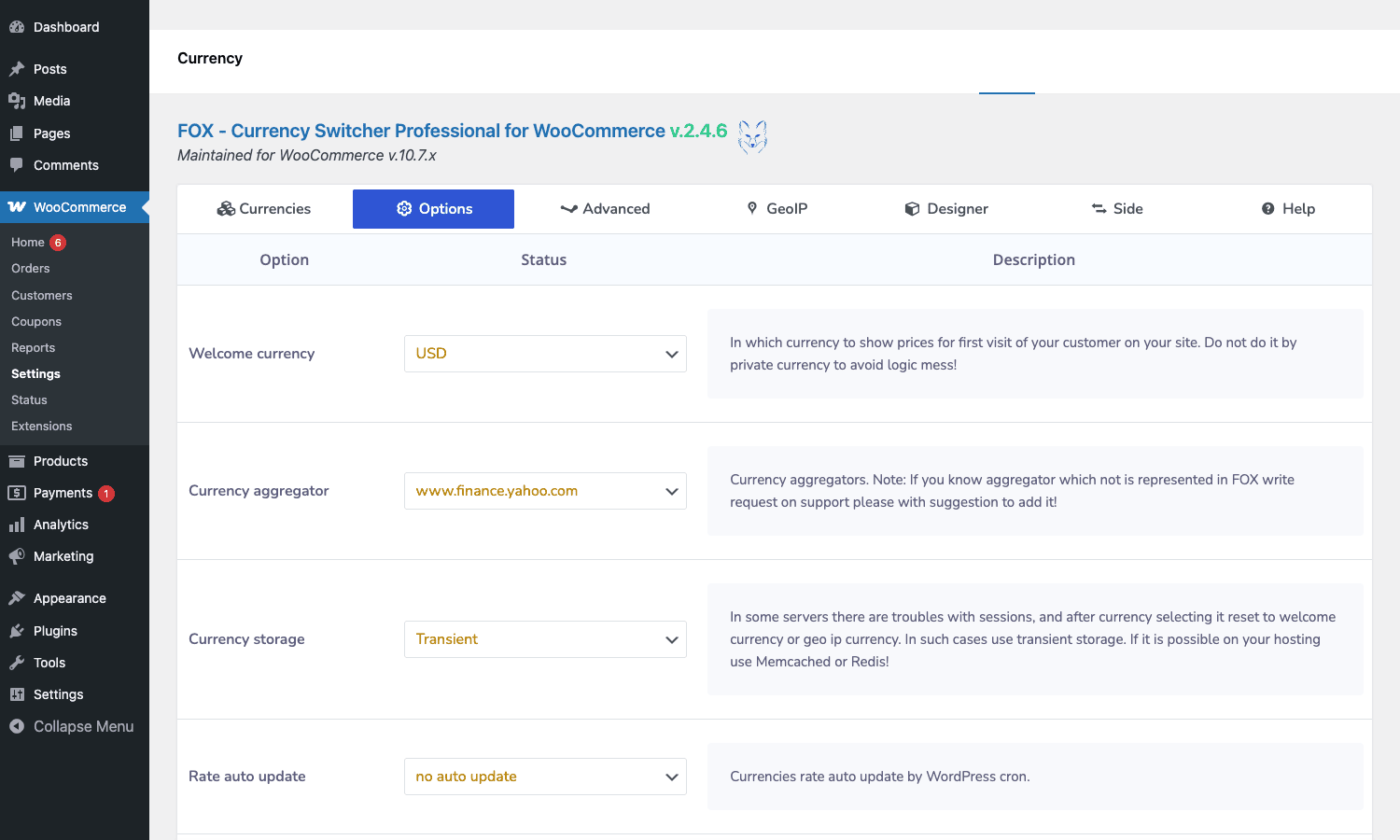
- Basic is the radio button that picks which currency is the base (the one your manual rates are calculated against). It maps one-to-one to WooCommerce’s "Default currency".
- Move lets you drag rows around to change the display order in the switcher.
- The flag icon shows the country flag for that currency. You can upload a custom image if you sell to a market where the default flag isn’t a great fit.
- Position is where the currency symbol goes relative to the number. There are four canonical positions (left, right, left with space, right with space) plus a custom format string like
%1$s %2$sif you need something exotic. - Rate + interest is the conversion rate plus an optional surcharge percent. The interest field is how you bake a forex margin into the published rate. If the live rate is 0.86 and you want to add a 2% buffer to cover Stripe’s currency conversion fee, you enter 0.86 and 2 in the interest column. FOX multiplies the displayed price by 1.02.
- Rate floor/ceiling clips the rate at a hard minimum or maximum. Use this when you’re auto-fetching rates and want a safety belt against weird API outliers.
- Decimal is how many decimal places to show. JPY and KRW are zero, USD and EUR are two, most crypto is six or eight.
- Separators sets the thousand and decimal separators per currency. EUR uses comma as decimal, period as thousand in most of Europe. USD is the opposite. FOX lets you set this per row instead of forcing one global format.
The Currency Wizard button at the top is a shortcut for setting up the common bundles. Pick "EU countries", and FOX adds the major EU currencies in one click. Pick "Top 10 world currencies", and you get the obvious ten.
The dropdown widget style picker is in the top right. Three implementations ship in the plugin: ddslick (the default, a simple JS dropdown), Chosen (a heavier dropdown with search), and wselect (a styled native select). I leave it on ddslick on most stores because it’s the lightest, but if you have 20+ currencies, Chosen’s search box is nicer.
The Options tab: where you wire up auto-updates
This is the tab where most setup time gets spent on the first day, and where the plugin earns most of its keep.
- Welcome currency is the currency a brand-new visitor sees before GeoIP or any cookie kicks in. Default it to your base unless you have a strong reason to show something else.
- Currency aggregator is the data source for automatic exchange rate updates. The dropdown lists Yahoo Finance, CurrencyAPI, Open Exchange Rates, Currencylayer, Fixer, CryptoCompare, ECB, several national banks. Below the dropdown is the API key field, where it applies.
- ECB (European Central Bank) is free, no API key, updates every business day. Great default for stores selling in EU + USD + GBP + CHF.
- Open Exchange Rates has a free tier (1000 requests/month, base USD only) and paid tiers up to enterprise.
- Fixer is similar with EUR as the free base.
- Currencylayer is the third in the same family.
- CryptoCompare is the one to pick if you sell in crypto.
- Currency storage picks where the visitor’s selection is kept. PHP Session is easiest but breaks under some object caching setups. FOX Session is a custom cookie that’s the safest default. Transient works with WordPress’s built-in caching. Memcached and Redis appear only if PHP has those extensions loaded, and are the right pick on high-traffic stores.
- Rate auto-update is the cron schedule. Hourly, daily, weekly, or disabled. Daily is fine for most retail. Currency-trading-style stores want hourly. Disabling auto-update is what you do when you manage rates manually and don’t want a cron job overwriting your edits.
- Price format is global decimal/thousand separator and decimal places, which the per-row settings on the Currencies tab can override.
- Show the side switcher and show the inline switcher are global on/off switches for the two storefront placements.
- Cookie name is editable in case you have a conflict with another cookie. Don’t touch this unless you have a reason.
I always set up an API key for Open Exchange Rates on stores that sell in more than five currencies. ECB’s free feed only covers about 30 currencies; OER covers 170+ and is reliable.
The Advanced tab: per-currency checkout, fixed prices, gateways
This is the deep end. Most of the toggles are off by default, and most stores never need to turn them on. The ones you’ll care about:
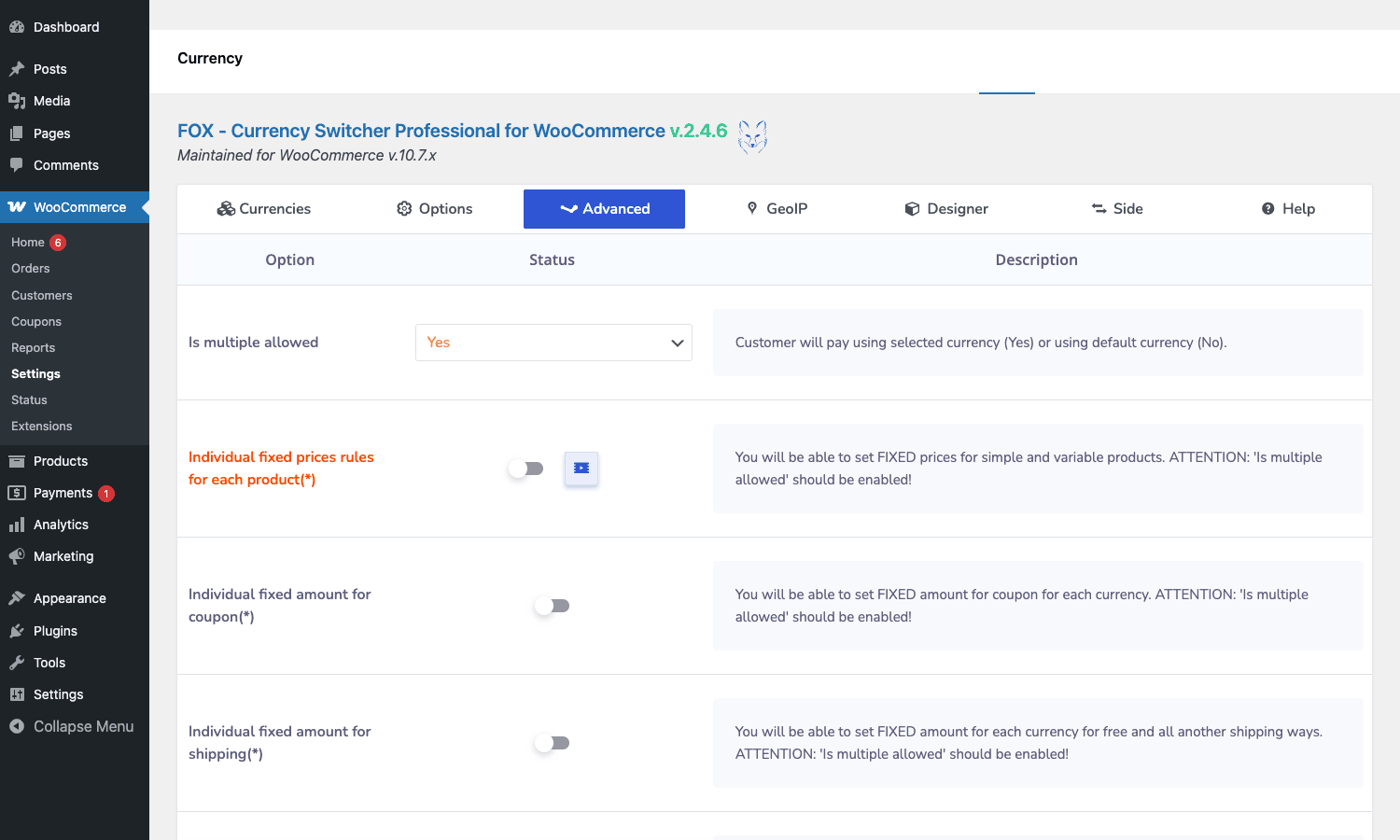
- Is multiple allowed. The single most important setting in the entire plugin. Off means FOX is "display only": visitors see prices in their currency, but the actual order goes through in your base currency at the rate WooCommerce knows about (which is your base). On means the order is created in the selected currency, charged through the gateway in that currency, and recorded against the order in that currency. Turn this on if you want real multi-currency checkout. Leave it off if you only want price display.
- Individual fixed prices for each product. When on, every product edit screen gets a new metabox where you can type an exact price in each non-base currency. Auto-conversion is ignored for products that have a fixed price. Use this for round-number marketing prices: USD 49, EUR 49, GBP 39, CHF 49 are all "49" even though the math says they aren’t.
- Individual fixed amount for coupon. Same idea for fixed-amount coupons. A "EUR 10 off" coupon stays exactly EUR 10 regardless of the customer’s currency.
- Individual fixed amount for shipping. Same for shipping. EUR 5 flat-rate shipping stays exactly EUR 5 in EUR, not "EUR 5 converted from your base".
- Fixed prices per user role. Combine this with WooCommerce’s role-based customer groups (or with WooCommerce Subscriptions for member-only pricing) to ship different absolute prices in each currency to wholesale, retail, and member tiers.
- Payment gateway rules. When on, you can hide specific gateways for specific currencies. Useful when a gateway doesn’t accept one of your currencies, or when you’ve negotiated lower fees with one processor for one region.
- Reports. Toggles the multi-currency reporting view inside WooCommerce reports. Lets you see orders grouped by their original currency and the total revenue per currency.
The flag that flips the most lights is "Is multiple allowed". Several of the other settings only activate when this is on, including the per-product fixed prices for variable products and the per-gateway rules.
GeoIP rules and profiles
The GeoIP tab is where you tell FOX "this country gets that currency". You do it in two ways.
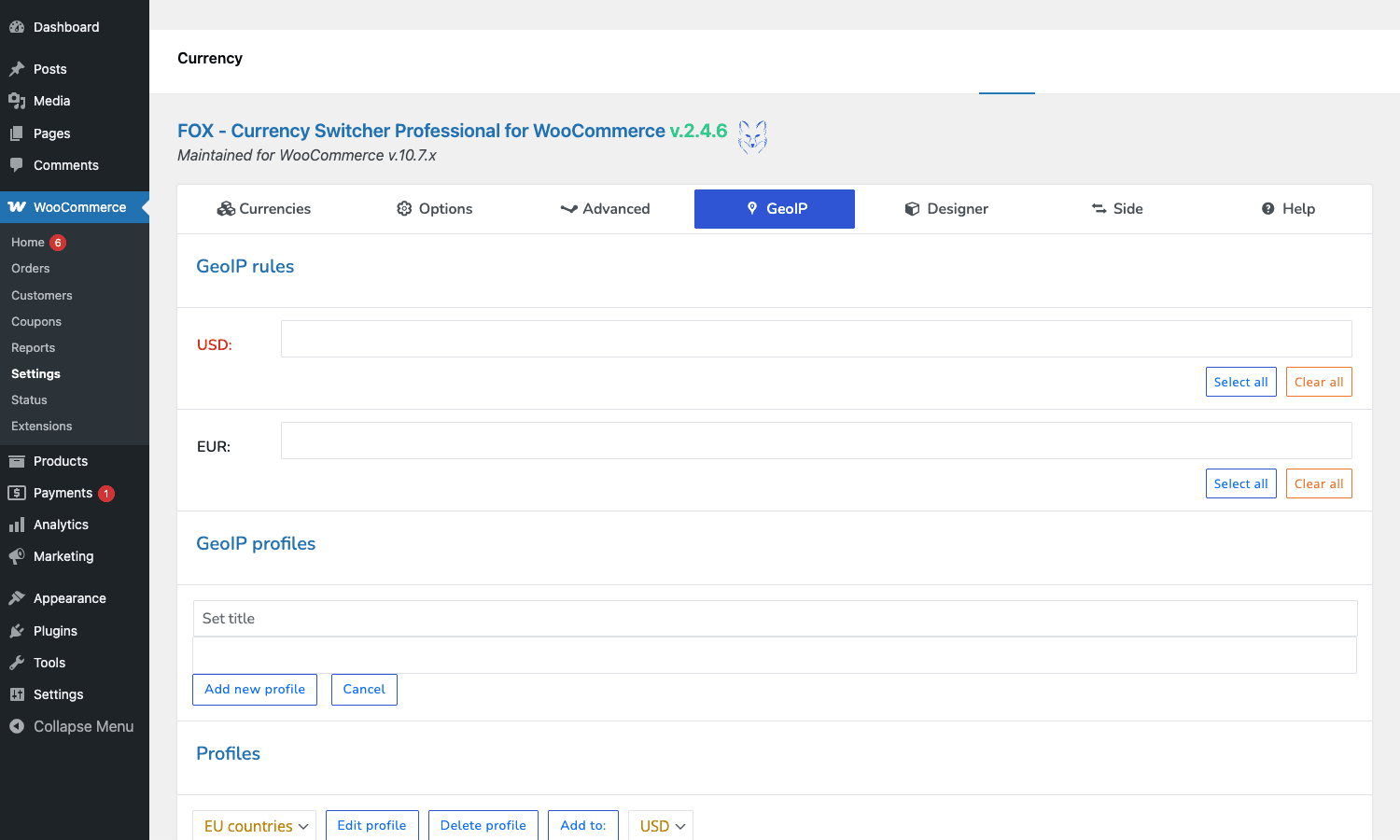
The GeoIP rules section at the top has one row per currency. In each row, you list the country codes that should land on that currency. So under USD, you might put US, CA, MX. Under EUR, the whole EU bloc. Click Select all to dump every country into a row.
The GeoIP profiles section below is the smarter version. A profile is a named bundle of country codes. The plugin ships with a default "EU countries" profile that contains all 27 EU members. You can create your own profiles ("APAC", "LATAM", "GCC") and reuse them across currencies. Adding a new country to "EU countries" updates every rule using that profile.
The IP lookup is delegated to WooCommerce’s own WC_Geolocation class, which uses the MaxMind GeoLite2 database that WooCommerce maintains. If you’ve already enabled WooCommerce’s geolocation (Settings -> General -> Default customer location -> Geolocate), FOX uses the same data. No second IP database to manage.
For testing, the woocs_geobone_ip filter lets you spoof an IP server-side. Drop in a German IP and you can verify the EUR rule fires without using a VPN.
Switcher placement: widget, shortcode, side panel
FOX gives you three places to put the switcher.
Widget. Three widget classes ship: a currency selector, a current-rates table, and an inline currency converter. The selector is the one you’ll use 95% of the time. Add it to any sidebar or footer widget area via Appearance -> Widgets (or the block-based widget editor on newer themes).
Shortcode. [woocs] drops the switcher anywhere a shortcode can run: in a post, page, custom field, even inside a theme template via do_shortcode. The Help tab lists every shortcode with examples. There are six others ([woocs_converter], [woocs_rates], [woocs_show_current_currency], [woocs_show_custom_price], [woocs_geo_hello], [woocs_price]), most of which are situational. [woocs_geo_hello] prints "Your country is X" which is useful in a top-bar greeting.
Side panel. The Side tab enables a floating switcher that sticks to the left or right edge of every page. It’s a single column of currencies, each as a clickable link. It’s the placement that doesn’t compete with any other UI on the page and the one I recommend for sites that don’t have a great header spot for a dropdown.
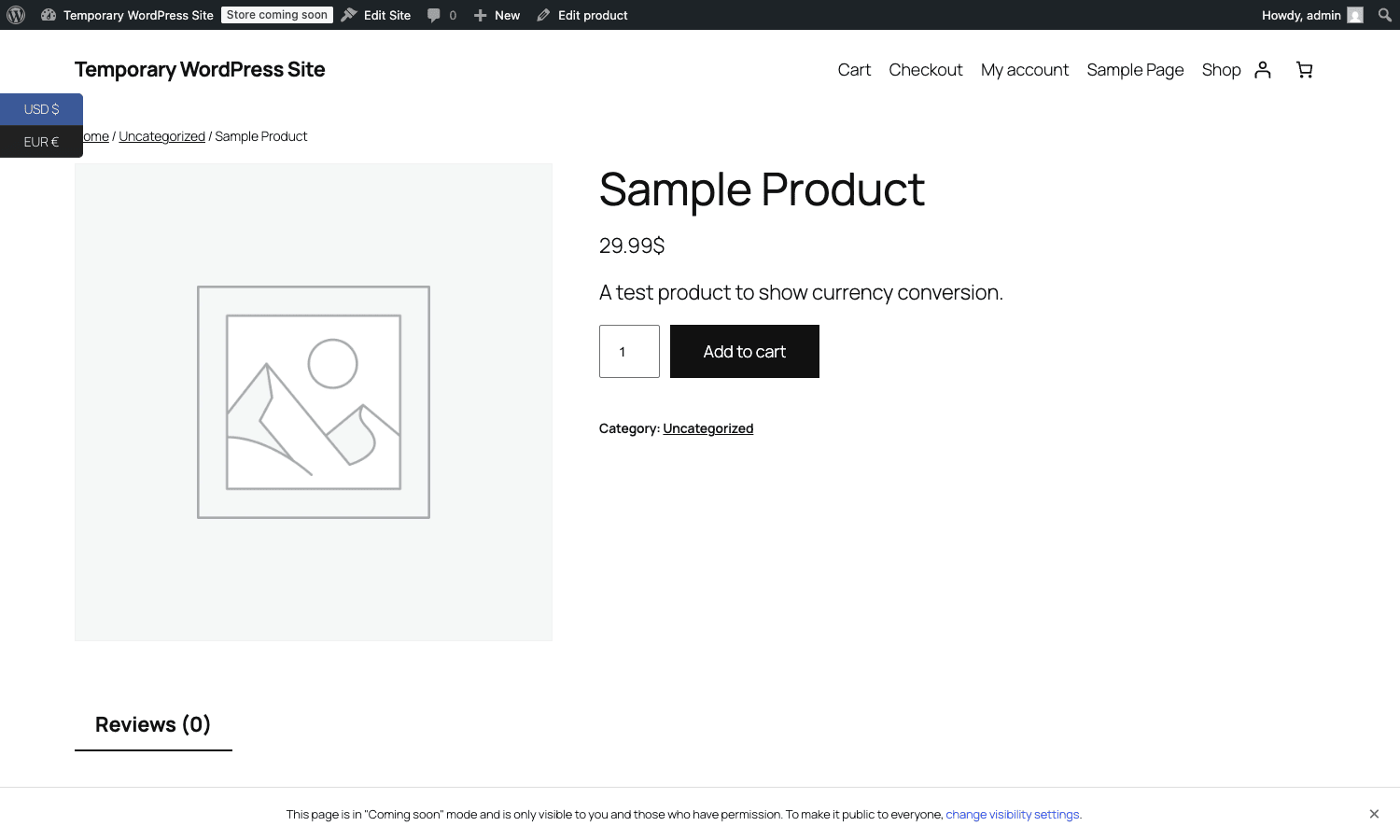
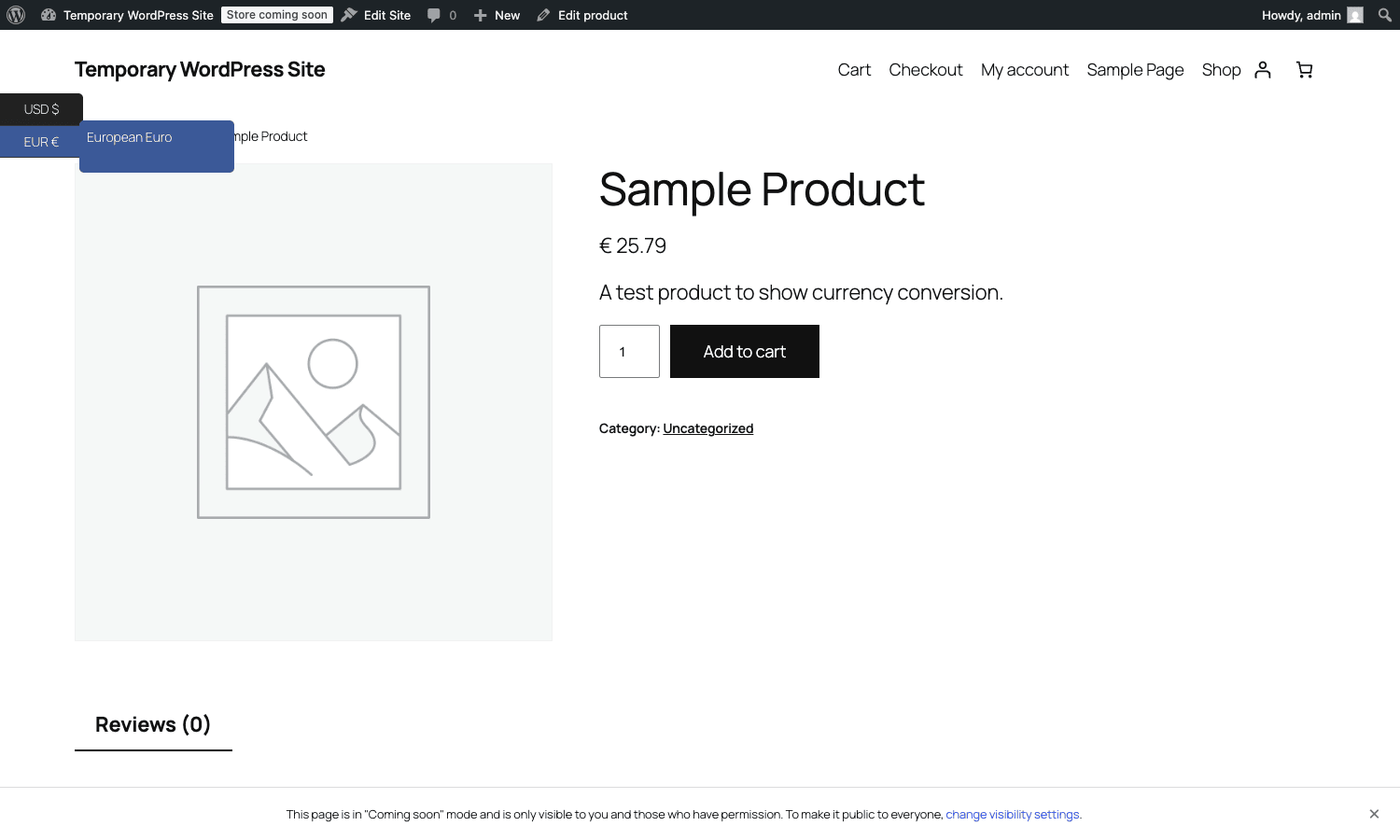
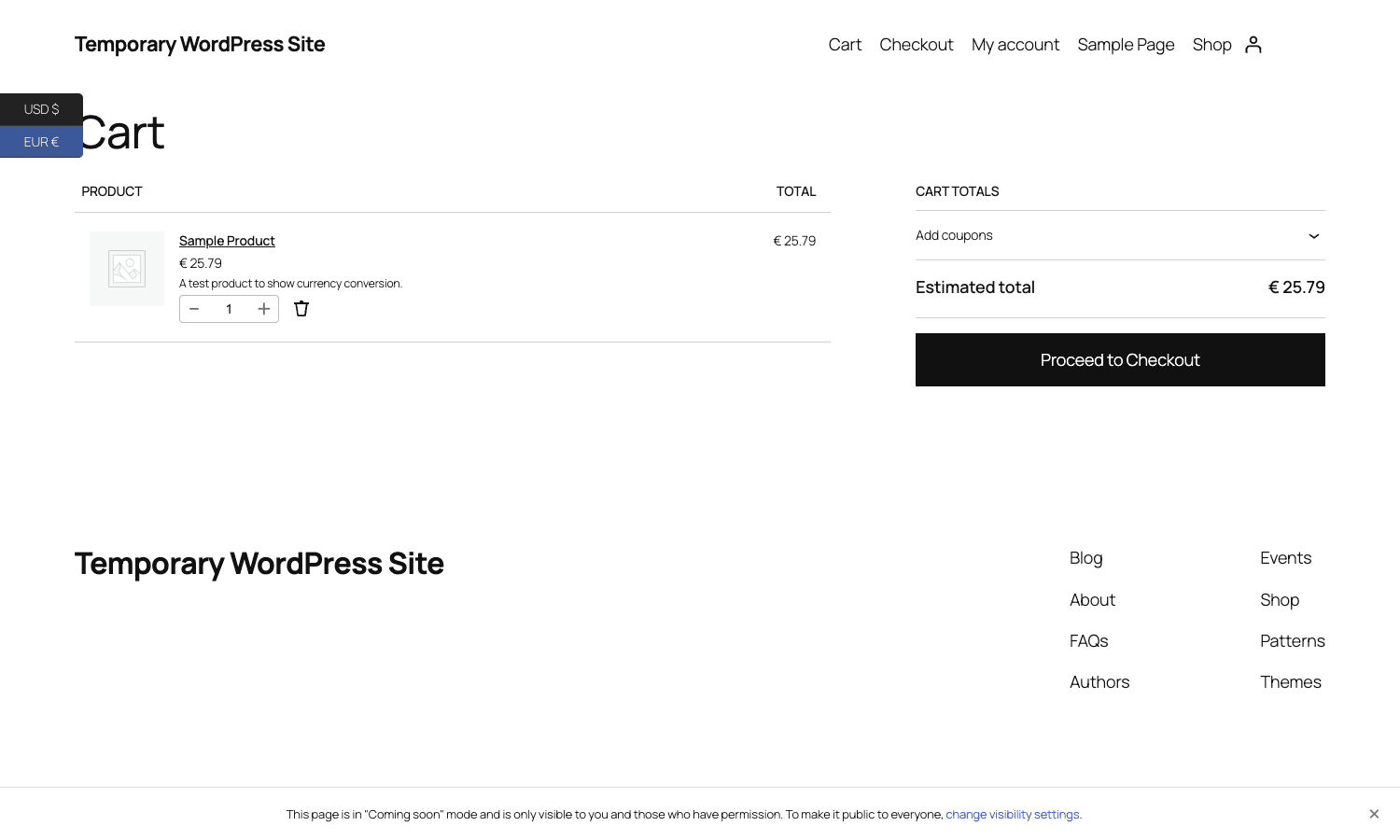
The side switcher is the one I had enabled when I took the front-end screenshots. You can see it pinned to the left edge in both the product and cart views.
Smart Designer: building a custom switcher template
The Designer tab opens the Smart Designer, a drag-and-drop builder for custom switcher templates. Most stores never touch this because the built-in dropdown looks fine. But if your brand has a specific look, the Designer lets you compose a switcher from primitive blocks (flag image, currency code, currency name, current rate) into a layout that matches your theme.
A designer template is stored as a JSON blob in the database and referenced by name from the [woocs] shortcode or the widget settings. The same template can be reused across the side panel, an inline shortcode, and a widget.
In practice, I find it easier to write a small woocs_drop_down_view filter and use one of the built-in libraries (ddslick / chosen / wselect / a plain <select>), then style it with CSS in the child theme. The Smart Designer is most useful for non-developers who want a custom layout without touching code.
Real-world use cases
Five concrete shops that benefit from FOX, with the specific feature each one leans on.
A SaaS plugin author selling worldwide
You sell a WordPress plugin for $49 from a CodeCanyon-style storefront. Most of your traffic is North America, but Europe, the UK, and Australia together account for 40% of revenue. FOX lets you show GBP, EUR, AUD prices and charge through Stripe in the customer’s currency. Turn on per-product fixed prices so each currency lands on a clean number (GBP 39, EUR 45, AUD 79) instead of a converted ugly one. Pair with MonsterInsights Pro for revenue tracking that respects the original currency.
A physical-goods boutique shipping internationally
You ship handmade leather goods from Spain to Europe + North America. Base in EUR. Add USD, GBP, CAD. Enable GeoIP so a Canadian visitor doesn’t have to figure out the exchange rate themselves. Use the ECB feed for free daily updates. Add a 1.5% interest buffer in each non-base row to cover Stripe’s conversion margin. Hide PayPal for the currencies it doesn’t natively accept; show only Stripe to those visitors.
A digital course platform
Your courses are priced at $199. You want to localize that to round prices in 10 countries. Per-currency fixed prices keep "199" looking the same (USD 199, EUR 199, GBP 159, AUD 299, BRL 999). When your courses run on WooCommerce Subscriptions for monthly billing, FOX’s subscription compatibility layer keeps renewals in the same currency as the original signup.
A multilingual store with WPML
The combination is well-trodden. WPML (or its sibling WooCommerce Multilingual + Multicurrency extension) handles language. FOX handles currency. A French-language URL paired with EUR pricing happens because both plugins watch the same cookie and react to the same change. You can pin a default currency to a language: French goes with EUR, English UK goes with GBP, English US goes with USD. The interlock is set up in WPML’s WooCommerce Multilingual configuration; FOX just makes sure its currency cookie respects what WPML decided.
A wholesale storefront with role-based pricing
You sell to both consumers and resellers. Resellers are a custom WordPress role. Turn on per-role fixed prices in the Advanced tab. Now you can ship "USD 99 retail / USD 65 wholesale" and "EUR 89 retail / EUR 59 wholesale", with both currencies served simultaneously. Combine with WooCommerce Smart Coupons for store credit that’s tracked per-currency, and you have a wholesale + retail setup that doesn’t require two separate WooCommerce installs.
Developer reference: hooks, filters, REST endpoints
FOX exposes a generous filter and action surface. Everything namespaced under woocs_. The most useful ones, with realistic snippets.
Filter: register a custom rate aggregator
If you use a forex provider that FOX doesn’t ship with (your bank’s API, an internal rate service), you can wire it in with two filters: one to announce it in the dropdown, one to provide the rate calculator class.
add_filter('woocs_announce_aggregator', function ($aggregators) {
 $aggregators['mybank'] = 'My Bank live rates';
 return $aggregators;
});

add_filter('woocs_add_aggregator_processor', function ($processor, $aggregator) {
 if ($aggregator === 'mybank') {
 return new MyBank_Rate_Provider();
 }
 return $processor;
}, 10, 2);

class MyBank_Rate_Provider {
 public function get_rate($from, $to) {
 $response = wp_remote_get("https://mybank.example.com/rates?base={$from}&target={$to}");
 if (is_wp_error($response)) {
 return false;
 }
 $data = json_decode(wp_remote_retrieve_body($response), true);
 return isset($data['rate']) ? (float) $data['rate'] : false;
 }
}
Filter: override the conversion math
The woocs_convert_price filter runs every time FOX converts a price. You can intercept it to apply rounding rules that aren’t built in.
add_filter('woocs_convert_price', function ($price, $currency) {
 // Always round JPY and KRW up to the nearest 100.
 if (in_array($currency, ['JPY', 'KRW'], true)) {
 return ceil($price / 100) * 100;
 }
 return $price;
}, 10, 2);
Action: react to a rate auto-update
Useful when you want to log every cron-driven rate change, send a Slack message if a rate moves more than 5%, or invalidate a CDN cache.
add_action('woocs_sheduler_rates_updated', function () {
 error_log('FOX rates refreshed at ' . current_time('mysql'));
 // Trigger a page cache flush if you have caching that doesn't vary by currency.
 if (function_exists('rocket_clean_domain')) {
 rocket_clean_domain();
 }
});
Filter: customize the per-visitor currency cookie
If you want the currency choice to survive across subdomains (shop.example.com and account.example.com share customers), widen the cookie domain.
add_filter('woocs_cookie', function ($args) {
 $args['domain'] = '.example.com';
 $args['samesite'] = 'Lax';
 return $args;
});
Filter: per-role fixed price for wholesale customers
Combine with WooCommerce’s role check to surface a different absolute price to wholesale buyers without touching every product manually.
add_filter('woocs_fixed_price_user_rope', function ($price, $product_id, $currency) {
 if (!current_user_can('wholesale_customer')) {
 return $price;
 }
 // Wholesale price is 30% off the standard fixed price.
 return $price * 0.7;
}, 10, 3);
Filter: control the side switcher visibility
Hide the side switcher on specific pages (the cart, the checkout) so it doesn’t compete with the main UI there.
add_filter('woocs_show_side_swither', function ($show) {
 if (is_cart() || is_checkout()) {
 return false;
 }
 return $show;
});
Filter: override the rendered price HTML
Wrap converted prices in custom markup for theme-specific styling.
add_filter('woocs_price_html', function ($html, $price, $currency) {
 return '<span class="my-price my-price--' . esc_attr(strtolower($currency)) . '">' . $html . '</span>';
}, 10, 3);
REST endpoints
FOX registers three public endpoints under wp-json/woocs/v3/. No authentication required, which is the right choice for a switcher that needs to work for anonymous visitors.
GET /wp-json/woocs/v3/currency
GET /wp-json/woocs/v3/product-price/{product_id}?currency=EUR&format=html
POST /wp-json/woocs/v3/products-prices
The first returns every currency you’ve configured along with its current rate, symbol, and decimals. Handy if you’re building a headless storefront in Next.js or Astro with WooCommerce as the API.
The second returns a single product’s price in a specified currency, formatted as HTML or as a raw float. Use the format=raw parameter to get the float when you’re feeding it into your own price formatter.
The third is a batch endpoint that takes an array of product IDs and returns prices for all of them in one round trip. Use this on category pages or search results to avoid N+1 REST calls.
// Fetch all configured currencies
const currencies = await fetch('/wp-json/woocs/v3/currency').then(r => r.json());

// Fetch one product price in EUR
const eurPrice = await fetch('/wp-json/woocs/v3/product-price/123?currency=EUR&format=raw')
 .then(r => r.json());

// Batch fetch
const batch = await fetch('/wp-json/woocs/v3/products-prices', {
 method: 'POST',
 headers: { 'Content-Type': 'application/json' },
 body: JSON.stringify({ product_ids: [123, 124, 125], currency: 'EUR', format: 'raw' })
}).then(r => r.json());
Widget classes
Three WP_Widget subclasses ship: WOOCS_SELECTOR, WOOCS_RATES, WOOCS_CONVERTER. Each is registered via register_widget(). They’re standard widgets that work in legacy sidebars and in the block-based widget editor.
The woocs_redraw_cart filter
The cart needs to redraw when the customer changes currency. By default FOX triggers a re-render via wc_fragments_refreshed. If you’ve replaced WC’s cart fragments with a custom React component, hook into woocs_redraw_cart to dispatch your own re-render event.
add_filter('woocs_redraw_cart', function ($should_redraw) {
 do_action('my_custom_cart_redraw');
 return $should_redraw;
});
Performance, compatibility, and gotchas
FOX is a heavyweight in WooCommerce-plugin terms. It hooks into a lot of the WC price filters, and it adds JS to every page where the switcher appears. On a clean shop the impact is in the low milliseconds per page, but there are real cliffs to watch for.
Page caching needs to vary on the currency cookie. This is the single biggest gotcha. If you cache the cart page or the checkout page in WP Rocket / W3 Total Cache / Cloudflare Cache Everything and the cache key doesn’t include the FOX currency cookie, you’ll serve a German visitor a French version of the cart. WP Rocket and W3TC both have settings for "exclude this cookie from cache" or "vary cache by this cookie"; configure them with woocommerce_currency (the default FOX cookie name) included. Cloudflare’s Page Rules can do the same with Cache Key including the cookie.
Taxes. WooCommerce taxes are calculated against the order’s base currency unless you configure per-region tax rates separately. FOX doesn’t translate tax math. If you sell into EU + US + UK and need region-aware VAT, you set up WooCommerce tax rates per zone, and FOX simply converts the final tax-inclusive number. Don’t expect FOX to handle EU VAT compliance on its own; pair it with a dedicated tax extension if your regulatory load is heavy.
Gateways have currency limits. Stripe supports 135+ presentment currencies. PayPal supports about 25. Authorize.Net supports a handful per merchant account. If you turn on "Is multiple allowed" and the customer picks a currency the gateway doesn’t accept, the order errors at the gateway step. Use the payment gateway rules to hide gateways that can’t accept a given currency.
Refunds. When you refund an order placed in a non-base currency weeks later, the exchange rate has moved. By default FOX recomputes the refund amount using the current rate, which can put your accounting in a weird place. The woocs_disable_backend_refund_calculation filter is the escape hatch; flip it to true and refunds use the rate that was active at the time of the original order.
WPML and Polylang interlock. If you use WPML, turn on the WPML compatibility toggle in the Advanced tab. Without it, the currency and language can desync, and you’ll end up with a French-language storefront priced in USD. TranslatePress Business and Polylang Pro work similarly; both fire the same wpml_current_language hook FOX listens to.
HPOS (High Performance Order Storage). WooCommerce’s newer order storage backend was supported in recent FOX builds via the woocs_hpos.php adapter. If you’re running HPOS, double-check that orders show the correct original currency in the admin order edit screen after upgrading.
Subscriptions renewals. WooCommerce Subscriptions creates renewal orders programmatically, and those renewals need to use the original signup currency, not the visitor’s current currency. The bundled compatibility class WOOCS_WC_SUBSCRIPTIONS handles this, but only if "Is multiple allowed" is on. If you’re using YITH WooCommerce Subscription Premium instead, you’ll need to write the equivalent hook into the YITH renewal cron.
Cart fragments. WooCommerce’s mini-cart in the header uses cart fragments (AJAX-loaded HTML chunks). FOX patches the fragments to include currency-aware prices, but some themes replace the fragments wholesale with their own implementation. If your header cart shows the wrong currency, your theme is the culprit. The fix is either to disable the theme’s custom fragments or to filter woocommerce_add_to_cart_fragments to include FOX’s price calculation.
Cron. Rate auto-updates run via WP-Cron. If you’ve disabled WP-Cron and replaced it with a system cron job, make sure the FOX hook woocs_update_rates_wpcron is included in your cron schedule, or rates won’t refresh.
Pricing and licensing
FOX is sold on CodeCanyon with the standard Envato licensing: a regular license for one installation, an extended license for SaaS or commercial resale. The regular license includes six months of vendor support and lifetime updates, which is a notably generous deal compared to most WooCommerce extensions.
You can also grab it as GPL on gpltimes.com. The plugin code is identical, GPL-licensed (because GPL is the only license a plugin running on WordPress can carry), and includes the same auto-updater hooks.
There’s also a free, cut-down version on the WordPress.org plugin directory if you want to try the basic switcher without buying anything. The free version is missing GeoIP profiles, per-role fixed prices, the Smart Designer, several rate aggregators (Open Exchange Rates, Currencylayer, Fixer), and a few of the gateway integrations. It’s enough to evaluate whether the multi-currency UX is what you want, but not enough to ship a real international store.
Frequently asked questions
Does FOX Currency Switcher Pro charge customers in the chosen currency or just show prices?
Both, depending on the "Is multiple allowed" setting in the Advanced tab. With it off, FOX is display-only. The visitor sees prices in their currency, but checkout happens in your base currency. With it on, the order is created and charged in the visitor’s currency through a supporting gateway (Stripe, PayPal, etc.).
Which payment gateways work with multi-currency checkout?
Stripe is the gold standard: it accepts presentment in 135+ currencies as long as your Stripe account is set up for international acceptance. PayPal supports about 25 currencies. Authorize.Net, 2Checkout, Mollie, and Square all support multi-currency to varying degrees. Always check the gateway’s published currency list before turning on "Is multiple allowed". Use the gateway rules in the Advanced tab to hide gateways that can’t accept a given currency. For setup help on Stripe specifically, see our WooCommerce Stripe Payment Gateway review.
Does it work with WPML or Polylang for multilingual stores?
Yes. The Advanced tab has a WPML compatibility toggle that locks the currency to the language when WPML changes the active language. Polylang Pro works the same way through the shared wpml_current_language hook. The pattern is "pick a default currency per language", which both plugins respect once the toggle is on.
Will it slow my site down?
The render-time price filters add a few milliseconds per page. The bigger risk is page caching: if your cache layer doesn’t vary on the currency cookie, you’ll serve stale prices in the wrong currency. Configure your cache (WP Rocket, W3TC, Cloudflare) to include the currency cookie in the cache key. Once that’s done, FOX is fine on stores with millions of monthly visits.
Can I have different tax rates per currency?
Taxes are a WooCommerce concept, not a FOX one. You set up tax rates per zone in WooCommerce -> Settings -> Tax. FOX takes whatever tax WooCommerce calculates and renders it in the selected currency. If you need region-specific tax rules (EU VAT, US sales tax, GST), set up the rates in WC first and FOX just respects them.
How do exchange rates get updated?
Either you type them manually in the Currencies tab and they never change, or you pick an aggregator (ECB, Open Exchange Rates, Fixer, etc.) in the Options tab and FOX runs a WP-Cron job daily/hourly to refresh them. Most stores use ECB for free daily rates of the major currencies and add a small interest buffer to cover gateway conversion fees.
Does it work with WooCommerce Subscriptions?
Yes. The bundled compatibility class makes sure subscription renewal orders use the original signup currency, not whichever currency the visitor is browsing in at renewal time. This requires "Is multiple allowed" to be on. For setup details, the WooCommerce Subscriptions review covers the recurring-billing side of the story.
What’s the difference between fixed prices and converted prices?
Converted prices are calculated by multiplying the base price by the exchange rate. EUR price = USD price * 0.86, give or take a rate buffer. Fixed prices are absolute numbers you type yourself per product per currency, ignoring the rate. Use fixed prices when you want clean round numbers (EUR 49 instead of EUR 42.14) or when you want different absolute pricing per region.
Can I show approximate prices alongside the base price?
Yes. The [woocs_show_custom_price] shortcode prints a price in any currency you choose, so you can hard-code an "approximately EUR X" line under your USD base price. The woocs_get_approximate_amount_text filter customizes the wording for visitors who want to see what the base price comes to in their currency.
Final thoughts
FOX is one of those plugins where the marketing screenshots undersell the depth. The Currencies tab looks like it does one thing (a rate table). It does a lot more once you start poking at the per-row knobs. The Advanced tab looks like a wall of toggles that you can mostly leave alone. Half of those toggles are doing serious work to keep a real multi-currency checkout coherent.
If you’re a small store with mostly local customers, the free version on wordpress.org is enough. You’ll have a working switcher in 10 minutes and a slightly nicer-looking storefront for the handful of international visitors who land on it.
If you’re running a real international WooCommerce site with thousands of monthly orders across continents, the Pro version is the right tool. The GeoIP profiles, the Smart Designer, the per-role fixed prices, the gateway rules, and the aggregator API integrations are exactly the moving parts you’d otherwise build yourself in three weeks of custom code.
The thing I’d watch for after install is the page-cache configuration. Almost every weird "wrong currency on cart page" bug I’ve seen with FOX traces back to a cache layer that wasn’t varying on the cookie. Get that right on day one and the rest of the plugin pretty much takes care of itself.