

WooCommerce ships with a coupon system that does the basics: percentage off, fixed amount off, free shipping if you tick the right box. That covers maybe forty percent of the promotions a real store actually wants to run. The other sixty percent (buy-one-get-one bundles, coupons that auto-apply only on Tuesdays, a private link you can drop into an email that quietly attaches a discount on click, a cashback ledger that pays returning customers in store credit) is where store owners hit a wall and start hunting for a plugin. Advanced Coupons for WooCommerce Premium, built by Rymera Web Co, is the one most of them end up on.
I spent a few days inside the admin (clicking every tab, reading the source under Models/, setting up a sample BOGO, generating a batch of one-time URL codes) so this article can show what the plugin actually looks like rather than what the marketing page says it does. Whether you sell physical goods, digital downloads, or subscriptions, this is the closest WooCommerce comes to having a real promotions engine without writing custom code.
Table of contents
- What Advanced Coupons for WooCommerce Premium is
- Key features
- How it works for users
- Installation and setup
- Real-world use cases
- Developer reference
- Performance, compatibility, and gotchas
- Advanced Coupons vs the alternatives
- Pricing and licensing
- Frequently asked questions
- Final thoughts
What Advanced Coupons for WooCommerce Premium is
Advanced Coupons for WooCommerce Premium is a paid add-on that layers on top of the free Advanced Coupons plugin (you install both; the premium one refuses to boot without the free one active). The two of them together turn the WooCommerce coupon screen into something much closer to a Shopify-style promotions panel. Rymera Web Co (the Australian agency behind the project) has been building it since 2019 and treats it as their flagship.
What you actually get is six broad capabilities glued onto WooCommerce’s existing shop_coupon post type:
- BOGO Deals (Buy X Get Y) as a real first-class coupon type, with separate "buy" and "get" baskets that can each be specific products, product categories, or "any of these matching items."
- Cart Conditions as a tree of AND/OR groups checking cart subtotal, contents, customer history, shipping zone, payment method, attributes, tags, and roughly eighty other facts about the cart.
- URL Coupons that auto-apply when a visitor lands on a clean link (
/coupon/SUMMER25), with optional QR codes, redirect targets, and deferred apply. - Scheduler with date ranges, recurring day/time windows, and dedicated error messages for "not yet" vs "expired."
- Store Credit as a per-customer ledger, plus Cashback Coupons that convert percentage or fixed-amount discounts into future store credit instead of cash off the current order.
- Auto-Apply and One Click Apply for coupons you want to push instead of waiting for the customer to type a code.
The premium tier also adds Shipping Overrides (replace any rate with a flat amount or a free option), Payment Method Restrictions, Role Restrictions, Mutually Exclusive grouping, Force Apply (override the dreaded "Coupon usage limit has been reached" individual-use lock), and Virtual Coupons (which let you generate thousands of unique one-time-use codes from a single parent coupon, ideal for gift card runs or affiliate drops).
If WooCommerce’s stock coupon screen is a typewriter, this is closer to a spreadsheet. You can finally model promotions like real promotions instead of squashing them into one of three native types.
Key features
A short tour before we get into the screens.
- BOGO Deals as a real coupon type. "Buy X Get Y" is a discount_type option in the coupon dropdown (
acfw_bogo), not a hack. You can configure same-product, specific-product, or any-combination BOGO logic and decide whether the discount goes to the cheapest or most expensive matching cart item. - Cart Conditions builder. A visual rule tree with around eighty conditions covering cart subtotal, cart contents (products, categories, attributes, tags), customer history (number of past orders, total spent, last order date), checkout choices (shipping zone, shipping method, country, payment gateway), and meta facts about the cart itself.
- URL Coupons (single and bulk). Pick a clean URL slug. Visitors landing on
/coupon/<slug>get the discount auto-applied to their cart. The premium tier extends this with bulk Virtual Coupons: one parent coupon generates N one-time codes, each with its own URL, suitable for gift card style fulfillment. - Scheduler. Date-range start/end times, plus optional day-of-week and hour-of-day windows. Custom error messages for "not started" and "expired" so the storefront tells the customer something sensible.
- Store Credit ledger. Per-customer credit balance redeemable at checkout. Comes with a dashboard showing unclaimed credit, recent issuance, and recent redemptions.
- Cashback Coupons. Two new discount types (
acfw_percentage_cashback,acfw_fixed_cashback) that issue store credit on the order instead of marking the order down. - Auto-Apply and One Click Apply. Mark a coupon as auto-apply and it attaches to any cart that satisfies its conditions, no code needed. Or mark it as "show an Apply Coupon notice" and the storefront prompts the customer when their cart becomes eligible.
- Shipping Overrides. When a coupon applies, replace the calculated shipping rate for a given zone or method with a flat amount (often $0). Cleaner than free-shipping flag plus a separate condition.
- Role and customer gating. Lock coupons to logged-in users, specific user roles, an allowlist of customer accounts, or block specific customers or email addresses.
- Mutually exclusive groups. Tag coupons into groups and the cart will only let one from a group apply at a time.
- Force Apply. Override WooCommerce’s "individual use" rule on a per-coupon basis so high-value combinations can actually combine.
- Apply Notification on the cart page. When a cart becomes eligible for a coupon, an inline "Apply Coupon" button appears. Most stores never see this in stock WooCommerce and it noticeably lifts coupon-use rates.
- Coupon Categories taxonomy. Group coupons by campaign, season, vendor; useful once you have more than thirty active.
There’s more (a coupon-templates feature, a "My Coupons" My Account endpoint, a Coupons report inside WooCommerce Analytics, REST endpoints for Zapier-style automation), but those are the headline ten.
How it works for users
The novice walkthrough. Most everything happens at WooCommerce > Coupons (the free plugin moves the menu out of WooCommerce > Marketing into the WC sidebar). Let me show you the four screens you’ll spend the most time on.
The Coupons list
Once both plugins are active, the All Coupons table picks up an extra Features column that shows, in a small pill, which premium toggles each coupon uses (BOGO Deals, URL Coupons, Scheduler, etc.). At a glance you can tell why a coupon exists. Native WooCommerce gives you only the discount type and amount; nothing about the conditions or the URL.
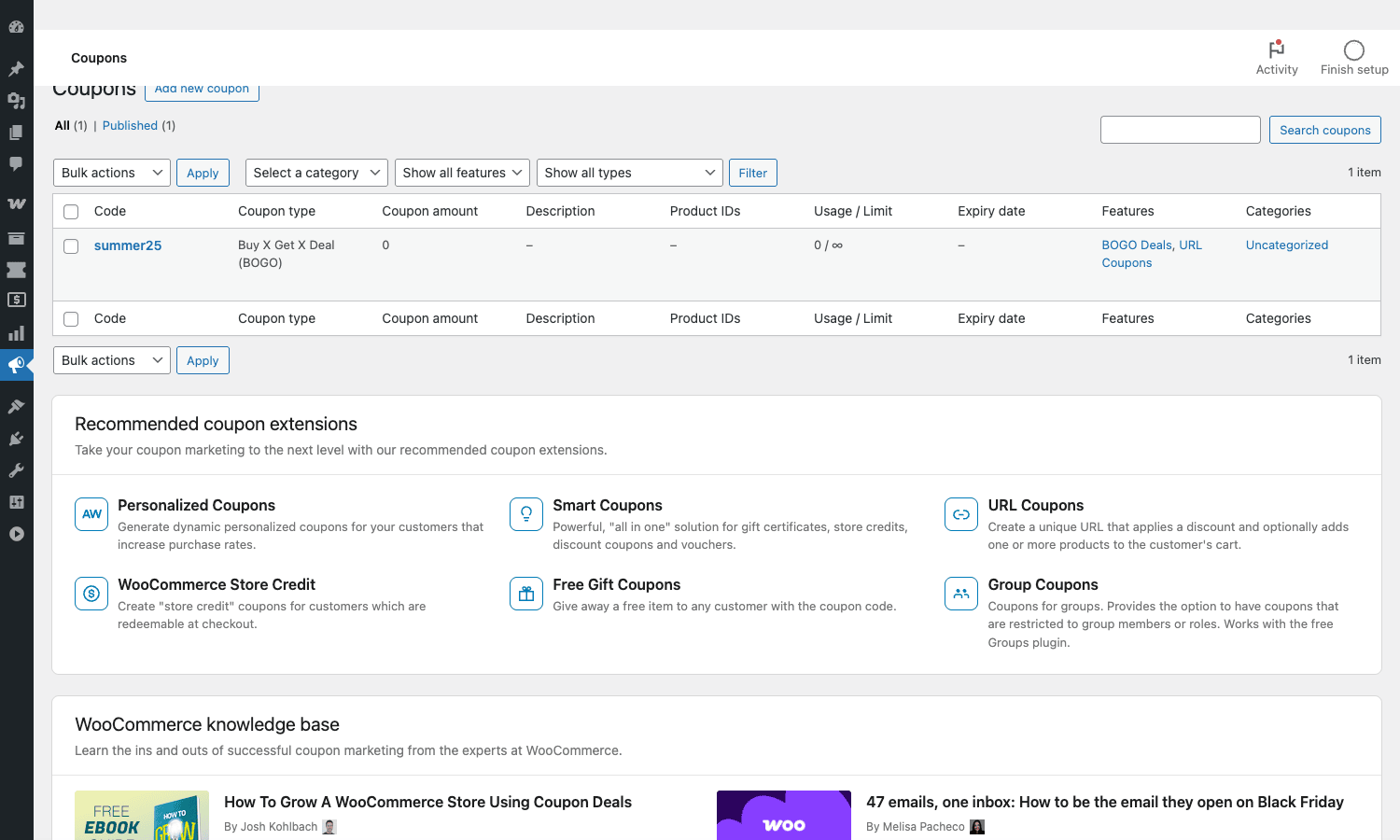
You can filter by category and by the type of feature attached, which becomes a real time-saver once you’re running a dozen seasonal campaigns at once. The Recommended Coupon Extensions panel under the table is upsell content from Rymera; you can ignore or dismiss it.
Setting up a BOGO deal
Click Add New and pick Buy X Get X Deal (BOGO) from the coupon type dropdown. The entire General tab transforms into a two-column BOGO editor.
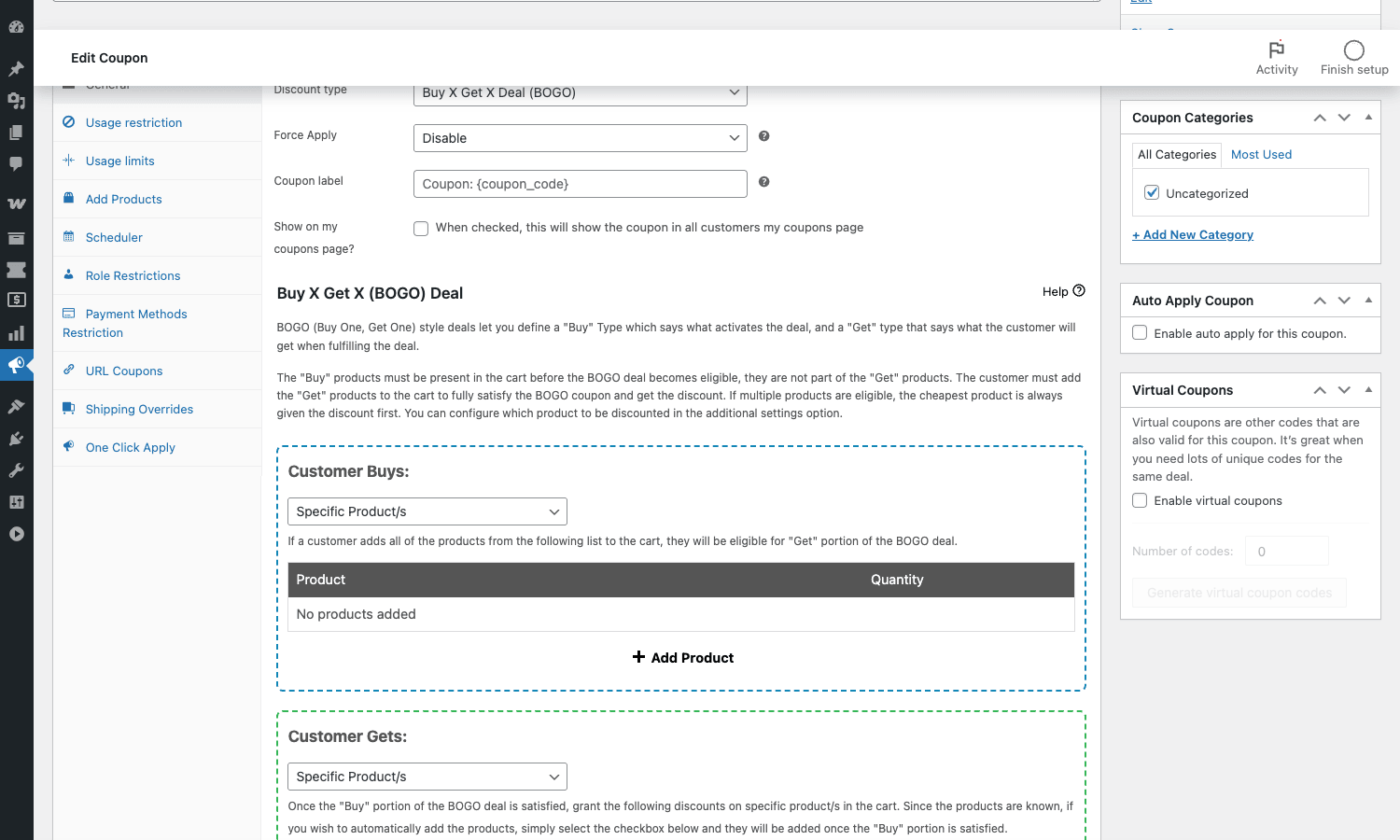
The "Customer Buys" panel holds one or more trigger lines (the customer must add these specific products, or any product from these categories, or any product matching these attributes). The "Customer Gets" panel holds one or more deal lines describing what gets discounted or added. You can do classic BOGOs (buy one shirt, get one free), tiered ones (buy three shirts, the cheapest is free), category-level (any two items from "Hoodies" gets you a free hat), or even auto-add the deal product to the cart so the customer doesn’t have to find it themselves. The "Apply discount to" dropdown chooses whether the discount goes to the cheapest or the most expensive matching item, which matters a lot for margin protection.
If you’ve ever tried to fake BOGO with WooCommerce’s native coupons, you know it can’t be done; the only workaround is "make a custom product bundle" or "write a hook." Advanced Coupons makes this a first-class concept.
Scheduling a coupon
The Scheduler tab gives you two completely separate axes: a Date Range (one or many windows, each with a start and an end), and a Day/Time schedule (the coupon is only active on certain weekdays, in certain hour ranges, every week).
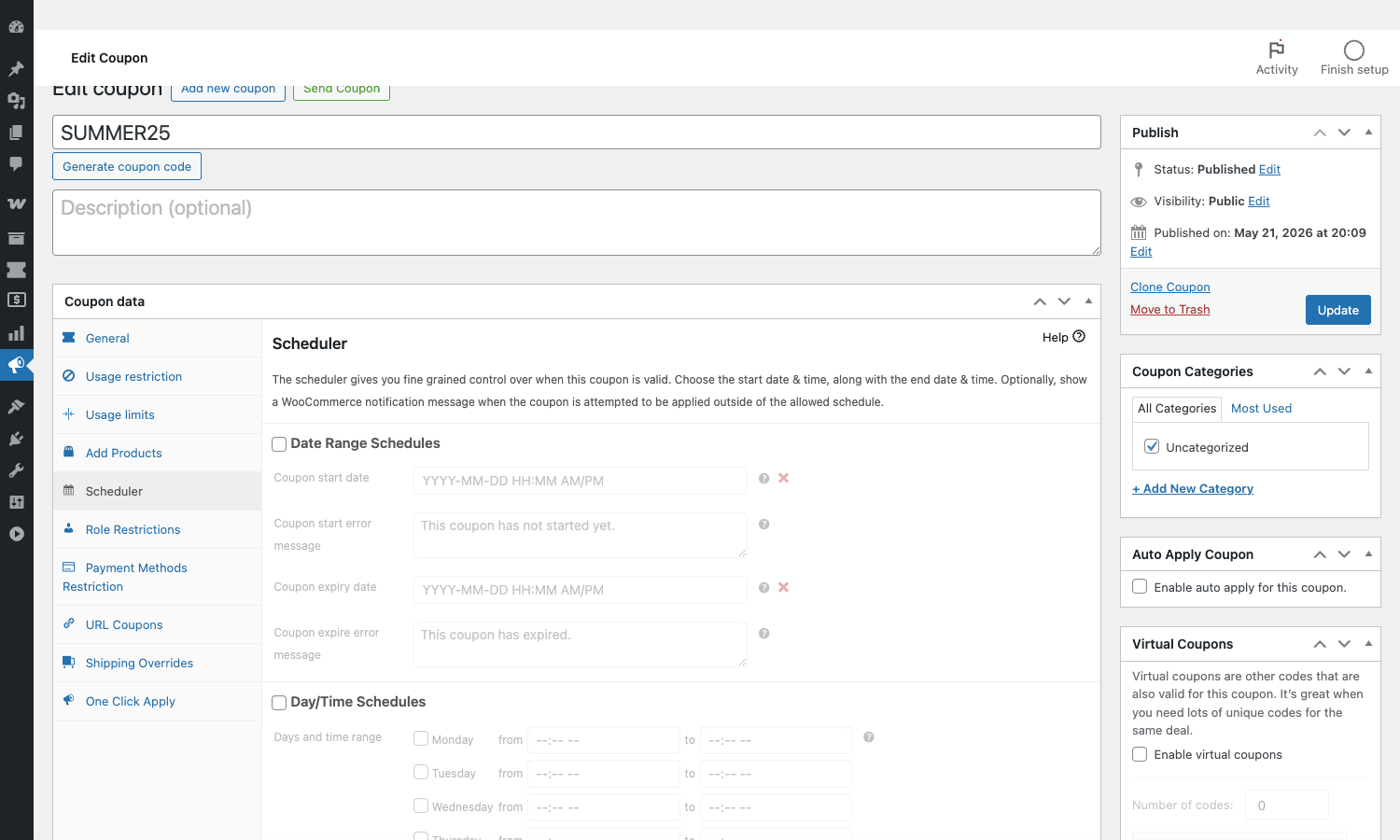
Both kinds of schedule can coexist. A "Tuesday Lunch" coupon might run from May to September AND only on Tuesdays between 11:00 and 14:00. Useful for time-window promotions you don’t want to babysit. The fields next to each schedule let you set the error message shown when someone tries to apply the coupon outside the window ("This coupon has not started yet" vs "This coupon has expired") so the storefront can give a polite, accurate reason.
WooCommerce’s native expiry date is a single ISO date with no time component and no recurring logic. This is the upgrade.
Generating share-link coupons
Open the URL Coupons tab. Tick "Enable Coupon URL" and pick a short slug like summer25. The plugin builds two links: a clean one (/coupon/summer25) that auto-applies the coupon on click, and a "redirect to" link that applies the coupon and then sends the visitor to whatever URL you specify (a category page, a sales page, the cart).
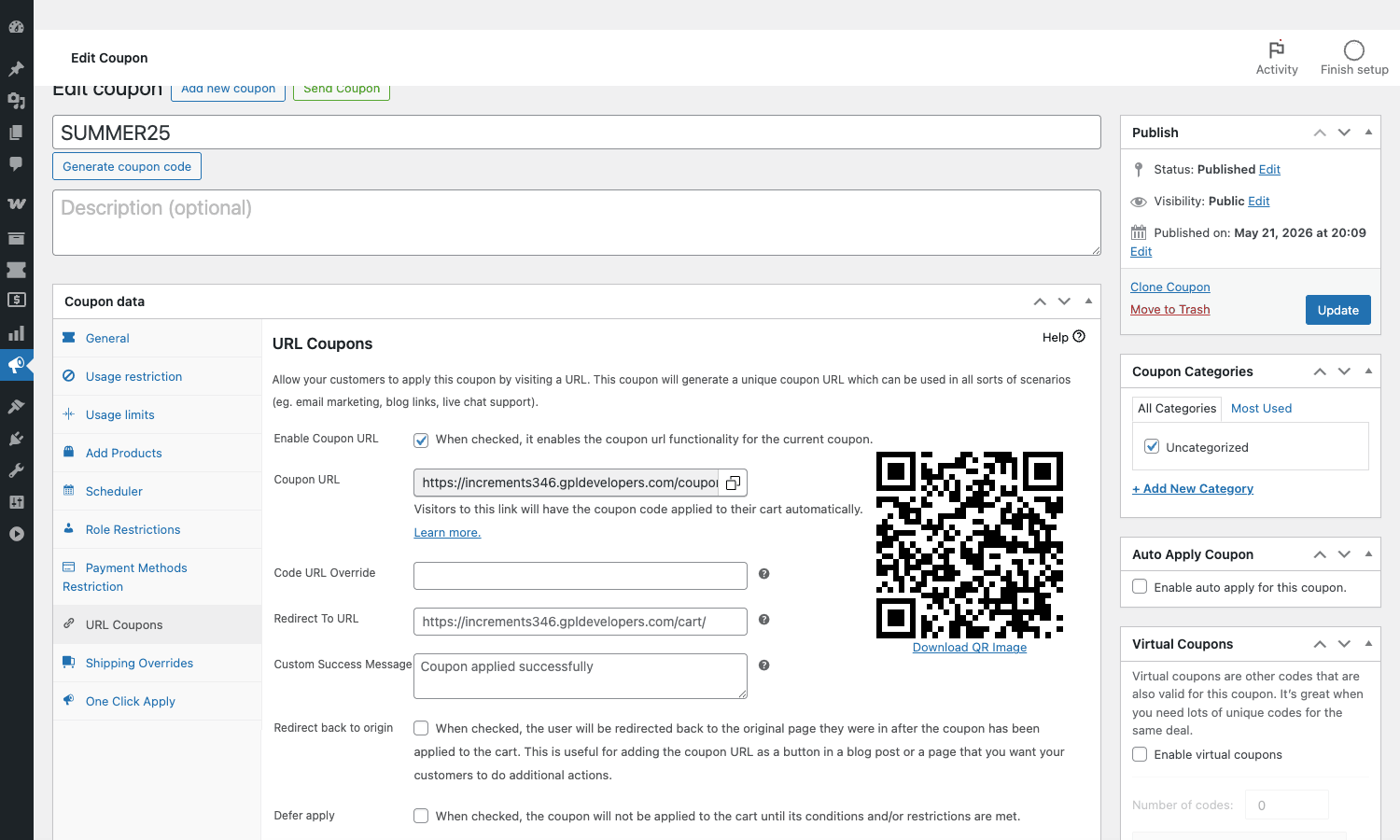
The plugin also generates a QR code for the link so you can drop it in printed material or product packaging. The Defer apply option holds the coupon back until the cart actually qualifies under the coupon’s conditions, which avoids the awkward case where a visitor clicks a link, sees "coupon applied," and then has it silently removed at checkout because their cart didn’t meet the minimum.
Pair URL Coupons with a link cloaker like Pretty Links Pro (more on that in the use cases section below) and you have a full affiliate-and-promo tracking pipeline without paying for a third-party tool.
Building a cart-condition rule
Below the main Coupon Data box is a separate Cart Conditions meta box. This is the rule builder that controls when the coupon is even considered for the cart.
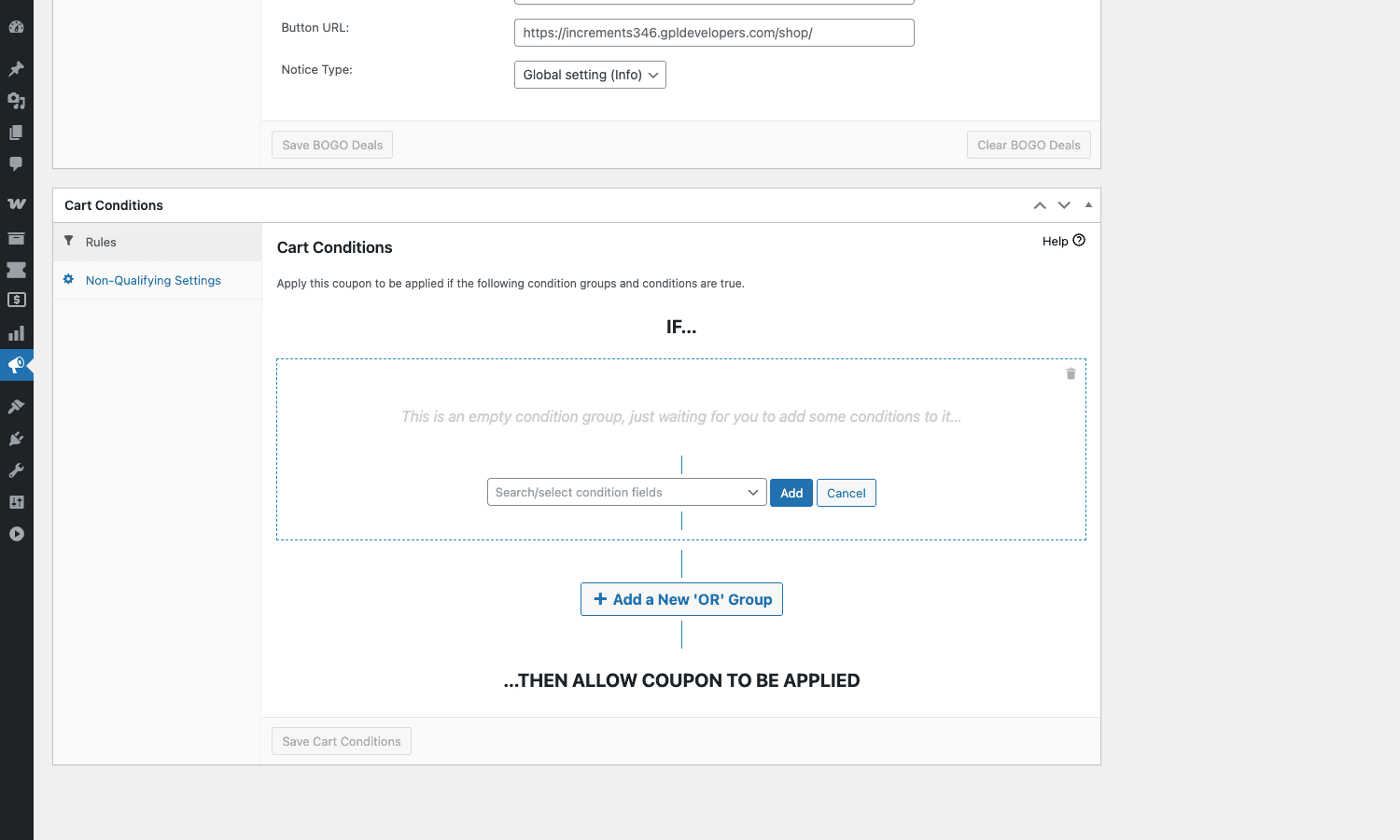
The model is simple: build one or more condition groups; conditions inside a group are joined with AND; groups are joined with OR. The "Search/select condition fields" dropdown is the condition catalog, and it’s long. Some of the more useful ones:
- Cart subtotal (greater than, less than, between)
- Cart contains products from category (or doesn’t)
- Cart total weight is over X
- Customer has placed at least N orders before
- Customer’s lifetime spend is over X
- Customer hasn’t ordered in N days
- Order’s shipping country is in this list
- Selected shipping method is one of these
- Selected payment gateway is one of these
- Cart has a product with attribute Y = Z
You can layer these. "Cart subtotal over $100 AND customer has at least three previous orders AND shipping country is Australia OR cart contains anything tagged ‘pre-order’" is a single coupon’s condition tree. The Non-Qualifying Settings tab on the left lets you choose what happens when a coupon almost qualifies but doesn’t: silent rejection, show a generic notice, show a custom message ("Add $20 more to qualify").
This single screen handles most of the "I wish I could do X if Y" requests that store owners send to developers.
Store Credit and Cashback
Outside the coupon editor, the plugin adds a top-level dashboard at Advanced Coupons > Store Credits that tracks the entire credit ledger.
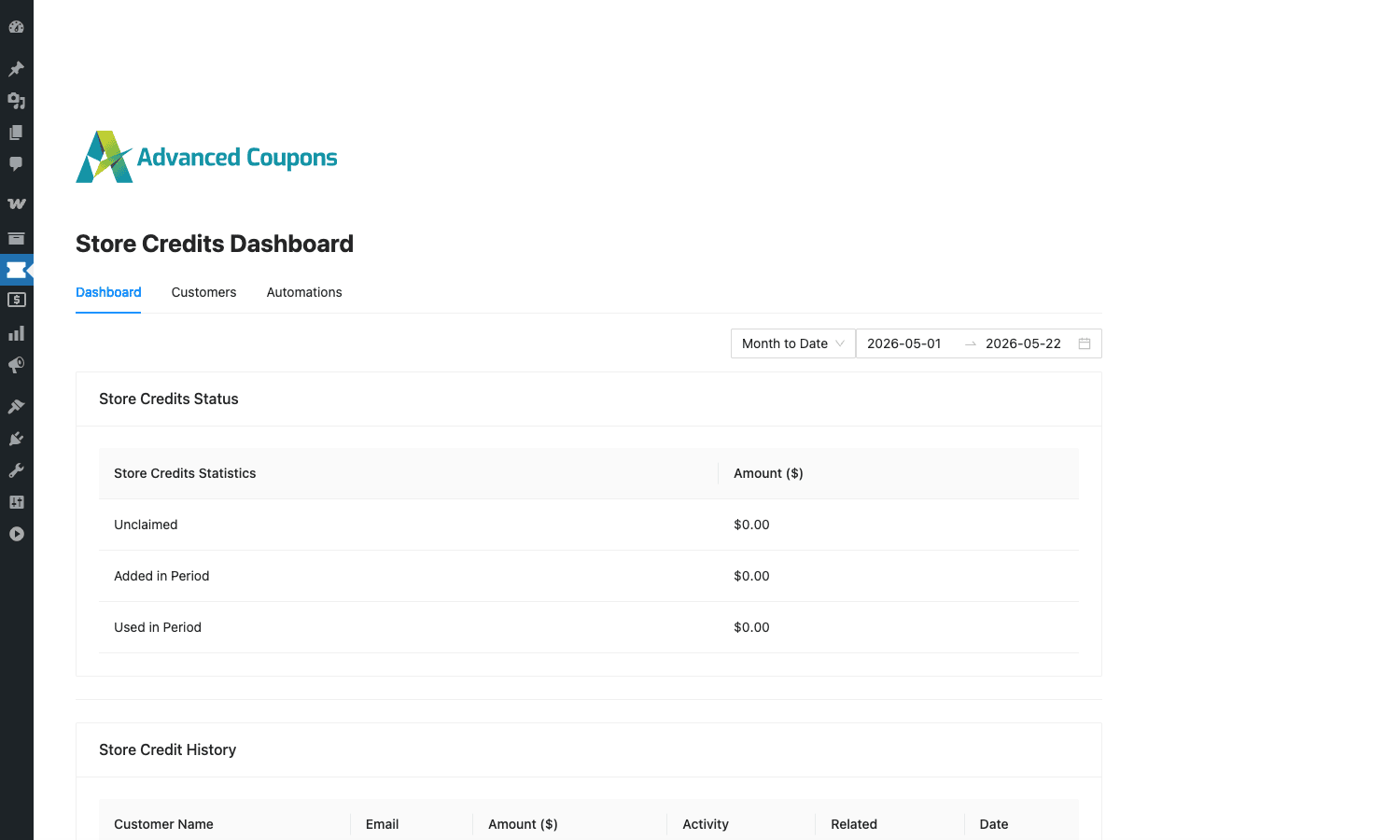
You can:
- Manually add or remove credit for any customer.
- Watch the unclaimed-credit total grow as cashback coupons issue credit.
- See a feed of every credit transaction (added, used, expired).
- Configure automatic credit grants (welcome bonuses, birthday credits, post-purchase cashback).
Credit redeems at checkout via a "use my store credit" toggle and applies as a fixed-amount discount up to the cart total. It works alongside other coupons, with explicit settings to control stacking.
For cashback, you create a special coupon whose discount type is "Percentage cashback" or "Fixed cashback." When that coupon is applied to an order, the customer gets the full price they pay AND a matching amount of store credit on their account for next time. Most stores find this lifts repeat-purchase rates more than a same-day discount of the same value.
Installation and setup
The two-plugin dance trips up about a third of first-time installers, so here are the exact steps.
Step 1: Install the free plugin
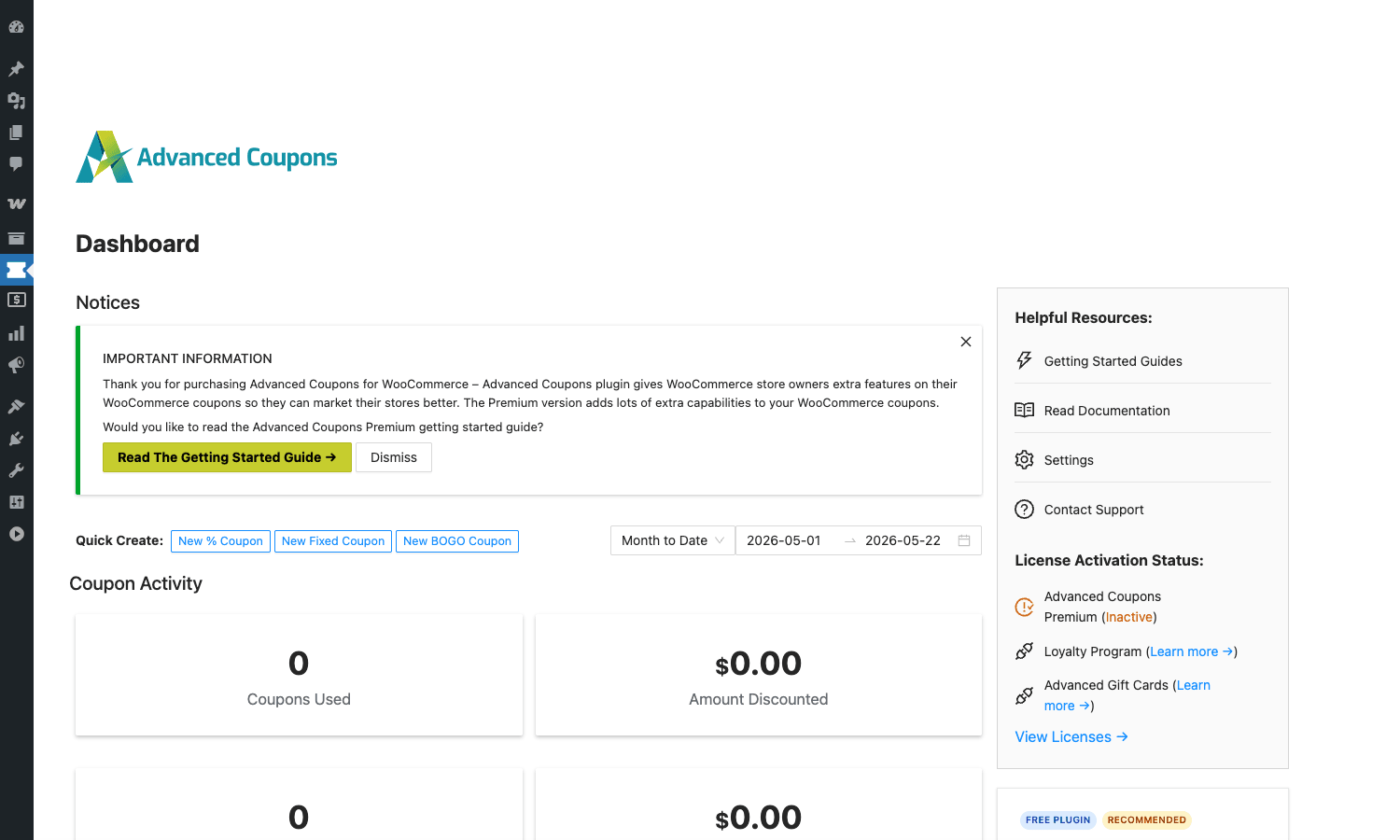
From your WordPress dashboard, Plugins > Add New, search for "Advanced Coupons for WooCommerce" (the free one), install, activate. After activation you’ll see a new top-level Coupons item appear in the WooCommerce admin sidebar, plus an Advanced Coupons menu in the main sidebar with Dashboard, Coupon Templates, Settings, License, and Help sub-items.
Step 2: Install the premium plugin
Upload advanced-coupons-for-woocommerce.zip Plugins > Add New > Upload Plugin > Choose File > Install Now > Activate. The premium plugin will refuse to load if the free plugin is not active, with a clear admin notice.
Step 3: Activate the license
Go to Advanced Coupons > License, paste in your purchase key and activation email, click Activate. The license unlocks updates and the premium feature toggles.
Step 4: Tour the settings
Visit Advanced Coupons > Settings and walk through the tabs: General (toolbar visibility, currency symbol overrides), Coupons (default behavior, sort priority), BOGO (priority of the BOGO calculation hook), URL Coupons (slug base, default redirect), Store Credits (caps, expiry, refund-to-credit behavior), Notifications (notice template), Emails (the credit reminder email template). Everything is pre-filled with sensible defaults; you can come back later.
Step 5: Create your first coupon
Go to WooCommerce > Coupons > Add New. Type a coupon code (or click "Generate coupon code"), pick a discount type, and explore the tabs. Save when you’re happy. The Coupon Categories taxonomy on the right is optional but worth setting up early so you can filter the list later.
Step 6: Test on the front end
Open an incognito window, add a qualifying product to the cart, and try the coupon: type it, click a URL coupon link, or watch the One Click Apply notice surface if you’ve enabled that. If something doesn’t fire, check WooCommerce > Status > Logs; the plugin writes detailed traces under a coupons source so you can see exactly which condition failed.
Real-world use cases
The plugin’s surface area is wide, so it’s easier to grasp through the kinds of campaigns it enables. Five concrete ones I see most often.
A free-shipping campaign with conditions
Goal: free shipping on orders over $75, but only for customers in the US and Canada, and only via Standard Shipping (not Express).
Native WooCommerce coupon: can do free shipping, can do minimum spend, can’t restrict by country or shipping method. You’d end up making three coupons and praying customers pick the right one.
Advanced Coupons: one coupon, with a Cart Conditions group saying "cart subtotal over $75 AND shipping country is US OR Canada AND selected shipping method is Standard," plus a Shipping Override on the Standard method setting the rate to $0. The coupon auto-applies. Done.
A BOGO refresh for a clothing store
Goal: any two t-shirts, the cheaper one is free. Runs only on weekends. Customer doesn’t need a code.
Set the discount type to BOGO. In Customer Buys add "Product category: T-shirts, quantity 2." In Customer Gets add "any one of those, discount 100%, applied to the cheapest matching item." In Scheduler, add a Day/Time schedule covering Saturday and Sunday. In the right-hand Auto Apply meta box, tick "Enable auto apply." Save.
Now every weekend, customers who put two t-shirts in their cart see the cheaper one drop to $0 automatically, with no coupon code shown anywhere. The plugin renders an "Auto-applied: SUMMER25" note in the cart totals so the customer sees the discount line.
A cashback program for repeat buyers
Goal: every time a customer spends over $100, they get 5% back as store credit usable on their next order. Run this as the default offer for logged-in customers.
Create a coupon, discount type "Percentage cashback (store credits)," amount 5. In Cart Conditions, "cart subtotal over $100 AND user is logged in." In the right-hand Auto Apply box, enable auto-apply. The plugin handles the rest: when the order completes, the customer’s store credit balance ticks up by 5% of the qualifying subtotal, and they get a "you’ve earned credit" notification email (configurable under Advanced Coupons > Settings > Emails).
Combine this with FluentCRM Pro and you can fire a follow-up sequence reminding the customer they have unspent credit. Repeat-purchase rates go up materially.
A bulk URL-coupon drop for an email campaign
Goal: send 5,000 one-time-use codes to a newsletter list. Each link, when clicked, applies a unique code that can only be used once. Tracking is per-code.
Native WooCommerce: not happening. You can create one coupon with usage limit 5000 but anyone who finds the code can use it.
Advanced Coupons Virtual Coupons: create a parent coupon, set its conditions, then on the right side tick "Enable virtual coupons" and set "Number of codes: 5000." The plugin generates 5,000 unique codes, each with its own one-time-use URL. Export to CSV, merge into your email tool’s send. Each customer gets a personal link. If the code is used or expires, the next person to click that exact link gets a friendly "this code has been used" message instead of the discount.
The same workflow pairs nicely with Pretty Links Pro for cleaner-looking landing URLs or per-affiliate tracking.
Recovering abandoned carts with a One Click Apply notice
Goal: when a customer abandons a cart with two items and comes back the next day, surface a 10% coupon as an in-cart notice with an "Apply Coupon" button, not just an email.
Create the 10% coupon. In the One Click Apply tab (called Apply Notification internally), enable the notice. Customize the message ("Looks like you’re back. Here’s 10% off if you check out today: APPLY COUPON"). Set conditions so it only fires for carts with at least 2 items and customers who have an account.
Pair it with CartFlows Pro or WPFunnels Pro for the cart funnel itself, and the One Click Apply notice picks up cart-context state from whatever funnel page is active. Subscription-driven stores can layer this on top of WooCommerce Subscriptions renewals too, since the conditions can include "cart contains a subscription."
Developer reference
The plugin exposes about 38 do_action hooks and 87 apply_filters hooks under the acfw_* and acfwp_* prefixes. The free plugin uses acfw_, the premium add-on uses acfwp_. The conventions are reasonable: filters return the value, actions fire before and after big operations, and almost every hook passes the relevant coupon, virtual coupon, or order object so you don’t have to reload state.
A handful of recipes you’ll actually use.
Filter: change the My Coupons endpoint
The plugin adds a /my-account/my-coupons/ endpoint where logged-in customers can see their available and used coupons. To rename it:
add_filter( 'acfw_my_coupons_endpoint', function( $endpoint ) {
 return 'rewards';
} );
After flushing rewrite rules (visit Settings > Permalinks > Save), the endpoint now lives at /my-account/rewards/. Useful if you’re rebranding "coupons" as "rewards" for your audience.
Filter: stop coupons in a particular shipping country
add_filter( 'acfw_disallowed_shipping_methods_for_override', function( $methods ) {
 // Block coupon-driven shipping overrides on "Local Pickup" too.
 $methods[] = 'local_pickup';
 return $methods;
} );
By default the plugin refuses to override the free_shipping method (since "free shipping" is already free). This filter lets you extend that blocklist.
Action: react to a virtual coupon being used
When a customer redeems one of your bulk-generated codes, you might want to log it, fire a webhook, or push a record to an analytics tool.
add_action( 'acfwp_virtual_coupon_used_in_order', function( $code, $order_id, $virtual_coupon, $order ) {
 error_log( sprintf(
 'Virtual coupon %s redeemed on order #%d by %s',
 $code,
 $order_id,
 $order->get_billing_email()
 ) );

 // Push to your analytics tool of choice.
 wp_remote_post( 'https://hooks.zapier.com/hooks/catch/12345/abc/', array(
 'body' => array(
 'code' => $code,
 'order' => $order_id,
 'email' => $order->get_billing_email(),
 'total' => $order->get_total(),
 ),
 ) );
}, 10, 4 );
The action fires once per virtual coupon redemption, which is what you want for analytics. The full parent coupon object and the virtual coupon object are both available, so you can tag events with the campaign name.
Filter: tweak the cashback amount calculation
Useful if you want to round cashback to the nearest dollar, cap it at a certain amount, or scale by customer tier.
add_filter( 'acfwp_calculated_percent_cashback_amount', function( $amount, $coupon ) {
 // Cap cashback at 25 per order.
 if ( $amount > 25 ) {
 return 25;
 }

 // Round down to whole dollars.
 return floor( $amount );
}, 10, 2 );
The $coupon argument is the full WC_Coupon object so you can inspect meta and apply per-campaign logic.
Filter: which order statuses count toward "number of past orders" conditions
add_filter( 'acfwp_number_of_orders_cart_condition_statuses', function( $statuses ) {
 // Only count fully completed orders, not "processing" ones.
 return array( 'completed' );
} );
By default the plugin counts a fairly generous list of statuses as "an order has happened." If you treat only completed orders as real, narrow it down here. This affects any cart-condition that references customer order history.
Filter: change the BOGO calculation priority
If you’re stacking Advanced Coupons with another plugin that also recalculates cart totals, the order matters.
add_filter( 'acfw_bogo_implementation_priority', function( $priority ) {
 return 15; // default is 11; later means after other plugins' filters.
} );
I’d only touch this if you’re seeing a specific stacking bug. Default is fine for the vast majority of stores.
Action: hook into a deferred URL coupon being applied
A URL coupon with "Defer apply" enabled doesn’t attach until the cart qualifies. When the deferred apply finally fires:
add_action( 'acfw_after_apply_deferred_coupons', function( $applied, $deferred ) {
 foreach ( $applied as $code ) {
 // Send a friendly "your discount activated" notice
 wc_add_notice( sprintf(
 'Heads up: your %s discount has now been applied to your cart.',
 $code
 ), 'success' );
 }
}, 10, 2 );
Useful for showing the customer a clear "your discount is live now" moment when their cart finally crosses the threshold.
REST API
The plugin registers REST routes under two namespaces. The main one is coupons/v1 (admin-authenticated, for the internal Virtual Coupons UI). A second namespace, wc-coupons/v1, mirrors the most useful routes for WooCommerce’s standard oAuth and basic-auth, so third-party tools like Zapier can talk to the plugin the same way they talk to core WooCommerce.
The Virtual Coupons routes are the most interesting:
GET /wp-json/coupons/v1/virtualcoupons # list virtual coupons
POST /wp-json/coupons/v1/virtualcoupons # create one
GET /wp-json/coupons/v1/virtualcoupons/{id} # read one
PUT /wp-json/coupons/v1/virtualcoupons/{id} # update one
DELETE /wp-json/coupons/v1/virtualcoupons/{id} # delete one
POST /wp-json/coupons/v1/bulk/virtualcoupons # bulk create
DELETE /wp-json/coupons/v1/bulk/virtualcoupons # bulk delete
GET /wp-json/coupons/v1/virtualcoupons/stats/{id} # usage stats for a parent coupon
A small example creating a single virtual coupon for a known parent (assuming you’ve got an application password set up for coupons/v1‘s admin namespace):
curl -X POST 'https://example.com/wp-json/coupons/v1/virtualcoupons' \
 -u 'admin:xxxx xxxx xxxx xxxx xxxx xxxx' \
 -H 'Content-Type: application/json' \
 -d '{
 "coupon_id": 42,
 "code": "WELCOME-7G2X9",
 "usage_limit": 1
 }'
The response is a JSON object with the created code, its URL, and its initial usage stats. Bulk creation accepts a quantity and the plugin generates the codes server-side.
Database tables and meta
wp_acfw_virtual_coupons(custom table) stores virtual coupon codes, their parent coupon, usage count, and the customer who used them.wp_acfw_store_creditsandwp_acfw_store_credits_historytrack per-customer credit balance and the audit log.wp_postmetastores coupon-level settings under the_acfw_prefix (_acfw_url_coupon,_acfw_url_coupon_slug,_acfw_scheduler_settings,_acfw_cart_conditions, etc.).
If you’re writing a migration script, those are the surfaces.
Performance, compatibility, and gotchas
Honest performance picture: the plugin adds maybe one to three database queries per cart-recalculation cycle when coupons with cart conditions are present. The cart conditions evaluator is well-cached (results memoized per-request) so it doesn’t thrash. On a store with under a hundred active coupons it’s a non-issue. On a store with thousands of active coupons (which is what Virtual Coupons can create at scale), you’ll want object caching on (Redis or Memcached via a drop-in like W3 Total Cache) so the coupon meta lookups stay in memory.
A few specific things to know.
Subscription orders and cashback
If you’re using WooCommerce Subscriptions, be careful with auto-apply cashback coupons on renewals. By default the cashback amount is calculated from the renewal subtotal, so a $99/month subscription with 5% cashback issues $4.95 of store credit per renewal. The plugin handles this correctly out of the box, but the cumulative effect over a year ($59.40 of credit per customer) needs to fit your margin math. Set a per-coupon usage limit if you only want to issue cashback on the first N renewals.
Tax interactions
Cashback is calculated on the pre-tax or post-tax amount depending on the WooCommerce tax setting "Display prices during cart and checkout: Including/Excluding tax." If you flip that setting after coupons are in use, customers may see slightly different cashback values on otherwise-identical orders. There’s a hook (acfw_percentage_cashback_amount) for overriding the math, but stick with the default unless you’ve got a specific reason.
URL coupon collisions with \/coupon\/<anything> URLs
The URL coupon endpoint uses /coupon/<slug> by default. If your theme or another plugin defines a page at /coupon/something, you’ll get a routing conflict. Settings > Advanced Coupons > URL Coupons lets you change the base from coupon to something else (promo, apply, c). I usually pick promo to avoid the conflict entirely.
Cron and the auto-apply pipeline
Auto-apply coupons are evaluated on every cart update, not on cron. That’s fine for performance, but it means a coupon’s "is currently in window" check runs against the current wall-clock time. If your server is in UTC and your storefront is in Sydney, the day-of-week scheduler might trip across midnight in unexpected ways. Set your WordPress timezone correctly (Settings > General > Timezone) before configuring time-of-day schedules.
Conflict with WP-CLI’s wc cart commands
A handful of WP-CLI helpers that programmatically manipulate carts (like wc cart add from custom scripts) bypass the cart-recalculation lifecycle that auto-apply hooks listen to. If you’re testing programmatically, run WC()->cart->calculate_totals() after your CLI manipulation to give the plugin a chance to recheck.
What can go wrong
A short list of things I’ve seen trip people up:
- Free plugin out of date. The premium plugin sometimes lands a new feature that requires a free-plugin version bump too. If a feature mysteriously isn’t showing, update both plugins.
- WooCommerce minimum-spend coupon vs cart-condition coupon. If you set both a native "minimum spend" AND a cart condition for "subtotal over X," WooCommerce checks the native one first and may reject the coupon before Advanced Coupons gets a chance to check its own rules. Just use the cart-condition rule; leave the native minimum spend blank.
- Multiple BOGO coupons on the same cart. Stacking is supported but the math gets confusing fast. Use Mutually Exclusive groups (premium feature) to gate which BOGO wins.
- Tax-exempt customers and store credit. Store credit applies as a fixed-amount discount before tax. For tax-exempt customers this is fine; for stores using inclusive-tax pricing it can produce a small rounding delta against the cart total. Test with a real tax setup before launching.
Advanced Coupons vs the alternatives
Worth being upfront about how this slots against the competition.
WooCommerce Smart Coupons (covered separately in our Smart Coupons review) is the direct competitor. It started as a gift-card and bulk-coupon plugin and grew into a fuller promotions tool. Smart Coupons is slightly stronger on gift cards (its core feature) and has a more mature credit-redemption UI on the storefront. Advanced Coupons is significantly stronger on BOGO Deals, Cart Conditions (Smart Coupons doesn’t have a real visual rule builder), URL Coupons in bulk, and Scheduler day/time windows. If your campaigns are mostly "send a gift card code," Smart Coupons is fine. If they’re "build complex conditional promotions," Advanced Coupons wins.
Discount Rules for WooCommerce Pro (Flycart) is a different shape. It focuses on rule-based pricing rather than coupons: "automatically discount any t-shirt by 20% on Tuesdays" without a code. Advanced Coupons can do this too via auto-apply, but Discount Rules is more focused on tiered/quantity pricing and storefront pricing displays. Many stores end up running both: Discount Rules for the catalog-level price tiers, Advanced Coupons for the coupon-driven campaigns.
WooCommerce Dynamic Pricing (the official WC extension) is in the same lane as Discount Rules: bulk discounts, role-based pricing, no coupons involved. It pairs cleanly with Advanced Coupons if you want both pricing rules and coupons.
YITH WooCommerce Gift Cards and YITH WooCommerce Coupon Email System are smaller-scope add-ons covering one feature each (gift cards and bulk coupon emails respectively). Cheaper but you’ll end up stacking three or four to match Advanced Coupons’ surface area.
FunnelKit and similar funnel builders include some coupon logic for their checkout funnels but don’t replace a real coupon engine. They work alongside Advanced Coupons, not instead of it.
Advanced Coupons also pairs cleanly with Pixel Manager for WooCommerce if you want to fire pixel events when a coupon applies, which is how marketing teams typically measure campaign performance.
Pricing and licensing
Advanced Coupons’ official site (advancedcouponsplugin.com) sells the Premium plugin in three tiers:
- Growth for one site, annual renewal.
- Plus for five sites.
- Professional for 25 sites, plus access to the Store Credits and Loyalty Program add-ons.
- Each tier also offers a one-time Lifetime option for stores planning to use the plugin long-term.
The Store Credits and Loyalty Program features (and the separate Advanced Gift Cards add-on) are bundled into the Professional plan or sold individually. License keys can be activated and deactivated from your account dashboard, so moving the plugin between staging and production is straightforward.
If you’d rather not pay per-site, the on GPL Times is the lowest-friction way to evaluate every premium feature on a real WooCommerce store before deciding whether to renew with the developer for official updates.
Whichever route you take, the free Advanced Coupons plugin (on the WordPress.org repository) is genuinely useful on its own and is what you should install first.
Frequently asked questions
Does it replace WooCommerce’s built-in coupons?
It extends them. The same shop_coupon post type powers everything; Advanced Coupons just adds new discount types, new meta boxes, new tabs, and new fields. If you uninstall the plugins, your native coupons keep working.
Can it issue real gift cards?
Cashback Coupons issue store credit (a per-customer balance held on your store). Real gift cards (with their own card codes, that anyone can redeem regardless of account) come from the separate Advanced Gift Cards add-on by the same vendor. Store credit covers most "I want to reward this customer" use cases; gift cards are for "I want my customers to give credit to friends." If you need the latter, look at Advanced Gift Cards for WooCommerce too.
Is BOGO compatible with variable products?
Yes. Both Customer Buys and Customer Gets lines accept variations as well as parent products. You can also restrict BOGO matching by attribute (so a "buy any size large t-shirt, get a sticker" deal is straightforward).
Can the same coupon have multiple cart conditions?
Yes. The Cart Conditions builder supports any number of conditions inside any number of AND/OR groups. There’s no practical limit, though more than ten conditions on one coupon usually means you should split it into two coupons.
Does it work with subscriptions?
Yes. Cart conditions can check for subscription products, and cashback runs on renewals too. If you use WooCommerce Subscriptions, set "Apply to renewals" thoughtfully on percentage-based coupons (auto-renewals can multiply the discount cost over a year).
Does it work with WooCommerce Blocks (the new Cart/Checkout)?
Yes. The plugin registers WC Blocks integrations under Models/WC_Blocks.php so the cart and checkout blocks render the same coupon application UI as the shortcode-based cart. URL Coupons and One Click Apply notices both work inside the blocks.
Can I import existing coupons from another plugin?
Coupons themselves are WooCommerce shop_coupon posts, so any WC importer (or WP All Import Pro) can move them across. The Advanced-Coupons-specific settings (BOGO rules, cart conditions, URL coupon slugs) are stored as post meta under the _acfw_ prefix; map those fields in your importer if you want to bring rules over too.
Does the demo show all the features?
The demo on advancedcouponsplugin.com shows the admin panels but doesn’t let you simulate purchases.
Are there CLI commands?
No first-party WP-CLI commands. The REST API is the supported automation surface. If you need scripted coupon creation, the standard wp post create --post_type=shop_coupon --meta_input='...' plus the documented meta keys (under the _acfw_ prefix) is the practical workaround.
Will it slow down my store?
The realistic answer: maybe one to three extra cart queries per page load if you have active coupons with cart conditions. Negligible on a properly tuned WooCommerce store. The Virtual Coupons feature is the heaviest piece (it can generate thousands of rows in a custom table) but it’s bulk-create then bulk-query, not chatty per-page-load.
Final thoughts
WooCommerce’s stock coupon system is the kind of feature that works fine for the first year of a store’s life and becomes the bottleneck in year two. The moment you want to run a real campaign (a weekend BOGO, a tiered loyalty discount, a private-link drop to your email list) you find yourself either commissioning a developer or installing four overlapping plugins to cover the gaps. Advanced Coupons for WooCommerce Premium is the rare case of one plugin actually covering the whole gap, and doing so without a learning curve that feels like a second job.
I like that the BOGO editor is a real editor and not a hack on top of fixed_product. I like that the Cart Conditions builder is a tree and not a spreadsheet of regex. I like that URL Coupons generate QR codes by default, because of course you’d want to drop them in a print catalog. I like that the developer surface is well-organized under Models/ and the hooks follow a sensible naming convention.
It’s not perfect. The premium upgrade matrix is a little confusing (Loyalty Program is a separate purchase even though it shows up in the menu), and the inline upsell content on the dashboard is more aggressive than I’d like. The cashback math edge cases (multi-currency stores, tax-inclusive pricing) need careful testing before you launch any cashback campaign at scale. None of that is a dealbreaker; just plan the rollout.
If you’ve been writing custom code to do conditional promotions in WooCommerce, this is the off-the-shelf option to replace it. In my experience it does, and most stores wish they’d installed it twelve months earlier than they did.
External references worth bookmarking: the official Advanced Coupons knowledge base for vendor-level setup guides, WooCommerce’s coupon management guide for the native baseline you’re extending, and developer.wordpress.org’s REST API handbook if you’re integrating the Virtual Coupons endpoints into a custom automation.