

Most WordPress social sharing plugins are heavier than the post they’re sitting on. They drag in a dozen font files, half a megabyte of JavaScript for icons, four API calls per pageview, and then a sticky bar that breaks on mobile anyway. Social Warfare Pro is the small, opinionated alternative. It ships a tight share-button panel, a per-post Social Optimizer that lets you pick the exact tweet and Open Graph image for each article, a click-to-tweet box that doesn’t look like 2014, and a share-recovery trick that keeps your old share counts alive when you change permalinks.
This is a long walkthrough. The first half is for the publisher who just wants buttons on their posts that don’t slow the site down. The second half is for the developer who needs to plug into the filters, customise the metabox, or pull share counts out by shortcode.
Table of Contents
- What is Social Warfare Pro?
- Key features
- How it works for the publisher
- Installation and setup
- The per-post Social Optimizer
- Click-to-Tweet boxes
- Pinterest image override
- Share recovery: keeping counts after a permalink change
- Real-world use cases
- Developer reference
- Performance, compatibility, and gotchas
- Pricing and licensing
- Frequently asked questions
- Final thoughts
What is Social Warfare Pro?
Social Warfare Pro is the premium add-on for the free Social Warfare plugin by Warfare Plugins. The free plugin gives you a handful of share networks (X, Facebook, LinkedIn, Pinterest, Mix), button placement controls, and a click-to-tweet shortcode. The Pro add-on layers on the features that turn the plugin from "share buttons" into a proper publisher tool: a per-post Social Optimizer panel that lets you set OG image, OG title, OG description and a custom tweet, more networks (Reddit, Tumblr, Buffer, Hacker News, WhatsApp, Pocket, Flipboard, Yummly, Email, Print, VK, and more), Pinterest-image override, share recovery, link shortening with bit.ly, UTM tracking on shared links, and a popular-posts widget that ranks by share count.
If you publish content for a living, that list is the difference between "social plugin on autopilot" and "social plugin you actually optimise per article". And it does this without the weight problem most competitors have. Buttons are rendered as inline SVG plus CSS, there are no icon fonts, the JavaScript is split so it only loads if the panel is on the page, and floating-bar variants are CSS-driven rather than asking the browser to repaint on every scroll event.
I’ve run it on a mid-sized travel blog and the load impact is in noise-floor territory. The reason to pick this plugin over the dozen others is not raw feature count, it’s that the features it does have are picked by people who write for a living, and the implementation refuses to add weight for the sake of "engagement widgets".
Key features
- Fast, async share buttons. Counts are fetched off-thread and cached. The buttons render before the counts arrive, no layout shift, no spinner.
- Per-post Social Optimizer. A Gutenberg-friendly metabox where you set the exact OG image (1200×628), OG title (60 chars), OG description (150), Pinterest image (vertical, taller), and a custom tweet (228 chars) for each article.
- Click-to-Tweet boxes. Pull-quote shortcode that renders a styled tweetable callout in the middle of any post. The Pro plugin ships with multiple visual themes.
- Pinterest image override. Pick a tall, Pinterest-friendly image per post so the Pin-It hover button and the
Saveflow pull the right asset, not the OG image. - Share recovery. If you switched permalinks (http to https, /blog/ to /, removed /category/ from URLs) and your old share counts vanished, this turns them back on by mapping the old URL to the new one.
- Premium social networks. Reddit, Tumblr, Buffer, Hacker News, WhatsApp, Pocket, Flipboard, Yummly, Email, Print, VK, Telegram, Viber, Xing, Mastodon, Mix, Parler, and Blogger.
- UTM tracking on shared URLs. Every shared link can carry a UTM medium/source so your analytics knows which network and which button drove the click.
- Bit.ly link shortening. Optional. Cleaner-looking URLs in tweets.
- Popular-posts widget. Ranks by total shares (not by views). Configurable per network.
- Twitter share count restoration. Optional integration with twitcount.com to bring back the count Twitter killed in 2015.
- Open Graph and Twitter Card output. Automatic meta tags on every post, overridable per post.
How it works for the publisher
Once Social Warfare and Social Warfare Pro are both active, the Display tab is where you choose which networks show up on your buttons panel. The interface is a drag-and-drop sort: networks in the "Active" row appear, networks in "Inactive" don’t, and you order them by dragging.
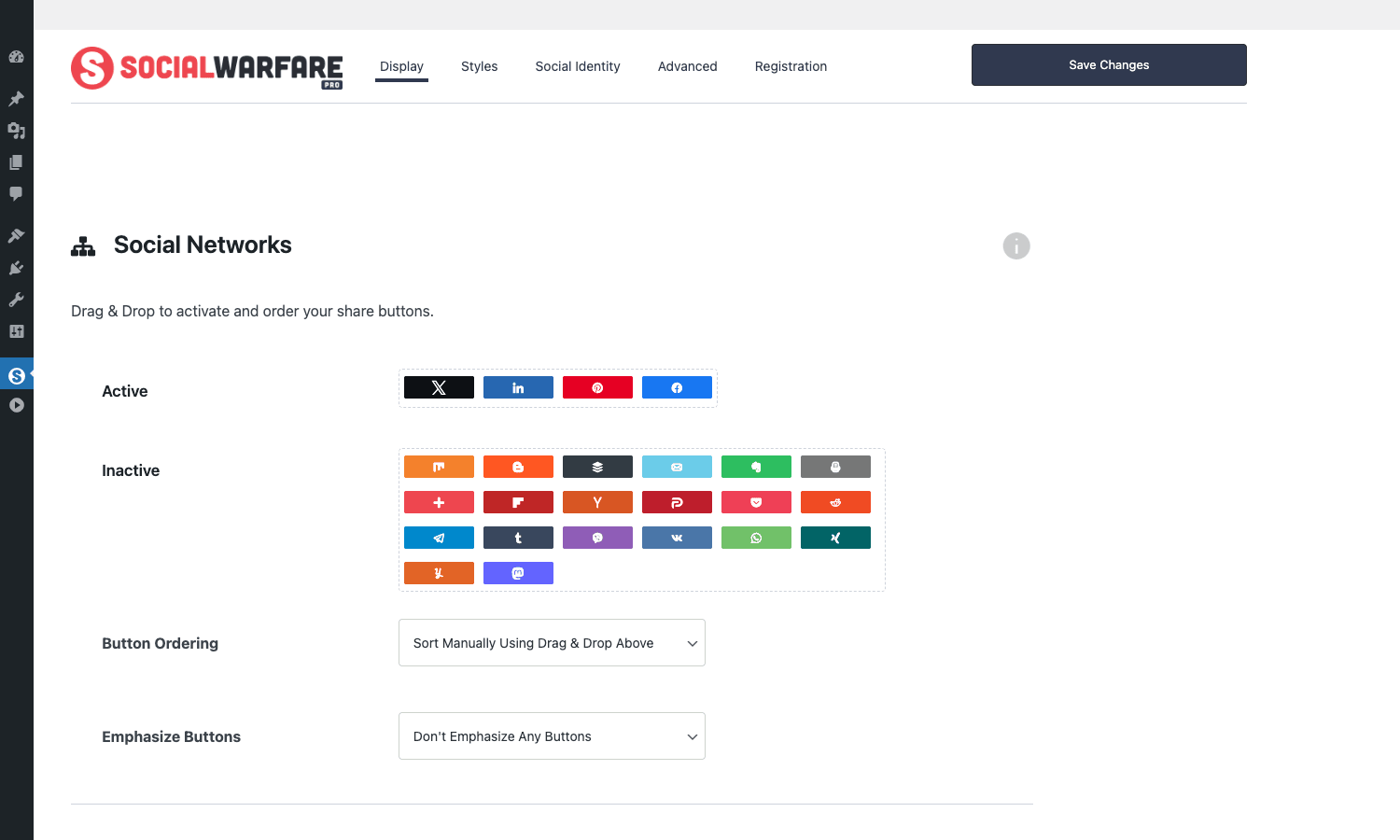
The "Inactive" pool only fills up with that many networks if Pro is active. Free Social Warfare alone gives you five or six. With Pro you get the full list, including the niche-but-useful ones (Hacker News for tech sites, Reddit for community blogs, WhatsApp for mobile-heavy traffic, Yummly for food).
Below the networks picker on the Display tab you also configure share count display (button counts, total count, decimal places, separator, minimum count to display, threshold to hide counts until they’re high enough to look respectable) and per-post-type placement: above content, below content, both, floating, or none/manual.
The Styles tab is where you pick button shape, colour set, and size, plus the click-to-tweet visual theme.
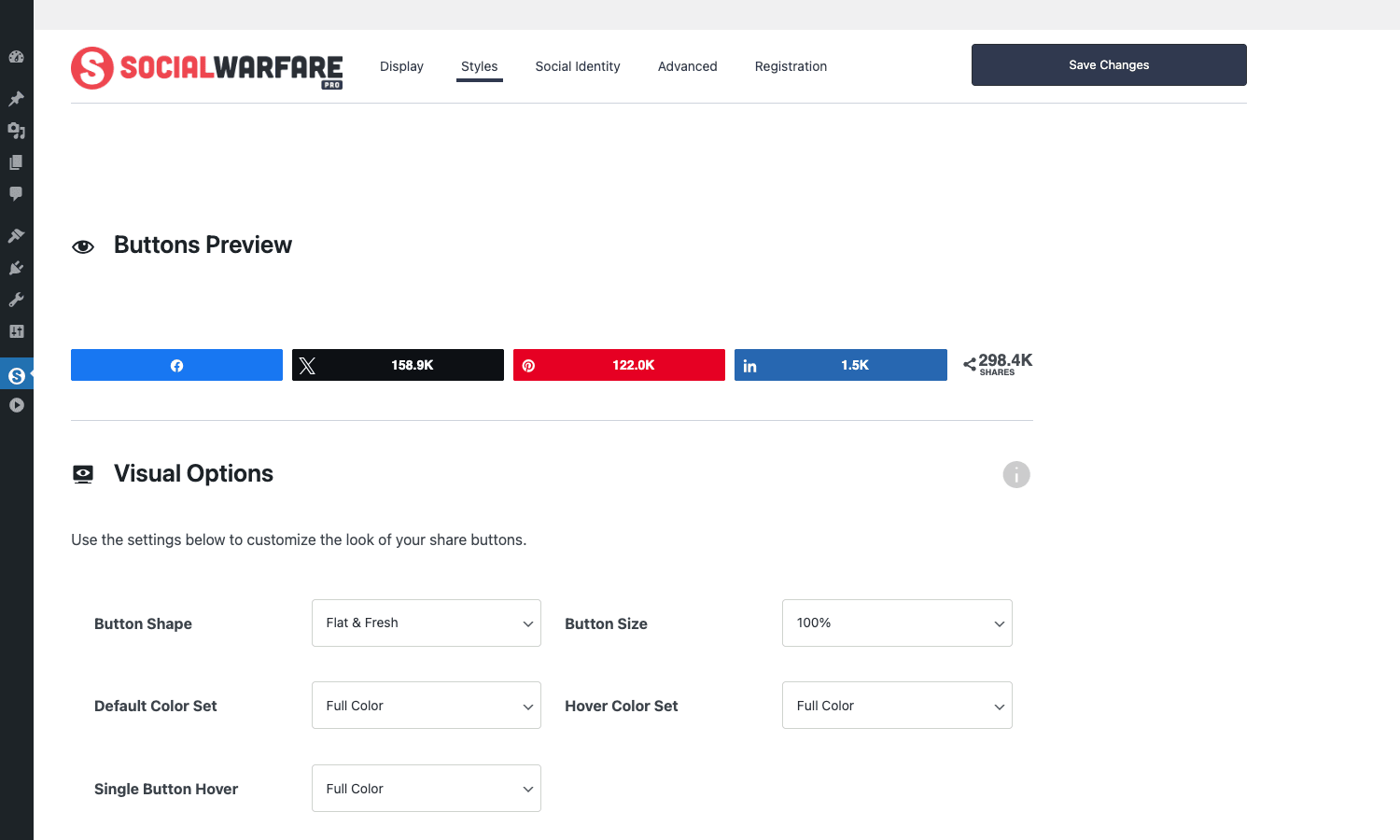
The live Buttons Preview at the top changes as you switch options, which beats the usual "save and reload to see what it looks like" pattern. Buttons are rendered with the same component the frontend uses, so what you see is what readers will see.
The frontend output is unfussy. A horizontal row of buttons, each with its network icon and a share count, plus a "Total Shares" count at the end.
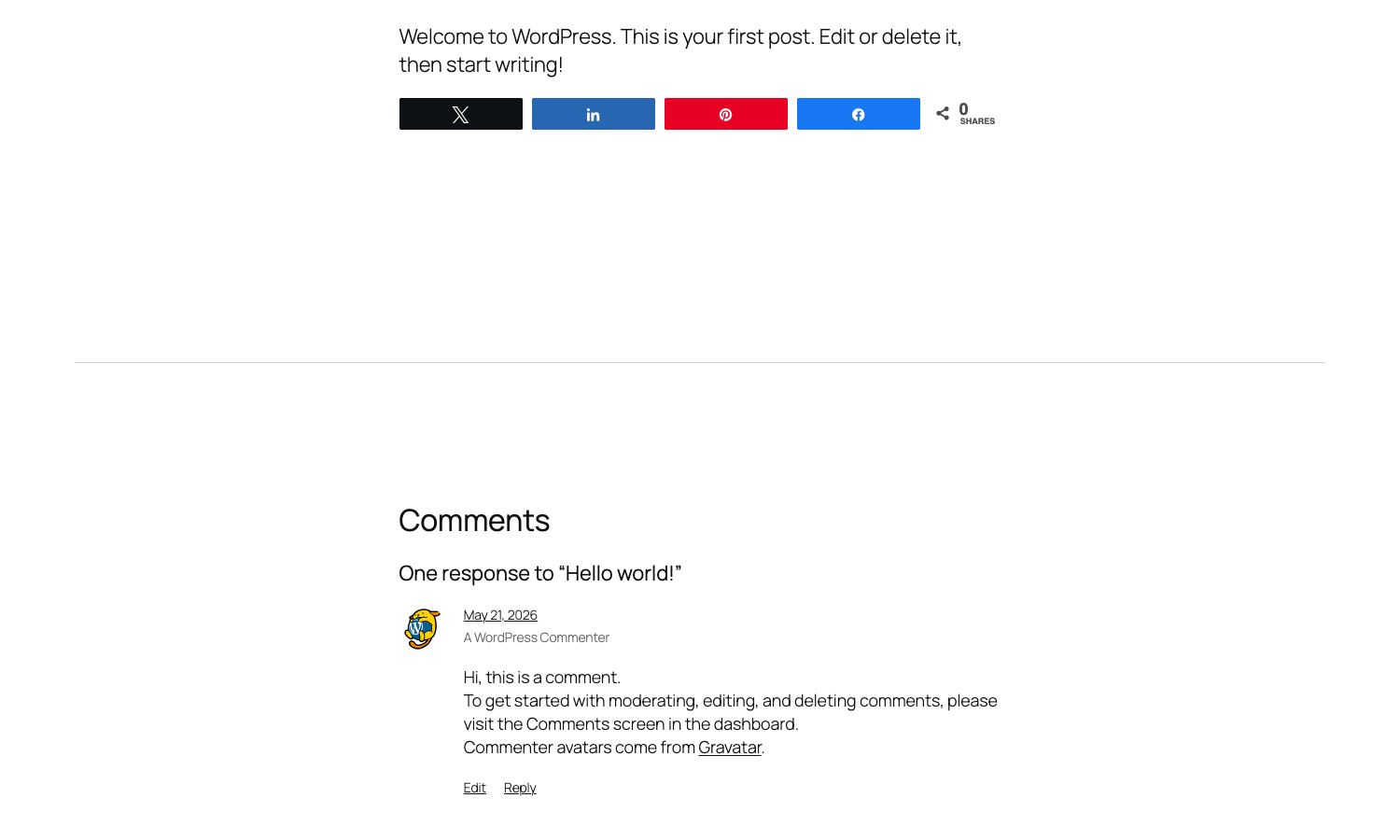
That’s it. No overlay, no popup, no scroll-blocker. The floating-bar variant is optional and you turn it on per device width.
Installation and setup
Like any premium plugin, the Pro add-on assumes the free version is installed first.
- Install the free Social Warfare from WP-Admin -> Plugins -> Add New, or from
https://wordpress.org/plugins/social-warfare/. Activate. - Upload
social-warfare-pro.zipvia Plugins -> Add New -> Upload Plugin. Activate. - Go to WP-Admin -> Settings -> Social Warfare. The plugin adds its own menu entry as
admin.php?page=social-warfare. - Open the Registration tab and paste your licence key. Click Register Plugin.
- The badge above the SOCIALWARFARE logo flips to PRO and a green "is registered" banner shows on the Registration tab.
- Walk through Display -> Styles -> Social Identity, saving at each step. The Save Changes button is sticky in the header.
That’s the full setup for the basic share-button output. Most publishers stop there and never touch the rest. If you want the Pro-specific bits (share recovery, analytics tracking, custom tweets, Pinterest override), keep reading.
The per-post Social Optimizer
This is the single feature I’d buy the Pro tier for, even if everything else were the same. Every post (and page, and custom post type with editor support) gets a "Social Warfare Custom Options" metabox at the bottom of the editor. Open it and you get a per-post panel that lets you override the OG image, OG title, OG description, Pinterest image, Pinterest description, custom tweet text, and a few advanced options.
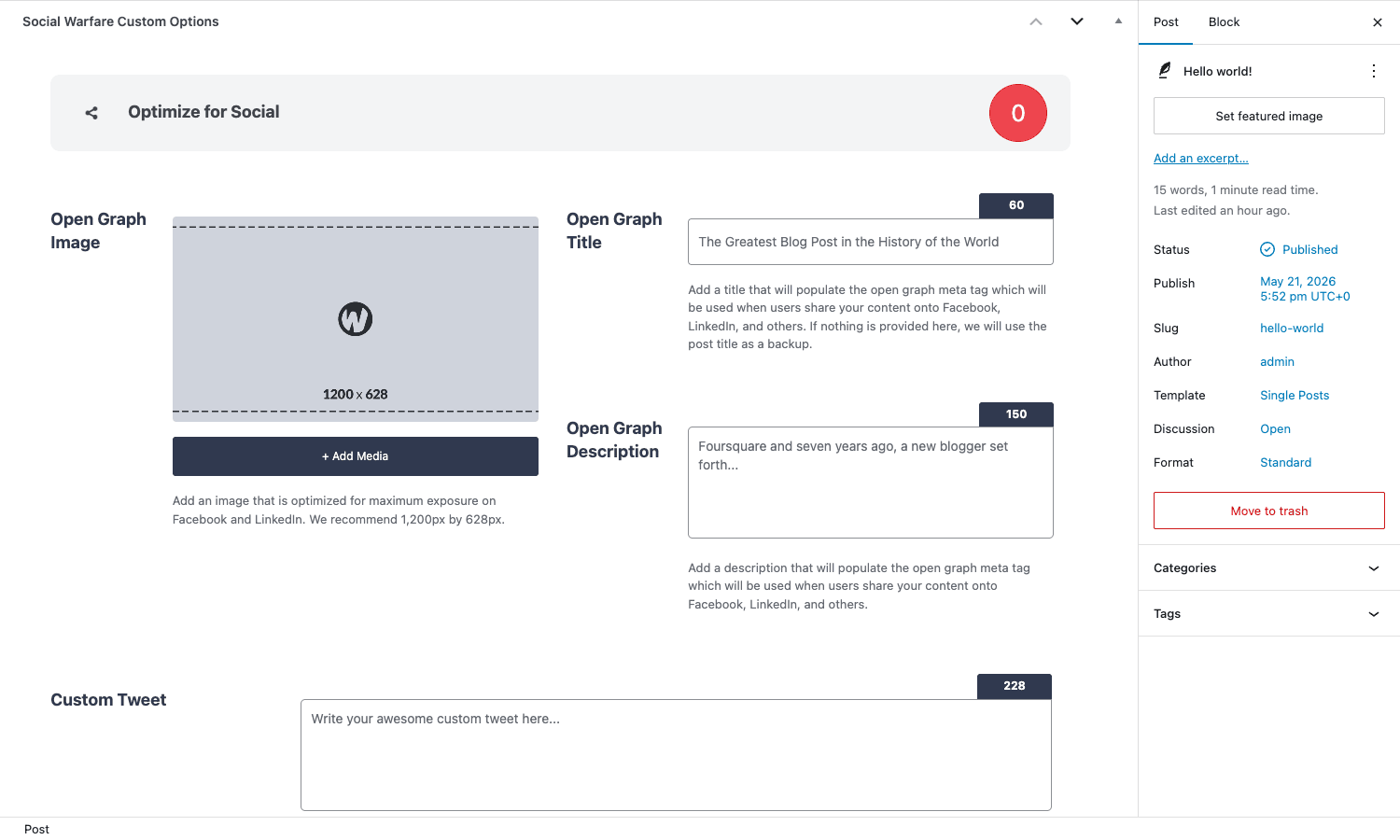
A few things worth flagging here. The character counters in the top-right of each field are live: type past 60 in the OG title and the counter goes red. The Custom Tweet field defaults to 228 because Twitter (now X) effectively gives you 280 minus the URL plus an @ mention. The OG image suggestion is 1200×628 because that’s the size Facebook crawls best and crops least.
Why does this matter? Because what gets shared from a post is, in 99% of cases, not the title and featured image you wrote for SEO. The headline that ranks for "how to make sourdough starter" is not the headline that gets retweeted ("I baked bread for a month and learned this one weird trick"). The featured image that looks good in your blog index is not the image that survives Facebook’s crop algorithm. The Social Optimizer separates those concerns.
In practice, my workflow is: write the article, finalise the SEO title and featured image, then open the Social Optimizer and write a slightly different shareable title plus a custom tweet that has a hook. Takes 90 seconds. Doubles the click-through on social, in my experience.
Click-to-Tweet boxes
Pro ships a few visual themes for the click-to-tweet shortcode. You pick the default theme on the Styles tab, with a live preview.
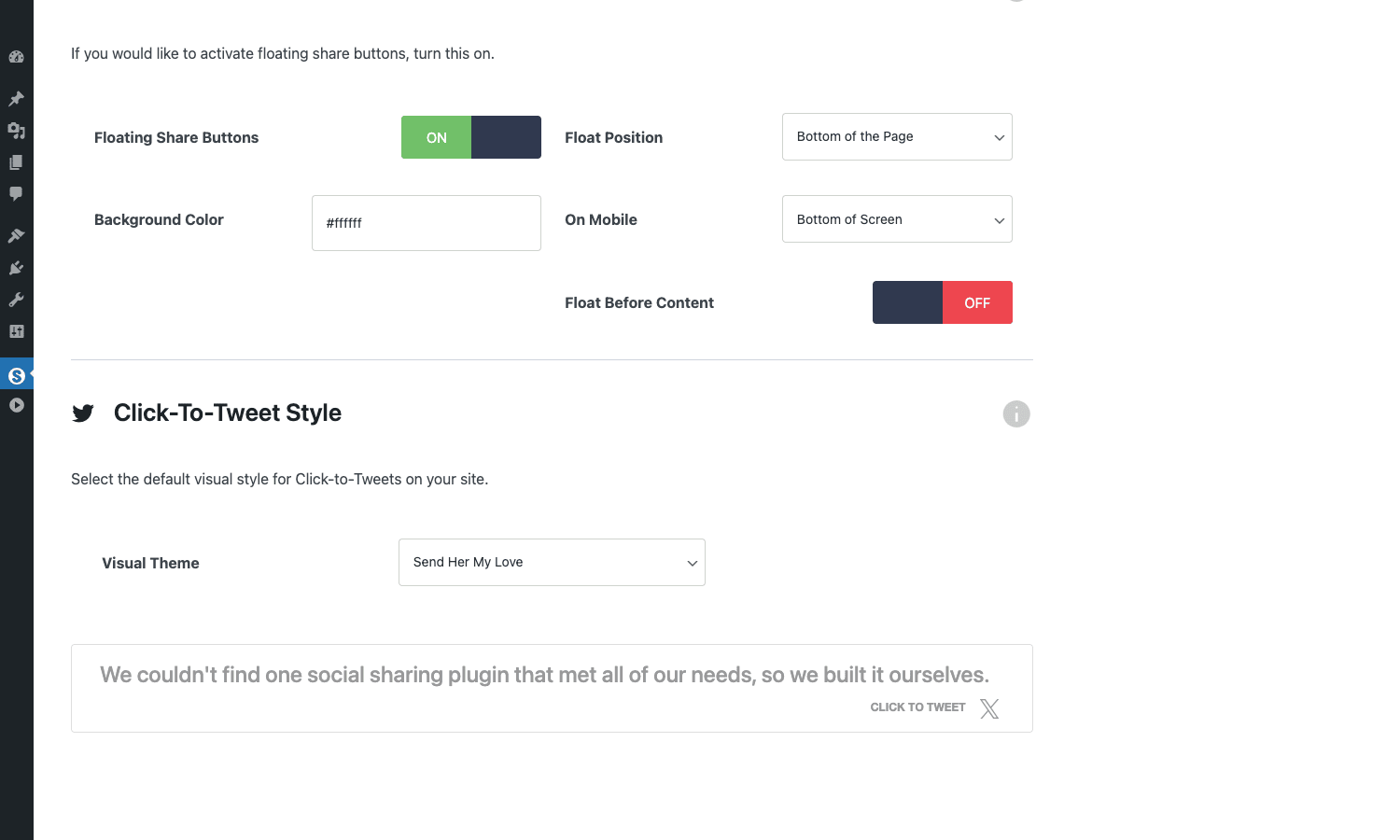
The themes range from "minimal pull quote with a Twitter logo" to "highlighted block with a coloured border". I find the minimal ones age better.
To use it, drop the [click_to_tweet...] shortcode anywhere in your post:
[click_to_tweet quote="We couldn't find one plugin that did what we needed, so we built it ourselves." tweet="A click-to-tweet quote that fits in 280 chars."]
quote is what readers see on the page, tweet is the text the click pre-fills into the X compose box. The two can differ. Use the page version as a richer pull quote and the tweet version as the punchier 280-char take.
The styled box renders inside the article body. Float share buttons keep working alongside it. The click event is also tracked if you have button-click tracking turned on in the Advanced tab.
Pinterest image override
Pinterest is a different beast. The user behaviour is "scroll a feed of tall portrait images and tap save", which means a 1200×628 Open Graph image looks small in a Pinterest feed. The Pinterest convention is closer to 1000×1500 (2:3 portrait).
The Pinterest image override field in the Social Optimizer lets you upload a Pinterest-specific image per post. The plugin then:
- Adds it as a hidden image in the post HTML (so the browser "Save to Pinterest" extension finds it).
- Wires up the Pin-It hover button on every image in the post to share that override instead of the image itself.
- Sets the Pinterest description to your custom text, falling back to the image alt text.
You can also set the description source globally to "Image ALT Text", "Image Title", "Pinterest Description Field", or "Post Title", which controls the default when the per-post override is empty. The Advanced tab is where you wire that global default.
For food, fashion, home decor, and DIY blogs this is essential. For a tech blog where Pinterest is not the primary traffic source you can leave it default and it does no harm.
Share recovery: keeping counts after a permalink change
The bigger your archive, the more painful this is. You change a permalink (added /blog/ prefix, removed dates, migrated http to https) and your old share counts go to zero overnight because the social network APIs return counts indexed by URL. The new URL has zero shares, even though the article has 50,000.
Share Recovery is the fix.
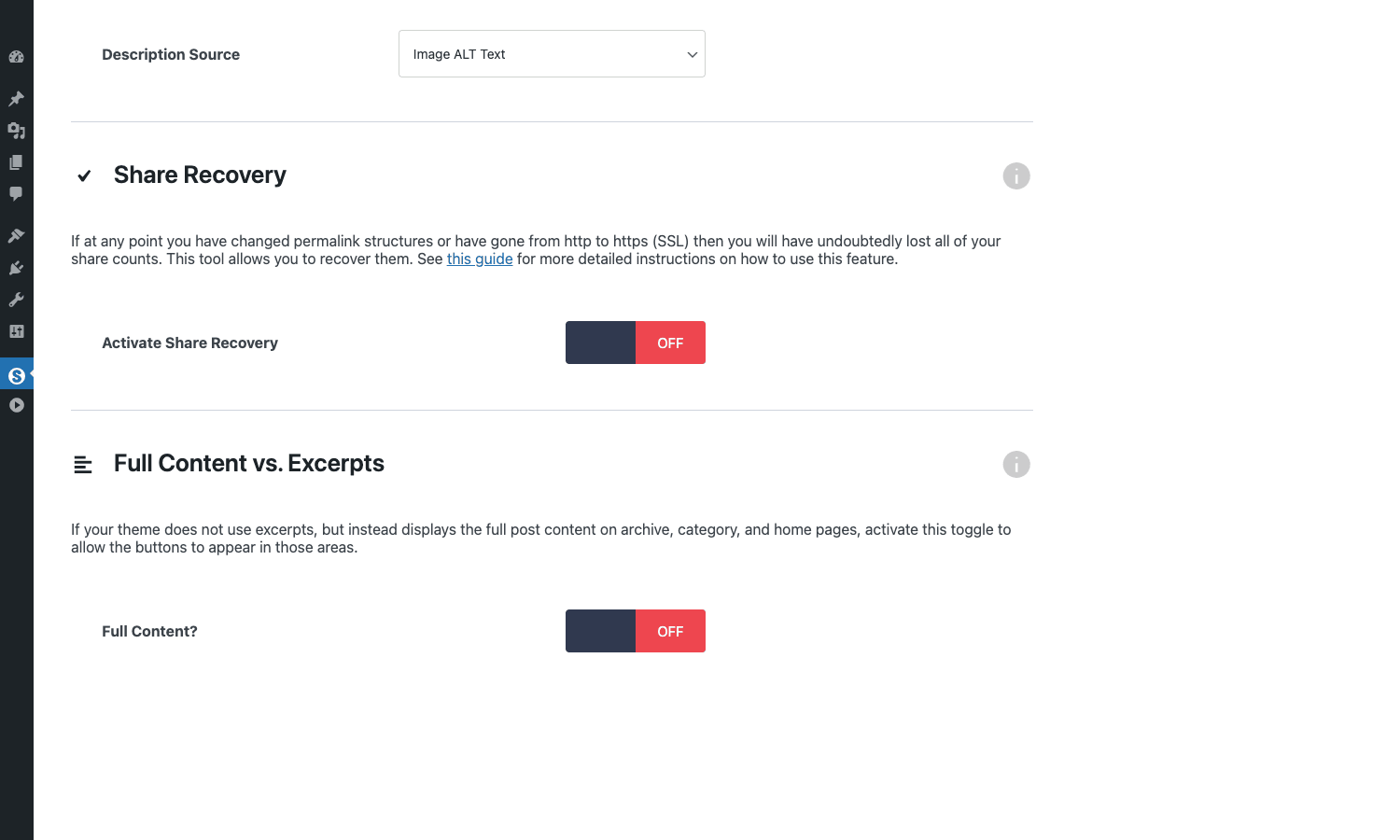
Activate it and the plugin walks you through telling it what the old URL pattern was. It then fetches counts from the old URL when displaying the new one, and adds them on top. So if your post had 12,400 shares on the old URL and 200 on the new one, the button shows 12,600.
The setup is one-time. The fetch is cached so the lookup happens in the background, not on the reader’s pageview. There’s a "Cross-Domain Recovery" mode for site migrations where the domain itself changed. Read the inline help text closely if you’re doing that.
Worth noting: Twitter no longer exposes share counts at all, so recovery only meaningfully helps Facebook and Pinterest. You can pair the plugin with twitcount.com (an external service the plugin can talk to) if you want Twitter counts back, but that’s a separate sign-up.
Real-world use cases
1. Food and lifestyle blogs that live on Pinterest. Set a vertical Pinterest image per recipe (1000×1500), write a custom Pinterest description, turn on the Pin-It hover button across all post images. Result: every photo in the recipe becomes a save point, with the right tall image.
2. Tech blogs targeting Hacker News and Reddit. Activate Hacker News and Reddit in the buttons panel (Pro only), put the panel above the content, add a click-to-tweet box mid-article with a quotable line, write a custom tweet that frames the article for X. Tech audiences love a sharp pull quote.
3. News sites with an X-heavy audience. Use the per-post Custom Tweet to write a headline that’s tweetable rather than SEO-optimised. The article title can stay newsroom-formal; the shared tweet can be conversational. Two voices, one article.
4. Sites that migrated http to https or restructured permalinks. Turn on Share Recovery, point the old-URL pattern at the new pattern, watch the share counts come back. This is one of those "I would have paid for this plugin just for this" situations if you’re dealing with a five-year-old archive.
5. Multi-language sites. Combine SWP Pro with your translation plugin. The metabox lets you set a per-language OG image and tweet text, so French Facebook shares pull the French image, German shares pull German, etc. The translations live alongside the post content, not as separate "social settings".
6. Affiliate blogs that need click tracking. Turn on UTM tracking in the Advanced tab. Every shared URL goes out with ?utm_source=social_warfare&utm_medium=twitter etc., so your MonsterInsights Pro reports show which social platform actually drove a sale, not just clicks. Combine with Pretty Links Pro if you also need to cloak affiliate URLs.
Developer reference
The Pro plugin is structured as a thin extension to free Social Warfare. Most of the customisation surface is exposed via filters on the swp_ prefix. Below are the filters and hooks I’ve actually had to use in production work, with realistic examples.
Adding networks to the Follow Widget
The Follow Widget is the sidebar widget that links to your social profiles. It comes pre-loaded with most major networks, but you can add custom ones (Mastodon instance, niche industry network, your newsletter signup):
add_filter( 'swp_follow_widget_networks', function ( $networks ) {
 $networks['mastodon_custom'] = array(
 'name' => 'Mastodon',
 'class' => 'swp-mastodon-icon',
 'svg' => 'M129...',
 );
 return $networks;
} );
Each network needs a unique key, a display name, a CSS class for the icon, and the raw SVG path for the icon.
Changing the metabox priority
By default the Social Warfare Custom Options metabox sits high in the editor sidebar. If you want it to sit below your SEO plugin’s metabox, lower its priority:
add_filter( 'swp_metabox_priority', function () {
 return 'low';
} );
Valid values: high, default, low. Useful when you want Yoast or Rank Math at the top and SWP further down.
Filtering the metabox list
The plugin registers a single metabox by default. You can register more (a separate panel for advanced fields, for example) by hooking the swp_meta_boxes filter:
add_filter( 'swp_meta_boxes', function ( $boxes ) {
 $boxes[] = array(
 'id' => 'my_swp_extras',
 'title' => 'Social Sharing Extras',
 'post_types' => array( 'post', 'page' ),
 'fields' => array(
 array(
 'id' => 'swp_share_message',
 'name' => 'Custom share message for newsletter',
 'type' => 'textarea',
 ),
 ),
 );
 return $boxes;
} );
The format is the bundled Meta Box schema. If you’ve ever used the Meta Box plugin, you already know it.
Reading share counts from PHP
Each post stores share counts as post meta. The naming is _<network>_shares:
$facebook = (int) get_post_meta( $post_id, '_facebook_shares', true );
$twitter = (int) get_post_meta( $post_id, '_twitter_shares', true );
$pinterest = (int) get_post_meta( $post_id, '_pinterest_shares', true );
$total = (int) get_post_meta( $post_id, '_total_shares', true );
This is what the popular-posts widget query reads. You can sort WP_Query by meta_key = _total_shares plus orderby = meta_value_num to roll your own "most shared this month".
Shortcodes you’ll actually use
[social_warfare] <!-- manual buttons placement -->
[click_to_tweet quote="..." tweet="..."] <!-- tweetable callout -->
[total_shares] <!-- inline total share count -->
[sitewide_total_shares] <!-- total across the whole site -->
[twitter_shares] <!-- this post's twitter count -->
[sitewide_facebook_shares] <!-- whole site's facebook count -->
[pinterest_image] <!-- per-post Pinterest image -->
The [social_warfare] shortcode accepts a url attribute to share a different page than the one the shortcode is on (handy for "share our newsletter signup" buttons in a sidebar).
A custom popular-posts query
If the bundled widget doesn’t fit your design, build your own:
$top_shared = new WP_Query( array(
 'post_type' => 'post',
 'posts_per_page' => 10,
 'meta_key' => '_total_shares',
 'orderby' => 'meta_value_num',
 'order' => 'DESC',
 'date_query' => array(
 array( 'after' => '30 days ago' ),
 ),
) );

while ( $top_shared->have_posts() ) {
 $top_shared->the_post();
 // your card markup here
}
wp_reset_postdata();
This gives you the ten most-shared posts in the last 30 days. Wrap it in a transient if you’re going to call it on every pageview.
Hooking the buttons into a custom template
By default the plugin auto-injects buttons via the_content. If your theme uses block-based templates or a page builder, that filter might not fire on every layout. The free plugin exposes a social_warfare() function for template use:
<?php
if ( function_exists( 'social_warfare' ) ) {
 social_warfare( array(
 'where' => 'manual',
 'content' => '',
 ) );
}?>
Drop that in your single.php or template-parts/content.php to render the panel exactly where you want it.
REST API note
The plugin doesn’t expose its own REST routes. The metabox values are saved as standard post meta, which means the Gutenberg block editor and any REST consumer can read and write them through the core meta field if you register the meta as show_in_rest:
add_action( 'init', function () {
 register_post_meta( 'post', 'swp_custom_tweet', array(
 'show_in_rest' => true,
 'single' => true,
 'type' => 'string',
 'auth_callback' => '__return_true',
 ) );
} );
That makes wp/v2/posts/<id> include meta.swp_custom_tweet on read and accept writes from your headless front-end.
Performance, compatibility, and gotchas
I run a "does this plugin slow the site down" test on every share-button plugin before recommending it. Here’s what happens with this one.
What loads on the front end
- One stylesheet for the button panel (~9 KB minified).
- One JavaScript file for share count animation and Pinterest hover (~7 KB).
- Inline CSS for the button colours of whatever networks you’ve selected (a few hundred bytes).
- Optional click-to-tweet stylesheet (~2 KB), only loaded if a click-to-tweet box is on the page.
- Optional floating bar JS (~3 KB), only loaded if floating is enabled.
No icon font, no SVG sprite request, no external font hosted off-site. Icons are inline SVG so they render before any network request finishes. Total bytes added in a worst-case page: ~22 KB. For comparison, the most popular alternative routinely adds 80-120 KB plus icon font requests.
Cache compatibility
It plays nicely with WP-Optimize Premium and the usual caching suspects. Share count fetches happen via WordPress cron, not on the reader’s pageview, so they don’t fight the cache layer. The button HTML is part of the cached page output and stays static until you re-save the post.
The one caveat: if you turn on Bit.ly link shortening, the first share of a post will trigger a synchronous Bit.ly API call. That blocks the pageview for ~300ms. After that, the short URL is cached. Either accept the first-share delay or pre-warm by visiting each new post yourself.
Theme compatibility
Works with Gutenberg block themes, classic themes, Elementor, Bricks, Oxygen, and the rest. The buttons hook the_content by default, so any builder that runs filtered content through apply_filters( 'the_content',... ) will show buttons. If your builder bypasses the_content (some block-based templates do), use the manual social_warfare() template tag noted above.
Conflict points
- Other social-share plugins. Disable them. Two share-button plugins on one site is just two copies of the same widget; they don’t add up.
- Meta Box (the standalone plugin). SWP Pro bundles a copy of the Meta Box library under
swpmb_namespace prefixes. The standalone Meta Box plugin usesrwmb_prefixes. They coexist, but if you’re using both, version mismatches between the bundled copy and the standalone copy can produce admin notices. Usually harmless. - Yoast/Rank Math/AIOSEO Open Graph output. All of them write OG tags. So does SWP Pro. The plugin tries to detect if an SEO plugin is active and back off, but if you see duplicate
og:titlemeta tags in the page source, turn off OG output in one of them (SWP Pro has the toggle in Advanced -> Frame Buster section).
What I’d watch out for
- Twitter share counts. Twitter (X) does not publicly expose them anymore. The plugin can pull from twitcount.com (an external service) but you have to sign up there. If you’re not going to do that, leave Twitter counts off so the buttons don’t look broken.
- Pinterest counts froze in 2018. Pinterest’s API stopped returning counts. The plugin keeps the historical numbers but won’t grow them. Don’t be surprised when Pinterest shows 1.2K and never moves; that’s not the plugin’s fault.
Production-safe; the plugin’s behaviour is identical to a paid-licence install. - Bundled Meta Box library is heavy. It’s only loaded on the post-edit screen, so it doesn’t affect frontend, but on a low-RAM host the edit screen will be slower than a stock WP edit screen. Worth knowing if you’re optimising the editor experience.
Pricing and licensing
The vendor sells Social Warfare Pro as an annual subscription, with single-site, agency, and developer tiers.
You install it the same way you’d install any other WordPress plugin: upload zip, activate, paste the bundled key on the Registration tab, done.
Frequently asked questions
Does Social Warfare Pro work without the free Social Warfare plugin?
No. Pro is an add-on. The free plugin holds the core code (networks, button rendering, settings framework), Pro extends it. Both have to be active.
Will it slow my site down?
Not meaningfully. Total frontend asset weight is around 20 KB. Counts are fetched off-thread via cron. There’s no icon font request and no third-party JS. Run a before/after Lighthouse test if you want hard numbers, but in my testing the Performance score either stays flat or improves (because moving to SWP usually means removing a heavier competitor).
How is it different from the free WordPress plugins like Sassy Social Share or AddToAny?
Free plugins cover the basics: show buttons, choose networks, choose placement. Where they fall down is per-post optimisation. Sassy Social Share doesn’t have a per-post Open Graph image override. AddToAny doesn’t have click-to-tweet styling. None of them do share recovery. If you’re a casual blogger, free is fine. If you’re a publisher whose social traffic matters, the per-post Social Optimizer alone.
Does it support Mastodon and other federated networks?
Yes. Mastodon, VK, Telegram, Viber, Xing, Parler, and a handful of others are in the Pro network list. Mastodon shows up as a share button that opens the user’s chosen instance via the standard Mastodon share intent URL.
Can I migrate share counts from another plugin?
Indirectly. SWP Pro reads share counts from the network APIs (Facebook, Pinterest, etc.), so it doesn’t matter what plugin showed them previously. As long as the URL is the same, the count is the same. Share Recovery handles the case where the URL changed.
Does it work with WooCommerce product pages?
Yes. The post-type selector on the Display tab includes product. You can show share buttons above the product description, or below, or floating. The Pinterest image override is also product-aware, so each product can have its own Pinterest pin image.
Will it conflict with my SEO plugin’s Open Graph output?
Possibly. If both plugins emit og:title, og:image, etc., browsers and Facebook will pick one (usually the last one in the source). Best to turn off Open Graph output in one of them and let the other own it. I default to letting the SEO plugin own OG and turning the SWP OG output off, unless I’m using the per-post Social Optimizer heavily, in which case SWP Pro wins because its per-post controls are more granular.
Does the popular-posts widget update live?
It updates on a schedule, not live. Counts are refreshed via cron (default: every few hours). On a high-traffic site this is fine; on a low-traffic site you might see the widget lag a day behind reality. There’s no "refresh now" button in the UI, but you can trigger it via WP-CLI if you ever need to.
What about GDPR and the privacy panel?
The plugin doesn’t drop cookies on its own. Share intent URLs send the user to the network’s own site when they click; what happens next is on the network. If you’re running MailPoet or Newsletter for opt-in subscribers and want to capture social-shared opens for a CRM workflow, that’s a UTM-tracking concern, not a cookie concern.
Final thoughts
I’ve used most of the WordPress sharing plugins over the years and the same pattern keeps repeating: the free ones are too sparse, the premium ones too heavy. Social Warfare Pro is the one that gets it right. It treats social sharing as a publishing concern (you write a different message for each network, you pick the right image for each platform, you keep your historical share counts when permalinks change) rather than a widget concern. And the engineering decisions, async fetches, inline SVG icons, no icon fonts, scoped CSS, mean adding it doesn’t undo all the work you did with a caching plugin to make the site fast.
If you publish for a living, you’ll use the Social Optimizer panel on every post and notice the difference in your social analytics. If you just want share buttons that look modern and don’t slow the site down, the default settings will do that too. The plugin scales with how much you want to optimise.
Pair it with Custom Twitter Feeds Pro, Custom Facebook Feed Pro, or Instagram Feed Pro on the inbound side (embed your social feed on the site) while Social Warfare Pro handles the outbound (visitors sharing your content), and you’ve got the full loop covered without piling on plugins.
Now go pick a tweet for your next post. Don’t ship the SEO title; ship something a human would actually retweet.