

A small-batch coffee roaster I helped a while back had a simple ask. They wanted to sell a "pick any 6 bags" box. One price, the customer chooses which six roasts go in, done. Sounds trivial. It is not, at least not with plain WooCommerce, because a standard product is a fixed thing. You can sell six specific bags as a set, but the moment you want the customer to choose the six, you hit a wall. That gap is exactly what WooCommerce Mix and Match fills: it turns one product into a container the shopper fills with any combination they like, up to a size you set.
This is a long, honest walk through what Mix and Match actually does, how to set up a build-your-own-box product without surprising yourself at checkout, the bits I wish someone had spelled out before I shipped my first container, and a full developer reference for the hooks worth knowing. Whether you run a store and just want a working pick-your-own box, or you’re a developer who needs to bend the contents logic to a weird requirement, you’ll know what this extension is doing under the hood by the end.
Table of Contents
- What is WooCommerce Mix and Match?
- Why a plain WooCommerce product cannot do this
- Key features worth knowing
- What the customer sees on the product page
- Setting the container size and contents
- Fixed vs per-item pricing
- How the box ships: packing modes
- Layouts: grid, tabular, and dropdown
- Five boxes you can build today
- Subscription boxes and composite combos
- Mix and Match vs Bundles vs Composite vs Grouped
- Don’t ship these three mistakes
- Developer reference
- Troubleshooting the common problems
- Pricing and licensing
- FAQ
- Final thoughts
What is WooCommerce Mix and Match?
WooCommerce Mix and Match is an official WooCommerce.com extension by Kathy Darling, the developer behind several of the marketplace’s product-type plugins. Its job description is short and clear: "Allow customers to choose products in any combination to fill a container of a specific size." That’s the whole idea. You define a box, you say how big it is and what’s allowed in it, and the customer assembles their own.
Technically, it adds a new WooCommerce product type. Alongside Simple, Variable, Grouped, and External, you get a "Mix and Match product" in the product-type dropdown. Under the hood it’s the WC_Product_Mix_and_Match class with the type slug mix-and-match. I’m pointing that out early because it changes how you think about the plugin. This is not a shortcode you paste into a page, and it’s not a block. It’s a real product you create in the normal Products » Add new screen, and everything you configure lives on that product.
The container metaphor is the key to all of it. A Mix and Match product is an empty container with rules: a minimum and maximum number of items, a pool of eligible products, a pricing mode, and shipping behaviour. The customer’s selections fill the container. When the count is valid, they can buy it.
That single distinction, the customer chooses the contents, is what separates this from every fixed-bundle approach. A bundle is curated by you. A Mix and Match box is curated by the shopper.
You can grab the WooCommerce Mix and Match extension on GPL Times and have a working pick-your-own box product on a test store in about ten minutes, which is roughly how long the rest of this walkthrough takes to read.
Why a plain WooCommerce product cannot do this
Skip this section if you already know WooCommerce product types cold. If you don’t, the next minute explains why Mix and Match exists at all.
A standard WooCommerce product is a fixed unit. A Simple product is one thing at one price. A Variable product is one thing with options (size, colour), but the customer still buys a single variation. A Grouped product shows several separate products on one page, but each is added to the cart as its own line item with its own quantity and price. None of those let a customer assemble a single purchasable unit out of parts they pick.
You might be wondering whether Grouped products could fake it. They can’t, not really. A Grouped product is a display convenience, not a container. There’s no "you must pick exactly 6" rule, no single box price, no shared shipping for the set. The customer just adds three of this and two of that as independent items.
Mix and Match adds the missing piece: a container with a size constraint and validation. The plugin watches what the customer selects, counts it against your minimum and maximum, and refuses to let them check out until the count is right. That validation logic, plus the single-line-item cart behaviour and the shared shipping options, is the real value here. It’s the boring plumbing that’s genuinely hard to hand-roll.
Key features worth knowing
Rather than dump the full marketing list, here’s what actually matters when you sit down to build a box.
- A dedicated product type. Mix and Match is its own WooCommerce product type, configured entirely in the product editor. Nothing to embed, no page to set up.
- Minimum and maximum container size. Set a fixed count (min = max for "pick exactly 6") or a range (min 3, max 6 for "pick 3 to 6"). The front end enforces it.
- Two ways to define contents. Allow specific hand-picked products, or allow entire product categories. Category mode means new products in that category automatically become eligible.
- Two pricing modes. Fixed (the box is one set price no matter what goes in) or per-item (the price is the sum of the chosen items, with an optional discount).
- Three packing modes. Packed together (one parcel), packed separately (each item ships on its own), or virtual (no shipping at all).
- Two weight calculations. A constant container weight, or cumulative weight that adds up the chosen items.
- Three front-end layouts. Grid, tabular, or dropdown, so the picker matches your catalogue size and design.
- Live validation. A running "X / N items" status that turns green when the box is valid, with add-to-cart disabled until then.
- Subscriptions and Composite integrations. A container can be a recurring subscription box, and it plays with Composite Products.
Notice what’s not on that list. There are no shortcodes, no REST endpoints, and no WP-CLI commands. I’ll come back to that in the developer section, because it shapes how you extend the thing.
What the customer sees on the product page
Here’s the part that actually sells boxes, so it’s worth getting right.
On the front end, a Mix and Match product renders as a picker. In the default layout, the customer sees a Product column listing every eligible item and a Quantity column next to each. They type or step a quantity for the items they want, and the box fills up as they go.
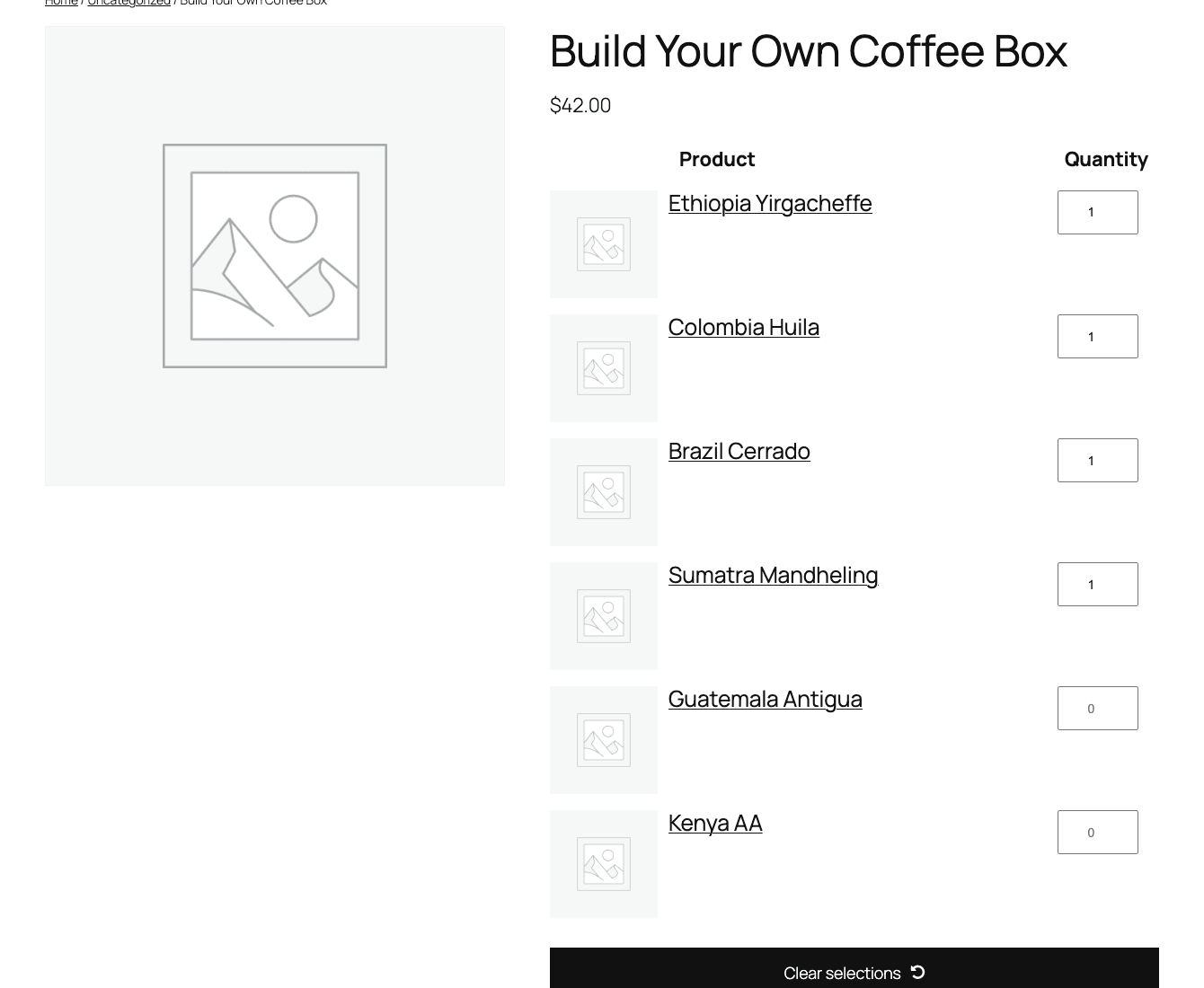
In the screenshot above, the picker structure is what to look at: a row per eligible product, a quantity stepper on each, and the running status underneath. The product thumbnails are blank here because the demo store had no product photos uploaded, but on a real store each row carries the product’s own image. The mechanics are the point, the picker counts every selection live.
That live count is the heart of the experience. As the customer adds items, a status message updates in real time. It reads something like "X / N items" and turns green the moment the count is valid, with a confirmation along the lines of "You have selected N items. Add to cart to continue." If the count is wrong, it nudges them instead: "Please select N items." A Clear selections button wipes the box so they can start over.
The catch: the Add to cart button stays disabled until the container is validly filled. That’s a feature, not a bug, it stops half-filled boxes reaching checkout. But it’s the single thing that confuses new shoppers most, so don’t bury your minimum count in fine print. If the box needs exactly 6, say "pick 6" loudly above the picker.
When the customer finally adds the box, it lands in the cart as one line item (a container) with the chosen contents nested under it. The whole box has one price, one quantity, and depending on your packing mode, one shipping treatment.
Setting the container size and contents
This is where you spend most of your setup time, and it’s quick once you’ve done it once.
Create a new product, then in the Product data dropdown choose Mix and Match product. A new Mix and Match tab appears in the product-data panel. Everything that defines the box lives there.
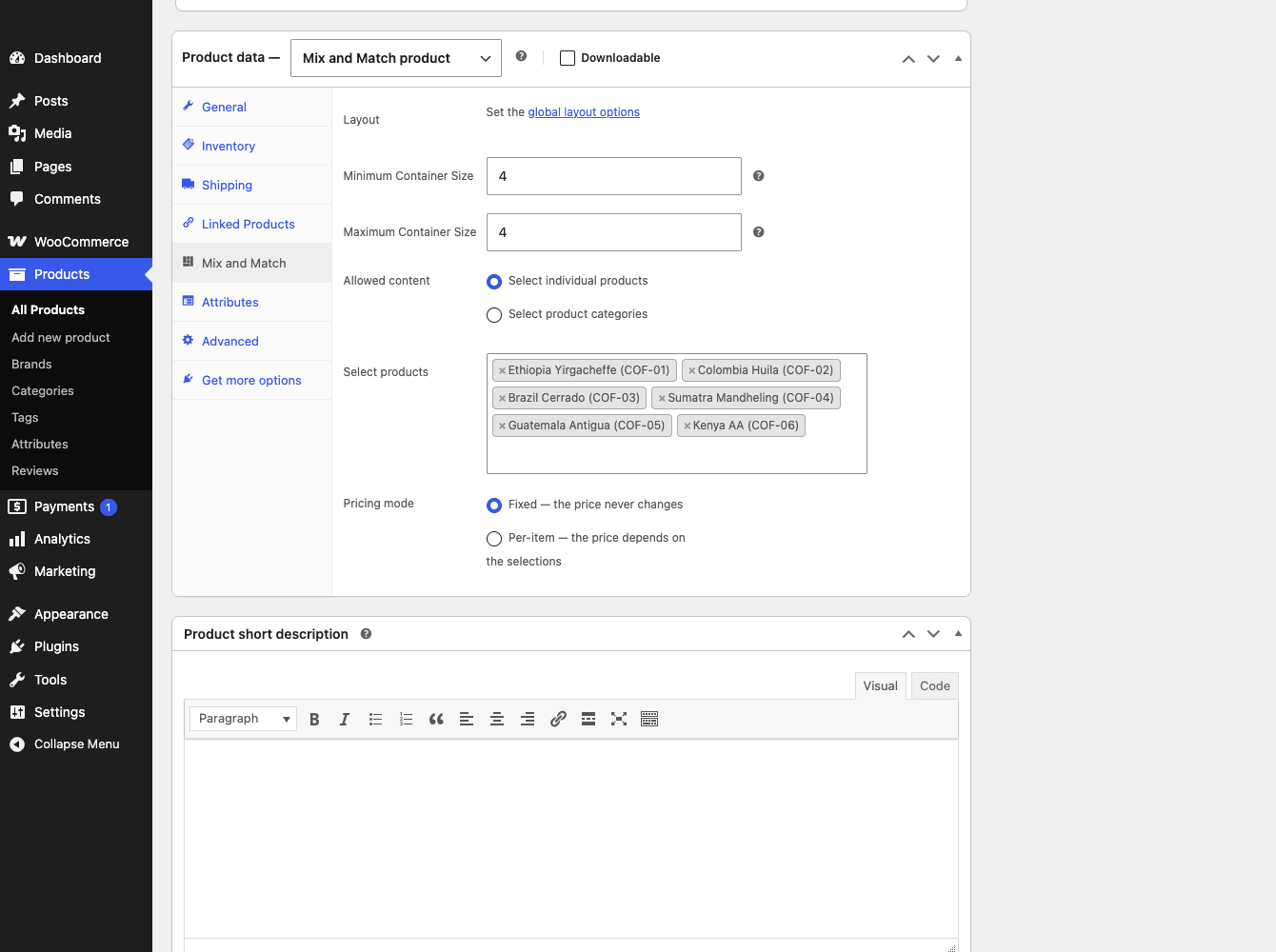
Walk through the fields top to bottom:
Minimum Container Size and Maximum Container Size. These two numbers define how many items must fill the box. Set them equal for a fixed count: min 6, max 6 gives you "pick exactly 6." Set a spread for a range: min 3, max 6 gives the customer some freedom while keeping a floor. The front-end validation reads straight from these two fields.
Allowed content. This toggles between Select individual products and Select product categories. With individual products, you hand-pick the exact items that can go in the box using a search-and-select field. With categories, you choose one or more product categories and every published product in them becomes eligible automatically.
Tip: Category mode is the low-maintenance choice for a catalogue that changes often. Point the box at your "Single-Origin Coffee" category and any new roast you publish there shows up in the picker with no extra step. Individual-product mode is better when the box should only contain a curated subset, not the whole category.
Select products / Select categories. This is the actual pool. Depending on the toggle above, you either search for products or pick categories here. The control is a standard multi-select, so you can add as many as you like.
Heads-up: give the pool more options than the container holds. If your box is "pick 6" and you only allow 6 products, there’s no real choice, the customer is forced to take all of them. That’s a fixed bundle wearing a picker costume. Allow 12 roasts for a pick-6 box and you’ve actually given them a choice.
The last field on this tab is the pricing mode, which deserves its own section.
Fixed vs per-item pricing
This is the decision that quietly determines whether your box makes money, so slow down here.
Mix and Match gives you two pricing modes, and they behave completely differently.
Fixed pricing means the box has one set price that never changes, no matter what the customer puts in it. A "pick any 6 bags for $60" box is fixed pricing. Whether they choose six of your cheapest blend or six of your priciest single-origin lots, the price is $60. This is dead simple for the customer and dead simple for you, as long as your pool items are roughly the same cost. If your cheapest roast is $8 and your most expensive is $22, fixed pricing lets a savvy shopper load up on the $22 bags and pay you the same $60.
Per-item pricing means the box price is the sum of whatever the customer selected. Six bags at their individual prices add up to the box total. This protects your margin when pool prices vary a lot, because the customer pays for exactly what they chose. The trade-off is that the "one round number" magic of a fixed box is gone, the total moves around as they shop.
Per-item mode also supports a discount off the regular prices, so you can offer "build your own 6-pack and save 10%." That discount is exposed to developers through a filter, which I’ll cover later.
Where fixed shines: curated, equal-value pools where the round price is the marketing hook ("Any 6 for $60"). Where per-item shines: mixed-value catalogues, gift boxes that span cheap and premium items, and "build your own and save a percentage" promotions.
My honest take: most stores reach for fixed pricing because it sounds friendlier, then get burned by margin on a mixed-cost catalogue. If your eligible items vary in price by more than a little, start with per-item and a small percentage discount. You can always switch later, but you can’t refund the margin you already gave away.
How the box ships: packing modes
Shipping is where I’ve seen more Mix and Match setups go wrong than anywhere else, so this section is the one to actually read.
The Shipping tab on a Mix and Match product adds options you won’t see on a normal product, because a box of chosen items is a genuinely odd shipping unit.
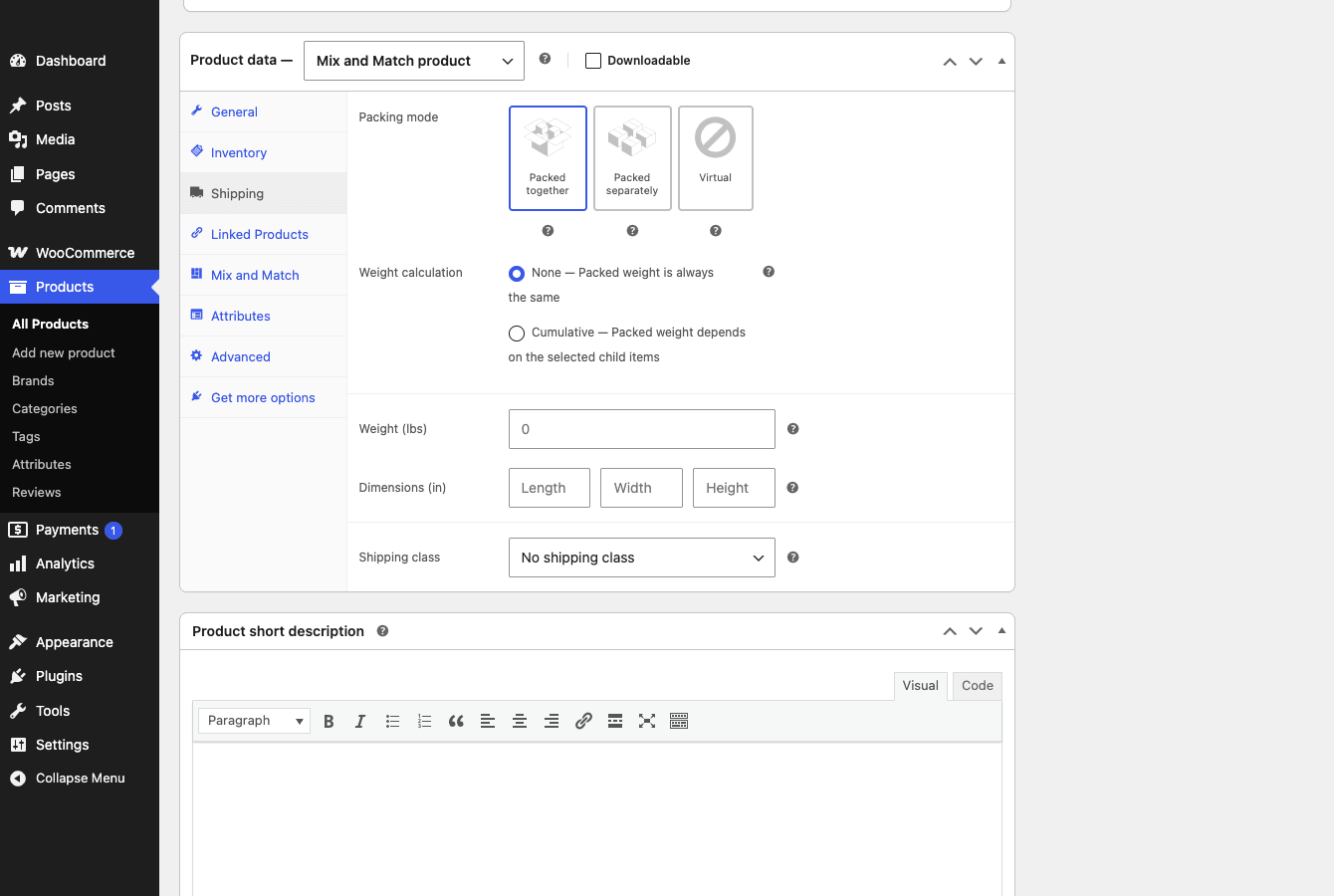
Packing mode is the big one, and it has three settings:
- Packed together. The whole box ships as a single parcel. The container itself carries the weight and dimensions, and the customer is quoted one shipping rate for the box. This is what you want for almost every physical build-your-own-box, the six bags go in one carton and ship as one thing.
- Packed separately. Each chosen item is treated as its own shippable unit, with its own weight and its own shipping rate. WooCommerce quotes shipping per item. Use this only when the contents genuinely ship from different places or as separate parcels.
- Virtual. The box has no shipping at all. This is for digital or service boxes, a "pick any 3 online courses" bundle, for instance, where nothing physical moves.
Right beside packing mode is Weight calculation, with two options:
- None. The packed weight is always the container’s own weight, regardless of contents. Good when your box weight is roughly constant.
- Cumulative. The packed weight is the sum of the chosen items’ weights (plus the container). Good when contents vary enough that weight-based shipping needs to reflect what’s inside.
The tab also carries the standard Weight, Dimensions, and Shipping class fields, which apply to the container.
The pairing that matters: packed together with cumulative weight is the right combo for most physical boxes. One parcel, one rate, and the rate reflects what’s actually inside. Packed separately is the trap I’ll spend a whole section on below.
Layouts: grid, tabular, and dropdown
The picker can be displayed three ways, and the right one depends mostly on how many items are in your pool.
- Tabular. The default product-and-quantity table. Clean and scannable for a modest pool, and it works well when each item needs a name and a quantity field and not much else.
- Grid. A card grid of the eligible products, usually with the product image more prominent. This is the layout that looks like a "shop the box" experience, and it shines when product photos do the selling. The grid defaults to a column count you can change with a filter.
- Dropdown. A compact select-based picker. This is the space-saver for large pools or tight templates, where a long table or grid would overwhelm the page.
There’s a global layout setting plus a per-product link to it, so you can set a store-wide default and still tune individual boxes. If your products are visual (cosmetics, food with nice packaging), the grid almost always converts better. If they’re text-led (supplements, where the label is what matters), tabular keeps things readable.
Five boxes you can build today
Theory is easier to trust once you can picture it on a real store. Here are five concrete boxes, each mapping to a specific configuration.
The brewery’s pick-6. A craft brewery wants a "choose any 6 cans" mixed pack at a flat price. That’s min 6, max 6, fixed pricing, allowed content set to the "Cans" category, packed together with cumulative weight. The customer assembles their six, pays the round price, and it ships as one box. This is the canonical Mix and Match use case, and it’s the one that’s basically impossible without the extension.
The coffee subscription box. A roaster offers "pick any 4 bags, delivered monthly." Same container setup (min 4, max 4), but the product is also a subscription, so the box renews on a schedule. The customer can often edit their selections before the next renewal, which is the killer feature for retention, people stay subscribed longer when they can swap roasts.
The cosmetics gift set. A skincare brand sells a "build your own gift box, any 5 products." Here the catalogue is visual, so grid layout, with per-item pricing and a 10% discount so the gift box feels like a deal. Allowed content is a hand-picked set of giftable products, not the whole catalogue, because nobody wants a refill pouch in a gift box.
The supplement stack. A nutrition store lets customers "build a 3-supplement stack." Min 3, max 3, individual products (so only stackable items are eligible), per-item pricing because the supplements differ in cost. A grid layout shows each label clearly. The container ships packed together.
The snack sampler. A pantry shop runs "fill your snack box, 8 to 12 items, any mix." This one uses a range (min 8, max 12), category-based content pointed at "Snacks," fixed pricing per size tier or per-item, and packed together. The range gives customers freedom without letting them ship an empty or overstuffed box.
If you run any of these, you can see yourself in one of them. The configuration differences are small, the result is wildly different to the shopper.
Subscription boxes and composite combos
Two integrations turn Mix and Match from "neat" into "this runs my whole product line."
WooCommerce Subscriptions. A Mix and Match container can be a subscription product. That means the build-your-own box renews on a schedule, the customer picks their contents once and receives a fresh box every month (or whatever cadence you set). On supported setups the customer can edit their selections between renewals, so the next box reflects new choices. If you sell any kind of recurring box, this is the combination that matters. Pair Mix and Match with WooCommerce Subscriptions and you’ve got a real subscription-box business, not a one-off novelty product.
Composite Products. Mix and Match also works alongside Composite Products. The two solve different shapes of problem (Composite is a step-by-step configurator, Mix and Match is a fill-the-container picker), and there are setups where a composite step is itself a Mix and Match container. If you’re building something genuinely intricate, like a hamper where one step is "pick any 4 jams" inside a larger guided flow, the combination is where you’d reach.
Note: both integrations need their respective extensions installed and active. Mix and Match brings the container, Subscriptions brings the recurring billing, Composite brings the configurator. None of them does the other’s job alone.
Mix and Match vs Bundles vs Composite vs Grouped
WooCommerce has four ways to sell "more than one thing as a product," and they’re constantly confused for one another. Here’s the honest breakdown, with the numbers that actually distinguish them.
| Approach | Who picks contents | Best for | Defining numbers |
|---|---|---|---|
| Mix and Match | The customer | Build-your-own box, pick any N from a pool | 3 layouts (grid/tabular/dropdown), 2 pricing modes (fixed/per-item), 3 packing modes (together/separately/virtual), a min/max container size |
| Product Bundles | You (curated) | A fixed set sold as one product, optional small tweaks | A static list of bundled items, 1 bundle price |
| Composite Products | The customer, step by step | A guided configurator with components and options (PC builder, custom bike) | Multiple ordered components, each with its own option set |
| Grouped | The customer, à la carte | A page of related separate products | N independent line items, N prices, 0 container rules |
Read that table top to bottom and the choice gets obvious.
Choose Mix and Match when the customer picks any N items from a pool and the box is one unit. The numbers tell the story: you get 3 content layouts, 2 pricing modes, 3 packing modes, and a min/max size constraint. That’s the "pick any 6" box.
Choose Product Bundles when the contents are fixed by you. A "starter kit" of 3 specific items sold at one price is a bundle, full stop. There’s no picker, no container size, because there’s no choice to make. If you find yourself building a Mix and Match box where the pool exactly equals the container size, you wanted a bundle.
Choose Composite Products when the purchase is a step-by-step configuration with distinct components. Think "choose a frame, then a lens, then a coating." Each component is an ordered step with its own options. Mix and Match is one pool filling one container; Composite is several components each with their own choices.
Choose Grouped when you just want related products on one page and each is bought independently. 0 container rules, N separate line items. It’s a display grouping, not a box.
The practical rule I use: if the customer fills a box of size N from a pool, Mix and Match. If you decide the contents, Bundles. If it’s a multi-step configurator, Composite. If they’re just separate products sharing a page, Grouped.
Don’t ship these three mistakes
I’ve watched all three of these go live and cost real money. Each is easy to avoid once you know it exists.
Don’t use Mix and Match for a fixed, curated bundle. If the contents never change, a "starter kit" of three set items, you want Product Bundles, not Mix and Match. Forcing a fixed set through Mix and Match adds a pointless picker step where the customer "chooses" the only option available, which feels broken and tanks conversion. Match the tool to the job: customer-chosen combos get Mix and Match, your-curated sets get Bundles.
Don’t enable "Packed separately" on a box that physically ships as one parcel. This is the expensive one. Packed-separately tells WooCommerce to quote shipping for each chosen item on its own, so a six-bag coffee box can quote six separate shipping charges. The customer sees a $48 shipping line on a $60 box and abandons the cart. If your box ships as one carton, use Packed together with a container weight (or Cumulative weight). Reserve Packed separately for the rare case where items really do ship as independent parcels.
Don’t set Minimum equal to Maximum with a pool no bigger than the container. If the box is "pick 6" and only 6 products are eligible, the customer has no real choice, they’re forced to take everything. That’s not a build-your-own box, it’s a fixed bundle with extra clicks. Always give the pool more options than the container holds, ideally roughly double, so the "your box, your choice" promise is real. One last guardrail: with per-item pricing, confirm how tax and any discount compute on the box total before launch, because the interaction between summed prices, a percentage discount, and tax is the kind of thing that looks right in setup and wrong on the receipt.
Developer reference
Now the part developers came for. Mix and Match is a product type, so its developer surface is hook-based, not API-based. Let me be precise about what that means, because it shapes how you extend it.
There are no shortcodes (it’s a product type rendered on the product page, not something you embed). There are no REST endpoints registered by the plugin, and no WP-CLI commands. If you need programmatic access, you go through the standard WooCommerce product and order objects plus the plugin’s filters and actions. Don’t go hunting for a /wc-mnm/v1/ route, there isn’t one.
What you do get is a clean family of hooks under the wc_mnm_ and woocommerce_mnm_ prefixes. Here are the ones with signatures I’ve verified against the source, with realistic examples.
Resolve the child product of a container item. The woocommerce_mnm_get_child filter passes the child product and the container, so you can swap or decorate the resolved product.
add_filter( 'woocommerce_mnm_get_child', 'gpl_decorate_mnm_child', 10, 2 );
function gpl_decorate_mnm_child( $product, $container ) {
    // $product is the eligible child product, $container is the WC_Product_Mix_and_Match.
    return $product;
}
Conditionally hide an item from the container. The woocommerce_mnm_is_child_available filter controls whether a given product shows up as an option. It passes the current visibility, the product, and the container.
add_filter( 'woocommerce_mnm_is_child_available', 'gpl_hide_oos_from_box', 10, 3 );
function gpl_hide_oos_from_box( $visible, $product, $container ) {
    if ( ! $product->is_in_stock() ) {
        return false; // never offer an out-of-stock item in the box
    }
    return $visible;
}
Change the grid column count. When you use the grid layout, wc_mnm_grid_layout_columns sets how many columns render. The default is 3, and the container product is passed so you can vary it per box.
add_filter( 'wc_mnm_grid_layout_columns', 'gpl_wider_box_grid', 10, 2 );
function gpl_wider_box_grid( $columns, $product ) {
    return 4; // four-up grid for picture-led boxes
}
Override per-item shipping treatment. The wc_mnm_child_item_shipped_individually filter decides whether a chosen item ships on its own. By default it follows the container’s packing mode (it’s the inverse of "packed together").
add_filter( 'wc_mnm_child_item_shipped_individually', 'gpl_force_box_one_parcel', 10, 3 );
function gpl_force_box_one_parcel( $ships_individually, $child_product, $container ) {
    return false; // always treat the whole box as one parcel
}
Adjust the per-item discount. With per-item pricing, woocommerce_mnm_item_discount_from_regular filters the discount applied off the regular price. It passes the discount and the container.
add_filter( 'woocommerce_mnm_item_discount_from_regular', 'gpl_bigger_box_discount', 10, 2 );
function gpl_bigger_box_discount( $discount, $container ) {
    return 15; // 15% off regular prices inside this box type
}
Run code when a container is added to the cart. The wc_mnm_add_to_cart action fires when a container goes into the cart, passing the cart item key, product id, quantity, and variation id (plus more).
add_action( 'wc_mnm_add_to_cart', 'gpl_log_box_added', 10, 4 );
function gpl_log_box_added( $cart_item_key, $product_id, $quantity, $variation_id ) {
    // fire analytics, tag the customer, etc.
}
Add your own fields to the admin panel. The wc_mnm_admin_product_options action lets you append fields to the Mix and Match product-data tab.
add_action( 'wc_mnm_admin_product_options', 'gpl_extra_box_field' );
function gpl_extra_box_field() {
    woocommerce_wp_text_input( array(
        'id'    => '_gpl_box_note',
        'label' => __( 'Internal box note', 'your-textdomain' ),
    ) );
}
Inject markup around the contents list. The wc_mnm_before_child_items and wc_mnm_after_child_items actions fire around the front-end contents list, handy for instructions or a progress hint.
add_action( 'wc_mnm_before_child_items', 'gpl_box_instructions' );
function gpl_box_instructions() {
    echo '<p class="box-help">Pick your items below, then add to cart.</p>';
}
Beyond those, the plugin exposes more hooks I’ll describe in prose rather than show in code, because you should grep the exact signature in your installed copy before wiring them up. There’s wc_mnm_get_posted_container_configuration for inspecting what the customer submitted, wc_mnm_is_container_order_item_editable for controlling whether an existing order’s box can be edited, woocommerce_mnm_item_add_to_cart_validation for adding your own validation rules, wc_mnm_container_empty_price_html for the price string on an unconfigured box, wc_mnm_quantity_name_prefix for the input naming, and wc_mnm_before_container_validation / wc_mnm_can_edit_container_validation for hooking into the validation pass. The product object itself is WC_Product_Mix_and_Match, so get_min_container_size(), get_max_container_size(), and is_packed_together() style methods are available if you need to read a box’s configuration in your own code.
The thing I appreciate about this hook set is that it covers the three places you actually need to extend a box: which items are offered, how it’s priced, and how it ships. That’s a thoughtfully scoped surface, not a thousand do-nothing hooks.
Troubleshooting the common problems
A few issues come up again and again. Here’s the exact cause and fix for each.
The Add to cart button won’t enable. This is by far the most common support question, and it’s almost always working as intended. The button stays disabled until the container holds a valid count between your minimum and maximum. Check the live status under the picker, it tells the customer exactly how many more to add. If you genuinely want add-to-cart available sooner, lower your minimum container size. If customers are confused, put the required count in the product title or a line above the picker.
Shipping charges are way too high. Open the Shipping tab and check the packing mode. If it’s set to Packed separately, every chosen item quotes its own shipping rate, which multiplies fast. Switch to Packed together for any box that ships as one parcel, and set a sensible container weight or use Cumulative weight calculation.
The box price looks wrong. Confirm your pricing mode. Fixed means one price regardless of contents; per-item means the total is the sum of selections. If you expected a round number and you’re seeing the contents add up, you’re on per-item. If you expected the total to move with the contents and it’s stuck, you’re on fixed.
New products aren’t appearing in the picker. If you used "Select individual products," only the products you explicitly added show up, new ones don’t appear automatically. Either add them by hand or switch the box to "Select product categories" so anything published in the chosen category becomes eligible.
The picker looks cramped or sprawling. That’s a layout mismatch. A big pool in tabular layout becomes a wall of rows; switch to dropdown. A small visual pool in dropdown hides your product images; switch to grid. The layout is a per-product and global setting, so you can fix it without code.
Does it slow the store down? In my testing a Mix and Match product page is heavier than a Simple product page because it renders the whole eligible pool, but it’s not dramatic for a reasonable pool size. If your pool is huge (hundreds of items), prefer the dropdown layout and consider trimming the pool, both for performance and for the customer’s sanity. Standard WooCommerce caching applies to these pages like any other.
Pricing and licensing
Mix and Match is a single paid extension from the official WooCommerce.com marketplace. There’s no free version on the WordPress.org repository, it’s a commercial product, and the official route is a yearly WooCommerce.com subscription that includes updates and support for the term.
On GPL Times it’s available under the GPL license, which is the same code delivered through the GPL store with the documentation intact. If you want to evaluate it properly before committing to a workflow, the Mix and Match download on GPL Times is the straightforward way to get a working copy installed and start configuring a real box.
For a serious store, I’d weigh it against how central build-your-own boxes are to your model. If a pick-your-own box is a one-off novelty, you might get by with a workaround. If it’s a core product line, the extension pays back the cost in saved development time alone, because the validation and cart logic are exactly the parts you do not want to write and maintain by hand.
FAQ
What’s the difference between Mix and Match and Product Bundles?
Who chooses the contents. With Mix and Match, the customer fills the container from a pool, "pick any 6." With Product Bundles, you curate a fixed set and sell it as one product. If the contents are decided by you and never change, use Bundles. If the shopper assembles their own combination, use Mix and Match. Picking the wrong one means either a pointless picker (Bundles job done in Mix and Match) or no real choice at all.
Can a Mix and Match box be a subscription?
Yes, with WooCommerce Subscriptions installed. A container can be a recurring subscription box, so the customer picks their contents and receives a fresh box on a schedule. On supported setups they can edit their selections before the next renewal, which is genuinely useful for retention. You do need both extensions; Mix and Match supplies the box, Subscriptions supplies the recurring billing.
Should I use fixed or per-item pricing?
Use fixed pricing when your eligible items are roughly equal in cost and a round price is your hook ("Any 6 for $60"). Use per-item pricing when the pool spans cheap and premium items, because per-item charges for exactly what’s chosen and protects your margin. The honest trade-off: fixed pricing on a mixed-cost catalogue lets shoppers load up on your priciest items at the same price, so check your worst-case basket before choosing fixed.
How does shipping work on a box of chosen items?
It depends on the packing mode. Packed together ships the whole box as one parcel with one rate. Packed separately quotes shipping per chosen item, which is usually wrong for a single-carton box and can multiply your shipping charges. Virtual means no shipping. For most physical boxes you want Packed together, often paired with Cumulative weight so the rate reflects the contents.
Can a customer pick the same item more than once, or set quantities?
Yes. The picker has a quantity field per eligible product, so a customer can put three of one item and three of another into a six-item box, or any other split that adds up to a valid count. That quantity behaviour is what makes "pick any 6, in any mix" possible rather than forcing six distinct items.
Can I use product variations as box contents?
The pool is built from products you allow, either individually or by category, and the extension handles variable products as part of that pool. If a specific variation needs to be selectable, confirm it in your own setup with a quick test, because how variations surface in the picker is the kind of detail worth verifying against your exact catalogue before launch rather than assuming.
Is there a shortcode or block to drop the box on a page?
No. Mix and Match is a WooCommerce product type, not a shortcode or block. You create it like any product and it renders on its own product page. There are no shortcodes, no REST endpoints, and no WP-CLI commands in the plugin, so any "embed anywhere" need is solved with standard WooCommerce product display, not a Mix and Match shortcode.
Does it work with category-based contents that change over time?
Yes, and this is the low-maintenance option. Set Allowed content to "Select product categories" and any product you later publish in that category automatically becomes eligible for the box. That beats hand-picking individual products for a catalogue that turns over, you update the box just by publishing into the category.
Will adding Mix and Match slow my store down?
A Mix and Match product page is heavier than a Simple product page because it renders the eligible pool, but for a sensible pool size it’s not a meaningful hit, and normal page caching applies. If your pool runs into the hundreds, switch to the dropdown layout and trim the pool. Most stores never notice the difference.
Can I extend the box logic as a developer?
Yes, through hooks. The plugin exposes filters like woocommerce_mnm_is_child_available (hide an item), wc_mnm_grid_layout_columns (grid width), and woocommerce_mnm_item_discount_from_regular (per-item discount), plus actions like wc_mnm_add_to_cart and wc_mnm_admin_product_options. There’s no REST API or CLI, so programmatic work goes through these hooks and the WC_Product_Mix_and_Match object.
Final thoughts
WooCommerce Mix and Match solves one problem completely: letting a customer assemble a box from a pool of products, at a size and price you control, that checks out as a single unit. That’s a deceptively hard problem with plain WooCommerce, and this extension makes it a ten-minute setup.
What I like most is that it knows what it is. It’s a focused product type with a tight set of options, container size, allowed content, pricing mode, packing mode, layout, and a developer surface scoped to exactly the three things you’d want to bend. It doesn’t try to be a bundle plugin and a configurator and a grouped-product replacement all at once. When you need a build-your-own box, it’s the right tool, and the comparison table above tells you when you need something else instead.
The places to be careful are pricing (fixed vs per-item on a mixed-cost catalogue) and shipping (never Packed separately for a single-parcel box). Get those two right and the rest is straightforward. If a pick-your-own box is part of how you sell, this is the cleanest way I’ve found to ship one without writing the container logic yourself.