

I have inherited some genuinely bad support setups. One client ran customer support out of a shared Gmail inbox where three people took turns answering, nobody knew who had replied to what, and a paying enterprise customer waited eleven days for an answer because the thread got buried under newsletter signups. Another client had a Zendesk bill that crept past $400 a month for four agents, most of whom logged in twice a week. A third had a hard legal requirement that customer data never leave their own server, which ruled out every hosted helpdesk. Fluent Support Pro is the plugin I keep reaching for when those constraints show up, because it’s a real ticketing system that lives entirely inside your own WordPress install.
This is a long, honest walk through what Fluent Support Pro actually does, how the ticket lifecycle works, how email piping turns a support inbox into tickets, how the automation engine takes the busywork off your agents, and a full developer reference with the hooks and REST routes that matter. I read the source for both the free base and the Pro add-on before writing this, so where I describe a hook or a table name, it’s the real one.
Table of Contents
- What Fluent Support Pro is
- The ticket lifecycle
- Mailbox and email piping
- Agents, roles, and permissions
- The customer portal
- Workflows: ticket automation
- Time tracking on tickets
- Saved replies and canned responses
- Custom fields and ticket forms
- Integrations
- Reporting and agent performance
- Don’t run support out of a shared inbox
- Fluent Support vs Help Scout vs Zendesk vs SupportCandy
- Developer reference: hooks, REST, and models
- Troubleshooting common problems
- Compatibility and requirements
- Pricing and licensing
- FAQ
- Is Fluent Support Pro worth it?
What Fluent Support Pro is
Fluent Support Pro is a self-hosted customer support and ticketing system for WordPress, built by WPManageNinja LLC, the same team behind FluentCRM, Fluent Forms, and FluentSMTP. It ships in two parts: a free base plugin (text domain fluent-support) that gives you the whole ticketing core, and a Pro add-on (text domain fluent-support-pro) that layers on automation, integrations, saved replies, custom ticket forms, and advanced reporting. The Pro plugin won’t run on its own. It needs the free base active underneath it, which is normal for this vendor’s stack.
The defining thing here is the word "self-hosted." Every ticket, every customer record, every reply, every attachment lives in your own WordPress database under tables prefixed with fs_. There is no SaaS account, no third-party server holding your customer conversations, and no per-agent monthly fee that grows every time you hire someone. You buy a license, you install it, and the helpdesk runs in wp-admin next to your posts and products.
That’s the data-ownership angle, and it isn’t marketing fluff. If you’re under GDPR, HIPAA-adjacent rules, or a contract clause that says customer data stays on infrastructure you control, a hosted helpdesk is often a non-starter. Fluent Support sidesteps that entire conversation because the data simply never leaves your box.
Who is it for? Anyone selling or supporting something through WordPress. Plugin and theme shops, WooCommerce stores, membership sites, agencies running support for several clients at once. If you’re already in wp-admin all day, adding a helpdesk there instead of bouncing to a separate tab is a real workflow win.
You can pick up Fluent Support Pro from GPL Times with the free base and the Pro add-on bundled together, which is the combination you need for any of the workflow and integration features below to show up.
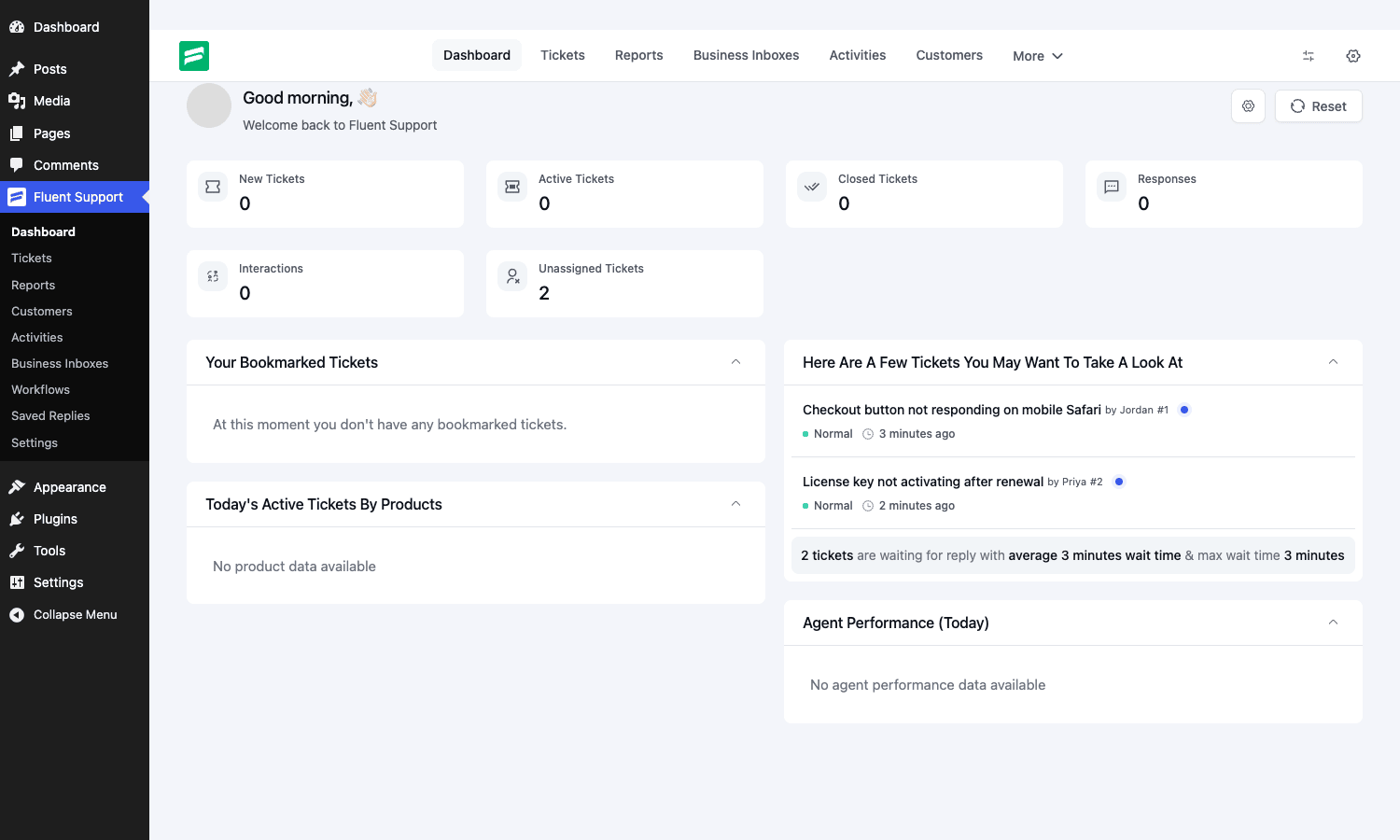
The ticket lifecycle
Before anything else, you should understand how a ticket moves through Fluent Support, because every other feature hangs off this. A ticket is a row in the fs_tickets table, and a customer is a row in fs_persons (agents live there too, distinguished by a person type). Every reply, internal note, and email-piped message is a row in fs_conversations tied back to the ticket.
Here is the path a ticket walks:
- Created. A ticket starts life one of several ways: a customer submits it through the portal, it arrives by email and gets piped in, an agent opens it on a customer’s behalf, or it comes in via the REST API. Out of the box it lands with the status
new. - Assigned. Someone, or a workflow, assigns the ticket to an agent. You can also assign it to an agent group so the whole team sees it.
- Responded. An agent replies. The ticket flips to
active. Replies can be public (the customer sees them and gets emailed) or internal notes that only agents can read.
That internal-note distinction is the single most underrated feature in any helpdesk, and it’s here from day one.
- Prioritised and tagged. A ticket carries both a client priority (set by the customer) and an agent priority. The defaults are
normal,medium, andcritical. You can attach tags for routing and reporting. - Split or merged. If a customer crams three unrelated questions into one ticket, you can split it. If the same person opens two tickets about the same problem, you can merge them. The Pro plugin fires
fluent_support/before_ticket_splitandafter_ticket_splitaround the first, andfluent_support/ticket_mergearound the second, so the data stays clean. There’s also a bulk merge path for cleaning up a flood of duplicate tickets at once. - Closed. When the issue is resolved the ticket moves to
closed. The defaults give you three statuses (new,active,closed), and a ticket can be reopened, which firesfluent_support/ticket_reopen.
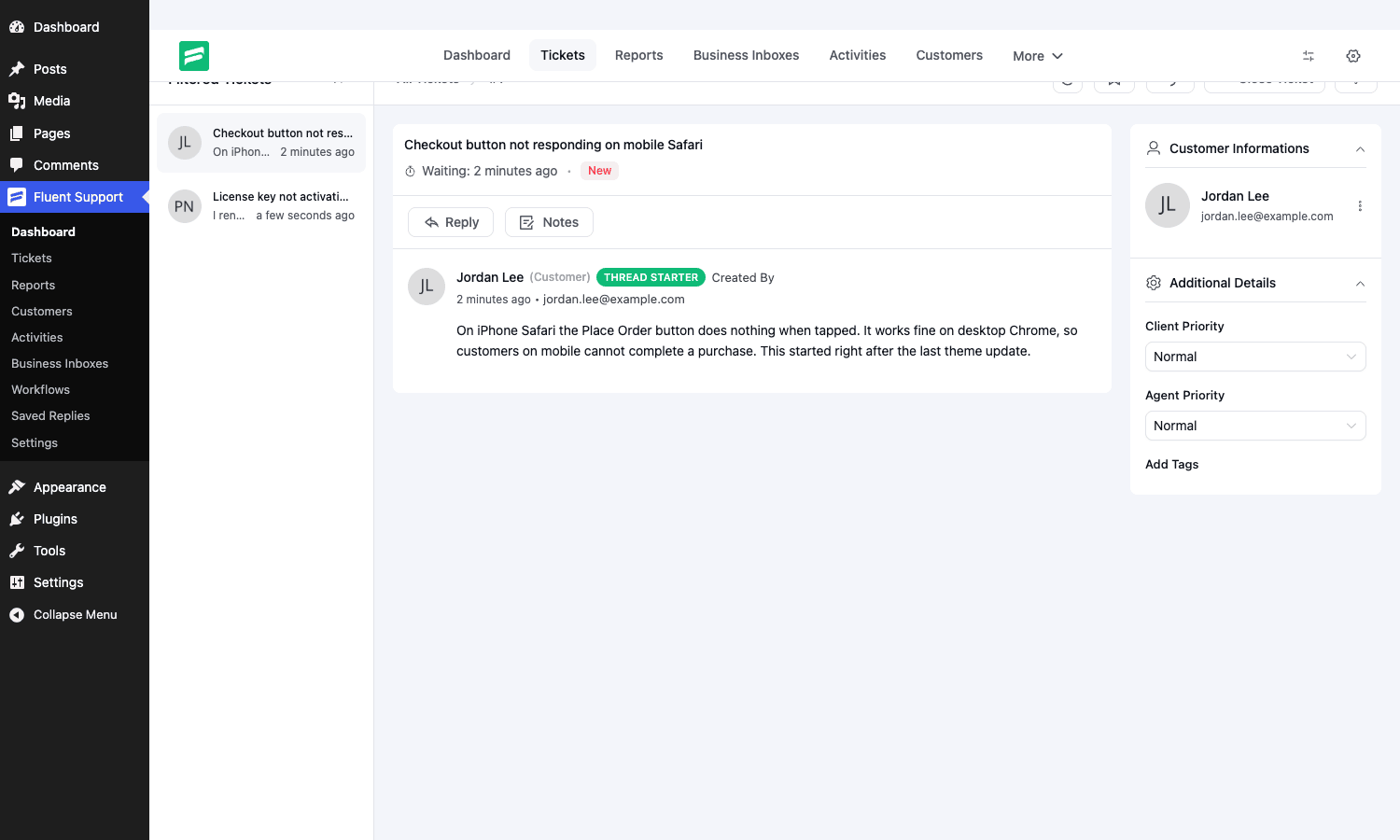
The conversation view is where agents spend their day. You get the message thread in the centre, the customer’s details and history on the right, and a reply box with a rich editor that supports attachments and saved replies. Below is a real ticket I created in a test install, showing the thread, the customer panel, and the priority controls.
The tickets list is the other half of daily work. You filter by status (Open, Active, Closed, New, All), by assignment (My Tickets, Unassigned, Bookmarks), and there’s an advanced filter for slicing by product, mailbox, tag, priority, or date. The list shows the subject, the requester, the priority badge, and how long the ticket has been waiting. For a busy queue this is the screen you keep pinned.
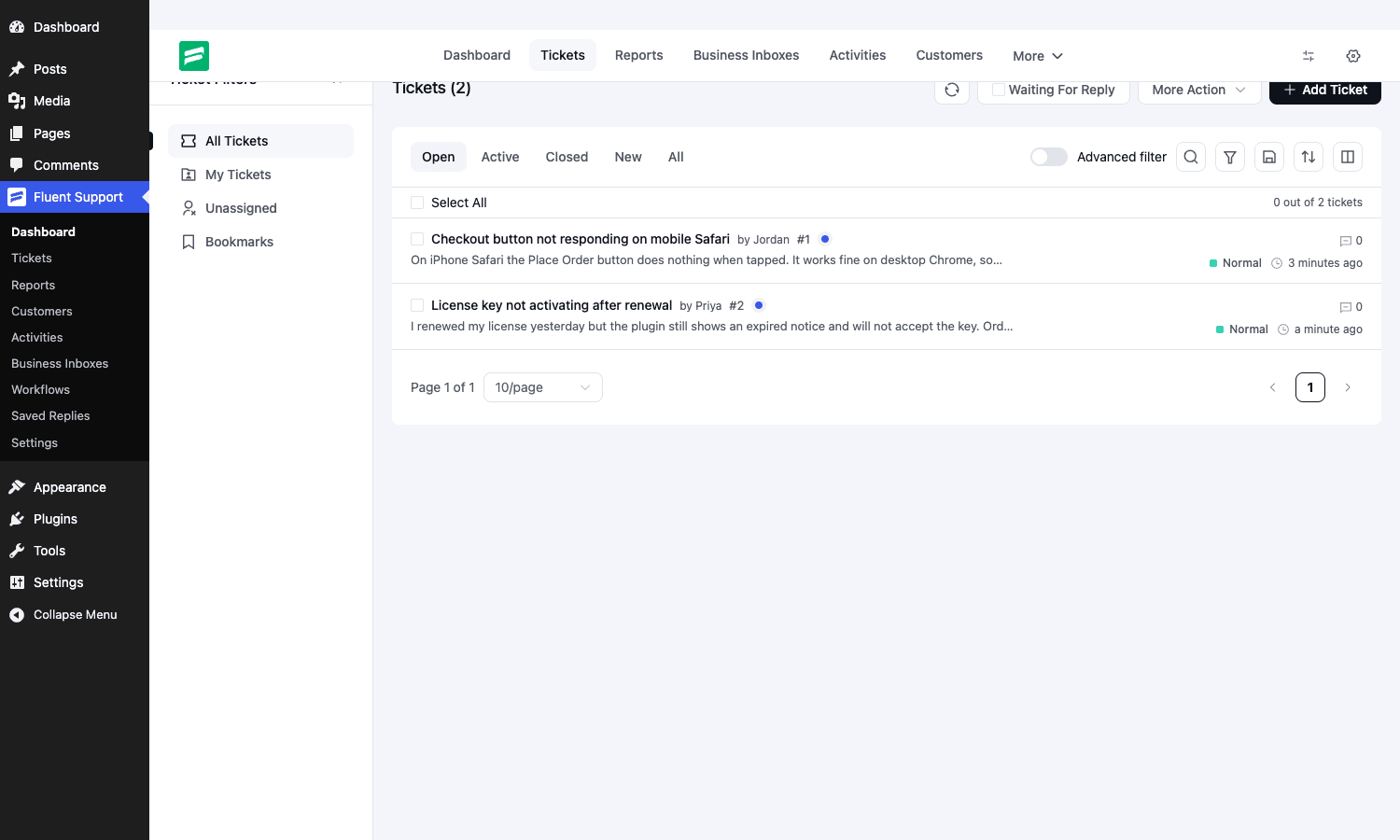
From that list you can act on many tickets at once. TicketController::doBulkActions runs a bulk operation across every ticket matching the current filter: bulk close, bulk assign to an agent or an agent group, bulk tag, or bulk delete. So if a spam wave or a duplicate-import leaves fifty junk tickets, you select them and close or delete the lot in one move instead of clicking through each one. There’s a companion doBulkReplies that posts a single response to many tickets at once, which is the right tool for incident and outage comms: when one bug hits two hundred customers, you write the "we’ve identified the issue, a fix is rolling out" message once and it lands on all of their tickets together.
One thing I appreciate: the plugin stores a human-friendly ticket serial number, and you can change the prefix and the starting number through filters (fluent_support/ticket_prefix and fluent_support/min_serial_number). If you’re migrating from an old system and want your ticket numbers to continue from where they left off, that’s a two-line snippet rather than database surgery.
Mailbox and email piping
This is the feature that turns Fluent Support from a "submit a form on our site" widget into a real helpdesk. Email piping means a customer can send a plain email to your support address and it lands as a ticket, replies go back as email, and the customer never has to log into anything.
In Fluent Support a "mailbox" (the admin calls them Business Inboxes) is the channel a group of tickets belongs to. Each inbox has a name, a from-address, and a set of email notification rules. A web-only inbox just collects portal and API tickets. An email-piping inbox connects to a real mailbox over IMAP, polls it on a schedule, and converts new messages into tickets or appends replies to existing ones.
Here is the part the marketing pages gloss over: email piping depends on WordPress cron. The polling is scheduled through Action Scheduler with a recurring fluent_support_half_hourly hook that fires every 1800 seconds. If your site gets no traffic, WP-cron never fires, and your support inbox silently stops creating tickets. The fix is to disable WP’s pseudo-cron and run a real system cron every few minutes, which you should be doing on any production site anyway. I’ll come back to this in the troubleshooting section because it’s the number one reason people think piping is "broken."
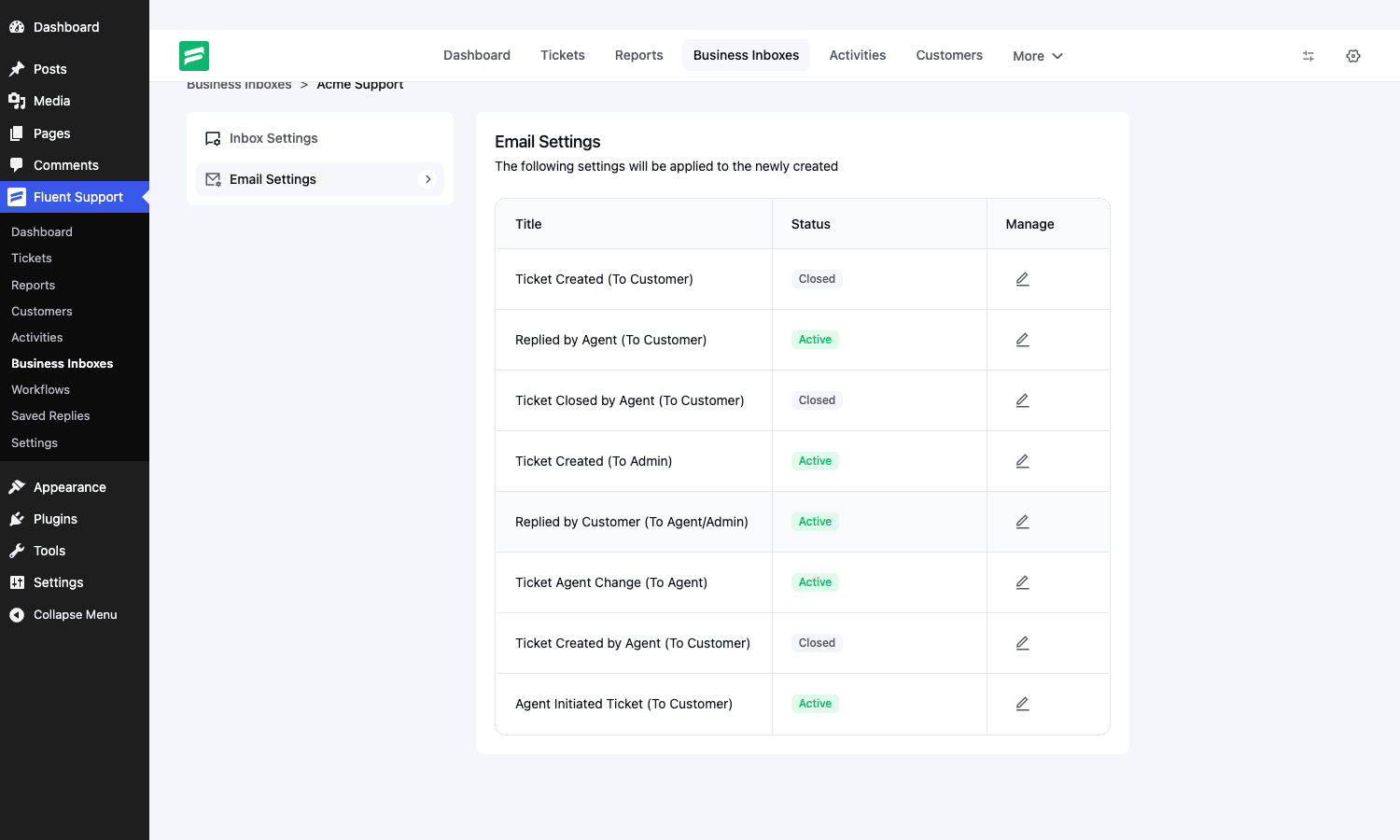
Each inbox carries its own notification matrix. You decide, per inbox, which events email the customer (ticket created, agent replied, ticket closed) and which email the agent or admin (new ticket, customer replied, agent reassigned). The screenshot below shows that matrix on a test inbox.
For developers, the piping pipeline exposes two clean hooks. fluent_support/before_ticket_create_from_email fires with the parsed email data and the resolved customer right before a ticket is created, and fluent_support/after_ticket_create_from_email fires with the created ticket and customer afterwards. There is also a filter, fluent_support_pro/email_piping_data, that hands you the formatted data, the raw message, and the inbox so you can rewrite anything before it becomes a ticket. That is where you would strip a signature, drop auto-replies, or route based on the recipient address.
One honest caveat: outbound deliverability is your problem, not the plugin’s. Fluent Support hands the reply to wp_mail(), and if your server’s wp_mail() dumps straight into spam, your customers will never see the answer. Pair it with FluentSMTP or any SMTP plugin so outbound replies authenticate properly.
Agents, roles, and permissions
An agent in Fluent Support is a WordPress user promoted to support-staff status, stored in fs_persons. Promoting someone doesn’t change their WordPress role, so a subscriber can be a support agent without becoming an editor, which is exactly what you want.
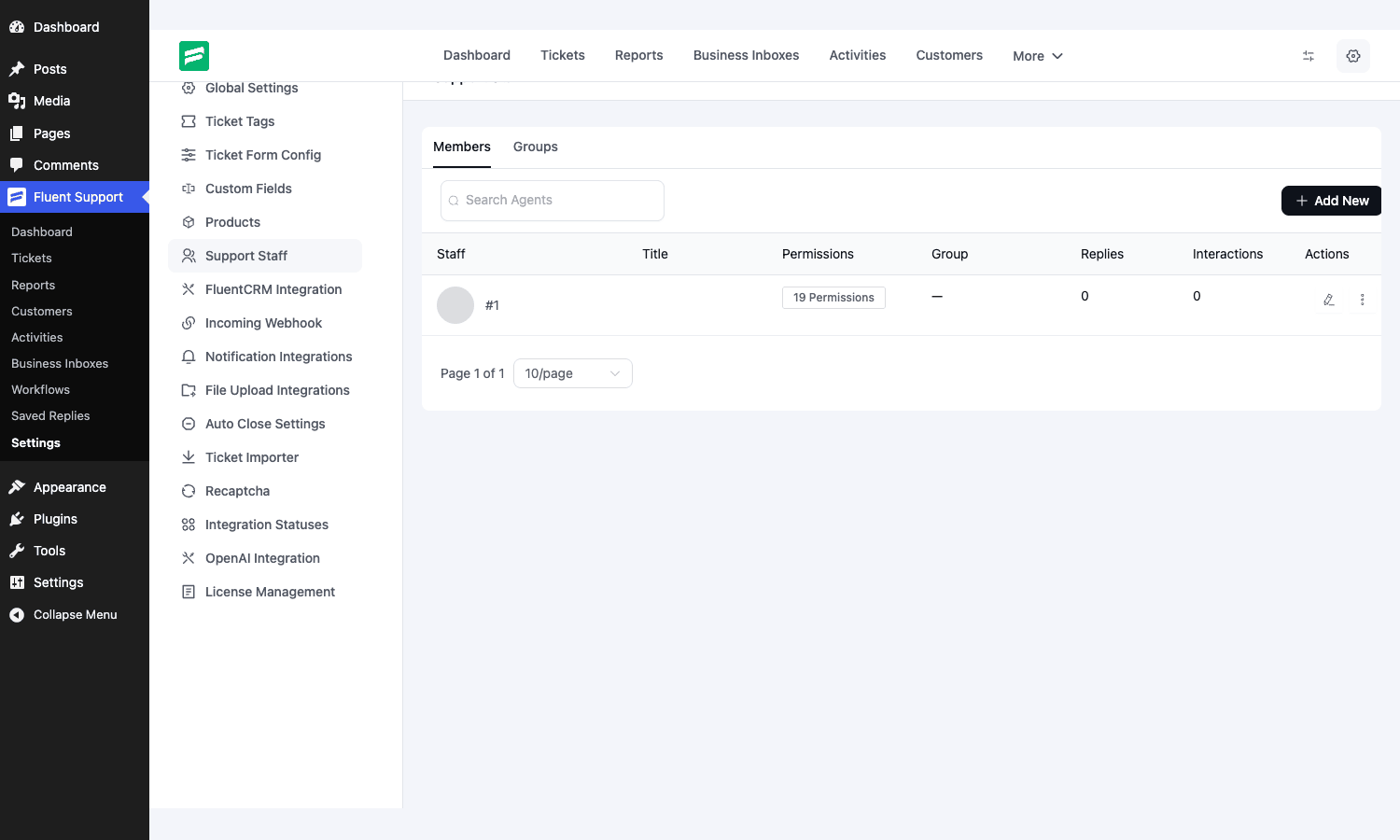
What sells the permission model is its granularity. Each agent carries a set of capabilities, and in my test install a single agent had nineteen distinct permissions to toggle: whether they can view all tickets or only their own, whether they can reply, close, delete, reassign, manage tags, edit customers, see reports, change settings, and so on. You build agent groups (think "Billing," "Tier 2," "Onboarding") and route tickets to a group rather than a person, then let the group sort it out.
A few agent-side touches round this out. Each agent can save a per-agent signature that gets appended to their replies, so the sign-off is consistent without anyone retyping it. Agents can optionally turn on two-factor auth (handled by the TwofaController), which matters if your support staff log in over public networks. And there’s an admin dark-mode toggle for anyone who lives in the ticket queue for eight hours a day and doesn’t want a wall of white. When one agent needs another’s eyes on a ticket, they @mention a teammate in an internal note; the in-app Internal Notifications center then alerts that agent to the mention, plus assignments, customer replies, and workflow events, so nobody has to keep refreshing the queue to know something needs them.
Under the hood, access decisions run through a permission layer the source calls PermissionManager, and the key extension point is the fluent_support/agent_has_access filter. If you need a custom rule (say, agents in the EU group can only see EU customers’ tickets), that filter is where you enforce it. The REST routes back this up with policy classes: the ticket routes use AgentTicketPolicy, the agent and customer routes use AdminSensitivePolicy, settings use AdminSettingsPolicy, and the portal uses PortalPolicy. Access control isn’t bolted on at the UI; it’s enforced at the route level, which is the right place for it.
There’s one more admin surface worth knowing about: the Activities page, a separate submenu gated behind the fst_view_activity_logs permission and backed by ActivityLoggerController (with getActivities plus getSettings / updateSettings) and an Activity model. It’s an audit trail of who did what: which agent closed a ticket, who changed a setting, who deleted what. You can configure how much gets logged. When a customer disputes "your colleague told me X" or you need to know why a ticket vanished, that log is the difference between a guess and an answer.
What I like most is that agents are unlimited. You don’t pay more for the fifth agent or the fiftieth. That changes the math on who you let into the system. With a per-seat tool you ration logins; here you can give read-only access to a developer who only needs to see bug reports, at no extra cost.
The customer portal
The customer-facing side is a front-end portal rendered by the [fluent_support_portal] shortcode. When you finish the setup wizard, Fluent Support offers to create a page with that shortcode for you. Logged-in customers see their ticket history and can open new tickets; the portal handles the "list my tickets, show this ticket, let me reply" flow without ever touching wp-admin.
For sites that want customers to register, there’s a small family of auth shortcodes that ship with the free base:
[fluent_support_portal]renders the main portal.[fluent_support_login]renders just a login form.[fluent_support_signup]renders a registration form.[fluent_support_auth]combines login, signup, and reset in one block.[fluent_support_reset_password]renders the password reset form.
The auth shortcodes take attributes you can override, with defaults exposed through the fluent_support/auth_shortcode_defaults filter (things like auto-redirect, redirect-to, show-signup, and show-reset-password). So you can drop a login form on one page that redirects to the portal, and a full auth block on another, without writing any markup. The customer-facing login also supports the optional two-factor flow, so member sign-ins to the portal can be protected the same way agent logins are.
Access to the portal and to individual tickets is gated by filters: fluent_support/can_customer_access_portal, can_customer_create_ticket, can_customer_access_ticket, and can_customer_create_response. If you run a membership site and only paying members should be able to open tickets, you hook can_customer_create_ticket, check the membership, and return false for everyone else. That’s a far cleaner approach than hiding a form with CSS.
A small but real gotcha lives here: if you create the portal page manually and forget the shortcode, or your permalinks are stale, the portal 404s or renders blank. The setup wizard’s "create a page automatically" option avoids this, and I’d use it unless you have a strong reason not to.
Workflows: ticket automation
So what does going past the free base actually buy you? Workflows, mostly. They’re the headline Pro feature. A workflow is a trigger plus a set of conditions plus a sequence of actions, and it’s the difference between a queue that sorts itself and a queue your agents triage by hand all day.
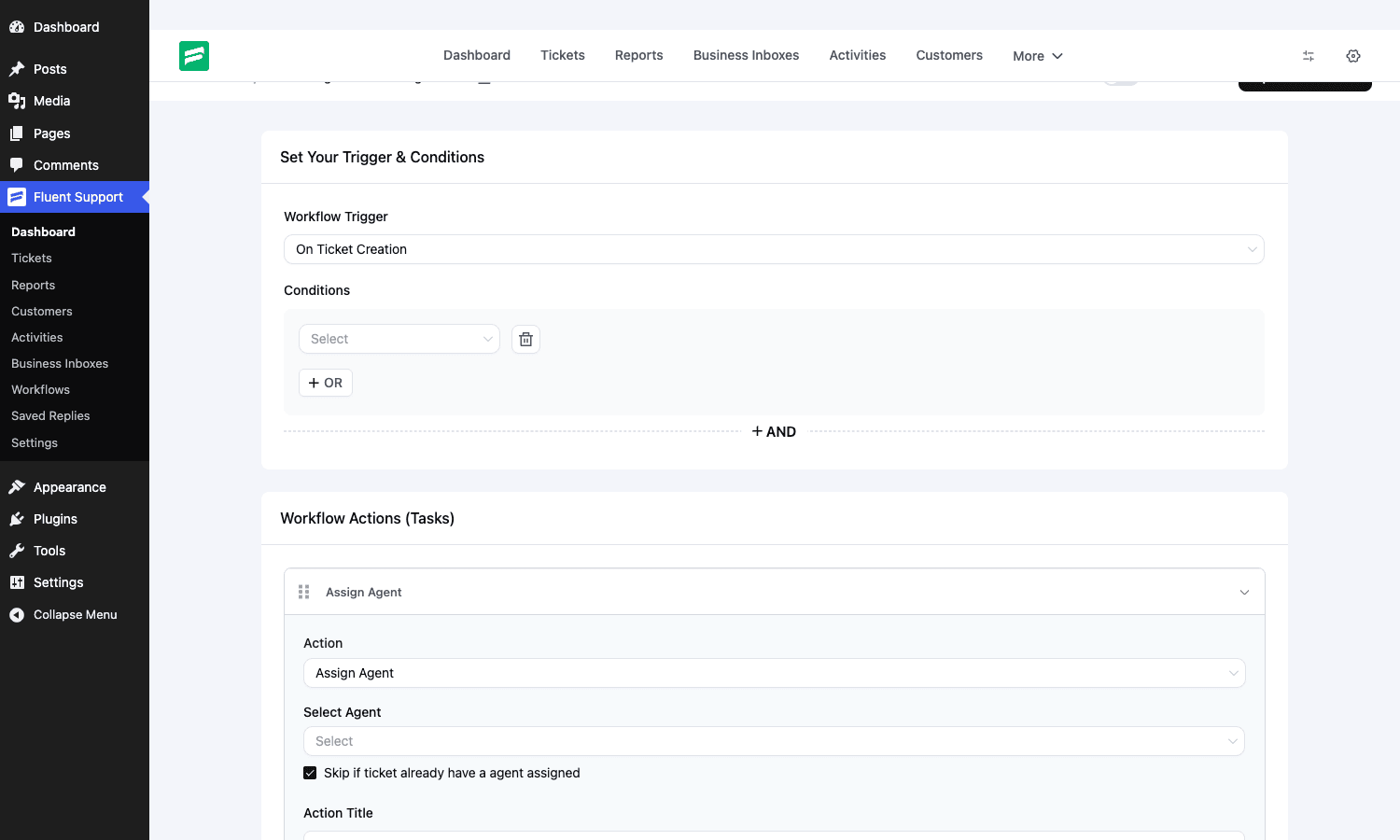
There are exactly three triggers, and they map to the three moments that matter in a ticket’s life:
- On Ticket Creation (
fluent_support/ticket_created) - On Customer Response (
fluent_support/response_added_by_customer) - On Ticket Closed (
fluent_support/ticket_closed)
Each trigger exposes a set of conditions you can match against: the customer’s first name, last name, or email; the message title, content, or attachments; the client priority; the mailbox; the product; the agent or agent group; the date and time range the message arrived; and, if FluentCRM is installed, the customer’s CRM tags and lists. You combine conditions with AND and OR.
Then come the actions. I counted these from the source, and the list is long: Add Response, Assign Agent, Assign Agent Group, Add Internal Note, Close Ticket, Add Tag, Remove Tag, Delete Ticket, Block Ticket Submitter, Trigger Outgoing Webhook, Add Bookmarks, Remove Bookmarks, Change Mailbox, Add Product, and Add To FluentCRM Tags. Actions run in sequence, and several carry a fallback agent setting so an automated reply can be attributed to a real person if needed.
Here’s what that buys you in practice. A workflow that triggers on ticket creation, checks if the message content contains the word "refund" or the product is your billing add-on, and then assigns the ticket to the Billing group and tags it "billing" means refund requests never sit in the general queue waiting for someone to notice. A workflow on customer response that detects a reply on a closed ticket and reassigns it to the last agent who handled it means follow-ups don’t fall through the cracks. A workflow on ticket creation that fires an outgoing webhook to your monitoring tool when a critical ticket arrives gives you SLA-style escalation without a separate SLA product.
The "Assign Agent" action has a "Skip if ticket already has an agent assigned" toggle, which is the kind of small detail that tells me the people who built this have actually run a support desk. Without it, a re-running workflow would yank tickets away from whoever picked them up.
Auto-closing stale tickets
Workflows handle event-driven automation, but there’s a separate mechanism for the slow drift: tickets that go quiet and never get formally closed. The Pro AutoCloseController (with getSettings / saveSettings) exposes an inactive_days threshold, and any ticket with no activity for that many days gets closed automatically. The default sits at thirty days. This isn’t a workflow trigger, it’s a background sweep, which is the right design: a workflow fires on an event like a reply or a close, but "nothing has happened in three weeks" is the absence of an event, so it needs a scheduled check instead. If you’ve ever watched a queue accumulate hundreds of half-answered tickets that customers abandoned, this is the setting that keeps your open count honest.
For developers, workflows are extensible. The available actions come through apply_filters('fluent_support/workflow_actions', $actions, $workflow) and conditions through apply_filters('fluent_support/workflow_conditions', $conditions), so you can register your own. When an action fires, the runner calls do_action('fluent_support/run_action_' . $action_name, $action, $workflow, $ticket), which is the hook you implement to make a custom action do something.
Time tracking on tickets
If you sell paid support, premium SLAs, or bill clients for hours, you need to know how long a ticket actually took, and Fluent Support Pro tracks it per ticket. An agent can set an estimated time on a ticket up front, then log manual time entries as they work it. Under the hood this runs through the TimeTrackController (updateEstimatedTime to set the estimate, manualCommitTrack to log an entry, and getTracks to read the history back), and each entry persists as a row in the fs_time_tracks table tied to the ticket, the agent, and the customer.
That data does real work. For a premium-support tier where customers buy a block of hours, the logged entries tell you when someone’s burning through their allotment. For an agency billing clients, the per-ticket totals roll up into a defensible invoice line instead of a guess. And because the time tracks carry agent and customer IDs, the reporting side can slice them by agent, by mailbox, or by customer, so "which client eats the most support hours" stops being a hunch. It’s not a full project-time tool, but for tying support effort to a dollar figure it’s enough, and it lives right in the ticket instead of in a separate timesheet app nobody updates.
Saved replies and canned responses
If your team types the same answer ten times a day, saved replies fix that. A saved reply (Pro feature, stored in fs_saved_replies) is a titled template with a body that supports smart codes, so {{customer.first_name}} fills in the requester’s name when the agent inserts it. You can scope a reply to a specific product so the right templates surface for the right queue.
In the conversation view, agents click "Saved Replies," pick one, and it drops into the reply box where they can edit before sending. This is mundane and enormously valuable. The "your refund has been processed, it takes five to seven business days" reply, the "could you share your order number" reply, the "we’ve shipped a fix in the latest update" reply: write them once, keep them consistent, stop reinventing the wording under pressure. Saved replies are how you get that without a style guide nobody reads.
Consistency in support replies is a quiet trust signal.
Custom fields and ticket forms
Out of the box a ticket has a subject, a body, a priority, and a product. Real support often needs more: an order number, a site URL, a license key, a "have you cleared your cache" yes/no. Custom fields (Pro) let you add those, and they show up on the ticket form and in the ticket detail panel.
The field system is extensible. fluent_support/custom_field_types lets you register a new field type, and fluent_support/custom_field_render_{type} controls how it renders. So if you need a field type the plugin doesn’t ship (a country dropdown that pulls from your own list, say), you can add it rather than forcing your data into a plain text box.
Ticket Forms go a step further. The Pro TicketFormController lets you build custom front-end ticket submission forms, so different products or pages can collect different information up front. A pre-sales form might ask for company size; a bug-report form might require a staging URL and steps to reproduce. Collecting the right context at submission time is the cheapest way to cut your back-and-forth in half.
One feature buried in those form settings is worth pulling out: doc suggestions. Flip the enable_docs toggle on a ticket form and pick which post types to search through docs_post_types, and the DocSuggestionController surfaces matching docs or posts to the customer as they type their subject. So before someone even submits "how do I reset my password," your existing help article on exactly that surfaces and often answers them, and the ticket never gets created. That’s deflection done right: not a bot stonewalling people, just your own documentation shown at the moment it’s most useful. Every ticket your docs deflect is one your agents don’t have to answer, and the best support ticket is the one a customer solves themselves in ten seconds.
Note that Ticket Forms can integrate with Fluent Forms if you want to use that builder for the submission UI, which is a natural pairing given they come from the same team.
Integrations
This is where the WPManageNinja family of plugins pays off, because Fluent Support talks to the rest of your stack instead of pretending it lives alone. From the Pro source, the integrations that exist are concrete and worth listing:
- WooCommerce and Easy Digital Downloads. When a customer with a matching email opens a ticket, the agent sees that customer’s order history right in the ticket sidebar. No more "what did you buy and when" round-trips. For a store, that’s the integration that pays for the whole thing.
- FluentCRM. Two-way: workflows can add a customer to a CRM tag, and workflow conditions can match on the customer’s existing CRM tags and lists. If you run marketing through FluentCRM, your support and marketing now share the same contact record.
- FluentBoards. Convert a ticket into a task on a project board. The
FluentBoardsController(getBoards,getStages,createTask) pushes the ticket into FluentBoards as a task and drops an internal note back on the ticket linking to it, so a bug report that needs engineering can hand off to your dev board without anyone re-typing the details or losing the trail. - FluentBooking. Insert meeting slots straight into a reply so a customer can book a call without leaving the email thread, and the ticket sidebar shows their upcoming meetings. The
BookingLinkManagerstores the generated links against the ticket and matches bookings back to it, which is the difference between "let’s hop on a call" and three emails trying to find a time. - FluentCommunity. If you run a community or sell courses through FluentCommunity, an enrolled customer’s courses show up as a widget in their ticket sidebar, so an agent answering a course question can see exactly what that person is enrolled in.
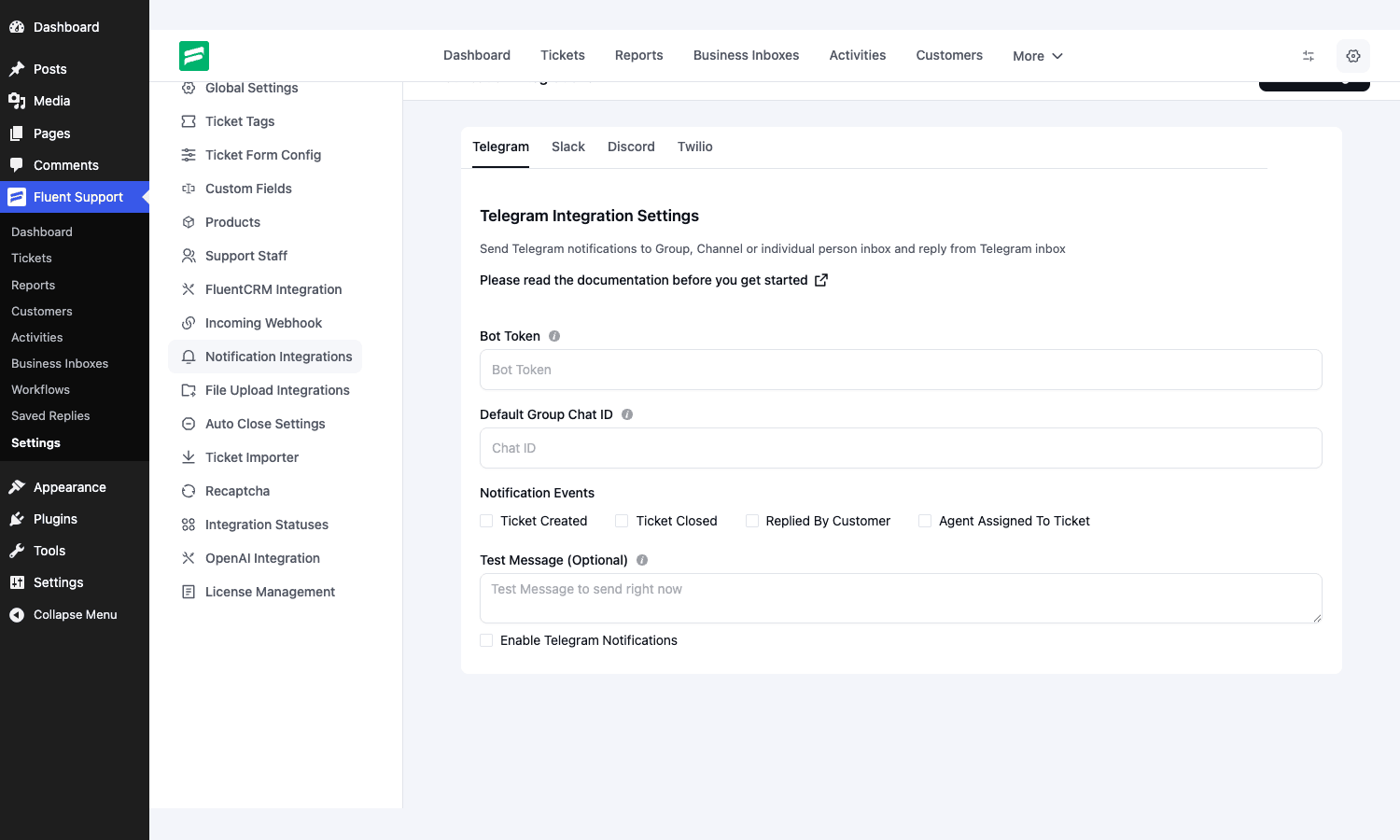
- Slack, Discord, Telegram. Push ticket notifications into a team channel and, for some platforms, reply from there. The notification events are configurable (Ticket Created, Ticket Closed, Replied by Customer, Agent Assigned).
- Twilio. SMS notifications for tickets, which is the right tool for genuinely urgent escalations where email is too slow.
- OpenAI. AI-assisted replies and ticket summaries. The plugin can draft a response, summarise a long thread, or gauge customer sentiment, all behind filters (
fluent_support/generate_response,generate_ticket_summary,find_customer_sentiment) and firingfluent_support/ai_response_successon completion. Treat AI drafts as a starting point an agent edits, not an autopilot. - File storage: Dropbox, Google Drive, Amazon S3, and Cloudflare R2. Route ticket attachments to external storage instead of bloating your uploads folder, with R2 in particular dodging egress fees if you serve a lot of attachment downloads.
- Incoming and outgoing webhooks. Push ticket events out to anything, or accept tickets in from external systems.
- LMS and membership. LearnDash, LearnPress, LifterLMS, TutorLMS, MemberPress, Paid Memberships Pro, Restrict Content Pro, WishList Member, and BuddyBoss are all wired in, so a course or membership customer’s context shows up alongside their ticket.
The Telegram, Slack, Discord, and Twilio settings all live under one Notification Integrations panel, shown below.
Reporting and agent performance
Reporting is split into Personal Reports, Agents Reports, Agent Groups Reports, Products Reports, Business Boxes Reports, and Activity Reports, each with its own date range. You get the counts that matter: total replies, new tickets, closed tickets, open tickets, responses, plus per-agent resolve and response stats, average waiting time, and max waiting time.
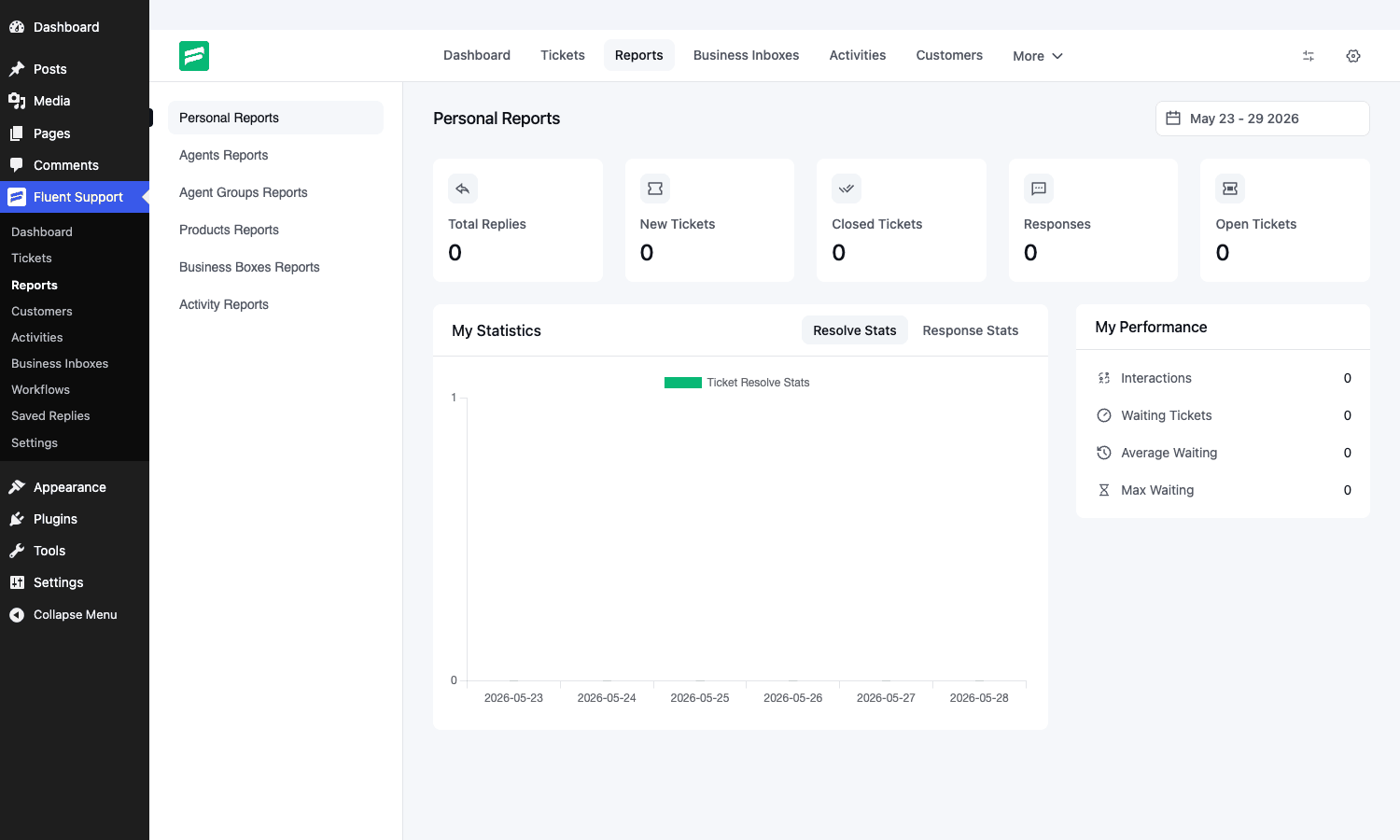
It’s not a business-intelligence suite, and I wouldn’t pretend otherwise. There’s no SLA-breach heatmap or cohort analysis. But for the questions a small support team actually asks (who’s carrying the load, how long are people waiting, which product generates the most tickets), it’s enough. The product-level breakdown is the one I lean on most, because "this add-on generates 40% of our tickets" is a product decision, not a support one. The time-tracking data also feeds in here, so if you log hours per ticket you can see total support time by agent, mailbox, or customer alongside the ticket counts.
Don’t run support out of a shared inbox
I want to spend a moment on the failure mode I see most, because avoiding it is half the reason to install any helpdesk at all. Don’t run customer support out of a shared Gmail or Outlook inbox. It feels free and simple for the first month, and then it quietly costs you real money.
Here’s what actually goes wrong. With a shared inbox there’s no concept of ownership, so two agents either send the same customer contradictory answers or both assume the other has it and nobody replies at all. There’s no audit trail: when a customer says "your colleague promised me a refund last Tuesday," you can’t prove what was or wasn’t said. There’s no status, so a ticket that needs follow-up looks identical to one that’s resolved, and the follow-up never happens. There’s no priority, so a churning enterprise account’s "we’re cancelling" email sits below a "how do I change my avatar" question because it arrived later.
The cost isn’t hypothetical. I watched a shared-inbox setup lose an eleven-day-old enterprise ticket under a pile of automated notifications; that customer didn’t renew, and the contract was worth more than a decade of helpdesk licenses.
A dropped ticket isn’t a minor annoyance, it’s churn with a delay timer on it.
A real ticketing system fixes every one of those failures structurally. Each ticket has one owner or one group, a status, a priority, and a permanent conversation log. Fluent Support adds internal notes so agents can coordinate out of the customer’s sight, and workflows so the urgent stuff routes itself. The migration cost is a weekend; the cost of one dropped enterprise ticket is usually a lot more than that.
Fluent Support vs Help Scout vs Zendesk vs SupportCandy
The honest comparison comes down to the pricing model and where your data lives. Here are the real numbers.
Zendesk is the enterprise standard and prices like it. The Suite tiers run roughly $55 to $115 per agent per month billed annually. For a five-agent team on the mid tier, that’s around $4,500 a year, every year, forever, and it climbs each time you add a seat. Your data lives on Zendesk’s servers in a region you mostly don’t control.
Help Scout is the friendlier hosted option, priced around $50 per user per month on its standard plan (with cheaper tiers that cap features). Five agents is roughly $3,000 a year, recurring, per seat. Again, hosted, so your customer conversations sit on their infrastructure.
SupportCandy and Awesome Support are the other self-hosted WordPress helpdesks. SupportCandy is genuinely capable and its pricing is a one-time-ish annual fee in the low hundreds of dollars for a year of updates, with add-ons sold separately. The trade-off is that several features you would expect in the core (advanced reporting, some integrations) are paid add-ons stacked on top, so the real cost depends on how many add-ons you need.
Fluent Support Pro is a single self-hosted license, a one-time purchase for a year of updates, with unlimited agents and unlimited mailboxes in scope. Is unlimited agents really unlimited? Yes, there’s no per-seat multiplier anywhere in the pricing. The whole thing runs in your WordPress database, so data residency is wherever your server is, full stop.
Put concretely: a five-agent team pays Zendesk about $4,500 a year and Help Scout about $3,000 a year, both recurring per seat. The same team on Fluent Support pays once for a license that doesn’t care whether they have five agents or fifty, and the data never leaves their server. The page-weight story matters too. A hosted helpdesk usually means an embedded widget on your front end: the Zendesk Web Widget, for instance, pulls in roughly 200 to 300 KB of third-party JavaScript on the pages it loads, and that runs before your visitor can do anything. Fluent Support’s portal is server-rendered WordPress, so it adds zero external script bytes to your front end. The trade-off is real and I’ll name it: hosted tools handle scaling, uptime, and email infrastructure for you, while self-hosting means those are your job. If you don’t want to manage cron and SMTP, a SaaS tool is worth what it charges. If you already run a WordPress server competently, the self-hosted math is hard to argue with.
Developer reference: hooks, REST, and models
Fluent Support is built on the same internal framework as the other Fluent plugins, with an MVC-ish structure: models in app/Models, controllers in app/Http/Controllers, an internal router, and policy classes for access control. The hook prefix is fluent_support/ throughout. Here’s the surface that matters when you extend it.
The data model
The core tables are fs_tickets (tickets), fs_persons (both customers and agents, with a person type column), fs_conversations (replies and internal notes), fs_attachments, fs_products, fs_taggables with the fs_tag_pivot relation table, and fs_meta. Pro adds fs_workflows, fs_workflow_actions, fs_saved_replies, and fs_time_tracks. The Ticket model exposes relations like responses(), tags(), customer(), agent(), product(), and mailbox(), plus query scopes such as filterByAgentId, filterByCustomerId, filterByProductId, filterByPriorities, and waitingOnly.
Reacting to ticket events
Most automation starts by hooking a lifecycle action. These fire in the free base:
add_action('fluent_support/ticket_created', function ($ticket) {
    // Ping an external system when a ticket is born.
    if ($ticket->client_priority === 'critical') {
        wp_remote_post('https://hooks.example.com/oncall', [
            'body' => ['ticket_id' => $ticket->id, 'subject' => $ticket->title],
        ]);
    }
}, 10, 1);

add_action('fluent_support/ticket_closed', function ($ticket) {
    // Kick off a satisfaction survey after close.
    do_my_csat_followup($ticket->customer->email, $ticket->id);
}, 10, 1);

add_action('fluent_support/agent_assigned_to_ticket', function ($ticket) {
    // Custom routing notification.
}, 10, 1);
Gating the customer portal
To restrict ticket creation to members only:
add_filter('fluent_support/can_customer_create_ticket', function ($canCreate, $customer) {
    if (! function_exists('wc_memberships_is_user_active_member')) {
        return $canCreate;
    }
    $userId = $customer->user_id ?? 0;
    return $userId && wc_memberships_is_user_active_member($userId, 'support-plan');
}, 10, 2);
Enforcing agent access rules
The PermissionManager decision is filterable. The filter passes the current allowed status and the request, so you derive the agent from the helper rather than from a filter argument. To grant a regional team access:
add_filter('fluent_support/agent_has_access', function ($status, $request) {
    $agent = \FluentSupport\App\Services\Helper::getAgentByUserId();
    if ($agent && in_array('eu-team', (array) $agent->getMeta('regions', []), true)) {
        return true;
    }
    return $status;
}, 10, 2);
Customising ticket numbers and attachments
add_filter('fluent_support/ticket_prefix', function () {
    return 'ACME-';
});

add_filter('fluent_support/min_serial_number', function () {
    return 10240; // Continue ticket numbers from your old system.
});

// Allow an extra MIME type for uploads.
add_filter('fluent_support/accepted_ticket_mimes', function ($mimes) {
    $mimes[] = 'application/x-zip-compressed';
    return $mimes;
});
The default accepted MIME groups are images (JPEG, PNG, GIF, WebP), CSV/text, documents (PDF, DOC, DOCX, XLS), ZIP, and JSON. If a file type’s rejected, this filter (and the related fluent_support/mime_groups) is where you widen the list.
Email piping hooks
add_filter('fluent_support_pro/email_piping_data', function ($formatted, $raw, $mailbox) {
    // Drop vacation auto-replies before they become tickets.
    if (stripos($formatted['title'] ?? '', 'out of office') !== false) {
        $formatted['skip'] = true;
    }
    return $formatted;
}, 10, 3);

add_action('fluent_support/after_ticket_create_from_email', function ($ticket, $customer) {
    // Tag email-origin tickets for reporting.
}, 10, 2);
Registering a custom workflow action
add_filter('fluent_support/workflow_actions', function ($actions, $workflow) {
    $actions['notify_warehouse'] = [
        'title'  => 'Notify Warehouse',
        'fields' => [ /* field config */ ],
    ];
    return $actions;
}, 10, 2);

add_action('fluent_support/run_action_notify_warehouse', function ($action, $workflow, $ticket) {
    // Your custom action logic runs here when the workflow fires.
}, 10, 3);
The REST API
The plugin registers a REST namespace of fluent-support/v2, so endpoints live under /wp-json/fluent-support/v2/.... The route groups, each guarded by a policy, include tickets, mailboxes, agents, agent-groups, customers, products, settings, reports (with my-reports, product-reports, mailbox-reports, agent-group-reports), notifications, customer-portal, and public. A typical agent-facing call to list tickets is a GET to /wp-json/fluent-support/v2/tickets, and creating a response is a POST to /wp-json/fluent-support/v2/tickets/{ticket_id}/responses. The bulk endpoints (bulk-actions and bulk-reply) and the time-track routes (POST /{ticket_id}/estimated-time, GET and POST /{ticket_id} under the time-track group) hang off the same router. The router also powers the admin SPA, so anything the admin UI does, you can do over REST with the right capability.
WP-CLI
There’s a CLI command registered as fluent_support with subcommands stats, activate_license, license_status, and freshdesk_ticket_import. The Freshdesk importer is handy if you’re migrating in, and the migrator class mapper is filterable through fluent_support/migrator_class_mapper if you need to add a source.
wp fluent_support stats
wp fluent_support license_status
Troubleshooting common problems
Email piping isn’t creating tickets. Ninety percent of the time this is WP-cron. Fluent Support polls the IMAP mailbox on the scheduled fluent_support_half_hourly action, and if real cron isn’t firing, polling never happens. Set define('DISABLE_WP_CRON', true); in wp-config.php and add a real system cron hitting wp-cron.php every few minutes (or run wp cron event run --due-now from crontab). The other 10% is bad IMAP credentials, the wrong port or SSL setting, or your host blocking outbound IMAP. Also watch for a forwarding loop: if your support address auto-forwards to the piping mailbox and the piping mailbox also notifies that address, you can create a feedback loop. Forward in one direction only.
The customer portal shows a 404 or a blank page. The portal page must contain the [fluent_support_portal] shortcode and your permalinks must be flushed. If you created the page by hand, confirm the shortcode is present. If you changed permalink structure, visit Settings, Permalinks and save to flush rewrite rules. The safest path is letting the setup wizard create the page for you.
Agents aren’t getting notification emails. Two layers to check. First, the per-inbox notification matrix: the "Ticket Created (To Admin)" or "Replied by Customer (To Agent)" rule must be active for that inbox. Second, wp_mail() itself: if outbound mail is failing or going to spam, no notification will arrive. Install an SMTP plugin and send a test. The fluent_support/should_send_notification filter can also suppress a notification if custom code has hooked it, so check there if mail works elsewhere but not for support.
Attachments are rejected. The uploaded file’s MIME type isn’t in the accepted list, or it exceeds the max file size set in global settings. Widen the list with fluent_support/accepted_ticket_mimes or raise the size limit. Remember the server’s own upload_max_filesize and post_max_size in PHP are an upper bound the plugin can’t exceed.
Tickets seem stuck or the queue isn’t updating. Hard-refresh the admin SPA; it’s a JavaScript app and an old cached bundle can show stale data after an update. If a workflow’s misbehaving (auto-closing tickets you didn’t expect, for instance), open Workflows and check the trigger and conditions, because a too-broad condition will match more tickets than you intended. The same caution applies to the auto-close threshold: set inactive_days too low and tickets people are still waiting on get closed out from under them.
Compatibility and requirements
Fluent Support runs on current WordPress and a reasonably current PHP. As a rule of thumb, keep PHP at 7.4 or newer (8.x is fine and recommended). It’s multisite-aware, with activation logic that runs per-site on new blogs in a network.
The WooCommerce and EDD integrations light up automatically when those plugins are active, pulling order context into tickets. The FluentCRM, FluentBoards, FluentBooking, Fluent Forms, and FluentSMTP integrations are the smoothest because they share the vendor’s framework, but none of them are required to run the helpdesk. The LMS and membership integrations (LearnDash, LifterLMS, TutorLMS, MemberPress, and the rest) similarly detect and activate on their own.
The one compatibility point I will underline is email deliverability. The plugin is only as reliable as your wp_mail() setup, so on any production helpdesk, treat an SMTP plugin as mandatory infrastructure rather than optional.
Pricing and licensing
Fluent Support sells in tiers based on the number of sites a license activates on (single site, a handful of sites, and an agency/unlimited tier), each as a one-time annual purchase that includes a year of updates and support. Renewals are discounted. Critically, none of the tiers charge per agent or per ticket, so the price you pay is decoupled from how big your team grows or how busy your queue gets.
On GPL Times you get the complete package, the free base plus the Pro add-on, under the GPL license. That matters because the Pro features described throughout this article (workflows, time tracking, saved replies, custom fields, the integrations) only exist when the Pro plugin is active on top of the free base. Fluent Support Pro on GPL Times ships exactly that combination, so you can stand up the full helpdesk, wire a real mailbox to it, and build your first routing workflow on a staging install before you point production at it.
FAQ
Does email piping really need WordPress cron?
Yes, and this is the thing to get right first. Inbound mail is polled on a scheduled action, not in real time, so if WP-cron isn’t firing (common on low-traffic sites because WP-cron only runs when someone visits), tickets stop being created from email. Disable the pseudo-cron and run a real system cron every couple of minutes. Once that’s in place, piping is reliable; before it, piping looks broken.
Can customers reply to a ticket by email?
Yes. With email piping configured, a customer’s reply to the notification email is appended to the existing ticket as a new response, and the agent sees it in the same thread. The customer never has to log into the portal. That round-trip-by-email experience is the whole point of running piping rather than a portal-only setup.
Is it genuinely unlimited agents, unlike Help Scout’s per-seat pricing?
Yes. There’s no per-agent fee. You can add as many support staff as you want on a single license, and the access model is granular enough (nineteen permissions per agent) that you can hand out narrow read-only access freely. That genuinely changes who you let into the system, since adding a seat costs nothing.
Where is my ticket data stored, and is it GDPR-friendly?
Everything lives in your own WordPress database in fs_-prefixed tables on your own server. Nothing is sent to a third-party helpdesk. That makes data residency simple: it’s wherever your hosting is. For GDPR, the export and erase hooks are wired into WordPress’s personal-data tools, and because the data’s local you control retention and deletion directly. The flip side is that you’re the data controller and processor, so securing the server is on you.
Does it scale to thousands of tickets?
For small to mid-sized teams, comfortably. The tables are indexed and the queries use scopes that filter at the database level rather than loading everything into PHP. At very high volume (tens of thousands of open tickets, many concurrent agents) you’ll want a well-resourced server, object caching, and a real cron, the same as any busy WordPress app.
It’s not a magic infinite-scale SaaS, but it handles a serious support load on decent hosting.
How does it use WooCommerce and EDD order context?
When a ticket’s customer email matches a WooCommerce or EDD customer, that customer’s orders show up in the ticket sidebar without the agent leaving the conversation. The catch is that the match is on email: a guest checkout, or a customer who emails support from a different address than they bought with, shows no order history until you reconcile the addresses.
Can I migrate from Zendesk or Help Scout?
There’s a built-in Freshdesk importer (wp fluent_support freshdesk_ticket_import), and the migrator is extensible through the fluent_support/migrator_class_mapper filter. For Zendesk or Help Scout specifically, you’d typically export to CSV or use their API and import via the REST endpoints or a custom migrator class. It’s doable, but budget time for it; helpdesk migrations are never one-click, mostly because mapping old statuses and agents to new ones takes judgment.
Will my outbound replies land in the inbox or in spam?
That depends on your mail setup, not the plugin. Fluent Support hands replies to wp_mail(), so if your server sends unauthenticated mail, replies can land in spam and customers will think you ignored them. Install an SMTP plugin (FluentSMTP pairs cleanly) so outbound mail is properly authenticated with SPF, DKIM, and a real sending domain. Treat this as required setup, not an afterthought.
Do I need the free base if I bought Pro?
Yes. Fluent Support Pro is an add-on that requires the free Fluent Support plugin to be installed and active underneath it. The Pro plugin won’t run alone. The GPL Times package includes both, so this is handled as long as you activate both plugins.
Is Fluent Support Pro worth it?
If your support currently lives in a shared inbox, or you’re paying per-seat for a hosted helpdesk that your small team barely fills, Fluent Support Pro is an easy recommendation. You get a real ticketing system with internal notes, priorities, statuses, and a permanent audit trail; email piping so customers can just send an email; workflows that route and triage the queue for you; time tracking that ties support effort to a dollar figure; saved replies that keep your team consistent; and order context pulled straight from WooCommerce or EDD. All of it on your own server, with unlimited agents, for a one-time license rather than a meter that runs forever.
It’s not the right tool for everyone. If you don’t want to own cron and SMTP, or you need enterprise-grade SLA dashboards and cohort analytics out of the box, a hosted tool will serve you better, and for some teams the monthly cost is reasonable for what it removes from your plate. But for the very common case of a WordPress-based product or store with a small team that wants to keep its data and its costs under control, this is the helpdesk I’d set up. Stand it up on a staging site first, wire a test mailbox to it, build one routing workflow, and you’ll know within an afternoon whether it fits.