


Every WordPress page builder I’ve used trades developer time for page weight. You move faster, your visitors wait longer. The output gets stuffed with wrapper divs, inline styles, and a shortcode for every column, and six months later you’re staring at a 1.4 MB homepage wondering where it all went wrong.
Droip is a bet that no-code doesn’t have to work that way. It’s a visual, drag-and-drop builder that lives natively inside WordPress, but it’s built around a Webflow-style model: real CSS classes, a global design system, CMS collections, and HTML output that doesn’t read like a machine generated it. I spent a working session building inside it on a real install for this review, poking at the canvas, the style panel, the CMS, and the developer hooks underneath. This is what I found, where it’s genuinely good, and where it’s still a younger product with rough edges.
Table of Contents
- What Droip is, and the clean-output thesis
- The visual canvas and the element model
- Global styles, classes, and responsive control
- Dynamic Content and CMS Collections
- The native form builder, validation, and SMTP
- Interactions and animations
- Reusable Symbols and the component model
- Element visibility conditions
- Templates and the library
- Export, import, and staging
- Native comments and the Apps system
- Developer reference: hooks, REST, and constants
- Don’t migrate a 200-page Elementor site to Droip mid-launch
- Droip vs Elementor Pro vs Bricks vs Webflow
- Troubleshooting the common problems
- Compatibility: themes, hosting, PHP, and multilingual
- Pricing and what each tier is for
- FAQ
- Is Droip worth it?
What Droip is, and the clean-output thesis
Droip is an all-in-one no-code website builder for WordPress, made by the Droip team. You install it as a plugin, then design pages on a full-screen visual canvas instead of in the block editor or a theme’s customizer. The pitch is that you can build a whole site (header, footer, landing pages, blog, dynamic listings) without touching code, and the result is clean, semantic HTML rather than a tangle of builder shortcodes.
That last part is the whole argument. Let me explain why it matters.
When you build a page in a classic shortcode-based builder, the saved content is full of markers like [vc_row][vc_column][vc_column_text]. On every front-end request, the builder’s runtime parses those shortcodes back into HTML, loads its own CSS framework, and renders the page. Deactivate the plugin and your content turns into a wall of visible shortcode text. That’s lock-in, and it’s also weight: you’re shipping the builder’s entire stylesheet whether the page uses 5 percent of it or not.
Droip stores its page model as structured data in post meta and renders it server-side into plain HTML. There’s no shortcode soup in post_content. It tracks which style blocks and fonts a page actually uses (in the droip_used_style_block_ids and droip_used_font_list post meta) so it can output only the CSS that page needs. The result, in my testing, was markup that looked hand-built: real section, div, headings, and class names you defined, not auto-generated gibberish.
Is it perfectly clean? Not always. Complex layouts still produce nested wrapper divs, the same way Webflow does, because that’s how flexbox and grid layouts work when you build them visually. But it’s a different category of output from the shortcode builders, and that’s the point.
A few things to set expectations before we go deep:
Droip wants to own the page. When you switch a page into Droip mode, it takes over the full canvas, including the header and footer area, rather than dropping a block into your theme’s content area. That’s powerful (you can design the whole viewport) but it means Droip behaves more like a site builder than a content widget.
It’s React-heavy in the editor. The builder is a single-page app that loads at your page’s URL with ?action=droip appended. That makes the editing experience fast and fluid once it’s loaded, but it also means the editor needs a decent chunk of PHP memory and a modern browser. More on that in the compatibility section.
And it’s a younger product than Elementor or Bricks. The core design tooling is strong, but the third-party add-on selection is small, and you’ll occasionally hit a feature that exists in older builders but not here yet.
The visual canvas and the element model
The canvas is where you’ll spend most of your time, so it’s worth understanding how Droip thinks about elements.
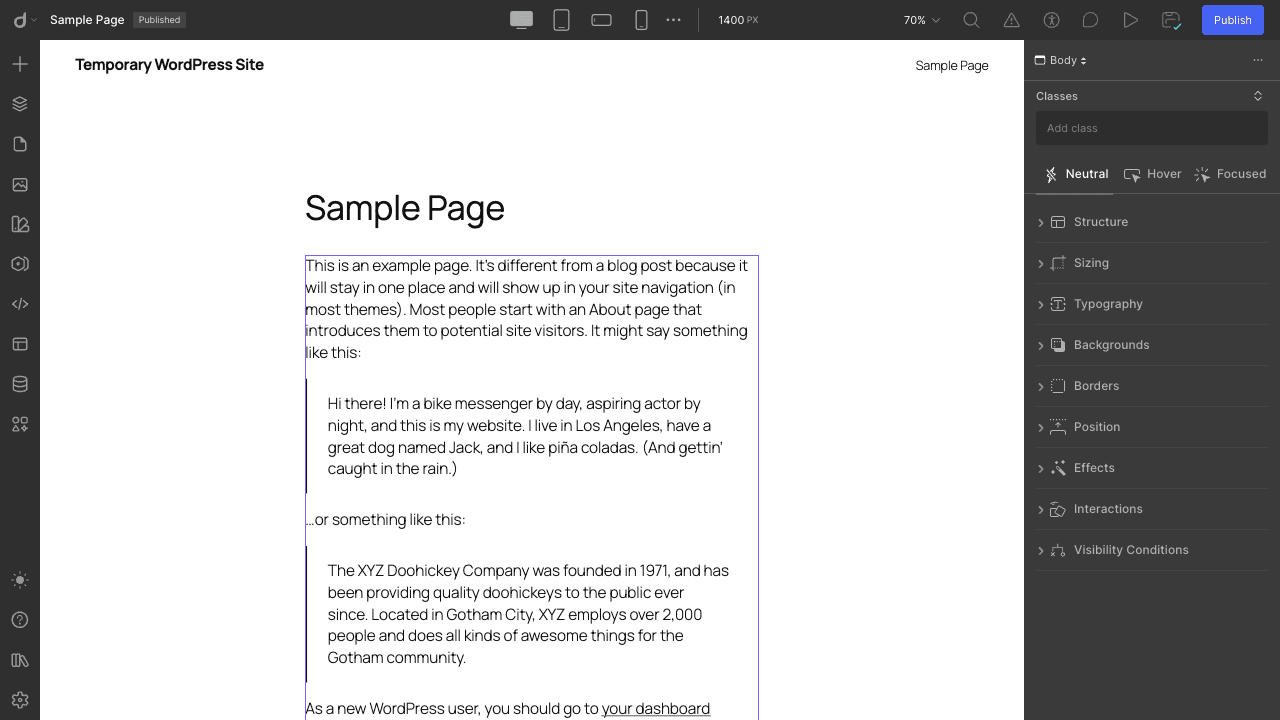
Open the builder and you get three zones. A top bar with the responsive device toggles (desktop, tablet, landscape phone, portrait phone), a zoom control, and the Publish button. A left vertical rail of icons that open panels (Insert, Layers, Pages, Media, Templates, Symbols, Code, Content Manager, Apps). And a right-hand style panel that changes based on what you’ve selected.
Click the Insert (+) icon and the element library slides out. This is the box of LEGO you build with.
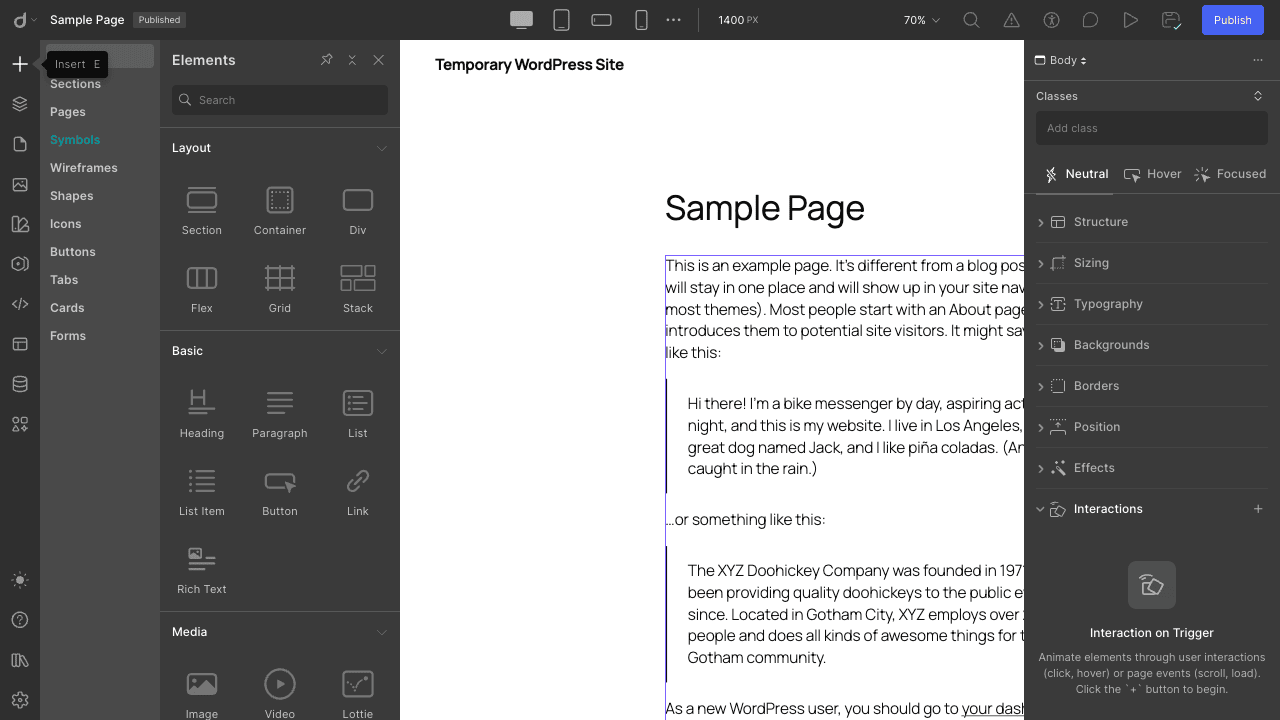
The elements are grouped sensibly:
- Layout: Section, Container, Div, Flex, Grid, Stack. These are your structural building blocks. Flex and Grid give you proper CSS flexbox and grid containers with visual controls for the axis, gap, and alignment, which is exactly what you want for modern layouts.
- Basic: Heading, Paragraph, List, List Item, Button, Link, Rich Text. The Rich Text element is the one to reach for when you want a normal editable text block with inline formatting.
- Media: Image, Video, Lottie, Icon, Shape. Lottie support out of the box is a nice touch, since adding Lottie animations to most builders means a third-party widget.
- Forms: Form, Label, Input, Textarea, Select, Checkbox, Radio, Submit, ReCAPTCHA, File. A full native form kit, which I’ll come back to.
- Advanced: Lightbox, Navigation, Slider, Tabs, Map, Code. The Code element lets you drop in raw HTML/embed when you need an escape hatch.
You drag an element onto the canvas, drop it where the blue guides say it’ll land, and it’s there. The Layers panel (the second left-rail icon) gives you a DOM-tree view so you can grab a nested element that’s hard to click on the canvas. If you’ve used the Navigator in Webflow or the Structure panel in Bricks, it’s the same idea.
The tabs along the top of the Insert panel matter too: beyond raw Elements, there are Sections, Pages, Symbols, Wireframes, Shapes, Icons, Buttons, Tabs, and Cards. Those are pre-designed chunks you can drop in and restyle, which is how you go fast without starting every section from an empty div.
Global styles, classes, and responsive control
Here’s where Droip earns its Webflow comparison, and where it pulls ahead of most WordPress builders.
Select any element and the right panel shows a Classes field at the top, then style accordions: Structure, Sizing, Typography, Backgrounds, Borders, Position, Effects, Interactions, and Visibility Conditions. You style elements by assigning them a class, and every element with that class updates together. Change the .btn-primary class once and every primary button on the site changes. This is the single biggest reason a class-based builder scales better than one where you style each element individually.
The styling is also state-aware. At the top of the style panel you get Neutral, Hover, and Focused states, so you can define a hover style or a focus ring without writing a line of CSS. That’s a real accessibility win, because focus styles are the thing everyone forgets.
Responsive design works the way it should: cascading down from desktop. You set your base styles on desktop, then switch to the tablet or phone breakpoint using the device toggles in the top bar and override only what needs to change at that size. Droip also supports custom breakpoints if the four defaults aren’t enough. Because changes cascade, you’re not rebuilding the layout four times, you’re tweaking the deltas.
Then there’s the global design system. Open the Variables panel and you can create reusable values: numbers, font families, and color schemes that apply consistently across the whole site. Define your brand blue once as a variable, use it everywhere, change it in one place later. This is design-token thinking, and it’s the difference between a site you can rebrand in ten minutes and one where you hunt down forty hardcoded hex values.
I’ll be honest about the learning curve here. If you’ve only ever used a builder where you click a button and pick a color, the class-and-variable model takes a mental shift. The payoff is real, but the first hour is steeper than dropping widgets into Elementor. If you already think in CSS, you’ll feel at home immediately.
Dynamic Content and CMS Collections
This is the feature that made me sit up. Most WordPress builders can loop over posts. Few of them give you a proper content modeling layer the way Webflow’s CMS does. Droip does.
Open the Content Manager (the database icon in the left rail) and you can create content collections. A collection is a custom content type with its own fields. You can start from a preset, which is the fast path.
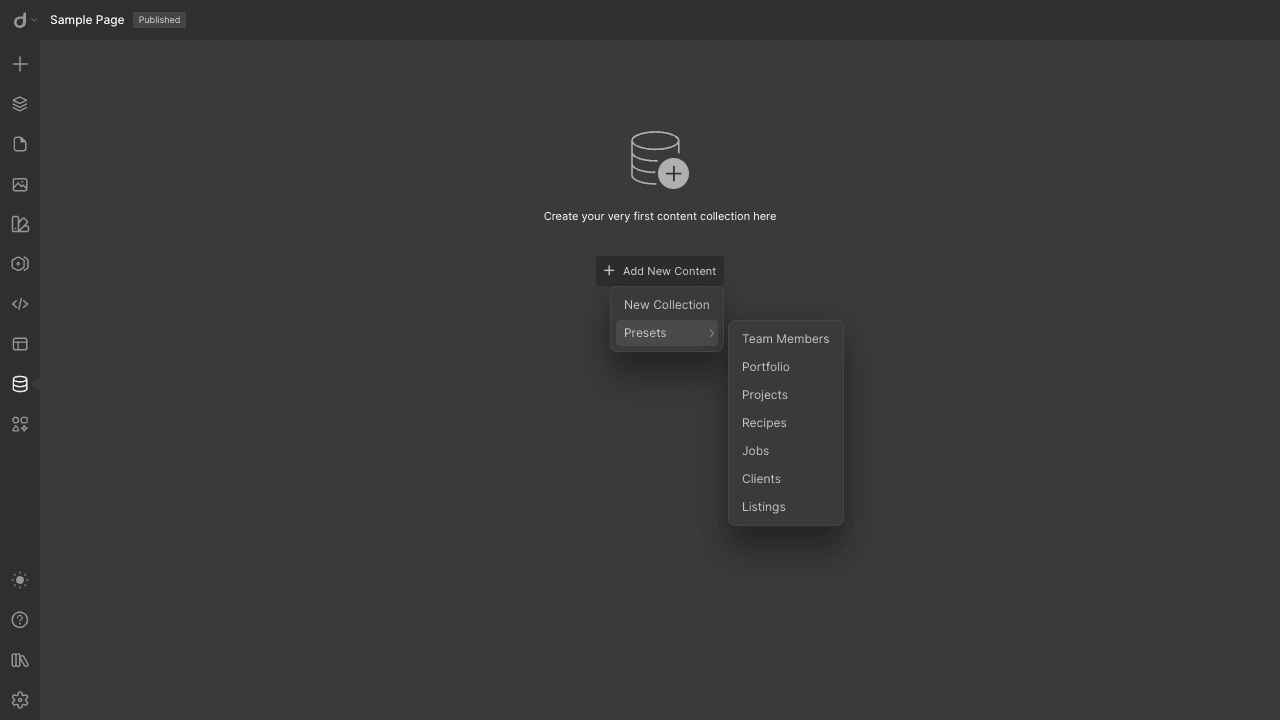
The presets cover the usual suspects: Team Members, Portfolio, Projects, Recipes, Jobs, Clients, Listings. Pick "Team Members" and you get a collection with the right fields already set up (name, role, photo, bio). Or choose New Collection and define your own fields from scratch. Under the hood each collection is registered as a custom post type prefixed with droip_cm, so it’s real WordPress data, queryable like anything else.
Once a collection exists, you bind it to design. You drop a Collection element on the canvas, point it at a collection, and design one card. Droip repeats that card for every item, pulling each field into the matching element. Change the design of the card once and every item updates. Add a new team member in the Content Manager and it shows up on the page automatically. This is the loop-and-bind workflow that took me an afternoon to wire by hand with ACF and a custom query template the last time I built a team page, and here it’s drag, bind, done.
The dynamic binding runs through the droip_dynamic_content filter, and the field declarations through droip_dynamic_content_fields, which means developers can extend what’s bindable (more on that below). You can also bind to existing WordPress data, not just Droip collections. The droip_post_types filter controls which post types the builder exposes for binding, so you can pull in your existing posts, WooCommerce products, or a custom post type from another plugin.
Where does it fall short of Webflow’s CMS? Reference fields and multi-reference relationships are less mature, and there’s no item-level draft/publish workflow as polished as Webflow’s. For a portfolio, a blog, a job board, or a listings site, it’s more than enough. For a complex relational content model, you’ll feel the edges.
The native form builder, validation, and SMTP
Forms in WordPress are usually a separate plugin. Droip ships a full form kit in the element library, and it’s not a token gesture.
You build a form by dropping the Form element, then adding Input, Textarea, Select, Checkbox, Radio, File, and ReCAPTCHA fields inside it. Because these are real Droip elements, you style them with the same class system as everything else, so your form actually matches your design instead of inheriting some plugin’s default gray boxes.
Validation runs server-side through the plugin’s FormValidator namespace, so it’s not just front-end JavaScript you can bypass with the dev tools. Submissions are stored and viewable under the Droip menu in the WordPress admin (Droip, then Form data), and the submit fires the droip_form_submitted action so you can hook your own logic, push to a CRM, fire a webhook, whatever you need.
Email is the part to plan for. When a form submits and Droip sends a notification, it calls wp_mail(), and right before that call it runs the droip_element_smtp filter. That hook is your wiring point for an SMTP plugin. Out of the box, Droip relies on whatever mail transport your site already has, which on a lot of shared hosts means PHP mail(), which means your form notifications quietly land in spam or vanish. Install a proper SMTP plugin and the droip_element_smtp hook lets it take over the send. I’d treat this as a required step, not optional, for any production form.
One genuinely clever detail: in the email template, Droip registers each form field as a temporary shortcode, plus an admin_email shortcode, so you can write [email] or [message] in your notification body and it gets replaced with the submitted value. Small thing, but it means your notification emails can be readable instead of a JSON dump.
Interactions and animations
The Interactions panel is where Droip leans hardest into the Webflow comparison, and it’s surprisingly capable for a WordPress builder.
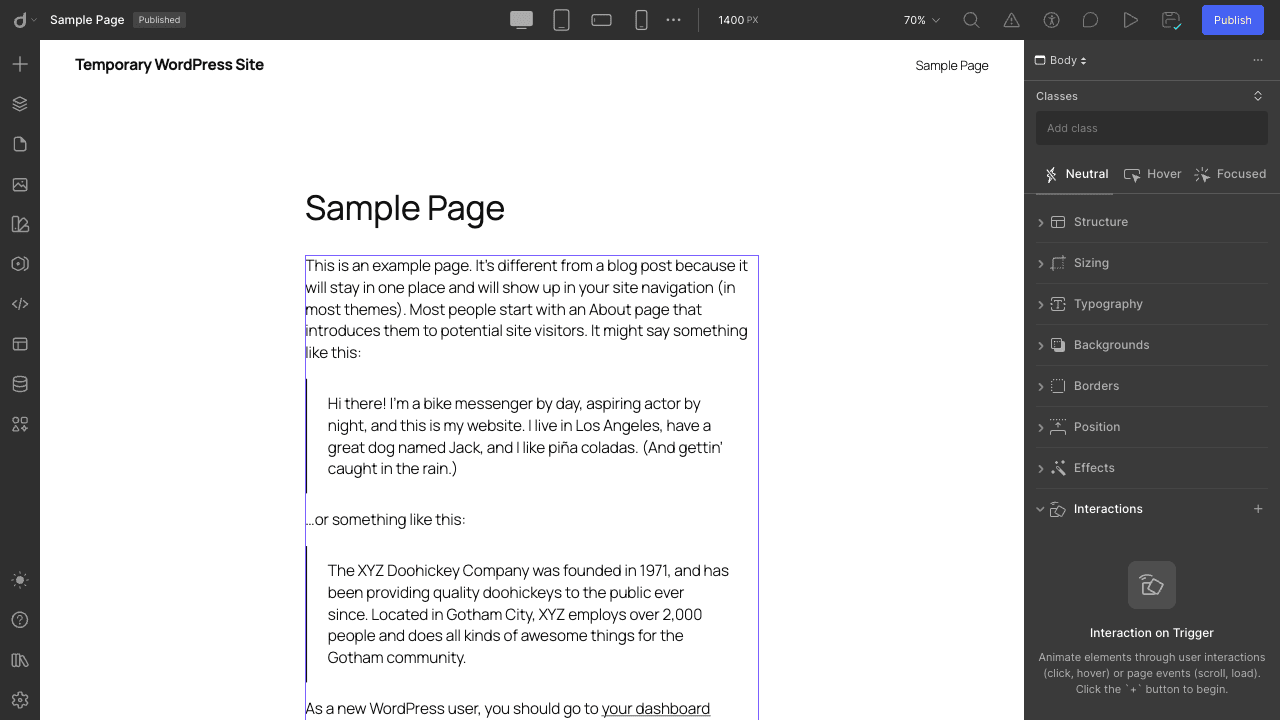
Select an element, open Interactions, and you choose a trigger. The trigger list includes Mouse move on viewport, While page is scrolling, Page Load, Scroll into view, and Page Scrolled, alongside the standard click and hover element triggers. From there you define what animates: position, opacity, scale, rotation, and so on, with timing and easing controls.
So you can build a hero that fades and slides in on page load, a section that animates as it scrolls into view, a parallax effect tied to scroll position, or a card that lifts on hover. These are the effects people pay for separate animation add-ons to get in other builders, and here they’re native.
A caution from experience: scroll-driven and mouse-move interactions are the easiest way to make a site feel cheap if you overdo them. Two or three tasteful entrance animations read as polish. A dozen things flying in from every direction reads as a 2014 template. The tool gives you rope; use a little of it.
Reusable Symbols and the component model
Symbols are Droip’s reusable components, stored as their own content type (droip_symbol). You build something once (a header, a footer, a call-to-action band, a pricing card) turn it into a Symbol, and reuse it across pages. Edit the Symbol once and every instance updates everywhere.
This is essential for anything beyond a one-page site. Your header and footer should be Symbols from day one, because the alternative (copy-pasting them onto every page) means a navigation change becomes a forty-page edit. Droip also tracks per-page symbol disable status in the droip_disabled_page_symbols meta, so you can suppress a global symbol on a specific page (a landing page with no header, for instance) without deleting it.
If you’ve used Webflow Symbols or Elementor’s Global Widgets, this is the same concept, and Droip’s implementation is clean. The one thing I’d want more of is nested-symbol overrides (changing one instance’s text while keeping the shared layout), which is fiddlier here than I’d like.
Element visibility conditions
Every element has a Visibility Conditions accordion in the style panel, and it’s more powerful than a simple show/hide toggle.
You can set rules that show or hide an element based on conditions, evaluated through the droip_visibility_condition_check_{source} filter. The built-in source is droip, but the architecture is pluggable: a developer can register a new condition source (logged-in state, user role, a query parameter, a date range) by hooking that filter and declaring fields through droip_visibility_condition_fields.
Practical uses: show a "Welcome back" block only to logged-in users, hide a promo banner after a campaign end date, show different CTAs to different roles. On a CMS-bound element, the condition fields adapt to the collection’s data, so you can do things like "only show this badge if the item’s status field is Featured."
It’s not a full personalization engine, and it’s not A/B testing. But for conditional UI it covers most of what a small site needs without reaching for a separate plugin.
Templates and the library
You don’t have to start every page from a blank canvas. The Pages tab in the Insert panel includes full pre-designed page templates you can drop in and restyle.
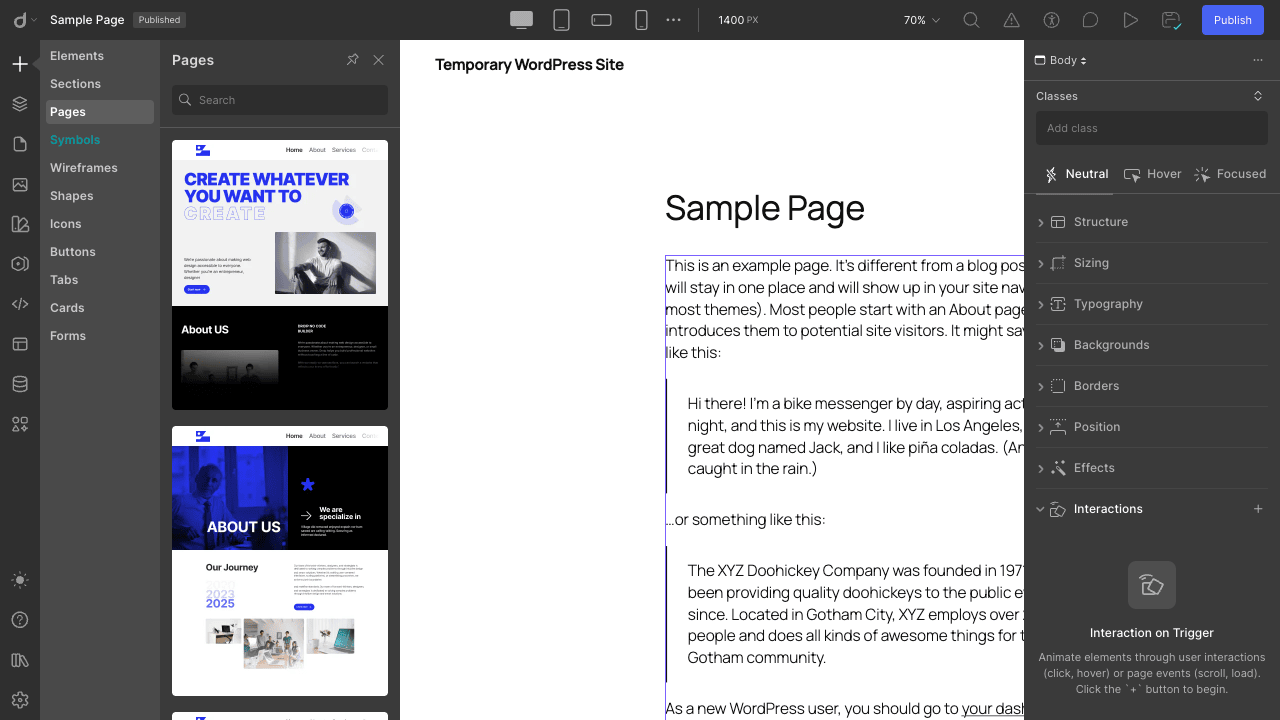
There are layered levels here. Whole Pages (a complete home page, an about page), Sections (a single hero, a pricing band, a testimonials row), and smaller pre-built Cards, Buttons, Tabs, and Wireframes. The strategy that worked for me: start a page from a Section or two, then swap the copy and images and retint to the brand variables. Ten minutes to a decent draft, versus an hour from scratch.
Because everything you drop uses the class-and-variable system, restyling an inserted template means changing a few variables rather than editing every element. That’s the design-system approach paying off.
Export, import, and staging
Two features here matter more than they sound, because they speak to lock-in and to safe editing.
Export and import (handled in the plugin’s ExportImport namespace) lets you move pages and template bundles between sites. Build a layout on a staging install, export it, import it on production. The import flow fires droip_import_should_create_page (so you can short-circuit creating a page that already exists) and droip_import_page_created after a page is made, which is handy if you’re scripting migrations. For agencies that reuse a base design across client sites, this is the time-saver.
Staging, in Droip’s sense, is per-page version stacking. The Staging class keeps numbered stage versions of a page in the droip_stage_versions post meta. You can preview a staged version through a nonce-protected ?staging_version=N URL, keep editing without touching the live page, and publish or roll back when ready. It’s not full site-level staging (that’s still your host’s job), but it means you can safely rework a published page’s design and only push it live when you’re happy. I leaned on this when I broke a layout and wanted the old one back, and the rollback worked.
Native comments and the Apps system
Two more pieces round out the picture.
Droip has its own native comments system (handled through the DroipComments REST controller and the component library’s form handler). Comments are tied to a collection type, and the flow exposes droip_comment-{collection_type} to filter a comment row before it’s inserted and droip_comment_added-{collection_type} after. So if you’re building a recipe site or a portfolio where you want comments on collection items, Droip can handle it without WordPress’s default comment UI.
The Apps system is Droip’s extension mechanism. Apps are modular features loaded from the Droip CDN, with per-app configuration exposed through the droip_apps_configuration_{app_slug} filter. Think of it as the way Droip adds optional capabilities without bloating the core plugin. The library is still growing, which is the honest state of a younger product, but the architecture is there.
Developer reference: hooks, REST, and constants
Now the part developers actually scroll to. Everything below I confirmed by reading the plugin source, not from memory. The builder UI is React, so most interaction logic lives in JavaScript, but the data, rendering, forms, CMS, and import layers are PHP, and that’s where your extension points are.
Actions
droip_form_submitted fires after a native form is validated and processed, with the submitted data and the form config.
add_action( 'droip_form_submitted', function ( $form_data, $form_config ) {
    // Push the lead into your CRM or a webhook.
    wp_remote_post( 'https://example.com/crm/intake', array(
        'body' => wp_json_encode( $form_data ),
        'headers' => array( 'Content-Type' => 'application/json' ),
    ) );
}, 10, 2 );
droip_import_page_created fires after the importer creates a page from a template bundle.
add_action( 'droip_import_page_created', function ( $new_page_id, $old_page ) {
    // Tag imported pages so you can find them later.
    update_post_meta( $new_page_id, '_imported_from', $old_page['slug'] ?? '' );
}, 10, 2 );
Filters
droip_dynamic_content resolves a bound dynamic value. Return a non-false value to supply content for a binding the core doesn’t handle.
add_filter( 'droip_dynamic_content', function ( $content, $content_info ) {
    if ( ( $content_info['source'] ?? '' ) === 'weather' ) {
        return get_transient( 'site_weather_summary' );
    }
    return $content;
}, 10, 2 );
droip_dynamic_content_fields declares which fields are bindable, so your custom source shows up in the builder’s binding picker.
droip_collection_{collectionType} supplies the data and pagination for a collection of a given type. This is how you back a Droip collection with an external data source.
add_filter( 'droip_collection_remote_jobs', function ( $collection, $args ) {
    $items = my_fetch_jobs_from_api( $args );
    return array(
        'data'       => $items,
        'pagination' => array( 'total' => count( $items ), 'page' => 1 ),
    );
}, 10, 2 );
droip_external_collection_options and droip_external_collection_item_type register external collection sources and their item types in the builder UI.
droip_post_types filters the list of WordPress post types the builder can bind to. Add a custom post type so it’s selectable as a dynamic source.
add_filter( 'droip_post_types', function ( $types ) {
    $types[] = 'product'; // expose WooCommerce products to Droip binding
    return $types;
} );
droip_visibility_condition_check_{source} evaluates a visibility condition. Register a new {source} to add a custom condition type (here, "only show to logged-in users").
add_filter( 'droip_visibility_condition_check_auth', function ( $result, $condition, $options ) {
    return is_user_logged_in();
}, 10, 3 );
droip_visibility_condition_fields declares the fields your custom condition source needs in the builder.
droip_element_smtp runs immediately before wp_mail() on form and comment notifications. This is the hook an SMTP plugin uses to take over the send.
add_filter( 'droip_element_smtp', function ( $value ) {
    // Reconfigure PHPMailer here, or let your SMTP plugin's own hook fire.
    return $value;
} );
droip_apps_configuration_{app_slug} filters a Droip App’s settings payload before it’s returned to the editor.
droip_comment-{collection_type} filters a native-comment row before insert, and droip_comment_added-{collection_type} fires after a comment is stored.
droip_import_should_create_page returns false to skip creating a page during import (useful to avoid duplicates).
REST API
Droip registers its endpoints under the droip/v1 namespace. The main controllers I found in the source:
- Media (
droip/v1/media): list, home, update-media, fetch by media type, and trash/restore. - Content Manager (
droip/v1/content-manager/...): manage collection post types and their items, including/post_types,/post_type/{id},/post_types/items, bulk actions, and/validate_slug. - Frontend Collection and Frontend Form controllers: serve collection data and accept form submissions on the front end.
- Droip Comments (
droip/v1/...): a set of routes for creating and moderating native comments.
If you’re building a companion plugin, register your own routes alongside these using the standard WordPress REST API and register_rest_route. Droip’s controllers follow the conventional namespace/rest_base pattern, so they coexist with core and other plugins without collision.
Constants and data model worth knowing
The page model lives in post meta, not in post_content. The keys: droip holds the page data, droip_editor_mode flags a page as Droip-built, droip_used_style_block_ids and droip_used_font_list track what CSS and fonts the page needs, droip_stage_versions holds the staging stack, and droip_disabled_page_symbols records which global symbols are suppressed on a page. Collections are post types prefixed droip_cm, symbols are droip_symbol, and global data lives in droip_global_data. The editor launches at the page permalink with ?action=droip. Knowing this is enough to debug, migrate, or script against Droip without guessing.
For the full WordPress extension model these hooks build on, the plugin hooks reference is the canonical source.
Don’t migrate a 200-page Elementor site to Droip mid-launch
Here’s the mistake I’d bet money someone reading this is about to make, so let me get in front of it.
Droip shows a "Safely migrate to Droip" prompt when you open an existing page, with a Convert button and reassuring copy about rolling back anytime. That conversion works fine for a single simple page. It does not mean you should point it at a live 200-page Elementor site and start converting on a Friday before a launch.
There is no lossless, automatic Elementor-to-Droip translator. The two builders model layouts completely differently: Elementor’s widget-and-section structure does not map one-to-one onto Droip’s class-based element tree. The convert tool brings over content and a best-effort structure, but spacing, custom widgets, third-party Elementor add-ons, and pixel-tuned responsive overrides will not come through clean. You will be rebuilding, not migrating, and you’ll be doing it while your real site is the thing you just broke.
The cost is concrete. A medium business site that took three weeks to build in Elementor is not a three-hour conversion. It’s a rebuild measured in days, and every page you convert and abandon half-finished is a page that’s now worse than it was. Worse, if your team is mid-launch, you’ve now got two sources of truth (the old Elementor pages and the half-converted Droip ones) and no clean rollback at the site level, only Droip’s per-page staging.
Do it the boring way. Stand up Droip on a staging copy. Rebuild your highest-value templates fresh, cleaning up the layout debt you’ve been carrying. Build new pages in Droip first, leave existing Elementor pages alone, and convert the old ones one at a time, verifying each on staging before it goes live. Treat the convert button as a starting sketch, never a finish line.
Droip vs Elementor Pro vs Bricks vs Webflow
The honest comparison, because "it’s better" means nothing without numbers.
Output and page weight. This is Droip’s strongest claim. Classic shortcode builders like Elementor Pro load a base CSS/JS payload of roughly 150 to 400 KB before your content’s own assets, and store shortcode markup in the database. Bricks is the lean WordPress option, often producing front-end pages in the 30 to 80 KB range of builder overhead because it outputs cleaner markup and per-element CSS. Droip plays in Bricks’ weight class rather than Elementor’s, because it renders to plain HTML and only ships the style blocks a page uses. Webflow’s output is famously clean too, but it’s hosted off WordPress entirely.
Licensing cost. Elementor Pro runs about $59 per year for a single site. Bricks is around $99 per year (or roughly $249 one-time for lifetime). Droip is priced as a one-time-style premium WordPress plugin in the same general bracket as the others, and you can get the GPL distribution on GPL Times. Webflow is the outlier: it’s a SaaS subscription billed per site, and once you add CMS hosting it lands around $23 to $29 per site per month, which is roughly $276 to $348 per year, per site, forever. For a multi-site agency, that monthly-per-site math is the entire reason to build in WordPress instead of Webflow. You can confirm current Webflow numbers on their pricing page.
CMS and content modeling. Elementor Pro loops over WordPress posts and custom fields but has no built-in content-modeling layer (you bolt on ACF or Pods). Bricks is similar. Webflow’s CMS is the gold standard for visual content modeling but caps collections by plan (often 20 to 40 collections, with item limits in the thousands). Droip’s Content Manager sits between them: real visual collections with presets, registered as native WordPress post types, with no hard per-site collection cap the way Webflow imposes.
Element and interaction depth. Elementor’s widget count (90-plus with Pro) is still the largest in WordPress, and its add-on marketplace dwarfs everyone’s. Droip ships a tighter native element set (the Layout, Basic, Media, Forms, and Advanced groups, roughly 30 core elements) but covers interactions, forms, CMS, and Lottie natively, where Elementor often needs add-ons. If raw widget count and a deep third-party marketplace are your priority, Elementor still wins. If clean output and a Webflow-style design system are the priority, Droip is the more interesting pick.
So: pick Elementor for add-on breadth, Bricks for lean output with a mature community, Webflow if you want SaaS hosting and don’t mind the per-site monthly bill, and Droip if you want Webflow’s design model with WordPress’s ownership and no recurring per-site fee.
Troubleshooting the common problems
The issues you’re most likely to hit, and the fix for each.
The builder won’t load or hangs on a spinner. Almost always memory or a JavaScript conflict. Droip’s editor is a React app and it asks for at least 512 MB of PHP memory (the plugin tries to bump the limit itself, but some hosts block that). Set define( 'WP_MEMORY_LIMIT', '512M' ); in wp-config.php. If that’s fine, it’s a JS conflict: open the browser console, look for an error from another plugin’s admin script, and deactivate suspects one at a time. Aggressive optimization plugins that defer or combine admin-side JavaScript are the usual culprit; exclude Droip’s editor from them.
The page renders in the editor but not on the front end. Check that the page is actually published and that the droip_editor_mode flag is set. If a caching plugin or CDN cached the page before you published the Droip version, purge the cache. If you’re on a heavily customized theme, confirm the theme isn’t forcing its own template over Droip’s full-canvas output; Droip wants to control the page template, and a theme that hardcodes a layout can fight it.
Form notifications never arrive. This is the SMTP issue, and it’s the most common support ticket for any form tool. Droip sends through wp_mail(), which on many hosts falls back to PHP mail() and lands in spam or gets dropped. Install an SMTP plugin (configured against your domain’s real mail service) and the droip_element_smtp hook lets it take over the send. Test with a real external address, not your own admin inbox.
A CMS collection isn’t displaying items. Three usual causes. The Collection element isn’t bound to the right collection (re-check the binding). The collection has no published items yet (drafts won’t show). Or a custom droip_collection_{type} filter is returning false or a malformed array (it must return data and pagination keys). Add items, verify the binding, and if you’ve added a custom source, log what your filter returns.
The editor feels sluggish on a big page. The React canvas does more work the more elements a page has, especially with many interactions. Break very long pages into sections, lean on Symbols for repeated chunks (an instance is cheaper than a copy), and avoid stacking a dozen scroll interactions. Editor performance is separate from front-end performance; a heavy editor session still outputs a light page.
A converted page looks broken after migrating from another builder. Expected, per the anti-pattern section above. Conversion is a starting point, not a finished translation. Rebuild the broken sections rather than fighting the half-converted output.
Compatibility: themes, hosting, PHP, and multilingual
Themes. Droip works alongside any theme, but because it takes over the full page canvas, the theme mostly gets out of the way on Droip-built pages. You can use Droip for landing pages while your theme handles the blog, or go all-in and build the whole site (header and footer included) in Droip. It coexists with the block editor: pages you don’t switch into Droip mode keep using Gutenberg or your theme’s normal rendering. If you want a lightweight theme to pair with it for the non-Droip parts, something like Blocksy stays out of the way nicely.
Hosting and PHP. Droip requires WordPress 5.0 or newer and PHP 7.0 or newer, though I’d run PHP 8.1+ in practice for security and speed. The editor wants 512 MB of PHP memory; a budget shared host capped at 128 MB or 256 MB will struggle with the React editor on complex pages. The front end is light (that’s the whole point), so the memory ask is an editing-time cost, not a serving-time one. Managed WordPress hosts and any VPS handle it fine.
Multilingual. Droip stores content in standard WordPress posts and its own post meta, so translation plugins that work at the post level can translate Droip pages, but expect to do the string work through the translation plugin’s interface rather than a tightly integrated in-builder flow. This is an area where a younger builder hasn’t yet matched the deep integrations the older builders have with the big multilingual plugins. Test your specific translation plugin on a scratch copy first, before you commit a multilingual project to Droip.
Mobile and responsive editing. You design responsively in the desktop editor using the breakpoint toggles; you’re not editing on a phone. The four device breakpoints plus custom breakpoints cover real-world responsive needs. As always, preview on actual devices, because the editor’s tablet view is an approximation.
Multisite. Droip activates per-site on a multisite network like a normal plugin. Nothing exotic, but test your network’s memory limits since the editor’s appetite applies to every subsite that runs it.
Pricing and what each tier is for
Droip is sold as a premium WordPress plugin, and the tiers follow the familiar single-site / multi-site / agency split. Rather than quote numbers that drift, here’s what each level is actually for:
- The entry tier is a single-site license. It’s for the freelancer or owner building one site who wants the full design toolkit (canvas, classes, variables, CMS, forms, interactions) without paying for seats they won’t use.
- The mid tier covers a handful of sites. This is the freelancer-with-clients tier: enough activations to run a few projects, plus the updates and support that matter when a client site breaks.
- The agency tier is unlimited or high-count sites. If you’re rebuilding client sites regularly, the export/import flow plus a high site count is what makes Droip economical compared to Webflow’s per-site monthly bill.
All paid tiers include the same core builder; the difference is activation count, support level, and update window. If you want to evaluate the whole thing on a real install before committing, you can get the Droip no-code builder on GPL Times and put it through a genuine project, which is the only way to know if the class-based workflow clicks for you.
A licensing note that applies to any premium builder: keep your license active for updates. A no-code builder is a fast-moving product, and the gap between an old version and current can mean missing CMS features, security patches, and editor performance fixes.
FAQ
Does Droip replace my theme?
Not exactly, and this trips people up. Droip takes over the page canvas on the pages you build with it, including the header and footer if you want, so on those pages the theme is mostly cosmetic. But your theme still runs the rest of the site (blog archives, search, anything you didn’t build in Droip) and provides the technical scaffolding WordPress expects. You can build an entire site’s visible design in Droip while keeping a lightweight theme underneath. You don’t uninstall your theme.
Can I migrate my existing Elementor or Gutenberg site to Droip?
You can convert pages, but treat it as a rebuild, not a migration. There’s a Convert tool, and it brings over content and a rough structure, but it does not losslessly translate Elementor widgets or Gutenberg blocks into Droip’s class-based model. Spacing, custom widgets, and add-on content will need rework. The sane path is to rebuild high-value pages fresh on staging and convert the rest one at a time, never all at once on a live site.
Is the output actually clean and fast, or is that marketing?
It’s genuinely cleaner than shortcode builders. Droip stores pages as structured data and renders plain HTML server-side, and it only loads the CSS and fonts a page uses (tracked in post meta). In practice that puts its front-end weight in the same lean class as Bricks rather than the heavier shortcode builders. That said, complex visual layouts still produce nested wrapper divs (so does Webflow), and a page stuffed with interactions and big images will still be heavy. The builder gives you a clean baseline; you can still make a slow page if you try. Pair it with a caching layer like WP Rocket and the front end flies.
Does it have a CMS like Webflow?
Yes, and it’s the standout feature. The Content Manager lets you create content collections (from presets like Team Members, Portfolio, Jobs, or your own custom fields), then bind them to a card design that repeats for every item. It’s the loop-and-bind workflow Webflow popularized, native in WordPress. Where it’s behind Webflow: reference/relational fields and item-level publishing workflow are less mature. For most content sites it’s plenty.
How steep is the learning curve?
Steeper than a click-and-pick builder for the first hour, gentler than learning to code. The class-and-variable model is the main hurdle: if you’re used to styling each element individually, thinking in reusable classes takes adjustment. If you already understand CSS, you’ll be productive in an afternoon. The payoff is that sites you build this way are far easier to maintain and rebrand.
Can I edit responsive layouts, and how?
You design responsively in the desktop editor using the device toggles (desktop, tablet, landscape phone, portrait phone, plus custom breakpoints). Styles cascade down from desktop, so you set base styles once and override only what changes per breakpoint. You’re not editing on a physical phone; you’re editing breakpoint views. Always preview on real devices before launch.
If I deactivate Droip, do my pages break?
This is the right question to ask of any builder, and Droip’s answer is better than most. Because Droip stores page data in post meta and renders server-side, deactivating it means Droip-built pages stop rendering their custom layout (the page data is still in the database, intact, but nothing’s there to render it). You won’t see a wall of raw shortcodes like with classic builders, but the designed layout won’t display either until you reactivate. Plus you have the export feature to pull your pages out as portable bundles. So the lock-in is real but softer, and your content is never destroyed.
Is there a free version?
Droip has a free tier that covers the core building experience, with the premium tiers unlocking the fuller feature set, higher site counts, and support. For a serious project you’ll want a paid license for the complete toolkit and ongoing updates. Evaluate on a real page first, because whether the class-based workflow suits you matters more than any feature checklist.
Can developers extend it?
Yes, more than the no-code framing suggests. The PHP layer exposes hooks for forms (droip_form_submitted, droip_element_smtp), dynamic content and collections (droip_dynamic_content, droip_collection_{type}, droip_post_types), visibility conditions (droip_visibility_condition_check_{source}), import (droip_import_page_created), and apps (droip_apps_configuration_{slug}), plus a droip/v1 REST namespace. The editor itself is React, so deep UI customization is harder, but the data, rendering, and integration surfaces are open. See the developer reference above for working examples.
Is Droip worth it?
After a real session inside it, my read is this: Droip is the most genuinely interesting no-code builder to arrive in WordPress in a while, because it’s not trying to be a better widget-dropper. It’s trying to bring Webflow’s mental model (classes, variables, CMS collections, interactions, clean output) into WordPress, where you own your site and don’t pay a per-site monthly fee. On the design ceiling and the output cleanliness, it delivers.
It is not the safe, boring pick yet. The add-on selection is small, the migration story from older builders is a rebuild not a transfer, and the learning curve assumes you’re willing to think in design systems. If you want the biggest widget library and a marketplace of add-ons, Elementor is still the pragmatic default. If you want lean output with a mature community, Bricks is excellent.
But if you’ve felt the friction of shortcode builders, if you’ve watched a page balloon to a megabyte and wondered why, and if the Webflow workflow appeals but the SaaS bill and leaving WordPress don’t, this is the tool to try. Build a real project with the Droip builder, wire up a CMS collection, and judge it on whether the design-system flow makes your next site easier to maintain. That’s the test that matters, and it’s the one Droip is most likely to pass.