

If you run an Amazon affiliate site on WordPress, you have probably built product boxes by hand at some point. A heading. A copied screenshot. A price you forgot to update three months ago. A button that points to the wrong affiliate tag. It works, sort of, until prices change, products go out of stock, and your "best in 2024" roundup quietly dates itself.
AAWP exists to make that whole problem go away. It pulls product data directly from Amazon, drops it into your post with a shortcode or block, and refreshes prices and availability on a schedule so your roundups stay current without you touching them. This review walks through what it does, how to set it up, what each settings tab actually controls, the developer hooks that let you bend it to your site, and the gotchas that bite people on busy affiliate sites.
Table of contents
- What AAWP is, in one paragraph
- Who AAWP is for
- Key features at a glance
- How AAWP fetches product data
- Installation and first-time setup
- The Settings tabs, one by one
- The shortcode and how to use it
- The Gutenberg block
- Building comparison tables
- Click tracking
- Migrating from Lasso, AmaLinks Pro, or Amalinks
- Real-world use cases
- Developer reference
- Performance, compatibility, and gotchas
- Pricing and licensing
- FAQ
- Final thoughts
What AAWP is, in one paragraph
AAWP is a WordPress plugin that turns an Amazon product ID (an ASIN) into a styled, auto-updating product box. You give it B07XJ8C8F5. It gives you a product card with image, title, price, star rating, "Buy on Amazon" button, and your affiliate tracking ID baked into the link. Below the single product box, you also get bestseller lists ("top 10 cordless drills"), new release lists, comparison tables, and inline product fields like the price by itself or a star rating by itself. Every piece of data refreshes on a schedule from either the official Amazon Product Advertising API or AAWP’s own managed pricing API.
Who AAWP is for
AAWP is built for one job: making an Amazon-monetized WordPress site easier to run. The audience splits into two camps.
Affiliate site owners and content writers
If your site is a category of "best X for Y" roundups, gift guides, or product reviews that all link to Amazon, AAWP saves the most time. The plugin handles the part you would otherwise do manually: pulling fresh product data, formatting it consistently, and keeping prices honest enough that you do not get FTC-flagged for showing a stale "$49.99" next to a button that takes the visitor to a $79.99 listing.
Developers who build affiliate sites for clients
If you build affiliate sites for clients, AAWP gives you something they can manage themselves. A client can paste a shortcode with an ASIN into a post and get a styled box. They never need to touch HTML, deal with Amazon’s image hotlinking restrictions, or worry about whether the affiliate tag survived the copy-paste.
It is less useful if you are doing pure content marketing with no product placements, or if Amazon is not in your monetization stack at all. There are better generic affiliate tools for those use cases. AAWP is the specialist.
Key features at a glance
- Product boxes from an ASIN. Drop in a single Amazon ID and get a styled card with image, title, description, price, rating, and a Buy button that carries your tracking tag.
- Bestseller and new releases lists. Pass a search keyword and AAWP fetches the current Amazon bestsellers or new releases for that category, formatted as a list, grid, or comparison table.
- Comparison tables. A dedicated table builder where you list ASINs in a row, pick which fields to show as columns, and let AAWP keep the data refreshed.
- Inline product fields. Show just the price, just the rating, or just a button anywhere in a paragraph using a single shortcode.
- Affiliate tracking that survives edits. Your tracking tag is configured once and applied to every link the plugin generates, including the image and the title (in addition to the button).
- Click tracking dashboard. Optional internal click tracking so you can see which boxes are actually getting clicks without using Google Analytics.
- Three data sources. Bring your own Amazon PA-API credentials, use the new Amazon Creators API v3, or use AAWP’s managed pricing API if you do not want to think about quotas.
- Local caching. Once a product is fetched, its data is cached in your database. Frontend requests serve from the cache, not from Amazon, which keeps pages fast and your API quota under control.
- Cache refresh on a schedule. Background tasks (via WordPress’s Action Scheduler) refresh stale products. You set the cache duration in hours.
- Geotargeting. Send visitors from the UK to Amazon UK, German visitors to Amazon DE, US visitors to Amazon.com. Same shortcode, regional link.
- Migration importers. One-click imports from Lasso, AmaLinks Pro, AAPro, and Amalinks shortcodes so you do not have to manually rewrite every old post.
- Hooks and filters everywhere. Over thirty filters and roughly ten actions for swapping templates, modifying button text, intercepting product URLs, and bending the output to your theme.
How AAWP fetches product data
This part is worth understanding before you commit to AAWP, because the data-source choice has real cost and effort tradeoffs.
The official Amazon Product Advertising API (PA-API 5)
The traditional path. You sign up to the Amazon Associates program, get approved (sometimes requires a few qualifying sales first), then generate PA-API access keys. AAWP uses those keys to fetch product data directly from Amazon.
Upsides: Free if you qualify. Direct from source. No middleman.
Downsides: The PA-API quota is tied to your monthly affiliate revenue. A new account starts at a very small request quota and it scales up only after you make sales. New affiliates often get throttled out within a day on a busy site.
The Amazon Creators API (v3)
A newer flow Amazon introduced for influencer and creator accounts. AAWP added support for it in a recent release. The credentials are different from the classic PA-API ones, and the rate limits behave a little differently.
The AAWP API (managed)
AAWP runs their own product data service. You pay a small fee, you point AAWP at their API key, and the plugin fetches everything through that service instead of going to Amazon directly. The AAWP service handles quota and the upstream Amazon requests.
Upsides: Works on day one regardless of your affiliate revenue. No 503 errors when a viral post sends traffic.
Downsides: It is an extra paid service on top of the plugin license. Worth it if you do not yet have a steady affiliate income stream to unlock the official quota.
Most people start on the AAWP API for the first few months while their Amazon PA-API quota grows, then optionally switch over.
Installation and first-time setup
You can have a working product box on a page in under ten minutes. The longest step is getting your Amazon credentials in order; the plugin install itself is trivial.
Step 1: Install and activate
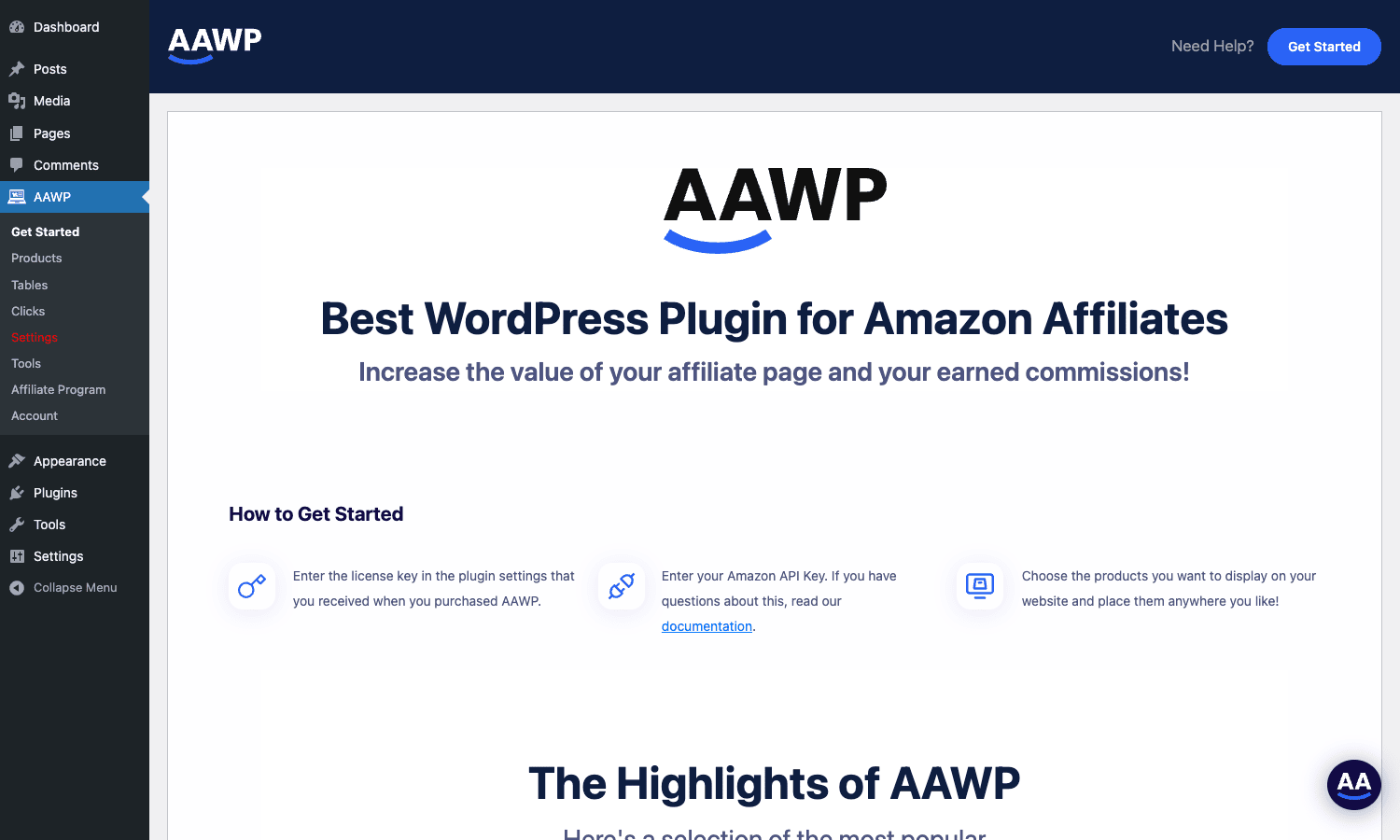
Upload the AAWP zip in Plugins -> Add New -> Upload Plugin, click Install Now, then Activate. The plugin adds a top-level "AAWP" menu in the WordPress sidebar.
Step 2: Enter your license key
AAWP -> Account (or AAWP -> Affiliate Program depending on your build). Paste the license key, save. The plugin uses Freemius for license validation, so the activation is instant if your key is valid.
Step 3: Connect a data source
This is where you pick one of the three API options described above. Go to AAWP -> Settings -> Amazon API and decide.
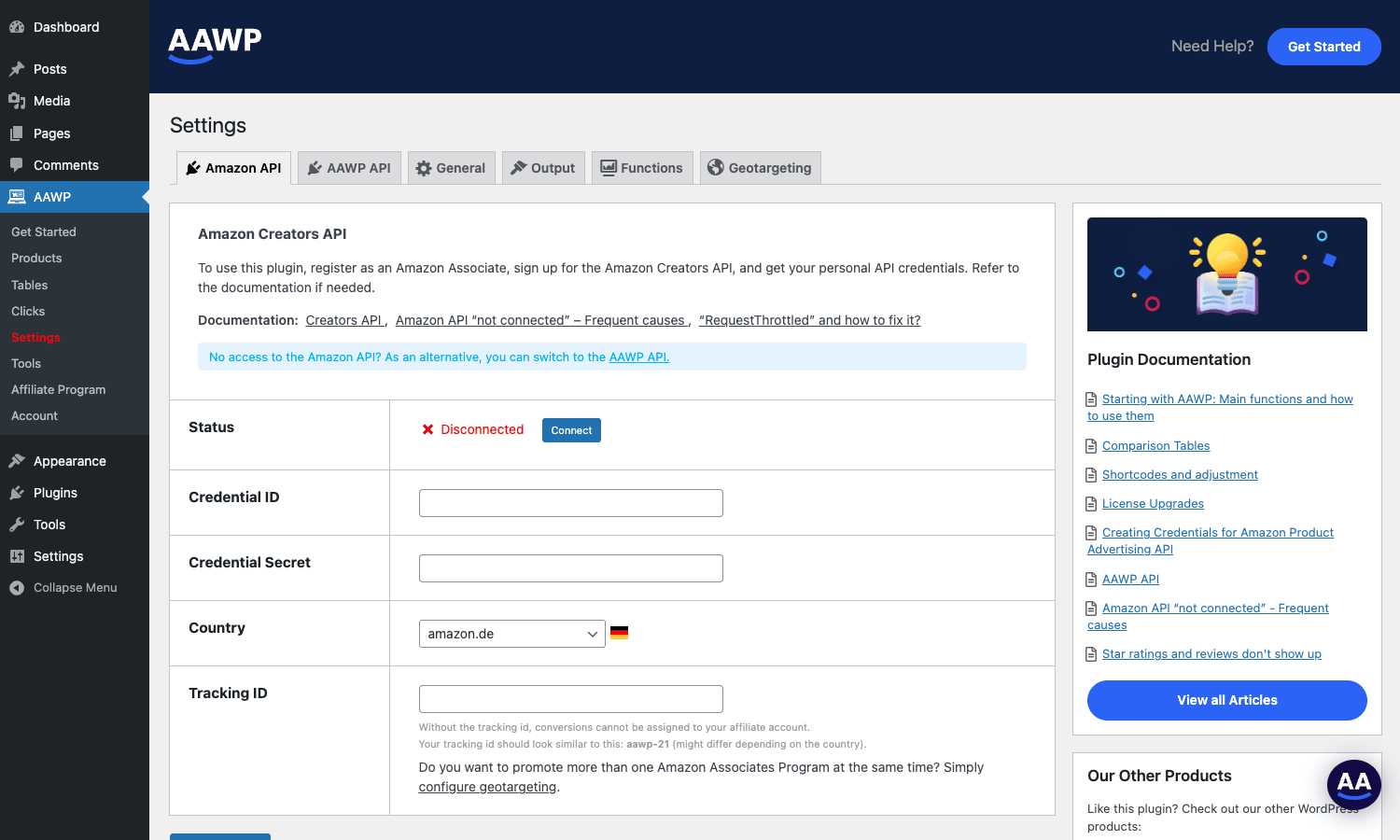
If you are using the classic Amazon PA-API, go to your Amazon Associates dashboard and create a new pair of API access keys. Paste the Access Key, Secret Key, Associate Tag (your tracking ID), and pick the country. Save. AAWP will run a quick test request and show "Connected" if everything checks out.
If you are using the AAWP API, switch to the AAWP API sub-tab, paste your AAWP API key, save. There is nothing else to configure.
If you are using Amazon’s Creators API, register your creator account, generate Creator API credentials, paste Credential ID and Credential Secret, and save.
Step 4: Configure general defaults
AAWP -> Settings -> General has the global defaults: which shortcode tag to use (aawp or amazon), how to handle discarded products (the ones Amazon no longer sells), and your cache duration.
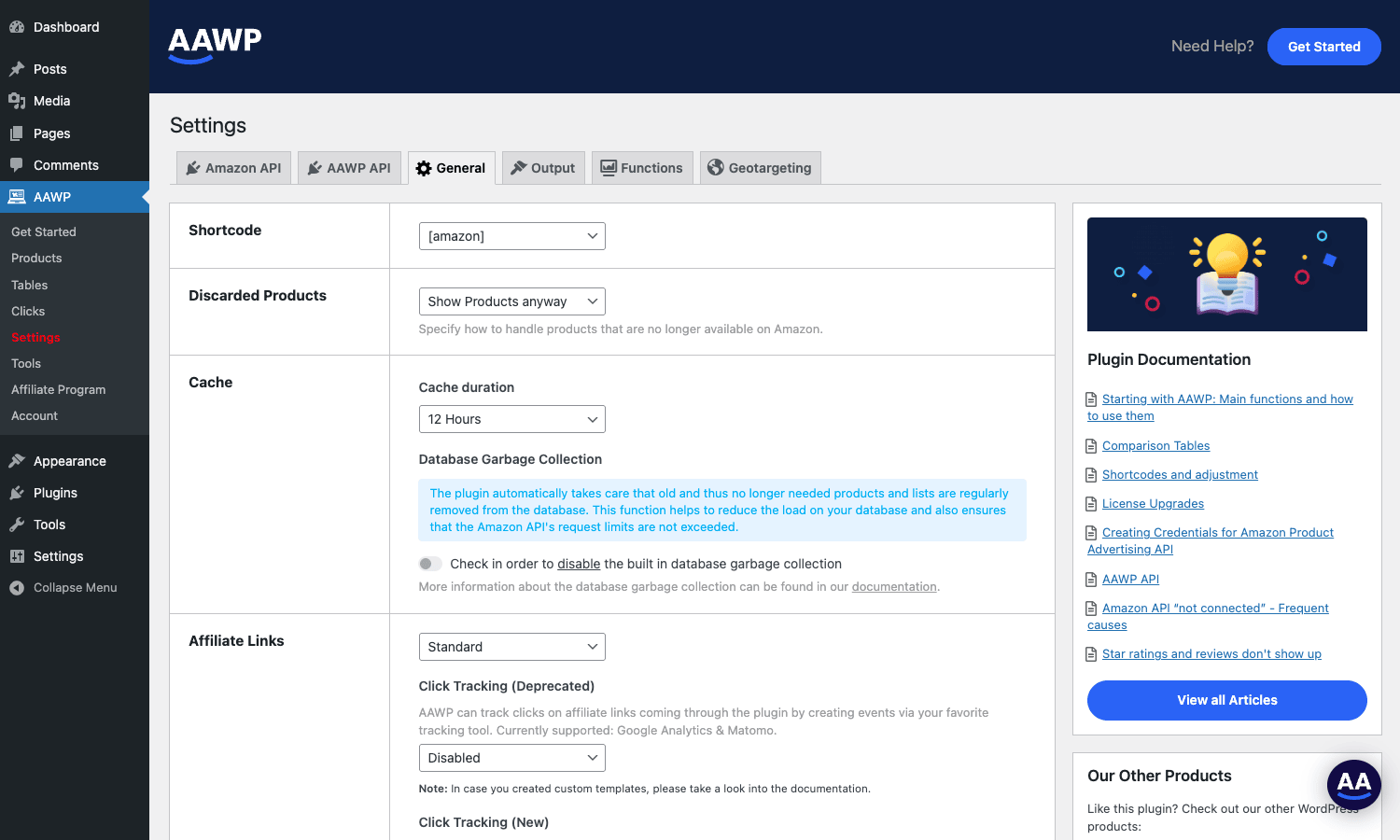
The cache duration is the only setting that genuinely matters for performance. The default of 12 hours is reasonable. Set it shorter (3-6 hours) if you want fresher prices and you have plenty of API quota. Set it longer (24-72 hours) if you are quota-constrained.
Step 5: Style your output
AAWP -> Settings -> Functions is where you pick how each shortcode type looks. There are templates for Links, Box, Bestseller lists, New Releases lists, and Comparison tables. Each one has a Templates dropdown (the layout) and a Styles dropdown (the color/borders).
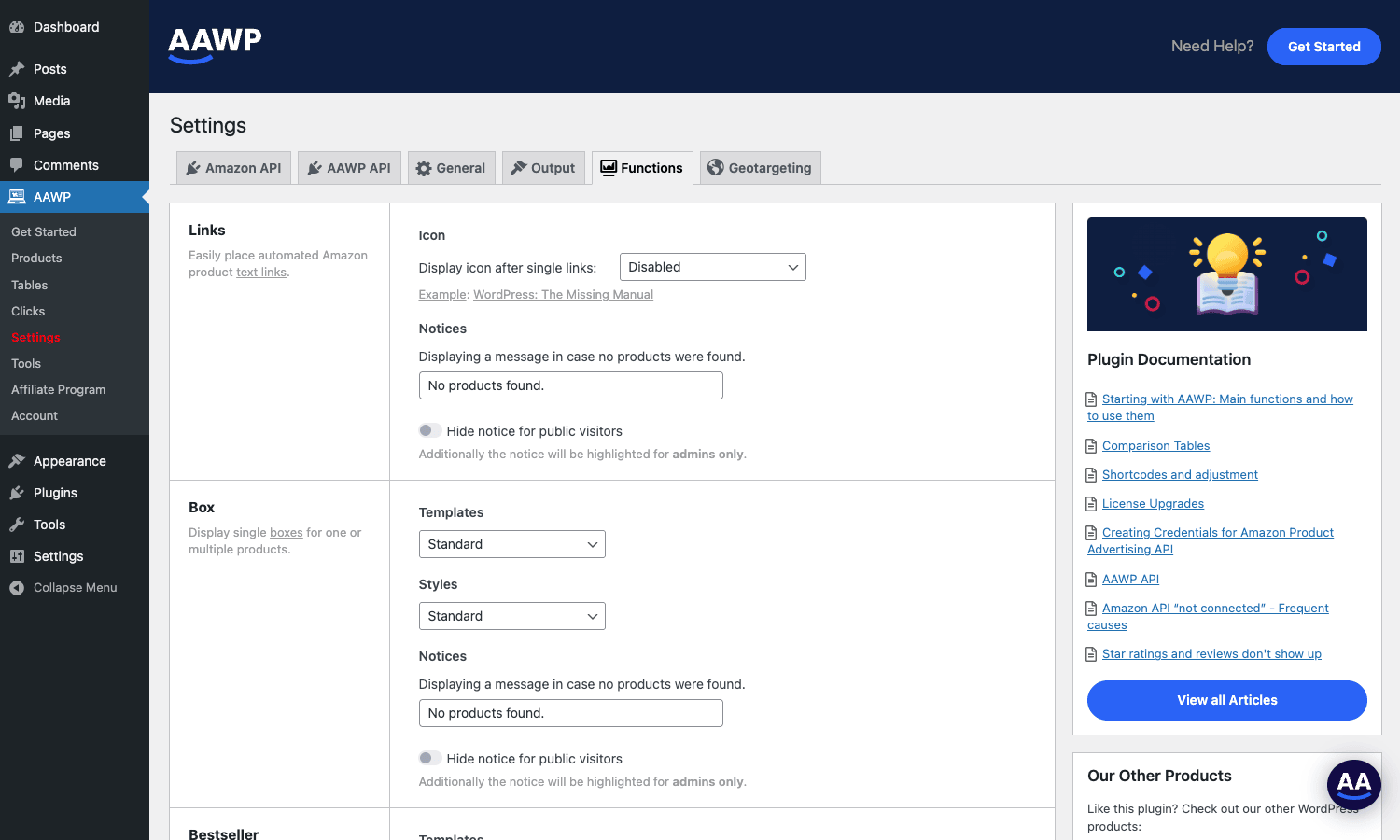
You can configure this once for the whole site and forget about it, or override on a per-shortcode basis. The pattern is "set sane defaults globally, override only when a specific post needs something different."
Step 6: Drop a shortcode in a post
Once an API is connected, this is where it pays off. Go to any post, paste [aawp fields="B07XJ8C8F5" type="box"] into the content (replace the ASIN with a real one), publish, and refresh the page. You should see a styled product box with the current price.
That is the entire setup. Everything beyond this is fine-tuning.
The Settings tabs, one by one
The settings page has six tabs. Here is what each one actually controls and which ones you can ignore.
Amazon API tab
The credentials tab. You will spend more time here on day one than on any other tab, then never touch it again. Holds your PA-API access keys, your Amazon Creators API credentials, and the AAWP API key. The "Status" line at the top tells you which one is currently active and whether it is connected.
If you change your tracking ID (associate tag) here, every product link on your site updates immediately. No find-and-replace required. That alone saves an afternoon the first time you need to do it.
AAWP API tab
A sub-tab specifically for the managed AAWP pricing API. If you are using that service, this is where you paste the AAWP API key and pick which country’s Amazon catalog to query. Skip it if you brought your own PA-API credentials.
General tab
Site-wide defaults. The three important controls here:
- Shortcode tag. Pick
aawporamazon. Lasso users will recognize theamazonoption, which makes migration easier. - Discarded products. What to do when Amazon delists a product. Options are "show anyway with last known data," "hide entirely," or "show with a notice." For the "best X" roundups, you usually want "hide" so a stale recommendation does not stay visible.
- Cache duration. How long product data is treated as fresh before AAWP queues a refresh. Twelve hours is a good default. Six if you have spare API quota and care about price freshness.
There is also a "Database garbage collection" toggle. Leave it on. AAWP removes orphaned products (products no longer referenced by any post) from its cache on a schedule, which keeps the database from growing forever.
Output tab
Frontend rendering controls. Things like whether to load AAWP’s CSS at all (turn it off if you ship your own styles), whether to lazy-load images, and whether to use the local image proxy (more on that below).
Functions tab
The per-shortcode-type configuration. Links, Box, Bestseller, New Releases, and Comparison tables each have their own section. Inside each section you get:
- Templates. The HTML layout. "Standard" is the default. There are also "Horizontal," "Widget," and "Compact" variants depending on the type.
- Styles. The visual treatment. Borders, button color, ribbon style.
- Notices. What to display when a product can’t be found (default text is "No products found"). You can hide this from public visitors and only show it to admins, which is useful so a broken box does not embarrass you in front of readers.
This is the tab content writers will touch most. Most other tabs are set-once-and-forget.
Geotargeting tab
If you have visitors from multiple countries and you want each one to land on their local Amazon store, this is where you map them. You list your tracking tag for each country (Amazon assigns a different tag per region, so you have one tag for amazon.com, another for amazon.co.uk, etc.), AAWP routes the visitor based on their IP, and the right product link gets served.
Worth setting up if you have an audience spread across the US, UK, and DE. Pure-US audiences can skip this entirely.
The shortcode and how to use it
Everything visible on the frontend ultimately comes from one shortcode: [aawp] (or [amazon] if you switched the tag). The shortcode is type-driven. You change what it renders by changing the type attribute.
Single product box
[aawp fields="B07XJ8C8F5" type="box"]
The most common use. Pass one ASIN, get one styled card.
You can also pass multiple ASINs to render multiple boxes in a row:
[aawp fields="B07XJ8C8F5,B08N5WRWNW,B09JG9JCYZ" type="box" grid="3"]
Bestseller list
[aawp bestseller="cordless drill" type="bestseller" items="10"]
AAWP queries Amazon for the current top 10 cordless drills and renders them as a numbered list. You can pass any keyword, narrow with filterby and filter for finer control.
New releases list
[aawp new="ergonomic keyboard" type="new" items="5"]
Same idea as bestseller but pulls Amazon’s "new releases" rank for that keyword.
Single product field
The current price is [aawp fields="B07XJ8C8F5" type="fields" value="price"].
Inline. Use this when you want to mention "starts at $49.99" mid-paragraph and have the price auto-update. The value attribute picks which field to render: title, price, image, rating, button, description.
Just the affiliate link
Read the full story on [aawp fields="B07XJ8C8F5" type="link"]Amazon[/aawp].
Wraps the inner text in a properly-tagged affiliate link. Use this for inline mentions where a full product box would be too much.
Other useful shortcodes
[aawp_disclaimer]outputs the Amazon Associates disclaimer text you set in the General tab. Drop this in your post footer or sidebar to stay compliant.[aawp_last_update]outputs the timestamp of the most recent product data refresh. Useful for "Prices last updated 4 hours ago" microcopy that builds trust with readers.
The Gutenberg block
If you use the block editor, AAWP registers a single block: aawp/aawp-block. Search for "AAWP" in the inserter. Inside the block, you pick the look (box, bestseller, new, fields, link) and the editor builds the corresponding shortcode for you.
If you prefer the shortcode itself, you can also just paste it into a Shortcode block or a Paragraph and the result is identical. The block is a convenience wrapper, not a different rendering path.
Building comparison tables
Comparison tables get their own top-level menu item: AAWP -> Tables. They are a custom post type, which means each table is a managed entity you can edit, version, and link to.
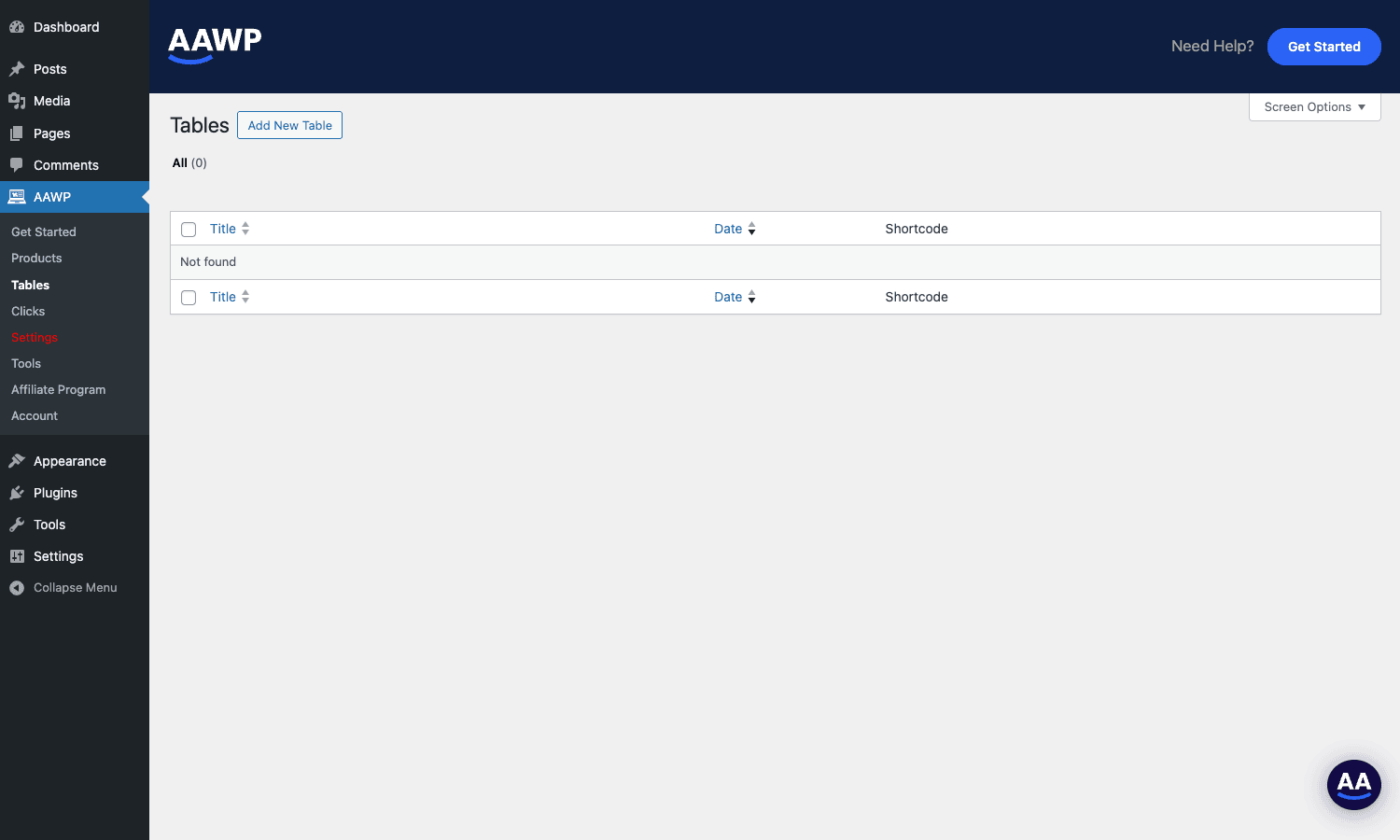
You create a new table, paste in a list of ASINs (one per row), then pick which fields to show as columns (image, title, price, rating, button, plus any custom columns you define). AAWP gives you a shortcode for the table, which you embed in any post. Updating the table in one place updates it everywhere it appears.
This is genuinely better than building tables manually for two reasons. First, prices stay live across all places the table appears. Second, you can reorder, add, and remove products from the table without touching the embedding post.
The table builder also has a "highlight a product" toggle. Pick one row in the table and AAWP visually emphasizes it (border, badge, color). Use this for your "editor’s pick" or "best overall" recommendation.
Click tracking
AAWP -> Clicks is an optional dashboard that records every time a visitor clicks one of your AAWP-generated affiliate links. It is disabled by default. Turn it on in Settings -> General (look for "Click Tracking") and AAWP starts logging clicks.
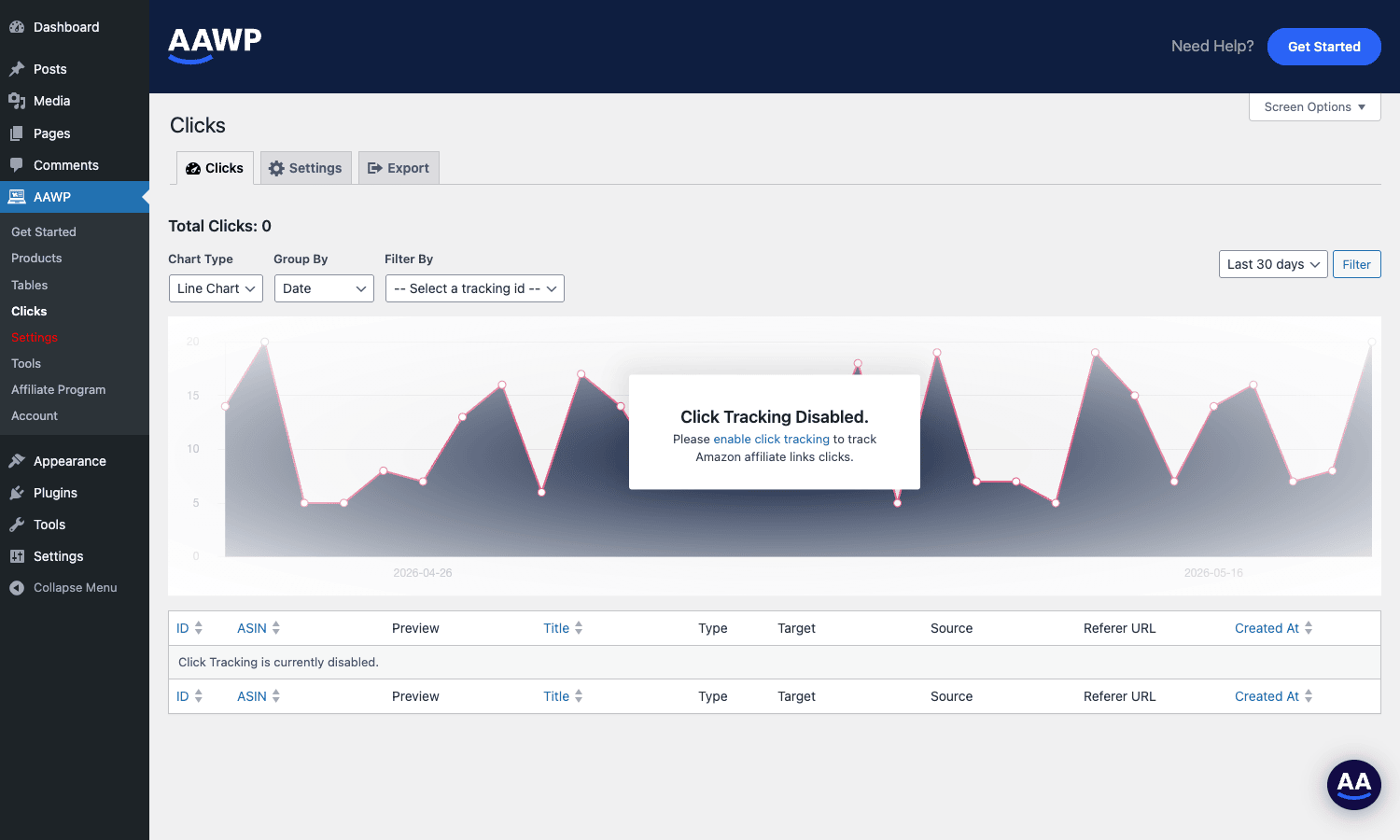
The dashboard shows clicks per day on a line chart, grouped by date, ASIN, or tracking ID. There is also a per-click log table at the bottom with referrer URL, target ASIN, click source, and timestamp.
This is useful if you do not want to depend on Google Analytics events for click tracking, or if you want to compare AAWP’s click count to your Amazon Associates earnings report to spot leakage. The data is stored in your own database; nothing leaves your server.
A caveat: click tracking adds one row per click to the database. On a high-traffic site this can grow quickly. AAWP includes garbage collection for click logs, but if you are running on shared hosting, monitor the table size after a few weeks. If you are also using a link cloaker like Pretty Links, you can route the AAWP-generated URL through Pretty Links instead and let it do the tracking.
Migrating from Lasso, AmaLinks Pro, or Amalinks
If you are coming from another Amazon affiliate plugin, AAWP -> Tools -> Migrations has one-click importers for the most common ones.
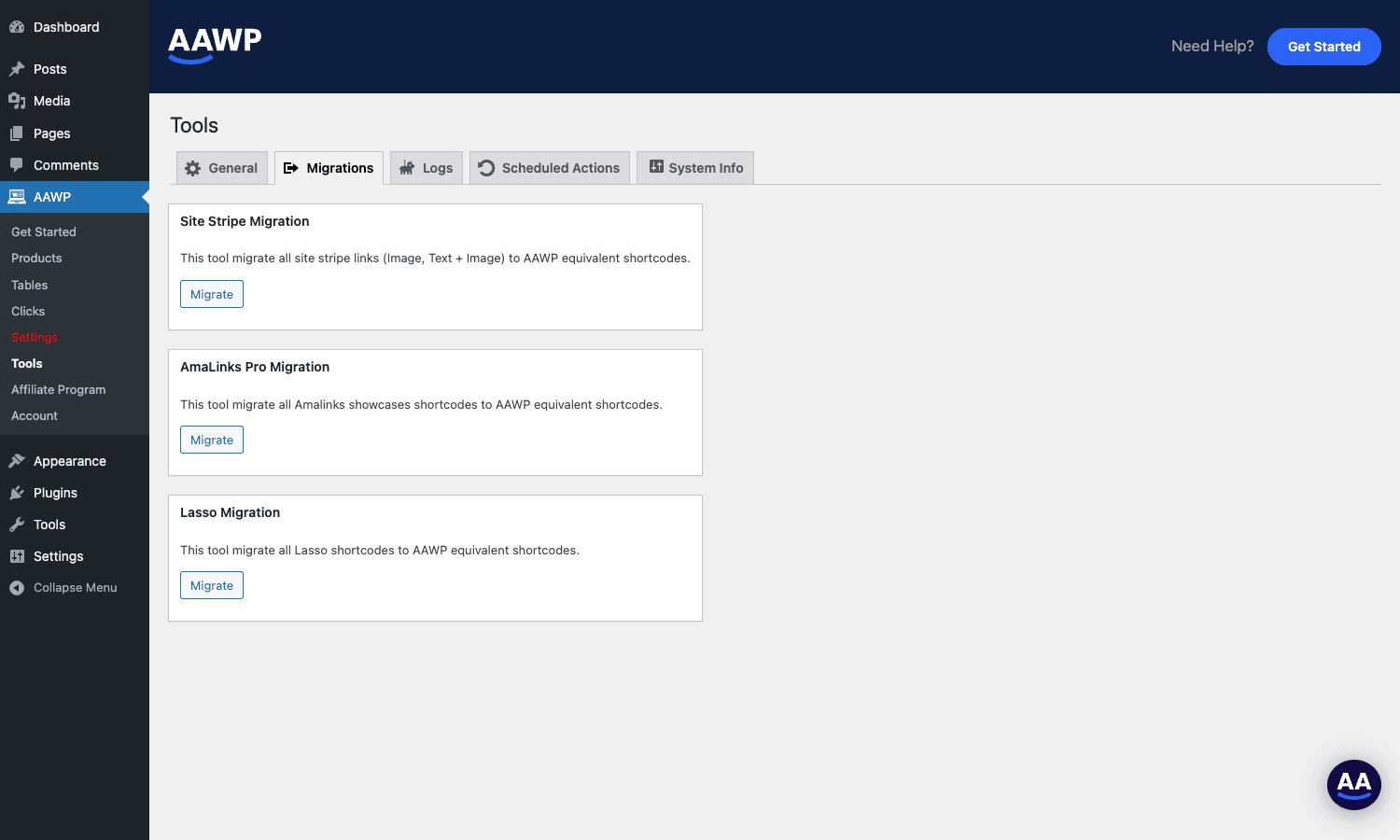
What each importer actually does:
- Site Stripe Migration. Converts plain Amazon affiliate links (the kind you get from Amazon’s Site Stripe in-browser tool) into
[aawp]shortcodes. This is the catch-all importer if you never used a dedicated plugin and just pasted Amazon URLs into posts. - AmaLinks Pro Migration. Walks every published post, finds AmaLinks Pro showcase shortcodes, and rewrites them as AAWP equivalents.
- Lasso Migration. Same idea for Lasso shortcodes. Added in a recent AAWP release.
- AzonPress Migration and AAPro Migration (under the same tab on some builds) cover the other two competitors.
Run the importer once on a staging copy first. The conversion is mostly clean but you should spot-check a few posts before turning the importer loose on production. Once you confirm the output is correct, deactivate the old plugin and AAWP takes over the rendering.
Real-world use cases
Five things AAWP genuinely shines at, with the shortcode patterns that make each work.
"Best X" roundup posts
The classic affiliate format: "10 best cordless drills for 2026". The traditional approach is ten manually-built boxes. With AAWP it is one bestseller shortcode plus your editorial commentary above and below it:
We tested cordless drills for two months. Here are the ten that came out on top.

[aawp bestseller="cordless drill" type="bestseller" items="10"]

If you want a quick recommendation: the DeWalt at #2 is the best balance of power and battery life.
The list refreshes when Amazon’s bestseller rank changes, so your "best in 2026" stays accurate into 2027 without you republishing.
Product comparison tables
"DeWalt vs Milwaukee vs Makita: cordless drill comparison". Build a table with three ASINs, pick price, rating, weight, and battery as your columns. Embed the shortcode. Done.
The comparison tables are especially good for high-intent buyers who have already decided on the category and are comparing within it. They convert well because they put the decision-making fields right next to the buy buttons.
Inline product mentions in long-form content
A long buying guide where you mention products in paragraphs but do not want to break flow with a full product box. The fields shortcode is the right tool:
We started with the [aawp fields="B07XJ8C8F5" type="fields" value="title"],
which retails at [aawp fields="B07XJ8C8F5" type="fields" value="price"].
The reader gets live product data inline without the visual weight of a full card.
Sidebar widgets and gift guides
Widget-style boxes work in WordPress sidebars and inside themes that support widget areas. AAWP includes "Widget Vertical" and "Widget Small" templates specifically for narrow column placements. Useful for "Recommended this week" or "Editor’s pick" sidebars that update automatically.
Gift guides built once, reused yearly
Tag a post with a date-less ASIN list ("best dad gifts," "best stocking stuffers"). Each year, swap two or three ASINs to keep it current. The rest of the post (and the rest of the data) updates itself. Compare that to manually updating prices on twenty products across a dozen gift guide posts every November.
Developer reference
For developers, AAWP is friendly. There are over thirty apply_filters calls and roughly a dozen do_action calls exposed, plus first-class shortcode and block APIs.
Useful filters and what they do
aawp_settings_tabs lets you register your own tab on the AAWP settings page. Useful if you are wrapping AAWP for a client and want to expose a few extra controls.
add_filter( 'aawp_settings_tabs', function( $tabs ) {
 $tabs[ 'my_tab' ] = [
 'key' => 'my_tab',
 'title' => __( 'My Custom Tab', 'my-plugin' ),
 'icon' => 'admin-tools',
 ];
 return $tabs;
} );
aawp_func_button_text overrides the "Buy on Amazon" CTA label per type. Useful for sites in non-English markets or for A/B testing button copy.
add_filter( 'aawp_func_button_text', function( $text, $type ) {
 if ( $type === 'box' ) {
 return __( 'Check Price on Amazon', 'my-theme' );
 }
 return $text;
}, 10, 2 );
aawp_template_wrapper_classes adds custom CSS classes to the outer wrapper of every rendered product. Useful for hooking into your theme’s spacing utility classes:
add_filter( 'aawp_template_wrapper_classes', function( $classes, $layout, $atts ) {
 $classes[] = 'my-theme-product-card';
 if ( $layout === 'horizontal' ) {
 $classes[] = 'my-theme-product-card--horizontal';
 }
 return $classes;
}, 10, 3 );
aawp_template_product_url lets you intercept the affiliate link itself. Useful if you want to route all Amazon links through your own link cloaker like Pretty Links.
add_filter( 'aawp_template_product_url', function( $url, $type, $atts ) {
 if ( strpos( $url, 'amazon.' ) !== false ) {
 return home_url( '/go/' . md5( $url ) );
 }
 return $url;
}, 10, 3 );
aawp_get_product_pricing filters the final price string. Use it to add a currency note, round prices, or display a "from" prefix.
add_filter( 'aawp_get_product_pricing', function( $price_html, $type, $format ) {
 if ( $type === 'sale' ) {
 return '<span class="sale-prefix">Now: </span>' . $price_html;
 }
 return $price_html;
}, 10, 3 );
aawp_func_country forces a specific country for a single rendering pass. Useful in tests or for previewing the geotargeted output for a different region.
add_filter( 'aawp_func_country', function( $country ) {
 if ( current_user_can( 'manage_options' ) && isset( $_GET[ 'preview_country' ] ) ) {
 return sanitize_key( $_GET[ 'preview_country' ] );
 }
 return $country;
} );
aawp_product_local_images_enabled toggles local image hosting. When true, AAWP downloads Amazon product images to your media library and serves them from your own CDN. Useful for sites with strict CSP rules that disallow image hotlinking from third-party domains, or for any site that wants to remove the dependency on Amazon’s CDN.
add_filter( 'aawp_product_local_images_enabled', '__return_true' );
aawp_replace_translations is a search/replace pass over every string AAWP outputs. Faster than wiring up a .po file if you only need to change two or three strings.
add_filter( 'aawp_replace_translations', function( $map ) {
 $map[ 'Buy on Amazon' ] = 'Acheter sur Amazon';
 $map[ 'No products found.' ] = 'Aucun produit trouvé.';
 return $map;
} );
Useful actions
aawp_before_template and aawp_after_template wrap every AAWP-rendered block. Useful for injecting analytics events, schema markup, or a custom comparison link:
add_action( 'aawp_box_after_template', function( $args ) {
 if ( ! empty( $args[ 'asin' ] ) ) {
 echo '<a class="ask-question" href="#contact?asin=' . esc_attr( $args[ 'asin' ] ) . '">Have a question about this product?</a>';
 }
} );
aawp_product_inserted and aawp_product_updated fire when AAWP writes to its local product cache. Useful for syncing product data to a third-party system, or for invalidating a page cache when a product price changes:
add_action( 'aawp_product_updated', function( $product_id, $data ) {
 if ( function_exists( 'rocket_clean_post' ) ) {
 // WP Rocket - purge any post that references this product
 $posts = get_posts( [
 'post_type' => 'any',
 's' => $data[ 'asin' ],
 'fields' => 'ids',
 ] );
 foreach ( $posts as $post_id ) {
 rocket_clean_post( $post_id );
 }
 }
}, 10, 2 );
This kind of integration is exactly the reason a hookable plugin is worth more than a black-box one. If you also run WP Rocket for caching, the snippet above keeps your cached HTML in sync with AAWP’s product cache.
REST and CLI
AAWP does not register its own REST routes for external consumption (as of the current version), and there is no wp aawp CLI command. Background work runs through WordPress’s Action Scheduler library (visible in AAWP -> Tools -> Scheduled Actions), which is useful to know when you are debugging why a price has not refreshed.
If you want to trigger a cache refresh manually from the CLI, the most direct route is:
wp action-scheduler run --hooks=aawp_update_cache --force
That tells Action Scheduler to run any pending AAWP refresh jobs immediately instead of waiting for the next scheduled batch.
Performance, compatibility, and gotchas
AAWP is well-built but it has a handful of quirks worth knowing about before you launch.
Cache strategy matters
The single biggest performance variable is the cache duration in Settings -> General. Shorter cache means fresher prices and more API calls. Longer cache means lower load but potentially stale data. For sites with steady traffic and decent API quota, six hours is the sweet spot. For brand new sites with the entry-level Amazon API quota, start at twenty-four.
If you set it too short and run out of quota, AAWP gracefully falls back to its local cache and shows the last-known data with a small disclaimer. It does not break the page.
Page caching plugins
Any product box that includes a price is sensitive to your page cache TTL. If your page cache holds the rendered HTML for a week and your AAWP cache refreshes the price every six hours, your visitor still sees the week-old price. The fix is the aawp_product_updated hook above, which purges page caches when a price changes.
If you are using a static cache plugin without that hook, set your page cache TTL no longer than your AAWP cache duration, or you will end up serving stale prices.
Image hosting
By default AAWP serves Amazon’s CDN-hosted product images directly. This is fine for most sites but it has two downsides: your site depends on Amazon’s CDN being up, and the image URL changes when Amazon rotates them. The aawp_product_local_images_enabled filter switches to local hosting, but that costs you disk space and storage cost. For a site with under a thousand products, local hosting is usually worth it. For a site with tens of thousands, stick with the proxy.
WP-Cron versus real cron
AAWP’s refresh jobs run via Action Scheduler, which by default runs via WP-Cron. On a low-traffic site, WP-Cron is unreliable (it only fires when a visitor hits the site). If you have under a few hundred sessions a day, switch to a real server cron job that pings wp-cron.php every five minutes. Otherwise, your AAWP refresh queue piles up and prices go stale.
The setup is one line in your host’s cron config:
*/5 * * * * curl -s https://example.com/wp-cron.php >/dev/null 2>&1
Disable WP-Cron in wp-config.php (define( 'DISABLE_WP_CRON', true );) once the server cron is in place.
Compatibility with other affiliate plugins
You can run AAWP alongside another affiliate plugin (Pretty Links, ThirstyAffiliates, etc.) without conflict. The combination most people use is AAWP for the product boxes and Pretty Links for inline non-Amazon affiliate links. The two do not compete; they handle different jobs.
You do NOT want two Amazon-specific plugins active at once. If you have AmaLinks Pro or Lasso installed, run the AAWP migration importer, confirm the output, deactivate the old plugin.
Theme conflicts
AAWP ships its own CSS and tries to be defensive about it (scoped class names, low-specificity selectors). On most themes it just works. On themes with very aggressive global resets (some page builders), you may see a styling clash where AAWP’s borders or button styles get overridden.
The fix is Settings -> Output -> Enqueue CSS = Off followed by copying AAWP’s default CSS into your child theme and adjusting from there. Or use the aawp_template_wrapper_classes filter to scope your CSS rules to AAWP-rendered output.
Schema markup
AAWP outputs product schema (JSON-LD) automatically for product boxes. This is what gets you the "rich result" treatment in Google Search (stars, prices, availability). If you also use a dedicated schema plugin like Schema Pro, check for duplicate Product schema in View Source and disable one of the two. Two competing schema blocks is worse than one.
Pricing and licensing
AAWP is a commercial plugin licensed under GPL.
You can grab AAWP from the GPL Times store, install it, and run it across as many of your own sites as you like. The plugin code is identical to the version on the official store. The only thing you do not get is direct vendor support; for that you would still go to the original publisher.
The plugin license is separate from the data source. If you use the official PA-API it is free. If you use the AAWP Pricing API or the Amazon Creators API, those have their own subscription costs. Plan for both line items in your monthly budget if you go the managed route.
FAQ
Does AAWP work without an Amazon Associates account?
You need an Amazon Associates account to legally use the affiliate links the plugin generates. AAWP itself does not require an Associates account to install, but every Amazon affiliate link must carry an approved tracking tag, and Amazon issues those only to approved Associates. Sign up for the Associates program first, then connect AAWP.
Can AAWP work with Amazon’s PA-API quota when I have no sales yet?
It can, but you will hit rate limits constantly. New Associate accounts start with a very small daily PA-API quota until you make qualifying sales. If you are pre-revenue, the AAWP Pricing API option is what most people use to bridge the gap. Once you have steady sales, the PA-API quota expands and you can switch back.
Does it support every Amazon storefront (US, UK, DE, JP, IN)?
Yes. AAWP supports every Amazon region that has an Associates program. You pick the country in Settings -> Amazon API (or per-shortcode with the tracking_id attribute), and AAWP queries that region’s catalog. The geotargeting tab on top of that routes visitors to their local storefront automatically.
Will AAWP slow down my site?
Not under normal use. Product data is cached locally, so the frontend never makes a live Amazon call when a page loads. Pages serve from your database like any other content. The slowdown risk is only in two cases: (1) you set the cache duration to zero, which means every page load triggers an API call, or (2) your page cache plugin holds onto stale HTML longer than your AAWP cache.
What happens when Amazon delists a product?
AAWP keeps the last-known data in its cache and continues to render the box, but with a configurable "no longer available" notice on top of it. You set the behavior in Settings -> General -> Discarded Products. The recommended setting for editorial sites is to hide the product entirely, so a delisted product stops appearing in your roundups without you noticing.
Can I edit the product box template?
Yes. AAWP loads templates from templates/products/<type>.php in the plugin folder, and the aawp_template_stack filter lets your theme override them. Copy the template into your-theme/aawp/products/box.php and edit there. Theme updates will not overwrite it.
Does AAWP do its own image hosting or hotlink from Amazon?
Hotlinks from Amazon by default. The aawp_product_local_images_enabled filter switches to local hosting, which downloads images to your media library and serves them from your domain. Local hosting is more reliable but costs disk space.
How is AAWP different from Lasso, AmaLinks Pro, or AzonPress?
All four solve the same problem and the day-to-day usage is similar. The differences come down to API support (AAWP has the most: PA-API, Creators API, and its own managed service), template flexibility (AAWP exposes the most filters), and migration paths (AAWP can import from all three competitors). If you are starting fresh, AAWP is the most "set it and forget it." If you are already invested in Lasso, the AAWP Lasso importer makes the switch a one-click job.
Does AAWP work with the block editor and Elementor?
Yes to both. The Gutenberg block is built in. Elementor renders the shortcode through its native shortcode widget. Other page builders (Beaver Builder, Bricks, Oxygen) all support shortcodes natively, so the same [aawp] tag works in any of them.
Is the click tracking GDPR-safe?
AAWP’s click tracking stores the click event in your own database with no third-party transfer. You log the timestamp, the ASIN, and the referrer URL. No personal data is sent to AAWP, Amazon, or any third party. You should still disclose the tracking in your privacy policy, but you do not need a cookie banner for it because the tracker does not set cookies (it logs the click on the server side via a redirect URL).
What is the difference between the AAWP API and the Amazon Creators API?
The AAWP API is run by the plugin vendor. The Creators API is run by Amazon. You pay for the AAWP API but it works on day one with no qualification. The Creators API is free if you have an Amazon Creator account, which you may already have if you make YouTube product review content. Pick whichever is easier given your situation.
Can I use AAWP for non-Amazon affiliate links?
No. AAWP is Amazon-specific. For non-Amazon affiliate links, use a general-purpose link cloaker like Pretty Links alongside it. The two complement each other.
Does AAWP write to wp_options or wp_postmeta?
It uses its own custom tables for product data (wp_aawp_*) and Action Scheduler tables for the refresh queue. Settings are in wp_options under the aawp_* prefix. Clean uninstall removes the custom tables; the option entries can be cleared from Settings -> Tools -> General -> Reset on uninstall.
Final thoughts
If you run an Amazon affiliate site on WordPress, AAWP is the plugin worth standardizing on. The reason is not that it does anything unique on day one. It is that every part of it stays current without your attention. Prices refresh. Bestseller lists reorder themselves. A delisted product hides itself. Click tracking captures data even when Google Analytics drops it. The "set it up once and let it run" promise actually delivers, which is rare for any plugin in this category.
The two reasons to hesitate are cost and complexity. The plugin plus the AAWP Pricing API plus optional click tracking adds up if you are on a tight budget. And the configuration surface (six settings tabs, five shortcode types, dozens of filter hooks) is more than a casual user wants to think about.
If you accept those tradeoffs, you get something that genuinely scales: a site where adding a new product roundup is a five-minute job, and where the maintenance burden of your existing roundups drops to near zero. For an affiliate site at any meaningful scale, that is worth more than the license fee.
Grab AAWP from GPL Times, wire up your API of choice, and your next "best X for Y" post should take a fraction of the time it used to.