

I’ve hit the "edit 2,000 posts" wall a few times now. Once for a client who imported a Magento product catalog into WooCommerce and needed every SKU prefix changed. Once for a publisher whose category taxonomy had to be merged across 11,000 posts. Once for myself, when I renamed a podcast and had to fix every old episode title plus its slug. Each time I tried something different. Each time I told myself "next time I’ll have a proper tool." Next time always came.
Here’s the playbook I went through before I gave WP Sheet Editor an honest week:
- WP All Import. Solid for the first import. Painful when you just want to change 400 rows in place. You’re re-exporting, editing the CSV in Excel, importing back, hoping the row matching doesn’t drift.
- The native WooCommerce "edit" bulk action. 20 products per page, three fields, and it forgets your selection if you click anywhere. Not a real tool, just a placeholder.
- A one-off WP-CLI script. Works once. Lives in
/tmp. I never document it. Six months later I write it again from scratch. - phpMyAdmin and a prayer. Skip ahead to the part where I broke
post_modifiedon production. - A Zapier flow on a CPT. Timed out at 1,200 of 8,000 rows. Cost me $39 and a Saturday.
So when I finally sat down with WP Sheet Editor Premium, I was very ready to be impressed. And I mostly was. Mostly. This is a real walkthrough of where the plugin.
Table of Contents
- What is WP Sheet Editor Premium?
- The five edits I actually use WP Sheet Editor for
- Installation and the first hour
- A tour of the spreadsheet view
- Bulk Edit, Search, and saved searches
- Custom column formulas: the under-documented feature
- Spreadsheet vs WP All Import: which one for which job
- Developer reference: hooks, providers, columns API
- What it can’t do (and why you might still need WP-CLI)
- The add-on math: when WP Sheet Editor?
WP Sheet Editor is a WordPress plugin that gives you a real spreadsheet inside
wp-admin. Open it for posts, pages, custom post types, WooCommerce products, users, taxonomy terms, or any of the dozen-plus add-on data sources, and you see the kind of editable grid you’d expect from Airtable or a stripped-down Google Sheet. Type into a cell. Hit save. The post is updated.The vendor is WP Sheet Editor (the company), with Jose Vega as the lead developer. The free version on the WordPress.org repo handles posts and pages. The Premium build adds the modules that matter on a real site: advanced filters, custom column auto-detection, formulas, columns visibility manager, column renaming, custom post types, and ACF / WPML / Yoast SEO integration columns. The grid itself is powered by Handsontable under the hood, which is what gives you the keyboard nav, paste-from-Excel, and fill-handle drag behaviour you don’t realise you needed until you use it.
There’s a small ideological choice baked in. Most "bulk edit" plugins are really import-export wrappers: you go out, edit in Excel, come back. WP Sheet Editor wants you to stay in
wp-admin. The whole UI is built around in-place editing. The export/import dance is still there if you need it, but it isn’t the centre of gravity.WP Sheet Editor Premium on GPL Times is the post-types build, which is the one you want if you’re doing anything beyond stock WP posts and pages.
The five edits I actually use WP Sheet Editor for
Forget the feature list for a minute. These are the actual jobs I keep reaching for this plugin to do, in roughly decreasing order of frequency.
1. Mass-renaming slugs after a content audit. You’ve decided every blog category should move from
/category/news/to/category/announcements/. The post URLs all need re-slugging too. Open the posts sheet, filter by category, select the slug column, run a find-and-replace with regex. Done in two minutes instead of two hours.2. Bulk-changing product status before a sale. A client’s WooCommerce store needed 340 products set to "draft" the day after a campaign ended. The native admin lets you do 20 at a time. The sheet lets you filter "category = Summer Promo", select all matching rows, bulk-edit Status to draft, save.
3. Fixing meta description drift. Yoast and Rank Math both let you edit the meta description in the post editor. Neither lets you see all of them at once and spot the 47 posts whose meta is empty. The sheet shows the meta_description column right next to the title, so you scroll, fill blanks, save. The Yoast SEO module exposes the full Yoast meta set as columns.
4. Auditing custom-field values across an entire CPT. I had a "case study" CPT with about 600 entries and an ACF field for "industry". Half of them said "fintech" and half said "FinTech" and a handful said "Fin-Tech". Sheet, sort, find-and-replace, save. The ACF module auto-detects field groups attached to the post type.
5. Pre-import cleanup that ended up not needing an import. I was about to export 2,300 posts, run them through a Python script, and re-import. Then I realised the change was "set
post_status=publishwherepost_date > X and category = Y". One filter, one bulk-edit, twelve seconds. Saved me half a day.None of these are dramatic. All of them are the kind of edit that an experienced developer would, given a free Saturday, write a 40-line PHP script for. The plugin’s value is that you don’t have to.
Installation and the first hour
Installation is the boring
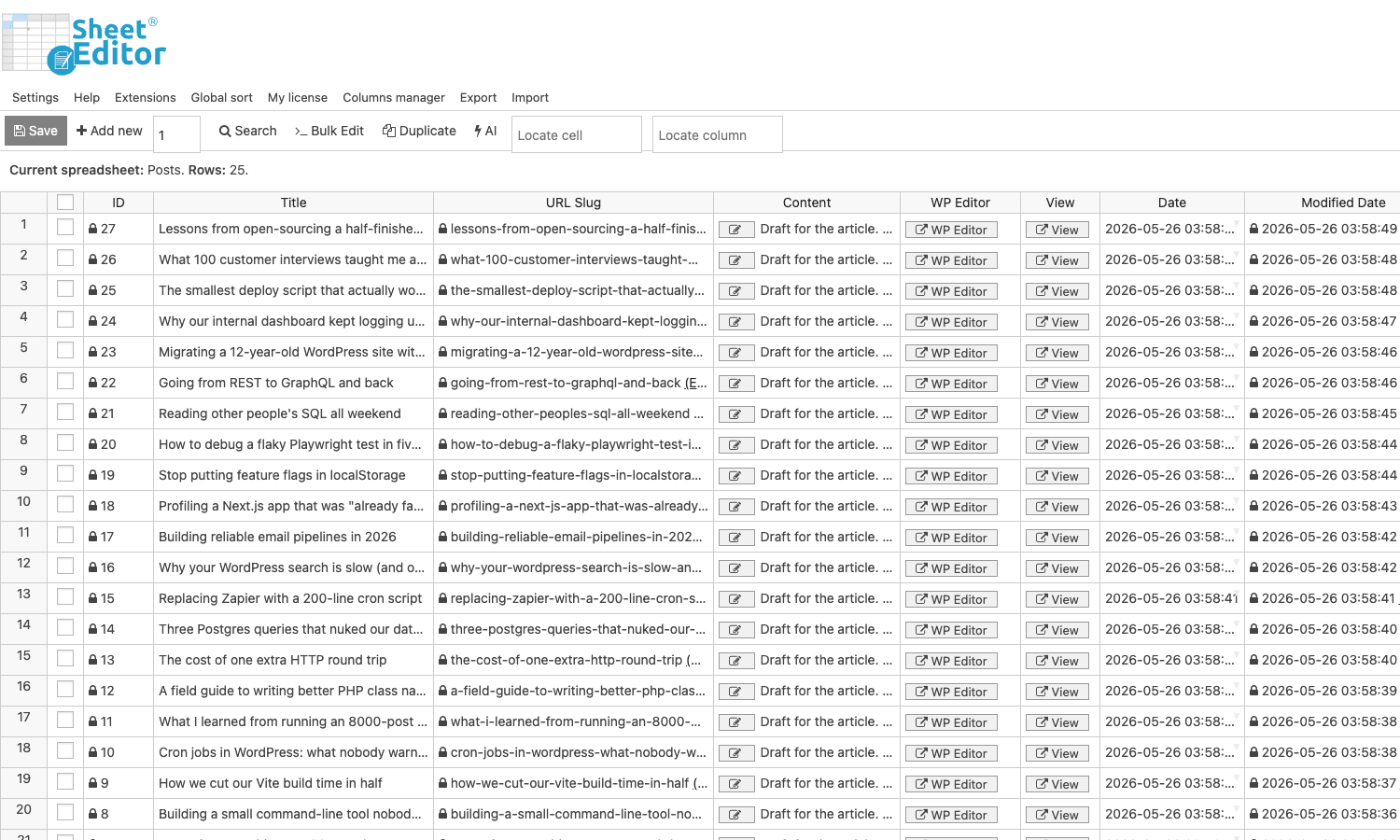
wp-admin/plugin-install.php?tab=uploadroute. Upload the zip, activate, and you’ll see a new top-level "Sheet Editor" menu in the admin sidebar.The first time you open it, you land on a setup screen that asks which post type you want a spreadsheet for. Pick "Posts" to start. Within a few seconds you’re looking at a grid of every post on the site.
A few real-world setup notes from the first hour:
- Turn off the dashboard widget. Settings -> Customize features -> "Disable dashboard widget". It’s a marketing nudge and it does nothing on a working site.
- Bump the columns limit if you have a lot of meta. The default is 100. On a site with heavy ACF use you can hit it. Set it via the
vg_sheet_editor/columns_limitfilter or via Settings -> Speed and performance. - Choose Term ID format up front. For taxonomy columns, you can store values as term IDs, term slugs, or term names. Pick one and stick with it. Mixing them in the same sheet is how you end up with "Uncategorized,Uncategorized,uncategorized" as three different category assignments.
- The "Ultra performance mode" toggle in Settings is real. On a site with 50,000+ posts, turning it on changed cold-load from "8 seconds and a stutter" to "2 seconds and clean". It disables some inline stats. You won’t notice.
Skip this if you’ve already installed it: the licensing is via Freemius. You enter the license key, the plugin phones home, the premium modules unlock. A GPL download (such as the one from GPL Times) is the same zip with premium modules already enabled; you don’t have to wrestle the license dialog.
A tour of the spreadsheet view
The grid is the centre of gravity. Most everything else in the plugin is a modal you summon from the toolbar.
A few things I want to call out about the grid itself, because they’re the difference between "this is a real tool" and "this is a webview pretending to be Excel":
- Keyboard nav works the way you expect. Arrow keys move the active cell. Tab advances. Enter commits and moves down. Shift+Enter commits and moves up. Ctrl+C / Ctrl+V copies and pastes blocks of cells. You can paste a 12×4 block from real Excel into the grid.
- Frozen columns. The ID and Title columns stay pinned on the left when you scroll right. Critical when you have 20+ columns.
- Fill-handle drag. Click the bottom-right corner of a cell, drag down, the value fills. Works for plain values, dates, and a few patterns.
- Per-row inline actions. Each row has an integrated "View" link (front-end preview) and a "WP Editor" link (jump back to the classic post editor on this row). The post ID is shown in the first column and is clickable.
- Status pills. Status is rendered as a coloured pill (Publish / Draft / Trash) instead of raw text. You can bulk-edit it via the dropdown rather than typing.
The thing that looks dated is the chrome around the grid. The toolbar, the logo, the modal styling – they’re functional but they all carry a 2018-Bootstrap feel. It’s a frame around the grid, not part of it. You stop noticing after the first hour. But I have to be honest: if you’re coming from Airtable or Notion’s table view, the visual shift is jarring.
Right-clicking a row gets you the row context menu:
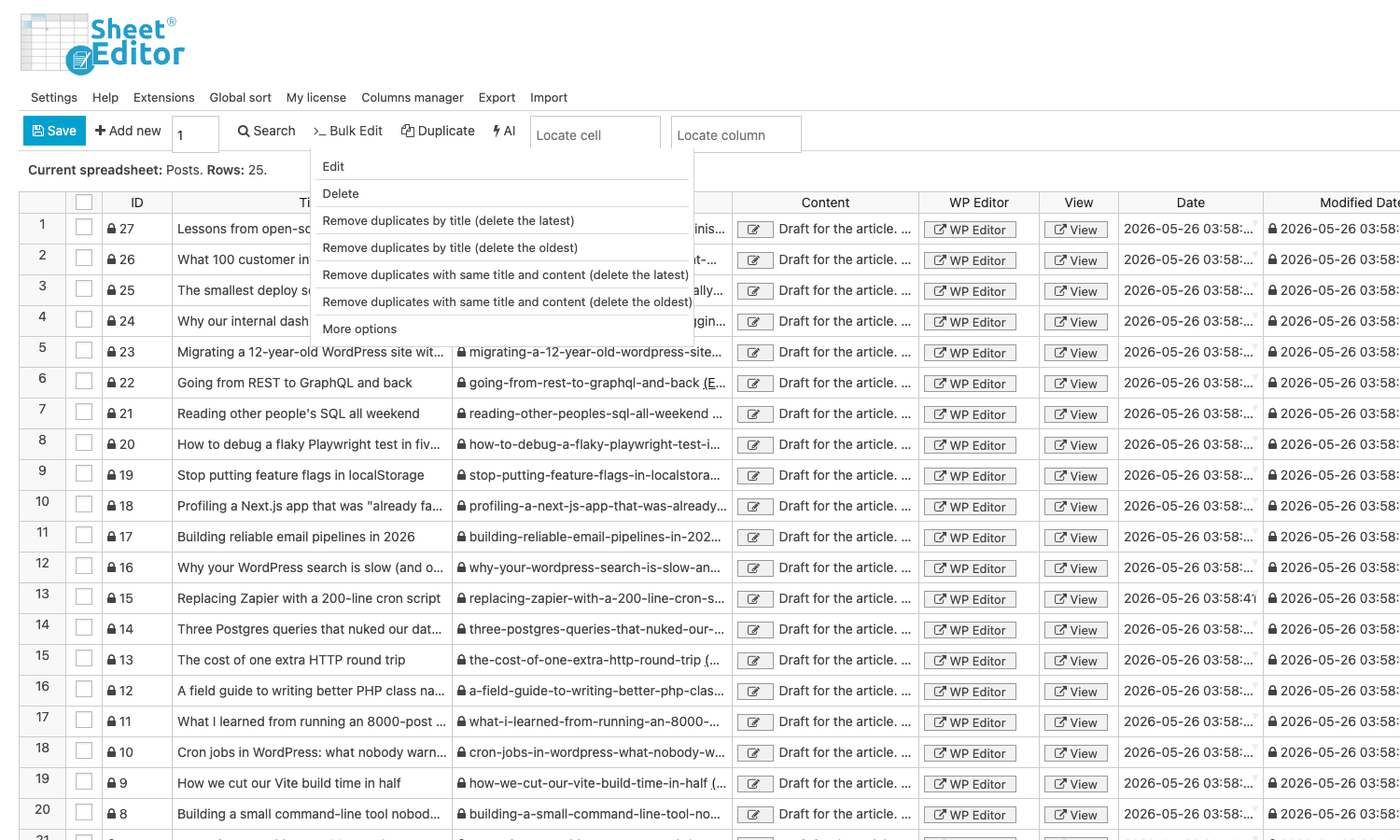
"Remove duplicates by content" is one of those features you don’t know you need until your migration imported the same post three times. The detection uses an SQL
GROUP BYon the chosen field and keeps the lowest post ID. Don’t run it on the title column without a backup.Bulk Edit, Search, and saved searches
The Bulk Edit modal is the workhorse. Click "Bulk Edit" in the toolbar:
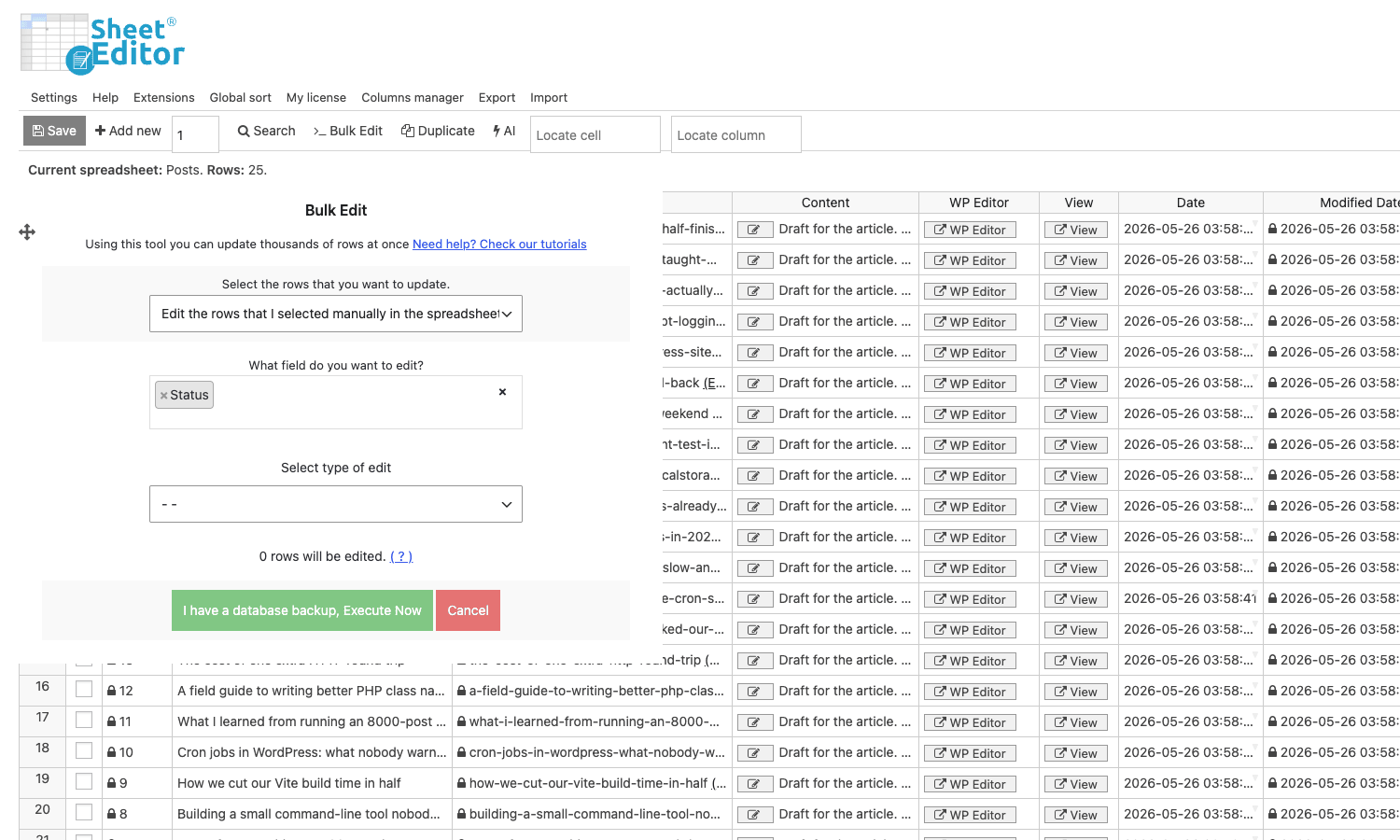
Three questions: which rows, which column, what kind of edit. The "which rows" dropdown gives you three choices:
- I want to search rows to update. Opens the Search modal as a sub-step. The matched rows are what gets edited.
- Rows I selected manually. Use the checkboxes in the leftmost column to pick rows, then run.
- Same rows I bulk edited previously. Replays the last bulk operation’s row set. Useful for "I ran a formula and now I want to run a second one on the same set."
The Search modal lives behind the toolbar’s Search button (or as the first step of Bulk Edit when you choose the "search first" mode):
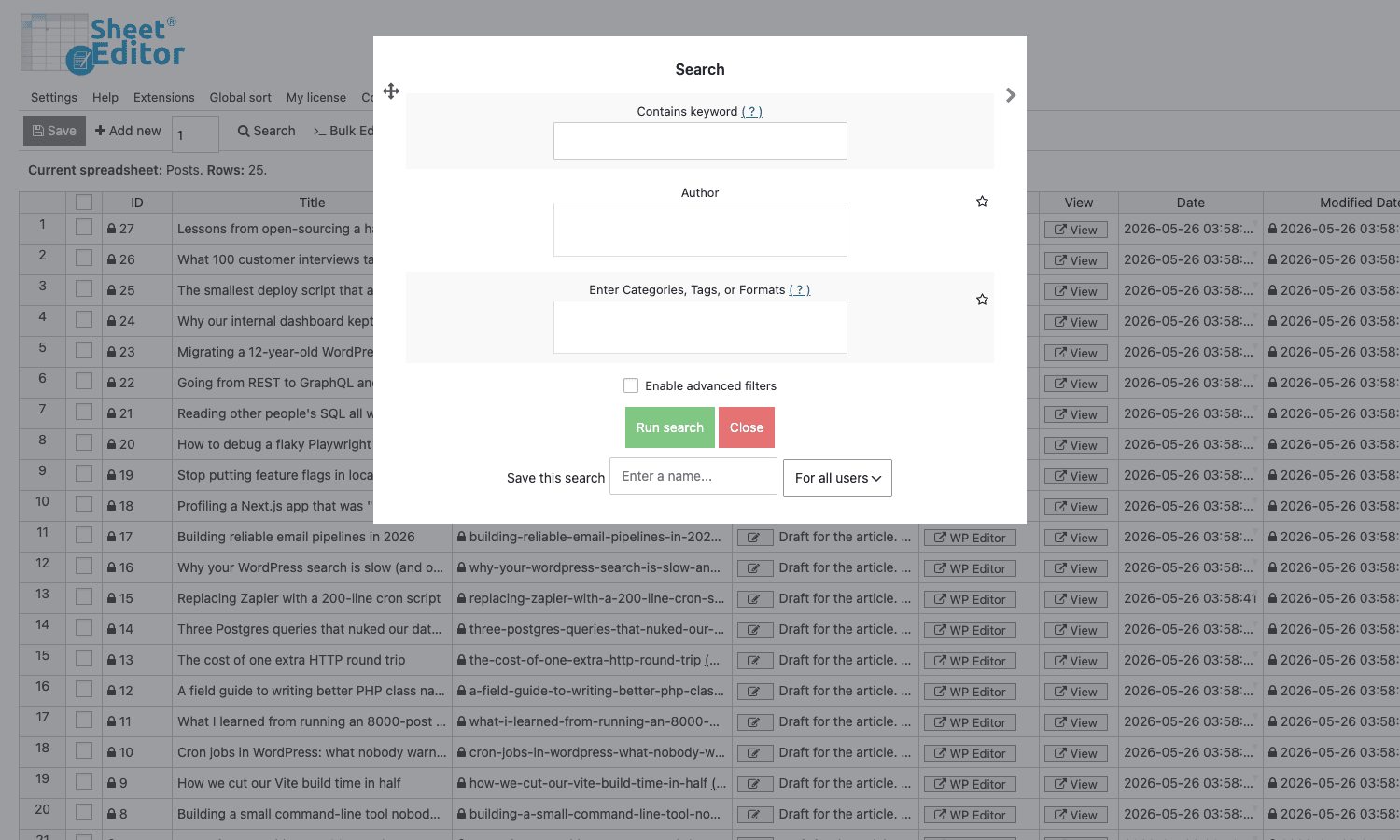
Three things worth knowing about the search:
- Saved searches are user-scoped, not site-scoped. The "Save this search" field stores the search in
user_metafor the editor user. Means two team members can have totally different saved-search libraries against the same Products sheet without stepping on each other’s toes. It also means you can’t share a saved search with a teammate. There’s no admin UI for that, you’d have to copy the user meta key by hand. - The "Enable advanced filters" toggle unhides per-meta-key filtering. This is where the Premium "Advanced Filters" module earns its place. You can filter posts by any meta key, any comparison operator (=,!=, >, <, IN, NOT IN, REGEXP, EXISTS), any taxonomy. The query is built up into a
WP_Querymeta_queryarray under the hood. - The keyword search runs SQL
LIKEon a configurable column set. By default it searches title, content, excerpt, and slug. You can extend it via thevg_sheet_editor/filteres/search_by_keyword_clausesfilter (yes, the typo is in the hook name).
Saved searches are the bit I keep coming back to. After a week you accumulate filters like "expired memberships", "products with empty meta description", "posts modified this month without an image". Each one is a click instead of a manual filter rebuild.
Custom column formulas: the under-documented feature
This is the feature I would have predicted least about. The formulas system isn’t a marquee feature in the marketing copy and the docs site doesn’t lead with it. But it’s the one I use the most for non-trivial edits.
A formula is a small expression that the plugin runs against each selected row. The expression can reference field placeholders (
%post_title%,%post_id%,%post_excerpt%, custom meta keys), use a small set of mathematical operators, and call a handful of helper functions for string and date manipulation. Here are formulas I’ve actually used:- Lowercase every product SKU on selected rows. Field =
_sku. Edit type = "Math operation or formula". Formula =tolower(%_sku%). Run on 4,200 rows. Done. - Strip a price prefix. Field =
_regular_price. Formula =replace(%_regular_price%, "USD ", ""). Used after a sloppy CSV import that prefixed every price with the currency code. - Generate excerpt from content. Field =
post_excerpt. Formula =substring(strip_html(%post_content%), 0, 160). Filled in 800 missing excerpts at once. - Add a date prefix to titles published in a campaign window. Field =
post_title. Formula =concat("[Archive] ", %post_title%). Combined with a Search filter onpost_date.
The expression evaluator isn’t a full language. No conditionals, no loops. You get a flat expression with placeholder substitution and a fixed function library. For anything more complex than that, you write a formula handler in PHP and the plugin will call you back per row. That’s covered in the Developer Reference below.
The reason the formulas system is under-documented is that it sits at an awkward middle ground: too programmer-flavoured for most users to discover, too constrained for most programmers to take seriously. Once you do take it seriously, it covers maybe 70 percent of real bulk-edit jobs in one expression.
Spreadsheet vs WP All Import: which one for which job
This is the question I get asked most often, because WP All Import Pro is the other tool in the same budget bracket. They look similar at a distance, but they’re aimed at different problems.
WP All Import is built around the file. You point it at a CSV, XML, or Excel file. You map columns to fields. You hit run. It creates or updates posts in batches. Its strength is the mapping interface and the scheduled-import / "import this URL on a cron" feature. Use it when the source of truth lives outside WordPress.
WP Sheet Editor is built around the database. The grid you’re looking at IS your posts table, in real time. Edits commit on save. Its strength is staying in
wp-adminand not having to leave for Excel.Concretely, when I reach for each:
Job Use WP Sheet Editor Use WP All Import Edit slugs on 400 existing posts Yes No (overkill) Import a 50,000-row product catalog from a Shopify export No (slow) Yes Daily price sync from a supplier CSV No Yes (cron + URL) Find every post with empty meta description Yes No Migrate from one CPT to another (rename, remap fields) Maybe (formulas) Yes (cleaner) Add 3,000 rows from a CSV one-time Either All Import is faster Touch up 50 imported rows that came in wrong Yes Re-import is overkill Rename every term in a 2,000-term taxonomy Yes (Terms add-on) No The honest answer is most agency setups need both. They solve adjacent problems with different shapes. WP All Import is your import pipeline. WP Sheet Editor is your in-place editor. Pretending one replaces the other is how you end up writing a custom WP-CLI script every quarter.
Developer reference: hooks, providers, columns API
This section assumes you can read PHP. Skip ahead if you’re here for the user walkthrough.
The plugin exposes a global accessor
VGSE()that returns the singleton main class. You’ll see it everywhere in the codebase. Things hang off it:VGSE()->helpers(utility methods),VGSE()->options(the options array),VGSE()->register_columns(the columns registry),VGSE()->update_option().Hooks live in the
vg_sheet_editor/namespace. The core hooks you’ll reach for:Register a custom column
add_action( 'vg_sheet_editor/editor/register_columns', function ( $editor ) {
 $editor->args['columns']->register_item( 'days_since_modified', 'post', array(
 'data_type' => 'meta_data',
 'column_width' => 90,
 'title' => 'Days since last edit',
 'type' => 'numeric',
 'edit_button' => array(
 'icon' => 'fa-calendar',
 'tooltip' => 'Days since the post was last modified',
 ),
 'allow_to_save' => false,
 'allow_to_rename' => false,
 'formatted' => array(
 'renderer' => 'html',
 ),
 'value_viewer_callback' => function ( $post_id, $cell_args ) {
 $modified = get_post_modified_time( 'U', true, $post_id );
 return floor( ( time() - $modified ) / DAY_IN_SECONDS );
 },
 ) );
} );
The
register_item()call accepts a$key, a$provider(defaultpost), and an args array. The args array is huge – it covers cell type, width, save/edit behaviour, rendering callbacks, validation. Thevalue_viewer_callbackis what runs to fetch the cell value for display. There’s a parallelvalue_saver_callbackfor write.Filter which post types get a spreadsheet
add_filter( 'vg_sheet_editor/allowed_post_types', function ( $types ) {
 // Restrict to a specific CPT on a particular admin user
 if ( get_current_user_id()!== 1 ) {
 return array( 'product' );
 }
 return $types;
} );
Mutate a cell value just before it’s saved
add_filter( 'vg_sheet_editor/save_rows/value_before_saving', function ( $value, $key, $post_id, $provider ) {
 // Trim whitespace and lowercase SKUs on save
 if ( $key === '_sku' ) {
 return strtolower( trim( $value ) );
 }
 return $value;
}, 10, 4 );
Hook the formula engine
The most useful escape hatch. Register a custom formula handler and the plugin will call your callback once per row. Inside the callback you have the full post ID, the field key, and the user-provided arguments.
add_filter( 'vg_sheet_editor/formulas/execute_formula', function ( $result, $field_key, $post_id, $formula, $args ) {
 // Custom "set_seo_title" formula: build a title from the product name + brand attribute
 if ( strpos( $formula, 'set_seo_title' )!== 0 ) {
 return $result;
 }
 $product = wc_get_product( $post_id );
 if (! $product ) {
 return $result;
 }
 $brand = $product->get_attribute( 'pa_brand' );
 $name = $product->get_name();
 return $brand? "{$brand} - {$name}" : $name;
}, 10, 5 );
You then call this from the Bulk Edit modal by setting the formula to
set_seo_title()against thepost_titlecolumn.Use a custom data provider
The plugin’s data layer is abstracted behind a Provider class.
VGSE_Provider_Posthandles anything backed bywp_posts. If you want to point the sheet at a custom table (awp_my_inventorytable, say), you subclassVGSE_Provider_Abstract, implementget_items(),update_item(),delete_item(), and register it. The Custom Tables Pro add-on does exactly this generically. For a one-off, hand-rolling a provider is maybe a 200-line PHP class.Useful action hooks
vg_sheet_editor/editor/before_init– earliest reasonable hook to add a providervg_sheet_editor/editor/register_columns– the canonical place to add columnsvg_sheet_editor/save_rows/after_saving_post– fires after each row save (good for clearing custom caches)vg_sheet_editor/duplicate/after_post_duplicated– fires after a row duplicate, with both old and new post IDsvg_sheet_editor/formulas/execute_formula/after_execution– per-row post-formula hookvg_sheet_editor/editor_page/after_logo– inject a toolbar button next to the plugin logovg_sheet_editor/delete_row_ids/before– veto a delete by returning early
A note on the API surface: the plugin is AJAX-based, not REST-based, by default. Every interaction (load rows, save edits, run formulas, import CSV) goes through
admin-ajax.phpwith action names prefixedvgse_*likevgse_save_data,vgse_load_data,vgse_bulk_edit_formula_big. There’s an option (be_rest_api_only) that switches data loading to the WP REST API path, which is useful when your host rate-limitsadmin-ajax.php. The plugin doesn’t expose its own REST namespace – it just routes data fetches through/wp-json/wp/v2/.The codebase is organised into modules under
modules/: each module is a self-contained feature (acf, advanced-filters, columns-manager, custom-columns, custom-post-types, filters, formulas, posts-templates, universal-sheet, woocommerce, wp-sheet-editor core, wpml, yoast-seo). The premium-only modules are gated behind a Freemius@fs_premium_onlydirective in the main plugin file header. The build you get from GPL Times ships every premium module unlocked.If you want the WordPress core APIs the plugin builds on top of, the post update API docs on the official WordPress developer site are the canonical reference. Most of what WP Sheet Editor does on save is a
wp_update_post()or anupdate_post_meta()call wrapped in transactional batching.What it can’t do (and why you might still need WP-CLI)
Honest section. WP Sheet Editor is excellent at what it’s built for. There’s a small set of things it can’t do that catch people out:
No real undo. A bulk save commits. There’s no "revert last batch" button. The plugin’s defensive mechanism is the "Save backup" toggle in the Bulk Edit modal, which dumps the affected rows to a CSV before editing. That’s not the same as an undo – it’s a restore-from-CSV manual recovery. My personal workflow is: duplicate the sheet to a "scratch" view, run the formula on the duplicate, eyeball ten random rows, then run it on the real set.
No cross-row formulas. Each formula runs per-row. You can’t write "set field X on row 2 based on field Y on row 1". The unit of work is one row.
No streaming for very large sites. Above about 5,000 rows in a single view, the JS bundle starts to feel sluggish. Not in the network calls – those are batched and fine. In the rendering pass. You can mitigate with the Ultra Performance mode toggle and by hiding columns you don’t need, but at 50k+ rows you’re going to want server-side filtering, not client-side.
No scheduled bulk edits. A bulk edit is a thing you run, not a thing you schedule. If you need "every Monday at 3am, set all products with
_stock = 0todraft", that’s a WP-CLI cron job, not WP Sheet Editor.No version history per row. The post revisions plugin/feature still works at the WP core level, but the sheet doesn’t surface a "what was this cell before I edited it" view.
Custom-field array values are a pain. ACF repeater rows, multi-select fields, and any meta value stored as a serialised PHP array work but the cell renderer has to be told how to interpret them. The Custom Columns module does this for common cases. For unusual serialised data, you write a custom column with a custom renderer.
For each of these, the alternative is one of:
- A 30-line WP-CLI script you run once (
wp eval-file scripts/one-off.php) - A scheduled cron task via Action Scheduler
- A purpose-built import via WP All Import Pro if the source of truth is external
I default to WP Sheet Editor for the 80 percent of jobs that are "edit existing rows in place" and to WP-CLI for the rest.
The add-on math: when WP Sheet Editor.com itself. The base Premium plugin (the post-types build) covers posts, pages, and custom post types. Anything else is a separate add-on:
- WooCommerce Products
- WooCommerce Orders
- WooCommerce Coupons
- Users
- Taxonomy Terms
- Media Library
- Comments
- Editable Frontend Tables
- Custom Tables Pro
- ACF Pro fields beyond the auto-detection
- WPML / Polylang
- Yoast SEO
- Events Calendar, GiveWP, JetEngine, LearnDash, EDD…
Each add-on is sold individually. The vendor’s bundles fix this – the "All Access" bundle is the only sensible buy if you’re hitting more than two of those add-ons. A solo developer with one WooCommerce client and one membership site can spend more on WP Sheet Editor add-ons in a year than the average managed-hosting plan costs.
The GPL download from GPL Times sidesteps this. You get every add-on for the cost of one product. That’s not a moral argument either way; it’s the reality of how the GPL secondary market works. If you’re an agency running this across many client sites, the math is a different conversation than for a solo store owner.
When the plugin.
- You’re managing a WooCommerce store with 1,000+ products and pricing/categorisation changes monthly.
- You have a publishing team that does taxonomy / SEO meta cleanups every quarter.
- You’re migrating sites and the same "rename / re-slug / re-categorise" job comes up every project.
If your editing is "I tweak titles on 5 posts a month", you don’t need this. Use the normal post editor.
Pulling a stuck 8,000-row WooCommerce catalog into shape: a war story
A real story. Names changed.
A friend’s agency took over a WooCommerce store with 8,200 products. The previous developer had imported the catalog from a Shopify export six months earlier and never cleaned up. Specifically:
- 1,400 products had a
_regular_priceof"$"(the dollar sign, no number) - 2,800 products were assigned to a category called "Uncategorized" because the original mapping missed
- About 600 had titles like
"Product Name - Free Shipping!"with a sale promo baked into the title from a 2024 campaign - The SKUs were all uppercase, the supplier’s new feed used lowercase, so weekly stock syncs were silently failing
Pre-WP Sheet Editor approach: export to CSV, four passes through Excel with VLOOKUPs, re-import, pray. Estimated 5 hours of work and a 30 percent chance of nuking something.
Actual approach with WP Sheet Editor:
- Filter:
_regular_price = "$". Bulk-edit the price column with the formulareplace(%_regular_price%, "$", "")against an empty placeholder. About 14 seconds of execution. - Filter:
category = Uncategorized. Open a second tab with Shopify’s original export. Manually re-tag in batches of 50 using the category dropdown column. About 90 minutes (this part was unavoidable, the category data was just gone). - Filter:
post_title CONTAINS "Free Shipping". Bulk-editpost_titlewithreplace(%post_title%, " - Free Shipping!", ""). About 6 seconds. - Select all. Bulk-edit
_skuwithtolower(%_sku%). About 40 seconds.
Total: 90 minutes of category remapping plus about a minute of formula runs. Zero scripts written. Zero re-imports. No staging-prod drift to worry about.
That story is the case for the plugin in one paragraph. It’s not magic. It’s a spreadsheet that happens to commit to wp_posts instead of a .xlsx file. But on a real production catalog, that’s the difference between "we’ll get to it" and "done before lunch".
A walk through the rest of the UI
A few panels worth mentioning in passing.
The Columns manager is where you decide which columns are visible on the sheet. It supports drag-to-reorder and a search box to find a specific column among the dozens that show up on a heavily-customised site:
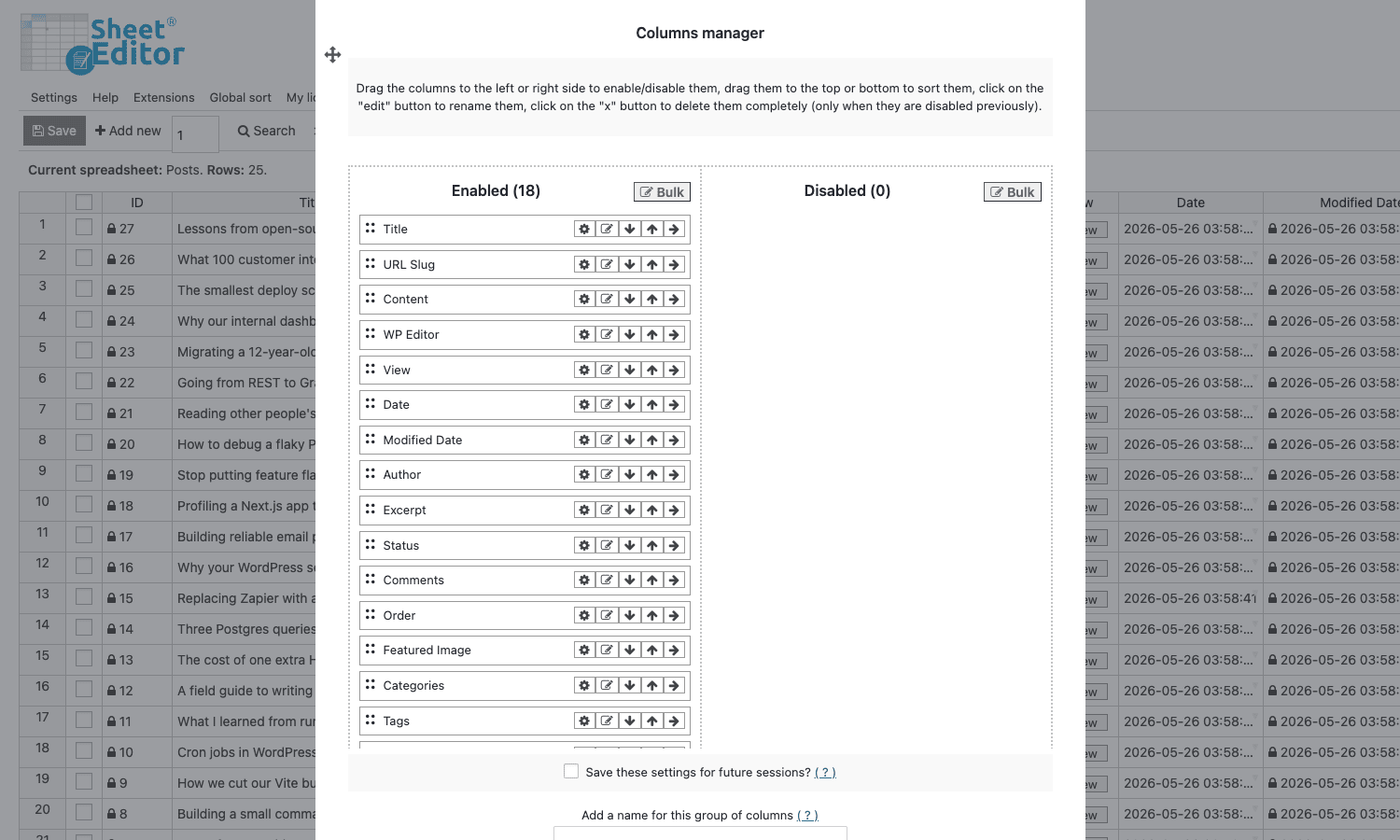
A useful pattern: create a saved column-visibility set per task. "Editorial review" = title, slug, status, modified date, author. "SEO audit" = title, meta description, focus keyword, last updated. Switch sets via the dropdown.
Settings has the toggles you’d expect: speed/performance, mass actions, dashboard widget visibility, allowed user roles, REST-vs-AJAX mode, save backup behaviour. The "Speed and performance" section is what you tune if the sheet feels slow:
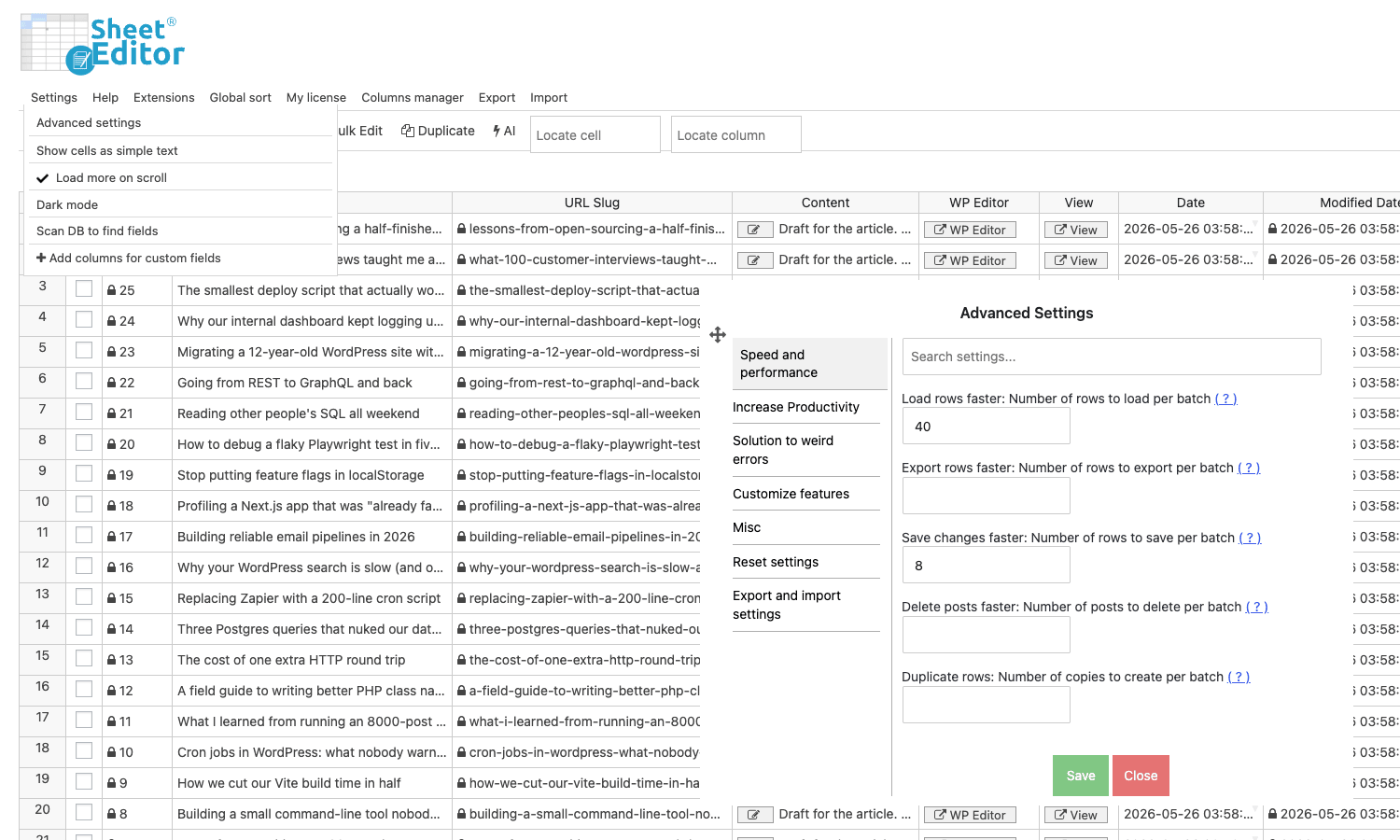
Each input is a batch size. "Save changes faster: number of rows to save per batch" defaults to something safe like 30. Bump it to 100 if your server can take it. The Solution to Avoid Crashes section is where you go when you hit a max_input_vars ceiling on a shared host.
Export and Import modals are straightforward CSV/Excel export with column selection, and a CSV/Excel import that maps incoming columns to existing fields. The export modal:
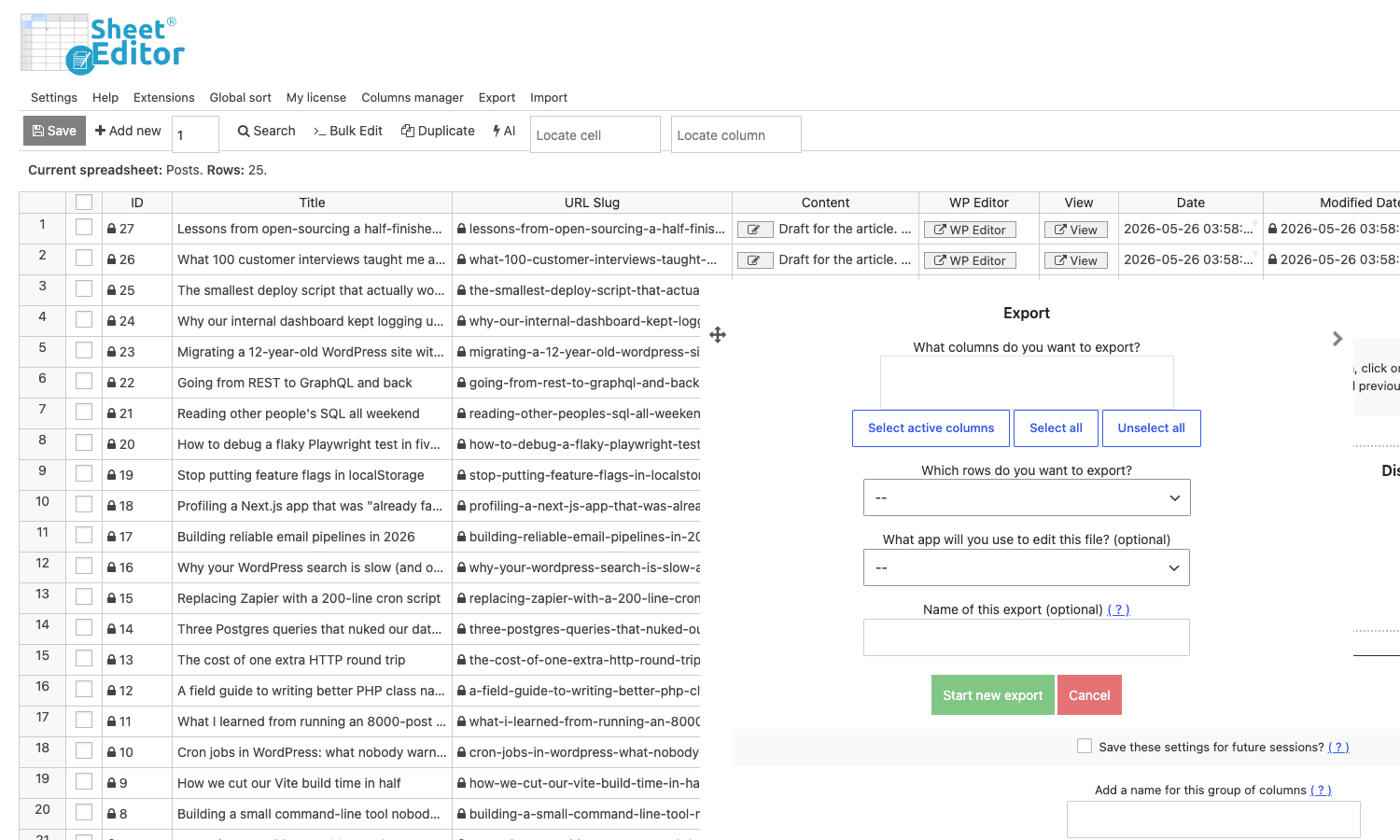
The import path is the same flow in reverse. Saved exports/imports keep the column mapping and the filter, so a monthly export-for-supplier task becomes a one-click button after the first setup. I use it for sending product feeds to a partner.
Extensions is the plugin’s built-in marketplace. It surfaces the other add-ons sold by the same vendor:
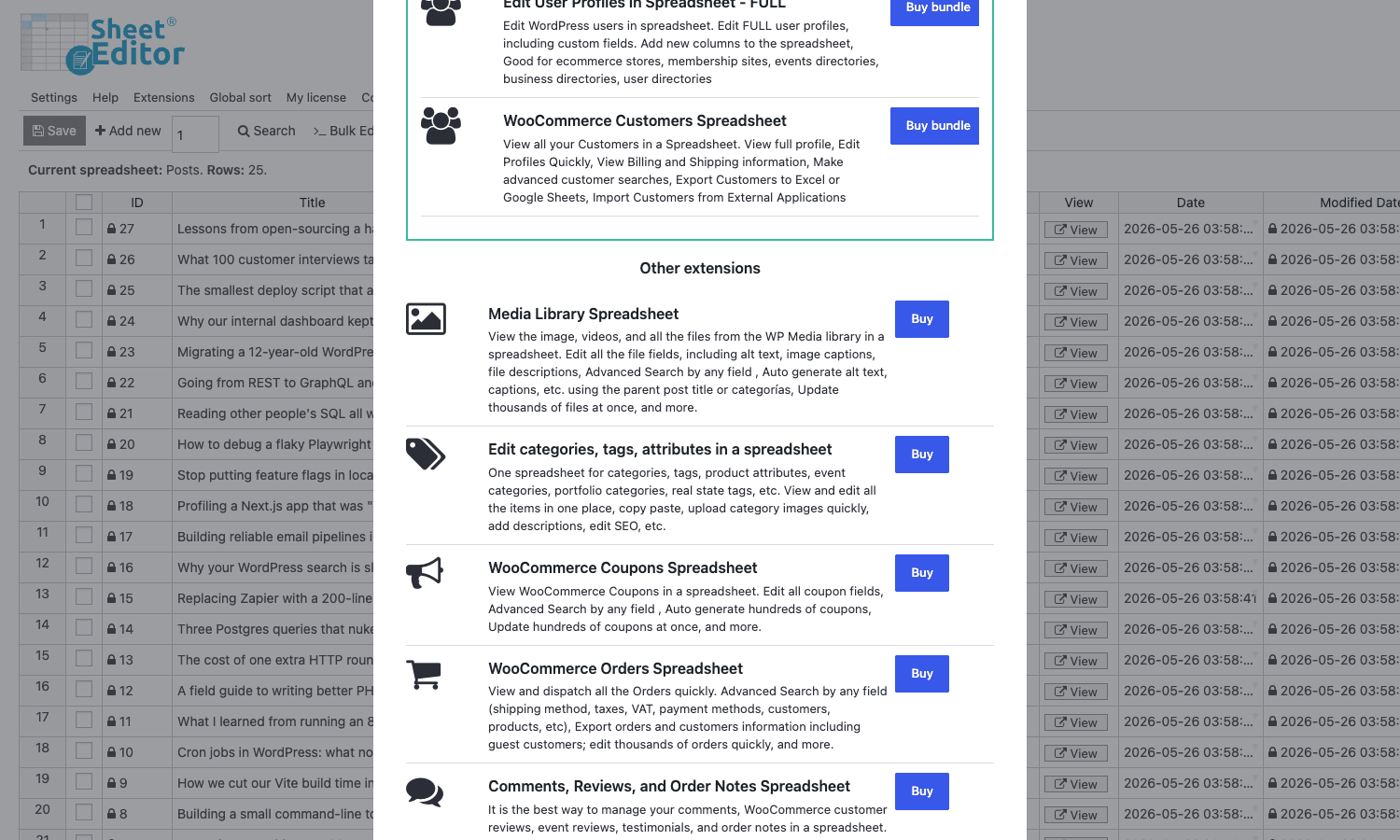
You can disable the extension popups entirely via Settings -> Customize features -> Disable extension offerings if the in-product upsell bothers you. Once you’ve got All Access (or the GPL-licensed version), there’s nothing left to buy from this panel; it’s purely an upsell surface for the post-types-only customers on the vendor site.
Performance, compatibility, and the things to watch
A short, real list:
- Memory ceiling. On shared hosts with PHP
memory_limit = 128M, a sheet of 5,000+ rows can OOM during a "load all" operation. Up the limit to 256M or 512M before complaining the plugin is broken. The status footer in the sheet shows the current memory use. - Object cache and saves. If you’re running Redis or Memcached as a persistent object cache, the plugin’s save path correctly invalidates the relevant post cache keys. The thing that doesn’t auto-invalidate is your full-page cache (WP Rocket, LiteSpeed, etc.). After a big bulk edit, purge the page cache. There’s an adjacent piece on cache management if you want the longer story.
- Heartbeat API. The sheet uses the WP heartbeat API for auto-save and progress polling. If you’ve disabled heartbeat globally (some hosts do this to save CPU), the progress UI on long bulk edits will hang. Re-enable heartbeat in
wp-adminat minimum. - Cloudflare Bot Fight Mode. I’ve seen Cloudflare flag the rapid sequence of
admin-ajax.phpcalls as bot activity. If your Bulk Edit dies on row 200 with a 403, check the CF security event log. Whitelist your admin IP or turn off Bot Fight inwp-admin. - WPML. With WPML active, the sheet shows one row per language per post. For a 5,000-post bilingual site, that’s 10,000 rows in the view. Use the language filter at the top of the page to keep one language at a time visible.
- Custom field detection. The Custom Columns module auto-detects meta keys on first load. If you add a meta key after the sheet is open, you need to reload the page for the new column to show up.
- JS console errors from third-party admin scripts. Some plugins (looking at one specific page builder) emit
console.errorfromadmin_enqueue_scripts, and the sheet’s React-flavoured grid sometimes catches these as fatal. Disable other admin-screen plugins if the sheet won’t paint.
Pricing and licensing
WP Sheet Editor Premium is licensed via Freemius, sold on wpsheeteditor.com as individual add-ons and bundles. The official pricing as of writing is roughly:
- A single add-on (e.g. Posts/Pages Premium) – around $69 to $99 per year
- A small bundle (Posts + WooCommerce Products + Users) – around $149 per year
- The "All Access" lifetime – several hundred USD, one-time
Real pricing fluctuates with their seasonal promos. Check wpsheeteditor.com for the current number.
The GPL download from GPL Times is the same plugin, the same code, packaged with all premium modules active. Use whichever channel fits your budget and your comfort with the GPL secondary market. The plugin is GPL-licensed, so distribution under GPL is legitimate; what you lose with the GPL route is the vendor’s update/support contract.
FAQ
Why doesn’t my custom field show up as a column?
Two reasons usually. First, the Custom Columns module auto-detects meta keys but only from posts that have that meta key set with a non-empty value. If only 3 of your 5,000 posts have the field, it’s still detected, but if the field is only set as you go forward, none of the existing rows will have a value yet. Add the field via Columns Manager directly. Second, ACF fields without a value attached to any post don’t get detected. Save one post with the field set and reload the sheet.
Can I roll back a bulk edit?
Not directly. There’s no undo button. The mitigation is the "Save backup" checkbox in the Bulk Edit modal, which dumps the affected columns to a CSV before edit. You restore by re-importing that CSV. My honest advice is: always enable Save backup for jobs touching more than 50 rows, and always test the formula on a 5-row sample first. The plugin is not databse-transaction-safe in the way you’d want for true undo.
Does it work with ACF Pro fields?
Yes, with caveats. Plain text, number, select, true/false, and url ACF fields work out of the box – the plugin auto-detects them as columns once they have values. Repeater fields, flexible content, and clone fields work via the Custom Columns module but you need to set the column type to "Serialized text" so it doesn’t try to parse the array as a single value. Image and gallery ACF fields show the attachment ID; you have to enable the "Image preview" column type to see thumbnails. The dedicated ACF Pro review has the broader context on ACF field types.
Why is the spreadsheet slow above 5,000 rows?
It’s a client-side grid. Handsontable holds the full dataset in memory and re-renders on scroll. Above about 5,000 rows the paint cost starts to bite. Mitigations: turn on Ultra Performance mode in Settings, hide columns you don’t need, use the Search to filter down to the rows you actually want to work on, and bump PHP memory_limit to 512M minimum. For truly large catalogs (50k+) the sheet is fine for filtered views but painful as a full-catalog view. That’s an architectural limit, not a bug.
Can I share saved searches across users?
No, not through the UI. Saved searches store in user_meta keyed to the editor user. You can copy a saved search by exporting that user_meta row from wp_usermeta and importing it into another user, but there’s no admin interface for it. The vendor’s stance is that saved searches are a personal-workspace feature, not a team-workflow feature. I’d argue this is a missed opportunity for agencies running a shared editor account, but it’s not changing soon.
How does it handle WooCommerce variations?
Each variation shows as its own row in the sheet, with a parent product column that tells you which simple product it belongs to. You can edit variation price, stock, SKU, and attributes per row. The "load variations per product" toggle in settings controls whether variations show inline or only when you expand a parent. For stores with many variations (think a clothing store with size+colour combinations), turning on the per-product loading is essential or you’ll have 30,000 rows for 600 products.
Is it compatible with my page builder?
Mostly irrelevant. WP Sheet Editor edits data in wp_posts and wp_postmeta. It doesn’t render the page. So Elementor, Bricks, Divi, Beaver Builder all "work" in the sense that the sheet edits don’t break them. The thing to watch is that page builders that store layout in post_content as JSON (Elementor stores layout in _elementor_data meta, separately) mean you don’t want to mass-edit post_content on builder pages or you’ll wreck the layout. Filter by post type when editing content.
Does it slow down my site for visitors?
No. The plugin’s frontend footprint is essentially zero – it only loads its JS bundle on its own admin pages. Backend admin pages outside the sheet itself add a small enqueue of admin notice scripts. Frontend visitors see no impact.
Final thoughts
WP Sheet Editor sits in a specific niche. It is not a replacement for WP All Import. It is not a replacement for WP-CLI. It is not a replacement for your data warehouse if you have a real data warehouse. What it is, is the closest thing WordPress has to a real spreadsheet against a real database, and once you’ve used it for a serious cleanup job you stop wanting to do that job any other way.
The honest gripes – the dated frame-in-a-frame UI, the per-add-on pricing on the vendor site, the JS sluggishness above 5,000 rows, the no-undo design – are all real. None of them have stopped me from defaulting to this plugin for any "edit N existing rows" job on a WordPress site in the last two years.
If you want to give it an honest try, WP Sheet Editor Premium from GPL Times ships with every add-on enabled, so you can see whether the Users, WooCommerce, Taxonomy Terms, and ACF columns earn their place on your particular site before you commit to a vendor license. Don’t run a regex on the title column without a backup, and you’ll be fine.