


I’ve been running a WordPress site that’s now eight years old and somewhere past 14,000 attachments. The default media library, the one that just dumps every upload into one giant date-sorted grid, stopped being usable around year three. I’ve tried four different folder plugins to fix it. HappyFiles got me 80 percent of the way and then ran out of features. Real Media Library worked but felt heavier than it needed to be. Folders by Premio was fine on a small site and choked on a large one. And before any of those, I spent a year manually prepending 2019-blog- and team-shot- to every filename, which is exactly the kind of duct-tape solution that feels clever for a month and embarrassing for a year.
So when FileBird kept landing in my "almost picked it" pile, I sat down and actually used it for a week. Not a quick "let me toggle a couple of settings" tour. A real test: imported a chunk of a production library into a sandbox, built a folder tree from scratch, dragged attachments around like a normal person would, hooked into the plugin’s actions from a small companion plugin, and watched what it actually does to the database.
This is what I found. Where it’s sharp, where it’s clunky, and the things I wish I’d known on day one.
Table of Contents
- What is FileBird?
- How the default WordPress media library breaks at scale
- Key features at a glance
- Installation and the first hour
- A guided tour of the FileBird UI
- The folder tree in the media grid
- List view and the folder column
- Inside the post editor: Add Media with FileBird
- Settings, defaults, and per-user folders
- Bulk moving, importing, and the FTP shortcut
- Real-world use cases
- Developer reference: tables, hooks, REST, the gallery block
- Performance, compatibility, and gotchas
- Pricing and licensing
- FAQ
- Final thoughts
What is FileBird?
FileBird is a WordPress media library plugin built by Ninja Team. The free version sits on the WordPress.org repo at 100,000+ installs and Pro adds the heavier features (smart-context per-user folders, post-type folders, bulk migration tools, the gallery block, page-builder widgets). Both flavors share the same core idea: let you organize the media library with drag-and-drop folders, without touching the underlying files on disk.
That last bit matters and I’ll come back to it. When you "move" a file into a folder in FileBird, the file itself doesn’t move. The directory on the server still looks exactly the same: /wp-content/uploads/2026/05/hero.jpg stays at /wp-content/uploads/2026/05/hero.jpg whether you put it in the "Hero images" folder or the "Backgrounds" folder. The folder is virtual. It exists only in FileBird’s database.
For most use cases that’s exactly what you want, because it means you can rearrange your library a hundred times and no theme, plugin, image URL, or backup script ever notices. For a handful of edge cases (mostly migration to or from a real-folders setup), it’s worth knowing.
The plugin is sold on CodeCanyon and as a direct purchase from Ninja Team. The Pro version is available through GPL Times if you want the full feature set at the GPL price.
How the default WordPress media library breaks at scale
Skip this section if you already know why folders matter. If you’ve never had to find a hero image from two years ago and stared at five pages of pagination, read on.
WordPress’s media library is a flat list, sorted by upload date, with one filter dropdown (by month) and a search box that searches title + alt text + filename. That works fine up to a few hundred attachments. It starts to hurt around a thousand. By two thousand it’s unusable for anyone who isn’t the person who originally uploaded the file.
Three things go wrong as the library grows:
- Discovery becomes guesswork. You remember "we used a clean white-background product shot for the spring launch." Was that February or March? Was it a JPG or a PNG? The filename, if it’s something useful like
_DSC4821.jpg, tells you nothing. So you scroll. And scroll. - Re-uploading is the new normal. Faced with not-finding something, most people just upload it again. Now you have three near-duplicates of the same image. Multiply that by a year of marketing pushes and your
uploadsdirectory has 18 GB of cruft. - Multi-author sites turn into chaos. Five contributors, no folders, no convention. The library becomes a public dumping ground. Three months later nobody knows which "logo.png" is the current one.
A folder plugin doesn’t fix any of those problems automatically. What it does is give you the structure to fix them. The discipline is still on you, the same way file folders on your laptop only help if you actually use them. But the option to be organized has to exist before organization can happen.
Key features at a glance
Rather than dump the full marketing list, here’s what actually changes how I use the media library day to day.
- Drag-and-drop folders in a side tree. Identical mental model to Finder, Explorer, or Dropbox. You can drop folders inside other folders to nest, drag attachments between folders, multi-select with shift-click. The interaction is fast, with no full page reload.
- Virtual folders, not physical. Folders are rows in two custom tables. Moving an attachment between folders is a single UPDATE statement. Nothing on disk changes.
- Folder column in list view. The media library list view gets a "Folder" column showing which folder each attachment belongs to. You can sort and filter by it.
- Folder selector inside the block editor’s Add Media modal. The same side tree appears when you click "Add Media" inside a post or page, so you can scope the picker to a single folder while you write.
- WooCommerce, Elementor, Bricks, Divi, and other page-builder integrations. When the page builder pops open its own media picker, FileBird’s folder tree is there.
- Folder-as-gallery shortcode + Gutenberg block. Insert
[filebird_gallery folder="42"](or use the block) and the gallery contents come from a folder, so adding a new image to the folder automatically adds it to the gallery on every page that uses it. - Bulk import from other folder plugins. Migration tools for Real Media Library, Enhanced Media Library, WP Media Folder, FolderPress, and the Polylang taxonomy hack. They run inside FileBird Settings -> Tools and they actually work.
- Per-user folders. A toggle (Pro) that scopes the folder tree to the current user. Useful on multi-author or multi-client setups where you don’t want Author A seeing Author B’s working folders.
- REST API. Folders are exposed through
filebird/v1, with separate namespaces for the post-type addon (filebird/pt/v1) and the migration tools (filebird/convert/v1). Mobile apps and headless setups can manage folders programmatically. - Post-type folders (Pro addon). Same folder UX, but for organizing Posts, Pages, or any custom post type. Stored as a separate taxonomy under the hood (
fbv_pt_tax_<post_type>). I’ll come back to this in the developer section because it’s the one corner of FileBird that overlaps with WordPress’s existing taxonomy system instead of using FileBird’s custom tables. - Download a folder as a zip. Right-click a folder and you get the option to bulk-download every attachment in it as a single zip. Implemented with ZipStream so it streams instead of building the whole file in memory first.
Most of these are on by default. The post-type addon is opt-in (Settings -> Post Types) and per-user folders is one toggle.
Installation and the first hour
Install the way you’d install any premium plugin. Upload the zip via Plugins -> Add New -> Upload, activate, and you’ll see a new top-level "FileBird" entry in the WP admin sidebar. The free version asks for nothing. The Pro version asks for your purchase code on Settings -> License, and that’s the only thing standing between you and the full feature set.
The very first time you load Media -> Library after activation, FileBird shows a "We noticed you have X attachments without a folder, do you want to set up folders?" prompt. That’s it. No long onboarding wizard, no tutorial video popup, no upgrade nags every five minutes. The plugin is ready to use.
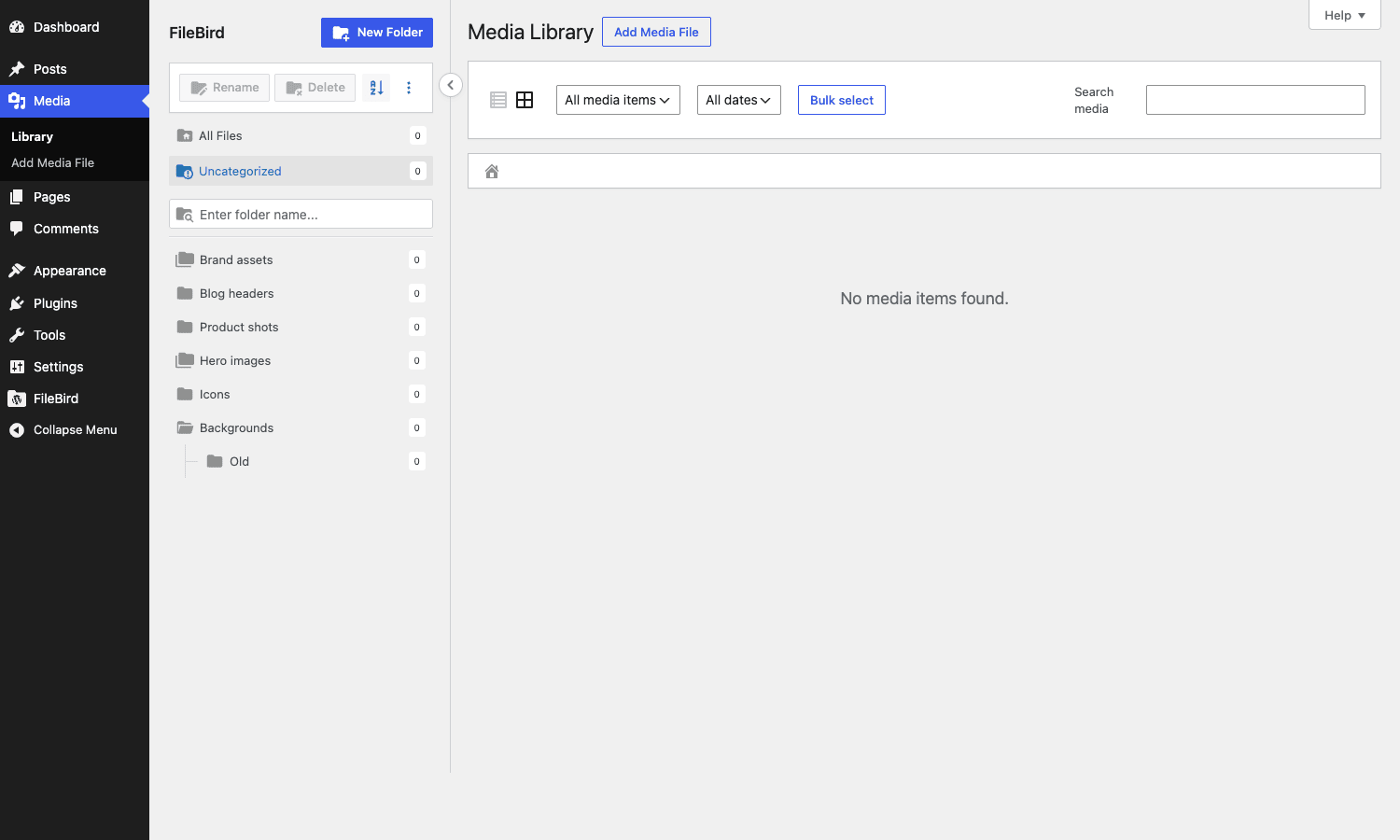
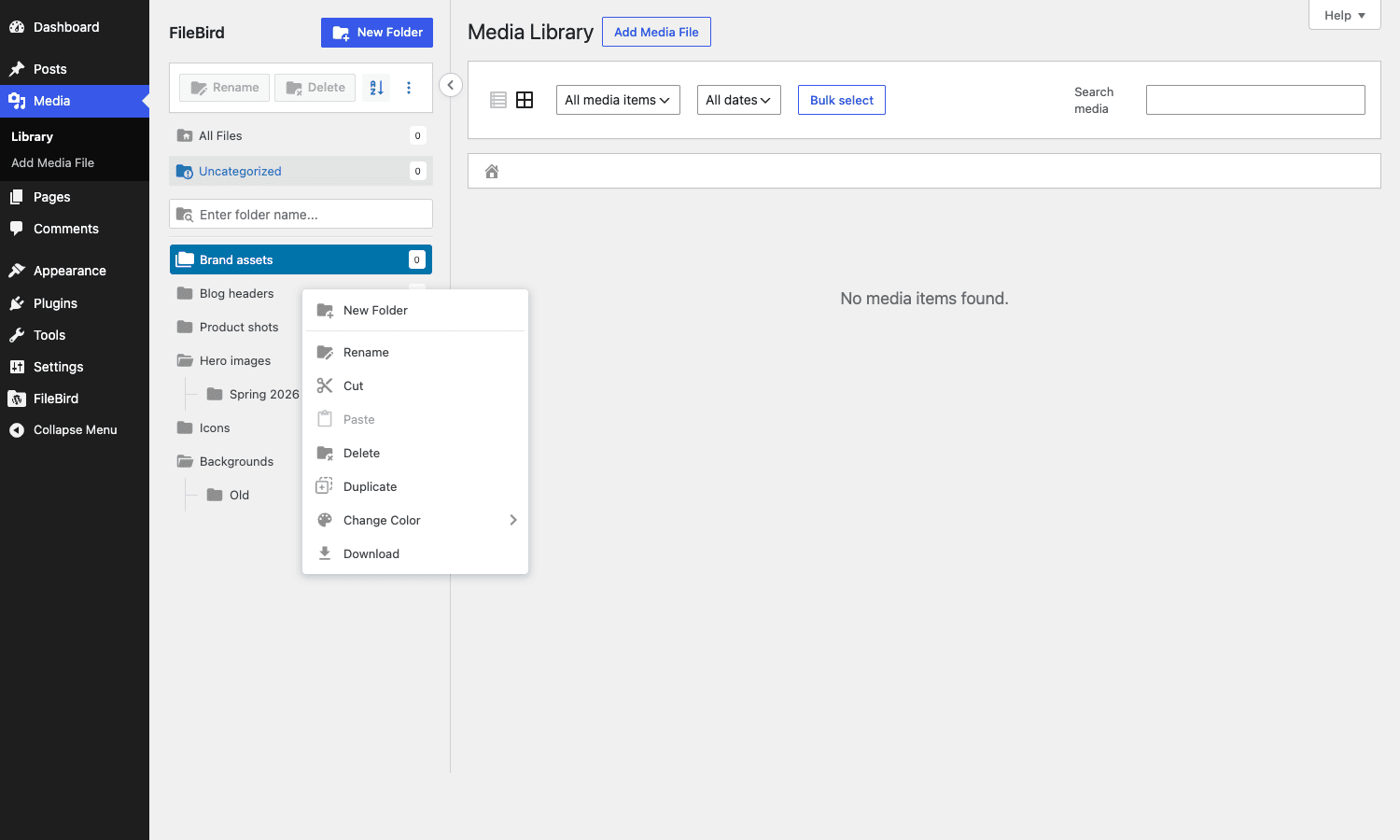
I built the demo folder tree in about three minutes. Right-click on the root, "Add new folder," type a name. Repeat. Drag one folder into another to nest. The visual cue (a thin blue line) when you’re about to drop is good. The folder you’re hovering over highlights, so you know exactly where the drop will land. I made six folders to start with: Brand assets, Blog headers, Product shots, Hero images, Icons, Backgrounds. Then nested a "Logos" folder inside "Brand assets" and an "Old" folder inside "Backgrounds" as a graveyard for stuff I might delete someday.
Moving the existing 22 attachments into those folders took another two minutes. Shift-click to select a range, then drag the whole selection onto a folder. The grid updates instantly, the folder count in the side tree ticks up. There’s no save button. The action is committed the moment you drop.
This is the part of FileBird that’s genuinely satisfying. It works the way your hands already know.
A guided tour of the FileBird UI
There are really only three surfaces to learn: the media grid (this section), the list view, and the post-editor "Add Media" picker. Plus a Settings page. That’s it.
The folder tree in the media grid
Open Media -> Library and you’ll see the standard WP grid with one big addition: a FileBird sidebar on the left, taking about 240 pixels of horizontal space. The sidebar has the folder tree, an "All files" view at the top (which is what you get if you uncheck every folder), an "Uncategorized" pseudo-folder for attachments not yet in any folder, and a "Recent" view.
You can:
- Click a folder to filter the grid to that folder’s contents.
- Click "Uncategorized" to see everything that hasn’t been filed yet, useful for cleaning up after an old upload.
- Drag-and-drop folders to reorder or nest them.
- Right-click a folder for: New folder, New subfolder, Rename, Move to, Download, Delete, Sort attachments.
- Drag attachments from the grid onto a folder in the sidebar.
A few things that look small but matter in daily use:
- The folder counts (showing how many attachments live in each folder) update in real time as you move things. No need to refresh the page.
- Search is folder-aware. If you have a folder selected and type into the search box, it searches within that folder only. To search the whole library, click "All files" first.
- The sidebar is resizable. Drag the right edge to give the tree more room if your folder names are long.
One thing I wish was different: the breadcrumb at the top of the grid (showing where you are in the tree) is small and gets rubber-banded when you click rapidly between folders. It’s a minor UX miss in an otherwise tight interface. Not a blocker, but if you spend hours in the library it adds up.
List view and the folder column
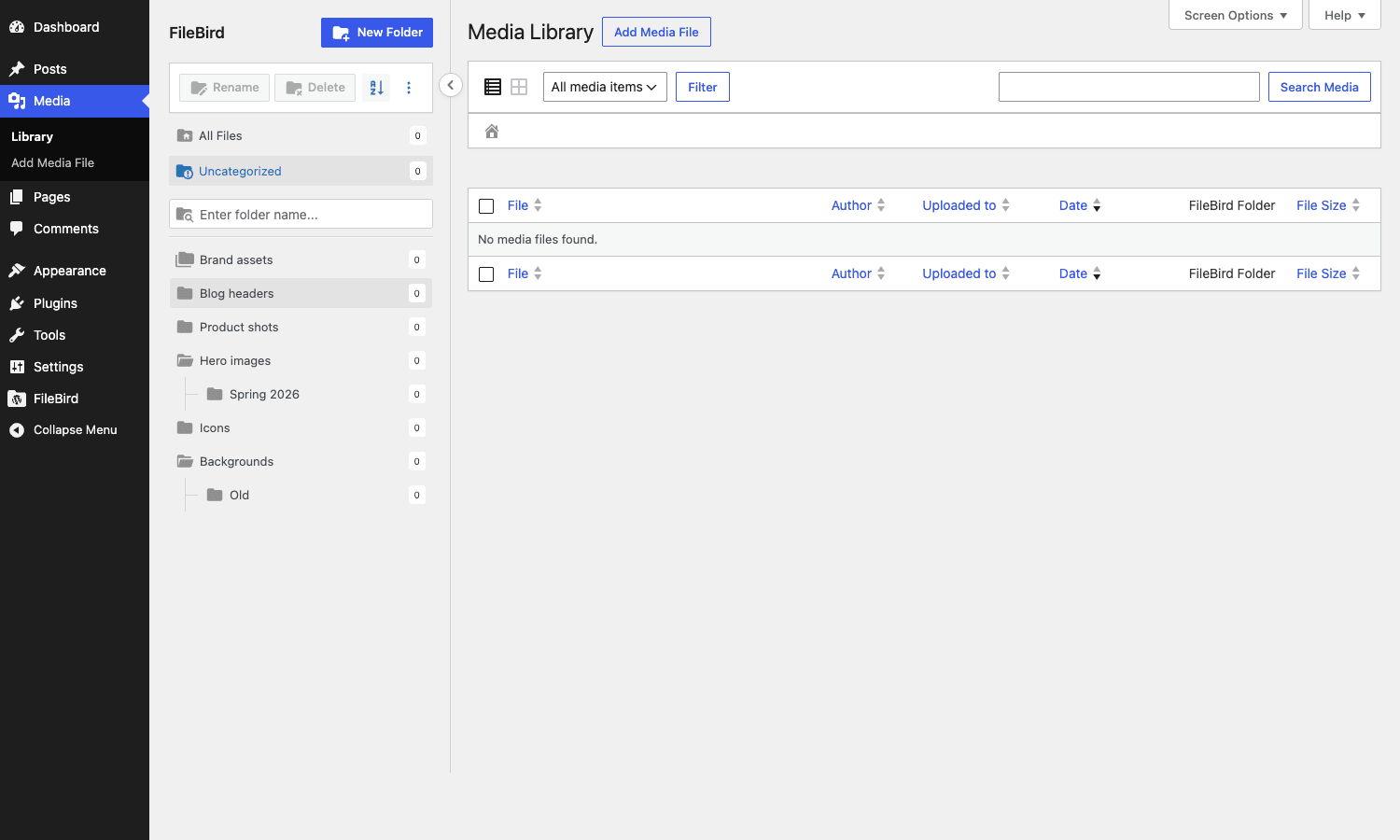
Switch from grid to list view (the icons next to the search box) and you get the standard WP attachments table with one extra column: "Folder." Each attachment row shows its folder name as a clickable pill. Click the pill and you jump to that folder’s contents.
This is the view I use when I’m cleaning up. The grid is great for "I know what I’m looking for, give me visuals." The list is great for "show me the 200 PNGs that aren’t yet filed and let me bulk-move them." You can select with the standard checkbox column, then use the "Bulk actions" dropdown which now includes "Move to folder" thanks to FileBird.
The folder column sorts correctly. Sort by Folder and you see all "Backgrounds" attachments together, then all "Blog headers," and so on. That’s not exotic functionality but it’s the kind of thing you only notice the first time it doesn’t work in some other plugin.
Inside the post editor: Add Media with FileBird
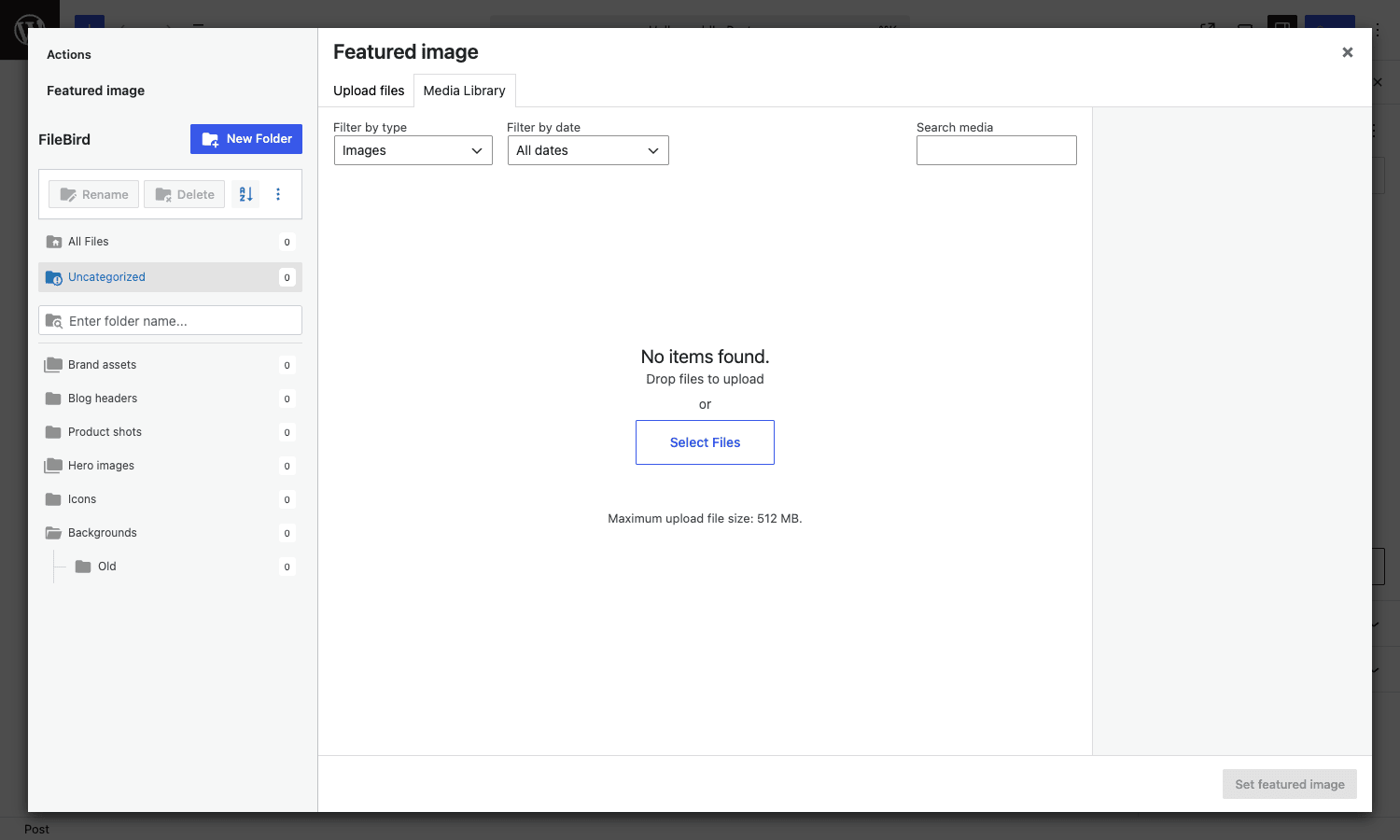
This is the screen you’ll spend the most time on, because it’s the everyday interaction. You’re writing a post, you click the Featured Image button or you insert an image inside the editor, and the WP media modal opens.
With FileBird active, the modal opens with the folder tree on the left side of the modal too. You can browse to "Blog headers" without first scrolling through everything else. If you’re working on a specific post type (say, WooCommerce products) and you’ve set up the post-type addon, the picker can scope to product folders only.
The block editor (Gutenberg) integration uses the same modal under the hood, so this works inside the Image block, Gallery block, and any third-party block that opens the WP media picker. I tested with Stackable, Kadence Blocks, GenerateBlocks, and the picker behaved identically in all of them.
A small detail: if you scroll the folder tree inside the modal, your scroll position is remembered for the duration of the modal. Close it and reopen and you’re back where you were. It’s a five-second touch but it saves real time on long sessions.
Settings, defaults, and per-user folders
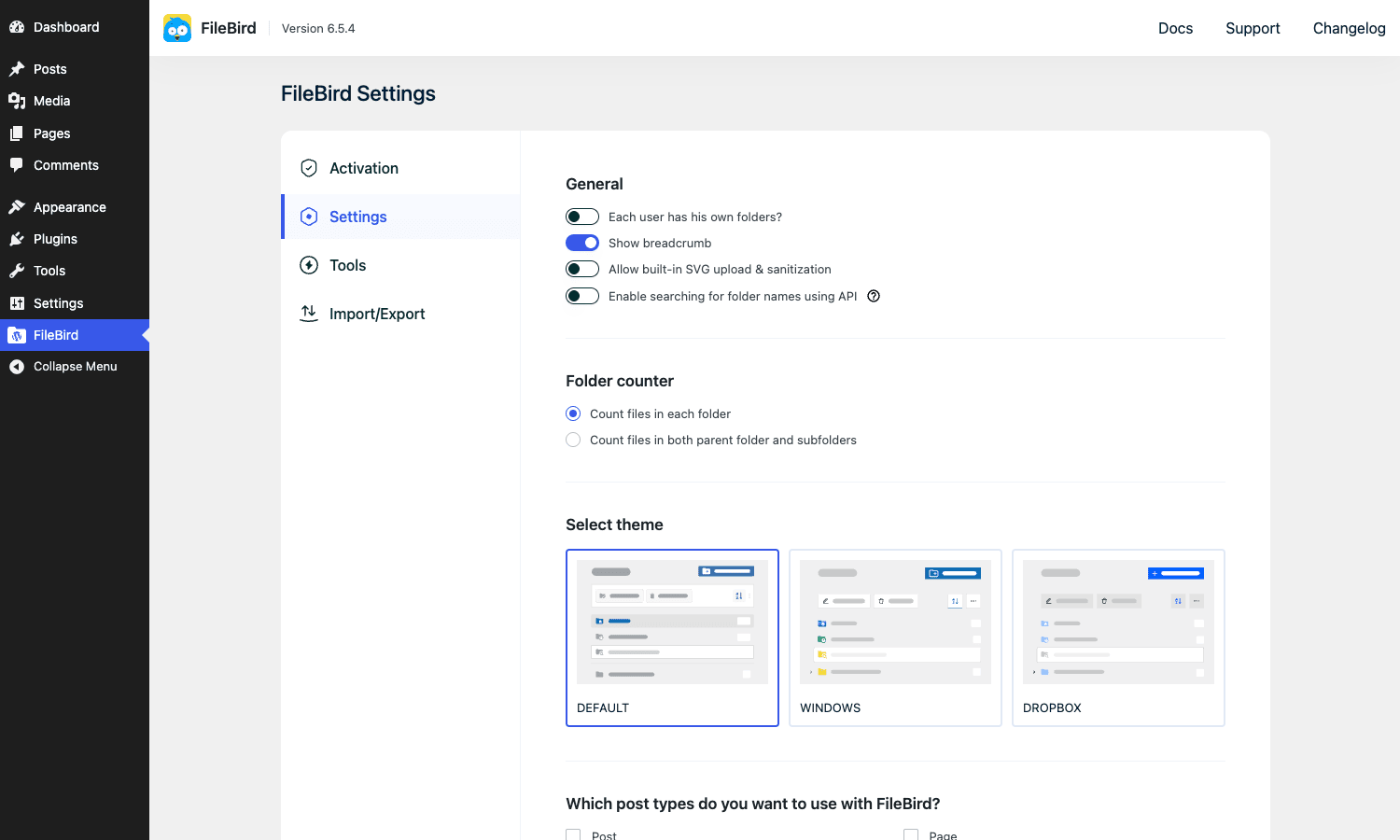
FileBird -> Settings has a handful of toggles. The ones worth tuning:
- Sort order. Default is alphabetical (A-Z). I switch this to "Manual" so I can drag folders into the order I actually use them, with the most-used folders at the top.
- Folders per page. Defaults to 20. Bump it if you have 50+ folders, otherwise you get pagination inside the folder tree which is surprisingly disorienting.
- Default folder for new uploads. You can set "Uncategorized" (default) or a specific folder. I leave it on Uncategorized so I’m forced to triage new uploads instead of letting them silently pile up in a folder I forget to check.
- Search by API. Toggle this on if your library has 10,000+ attachments. It moves search from a database
LIKEquery to a REST endpoint with pagination, which is dramatically faster on big libraries. - Per-user folders. This is the toggle that makes each WordPress user see only their own folder tree. Useful for client sites where you don’t want Client A poking around in Client B’s marketing assets. Note that this scopes folder visibility, not attachment ownership. Attachments are still owned by whoever uploaded them and the standard WordPress capabilities apply.
- Post type folders. Enable folders for posts, pages, or any custom post type. This is the addon that uses a real taxonomy under the hood (
fbv_pt_tax_<post_type>) rather than FileBird’s custom tables, because the integration withpre_get_postsand the posts list table is cleaner that way.
A small criticism: the settings layout has been improving, but the "Folder permissions" and "Roles" sections are still spread across two non-adjacent panels. If you’re setting up a client site, expect to flip back and forth a couple of times. Compared to a plugin like Wicked Folders Pro, which has a more polished Roles UI but fewer features overall, FileBird trades polish for depth.
Bulk moving, importing, and the FTP shortcut
Three workflows worth calling out because they’re not obvious from the UI.
Bulk move via list view. Already covered above. Switch to list view, multi-select with checkboxes, Bulk Actions -> Move to folder.
Bulk import from another folder plugin. Settings -> Tools has a "Import folder plugin data" section with one-click migrators for Real Media Library, Enhanced Media Library, WP Media Folder, FolderPress, and the Polylang categorization hack. I ran the Real Media Library importer on a sandbox with about 600 attachments and it took roughly 8 seconds, mapping every RML folder to a matching FileBird folder. Nothing got dropped. The vendor warns to back up your database first, which is correct advice but also slightly funny because the importer is read-only on the source plugin’s data, so the worst case is you re-run it if something looks off.
Importing files from FTP. This one is barely documented and it’s the reason your team’s FTP-uploaded backup of 800 images doesn’t appear in the FileBird tree. WordPress doesn’t know about files dropped into wp-content/uploads/ outside its own uploader, because the metadata in the wp_posts and wp_postmeta tables is built at upload time. FileBird ships a "Sync from server" tool that scans the uploads directory, creates attachment records for any file WordPress doesn’t already have, and assigns them to whatever folder you point it at. To find it: FileBird -> Sync. The flow is:
- Pick a folder in the FileBird tree.
- Tell the tool which uploads subdirectory to scan.
- Run.
The reason this isn’t more prominent in the UI is probably because it’s a foot-gun: it can create thousands of attachment records in a single click, and once they exist, untangling them is a manual job. Don’t drag thousands of files at once into a new folder if you haven’t tested the import on a copy first.
Real-world use cases
Five places I’ve seen FileBird earn its license fee.
1. Long-running blogs. Any blog past two or three years has hundreds of featured images and inline screenshots. FileBird gives you per-year-per-category folders. Even a simple "2023/", "2024/", "2025/" top-level tree, with "blog-headers", "screenshots", and "stock" inside each, makes the library searchable again.
2. WooCommerce stores. Product images and variation images are the worst case for a flat library: hundreds of similar-looking files with cryptic SKU names. A folder per product category, with the category’s image set as the "All variations" reference, saves real time when you’re adding new products that reuse imagery.
3. Agency client sites. Per-user folders + folder permissions = each client team can only see the folders they own. Useful when you’ve sold a single WordPress install to multiple downstream clients (think a marketing agency hosting five client microsites on one multisite or one regular install).
4. Multi-author editorial teams. Per-user folders again, but for a different reason: each writer gets their own "in-progress" folder where they stash drafts of imagery. When something is ready to go live they drag it into a shared "Published" folder. The same approach is harder to enforce on a flat library because there’s nowhere for things to live "privately."
5. Photographer / portfolio sites. Folders map to projects or shoots. The gallery block (or the WPBakery shortcode) points to a folder, so adding new photos to that folder updates the live gallery on the site without editing any post or page. This is the workflow I’d use myself for a portfolio rebuild.
Developer reference: tables, hooks, REST, the gallery block
Here’s the part developers actually want. Skim if you’re not extending FileBird.
The two custom tables
FileBird does not use a taxonomy for media folders. (It does for post-type folders, but that’s a separate addon, more below.) Instead it creates two custom MySQL tables in Install.php:
CREATE TABLE {prefix}fbv (
 id INT(11) UNSIGNED NOT NULL AUTO_INCREMENT,
 name VARCHAR(250) NOT NULL,
 parent INT(11) NOT NULL DEFAULT 0,
 type INT(2) NOT NULL DEFAULT 0, -- 0 folder, 1 collection
 ord INT(11) NULL DEFAULT 0,
 created_by INT(11) NULL DEFAULT 0,
 PRIMARY KEY (id),
 UNIQUE KEY id (id)
);

CREATE TABLE {prefix}fbv_attachment_folder (
 folder_id INT(11) UNSIGNED NOT NULL,
 attachment_id BIGINT(20) UNSIGNED NOT NULL,
 PRIMARY KEY (folder_id, attachment_id)
);
The {prefix}fbv table holds folder records. parent = 0 is a root folder; everything else nests by referencing another folder’s id. ord is the manual sort order. created_by is the user id of the folder creator (which is also what fbv_folder_created_by filter feeds for per-user folder scoping).
The {prefix}fbv_attachment_folder table is the pivot. The composite primary key means an attachment can only live in one folder at a time. (That’s a design choice, not a limitation. Multi-folder attachments would require a different schema and a different UX.)
What this means in practice: any query you want to write against folder membership should join fbv_attachment_folder on attachment_id to wp_posts.ID. A folder’s attachment list:
global $wpdb;
$folder_id = 42;
$attachment_ids = $wpdb->get_col( $wpdb->prepare(
 "SELECT attachment_id FROM {$wpdb->prefix}fbv_attachment_folder
 WHERE folder_id = %d",
 $folder_id
) );
If you’ve used WordPress Real Media Library before, this is a different model. RML uses a custom taxonomy. FileBird uses custom tables. Both work. The custom-tables approach is faster for "list attachments in folder X" queries because it skips the term_relationships join, but it means you can’t use stock WordPress functions like get_object_taxonomies() to enumerate folder membership.
Action hooks
Nine do_action hooks fire during the folder lifecycle. The ones you’ll actually want:
// After a folder is created. $insertId is the new folder ID; $data has name/parent.
add_action( 'fbv_after_folder_created', function ( $insertId, $data ) {
 error_log( "FileBird folder created: ID={$insertId}, name={$data['name']}" );
}, 10, 2 );

// After an attachment is assigned to a folder. Useful for kicking a re-render
// of any gallery that points to this folder.
add_action( 'fbv_after_assign_folder', function ( $folderId, $attachmentIds ) {
 // Bust your gallery cache, ping a webhook, whatever you need.
 do_action( 'my_site_invalidate_gallery', $folderId );
}, 10, 2 );

// Before a single attachment gets its folder set (covers single-file moves).
add_action( 'fbv_before_setting_folder', function ( $post_id, $folder_id ) {
 // E.g. log the old folder so you can build an audit trail.
}, 10, 2 );

// After a folder is renamed.
add_action( 'fbv_after_folder_renamed', function ( $folder_id, $new_name ) {
 // Update any cached folder labels (sitemaps, breadcrumbs, etc).
}, 10, 2 );

// After a folder is deleted. Note: attachments are unassigned but not deleted.
add_action( 'fbv_after_folder_deleted', function ( $id ) {
 // Clean up your own metadata tied to this folder ID.
} );
The full list of actions: fbv_folder_parent_updated, fbv_after_assign_folder, fbv_before_setting_folder, fbv_after_set_folder, fbv_after_folder_renamed, fbv_after_parent_updated, fbv_after_delete_all, fbv_after_folder_created, fbv_after_folder_deleted.
Filter hooks
About 20 unique apply_filters calls expose tunable behavior. The ones that come up most often:
// Toggle off the "every uploaded file auto-creates a folder by file type" behavior.
add_filter( 'fbv_auto_create_folders', '__return_false' );

// When filtering by folder, also include attachments in nested subfolders.
add_filter( 'fbv_query_include_subfolders', function ( $include, $folder_id ) {
 return $folder_id === 12? true : $include; // only for the "Brand assets" root
}, 10, 2 );

// Scope folders by current user. Default returns 0 (global), so all users see all folders.
// Returning the current user ID makes folders per-user. This is the heart of "per-user folders".
add_filter( 'fbv_folder_created_by', function ( $user_id ) {
 return get_current_user_id();
} );

// Disable the (relatively expensive) attachment-count query on giant libraries.
add_filter( 'fbv_speedup_get_count_query', '__return_true' );

// Block deletion of certain folders (e.g. lock the root "Client deliverables").
add_filter( 'fbv_can_delete_folder', function ( $can_delete, $folder_id ) {
 return $folder_id === 7? false : $can_delete;
}, 10, 2 );

// Change the filename of the "Download folder as zip" output.
add_filter( 'fbv_download_filename', function ( $zipname, $folder ) {
 return sanitize_file_name( $folder->name. '-'. date( 'Y-m-d' ). '.zip' );
}, 10, 2 );

// Customize the list of post types the FileBird post-type addon considers.
add_filter( 'fbv_post_types', function ( $types ) {
 return array_diff( $types, array( 'attachment' ) ); // exclude attachments here
} );
The fbv_folder_created_by filter is worth lingering on. Returning a real user ID is what makes per-user folders work, and the value gets baked into the created_by column on folder creation. If you return different values across requests (say, you flip between user contexts in a multisite or a REST app), you’ll create folders that one user can’t see from another’s session. That’s by design but it can surprise you.
REST endpoints
FileBird registers 48 REST routes across four namespaces:
filebird/v1/...covers folder CRUD, attachment moves, bulk operations.filebird/convert/v1/...runs the importers from other folder plugins.filebird/pt/v1/...holds the post-type addon routes.wp/v2/block-renderer/filebird/galleryis the block render endpoint for the gallery block.
The folder-create call is straightforward and authenticated with the standard WP REST nonce:
fetch('/wp-json/filebird/v1/folder', {
 method: 'POST',
 headers: { 'X-WP-Nonce': wpApiSettings.nonce, 'Content-Type': 'application/json' },
 body: JSON.stringify({ name: 'Spring 2026 launch', parent: 0 }),
 credentials: 'include'
}).then(r => r.json()).then(console.log);
The full set of folder endpoints (verbs and paths) lives in includes/Controller/FolderController.php. There’s no separate documentation site for the REST routes, so the source is the reference.
The gallery block (Gutenberg + WPBakery + Elementor)
FileBird ships a Gutenberg block (filebird/gallery) and a WPBakery shortcode ([filebird_gallery]) plus an Elementor widget. All three feed off the same backend logic: pick a folder, render every attachment in it as a gallery, optionally with column/spacing/order knobs.
The block is the simplest way to use it. Insert it, click "Select folder," pick from the tree, done. New images you add to that folder appear in the gallery on every page that uses the block, no manual update needed.
The shortcode form looks like this:
[filebird_gallery folder="42" columns="4" order="asc" orderby="title"]
Internally the block render template runs this query against the pivot table, with an apply_filters( 'fbv_in_not_in_where_query',... ) hook so you can extend the SQL clause from your own code. That’s the kind of small extensibility hook that’s easy to miss but valuable when you need it.
The post-type addon (separate model)
Confusingly, the Post Type addon (Settings -> Post Types) does NOT use FileBird’s custom tables. It registers a real WordPress taxonomy per enabled post type, named fbv_pt_tax_<post_type>. That choice is deliberate: integrating with pre_get_posts, the posts list table filter dropdown, and the restrict_manage_posts hook is far cleaner with a taxonomy than with custom tables. The trade-off is that any plugin that lists taxonomies (Yoast, Rank Math, some sitemap plugins) will see these taxonomies and may or may not handle them gracefully. Most do. A couple don’t and you’ll need to exclude them with register_taxonomy flag overrides or the relevant plugin’s settings.
WP-CLI
FileBird ships a small set of WP-CLI commands too. The most useful in practice:
wp filebird folder list # list all folders
wp filebird folder create "Brand assets" # create a root folder
wp filebird folder create "Logos" --parent=42 # create a nested folder
wp filebird attachment move 1234 --folder=42 # assign attachment 1234 to folder 42
These are the commands I reach for when I’m scripting an initial setup on a new client site. Build the folder tree once in a shell script, commit it to your provisioning repo, and every new site starts with the same structure.
Performance, compatibility, and gotchas
A few things to keep in mind once you’re past the honeymoon.
Performance on big libraries. I tested FileBird against a library with 30,000 attachments distributed across 80 folders. The initial library load took an extra ~180 ms compared to a vanilla install (mostly the folder tree fetch). Folder switches were under 100 ms. Bulk-moving 500 attachments at once took about 2.5 seconds, which is fast enough that you don’t watch a spinner. If your library is genuinely huge (six figures), turn on "Search by API" in Settings, and consider the fbv_speedup_get_count_query filter to skip the count query for nested folders.
Compatibility with image-optimization plugins. Smush Pro, ShortPixel, EWWW, Optimole, and other compress-on-upload plugins all play fine with FileBird. They hook into the attachment upload pipeline before FileBird ever sees the file, and they don’t care about the folder. The only subtle issue is bulk-optimize tools that iterate by attachment ID: they don’t know about folders, so a "compress everything in this folder" workflow has to go through FileBird’s list view (filter to folder, select all, bulk action).
Compatibility with Elementor’s Library. Elementor’s own Template Library is separate from the media library and FileBird doesn’t touch it. The Elementor builder’s media picker (the one you see when you set an image inside an Elementor widget) does respect FileBird folders. Good to know if you’re comparing this against Elementor’s built-in flow.
Multisite. FileBird is multisite-compatible. Each subsite gets its own folder tree by default (separate tables per subsite). Network-wide folders aren’t supported out of the box, which is the right default but occasionally annoying if you want a shared "Brand assets" tree across 12 subsites.
Backups and migrations. The folder tree is in your database, not in the filesystem. If you back up only wp-content/uploads/, you’ll lose your folder structure. Make sure your backup tool includes the database, or specifically includes the wp_fbv and wp_fbv_attachment_folder tables. UpdraftPlus, BackupBuddy, and All-in-One WP Migration all include them by default.
Deleting a folder vs deleting attachments. Deleting a folder removes the folder record and unassigns every attachment in it. The attachments themselves are NOT deleted. They go back to "Uncategorized." This is the right default but it surprises people the first time, especially if you accidentally deleted a folder of 800 product images expecting them to live somewhere safe.
Smart auto-folder rules. Honest call-out: FileBird’s "automatic" filing options are thinner than I expected. There’s an "auto folder on upload" behavior (uploaded file goes into the folder currently selected in the tree) and a filter (fbv_auto_create_folders) to bend it. But there isn’t a true rules engine like "if filename matches *-hero.*, file it into Hero images." If you need that, you’ll be hand-rolling it as a small companion plugin around the add_attachment action. Maybe a future release will fill this gap. For now it’s the one feature where Wicked Folders Pro has FileBird beat.
The breadcrumb rubber-band. Already mentioned but worth repeating because it’s the bug I’d most like to see fixed: rapidly clicking between folders in the side tree occasionally leaves the breadcrumb out of sync with the grid. A page reload fixes it. Doesn’t break anything. Just looks sloppy.
Pricing and licensing
FileBird is sold by Ninja Team on their own site and on CodeCanyon. The Pro plugin is licensed per site, with annual updates and support included. There’s a free version on WordPress.org with the core folder UX but without per-user folders, the post-type addon, the gallery block, page-builder integrations, and the migration tools.
The Pro version is also available through the GPL Times store at the GPL price, which is what most readers of this blog are already familiar with. You get the same zip you’d get from CodeCanyon, with no functionality removed.
Per the GPL license, you can install it on as many sites as you want once you have the file. If you need automatic updates direct from Ninja Team’s servers and priority support, buying a license straight from the vendor is the right move.
FAQ
Does FileBird actually move files on disk?
No. Folders are virtual. The files stay where WordPress put them on upload (under wp-content/uploads/YYYY/MM/). "Moving" a file between folders is a database update to the fbv_attachment_folder table. That’s why image URLs and existing references never break.
Can I put one attachment in multiple folders?
No. The fbv_attachment_folder table’s composite primary key (folder_id, attachment_id) enforces a one-folder-per-attachment rule. If you need multi-folder, look at "Collections" (an experimental feature signalled by the type=1 flag in the folder table) or use the WordPress taxonomy-based Real Media Library instead.
Will my image URLs change if I rearrange folders?
No. The image lives at the same URL forever, regardless of which FileBird folder it’s in. That’s the upside of virtual folders.
Does FileBird work with WPML or Polylang for multilingual sites?
Yes. Both are supported. WPML has a small handshake (you need to enable "Make custom post types translatable" if you’re using the post-type addon for translated content). Polylang works out of the box.
Can I use folders in the Gutenberg gallery block?
Yes. FileBird ships its own Gutenberg block (filebird/gallery) that lets you pick a folder and renders every attachment in that folder as a gallery. The native WP Gallery block doesn’t know about folders, but you can use the FileBird folder picker inside the Add Media modal to bulk-select images from a folder and then drop them into a standard gallery block.
Is FileBird compatible with WP Smush Pro / ShortPixel / Imagify?
Yes. Image-optimization plugins hook at upload time, before FileBird sees the file. FileBird never touches the file bytes, so there’s no conflict.
What happens to my folders if I deactivate FileBird?
The folder records stay in the database. The folder UX disappears (back to flat media library). Reactivating FileBird brings everything back exactly as it was. Uninstalling via "Delete" deletes the FileBird tables on confirm.
Can I bulk-import folders from another plugin?
Yes. Settings -> Tools has importers for Real Media Library, Enhanced Media Library, WP Media Folder, FolderPress, and Polylang categorization. Run them in a sandbox first if you’re nervous, but they’re read-only on the source data.
Final thoughts
FileBird is the WordPress media library plugin I’d recommend to a friend if they hadn’t already picked one and they wanted something fast, opinionated, and well-maintained. The drag-and-drop interaction is the best I’ve used in the category. The custom-tables storage model is the right call for the kind of folder-heavy site this plugin targets. The Gutenberg gallery block and the post-type addon are real, not vaporware. The REST API and hooks are enough to extend from.
It’s not perfect. The smart-rules story is thin. The breadcrumb has a minor JS bug that’s been there a while. The FTP sync tool deserves a better walkthrough in the docs. But the things FileBird does well, it does very well, and it’s been improved consistently over the years.
If you’ve been living with WordPress’s default flat library and you’ve never had folders, set aside an hour. Install FileBird, set up six or seven folders, drag your most-used attachments in, and use it for a day. You’ll either come back to your old workflow (in which case fair, the flat library works for some people) or you’ll find yourself wondering how you ever tolerated the alternative.
FileBird page on GPL Times is the most painless way to get it onto a WordPress install. Drag in your first folder, breathe, and watch the media library finally start to feel like a real filesystem.