

Three WooCommerce stores I’ve inherited this year all shipped with Swift Performance Premium already installed, every aggressive toggle in the wizard turned on, and a list of "weird bugs" the previous developer couldn’t reproduce. On the first, the Stripe Elements iframe never loaded because Swift had stripped the inline script that initializes it. On the second, the mini-cart counter showed "0" forever after add-to-cart, because cart fragments were being cached as part of the page HTML. On the third, the entire checkout page rendered without styles for about 1.4 seconds while the inlined critical CSS waited to be parsed.
Swift Performance is fast. It is sometimes faster than WP Rocket. It is also, in my experience, the easiest premium caching plugin to misconfigure into a broken site. The difference between "this site is great" and "this site is broken in subtle ways" is about six toggles in the setup wizard.
This is a long walk through what Swift Performance Premium actually does, which cache mode to actually pick, how the Prebuild Booster crawler works, the hooks and filters the plugin exposes for developers, and the toggles I leave off on every install. If you want to follow the setting paths in a real admin, Swift Performance Premium is available on GPL Times as a regular zip you can drop on a staging install.
What Swift Performance actually is
Swift Performance is a premium WordPress caching and optimization plugin built by SWTE (the team behind a handful of other performance and WooCommerce plugins). It does the four things every premium cache plugin does: page caching, asset optimization (CSS, JS, fonts, HTML), image optimization, and cache warmup. Where it differs from the rest of the pack is in how aggressive its defaults are and how many of those defaults are surfaced as one-click presets in a setup wizard.
The product is positioned as "Speed up WordPress is not rocket science anymore" (a tagline that lives directly inside the plugin’s settings page header, so I am quoting it, not editorializing). That positioning matters because Swift is sold to people who don’t want to learn what critical CSS is, which conflicts with the fact that Swift’s aggressive defaults often require knowing what critical CSS is to debug. We’ll come back to that.
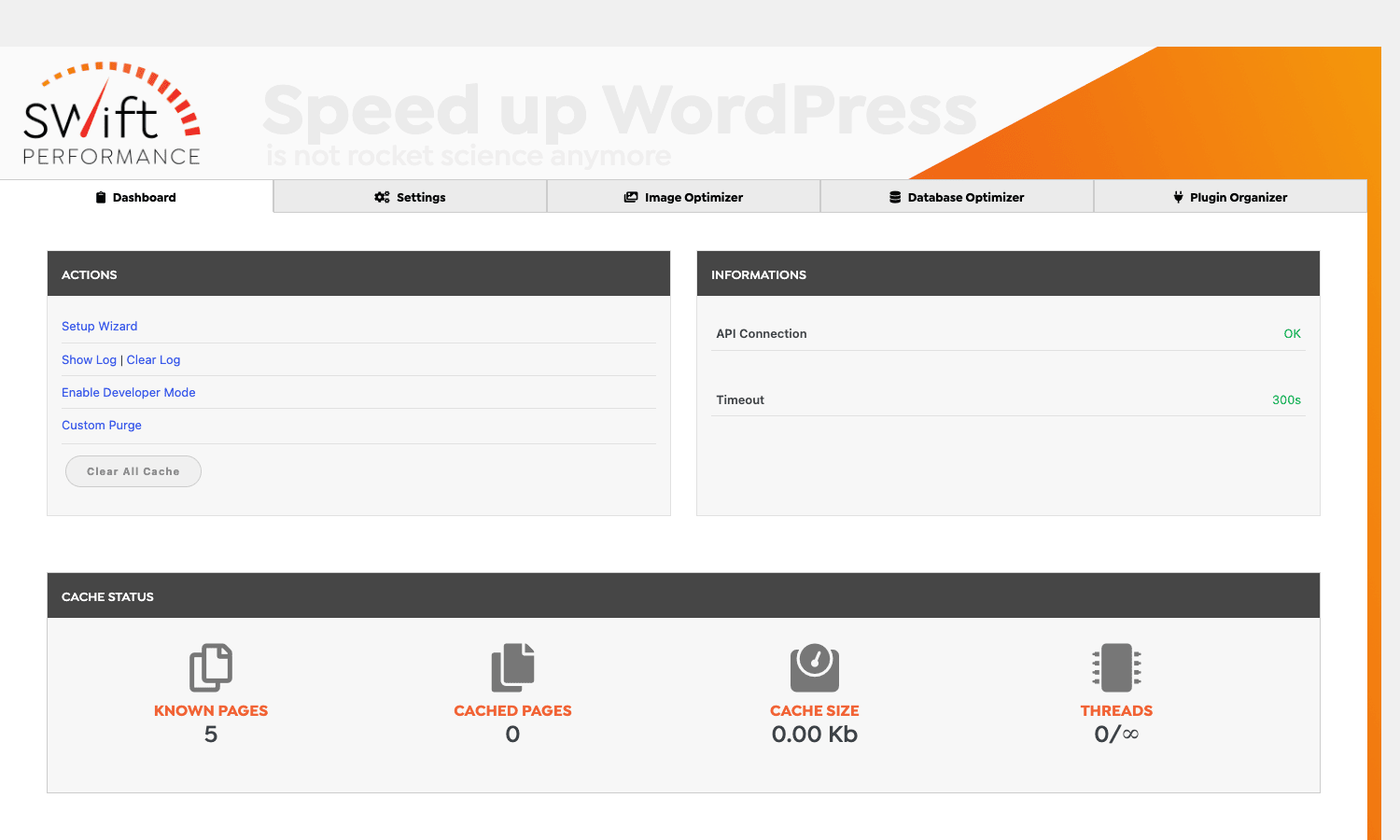
A few things worth knowing up front. Swift Performance is standalone. No upstream dependency on a free wordpress.org base plugin, no separate "Lite" version you have to install first. You drop the zip in, activate it, and it shows up under Tools -> Swift Performance with a top-level toolbar entry too. The Pro version unlocks the Prebuild Booster (the smart cache warmup crawler), the Image Optimizer cloud service, the dynamic-cache module for logged-in users, white-label rebranding, and the WooCommerce / Multisite compatibility layers.
The plugin is famous for two things. First, it is one of the few caching plugins that includes a built-in image optimizer with WebP generation, instead of asking you to install Imagify or ShortPixel alongside. Second, it has had visible update gaps over the years that have made parts of the community nervous about long-term maintenance. We’ll address that honestly in the FAQ.
The cache modes Swift offers (and which to actually pick)
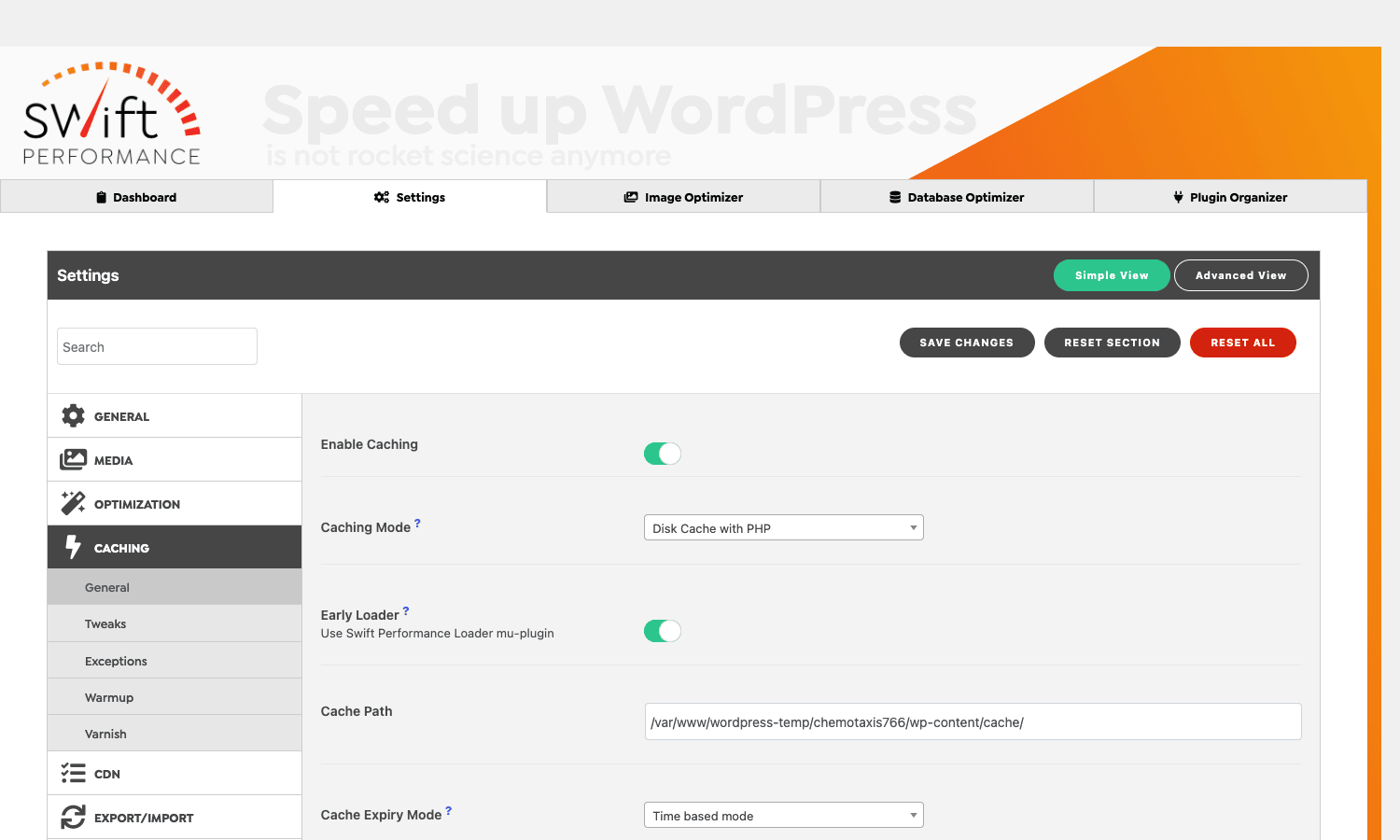
Under Settings -> Caching -> General there is a single dropdown called Caching Mode. Every other choice in the plugin flows from this one decision, and it isn’t obvious from the labels what they mean.
There are typically four options visible on a standard install:
- Disk Cache with PHP. The HTML output is written to a file on disk, but PHP still runs on every request to decide whether to serve the cached file or rebuild it. This is the safest default. WordPress, your theme, and any cache-aware plugin still get a small window to influence the request. Compatibility is highest. Speed is moderate.
- Disk Cache with Rewrites. Same disk files, but the cache hit is served directly by Apache or Nginx via mod_rewrite (or an equivalent rule), bypassing PHP entirely. This is the fast option. Time to first byte drops to whatever your web server can deliver a static file at, often under 50ms. The catch: anything that needs PHP to inspect the request (cookies, AJAX, dynamic personalization) gets skipped on cache hits.
- Memcached. Cache pages in memory through a Memcached server. Faster than disk on most hosts, but it needs a Memcached service running and the PHP memcached extension installed. Most shared hosts don’t have it.
- Server-side cache (Varnish / FastCGI / LSCache). Swift hands off to the host’s reverse-proxy cache and just exposes the purge controls. If you’re on Cloudways Varnish, RunCloud + FastCGI, or LiteSpeed, this is what you want.
The mistake I see most often is picking "Disk Cache with Rewrites" on a WooCommerce store. It’s the fastest mode on the dropdown, so it’s a tempting choice, but rewrite-based caching can’t see cookies. WooCommerce uses a woocommerce_items_in_cart cookie to decide whether to serve cart fragments. If the rewrite layer serves the page before PHP runs, you get a stale fragment count.
On a content site (blog, docs, marketing pages), pick Disk Cache with Rewrites. On a store, pick Disk Cache with PHP and turn on Exclude WooCommerce Pages under Caching -> Exceptions. On a host with proper server-side caching, use that mode and let Swift just orchestrate purges. There isn’t a one-size-fits-all answer, and the wizard’s recommendation isn’t always the right one for your specific site.
Key features that move the needle
The marketing list is long. Here are the features that actually change Lighthouse and Core Web Vitals numbers in production:
- Page caching with rewrite mode. The standard premium-cache feature. On a cache hit, TTFB drops to whatever the web server can deliver, which on a typical VPS is sub-50ms.
- Dynamic caching for logged-in users. Most cache plugins skip caching when a user is logged in. Swift can cache logged-in views as long as the user-specific data is loaded via AJAX placeholder. Useful for membership sites and dashboards.
- Prebuild Booster (cache warmup). A background crawler that fetches every URL in the sitemap and renders the page once so the cache is warm when a real visitor arrives. We’ll get into how this actually works below.
- Asset Manager. Per-page control over which CSS and JS files load on which URL. Same idea as Asset CleanUp Pro, but built into Swift. You can disable WooCommerce JavaScript on pages that aren’t the shop, disable Contact Form 7 styles on pages without a form, etc.
- Smart Critical CSS generation. Swift can either generate critical CSS in-house (using a built-in parser) or send the page to its Compute API service. The cloud option is faster and more accurate, the local option doesn’t leak page data to a third party.
- Image Optimizer with WebP. Swift’s own optimizer scans the media library, compresses images with a configurable quality preset (Lossless, Slightly Lossy, Moderate, Aggressive), and writes a
.webpsibling next to the JPEG or PNG. The optimizer needs an active Compute API connection. - Database Optimizer. Cleanup module for post revisions, auto-drafts, trashed comments, expired transients, and orphaned post meta. Schedulable.
- Plugin Organizer. Disable specific plugins on specific URLs. If your contact-form plugin loads on every page but you only need it on /contact, you can scope it down here.
- CDN Integration. URL rewriting for Cloudflare, MaxCDN/StackPath, BunnyCDN, KeyCDN. Swift also has a built-in Cloudflare purge integration if you give it an API token.
- GZIP / Brotli, browser cache headers, server push. All the standard host-side optimizations exposed as toggles. Server push is a noticeable LCP win on HTTP/2 hosts.
That list is long because Swift bundles a lot of features that other plugins sell as add-ons. Whether you actually need all of them depends on the site. Most of the work on the average install happens in three modules: page cache, asset optimization, and image optimization. The rest is icing.
Prebuild Booster: how the warmup crawler actually works
Prebuild Booster is the feature that most often justifies upgrading from a free cache plugin to Swift Performance Premium. It’s worth understanding how the crawler actually works, because the defaults can hammer a small VPS into a load average of 8 if you don’t tune them.
The crawler reads your sitemap (or builds a URL list itself from the post types you’ve enabled), assigns each URL a priority number, and walks the queue calling wp_remote_get against each URL. As each response comes back, Swift’s caching layer fires its normal "save to disk" path on the rendered HTML, exactly as if a real visitor had hit the page. The next real visitor who lands on that URL gets a cache hit from the very first request.
Three things to know:
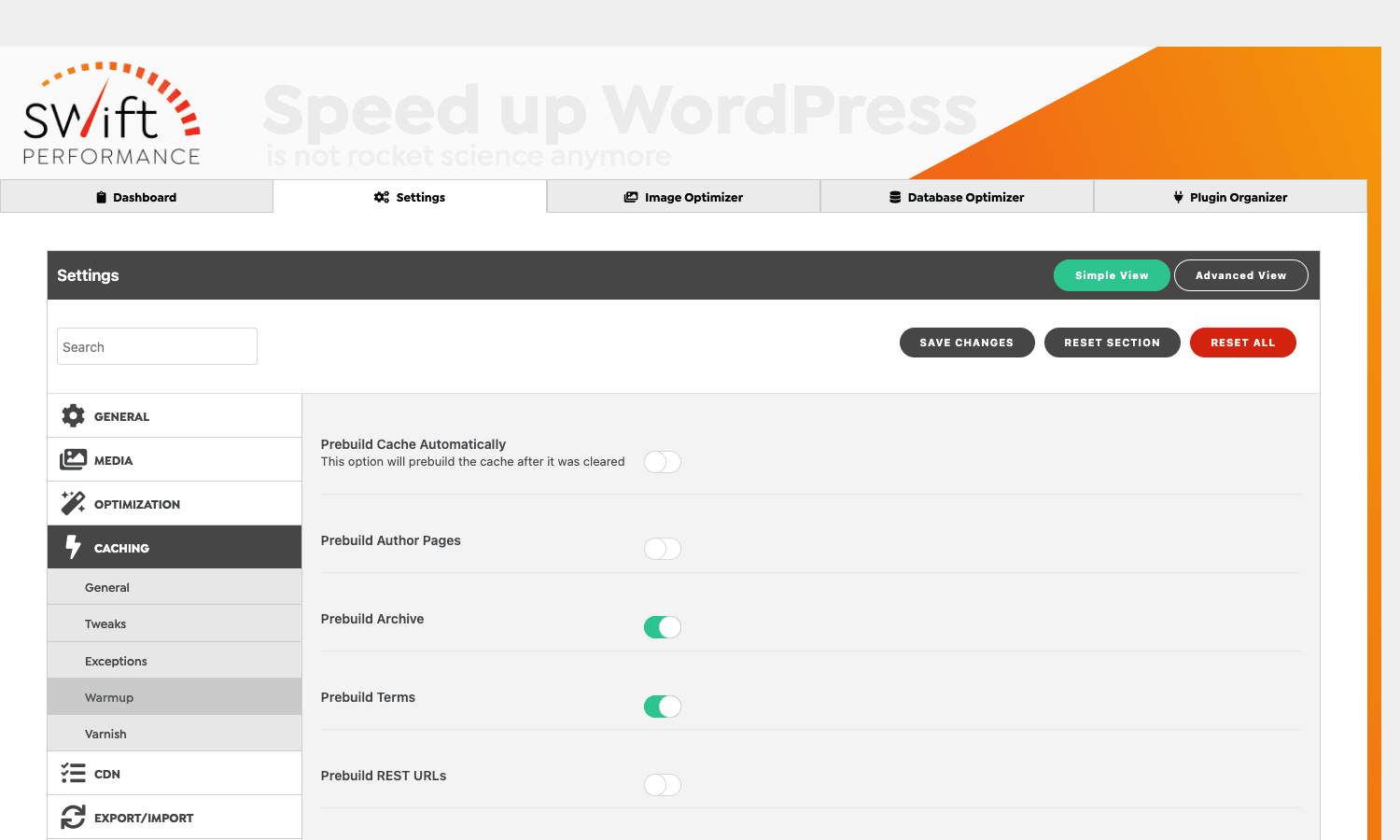
- Concurrency is the dial you actually care about. Under Settings -> Caching -> Warmup there’s a "Background Requests" setting (in older releases it was called "Threads") that controls how many concurrent requests the crawler fires. The default is usually 1 or 2. On a 4-core VPS you can probably push that to 4. On a shared host, leave it at 1 or your provider will throttle you.
- Priority controls the order. When you save a post or update an option that triggers a cache purge, Swift refills the queue starting with the highest-priority URLs first. This is what gets your homepage and category pages re-cached within seconds of an edit, while the long tail of single posts re-warms in the background.
- The crawler runs via cron, not as a daemon. Swift hooks into WordPress’s
wp_cron(or a real server cron, if you set one up). If your traffic is so low thatwp_cronnever fires, the crawler never runs. The fix is to add a real cron task that hitswp-cron.phpevery minute, which is what most managed hosts already do.
The Prebuild Booster fires a swift_performance_prebuild_cache_hit action every time a URL is successfully warmed. If you want to log warmup progress to your own metrics pipeline, that’s the hook to listen on:
add_action( 'swift_performance_prebuild_cache_hit', function ( $url ) {
    error_log( '[swift-warmup] cached: ' . $url );
}, 10, 1 );
This is the kind of integration where Swift’s hook surface pays off. WP Rocket doesn’t expose an equivalent action for its preload crawler, so you can’t observe preload progress without parsing log files.
Critical CSS automation: where it helps, where it bites
Critical CSS is the small block of styles needed to render the above-the-fold portion of a page without waiting for the full stylesheet. Inlining it in the <head> and async-loading the rest of the CSS is one of the biggest LCP wins available on a typical WordPress site.
Swift offers three modes for handling this, and each has a different failure mode.
Mode 1: Off. No critical CSS. Swift just minifies and combines your stylesheets and ships them with rel="preload". Safe, no LCP improvement.
Mode 2: Local generation. Swift parses your CSS in-process on the first uncached request and extracts the above-the-fold rules. Cheap but inaccurate. Anything that depends on JavaScript-injected DOM (a cookie banner, a sticky header that reveals after 200ms, a carousel) will not be picked up correctly, and you’ll see the section unstyled for a fraction of a second.
Mode 3: Compute API. Swift sends the URL to the SWTE cloud service, which renders the page in a headless browser, captures the actual above-the-fold styles, and returns them. Accurate, but slow (the first generation takes several seconds per page), and your URL list is visible to a third party.
I lean toward Mode 3 on production sites that care about LCP, and Mode 1 on staging or sites where the theme is changing every week. Mode 2 is a trap unless you’ve explicitly tested it on the templates you care about.
The bite: Swift’s critical CSS is per-template, not per-URL. If two pages share the same theme template (single post, archive, etc.) they get the same critical CSS. That’s usually fine, but for a homepage with custom Elementor sections that don’t appear on other pages, the critical CSS may not cover what’s actually above the fold. Swift exposes swift_performance_critical_css_content so you can override it manually:
add_filter( 'swift_performance_critical_css_content', function ( $css, $template ) {
    if ( 'home' === $template ) {
        return file_get_contents( get_stylesheet_directory() . '/critical/home.css' );
    }
    return $css;
}, 10, 2 );
If you find yourself needing this filter, it’s a sign your homepage should be a separate template anyway.
Image and asset optimization (and the Swift-specific gotchas)
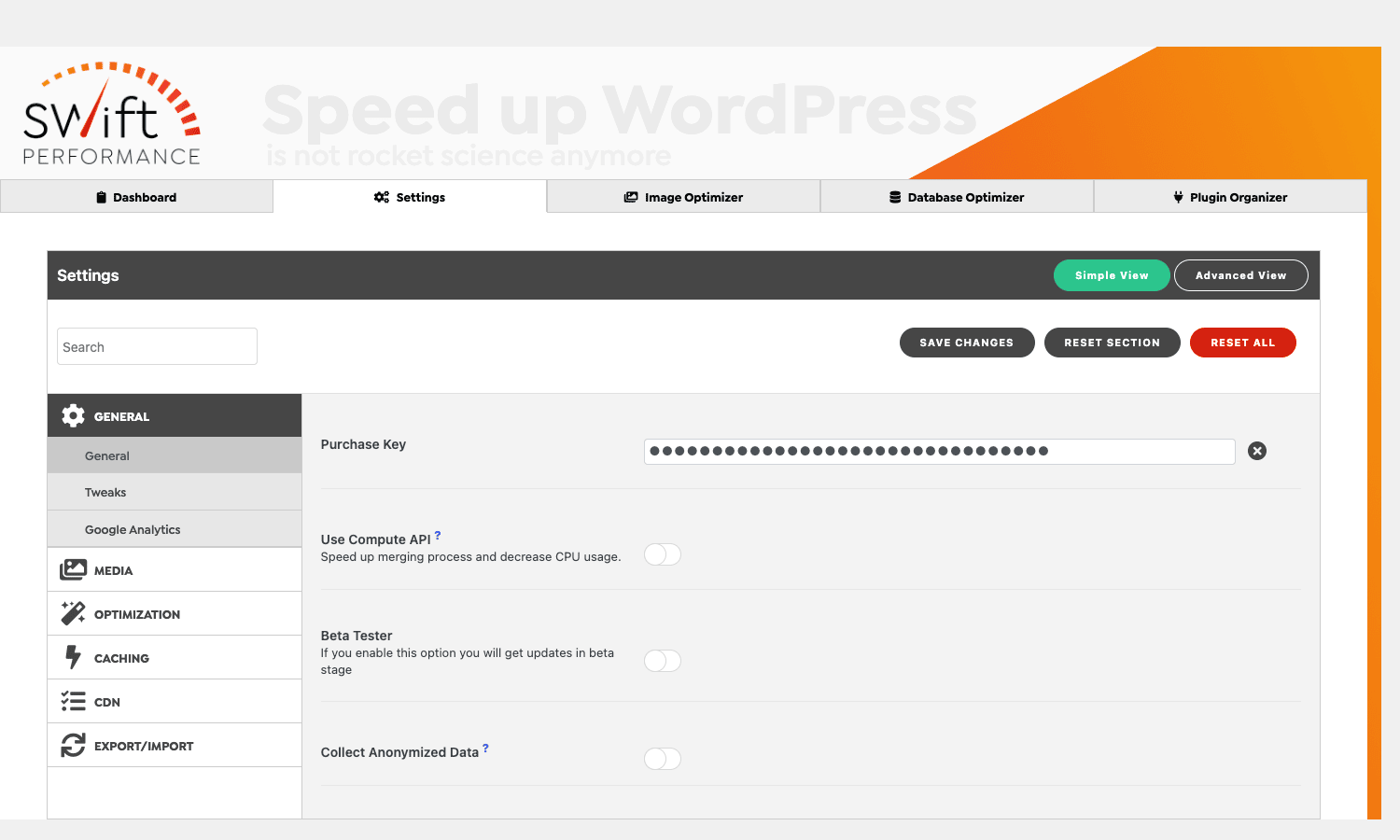
Image optimization in Swift happens through the Image Optimizer panel (top-level tab in the Swift Performance dashboard). The optimizer needs an active Compute API connection (your purchase key) to talk to the SWTE backend. Once connected, you pick a quality preset and run "Optimize Images (All)" to process the existing library, or leave "Optimize Images on Upload" on so new uploads are compressed as they arrive.
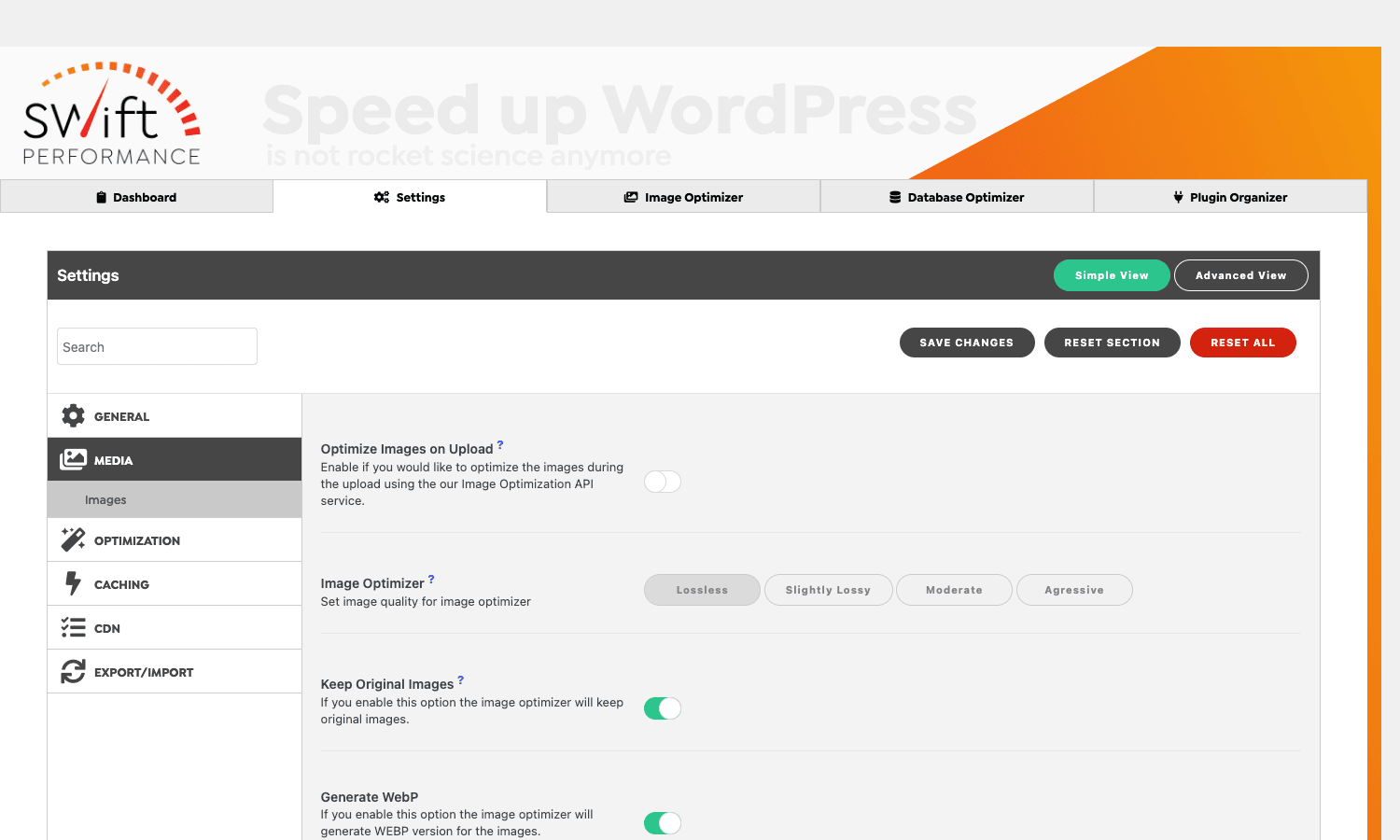
The four quality presets are exactly what they sound like: Lossless, Slightly Lossy, Moderate, Aggressive. On a real photo library I run Slightly Lossy with WebP generation on, which typically saves around 45 to 60 percent of file size with no visible quality loss.
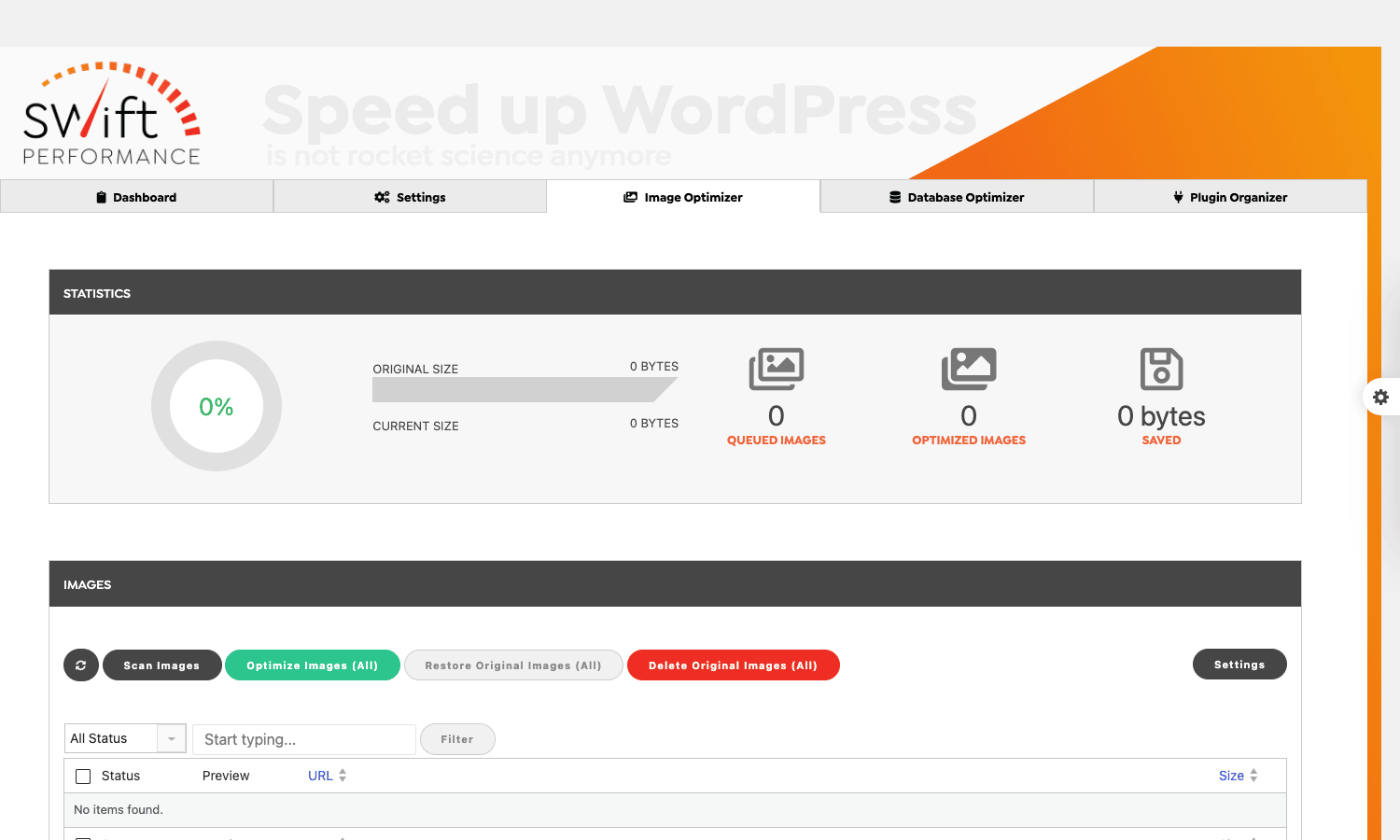
There’s one gotcha worth calling out. Swift’s optimizer keeps the original file on disk by default, in case you want to restore. On a 50,000-image library that’s a lot of duplicate storage. There’s a "Keep Original Images" toggle under Settings -> Media that you can turn off if you trust the optimization (and have a backup). Don’t turn it off on a site you don’t have a separate file backup for, because Swift won’t fetch the original back from anywhere if you change your mind later.
Asset optimization (CSS, JS, fonts, HTML) lives under Settings -> Optimization. The structure mirrors the file types: a General tab for global toggles, then Scripts, Styles, Fonts, and HTML sub-sections. Each sub-section has its own merge / minify / async / defer / preload / lazy-load combinations.
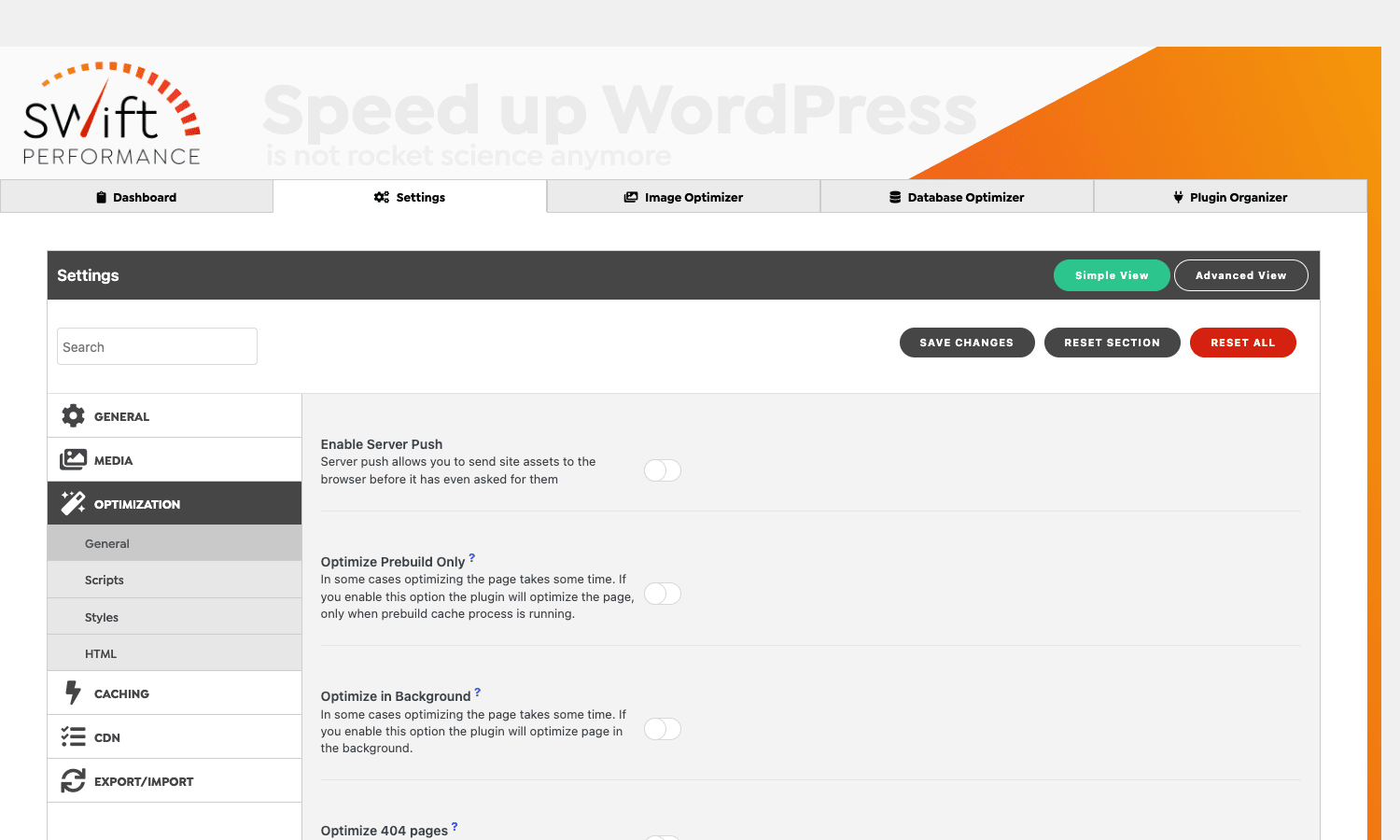
The big one is Scripts -> Merge Scripts. Combining all JavaScript into a single file is great in theory and a disaster in practice on a modern site with lots of third-party widgets. Cookie banners, payment SDKs, chat widgets, and ad networks all assume their scripts load in a specific order with specific globals available. Merging them into one file changes load order and timing in ways the vendor scripts didn’t expect.
If you’re on HTTP/2 or HTTP/3 (most sites in 2024-2025 are), merging buys you almost nothing. The bandwidth saving from one combined file vs ten small ones is negligible on a multiplexed connection. Leave Merge Scripts off and use Defer Scripts + Delay JavaScript instead.
Per-page overrides: when global settings break a specific URL
One of Swift’s most useful features doesn’t appear in the marketing screenshots. Every post and page in WordPress gets a Swift Performance meta box in the editor that lets you override the plugin’s global settings on a per-URL basis. Override Caching Mode, Override Critical CSS, Override Lazy Loading, Override Merge Scripts, Override Optimize HTML. Each toggle has a "Use global setting / Override" switch.
This is the escape hatch when a single page breaks. If your checkout page renders weird because Merge Scripts broke a payment widget, you don’t have to turn off Merge Scripts globally. You go to the checkout page editor, scroll down to the Swift Performance meta box, and turn off Merge Scripts just for that URL.
Programmatically, the same effect is available via post meta. Set the swift_performance_options meta key on a post with an array of overrides:
update_post_meta( $post_id, 'swift_performance_options', array(
    'override-globals'  => 1,
    'merge-scripts'     => 0,
    'critical-css'      => 0,
) );
And the swift_performance_per_page_settings filter lets you compute overrides at runtime based on whatever logic you want:
add_filter( 'swift_performance_per_page_settings', function ( $settings, $post_id ) {
    if ( get_post_type( $post_id ) === 'product' ) {
        $settings['merge-scripts'] = 0;
        $settings['critical-css'] = 0;
    }
    return $settings;
}, 10, 2 );
This is the right shape for "turn off aggressive optimization on every WooCommerce product page" without remembering to flip the toggle on each one.
White-label setup for agencies
If you run a WordPress agency that ships sites to clients, Swift’s white-label option lets you rebrand the plugin so the client sees "Acme Performance" in their admin instead of "Swift Performance." The settings live under Settings -> General -> Whitelabel (Pro only).
You can change the plugin name, the plugin URI, the author name, the author URI, the description, and the icon. Once you save, the plugin file header itself is rewritten on disk, which means a client looking at Plugins -> Installed Plugins sees your branding all the way down.
Two warnings. First, the white-label option rewrites the actual plugin file. If you update the plugin to a new version, the file gets overwritten with the original headers and you have to re-apply your white-label settings. Don’t forget to do this in your post-update checklist. Second, white-label is on a per-site basis, not per-license. If you’re running ten sites under one Swift Performance license, you have to white-label each install separately.
If you’re managing multiple agency sites, this is where the white-label feature in WPMU DEV Ultimate Branding is worth pairing with Swift, because Ultimate Branding lets you rebrand the WordPress admin globally, not just one plugin at a time.
Don’t turn on every toggle in the setup wizard
This is the section I wish someone had written before I inherited my first Swift Performance install.
Swift’s setup wizard ships with a "Prebuilt presets" page that offers options like Performance, Performance & Compatibility, and Maximum Compatibility. It feels like clicking Performance gets you the fastest site. What clicking Performance actually does is turn on:
- Merge all scripts (breaks checkout JS, breaks chat widgets, breaks anything that depends on script order).
- Merge all styles (breaks the cascade in themes that depend on
<link>order, like child themes that override parent styles). - Inline critical CSS aggressively (renders unstyled content for 200-800ms while the inline CSS is parsed by the browser).
- Defer all JavaScript (breaks anything that uses
document.write, including some ad networks, some embed widgets, and a surprising number of analytics scripts). - Lazy-load every image (lazy-loads the LCP image, which actively hurts LCP score).
- Optimize HTML / remove whitespace (usually fine, occasionally breaks themes that ship with
pre-formatted code blocks). - Server push on (often hurts more than it helps under HTTP/3, can saturate the connection).
The cost of those toggles being wrong is not theoretical. On the WooCommerce store I mentioned at the top, the merged-scripts setting cost about 11 days of broken checkout before anyone noticed (the customer dropped a "I can’t pay you" email that nobody on the team had triaged). At a rough $80 average order value and 60 orders a week, that’s around $5,300 in lost revenue from a single toggle. The "I’ll just turn on Performance preset" approach is genuinely expensive.
The safe defaults I use on every Swift install:
- Caching Mode: Disk Cache with PHP until I’ve audited compatibility with the host.
- Merge Scripts: off. Always. Use Defer + Delay JavaScript instead.
- Merge Styles: off on themes that use a child theme. On simple themes, can be safe.
- Critical CSS: Compute API mode if available, otherwise off entirely.
- Lazy load: on for below-fold images only. Set Lazy Load Skip First X Images to 1 or 2 so the LCP image isn’t deferred.
- Defer JavaScript: on. Add ad-network and analytics scripts to the exclusion list under Optimization -> Scripts -> Defer Exceptions.
- Delay JavaScript: on. Use the default exception list. Delay anything that isn’t critical until the first user interaction.
Then test the actual customer journey: homepage, category page, single post, product page, add-to-cart, checkout. If any of those break, undo whatever toggle you flipped last. Don’t try to debug five toggles at once.
Swift Performance vs WP Rocket vs FlyingPress vs WP Fastest Cache
The four plugins I see most often in performance audits are Swift, WP Rocket, FlyingPress, and WP Fastest Cache Premium. Here is how they stack up on the metrics that actually matter.
License pricing (single site, annual renewal at official retail). WP Rocket is $59 for one site. FlyingPress is $60. Swift Performance Premium is $69. WP Fastest Cache Premium is $50 (one-time, not annual). So Swift is the most expensive of the four on a renewal basis, though only by about $10-20 a year.
Plugin bundle size (asset weight on the front end). WP Rocket adds around 7KB of inline JavaScript per page. FlyingPress adds around 4KB. Swift adds around 12KB on a default install, primarily because Smart Lazy Load and the dynamic-cache placeholder logic both ship their own runtime. WP Fastest Cache is the leanest at under 2KB.
Cache mode flexibility. Swift has four cache modes (Disk PHP, Disk Rewrites, Memcached, Server-side). WP Rocket has one (Disk PHP). FlyingPress has one (Disk PHP). WP Fastest Cache has one (Disk PHP). If you specifically want Memcached or to drive Varnish from the plugin, Swift is the only choice in this list.
Critical CSS approach. WP Rocket uses its cloud service exclusively (RUCSS), which costs nothing extra but does send your URLs to WP Media’s servers. FlyingPress uses its own cloud service (CriticalCSS.com under the hood). Swift gives you both local and Compute API options. WP Fastest Cache doesn’t generate critical CSS, it just inlines whatever rules match a configurable selector list. On accuracy of generated critical CSS, FlyingPress and WP Rocket’s cloud services produce noticeably better results than Swift’s local parser, with measured LCP improvements of around 400-800ms vs Swift’s 150-300ms on the same site.
Cache warmup. WP Rocket preloads from the sitemap on a single thread by default. FlyingPress preloads with concurrency. Swift’s Prebuild Booster is the most configurable of the four, with priority queues and a hook surface for monitoring (the swift_performance_prebuild_cache_hit action mentioned above). On a 5,000-page site, FlyingPress and Swift warmup the entire cache in about 18-25 minutes. WP Rocket takes about 40-50 minutes. WP Fastest Cache doesn’t have a true preload, just a "create cache for next page" on visit.
Maintenance signal. WP Rocket ships an update roughly every 4-6 weeks. FlyingPress ships every 3-5 weeks. WP Fastest Cache ships every 6-8 weeks. Swift Performance has had update gaps of 6+ months in past years, which is the main reason I’d pick WP Rocket or FlyingPress on a project where I want a quiet maintenance signal.
In one sentence: Swift Performance is the best choice when you need Memcached, Server-side cache integration, or a developer-grade hook API. For most other use cases, WP Rocket or FlyingPress will deliver similar speed with less debugging.
Developer reference: hooks, filters, and integration patterns
This is the section every Swift Performance review skips. Swift exposes around 90 filters and 50 actions, which is a remarkable surface for a caching plugin. Here are the ones I reach for most often.
Lifecycle hooks
The plugin’s bootstrap sequence fires three actions you can hook into:
add_action( 'swift_performance_before_init', function () {
    // Tweak constants or options before Swift starts.
} );

add_action( 'swift_performance_init', function () {
    // Plugin is up and running.
} );

add_action( 'swift_performance_load_pro_features', function () {
    // Pro is active. Safe to register Pro-only integrations.
} );
Use swift_performance_load_pro_features to gate any third-party module that depends on the Prebuild Booster, dynamic cache, or other Pro classes.
Cache purge hooks
Every cache-clear action fires a before/after pair. The full set looks like:
swift_performance_before_clear_all_cache/swift_performance_after_clear_all_cacheswift_performance_before_clear_post_cache/swift_performance_after_clear_post_cacheswift_performance_before_clear_permalink_cache/swift_performance_after_clear_permalink_cacheswift_performance_before_purge_cloudflare_zones/swift_performance_after_purge_cloudflare_zonesswift_performance_before_purge_varnish/swift_performance_after_purge_varnish
This is what you hook into if you need to trigger an external CDN purge that Swift doesn’t have a built-in integration for:
add_action( 'swift_performance_after_clear_all_cache', function () {
    // Tell BunnyCDN to purge the zone too.
    wp_remote_post( 'https://api.bunny.net/purge', array(
        'headers' => array( 'AccessKey' => BUNNY_API_KEY ),
        'body'    => array( 'url' => home_url( '/*' ) ),
    ) );
} );
Cacheability filters
Swift decides whether a request is cacheable by running a long chain of is_* filters. You can shortcut the decision for specific edge cases:
add_filter( 'swift_performance_is_cacheable', function ( $cacheable ) {
    // Never cache requests with a custom debug header.
    if ( isset( $_SERVER['HTTP_X_DEBUG'] ) ) {
        return false;
    }
    return $cacheable;
} );

add_filter( 'swift_performance_is_excluded', function ( $excluded, $url ) {
    // Exclude any URL containing "/private/".
    if ( strpos( $url, '/private/' ) !== false ) {
        return true;
    }
    return $excluded;
}, 10, 2 );
The full chain includes swift_performance_is_admin, swift_performance_is_404, swift_performance_is_archive, swift_performance_is_feed, swift_performance_is_sitemap, swift_performance_is_user_logged_in, and about a dozen others. Override any of them to change the cacheability decision.
Warmup customization
The crawler picks URLs to warm from swift_performance_warmup_urls_flat. You can append your own URLs, remove ones you don’t want crawled, or reorder by priority:
add_filter( 'swift_performance_warmup_urls_flat', function ( $urls ) {
    // Add our custom landing pages to the warmup queue.
    $urls[] = home_url( '/special-offer/' );
    $urls[] = home_url( '/black-friday/' );

    // Drop any product variation URLs.
    return array_filter( $urls, function ( $url ) {
        return strpos( $url, '?variation=' ) === false;
    } );
} );

add_filter( 'swift_performance_default_warmup_priority', function () {
    // Default priority for new URLs. Lower runs first.
    return 50;
} );
There’s also a misspelled alias swift_performance_defult_warmup_priority (yes, "defult", missing the "a"). It still ships in the plugin for backwards compatibility, so don’t be surprised if you see code using either spelling. Use the correctly-spelled one.
Critical CSS overrides
Two filters let you swap out the generated critical CSS:
add_filter( 'swift_performance_critical_css_content', function ( $css, $template ) {
    // Use a hand-tuned critical CSS file for the home template.
    if ( 'home' === $template && file_exists( get_stylesheet_directory() . '/critical/home.css' ) ) {
        return file_get_contents( get_stylesheet_directory() . '/critical/home.css' );
    }
    return $css;
}, 10, 2 );

add_filter( 'swift_performance_critical_css_filename', function ( $filename, $template ) {
    // Customize where critical CSS files are stored.
    return $template . '-critical.css';
}, 10, 2 );
Admin notice control
Swift surfaces a number of admin notices (license issues, Compute API failures, etc.). If you’re packaging Swift inside a managed-service offering, you may want to suppress them:
add_filter( 'swift_performance_admin_notices', function ( $notices ) {
    // Hide all Swift notices for non-admin users.
    if ( ! current_user_can( 'manage_options' ) ) {
        return array();
    }
    return $notices;
} );
Disable the setup wizard
If you’re provisioning sites programmatically and don’t want the wizard to launch on activation, drop this in a must-use plugin:
add_filter( 'swift-performance-setup-wizard-enabled', '__return_false' );
Note the hyphenated filter name, which is unusual for Swift (most use underscores). It’s an artifact of the wizard module being older than the rest of the plugin.
Disable Swift on specific environments
I use this on staging and development sites so caching doesn’t interfere with debugging:
add_filter( 'swift_performance_is_excluded', function ( $excluded ) {
    if ( defined( 'WP_ENV' ) && 'production' !== WP_ENV ) {
        return true;
    }
    return $excluded;
} );
Cleaner than disabling the plugin entirely, because it preserves the configuration for when you push to production.
Pricing and licensing
Swift Performance Premium is sold on a yearly subscription model from swiftperformance.io. The single-site license is around $69/year at the time of writing. The 4-site agency license is around $99/year. The unlimited license sits higher. All tiers include the same feature set, the difference is purely how many domains you can activate the license on.
The plugin is GPL-licensed, which is what makes the GPL Times redistribution possible. Swift Performance Premium on GPL Times is the same Pro zip you’d buy from SWTE, distributed under the same GPL terms. You get the plugin and its full feature set. You don’t get direct vendor support from SWTE (which you’d get with a license purchased from them), so if you need premium support tickets, buy direct. For most independent developers and agencies who can debug their own sites, the GPL distribution is the easier path.
FAQ
Does Prebuild Booster slow my server down?
It can. The crawler runs wp_remote_get against your own URLs, which means the requests come back into Apache/Nginx, hit PHP-FPM, and run the full WordPress stack. With concurrency set to 4 on a 4-core VPS, you can saturate PHP-FPM workers and slow down real visitors during a warmup pass. The fix is to either lower concurrency, schedule warmup during off-peak hours, or move to a host with a separate worker pool for cron jobs. On shared hosting, leave concurrency at 1.
Will Swift Performance work with my CDN?
Cloudflare yes (built-in integration, including cache purge via API token). BunnyCDN, KeyCDN, MaxCDN/StackPath, all yes via the generic CDN URL rewriter. The one combination that gets messy is Cloudflare APO. APO does its own page caching at the edge, which fights with Swift’s disk cache, and the result is sometimes stale pages that don’t purge until both layers expire. If you’re running Cloudflare APO, turn off Swift’s page caching and let APO be the only HTML cache. Use Swift only for asset optimization and image optimization in that setup.
Why did my site get slower after enabling Swift?
Three usual suspects. First, critical CSS hasn’t been generated yet, so the inline-CSS path is empty and the browser is waiting on the full stylesheet. Solution: wait a few minutes after enabling and re-test, or trigger critical CSS generation manually from the dashboard. Second, the warmup crawler is hammering the server during your test. Solution: pause warmup, then test. Third, you turned on Merge Scripts or Merge Styles and your theme broke. Solution: turn them off and retest. The "Disable" preset in the wizard is the fastest way to compare baseline performance to optimized performance.
Is Swift Performance abandoned?
Swift Performance has had update gaps in past years that made some of the community nervous. The plugin is still being maintained as of 2024-2025, but updates ship less frequently than competitors like WP Rocket or FlyingPress. If long-term active maintenance is a primary criterion for you, that’s a real consideration. The flip side: Swift’s hook surface is mature and stable, so plugin compatibility is generally good even when releases are slow.
Can I run Swift Performance alongside another cache plugin?
No. Like every caching plugin, Swift expects to be the only one handling page cache. If you run it alongside WP Rocket, W3 Total Cache, LiteSpeed Cache, or any other page-cache plugin, you’ll get duplicate cache files, conflicting purge logic, and broken admin notices. Pick one. If you want to combine Swift with a more lightweight asset optimizer, Perfmatters and Asset CleanUp Pro both coexist with Swift as long as you don’t enable their caching features.
Does Swift Performance work with WooCommerce?
Yes, but with care. Swift has a built-in WooCommerce compatibility layer (under Settings -> Caching -> Exceptions) that excludes cart, checkout, my-account, and order-received pages from caching automatically. The breakage I see in practice almost always comes from Merge Scripts breaking a payment gateway, not from caching itself. Turn off Merge Scripts on a WooCommerce store. Always. There is no good reason to merge scripts on a checkout-driven site in the HTTP/2 era.
How does Swift handle logged-in users?
By default Swift skips caching for logged-in users (same as WP Rocket and FlyingPress). If you enable Dynamic Caching under Settings -> Caching -> General, Swift will cache logged-in views too, using a separate cache namespace per user role (or per user, if you go that far). This is useful for membership sites where a "members only" page is identical for every logged-in member, but it’s a feature you should test carefully because cache poisoning of logged-in pages is a real risk if you misconfigure it.
What’s the difference between Disk Cache with PHP and Disk Cache with Rewrites?
Disk Cache with PHP means WordPress still runs on every request, but it stops early and serves the cached file. TTFB is around 100-200ms on a typical VPS. Disk Cache with Rewrites means the web server (Apache mod_rewrite or Nginx try_files) serves the cached file directly without touching PHP. TTFB drops to 20-50ms. The Rewrites mode is faster but can’t see cookies, can’t run hooks, and can’t decide cacheability per request. Pick PHP mode on stores and personalization-heavy sites. Pick Rewrites mode on blogs, docs, and marketing sites.