

Most caching plugins are still solving last decade’s problem. Gzip, browser cache, server-side page cache: that’s been table stakes since about 2018. The actual bottleneck on a modern WordPress site is render-blocking JavaScript and an oversized stylesheet on a mid-tier Android phone, on patchy 4G, in a city that isn’t near your data center. None of that gets fixed by writing a file to disk faster.
FlyingPress takes that thesis pretty seriously. It still does page caching, of course, because you can’t ship a cache plugin without it. But the work that actually moves Largest Contentful Paint and Interaction to Next Paint, things like generating per-template critical CSS, deferring inline scripts, lazy-rendering offscreen elements, hinting fetchpriority on the LCP image, gets handled by a cloud optimization service the plugin talks to. That’s a real architectural choice. It buys you accuracy and speed, and it costs you a vendor dependency. This review walks through both sides.
I’ll cover what FlyingPress is, how it actually works under the hood, what every tab in the settings panel does, how it stacks up against WP Rocket and the other usual suspects, and the developer reference for the hooks worth knowing. There’s also one section near the end that I think is the most important one in the post: a "don’t do this with Cloud Optimizer" warning that I haven’t seen anyone else write up.
Table of Contents
- What is FlyingPress?
- Cloud Optimizer: what your server doesn’t have to do
- Key features
- A tour of the settings tabs
- The Vitals dashboard: what RUM data FlyingPress is actually collecting
- Cloudflare API integration: how the purge chain works
- Preload tuning: when 0.5s isn’t enough
- FlyingCDN vs Cloudflare vs BunnyCDN: when to bother
- FlyingPress vs WP Rocket vs Swift Performance vs LiteSpeed
- Don’t enable Cloud Optimizer without understanding the data flow
- Developer reference: hooks, filters, REST, CLI
- Pricing and licensing
- FAQ
What is FlyingPress?
FlyingPress is a premium WordPress performance plugin built by FlyingWeb, the same team behind FlyingCDN and the older Flying Scripts / Flying Images / Flying Analytics utilities. At its core it’s a page cache plus an asset optimizer, but the architecture is more modern than most of its competitors. The plugin ships with a PSR-4 vendor tree, a clean FlyingPress\ namespace, an Action-Scheduler-driven background queue, and a sharp split between two layers: a lightweight on-server engine that handles caching, purging, and HTML rewriting; and a cloud service called CloudOptimizer that handles the heavy parts (per-page critical CSS, used-CSS detection, LCP image discovery, offscreen lazy-render selectors).
The plugin’s pitch is simple: most sites don’t need fifteen tabs of fine-grained toggles. They need a small set of decisions made well, with sensible defaults. So FlyingPress ships with most of its optimizations enabled out of the box, including Remove Unused CSS, Delay All JavaScript, lazy-load images, native lazy-render for offscreen elements, and fetchpriority hints on hero images. You can override every one of those, but you usually won’t have to.
The plugin’s been around since 2020, but the architecture you see today is the result of a major rewrite that introduced CloudOptimizer, separate mobile cache, and a revamped UI. A lot of what’s been written about FlyingPress online predates that rewrite, so older comparisons against WP Rocket and friends are now stale.
You can grab FlyingPress from GPL Times with the license already active, which is a meaningfully nicer first install experience than the usual "paste this key into Settings, wait for the cloud to respond, hope it activates" loop. The Cloud Optimizer endpoints still need to be reachable from your server though, which is a detail I’ll come back to.
Cloud Optimizer: what your server doesn’t have to do
This is the architectural decision that separates FlyingPress from almost every other cache plugin on the market, so it gets its own section near the top of the post. If you only read one part of this review, read this one.
When a visitor hits a page on a FlyingPress site for the first time, the on-server engine generates the HTML, runs minify, lazy-loads images, defers scripts, and writes a gzipped HTML file to wp-content/cache/flying-press/. So far that’s the same as any other cache plugin. But before the HTML is finalized, the engine does one extra thing: it POSTs the page to https://page-optimizer.flyingpress.com/optimizer/ along with a JSON blob of your site’s FlyingPress config and metadata (PHP version, WP version, whether Redis is in use, your site locale).
The cloud service then runs the heavy analysis. It parses the HTML, extracts critical above-the-fold CSS for that exact template, detects which background images and font files should be preloaded, identifies offscreen elements that can be lazy-rendered, and returns a JSON response with used_css, preload_images, lazy_load_bg, excluded_images, responsive_images, and lazy_render arrays. FlyingPress caches that response keyed by an HTML structure hash and reuses it for matching pages.
The structure hash is built from the tags, IDs, classes, stylesheet hrefs, script srcs, and background image URLs on the page. So a sale page and a product page on the same theme will get separate critical CSS even though they look similar at first glance, but two products with the same template will share one cached response. That’s why FlyingPress feels accurate where naive critical-CSS generators feel sloppy.
The win is real: per-page critical CSS that’s actually correct, generated in a few hundred milliseconds, with no PHP overhead on your origin. The cost is real too: you’ve now got a third-party processor in your render path. I’ll come back to the privacy implications in the anti-pattern section below.
Key features
Rather than dump the marketing list, here’s what actually moves the needle on a real WordPress site.
- Per-page critical CSS via CloudOptimizer. Above-the-fold stylesheet is inlined, the rest is loaded after first interaction. Generated in the cloud, cached locally by HTML structure hash.
- Delay All JavaScript with three modes. Defer loading (parses but waits for idle), Load when idle (uses
requestIdleCallback), or Load after interaction (any user input triggers script loading). Three modes is unusual; most plugins give you one. - Native lazy-render for offscreen elements. Uses CSS
content-visibility: autoand a custom JS observer to skip rendering of elements below the fold until they enter the viewport. This is different from lazy-loading images; it skips the rendering work entirely. fetchpriority="high"on the LCP image. CloudOptimizer detects the largest above-the-fold image and adds the priority hint automatically, which Chrome and Edge respect for resource scheduling.- Self-host Google Fonts and third-party CSS/JS. Lists
typekit.netand a couple of other CDN domains by default; downloads and serves them from your origin. - Image optimization in-place. Converts JPEG/PNG to WebP or AVIF in
wp-content/uploads/, keeps originals as a restore option, runs in a background queue so the admin doesn’t freeze. - YouTube placeholder thumbnails. Replaces YouTube embeds with a lightweight image preview that loads the iframe only when clicked. Big saving on pages with multiple embedded videos.
- Separate mobile cache and optimizations. A dedicated mobile-rendered HTML file with its own critical CSS, served via user-agent detection.
- Cloudflare integration via API. Not just cache purge; it creates Cloudflare cache rules and rewrite rules through the Rulesets API, so Cloudflare caches the full page at the edge while still respecting WordPress cookies.
- Real-user Core Web Vitals tracking. A lightweight client-side script collects LCP, INP, TTFB, and CLS from your actual visitors and posts back to FlyingPress for dashboard display.
- Smart link preload. Uses the native browser Speculation Rules API to prefetch links the user is likely to click next (currently hover-based with a configurable safety threshold).
- Database cleanup on schedule. Revisions, auto-drafts, trashed posts, spam comments, expired transients, all on a cron via Action Scheduler.
- WordPress "bloat" removal. Disable emojis, jQuery Migrate, XML-RPC, RSS, oEmbeds, Dashicons for visitors, block editor CSS, etc.
- Built-in WP-CLI commands for activate license, preload, purge pages, purge everything. (Try
wp flying-press --helpafter install.)
Almost everything in that list is on by default. The defaults are aggressive enough that on a freshly installed site you should test before going live; specifically Delay All JavaScript can break sites that depend on inline scripts running synchronously, though FlyingPress is honest about that in the description copy.
A tour of the settings tabs
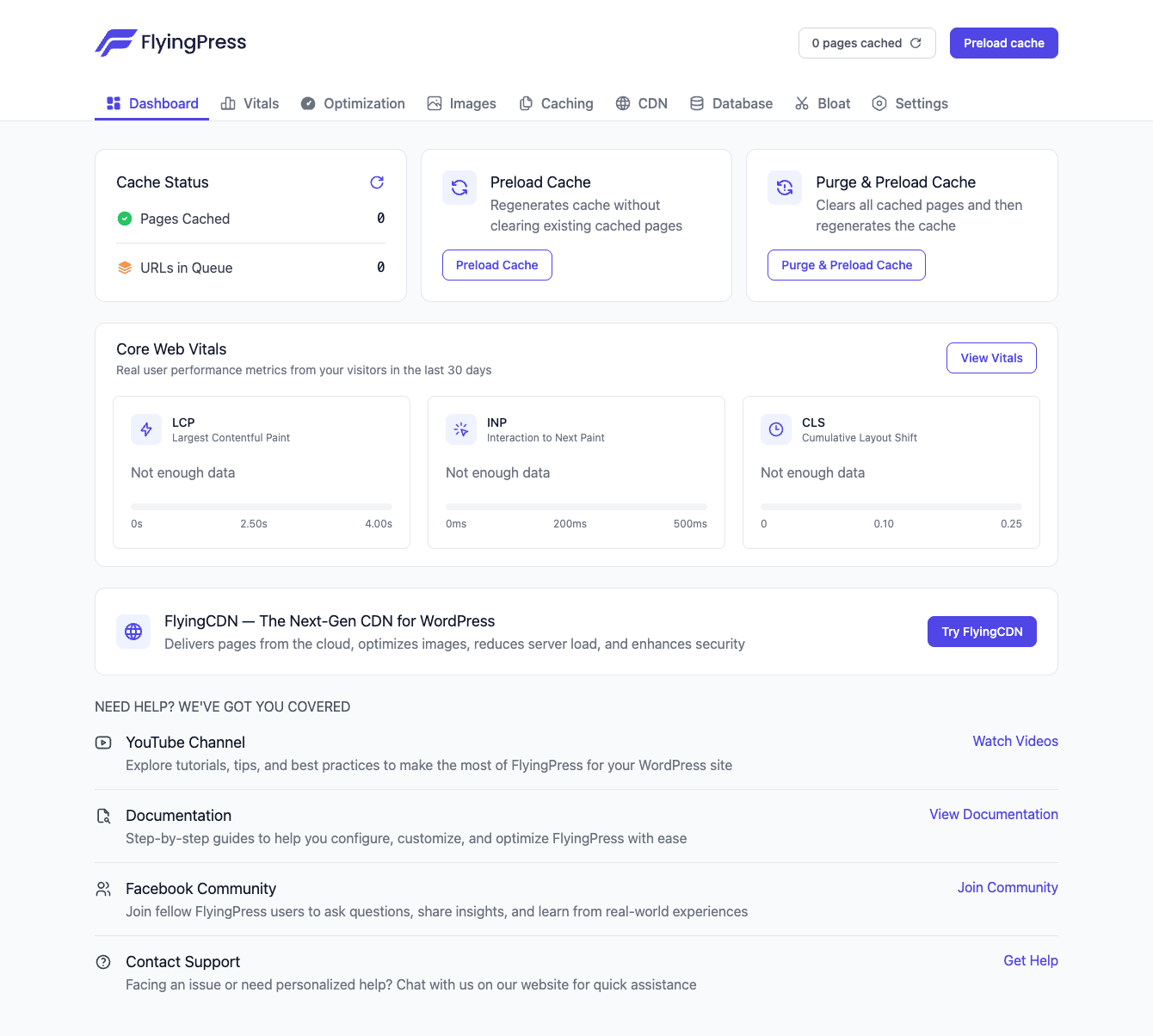
The plugin lives under a top-level FlyingPress menu in wp-admin. The navigation is a horizontal tab strip across the top of the panel, not a left-side sub-menu in the WordPress sidebar like Yoast or Rank Math. There are nine tabs: Dashboard, Vitals, Optimization, Images, Caching, CDN, Database, Bloat, Settings. Below is a quick read on each, with the toggles that actually matter.
Dashboard
The home tab. Three big cards at the top: cache status (pages cached + URLs queued), preload cache button, purge & preload combined button. Below that is a Core Web Vitals summary pulling from the real-user tracking script, with separate cards for LCP, INP, and CLS, each showing the 24-hour median. There’s no graph here; just current numbers. The detailed graphs live under Vitals.
The dashboard is where you’ll trigger most one-off actions: clearing the cache after a deploy, kicking off a preload run, checking that page counts are climbing.
Optimization
This is the tab you’ll spend the most time in. It’s organized into four sections.
CSS & JavaScript gives you Minify, Remove Unused CSS (with an "Edit includes" button for selectors you always want kept), Delay All JavaScript with three modes (Defer loading, Load when idle, Load after interaction), Load Third-party Scripts on Interaction (a separate toggle from the global delay), Delay Specific Scripts on Interaction, and Self-host External CSS and JavaScript.
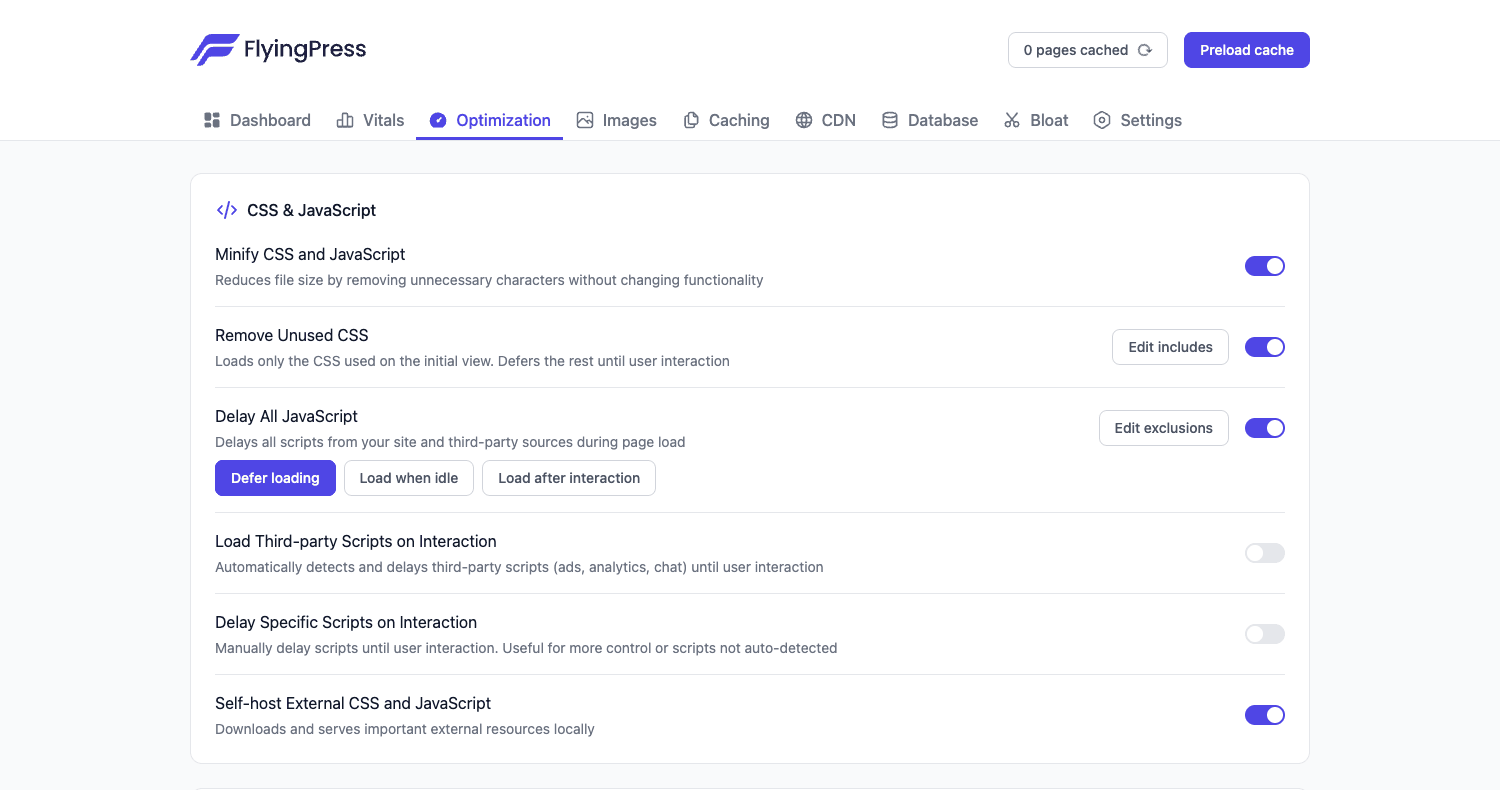
The thing that surprised me here is the three Delay JS modes. Defer loading parses scripts as the browser idles. Load when idle uses requestIdleCallback to wait for the browser to be truly free. Load after interaction holds everything until any keypress, click, scroll, or touch event. That last one is the most aggressive; on a content site it can drop INP by a noticeable margin, but it’ll break anything that needs to run on DOMContentLoaded, e.g. some cookie banners and a few specific analytics setups.
Images, Videos & Iframes has lazy-load (browser native), preload critical images (handled automatically by CloudOptimizer’s LCP detection), responsive images and add missing width/height attributes, replace YouTube iframes with placeholders. Most sites should leave all of these on.
Fonts has self-host Google Fonts, preload critical fonts, and add display=swap to font face rules. The display-swap toggle is worth keeping on; it eliminates the invisible-text-while-font-loads flash that hurts FCP.
Lazy Render is the unusual one. FlyingPress will tag offscreen sections with content-visibility: auto so the browser can skip layout and paint until they scroll into view. It’s been around since CSS Containment Spec Level 2 but very few WordPress sites use it; FlyingPress is one of the only plugins that does. The default selector list works fine. If you have a custom theme with complex animations below the fold, add the section selectors to the exclude list.
Caching
The tab that controls the page cache itself.
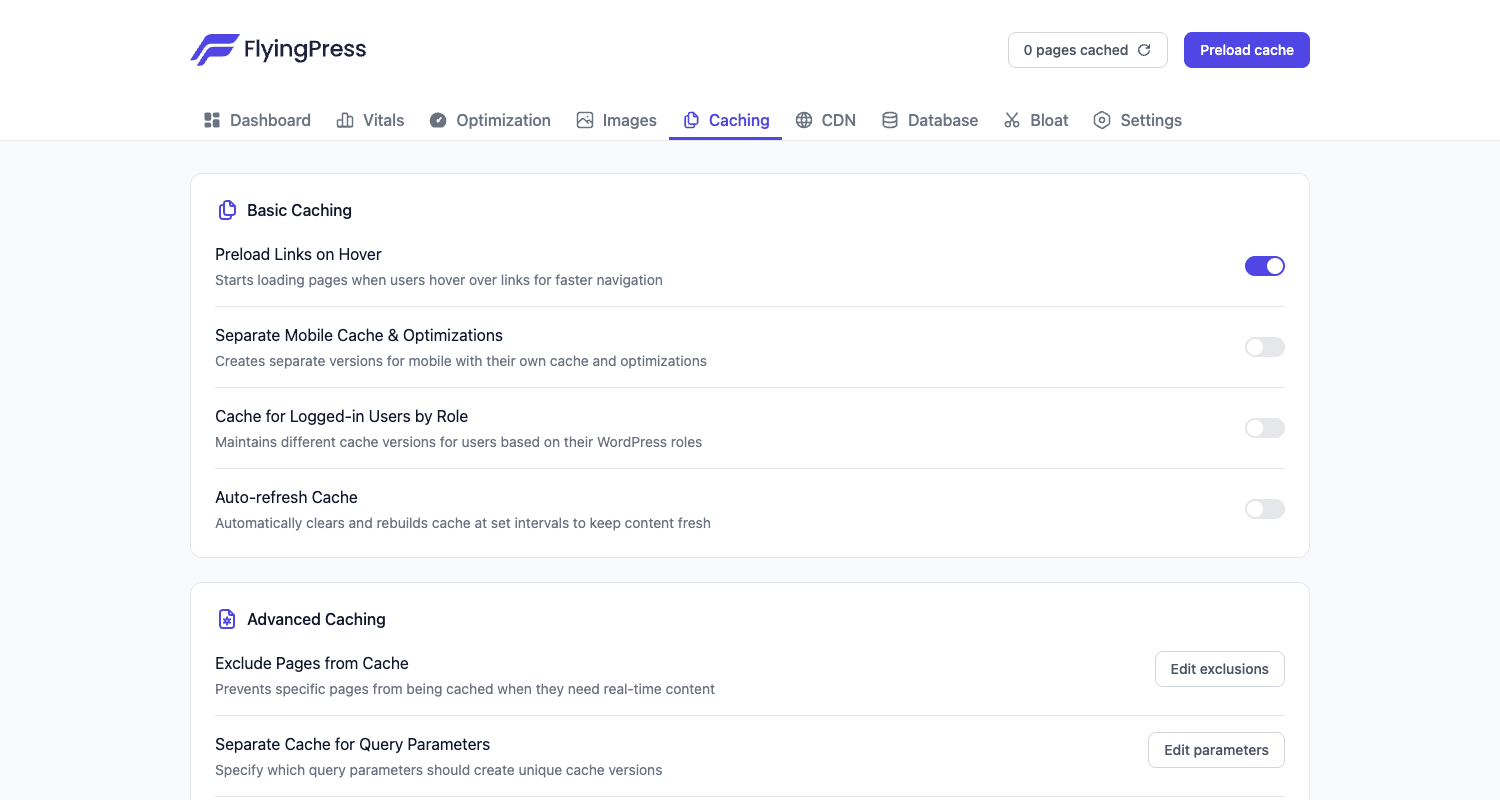
Basic Caching covers Preload Links on Hover (uses the Speculation Rules API to start downloading the linked page on hover), Separate Mobile Cache & Optimizations (recommended on for any site with meaningfully different mobile design; off if you’re responsive with the same HTML), Cache for Logged-in Users by Role (off by default; turn it on for membership sites if you want to serve cached pages to subscribers), and Auto-refresh Cache (purges and rebuilds on a schedule, useful for time-sensitive content like a homepage with a "next event" widget).
Advanced Caching has Exclude Pages from Cache, Separate Cache for Query Parameters (e.g. ?currency=EUR should generate a separate cache file rather than be ignored), Ignore Query Parameters (the long default list at the top of Caching.php covers UTM, fbclid, gclid, ga, ttclid, msclkid, srsltid, and about 30 other tracking parameters), Cache Bypass Cookies (default empty; add cookies that should always skip cache for membership sites), and Cache Lifespan.
I’ll be honest: the ignore-queries list is impressively thorough. If you’ve ever debugged "why is my cache hit rate so low" on a site with heavy paid traffic, the answer was almost certainly "every Facebook click adds an fbclid and the cache treats each unique URL as separate." FlyingPress strips those before generating the cache key.
Images
A dedicated tab for image optimization, separate from the Optimization > Images section that covers lazy loading and responsive images.
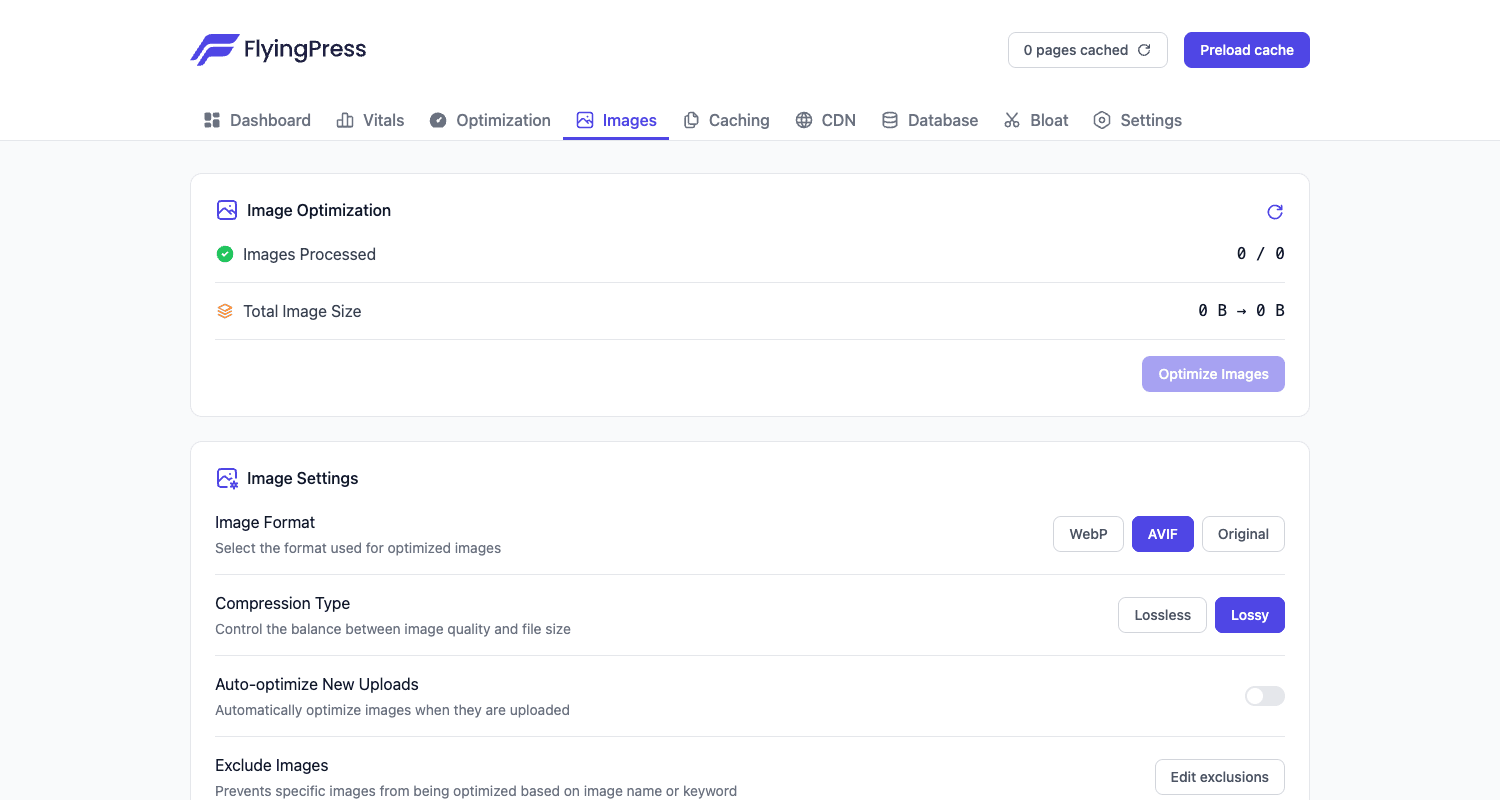
You pick a target format (WebP, AVIF, or original), a compression type (Lossless or Lossy), toggle Auto-optimize New Uploads, and you can exclude specific images by keyword. The Optimize Images button runs through your full media library in a background queue, with a 0.5-second delay between each request (configurable via the flying_press_image_optimizer_delay filter) so it doesn’t spike your CPU.
The image optimization happens locally, not through CloudOptimizer. The conversion runs in PHP using the imagick or gd extension. AVIF is now the default in recent updates because most browsers support it and the file-size delta over WebP is genuinely significant: I’ve seen 25-40% smaller files for the same visual quality.
One small gotcha: the "Delete Original Images" toggle is destructive. It removes the original JPEG/PNG after conversion. If you ever need to go back, you can’t. On a site with editorial images, keep originals.
Bloat
This is where you tell WordPress to stop loading things that you, the site owner, decided you don’t need.
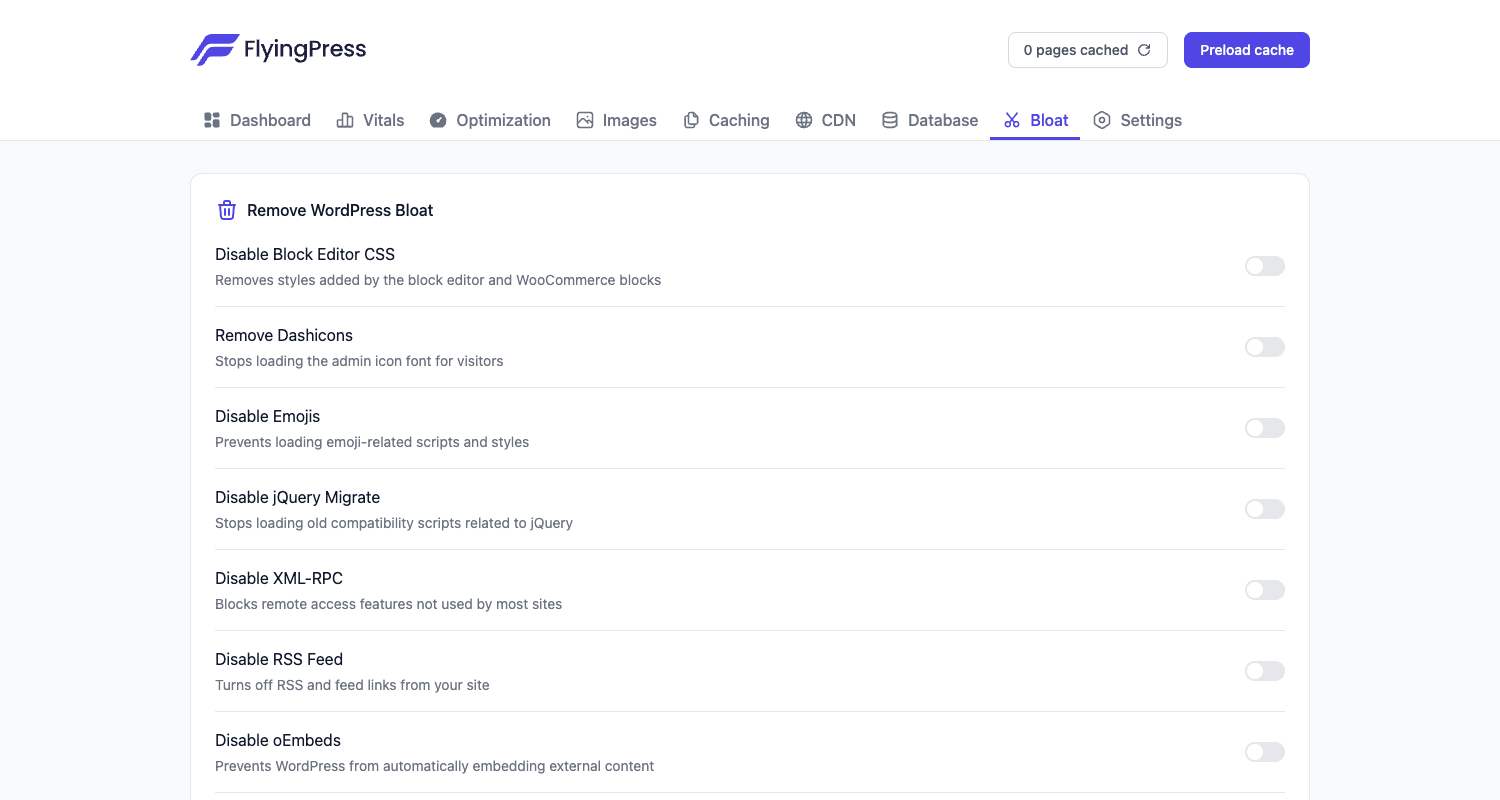
Disable Block Editor CSS (removes ~30KB of inline styles for sites that don’t use Gutenberg blocks on the front end), Remove Dashicons (saves a font file for non-logged-in visitors), Disable Emojis (saves the emoji detection JS), Disable jQuery Migrate (saves the deprecated-API shim), Disable XML-RPC (good security hygiene if you don’t use it), Disable RSS Feed (only if you’ve decided RSS isn’t part of your distribution strategy), Disable oEmbeds (stops WP from auto-embedding pasted URLs).
I leave most of these off until I’ve actually checked the front end source. Removing oEmbeds breaks the auto-embed when a writer pastes a YouTube URL into a post; that’s a workflow decision, not a performance decision. Removing Dashicons saves a couple of KB and is fine. Removing jQuery Migrate is fine if your theme doesn’t depend on it; check first.
Settings
License key, Core Web Vitals tracking toggle (this is what turns the RUM dashboard on or off), import/export configuration, and the FlyingPress footprint setting (whether the plugin adds a debug HTML comment to cached pages).
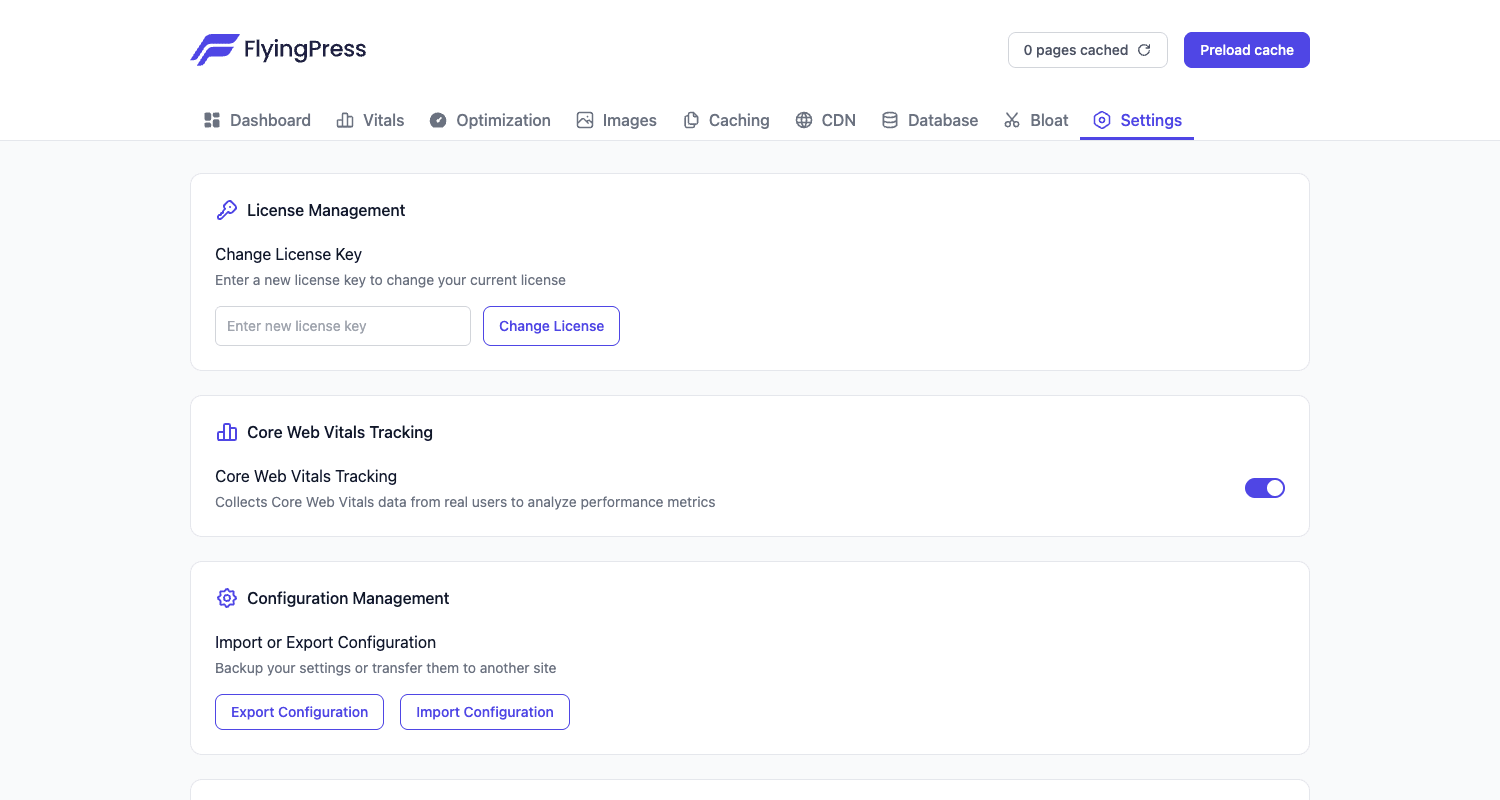
The config import/export is handy in a multi-site workflow. Export from staging, import into production. The exported file is JSON and excludes sensitive keys (Cloudflare API token, FlyingCDN key) so you can safely check it into a private dotfiles repo if you want.
The Vitals dashboard: what RUM data FlyingPress is actually collecting
This is the section nobody else writes up properly. The Vitals tab inside FlyingPress shows you Real-User Monitoring data, which sounds great until you ask: what’s actually being collected, where’s it going, and how does it compare to what Google’s CrUX report shows you for the same domain?
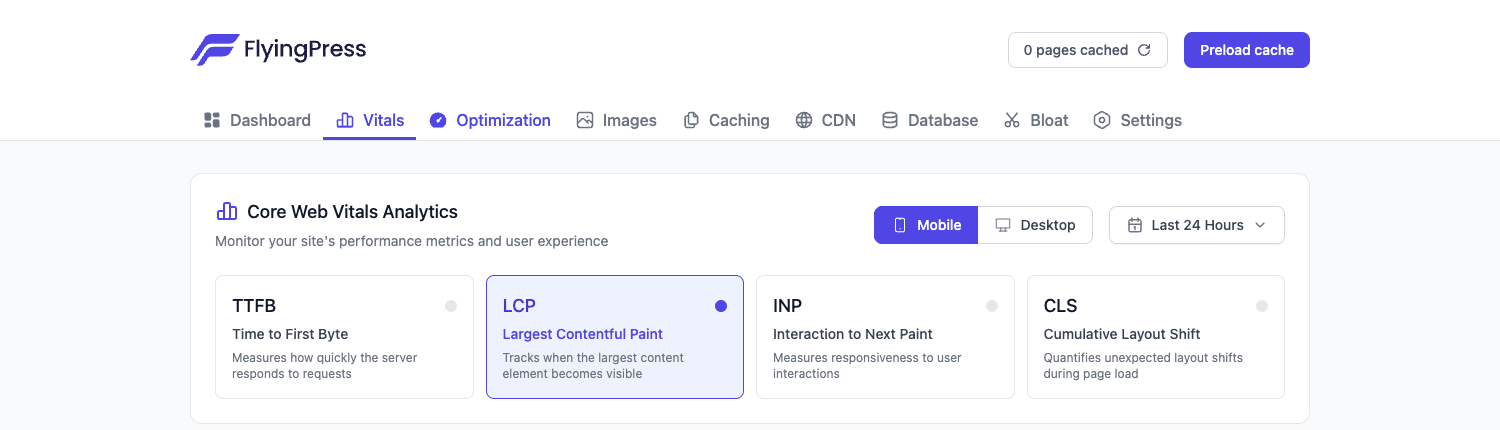
The mechanism is straightforward. When Core Web Vitals Tracking is enabled in Settings, FlyingPress enqueues flying-press-vitals.min.js on the front end. That script uses the standard web-vitals library hooks to capture LCP, INP, TTFB, and CLS for each page view and POST them back to the FlyingPress collector with a hashed site ID (md5(host + license_key)). No personal data, no IPs, no user agents beyond the standard device-type bucket.
The dashboard inside your WordPress admin then aggregates that data by page URL, country, and device type, with a Mobile/Desktop split and a configurable time window. You can filter to a specific URL and see which pages are dragging your INP up.
The comparison to other sources of vitals data is worth understanding:
- Google CrUX is a 28-day rolling sample from Chrome users who’ve opted in to share metrics. It’s the 75th-percentile that Search Console reports against. It’s external, it’s authoritative for SEO purposes, but it lags by up to a month and only covers Chrome on opted-in devices.
- PageSpeed Insights field data is the same CrUX dataset, just queried for your specific URL.
- PageSpeed Insights lab data is one synthetic Lighthouse run on a fixed server, not real users at all.
- FlyingPress Vitals is your-site-only, all browsers that support the underlying APIs (Chrome, Edge, recent Firefox; Safari only supports some of the metrics), updated in near real time, but not what Google uses to rank you.
The honest take: FlyingPress Vitals is great for shipping a change and watching whether p75 INP dropped within a day. It’s not great for comparing yourself to Google’s expectations, because the sample is different. Use both. Set up Search Console for CrUX and rely on FlyingPress’s dashboard for fast diagnostic work.
One trade-off worth noting: the RUM script is small (~3KB minified) but it’s still extra JavaScript on every page load. If you’re trying to hit an absolute ceiling on TBT (Total Blocking Time), you can disable it under Settings. The dashboard will go quiet, but your live site will be a hair lighter.
Cloudflare API integration: how the purge chain works
If you’re on Cloudflare’s free or paid plan, FlyingPress’s Cloudflare integration is one of the better integrations I’ve seen in any cache plugin. Most plugins either don’t integrate at all (you purge Cloudflare manually) or call the basic purge_cache API (which blows away your entire Cloudflare zone every time you save a post, which is a disaster for a busy site).
FlyingPress does it properly. On activation, it uses the Cloudflare Rulesets API to create a small set of cache rules and rewrite rules scoped to your domain. It then registers PHP hooks on flying_press_purge_urls:before, flying_press_purge_pages:before, and flying_press_purge_everything:before so that whenever the on-server cache is purged, the same set of URLs gets purged at Cloudflare too.
The purge chain looks like this:
- WordPress fires
save_post(or whatever triggered the purge). - FlyingPress’s
AutoPurgeclass builds a list of affected URLs (the post permalink, archive pages, sitemap, anything theflying_press_auto_purge_urlsfilter has added). Purge::purge_urls($urls)firesflying_press_purge_urls:beforewith the array.- The Cloudflare integration calls the Cloudflare API’s
purge_cacheendpoint with that exact URL list, not the entire zone. - The same hook is used by FlyingCDN and by FlyingPress’s own on-server purge.
- After all subscribers run,
flying_press_purge_urls:afterfires.
This means: editing a single post invalidates that one URL plus its archives on Cloudflare. Not your entire site. If you’ve ever watched a CDN cache hit rate plummet for ten minutes after a post update on a less careful plugin, you know how valuable this is.
The credentials live under CDN > Cloudflare in the admin. You’ll need an API token (scoped to Zone read + Cache Purge + Rulesets edit), the Account ID, and the Zone ID. The plugin will guide you through the right scopes if you start the setup wizard.
A second nice detail: FlyingPress stores a signature (md5(host)) alongside the Cloudflare rule IDs in your WordPress config. If you ever clone a staging site to production, the host changes, the signature stops matching, and FlyingPress automatically zeros out the Cloudflare integration on the new host so you don’t end up with two sites both trying to manage the same Cloudflare zone with stale rule IDs.
Preload tuning: when 0.5s isn’t enough
After a cache purge, FlyingPress kicks off a preload run that crawls every published URL on your site, requests each one with a bytes=0-0 Range header (so it triggers cache generation without downloading the whole page), and waits 0.5 seconds between requests.
On a 200-page WordPress blog with no other traffic, that’s 100 seconds to fully repopulate. Fine. On a 10,000-product WooCommerce store, that’s 83 minutes. Sometimes fine, sometimes painful, depending on whether you’re trying to push out a sale page before traffic hits.
There are three knobs:
The first is the flying_press_preload_delay filter, which lets you change the per-request delay. Drop it to 0.1 and the same 10,000 products preload in 17 minutes. Drop it to 0 and you’re rate-limited only by your server’s PHP-FPM concurrency and your CPU.
add_filter('flying_press_preload_delay', function ($delay) {
    // Faster preload on dedicated infrastructure
    return 0.1;
});
Don’t do this on shared hosting unless you’ve checked the impact. A 0-delay preload of 10,000 pages will trigger your host’s rate-limiting and possibly get you a "your site is using too many resources" email.
The second is flying_press_preload_urls, which lets you modify the URL list. The default is "every public post type plus all public taxonomies." If you want to preload only the homepage, top 100 most-popular posts, and the WooCommerce shop page, return your own array here.
add_filter('flying_press_preload_urls', function ($urls) {
    return [
        home_url(),
        get_permalink(123), // hero landing page
        wc_get_page_permalink('shop'),
    ];
});
The third is the Action Scheduler concurrency, which since a recent update respects the global Action Scheduler concurrency setting instead of being forced to 1. If you’ve tuned Action Scheduler for WooCommerce already, FlyingPress will inherit that tuning.
A small gotcha: the preload uses a single-byte Range request, which is faster but it relies on your server actually respecting Range headers on PHP-generated pages. Most do. A few esoteric server setups don’t (looking at you, certain "WordPress-optimized" hosts that buffer all PHP output through a custom mod). If preload feels broken, that’s the first thing to check; FlyingPress will throw 500 errors on every preload attempt because the byte range was rejected.
FlyingCDN vs Cloudflare vs BunnyCDN: when to bother
FlyingCDN is a separate subscription from FlyingPress’s own team. It’s Cloudflare Enterprise resold (so the routing and POPs are Cloudflare’s, but FlyingWeb owns the contract and the billing) and it starts at $10/month. There’s no included quota at that price; it’s a flat fee.
The pitch is "one click, one config, no API keys." If you turn it on in CDN > FlyingCDN, the plugin handles everything: cache rules, purge integration, image responsive variants, gzip/brotli. Compared to wiring up Cloudflare yourself (where you’ll need an account, an API token scoped properly, the right cache rules, and you’ll still have to manage the rules-version drift), it’s appreciably simpler.
That said, the math is not always in FlyingCDN’s favor.
Cloudflare’s free plan + FlyingPress’s Cloudflare integration gets you the same Cloudflare POP network, page caching at the edge, and the same automatic purge chain, for $0/month. You pay in setup complexity (5 minutes of clicking) and ongoing config management (FlyingPress handles most of it via the Rulesets API, but you need to know it’s there). For a personal site, blog, or small business, this is almost always the right call.
BunnyCDN sits in the middle. It’s $0.005-$0.015 per GB of bandwidth with no fixed monthly minimum. A 50,000-pageview blog with an average page weight of 1.2 MB serves about 60 GB/month: that’s $0.30-$0.90/month with Bunny. Sometimes less than $1. FlyingCDN’s $10 flat starts to look expensive against that. Bunny doesn’t integrate as cleanly with FlyingPress (you wire it up under CDN > Custom CDN with a URL rewrite), but it works.
FlyingCDN’s actual case is: a non-technical site owner who wants the best raw performance with zero config knobs to remember, doesn’t want to manage a Cloudflare account, and is willing to pay $120/year for that simplicity. Or a high-bandwidth site (millions of pageviews/month) where Cloudflare’s free-tier soft caps start to matter and Bunny’s per-GB pricing adds up faster than $10 flat.
For most readers of this post, Cloudflare free + FlyingPress’s integration is the answer. FlyingCDN is fine; it’s not magic, it’s $10/month for "I don’t want to think about it."
FlyingPress vs WP Rocket vs Swift Performance vs LiteSpeed
This is the section people land here for, so I’ll be specific. Numbers are estimates from typical production deployments, not benchmarks against any one site.
Annual license pricing. FlyingPress: $60/year single site, $150/year unlimited (via the vendor). WP Rocket: $59/year single site, $299/year unlimited. Swift Performance Pro: $99.99/year unlimited. LiteSpeed Cache: free with LiteSpeed-stack hosting, $0 forever. So if you’re already on LiteSpeed Enterprise hosting (Hostinger, Cloudways with LiteSpeed, A2 Turbo, NameHero), LiteSpeed Cache is essentially free and very capable. For everyone else, FlyingPress and WP Rocket sit in the same price bracket.
Where the optimization work happens. FlyingPress sends HTML to CloudOptimizer for critical CSS and lazy-render selectors. WP Rocket’s Remove Unused CSS sends pages to WP Media’s cloud service. Swift Performance does critical CSS in-PHP on your server (faster setup, slower per-page generation, can spike CPU on busy sites). LiteSpeed Cache uses LiteSpeed’s QUIC.cloud service for critical CSS and image optimization. So three of the four are cloud-based; only Swift does it locally.
JavaScript handling. FlyingPress: three Delay JS modes (Defer / Idle / Interaction), per-script exclusions, automatic third-party detection. WP Rocket: Delay JavaScript Execution with one mode (load on interaction) and an exclusions list. Swift: similar to WP Rocket. LiteSpeed: similar with QUIC.cloud assists. FlyingPress’s three-mode design is the most flexible of the four.
Cloudflare integration depth. FlyingPress uses the Rulesets API to create dedicated edge cache rules and rewrite rules, plus purge. WP Rocket adds a basic Cloudflare add-on that handles purge and toggles Development Mode but doesn’t create rules. Swift has a Cloudflare add-on for purge only. LiteSpeed integrates with QUIC.cloud, not Cloudflare directly. So FlyingPress is the most deeply integrated with Cloudflare specifically; if Cloudflare is core to your stack, that matters.
Bundle size on the front end. FlyingPress’s optimization runtime is around 4-6 KB of JS on a page (the lazy-render observer + the delay script + optional vitals tracker). WP Rocket’s runtime is around 6-9 KB. Swift’s runtime is around 8-12 KB depending on toggles. LiteSpeed runs almost entirely on the server side and adds essentially nothing to the front end.
Database cleanup features. All four ship database cleaners. Functionally equivalent for the basics; FlyingPress and WP Rocket let you schedule auto-cleans, Swift requires manual triggers, LiteSpeed has the most aggressive options including image revision cleanup.
The honest verdict. If you’re already on a LiteSpeed-stack host, LiteSpeed Cache is free, fast, and very capable; you probably don’t need to buy anything. If you’re on standard PHP-FPM hosting and you want a modern, low-overhead optimizer with deep Cloudflare integration, FlyingPress is the most architecturally interesting choice. WP Rocket is the safe, well-supported, decade-old workhorse with the largest community; pick it if you want the warmest "people will help me on a forum at 2 AM" community. Swift is for users who specifically don’t want to depend on a third-party cloud for critical CSS generation; for everyone else, that local-only constraint isn’t worth the slower setup.
Don’t enable Cloud Optimizer without understanding the data flow
Most reviews skip this because it’s awkward, but it’s important.
CloudOptimizer ships your fully-rendered page HTML to https://page-optimizer.flyingpress.com/optimizer/. That HTML contains the same content your site serves publicly, plus a JSON config blob with PHP version, WordPress version, locale, and a few feature flags. For 95% of sites that’s totally fine. For the other 5%, it’s worth thinking about.
If your site serves logged-in member content that includes personal data, and you have Cache for Logged-in Users by Role enabled, then the HTML being sent to CloudOptimizer for those page types may contain things like usernames, email addresses, member tier info, profile fragments. The Schrems II analysis here depends on where FlyingPress’s infrastructure is hosted and whether the data leaving the EU has appropriate transfer safeguards. As of this writing, FlyingPress operates from infrastructure that requires a Standard Contractual Clause if you’re an EU controller. That’s not a deal-breaker but you need to document it in your processor list and link to FlyingPress’s privacy policy in your own.
If you’re a healthcare site, a legal advice site, or anything with regulated content, treat CloudOptimizer the way you’d treat any other third-party processor in your render path. If your legal team won’t approve sending rendered HTML to a cloud service, FlyingPress’s CloudOptimizer is off-limits for those page types. You can disable it per-page via the flying_press_is_cacheable filter (return false for the regulated URLs and they bypass the entire cache + CloudOptimizer pipeline), or you can disable Remove Unused CSS globally and lose the per-page critical CSS benefit.
If your site is behind a strict internal network (intranet, corporate VPN-only), CloudOptimizer literally can’t function because page-optimizer.flyingpress.com isn’t reachable. The fallback is graceful (cached pages still serve, just without per-page critical CSS), but you’ll see degraded LCP numbers compared to a public site.
The real anti-pattern is enabling Cloud Optimizer on a site with logged-in personal data, not telling your DPO, not updating your privacy policy, and then getting asked about it during a data audit. That’s a six-figure problem in some jurisdictions. The cost of doing it right is one paragraph in your privacy policy and one line item in your processor agreement spreadsheet. The cost of doing it wrong is significantly higher than the $60/year you saved by picking a fast cache plugin. Don’t be cheap on the privacy paperwork; it’s the cheapest part of being compliant.
Developer reference: hooks, filters, REST, CLI
FlyingPress exposes a small, well-named set of hooks. They’re all in the FlyingPress\ source tree and the naming convention is consistent: prefix flying_press_, suffix :before or :after for lifecycle events.
Action hooks
// Fires after the FlyingPress config is saved.
// $new and $old are both arrays of the full config.
do_action('flying_press_update_config:after', $new, $old);

// Fires after a plugin version upgrade has been processed.
do_action('flying_press_upgraded');

// Fires before/after a list of URLs is purged.
do_action('flying_press_purge_urls:before', $urls);
do_action('flying_press_purge_urls:after',  $urls);

// Fires before/after a single URL is purged.
do_action('flying_press_purge_url:before', $url);
do_action('flying_press_purge_url:after',  $url);

// Fires before/after the entire cached-pages set is purged.
do_action('flying_press_purge_pages:before');
do_action('flying_press_purge_pages:after');

// Fires before/after a "purge everything" (pages + critical CSS + manifests).
do_action('flying_press_purge_everything:before');
do_action('flying_press_purge_everything:after');
A common use case: you maintain a CRM that mirrors WordPress content, and you want to trigger a re-sync whenever a page is purged.
add_action('flying_press_purge_url:after', function ($url) {
    // Find post by URL, push to CRM
    $post_id = url_to_postid($url);
    if ($post_id) {
        my_crm_sync_post($post_id);
    }
});
Filter hooks
The two filters worth knowing first:
// Control which roles can see the admin toolbar shortcuts and purge.
// Default: ['administrator', 'editor']
add_filter('flying_press_allowed_roles', function ($roles) {
    $roles[] = 'shop_manager';
    return $roles;
});

// Control which URLs auto-purge when a post is edited.
// Default: post URL + author archive + post-type archive + sitemap.
add_filter('flying_press_auto_purge_urls', function ($urls, $post_id) {
    // Also purge a custom homepage variant when any product updates
    if (get_post_type($post_id) === 'product') {
        $urls[] = home_url('/shop-homepage/');
    }
    return $urls;
}, 10, 2);
The cache-key filters:
// Add query strings to the cache-ignore list (default ~50 tracking params).
add_filter('flying_press_ignore_queries', function ($queries) {
    $queries[] = 'my_custom_tracker';
    return $queries;
});

// Force cache include cookies (default: empty). For membership sites.
add_filter('flying_press_cache_include_cookies', function ($cookies) {
    $cookies[] = 'member_tier';
    return $cookies;
});

// Override the cache file path or name. Niche; for unusual routing setups.
add_filter('flying_press_cache_file_path', function ($path) { return $path; });
add_filter('flying_press_cache_file_name', function ($name) { return $name; });
add_filter('flying_press_request_uri',    function ($uri)  { return $uri; });

// Mark a request as not cacheable (return false to bypass).
add_filter('flying_press_is_cacheable', function ($is_cacheable) {
    if (is_user_logged_in() && current_user_can('manage_options')) {
        return false;
    }
    return $is_cacheable;
});

// Exclude specific roles from caching when "cache for logged-in users" is on.
add_filter('flying_press_cache_excluded_roles', function ($roles) {
    $roles[] = 'shop_manager';
    return $roles;
});
The asset-pipeline filters:
// Keywords that exclude matching files from minify.
add_filter('flying_press_exclude_from_minify:css', function ($keywords) {
    $keywords[] = 'do-not-minify';
    return $keywords;
});
add_filter('flying_press_exclude_from_minify:js', function ($keywords) {
    $keywords[] = 'live-chat-widget';
    return $keywords;
});

// Last-mile HTML rewriting; runs after all of FlyingPress's optimizations.
add_filter('flying_press_optimization:after', function ($html) {
    // e.g. strip a debug class
    return str_replace('class="debug"', '', $html);
});

// Image optimizer: which IDs to consider for optimization, and the per-request delay.
add_filter('flying_press_optimization_image_ids', function ($ids) { return $ids; });
add_filter('flying_press_image_optimizer_delay', function ($delay) { return 0.5; });
The preload filters:
// Reduce the per-URL preload delay (default 0.5s).
add_filter('flying_press_preload_delay', fn ($d) => 0.1);

// Customize the URL list used for warmup.
add_filter('flying_press_preload_urls', function ($urls) {
    return array_filter($urls, fn ($u) => strpos($u, '/admin/') === false);
});
The debug footprint filter:
// Customize or remove the HTML comment FlyingPress injects at the end of cached pages.
add_filter('flying_press_footprint', function ($html_comment) {
    return ''; // empty string disables it entirely
});
REST API
The plugin registers a handful of REST endpoints under flying-press/ (admin-only):
GET /flying-press/cache_status/: current cache counts.GET|POST /flying-press/config/: read / update config.POST /flying-press/purge-current-page/: purge the page identified by the referrer.POST /flying-press/preload-cache/: start a preload run.POST /flying-press/purge-pages-and-preload/: purge + preload combo.POST /flying-press/purge-everything/: nuke everything (pages, optimizations, manifests).POST /flying-press/activate-license/: used by the admin onboarding flow.POST /flying-press/image-optimizer/{optimize|restore|delete|stop|status}/: image optimizer queue control.
These endpoints all require an authenticated admin (or whatever role you’ve allowed via flying_press_allowed_roles). They’re handy for building a deploy hook that purges + warms the cache after a content sync from staging to production.
WP-CLI
# Run from your WordPress directory
wp flying-press --help                    # list all sub-commands
wp flying-press preload                   # start preload
wp flying-press purge-pages               # purge cached HTML
wp flying-press purge-everything          # purge pages + optimizations
wp flying-press activate-license <key>    # activate (or re-activate) the license
The CLI commands respect the same role/capability check as the REST API, so they fail unless the executing user is an administrator.
Pricing and licensing
FlyingPress is sold from flyingpress.com at $60/year for a single site, $150/year for unlimited sites, or $250 for a lifetime unlimited license (one-time payment, includes a year of updates and renewable thereafter). Renewal at year two costs 50% of the original price. There’s a 30-day refund window if you don’t get the speed gains you were promised.
FlyingCDN is a separate $10/month subscription. The plugin works fine without it; FlyingCDN just gives you a one-click CDN option as an alternative to wiring up Cloudflare yourself.
FlyingPress is GPL-licensed, which is the obvious reason it’s available on the GPL Times store at a different price point. The plugin code is the same in both cases; what differs is the distribution channel, the support contract, and whether your license key talks to FlyingPress’s licensing server directly or arrives already active. Pick whichever fits your budget and your support expectations.
A note on what GPL distribution actually means here: under v3 of the GNU GPL (which FlyingPress is licensed under), once you have a legal copy you’re free to use it on any number of sites, modify it, redistribute it, and so on. What it doesn’t grant you is automatic access to the vendor’s support or to security update notifications. If those matter to you (and they should for a production site), factor that into the price comparison.
FAQ
Does FlyingPress work without an internet connection?
Not entirely. The on-server cache, lazy-load, minify, and database cleanup all work offline. CloudOptimizer needs to reach page-optimizer.flyingpress.com to generate per-page critical CSS, and the RUM dashboard needs the collector endpoint to be reachable from your visitors’ browsers. On an air-gapped intranet, you’ll get a graceful fallback (cached pages still serve, no per-page critical CSS), but a few features will be permanently dormant.
Will my critical CSS still work if FlyingPress goes out of business?
The cached critical CSS files in wp-content/cache/flying-press/ keep working until your HTML structure changes, because they’re just files on disk. New pages won’t get processed, so over time you’d see degraded LCP as content shifts. The page cache itself doesn’t depend on FlyingPress’s cloud at all; you’d lose the on-going optimization service but not your existing cache. For long-term safety on a business-critical site, the answer is the same as for any cloud-dependent plugin: budget for a migration plan rather than assume any single vendor will be around forever.
How does the Vitals dashboard compare to PageSpeed Insights?
Different samples answering different questions. PageSpeed Insights field data is Google’s 28-day rolling CrUX sample, scoped to Chrome users on opted-in devices, and it’s the data Google ranks against. FlyingPress’s Vitals dashboard is your-site-only, every browser that supports the relevant APIs, updated in near real time. Use PageSpeed Insights and Search Console to understand how Google sees you. Use FlyingPress’s Vitals to make fast diagnostic decisions when you ship a change.
Is FlyingPress GPL?
Yes. The plugin is distributed under the GNU GPLv2 (or later, as is standard for WordPress plugins), which is what makes legitimate redistribution through GPL stores possible. The official distribution model is "buy a license key from flyingpress.com, get the same code with vendor support and update access." The GPL Times distribution model is "buy through us, get the same code with the license active and supported via our channel." Both are legal, both work.
Will it conflict with my LiteSpeed-stack hosting’s built-in cache?
Probably yes. LiteSpeed Cache (the plugin) and the LiteSpeed web server’s edge cache both want to own page caching. FlyingPress also wants to own page caching. Running two full-page caches against the same WordPress install produces the symptom I described in the anti-pattern paragraph above: cached pages reference asset URLs the other cache has regenerated and the result is 404s for half the stylesheet. Pick one. On LiteSpeed hosting, the simpler answer is usually LiteSpeed Cache because it talks to the server-level cache; FlyingPress on top is mostly redundant.
Does it work with WooCommerce, Elementor, and the page builders?
Yes, with caveats. The bundled Integrations/ directory has compatibility shims for WooCommerce (cart/checkout/account auto-excluded from cache), Elementor (lazy-render adjusted for legacy section elements), Yoast and Rank Math (sitemap detection for preload), WPML and Polylang and TranslatePress and WeGlot (multilingual URL detection for auto-purge and preload). The caveat is that "page builders that ship a lot of inline CSS and JS" exercise the optimization pipeline harder than most themes; expect to test the Delay JS modes carefully on Elementor and Bricks sites.
Can I move my license between sites?
Yes. The license is per-site-slot, not bound to a specific URL, so you can deactivate on one install and activate on another. The GPL Times distribution ships with the license already active, which means license slot management is handled differently; check the license terms attached to your purchase.
Will it speed up wp-admin?
A bit, not dramatically. The bloat tab can disable a few things that load in wp-admin (Dashicons for visitors, jQuery Migrate, emoji detection) but the admin dashboard itself isn’t the target of the optimization. If wp-admin is slow, the issue is usually too many active plugins or an under-spec’d database, not the absence of a cache layer.
How does it handle a multisite network?
Network-wide activation is supported in current releases. Each subsite has its own FlyingPress settings panel, its own license slot (if you’re on the unlimited plan), and its own cache directory. Superadmins can purge any subsite’s cache from the admin bar. Standalone sites in a single-network setup are isolated for cache purposes.