


It’s 4:40 on a Friday and the same question is sitting in the support inbox for the twentieth time this month. "How do I reset my license key?" You’ve answered it before. You’ve probably written a docs page about it. And yet here it is again, because the person who needed it either couldn’t find the page or searched for something your page never mentioned.
That gap, between the answer you wrote and the words your customer actually typed, is where MinervaKB lives. It’s a self-hosted knowledge base for WordPress, built by KonstruktStudio, but calling it a "docs plugin" undersells it. MinervaKB ships with FAQ, a glossary, a lightweight ticket system, feature requests with voting, and the part I care about most: built-in analytics that tell you what people search for, including the searches that returned nothing.
I’ve run a support team. The hardest problem was never writing the docs. It was knowing which docs to write next. This is the plugin that finally answers that.
Table of Contents
- What is MinervaKB?
- Building the knowledge base: topics and articles
- What the analytics actually tell you
- More than docs: FAQ, glossary, tickets, and feature requests
- Reading search analytics to find content gaps
- Restricting articles and member-only docs
- Don’t run a knowledge base like this
- MinervaKB vs BetterDocs vs a static FAQ
- Developer reference
- Performance, compatibility, and gotchas
- Pricing and licensing
- FAQ
- Final thoughts
What is MinervaKB?
MinervaKB is a self-hosted knowledge base and self-service support suite for WordPress. The core is what you’d expect: searchable articles organized into topics, with a clean front-end search and a topic grid that lets visitors browse to what they need. But the plugin’s full name on its header reads "Minerva Support: Knowledge Base | FAQ | Glossary | Tickets," and that’s a more honest description of the scope. You’re getting five or six tools that normally come from separate plugins, stitched into one.
The maker is KonstruktStudio, a CodeCanyon author who has kept the product current for years (their official MinervaKB site has the full feature tour and live demos). It runs entirely on your own WordPress install. No external SaaS account, no per-seat pricing, no monthly bill once you own the license. Your articles, your data, your search logs, all sitting in your own database.
Here’s where it separates from the pack. Most docs plugins help you publish articles and stop there. MinervaKB watches what happens after you publish. Every article tracks views, likes, and dislikes. Every search a visitor types gets logged, and crucially, so does every search that came back empty. That last detail is the whole game. A "no results" search is a customer telling you, in their own words, exactly what they wanted and couldn’t find.
So who is it for? A few clear personas:
- A SaaS or plugin business that wants to deflect support tickets with self-service docs and actually measure whether it’s working.
- An agency building a client knowledge base who needs something that looks professional out of the box and reports back on usage.
- An internal team that wants a private, member-only documentation hub for staff.
- A WooCommerce store that wants related docs surfaced on product pages and a support area in the customer account (more on that later).
If you only ever need three static FAQ entries on a contact page, this is overkill. If you’re answering the same questions over and over and want the data to stop that, keep reading.
You can find MinervaKB on GPL Times if you want to install it and click through every panel as we go.
Building the knowledge base: topics and articles
The heart of MinervaKB is a custom post type. By default it registers articles under a post type with the slug kb (the slug is configurable in settings if you want it to read as docs or help in your URLs instead). Articles get organized two ways: Topics (the kbtopic taxonomy, your main browsable structure) and KB Tags (the kbtag taxonomy, for cross-cutting labels). If you’ve ever set up categories and tags on a blog, you already understand this. Topics are the shelves; tags are the stickers.
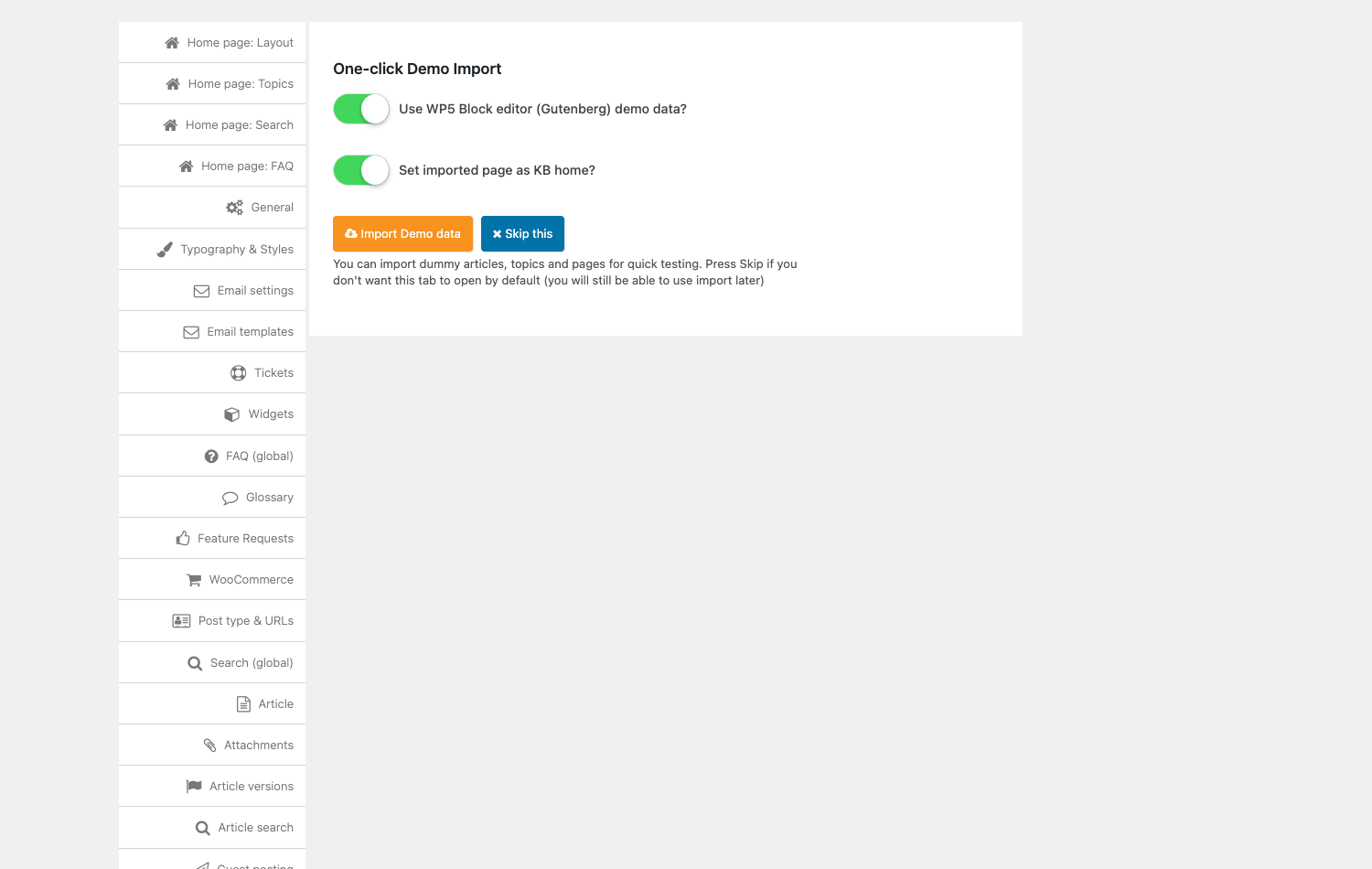
When you first activate the plugin, it offers a one-click demo import. A modal asks whether you want block-editor demo data and whether to set the imported page as your KB home. I’d take it on a fresh site. It seeds a working home page, a few topics, and sample articles, so you can see the shape of a finished knowledge base before you write a single word. On an existing site with content you care about, skip it and build manually.
Tip: if you do import the demo and then build your real content, delete the sample articles before you launch. Leaving "Lorem ipsum getting started" articles live is the fastest way to look unfinished.
Setting up is genuinely quick. After activating, you create a page, drop the search and topics shortcodes onto it (or let the demo import do it), and set that page as your KB home in the settings. That’s the whole install. There’s no wizard you have to suffer through, and because the front-end is shortcode-driven, it works with any theme.
The front-end home
The public knowledge base home combines two shortcodes: [mkb-search] for the live search bar and [mkb-topics] for the topic grid. The search bar is the first thing a visitor sees, and it’s an AJAX live search. Start typing "inst" and it suggests matching articles as you go, with arrow-key navigation through the results. Below the search, the Popular topics grid shows topic cards with article counts ("Getting Started, 3 articles") and a "Show all" link.
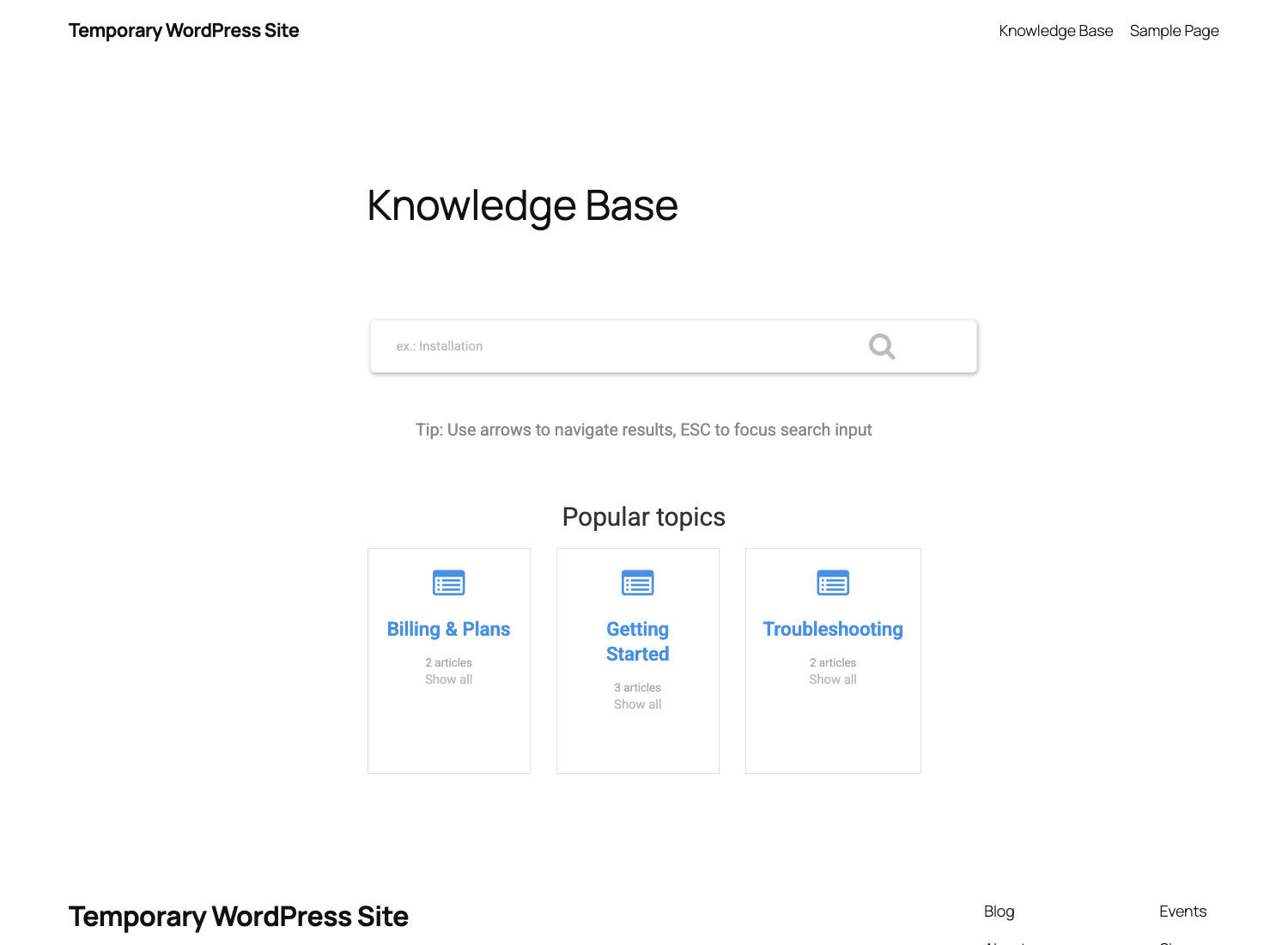
This is the page that does the work. A good search bar plus a scannable topic grid is what lets people self-serve instead of opening a ticket. The grid is deliberately simple, and I mean that as a compliment. Knowledge base home pages that try to be clever (animated tiles, sliders, video heroes) just slow down the one thing the visitor came to do, which is find their answer.
A single article
Click into an article and you get a layout that’s been thought through. A breadcrumb at the top ("KB Home > Topic > Article") so people know where they are and can climb back up. An estimated reading time under the title. The content. And at the bottom, the feature that feeds the whole analytics engine: "Was this article helpful?" with Like and Dislike buttons, plus a running Views counter.
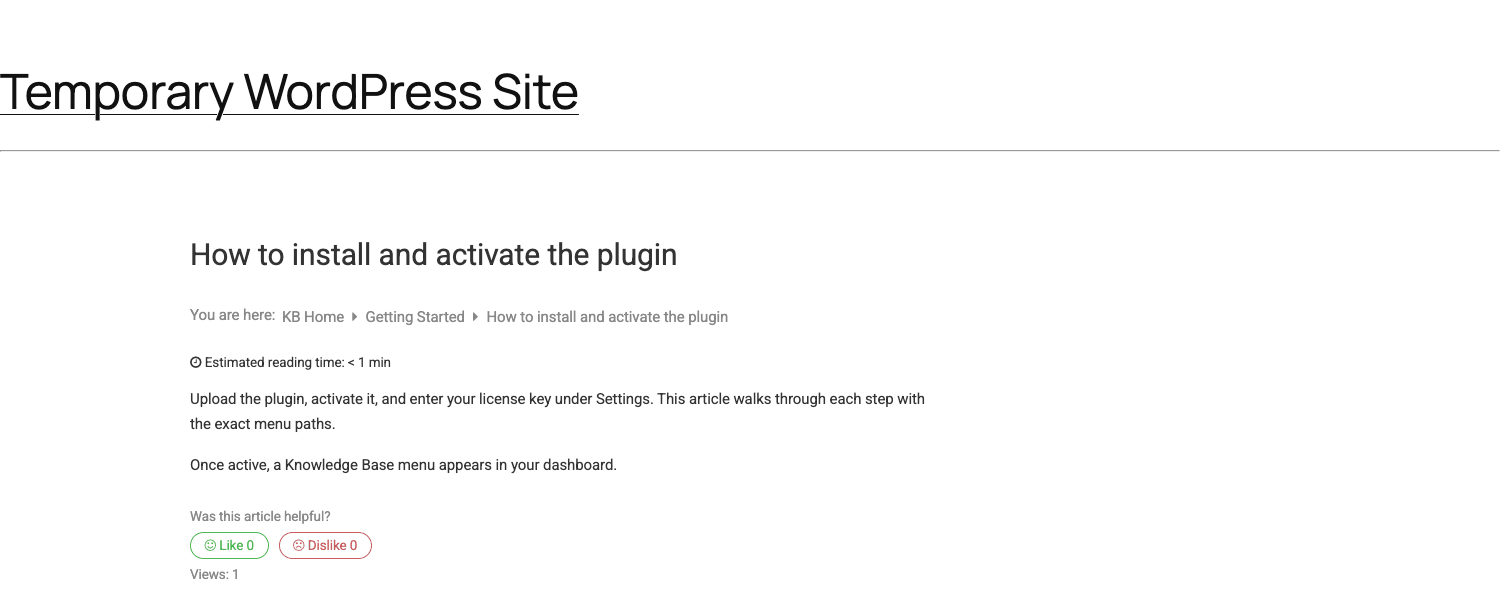
Related articles and a sidebar are available too, so a reader who didn’t quite find the answer has somewhere to go next instead of bouncing back to your inbox.
Note: the Like/Dislike vote and the view count aren’t decoration. Every press writes to the analytics tables we’ll get to in the next section. That little widget is your feedback loop. Don’t disable it to "clean up" the article footer, because then you’re flying blind.
Writing articles themselves happens in the standard WordPress editor, Gutenberg or Classic. You assign topics and tags from the sidebar exactly like a normal post. If you can write a blog post, you can write a MinervaKB article, and that low barrier matters when you’re trying to get a non-technical support person to keep the docs current.
What the analytics actually tell you
This is the section that sold me, so let me be specific about what’s actually here.
MinervaKB has a dedicated Dashboard under its admin menu, and it’s split into tabs: Overview, Search, Feedback, and Reset. The Overview tab leads with stat cards: total Articles, Topics, Tags, and then the numbers that matter for tuning, total Views, Likes, and Dislikes. Under the cards sits an analytics chart plotting views, likes, and dislikes over a date range you can change. So at a glance you can see whether your knowledge base traffic is growing and whether the like-to-dislike ratio is healthy.
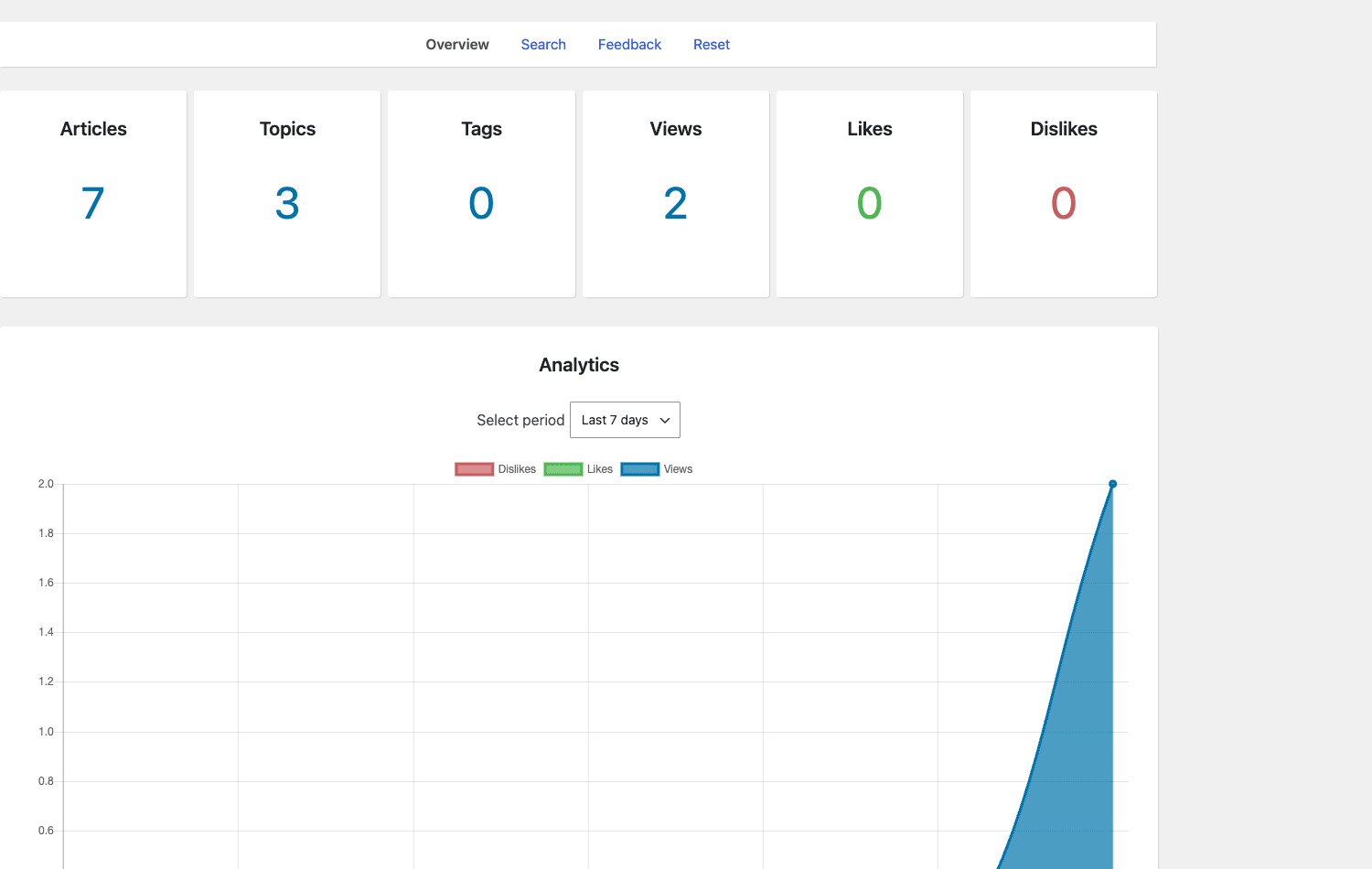
The Search tab is the differentiator. It logs what visitors searched for inside your knowledge base. Not Google searches, the searches typed into your own [mkb-search] bar. And it shows the ones that returned no results. Read that again, because it’s the whole reason to pick this plugin. When someone searches "refund policy" and you’ve never written a refund article, MinervaKB records it. You’re getting a ranked list of the answers your customers want that you haven’t written yet, sourced from the people who needed them.
The Feedback tab rolls up the article voting. You can see which articles people found helpful and which ones they didn’t, which tells you where to spend your editing time.
Heads-up: all of this is stored in custom database tables, not just post meta. MinervaKB creates a handful of dedicated tables on activation, including a keywords table and a hits table that links articles to the search keywords that surfaced them. That’s a deliberate engineering choice. Search analytics get noisy fast, and post meta would bloat your wp_postmeta table and slow every query on the site. Keeping the analytics in their own tables is the right call, but it’s worth knowing they exist (it matters at uninstall time, which we’ll cover).
The per-article view
You don’t have to live in the Dashboard to see how an article is doing. The All Articles admin list adds columns right in the table: Views, Likes, and Dislikes, alongside Topics and Tags. So when you’re scanning your content, you can immediately spot the article with 4,000 views and 30 dislikes, the one that’s failing the most people.
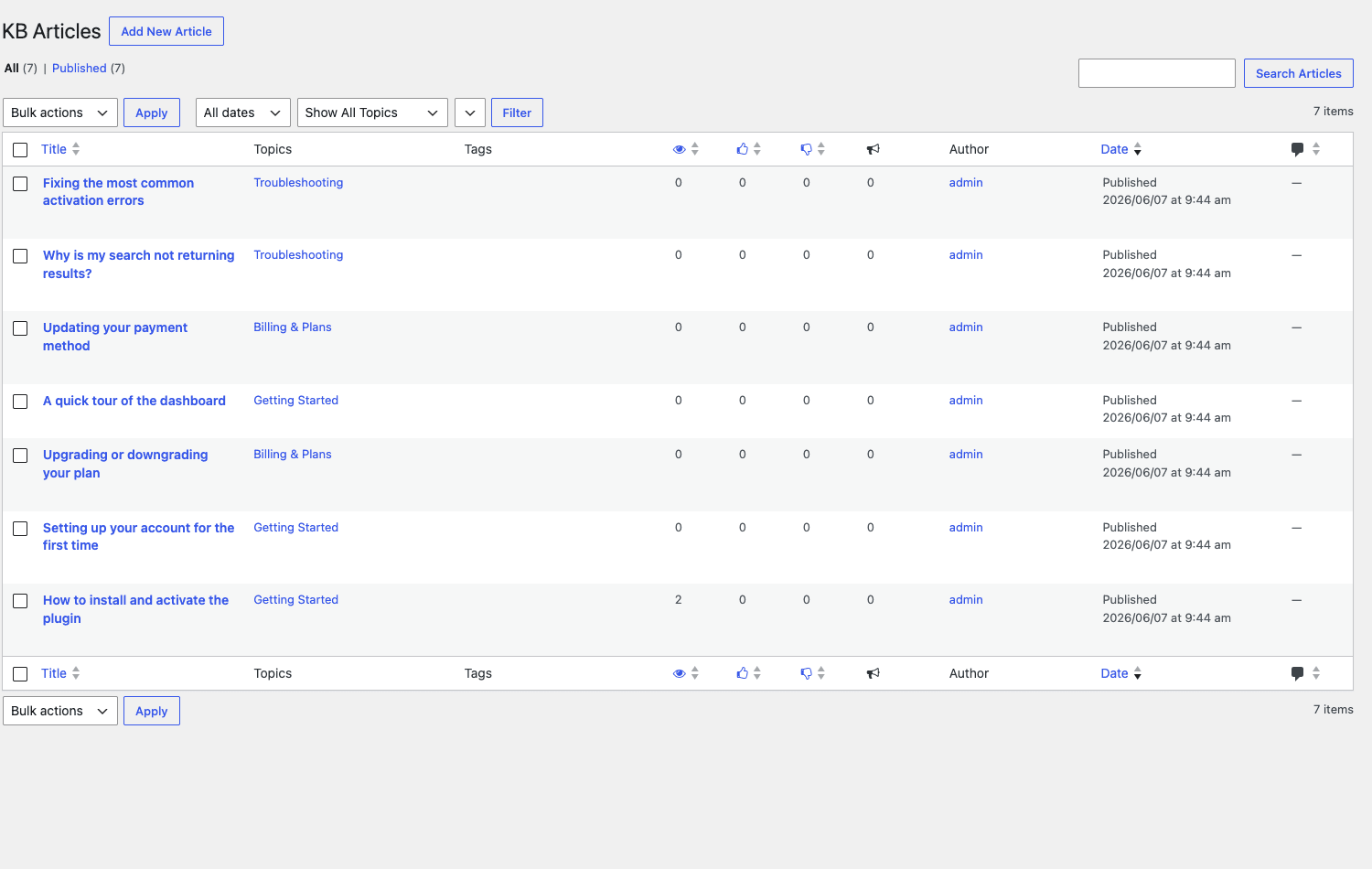
That column view is underrated. Most docs plugins make you click into each article or open a separate report to see performance. Having it inline means you actually look at it, and a metric you actually look at is the only kind that changes behavior.
You might be wondering whether all this tracking slows the front-end down. It doesn’t meaningfully, because the writes happen on view and on vote, asynchronously, and they target purpose-built tables rather than the main post tables. Your article pages render from normal WordPress queries; the analytics ride along in the background.
More than docs: FAQ, glossary, tickets, and feature requests
The knowledge base is the headline, but MinervaKB bundles a genuine spread of self-service tools, each as its own post type. Here’s the breadth, and where I’d actually use each one.
FAQ. A dedicated FAQ post type (mkb_faq) with its own accordion display via [mkb-faq]. This is for the short, repeated questions that don’t deserve a full article. "What payment methods do you accept?" is an FAQ. "How to configure SMTP for transactional email" is an article. Keeping them as separate types means your FAQ block stays tight and your article search stays focused.
Glossary. A glossary post type (mkb_glossary) with [mkb-glossary] for an A-to-Z term list. If your product has jargon (and every product does, even when we pretend it doesn’t), a glossary is a quiet ticket-deflector. People bounce off docs full of words they don’t know. A linked glossary keeps them reading.
Tickets. A lightweight helpdesk built from mkb_ticket and mkb_ticket_reply post types, with a Form Editor to build the "Create Ticket" form and canned responses (mkb_canned_response) for replies you send constantly. Visitors submit through [mkb-create-ticket] and see their history through [mkb-user-tickets-list].
I want to be honest about the tickets. They work, and for a small operation they’re plenty. But this is a knowledge-base-first tool, and the ticket system is the lightweight companion, not a full helpdesk. There’s no SLA tracking, no multi-channel inbox, no shared team views in the way a dedicated support tool gives you. If your team works a high volume across email, chat, and social, you’ll outgrow these tickets. That’s not a knock; it’s positioning. The tickets exist so that when self-service fails, the customer has a clean fallback right there in the knowledge base instead of hunting for your email.
Feature requests. A mkb_feature_request post type with public voting, shown via [mkb-feature-requests] and submitted via [mkb-feature-request-submit]. This one surprised me by how useful it is. Letting customers post and upvote feature ideas does two things: it gives you a public roadmap signal, and it deflects the "are you ever going to add X" tickets by pointing people at the existing request to upvote.
Article feedback. The mkb_feedback post type captures the Like/Dislike data and optional comments from the article voting widget, feeding the Dashboard’s Feedback tab.
Here’s how I’d map the pieces to the job:
| Tool | Post type | Use it for |
|---|---|---|
| KB articles | kb |
Step-by-step guides, how-tos, troubleshooting |
| FAQ | mkb_faq |
Short, repeated one-liner questions |
| Glossary | mkb_glossary |
Product jargon and acronyms |
| Tickets | mkb_ticket |
The fallback when self-service fails |
| Feature requests | mkb_feature_request |
A public, vote-able roadmap |
| Feedback | mkb_feedback |
The "was this helpful?" signal |
| Canned responses | mkb_canned_response |
Replies you send over and over |
That’s seven content types in one plugin. The point isn’t to use all seven on day one. It’s that as your support needs grow, you don’t have to bolt on three more plugins; the surface is already there.
Reading search analytics to find content gaps
Let me turn the analytics into an actual workflow, because owning the data and using the data are different things. This is the routine I’d run on a MinervaKB knowledge base, and it takes about thirty minutes a month.
Start with the no-result searches. Open Dashboard » Search and sort for the queries that returned nothing. Each one is a request for content you haven’t written. If "cancel subscription" shows up eleven times with zero results, that’s eleven people who couldn’t self-serve and likely opened a ticket or, worse, churned silently. Write that article first. You’re not guessing at what to document; your customers handed you the priority list in their own words.
Then look at high-volume, high-dislike articles. Sort the All Articles list by views, then scan the Dislikes column. An article with heavy traffic and a bad like-to-dislike ratio is your most expensive problem, because lots of people are finding it and it’s failing them. Rewrite those before you write anything new. A bad answer that ranks is worse than no answer at all, since it sends the reader away thinking they tried.
Watch the searches that return results but probably shouldn’t. Sometimes a search "succeeds" by matching the wrong article. If people search "API key" and land on an unrelated billing article, your titles and topics need work, not your content. The search log plus the view counts together tell you this story.
Track the trend, not just the snapshot. The Overview chart over a date range tells you whether your tuning is working. If dislikes are trending down and views are climbing after you rewrote your top three articles, the loop is closing. If views are flat, your knowledge base isn’t getting discovered, and that’s an SEO and internal-linking problem, not a content one.
Persona check. If you run a plugin business, your no-result searches will cluster around installation, licensing, and conflicts. If you run a membership site, they’ll cluster around billing, access, and login. The categories of pain are predictable; the exact phrasing is what you can’t guess, and that exact phrasing is what MinervaKB hands you.
The reason this matters more than vanity metrics: every article you write off the back of a real no-result search is an article that will deflect that exact search next time. Self-service support compounds. The more gaps you close, the fewer tickets open, and the search log keeps pointing at the next gap.
Restricting articles and member-only docs
Not every knowledge base should be public. MinervaKB handles access control, and it does it in a way developers will appreciate.
At the settings level, you get role-based permission controls and a WooCommerce integration tab. The access controls are role and login based: you can restrict chosen topics or articles to specific user roles, or hide them from logged-out visitors. The WooCommerce tie-in is a different feature, it adds a Knowledge Base tab to the product edit screen so you can attach related articles, topics, or tags to a product (and surface them on the product page), plus a Support section in the My Account area. Pair the role restriction with the developer filter below and you can express tighter rules, like members-only or paid documentation, in a few lines of PHP.
Two personas where this shines:
- Internal documentation. Lock the entire knowledge base to logged-in staff and use it as your team’s private runbook. New hires get onboarding docs; nobody outside the company sees them.
- Paid or member-only documentation. Restrict premium articles to a paid user role (or wire the access filter to your membership plugin) so the docs become part of what subscribers pay for. The docs sit behind the same login your members already use.
For developers, the access logic is exposed through a filter. The key hook is minerva_restrict_access_allowed, which lets you write custom rules for whether the current user can view the current article or entity. You’re not stuck with the built-in role and login checks; you can wire access to a membership plugin, a custom user-meta flag, an IP allowlist, anything you can express in PHP. The filter passes a single argument, the current allow/deny decision, and your callback works out the context itself.
add_filter( 'minerva_restrict_access_allowed', function ( $allowed ) {
    // Only let users with the 'read_pro_docs' capability read article ID 512.
    if ( is_singular( 'kb' ) && 512 === get_queried_object_id() && ! current_user_can( 'read_pro_docs' ) ) {
        return false;
    }
    return $allowed;
}, 10, 1 );
Note: access control hides the article from people who shouldn’t see it, but if your knowledge base is meant to be fully private, also confirm the articles aren’t being indexed by search engines and aren’t leaking through the AJAX search results for anonymous visitors. Test it logged out. Gating that you never verified from the outside is gating you can’t trust.
Don’t run a knowledge base like this
Don’t launch a knowledge base and then never look at the search analytics. This is the most common mistake, and it wastes the best thing MinervaKB offers. The Search tab shows the exact phrases visitors typed, including the ones that returned nothing, which is a free, customer-written content roadmap. A knowledge base you never tune is one that quietly keeps routing people to your inbox. Check the no-result searches monthly and write the missing article.
Don’t dump every article into one giant topic. A flat knowledge base with eighty articles all filed under "General" is impossible to browse, the topic grid becomes useless, and the breadcrumb means nothing. Use topics, and sub-topics where it helps, so the home grid lets people self-select their problem area, and so a reader who lands deep in an article can climb back to related content. Structure is what turns a pile of pages into something navigable.
Don’t treat the ticket system as a full helpdesk if your team lives in email. MinervaKB’s tickets, feature requests, and canned responses are real and useful, but this is a knowledge-base-first product. At high ticket volume across multiple channels, pair MinervaKB with a dedicated helpdesk and let MinervaKB be the self-service layer that deflects tickets before they open. The right tool for each job beats forcing one tool to do both badly.
Don’t ignore the dislikes. A high view count with mostly dislikes is a worse signal than no traffic at all, because it means people find the article and it fails them. Sort by dislikes, rewrite those articles first, and watch the ratio move. Money and trust both leak out of a popular page that gives a bad answer, since the reader walks away convinced your docs don’t have it.
MinervaKB vs BetterDocs vs a static FAQ
Where does MinervaKB sit against the alternatives? Let me put real distinctions on the table, with numbers, not adjectives.
Against a docs-only plugin like BetterDocs, the gap is breadth and measurement. MinervaKB bundles 7 content types (KB articles, FAQ, glossary, tickets, feature requests, feedback, and canned responses) where a docs-focused plugin gives you articles and not much past that. MinervaKB tracks views, likes, dislikes, and search keywords across 4 custom analytics tables, including the no-result search log that most docs plugins simply don’t capture. And it ships 20-plus shortcodes, so you can place search, topics, FAQ, glossary, ticket forms, and feature requests anywhere your theme allows. BetterDocs is a fine knowledge base; MinervaKB is a knowledge base that also reports on itself and brings the rest of the self-service stack along.
Against a static FAQ page, there’s no contest, and that’s the point. A hand-coded FAQ never grows, generates zero search data, and tells you nothing about what people couldn’t find. It’s a snapshot frozen the day you wrote it. MinervaKB’s live search, voting, and search logging mean the knowledge base improves itself over time because it shows you exactly where it’s failing.
Against a dedicated helpdesk like Fluent Support, it’s a different job. A helpdesk is excellent at managing tickets, agents, and conversations at volume, but it isn’t a public, search-engine-indexable knowledge base. MinervaKB and a helpdesk are complements, not competitors: the knowledge base deflects the easy questions so your helpdesk agents only handle the ones that actually need a human. If you also want shoppers asking and answering questions on product pages, something like YITH WooCommerce Questions and Answers covers that storefront-specific angle, while MinervaKB owns the structured documentation side.
On price, MinervaKB is a CodeCanyon plugin with a one-time regular license, commonly in the rough $39 to $59 range, versus the recurring annual subscriptions most knowledge base and helpdesk products charge (where $99/yr to $199/yr renews forever). Over three years that’s a single payment against three renewals, so the math swings hard toward the one-time license the longer you run the site. You pay once and you own it. We’ll come back to the GPL angle below.
Developer reference
I’ll be straight about the developer surface, because honesty here is the whole point of a review. MinervaKB’s dev story is a focused set of template and access filters under the minerva_ prefix, plus a generous list of shortcodes. It is not a big API plugin. There is no REST API (zero registered REST routes) and no WP-CLI integration. If you were hoping to push articles in over REST or batch-import via the command line, that’s not here, and pretending otherwise would do you a disservice.
What is here is plenty for theming and access control. If you’re new to extending WordPress with hooks and filters, the WordPress plugin developer handbook is the canonical reference for the patterns below.
The key access filter
// Control whether the current user may view the current KB entity.
add_filter( 'minerva_restrict_access_allowed', function ( $allowed ) {
    return $allowed; // return false to deny, true to grant
}, 10, 1 );
This is the hook you’ll reach for most. It centralizes "can this person see this?" so you can plug in any membership or role logic.
Injecting into the article template
// Fires inside the single-article template; echo to inject content.
add_action( 'minerva_single_article_content', function () {
    echo '<div class="doc-cta">Still stuck? Open a ticket.</div>';
} );
Use minerva_single_article_content to drop a call-to-action, a related-product box, or a feedback prompt directly into the article body without editing template files.
Theming the KB pages
MinervaKB exposes a row of action hooks around the page layout so you can style the knowledge base to match your theme without overriding templates:
add_action( 'minerva_page_title_after', function () {
    echo '<p class="kb-subtitle">Search 200+ guides below.</p>';
} );
The available page hooks include minerva_page_title_before, minerva_page_title_after, minerva_page_title_inside_before, minerva_page_title_inside_after, minerva_page_root_before, minerva_page_root_after, minerva_page_loop_before, and minerva_page_loop_after. There’s also apply_filters( 'minerva_topic_sidebar_options', ... ) to customize the topic sidebar.
Filtering submissions
For the ticket and feature-request flows, you get hooks to shape submitted data: minerva_user_feature_request_post_title, minerva_user_feature_request_post_status, minerva_user_feature_request_post_content, and minerva_user_feature_request_allow_post for the feature-request submission, and minerva_tickets_user_reply_post_fields for ticket reply fields. There’s also minerva_entry_deleted_or_null_text to customize the message shown when an entry is gone.
Shortcodes
This is where the surface is widest. Note the prefix is a hyphen, mkb-, not an underscore. The full set covers the front-end:
- Layout and search:
[mkb-search],[mkb-topics],[mkb-topic],[mkb-related],[mkb-recently-viewed-articles],[mkb-article-content] - FAQ and glossary:
[mkb-faq],[mkb-faq-content],[mkb-glossary] - Tickets:
[mkb-create-ticket],[mkb-create-ticket-link],[mkb-user-tickets-list] - Feature requests:
[mkb-feature-requests],[mkb-feature-request-submit] - Accounts:
[mkb-login-register-form],[mkb-logout],[mkb-guestpost]
And for formatting inside an article, there are content callout shortcodes: [mkb-tip], [mkb-info], [mkb-warning], and [mkb-anchor]. Wrap a paragraph in [mkb-tip]...[/mkb-tip] and it renders as a styled tip box. These are small but they’re the difference between docs that read like a wall of text and docs that guide the eye.
Data model and integrations
The KB article post type defaults to the slug kb (configurable). The taxonomies are kbtopic for topics and kbtag for tags. Analytics live in dedicated custom database tables (a keywords table, a hits table linking articles to keywords, plus meta), created on activation. For integrations, MinervaKB ships a WooCommerce integration (a related-docs tab on products plus a My Account support area) and WPML compatibility (the plugin uses wpml_* filters for translation). It also registers WPBakery/Visual Composer shortcode params if you build pages with that.
So: a tidy minerva_ template and access layer, a wide mkb- shortcode set, custom analytics tables, WooCommerce and WPML integration. No REST, no CLI. For a knowledge base, that’s a sensible set of tradeoffs. The work most teams need is theming and access gating, and both are covered.
Performance, compatibility, and gotchas
A few practical things worth knowing before you commit.
The live search is AJAX. Typing in the search bar fires requests as you type. On a well-hosted site this is fine and feels instant, but on a very slow shared host you may want to confirm the response times are snappy, because a laggy search bar is worse than no live search at all. Under the hood the live search uses WordPress’s own search over your article content, while the keyword and hits tables log every query for the analytics. So the heavy analytics writes stay out of wp_postmeta, but the matching itself is standard WordPress search; on a large knowledge base on weak hosting, test it.
Analytics live in custom tables. As covered, MinervaKB creates its own tables for search and view data. This keeps your wp_posts and wp_postmeta lean, which is the right tradeoff. The gotcha is at uninstall time: check the Uninstall settings page to decide whether you want those tables and your KB content removed or preserved. Don’t assume deactivating cleans up after itself, and don’t assume it doesn’t; look before you delete.
It works with any theme because the front-end is shortcode-driven, the same approach the broader WordPress plugin directory leans on for portable front-end features. You’re placing [mkb-search] and [mkb-topics] onto pages, so there’s no hard dependency on a particular theme or page builder. That said, the styling inherits some of its own CSS, so budget a little time matching colors and spacing to your brand under Settings » Typography & Styles.
WPML compatibility is built in, so a multilingual knowledge base is doable. Each article translates as you’d expect with WPML installed, and the search respects the active language.
The one-click demo import is a nice touch but a double-edged one. Great for evaluating the plugin, risky on a production site where it can add pages and content you then have to clean up. Use it on a sandbox, not on the live site you care about.
No fatal-error surprises in my testing, but the usual WordPress caveat applies: a knowledge base plugin that registers seven post types and several taxonomies will add admin menu items and rewrite rules. If your URLs 404 right after activation, go to Settings » Permalinks and re-save once to flush the rewrite rules. That fixes ninety percent of "my KB articles give a 404" reports.
Pricing and licensing
MinervaKB is sold on CodeCanyon as a one-time purchase. A regular license is a single payment, typically in the tens of dollars, with no recurring subscription. That pricing model is unusual in the knowledge base space, where most competitors charge an annual fee that renews forever. With MinervaKB you pay once and own the copy, and you keep using it whether or not you renew support.
Because it’s GPL-licensed software, you can also get MinervaKB through GPL Times. If you want to wire up the search analytics and member gating on a real install and see the no-result search log fill in with your own traffic, that’s the fastest route to a working copy with the docs intact. The plugin is identical to the CodeCanyon download; the GPL delivery just gives you the files and documentation to run it on your own site.
A word on what the license covers in practice: the plugin’s features (KB, FAQ, glossary, tickets, feature requests, and the full analytics suite) are all in the one package. There’s no separate "analytics add-on" upsell or a crippled free tier where the search log is locked behind a higher plan. What you install is the whole product.
FAQ
Is MinervaKB a knowledge base or a helpdesk?
Primarily a knowledge base, with a lightweight helpdesk attached. The articles, search, and analytics are the core and they’re strong. The tickets, canned responses, and feature requests are real and useful for a small operation, but they’re the self-service-first companion, not a full multi-channel support desk. If your team handles heavy ticket volume across email and chat, run MinervaKB for self-service and pair it with a dedicated helpdesk.
Will it slow my site down?
Not in any way you’ll notice on decent hosting. The analytics writes (views, votes, search logs) target custom tables rather than wp_postmeta, which keeps the heavy data out of your main tables, and article pages render from normal WordPress queries. The live AJAX search uses WordPress’s built-in search across article content, so on a very slow shared host or a very large knowledge base, sanity-check the search response time.
Can I restrict articles to certain users?
Yes. Restriction is role and login based: you can limit topics or articles to chosen user roles, or hide them from logged-out visitors. For anything more specific, developers get the minerva_restrict_access_allowed filter to write any custom rule (wire it to a membership plugin, a capability, whatever). Just remember to test access while logged out, so you’re sure private articles really are private and aren’t leaking through search results.
Does it work with multilingual sites?
Yes, MinervaKB is WPML-compatible and uses wpml_* filters, so you can translate articles, topics, and the front-end and have search respect the active language. If you don’t run WPML, the knowledge base works fine as a single-language site.
Can customers submit their own articles?
There’s a guest posting feature (the [mkb-guestpost] shortcode and a Guest Posting settings tab) that lets visitors submit content for review. It’s not a full community wiki, and I’d keep submissions behind moderation, but it’s there if you want users to contribute drafts.
How is this different from BetterDocs?
BetterDocs is a strong docs-focused knowledge base. MinervaKB does the docs and adds the things BetterDocs doesn’t bundle: a no-result search log, four custom analytics tables, plus FAQ, glossary, tickets, and feature requests as separate content types. If all you need is clean docs pages, either works. If you want the analytics-driven content loop and the wider self-service suite in one plugin, that’s MinervaKB’s lane.
What does the search analytics actually track?
Every search typed into the front-end [mkb-search] bar, the articles those searches surfaced, and critically the searches that returned no results. The Dashboard’s Search tab shows you the phrases people couldn’t find answers for, which is the closest thing to a customer-written to-do list you’ll get.
Is there a privacy concern with logging searches?
MinervaKB logs the search terms and aggregate view/vote counts, stored in your own database tables on your own server, not sent to a third party. It’s not tracking individual identities the way an external analytics service might. Still, if you operate under GDPR or similar rules, mention knowledge base search logging in your privacy policy and review what’s stored, since search terms can occasionally contain personal information people typed in.
Does it integrate with WooCommerce?
Yes. The WooCommerce tab adds a Knowledge Base section to the product edit screen, so you can attach related articles, topics, or tags to a product and surface that help right on the product page, plus a Support section in the customer’s My Account area. It’s a clean fit for stores selling multiple plugins, themes, or courses that want product-specific docs one click away. (If you need to lock docs to buyers only, combine the role restriction or the access filter with your membership setup.)
Can I change the URL slug for articles?
Yes. The article post type defaults to the slug kb, but it’s configurable under the Post type and URLs settings, so your documentation can live at /docs/, /help/, or whatever reads best for your brand. Re-save permalinks after changing it.
Final thoughts
I’ve used a lot of documentation plugins, and most of them stop caring about you the moment the article is published. MinervaKB keeps watching. The view counts, the like-to-dislike ratio, and above all the no-result search log turn a static pile of docs into a feedback loop that tells you what to write next, sourced from the exact words your customers used.
Is it perfect? No. The ticket system is lightweight, there’s no REST API or CLI, and you’ll spend a little time matching its styling to your brand. But those are reasonable tradeoffs for what you get: seven content types, four analytics tables, twenty-plus shortcodes, and a one-time price in a market addicted to subscriptions.
If you’re answering the same question for the twentieth time this Friday, the fix isn’t writing more docs at random. It’s writing the right docs, and then knowing whether they worked. MinervaKB is the only knowledge base plugin I’ve tested that closes that loop in the box. For a support team that wants to deflect tickets and measure it, that’s the whole ballgame.