


Every product company hits the same wall around the time the support inbox gets noisy. The same five questions show up every day, the team answers them with the same five canned replies, and nobody has time to write an actual help center. BetterDocs Pro is built for exactly that moment: it gives WordPress a real knowledge base layer, with kanban-style article ordering, instant search, role-based access, and analytics that tell you which docs are actually pulling weight.
This is a long article. I’m going to walk through the plugin top-to-bottom: what it is, how a non-technical user sets it up, how the front end looks for visitors, what each of the dozen-or-so settings panels actually does, where Pro features earn their keep, and what’s in there for developers. I poked around the source for this one (the plugin ships as a clean PSR-4 namespaced bundle) so I can point at exact filters and class paths along the way. If you’re shopping for a WordPress knowledge base plugin and want a deep, unhurried look before pulling the trigger, this is the article.
Table of Contents
- What BetterDocs Pro is
- Core features
- How a knowledge base works for the reader
- Installing and activating the plugin
- Creating your first docs and categories
- Settings: the panels that matter
- Layouts, templates, and design controls
- Multiple Knowledge Bases
- Instant Answer, Advanced Search, and the search experience
- Analytics: what your docs are doing for you
- FAQ Builder
- Access control, encryption, and internal KBs
- Git Sync: pulling docs from a GitHub repo
- Real-world use cases
- Developer reference
- Performance, compatibility, and gotchas
- Pricing and licensing
- Frequently asked questions
- Final thoughts
What BetterDocs Pro is
BetterDocs Pro is a WordPress knowledge base plugin from WPDeveloper, the same team behind Essential Addons for Elementor and NotificationX. It sits on top of the free BetterDocs base plugin and adds the features most product teams actually need once they outgrow a single "Help" page: multiple knowledge bases on the same site, kanban-style article ordering, role-based publishing, content restrictions, analytics, FAQ builder, and Git Sync.
The plugin registers a custom post type called docs (handled by the base plugin) and a Pro-only taxonomy called knowledge_base for grouping articles into separate KBs. Out of the box you get a documentation landing page at /docs/, single-doc URLs at /docs/<slug>/, breadcrumbs, a sticky category sidebar, a Table of Contents on each article, like/dislike feedback per doc, a search bar that returns results as you type, and previous/next navigation between articles in the same category.
If you’ve ever looked at the help center on Notion or Intercom’s documentation site, you’ve seen the layout BetterDocs is trying to give you in WordPress. The point is that visitors who come to your site with a question can self-serve, instead of opening a ticket.
About 40,000 product sites are running BetterDocs in some form today. WPDeveloper publishes a free version on WordPress.org that covers the basics; Pro adds the features I’ll spend most of this article on.
Core features
Here’s the short list. I’ll expand each one further down.
- Custom
docspost type anddoc_categorytaxonomy. Documentation lives in its own corner of the WordPress admin and doesn’t pollute your blog post archive. - Kanban-style article ordering. All Docs is rendered as a Trello board: one column per category, drag articles between columns to reorder them and to recategorize.
- Instant AJAX search. The site-wide search bar returns matching docs as the visitor types, with keyboard shortcuts.
- Multiple Knowledge Bases. Run several distinct KBs on one WordPress install (different products, different audiences) under different URLs, each with its own category tree.
- Pre-built layout templates. Pick a layout for the documentation landing page (grid, list, masonry), single doc page (sidebar TOC, classic prose, handbook), and the archive page.
- Role-based access. Decide which roles can create docs, edit settings, view analytics, or use the FAQ Builder, separately from the standard WordPress roles.
- Content restrictions. Hide docs (or whole categories) from logged-out visitors, restrict by role, restrict by user ID, or by IP. Useful for internal staff KBs.
- Like / dislike feedback per doc. "Was this article helpful?" prompts with thumbs up / thumbs down, captured per doc.
- Analytics dashboard. Views, reactions, and search queries over time. Spot which docs are read most, which never get clicked, and which search queries are returning zero results.
- FAQ Builder. A separate UI for managing FAQ groups (schema-marked, embeddable via block / shortcode) that’s distinct from your main KB.
- Gutenberg blocks and Elementor widgets. Drop a Multiple KB grid, a Popular Docs list, a Related Docs widget, an Encyclopedia/Glossary, or a category Handbook into any page via the block editor or Elementor.
- Git Sync. Pull markdown files from a GitHub repo into WordPress as docs, so your writers can use whatever editor they like and your engineers can ship docs with code.
- AI write assistant. "Write with AI" in the editor for drafting article content (powered by ChatGPT or Gemini, depending on settings).
- AI Chatbot add-on (paid extra). A chat widget on the front end that answers visitor questions from your KB content. Separate purchase.
- WPML and Polylang configs. Both shipped in the plugin so your docs translate cleanly.
How a knowledge base works for the reader
Before any of the admin screens make sense, let’s look at it the way a visitor would.
Someone lands on yoursite.com/docs/ because they typed your product name plus "help" into Google. They see a search bar near the top, then a grid of categories ("Getting started", "Account & billing", "Developer API"), each card showing the number of articles and a list of the first few titles. Below the grid, you can show popular articles, recent articles, or a featured article. The whole layout is responsive and looks reasonable on mobile.
The reader clicks a category card, which opens a category archive: the category title at the top, a breadcrumb (Home > Docs > Account & billing), and the full list of articles in that category. Click an article title, you’re on the single-doc page.
Here’s where BetterDocs. Other categories collapse below it. The visitor never loses their place in the tree.
You can see all of this in the screenshot below.
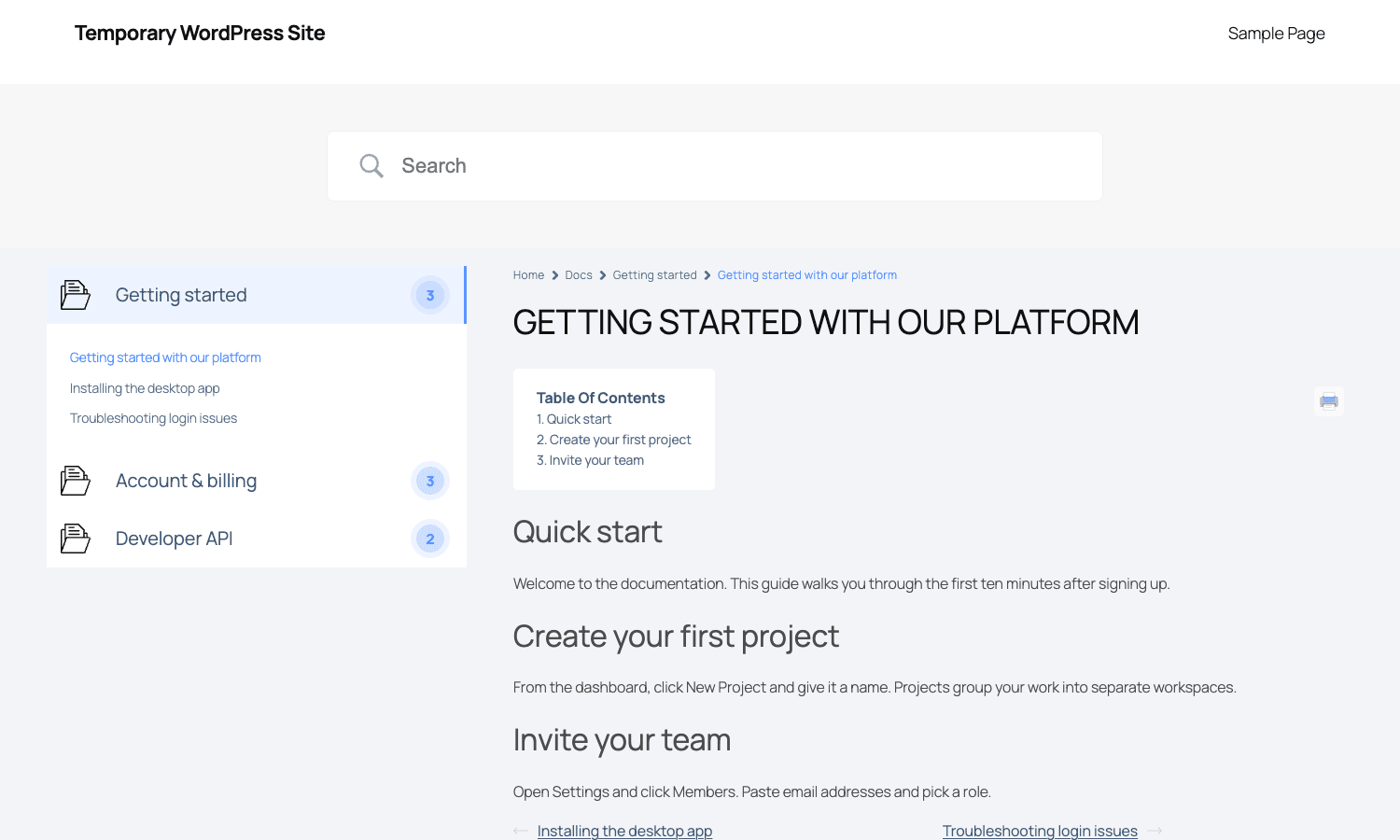
The whole experience is something you’d normally spend weeks rebuilding from scratch with a custom theme. Here it’s a plugin install plus picking a template.
Installing and activating the plugin
Two-plugin install: the free BetterDocs from the WordPress.org repository, then the BetterDocs Pro add-on. Drop both zips into Plugins -> Add New -> Upload, activate the free one first, then the Pro one.
On first activation the plugin runs a Quick Setup wizard at wp-admin/admin.php?page=betterdocs-setup. The wizard asks you four things:
- Documentation page slug (default
docs). - Whether you want Multiple Knowledge Base mode on.
- Which layout template you like (it shows you live previews).
- Whether to import sample categories and docs to start with.
If you’re impatient or you want to set things up by hand, click Skip This Step on each panel. You’ll land on the BetterDocs dashboard.
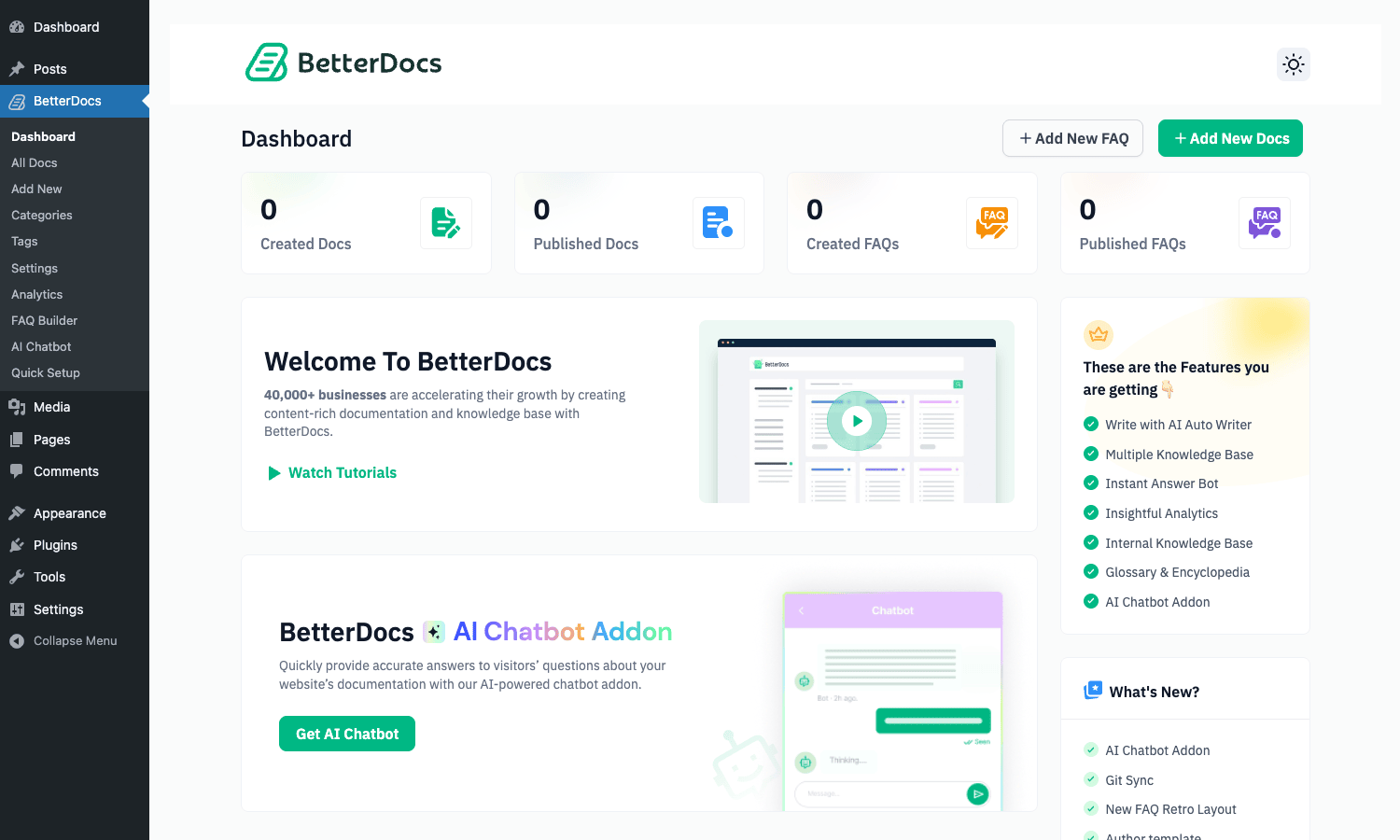
The dashboard shows running totals (created docs, published docs, created FAQs, published FAQs) and a sidebar feature checklist that tells you what’s enabled. The "What’s New?" card at the bottom is useful, it’ll surface the AI Chatbot Addon, Git Sync, FAQ Retro Layout, and any other recent additions.
Creating your first docs and categories
Open BetterDocs -> Add New. A standard Gutenberg editor opens with the article’s title, content area, and the usual sidebar tabs. The first thing to notice: the post type at the top says "Add New Docs", not "Add New Post". You’re in the docs CPT, and that’s intentional. Your docs stay separate from your blog.
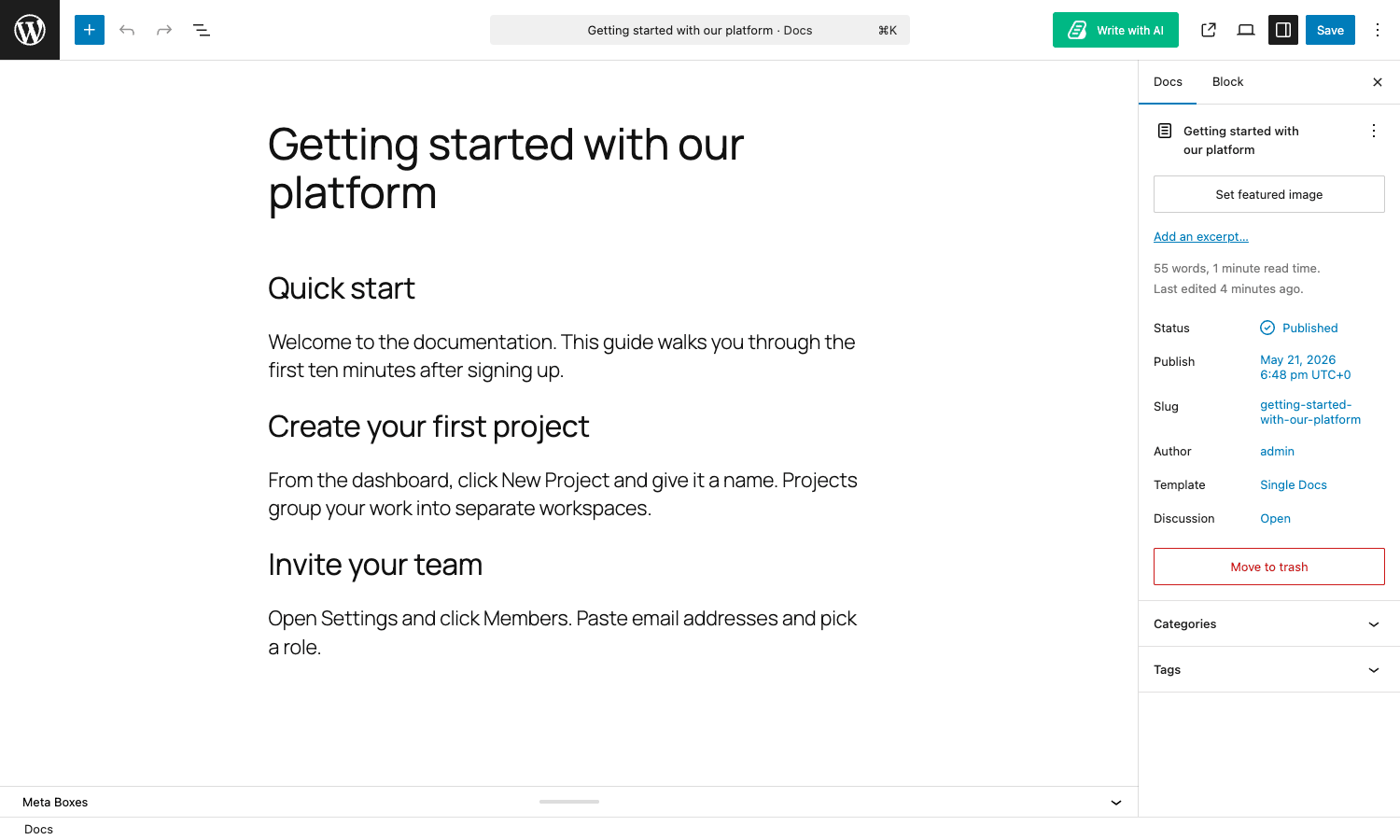
Write the article, set a slug, optionally set a featured image (it’ll show on the article card in the category list), then pick a category from the Categories panel. Hit Publish.
To create categories before you start writing, hit BetterDocs -> Categories. Each category gets a name, a slug, a description, a category-level icon (BetterDocs lets you upload SVG icons per category, which is a small touch that makes a grid look polished), and optionally a parent category for hierarchical KBs.
When you’ve got a few docs in, the "All Docs" view is where the magic happens. Instead of the usual WordPress table-with-rows-and-an-actions-column, BetterDocs renders it as a kanban board: one column per category, articles stacked inside each column, and a six-dot drag handle on the left of each title. Drag an article up or down to reorder it within a category. Drag it across columns to move it to a different category.
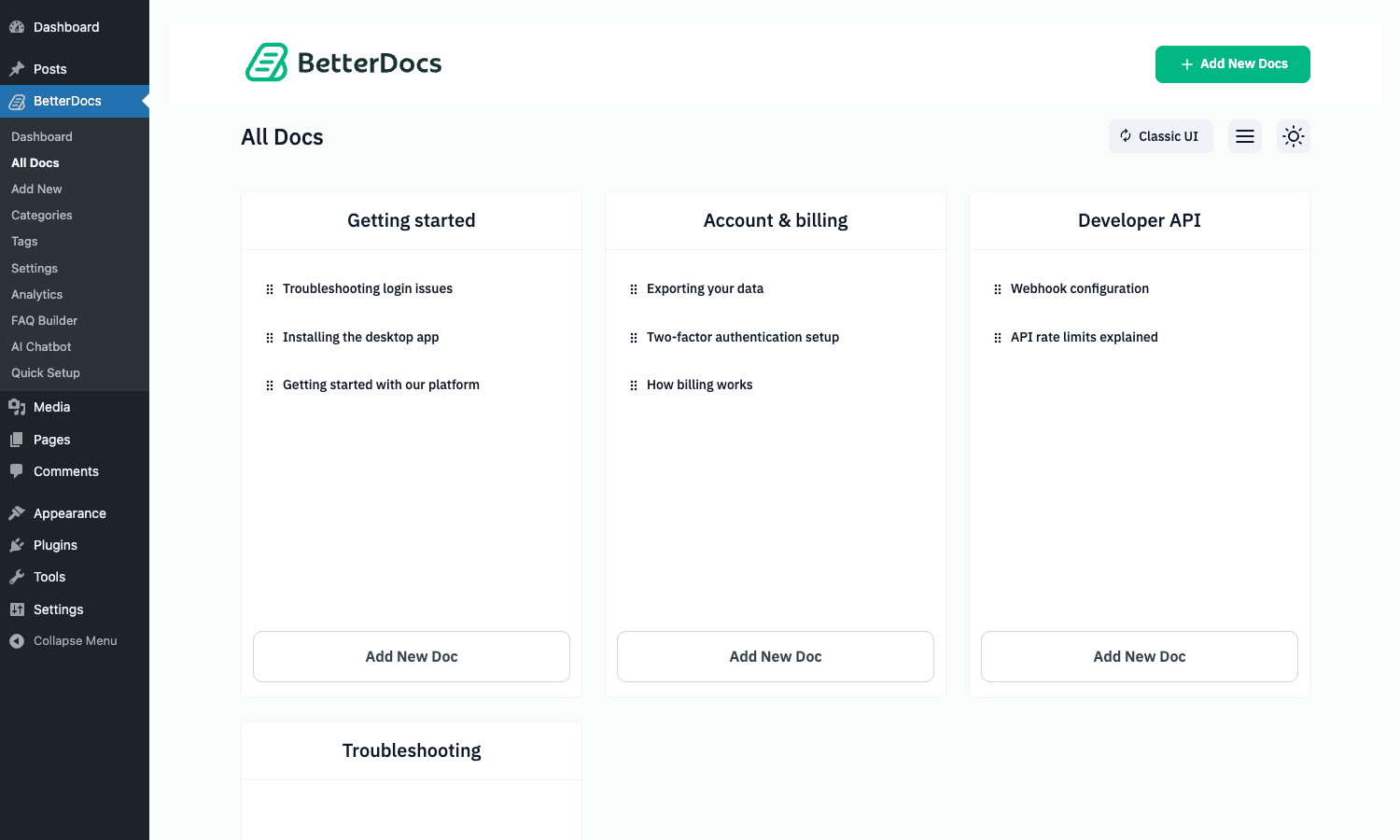
This sounds like a small feature, but if you’ve ever managed a knowledge base with twenty articles where the order matters (because that order is what visitors see on the front end), the difference between a kanban and a table-with-an-order-field is huge. You stop thinking "I need to renumber four articles to insert a new one" and start thinking "drop it between these two".
There’s a Classic UI toggle in the top right of the All Docs page if you want to switch back to the standard WordPress edit-posts table.
Settings: the panels that matter
Open BetterDocs -> Settings. You’re looking at a left-rail menu with about a dozen tabs.
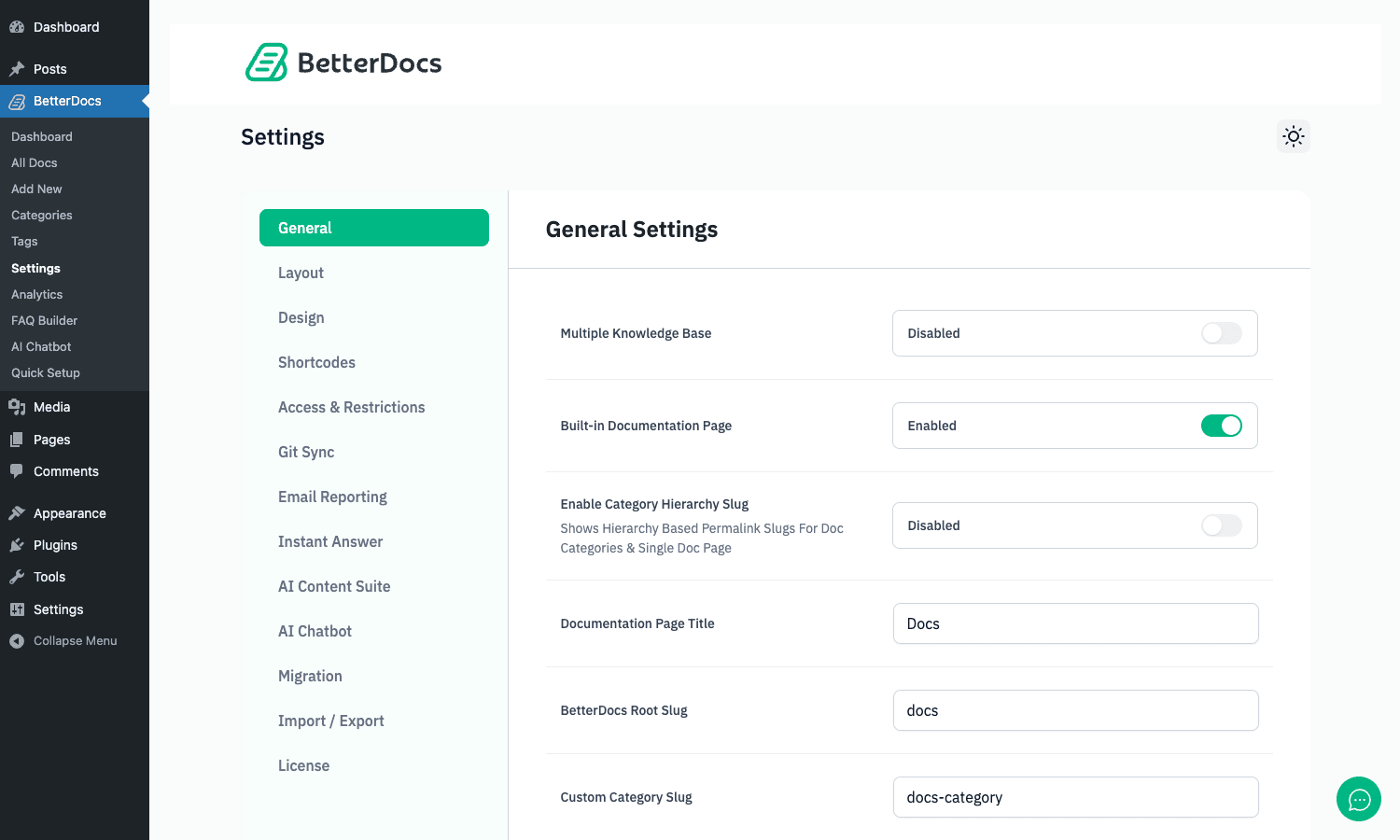
Here’s what each tab actually does, in plain English.
General
The basics: documentation page title (what shows at the top of /docs/), the slug (docs by default), and a toggle for Multiple Knowledge Base mode. You also get an "Enable Category Hierarchy Slug" toggle that controls whether single-doc URLs reflect the category path (/docs/getting-started/install/) or stay flat (/docs/install/). Permalinks for the docs CPT live here too, which means you can change the root from /docs/ to /help/ or /support/ without breaking links if you set up a redirect.
Layout
This is where you pick what your front end looks like, and it’s the section I’d play with the most early on. Three sub-tabs: Documentation Page (the /docs/ landing), Single Doc (the article view), Archive Page (the category archive).
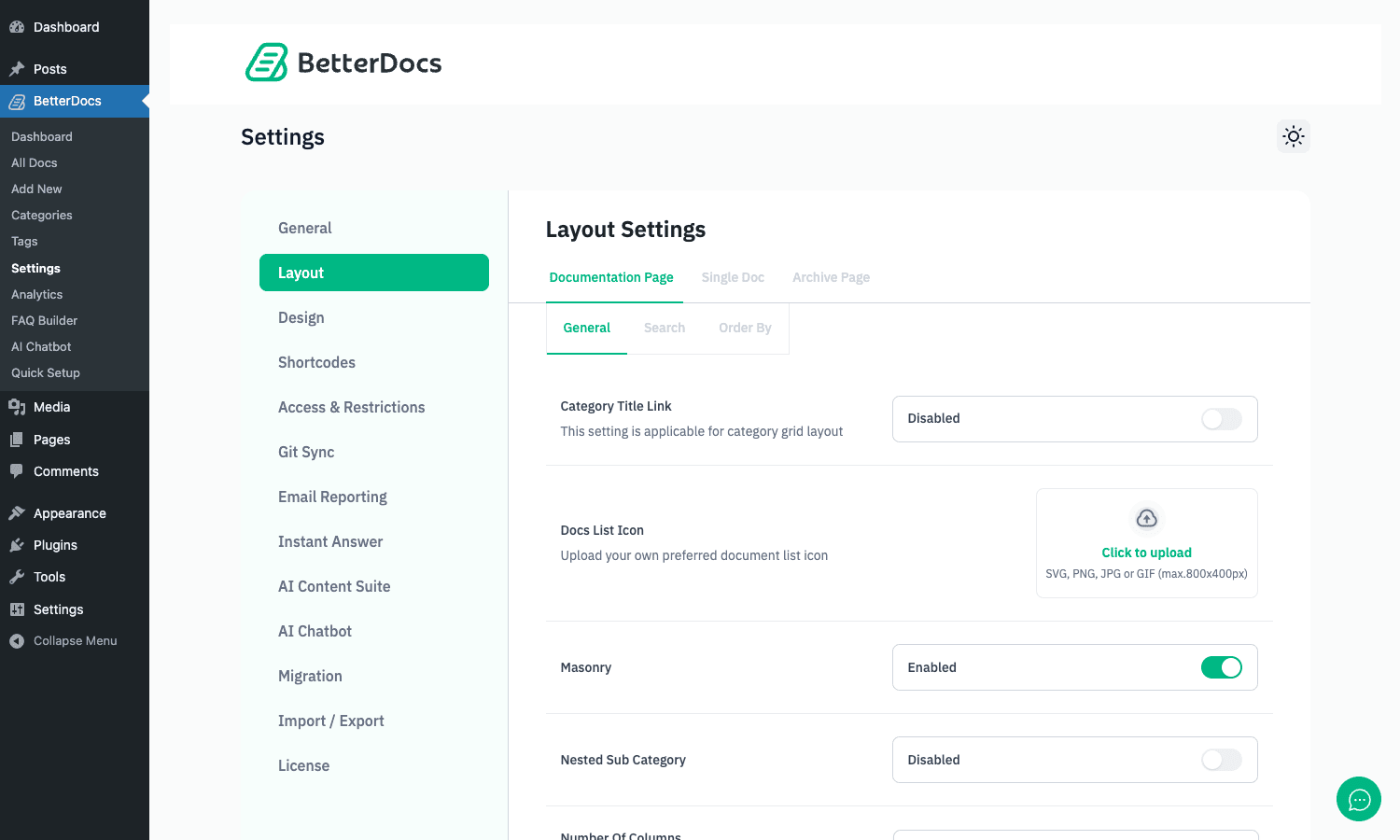
For the Documentation Page you can switch between Masonry, Grid, Box, or List layouts, set the column count, decide whether to show nested sub-categories on the landing, and toggle a Category Title Link (clicking the category title takes you to the archive vs only listing articles).
For Single Doc you choose between layouts (Modern, Classic, sidebar TOC, no sidebar, handbook-style), pick whether the breadcrumbs show, whether the print icon shows, whether the reading-progress bar shows, and whether the like/dislike prompt shows.
For the Archive Page (the category landing) you decide whether to show article counts, post excerpts, featured images, and so on.
Design
Color and typography overrides without touching a stylesheet. There are fields for the primary brand color, the link color, header backgrounds, the search box appearance, and font family / size for the doc body. It’s not as expressive as a full theme, but it gets you out of writing CSS for the obvious tweaks.
Shortcodes
A cheat-sheet view of the shortcodes the plugin registers. Useful when you’re embedding KB elements in a non-Gutenberg context (an Elementor or Divi page, for example). You’ll see entries like betterdocs_search_modal, betterdocs-multiple-kb, betterdocs-category-grid, and so on.
Access & Restrictions
This is one of the headline Pro features. You can set up rules like "Hide the Internal API category from logged-out visitors", "Show the Billing category only to the customer role", or "Restrict everything in the Internal KB to IPs in this whitelist". Rules are added as a repeater list so you can stack multiple conditions.
Git Sync
Connect a GitHub repository, point at a folder of markdown files, and BetterDocs will pull them into WordPress as docs posts (with the markdown filename becoming the slug, and front-matter becoming category / tag assignments). A webhook keeps it in sync so a git push from your engineering team updates the public docs.
Email Reporting
Schedule a weekly email summary to admin (or any email address) with top docs, search queries, and dislike counts. Useful for product managers who want to glance at the KB pulse without logging in.
Instant Answer
The settings for the AJAX search experience: keyboard shortcut (default Cmd/Ctrl-K), search hints, max number of results, whether to show "popular searches" suggestions, and the modal style. You can also configure which post types Instant Answer searches across (docs only, or docs plus blog posts).
AI Content Suite
Tunable AI assist inside the editor: which model to use, whether to enable inline rewriting, summary generation, and FAQ generation from an article body.
AI Chatbot
Settings for the paid Chatbot add-on (which is a separate plugin sold by WPDeveloper). The tab is here as a stub that explains what the add-on does.
Migration
A one-click importer that reads other documentation plugins’ data (weDocs, Echo Knowledge Base, BasePress, Documentor) and migrates them into BetterDocs.
Import / Export
CSV import/export of docs, categories, and settings. Handy for moving a KB between environments.
License
Activate your license key.
Layouts, templates, and design controls
The Layout tab is worth its own section because it’s the front-end shape of your KB, and the difference between a polished and a clunky help center comes down to which layout you pick.
Documentation page templates
There are five layouts shipped:
- Bold: grid of categories with large icons and short descriptions. Good for visual KBs (design tools, video courses).
- Trendy: masonry layout with article counts inside each category card. Good for unevenly-sized categories (one category has 30 articles, another has 3).
- Clean: a single-column list of categories with all articles expanded under each. Good for short KBs where the visitor wants to see everything at once.
- Modern: card grid with featured-article highlights at the top.
- Classic: simple two-column grid, no icons, focuses on text. Good for technical/developer KBs.
You’ll want to live-preview your content in each before settling. Switch the layout in the Documentation Page sub-tab, hit Save, then visit /docs/ in a new tab.
Single doc templates
Same idea. The biggest decision here is whether to show the sticky sidebar with the category tree (good for readers who’ll bounce between several docs) or to use a centered single-column layout that maximizes reading width (good for long-form articles). The Modern layout shows the sidebar, the Classic layout hides it.
You can also toggle the Reading Progress Bar (a thin bar at the top of the article that fills as you scroll, the same UX pattern you see on Medium) and the Estimated Reading Time chip near the title.
Design overrides without CSS
The Design tab has color pickers for: primary, secondary, link, search box background, category card background, button background, and a few more. There’s also a Typography section where you pick a Google Font family and a base size for the doc body. Both of these write a small <style> block into the front-end output, so they cascade after your theme and override any conflicting rules.
If you need finer control, every BetterDocs front-end element has a sensible CSS class (.betterdocs-categories-wrap, .docs-single-content, .betterdocs-search-form) so you can target them from your child theme or a custom CSS plugin without inspecting and guessing.
Multiple Knowledge Bases
This is the feature you’ll either use heavily or not at all. Multiple Knowledge Bases means: one WordPress install, multiple distinct KBs on different URLs, each with its own category tree, its own visual style, its own roles.
You’d use it when:
- You sell two products and want each to have its own help center under your main domain.
/docs/product-a/and/docs/product-b/instead of one giant mixed KB. - You have a public KB and an internal staff KB on the same install. The internal one lives at
/handbook/and is restricted to logged-in employees. - You’re a digital agency hosting client knowledge bases for several brands on a multisite-free single install.
Enable it from Settings -> General -> Multiple Knowledge Base. Then go to BetterDocs -> Knowledge Base and create your KBs (the knowledge_base taxonomy). When you create a category, you’ll see a new field asking which Knowledge Base it belongs to. The same applies when creating an article.
On the front end, MKB has its own grid block (multiple-kb) and a tab block (multiple-kb-tab) that switches between KBs in a single page. The plugin filters post_type_link so that doc permalinks include the KB slug (/docs/<kb>/<category>/<doc>/) when MKB is active.
The Core/MultipleKB.php class is where this is wired up, if you want to look at the source. It registers knowledge_base as a public taxonomy attached to the docs post type, and exposes a swarm of filters (betterdocs_mkb_content_padding_top, betterdocs_mkb_column_space, etc.) that let you customize spacing on the MKB layouts from a child theme.
Instant Answer, Advanced Search, and the search experience
The search bar at the top of every BetterDocs page is not a regular WordPress search. It hits an AJAX endpoint, queries the docs post type, and renders matching titles (and snippets, if configured) in a dropdown as the visitor types. The whole thing is fast, and it’s the single feature that makes the most difference to the visitor’s experience.
A few details that are worth knowing:
- The keyboard shortcut to focus the search box is configurable (default Cmd/Ctrl-K). On a help center this matters more than you’d think, because power users want to search without clicking.
- A "popular searches" suggestion appears in the dropdown before the visitor types anything, populated from analytics. Visitors land, see what other people commonly search for, and pick the one they want.
- Zero-result searches are logged. The Analytics tab has a Search sub-tab that shows you which queries returned nothing. That list is gold for content planning: people are searching for things you haven’t written yet.
- The Advanced Search block (rendered by
includes/Editors/BlockEditor/Blocks/AdvancedSearch.php) lets you embed a custom search bar in any page or post, with optional filter pills for category and tag. - The Pro plugin filters Instant Answer queries via
apply_filters( 'betterdocs_ia_query_string_array',... ), so you can extend search to additional post types or add custom query parameters from a small snippet in your child theme.
The AccessControl class also resolves the current user during Instant Answer requests by falling back to wp_validate_auth_cookie() against the LOGGED_IN_COOKIE. This means role-restricted docs stay hidden in search results even when the AJAX request doesn’t carry a fresh nonce, which is the kind of detail I appreciate when I’m shipping an internal KB.
Analytics: what your docs are doing for you
The Analytics tab gives you four sub-views: Overview, Views, Reactions, and Search.
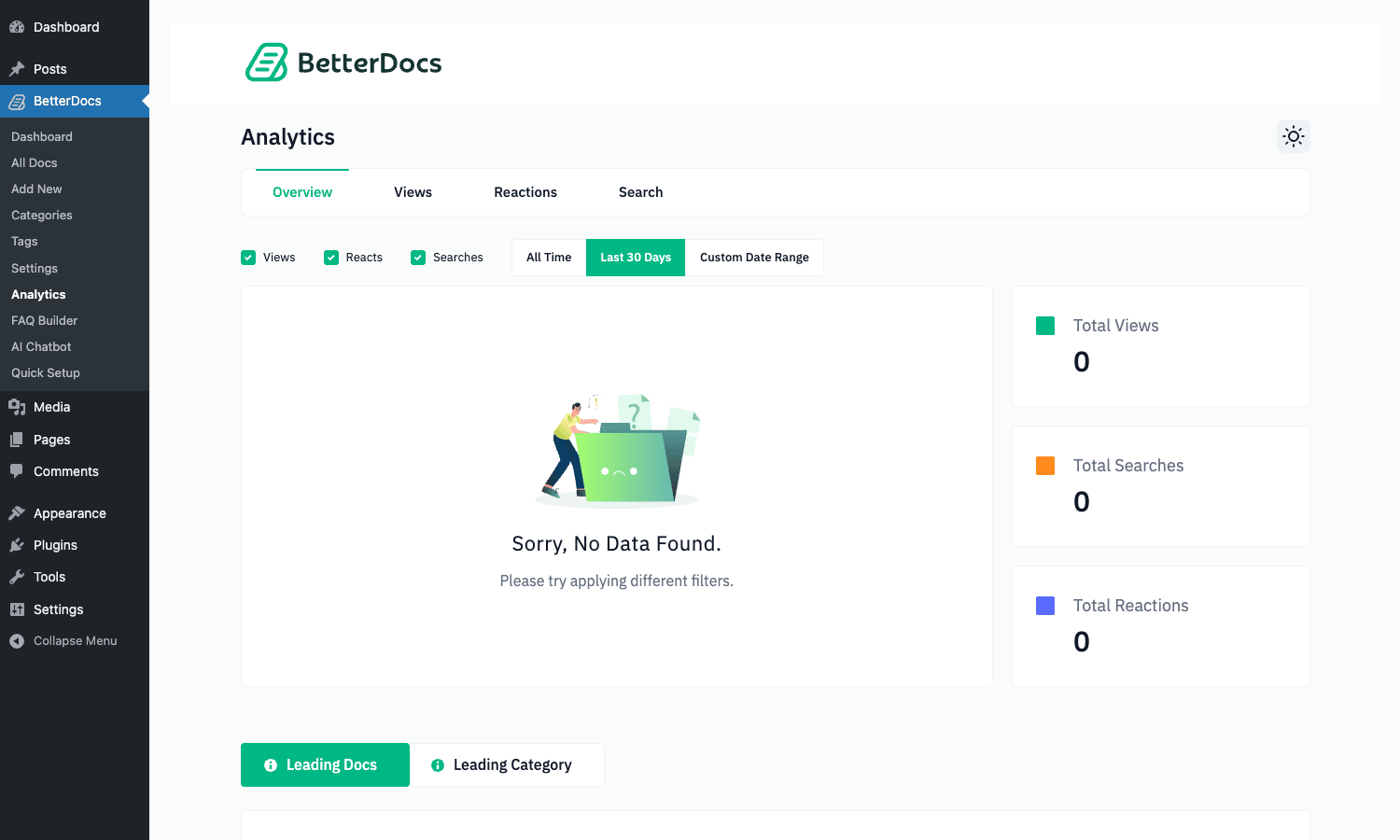
Overview shows totals: total views, total searches, total reactions. A leaderboard underneath shows the leading docs and leading categories by view count.
Views is a time-series chart of how many times each doc was opened over the selected period (last 7 days, last 30 days, custom range). You can stack categories on top of each other to see which categories are pulling more traffic over time.
Reactions shows like/dislike counts per doc. A doc with 80 likes and 20 dislikes is fine. A doc with 5 likes and 30 dislikes is broken, and you need to either rewrite it or figure out why visitors are landing there with the wrong expectation.
Search is the most useful screen. It lists the top search queries by frequency, alongside whether the query returned a result. The zero-result list is what you should triage every Monday. Each entry on that list is a missing article and a frustrated visitor.
A weekly digest of this view can be auto-emailed via the Email Reporting tab, which means even non-WordPress people on your team (product managers, support leads) can stay in the loop without ever logging in.
If this analytics-first view of a knowledge base is what sold you, it is worth seeing how a competitor handles the same idea. Our MinervaKB review covers another KB plugin built around search analytics and the zero-result report, so you can compare the two approaches before you commit.
FAQ Builder
FAQ Builder is a separate feature from your main KB, and that’s a deliberate choice. The thinking is: an FAQ is short, often appears on a marketing page, and benefits from Schema.org FAQPage markup so it shows up as rich snippets in Google. A full help article is longer, lives in its own section of the site, and doesn’t necessarily need the same markup.
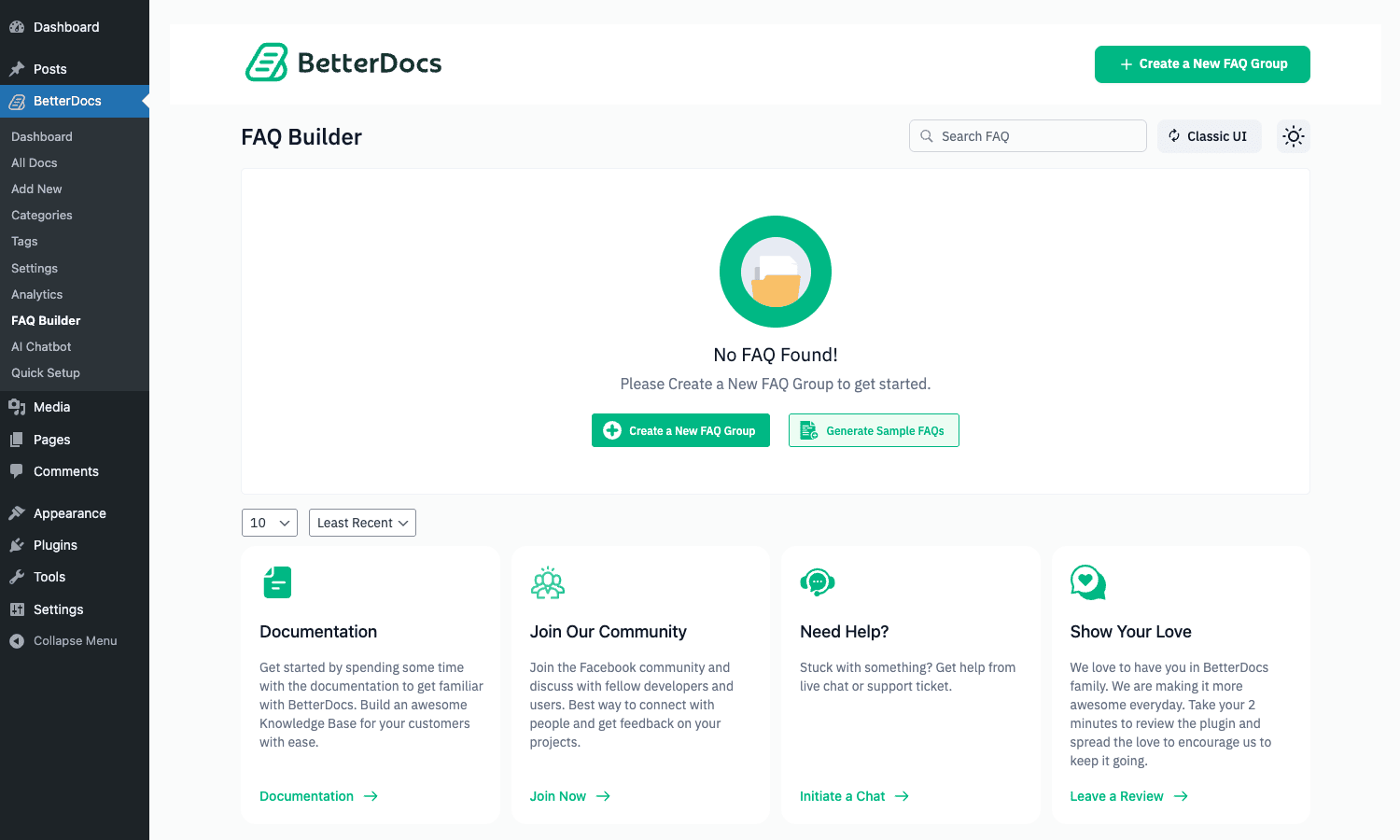
Open BetterDocs -> FAQ Builder, create an FAQ Group (e.g. "Billing FAQs"), then add questions and answers to it. Each group gets a shortcode and a Gutenberg block you can drop into a page. The output is HTML with the right schema markup baked in.
The "Generate Sample FAQs" button uses the AI assist (if you’ve configured a model) to draft a starter set based on the page title or the topic you describe. You’ll want to edit them down after, but it’s a faster start than a blank screen.
Access control, encryption, and internal KBs
The Access & Restrictions tab is where BetterDocs Pro. Three flavours of restriction:
- Logged-out vs logged-in. Hide whole docs or categories from non-logged-in visitors. Useful for paid product documentation that’s part of the purchase.
- By role. Show docs to specific WordPress roles. Pair this with Restrict Content Pro or MemberPress Pro for paid membership tiers; visitors get the docs that match their plan.
- By IP. Whitelist specific IPs (or ranges) for individual docs or categories. The classic use case is an internal staff KB that only resolves from the office network.
Access rules live in two settings: betterdocs_access_control_repeater (when Multiple KB is off) and betterdocs_access_control_repeater_kb (when Multiple KB is on). The AccessControl class loads the right one at boot and applies it on every doc query.
There’s also a "Lock with Password" toggle per individual doc, which lets a doc author publish a private article and share the password with specific recipients (like sharing a Google Doc with a link-with-password).
For a public-facing product KB you probably won’t use any of this. For a SaaS that wants part of its docs public (marketing site, evaluation tier) and part of them private (paying customers only), it’s the difference between BetterDocs and a static-site generator.
Internal Knowledge Base mode
A specific configuration is called Internal Knowledge Base mode: enable Multiple KB, create a KB called Internal, set every category in it to "Logged-in users only", and you’ve got a staff handbook that doesn’t appear to public visitors. Pair it with BuddyBoss Platform for community plus internal docs in one install, and you’ve got a respectable intranet without ever leaving WordPress.
Git Sync: pulling docs from a GitHub repo
This is a niche feature, but it’s a nice one. Open Settings -> Git Sync, connect a GitHub repository (OAuth via the WPDeveloper proxy, configurable via the betterdocs_github_auth_proxy_url filter), pick a folder of markdown files, and BetterDocs will pull them in.
How it works in practice:
- Your engineers ship docs alongside code, in markdown, in the same pull request as the feature they’re documenting.
- Front-matter (YAML at the top of each
.mdfile) maps to category, tag, slug, and featured image. - On
git pushto the main branch, a webhook fires, BetterDocs fetches the changed files and updates the matchingdocsposts (creating new ones if the slug doesn’t exist). - A "Sync Now" button in the admin forces a manual pull at any time.
For product teams whose engineers refuse to write docs inside the WordPress editor, this is a real productivity unlock. You get the WordPress front end (with all the search, analytics, theming) and the engineers get to keep their markdown-and-Git workflow.
Real-world use cases
Five scenarios where BetterDocs Pro lands neatly.
1. SaaS product help center
You sell a SaaS, you’ve got a support inbox, and you want to deflect the easy 70% of questions to a self-serve help center. BetterDocs gives you /docs/ with categories like "Getting Started", "Account", "Integrations", "Troubleshooting", and "Billing". You stick an "Open a ticket" CTA at the bottom of every article so visitors who don’t find what they want still convert into tickets. Pair it with WPForms Pro for the ticket form on the contact page and you’ve got the whole loop.
2. WooCommerce store with product documentation
A WooCommerce site selling physical products (hardware, gadgets) needs a place to put assembly instructions, manuals, FAQ, and warranty info per product. Run Multiple KB mode, one KB per product line. Link each WooCommerce product page to its KB landing page. Use the Access & Restrictions feature to gate certain advanced docs behind purchase.
3. Membership site with tiered content
You sell a paid course or a membership; you want documentation that varies by tier. Free tier sees the introductory articles, premium tier sees the deep dives, agency tier sees the internal-only docs. Pair BetterDocs Pro’s role-based access with a membership plugin and your KB respects the customer’s purchase automatically.
4. Plugin / theme developer documentation
You ship WordPress plugins on your own site and need a docs section for each. Git Sync is the killer feature here. Your plugin readme files live in the same GitHub repo as the plugin code; BetterDocs pulls them into the site as soon as you push. Your engineers stay in their flow, your docs stay fresh, your support inbox stays lighter. Plugins like Elementor Pro use this exact pattern at scale.
5. Internal company handbook
Replace Notion or Confluence for internal docs. Enable Multiple KB, create an Internal KB, gate it to logged-in employees, optionally gate by IP. Pair with FluentCRM Pro for the new-hire onboarding email sequence that links to specific handbook pages, and the whole employee lifecycle lives in one WordPress install.
Developer reference
BetterDocs Pro is built as a clean, PSR-4 namespaced bundle (WPDeveloper\BetterDocsPro\*), with a Composer-loaded vendor directory and a sensible split between Core, Admin, Editors, FrontEnd, and REST namespaces. Most of what you’ll customize as a developer goes through one of the documented filters; here’s the set that came up the most when I went through the code.
Hook: extend Instant Answer search to your own post type
By default Instant Answer searches only the docs post type. If you want it to also search your blog posts, custom case studies, or a third-party CPT, hook the betterdocs_ia_query_string_array filter:
add_filter( 'betterdocs_ia_query_string_array', function ( $args, $content_type, $is_search, $content_list ) {
 // Extend the Instant Answer query to also search blog posts and 'case_study' CPT.
 $args['post_type'] = array( 'docs', 'post', 'case_study' );
 return $args;
}, 10, 4 );
This works for either logged-in or logged-out searches; Pro’s AccessControl class will still respect role gating on any restricted content the additional post types include.
Hook: customize the spacing of the Multiple KB content area
The Multiple KB block exposes spacing filters for every padding side. You’d use these to fine-tune the layout on a busy landing page without writing CSS:
add_filter( 'betterdocs_mkb_content_padding_top', function ( $value ) {
 $value['desktop'] = '40';
 $value['tablet'] = '24';
 $value['mobile'] = '16';
 return $value;
} );

add_filter( 'betterdocs_mkb_column_space', function ( $value ) {
 $value['desktop'] = '24';
 return $value;
} );
The same pattern applies to betterdocs_mkb_content_padding_right, _bottom, _left, betterdocs_mkb_content_width, and betterdocs_mkb_content_max_width.
Hook: register a custom Pro block
BetterDocs Pro keeps its block registry in a config array filtered by betterdocs_pro_blocks_config. To add your own block to the BetterDocs block category, return it from the filter:
add_filter( 'betterdocs_pro_blocks_config', function ( $blocks ) {
 $blocks['my-pricing-table'] = array(
 'label' => __( 'BetterDocs Pricing Table', 'my-plugin' ),
 'value' => 'my-pricing-table',
 'visibility' => true,
 'object' => \MyPlugin\Blocks\PricingTable::class,
 'demo' => '',
 'docs' => '',
 );
 return $blocks;
} );
Pro’s Editors\BlockEditor will pick it up, register the block on init, and add it to the BetterDocs category in the block inserter.
Hook: change Pro defaults on first install
When BetterDocs Pro initializes for the first time, it merges its own defaults with the base defaults via apply_filters( 'betterdocs_pro_option_defaults', $betterdocs_defaults_pro ). You can override any default before it gets saved:
add_filter( 'betterdocs_pro_option_defaults', function ( $defaults ) {
 // Force Multiple KB on by default for new sites we provision.
 $defaults['multiple_kb'] = '1';
 // Disable the print icon by default.
 $defaults['print_button'] = '0';
 return $defaults;
} );
This is useful in agency settings where you want a baseline configuration on every new site.
Hook: customize the KB term edit form
The knowledge_base taxonomy’s edit screen fires an action before the icon upload widget, so you can inject your own field above it:
add_action( 'betterdocs_knowledge_base_update_form_before', function ( $term ) {
 $custom = get_term_meta( $term->term_id, 'kb_external_url', true );?>
 <tr class="form-field">
 <th scope="row"><label for="kb_external_url">External docs URL</label></th>
 <td><input name="kb_external_url" id="kb_external_url" type="url" value="<?php echo esc_attr( $custom );?>" /></td>
 </tr>
 <?php
} );
Pair it with a corresponding edited_knowledge_base action to persist the field.
Hook: react to the betterdocs_pro_loaded action
BetterDocs Pro fires do_action( 'betterdocs_pro_loaded' ) once on plugin init. This is the right spot to register additional integrations:
add_action( 'betterdocs_pro_loaded', function () {
 // Pro is initialized. Safe to access betterdocs_pro() now.
 if ( function_exists( 'betterdocs_pro' ) ) {
 //... wire up integrations here...
 }
} );
Working with the REST API
Pro doesn’t register its own REST routes for content; instead, the standard WordPress REST routes for the docs CPT and its taxonomies are exposed out of the box:
GET /wp-json/wp/v2/docslists docs.POST /wp-json/wp/v2/docscreates a doc.GET /wp-json/wp/v2/doc_categorylists categories.GET /wp-json/wp/v2/knowledge_baselists KBs (when Multiple KB is on).
This means a Headless WordPress front end (Next.js, Astro, SvelteKit) can fetch BetterDocs content via REST or via the GraphQL plugin’s auto-generated schema, then render it however you like. The AccessControl class hooks into REST requests too, so role-restricted docs stay hidden from REST consumers that don’t have a session cookie.
Access control under the hood
Core/AccessControl.php is worth reading if you’re building anything custom on top. Three things to know:
- It resolves the current user even when REST nonces are missing, by validating the
LOGGED_IN_COOKIEdirectly. So your custom frontend that uses cookie-based auth still respects per-role restrictions. - It has a recursion guard for filter hooks (max depth 10) so deeply nested category restrictions don’t infinite-loop.
- It caches expensive parent-category lookups in a static
$query_cache, so the same access check across many docs on the same page doesn’t re-query the database.
If you’re building a custom block or widget that reads from BetterDocs, call betterdocs_pro()->access_control->can_view( $post_id ) to respect the same gating without re-implementing it.
Performance, compatibility, and gotchas
A few practical notes after running BetterDocs Pro on a real site.
Performance
- The plugin enqueues a couple of JS bundles on KB pages (Instant Answer, the kanban editor in admin) but stays quiet on non-KB pages. The base plugin’s CSS is small.
- Instant Answer search results are not cached by default. On a high-traffic KB you’ll want to put a caching plugin in front; WP Rocket and LiteSpeed Cache both play nicely if you exclude the
?_betterdocs_ajax=1query string from page cache and let WordPress handle that endpoint live. - The kanban view in admin makes one REST call per drag-and-drop reorder. With thousands of articles in one category this can feel sluggish in the browser; for KBs that size, fall back to the Classic UI toggle.
Compatibility
- Page builders: works with Elementor (Pro adds dedicated widgets), Divi (use shortcodes), Beaver Builder, Bricks, Oxygen, and any block-themed setup (the blocks just appear in the inserter).
- SEO plugins: Rank Math, Yoast, and AIOSEO all index
docscorrectly out of the box because it’s a public CPT with archive support. Pro doesn’t fight with the SEO plugins for breadcrumb rendering; you can use either’s breadcrumbs. - Multilingual: ships a
wpml-config.xmland apolylang-config.xmlso WPML and Polylang Pro recognizedocs,doc_category,doc_tag, andknowledge_baseand let you translate articles cleanly. - Membership plugins: MemberPress Pro and Restrict Content Pro both work alongside BetterDocs Pro’s access control. Pick one as the source of truth; running both restriction layers on the same KB will confuse future-you.
Edge cases and gotchas
- Permalink flush after activation: if
/docs/returns a 404 after install, go to Settings -> Permalinks and click Save without changing anything. WordPress flushes rewrite rules. - Hierarchy slugs and Yoast: if you turn on "Enable Category Hierarchy Slug" mid-life, Yoast may need a re-crawl to pick up the new URL structure. Update your sitemap and submit it in Search Console.
- Importing existing docs: the Migration tab is one-way. If you import from weDocs and don’t like the result, undo means restoring from a backup. Always test on a staging site first.
- AI write assistant: requires an API key for OpenAI or Gemini, which you configure in the AI Content Suite tab. Without a key the button just shows an "Add API key" prompt; it doesn’t break the editor.
- Print stylesheet: it works, but it doesn’t strip the sidebar by default on every theme. If you care, add
@media print {.betterdocs-sidebar { display: none; } }to your child theme CSS. - Like / dislike spam: the reactions endpoint is rate-limited per IP per doc, but on a public KB you may still see vandals trying to bomb articles. There’s no built-in CAPTCHA on the reaction prompt; if it’s a problem, gate the prompt behind logged-in users in the Single Doc layout settings.
Pricing and licensing
BetterDocs Pro is sold by WPDeveloper in three tiers:
- Starter: 1 site, 1 year of updates and support.
- Growth: 5 sites, 1 year of updates.
- Agency: unlimited sites, 1 year of updates.
Lifetime tiers come up during promo periods. The license unlocks updates and access to WPDeveloper’s support; the plugin keeps working when the license expires, you just stop getting new versions.
The free BetterDocs on WordPress.org gives you the docs post type, basic layouts, search, and the dashboard. Everything in this article tagged "Pro" (Multiple KB, advanced access control, encryption, IP restriction, kanban ordering, Git Sync, AI Content Suite, advanced analytics) needs the Pro add-on.
You’ll see the BetterDocs Pro plugin under GPL Times’ WordPress premium plugins – install it on your staging site and play with every feature before you commit.
Frequently asked questions
Do I need the free BetterDocs plugin installed to run Pro?
Yes. BetterDocs Pro is an extension that depends on the free base plugin from WordPress.org. Install the free version first, activate it, then install Pro.
Can I run BetterDocs alongside my existing blog?
Yes, and that’s the point of the separate post type. Your blog posts (post) stay in their own taxonomy and front-end views. BetterDocs docs (docs) live at /docs/ and are completely independent. There’s no conflict with categories or tags between them.
Does BetterDocs work with my theme?
It works with any well-built WordPress theme because the front-end output is its own templates loaded via the plugin (not theme-dependent). It respects your theme’s typography and colors by default and overrides only the elements specific to docs. If your theme uses an unusual page wrapper, you may need a small CSS tweak; the BetterDocs CSS is gentle and doesn’t try to take over the entire site.
Can I import docs from a Notion workspace or Google Doc?
Not directly. There’s no Notion or Google Docs importer. The CSV import in the Migration tab can take an exported CSV from Notion (with one row per doc) if you map the columns yourself. For Google Docs, copy-paste into the editor is the simplest path. For larger imports, Git Sync is the better workflow: push your docs as markdown to a GitHub repo, then point Git Sync at it.
How is BetterDocs Pro different from Heroic Knowledge Base?
Both are mature WordPress KB plugins. The big differences: BetterDocs has built-in Multiple Knowledge Base mode in Pro (Heroic needs a separate add-on), BetterDocs has Git Sync (Heroic doesn’t), and BetterDocs has a kanban All Docs UI (Heroic uses the standard WordPress edit-posts table). Heroic has been on the market longer and has a more polished templating layer. Pick BetterDocs if you want a modern admin UX and you care about the kanban + Git Sync features; pick Heroic if you want a more conservative, longer-standing option.
Can I use BetterDocs Pro for an internal company wiki?
Yes. Enable Multiple KB, create an Internal KB, set every category in it to "Logged-in users only" or IP-restricted, and you’ve got a staff-only handbook. Pair with WordPress’s built-in user roles or a plugin like Members for finer-grained role control.
Does BetterDocs support PDF attachments?
Yes. The Attachment block / shortcode lets you attach files (PDFs, ZIPs, images) to a doc. They render as styled download cards inside the article body. The same Attachment widget exists for Elementor.
Will it slow down my site?
In normal use, the plugin’s footprint is small. Front-end CSS and JS are loaded only on KB pages. The biggest performance question is database load when Instant Answer search is used heavily; if you expect hundreds of concurrent searches, sit a caching layer in front of the AJAX endpoint or move the search to an external service via the Instant Answer filters.
Can I add a chat widget for live support alongside the KB?
The AI Chatbot is a separate Pro add-on sold by WPDeveloper. If you want a human-staffed live chat, BetterDocs doesn’t ship that, but it plays nicely with third-party widgets (Intercom, Crisp, Tawk.to) since they’re loaded as separate scripts. The KB and the chat widget happily coexist on the same page.
Is there a way to A/B test article content?
Not natively. You’d need a separate A/B testing plugin or a tool like Google Optimize. BetterDocs Analytics tells you how each article performs in absolute terms (views, reactions), which is enough for most teams; if you need rigorous experimentation, layer in a dedicated tool.
Can I export the entire KB?
Yes. The Import / Export tab dumps all docs, categories, and settings to a CSV / JSON pair that another BetterDocs install can ingest. You can also use the standard WordPress Tools -> Export to get an XML dump that includes the docs post type.
What happens if I deactivate the Pro plugin?
The base BetterDocs keeps working with all the free features. You lose Multiple KB, advanced access control, encryption, IP restriction, kanban view (it falls back to the Classic table), advanced analytics, FAQ Builder Pro features, Git Sync, and the AI Content Suite. Your articles and categories stay intact; you just can’t see Pro-only data or use Pro-only restrictions.
Final thoughts
I came into this with a healthy skepticism of "all-in-one" knowledge base plugins, because most of them either look great and behave badly, or behave great and look like Windows 95. BetterDocs Pro is one of the rare ones where both are true at the same time. The kanban All Docs view alone is worth more than I’d expect from a plugin, the analytics dashboard tells you something useful, and the Pro access control system is flexible enough to power both a public help center and a gated internal handbook.
The few things I’d want WPDeveloper to tighten up: the AI Chatbot upsell page inside the admin is a little eager, and the Git Sync flow could use better error messages when a webhook fails. But those are quibbles in a plugin that otherwise nails the brief.
If you’re running a SaaS, a WooCommerce store with manuals, a membership site with tiered docs, or an internal company handbook on WordPress, BetterDocs Pro is on the shortlist. Drop the zip in, click through every tab, write a few sample docs, and watch how the front-end shapes up. Half an hour later you’ll have a working knowledge base that would otherwise have been a half-month custom build.
External resources worth a read: the official BetterDocs documentation, WPDeveloper’s blog for release notes, the free BetterDocs plugin page on WordPress.org, and the Schema.org Article type reference for understanding how the auto-generated schema markup works.