

I’ve set up appointment booking on WordPress for four service businesses in the last two years. A barbershop with four stylists each on their own schedule. A yoga studio with class capacity limits. A notary working in 30-minute slots with a buffer between visits. A marketing agency offering free strategy calls. Different businesses, same problem: WordPress on its own does not book appointments, and every plugin or SaaS scheduler I tried solved part of the puzzle and broke a different piece.
I’d tried the obvious things. Embedded Calendly into a page, which works fine until you want the customer record to live on your site instead of a third party. Tried Acuity. Same SaaS concern, plus the styling never quite matches the rest of the site. Used Bookly on the barbershop, then Amelia on a different project, then the official WooCommerce Bookings on the notary site. They all do the job, but each one feels like it stopped at a different point on the design slider. The one I never gave a real chance was LatePoint. So when the marketing agency needed a fresh booking flow this spring, I picked LatePoint on purpose, built the whole thing end to end, and used the same install on a sandbox to write up what’s in this article.
This isn’t a brochure. It’s a long walk through what LatePoint does well, where it’ll annoy you, what the data model actually looks like under the hood, and a developer reference for the hooks worth knowing. By the end you’ll know whether LatePoint fits your situation and you’ll be productive in its admin instead of clicking around for an hour.
Table of Contents
- What is LatePoint?
- How a WordPress booking plugin actually works
- Key features at a glance
- Installation and the first 15 minutes
- The front-end widget: where LatePoint actually stands apart
- Per-agent calendars: the data model that makes scheduling sane
- Services, working hours, and the bookable matrix
- LatePoint vs Amelia vs Bookly vs BookingPress: when each one wins
- Recurring bookings: the Pro add-on math
- Payment options and Stripe Connect
- Building a barbershop booking site end to end
- Don’t enable email reminders before testing SMTP
- Developer reference: hooks, filters, REST, and tables
- What LatePoint doesn’t do (and when you still need a SaaS scheduler)
- Performance, compatibility, and the gotchas
- Pricing and licensing
- FAQ
- Final thoughts
What is LatePoint?
LatePoint is a WordPress appointment booking plugin built by LatePoint, a small product team that has been working on the same plugin since around 2019. The plugin handles the things you’d expect a scheduling tool to handle: a public booking page, services, staff members (LatePoint calls them "agents"), working hours and time off, payment collection, email and SMS reminders, and a customer-facing portal for managing past and future appointments.
It ships in two parts. The core plugin is on its own (the file is just latepoint.php) and adds the booking engine, the front-end widget, and a single default agent. The Pro Features add-on layers in multi-agent setups, recurring bookings, service bundles, custom fields, taxes, coupons, locations, automation rules, and a handful of payment processors. You can run LatePoint as a single-staff business with just the core, or pay for Pro Features if your business has multiple staff calendars or anything fancier.
What sets LatePoint apart in 2026, honestly, is the front-end widget. Most WordPress booking plugins look like they were designed in 2014. LatePoint’s customer flow is React-rendered, animated, and uses a step-by-step wizard that doesn’t feel out of place next to Cal.com or Calendly. The signature differentiator on this plugin isn’t a feature list. It’s how the booking page actually looks when a customer hits it.
Under the hood, LatePoint is a custom MVC framework. It doesn’t follow the typical WordPress "everything is a post and post meta" pattern. Instead, it ships its own database layer: forty custom tables under the wp_latepoint_* prefix, model classes that mirror those tables, controllers that handle requests, and a view layer for the admin and front end. That’s a lot of code, and the choice has real consequences (good and bad), which we’ll get to in the developer section.
How a WordPress booking plugin actually works
Skip ahead if you’ve shipped a booking plugin before. If you haven’t, this 200 words will save you confusion later.
An appointment booking plugin on WordPress has to solve four problems at the same time.
- A schedule definition layer. Working hours per staff member, plus blocked-out days, plus per-service durations, plus buffers. This is the "when am I available" layer.
- An availability calculation layer. Given everything above, the plugin has to answer "for service S with agent A, on date D, what time slots are still open?" Sounds simple, fails in interesting ways the second multiple bookings, buffers, and timezones come into play.
- A customer-facing booking flow. A multi-step wizard where the visitor picks a service, an agent, a slot, fills in their info, and pays.
- A payment + notification layer. Charge a card, send a confirmation, fire a reminder a day before, mark the booking as completed when the date passes.
LatePoint does all four. The first two are where almost every booking plugin lives or dies, and LatePoint’s approach (per-agent work periods stored as discrete rows, blocked periods stored separately, availability resolved on every request) is sound but you do feel the cost on busy calendars. More on that below.
Key features at a glance
I’ll skip the marketing list and only mention what actually shifts the work for a real business.
- Step-by-step or single-page booking widget. You can pick which flow your customers see. The step-by-step flow is the better default for non-technical visitors; the single-page mode is denser but lets repeat customers move faster.
- Per-service durations, buffers, and capacity. Each service has its own duration ("Men’s haircut, 30 minutes"), an optional buffer before and after (good for cleanup), and capacity (1 by default; bump it to 12 for group classes).
- Per-agent working hours. Each agent has a weekly schedule, plus the ability to override it for specific dates (vacation, sick day, special hours).
- Multiple agents per service. Map "Beard Trim" to two of your three stylists; the customer can pick which one (or "Any").
- Built-in customer portal. Customers get an account with a dashboard at
[latepoint_customer_dashboard]where they can see past appointments, reschedule, and pay outstanding balances. - WooCommerce integration. You can connect LatePoint bookings to WooCommerce so a booking becomes a WooCommerce order. Useful if you already accept payment through Woo.
- Native payment processors. Stripe and PayPal are in the core. Square, Razorpay, Mollie, Mercado Pago, Flutterwave, and Braintree are paid add-ons.
- Coupons, taxes, and deposits. Set a coupon code, charge tax based on location, or take a partial deposit at booking and the remainder at the appointment.
- Email and SMS notifications. Confirmation, reminder, cancellation, and admin-side notices. SMS goes through Twilio. WhatsApp goes through Meta Business.
- Recurring bookings (Pro). Customer can book "every Tuesday at 4pm for the next 8 weeks" in one flow. Stores each occurrence as a separate booking row tied by a recurrence ID.
- Bundles (Pro). Sell a "10-pack of yoga classes" as a single SKU; track usage as the customer redeems each session.
- Google Calendar two-way sync (Pro). Pushes bookings to a Google Calendar and pulls back blocked times so personal events don’t get double-booked.
- Zoom / Google Meet integration. Auto-generates a meeting link when a booking is created and sticks it in the confirmation email.
- Custom forms (Pro). Add text/select/checkbox fields to the booking flow ("What style do you want?"), store them as booking meta, render them in the admin.
- Process automation (Pro). Event-based workflows: "When a booking is created, wait 24h, then send a follow-up email." This is the closest thing LatePoint has to a Zapier-style flow inside the plugin.
Most of these are off by default. The first hour after install is going to be turning on the features that match your business.
Installation and the first 15 minutes
Upload the LatePoint zip via Plugins > Add New > Upload. Activate. If you bought Pro, also upload the LatePoint Pro Features zip and activate it second. It has Requires Plugins: latepoint in the header, so WordPress won’t let you activate it before the core.
Once both are active, the plugin runs a setup wizard. The wizard creates a first service, optionally sets weekly working hours, and offers to create a "Book an Appointment" page with the [latepoint_book_form] shortcode on it. You can run the wizard or click "Skip setup" in the top-right; I tend to skip it because I prefer to set things up in a specific order.
The order I use:
- Schedule. LatePoint > Settings > Schedule. Set the business’s overall weekly hours. This is the fallback that applies if a service or agent doesn’t override it. Add a few holidays under "Holidays & Days Off" so the booking widget doesn’t show those dates as bookable.
- Services. LatePoint > Services > Add Service. Create the actual things you sell, one per row. Name, duration, charge amount, and a short description.
- Agents. LatePoint > Agents. In the free version, there’s a single default agent (you). With Pro, you can add as many as you want. Each agent has their own weekly schedule, services they offer, and customer-facing bio.
- Booking Form settings. LatePoint > Settings > Booking Form. Step order, what’s required (login? phone?), whether to show prices, the color theme.
- Payments. LatePoint > Settings > Payments. Toggle on the gateways you want and paste in your Stripe / PayPal keys.
- Notifications. LatePoint > Settings > Notifications. Customize the email templates. Don’t skip this step. The default templates are functional but not branded.
- Booking page. Create a WordPress page, drop
[latepoint_book_form]on it, set it as the main booking page. The widget renders inline.
Here’s the dashboard you’ll land on after a handful of bookings:
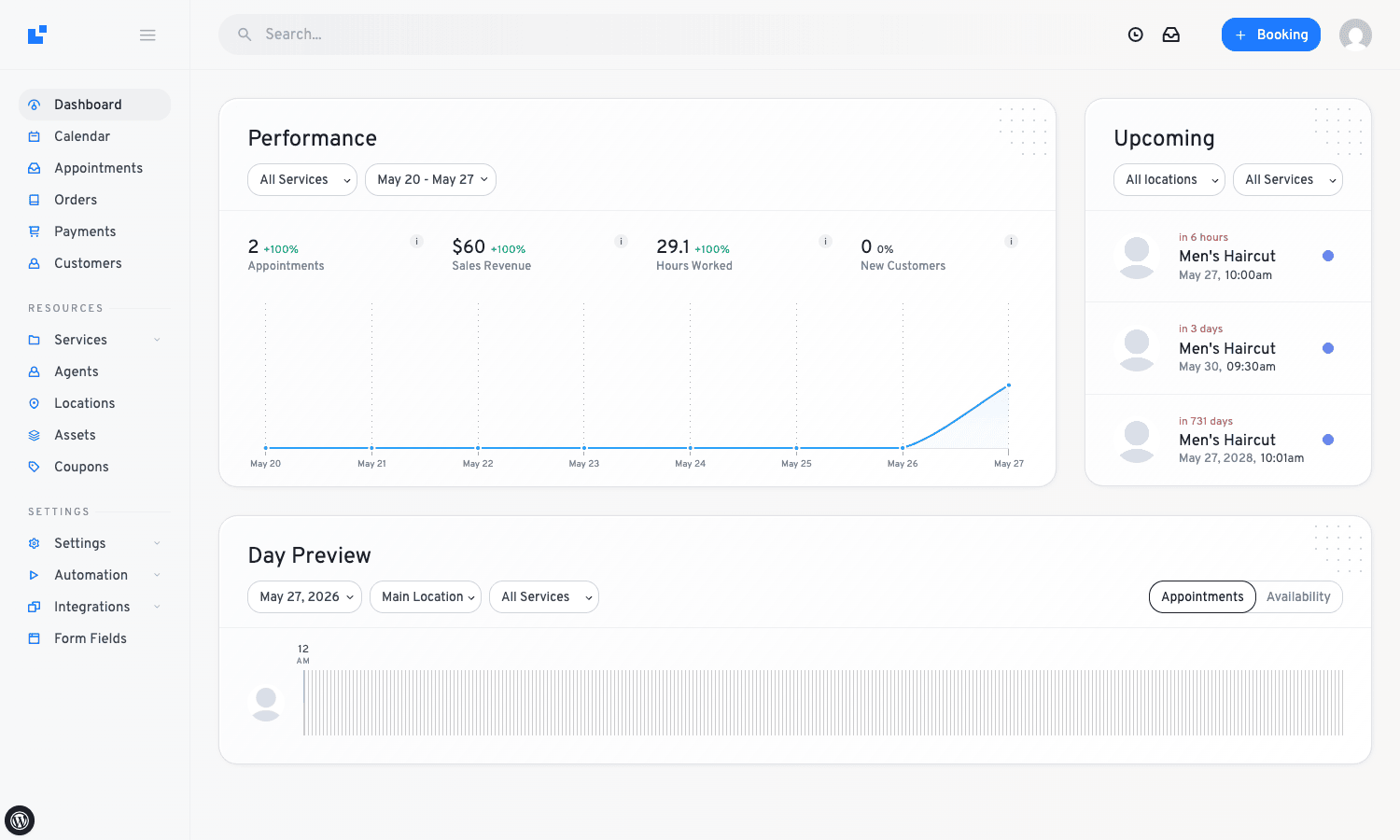
The Performance card on the left shows appointments, sales, hours worked, and new customers over a date range. The right column is a live "Upcoming" list. The line chart fills in as bookings accumulate; on a brand new install it’s a flat line for a couple of days, which is normal.
The front-end widget: where LatePoint actually stands apart
I’m going to spend more time on the front end than most reviews do, because this is genuinely the strongest part of LatePoint and the reason I’d pick it over Bookly on a project where design matters.
Drop [latepoint_book_form] on any WordPress page. What renders is a React-driven multi-step wizard. Step one shows a list of services with descriptions and durations. Step two is a calendar with time slots. Step three is contact info. Step four is payment. Every step has an animated transition, a left-side context panel that shows "what you’re doing right now," and a right-side summary panel that updates live as the customer makes selections.
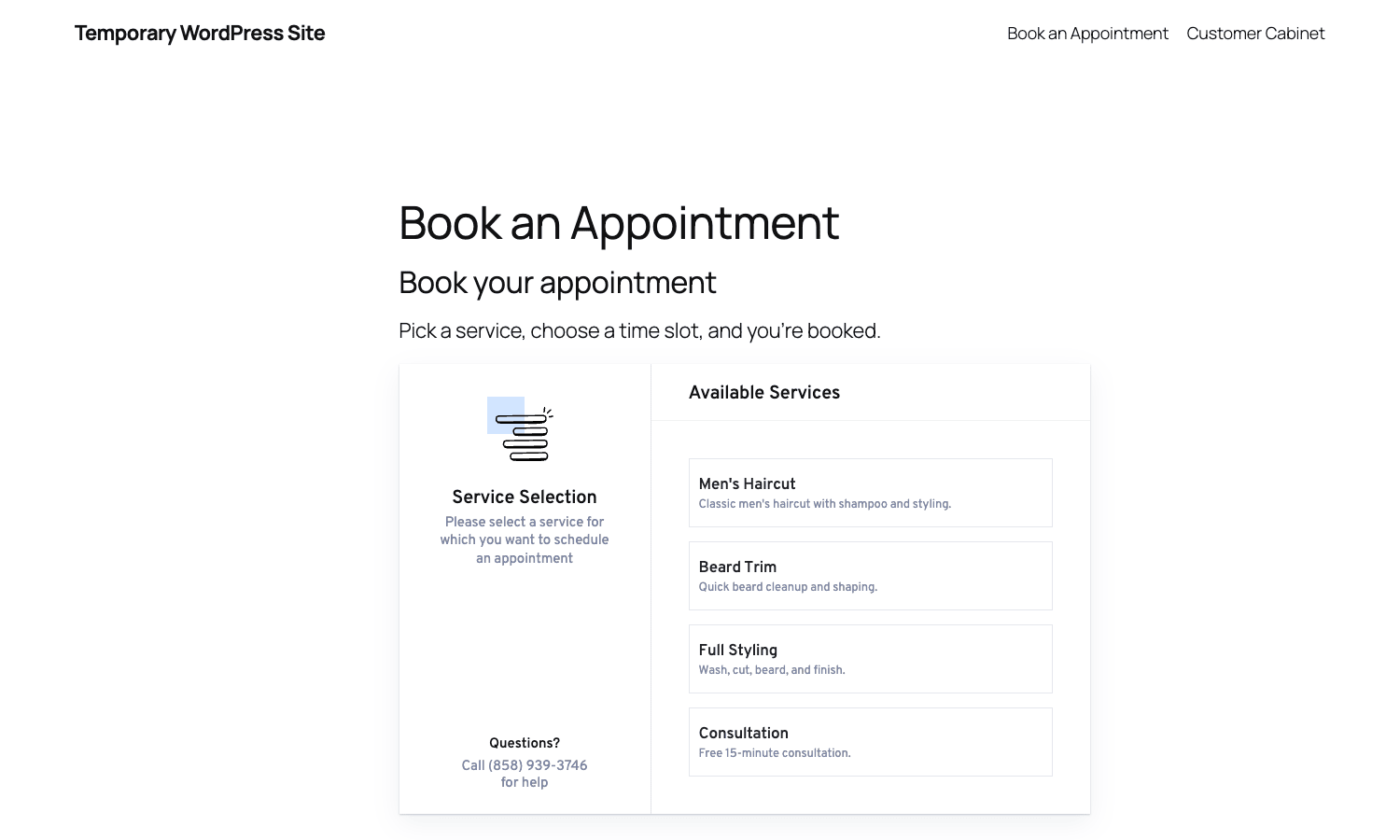
You can see the structure right away: the left panel anchors the user ("Service Selection, please select a service for which you want to schedule an appointment"), the right panel shows the available services as click-targets. There’s a "Questions?" block at the bottom with a callable phone number from settings. Pick a service, the wizard slides forward.
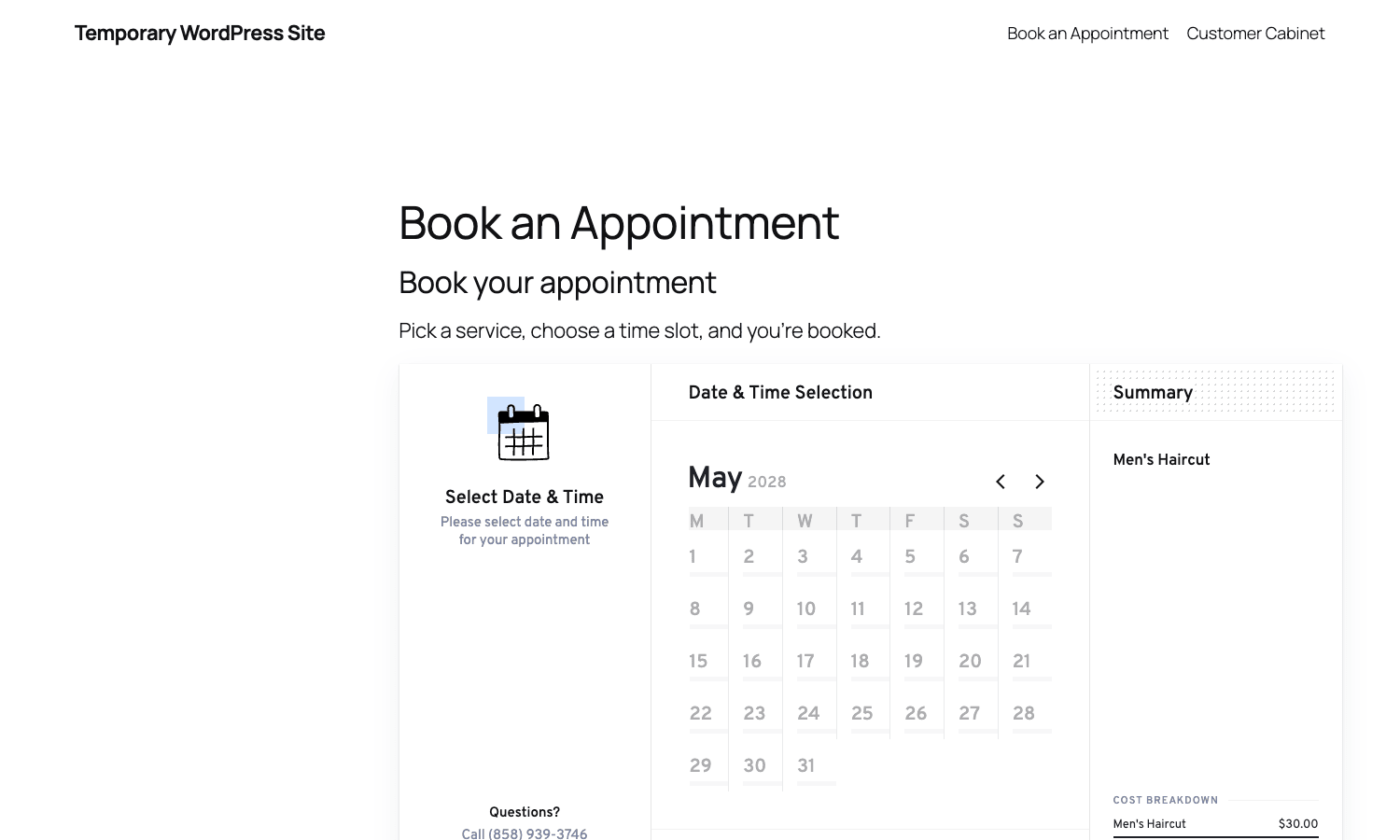
Step two shows the date and time picker with a Summary panel on the right that already has "Men’s Haircut" and the cost breakdown. This Summary panel is sticky through the rest of the flow, which is a small detail that makes customers way less likely to back out at payment because they forgot what they were buying.
Things I like about this widget:
- No page reload between steps. It’s a single page app inside your WordPress page.
- The color and corner radius are themeable from the admin. LatePoint > Settings > Booking Form > Style. Pick a brand color, pick "flat" or "rounded" corners, and the whole widget rebrands itself. You don’t need to touch CSS for 90 percent of skinning jobs.
- It works on mobile. I tested on a real phone, not just a 375px DevTools viewport. The step transitions hold up. The calendar is touch-friendly. The time slot list is scrollable.
- The "single-step" mode is genuinely useful. Under the Booking Form settings you can switch from multi-step to a one-page layout that shows the calendar plus a sidebar of fields. Power customers who already know what they want can book in under 30 seconds.
Things I dislike:
- The default font is the theme’s font. That sounds like a feature, but the widget’s spacing and type scale was clearly designed against a sans-serif. If your theme runs a serif body font, the widget looks slightly off. Override the font in the booking form CSS for best results.
- Custom-CSS overrides need
!importantmore often than they should. The widget’s stylesheet uses moderately specific selectors and the loading order means your theme’s CSS comes first. - The right-side Summary panel collapses on small screens. Below ~900px it becomes a slide-out, which is fine on mobile, but on tablet portrait it disappears just when you might still want it visible.
Skip ahead if you’ve already shipped a booking widget on WordPress and you don’t need to be sold on this one. If you haven’t, the visual quality alone is worth the install hour.
Per-agent calendars: the data model that makes scheduling sane
Here’s where it pays to understand what LatePoint is doing under the hood.
Every agent has their own row in wp_latepoint_agents. Their weekly working schedule lives as discrete rows in wp_latepoint_work_periods, one per (agent, weekday, start_time, end_time) tuple. So if Alex works Mon-Fri 9-5 with a 1-hour lunch, that’s 10 rows (two ranges per day for 5 days). Vacations and blocked times live in wp_latepoint_blocked_periods as date ranges. The "is this slot available" calculation is a function of work_periods minus blocked_periods minus existing bookings for that agent.
This design has two big consequences.
One: it scales fine to multiple staff with different schedules without you having to write custom code. Each agent’s calendar is independent. Bookings for one agent don’t block another. The "Any agent" option in the front end resolves to "pick the first agent who has an open slot at that time." If that agent is fully booked but another is free, the customer still sees the slot.
Two: bookings do not live in wp_posts. They live in wp_latepoint_bookings. If you run a database backup that targets the posts and postmeta tables (a depressing number of plugins do this), you’ll miss every appointment, every customer, every transaction. UpdraftPlus and a properly-configured mysqldump get everything. WP All Export, the default WordPress exporter, and some shady migration plugins do not. Test your backup.
LatePoint exposes per-service overrides too. A service can have its own working hours via the Service edit form’s "Custom Schedule" toggle. That’s useful for businesses that offer different services at different times. Example: a tattoo studio that does walk-in consultations only Tuesday afternoons but full sessions Wednesday-Saturday.
Buffers are similarly granular. Set a 15-minute buffer after "Haircut" and the next bookable slot for that agent is 45 minutes after the haircut started instead of 30. The buffer carries across services (so a haircut followed by a beard trim with buffers in between is calculated correctly).
This level of detail is what makes LatePoint a real booking plugin and not a Calendly clone.
Services, working hours, and the bookable matrix
The Services screen is where you spend most of your setup time.
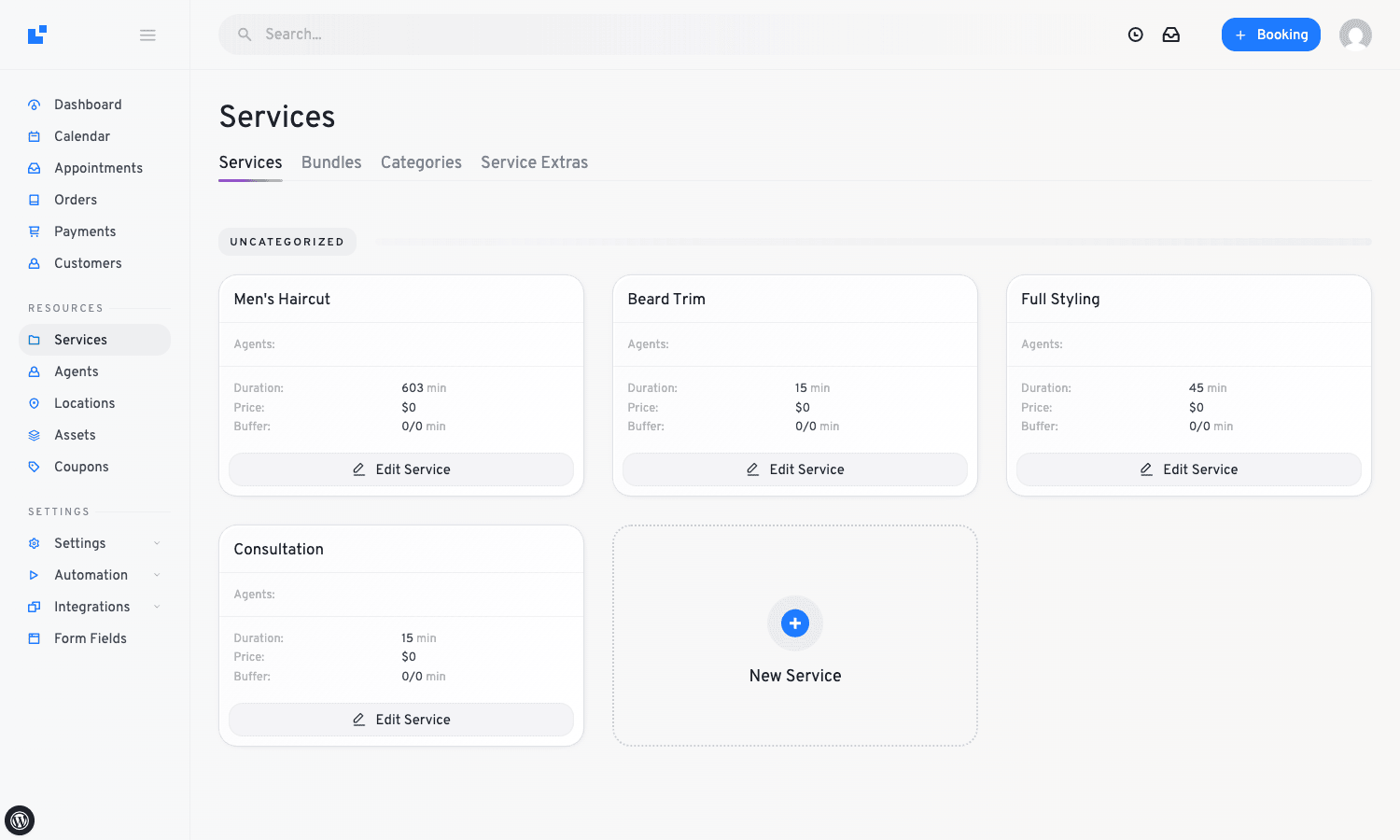
Each card has the service’s title, agents who offer it, duration, and price. Click Edit Service and you get a form that’s longer than it looks. The basics are name, duration, charge amount, and short description. Below that:
- Status and visibility. Active services show in the widget. Hidden services don’t show but can still be assigned (useful for back-office-only services).
- Deposit amount. Customer pays this at booking, balance due at appointment.
- Min / max price range. For variable-priced services like consulting hours.
- Custom schedule. Override the agent’s default hours for just this service.
- Earliest / latest possible booking. "Customers can book this no sooner than 2 hours from now and no later than 30 days out." This is the lead-time and far-future-cap setting most service businesses end up needing.
- Agents who offer this service. Either all agents or a specific subset.
The Schedule tab under Settings is the global weekly hours fallback.
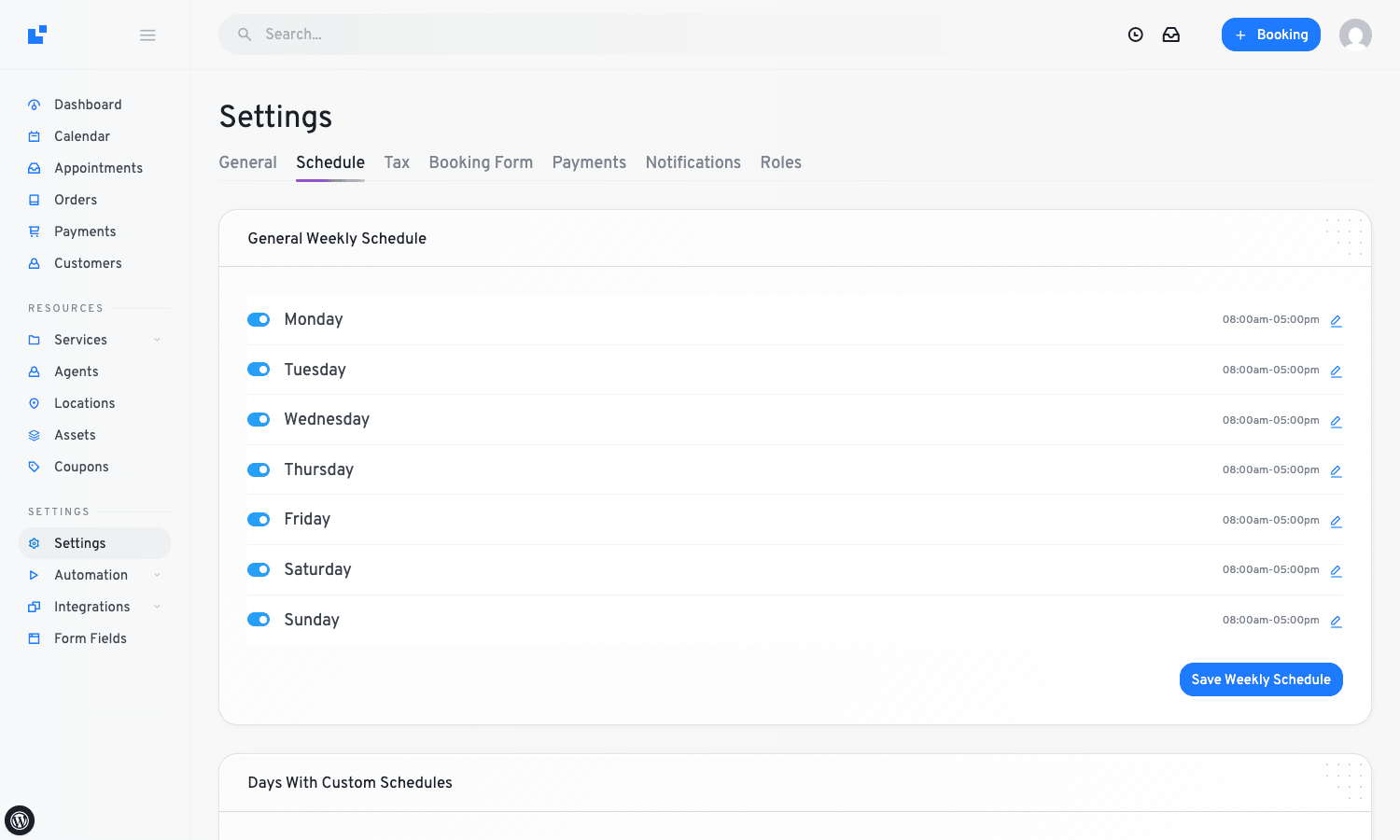
This is your business’s base hours. Agents inherit these unless they have a custom schedule. Below this block is "Days With Custom Schedules" (specific dates where the hours differ from the weekly default; think "Friday after Thanksgiving, 8am-noon only") and "Holidays & Days Off" (full closures). I like that LatePoint puts all three concepts on the same page; in some competitors you have to hunt for holidays in a different sub-menu.
LatePoint vs Amelia vs Bookly vs BookingPress: when each one wins
I’ve shipped sites on Bookly and Amelia, looked closely at BookingPress, and now sit on LatePoint for the agency’s strategy-call flow. The plugins look similar from the outside but they each shine in different situations.
Bookly is the oldest of the four and it shows: the admin UI feels heavier, the front-end widget looks dated, but the feature surface is genuinely huge. Bookly has more native integrations (Google Maps, Mailchimp, Stripe, Square, all built in), more payment processors, more flexible custom fields, and a more mature reporting suite. If you need a booking plugin that integrates with everything else in your stack out of the box, Bookly is the safe choice. The front end is the weakness.
Amelia is in the middle. Strong front-end widget (close to LatePoint’s), great admin calendar view, supports events (group sessions with capacity) as a first-class concept. The pricing model is the gotcha: Amelia Lite is limited, and the Pro tier prices by site count. Amelia also handles employees and locations more elegantly than LatePoint does in the core, but you’ll need Amelia Pro for that.
BookingPress has the simplest admin of the four. If you want to give a non-technical client an admin they can actually use without training, BookingPress is the one. Cleaner UI, less power. The Pro tier add-ons are inexpensive compared to the others. The trade-off: fewer native integrations, less flexible reporting, no automation engine.
LatePoint wins on three axes: the front-end booking widget (best-in-class), the per-service buffers + capacity + custom schedule model (granular without being confusing), and the Pro automation system (event-based workflows that act on booking events without needing Zapier). It loses on integration breadth (fewer native gateways than Bookly) and on the per-feature Pro add-on pricing (more à la carte than Amelia or BookingPress).
In rough rules: if the customer-facing booking experience matters most, LatePoint. If you need every integration under the sun, Bookly. If you want events and groups built in, Amelia. If a non-technical owner has to run the admin, BookingPress.
Recurring bookings: the Pro add-on math
This is the feature most service businesses ask about first, and the one with the steepest learning curve. The Pro Features add-on adds a wp_latepoint_recurrences table and a Recurrence model. When a customer enables "Repeat this booking" on the booking form, the plugin doesn’t store a single magic row; it generates one wp_latepoint_bookings row per occurrence, all linked back to the same recurrence_id.
That decision matters for two reasons.
One: it makes per-occurrence handling clean. A customer can reschedule occurrence 4 of 8 without touching the others. You can mark occurrence 3 as completed independently of the rest. Reports tally each appointment as its own entry.
Two: it means a "weekly for a year" booking creates 52 rows in the database at the moment of booking. That’s fine at small scale and gets noisy fast at large scale. If you run a yoga studio with 200 customers each booking 12-week packages, that’s 28,800 booking rows in a season. The plugin handles this, but reports queries (especially "show me everyone’s bookings this month") start showing it on shared hosting. Plan to be on a VPS or managed WordPress host above ~50 active recurring customers.
The recurrence types LatePoint supports are: daily, weekly (with specific weekdays), biweekly, monthly (by date or by weekday). End conditions are "after N occurrences," "until date X," or "no end." The booking widget shows the recurrence options when the customer ticks "Make this recurring," and on the admin side you can edit the recurrence rule and the plugin regenerates the affected rows.
Pricing reality check: recurring bookings ships in the Pro Features add-on, which is one purchase. But the linked features customers often want with recurring (custom fields on each occurrence, group bookings with caps, Stripe Connect for split payments to staff) each ship as separate Pro add-ons in LatePoint’s pricing model. Budget for two or three add-ons, not just one.
Payment options and Stripe Connect
The core plugin ships with Stripe and PayPal. That covers most US, UK, EU, and Canadian businesses. Each gateway has the basics: take full payment at booking, take a deposit, or "pay at venue" (no payment captured at booking).
Stripe Connect deserves its own paragraph because it’s the feature that lets a booking site running multiple practitioners actually split payments. Connect is a Stripe feature where each agent (your hair stylists, your massage therapists, your consultants) creates their own Stripe account, links it to your platform Stripe account, and Stripe handles the per-transaction split. LatePoint’s Stripe Connect add-on plugs into this. You get a setting per agent for their Stripe Connect account ID, you set a platform fee percentage, and every booking paid through Stripe automatically routes the funds to the agent’s Stripe account minus your fee.
The catch: Stripe Connect setup requires Stripe to approve your platform application before agents can connect. The first time you set this up, expect a 24-48 hour review window where you upload your business info to Stripe and wait. The error people hit most often is trying to enable Stripe Connect in LatePoint before that approval has come through, which surfaces as "application not approved" in the admin. Wait for the email from Stripe, then enable.
The other gateways (Square, Razorpay, Mollie, Mercado Pago, Flutterwave, Braintree, Authorize.Net) each ship as their own Pro add-on. If your market is in India, Razorpay is the must-have. Latin America, Mercado Pago. Africa, Flutterwave. Each add-on is sold separately. Plan accordingly.
Building a barbershop booking site end to end
Let me walk through a concrete setup so the moving parts click.
Scenario: a barbershop with three barbers (Alex, Sam, Jamie), four services (Haircut $30/30min, Beard Trim $18/15min, Full Styling $55/45min, Free Consultation $0/15min), each barber offers all services except Consultations which only Alex does. Shop hours Tue-Sat 9am-7pm, closed Sun-Mon. Walk-in cleanups need 5-minute buffers after each cut.
Step 1: Settings > Schedule. Toggle Sun and Mon off. Set Tue-Sat to 9:00am-7:00pm. Save.
Step 2: Services. Create the four services with the prices, durations, and a 5-minute buffer after on Haircut and Full Styling. Mark Consultation as "0 price, visible" so customers can book it without paying. Save each.
Step 3: Agents. Add Sam and Jamie (Alex was the default agent created at install). For each new agent, give them a name, email, phone, and assign them to Haircut, Beard Trim, Full Styling. Leave Alex assigned to all four (including Consultation).
Step 4: Open Alex’s Agent edit form and customize their schedule if it differs from the global one. Jamie works Wed-Sat only, so toggle off Tue on Jamie. Sam takes a long lunch, so split Tue-Sat into 9am-1pm and 2pm-7pm.
Step 5: Settings > Booking Form. Pick "step-by-step" mode, brand color #1a8fc4, "rounded" corners. Toggle "Show agent step" on so customers pick which barber. Toggle "Allow guest booking" so customers don’t need to make an account.
Step 6: Settings > Payments. Enable Stripe with the keys from the Stripe dashboard. Set "Take full payment at booking."
Step 7: Settings > Notifications. Customize the customer confirmation email. Add a "Please arrive 5 minutes early" line. Save.
Step 8: Create a WordPress page called "Book a Haircut" with [latepoint_book_form] in the body. Publish. Add it to the main menu.
Total time: 45 minutes if you have your Stripe keys handy and don’t rewrite the email copy too aggressively. The result is a working booking site where a walk-up customer can pick their barber, pick a date, pick a time, pay, and get a confirmation email.
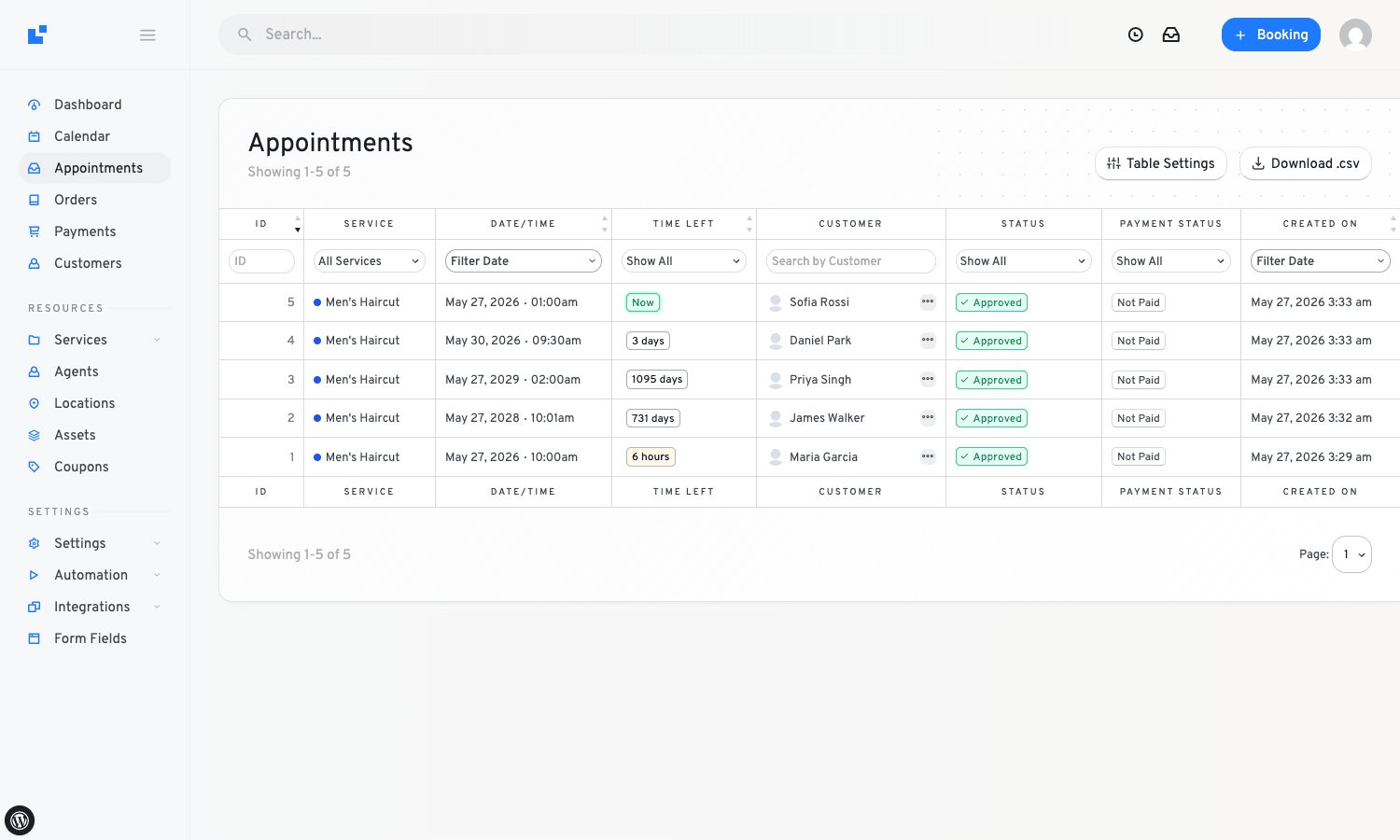
Here’s how the bookings list looks once a few come in. ID, service, date/time, time-left countdown, customer name, status, payment status, created-on. Approved bookings are green. Pending approval is yellow. Cancelled is red. You can filter by status, payment status, service, and date.
Don’t enable email reminders before testing SMTP
This is the single most common LatePoint pitfall, and it’s worth its own callout.
LatePoint sends email via WordPress’s wp_mail() function by default. On most managed WordPress hosts (Kinsta, WP Engine, RunCloud, hosting providers that have configured SMTP at the server level), this works. On shared hosting with no SMTP setup, wp_mail() either silently fails or sends from a sketchy wordpress@yourdomain.com address that goes straight to spam.
Now imagine you’ve turned on the LatePoint notification suite. Confirmation, reminder 24 hours before, reminder 1 hour before, follow-up the next day. Then you make 30 test bookings to verify everything works. Then you discover SMTP is broken so none of them sent. Then you fix SMTP and re-trigger the notification queue. Congratulations, you’ve just emailed 30 real customers (the ones whose addresses you typed in for testing because they were friends and you didn’t think about it) with reminders for appointments that never existed.
The order to do this in:
- Install an SMTP plugin (WP Mail SMTP is fine, FluentSMTP is fine, your host might have one already).
- Configure it with real credentials (Mailgun, Sendgrid, Amazon SES, Gmail SMTP for tiny volumes).
- Use the SMTP plugin’s "send test email" feature and verify the test arrives.
- Now go to LatePoint > Settings > Notifications and review the templates.
- Make ONE test booking with your own email address. Verify the confirmation arrives.
- Make a second test booking, change its appointment date to 1 hour from now, and wait. Verify the 1-hour reminder arrives.
- Only after both of those pass should you go live.
Skipping any of these steps will eventually bite you. The Settings > Notifications tab has an "Active" toggle for each notification type. If you’re paranoid, leave the reminders off until you’ve made a few real bookings and confirmed delivery in production.
Developer reference: hooks, filters, REST, and tables
LatePoint’s developer surface is generous. The plugin fires roughly 200 actions and 250 filters across the codebase, plus a small REST API and a custom MVC framework you can extend. I’ll cover the parts most useful for real integrations.
The custom tables
LatePoint defines 40 tables. The ones you’ll touch most often:
wp_latepoint_bookingsis the row-per-booking table. Columns includeservice_id,agent_id,customer_id,start_date,start_time,end_time,duration,status,buffer_before,buffer_after.wp_latepoint_customersis the customer record. Optionalwp_user_idforeign key when a customer also has a WordPress account.wp_latepoint_agentsis the staff table. Linked towp_latepoint_agents_services(a join table) for which services each agent offers.wp_latepoint_services,wp_latepoint_service_metafor service definitions.wp_latepoint_work_periodsfor weekly hours per agent/service.wp_latepoint_blocked_periodsfor vacations and holidays.wp_latepoint_orders,wp_latepoint_order_items,wp_latepoint_transactionsfor the payment side.
All of these have a *_meta companion table for extensibility, in the same shape as wp_postmeta.
Action hooks worth knowing
// Fires when a booking is created (after the customer completes the booking flow
// or an admin creates one manually). $booking is an OsBookingModel.
add_action( 'latepoint_booking_created', function( $booking ) {
 $service_name = $booking->service->name;
 $customer_email = $booking->customer->email;
 // Sync to your CRM, fire a Slack webhook, anything else.
 error_log( "New LatePoint booking: {$service_name} for {$customer_email}" );
} );

// Fires when a booking is updated (status change, time change, etc).
// Both the new and old booking models are passed.
add_action( 'latepoint_booking_updated', function( $booking, $old_booking ) {
 if ( $booking->status === 'cancelled' && $old_booking->status!== 'cancelled' ) {
 // Booking just got cancelled. Refund or reopen the slot in your CRM.
 }
}, 10, 2 );

// Fires before a booking is deleted. Useful for archive-before-delete patterns.
add_action( 'latepoint_booking_will_be_deleted', function( $booking_id ) {
 // Snapshot to your audit table.
} );

// Customer lifecycle.
add_action( 'latepoint_customer_created', function( $customer ) { } );
add_action( 'latepoint_customer_updated', function( $customer, $old_customer_data ) { }, 10, 2 );

// Money side.
add_action( 'latepoint_order_created', function( $order ) { } );
add_action( 'latepoint_transaction_created', function( $transaction ) { } );
add_action( 'latepoint_invoice_status_changed', function( $invoice, $old_status, $new_status ) { }, 10, 3 );
The latepoint_booking_created action is the workhorse. Almost every integration I’ve written starts there.
Filter hooks worth knowing
// Modify the price breakdown items before they render in the cart.
add_filter( 'latepoint_cart_get_total', function( $total, $cart ) {
 // Add a service fee.
 return $total + 2.50;
}, 10, 2 );

// Customize customer validation rules.
add_filter( 'latepoint_customer_model_validations', function( $validations ) {
 $validations['phone'][] = ['type' => 'presence'];
 return $validations;
} );

// Modify what counts as a "backend user" for permission checks.
add_filter( 'latepoint_get_backend_user_types', function( $types ) {
 $types[] = 'manager';
 return $types;
} );

// Intercept the booking request before it's processed.
add_filter( 'latepoint_create_booking_request_from_booking_model', function( $request, $booking ) {
 // Modify the request object.
 return $request;
}, 10, 2 );
REST endpoints
LatePoint registers its REST routes under the latepoint namespace (note: not latepoint/v1, just latepoint). The two stable endpoints are:
POST /wp-json/latepoint/booking/bite-force/(used internally to hold a slot while the customer fills out the rest of the form)POST /wp-json/latepoint/booking/release-force/(releases the slot when the customer abandons)
The booking step transitions are also REST-routed, registered via OsStepsHelper. If you want a full machine-readable API to drive bookings from a mobile app, the existing endpoints aren’t quite enough; you’ll be calling internal helpers via admin-ajax. LatePoint doesn’t market itself as a headless plugin, and that shows. Compared to the Modern Events Calendar REST surface, LatePoint’s is sparse. If headless is the requirement, factor that in.
Custom controllers and views
LatePoint’s MVC framework is its own. If you want to add a custom admin sub-screen, you register a controller class extending OsControllerBase, register a route, and write a view file. The patterns are documented in the LatePoint developer reference and they’re consistent across the plugin. The downside: you can’t just write a quick add_submenu_page callback. Every screen you add goes through the framework.
For most extensions you won’t need to do this. The action and filter hooks cover 95 percent of integration needs.
The OsShortcodesHelper class
Every shortcode the plugin registers calls into OsShortcodesHelper. If you want to programmatically render the booking form somewhere (a widget, a custom block, an Elementor module), call OsShortcodesHelper::shortcode_latepoint_book_form( $atts ) directly. Same for shortcode_latepoint_customer_dashboard() and shortcode_latepoint_calendar(). This is undocumented but it works and it’s stable.
What LatePoint doesn’t do (and when you still need a SaaS scheduler)
I want to be honest about the gaps because picking the right tool means knowing where the tool ends.
LatePoint is not a meeting-routing platform. Calendly and Cal.com solve a different problem: a salesperson with one shared calendar pasting a link in an email, where the link auto-routes to whoever’s free first. LatePoint can fake this with the "Any agent" option, but the SaaS schedulers are built around this primary use case and they polish it further. If your business is "one team mailbox, shared inbox, prospects book strategy calls," Calendly or Cal.com is probably the better fit.
LatePoint also doesn’t do well at headless / mobile-app-first setups. The REST surface is internal-facing. The admin assumes you’re using its admin. If you want bookings as a backend service for a mobile-first scheduling app, you’ll fight the plugin.
LatePoint’s reporting is basic. The dashboard shows aggregate numbers and a chart. There’s no cohort analysis, no LTV breakdown, no funnel reporting beyond "bookings this month vs last month." If you need real BI on appointment data, you’ll be exporting CSVs to another tool.
Finally, LatePoint doesn’t do video calls itself. The Zoom and Google Meet integrations create meeting links and stick them in confirmation emails, but the actual video happens in Zoom or Meet. That’s fine, but if you wanted an integrated "click to join from the booking page" experience, you’ll need separate tooling.
When LatePoint wins:
- A service business with a brick-and-mortar (or virtual) staff who each need their own calendar.
- A site that already runs on WordPress and the booking page should match the rest of the site visually.
- A team comfortable enough to extend the plugin with PHP hooks for the parts they need to customize.
Performance, compatibility, and the gotchas
The plugin enqueues a sizeable JavaScript bundle on the front end for the booking widget. On the booking page itself this is fine; the JS runs the widget. The annoying part is that some of LatePoint’s stylesheets and scripts get enqueued site-wide by default. The fix is to add a filter or, easier, put the booking widget on a single page and use a conditional asset loader to only enqueue LatePoint assets on that page.
On the admin side, the plugin makes heavy use of admin-ajax. Every clicked sub-tab in the LatePoint admin fires an AJAX call to render the panel. On slow shared hosting this introduces a perceptible click-to-render delay (200-400ms). On a properly cached VPS it’s instant.
PHP memory: LatePoint comfortably runs in 128M. Sites with thousands of bookings and Pro Features should bump to 256M for the reports views.
WordPress version: tested against WordPress 6.5 and 6.6. Works fine. The plugin uses no deprecated WordPress functions in the modern releases.
Multisite: supported on subdomain or subdirectory multisite. Each subsite gets its own LatePoint install (own tables, own settings, own bookings). Network-wide activation is not the recommended pattern.
WP-CLI: there’s no first-party wp latepoint namespace. For data migrations or bulk operations you’re scripting against the model classes directly. Use wp eval-file for that.
Translations: the plugin has its own latepoint text domain and ships .po/.mo for major languages. Translations not in the bundle can be added through Loco Translate.
Pricing and licensing
LatePoint is sold by the vendor with two main products: the core plugin license and the Pro Features add-on. Some payment gateways, group bookings, custom fields, and Stripe Connect each ship as their own paid add-ons.
The licensing rule that catches people: the core plugin and the Pro Features add-on are independently versioned and licensed. You can run the core without Pro just fine. You cannot run Pro without the core (it has Requires Plugins: latepoint in the header). When you renew, you renew each separately.
For sites that want the full feature set, LatePoint is available on the GPL Times catalog: drop the LatePoint plugin into a staging copy, wire up Stripe in test mode, run a real customer through it, and you’ll have a feel for whether the booking flow fits your business before you decide. The download includes the Pro Features add-on bundled with the core, which saves you the second-purchase step if you know you’ll need agents, recurring bookings, or any of the other Pro layers.
FAQ
Why is the customer seeing the wrong timezone in the booking widget?
LatePoint defaults to the WordPress site timezone (Settings > General). If a customer in a different timezone books, the slot they see is in the site’s zone, not theirs, unless you turn on customer-side timezone conversion under LatePoint > Settings > General > Date and time > "Allow timezone selection." That setting is off by default and most people miss it. Turn it on for a global customer base. For a single-location brick-and-mortar (everyone in the same zone), leave it off.
Can LatePoint sync to Google Calendar two-way?
Yes, with the Pro Features add-on. Each agent connects their Google account through LatePoint > Agents > Edit > Integrations. The sync is bidirectional: bookings created in LatePoint push to the agent’s Google Calendar, and events on that calendar (marked as busy) block the equivalent slot in LatePoint. The setup uses Google’s OAuth flow; you’ll create a Google Cloud project, enable Calendar API, paste a client ID and secret into LatePoint settings, then each agent authorizes their account.
Does LatePoint work with WooCommerce Subscriptions?
Not directly. LatePoint has a WooCommerce integration where a booking can become a WooCommerce order, and that order can use WooCommerce Subscriptions if you’ve installed it. But "make this booking recurring" through WooCommerce Subs doesn’t drive LatePoint’s recurrence engine. They’re two separate concepts of "recurring." If you want recurring bookings tied to a Stripe subscription, use LatePoint’s native recurring bookings (Pro Features) and skip WooCommerce Subs.
Why is my Stripe Connect setup throwing "application not approved"?
Stripe Connect requires Stripe to approve your platform application before agents can connect. Submit your business info in the Stripe dashboard, wait 24-48 hours for the email confirming approval, then enable Stripe Connect in LatePoint. If you tried to enable it before approval, you’ll see this error. The fix is patience, not a config change.
How do I let customers reschedule without contacting me?
Turn on the customer cabinet. Create a WordPress page with [latepoint_customer_dashboard], link customers there in their confirmation email. The cabinet shows past and upcoming bookings, and "Reschedule" is a button. Customers can cancel and pick a new slot within whatever lead-time rules you set in the service config. Set "earliest possible booking" to 2 hours, for example, so a customer can’t reschedule a 3pm appointment from 2:45pm.
Can I run LatePoint without an agent? I’m a solo practitioner.
Yes. The core plugin gives you one default agent automatically. Edit their profile, set the hours, and the agent step in the booking widget will be hidden because there’s only one option. Customers won’t even know agents exist.
Are bookings deletable by GDPR request?
Yes, in the customer record under LatePoint > Customers > Delete. The delete cascades through bookings, orders, and transactions for that customer. For backup purposes, transactions stay in the database but anonymized; the actual payment records in Stripe / PayPal are not touched, so you stay PCI-compliant.
The booking widget doesn’t appear on my page. Just the shortcode text.
The most common cause is a caching plugin caching the page before LatePoint’s enqueue ran. Purge cache, hard-refresh. The second most common: a custom block-editor template that strips shortcodes. Switch the page back to the default template, drop the shortcode in a paragraph block (not a Shortcode block, paradoxically), publish, retest.
Final thoughts
LatePoint is the booking plugin I’d pick today if the project values how the booking page looks. The front-end widget is the strongest in its category on WordPress in 2026 (the React layer was clearly the team’s biggest investment, and it shows), the per-agent + per-service scheduling model is properly granular without burying you in options, and the developer hooks are generous enough that custom integrations don’t feel like fighting the plugin.
It’s not perfect. The Pro add-on pricing is itemized in a way that adds up. The reporting is basic. The headless story is weak. The admin’s drag-to-reschedule is mouse-only and clunky on a touchscreen.
But on a typical service-business WordPress build, where you want a booking page that looks good, a calendar that handles real working hours, payment collection that works on day one, and a dev surface generous enough to bend the plugin to a particular workflow, LatePoint is the plugin I’d reach for first. Stand it up on a staging site, run a real customer through the flow, and you’ll know in 30 minutes whether the front-end alone justifies the purchase.
If your scheduling needs are unusual (meeting routing, group sessions with capacity, headless API), it’s worth running the same exercise on Amelia and Bookly to compare. Most of the time, though, LatePoint hits a sweet spot the others miss.