

For three years I told clients to enable auto-updates and "trust the platform." I was wrong.
The platform is mostly fine. Core minor releases are tested. The wp.org review team is real. What breaks is what gets layered on top: a single plugin with a buggy minor release, a theme update that changes a CSS variable, a translation file that swaps out a checkout string at 2am while a customer is mid-purchase. WordPress has no opinion about which of those updates is risky and which isn’t. It just runs them.
Easy Updates Manager Premium is one of the few plugins in the WordPress space that takes the auto-update mechanism seriously enough to give you actual policy controls on top of it. Disable core minor updates. Allow auto-updates only for three specific plugins. Push every other update onto a Sunday-3am cron with a 7-day delay so you can see if anyone else has reported a problem first. Take an UpdraftPlus backup right before each run. If a plugin update produces a fatal, auto-deactivate it and email you a stack trace. That whole list is the day-job of this plugin, and after spending a few weeks with it on a couple of production sites I can tell you it’s the most honest update plugin I’ve used.
This article is a long walk through what Easy Updates Manager Premium actually does, how to set it up in a way that doesn’t fight WordPress, the bits I wish were in the docs, and a working developer reference with the filters and actions that matter. The product is sold on gpltimes.com if you’d like a working copy to test the things in this article on a staging site: Easy Updates Manager Premium.
Table of Contents
- The auto-update math: when to trust it, when not to
- Where Easy Updates Manager fits
- The first 30 minutes: a sensible setup walkthrough
- A guided tour of each tab
- The Advanced tab: where the premium money goes
- Multisite update orchestration: where this plugin earns its price
- Don’t do this: three update policies that look smart and break sites
- Hooks, filters, and code you’ll actually need
- Easy Updates Manager vs MainWP vs ManageWP: when each one wins
- Performance, compatibility, and quirks
- What I’ll tell the next agency client who asks about updates
The auto-update math: when to trust it, when not to
Before talking about a plugin, it’s worth being honest about the thing the plugin is fixing.
WordPress’s auto-update system is a single function: wp_maybe_auto_update(). It’s wired to a cron event called wp_version_check (and the equivalents for plugins and themes), and it runs every 12 hours on a normal site whenever a logged-in admin pageview triggers wp-cron.php. WordPress core decides on its own what counts as a "safe" auto-update by reading a flag baked into each release. Minor core releases auto-install by default. Major core releases don’t. Plugins and themes only auto-update if the site admin (or the plugin itself) opts in.
That’s the whole mechanism. There’s no version pinning, no staged rollout window, no rollback if the new version produces a fatal, no per-role override, no logging beyond a single email sent to the admin address. WordPress 5.5 (back in 2020) added the per-plugin auto-update UI on the Plugins screen, but that’s a single checkbox per plugin. It doesn’t help if you want different update rules for staging vs production, different rules for a specific admin user, or any concept of "wait two days before pulling a release that just hit the store."
In practice, here’s what I see go wrong on real sites with auto-updates enabled blindly:
- A plugin pushes a release that bumps its minimum required PHP version. The site is on PHP 7.4 and the update applies anyway because WordPress’s compatibility check doesn’t actually block the install. A fatal error wipes the front end.
- A WooCommerce extension pushes a 3am hotfix that changes a database schema. The migration runs while a backup is in progress and leaves the database in a half-applied state.
- A translation file update happens at 11pm UTC, which is mid-day in Tokyo, and a couple of strings on the checkout page go from translated to fallback English while customers are checking out.
- A core minor release auto-installs and an obscure third-party plugin that hooks into a deprecated filter starts throwing PHP warnings into
wp-content/debug.log. Hosting blocks the site at 200MB of log spam.
None of these are core’s fault. Core did exactly what it advertised. They’re failure modes of the policy "let everything update whenever it wants and trust the email."
The real question is which of your plugins actually deserves an auto-update. For most sites it’s: WordPress core minor, your security plugin (Wordfence, iThemes, Sucuri), and your spam filter. Everything else is a judgement call. Easy Updates Manager Premium is the plugin that lets you encode that judgement.
Where Easy Updates Manager fits
Easy Updates Manager is built by the Easy Updates Manager Team (lead developer credit to kidsguide and ronalfy, both long-time WordPress contributors). The free version has been on wp.org since 2014 with over a hundred thousand active installs. The Premium build adds:
- Custom cron scheduling, including weekly / fortnightly / monthly windows
- Delayed updates (push the install N days after release)
- Safe mode (skip an update if the new version requires a higher PHP or WP than the site has)
- Auto-rollback (if a plugin update causes a fatal, deactivate the plugin and email the admin)
- External logging to PHP error log, syslog, email, and Slack
- Anonymized update checks (strip telemetry from wp.org HTTP calls)
- A webhook endpoint to trigger an update run from outside WordPress
- Force-updates button for testing
- Import/export of settings between sites
- Dead-plugins and unmaintained-plugins detection
- White-labeling for agency-managed sites
- UpdraftPlus auto-backup before each update
- UpdraftCentral remote management
The Premium build is standalone: you don’t need the free stops-core-theme-and-plugin-updates plugin installed alongside it. The folder is stops-core-theme-and-plugin-updates-premium and the main file is main.php. Both versions share the same text domain (stops-core-theme-and-plugin-updates) which keeps translations consistent.
What it isn’t: this is not a multi-site remote management dashboard like MainWP or ManageWP. It runs entirely inside one WordPress install (or one multisite network). If you want to log into one panel and update fifty client sites, you want one of those. Easy Updates Manager is what runs on each of those sites after the remote dashboard hands off the update job.
The first 30 minutes: a sensible setup walkthrough
Install Easy Updates Manager Premium from Plugins -> Add New -> Upload Plugin like any other zip. After activation, you’ll find the dashboard under Dashboard -> Updates options. (Not under Plugins. Not under Tools. Took me a minute the first time.)
The plugin opens straight into the General tab.
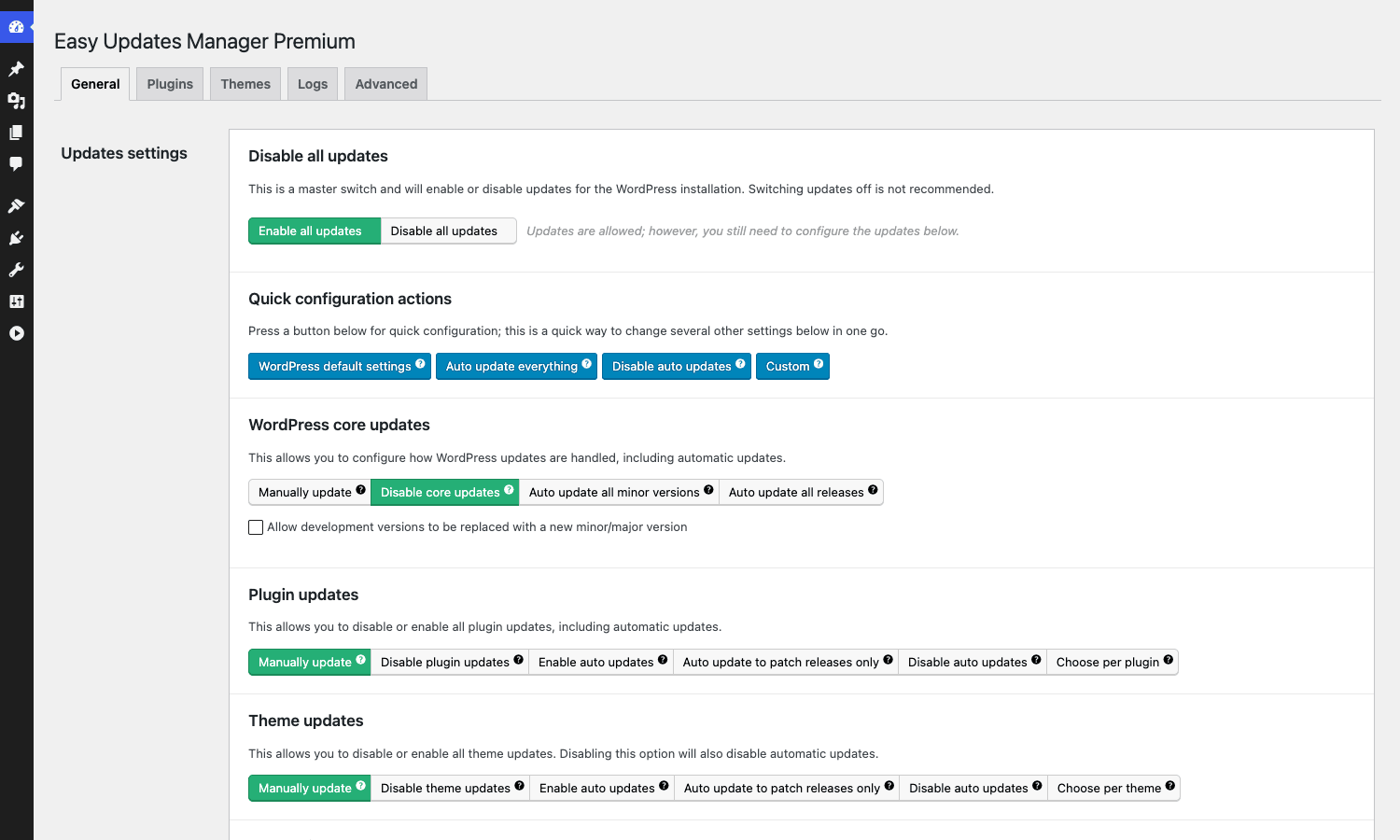
The very top is a master switch labelled "Enable all updates / Disable all updates". Don’t touch that one yet. Underneath it is a quick-config row with four presets: WordPress default settings, Auto update everything, Disable auto updates, and Custom. The Custom button doesn’t apply anything, it just signals to the UI that you want to set things manually.
A sensible starting policy for a typical small business site:
- Master switch: Enable all updates.
- WordPress core updates: Disable core updates if you have a hosting provider that already handles core (Kinsta, WP Engine, RunCloud all do this), otherwise leave on
Auto update all minor versions. DisableAuto update all releases(major versions) unless you have a really good staging-to-production pipeline. - Plugin updates: pick
Choose per plugin. This is the single most important setting. It hands control to the Plugins tab. - Theme updates: pick
Choose per theme. Same reasoning. - Translation updates: leave on
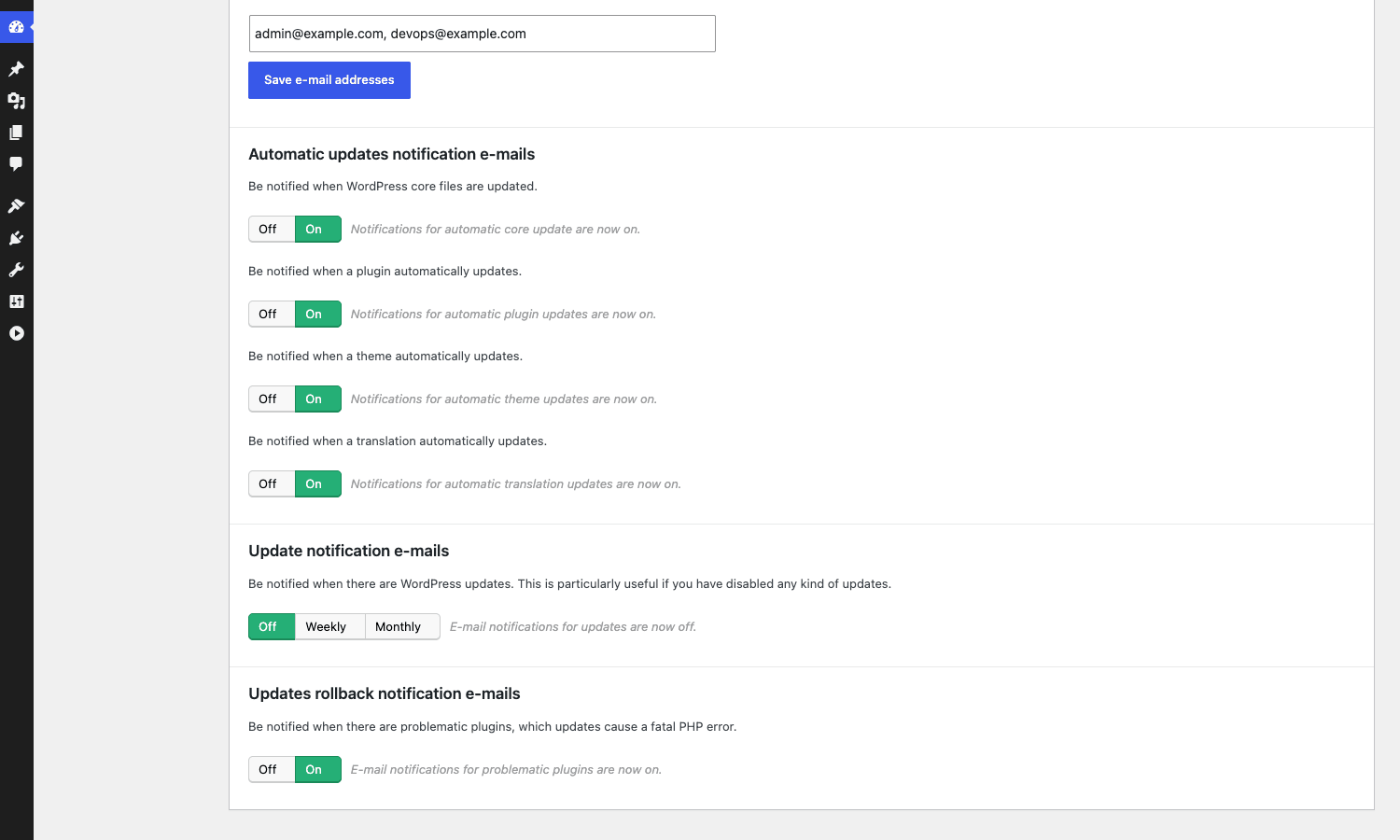
Enable auto updates. Translations almost never break sites. - Notification e-mails: put your real address (and one or two ops emails) and turn on the four event notifications + rollback notifications. This is your audit trail.
Once you’ve done that, jump to the Plugins tab.
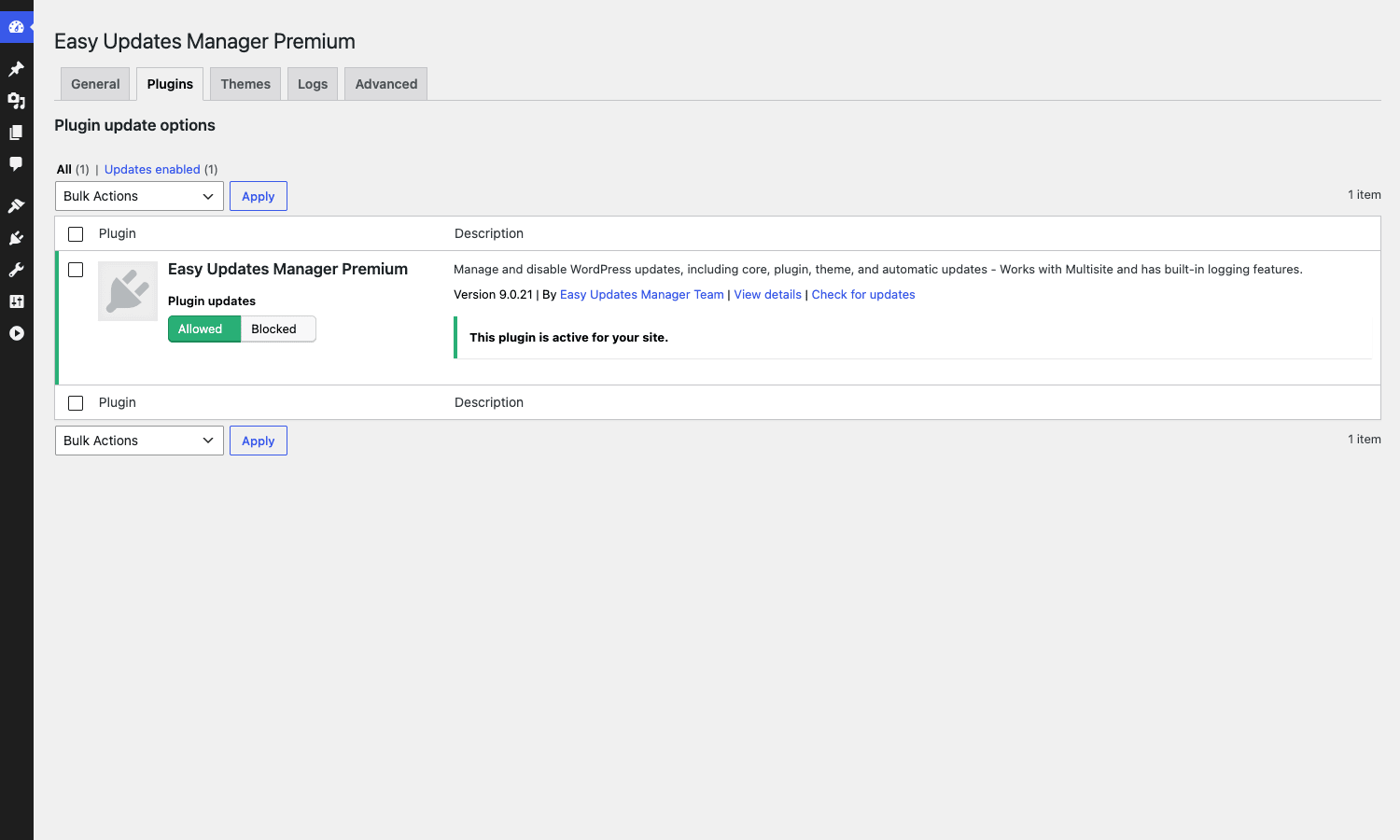
This is where the per-plugin policy lives. Each row gives you Allowed / Blocked for updates and a separate column for automatic-updates status (when you’ve enabled the auto-update column via Screen Options). On a real site I usually leave Wordfence, Akismet, and core security plugins on Allowed + Auto update, leave WooCommerce and the page builder on Allowed + Manual (because schema migrations need eyes on them), and Block anything custom-developed that should never receive a wp.org auto-update at all.
FAQ aside: do I need to disable the WordPress 5.5 native per-plugin checkbox first?
No. Easy Updates Manager wraps the sameauto_update_pluginfilter that the native UI uses. When you set a plugin toAllowed + Auto updatehere, the native checkbox flips to "Enable auto-updates" too. The two stay in sync.
Now to the Advanced tab. This is where Premium earns its money, and it gets its own section below. The short version: enable Safe mode (one click), set up a custom schedule (probably Weekly at 3am Sunday in your timezone), and enable Delay automatic updates (probably 7 days). Save.
That’s the first thirty minutes. You now have a site where:
- WordPress decides nothing about plugin updates on its own
- Three plugins you’ve explicitly approved auto-update on a weekly schedule
- Every approved update waits 7 days after release before installing, so you’re not first-in-line for hotfixes
- Anything that needs a higher PHP than your server has is skipped automatically
- You get an email when each one runs, and a louder email if anything failed
That’s a lot more discipline than vanilla WordPress.
A guided tour of each tab
The tab nav across the top of the EUM dashboard is five tabs: General, Plugins, Themes, Logs, Advanced.
General
We covered this in the walkthrough. The thing to note is the quick-config row at the top. The four presets are genuinely useful when you’re auditing an existing site. Hit "Disable auto updates" once to get a baseline of no surprises, then walk down the page and enable only what you want.
There’s a section a little further down for "Update notifications" with Off / Weekly / Monthly toggles. This sends a digest email of pending updates, separate from the per-event notifications. On managed sites I leave it on Weekly so a human is reminded to review what’s queued.
Plugins and Themes
These two are the per-item grids. Same UI, same controls, same bulk actions menu.
Bulk actions worth knowing about: Allow updates, Block updates, Enable automatic updates, Disable automatic updates. Tick a row, pick from the dropdown, hit Apply. Standard WP list-table conventions, no surprises.
A nice touch: the Plugins tab respects the WP-CLI / wp.org auto-update column. If you’ve previously enabled native per-plugin auto-updates from the Plugins screen, those show up as already-enabled here. Nothing gets overwritten unless you change it.
Logs
The Logs tab has two parts. The top section is a Clear logs control (manual button + days-to-keep input) and four checkboxes to mirror events into other systems: PHP error log, e-mail, syslog, and Slack. The bottom is the log itself: a filterable table of every update event with user, name, type, from-version, to-version, action, status, date, notes, and a stack trace.
The Slack integration is the one I use most. It writes a JSON payload to a Slack incoming webhook URL whenever an update runs. On a multisite this is the easiest way to know that the cron actually fired on every sub-site without scraping email.
Advanced
This is the meat of Premium and gets its own section below.
The Advanced tab: where the premium money goes
The Advanced tab has fifteen panels in a left-side menu. Click a panel name and the right side updates.
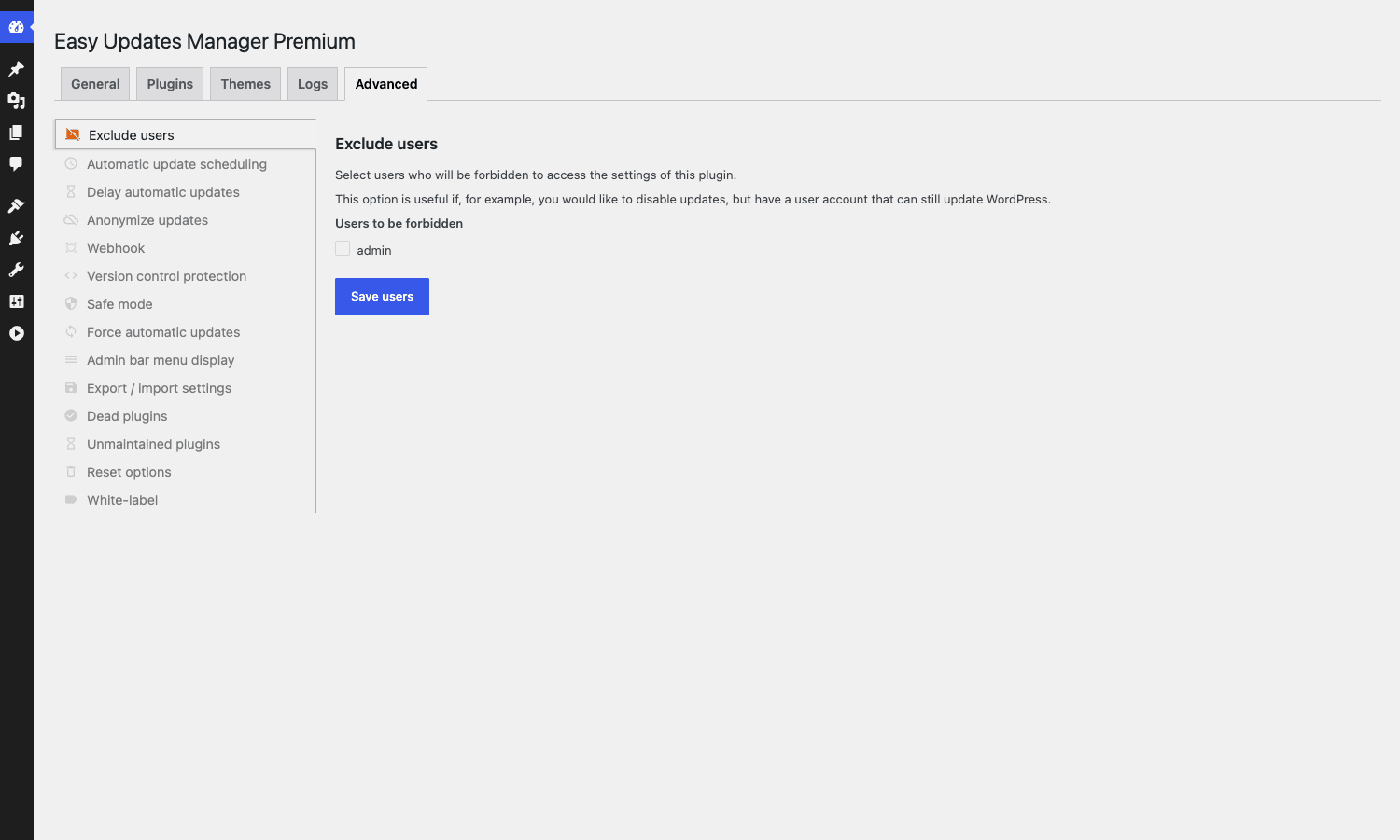
Walk through what each one does and when it matters.
Exclude users
A multi-select of WordPress users who are not allowed to access the EUM settings. The use case: you have an admin account that handles client work but you don’t want them changing the update policy. Put them on this list. They keep their WordPress admin role but can’t open the EUM dashboard.
Automatic update scheduling
The most important Premium feature. Choose Every 3 hours, Every 6 hours, Every 12 hours (WordPress default), Daily, Weekly, Fortnightly, or Monthly. Pick a time of day and one or more days of the week. This replaces the default 12-hour cron interval entirely.
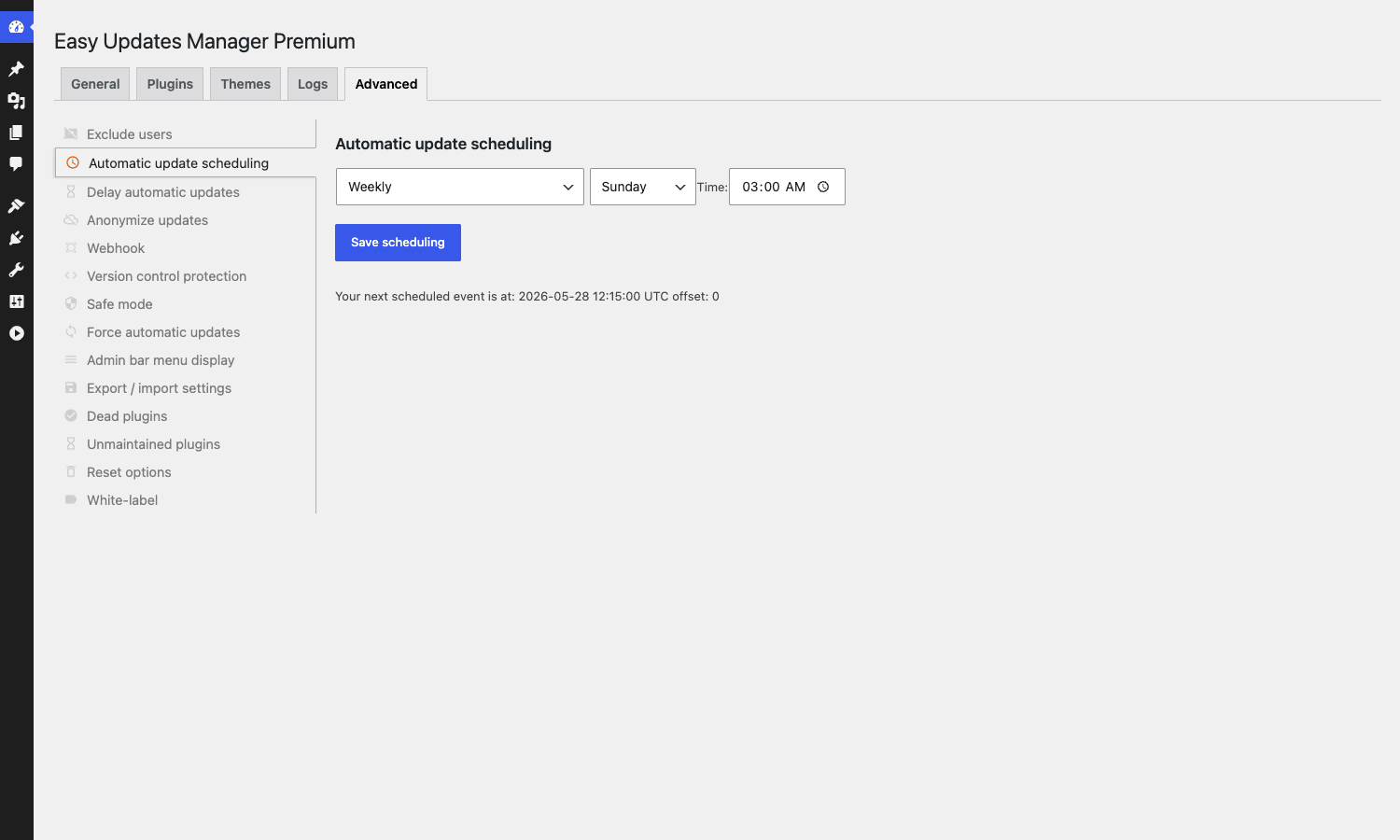
On a multisite or a high-traffic site you almost always want Weekly + Sunday + 03:00 local time. That gets every update batched into one quiet window per week instead of dripping in randomly. The cron event registered for this is called eum_auto_updates, and the plugin actively blocks other code from changing its schedule unless you flip the eum_allow_schedule_overriden filter.
Delay automatic updates
A single input: number of days to wait after a plugin/theme/core release before installing it. Defaults to 0 (install immediately, same as native WP).
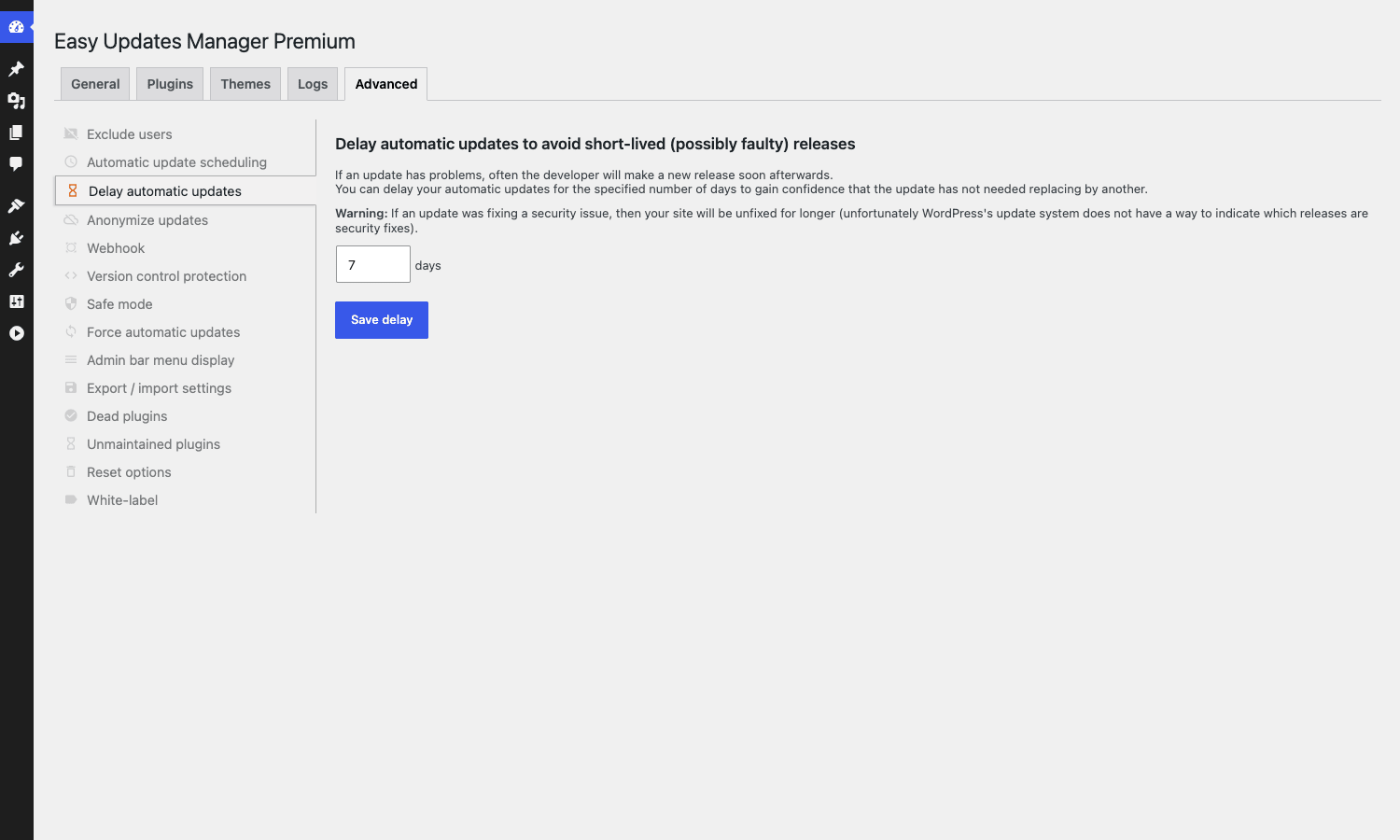
Setting this to 7 is the single biggest insurance policy in the plugin. The pattern: a developer ships v3.4.0, finds a regression within 24 hours, ships v3.4.1 the next day. You auto-installed v3.4.0 last night. If you’d delayed by 7 days, you’d have skipped v3.4.0 entirely and gone straight to v3.4.1. The warning the plugin shows is honest: if the update was a security fix, you’ll be unpatched for 7 days. That’s a real trade-off and you should weigh it against the kind of site you run.
Anonymize updates
Strips telemetry from the HTTPS calls WordPress makes to wp.org/api when checking for updates. Specifically, it removes locale, multisite flag, plugin/theme version list, and the site URL from the outgoing requests. For most sites this is fine. For sites that genuinely don’t want wp.org to know what’s installed (a couple of legal and healthcare contexts I’ve seen), it’s the only way to dial that back inside WordPress itself.
Webhook
Enables a URL endpoint on your site that, when hit with the right token, triggers a force-update run. The endpoint format is https://yoursite.com/?eum_action=trigger&token=<your-token>. Use this if you want to wire updates into a CI pipeline, a monitoring system, or an external scheduler that you trust more than WP-Cron.
Version control protection
Skip plugins or themes that live in a directory under git/svn/mercurial control. EUM detects the VCS metadata folder and treats those items as if they’re explicitly blocked. The flag I almost always turn on, because every site I work on has at least one custom plugin in a composer install flow and that plugin should never get a wp.org update.
Safe mode
The headline insurance feature.
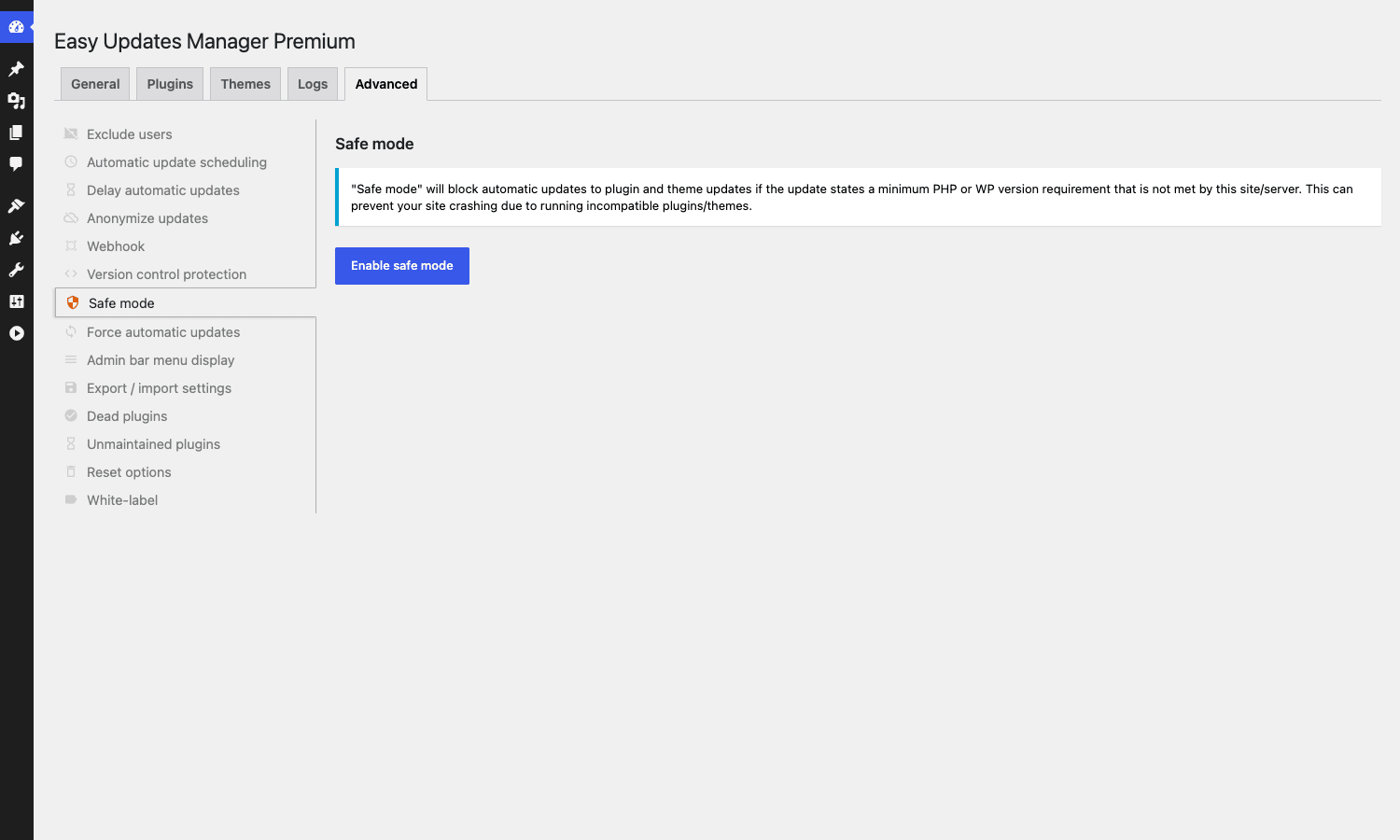
When safe mode is enabled, EUM reads the requires_php and requires_wp fields from each plugin/theme update header. If the site’s PHP or WordPress version is below what the update demands, the install is skipped and a log entry is written. WordPress core doesn’t actually enforce these fields strictly. A plugin can say "requires PHP 8.1" and if you’re on 7.4 the update will still install and fatally break. Safe mode is the seatbelt.
Force automatic updates
A single button that calls wp_maybe_auto_update() immediately. Useful for debugging (does my schedule actually run? is the cron firing? does the digest email actually arrive?) and for manually nudging a stuck site.
Admin bar menu display
Toggle the WP admin bar shortcut that EUM adds. I leave it off on production sites because it’s clutter.
Export / import settings
Dumps your full EUM config (every toggle on every tab) into a JSON file. Import on a new site to apply the same policy. The two real use cases: agencies that ship the same "house policy" across a hundred client sites, and the staging->production handoff when you want production to match staging exactly.
Dead plugins
Scans installed plugins against wp.org’s plugin directory. Flags any plugin that has been removed from the directory (for licensing, security, or abandonment reasons). Removal usually means something is wrong. Worth knowing about.
Unmaintained plugins
Same scan, but flags plugins that haven’t shipped a release in over a year. The threshold is configurable via the eum_unmaintained_plugins_time filter, default is -1 year. Some plugins genuinely don’t need updates (a small utility that’s been done since 2019) but on a typical site, plugin code that hasn’t been touched in 18 months is a maintenance risk.
Reset options
A nuclear button. Wipes every EUM setting back to defaults. Useful when you’ve been experimenting on staging and want a clean slate. Don’t press it on production unless you have a plan.
White-label
Rename Easy Updates Manager throughout the admin to whatever you want. The eum_whitelabel_name filter does the same thing in code. Agencies use this to brand the dashboard with their own name when handing sites to clients.
Multisite update orchestration: where this plugin earns its price
If you run a single WordPress site, the value of Easy Updates Manager Premium is real but capped: maybe two hours saved per emergency rollback, one fewer support ticket per month from a flaky auto-update. Worth the license, but not life-changing.
On a multisite network the math changes. Here’s why.
Multisite has a single set of wp_options for network settings, but every sub-site has its own wp_options row too. Native WordPress treats each sub-site as having its own auto-update preferences, which means changing the auto-update policy across a 40-site network requires either (a) WP-CLI loops, (b) hand-editing each site’s dashboard, or (c) a custom mu-plugin. None of those scales gracefully.
Easy Updates Manager Premium network-activates. When it’s network-active, the Advanced tab moves to the Network Admin dashboard. The schedule you set there applies to every sub-site. The plugins you allow or block apply to every sub-site. The notifications go to the network admin instead of each site’s admin email.
What that gives you in practice: one schedule, one delay window, one safe-mode flag, one Slack webhook for all updates across the entire network. You can override per-sub-site if a particular site needs a different rule, but the default behavior is network-wide policy enforcement.
The cron mechanic is worth understanding. The plugin registers a custom event called eum_auto_updates and (when scheduling is enabled) actively prevents other code from changing its schedule. From MPSUM_Update_Cron.php:
if (!apply_filters('eum_allow_schedule_overriden', false)
    && !defined('DOING_CRON')
    && 'eum_auto_updates' !== $event->hook) {
    return $event;
}
That’s the plugin saying "if someone is trying to mess with my cron schedule from the admin and it’s not during a real cron run, don’t let them." If you genuinely need to override the schedule from another plugin (a custom uptime monitor, say), you’d add:
add_filter('eum_allow_schedule_overriden', '__return_true');
Pair that with wp cron event run eum_auto_updates and you can drive the entire network’s update cycle from a CI job instead of WP-Cron. On a large multisite where WP-Cron is unreliable (because there isn’t enough traffic per sub-site to fire it), this is the move.
The other Multisite-specific thing: the per-plugin / per-theme grids on the Plugins and Themes tabs read from the network plugin list. If you’ve network-activated a plugin, it shows there. If you’ve only activated it on one sub-site, it doesn’t show up at the network level. That’s a real gotcha and worth knowing before you wonder why the grid looks empty.
Don’t do this: three update policies that look smart and break sites
I’ve spent enough time mopping up auto-update accidents to have a short list of patterns that sound reasonable in a meeting and produce a 3am phone call.
Don’t enable auto-updates for everything and disable backups. This is the most common one. The reasoning goes "auto-updates are safe, backups are slow, why pay for both?" Auto-updates are not safe. Most are fine. Once in 200 they install a regression that corrupts something. If you don’t have a backup taken in the minutes before the update fired, you cannot recover. With Easy Updates Manager Premium plus UpdraftPlus Premium, the Auto Backup integration takes a backup immediately before each update batch and keeps the last few. Use it.
Don’t enable auto-updates on a WooCommerce site without delay. WooCommerce extensions are some of the most actively-developed plugins in the WordPress space, and a meaningful fraction of releases ship a fix-it-yourself migration. A canonical example: a payment gateway plugin renames a database field, the migration runs on init, a customer’s checkout fires at the same moment, the order is written with the old field name and fails silently. You don’t notice for three days. By that point the customer has charged back. Delay 7 days. Let someone else hit the bug first.
Don’t run "Force updates" on a production site at peak traffic. The Force Updates button in the Advanced tab is genuinely useful for debugging, but it’s not throttled. It calls wp_maybe_auto_update() synchronously, which means the admin request that triggered it will wait while every queued update runs. On a site with 12 pending updates that’s a 4-minute admin request and a guaranteed PHP timeout. Use it on staging, or run it via WP-CLI (wp eval 'do_action("wp_maybe_auto_update");') where you can see the output and there’s no web-server timeout in the loop.
Hooks, filters, and code you’ll actually need
Easy Updates Manager Premium has a long list of filters. Most of them only matter inside the plugin’s own UI. Here are the ones that actually come up when you’re writing real code against it.
Change who can manage EUM
Default is administrator. To let editors manage updates on a network where you’ve delegated that role:
add_filter('easy_updates_manager_capability_required', function($cap) {
    return 'edit_pages';
});
The plugin uses current_user_can() against whatever capability this filter returns. Editors have edit_pages. Site builders without admin would need a custom capability instead.
White-label the plugin name everywhere
add_filter('eum_whitelabel_name', function() {
    return 'Site Update Policy';
});
This swaps the visible name in every UI string, every email subject, every log entry. The folder name, the menu slug, the database options (all of those) stay as mpsum / stops-core-theme-and-plugin-updates-premium. Only the user-facing name changes.
Customize the weekly digest email
add_filter('eum_update_notification_subject', function($subject, $site_url) {
    return sprintf('[Updates] %s : %s pending', parse_url($site_url, PHP_URL_HOST), date('M j'));
}, 10, 2);

add_action('eum_update_notification_before_send', function($emails, $subject, $message) {
    // Append a custom footer (compliance, contact info, etc.)
    return $message . "\n\nSent by Acme Agency hosting. Reply to support@acme.example for help.";
}, 10, 3);
The eum_update_notification_before_send action fires immediately before the digest is mailed. You can mutate any of its arguments by reference if you wrap with &$message.
Prevent the auto-rollback from deactivating a critical plugin
If a plugin update fatals, Easy Updates Manager deactivates the plugin to bring the site back up. That’s the right default for most cases, but if you have a plugin that absolutely must stay active (a security plugin, your maintenance-mode plugin, a custom firewall), exclude it:
add_filter('eum_do_not_deactivate_plugins', function($plugins) {
    $plugins[] = 'wordfence/wordfence.php';
    $plugins[] = 'my-firewall/firewall.php';
    return $plugins;
});
The plugin itself (stops-core-theme-and-plugin-updates-premium/main.php) is automatically in this list. The auto-rollback code at MPSUM_Auto_Rollback::deactivate_plugin_before_update() checks against it before each deactivation.
Register a custom logger
The plugin ships PHP error log, syslog, email, and Slack loggers. To add your own (Datadog, Sentry, an internal webhook, whatever), register the class via two filters:
add_filter('eum_loggers_classes', function($classes) {
    $classes['datadog'] = 'My_Datadog_Logger';
    return $classes;
});

add_filter('eum_loggers', function($loggers) {
    $loggers['datadog'] = array(
        'name'        => 'Datadog',
        'description' => 'Send update events to Datadog',
        'fields'      => array(
            'api_key' => array('label' => 'API Key', 'type' => 'password'),
        ),
    );
    return $loggers;
});

class My_Datadog_Logger extends MPSUM_Abstract_Logger {
    public function log_message($message, $level, $context = array()) {
        wp_remote_post('https://http-intake.logs.datadoghq.com/v1/input', array(
            'headers' => array('DD-API-KEY' => $this->settings['api_key']),
            'body'    => wp_json_encode(array(
                'service' => 'wordpress-updates',
                'level'   => $level,
                'message' => $message,
                'context' => $context,
            )),
        ));
    }
}
The MPSUM_Abstract_Logger base class handles option storage and admin UI rendering. You only have to implement log_message().
Adjust the unmaintained-plugins threshold
add_filter('eum_unmaintained_plugins_time', function() {
    return '-2 years';
});
This is a strtotime()-compatible relative string. The plugin uses it as a cutoff for the "last updated" date pulled from the wp.org plugin API. Anything older is flagged.
Add a custom panel to the Advanced tab
add_action('eum_advanced_headings', function() {
    echo '<li><span class="dashicons dashicons-shield"></span>'
       . '<span class="eum-advanced-menu-text">Acme Policy Check</span></li>';
});

add_action('eum_advanced_settings', function() {
    echo '<div class="eum-advanced-settings-container acme-policy">';
    echo '<h3>Acme update policy</h3>';
    echo '<p>This panel is rendered by the Acme child plugin.</p>';
    echo '</div>';
});
This pattern keeps your custom logic inside the EUM Advanced tab so the policy lives in one place. Pair it with a JS click handler that toggles the .active class on your container when its menu item is clicked.
Per-plugin / per-theme bulk actions
add_filter('eum_plugins_list_table_bulk_actions', function($actions) {
    $actions['mark_critical'] = __('Mark as critical', 'mytheme');
    return $actions;
});
The list table picks the action up automatically. You handle it by hooking the load- action for the EUM page and calling MPSUM_Plugins_List_Table::current_action().
Force-updates lock bypass
If you’re scripting force-update runs and need to bypass the "another update is already in progress" lock (which is real and prevents data corruption, so know what you’re doing):
add_filter('eum_force_updates_disable_lock', '__return_true');
Use this only when the lock is stuck because of a previously-failed run.
The actions worth knowing
| Action | Fires when | Useful for |
|---|---|---|
eum_advanced_headings |
Building the Advanced tab nav | Adding your own panel link |
eum_advanced_settings |
Building Advanced tab panel content | Rendering your panel |
eum_premium_ajax_handler |
EUM receives an unrecognised AJAX subaction | Custom AJAX endpoints scoped to EUM |
eum_update_notification_before_send |
Just before digest email goes out | Append/modify message |
eum_update_notification_after_send |
Just after digest email goes out | Audit log entry |
eum_rollback_before_send |
Just before rollback email goes out | Mutate subject/message |
eum_rollback_after_send |
Just after rollback email goes out | Forward to incident system |
eum_populate_plugins_list_table_column |
Each row in the Plugins tab | Add a custom column value |
The full filter list (compressed)
Most of these you’ll never touch, but they’re documented in the source if you go looking:
eum_allow_schedule_overriden, eum_do_not_deactivate_plugins, eum_force_updates_disable_lock, eum_loggers, eum_loggers_classes, eum_update_notification_subject, eum_rollback_subject, eum_rollback_allow_send_email, eum_unmaintained_plugins_time, eum_no_core_email_before, eum_whitelabel_name, eum_normalized_call_stack_args, eum_plugins_list_table_bulk_actions, eum_themes_list_table_bulk_actions, eum_plugins_list_table_prepare_items, eum_themes_list_table_prepare_items, eum_plugins_list_table_allowed_statuses, eum_themes_list_table_allowed_statuses, eum_plugins_update_options, eum_themes_update_options, eum_save_core_options, eum_entity_auto_update_setting_html, eum_non_essential_query_args, eum_random_non_essential_query_args, eum_i18n, mpsum_admin_role, mpsum_default_options, mpsum_premium_items_list, easy_updates_manager_capability_required, easy_updates_manager_template, easy_updates_manager_templates_dir, easy_updates_manager_templates_url, easy_updates_manager_template_directories, easy_updates_manager_com_link, easy_updates_manager_updraftplus_com_link.
Easy Updates Manager vs MainWP vs ManageWP: when each one wins
People conflate these three because they all touch the word "updates." They’re actually three different products solving three different problems.
Easy Updates Manager Premium is a policy plugin. It runs inside one WordPress site (or one multisite network) and decides what gets updated, when, by whom, with what safety net. License is roughly $39 / year for a single site, $79 for 5 sites, $149 unlimited sites. The footprint on the site is small (about 1.1 MB extracted, no external API calls during normal operation except wp.org checks).
MainWP (and ManageWP) is a remote management dashboard. You install a "dashboard" plugin on one WordPress site you control, and a "child" plugin on every site you manage. The dashboard pulls in the update list from every child and lets you trigger updates from one place. MainWP’s core plugin is free and self-hosted. Premium extensions are $29-49 each, or $399 bundle. ManageWP runs as a SaaS, charging roughly $2 per site per month plus $1 per add-on per site per month, so a 50-site fleet with the safe-update add-on costs ~$1,800 per year.
Different tools, different jobs:
| Need | Best fit |
|---|---|
| Pause WordPress core minor updates on one site | Easy Updates Manager Premium |
| Auto-update only 3 specific plugins on one site, on a Sunday-3am cron, with a 7-day delay | Easy Updates Manager Premium |
| Trigger updates on 50 client sites from one dashboard | MainWP or ManageWP |
| Take an UpdraftPlus backup before each update | Easy Updates Manager Premium (built-in) or MainWP UpdraftPlus extension |
| Block updates that require a higher PHP version than the site has | Easy Updates Manager Premium (Safe mode) |
| Maintain a different update policy per client site without per-site logins | MainWP Bulk Settings Manager Extension + EUM on each site |
| White-label the update interface for client handover | Easy Updates Manager Premium (built-in) |
| Recover automatically from a failed update | Easy Updates Manager Premium (Auto-rollback) |
The honest answer for an agency running 20+ sites: install both. MainWP for the bird’s-eye view and the bulk-trigger button. Easy Updates Manager Premium on each managed site for the per-site policy enforcement. Total cost for an agency at 20 sites and the EUM unlimited plan: about $549 for the first year ($149 EUM + $399 MainWP), compared to ~$840 for ManageWP at the same scale. After year one, MainWP renewals are 50% off, so ongoing cost drops to ~$350/year vs ManageWP’s ongoing $840.
If you only manage one or two sites, EUM alone is the right call.
Performance, compatibility, and quirks
A few weeks of real use turned up a handful of things worth knowing.
Footprint is small. The plugin folder is about 1.1 MB extracted. On a fresh install it adds three database options and one custom cron event. No custom post types, no custom tables. The logs are stored in wp_options until you enable external logging, at which point only metadata stays in the database.
The dashboard React-app loads only on its own admin page. EUM’s UI is built with React and is enqueued at mpsum_dashboard_react. The handle is only registered when you’re viewing the EUM page, so it doesn’t add weight to every admin pageview. On a typical admin pageview the plugin’s footprint is essentially zero.
Multisite logic flips menus around. On a multisite, the dashboard moves to Network Admin and the per-site dashboard option may disappear depending on your network policy. If you were used to per-site management and you’ve just network-activated, this can be confusing for thirty seconds.
The custom cron schedule blocks other plugins from rewriting it. Mentioned in the multisite section. If you have another plugin or a custom mu-plugin that calls wp_schedule_event() for wp_version_check, that call is rejected by EUM’s filter on pre_schedule_event. The eum_allow_schedule_overriden filter opts back in.
The plugin pre-empts the wp.org update check for itself. There’s a pre_http_request filter in main.php that intercepts the call EUM makes to its own update server and returns a canned "version 1, OK" response. This is how the GPL Times build avoids talking to the vendor’s licensing server. If you ever wonder why the Premium-update banner doesn’t show, that’s why.
Auto-rollback uses wp_die capture. The rollback mechanism wraps the update call in a shutdown handler that catches fatals. If a plugin update produces a fatal during activation, EUM detects it, deactivates the plugin, and emails you. The detection relies on PHP’s fatal-error catching, which means very rare segfaults (out-of-memory, infinite recursion in C extensions) won’t be caught.
Safe mode reads the readme.txt headers. Not the plugin’s own Plugin Name: header. The requires_php and requires_wp come from the wp.org-style readme.txt. Plugins distributed outside wp.org may not include those headers, in which case safe mode can’t enforce a version check on them. This is a wp.org packaging issue, not an EUM bug.
Translation updates are silent. EUM logs translation updates but doesn’t include them in the digest email unless you explicitly opt in. This is a "right default" call by the developer, but if you run a multilingual site and need to know when translation files refresh, dig into the Logs tab regularly.
Pricing. Easy Updates Manager Premium is sold on easyupdatesmanager.com at $39/year for one site, $79 for five sites, $149 for unlimited sites. The GPL Times mirror of the Premium build is available here if you’d rather verify the plugin on a staging site before paying the vendor directly. If you’re comparing update plugins, also worth looking at how other infrastructure plugins handle policy: the WP Reset Pro review covers a related "site-state policy" tool, and the UpdraftPlus Premium review covers the backup half of the auto-backup workflow.
What I’ll tell the next agency client who asks about updates
The question I hear from agency clients more than any other: "should I just turn on auto-updates and not think about it?"
The answer is no, and Easy Updates Manager Premium is the cleanest way I’ve found to explain why.
WordPress auto-updates were designed in a world where most plugins shipped one release a quarter, where staging environments were rare, and where the average site had five plugins. None of those things are true anymore. A typical WooCommerce store today has 30-50 active plugins, ships changes several times a week, and runs on infrastructure that doesn’t tolerate a 4-minute outage at 3am. The native auto-update mechanism is not what you want at the wheel of that.
The good policy is boring and easy to explain to a client: take a backup before every update, wait a week so other people hit the bugs first, only auto-update plugins that have a track record of clean releases, log everything, and roll back automatically if something fatals. That’s six rules. Native WordPress gives you zero of them out of the box. Easy Updates Manager Premium gives you all six, configured in about thirty minutes, in a UI a non-technical admin can understand.
The thing it doesn’t give you is centralized management across many sites. For that, pair it with MainWP. For a single site or a small multisite, it’s the whole answer.
The one feature that would make me drop it: if WordPress core ever ships a real version-pinning mechanism with rollback, a configurable schedule, and a built-in delay window, Easy Updates Manager Premium becomes redundant. That hasn’t happened in twelve years and there’s no sign it will. Until then, this is the plugin I install on day one of any site I’m going to be on the hook for.