

Auto-updates aren’t a feature. They’re a liability. Unless you have a rollback plan.
I’ve watched a WooCommerce store go down on a Saturday afternoon because a payment-gateway plugin pushed a "minor" release that wasn’t compatible with the active theme. Cart total stuck at zero. Stripe webhooks throwing 500s. The site owner found out when a customer emailed asking why their card was charged twice. That outage cost the store about $1,800 in lost sales and a refund queue we spent the next morning untangling. The fix took three minutes once we knew what broke. Finding the break took ninety.
That’s the story I think about every time I see a WordPress dashboard with "Automatic updates" silently switched on. The default WordPress behaviour is to assume every update is safe. Sometimes it isn’t. The job of Easy Updates Manager Premium is to sit between the WP update API and your live site, give you a panel of switches for what auto-updates and what doesn’t, schedule the updates for off-peak hours, log everything that happens, and if something blows up during an auto-update, roll it back before your visitors notice.
This is a long walkthrough of how the plugin works, where it pulls its weight on a production site, and the dev hooks worth knowing about. If you’re an agency, the white-label and Updraft Central integration are probably what brought you here. If you’re a single-site owner, the safe-mode + auto-rollback combo is the thing that keeps you out of a Saturday-afternoon outage.
Table of Contents
- What Easy Updates Manager Premium actually does
- The case against turning auto-updates fully off
- Everything the Premium tier adds over the free version
- A tour of the admin
- Auto-rollback: the feature that actually matters
- Safe mode and how it actually decides what is safe
- Scheduling updates so they don’t fire during your busy hour
- Email notifications, Slack, syslog, and the PHP error log
- White-label for client sites
- UpdraftCentral and the auto-backup hand-off
- Version control protection (Git deploys and Composer)
- Multisite specifics
- Developer reference: hooks, filters, and option keys
- How it stacks up against MainWP and ManageWP
- Don’t do this with Easy Updates Manager
- FAQ
What Easy Updates Manager Premium actually does
Easy Updates Manager is a WordPress plugin from the Easy Updates Manager Team (now stewarded by the same people behind UpdraftPlus). It hooks into every part of WordPress that has to do with updating something: core, plugins, themes, translations, automatic updates, the update notification badges, the email reminders, even the "There’s a new version" admin notices.
Out of the box, WordPress gives you exactly four options for auto-updates: on or off for core, and on or off per individual plugin or theme (a UI added in 5.5). That’s it. There’s no schedule. There’s no rollback. There’s no log of what got updated when. If you have a multisite or you manage a client roster, the situation gets worse, not better.
Easy Updates Manager replaces that whole experience. The free version on wordpress.org handles the on/off switches for every type of update and adds a basic log. The Premium build (which is what this review covers) is where the operational features live: scheduling, safe mode, auto-rollback, delayed updates, white-label, version-control protection, Updraft Central integration, anonymization, webhooks, and external loggers.
The plugin slug is stops-core-theme-and-plugin-updates-premium. The free version uses stops-core-theme-and-plugin-updates. Both share the same text-domain so they speak the same language, but they’re different plugins as far as WordPress is concerned. You can install Premium directly without the free version present. There’s no Requires Plugins: dependency.
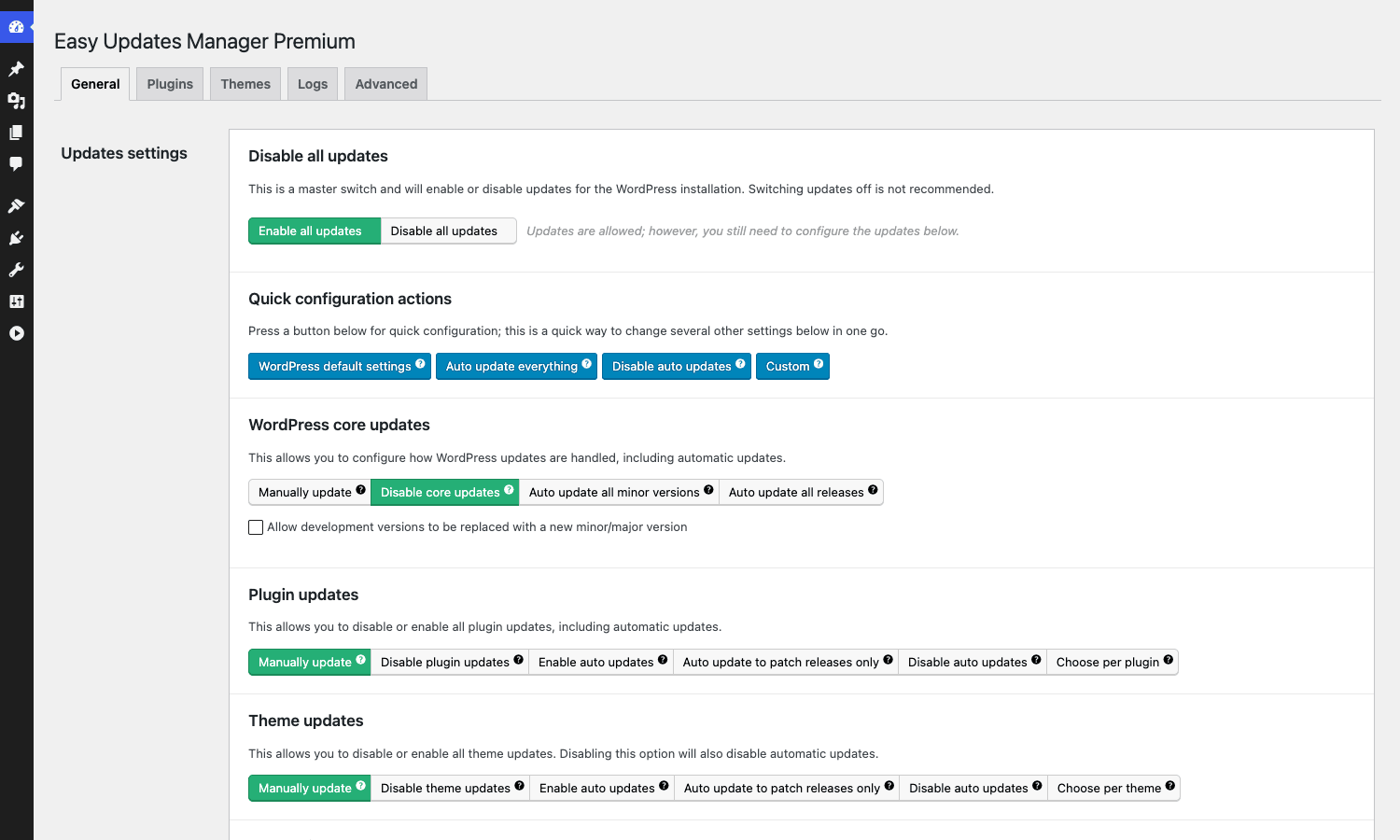
The General tab is the master cockpit. One big toggle at the top kills every update across the install. Below it, four quick-config buttons set sane defaults in one click: WordPress defaults, auto-update everything, disable auto-updates, or custom. Then per-type rows for WordPress core, plugins, themes, and translations, each with the same set of choices: Manually update, Disable, Auto-update minor, Auto-update everything, or (for plugins/themes) Choose individually.
If you only ever touch the General tab, you’ve already done more than 90% of WordPress sites do for update governance.
The case against turning auto-updates fully off
Before going further, let me argue against the most common reaction people have to update problems: "I’ll just turn auto-updates off."
In the last twelve months WordPress and its plugin world have had to ship a steady stream of security fixes. WooCommerce had an authenticated SQL injection patched in a recent release, LiteSpeed Cache had an account-takeover bug, Bricks Builder had a remote-code-execution issue, Really Simple Security had an authentication-bypass disclosed publicly with proof-of-concept code, and Elementor Pro patched a privilege-escalation vuln. Each one of those was actively exploited within hours of the public disclosure.
The cost of a security incident on a small WooCommerce store, in my limited experience, runs roughly:
- 4 to 12 hours of dev time to identify the breach, restore from backup, change credentials, and harden the install. At $100/hr that’s $400 to $1,200.
- Refunds and chargebacks if customer cards got logged. Variable, but $500 to $5,000 isn’t unusual.
- Reputational damage. Harder to put a number on. If your store starts redirecting to a sketchy domain in search results, organic traffic doesn’t bounce back for weeks.
- Lost sales during the outage and recovery. For a small store, $200 to $2,000 per day.
The cost of a bad auto-update is usually one to two hours of investigation and a rollback. That’s $100 to $200 at the same rate.
So the math is clear. Turning auto-updates off entirely is more expensive than letting them run, as long as you have a way to recover from a bad one. That’s the actual job of Easy Updates Manager Premium. Not stopping updates, but turning the binary "on or off" into a graduated set of switches plus a safety net.
Everything the Premium tier adds over the free version
Reading the readme is useful but it doesn’t tell you which features you’ll actually touch. Here’s the short list of what Premium adds, ranked roughly by how often I find myself using each one on a real production site.
- Auto-rollback. If a plugin auto-update results in a fatal error during reactivation, EUM Premium catches the error in a sandbox request, then restores the previous version automatically. This is the killer feature, and it’s why I keep paying for the upgrade.
- Safe mode. Blocks any update whose minimum PHP or WP version isn’t met by your stack. Stops the dreaded "plugin requires WP 6.4, your site is on 6.2" white-screen scenario.
- Scheduled auto-updates. Pick the hour and the weekdays. No more 3pm updates during your traffic peak.
- Delayed updates. Force a 48-hour or 72-hour delay before any plugin auto-update actually runs. A surprising number of bad releases get pulled or patched within 24 hours, so this alone catches a lot of bad days.
- White-label. Rename the plugin, hide the author, change the URL. Useful for agencies and freelancers handing off the dashboard.
- External loggers. Slack, syslog, PHP error log, email. Pick where the update events get sent.
- Email update notifications. Weekly or monthly digest of pending updates, sent to the address of your choice.
- Updraft Central integration. If you run UpdraftPlus on a dashboard server, EUM Premium lets that server manage updates across all your sites from one place.
- Auto-backup before update. Tell EUM to ping UpdraftPlus and take a backup before any update runs. If something breaks, you have a known-good state from five minutes ago.
- Webhook trigger. A signed URL you can hit from Zapier, GitHub Actions, or a cron job to force updates on a schedule that lives outside WordPress.
- Version control protection. Skip auto-updates on any plugin or theme whose folder contains a
.git,.svn, or.hgdirectory. This is what makes EUM safe on a Composer-managed deploy. - Anonymize updates. Strips the site URL, plugin list, and other telemetry from the requests WordPress makes to api.wordpress.org. For sites under strict privacy regimes.
- Unmaintained plugin checker. Runs a weekly check against the WordPress plugin directory and flags any installed plugin that hasn’t been updated in 18+ months.
- Dead plugin checker. Specifically flags plugins that have been removed from the directory (usually for security reasons), which the free WP installer won’t tell you about until you try to install fresh.
- Import / export settings. A JSON dump of all your EUM settings, so you can roll the same policy out across a fleet without reconfiguring each site by hand.
- Cron-day schedule and semantic-versioning controls. Granular schedule for log clearing and per-release-type update decisions.
- Log export. Download your update log as CSV or JSON, for compliance reporting or for feeding into a SIEM.
That’s a lot of switches. The good news is that none of them require any configuration to start working. Install, activate, and you get the same behaviour as the free version. You only touch the premium settings when you actually need them.
A tour of the admin
Easy Updates Manager lives at Dashboard -> Updates Options in the WP admin sidebar. Network admins on multisite get the same menu under the Network Admin dashboard. The top of the page has five tabs: General, Plugins, Themes, Logs, Advanced. The Advanced tab is where most of the premium settings hide.
Plugins tab
The Plugins tab is a table of every plugin on the site with an Allowed / Blocked toggle for each one, and a top-level set of filters for "All", "Updates enabled", and "Updates disabled". If you set the global Plugin updates option in the General tab to "Choose per plugin", this table becomes the per-plugin auto-update controller.
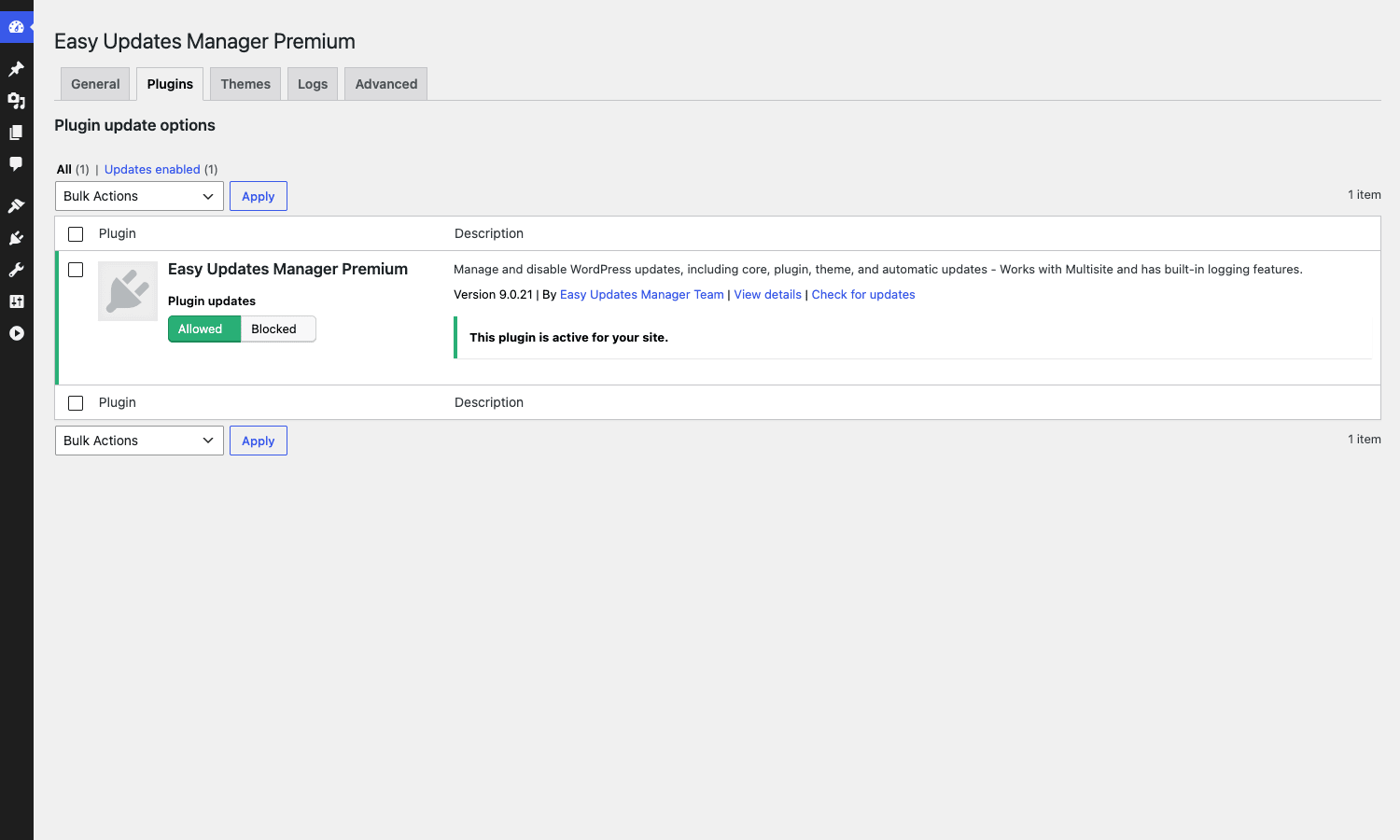
In practice the per-plugin toggle is most useful for two scenarios. One, you have a small set of plugins you really trust (like Akismet or Yoast SEO) and want to auto-update them while leaving everything else on manual. Two, you have a plugin you’ve patched locally and absolutely cannot let WordPress overwrite. Block it here and you’re safe even if someone enables auto-updates by mistake.
Themes tab
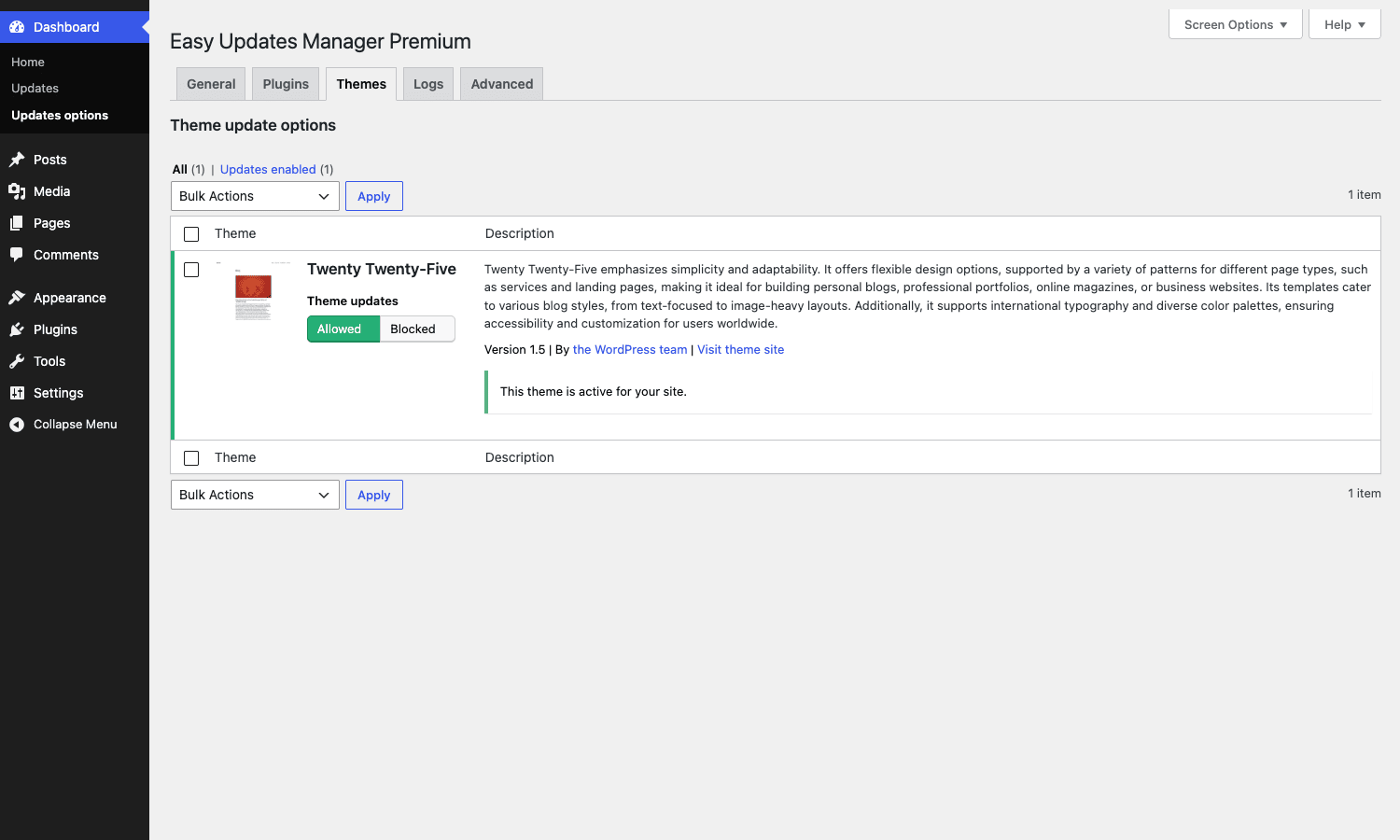
Same structure as the Plugins tab but for themes. Most sites only have one or two themes active, so this tab is short. The interesting cases are agencies that maintain a parent theme + child theme stack, where you want the parent to auto-update but the child to never update (because all your customizations live in the child).
Logs tab
The Logs tab is where the audit trail lives. Every time WordPress runs an update, EUM writes a row: who triggered it (cron, manual, WP-CLI, etc.), the plugin or theme that updated, from version X to version Y, the status (success / failed), a timestamp, optional notes, and a full PHP call stack if it failed.
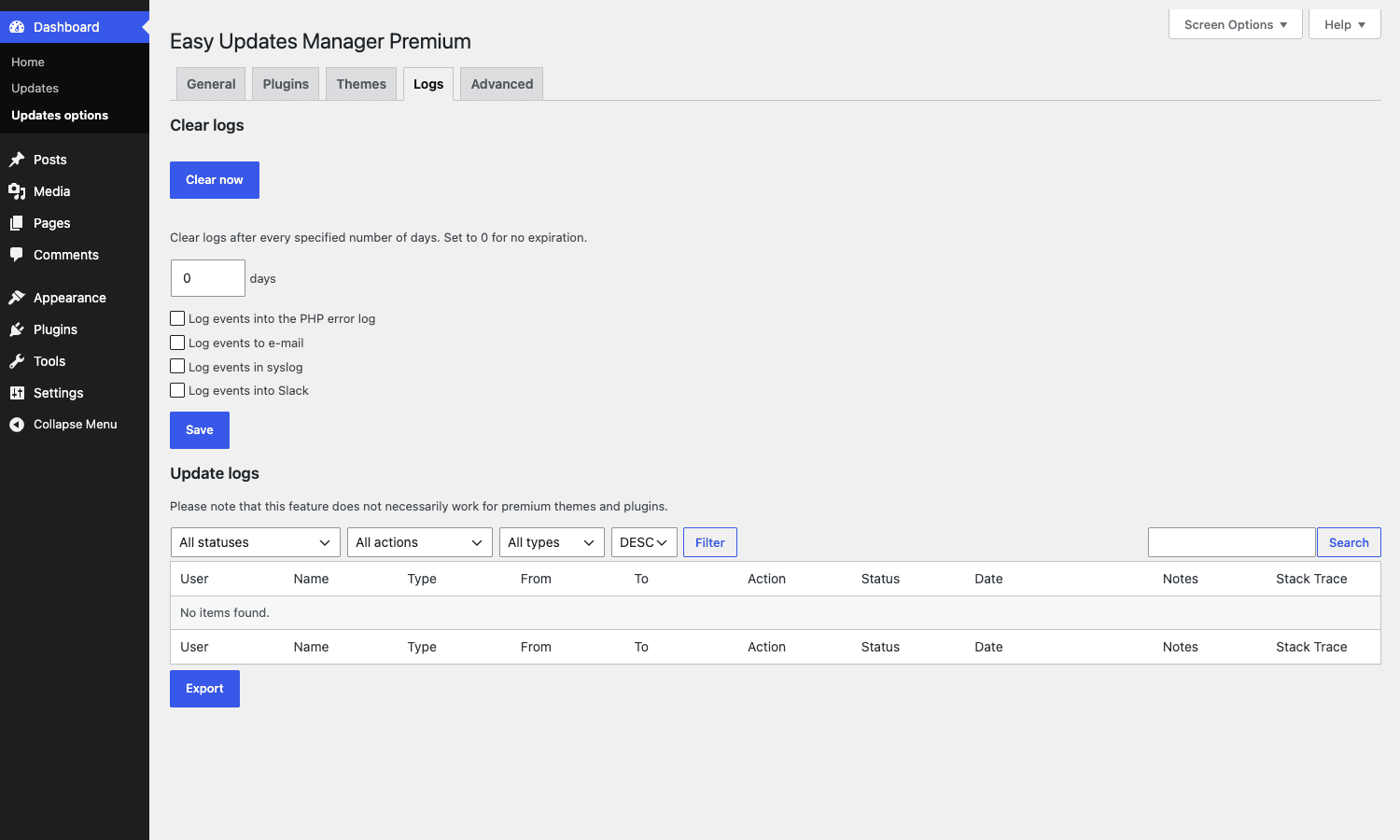
The top half of the Logs page is the configuration for where else the logs go: PHP error log, email, syslog (for sending to a remote log aggregator like Papertrail or Loggly), and Slack (via incoming webhook). I keep PHP error log and Slack both on for production sites. The PHP log gives me a permanent on-disk trail, and the Slack post means I see updates in the same channel where I see uptime alerts, so I know in real time when something just got patched and can correlate it with whatever weird behaviour shows up next.
The "clear logs after N days" setting is important if you have a high-update-rate site. Log rows accumulate fast on multisite installs with 50+ plugins, and a year of logs is enough to bloat the options table by a few megabytes. Set it to 90 days and forget about it.
Advanced tab
The Advanced tab is a left-sidebar menu of 14 premium feature panels. You click into each one to configure it. This is the densest part of the plugin and worth understanding panel by panel.
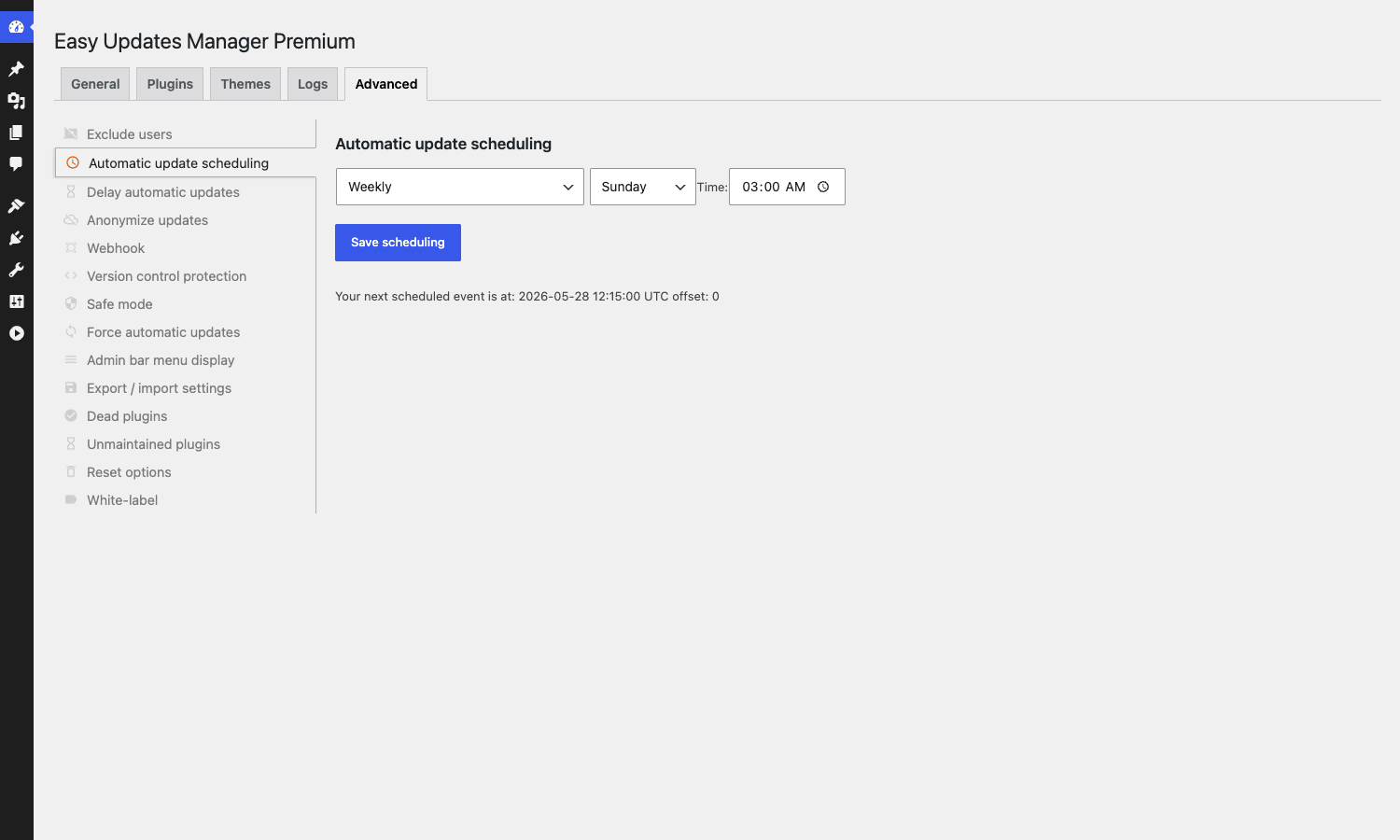
The left rail lists, top to bottom: Exclude users, Automatic update scheduling, Delay automatic updates, Anonymize updates, Webhook, Version control protection, Safe mode, Force automatic updates, Admin bar menu display, Export / import settings, Dead plugins, Unmaintained plugins, Reset options, White-label.
The rest of this article walks through the ones that actually matter for production.
Auto-rollback: the feature that actually matters
If you take one thing from this article, take this: auto-rollback is the reason to pay for Easy Updates Manager Premium.
The way WordPress runs an automatic plugin update is roughly: deactivate the plugin, replace the files with the new version, reactivate the plugin. If the new version has a fatal PHP error in its activation hook, WordPress sees the fatal, marks the activation as failed, and leaves the plugin deactivated. Your site is up, but the plugin is off. If that plugin was, say, your checkout gateway, customers now hit a checkout page with no payment buttons.
If the fatal happens later (not during activation but during a normal pageload), WordPress’s Recovery Mode (added in 5.2) kicks in, which is fine for the admin but still results in a half-broken front-end for visitors until you click the recovery link in your email.
Easy Updates Manager Premium watches this whole sequence. Here’s what MPSUM_Auto_Rollback does, traced out of the source:
- Before the auto-update runs, it deactivates the plugin (so the new code doesn’t run with the old database state).
- After WordPress replaces the files, EUM activates the plugin inside a sandboxed scraping request. This is the same mechanism WordPress core uses for the plugin editor’s "fatal error check" feature, but EUM repurposes it for the auto-update path.
- The scrape captures any PHP fatal that fires during activation.
- If a fatal is detected, EUM swaps the files back to the previous version (which it kept in a temporary directory) and re-activates the old version.
- The whole thing gets logged. You get an email saying "Plugin X failed to update from 1.2 to 1.3, rolled back to 1.2".
In practice this means you can leave auto-updates on for plugins you trust, knowing that the worst case is "this plugin didn’t update and we kept the old one running". You don’t get a broken site. You get a slightly-out-of-date site, which is fixable on Monday morning.
A few honest caveats. Auto-rollback works for plugins and themes, not for WordPress core itself (core has its own rollback mechanism built into 5.5+). It catches PHP fatals during activation, not behaviour bugs (if the plugin activates clean but breaks your checkout flow later, EUM doesn’t know). And it relies on the WordPress "sandbox scraping" mechanism, which assumes the site has working loopback HTTP (it usually does, but ultra-locked-down hosts sometimes block it).
The mechanism is in includes/MPSUM_Auto_Rollback.php if you want to read it. It’s one of the more thoughtful pieces of WordPress plugin code I’ve come across in a while. The perform_plugin_activations() method even handles multisite correctly by switching to the main site before activating, which is the kind of detail that gets missed in most third-party update tools.
Safe mode and how it actually decides what is safe
Safe mode is the second-most-important premium feature. It’s also the one most often misunderstood.
The pitch is "Safe mode will block automatic updates to plugin and theme updates if the update states a minimum PHP or WP version requirement that is not met by this site/server". That’s exactly what it does. It checks the plugin update’s requires and requires_php headers against the running site’s $wp_version and PHP_VERSION, and if either falls short, the update is blocked.
This sounds obvious. WordPress doesn’t already do this? It does, but only for manual updates triggered from the admin. Automatic updates running in the background don’t always honour the same version checks, especially for older WordPress versions or for plugins shipped through third-party update servers. EUM’s Safe mode bolts a strict version check onto every auto-update, no matter where it came from.
When does Safe mode actually catch something? Three real-world scenarios:
- Your host is still on PHP 7.4 because of an old plugin you can’t replace. A plugin you have installed ships an update that requires PHP 8.0. Without Safe mode, the auto-update runs, the new code hits PHP 8 syntax on PHP 7.4, and you get a white screen. With Safe mode on, the update is blocked and logged.
- You’re on an older WordPress (say, 5.9) because a third-party theme breaks on 6.x. A plugin update raises its
requiresto 6.0. Same outcome: blocked instead of white-screening. - A plugin author ships a major refactor with bumped version requirements. Same protection.
There’s no UI for it beyond a single "Enable safe mode" toggle. Once on, it just sits there and stops bad updates. Pair it with auto-rollback and you’ve covered the two main failure modes that auto-updates produce.
Scheduling updates so they don’t fire during your busy hour
WordPress’s default auto-update behaviour is "whenever cron decides to fire". On a low-traffic site that’s fine. On a WooCommerce store doing $5K/day, having an update kick off during the Friday lunch rush is bad news. Even a successful update flushes object cache, possibly drops your CDN cache (if you have Cloudflare cache rules tied to plugin versions), and queues a fresh wave of compile work.
The scheduling panel under Advanced lets you pin updates to specific hours and weekdays. The screenshot above shows the default (every 12 hours, all 7 days, 12:15 AM). The actual cron is registered as mpsum_update_cron and fires MPSUM_Update_Cron::process_updates().
The trick with the schedule is to think about it from the user-traffic angle, not the server-load angle. For a typical North American B2C store, 2am to 5am Pacific is the safest window. For an EU site, 3am to 6am CET. If you have a global customer base, pick the window with the smallest active-user count in your analytics, not the literal middle of the night in your timezone.
The schedule respects WP’s WP_AUTO_UPDATE_CORE constant, so if you’ve hard-coded that to false in wp-config.php, the schedule won’t override it. Same goes for AUTOMATIC_UPDATER_DISABLED. EUM tries hard not to fight the constants.
Email notifications, Slack, syslog, and the PHP error log
EUM ships four loggers and lets you turn each on independently. The interesting ones are:
MPSUM_PHP_Loggerwrites to whatevererror_logsetting your PHP install has. On most hosts that’s/var/log/php_errors.logor a per-site log under~/logs/. Cheap and permanent.MPSUM_Slack_Loggerposts to a Slack incoming webhook. Configure the webhook URL once and every update event gets a Slack message. The format is concise: plugin name, from-version, to-version, status, timestamp.MPSUM_Syslog_Loggersends to the system syslog daemon via PHP’ssyslog(). Useful if you’ve already wired syslog to ship to a remote log host.MPSUM_Email_Loggersends an email per event. Easy to drown in, so I’d recommend pairing it with a per-day digest setting on the SMTP side if you turn it on.
There’s also the Update Notifications module (MPSUM_Update_Notifications) which is separate from the loggers. This one sends a scheduled digest of pending updates ("you have 3 plugins waiting for updates"), weekly or monthly, regardless of whether auto-updates ran or not. This is the email a non-technical site owner wants. The loggers are for ops people.
Pro tip: if you have multiple sites pinging the same Slack channel, customize the email subject / Slack message format using the eum_update_notification_subject filter so you can tell at a glance which site is updating what:
add_filter( 'eum_update_notification_subject', function( $subject, $update_type ) {
 $host = wp_parse_url( home_url(), PHP_URL_HOST );
 return sprintf( '[%s] %s', $host, $subject );
}, 10, 2 );
Drop that in a small mu-plugin and you stop having to read the body of every Slack message to figure out which client site just updated WooCommerce.
White-label for client sites
If you build sites for clients, you’ve probably had the awkward moment where the client googles "Easy Updates Manager" and tries to reach the vendor for support, instead of you. White-label fixes that.
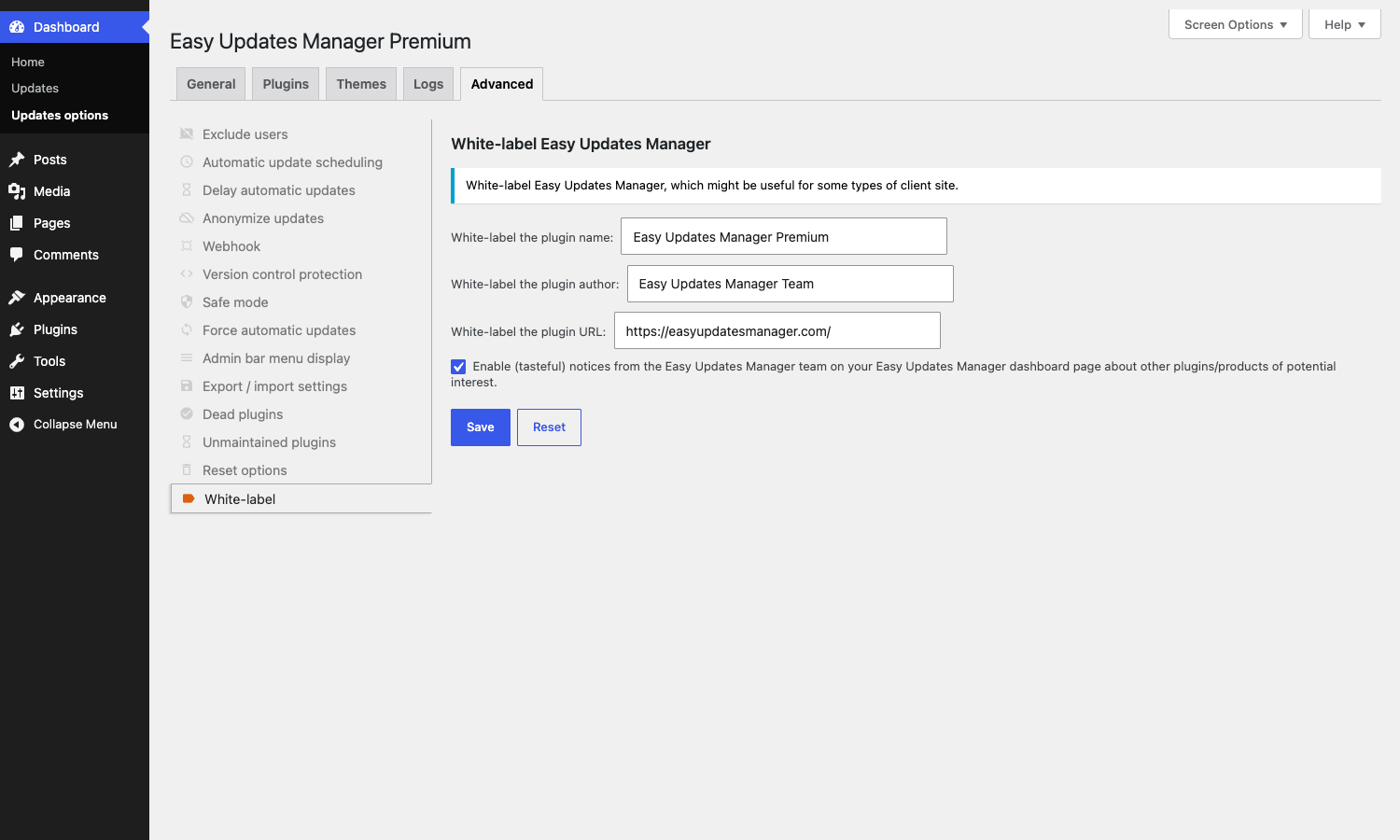
The panel has three fields: plugin name, plugin author, and plugin URL. Whatever you put here replaces the visible values on the WP Plugins screen, in the admin bar, and anywhere else the plugin name appears. There’s also a toggle for "Enable tasteful notices from the Easy Updates Manager team", which you’ll want off on a client site so the EUM team’s upsells don’t show up in your client’s dashboard.
The white-label values are stored in wp_options (not as plugin options, but as top-level site options) under easy_updates_manager_name, easy_updates_manager_author, and easy_updates_manager_url. The filter that swaps them in is hooked on all_plugins:
add_filter( 'all_plugins', function( $plugins ) {
 foreach ( $plugins as &$data ) {
 if ( 'Easy Updates Manager Premium' === $data['Name'] ) {
 $data['Name'] = 'Our Updates Manager';
 $data['Author'] = 'Your Agency';
 }
 }
 return $plugins;
} );
If you want to fetch the white-labelled name from your own code (for example, to render it in a custom dashboard widget), use the eum_whitelabel_name filter rather than reading the option directly. That way you stay future-proof if EUM moves the storage:
$display_name = apply_filters( 'eum_whitelabel_name', 'Easy Updates Manager Premium' );
One thing white-label does NOT change: the plugin folder name on disk stays stops-core-theme-and-plugin-updates-premium. If a client SSHes into the install, they’ll see the original folder. For most agencies this is fine because clients don’t have SSH access anyway.
UpdraftCentral and the auto-backup hand-off
Easy Updates Manager Premium is built by the UpdraftPlus team, and the two products are designed to talk to each other.
If you have UpdraftPlus active on the same site, EUM can call into it before each auto-update and trigger a fresh backup. That backup gets stored wherever UpdraftPlus is configured to put it (S3, Dropbox, Google Drive, etc.). The hand-off happens through MPSUM_Auto_Backup::get_instance() which subscribes to the pre_auto_update action. There’s no separate "auto backup" toggle in the EUM admin: enabling auto-backups is a checkbox under Advanced -> Auto backup that only appears when UpdraftPlus is present.
The combination of UpdraftPlus + EUM Premium + Updraft Central is the "agency-grade" stack for managing client sites. Updraft Central lives on its own dashboard install (often a developer’s own server or a cheap VPS) and uses its UpdraftCentral RPC bridge to manage backups and updates across every client site without ever logging into a single client dashboard.
If you’ve used MainWP or ManageWP, the concept is the same. Updraft Central is the lighter-weight alternative built by the same team as UpdraftPlus and EUM, so the integration is tight.
You don’t need Updraft Central to get value out of EUM Premium. But if you manage 20+ sites, it’s worth a look.
Version control protection (Git deploys and Composer)
If your WordPress install is deployed from a Git repo (Bedrock, Roots, or any manual setup that puts wp-content/plugins/ under version control), then WordPress auto-updates are actively dangerous. They modify plugin files on the live server, which means your next git pull either silently reverts the update (bad) or fails with merge conflicts (worse).
The standard answer to this is "set DISALLOW_FILE_MODS in wp-config.php". That works but it’s a sledgehammer: it disables every file modification, including theme editor changes and language pack installs, not just auto-updates.
EUM’s Version Control Protection is a scalpel. It scans each plugin and theme folder for .git, .svn, .hg, or _darcs directories. If it finds one, that plugin or theme is automatically excluded from auto-updates. Manual updates still work (if you choose to override). Everything else continues to behave normally.
This is the right default if you have a mixed install where some plugins are vendored (Composer-managed, version-controlled) and others are installed normally through the WP admin. You don’t have to keep two separate lists in your head.
The check is in MPSUM_Disable_VCS.php and runs once per update sequence, caching the results in a transient so it doesn’t re-scan on every page load.
Multisite specifics
EUM was built with multisite in mind. The plugin file header sets Network: true, which means on multisite the plugin must be network-activated. Once it is, the settings page moves to Network Admin -> Updates Options and the same five-tab UI shows up.
The interesting behaviour on multisite:
- Options are stored as site options, not per-blog options. This means one set of update rules applies to every site in the network. There’s no per-site override.
- Logs are network-wide. Every update event across every subsite gets written to the same log table.
- Auto-rollback respects
switch_to_blog. When the rollback engine activates a plugin in sandbox mode, it explicitly switches to the main site (get_main_site_id) before doing so, then switches back. This avoids a class of bugs where a plugin’s activation hook would run against the wrong subsite’s database. - The "Choose individually" plugin/theme picker disables on the per-site Plugins screen if updates are managed at the network level. This is a deliberate UX choice to prevent subsite admins from accidentally overriding network settings.
The one rough edge: if you have a very large network (50+ subsites and 100+ plugins), the per-plugin allow/block table can get slow to render because it has to enumerate every plugin and check its current allow/block status. Workaround is to use the bulk "Disable all plugin updates" toggle in the General tab and then only manually allow updates on the small set of plugins you trust.
Developer reference: hooks, filters, and option keys
EUM exposes a lot of hooks. Here are the ones I find myself reaching for most often.
Capability gate
By default the plugin uses manage_options to gate access to the settings page (or manage_network_options on multisite). If you want to let, say, the Editor role manage the update settings on a single-site install:
add_filter( 'easy_updates_manager_capability_required', function( $cap ) {
 return 'edit_pages';
} );
Useful for staging sites where you want a content lead to be able to toggle off updates during a campaign push, without giving them full admin.
Block plugins from being deactivated during update
By default, EUM’s auto-rollback engine deactivates plugins before updating them. If you have a plugin (a security plugin, a maintenance-mode plugin) that must stay active even during the brief update window, hook into eum_do_not_deactivate_plugins:
add_filter( 'eum_do_not_deactivate_plugins', function( $skip_list ) {
 $skip_list[] = 'wordfence/wordfence.php';
 return $skip_list;
} );
This is uncommon but useful for Wordfence on a site that’s actively under attack: you don’t want the firewall going down for even 30 seconds during an update.
Override the schedule
The "every 12 hours" scheduling default can be overridden site-wide. If you’re running a fleet of sites and want all of them to update on a fixed cron expression, hook eum_allow_schedule_overriden:
add_filter( 'eum_allow_schedule_overriden', '__return_true' );

// Then schedule your own cron event that triggers updates
add_action( 'init', function() {
 if (! wp_next_scheduled( 'mpsum_update_cron' ) ) {
 wp_schedule_event( strtotime( 'tomorrow 03:00' ), 'daily', 'mpsum_update_cron' );
 }
} );
Customize email notification subject and body
Two filters control the update notification email:
add_filter( 'eum_update_notification_subject', function( $subject, $update_type ) {
 return sprintf( '[%s] %s pending updates', home_url(), $subject );
}, 10, 2 );

add_filter( 'eum_update_notifications_send_email', function( $send, $update_type, $args ) {
 // Don't send digest on weekends
 if ( in_array( strtolower( wp_date( 'l' ) ), [ 'saturday', 'sunday' ] ) ) {
 return false;
 }
 return $send;
}, 10, 3 );
The notification before-send and after-send actions (eum_update_notification_before_send, eum_update_notification_after_send) let you log to your own analytics or push to a custom queue.
Register a custom logger
EUM’s logger system is pluggable. You can ship your own MPSUM_Logger_Interface implementation and register it:
class My_Datadog_Logger extends MPSUM_Abstract_Logger implements MPSUM_Logger_Interface {
 public function log( $log_message, $log_level = MPSUM_Log_Levels::INFO ) {
 wp_remote_post( 'https://http-intake.logs.datadoghq.com/v1/input/'. MY_DD_KEY, [
 'body' => json_encode( [
 'message' => $log_message,
 'level' => $log_level,
 'service' => 'wp-updates',
 'host' => home_url(),
 ] ),
 'headers' => [ 'Content-Type' => 'application/json' ],
 ] );
 }
}

add_filter( 'eum_loggers_classes', function( $classes ) {
 $classes[] = 'My_Datadog_Logger';
 return $classes;
} );
Now every update event gets shipped to your observability platform.
The full hook list
For reference, the hooks I confirmed exist in the current Premium build:
Actions:
eum_advanced_headings,eum_advanced_settings: Used to inject custom panels into the Advanced tab.eum_update_notification_before_send,eum_update_notification_after_send: Bracket the email send.eum_rollback_before_send,eum_rollback_after_send: Bracket the rollback notification.eum_plugins_tab_header,eum_themes_tab_header: Add custom HTML above the per-plugin / per-theme tables.eum_logs: Fired after a log row is written; use it to mirror to your own table.eum_premium_ajax_handler: A generic AJAX hook fired by the JS layer.
Filters:
eum_whitelabel_name: Returns the white-labelled plugin name.eum_loggers,eum_loggers_classes: Pluggable logger registry.eum_i18n: Add or override translation strings used by the JS UI.easy_updates_manager_capability_required: Permission gate for the settings page.easy_updates_manager_template: Filter the path to a template file before include.easy_updates_manager_templates_dir,easy_updates_manager_templates_url: Override the templates directory entirely.eum_plugins_list_table_allowed_statuses,eum_themes_list_table_allowed_statuses: Limit which plugin/theme statuses are shown.eum_save_core_options: Final filter on the saved options array; use it to enforce policies (e.g. forcecore_updates = manualregardless of admin choice).mpsum_default_options: Defaults for first-install options.mpsum_premium_items_list: Controls which entries show in the upsell list (set empty if you’re shipping a fully white-labelled build).
There’s no REST API in EUM. The admin UI uses admin-ajax.php with the action easy_updates_manager_ajax, hooked in main.php. If you want to drive the plugin programmatically from outside WordPress, the cleanest path is WP-CLI: there are no built-in EUM commands, but the underlying options are all stored in wp_options so wp option get easy_updates_manager_options works fine.
How it stacks up against MainWP and ManageWP
A natural comparison question is "if I already have MainWP or ManageWP, do I need EUM Premium?"
Short answer: they solve different problems.
MainWP and ManageWP are multi-site dashboards. They live on a separate install and connect to your client sites via a small companion plugin. From the dashboard you can run updates, see pending updates, and trigger backups across N sites in one place. They’re great for agencies with 20+ sites.
EUM Premium runs inside the WordPress install. It has no dashboard server. It manages updates on the one site it’s installed on.
Three specific differences worth knowing:
- Auto-rollback. MainWP can roll back via UpdraftPlus, but only if you’ve configured it to back up before every update, and the rollback is a full database restore (not a per-plugin file swap). EUM’s per-plugin sandbox rollback is faster and surgical. ManageWP has "Safe Updates" which is similar but only on the $1.50/site/month Pro tier ($18/year/site, so $360/year for 20 sites).
- Cost. EUM Premium is roughly $59 to $79/year per site (one license per site) on the official store. MainWP Pro is $599/year for unlimited sites. ManageWP is free for monitoring + paid per-feature ($1 to $2/site/month for updates and backups). For one to three sites, EUM Premium is the cheapest option. Past 10-15 sites, MainWP Pro starts to win on cost.
- Bundle size. EUM Premium is about 7 MB unzipped (mostly vendor code from the UpdraftCentral RPC library). MainWP Child is about 2 MB. ManageWP’s companion plugin is about 1 MB. If you’re trying to keep wp-content lean, the dedicated dashboards win.
My rule of thumb: if you manage 1-5 sites, install EUM Premium on each and call it done. If you manage 6-20 sites, install EUM Premium on each AND a free MainWP dashboard for monitoring. Past 20, MainWP Pro or ManageWP’s bundled plan starts to pay for itself in time saved across the fleet.
Don’t do this with Easy Updates Manager
A few patterns that look like good ideas and aren’t.
Don’t disable all updates and walk away. This is the most common misuse I see, and it’s worse than running stock WordPress with no plugin at all. The whole point of EUM is to give you control, not to give you a one-click way to opt out of security patches. If you install EUM, set core auto-updates to "Auto-update all minor versions" at minimum. Minor releases are nearly always security fixes and they ship with a strong compatibility track record.
Don’t turn on every logger at once on a high-traffic site. Each logger writes a row per event. If you have email, syslog, Slack, AND PHP error log all on, you’re four times the IO per update, plus you’re sending an email per update to a real inbox. On a 50-plugin install during a heavy update window you can easily generate 100+ emails in an hour. Pick one logger as primary (Slack is my preference) and one as backup (PHP error log).
Don’t combine "Auto-update everything" with "Disable backups". The whole reason auto-rollback works is because EUM keeps the previous plugin version around long enough to roll back. If you’ve also set UpdraftPlus to "Don’t take backups during updates", you have neither the file-level rollback nor the database-level rollback. One bad update and you’re restoring from yesterday’s backup, losing every order placed since then.
Don’t white-label and then forget you white-labelled. Six months from now your client will email "what’s this ‘Updates Manager Pro’ plugin and is it safe to delete?" and you’ll have to remember that’s the white-labelled EUM. Keep a one-line note in your client handover doc. Same for the email notifications: if they’re going to your white-labelled "from" address, you need to actually monitor that inbox.
Don’t run auto-rollback on a multisite without testing it on staging first. The sandbox-scraping mechanism does work correctly on multisite, but it has more moving parts and a couple of hosts (mostly the ones with very aggressive loopback restrictions) need their PHP-FPM or nginx config tweaked before it works. Test the full deactivate-update-fail-rollback cycle on a staging multisite before you trust it on production.
The cost of getting any of these wrong runs from "an annoying afternoon" to "actual money lost from a checkout that didn’t work for a few hours". Read the docs for the modules you turn on. They’re not long.
FAQ
Does Easy Updates Manager Premium require the free version from wordpress.org?
No. The Premium build is fully standalone. It uses a different plugin slug (stops-core-theme-and-plugin-updates-premium vs the free stops-core-theme-and-plugin-updates) but the same text domain. You install one or the other, not both. If you currently have the free version installed and you’re upgrading to Premium, deactivate the free version first, then install Premium. Your existing settings are preserved because they’re stored in site options.
Will it conflict with WP Engine, Kinsta, or other managed hosts that auto-update on my behalf?
Possibly. WP Engine and Kinsta both have their own update orchestration that runs outside the WordPress cron. EUM’s "Disable all updates" master switch only affects updates triggered by WordPress itself, not the host’s external pipeline. If you want to actually stop your managed host from updating something, you need to handle that in the host’s dashboard (WP Engine User Portal -> Plugins, Kinsta MyKinsta -> Site -> Plugins). EUM is still useful on these hosts for safe-mode and logging, but the "disable" toggles overlap with the host’s behaviour in ways that can be confusing.
Does it work with Composer-managed WordPress installs (Bedrock, Roots)?
Yes. This is exactly what the Version Control Protection feature was built for. EUM scans for .git directories in plugin folders and auto-excludes them from update sequences. You should also set DISALLOW_FILE_MODS to true in your wp-config.php as a belt-and-braces backup, but EUM by itself handles the common case correctly.
Can it auto-update premium plugins that have their own license server?
Yes, as long as the premium plugin properly hooks into the WordPress update API (most do, via pre_set_site_transient_update_plugins). EUM doesn’t care where the update offer comes from, only that the offer exists. The Allow/Block toggles work the same way on free and premium plugins. The one place this can break: some premium plugins ship their updates from a CDN that doesn’t return a proper requires_php header. Safe mode can’t protect those updates because it has nothing to check against. Worth knowing if you have a stack of expensive premium plugins.
What happens if I deactivate Easy Updates Manager Premium?
Your update settings revert to WordPress defaults. Any plugins or themes you blocked from updating will become eligible for updates again the next time cron runs. The log table stays in the database (so if you reactivate later, your history is intact). The scheduled cron event mpsum_update_cron is unscheduled in the deactivation hook, so you don’t get orphan cron events. If you want to fully clean up on uninstall, the plugin’s uninstall.php does drop the option keys, but it doesn’t drop the logs table by default. That’s a deliberate choice so accidentally deleting the plugin doesn’t lose your audit history.
Does Premium get continuous updates?
Yes, Premium ships its own updates through the EUM team’s plugin-info server (the URL is https://easyupdatesmanager.com/plugin-info/). The check happens through the bundled Plugin Update Checker library and follows the standard WP plugin update flow. The Premium build pulled from GPL Times will accept those updates the same way the licensed build does, because the GPL license includes the right to receive updates.
Is the plugin actively maintained?
Yes. The plugin recently moved under the Updraft team’s stewardship (the same crew behind UpdraftPlus and WP-Optimize). Release cadence has been one or two minor releases per month over the past year, with security fixes shipped same-day when needed. It’s not in maintenance-mode-only territory; it’s actively gaining features.
Will it slow down my admin?
Marginally. The plugin loads about 40 PHP classes on every admin pageload, plus a small amount of JS for the settings UI. On a fresh WP install I measured an extra 30-50ms on the admin TTFB. On the front-end the plugin doesn’t do anything (it’s admin-only), so your visitors don’t see any difference. If admin speed matters more to you than update governance, that’s a fair trade-off to weigh, but for most ops people 40ms is invisible.
Want to try this on a real site before paying? Easy Updates Manager Premium is available on GPL Times and you can install the full Premium build (auto-rollback, safe mode, scheduling, white-label, the whole feature set) and have it active in under a minute. The GPL-licensed download keeps receiving updates through the EUM team’s update server, so you keep getting fixes the same way a licensed install does.
Pair it with UpdraftPlus if you’re not already running a backup plugin, and you’ve covered both the "before" (backup before updates) and "during" (auto-rollback on failure) sides of the update reliability story. That combination is the cheapest way I know to take auto-updates from "scary" to "boring" on a production WordPress site.