

I’ve run search audits on more WooCommerce stores than I’d care to count. The pattern is depressingly consistent. The store owner spends hours on the home page, agonises over the hero banner, and pays a designer to redo the product card hover state. Then the search box sits there, mute, returning "No results found" for the query "blue cotton tee" while three perfectly good products with the word "cotton" in their description go unfound.
Before I landed on FiboSearch, I’d tried every reasonable angle on this problem. The built-in WooCommerce search is barely searching anything (title + a bit of post content). I’ve patched it with Relevanssi Premium, which does the job for content sites but is genuinely awkward when you want to show a product card in a dropdown. I’ve used ElasticPress with a self-hosted Elasticsearch cluster, which is overkill at small scale and a maintenance bill at large scale. I’ve wired up Algolia, which works beautifully and costs real money once you cross the free tier. I’ve even hand-rolled a JavaScript typeahead on top of ?s= with my own AJAX endpoint, which I do not recommend doing twice.
FiboSearch (still called "Ajax Search for WooCommerce" under the hood) sits in a particular spot. It’s not the most generic search engine, but it is the search engine that knows what a WooCommerce store needs. Product image. Price. SKU. Variations. Categories. Brands. Out-of-stock filtering. A dropdown that looks like the rest of a modern store, not like a 2014 jQuery autocomplete. And it does all that without sending a single query off-server.
This is a long, honest walk through what FiboSearch is, how it works, what to set up first, the things I wish someone had told me before I shipped it on a 12,000-SKU catalog, and a full developer reference. By the end you’ll know exactly what the plugin is doing behind the scenes, and you’ll know whether it’s the right fit for the store you’re running.
Table of Contents
- What is FiboSearch?
- Why WooCommerce search is so painful by default
- Key features at a glance
- How the indexer actually works
- Installation and the first hour
- A guided tour of every settings tab
- Embedding the search bar in your theme
- The analytics panel: what’s worth watching
- Real-world use cases
- Developer reference: hooks, filters, classes
- Performance, compatibility, and gotchas
- Pricing and licensing
- FAQ
- Final thoughts
What is FiboSearch?
FiboSearch is a premium WordPress plugin built by the FiboSearch Team (formerly DGoraWcas, hence the dgwt/wcas/ namespace you’ll still see in the hooks). It does one thing and it does it well: it replaces WooCommerce’s default search with a product-aware autocomplete that ships results in a dropdown as you type.
The free version is on the WordPress.org repo and is genuinely useful. The Pro build, which is what we’re walking through here, swaps the search engine entirely. Instead of querying wp_posts on every keystroke, FiboSearch Pro builds its own searchable index in a set of custom tables and runs a TF-IDF-style scoring pass through that index. The result is a search that feels instant even on stores with tens of thousands of products.
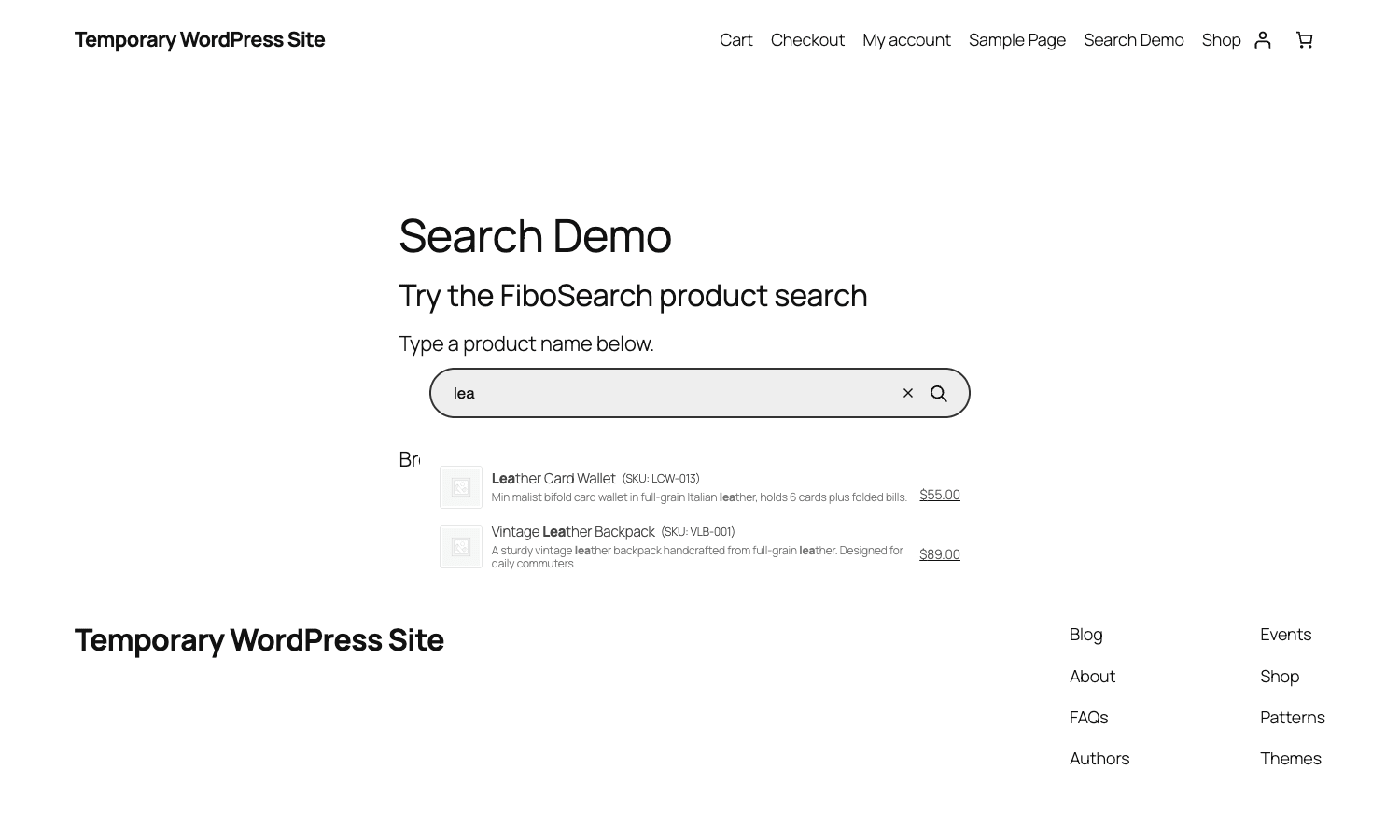
Quick orientation if you’ve never seen it. When a shopper types "leath" in the FiboSearch bar, the plugin fires an AJAX request to a custom endpoint, runs the query against its index, returns a JSON payload of matching products, and a Vue 2 component renders a dropdown of cards. Each card has the product image, the title with the matched substring bolded, the SKU, a short snippet of description, and the price. Click the card and the shopper goes straight to the product page. Hit Enter and you go to the WooCommerce search results page, which FiboSearch also takes over.
That’s the product. Now let’s talk about why it exists.
Why WooCommerce search is so painful by default
Skip this if you’ve already done battle with WooCommerce search. If you haven’t, here’s the part nobody mentions until you’re already three months into a store.
WooCommerce inherits WordPress’s ?s= search. WordPress search runs a LIKE '%query%' against wp_posts.post_title and wp_posts.post_content and that’s basically the whole story. WooCommerce hooks in to filter the results to the product post type and to optionally include the SKU field. That’s where it ends.
This means the default WooCommerce search has three big holes.
One. It can’t find products by description content unless you specifically enable that, and even then the LIKE pattern matching is slow and unranked.
Two. It can’t find variations by their attribute values. A shopper searching "blue 38" against a t-shirt that has a "blue / 38" variation will not get that variation in the results.
Three. There’s no autocomplete. The shopper types, hits Enter, lands on a search results page, scans, doesn’t see what they want, gives up. The store owner has no idea this happened, because there’s nothing logging the query and no result.
FiboSearch closes all three gaps. The indexer ingests title, description, short description, SKU, attributes, taxonomy terms, and any custom fields you configure. The autocomplete shows results as you type. And the Pro version logs every query into wp_dgwt_wcas_stats so the store owner can see what’s being searched and what’s returning nothing.
The default WooCommerce search treats search like a feature. FiboSearch treats it like the entry point to the store.
Key features at a glance
Rather than dump the marketing list, here’s what actually changes the experience on a real store.
- AJAX autocomplete dropdown. As-you-type product suggestions in a styled dropdown with product images, prices, SKUs, and a short description excerpt. Configurable per-element.
- A custom search index stored in
wp_dgwt_wcas_indexand friends. The index is rebuilt incrementally as products are saved or deleted, and fully rebuilt on demand from the Indexer tab. - TNT-style TF-IDF scoring. The Pro engine ranks results by relevance, not by last-modified-date or random database order.
- Search in SKU, including variable product SKUs. This is the single feature that pays for the plugin on stores where customers know part numbers.
- Search in product attributes so a query like "red XL" hits the right variation.
- Search in custom fields like ACF, including ACF tables (Pro only). Useful for ISBNs, model numbers, vendor codes.
- Fuzzy matching with three levels (off, normal, strong). Forgives typos. "Coffe" still finds "Coffee".
- Results grouped by type in the dropdown. Categories first, then tags, then products. The grouping is configurable.
- Details panel that opens on hover or focus and shows extended product information, including an add-to-cart button with a quantity field, right inside the dropdown.
- Mobile overlay below a configurable breakpoint (default 992px). Takes over the whole screen for a thumb-friendly search experience.
- Search bar embedding via a shortcode, a Gutenberg block, a widget, a menu item, or a
do_shortcodecall in your theme. Five ways in. - Personalisation of the search bar styling without touching CSS. Background color, text color, border, magnifier icon, placeholder text, submit-button label, all from settings.
- Search history stored client-side in
localStorageso a returning visitor sees their previous queries as soon as they tap the bar. - WooCommerce search results page takeover. The plugin replaces the default results query so the regular
?s=URL also benefits from the FiboSearch index. - Search analytics (Pro). Top searches, no-result searches, and a "critical phrases" panel that surfaces queries that returned nothing but were searched multiple times.
- WPML, Polylang, qTranslate-XT, and TranslatePress integrations (Pro). Per-language indexes built automatically.
- Brand awareness if you use the WooCommerce Brands plugin or any of the supported brand taxonomies.
- Plugin integrations for B2BKing, MemberPress, Booster for WooCommerce, WooCommerce Memberships, WooCommerce Protected Categories, and others. The integration layer reads each plugin’s visibility rules so members-only products don’t leak into a logged-out search.
Most of these are on by default. A few (analytics, custom field indexing) are toggled in the relevant settings tab.
How the indexer actually works
This is the bit that separates FiboSearch from "search plugin that adds a JS dropdown over the default WordPress search". The Pro engine is a real search index, not a query wrapper.
When the indexer runs (manually or via cron), it walks through every published product and writes two kinds of rows.
The first is a readable index: pre-rendered HTML for what the suggestion dropdown should show for that product. Image URL, title, formatted price, SKU, snippet. This means the AJAX response is essentially a SELECT ... WHERE id IN (...) against wp_dgwt_wcas_index, with no formatting work happening at search time. That’s where most of the speed comes from.
The second is a searchable index: per-language TF-IDF tables (wp_dgwt_wcas_si_wordlist, wp_dgwt_wcas_si_doclist, wp_dgwt_wcas_si_cache) that store every word in every product along with which documents (products) contain it and how often. When a query comes in, FiboSearch tokenises it, looks up each token in the wordlist, finds the docs that contain those tokens, and ranks them by TF-IDF score plus a few WooCommerce-specific multipliers (SKU exact matches rank above title fuzzy matches, etc.).
Taxonomy terms get their own table (wp_dgwt_wcas_tax_index). Variations get wp_dgwt_wcas_var_index. There’s a vendor index (wp_dgwt_wcas_ven_index) for marketplace setups.
The indexer runs in the background using a custom heartbeat (dgwt_wcas_build_index_heartbeat) plus a WordPress cron schedule. On a small store the initial build is done in under a minute. On a 50,000-product catalog with full descriptions enabled, expect 10 to 30 minutes for the first build. After that, updates are incremental: saving a product triggers a re-index of just that product, not the whole catalog.
There’s a real tradeoff here worth flagging. The Pro index has to be rebuilt when you change the search scope (e.g. you turn on "Search in description"), and during a rebuild the autocomplete falls back to the WordPress-native engine. That fallback is the same LIKE query the default WooCommerce search uses, so it’s not as good. If you’ve got a massive catalog and you’re flipping a setting, do it during a low-traffic window.
Installation and the first hour
The Pro plugin ships as a single zip. Drop it in via Plugins, Add New, Upload, then activate. On the first activation FiboSearch:
- Creates its custom tables (
wp_dgwt_wcas_index,wp_dgwt_wcas_tax_index, etc.) viadbDelta. - Schedules its background indexer cron.
- Adds a top-level FiboSearch menu and a sub-menu under WooCommerce.
- Triggers an initial full index build in the background. You’ll see a progress bar if you visit the Indexer tab while it’s running.
The settings landing page is a "Starting" tab that walks you through the five embedding methods. This is honestly one of the cleaner onboarding pages I’ve seen on a WooCommerce extension. No setup wizard. No "tell us about your store". Just: here’s where to put the search bar, here’s the shortcode, get on with it.
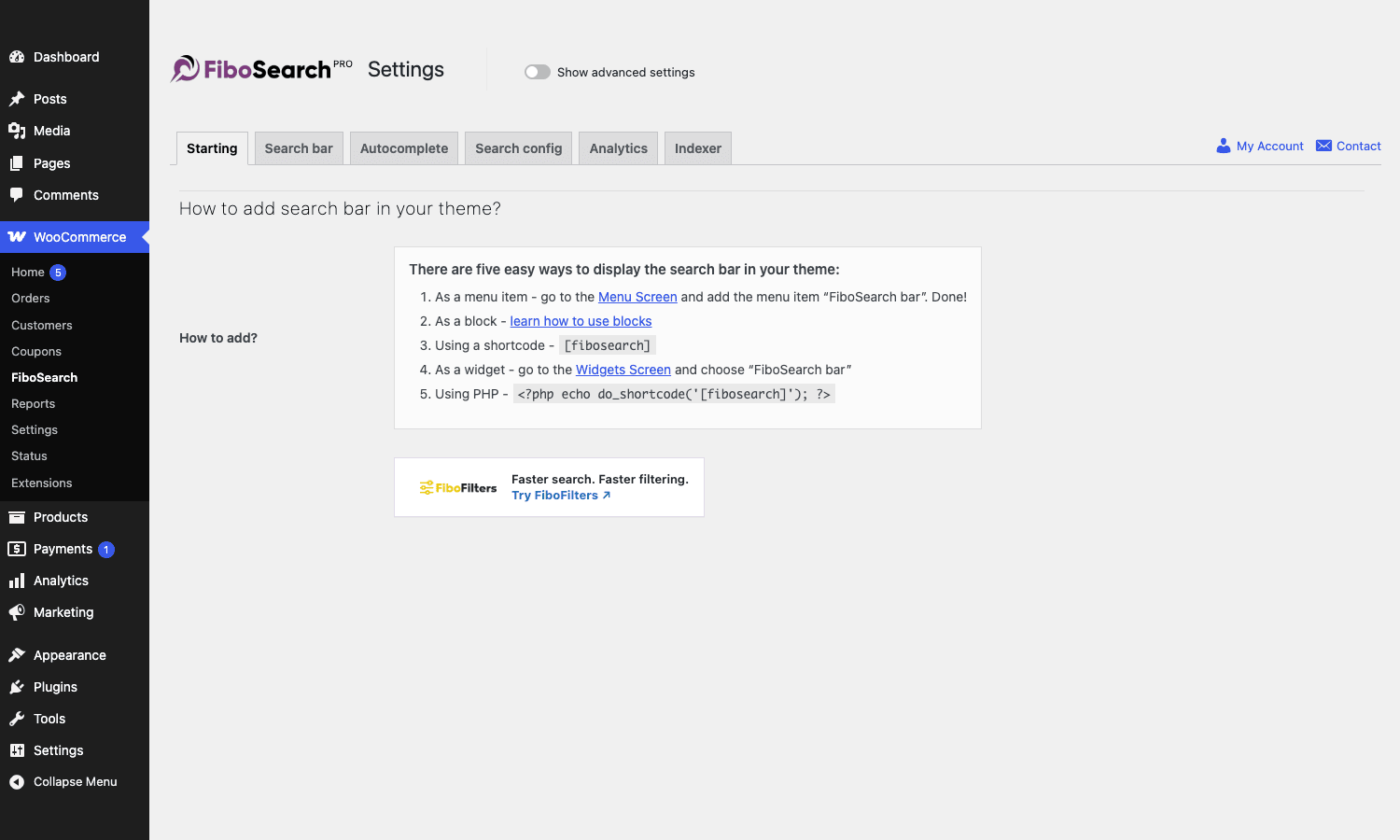
The simplest path on most themes is the menu item. Visit Appearance, Menus, expand "FiboSearch bar" from the left, drop it into your primary menu. You’re done. The bar slots in where the menu item lives and inherits enough styling from your theme that it usually looks right on the first try.
The other paths are more flexible. The [fibosearch] shortcode goes anywhere a shortcode goes, including inside a Gutenberg block, a Bricks element, an Elementor widget, or a Beaver Builder module. The widget version is for sidebars and footers. The Gutenberg block is for the new editor and theme.json setups. The PHP call (<?php echo do_shortcode('[fibosearch]'); ?>) is for theme template files when you want to hardcode the position.
Pick one. Don’t add the bar in three places at once. The plugin loads its assets once per page, but having three search bars looks confused.
A guided tour of every settings tab
FiboSearch ships with six settings tabs. Each one is small and focused, which I appreciate. There’s no "everything" tab that crashes if your memory_limit is too low.
Starting
The Starting tab is the embedding instructions and a quick "where am I" panel. Useful once. After that you spend your time in the other five.
Search bar
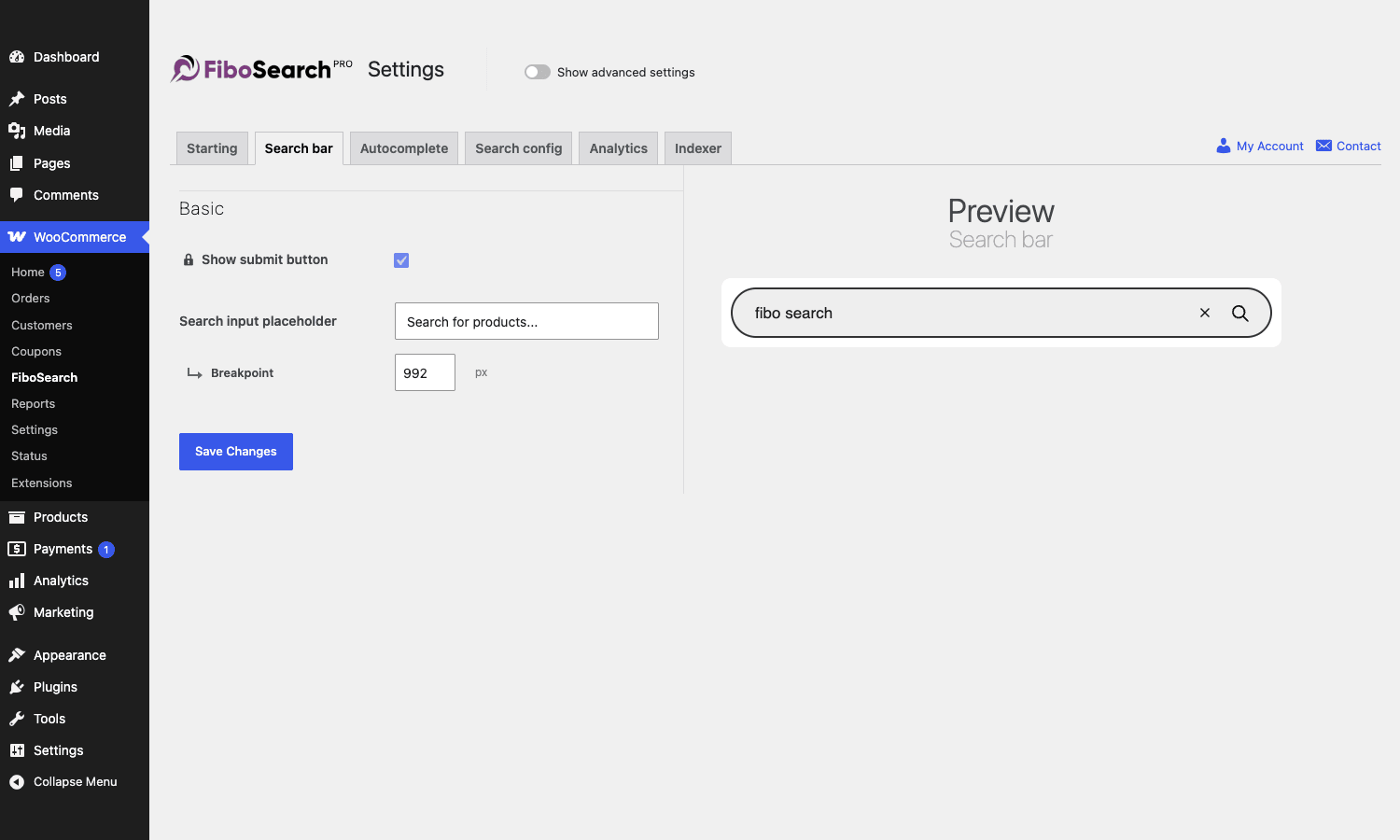
This tab controls the visible UI of the search input. Placeholder text, magnifier icon visibility, submit button label, the breakpoint at which the mobile overlay kicks in. There’s a live preview on the right that updates as you change settings, which is how every WordPress settings page should work.
The two settings I always change here: I increase the breakpoint to 1024px on stores where the desktop header is tight, and I set a placeholder that hints at what the shop sells ("Search shoes, brands, models…" beats the generic "Search for products…").
Autocomplete
This is the meaty tab. It controls what shows up in the dropdown.
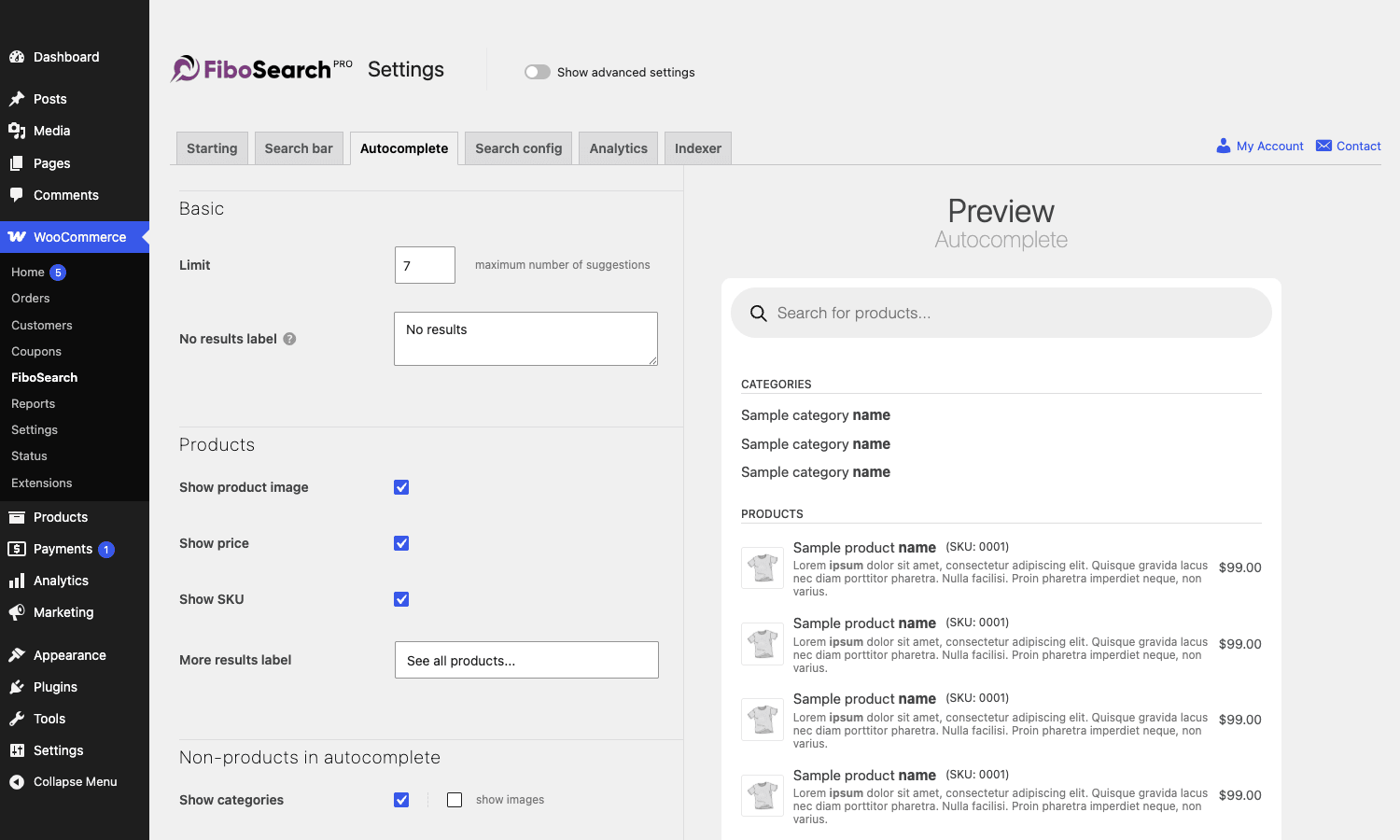
The basic block controls the maximum number of suggestions (default 7) and the "no results" label. Then there are the Products toggles: show image, show price, show SKU, show description. Then the non-product toggles: show categories, show tags, show brands (if you use a brand taxonomy), show featured products at the top.
Two things I’d recommend by default. First, turn on "Show SKU" if your customers know part numbers. The lift is real on industrial and electronics stores. Second, do not turn on description display in the dropdown unless your descriptions are short and consistent. Long descriptions push the dropdown card height past what’s comfortable and you end up with three suggestions filling the entire viewport on mobile.
Search config
This is the search scope tab. What does FiboSearch actually look in when it tries to match a query?
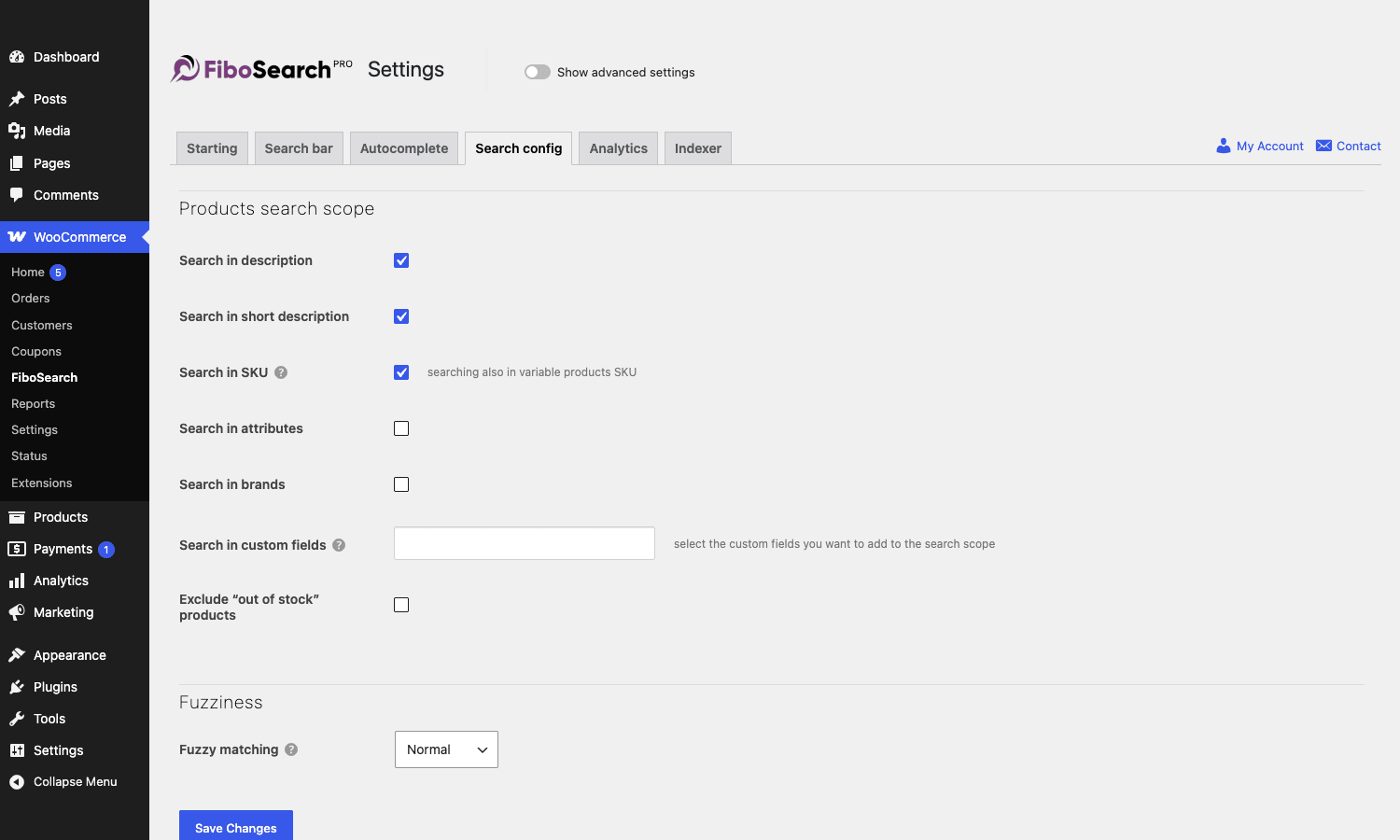
Default is "title only", which is restrictive. I always turn on description, short description, and SKU. Attributes and brands depend on the catalog. If you sell t-shirts, attributes matter (size, color). If you sell books, brands probably don’t.
There’s a custom-fields input that takes a comma-separated list of meta keys. Use this for things like ISBN, model number, manufacturer part number. The Pro engine indexes them properly into the searchable index, so search-by-ISBN feels as fast as search-by-title.
The Fuzziness dropdown has Off, Normal, and Strong. "Off" is for catalogs where every product name is unique and customers know exactly what they want. "Normal" is the right default for almost everything. "Strong" is what you turn on if your analytics show a lot of typo-driven no-result searches.
Analytics
The Analytics tab is two things in one. At the top it’s a small settings panel (enable, exclude roles, retention days). Below that it’s the actual dashboard.
The analytics dashboard is one of my favorite parts of this plugin. I’ll talk about it at length in its own section below.
Indexer
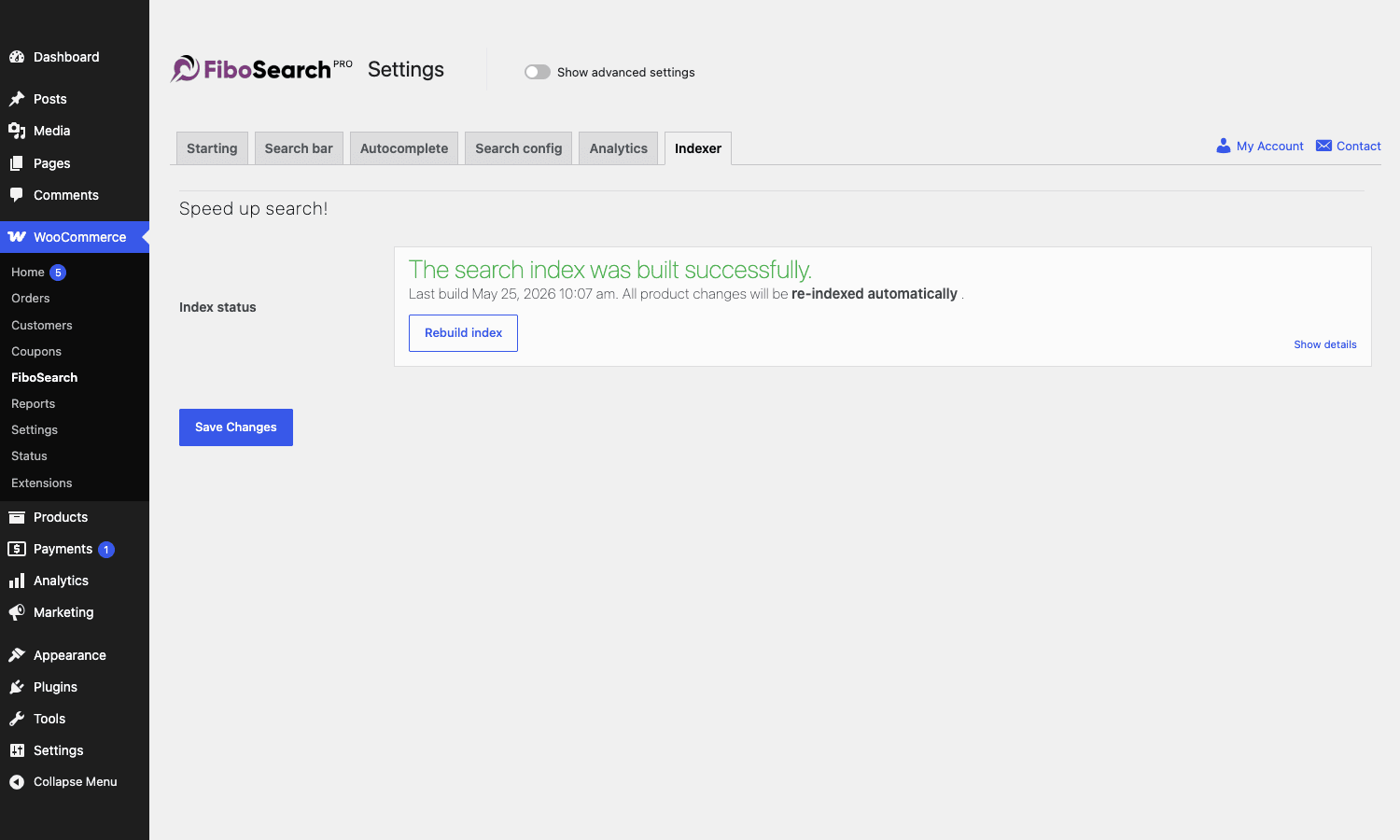
Index status, last build time, "Rebuild index" button, and a "Show details" expander that lists how many records each sub-index has. If something looks broken, this tab is the first place to look. The plugin also surfaces failure notices here (e.g. PHP memory exhausted halfway through a build) instead of swallowing them.
Embedding the search bar in your theme
There are five ways to put the bar on a page, and which one you should use depends on how your theme is structured.
As a menu item. Best for themes that already have a top navigation. The "FiboSearch bar" item slots into a menu, inherits the menu’s CSS, and just works. This is the path 80% of stores should take.
As a Gutenberg block. The plugin registers a dgwt/wcas/search-bar block. Drop it into any post, page, or full-site editor template. Good for theme.json themes (Twenty Twenty-Four, Spectra, GeneratePress block themes) where you’re editing layouts in the editor itself.
As a widget. The "FiboSearch bar" widget shows up in Appearance, Widgets. Useful for sidebars or footer widget areas if your theme still uses them.
As a shortcode. [fibosearch] goes anywhere shortcodes go. The canonical alias. There are legacy aliases ([wcas-search-form] and [search]) that still work, but use [fibosearch] for new installs because [search] collides with some theme shortcodes.
In PHP. <?php echo do_shortcode('[fibosearch]'); ?> is the right call inside a header.php or a custom template part. The plugin enqueues its assets when it sees the shortcode, so this Just Works.
A heads-up about themes. The bar inherits font and color from the surrounding theme stylesheet, but it has a minimum height and an internal padding that some themes fight against. If the bar looks wrong on your first try, check Appearance, Customize, Additional CSS, and override .dgwt-wcas-search-input { line-height: 1; padding: 0.6em 0.8em; } to match your theme’s input style.
The analytics panel: what’s worth watching
Of all the things FiboSearch Pro adds over the free version, the analytics panel is the one I think pays for the plugin on its own.
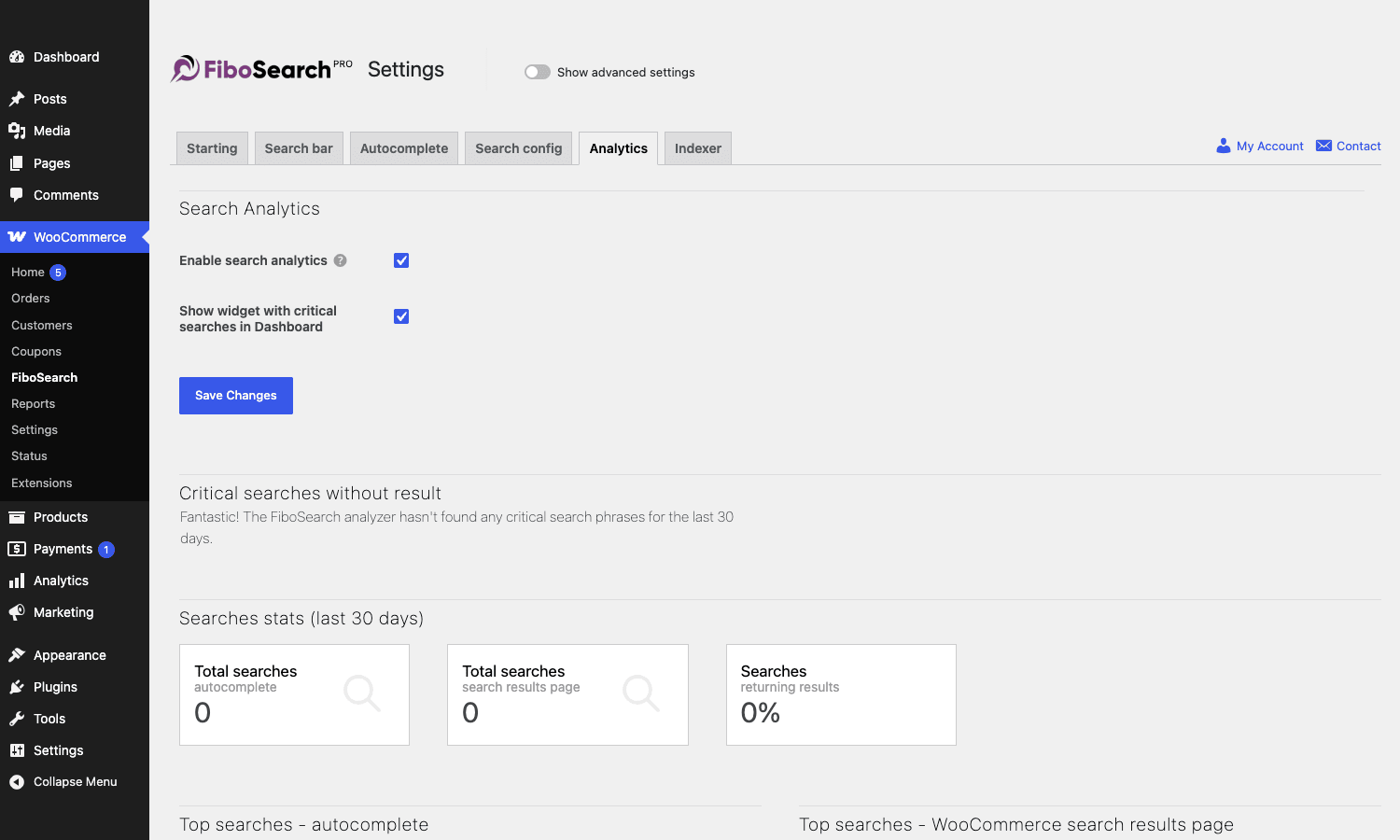
Every search query is logged to wp_dgwt_wcas_stats with the phrase, the number of results returned, the timestamp, the user role, and the language (if multilingual). The dashboard breaks this into three useful views.
Total searches for the last 30 days, split into autocomplete-triggered searches and search-results-page searches. Useful for measuring whether visitors are using the bar at all.
Top searches by frequency. This is the "what do my customers want" list. I’ve found products that should have been featured on the home page by looking at this list. I’ve found products that didn’t exist yet but obviously should (multiple shoppers searching for a brand we didn’t carry).
Critical searches without result. Queries that returned zero results AND were searched more than once. This is the "I’m losing sales right now" list. Every entry on this list is a shopper who tried and failed. Maybe the product exists under a different name. Maybe it doesn’t exist and you should source it. Either way, this list is gold.
There are real limits worth flagging. Analytics has a configurable retention window (in days). The default isn’t generous. On a busy store you may want to bump it to 365 days so you can compare year-over-year, or you may want to ship the data out to your own warehouse via the dgwt/wcas/analytics/after_searching action and let FiboSearch’s table be a short-term cache.
The other limit is that analytics doesn’t track per-session journeys. You can see that someone searched "leather backpack" but you can’t see whether they bought a leather backpack 10 minutes later. If you need search-to-purchase attribution, pair this with GA4 internal-site-search tracking (which the plugin can fire automatically) or with a customer data platform.
Real-world use cases
Five scenarios where FiboSearch genuinely changes the numbers.
A 30,000-SKU industrial parts store. Customers arrive knowing the part number. The default search returns nothing because the SKU field isn’t indexed. With FiboSearch you turn on "Search in SKU" and "Search in SKU variations" and the average time-to-product drops from 45 seconds to under 5 seconds. I’ve seen this play out, more than once. The conversion lift in this category is unreasonably good.
A fashion store with sized variations. Customer searches "blue M". Default WC search hates this. FiboSearch indexes attributes, so the right blue medium t-shirt shows up first. Customer adds to cart from the dropdown directly via the Details panel’s Add to Cart button. No product page navigation. Faster funnel.
A multilingual store on WPML. FiboSearch builds a separate searchable index per language. When the user switches language, search switches with them automatically. No fiddling with lang query parameters or duplicate post IDs. One indexer task, two languages, two clean indexes.
A membership site selling courses. WooCommerce Memberships restricts certain products to logged-in members. FiboSearch’s WC Memberships integration honors this. A logged-out visitor searching for a members-only course will not see it in the autocomplete. A member will. The integration layer reads the membership rules and filters the JSON response server-side.
A store with seasonal categories. You ran a Black Friday landing page. You forget about it in February. Customers searching "black friday" still find it via the title. You can dial fuzziness up so "black fryday" still hits. Or you can add "black friday" as a tag to your current featured products and benefit from the brands/tags indexing.
These are not synthetic scenarios. The "industrial parts" example is what convinced me that this category of plugin matters at all. Search is the entry point. Make it good or watch your bounce rate climb.
Developer reference: hooks, filters, classes
Now we get into the part most articles skim. FiboSearch exposes a surprisingly large API surface under the dgwt/wcas/ filter namespace. Here’s the stuff that actually matters.
Extending what gets indexed
By default the indexer only looks at the product post type. If you sell physical products plus downloadable PDFs as a separate post type, or if you want blog posts in the same dropdown:
add_filter( 'dgwt/wcas/allowed_post_types', function( $types ) {
    $types[] = 'post';        // blog posts
    $types[] = 'pdf_guide';   // a custom CPT
    return $types;
} );

// Then opt those post types in for indexing
add_filter( 'dgwt/wcas/indexer/post_types', function( $types ) {
    $types[] = 'post';
    $types[] = 'pdf_guide';
    return $types;
} );
The first filter just allows them in the search dropdown. The second one is what makes the Pro indexer actually crawl them.
Indexing ACF fields and other custom meta
The Search config tab takes a comma-separated list of meta keys. If you want to add them programmatically (so settings survive a database migration) or include ACF subfields:
add_filter( 'dgwt/wcas/indexer/searchable_custom_fields', function( $fields, $product_id ) {
    $fields[] = '_isbn';
    $fields[] = '_model_number';

    // Pull an ACF repeater of feature bullets into a single string
    $bullets = get_field( 'feature_bullets', $product_id );
    if ( is_array( $bullets ) ) {
        $fields[] = implode( ' ', wp_list_pluck( $bullets, 'text' ) );
    }

    return $fields;
}, 10, 2 );
This filter fires once per product during the index build, so do not call out to external APIs from inside it. Anything you return gets tokenised, lower-cased, and merged into the searchable index for that product.
Changing what the dropdown links to
The default behavior is "click a suggestion, go to the product permalink". Sometimes you want the permalink modified, for example to add a tracking parameter that lets you measure search-driven clicks in your analytics:
add_filter( 'dgwt/wcas/search_results/product/url', function( $url, $product_id ) {
    return add_query_arg( 'src', 'fibo_search', $url );
}, 10, 2 );
This is also the right hook if your store uses an AMP variant, a headless front-end, or a multilingual setup where the product URL doesn’t match the WP-generated permalink.
Adding extra info to the dropdown card
There’s an action slot system inside the details panel and the suggestion card. You can render anything you want into these slots without touching the plugin’s template files.
add_action( 'dgwt/wcas/details_panel/product/price_after', function( $product ) {
    if ( $product->is_on_sale() ) {
        echo '<span class="my-sale-badge">Limited time</span>';
    }
} );

add_action( 'dgwt/wcas/details_panel/product/container_after', function( $product ) {
    $rating = $product->get_average_rating();
    if ( $rating ) {
        printf( '<div class="my-rating">Rated %s/5</div>', number_format( $rating, 1 ) );
    }
} );
The hooks fire inside the JSON-rendered HTML, so whatever you echo gets escaped through the same path as the rest of the dropdown. Don’t echo raw user input here.
Shipping analytics out to your warehouse
If you want every FiboSearch query to also land in Mixpanel, Segment, GA4 server-side, or your own data warehouse, hook into the dgwt/wcas/analytics/after_searching action:
add_action( 'dgwt/wcas/analytics/after_searching', function( $phrase, $results_count, $context ) {
    wp_remote_post( 'https://api.mixpanel.com/track', [
        'body' => [
            'event' => 'Product Search',
            'properties' => [
                'phrase' => $phrase,
                'results' => (int) $results_count,
                'language' => $context['language'] ?? 'en',
                'token' => MIXPANEL_TOKEN,
            ],
        ],
        'timeout' => 2,
    ] );
}, 10, 3 );
Keep the timeout short (1-2 seconds). If your analytics provider goes down, you do not want every search request blocking on a slow HTTP POST.
Excluding admin queries from analytics
The default analytics records every search, including the ones you fire while testing the autocomplete from your own admin session. That pollutes the "top searches" list.
add_filter( 'dgwt/wcas/analytics/exclude_roles', function( $roles ) {
    $roles[] = 'administrator';
    $roles[] = 'shop_manager';
    $roles[] = 'editor';
    return $roles;
} );
I always set this on day one. The admin team types weird stuff into the bar.
Tuning relevance scoring
The TNT engine assigns each search hit a score. Higher scores rank higher in the dropdown. The default formula weighs title matches above description matches, and exact matches above fuzzy matches. If you want to push some products to the top of the results (say, your featured collection), you can adjust the score on the fly:
add_filter( 'dgwt/wcas/tnt/product/score', function( $score, $product_id ) {
    // Boost products tagged "featured"
    if ( has_term( 'featured', 'product_tag', $product_id ) ) {
        return $score * 1.5;
    }
    return $score;
}, 10, 2 );
Don’t go wild with multipliers. A 1.5x boost is enough to move a product up one or two slots. A 10x boost will rank a barely-relevant featured product above the exact-match the customer is looking for, which is worse than no boost.
Overriding the search bar HTML
Most theming changes can be done from settings or CSS. If you genuinely need a different HTML structure (a brutalist theme that wants no rounded corners, a headless React front-end that needs different data attributes):
add_filter( 'dgwt/wcas/form/html', function( $html, $args ) {
    return '<div class="my-search">'
         . '<input type="text" class="dgwt-wcas-search-input my-search-input" placeholder="' . esc_attr( $args['placeholder'] ) . '">'
         . '</div>';
}, 10, 2 );
The catch is the dgwt-wcas-search-input class must remain on the actual input element, because the Vue 2 component selects it by class name. Lose the class and the dropdown stops attaching.
Reacting to index events
add_action( 'dgwt/wcas/indexer/status/completed', function() {
    error_log( 'FiboSearch finished a full index rebuild at ' . current_time( 'mysql' ) );
    do_action( 'my_app/search_index_ready' );
} );

add_action( 'dgwt/wcas/indexer/status/error', function( $error ) {
    error_log( 'FiboSearch index error: ' . $error );
} );
Useful for piping into a Slack alert via incoming-webhook if you run a multi-site setup and want to know when an index rebuild has happened or failed.
Adding a stopword list
If you sell products whose names contain words like "free", "the", or "and", the default stopword list will quietly remove them from the index. You can fix this:
add_filter( 'dgwt/wcas/indexer/searchable/stopwords', function( $stopwords, $language ) {
    if ( $language === 'en' ) {
        // Remove "free" from the stopwords so "Free shipping bag" is searchable
        $stopwords = array_diff( $stopwords, [ 'free' ] );
    }
    return $stopwords;
}, 10, 2 );
This is a per-language filter. If you run WPML, you’ll need to handle each language code separately.
Shortcodes worth knowing
[fibosearch]: the canonical search bar. Use this one.[fibosearch_posts_results]: drop into a custom search-results page to render a paginated list with FiboSearch’s ranking.[wcas-search-form]: legacy alias of[fibosearch]. Still works for backward compatibility.[search]: short alias. Avoid; it collides with some themes’ own shortcodes.
WP-CLI
FiboSearch Pro registers a wp fibosearch index command tree. The two you’ll actually use:
# Rebuild the entire index from CLI (faster than the browser indexer on large catalogs)
wp fibosearch index build

# Show current index status
wp fibosearch index status
On stores with 20,000+ products this is significantly faster than the browser-driven AJAX indexer because there’s no AJAX round-trip per chunk. I always rebuild from CLI after a major catalog change.
Database tables to know
If you ever have to investigate something hands-on:
wp_dgwt_wcas_index: readable index (the pre-rendered suggestion HTML)wp_dgwt_wcas_tax_index: taxonomy index (categories, tags, brands)wp_dgwt_wcas_var_index: variation indexwp_dgwt_wcas_ven_index: vendor index (marketplace setups)wp_dgwt_wcas_si_wordlist,wp_dgwt_wcas_si_doclist,wp_dgwt_wcas_si_cache: per-language searchable index (TNT engine)wp_dgwt_wcas_stats: analytics records
Settings live in a single option blob: dgwt_wcas_settings. So you can pre-load configuration on a new staging environment by copying that one row.
Performance, compatibility, and gotchas
Three categories of things to know before you ship this on a production store.
Memory. The indexer is memory-hungry on large catalogs because it loads chunks of products into memory and processes them in batches. If you’re on a budget host with a 128MB PHP memory limit and a 30,000-product catalog, you’ll see indexer failures with "Allowed memory size exhausted" in the log. The fix is either to bump WP_MEMORY_LIMIT in wp-config.php to 512M or to run the rebuild via CLI where the memory limit is usually higher.
Cache plugins. FiboSearch’s AJAX endpoint must not be cached by page caches. WP Rocket, WP-Optimize, and LiteSpeed Cache all handle this correctly out of the box because the endpoint is exposed as ?dgwt_wcas=1 and isn’t a normal page request. Object caches (Redis, Memcached) are fine and help.
Description indexing. Turning on "Search in description" makes the index much larger and the indexer slower. On stores with 1000-word product descriptions you can easily 4x the size of wp_dgwt_wcas_si_wordlist. That’s fine on modern MySQL but worth knowing. If your hosting plan has a 1GB database cap, watch this.
Multilingual quirks. WPML and Polylang both work, but here’s the gotcha I’ve hit twice. If you edit a translation in WPML’s String Translation panel (not in the product editor itself), FiboSearch doesn’t always detect the change as a "product save" event. The translation gets stuck in the index. The workaround is a manual rebuild after a string-translation change, or hook into WPML’s wpml_st_string_translation_complete action to trigger a re-index. Hit me up if you’d like the exact snippet.
The [search] shortcode collision. Some themes register a [search] shortcode of their own. If both are active, whichever loads last wins. Use [fibosearch] and forget the alias exists.
WooCommerce HPOS. FiboSearch is HPOS-compatible. The indexer reads from the post tables, not the orders tables, so the HPOS migration doesn’t affect it. Confirmed on stores running WC 8 and 9 with HPOS enabled.
Subscription products. Variations of WooCommerce Subscriptions products show up in the dropdown like any other variable product. The price displayed is the regular price, not the per-cycle billing string. If your subscription pricing is complex, override the displayed price with the dgwt/wcas/indexer/readable/index_html_price filter so it shows "$X/month" instead of just "$X".
Pricing and licensing
FiboSearch Pro is sold from fibosearch.com under a typical Freemius-managed annual license. The free version on WordPress.org gives you the AJAX dropdown but skips the custom-tables engine, the SKU search, the analytics, and the multilingual integrations.
If you’re sizing up whether the Pro engine is worth swapping in for your store, FiboSearch on GPL Times lets you index a real catalog and watch the analytics panel populate for a week, which is faster feedback than any demo video. Once the no-results list starts surfacing things you didn’t know you were missing, the case for upgrading writes itself.
A note worth being honest about. The free version’s autocomplete is actually pretty good. If you run a small store with 200 products and you mostly need "as you type" search with no SKU support and no analytics, the free build will get you a long way. The Pro upsell is genuinely about scale and depth, not about gating features behind a paywall for the sake of it.
Where Pro becomes inevitable: when you have variable products and customers search by attribute, when you have a catalog over a few thousand products (the LIKE queries the free engine uses start to feel slow), when you need search analytics, when you run a multilingual site, or when you need search-in-SKU.
FAQ
Does FiboSearch work with my page builder?
Elementor, Bricks, Divi, Beaver Builder, Oxygen, and Bricks all play nicely. The shortcode works inside any page-builder content block. There’s also an Elementor widget shipped with the Pro plugin specifically.
Does it work with WPML / Polylang?
Yes, both. Pro builds a separate searchable index per language and the integration layer reads the active language from WPML / Polylang’s globals. There’s a known wrinkle where WPML String Translation changes don’t always trigger a re-index, which I covered in the gotchas.
Will it slow my site down?
In short: no, it makes search faster. The pages that get slowed slightly are admin pages while the indexer is running (it consumes some background CPU). Front-end search itself is faster than the default WooCommerce search because it skips wp_posts and runs against a pre-built index.
Does it replace the WooCommerce search results page or just the autocomplete?
Both. The autocomplete is the headline feature, but FiboSearch also overrides the ?s= query on the search results page so it uses the same index. Same ranking, same fuzzy matching.
Can I use it alongside Relevanssi or SearchWP?
You can install them together, but only one will own the search results page at a time. If you need Relevanssi Premium for searching blog posts and FiboSearch for products, scope each plugin to its own post type and they’ll coexist. The same applies to SearchWP.
Does it index custom post types?
Yes, with the dgwt/wcas/allowed_post_types and dgwt/wcas/indexer/post_types filters shown above. The dropdown can show mixed results (products, blog posts, docs) grouped by type.
Does the dropdown work on mobile?
It does, and there’s a dedicated mobile overlay mode below a configurable breakpoint. On small screens the bar opens into a full-screen overlay with a larger touch-friendly input.
What about Gutenberg full-site editing?
The plugin ships a dgwt/wcas/search-bar block that works in the site editor. You can put it inside a header template part and you’re done.
Will my SEO be affected?
The plugin doesn’t touch the URL structure or the core page output (it only adds the search bar and overrides the search query). SEO impact is zero.
Final thoughts
WooCommerce ships with a search box that is barely a search engine. For tiny stores it’s fine. The moment you have variable products, SKUs that customers know, descriptions that contain searchable content, or a store in more than one language, the default search is a leak in the funnel.
FiboSearch fills that gap better than any plugin I’ve tested. The free version is honest and useful. The Pro version is what you want once your catalog has any real depth. The autocomplete is genuinely fast because it’s reading from a real index, not running LIKE against wp_posts. The analytics panel pays for the plugin alone if you act on what it shows you. And the developer API is well-thought-out, which matters when you eventually need to hook in to ship search data to your warehouse or to boost certain products in the ranking.
The places it falls short are minor. The default analytics retention is shorter than I’d like. WPML string translations need a manual rebuild trigger. The [search] shortcode alias is a footgun. Description indexing inflates the index size enough that you should think about it before flipping it on. None of those are deal-breakers.
If you run a WooCommerce store and you haven’t audited your search lately, take the analytics panel for a spin. Install FiboSearch Pro, turn on analytics, leave it for a week. Come back and look at the no-result searches. I promise you’ll find something interesting.
The plugin’s an easy recommendation for any WooCommerce store I’d advise on. It’s the kind of upgrade you make once and never reconsider.