

You open your portfolio page, and there it is: a vertical stack of posts. Title, image, excerpt, repeat. It reads like a changelog, not a body of work. Your theme calls it a "portfolio template," but really it’s a list with a wider image. A potential client lands on it, scrolls for two seconds, and decides you do tidy work and nothing else.
That gap, between a list of posts and an actual designed grid, is the problem Essential Grid was made to fill. It’s a visual grid and gallery builder for WordPress that takes the content you already have (posts, products, photos, even a social feed) and arranges it into a responsive grid, gallery, or portfolio you’d actually be proud to show. You pick a source, pick a layout, drag a skin together, and drop one shortcode on the page.
I’ve built portfolio and gallery grids on a lot of client sites, usually by fighting the theme first and giving up second. This is a long, honest walk through what Essential Grid does, where it’s genuinely good, where it’s fiddly, and a real developer section at the end. By the time you finish, you’ll know whether it fits your site or whether you want the filtering-first cousin instead.
Table of Contents
- What is Essential Grid?
- Building your first grid
- Where the content comes from
- Even, masonry, and cobbles layouts
- The item skin editor
- Navigation, filtering, lightbox, and video
- The grid library and templates
- Don’t build grids like this
- Essential Grid vs WP Grid Builder vs a theme portfolio
- Developer reference
- Performance, compatibility, and gotchas
- Pricing and licensing
- FAQ
- Final thoughts
What is Essential Grid?
Essential Grid is a grid and gallery builder for WordPress made by ThemePunch, the studio behind Slider Revolution. It turns posts, products, custom items, or social feeds into responsive grids, galleries, portfolios, and masonry or justified layouts, each one styled with a visual skin editor and a big library of pre-made skins and templates.
Think of it as the design-first member of the grid family. You give it content and it gives you a layout that looks intentional: even tiles, a Pinterest-style masonry wall, or an offset "cobbles" arrangement, with hover effects, a lightbox, video that plays inline, and filtering across the top. The whole thing is assembled visually in the WordPress admin, then placed with a shortcode.
Who it’s for. Photographers and designers who want a portfolio that doesn’t look like a blog roll. Agencies showing case studies. Bloggers who’d rather show a magazine-style grid of articles than a linear feed. Shop owners who want a product grid that looks better than the default WooCommerce loop. Anyone whose theme ships a "portfolio" that’s really just posts in a box.
The design-first angle. This is the thing to understand before you decide. There are two kinds of "grid plugin" in WordPress, and they do different jobs. One is built around faceted search and filtering of large archives, where the whole point is that a visitor narrows thousands of items down with checkboxes and price sliders. That’s WP Grid Builder, and we cover it separately. Essential Grid sits on the other side. Its strength is the look: the skin editor, the layout types, the hover and lightbox and video, the bundled designs. If your job is "make this collection of work look good," Essential Grid is the one. If your job is "let people filter a 5,000-product catalog by six attributes," reach for the filtering plugin instead. I’ll come back to this comparison properly later, because picking wrong here wastes an afternoon.
A quick note on how it’s organized under the hood, because it matters for backups and migrations: your grids and skins are not WordPress posts. Essential Grid stores them in its own database tables. More on that in the developer section, but keep it in mind, a plugin-only export won’t carry your grids unless you export them through Essential Grid itself.
Building your first grid
The flow is the same every time, and once you’ve done it once it takes a few minutes. Let me walk it the way I actually do it on a new site.
First, the install, because it’s the boring part. Go to Plugins » Add New, upload the Essential Grid zip, activate it, and you’ll see a new Ess. Grid item in your WordPress admin menu. There’s no setup wizard to sit through and no license screen blocking the editor. You land on the grid list, which is empty on a fresh install, and you click Add New Grid. That’s the entire setup. (I’m folding install into this section on purpose, because there’s genuinely nothing to it.)
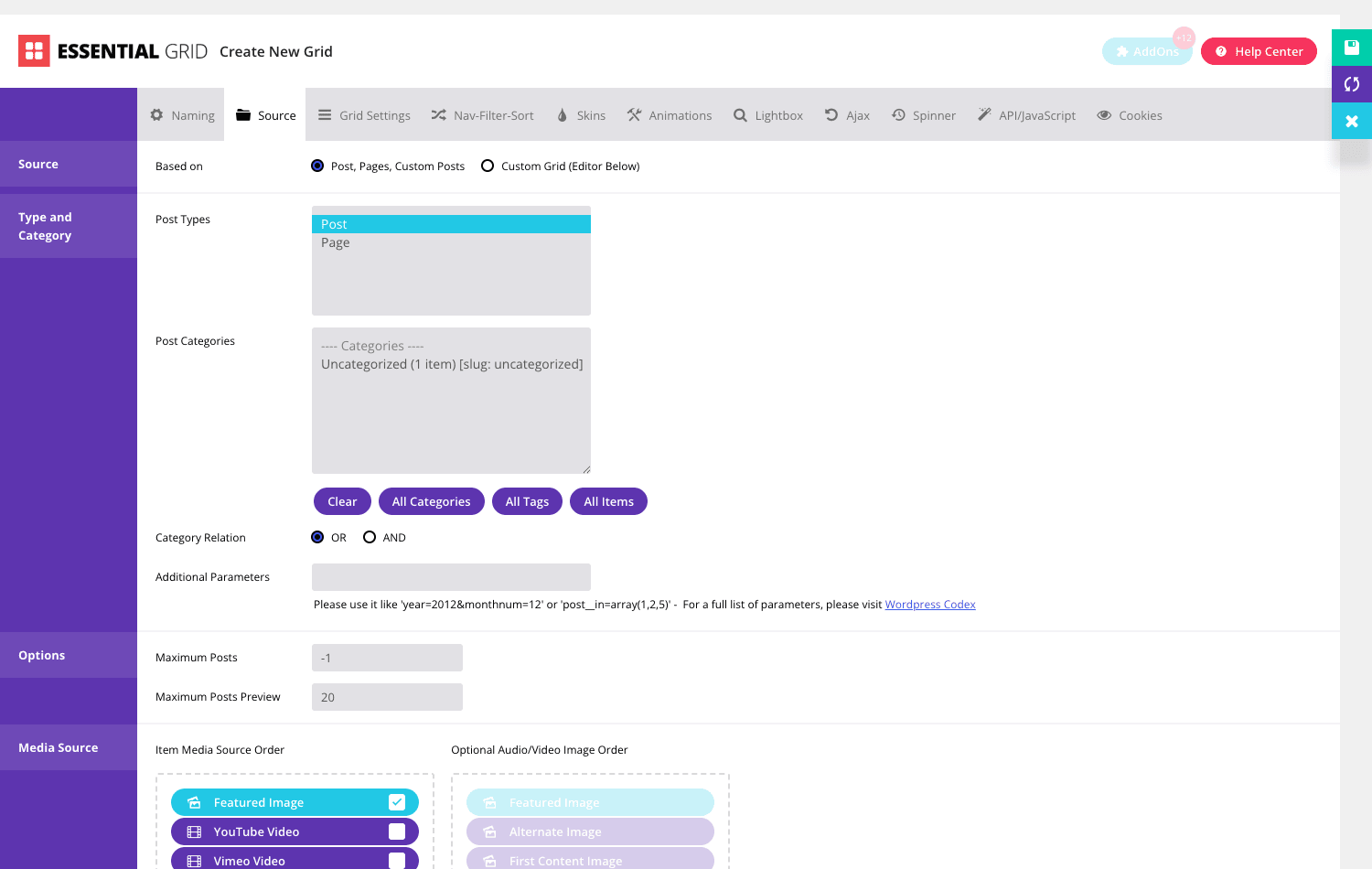
Now the actual grid. The editor opens at Ess. Grid » Add New Grid, and it’s organized as a row of tabs across the top: Naming, Source, Grid Settings, Nav-Filter-Sort, Skins, Animations, Lightbox, Ajax, Spinner, API/JavaScript, and Cookies. Eleven tabs sounds like a lot, and it is, but you only touch four of them to ship a grid. Here’s the short version of the path:
- Name it (Naming tab). Give the grid a title and an alias. The alias is the important field. It’s the handle you’ll use in the shortcode, so make it something readable like
work-portfolioorshop-featured. Default aliases are auto-generated and ugly; rename it now and thank yourself later. - Pick a source (Source tab). Tell it where the content comes from: your posts, a specific post type, WooCommerce products, a hand-built set of items, or a social feed. The next section covers every option, because this is where most of the decisions live.
- Choose a layout (Grid Settings tab). Even, masonry, or cobbles, then set how many columns show at each screen size. This is also where video-in-grid and the boxed/fullwidth/fullscreen options live.
- Pick a skin (Skins tab). Choose one of the bundled item skins or open the skin editor and design your own. The skin is what each tile actually looks like: where the title sits, what shows on hover, the overlay.
- Save, then place it. Hit save, copy the shortcode it gives you, and paste it onto any page or post:
[ess_grid alias="work-portfolio"]. Refresh the front end and your grid is live.
Tip: save the grid early, before you’ve finished tweaking. Essential Grid has a built-in preview, but seeing it on the real page (inside your real theme, at real widths) tells you more than the admin preview ever will. I save, drop the shortcode on a draft page, and keep that tab open while I work.
The other seven tabs are real, and we’ll get to them, but none of them block a working grid. You can ship with just those five steps and circle back to add filtering, a lightbox, or animations once the basics look right.
Where the content comes from
The Source tab is the heart of Essential Grid, and it’s where it pulls ahead of a theme’s hard-wired portfolio. A theme portfolio shows one thing: a custom post type the theme invented. Essential Grid will build a grid out of almost anything on (or off) your site.
The first choice is Based on, and it splits into two big paths: pull content dynamically from your site, or hand-build a Custom Grid of individual items.
Posts, pages, and custom post types. This is the common one. You pick which post types to include, which categories, and how the categories relate (an OR relation shows posts in any selected category; AND shows only posts in all of them). There’s an Additional Parameters field that accepts raw WP_Query arguments, so if you know your way around WordPress you can filter by meta key, author, custom taxonomy, anything a query will take. And there’s a Maximum Posts field that caps how many items load. Set this. I’ll nag about it again in the anti-pattern section, but a grid pointed at "all posts" with no cap will try to load your entire archive in one paint.
WooCommerce products. Select Products as the source and you get a product grid that respects your categories, with the product image, title, and price available as item-data layers in the skin. It’s a genuinely nicer-looking alternative to the default WooCommerce product loop when you want a featured-products block on a landing page rather than the full shop archive. If you run a store, this is the source you’ll use for "our bestsellers" or "new arrivals" strips.
Custom Grid (hand-built items). Sometimes you don’t want a grid tied to posts at all. You just have twelve images and twelve captions, and you want them in a gallery. Custom Grid lets you add items one by one: upload an image, set a title, a link, a description, and you’re done. This is the pure-gallery mode, and it’s perfect for a simple photo wall or a "logos of clients we’ve worked with" strip where there’s no underlying post to draw from.
Social streams. Essential Grid can pull from Instagram, Flickr, YouTube, Vimeo, Twitter, and Facebook, turning a live feed into a grid. Drop your latest YouTube uploads into a video grid, or your Instagram into a photo wall. This is genuinely useful for a "follow us" section. It’s also the feature I’d warn you about most, because each social source calls an external API every time the grid renders, and the social platforms keep changing their API rules. It works, but treat it as the feature that needs the most babysitting (caching, and not stacking five of them on one page).
NextGEN, Slider Revolution, and nested grids. If you already manage galleries in NextGEN Gallery, Essential Grid can read them as a source. You can also drop a Slider Revolution slider or even another Essential Grid into an item as its content, which sounds niche until you want a grid where one tile expands into a full slider.
There’s one more setting in here worth knowing: the Media Source order. When Essential Grid builds a tile from a post, it has to decide which image (or video) to use. The Media Source order is a drag-to-reorder priority list: Featured Image first, then YouTube/Vimeo/Wistia/HTML5 video, then SoundCloud, an Alternate Image, an iFrame markup, the First Content Image, and so on. It walks down that list and uses the first one it finds. So if a post has no featured image but does have a YouTube link in its content, Essential Grid can still build a tile from the video, as long as video sits above "first content image" in your priority order. It’s a small, smart touch that saves you from blank tiles.
Note: the Category Relation (OR vs AND) trips people up. If your grid comes back empty after you’ve added several category filters, switch the relation from AND to OR. AND is strict, it only shows items that live in every category at once, which is rarely what you meant.
Even, masonry, and cobbles layouts
The Grid Settings tab is where a grid stops looking like a spreadsheet. Essential Grid gives you three layout types, and choosing the right one is most of the design decision.
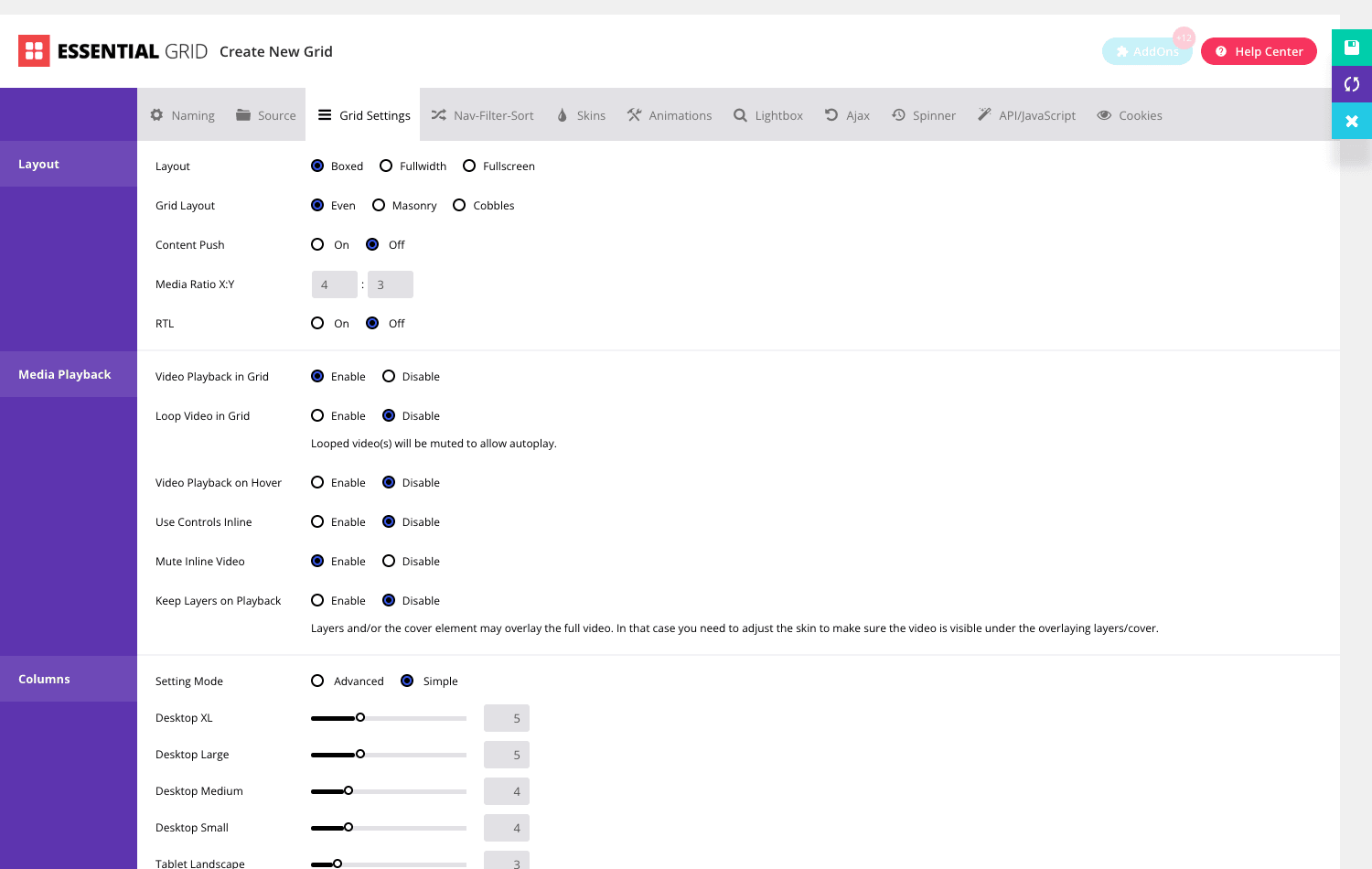
Even is the clean, uniform grid. Every tile is the same size, snapped to a regular column-and-row arrangement. You control the aspect ratio with a Media Ratio (X:Y) field, so you can make tiles square (1:1), landscape (16:9), or portrait. Even is the safe, professional default. If you’re not sure what you want, start here.
Masonry is the Pinterest layout: tiles keep their natural height and stack into columns so there are no awkward gaps. Tall images stay tall, wide ones stay wide, and the grid fills in like brickwork. This is the right call for a photo portfolio where the images have wildly different proportions and cropping them all to one ratio would ruin them.
Cobbles is the editorial layout. Tiles come in different sizes (some span two columns, some two rows) arranged in a deliberately irregular mosaic, like a magazine spread. It’s the most striking of the three and the easiest to overuse. Cobbles shines when you want a few "hero" items to dominate visually; it gets messy if every item is fighting to be the big one.
Above the layout type sits the container choice: Boxed, Fullwidth, or Fullscreen. Boxed keeps the grid inside your content column. Fullwidth breaks it out edge to edge across the page. Fullscreen makes the grid fill the entire viewport, which is the dramatic, gallery-website treatment. There’s also a Content Push option for how the grid interacts with content below it, and RTL support if you’re building for a right-to-left language.
Then the part people skip and regret: responsive columns. Essential Grid doesn’t give you one "columns" number. It gives you a column count per breakpoint, across eight of them: Desktop XL, Desktop Large, Desktop Medium, Desktop Small, Tablet Landscape, Tablet Portrait, Mobile Landscape, and Mobile. So you might set six columns on a big desktop, four on a small one, two on a tablet, and one on a phone. There’s a Simple mode that hides most of this behind sensible defaults and an Advanced mode that exposes every breakpoint.
Heads-up: the defaults will not match your theme. A grid that looks perfect on your 27-inch monitor can collapse to a single cramped column on an iPad if you never touch the tablet sliders. Set each breakpoint and resize your browser to check. This is the single most common "why does my grid look broken on mobile" cause, and it’s a two-minute fix you have to actually do.
The Media Playback settings also live in Grid Settings, and they’re for video-in-grid: loop, play on hover, show inline controls, mute. I’ll come back to video in the navigation section, because it pairs with the lightbox.
The item skin editor
Here’s the feature that earns Essential Grid its reputation, and the reason I keep it on the shelf even though I own a filtering plugin too. The skin editor is what makes the grids look designed rather than generated.
A "skin" is the design of a single tile. Not the layout of the whole grid (that’s Grid Settings), but what each individual item looks like: where the title sits, what fades in on hover, whether there’s a dark overlay, where the category tag goes, the button at the bottom. Essential Grid opens this at Ess. Grid » Item Skin Editor, and it’s a drag layered editor. You stack layers (text, meta, a cover, an overlay) on top of the media, position them, and style them.
The layers you can drop onto a tile are deep. You’ve got the obvious ones: Title, Excerpt, Category list, Tag list, the post Date (in a pile of formats), and Author (name, website, or avatar). Then the meta ones: number of comments, post ID, post URL, post content, image Alt text, the image Caption and Description. And then the source-specific ones that come into play when you’re building from a social feed or video: Likes, Dislikes, Favorites, Retweets, Views, video Duration, an iFrame embed, Wistia. So a YouTube grid tile can show the video’s view count and duration; an Instagram tile can show likes; a blog tile can show the author avatar and comment count. Each of those is a layer you drag in and style.
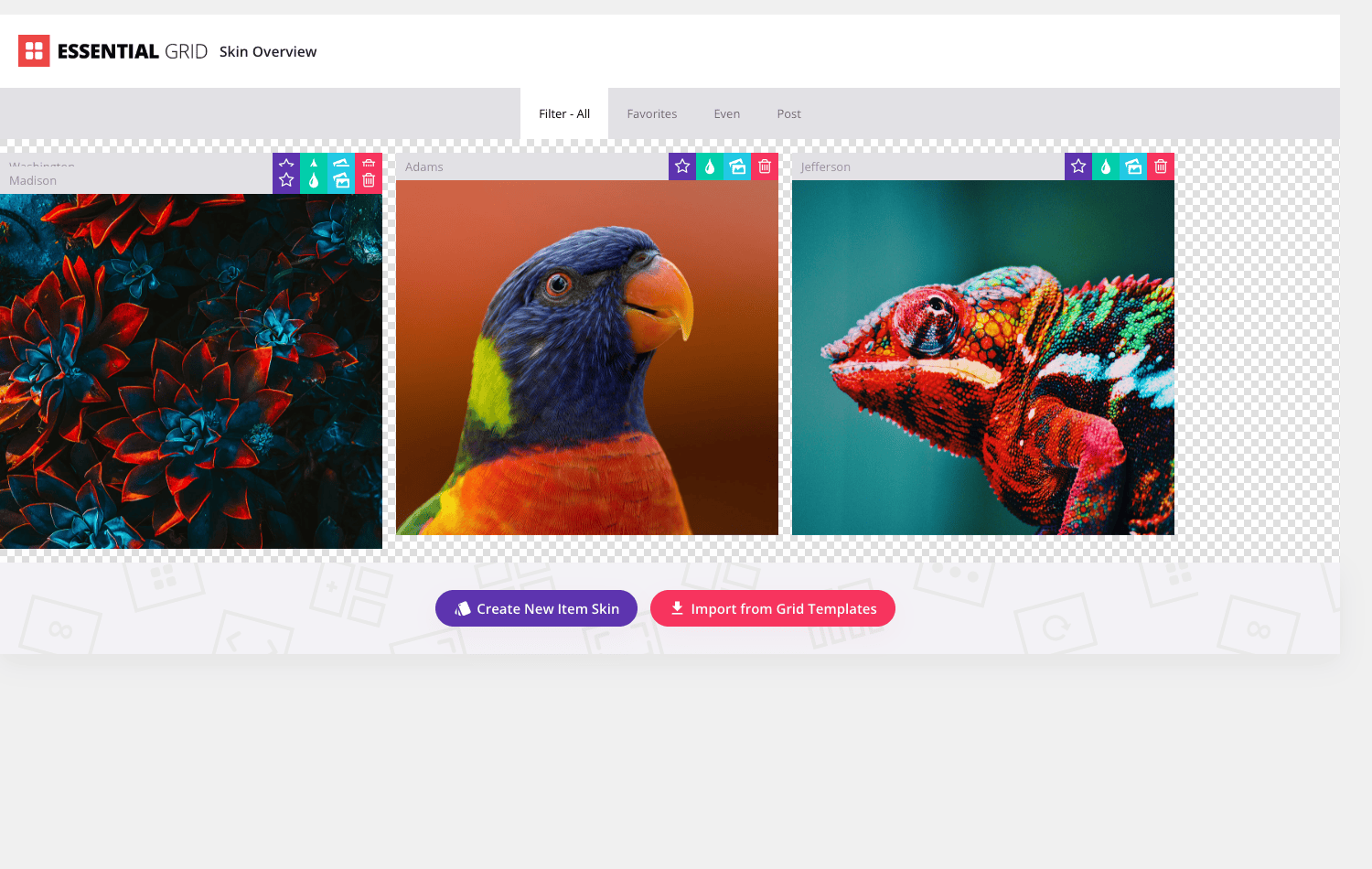
The plugin ships with a stack of pre-made skins to start from, with names like Washington, Adams, Jefferson, and Madison, plus a deliberately empty ESGBlankSkin for when you want to design from scratch. The screenshot up top is the Skin Overview, showing three of those bundled skins rendered with real demo images (a parrot, a chameleon, an abstract shot), so you can see what an actual styled tile looks like rather than a wireframe.
Where this shines. You design a skin once and reuse it across every grid on the site, so your portfolio tiles, your blog grid, and your product strip all share one visual language. Change the skin, and every grid using it updates. That’s the part a theme’s portfolio can’t touch: a theme gives you one fixed tile design and a hex color picker; Essential Grid gives you a layout canvas.
The honest catch. The skin editor is powerful, which means it’s not instant. Dragging layers, setting hover transitions, and getting the spacing right takes longer than picking from a dropdown. If all you want is a plain image grid with a title underneath, the bundled skins get you there in seconds and you never need to open the editor. But if you want something custom, budget real time for it, this is design work, and design work takes design time. Don’t open the skin editor ten minutes before a deadline.
Navigation, filtering, lightbox, and video
A grid that just sits there is fine for a small gallery. For anything bigger, you’ll want the interactive layer, and that’s the Nav-Filter-Sort tab plus the Lightbox and Ajax tabs.
Filtering, sorting, and search. The Nav-Filter-Sort tab lets you put a filter bar above the grid, usually built from your categories or tags, so a visitor can click "Branding" and watch the grid animate down to just branding work. You can add a sort dropdown (by date, title, and so on) and a live search box. None of it reloads the page; it filters in place with a transition. For a portfolio with a dozen categories or a product grid where people want to narrow by type, this is the difference between "nice gallery" and "usable gallery."
A useful detail: the filter bar, the search box, and the navigation don’t have to live glued to the grid. Essential Grid gives you standalone shortcodes ([ess_grid_nav] and [ess_grid_search]) so you can place the filter buttons in a sidebar, or the search box up in your header, while the grid itself sits in the main content. That’s handy when your design wants the controls separated from the results.
Pagination. For long grids you choose how the rest of the items load: classic numbered pagination, a "load more" button, or infinite scroll. Pair this with the Maximum Posts cap from the Source tab so the first paint stays light and the rest streams in as the visitor scrolls.
Lightbox. The Lightbox tab turns each tile into a click-to-open overlay. Click a photo and it opens large, with next/previous arrows to move through the grid like a slideshow. You can use Essential Grid’s own lightbox or hand off to a third-party one if you already have a lightbox library on the site and want them consistent. For a photo gallery this is the feature visitors expect, and it’s a single toggle.
Ajax content. This is the slick one. The Ajax tab lets a tile, when clicked, load the full post content into a panel without leaving the grid page. Picture a case-studies grid where clicking a project slides open the entire case study inline, then you close it and you’re back on the grid. The full write-up renders into a target container you place with [ess_grid_ajax_target]. It’s a portfolio-site staple and it feels expensive to build by hand, but here it’s a tab.
Video in the grid. Tie this back to the Media Playback settings in Grid Settings. Essential Grid can play video right inside a tile, on hover, muted and looping, like a moving showreel. Hover a tile and the showreel clip starts; move away and it stops. Combined with the lightbox, you get a grid where hover previews the video and click opens it full size with sound. For a videographer or a product demo grid, that hover-to-preview behavior is the whole pitch.
Note: every one of these (animations, hover video, lightbox, ajax) adds JavaScript and assets to the page. They’re great features, but turn on the ones the design needs and leave the rest off. A grid running all four at once on a budget phone is a worse experience than a simple, fast grid. I’ll say more about this next.
The grid library and templates
You don’t have to start every grid from a blank source-and-skin combo. Essential Grid ships a Grid Library, a browser of pre-made template grids you can import and then point at your own content.
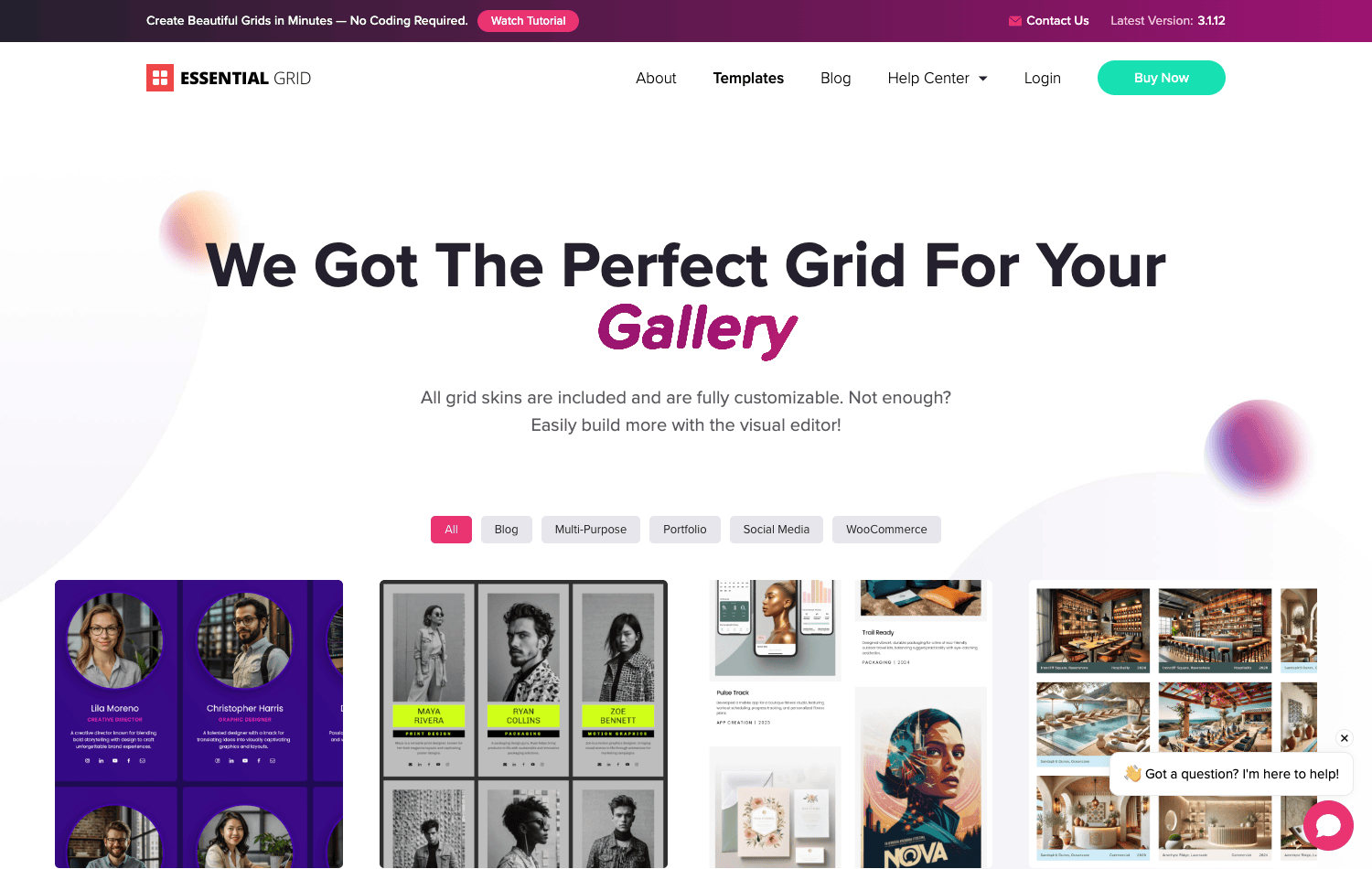
The templates are sorted by use case (blog grids, portfolio grids, social grids, WooCommerce grids), and each one is a complete starting point: a layout, a skin, the navigation, all pre-configured to look good together. You import the one closest to what you want, swap the source to your posts or products, and you’ve skipped the assembly. For anyone who finds the eleven-tab editor intimidating, this is the friendly door in. Pick a template that already looks right, then change the content behind it.
There’s also an add-on system under the plugin’s settings for installing and updating official Essential Grid add-ons, which extend the source types and features over time. You won’t need it on day one, but it’s there when you want to push past the built-in sources.
Tip: treat a library template as a starting point, not a finished product. Import it, then go through Grid Settings and set your responsive columns and your real categories. The template’s column counts and demo categories are placeholders, and shipping them unchanged is how you end up with a grid that shows demo content or breaks on mobile.
Don’t build grids like this
I’ve watched grids tank a page’s load time, and it’s almost never the plugin’s fault. It’s the configuration. Here’s what not to do.
Don’t load five social-stream grids on one page. Each social source (Instagram, Flickr, YouTube) hits an external API every render and pulls in its own assets. Stack several streamed grids on one page and it becomes slow and fragile: one rate-limit on the platform’s end, and your grid renders empty in front of a visitor. Cache the stream, keep it to one or two per page, and have a fallback for when a platform changes its API rules (they do, regularly).
Don’t ship every animation, lightbox, and hover-video at once. Essential Grid can run entrance animations, hover-video playback, a lightbox, and ajax content together, and each layer adds JavaScript. Turn on what the design needs and leave the rest off, because a heavy grid on a phone feels worse than a simple one, and people leave slow pages.
Don’t forget the responsive columns before you publish. Columns are set per breakpoint, and the defaults won’t match your theme. A grid that looks right on desktop can show one cramped, stretched column on a tablet if you never touched the Tablet and Mobile sliders. Set every breakpoint and preview each one. This is the number-one cause of "it looks broken on my phone."
Don’t point a grid at "all posts" with no limit on a big site. A post-source grid with Maximum Posts left unlimited tries to load your entire archive on first paint. On a site with thousands of posts, that’s a slow page and a hammered database. Set a sane maximum, then use pagination, a load-more button, or ajax loading for the rest. Your first paint should be a screenful.
Essential Grid vs WP Grid Builder vs a theme portfolio
This is the comparison that decides whether you bought the right tool, so let me make it concrete instead of hand-wavy.
| Essential Grid | WP Grid Builder | Theme’s built-in portfolio | |
|---|---|---|---|
| Best at | Designed portfolios, galleries, blog grids | Faceted search and filtering of big archives | Quick, fixed project lists |
| Layout types | 3 (even, masonry, cobbles) | Grid + filtering UI focus | Usually 1 fixed |
| Item design | Drag layered skin editor + skin library | Card builder, filtering-first | Fixed, theme-defined |
| Content sources | 6+ (posts, WooCommerce, custom, social, NextGEN, more) | Posts, products, custom (filter-driven) | One theme CPT |
| Video / lightbox in grid | Yes, hover playback + lightbox | Limited | No |
| Cost model | One-time purchase | Subscription tiers | Free with theme |
Now the numbers, because "X is better" means nothing on its own. Essential Grid ships 3 grid layout types (even, masonry, cobbles), exposes 4 shortcodes for placing grids and their controls, pulls content from 6 or more source types (posts, WooCommerce, custom items, plus social streams like Instagram, Flickr, YouTube, and Vimeo), and gives you responsive column control across 8 breakpoints from Desktop XL down to Mobile. That last one matters more than it sounds: most theme portfolios expose only one or two breakpoint tiers, so you’re stuck with whatever the theme author decided a tablet should show, where Essential Grid lets you set the column count for all eight. On price, the split is structural: a theme portfolio adds $0 because it ships with the theme, Essential Grid is a one-time purchase (frequently around the $30 mark on CodeCanyon), and WP Grid Builder runs on a recurring license (around $49 a year for a single site), so the math depends on whether you want to pay once or keep paying.
When WP Grid Builder wins. If the actual job is faceted search, letting a visitor narrow a 5,000-item catalog with checkboxes, range sliders, and combined filters that update instantly, WP Grid Builder is built around exactly that and Essential Grid is not. Filtering is WP Grid Builder’s whole identity. Essential Grid has filter buttons, but they’re category toggles, not a faceted search engine. For a large WooCommerce store where filtering is the feature, the filtering-first grid plugin is the right call.
When Essential Grid wins. When the job is "make this collection look good." A photographer’s portfolio with masonry and a lightbox. A studio’s case-study grid with ajax-loaded write-ups. A video channel with hover previews. A blog that wants a magazine grid instead of a feed. The skin editor, the three layout types, the video-and-lightbox combo, and the template library are the win, and the filtering plugin has nothing like the skin editor.
When the theme portfolio is enough. If you have eight projects, you never plan to add more, and you don’t care about masonry, hover video, or social feeds, the free theme portfolio is genuinely fine. There’s a weight argument here too: a theme portfolio adds 0KB of new assets because it’s already part of the theme, while Essential Grid loads its own CSS, JavaScript, and an icon font on top. So don’t buy a tool for a job you don’t have. But the moment you want masonry, a real skin, a social source, or column control per breakpoint, the theme portfolio runs out of road fast.
It’s worth noting Essential Grid comes from the same studio as Slider Revolution, so if you’ve used that, the layered, drag-everything editing style will feel familiar. And if your real need is fast, lightweight photo galleries specifically (not portfolios or product grids), a dedicated gallery tool like Envira Gallery is lighter and more focused, where Essential Grid is the broader builder.
Developer reference
Time to be straight about the developer surface, because there’s a lot of "this plugin has an API" marketing that doesn’t survive a look at the code. Here’s what’s actually there.
First, the honest limits. Essential Grid has no REST API. There are zero registered REST routes, so there’s no /wp-json/ endpoint to query a grid from a headless front end or a mobile app. It also has no WP-CLI commands. If you were hoping to script grid creation from the terminal or pull grid data over REST, that’s not how this plugin works. It’s a no-code-first tool, and the developer surface reflects that. I’d rather tell you up front than have you grep for a route that isn’t there.
What you do get is the shortcode, a PHP render class, and a set of filters for tuning output and queries.
The shortcodes. Four of them, and you’ll use the first one constantly:
[ess_grid alias="my-grid"]
[ess_grid_nav]
[ess_grid_search]
[ess_grid_ajax_target]
[ess_grid alias="..."] renders a grid by its alias. The other three are the standalone controls discussed earlier: a navigation/filter bar, a search box, and the target container for ajax-loaded full content. Wrapping the nav and search in their own shortcodes is what lets you place a grid’s filter UI somewhere other than directly above the grid.
The PHP render class. If you’d rather render a grid from inside a template than drop a shortcode, the Essential_Grid class does it programmatically. This is the right approach when a grid’s placement is conditional, or when it lives in a template part rather than post content:
if ( class_exists( 'Essential_Grid' ) ) {
    $grid = new Essential_Grid();
    $grid->output_essential_grid_by_alias( 'work-portfolio' );
}
It’s the same output as the shortcode, just callable from PHP, which is handy in a page-portfolio.php template or a hook callback.
The filters. The hooks use an essgrid_ prefix. Most of them are internal option-getters, but two are genuinely useful for theming and are the ones worth knowing.
essgrid_the_content filters an item’s rendered content before it goes into the tile. This is the hook to reach for when you need to massage what shows up in a grid item, strip a shortcode, append a badge, rewrite a snippet:
add_filter( 'essgrid_the_content', function ( $content ) {
    // Append a small note to every grid item's content.
    return $content . '<span class="grid-note">From the studio</span>';
}, 10, 1 );
essgrid_get_related_posts adjusts the query that backs a related-content grid. If you build a "related work" grid that pulls posts related to the current one, this is where you tune the query, change the post count, add a taxonomy constraint, exclude the current item more aggressively:
add_filter( 'essgrid_get_related_posts', function ( $query ) {
    // The related query is a get_posts() args array; it uses 'numberposts'.
    if ( is_array( $query ) && isset( $query['numberposts'] ) ) {
        $query['numberposts'] = 6;
        $query['orderby']     = 'rand';
    }
    return $query;
} );
There are other real essgrid_ filters in the codebase (essgrid_post_meta_content, essgrid_set_sorting_text, essgrid_prepare_sorting_array_by_post_pre, essgrid_output_item_skin_maybe_skip_layer, and a family of internal essgrid_get_* option getters), plus a handful of actions like essgrid_set_api_names. They exist, but most are internal plumbing rather than documented extension points, so grep the source and confirm the signature before you hook one in production. The two above are the dependable, useful pair.
Page builder elements. Essential Grid isn’t shortcode-only inside a builder. It ships a native Elementor widget and a native Gutenberg block, and it registers WPBakery / Visual Composer parameters so a grid appears as a proper content element in all three. There’s also a Divi builder class in the code, but in this version the Divi module itself is left disabled, so on Divi you fall back to the shortcode. On Elementor, Gutenberg, or WPBakery you can place and configure a grid in the builder without typing the shortcode by hand.
Storage, for migrations. This is the one that bites people. Grids, item skins, and navigation skins are stored in custom database tables ({prefix}esg_grids, {prefix}esg_skins, and {prefix}esg_nav_skins), not as custom post types. There is no essential_grid post type to export with the standard WordPress exporter. Each grid is a row keyed by its alias. The practical consequence: when you migrate a site, a plain content export won’t carry your grids. Use Essential Grid’s own import/export, or make sure your migration tool copies those esg_ tables, or you’ll rebuild every grid by hand on the new site. Ask me how I know.
Performance, compatibility, and gotchas
Essential Grid is a heavyweight, and heavyweights need a little care. None of this is dealbreaking, but knowing it ahead of time saves a support ticket to yourself.
Custom tables are a speed choice. Storing grids in dedicated esg_ tables instead of post meta means reading a grid’s config is one targeted query, not a pile of meta lookups. That’s good for front-end performance, and it’s the main reason the plugin scales to complex grids without dragging. The trade-off is the migration friction above. You can’t have the speed of custom tables and the portability of post types at the same time, and Essential Grid picked speed.
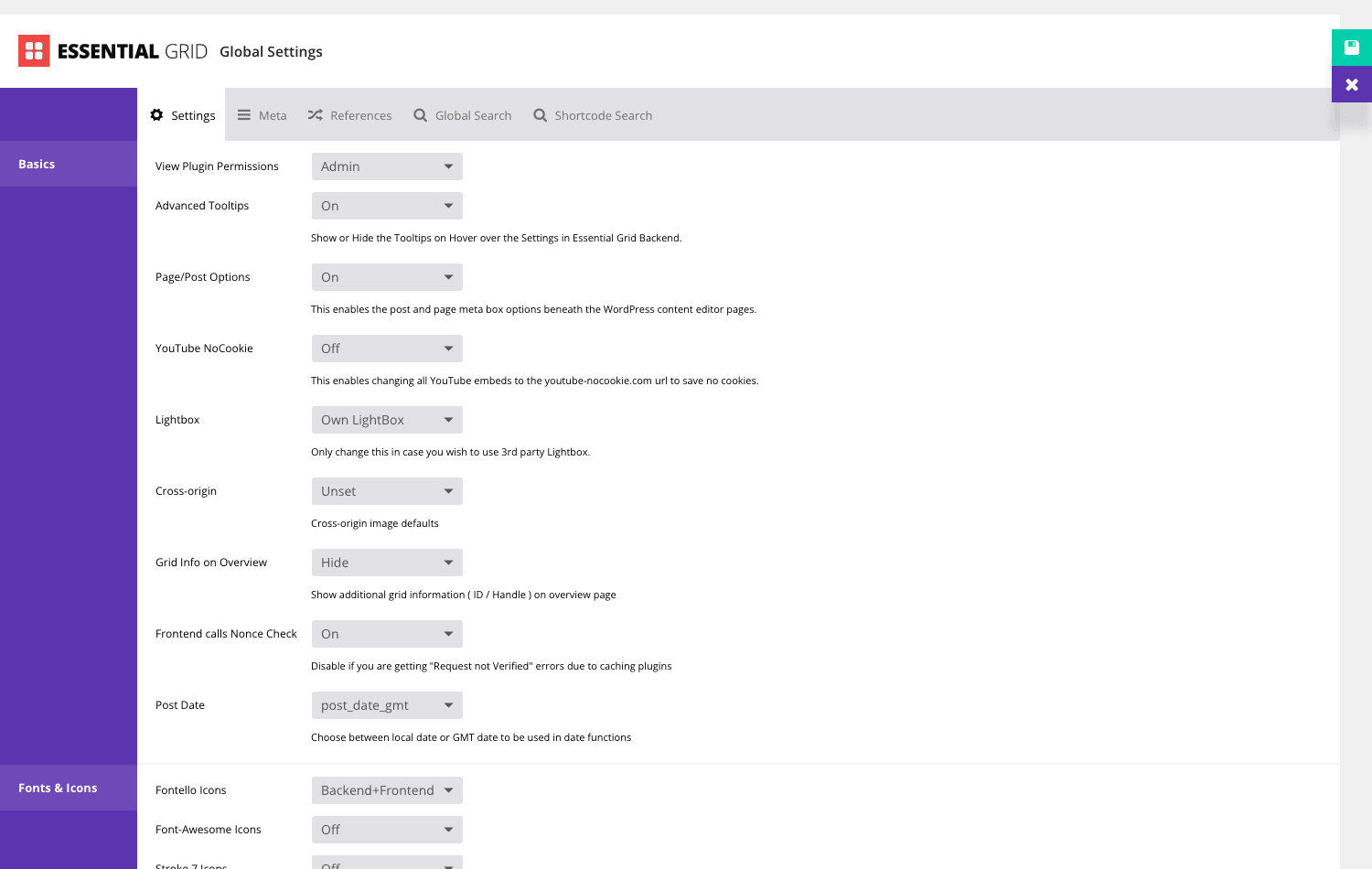
The nonce check and caching plugins. This is the gotcha that generates the most confusion, so here’s the fix in advance. Essential Grid uses a nonce on its front-end ajax calls (for filtering, load-more, ajax content). Aggressive page-caching plugins can serve a stale nonce from cache, which then fails verification, and the symptom is filtering or load-more silently doing nothing on a cached page. In Ess. Grid » Global Settings, there’s a Frontend calls Nonce Check toggle. If your grid’s ajax features break only on cached pages, turn that nonce check off and they’ll work again. It’s a known interaction with caching layers, not a bug, and it’s a one-toggle fix once you know where it lives.
Social API render cost. Covered in the anti-patterns, but it bears repeating here as a compatibility note: social-stream grids depend on external APIs that you don’t control. They can rate-limit you, change their auth rules, or go down, and your grid goes empty when they do. Cache the feed and don’t make a social grid load-bearing for your page’s first impression.
Video assets. Video-in-grid and hover playback are lovely and not free. Inline video means the browser loads video data on a page that might otherwise be light. On mobile especially, be deliberate: a showreel grid is a desktop-portfolio flourish, and you may want a simpler skin on phones.
Builder integrations and globals. Beyond the Elementor, Gutenberg, and WPBakery elements, Global Settings is where the site-wide options live: which user roles can edit grids (View Plugin Permissions), advanced tooltips, the lightbox engine choice, YouTube NoCookie mode for privacy, cross-origin handling, and the font and icon sets it loads (Fontello, Font Awesome, Stroke 7 icons). If you’re trimming front-end weight, check which icon font is enabled; you don’t need three.
Theme conflicts. Like any plugin that outputs its own CSS and JS, Essential Grid can clash with a theme that’s heavy-handed about styling everything. The fixes are the usual ones: scope or raise your own CSS specificity, and if a grid’s layout looks off inside a particular section, check whether the theme is forcing widths on the grid’s container. The fullwidth and fullscreen layout options also depend on the theme not boxing everything in a narrow content column, so test those in your actual template.
Pricing and licensing
Essential Grid is sold on CodeCanyon as a one-time purchase under a regular license, with support and updates for a period after purchase rather than a recurring subscription. That one-time model is part of the appeal: you’re not paying monthly to keep a portfolio grid alive on a site you built once.
It’s also available as GPL through GPL Times, which is the route a lot of people take when they want the full plugin with its skin library and template grids without the CodeCanyon checkout. If you want to put the skin editor, the three layout types, and the social sources to work on a real site today, Essential Grid on GPL Times gives you the same plugin with its documentation intact, ready to drop into Plugins » Add New.
A licensing note for the builders among you: because grids live in custom tables and not posts, your licensing question and your backup question are different things. Owning the plugin is one matter; remembering to export your grids before a migration is another. Keep both in mind.
FAQ
What’s the difference between Essential Grid and WP Grid Builder?
They look similar and do different jobs. Essential Grid is design-first: a drag skin editor, masonry and cobbles layouts, video-in-grid, a lightbox, and a big template library, built for portfolios, galleries, and blog grids. WP Grid Builder is filtering-first: its whole identity is faceted search, letting visitors narrow large archives with checkboxes and sliders that update instantly. If you want a designed grid, pick Essential Grid. If you want a filterable catalog, pick WP Grid Builder. Some big sites run both, one for the shop filtering and one for the marketing-page galleries.
Will Essential Grid slow down my site?
It can if you let it, and it won’t if you don’t. The plugin stores grids in fast custom tables, so reading a grid is cheap. The weight comes from features you enable: hover video, multiple social-stream grids, every animation at once, and uncapped post counts. Cap your Maximum Posts, use pagination or ajax loading, keep social grids to one per page, and turn on only the effects the design needs. A lean Essential Grid grid is light; a maximalist one is heavy. You’re in control of which you ship.
Can I build a WooCommerce product grid with it?
Yes. Choose Products as the source and you get a product grid with the product image, title, and price available as skin layers. It’s a better-looking option than the default WooCommerce loop for featured-product strips and landing-page blocks. For the full faceted shop archive with attribute filtering, though, a dedicated WooCommerce filtering tool is the better fit; Essential Grid’s filtering is category-level, not attribute-faceted.
How well do the social media feeds actually work?
They work, with an asterisk. Essential Grid pulls from Instagram, Flickr, YouTube, Vimeo, Twitter, and Facebook, and turns each into a grid. The honest trade-off is that social platforms control those APIs, change their auth rules periodically, and can rate-limit or break access. So a social grid needs caching and the occasional maintenance check, and you shouldn’t make it the first thing a visitor must see, because if the API hiccups, the grid is empty. Treat social feeds as a nice-to-have section, not your hero.
Masonry or cobbles, which should I use?
Masonry when your images have very different heights and you don’t want to crop them, it stacks them like brickwork with no gaps, ideal for a mixed photo portfolio. Cobbles when you want an editorial, magazine-style mosaic where a few items are deliberately bigger than the rest. Cobbles is the more dramatic look and the easier one to overdo; if everything is trying to be the hero tile, it turns to noise. When in doubt, even layout is the safe, clean default.
Does it work inside Elementor, Divi, or other page builders?
You can place any grid with the [ess_grid] shortcode, which works in every builder that accepts shortcodes. Better still, Essential Grid ships native elements for Elementor (a widget), Gutenberg (a block), and WPBakery / Visual Composer (a content element), so in those three a grid drags in as a proper element rather than a pasted shortcode. Divi has a builder class in the plugin but the module is disabled in this version, so on Divi you’ll use the shortcode.
Can visitors click a grid item to view it larger?
Yes, two ways. The lightbox turns a tile into a click-to-open overlay with next/previous arrows, like a slideshow, which is what you want for a photo gallery. The ajax option instead loads the full post content into a panel on the same page without a reload, which is what you want for a case-study or portfolio-detail grid. They’re separate toggles; pick the one that matches whether the "more" is an image or an article.
My grid looks fine on desktop but breaks on mobile. What did I miss?
Almost certainly the responsive columns. Essential Grid sets columns per breakpoint across eight sizes, and the defaults don’t match every theme. If you only set the desktop column count, the tablet and mobile views fall back to defaults that can render one stretched column. Open Grid Settings, switch the columns control to Advanced if needed, and set a sensible count for tablet and mobile (often two and one). Resize your browser to confirm before you publish.
Do my grids transfer when I migrate the site?
Not with a plain content export, and this catches people. Grids and skins live in custom esg_ database tables, not as posts, so a standard WordPress export skips them. Use Essential Grid’s own import/export to move grids between sites, or make sure your migration plugin copies those tables. Plan for it before you migrate, not after.
Is there a REST API or a way to manage grids in code?
There’s no REST API and no WP-CLI in Essential Grid, so you can’t query grids over /wp-json/ or script them from the terminal. What you can do in code is render a grid with the Essential_Grid PHP class from a template, and tune output or related-content queries with the essgrid_the_content and essgrid_get_related_posts filters. It’s a no-code-first plugin with a small, practical hook surface, not a headless data source.
Final thoughts
Essential Grid is the tool I reach for when a client says "I want my work to look good" and the theme’s portfolio says "here is a list." The skin editor is the real reason to own it: most grid plugins give you a card template and a color picker, this gives you a layout canvas, and once you’ve designed one skin you reuse it everywhere. Add masonry and cobbles, video-on-hover, a lightbox, ajax-loaded detail panels, and a template library to start from, and it covers the whole "designed grid" job rather than one slice of it.
It is not the plugin for faceted search of a giant catalog, and it asks for a little discipline (cap your posts, set your breakpoints, don’t stack social feeds), and the custom-table storage means you have to think about exporting grids before a migration. None of that is hidden once you know to look for it, and most of it is a single toggle or a two-minute habit.
If your portfolio, gallery, or blog currently reads like a stack of posts and you want it to look like it was designed on purpose, Essential Grid is a fast way to get there, install it, import a library grid close to your taste, point it at your content, and you’ve turned a list into a layout. Spend the saved afternoon on the skin instead. That’s the part visitors actually remember.
You can dig into the WordPress shortcode reference if you want to understand how [ess_grid] plugs into the wider system, and the broader WordPress plugin directory is worth a browse for the lighter gallery tools if a full grid builder turns out to be more than your project needs.