

Most advice tells you to start a dropshipping store on a hosted SaaS. Spin up a Shopify trial, bolt on a supplier app, pay the monthly fee, and let someone else’s servers route your orders. I think that advice is half wrong. Dropshipping has earned a chunk of its bad reputation honestly, the thin margins and the three-week shipping and the refund threads are all real, but the part where people assume you need a rented platform to do it is just marketing. If you already run WordPress, you can run a WooCommerce dropshipping operation on your own store, keep all the data, and pay nobody a recurring cut.
The tool that does this is WooCommerce Dropshipping by OPMC, an official WooCommerce.com extension. It adds suppliers, order routing, packing slips, AliExpress import, and a profit calculator to a store you already own.
This is an honest walk through what it does, what it does not do, where it fits, and where you should walk away and use something else. I’ll be skeptical where skepticism is earned, because nobody wins when a dropshipping article reads like a pitch.
Table of Contents
- What WooCommerce Dropshipping actually is
- Why dropshipping fails (and what actually has to work)
- Three dropshipping models: AliExpress, local supplier, affiliate
- Setting up suppliers and routing orders
- Packing slips and the supplier email
- Pricing, profit, and keeping stock in sync
- Don’t go live without test-ordering your own supplier flow
- Self-hosted vs a dropshipping SaaS vs doing it by hand
- Who should run this (and who should not)
- Developer reference: hooks, filters, taxonomy, REST
- Performance, the AliExpress extension, and the gotchas
- FAQ
- Final thoughts
What WooCommerce Dropshipping actually is
WooCommerce Dropshipping is an extension that turns a normal WooCommerce store into a dropshipping operation. You define your suppliers, tag each product with the supplier who fulfils it, and when an order lands the plugin emails that supplier their part of the order with a packing slip attached. The supplier ships direct to your customer. You never touch the box.
It’s built by OPMC Australia Pty Ltd and sold on WooCommerce.com as an official WooCommerce extension, which matters more than it sounds. Official extensions follow WooCommerce coding standards, get tested against current WooCommerce releases, and don’t do anything weird to your database. The plugin requires only WooCommerce itself (no free base plugin from wordpress.org, no second dependency), and it runs on PHP 7.4 and up.
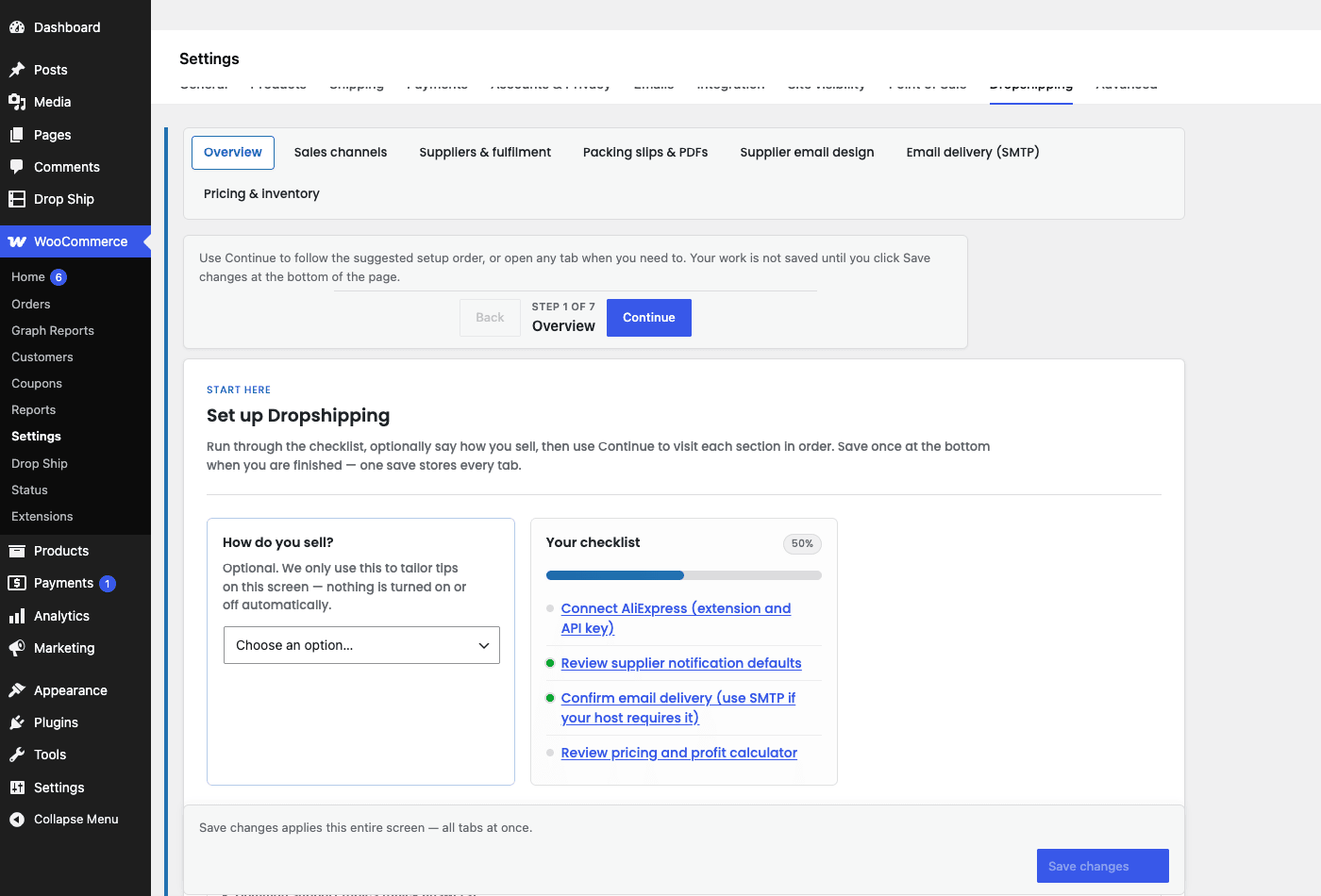
What it adds to your admin. On activation you get a top-level Drop Ship menu and a new Dropshipping tab under WooCommerce » Settings. That settings tab is wrapped in a guided "Set up Dropshipping" wizard that walks you through seven steps, with a checklist for connecting AliExpress, reviewing supplier notification defaults, confirming email delivery, and reviewing the pricing calculator. It’s a friendlier onboarding than most WooCommerce extensions bother with.
If the word "dropshipping" is new to you, the concept is simple: you sell a product you don’t physically stock, and a third party ships it to your customer on your behalf. You’re the storefront and the customer relationship. The supplier is the warehouse.
Here’s the thing to hold onto from the start. This plugin is supplier-email and CSV based, not a curated supplier network. It does not come with a marketplace of vetted vendors. It does not magically sync tracking numbers back to your store. It gives you the plumbing to run dropshipping on your own terms, and the quality of your operation still depends on the suppliers you bring to it. That’s a feature if you have real suppliers and a problem if you were hoping for a turnkey product catalog.
Why dropshipping fails (and what actually has to work)
Skip this section if you’ve run a fulfilment operation before. If you haven’t, the next few paragraphs explain why most dropshipping stores die quietly, and that context makes every setting in this plugin make sense.
A dropshipping order is a relay race. The customer hands the baton to you, you hand it to the supplier, the supplier hands the package to the courier. If any handoff drops, the customer blames you, because you’re the only name they know.
Four things have to work, every single order:
- The order has to reach the right supplier. If a product isn’t tagged with a supplier, or the supplier’s email address is wrong, the order goes nowhere and you don’t find out until the customer complains.
- The supplier email has to actually arrive. WordPress sends email through PHP
mail()by default, which lands in spam constantly. A supplier who never sees the notification never ships. - The stock has to be real. If your store says "in stock" and the supplier ran out yesterday, you sold something that can’t ship.
- The customer has to be priced so you make money. Dropship margins are thin. Sell at the wrong price and you ship for a loss, or worse, you sell below cost and don’t notice for fifty orders.
Every feature in WooCommerce Dropshipping maps to one of those four failure points. Supplier taxonomy and per-product assignment fix number one. The built-in SMTP option fixes number two. CSV inventory sync fixes number three. The pricing calculator helps with number four (helps, not solves, and I’ll be precise about that later). Read the plugin through that lens and it stops being a pile of tabs and becomes a checklist against the ways dropshipping kills stores.
Three dropshipping models: AliExpress, local supplier, affiliate
This is the part most reviews get wrong, so I want to be exact. WooCommerce Dropshipping supports three different dropshipping models, and they are not three flavors of the same thing. They’re three genuinely different commitments, with different setup, different risk, and different reputations.
Model 1: Local supplier fulfilment. This is the demoable core and, honestly, the version of dropshipping I’d actually trust. You have real suppliers (a wholesaler, a local manufacturer, a brand that drop-ships its own catalog), you define each one in the plugin, assign your products to them, and the plugin auto-emails each supplier their items when an order comes in. Packing slip attached, shipping direct to your customer. This is the least scammy model because you usually have a real relationship with the supplier and some control over shipping times.
Model 2: AliExpress import. This is the model most people mean when they say "dropshipping," and it carries the worst reputation for good reason. You import products from AliExpress into WooCommerce and resell them, with the AliExpress seller shipping direct. The plugin handles this through a Chrome Browser Extension plus an API key. The extension talks to a small REST API the plugin exposes (namespace woo-aliexpress/v1), and there’s a per-product "AliExpress Supplier" tab in the product editor. Be honest with yourself before you go this route: margins are thin, shipping from China routinely runs two to four weeks, and supplier reliability is a coin flip. The plugin gives you the import pipe. It cannot give you good suppliers.
Model 3: Amazon affiliate. The lightest of the three. Instead of fulfilling anything, you use WooCommerce’s built-in External/Affiliate product type, and the plugin layers Amazon-specific fields on top: it adds an Amazon Product ID (it even parses the ASIN out of an Amazon product URL for you) and an Amazon Affiliate ID to External products. The product links out to Amazon and you earn a referral cut. No order routing, no packing slips, no inventory. It’s barely dropshipping in the fulfilment sense, more a curation play, but it’s a legitimate way to monetize a catalog without ever touching stock. (The "How do you sell?" selector names this mode "Amazon affiliate" explicitly, alongside AliExpress, local supplier, and a mixed mode.)
Heads-up: these three are not a progression you graduate through. Pick the one that matches your actual supplier situation. A store with three trusted wholesalers should run the local-supplier model and ignore AliExpress entirely. An affiliate site has no reason to set up supplier emails. Mixing all three on one store is possible but it’s a lot of moving parts for a beginner.
| Model | What you need | Reputation | Shipping control |
|---|---|---|---|
| Local supplier | Real suppliers + their emails | Cleanest | High (your suppliers) |
| AliExpress import | Chrome extension + API key | Worst | Low (2 to 4 weeks typical) |
| Amazon affiliate | An Amazon Associates account | Neutral | None (you don’t fulfil) |
Setting up suppliers and routing orders
The local-supplier model is the heart of the plugin, so let’s set it up properly. The whole thing rests on one idea: a supplier is a product taxonomy term, and every product gets tagged with one.
Step 1: Create a supplier. Go to Drop Ship » Suppliers (the plugin registers a dropship_supplier taxonomy on the product post type, so it behaves like product categories do). Add a supplier and you’ll see the fields: Name, Slug, Description, Account # (your store’s account number with that supplier, handy on the packing slip), and Email Addresses. That email field is the load-bearing one. When a customer buys a product tagged to this supplier, the supplier gets a notification at the addresses you list here. You can enter more than one address if a supplier wants orders to hit both a warehouse inbox and a manager.
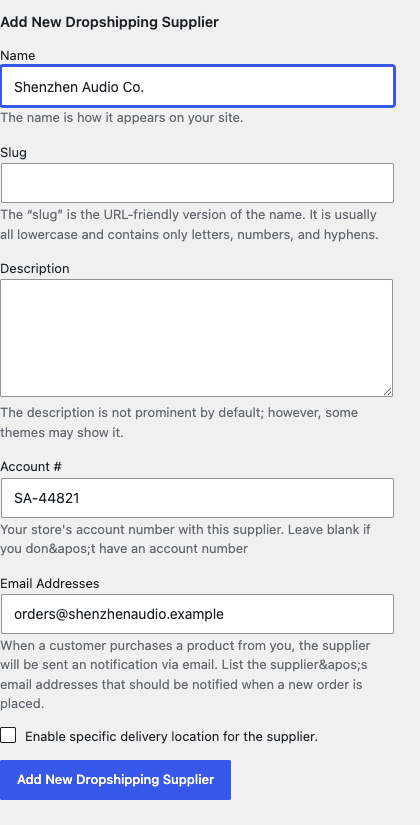
There’s also an "Enable specific delivery location for the supplier" toggle, for when a supplier only ships to certain regions and you want to scope them.
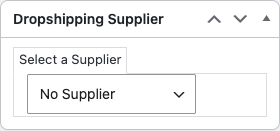
Step 2: Assign products to the supplier. Open any product in the editor and find the Dropshipping Supplier box. It’s a simple "Select a Supplier" dropdown. Pick the supplier who fulfils that product and save. That’s the link that makes routing work. A product with no supplier assigned won’t route anywhere, so if you’re bulk-loading a catalog, make sure the supplier gets set on every item.
Tip: if you’re importing a big supplier catalog from a CSV or XML file, do the heavy import with a dedicated importer rather than typing products in one by one. WP All Import Pro maps spreadsheet columns straight onto WooCommerce product fields and can set the dropship supplier term during import, which saves hours on a large catalog. We’ve got a full WP All Import walkthrough if you want the field-mapping details.
Step 3: Let orders route. Once products are tagged, routing is automatic. When an order contains a supplier’s products, the plugin emails that supplier a "new order" notification listing only their items. If one order spans two suppliers, each supplier gets only their own lines. You can send these automatically the moment the order is placed, or hold them for a manual send if you want to review orders first. The auto-versus-manual choice lives in the supplier and fulfilment settings, and which you pick depends on how much you trust your catalog tagging.
Don’t skip SMTP. I’ll keep saying this because it’s the single most common reason a fresh dropshipping store fails silently. WordPress’s default mail goes out as unauthenticated PHP mail and a lot of it lands in spam. The plugin includes an Email delivery (SMTP) tab precisely so supplier emails authenticate and actually arrive. Configure it before you flip the store live, not after the first lost order.
Packing slips and the supplier email
When the supplier email fires, it can carry attachments, and that’s where the Packing slips & PDFs settings tab comes in.
The plugin can render a packing-slip PDF and/or a CSV and attach it to the supplier’s "new order" email. The PDF is generated by TCPDF, a mature PDF library bundled with the plugin (worth noting that TCPDF is third-party library code, not the plugin’s own work, but it’s a sensible, battle-tested choice for generating documents). The packing slip lists the items, quantities, and the shipping address the supplier needs to fulfil. The CSV is handy if a supplier imports orders into their own system rather than reading a PDF.
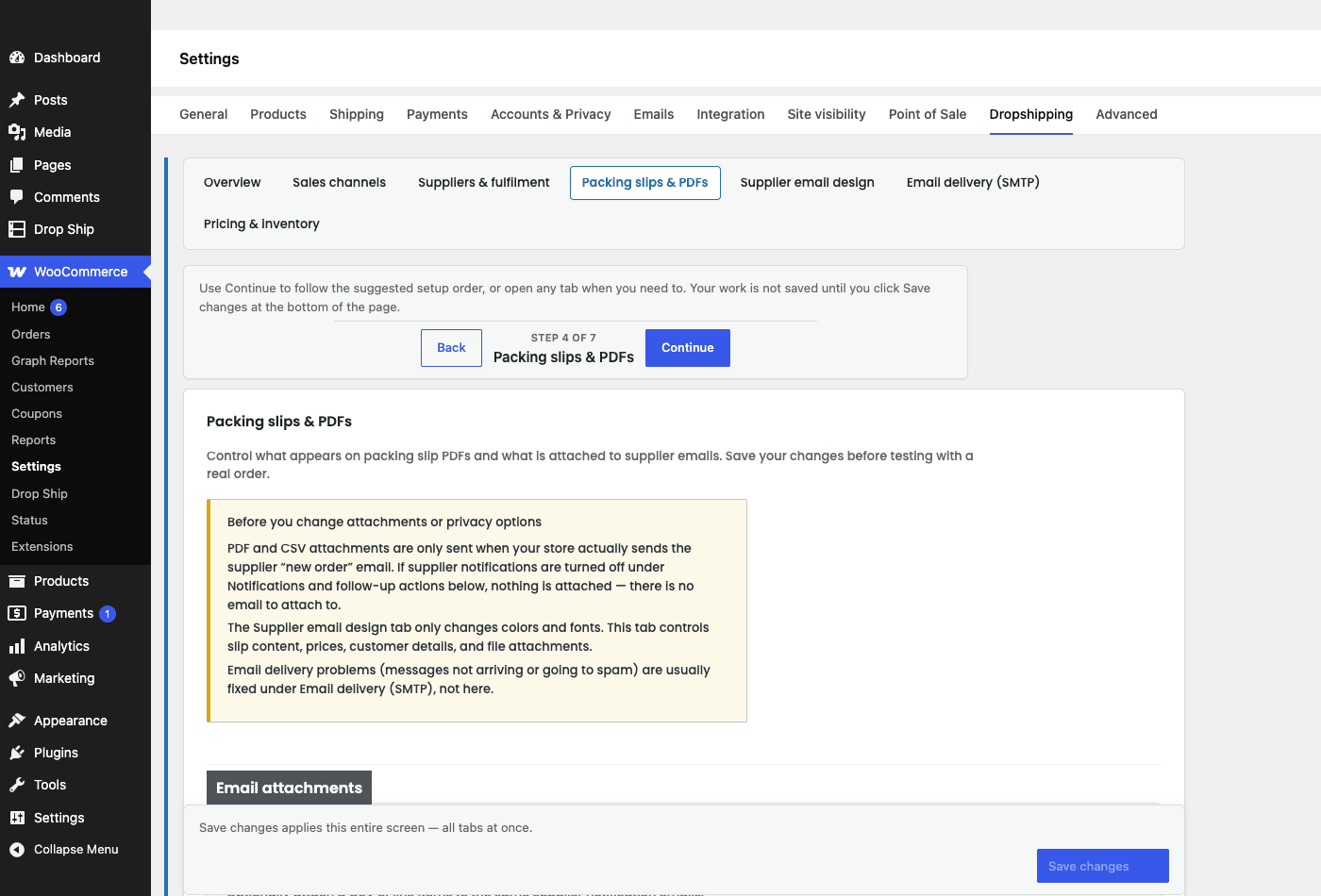
One detail that trips people up: the PDF and CSV attachments only go out when your store actually sends the supplier "new order" email. The Packing slips tab even spells this out. So if you’ve disabled supplier notifications, or you’re sending manually and haven’t hit send, no packing slip goes anywhere. The attachment isn’t a separate event, it rides along on the notification email.
The Supplier email design tab lets you tune what that email looks like, so it reads like a real purchase order from your store rather than a raw WordPress notification. Worth a few minutes, because the supplier’s confidence in your store starts with how professional that first email looks.
Pricing, profit, and keeping stock in sync
Two different jobs share this part of the plugin, and people conflate them constantly. Let me separate them cleanly.
The Pricing and profit calculator is a planning tool. It does not reprice your products. This is the single most important sentence in this whole article, so read it twice. Under the Pricing & inventory tab there’s a calculator with columns for product cost, break-even, fees, and total price. You punch in your numbers and it shows you what you’d need to charge to hit a margin, what your break-even is after fees, and so on. It is a spreadsheet that lives in your admin. The tab’s own disclaimer says it plainly: the chart is a planning aid, it does not automatically reprice every product, and you still set costs and prices on each product or during import.
I’m hammering this because the name sounds like automation and it isn’t. If you import a thousand AliExpress products expecting the calculator to apply a markup formula across all of them, you’ll be disappointed. It tells you what to charge. You still go and set the price. For bulk repricing you’d handle it at import time or with a separate pricing rule, not here.
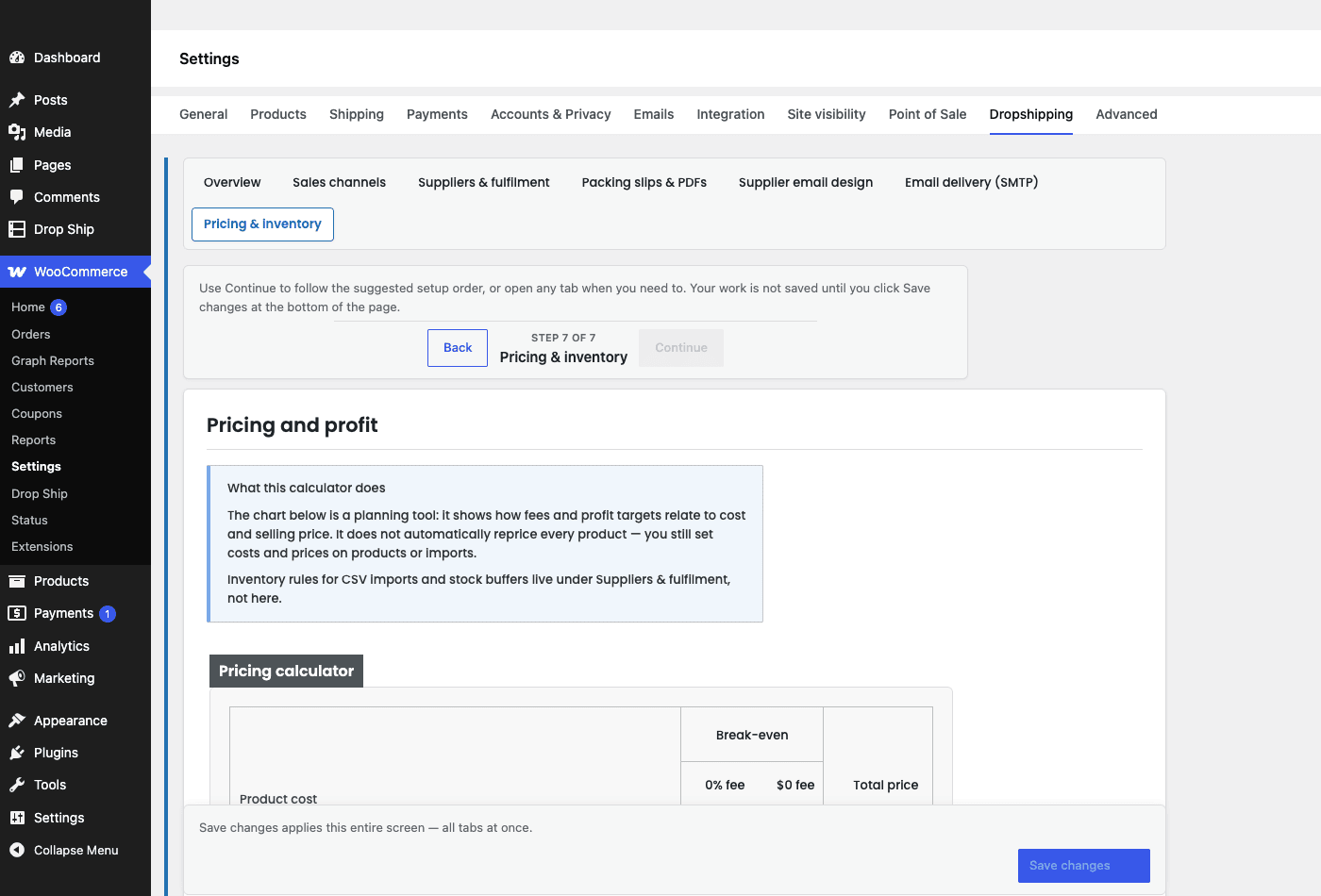
Inventory sync is the other job, and it does change your store. Suppliers can send you stock CSVs, and the plugin’s CSV importer updates WooCommerce inventory from them, marking products in or out of stock as the supplier’s numbers change. The settings for this (inventory rules and stock buffers) live under the Suppliers & fulfilment tab, not the pricing tab, which trips people up because both feel like "numbers" settings.
A stock buffer is your friend here. If a supplier’s CSV says they have 3 units left, you probably don’t want to keep selling right up to 3, because the CSV is a snapshot and the supplier might sell those same 3 to someone else before your next sync. A buffer marks the product out of stock while a few units technically remain, which is far better than overselling something you can’t ship.
Tip: if you want to push your dropship catalog out to Google Shopping or Meta once it’s priced and synced, a product feed plugin handles the export cleanly. We covered one in our CTX Feed review, and it pairs well with a dropship catalog because it keeps the feed in step with your live stock status.
The plugin also ships a Sales by Supplier report under WooCommerce » Reports, which groups your sales by supplier over a date range. It’s a small thing but genuinely useful for spotting which supplier is actually carrying your revenue and which one is more trouble than they’re worth. If one supplier accounts for most of your sales, that’s also a concentration risk worth knowing about, because if they go dark you lose a big slice of your catalog at once. The report sits alongside WooCommerce’s own graph reports, so it reads the same way the rest of your store analytics do.
Don’t go live without test-ordering your own supplier flow
Here’s the mistake that costs real money, and I’ve watched people make it. You assign products to a supplier, flip the store live, and wait for orders. An order comes in. The supplier-notification email bounces because the address had a typo, or it lands in the supplier’s spam folder because you never set up SMTP, or the supplier is actually out of stock because the CSV sync ran on stale data. Whatever the cause, the result is identical: the customer paid, nothing ships, and days pass with no tracking.
Then comes the part that hurts. The customer files a refund demand. If they’re impatient, a chargeback, which costs you the order value plus a bank fee. And a one-star review for an item you never even saw. In dropshipping you own the entire customer relationship for goods you never physically touch, so a silent routing failure is pure downside with nothing to offset it. Money, customer trust, and your store’s rating all take the hit at once, from one misconfigured email field.
The fix is ten minutes of testing before launch, and it’s not optional.
First, set up SMTP under the Email delivery tab so supplier emails authenticate and actually land in an inbox. Then send yourself a test supplier email and confirm the packing slip PDF is attached and readable. Set a stock buffer under Suppliers & fulfilment so a near-empty supplier can’t oversell. Then place one real end-to-end test order on your own store, using a product tagged to a real (or test) supplier. Watch the supplier email fire. Read exactly what the supplier receives and exactly what the customer receives. Confirm the addresses, the items, and the totals all match.
Ten minutes of test-ordering beats a chargeback every time. Do it before you spend on ads.
Self-hosted vs a dropshipping SaaS vs doing it by hand
You have three real options for running a dropshipping store, and the honest comparison isn’t "this one wins." It’s "this one fits if you value X over Y."
Self-hosted (WooCommerce Dropshipping). You pay for the extension once and run everything on your own WordPress. Recurring cost is $0 per month. All of your supplier records, order data, and customer data stay in your own WooCommerce database, 100% under your control, never on a third party’s servers. You get 3 dropshipping models, 1 supplier taxonomy, 6 of the plugin’s own action hooks for developers, and the AliExpress Chrome-extension REST API (woo-aliexpress/v1 and v2) if you go that route.
Hosted SaaS (Shopify plus a supplier app like DSers or Spocket). You pay a Shopify subscription (roughly $39/month) plus a supplier app (often $20 to $49/month), and some supplier apps add a per-order fee of a few percent on top. In exchange you get things this plugin does not have: a curated marketplace of vetted suppliers, one-click product-plus-tracking sync, and automated repricing rules. If hands-off automation is what you want, that monthly fee buys it.
The manual way (a spreadsheet and forwarding emails by hand). Free, technically, but it falls apart past a handful of orders a day. You’re the routing engine, the packing-slip generator, and the inventory checker, and humans drop batons.
The honest trade-off: WooCommerce Dropshipping costs nothing monthly and keeps your data yours, but it’s supplier-email and CSV based, so it won’t auto-sync tracking or auto-reprice the way a paid SaaS app will. The AliExpress Chrome extension is the closest it gets to the SaaS experience, and even that needs the browser extension installed and running. Pick self-hosted if owning your stack and your margins matters more than turnkey automation. Pick the SaaS if you’d rather pay monthly to never think about plumbing.
Who should run this (and who should not)
Let me get specific, because "it depends" helps nobody.
If you run a store with a few trusted wholesale or local suppliers, this is your sweet spot. You’ve got real supplier relationships, you want orders auto-routed by email with a packing slip, and you don’t want a monthly SaaS bill for something your suppliers handle by hand today. Tag your products, set up SMTP, and the plugin does the routing you’re currently doing manually. This is the cleanest, least risky way to use it, and frankly the configuration I’d recommend to most people.
If you’re an AliExpress arbitrage seller, the plugin will import products for you through the Chrome extension, but go in clear-eyed. Margins are thin, shipping runs two to four weeks, and your store’s reputation rides entirely on suppliers you’ve never met. The plugin is competent at the import. It cannot make AliExpress fast or reliable. If you do this, lean hard on the test-order discipline above and set honest shipping-time expectations on your product pages.
If you run an Amazon affiliate or curation site, use the External/Affiliate product type with the plugin’s Amazon ASIN and affiliate-ID fields, and skip the supplier routing entirely. You’re sending buyers to Amazon for a referral cut, not fulfilling anything, so most of the plugin’s machinery doesn’t apply to you. It’s a lighter, lower-risk way to monetize a catalog. Just be aware you’re handing off the sale, and the commission, to someone else’s checkout.
Who should skip it entirely: anyone expecting a fully automated, Shopify-style one-click supplier network with auto-tracking and auto-repricing. That is not what this is. This is supplier-email plus CSV plumbing on your own store, and the pricing calculator is a planning aid, not an auto-repricer. If you want genuinely hands-off automation and you don’t mind a monthly bill, a hosted SaaS fits your brain better. There’s no shame in that, the tools are built for different temperaments.
Developer reference: hooks, filters, taxonomy, REST
This is where self-hosting pays off, because you can wire the plugin into anything else on your stack. Everything below is taken from the plugin’s actual code, with exact argument signatures. I’m not going to invent hooks that don’t exist, so if a hook you expected isn’t here, it isn’t in the plugin.
The supplier taxonomy. Suppliers are a product taxonomy, dropship_supplier, registered on the product post type. That means you can query suppliers with normal WordPress taxonomy functions, no custom tables to learn. If you’ve ever called register_taxonomy(), you already know how to work with suppliers.
// Get every product assigned to a given supplier term.
$products = get_posts( array(
    'post_type'  => 'product',
    'numberposts' => -1,
    'tax_query'  => array( array(
        'taxonomy' => 'dropship_supplier',
        'field'    => 'slug',
        'terms'    => 'acme-wholesale',
    ) ),
) );
wc_dropship_manager_send_order fires when an order is routed to a supplier. This is the hook to use if you want to log routing, ping a Slack channel, or push the order into a fulfilment system the moment it goes out.
add_action( 'wc_dropship_manager_send_order', function ( $order_info, $supplier_info, $manual ) {
    // $manual is true when sent by hand from the admin, false when auto-sent.
    error_log( sprintf(
        'Routed order to supplier %s (manual: %s)',
        is_object( $supplier_info ) ? $supplier_info->name : 'unknown',
        $manual ? 'yes' : 'no'
    ) );
}, 10, 3 );
wc_dropship_manager_send_order_attachments filters the files attached to the supplier email. Use it to add your own document (a custom purchase order, a returns slip) alongside the packing slip.
add_filter( 'wc_dropship_manager_send_order_attachments', function ( $attachments, $order_info, $supplier_info ) {
    $attachments[] = WP_CONTENT_DIR . '/uploads/supplier-terms.pdf';
    return $attachments;
}, 10, 3 );
wc_dropship_manager_send_order_email_html filters the HTML body of the supplier notification, so you can rewrite the email copy in code rather than through the settings UI.
add_filter( 'wc_dropship_manager_send_order_email_html', function ( $text ) {
    return $text . '<p>Please ship within 2 business days per our agreement.</p>';
} );
Inventory sync hooks. The CSV importer (class WC_Dropshipping_CSV_Import) fires actions as it processes a supplier’s stock file. Use these to mirror stock changes into a warehouse dashboard or to alert you when a supplier runs dry.
add_action( 'wc_dropship_manager_out_of_stock', function ( $outofstock, $supplier_info ) {
    // $outofstock holds the products the latest CSV marked out of stock.
    // Notify yourself so you can pause ads on those products.
}, 10, 2 );

add_action( 'wc_dropship_manager_in_stock', function ( $instock, $supplier_info ) {
    // Mirror restocks somewhere useful.
}, 10, 2 );
There’s also wc_dropship_manager_inventory_status_update_completed() (no arguments), which fires once a CSV sync finishes, handy for a "sync done" notification, and wc_dropship_manager_parse_csv() (no arguments) during parsing. wc_dropship_manager_init() (no arguments) fires when the dropship manager boots, a clean place to register your own integration code.
Filtering the settings UI. If you build add-ons, wc_ds_settings_tabs($tabs) lets you add a tab to the Dropshipping settings screen, and wc_ds_settings_guided_steps($steps) lets you extend the seven-step setup wizard. Packing-slip output can be filtered with add_packingslip_file_dropshipping_pro($data), and supplier email settings with add_extra_supplier_email_dropshipping_pro_settings($data).
The REST surface, and what it is not. The plugin exposes a REST surface under two versioned namespaces, woo-aliexpress/v1 and woo-aliexpress/v2, and both exist specifically for the AliExpress Chrome Browser Extension to talk to your store (for example, a /send-email route on v1, and feature-flag and import-preview routes on v2). This is the extension integration API, not a general dropshipping CRUD API. There are no routes for creating suppliers or pushing orders programmatically over REST, so don’t plan an external integration around a REST API that isn’t there. For supplier and order work, use the taxonomy and the action hooks above.
What the plugin does not provide, so you don’t waste time hunting: there are no custom post types (suppliers are a taxonomy, not a CPT), no shortcodes, no WP-CLI commands, and no Gutenberg blocks. The key classes you’ll interact with in code are WC_Dropshipping (the main class), WC_Dropshipping_Orders (order routing), WC_Dropshipping_CSV_Import (inventory), WC_Dropshipping_Product, WC_Dropshipping_Checkout, and WC_Report_Sales_By_Supplier (the report).
Performance, the AliExpress extension, and the gotchas
Performance impact on the front end is essentially nil. The plugin’s work happens in the admin and at the order-processing step, not on every page load. It’s not a caching or page-rendering plugin, so it won’t slow down your storefront. The one place to be mindful is order processing: sending a supplier email with a generated PDF adds a moment of work when an order completes, but it’s negligible at normal order volumes.
The AliExpress import needs the external Chrome extension, and that’s a real dependency. I want to be straight with you here. The AliExpress side of this plugin is not a button in your WordPress admin. It runs through a separate Chrome Browser Extension that talks to your store via the woo-aliexpress REST API using an API key you generate. Because the import happens in the browser extension against AliExpress directly, I could not demonstrate it in a sandbox the way I can show you the supplier and settings screens. So if you’re banking on the AliExpress model, factor in installing and configuring that extension, and know that it’s a moving part outside WordPress that you’ll need to keep working.
SMTP is not optional, it’s load-bearing. I’ve said it three times now and I’ll say it once more because it’s the gotcha that bites hardest. Default WordPress mail is unreliable for transactional supplier notifications. Use the built-in Email delivery (SMTP) tab, or a dedicated SMTP plugin, and send a test before you trust it.
Caching can hide the admin and My Account screens. If you run aggressive page caching, make sure your cache excludes the WordPress admin and the My Account pages so order and supplier screens render fresh. Most caching plugins do this by default, but it’s worth confirming.
Returns are your problem, not the supplier’s, in the customer’s eyes. Dropshipped goods still get returned, and the customer returns them to you. Have a returns process ready before launch. We walk through one option in our WooCommerce Returns and Warranty review, which is worth reading if you haven’t thought through how a refund on an item you never held actually works.
The pricing calculator caveat, one final time: it plans, it does not reprice. Set your prices on the products. Don’t import a catalog and assume a markup got applied for you.
FAQ
Does WooCommerce Dropshipping automatically reprice my products?
No, and this is the most common misunderstanding. The Pricing and profit calculator is a planning tool that shows you break-even and target prices given your costs and fees. It does not apply a markup across your catalog. You set the actual price on each product or during import. If you need bulk repricing, handle it at import time or with a separate pricing-rule tool.
Do I need a separate plugin for AliExpress, or is it built in?
The AliExpress integration is built into the plugin, but the actual importing runs through a separate Chrome Browser Extension plus an API key, not from inside your WordPress admin. The extension talks to your store over the woo-aliexpress REST API. So there’s no second WordPress plugin to buy, but there is a browser extension to install and maintain. Plan for that if AliExpress is your model.
Will my supplier emails actually arrive, or will they land in spam?
That depends entirely on whether you set up SMTP. WordPress’s default mail is unauthenticated and lands in spam often, which means a supplier might never see an order. The plugin includes an Email delivery (SMTP) tab specifically to fix this. Configure it and send a test email before launch. This is the single biggest cause of silent dropshipping failures.
Is self-hosted dropshipping better than using Shopify with a supplier app?
Neither is strictly better, they trade off. Self-hosted means no monthly app fees and your supplier, order, and customer data stay in your own database. A hosted SaaS gives you a curated supplier marketplace, one-click product-and-tracking sync, and automated repricing that this plugin does not have. If you value owning your stack and your margins, go self-hosted. If you want hands-off automation and don’t mind paying monthly, the SaaS route fits better.
Can one order be split across multiple suppliers?
Yes. If an order contains products from two or more suppliers, each supplier is emailed a notification listing only their own items, with their own packing slip. The customer placed one order and paid once, and the plugin handles fanning it out to the right suppliers behind the scenes.
Does it sync tracking numbers back to my store automatically?
No. This is one of the honest limits versus a hosted SaaS app. The plugin routes orders out to suppliers and updates stock from supplier CSVs, but it does not pull shipping tracking back in automatically. You’d add tracking to orders yourself or with a separate shipment-tracking plugin. If automatic tracking sync is a hard requirement, weigh that against the monthly cost of a SaaS that offers it.
How do I keep stock in sync with my suppliers?
Suppliers send you stock CSVs, and the plugin’s CSV importer updates WooCommerce inventory from them, marking products in or out of stock. Set a stock buffer under the Suppliers and fulfilment tab so a near-empty supplier can’t oversell. The trade-off is that sync is only as fresh as the supplier’s last CSV, so a buffer protects you between updates.
What’s the catch with AliExpress dropshipping specifically?
The catch is the model itself, not the plugin. AliExpress margins are thin, shipping from China commonly takes two to four weeks, and supplier reliability varies wildly. The plugin imports products competently, but it can’t make a slow, unreliable supplier fast and dependable. Set honest shipping expectations on your product pages and test-order before you spend on ads, or the refund and chargeback math will work against you.
Does it require any free base plugin from WordPress.org?
No. It requires only WooCommerce itself, which you already have. There’s no free base plugin dependency to install separately, so the admin renders fully once WooCommerce is active. It’s an official WooCommerce.com extension built by OPMC, so it follows WooCommerce coding standards.
Where do supplier records actually live in my database?
Suppliers are stored as terms in a dropship_supplier product taxonomy, so they live alongside your product categories in the standard WordPress taxonomy tables. That means you can manage and query them with normal WordPress functions, and nothing is locked inside a proprietary custom table you can’t reach.
Final thoughts
WooCommerce Dropshipping is an honest tool, and I mean that as real praise. It doesn’t pretend to be a magic supplier network. It gives you the four things that actually have to work in dropshipping (routing, delivery, stock, and pricing visibility) and lets you run all of it on a store you own, with your data staying in your own database. For a store with real suppliers, that’s a genuinely strong position to be in, and the absence of a monthly fee is the cherry on top.
It’s not for everyone. If you came looking for one-click product sync, automatic tracking, and a calculator that reprices your whole catalog, this will frustrate you, and a hosted SaaS is the more honest match for that wish list. But if you have suppliers, want to keep your margins and your data, and are willing to do ten minutes of test-ordering before launch, it does exactly what it says.
It’s sold as an official WooCommerce.com extension, and on GPL Times the WooCommerce Dropshipping extension is available as a one-time GPL download with the documentation intact, so you can set up the supplier-and-routing flow on your own store without a recurring license tied to it. Pair it with a solid SMTP setup, a stock buffer, and a returns process, and you’ve got a self-hosted dropshipping operation that answers to nobody but you.