

A small animal shelter I helped a few years back sold tote bags and enamel pins through a plain WooCommerce store. The merch sold fine. The problem was the people who landed on the site, felt something, and wanted to give twenty bucks without buying a tote they didn’t need. There was nowhere for that money to go. We bolted on a "Name Your Price" product, called it "Donation", and watched almost nobody find it. That gap is exactly what YITH Donations for WooCommerce is built to close: it drops a real donation form into the cart so a shopper can add a gift on top of (or instead of) a purchase, paid through the checkout they already trust.
This is a focused plugin, and I’ll be honest about that throughout. It is not a fundraising platform. It is a giving layer for a store you already run. If you understand that going in, it does its one job well, and the rest of this article walks through every setting, the full donor flow, the per-product tricks most people miss, the small developer surface, and the fundraising mistakes that quietly kill conversion.
Table of Contents
- What is YITH Donations for WooCommerce?
- Why "donate at checkout" beats a separate donation page
- Key features
- How the donation form works
- Setting amounts, minimums, and style
- Per-product and compulsory donations
- Customizing the labels and the thank-you email
- Real-world use cases
- Don’t make these donation mistakes
- YITH Donations vs a dedicated donation platform
- Developer reference
- Performance, compatibility, and gotchas
- Pricing and licensing
- FAQ
- Final thoughts
What is YITH Donations for WooCommerce?
YITH Donations for WooCommerce is a WooCommerce extension from YITH (the Italian team at yithemes.com behind a long shelf of Woo add-ons) that adds a donation form to your store. A customer enters an amount, or taps a preset, and that gift becomes a line item in the cart. They pay for it at the normal WooCommerce checkout, with the same gateway that handles every other order. There’s no second account, no separate flow, no redirect to a third-party page.
It requires WooCommerce to do anything, since it rides on top of the cart and checkout you already have. On the admin side it lives under a single YITH panel with four tabs: Settings, Products & Donations, Labels, and Email. That’s the whole surface. You can be live in the time it takes to read this section.
The plugin also has a per-product mode that’s easy to overlook and genuinely useful. Instead of a free-floating "give what you want" form, you can attach a donation to a specific product, and even make that donation compulsory when the product is bought. That turns a normal product into a cause-marketing SKU ("part of every sale funds the shelter") without writing a line of code.
If you’ve used other YITH plugins, this will feel familiar. It’s a close cousin to YITH WooCommerce Gift Cards, which adds spendable value at checkout the same way this adds a gift. Same vendor, same "extra line in the cart" mental model.
The short version: it’s the lightest possible way to let people give money through a store you’ve already built.
Why "donate at checkout" beats a separate donation page
Skip this if you already run fundraising campaigns. If you don’t, here’s the part that actually matters, because the whole value of this plugin hangs on it.
Most stores that want donations end up with a dedicated "Donate" page. A button in the menu, a form, maybe a hosted widget from a payment processor. And it almost always underperforms. The reason is friction and timing. You’re asking someone to stop what they’re doing, leave the page they were on, find a giving page, and start a fresh transaction. Every one of those steps loses people.
Donating at checkout flips the psychology. The shopper is already in a giving-money frame of mind, their card is already out, and they’re seconds from completing an order. Adding ten dollars to a cart they’re already paying for is a tiny decision. Asking them to start a separate twenty-dollar transaction is a big one.
This is the same logic charities use when a cashier asks "would you like to round up for the food bank?" The ask works because it’s small, it’s contextual, and it rides an action you were already taking. YITH Donations brings that round-up moment into the WooCommerce cart.
The catch: it only works if you already have traffic going through your store. If nobody buys from you, nobody sees the donation form. This is an add-on for stores with sales, not a way to launch a fundraiser from zero.
Key features
Rather than dump the full feature sheet, here’s what actually does work on a live store.
- A donation form in the cart. Toggle one setting and a "Make a donation" form appears on the cart page, with a custom-amount input and preset buttons. The gift becomes a cart line.
- Preset amounts plus custom. You define the suggested amounts (the classic ladder is something like 10 / 25 / 50 / 100) and shoppers can still type their own number.
- A minimum and maximum range. Set a floor and a ceiling on what a single donation can be. The defaults are a 10 minimum and a 100 maximum, both of which you’ll almost certainly want to change.
- Per-product donations. Attach a donation to a specific product, and optionally force it (compulsory) so buying that product always adds the gift.
- A donation receipt email. A dedicated thank-you email fires after the order, with merge tags for the customer name, order id, and the list of donations.
- Two shortcodes plus widgets and blocks. Place the form or a donations summary anywhere with
[yith_wcds_donations]and[yith_wcds_donations_summary], or use the bundled widgets, Elementor widget, and Gutenberg block. - Aelia multi-currency support. If you run the Aelia Currency Switcher, donations respect the active currency.
- Editable labels. Every customer-facing string (the form heading, the thank-you message, validation errors) is editable, with merge tags for the min and max values.
That’s the honest list. There’s no donor CRM, no recurring giving, no campaign goals or progress bars. Those belong to a different class of tool, and we’ll get to that comparison.
How the donation form works
Here’s the whole donor flow, start to finish, because once you see it you’ll understand both the appeal and the limits.
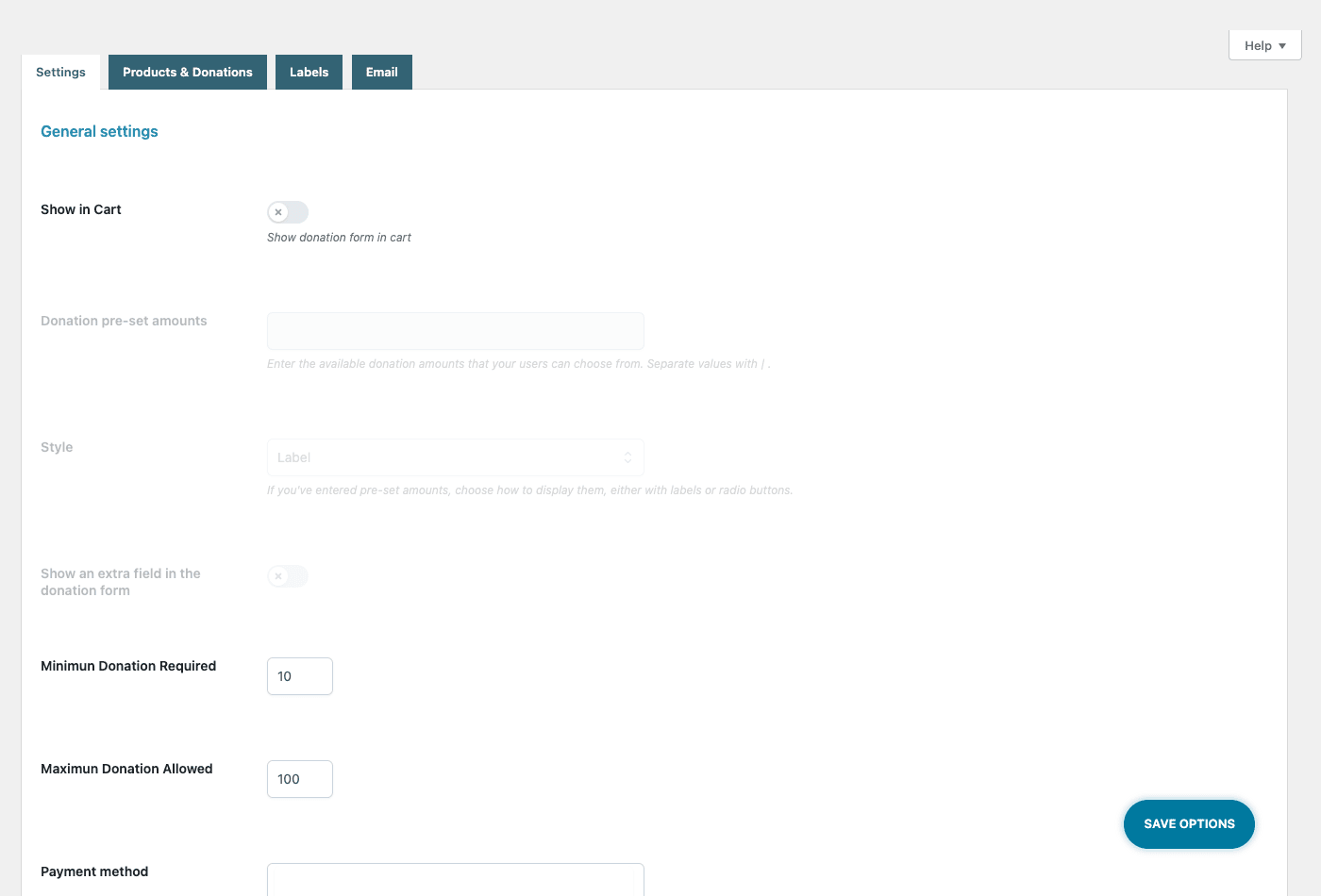
Step 1: You turn the form on. Under the YITH Donations panel, the Settings tab has a Show in Cart toggle. Flip it, and the donation form renders on the WooCommerce cart page. (Installation is the usual WooCommerce drill: upload the plugin, activate it, and the YITH menu appears. That’s the only install note you need, so I’m not giving it its own section.)
Step 2: The shopper sees the form. On the cart, next to the order totals, a "Make a donation" form appears. It shows your preset amount buttons, a field for a custom amount, and an Add Donation button.
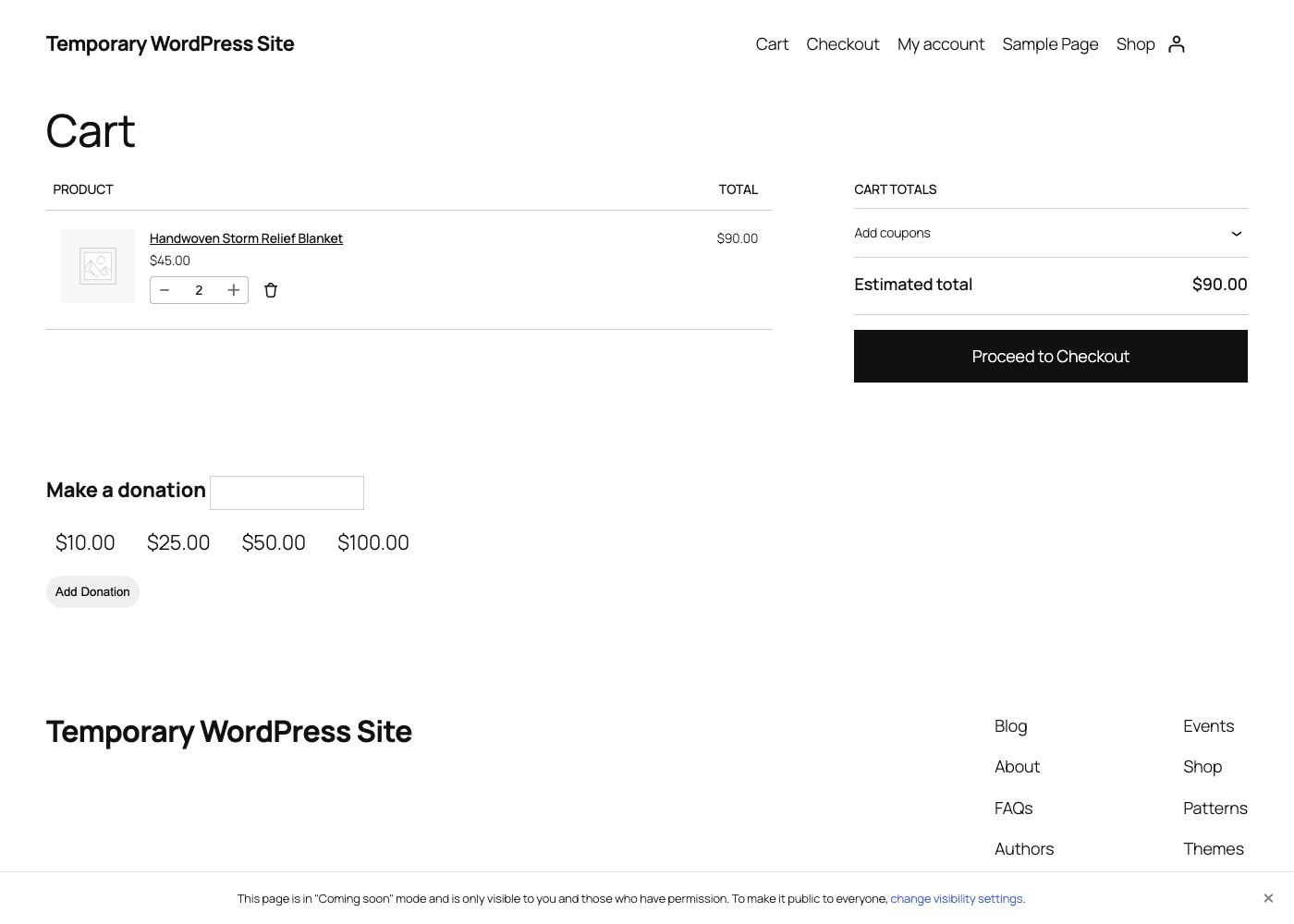
Step 3: They pick or type an amount. They tap a preset, or type their own number. If they enter something below your minimum or above your maximum, the form shows a validation message instead of accepting it. This is where your min/max settings actually bite.
Step 4: The donation joins the cart. Clicking Add Donation drops the gift in as a cart line. It sits alongside the products, gets a subtotal, and rolls into the order total. From here the shopper just checks out normally.
Step 5: They pay through the normal checkout. No separate gateway, no second transaction. Whatever processes your orders (Stripe, PayPal, whatever you’ve configured) processes the donation too, because to WooCommerce it’s just another line.
Step 6: The receipt email fires. If you’ve enabled it, the donor gets a thank-you email confirming the gift. We’ll customize that below.
You might be wondering whether the donation gets tangled up with shipping or product-specific rules. It’s a cart line, so it behaves like one. That’s mostly a convenience and occasionally a gotcha, which I’ll flag in the gotchas section.
Setting amounts, minimums, and style
The Settings tab is where you’ll spend the most time, and it’s small enough to walk through completely.
Show in Cart. The master switch for the cart form. On means the "Make a donation" form renders on the cart page. Off means you place the form yourself with a shortcode, widget, or block, and the cart stays clean. Most stores leave this on.
Donation pre-set amounts. This is your suggested-amount ladder. You enter the values separated by a pipe character, like 10|25|50|100, and each becomes a button in the form. Tip: anchor low. The first amount a person sees sets their reference point, and a ladder that starts at 50 quietly tells small givers they don’t belong. A 5 / 10 / 25 / 50 ladder pulls in more total donors than 25 / 50 / 100 / 250, even though the big numbers look more ambitious.
Style. You choose how the presets render, as plain labels or as radio buttons. It’s cosmetic, but radio buttons read as "pick one" while labels read as "tap to add", so test which one your audience clicks more.
Show an extra field in the donation form. A toggle to surface an additional field in the form. Handy if you want to capture a short note or dedication alongside the gift.
Minimum Donation Required. The floor for a single donation, default 10. I cannot stress enough that the default is usually too high. Lower it to 1, or even 0 if you want to accept any amount. More on why in the anti-patterns section, because this single number does more damage than any other setting.
Maximum Donation Allowed. The ceiling, default 100. The max exists mostly as a guardrail against typos and fraud. Set it high enough that a generous donor isn’t blocked. If a major donor wants to give 500 and the form refuses, you’ve insulted the exact person you most wanted to keep.
Payment method. Configure how the donation is processed within the WooCommerce checkout flow.
Those are the core behavior settings. Lower on the same tab there’s also a Button settings group (the donation button’s text, style, typography, and text and background colors, including hover states) so the form matches your theme. Notice what isn’t here: no goal tracker, no campaign field, no donor account. The Settings tab is deliberately spare, which is the whole personality of this plugin.
Per-product and compulsory donations
This is the feature that separates YITH Donations from a plain pay-what-you-want product, and it’s the one I’d reach for in a real campaign.
Under the Products & Donations tab, you add specific products and attach donation behavior to each. There are two controls per product: View Donation (show the donation option on that product) and Compulsory Donation (force the donation when that product is bought). The list is empty by default, so nothing is compulsory until you say so.
Optional per-product donations are the gentle version. A shopper viewing your charity hoodie sees a donation prompt tied to that product. They can add to it or ignore it. Low pressure, fully transparent.
Compulsory donations are the strong version, and they’re how you turn a normal SKU into a cause-marketing product. Picture a "Relief Fund Blanket" where every sale automatically adds a 5 dollar donation. The buyer can’t opt out, because the donation is part of what the product is. Used honestly, this is powerful. Used quietly, it’s a refund magnet.
Heads-up: compulsory means the charge happens whether or not the buyer noticed. If a shopper sees an unexplained extra line at checkout, you don’t get goodwill, you get an abandoned cart or a chargeback. The fix is disclosure, not stealth. Say "5 dollars of every blanket funds disaster relief" on the product page itself, loudly, so the donation reads as a feature and not a surprise fee. I’ll come back to this, because it’s the single easiest way to torch donor trust.
There’s no per-product screenshot here because the list starts empty and a demo store has nothing to show. The behavior is what matters: optional for soft prompts, compulsory for built-in cause pricing, and disclosure either way.
Customizing the labels and the thank-you email
Two tabs handle everything your donors actually read: Labels and Email. Get these right and the feature feels intentional. Skip them and it feels like a stray plugin nobody configured.
Labels
The Labels tab controls the customer-facing strings. The main one is "Message attached to your donation", which defaults to "Make a donation" and is the heading on the form. There’s a "Thank you message" (default "Thanks for your donation") shown after a gift is added. And there’s a set of validation strings: "Please enter amount", "Please enter a valid value", and "Please enter a number greater than 0".
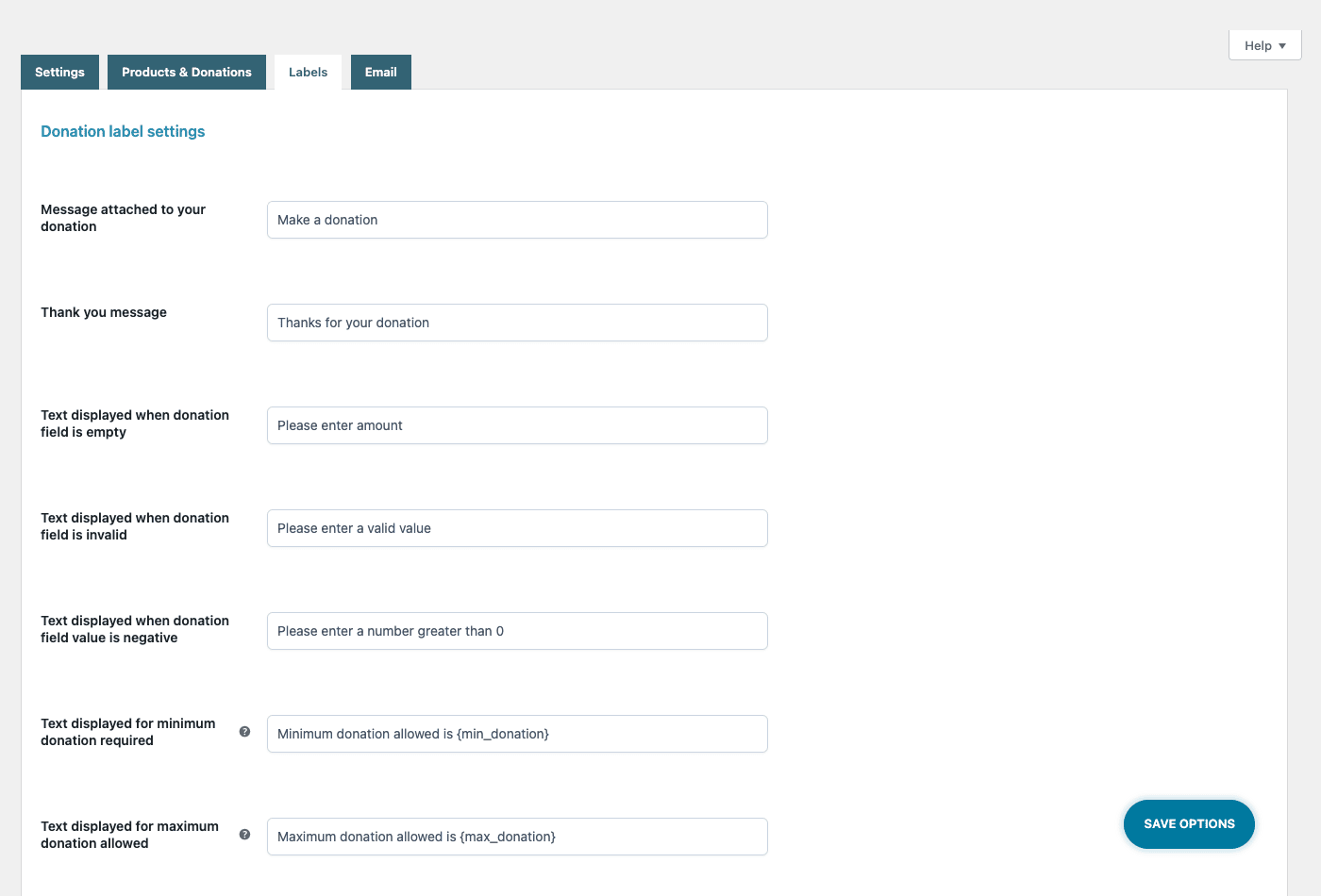
Two of the validation strings use merge tags, {min_donation} and {max_donation}, so your "minimum is X" and "maximum is Y" messages stay accurate even if you change the numbers later. Use them. A hardcoded "minimum is 10" message that contradicts your actual 1 dollar floor is the kind of small inconsistency that makes a site feel sloppy.
Rewrite the form heading to match your cause. "Make a donation" is generic. "Help us feed 40 cats this winter" is a reason to click. The label is free copy real estate, and most stores leave the default in place, which is a missed opportunity.
The thank-you email
The Email tab is the donation receipt, and for a lot of givers this is the most important part of the whole flow.
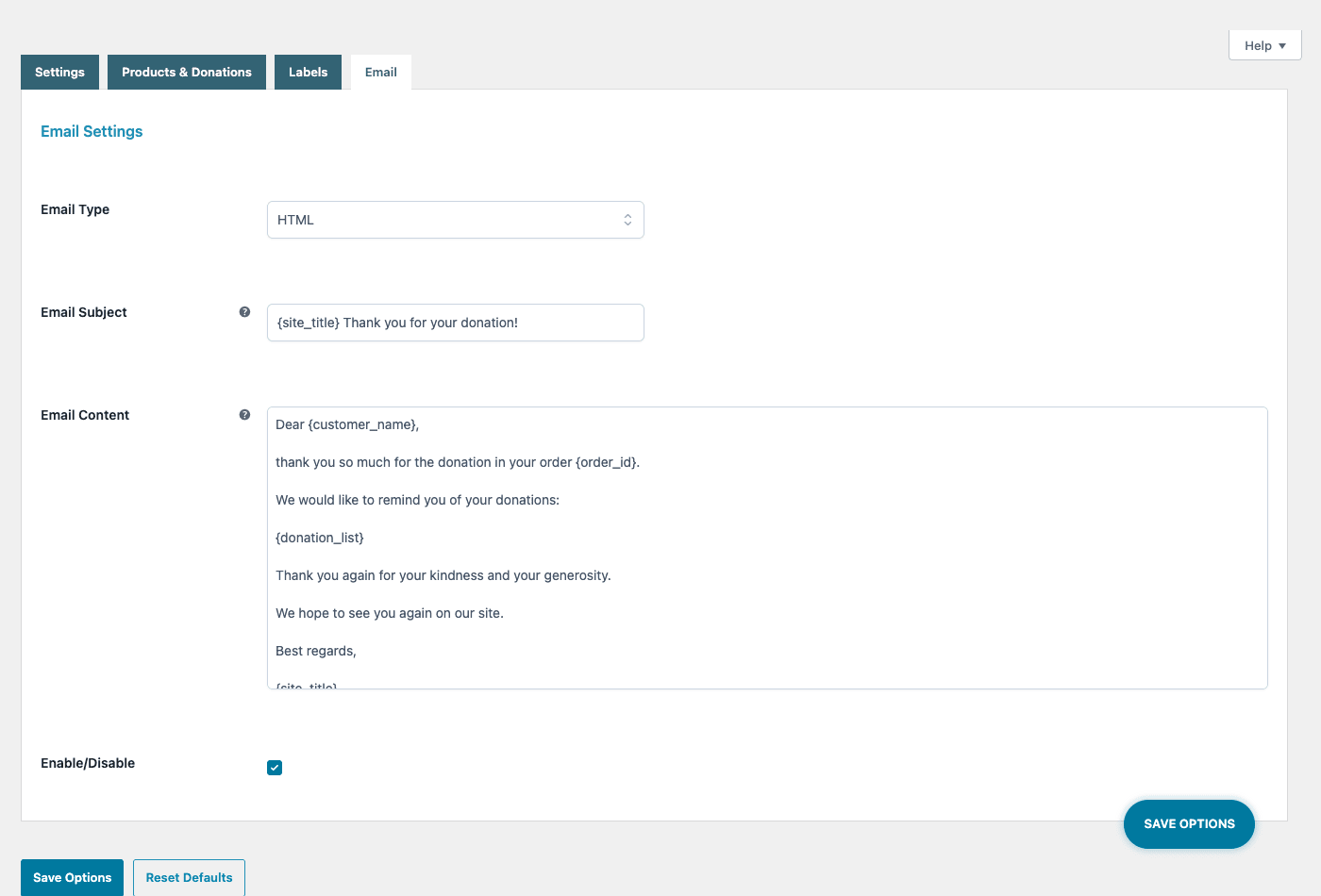
You can enable or disable the email, set the type (HTML), and edit both the subject and the content. The subject defaults to "{site_title} Thank you for your donation!" and the content supports three merge tags: {customer_name}, {order_id}, and {donation_list}. That last one prints the actual donation(s) from the order, so the donor sees exactly what they gave.
Tip: treat this email as a receipt and a relationship, not a system notification. Thank the person by name with {customer_name}, tell them what their gift does in one concrete sentence, and include the {order_id} so they have a reference. For donors who need an acknowledgment for tax purposes, this email is often the document they keep. A blank or disabled receipt is the most common own-goal I see, and it’s a one-toggle fix.
Real-world use cases
The plugin is simple, so its value lives in how you frame the ask. Here are scenarios where it earns its place, written as the people who’d actually use it.
If you run an animal shelter’s merch store, turn the cart form on with a low floor and a heading like "Add a meal for a rescue". Your tote-and-pin buyers are already sympathetic. The donation form lets the ones who feel generous act on it in the same checkout, instead of hunting for a separate donate page that most of them will never find.
For a disaster-relief campaign, the per-product compulsory mode is the move. Create a "Relief Fund" product line where a fixed donation is baked into every sale, disclose it clearly on each product page, and let the receipt email confirm exactly where the money went. The buyer gets a tangible item and a clean acknowledgment, you get reliable per-unit funding.
If you run a small museum or theater shop, use optional per-product donations on your highest-traffic items. A patron buying a poster sees a gentle "support the season" prompt tied to that product. No pressure, but the option is right there at the moment of goodwill.
For a school PTA or club store, the cart form plus a custom dedication field (the extra-field toggle) lets parents add a gift and note it’s "for the 5th grade trip". Small, local, and the dedication makes the giving feel personal.
If you run a creator or indie-software shop, this is your tip jar. Set a low floor, drop the form on the cart, and let happy customers throw in a few dollars on top of a paid download. It pairs naturally with the "add value at the cart" pattern you’ll also see in WooCommerce Smart Coupons, just pointed the other direction.
The thread running through all of these: you already have buyers, and you’re giving the warm ones a place to give.
Don’t make these donation mistakes
I’ve watched stores quietly sabotage their own giving with settings that looked reasonable. Don’t do these.
Don’t set the minimum so high it scares off small givers. The default minimum is 10, and that number does real damage. A huge share of impulse, goodwill giving lives in the 5 dollar range, the "sure, why not" tier. Put a 25 dollar floor on an "add a donation" prompt and you don’t collect bigger gifts, you collect fewer of them, because the small givers bounce and the big givers were rare to begin with. Set the floor to 1, or 0 if your gateway allows it, unless you have a specific reason not to.
Don’t make a donation compulsory without disclosing it loudly. The per-product compulsory toggle forces a charge when a product is bought. If a shopper hits checkout and sees an extra line they never agreed to, you get abandoned carts and chargebacks, not gratitude. Money taken quietly reads as a scam even when the cause is real. If you bake a donation into a product, say so on the product page, in plain language, before the cart.
Don’t mishandle the tax and accounting status of donations. A donation paid through WooCommerce is, by default, just another cart line. It can land in your taxable sales and show up as product revenue in your reports. For a real charity that needs clean books or tax-deductible receipts, that’s a problem you want solved before launch, not discovered at year end by an accountant. Decide how donations are taxed and recorded first.
Don’t skip the receipt email. A silent donation feels like money that vanished. Donors expect acknowledgment, and tax-deductible giving often requires it. Enable the email, personalize it, and send it. It costs one toggle and buys real trust.
YITH Donations vs a dedicated donation platform
This is the comparison that decides whether you should even use this plugin, so let’s be specific. The three options most stores weigh are YITH Donations, a dedicated platform like GiveWP, and a plain "Name Your Price" donation product.
| Option | Best for | What you get |
|---|---|---|
| YITH Donations for WooCommerce | Stores already selling products | Cart donation form, 2 shortcodes, preset ladder plus custom amount, a default 10-to-100 min/max range, per-product compulsory giving, a receipt email, Aelia multi-currency |
| GiveWP (dedicated platform) | Pure nonprofits, standalone fundraising | Dedicated donation forms, multiple gateways, donor management, recurring giving, campaign goals and reporting (heavier, separate from your store) |
| "Name Your Price" donation product | Bare-minimum, one-off | A single pay-what-you-want product, no presets, no min/max UX, no receipt email, no per-product logic |
Here’s the honest framing. YITH Donations is a lightweight add-on for a store that already sells things. It gives you a giving moment inside the cart and checkout you already run, with about 2 shortcodes of developer surface and a tidy set of presets. It is not trying to be a fundraising platform, and you shouldn’t ask it to be one.
GiveWP is the dedicated platform. It runs its own donation forms, supports multiple payment gateways side by side, manages donors as records, handles recurring giving, and tracks campaign progress with goals and reports. That’s the right tool if fundraising is your primary business and product sales are secondary or nonexistent. It’s also heavier to run, and it’s a separate system from your WooCommerce store. (GiveWP isn’t sold here, so this is a text comparison, not a recommendation to buy it from us.)
A "Name Your Price" product is the floor. One pay-what-you-want SKU, zero giving UX. No preset ladder, no enforced min/max with friendly validation strings, no automatic receipt email, no compulsory per-product logic. It works, barely, and it shows.
Put the surfaces side by side and the gap is concrete. YITH Donations gives you a preset ladder (say $10 / $25 / $50 / $100), a default $10 to $100 range, and 2 shortcodes of surface, all riding on the WooCommerce checkout you already run, with no second gateway to wire up. GiveWP brings its own forms, donor records, and a recurring engine: more power, and more to maintain.
On cost: YITH Donations is a yearly premium license from YITH, while the GPL copy on GPL Times gives you the same plugin without the recurring vendor fee. GiveWP’s core is free with paid add-ons stacking from there, which is how a "free" donation platform quietly becomes the most expensive option once you need recurring giving and gateway fees. Pick based on whether you’re a store that wants to accept gifts (YITH) or an organization whose entire job is fundraising (GiveWP).
Developer reference
I’ll be straight with you: the developer surface here is small, and I’m not going to pad it to look bigger. There are no custom post types (a donation is recorded on the WooCommerce order itself, as a line item plus order meta like _ywcds_order_has_donation, not as a separate post type), no REST API, and no WP-CLI commands. What you get is a focused set of filters and actions, two shortcodes, and a few placement options. For a plugin this scoped, that’s appropriate.
Shortcodes, widgets, and blocks
There are exactly two shortcodes:
[yith_wcds_donations]renders the donation form.[yith_wcds_donations_summary]renders a donations summary.
Beyond shortcodes, you can place the form with the bundled Donations Form Widget (YITH_Donations_Form_Widget) and Donations Summary Widget (YITH_Donations_Summary_Widget), an Elementor widget, and a Gutenberg block. So whether your site is classic widgets, Elementor, or the block editor, there’s a native way to drop the form in without touching a template. If you’re new to placing functionality with shortcodes, the WordPress shortcode documentation is the canonical reference.
Filters
The plugin exposes a handful of filters. These are the verified ones with realistic uses.
Raise the donation ceiling for a major-donor campaign:
add_filter( 'ywcds_get_maximum_donation', function( $max ) {
    return 1000;
} );
Drop the floor so any amount is welcome:
add_filter( 'ywcds_get_minimum_donation', function( $min ) {
    return 1;
} );
Filter each preset donation amount before it is shown in the form. This runs per preset button as it renders (it does not change what a donor types or what is finally charged), so it is handy for generating or rounding the suggested values programmatically:
add_filter( 'ywcds_get_donation_amount', function( $value ) {
    return round( (float) $value ); // tidy each suggested preset for display
} );
Customize the donation label shown for a specific product:
add_filter( 'ywcds_get_product_donation_title', function( $donation_name, $product ) {
    if ( $product && $product->get_id() === 42 ) {
        return 'Add a meal for a rescue';
    }
    return $donation_name;
}, 10, 2 );
Redirect the shopper after a donation is added to the cart, instead of staying put:
add_filter( 'ywcds_redirect_after_add_to_cart_url', function( $url ) {
    return wc_get_checkout_url();
} );
Suppress the success message if you’d rather handle confirmation yourself:
add_filter( 'ywcds_show_success_message', function( $show ) {
    return false;
} );
Tweak the donation cart-item data as it’s added:
add_filter( 'ywcds_add_cart_item_data', function( $cart_item ) {
    // inspect or modify the donation cart-item data here
    return $cart_item;
} );
Filter the donation email settings before the receipt is sent:
add_filter( 'ywcds_mail_settings', function( $mail ) {
    // adjust the donation email settings here
    return $mail;
} );
A few more filters exist (ywcds_view_cart_title, ywcds_cart_url, ywcds_amount_from_session, ywcds_init_messages, ywcds_redirect_if_successful), but grep the source for the exact signature before you wire into them, because I’m only giving code for the ones whose arguments I’ve verified.
Actions
There are two action hooks worth knowing, both with no arguments:
Add content right after the amount field in the form:
add_action( 'ywcds_after_donation_amount', function() {
    echo '<p class="donation-note">Every dollar goes straight to the shelter.</p>';
} );
And the widget equivalent, after the widget’s amount field:
add_action( 'ywcds_after_widget_amount_field', function() {
    echo '<p class="donation-note">Thank you for chipping in.</p>';
} );
Multi-currency
If you run the Aelia Currency Switcher, the plugin’s Aelia module (YITH_Donations_Aelia_Module) means donations respect the active currency rather than being stuck in your base currency. For a store that sells internationally, that’s the difference between a euro donor seeing euros and seeing a confusing dollar figure.
That’s the full developer story. Small, predictable, and enough to retitle, reprice, redirect, and decorate the form. If you came hoping for a donor API or CLI tooling, this isn’t that plugin, and the comparison section above tells you what is.
Performance, compatibility, and gotchas
Because the donation is just a cart line, the performance footprint is light. There’s no heavy donor database querying on every page load, no separate fundraising engine running in the background. The form renders on the cart, and the rest is standard WooCommerce.
A few things to watch.
It needs WooCommerce, full stop. This is a WooCommerce extension. No WooCommerce, no donation form. It’s built against current WooCommerce, so keep your store updated.
Donations behave like cart lines, for better and worse. That’s the convenience and the gotcha. Shipping logic, cart-based discounts, and tax rules can all touch a donation line because WooCommerce treats it like any other item. Test a real checkout and confirm a donation doesn’t accidentally trigger a shipping fee or get swept up in a coupon. This is the single most common surprise.
Tax and reporting need a deliberate decision. As covered above, a donation can land in taxable sales and product revenue by default. Configure tax handling for the donation explicitly, and know that your sales reports will include donation money unless you separate it.
Theme styling varies. The cart form inherits your theme’s styles, and on a heavily customized cart template it might need a little CSS love to sit nicely next to the totals. The ywcds_after_donation_amount action and standard CSS will get you there.
Compulsory donations and refunds. If you force a donation on a product and the buyer refunds the product, decide upfront how the donation portion is handled. Refund policy on baked-in donations is a real edge case, especially for charities.
Pricing and licensing
YITH sells this as a premium plugin on a yearly license, the standard YITH model where your purchase covers updates and support for the license term, then renews. That’s fine if you want vendor support and don’t mind the recurring cost.
The GPL copy of YITH Donations for WooCommerce on GPL Times is the same plugin under its GPL license, without the recurring vendor fee. You get the full premium feature set: the cart form, per-product and compulsory donations, the receipt email, the shortcodes and blocks, and Aelia multi-currency. For a small charity or a side-project store where every dollar matters (which is rather the point of a donations plugin), keeping more of your budget out of recurring software fees is an easy call.
If you’re outfitting a whole YITH-powered store, it pairs naturally with siblings like YITH WooCommerce Frequently Bought Together for the merch side of the same shop.
FAQ
Can I collect donations without selling any products?
Technically yes, but it’s not what this is for. The donation form lives in the cart and checkout, so a visitor still goes through a WooCommerce order to give. If you have no products and your entire goal is fundraising, a dedicated platform like GiveWP fits better. YITH Donations shines when there’s already a store and you want a giving layer on top of it.
Does it support recurring or monthly donations?
No, and this is the most important trade-off to understand. This plugin handles one-time gifts added to a cart. There’s no subscription engine for monthly giving. If recurring donations are central to your model, you need a dedicated donation platform or a subscriptions setup, not this. For one-off "add a donation" moments, it’s exactly right.
Are donations tax-deductible, and does the plugin issue tax receipts?
The plugin sends a customizable thank-you email with the donor name, order id, and donation list, which many donors keep as their record. But whether a gift is actually tax-deductible depends on your organization’s legal status, not the plugin, and the email is not a formal compliant tax receipt out of the box. Talk to your accountant about what your receipts must contain, then build the email content to match.
What’s the difference between optional and compulsory donations?
An optional donation is a prompt the shopper can take or ignore. A compulsory donation (set per product) is forced when that product is bought, so it always adds to the order. Compulsory is great for cause-marketing products where a fixed gift is baked into the price, but only if you disclose it clearly on the product page. Forcing an undisclosed charge invites refunds and chargebacks.
Can shoppers enter any amount, or only the presets?
Both. The preset buttons (you define them, like 10 / 25 / 50 / 100) are suggestions, and there’s a custom-amount field for any other number, subject to your minimum and maximum. The defaults are a 10 minimum and a 100 maximum, both of which you should review before launch.
Will the donation mess up my shipping or tax calculations?
It can, because the donation is a standard cart line and WooCommerce treats it like one. Run a real test checkout and confirm the donation doesn’t trigger a shipping charge or get pulled into a tax bracket or coupon you didn’t intend. This is the most common gotcha, and it’s easy to catch with one test order.
How is it different from GiveWP?
GiveWP is a dedicated fundraising platform with its own donation forms, donor management, recurring giving, multiple gateways, and campaign reporting. YITH Donations is a lightweight add-on (roughly 2 shortcodes of surface) that adds a gift to an existing WooCommerce cart. Use YITH if you run a store and want donations alongside sales. Use GiveWP if fundraising is the whole point and product sales are not.
Can I place the donation form somewhere other than the cart?
Yes. Use the [yith_wcds_donations] shortcode, the Donations Form Widget, the Elementor widget, or the Gutenberg block to put the form on any page, sidebar, or layout. The "Show in Cart" toggle is just the quickest default placement.
Does it work with multiple currencies?
Yes, if you use the Aelia Currency Switcher. The plugin’s Aelia module makes donations respect the shopper’s active currency rather than locking everything to your base currency. Without Aelia, donations use your store’s single currency like any other line item.
Is the GPL version the same plugin as buying from YITH?
Yes, it’s the same premium plugin under its GPL license, with the same features. The difference is delivery and cost, not capability. You manage your own updates rather than getting them pushed from the vendor, which is a reasonable trade for skipping the yearly renewal on a tool whose whole job is helping you keep more money.
Final thoughts
YITH Donations for WooCommerce does one thing, and I respect a plugin that knows its lane. It puts a giving moment exactly where the goodwill already is, inside a cart someone is already paying through, and then it gets out of the way. The per-product compulsory mode quietly turns it into a cause-marketing tool, the receipt email closes the loop with donors, and the small developer surface means nothing surprising is happening under the hood.
It is not a fundraising platform, and if you treat it like one you’ll be disappointed. No recurring giving, no donor CRM, no campaign goals. But that’s a feature, not a flaw, for the store that already sells and just wants to let warm visitors give.
If you run a WooCommerce store with a cause behind it, a low floor, an honest label, a configured receipt, and one test checkout are all that stand between you and accepting your first donation this week. The YITH Donations plugin on GPL Times is the most direct way to add that giving moment without sending your fundraising budget back to a software vendor every year, which feels like the right priority for a tool built to raise money for something that matters.