

I used to think manage_options was just the "let this user see the Settings menu" capability. So when a client asked me to give their content lead access to the Yoast SEO panel, I duplicated the Editor role, added manage_options, and felt clever about it. Three weeks later that account "updated" what looked like a routine plugin notice on the dashboard, and the site dropped a redirect entire categories had been relying on. We lost about a third of organic sessions for ten days while I untangled it.
The mistake was that manage_options doesn’t open one settings page. It opens every settings page on the site, which on a typical WordPress install means roughly fifty admin URLs, all the way down to "deactivate any plugin you feel like." That is the kind of thing User Role Editor Pro is built to prevent. Not the WordPress role system, exactly, but the operational mistakes around it.
This is a long walk through what User Role Editor Pro actually does, where it earns its place over the free version on the .org repo, and the developer side that nobody screenshots in marketing copy. Whether you run a single-site store or a Multisite network with twenty editors, by the end you’ll know what every panel does and what code to write when you want to extend it. If you want a working copy to poke at while reading, User Role Editor Pro is on GPL Times as a regular zip you can drop on a staging install.
Table of Contents
- What is User Role Editor Pro?
- The capability model WordPress actually uses (and why it’s footgun-ish)
- Key features that matter in practice
- Installation and setup
- A tour of the role editor
- Per-post and per-page view restrictions
- Per-post edit access (who can edit what)
- Hiding admin menus per role
- Plugins access per role
- Other Roles: secondary role stacking on a single user
- Front-end menu visibility
- Multisite: pushing role config to new sub-sites
- Importing and exporting role config between sites
- Real-world setups I’ve shipped
- Anti-pattern: don’t grant manage_options to non-admins
- Developer reference: hooks, filters, and the shortcode
- User Role Editor Pro vs Members vs Capability Manager Enhanced vs PublishPress Capabilities
- Performance, compatibility, and gotchas
- Pricing and licensing
- FAQ
- Final thoughts
What is User Role Editor Pro?
User Role Editor Pro is a WordPress plugin from Vladimir Garagulia (role-editor.com) that lets you edit, add, rename, and delete WordPress roles, edit per-role and per-user capabilities, and restrict access to admin menus, plugins, posts, pages, widgets, and Gravity Forms forms on a role-by-role basis. The free version (just "User Role Editor", available on the .org repo) handles the role and capability editing. The Pro version is where the access-restriction modules live.
A few things worth knowing up front. URE Pro replaces the free version, so you don’t run both. There’s no Requires Plugins: header, no upstream dependency. It’s a standalone plugin file you activate, drop a license key into, and that’s the install. Last time I checked there are around 80,000 active installs of the free build on .org and the Pro side has been actively maintained since 2010, which is a long time for a niche plugin.
The plugin lives in two places in the admin: Users -> User Role Editor (the actual editor) and Settings -> User Role Editor (configuration). That two-page split confuses people the first time, because they go to Users, see only "All Users" / "Add New User", and assume the plugin isn’t installed. It is. URE registers the editor as a submenu of Users, but only for accounts that have the ure_edit_roles capability. By default that’s just Administrator, which is fine, but worth knowing if you’re trying to grant a non-admin access to manage roles.
The capability model WordPress actually uses (and why it’s footgun-ish)
WordPress doesn’t have "roles" the way most CMS frameworks do. It has capabilities. A role is just a named bundle of capabilities. When you call current_user_can('edit_posts'), WordPress looks up the current user’s role, expands it to its capability list, and checks if the string edit_posts is in the list. That is the entire authorization model.
There are about 65 capabilities defined by core WordPress. They group roughly into:
- Posts:
edit_posts,edit_published_posts,edit_others_posts,delete_posts,publish_posts,read_private_posts, and the per-type variants. - Pages: same shape, with
_pagessuffix. - Users:
list_users,create_users,edit_users,delete_users,promote_users,remove_users. - Plugins / Themes:
activate_plugins,install_plugins,delete_plugins,update_plugins,edit_plugins, plus the theme variants. - The big ones:
manage_options,unfiltered_html,edit_dashboard,update_core,export,import.
The footgun is that these capabilities don’t compose the way people expect. manage_options doesn’t grant "access to one settings page", it grants the right to see the entire Settings menu and most things that hook into it. unfiltered_html doesn’t add "allow this user to post a YouTube embed", it disables the kses HTML sanitizer for that user, meaning they can paste a <script> tag and it’ll execute. edit_others_posts makes the user an Editor in everything but name on the post side, even if you didn’t intend to.
WordPress also lets plugins register their own capabilities, and most do. WooCommerce alone defines around 40 manage_woocommerce, edit_shop_order_*, and similar. Yoast SEO Premium adds wpseo_manage_options. Gravity Forms maps the whole admin behind gravityforms_* caps. By the time you’ve installed five plugins on a real site, the capability list per role is over 150 entries, and there’s no UI in WordPress core to even look at it.
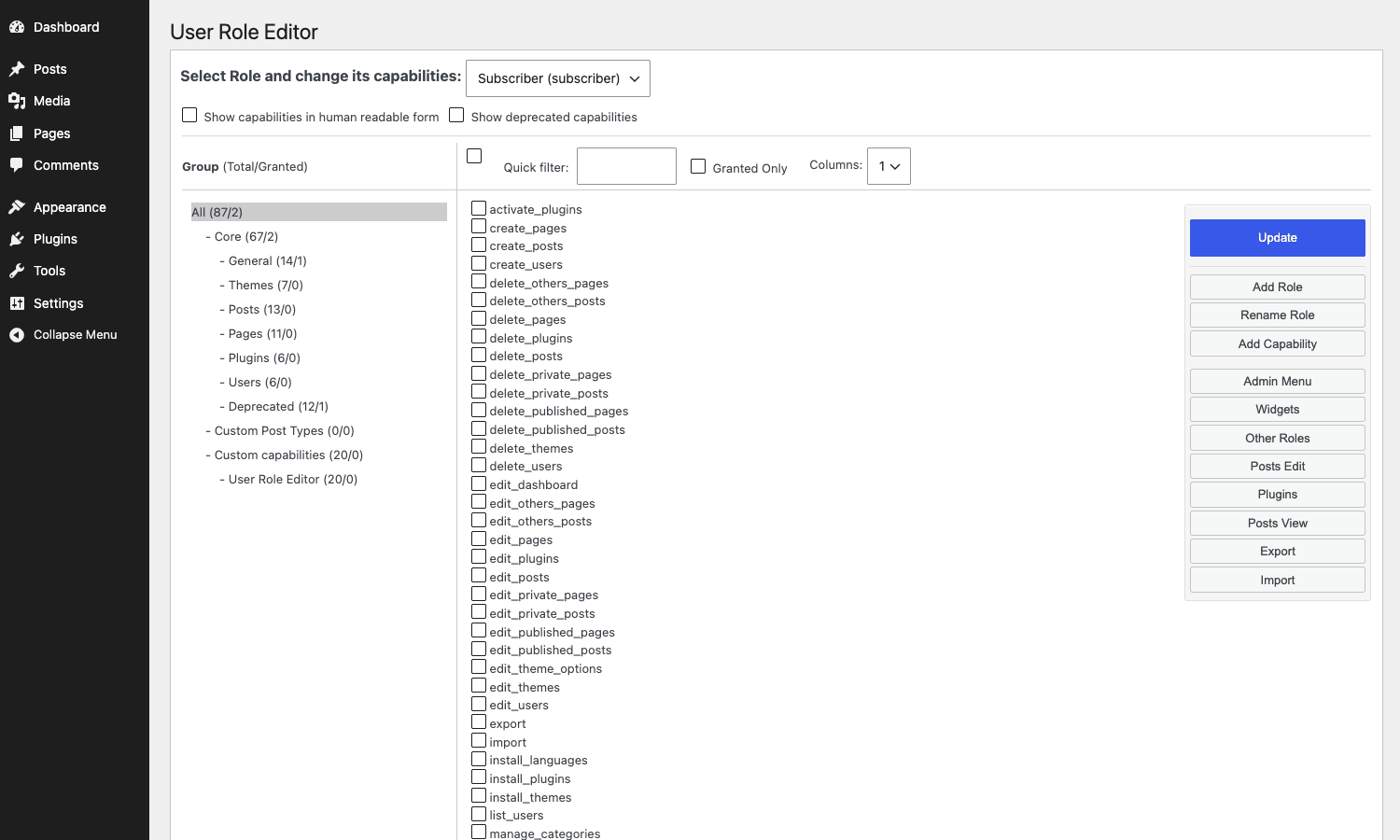
That’s the gap User Role Editor fills, even before you get to the Pro features. It shows you the actual capability grid for every role on the site, grouped sensibly, with a "human readable" toggle that turns edit_others_pages into "Edit Others Pages". For developers that toggle is annoying. For non-technical admins it’s the difference between "I don’t know what this does" and "I do."
Key features that matter in practice
The Pro module list is long. Here’s what actually moves the needle on a real site, in roughly the order people use it.
- Edit role capabilities directly. Toggle on/off any capability in any role. The free version does this too, but Pro adds the read-only Administrator view and the per-user override.
- Per-user capability override. Bump one specific user above their role without making a brand-new role just for them. Useful for the one freelancer who needs media library access but nothing else.
- Add custom capabilities. Define new capabilities (
manage_team_announcements, say) and assign them to roles. Plugin code can then checkcurrent_user_can('manage_team_announcements')and grant access without you touching the role list at all. - Per-post view restrictions. Specific posts, pages, categories, tags, authors, page templates, or custom post types can be hidden from selected roles entirely. Return 404, redirect, or show a message.
- Per-post edit restrictions. A user can edit only the posts they own, only posts in certain categories, only posts authored by certain other users, or any combination.
- Admin menu access. Hide individual menu items or submenu items from selected roles. The classic use case: hide Plugins and Themes from Editor so the new content lead can’t accidentally deactivate Yoast.
- Plugins access. Restrict which plugins a role can see in Plugins -> Installed Plugins, can activate, or can configure. This is more granular than
activate_pluginson/off. - Widgets access. Hide individual widgets in Appearance -> Widgets per role.
- Other Roles access. Block a role from assigning users to specific other roles. A "Shop Manager" should not be able to promote anyone to "Administrator."
- Front-end menu visibility. Show different items in a WordPress nav menu based on the visitor’s role.
- Gravity Forms access. Pick which Gravity Forms entries / forms a role can see.
- Network-wide replication. On Multisite, copy a role config from the main blog to new sub-sites when they’re created.
- Import / export. Save a role’s full configuration (caps, restrictions, admin menu, plugin access) to a file and apply it to another site.
Most of these are off by default until you activate them under Settings -> User Role Editor -> Additional Modules. That’s deliberate. URE Pro doesn’t want to slow your admin down with code paths you’re not using.

Installation and setup
Upload the plugin zip to wp-admin/plugins.php -> Add New -> Upload Plugin, activate, then go to Settings -> User Role Editor. Drop your license key in the field on the General tab. Hit Save.
The first decisions you’ll make:
- Show capabilities in the human readable form? Off for developers, on for everyone else.
- Confirm role update? Leave it on. Saves you from a mis-click that drops a capability from Editor.
- Edit user capabilities? This is the big one. With this off, you can only edit roles, not per-user overrides. With it on, you get the "per-user" capabilities view, which is powerful but can lead to a sprawl of one-off user permissions if you’re not disciplined.
- Show Administrator role at User Role Editor? Off by default, and I’d leave it off. There’s almost no good reason to edit the Administrator role itself. If you need a "near-admin" role, duplicate Editor and add caps to it, don’t subtract from Administrator.
Then jump to Additional Modules and turn on the modules you actually plan to use. I usually start with Admin Menu Access (to hide menus from non-admins), Other Roles Access (so Editor can’t promote a Subscriber to Administrator), and one or both of the per-post modules if the site has any view/edit gating.
Save, then head to Users -> User Role Editor to start editing.
A tour of the role editor
The role editor is the central UI. Open it, pick a role from the Select Role dropdown at the top, and you’ll see the full capability grid for that role.
What’s on screen:
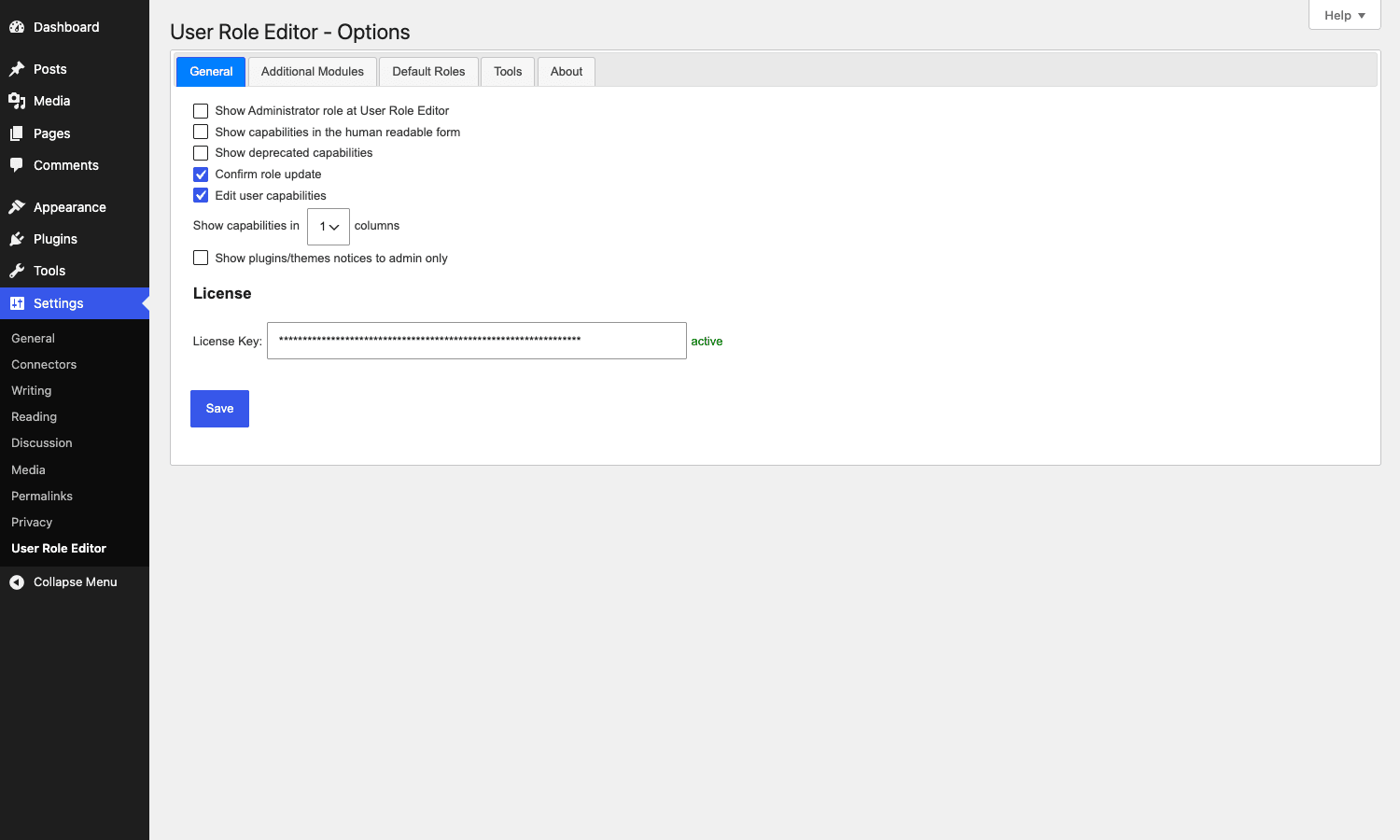
- Group sidebar on the left: Core, General, Themes, Posts, Pages, Plugins, Users, Deprecated, Custom Post Types, Custom capabilities, User Role Editor (the URE-specific capabilities themselves).
- Capability checkboxes in the middle. Granted caps are checked; ungranted are not. Counts per group show in the sidebar (e.g. "Core (67/2)" means 2 of 67 core caps are granted).
- Quick filter input at the top to type-search caps. Critical once a site has 150+ caps.
- Granted Only toggle. Hides all unchecked caps. The fastest way to audit "what does this role actually have?"
- Columns dropdown (1, 2, or 3). On wide screens, 3 columns lets you eyeball the whole role in one glance.
- Right toolbar with Update, Add Role, Rename Role, Add Capability, then the Pro buttons (Admin Menu, Widgets, Other Roles, Posts Edit, Plugins, Posts View), then Export and Import.
A small detail that’s easy to miss: the Pro toolbar buttons (Admin Menu, Widgets, Other Roles, Posts Edit, Plugins, Posts View) only appear after you activate the corresponding module in Settings -> Additional Modules. Until you do, the toolbar shows only the six free buttons. Took me a session to figure that out the first time.
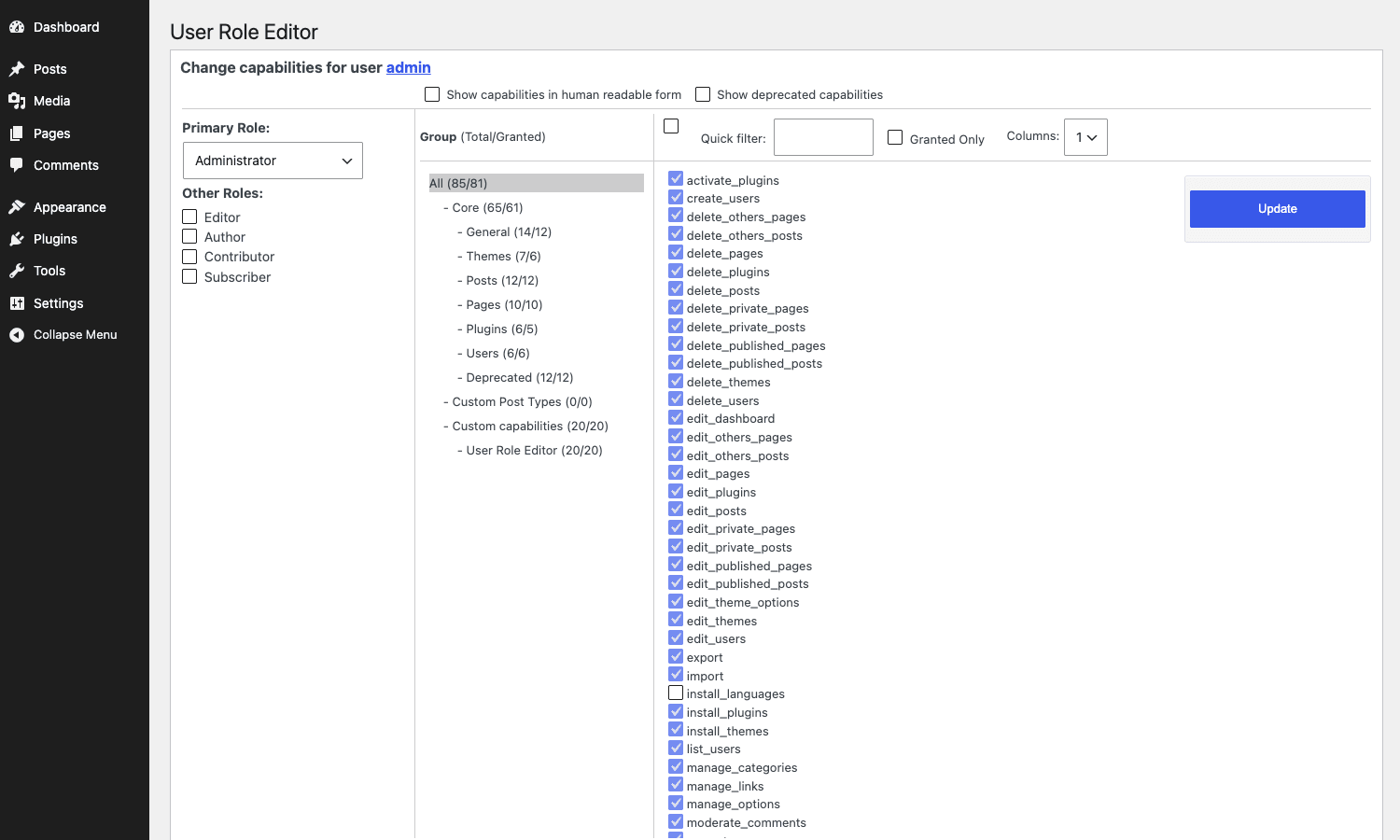
If you want to edit a single user’s capabilities instead of a role, go to Users -> All Users, hover over the user row, and click Capabilities. That opens the same UI but scoped to one user. There’s a Primary Role dropdown and a list of secondary Other Roles checkboxes at the left.
Per-post and per-page view restrictions
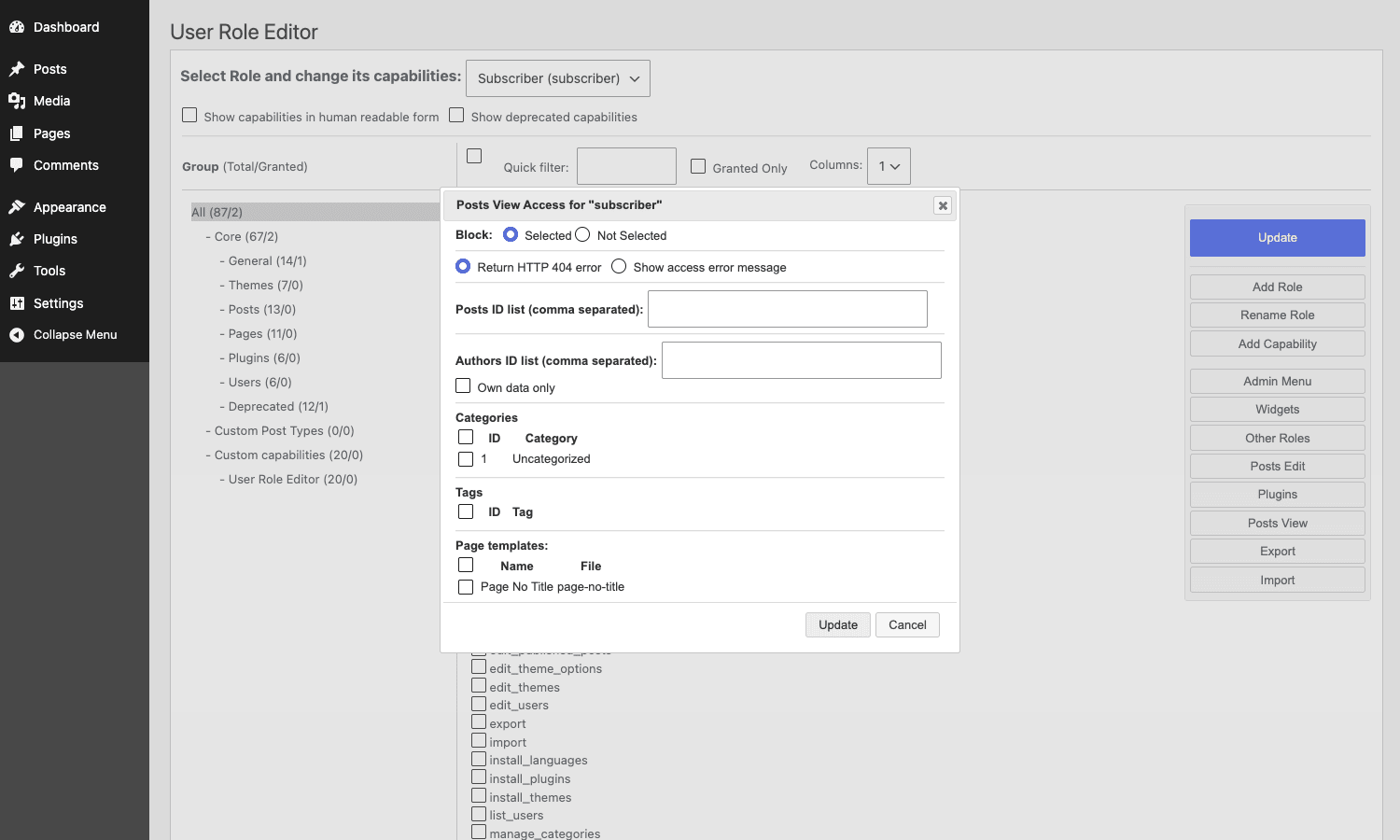
This is one of the modules I reach for the most. Out of the box, WordPress assumes all published content is public. The Content View Restrictions module flips that. You can declare: "Posts with IDs 42, 88, 144 are blocked for Subscribers" and visitors with that role will hit a 404, get redirected, or see a custom message.
The dialog opens from the role editor toolbar via the Posts View button. Inside:
- Block radio: Selected (block only the listed items) or Not Selected (block everything except the listed items, useful for a private-by-default site).
- What to do when blocked: HTTP 404 or "show a message" (the message text comes from a setting elsewhere).
- Posts ID list: comma-separated IDs.
- Authors ID list: block any post by these authors.
- Categories and Tags: tick the term to block all content tagged with it.
- Page templates: block any page using a specific template (
page-no-title.php, etc.). - Own data only: block users from seeing other users’ content. Combined with
edit_others_postsremoval, this turns a multi-author blog into one where each author only sees their own work.
The shortcode escape hatch is worth knowing. Wrap content in a [user_role_editor roles="editor,author"]...[/user_role_editor] shortcode and only users with those roles see what’s inside. It’s per-block, not per-page, which makes it useful for hiding a "Members only" CTA inside an otherwise public post.
The error action is filterable so you can redirect to a custom paywall URL instead of a flat 404. More on that in the dev section.
Per-post edit access (who can edit what)
The Posts Edit Access module is the mirror image of the view module, but for the admin side. By default WordPress capabilities are pretty coarse: a user either has edit_others_posts or they don’t. You can’t say "Editor X can edit posts in the News category but not the Press Releases category" without writing custom code.
URE Pro adds a UI for exactly that. From the role editor toolbar click Posts Edit.
- What to do: Allow or Prohibit.
- Post types: tick the types this rule applies to (Post, Page, Media, plus any custom types).
- Own data only: only the user’s own authored content.
- With post ID (comma separated): limit to specific post IDs.
- With category / taxonomy ID: limit to posts in specific categories.
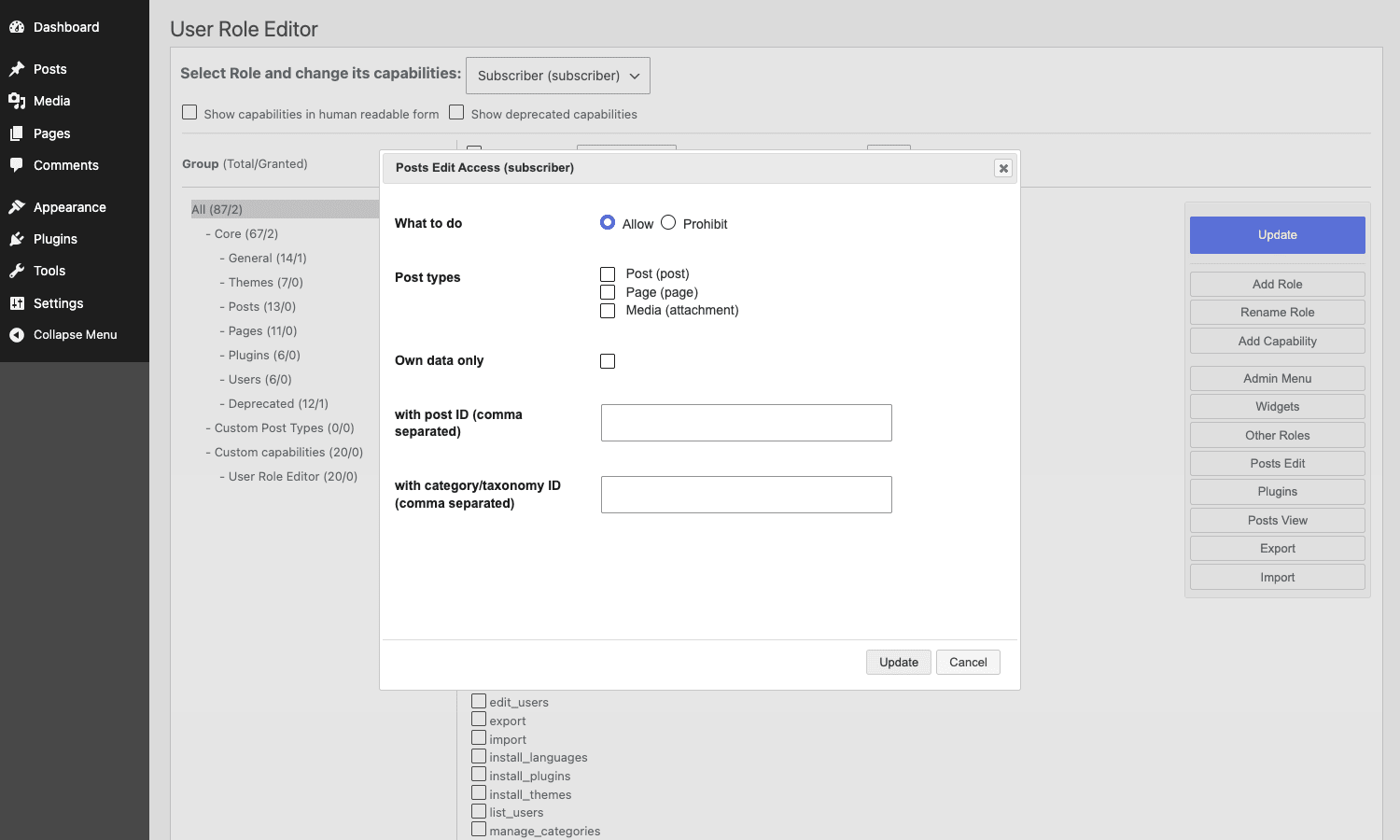
The combination most teams want is "Editor can edit posts in News and Reviews categories only." Set role to Editor, click Posts Edit, set What to do = Allow, tick Post (post type), enter the category IDs, save. Editors keep their normal edit_posts capability everywhere else, but the admin will refuse to load the editor for any post outside those categories. The posts list will also hide the rest from them.
A quirk: this module only works for post types whose capability_type resolves to post, page, or a known mapped CPT. Some plugins (notably ACF Pro for ACF UI, and Gravity Forms for form entries) define their own capability schemas that URE doesn’t intercept. We’ll get to that under gotchas.
Hiding admin menus per role
Activate the Administrator Menu Access module (the name is misleading: it controls the WP admin menu for any role, not just admins). Then in the role editor, click Admin Menu.
You’ll see a table of every menu item registered on the site. For each one: a checkbox to block, the menu label, the submenu label (for submenus), the capability WordPress uses to gate it, and the target URL. There’s a top radio to switch between "block the selected items" and "block everything except the selected items." That second mode is useful for very restricted roles: tick the four things they’re allowed to see, save, and the rest of the admin disappears.
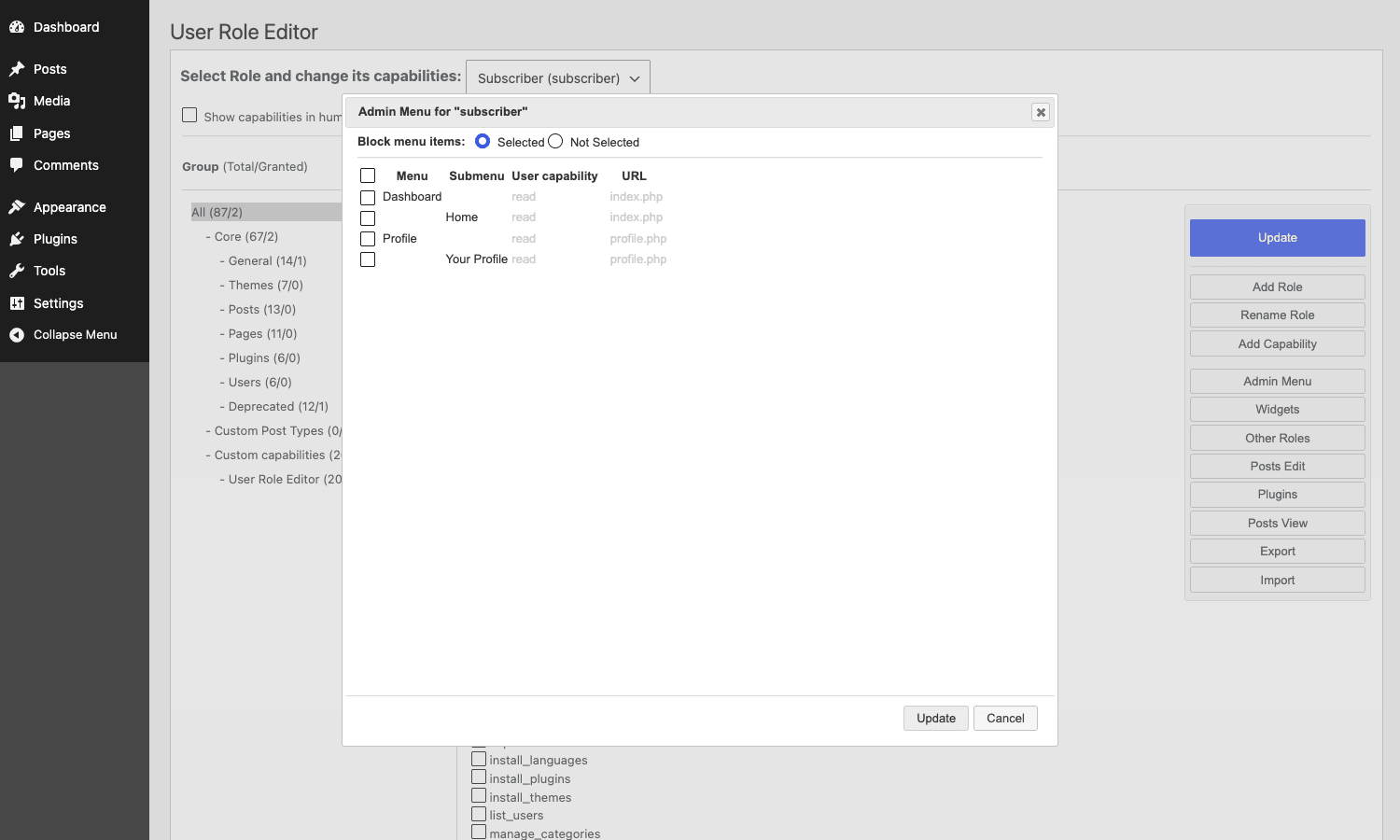
A few things worth highlighting:
- The block is enforced at admin_menu time, so blocked items don’t render at all. The user can’t even guess at the URL.
- It’s also enforced at URL load time. If a user types
/wp-admin/plugins.phpdirectly, they hit the blocked page handler instead. Theure_admin_menu_access_not_block_urlfilter lets you whitelist specific URLs. - The admin bar is filtered too. Use
ure_do_not_remove_from_admin_barto keep specific items visible.
Combine this with removing activate_plugins from the role and you’ve got a clean "Editor with no plugin chrome" setup that’s pretty hard to break.
Plugins access per role
The Plugins access module is finer-grained than just activate_plugins. From the role editor, click Plugins. You get a checkbox grid: for each installed plugin, decide whether this role can see it in the Plugins list, can activate it, can configure it. You can also block specific plugin settings pages without blocking the plugin itself, which is useful when a role needs to use a plugin (Yoast SEO, for example) but shouldn’t be reconfiguring it.
The plugin block survives the activate_plugins cap, so even if a role somehow gets activate_plugins (via another plugin’s hook, for example), the URE filter still hides the specific plugins you’ve blocked.
For sites that resell a stack of plugins to clients on Multisite, this is the difference between "I can show clients the plugins they need" and "I have to write a custom plugin to do it."
Other Roles: secondary role stacking on a single user
WordPress’s user model is "one role per user". That’s a lie in practice. The WP_User object has a roles array that can hold multiple values, and most permission code uses current_user_can() which doesn’t care how many roles you have. The reason people only set one is because the core Add User form is a single dropdown.
URE Pro adds an "Other Roles" section on every user-edit page. Now a single user can be Editor and "Forum Moderator" and "Course Author" at the same time, and their capability set is the union of all three.
That’s powerful, but it has a footgun. If User A is Editor + Subscriber, and you want to demote them to just Subscriber, removing the Editor primary role and not removing the Editor "Other Role" leaves them with full Editor caps. URE Pro shows the Other Roles list right next to the Primary Role dropdown so it’s visible, but if you script user changes via wp user set-role, that CLI command only touches the primary role. You need wp eval "update_user_meta($user_id, 'wp_capabilities', ['subscriber' => true]);" or a direct wp_update_user() call to fully reset.
There’s also an Other Roles Access module that controls which other roles a role can assign. Without it, an Editor with promote_users could in theory bump someone to Administrator. With it on, you can declare "Editor cannot assign Administrator, Shop Manager, or Custom-Role-X to anyone." This is one of the modules I treat as mandatory on any client site with more than three admin users.
Front-end menu visibility
This one’s small but practical. The Front End Menu View module hooks into wp_nav_menu_objects and filters out individual menu items based on the visitor’s role. You set it from Appearance -> Menus by clicking a menu item, expanding the role list URE adds, and ticking which roles see this item.
Use case: a "Member Dashboard" link in the header for logged-in members, an "Upgrade" link in the same slot for free members, and nothing in that slot for logged-out visitors. All three live as separate items in the same WordPress menu; URE shows the right one based on role.
The same approach works for hiding the entire Appearance -> Menus screen from non-admin roles via the Navigation Menus Access module, so a client can have a custom-role "Marketing" user who can edit pages but not nuke the site navigation.
Multisite: pushing role config to new sub-sites
On a Multisite network, by default new sub-sites get the WordPress core roles only. Anything custom you configured on the main site (added roles, custom caps, view restrictions, hidden admin menus) doesn’t propagate.
URE Pro has a Network Addons Data Replicator that fixes this. From the network admin, you set the "source blog" (usually blog ID 1, the main site). When a new sub-site is created on the network, URE copies the selected addon data (admin menu config, widgets, meta boxes, other roles, plugins access) from the source.
You control what gets copied via the ure_addons_to_copy_for_new_blog filter. Some shops use this to push a baseline of restrictions to every new client site on a multitenant install.
The replicator fires on the wpmu_new_blog action. If you’re scripting site creation via WP-CLI (wp site create), the action fires there too, so the new sites come up pre-configured.
Importing and exporting role config between sites
If you’re not on Multisite, you can still move role configurations between installs. From the role editor, click Export. Pick which role to export (or "all roles") and which Pro modules to include in the export (admin menu, widgets, posts edit, other roles, plugins). You get a JSON file.
On the target site, click Import, drop the JSON, and URE applies the role and the Pro module data. Capability lists merge, so if the target site already has the role, only the new caps get added (caps that exist in the target but not the export aren’t removed, which is sensible but worth knowing). The Pro module data is replaced wholesale per addon.
This is the workflow I use for staging -> production role changes. Edit on staging, export the affected role, copy the file to production, import. Beats clicking the same checkboxes twice.
Real-world setups I’ve shipped
A few configurations I’ve actually deployed, with what changed.
Editorial site with a content lead role. Started with Editor, removed activate_plugins and edit_themes and manage_options, added a custom manage_yoast capability, mapped Yoast SEO’s option page behind that cap (Yoast respects it), hid the Plugins and Appearance menus via Admin Menu Access. The content lead can edit and publish content, configure SEO, and not touch anything else. Took 20 minutes.
Subscription site with paid content. Posts Edit was off (only admins write). Posts View was on, set to "block all posts in the Members category" for the Subscriber role with "Show access error message" set. The error message had a CTA to upgrade. For posts I wanted public, I just kept them out of the Members category. Cleaner than wiring up a membership plugin for ten paid posts.
Multi-author magazine. Editors get edit_others_posts for the post type, but Posts Edit Access restricted to specific categories per Editor (each Editor edits one section). Authors get the default cap set with "Own data only" set globally. The admin posts list shows each user only what they can touch.
Multisite for a course platform. Five sub-sites, each one for a course cohort. Course Author is a custom role with edit_posts, edit_published_posts, upload_files, and a custom view_course_analytics cap. The Network Addons Data Replicator pushes this role to every new cohort site automatically, so I don’t run a setup script per site.
Anti-pattern: don’t grant manage_options to non-admins
This is the mistake I opened the article with, and it deserves its own section because every site I’ve audited has at least one. The fix is to leave manage_options for Administrator only.
The temptation is real. You hand a Marketing role to a client. They need to update one setting: the Yoast SEO Title Separator, or the Rank Math Schema Default Type, or maybe their own profile picture. The "easy" path is to tick manage_options in URE, save, and the setting appears. Done.
What you’ve actually done:
- Granted access to every Settings submenu (General, Writing, Reading, Discussion, Media, Permalinks, Privacy). On a typical site that’s hundreds of options including the site URL (one mistype takes the site offline), the admin email (changeable to a third-party address), and the Default Role for new registrations (set this to Administrator and any new signup is an admin).
- Granted access to every plugin that registers its settings page with
manage_options. That’s most of them. Yoast SEO Premium, Rank Math, Wordfence, Gravity Forms, WP Rocket, Advanced Custom Fields, WooCommerce all default tomanage_options. The client can now disable cache, change WooCommerce checkout endpoints, or flip on Yoast’s redirect manager and accidentally rewrite 200 URLs. - Granted plugin update permissions on many setups, because
manage_optionsis what plugin update notices key off in some admin notice code paths.
The right fix is one of these, in order of preference:
- Use URE Pro’s per-plugin admin menu blocking. Grant
manage_options, then in Admin Menu Access, block every Settings submenu except the one you want. Five minutes of clicking, and the role can only see the plugin you intended. - Use the plugin’s own role permission system if it has one. Yoast SEO, for example, lets you map
wpseo_manage_optionsto a different cap via theYoastWPSEOSettingsoptions_capabilityfilter. Grant that cap, notmanage_options. - Write a tiny mu-plugin that maps a custom cap. Three lines. Add
manage_marketing_settingsto the Marketing role. In the mu-plugin, hookoption_page_capability_<page>to returnmanage_marketing_settingsfor the specific page slug. Done. The cost is owning three lines of code forever, but the scope is exactly what you wanted.
The cost of getting this wrong is real. The client whose dropped redirects cost ten days of organic traffic also lost about $4,200 in conversions during that window. We tracked it down because Wordfence flagged the unfiltered_html change in the audit log, but if Wordfence hadn’t been on the site we’d have been guessing for weeks. Treat manage_options the way you’d treat sudo on a server. The default answer is no.
Developer reference: hooks, filters, and the shortcode
The Pro plugin exposes a generous set of actions and filters. The ones worth knowing, in roughly the order they fire.
Save-time hooks
ure_save_user_edit_content_restrictions fires when per-role or per-user edit restrictions are saved. Use it to sync a custom audit log.
add_action( 'ure_save_user_edit_content_restrictions', function( $role_or_user_id ) {
    error_log( sprintf(
        '[URE] Edit-access rules updated for %s by user %d',
        $role_or_user_id,
        get_current_user_id()
    ) );
}, 10, 1 );
ure_save_plugins_access_restrictions fires when plugin-access rules are saved. Same shape.
ure_user_permissions_update fires after update_user() runs on a per-user capability save. Two args: the user ID and the WP_User object.
add_action( 'ure_user_permissions_update', function( $user_id, $user ) {
    do_action( 'my_custom_audit_log', 'ure.user.caps.changed', [
        'subject_user' => $user_id,
        'editor'       => get_current_user_id(),
        'roles'        => $user->roles,
    ] );
}, 10, 2 );
View-restriction filters
ure_default_post_access_error_action controls what happens when a user hits a blocked post. Return one of error_404, error_message, or redirect.
add_filter( 'ure_default_post_access_error_action', function( $action ) {
    return 'redirect';
} );
ure_post_access_error_message filters the message shown when "error_message" is the chosen action.
add_filter( 'ure_post_access_error_message', function( $message ) {
    return '<div class="paywall">Members only. <a href="/pricing/">Upgrade</a>.</div>';
} );
ure_view_redirect_get_page_by_path_post_types controls which post types URE looks up for the redirect target lookup. Default is ['post','page','attachment']. Extend it if your redirect target is a custom post type.
ure_restrict_content_view_for_authors_and_editors controls whether the view restriction applies to users who could otherwise edit the post. Default false (editors can see what they can edit). Set true to enforce restrictions even on editors, useful for "approved drafts only" workflows.
Edit-restriction filters
ure_restrict_edit_post_type decides whether a post type is subject to the Posts Edit Access module. Default true for post and page, false for media. Useful for opting CPTs in or out.
add_filter( 'ure_restrict_edit_post_type', function( $restrict_it, $post_type ) {
    if ( $post_type === 'product' ) {
        return true; // also restrict WooCommerce products
    }
    return $restrict_it;
}, 10, 2 );
ure_post_edit_access_restricted_taxonomies controls which taxonomies the category-based edit restriction uses. Default includes category and post_tag. Add custom taxonomies here.
ure_post_edit_access_allowed_terms filters the final list of allowed term IDs before URE applies the restriction. Use it to compute allowed categories dynamically per user (e.g. from a user-meta field).
Admin menu and admin bar
ure_admin_menu_access_not_block_url accepts a URL pattern and returns true to whitelist that URL from being blocked, even if its menu is blocked. Useful when a plugin opens its settings via a non-menu URL.
add_filter( 'ure_admin_menu_access_not_block_url', function( $not_block, $command ) {
    if ( strpos( $command, 'admin.php?page=my-plugin-quick-action' ) !== false ) {
        return true;
    }
    return $not_block;
}, 10, 2 );
ure_do_not_remove_from_admin_bar returns an array of admin bar item IDs to preserve regardless of the per-role rules.
add_filter( 'ure_do_not_remove_from_admin_bar', function( $ignore ) {
    $ignore[] = 'site-name';
    $ignore[] = 'my-account';
    return $ignore;
} );
Other Roles
ure_other_roles_access filters the final "is this role blocked from acting on this user" decision. Three args: the blocked boolean, the current user object, the target.
ure_not_block_other_roles_for_local_admin defaults true and exempts blog-local administrators from the Other Roles access blocks. Set false to enforce blocks even on local admins (rare).
Multisite
ure_get_addons_source_blog returns the blog ID URE copies from when a new sub-site is created. Default is the main site ID. Filter to point at a "template" blog.
ure_addons_to_copy_for_new_blog controls which addon data is copied. Default copies all enabled modules. Filter to exclude specific ones (e.g. skip the posts-view restrictions because they reference IDs that don’t exist on the new site).
add_filter( 'ure_addons_to_copy_for_new_blog', function( $addons ) {
    return array_diff( $addons, [ 'posts_view', 'posts_edit' ] );
} );
Login state and license
ure_is_user_logged_in overrides the login check URE uses for some Pro features. Useful when integrating with a custom SSO layer.
ure_check_updates returns whether URE should check the remote update server. Return false to disable update checks on a license-restricted site.
The shortcode
URE Pro registers [user_role_editor roles="..." additional_roles="..." not_for="..."] for inline content gating.
[user_role_editor roles="editor,author"]
This paragraph is visible only to Editors and Authors.
[/user_role_editor]
Roles is a comma-separated list. additional_roles extends, not_for is a negative filter. Useful inside posts when you want one block to show to logged-in subscribers and another to logged-out visitors, on the same page.
Capability constants
URE_KEY_CAPABILITY (defaults to ure_manage_options) is the capability required to access URE itself. Override it in wp-config.php if you want a different cap to gate the plugin admin.
define( 'URE_KEY_CAPABILITY', 'manage_options' );
URE_ENABLE_SIMPLE_ADD_NEW_USER toggles whether URE’s simplified Add User form is used. Set false to keep the WP core form.
User Role Editor Pro vs Members vs Capability Manager Enhanced vs PublishPress Capabilities
The roles-and-capabilities space has four serious players. Quick read on each.
Members (free, MemberPress). Around 100,000 active installs on .org. Free only. Solid free-tier capability editing. No per-post view restrictions, no admin menu blocking, no Multisite replicator. Bundle size is light (around 800 KB extracted). Last meaningful release was a while back and the project moved into maintenance mode after MemberPress acquired it. Fine if you only need to edit capabilities.
Capability Manager Enhanced (free, PublishPress). About 30,000 active installs. Free only. Capability editing plus backup/restore of capabilities. No per-post restrictions. Lightweight (about 600 KB).
PublishPress Capabilities Pro. The Pro upgrade of Capability Manager. Around 110,000 active installs on the free version. Pro pricing is around $129/year for one site, $249 for five, $399 for 25. Adds per-post restrictions, editorial flow features, and works well with PublishPress’s other plugins. Bundle is around 4 MB. Active development.
User Role Editor Pro. Free version has around 700,000 active installs (much larger reach than the others), making it the most-deployed in the space. Pro pricing is $29 for one site, $59 for up to 10, $129 for unlimited (lifetime updates, one year of support). Bundle is around 2.4 MB. All the modules above (admin menu, plugins, widgets, other roles, posts view, posts edit, Gravity Forms, Multisite replicator). Maintained continuously since 2010.
If you only need to edit caps and never touch per-post or admin-menu restrictions, the free Members or Capability Manager will do. If you need anything past that, the practical question is URE Pro vs PublishPress Capabilities Pro. PublishPress wins if you’re already running other PublishPress plugins (Permissions Pro, Revisions Pro). URE Pro wins on price (about 4x cheaper at the unlimited tier), on Multisite (replicator is solid), and on the developer surface (more documented filters, smaller plugin to read top to bottom).
Performance, compatibility, and gotchas
URE Pro’s admin-side cost is real but small. Each request adds about 8 to 12 ms of PHP time on the admin pages, mostly in the capability grid render and the per-module bootstrap. The front-end overhead is closer to zero unless you’ve enabled the view restrictions, which add one current_user_can style check per post load. On a real site it’s hard to measure.
The compatibility gotchas I’ve actually hit:
- ACF Pro custom post types defined at runtime. ACF Pro registers CPTs on
initwithcapability_type=post, but the registration happens after URE’s admin_menu hook runs in some boot orders. The fix is to set the post type’scapabilitiesmapping explicitly in ACF’s UI. URE then sees and respects them. - WooCommerce Shop Manager has
manage_options. Out of the box. If you want a real "shop manager" that can’t change site URL, removemanage_optionsfrom Shop Manager and grant individual settings caps. WooCommerce has been moving to its own caps (manage_woocommerce,view_woocommerce_reports) but legacy installs still rely onmanage_optionsfor several settings panels. - Multisite super admin bypasses everything. Super admins are not subject to URE rules. Don’t audit your URE config from a super admin account, you’ll see things a regular admin won’t.
- Gutenberg’s pattern picker uses
edit_theme_options. Strip that cap from Editor and Gutenberg hides patterns. Most teams want patterns visible, so leaveedit_theme_optionsfor Editor and hide thethemes.phppage via Admin Menu Access instead. - The
ure_edit_rolescapability gates URE itself. If you accidentally drop it from Administrator (don’t), you’ll lock yourself out of URE. The fix iswp eval "(new WP_Role(get_role('administrator')))->add_cap('ure_edit_roles')"or to flip the URE bootstrap into "show for admins regardless" viaURE_KEY_CAPABILITYin wp-config.
The plugin saves its addon data in a single ure_* option per addon. Backing up wp_options covers everything URE knows about. No custom tables to worry about during migrations.
Pricing and licensing
The vendor sells URE Pro at three tiers: about $29 for one site, $59 for up to 10 sites, and $129 for unlimited sites. All tiers include lifetime updates after purchase plus one year of email support. Renewals after year one are about 50% of the original price and only re-up support; updates keep coming whether you renew or not. That’s a friendly licensing model compared to most "annual or your plugin breaks" deals.
You can also pick it up under the GPL terms the plugin already grants. User Role Editor Pro on GPL Times ships the same Pro zip the vendor distributes, no license-server check (the GPL copy neutralizes the activation call, which is part of why it works on any site). If you want to support the developer for a plugin you’ll keep on every client site, buying direct from role-editor.com is the right call. If you’re evaluating before you buy, or running a small handful of sites and the budget is tight, the GPL route is there.
FAQ
Does User Role Editor Pro work with custom post types?
Yes, but with one wrinkle. URE picks up the capabilities a CPT registers (edit_<type>, delete_<type>, etc.) automatically, but only after the CPT is registered. Plugins like ACF Pro that register types on the fly need their capability_type set explicitly, or URE may not see them until a re-save of the role from URE. If you add a new CPT and its capabilities don’t show up, go to Users -> User Role Editor, hit Update on any role, and they’ll appear.
Can I undo a role change if I broke something?
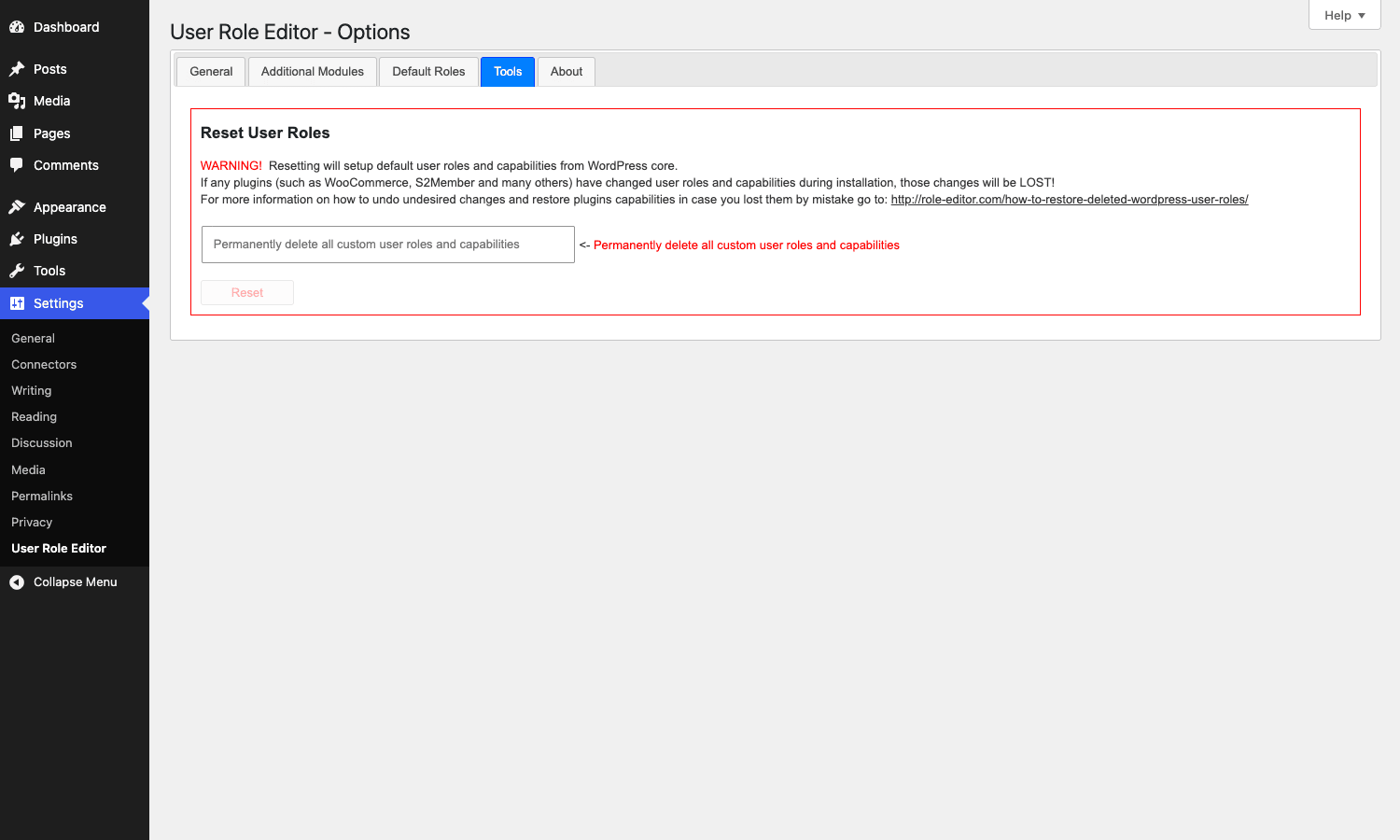
The Settings -> Tools tab has a "Reset User Roles" option that restores the WordPress core defaults. But it’s destructive: any custom roles or per-plugin caps (WooCommerce, etc.) are also wiped. The better workflow is to Export the role before editing, work on it, and re-import the JSON if you need to roll back. There’s no built-in undo for individual capability toggles.
Does it slow down the admin?
A measurable amount on the URE editor page itself (because it’s rendering a large grid) and not really anywhere else. Admin pages that don’t use URE features run within a few milliseconds of an URE-disabled install. The front-end impact only kicks in when view restrictions are active.
Will users with multiple roles inherit caps correctly?
Yes. WordPress’s WP_User already supports multiple roles in core; URE Pro just adds the UI. current_user_can() checks the union of all roles’ capabilities, so a user with Editor + custom "Course Author" gets the caps from both. The gotcha is that removing the primary role doesn’t remove the secondary roles, so a "demote to subscriber" via the WP core dropdown can leave residual caps behind. Use URE’s per-user editor to do it cleanly.
Is it compatible with Multisite?
Yes, and the Multisite features (Network Addons Data Replicator, per-blog role config) are one of the main reasons people pick URE Pro over alternatives. License-wise, the single-site tier covers one blog on a network; the unlimited tier covers the whole network including auto-created sub-sites. Note that super admins are always exempt from URE rules.
Does it work with WooCommerce?
Yes, and it understands WooCommerce’s role and capability registration. You can edit Shop Manager and Customer caps in URE, and the Pro Posts Edit module respects product and shop_order post types. The one caveat is that some WooCommerce settings panels still gate on manage_options rather than manage_woocommerce, so removing manage_options from Shop Manager hides parts of the WooCommerce admin. Add manage_options back, then block the specific non-WC settings pages via URE’s Admin Menu Access. Slightly fiddly but works.
Does it work with Gravity Forms?
Yes. URE Pro has a Gravity Forms Access module that adds per-form access control on top of GF’s built-in role system. You can give Editor "see entries but not edit forms" or "edit form 5 but not form 6". Activate the GF module in Additional Modules first.
What happens to my role config if I deactivate URE Pro?
The roles and their capabilities you’ve edited stay in place. They live in the standard wp_user_roles option (which is what WordPress core reads), and URE Pro just edits that option in place. What you lose when deactivating are the Pro module restrictions: view restrictions, edit restrictions, admin menu hiding, plugin access blocks. The data stays in wp_options under URE-specific keys, so reactivating restores everything. Uninstall (not just deactivate) is the only thing that wipes URE data.
Should I edit the Administrator role?
No. The plugin hides it by default in the role editor for a reason. Editing Administrator caps can lock you out of WordPress entirely. If you need a "near-admin" role, duplicate Editor and add caps, or duplicate Administrator (use URE’s Add Role to clone) and edit the clone. Leave Administrator alone.
Final thoughts
I want to stay neutral here, but it’s hard. The free version of User Role Editor was already the de facto role editor on .org for a decade, and the Pro upgrade adds exactly the features WordPress core left missing: per-post access restrictions, admin-menu hiding per role, secondary role stacking, and Multisite replication. There’s no part of the Pro feature set that feels tacked-on or upsell-y. Every module solves a problem that a real site eventually runs into.
That said, URE Pro is also the kind of plugin you only love after you’ve used it. Until you’ve watched a client accidentally deactivate Yoast SEO because they got activate_plugins on a role with no Admin Menu Access, or had to scrub a sub-site’s role config by hand because there’s no replicator, the value is abstract. The first time it saves you a four-hour audit, you get it.
If you’re building a single-author site, you don’t need this. WordPress core is enough. If you’re running anything with three or more non-admin contributors, a client-handoff workflow, or a Multisite network, install URE Pro on day one. The capability model is the part of WordPress that breaks quietly. URE Pro is the part that lets you see it clearly.