

WooCommerce ships with a usable, generic single product page and shop archive. The problem is they’re stuck inside the active theme, and every store ends up looking like the theme it picked. JetWooBuilder by Crocoblock lifts those WooCommerce templates out of the theme and rebuilds them visually inside Elementor, with widgets for product title, gallery, price, add-to-cart, tabs, related products, and a few dozen more. The same plugin extends to the shop archive, cart, checkout, my account, and thank-you pages, so the entire customer journey can be designed in one place.
This is a long, hands-on walkthrough for both shop owners and developers. The first half covers how to set up templates and assign them to products or categories. The second half is the hooks, filters, and integration story for anyone customising the plugin in code.
Table of Contents
- What JetWooBuilder is
- Key features
- How JetWooBuilder works (the user flow)
- Installing JetWooBuilder and prerequisites
- Building your first single product template
- Shop, archive, cart, checkout, my account, thank-you templates
- Assigning templates with display conditions
- JetEngine and Jet plugin integrations
- Real-world use cases
- Developer reference: hooks, filters, code examples
- Performance, compatibility, and gotchas
- Pricing and licensing
- JetWooBuilder vs the alternatives
- Frequently asked questions
- Final thoughts
What JetWooBuilder is
JetWooBuilder is an Elementor add-on by Crocoblock, the same team behind JetEngine, JetSmartFilters, JetMenu, and the rest of the Jet plugin family. Its only job is to give Elementor a complete WooCommerce template system: single product pages, products archive, shop, cart, checkout, my account, and thank-you pages, each built visually with drag-and-drop widgets that read live WooCommerce data.
Out of the box, WooCommerce uses theme template files (single-product.php, archive-product.php, cart/cart.php, and so on) plus a long list of hooks to render its frontend. Customising that without a builder usually means either picking a theme that overrides those templates for you, or writing PHP. JetWooBuilder is a third path: install it, design a template in Elementor, attach it to one or many products through a conditions modal, and the plugin intercepts the WooCommerce template loader and serves your template instead.
Crocoblock has been shipping JetWooBuilder since 2018, and it has tracked Elementor and WooCommerce’s compatibility table closely. The plugin is tested against current Elementor and current WooCommerce versions, and it works with both free Elementor and Elementor Pro. Elementor Pro adds its own WooCommerce widgets, but JetWooBuilder pre-dates that feature set and goes further (cart, checkout, my account, thank-you templates are still JetWooBuilder territory).
Key features
- Single product template builder. Build the product page from scratch with 16 dedicated widgets: title, price, add-to-cart, rating, images gallery, excerpt, content, meta, attributes, tabs, sharing, related products, upsells, reviews form, and sale badge. Each widget reads live data from the product being viewed.
- Shop and archive template builder. Design the products listing page and individual category archives with widgets for the products loop, page title, navigation, notices, ordering, pagination, and result count. The products loop widget is where the listing card design comes from, and it ships with carousel, masonry, list, and grid layouts.
- Cart page template builder. Cart table, cart totals, cross-sells, return-to-shop, and an empty-cart message, all as Elementor widgets. You can re-arrange the cart layout entirely, no more "find the cart shortcode and stack stuff around it".
- Checkout page template builder. Billing form, shipping form, additional form, login form, coupon form, payment, and order review widgets. You can split billing/shipping into separate columns, hide the coupon form on certain conditions, or design a multi-step layout.
- My account page template builder. Login form, registration form, dashboard, orders, downloads, addresses, account details, payment methods, and logout widgets. Plus separate template controls for each my account endpoint, so the orders page can have a different design from the addresses page.
- Thank-you page template builder. Order summary, order details, and customer address details widgets. Useful for upsell sections after the purchase or for adding tracking/affiliate pixels in a controlled spot.
- Display conditions system. Each template has a Conditions panel where you decide what it applies to: all products, products in a specific category, products with a specific tag, products tagged "on sale", a single specific product, and so on. The most specific rule wins, so a category-level template overrides the all-products one.
- Predesigned presets. Each template type ships with a handful of preset layouts so you don’t start on a blank canvas. The preset chooser appears when you create a new template.
- AJAX-driven product loops. The products loop widget supports AJAX add-to-cart and AJAX product switcher (variation gallery without page reload).
- Carousel mode on most listing widgets. Products grid, products list, categories grid, and taxonomy tiles all have a carousel mode powered by Slick, with arrow and dot navigation.
- Macros system. Dynamic placeholders like
%current_id%,%queried_user_id%, and others let you reuse one template across many products or query contexts without hardcoding IDs. - JetEngine, JetSmartFilters, JetCompareWishlist, JetPopup integrations. Use JetEngine listings inside a Woo template, filter the products loop with JetSmartFilters, show a JetCompareWishlist archive item, fire a JetPopup after add-to-cart. The integrations are baked in, not hacks.
How JetWooBuilder works (the user flow)
There are three concepts you need to know: template type, template, and display conditions.
A template type is the WooCommerce surface you’re designing: single product, archive product, category archive, shop, cart, checkout, thank you, my account, and so on. Each type maps to a WooCommerce template the plugin can intercept.
A template is one design within a type. You can have a dozen single-product templates if you want, one per category or per product line.
A display condition is the rule that decides which template loads where. Conditions are stored as post meta on the template and read at render time. Examples: "all products", "products in category Books", "products with the on-sale tag", "single product with ID 42".
The user flow is:
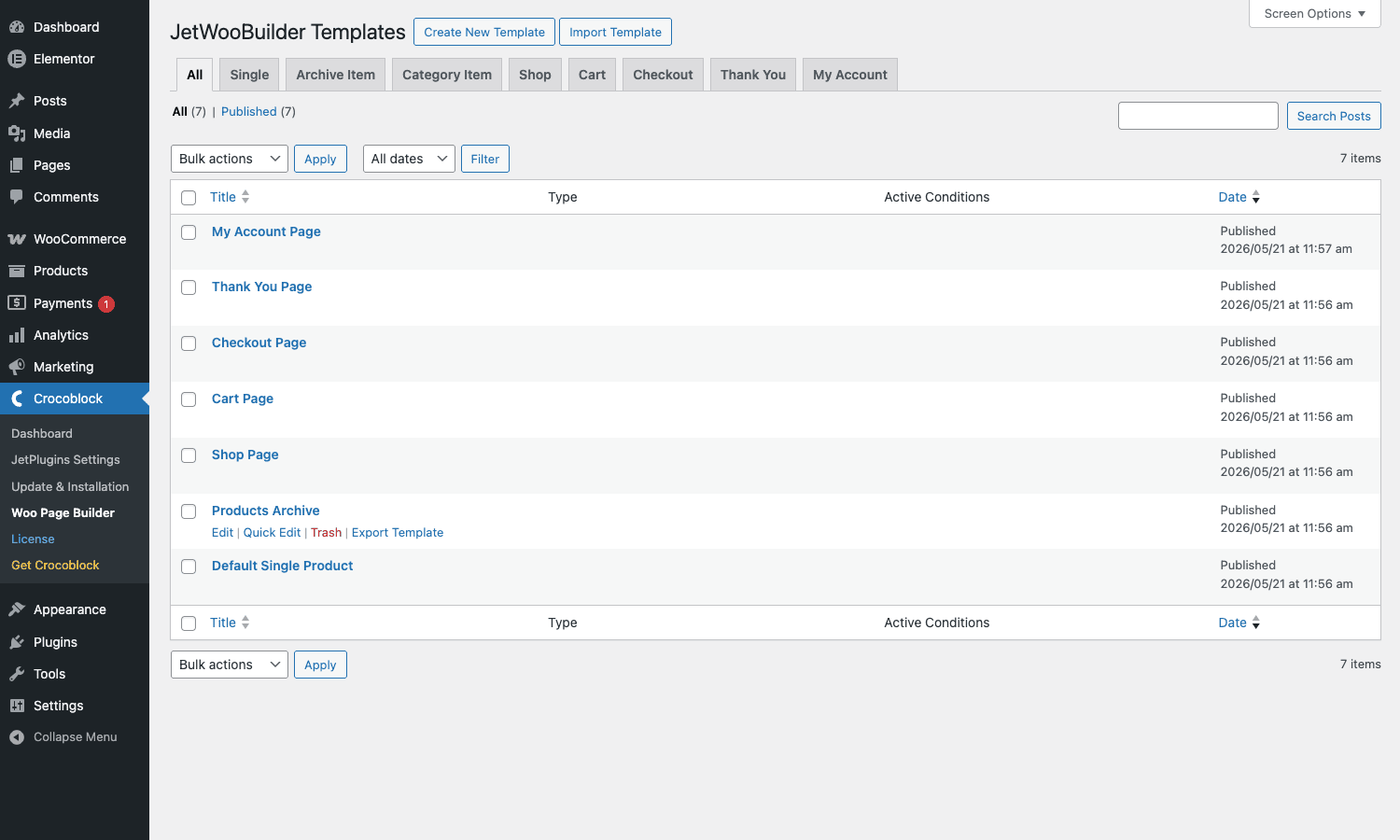
- Go to Crocoblock > Woo Page Builder in the admin sidebar. You see a list of every template across every type, plus tabs for each type so you can filter.
- Click Create New Template, pick a type (single, archive, shop, cart, checkout, thankyou, myaccount), give it a name, optionally pick a preset, and save.
- Click Edit with Elementor. The plugin loads Elementor with a special document type for that template (so the left widget panel shows the right Woo widgets at the top).
- Drag widgets onto the canvas. Each widget reads live data from the current product (for single templates) or from the loop iteration (for archive templates).
- Save the template, then open the Conditions modal to choose where this template applies.
- Visit a matching product page on the frontend. The plugin intercepts WooCommerce’s
single_producttemplate and renders yours instead.
For shop, cart, checkout, my account, and thank-you templates, there’s no condition picker. Those template types are singletons. You pick one template per type in the JetWooBuilder Settings page (Crocoblock > JetPlugins Settings > JetWooBuilder), and that one is used site-wide.
Installing JetWooBuilder and prerequisites
JetWooBuilder needs three things to work: WordPress (a current release), WooCommerce (a current release; very old WooCommerce builds aren’t supported), and Elementor (free is enough for most templates; some advanced display features benefit from Elementor Pro).
Install order:
- Install and activate WooCommerce from Plugins > Add New, then go through the WooCommerce setup wizard so the cart, checkout, and my account pages exist.
- Install and activate Elementor from the WordPress plugin repository.
- Install JetWooBuilder by uploading the zip at Plugins > Add New > Upload Plugin.
- After activation, the Crocoblock menu appears in the admin sidebar. Inside it: Dashboard, JetPlugins Settings, Update & Installation, Woo Page Builder, License, and Get Crocoblock.
The first thing to visit is Crocoblock > JetPlugins Settings > JetWooBuilder. Useful toggles in here:
- AJAX Add to Cart on archives. Off by default; turn it on so add-to-cart buttons on the shop and category pages don’t trigger a page reload.
- Archive product fragments. Refreshes the cart fragment after add-to-cart so the mini-cart updates instantly.
- Customizer styles. Inherits some color/typography from the WordPress Customizer.
- Products gallery library. Choose between Slick and Swiper for the single-product gallery slider.
- Shop/cart/checkout/thankyou/myaccount fallback templates. A safety net so if you delete the assigned template, the fallback kicks in instead of bare HTML.
It’s worth turning AJAX Add to Cart on before you start building anything; it changes how the add-to-cart button widgets behave and affects what you’ll style.
Building your first single product template
The single product template is where most of the time goes, because every product page on the store renders through it once it’s assigned. Here’s the flow on a fresh install:
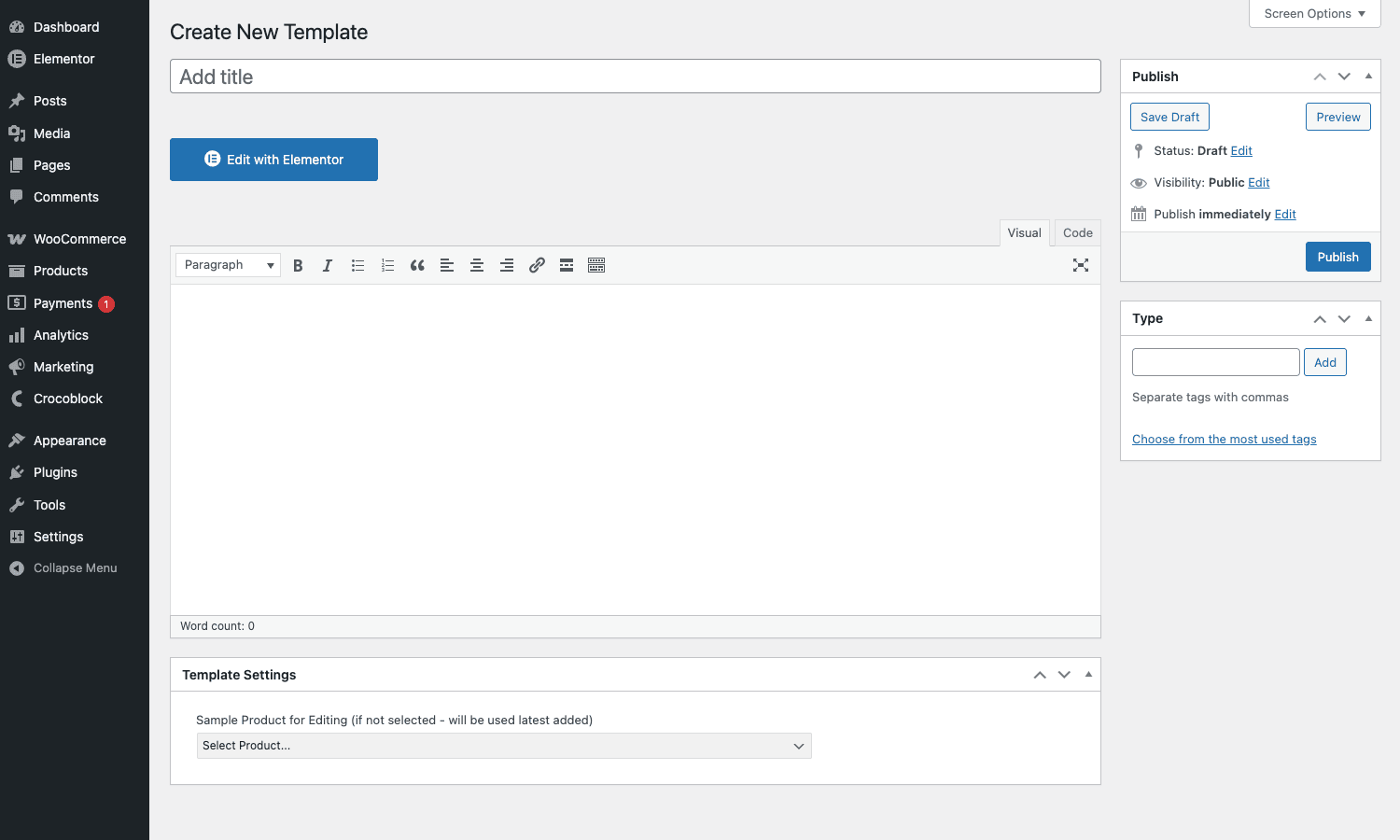
- Go to Crocoblock > Woo Page Builder, click Create New Template.
- Pick Single as the template type, name it "Default single product", and either pick a preset or start blank. Save.
- In the Template Settings panel at the bottom of the post editor, set Sample Product for Editing. Pick any real product in the store. The Elementor canvas will use this product’s data to render widget previews. This is essential: without a sample product, every widget shows a "no product" placeholder and you’re flying blind.
- Click Edit with Elementor.
- In the left widget panel, the JetWooBuilder section is pinned near the top, with sub-groups for Single, Archive, Shop, Cart, Checkout, My Account, Thank You, and Global. For a single template, you’ll mostly drag from the Single group.
A sensible single product layout uses two columns:
- Left column: the Single Images widget (gallery with thumbnails or carousel).
- Right column: stacked widgets in this order: Single Title, Single Rating (links to the reviews tab), Single Price, Single Excerpt, Single Add To Cart, Single Meta (SKU + categories + tags), Single Sharing.
- Below both columns (full width): the Single Tabs widget (Description / Additional Info / Reviews) and then Single Related and/or Single Upsells.
Each widget exposes Style and Content tabs in Elementor. The Single Add To Cart widget, for example, lets you control the quantity input visibility, button text, the variations swatches behavior (radio buttons vs swatches, color/image/text), and the variation gallery behavior. These are real WooCommerce variation-product features rendered through Elementor controls.
Once the design feels right, save the template and head back to Crocoblock > Woo Page Builder. Hover the template row, click Edit Conditions, and the conditions modal opens.
Conditions you can stack:
- Include / Exclude rules: "Include all products" + "Exclude products in category Sale" is a common pair.
- Per-product: target a specific product ID.
- Per-category: all products in one or more product categories.
- Per-tag: all products with a tag.
- By attribute: all products with a specific attribute term (handy for "all red products use template X").
Save the conditions. Visit a matching product on the frontend; you should see your new layout. If the old theme template still loads, double-check that JetWooBuilder’s "Use custom template" override is on in the settings.
Shop, archive, cart, checkout, my account, thank-you templates
Single product templates get the headlines, but the other types pull just as much weight in a real store.
Shop and category archive
The Shop template type designs the page WooCommerce points to via WooCommerce > Settings > Products > Shop page. Drop the Products Loop widget on the canvas. The widget has its own deep control set: layout (grid / masonry / carousel / list), number of columns, products per page, query type (recent / featured / sale / best selling / top rated / custom), and a card editor that lets you drag the inner widgets (title, price, add-to-cart, rating, thumbnail) into a sub-template that gets repeated for each product.
The card-editor approach is what makes the products loop powerful. Instead of being stuck with WooCommerce’s default content-product.php, you can design a card with the badge top-right, a hover-swap image, the price below the title, and an AJAX add-to-cart button with a custom icon. That sub-template applies to every product card on the shop.
The Archive Item type is a slightly different beast. It’s a card sub-template you reference from listing widgets that ask for a "custom card" instead of using their inline card editor. JetEngine listings, JetCompareWishlist archive items, and a few JetSmartFilters AJAX results all read from these.
The Category Item type designs how individual product categories render in the categories grid widget. Useful if you have a category-based "shop by department" navigation block.
Cart template
The cart template uses the Cart Table, Cart Totals, Cart Cross-Sells, Cart Return To Shop, and Cart Empty Message widgets. The most common reorganisation is putting Cart Totals sticky on the right with a wider table on the left, so customers always see the running total as they edit quantities. The empty-cart message widget is a separate template segment that swaps in when the cart is empty, so you can put a "browse the shop" button or featured-products carousel there instead of WooCommerce’s bare text.
Checkout template
The checkout widgets follow the same logic. Checkout Billing, Checkout Shipping Form, Checkout Additional Form, Checkout Login Form, Checkout Coupon Form, Checkout Payment, and Checkout Order Review are separate widgets you can rearrange. A common multi-step checkout layout uses Elementor tabs around them: "Your info" (billing + shipping), "Payment" (coupon + payment + order review).
The login form widget renders only for logged-out users; the others adapt to the cart state. Underneath, JetWooBuilder still fires WooCommerce’s standard checkout action hooks (woocommerce_checkout_billing, woocommerce_checkout_shipping, woocommerce_review_order_before_payment, etc.), so other plugins that hook into checkout still work.
My account template
The my account area is the trickiest because it has multiple endpoints. JetWooBuilder solves this with separate templates per endpoint:
- My Account (Dashboard) uses the MyAccount Dashboard widget.
- Orders endpoint uses MyAccount Orders.
- Downloads endpoint uses MyAccount Downloads.
- Addresses endpoint uses MyAccount Addresses.
- Account details endpoint uses MyAccount Account Details.
- Payment methods endpoint uses MyAccount Payment Methods.
- Login screen uses MyAccount Login Form + MyAccount Registration Form.
You build one template per endpoint and assign each in the JetWooBuilder settings panel. The plugin then routes each endpoint through its assigned template. This is more granular than what Elementor Pro’s Theme Builder offers for my account.
Thank-you template
Thank-you templates are an underused goldmine. After a customer pays, they land on the thank-you page (/checkout/order-received/). JetWooBuilder’s Thank You Order, Thank You Order Details, and Thank You Customer Address Details widgets let you redesign that page with upsell carousels, a "share your purchase" social block, account-creation CTAs for guest buyers, or affiliate-tracking pixels in a controlled location. WooCommerce’s default thank-you page is a single H1 and a small table; rebuilding it usually pays back in repeat-purchase rate.
Assigning templates with display conditions
Conditions exist for the Single, Archive, and Category template types only. The others are singletons (one template per surface, site-wide).
The conditions UI is a stack of rules. Each rule has:
- Include / Exclude dropdown.
- Target type dropdown: All products, Specific product, Product category, Product tag, Product attribute.
- Target value (the actual product, category, tag, or attribute term to match).
You can stack as many rules as you want. The plugin evaluates them top-to-bottom: includes mark a product as "matching", excludes pull it back out. If multiple templates match the same product, JetWooBuilder picks the most specific one (specific product > tag > category > all products).
Common patterns:
- One default template, plus per-category overrides. Default template includes "All products". Custom templates each include a single product category and that’s it.
- Sale-specific template. Include "All products with tag: on-sale" so sale items use a special template with a countdown, comparison block, and bigger CTA.
- Variation-product template. Include "All products with attribute Type: variable" so configurable products use a layout with the variation gallery widget instead of the single image.
If a product matches no template, JetWooBuilder falls back to the theme’s single-product template, so you can roll out custom templates incrementally without breaking the rest of the catalog.
JetEngine and Jet plugin integrations
JetWooBuilder is part of the Crocoblock family, so it talks to its siblings without configuration. Three integrations are worth knowing about.
JetEngine (Crocoblock’s dynamic content / custom post type / listings plugin) feeds dynamic data into Woo widgets. You can store custom fields on products (ingredient lists, downloadable spec sheets, supplier info) and pull them into the single-product template through JetEngine’s Dynamic Field widget. JetEngine listings also work inside Woo templates, so you can render a "related products from the same author" carousel by querying products with a meta key. JetEngine’s query builder integrates with JetWooBuilder’s products loop too, so you can power the loop with a complex multi-meta query that the standard Woo query can’t express.
JetSmartFilters drops AJAX filtering into the products loop. Attach a Checkboxes Filter widget for categories, a Range Slider for price, a Color filter for attribute swatches, and the shop loop re-renders without a page reload. JetSmartFilters reads the products loop widget’s settings directly so the filter results inherit the same card design and pagination.
JetCompareWishlist lets you add compare and wishlist actions to single product and archive templates. The wishlist archive item template type comes from JetWooBuilder, which JetCompareWishlist then uses to render the wishlist page.
Beyond those, JetWooBuilder is compatible with JetMenu’s mega-menu product cards, JetPopup’s purchase popups (open a popup after add-to-cart), and JetTabs in tabbed layouts. The WPML compatibility layer translates template IDs so a multilingual store can have one template per language without rebuilding from scratch.
Real-world use cases
A boutique fashion store with category-specific product pages
Sell women’s shoes, men’s shoes, accessories, and seasonal sale items. The brand voice is different per category: shoes need the gallery and material details prominent, accessories work better as a single-image hero with a long-form description, and sale items want a countdown and "people also bought" cross-sell prominently above the fold. Three single-product templates, three sets of conditions targeting each category, done. Editing one template doesn’t affect the others.
A digital download store with one product type
Sell stock photos. There’s effectively one product layout: a big image, a Buy License button, license tier swatches, and an EXIF/format details box. The default theme template doesn’t surface the EXIF data, but JetEngine custom fields plus a JetWooBuilder single template do. One template, applied to all products.
A WooCommerce subscription site
Sell digital subscriptions powered by WooCommerce Subscriptions. Subscription products have unique fields (sign-up fee, trial period, billing frequency) that standard templates don’t surface well. A subscription-only single template adds an FAQ accordion, a "What’s included" comparison table, and the sign-up form prominently. The cart and checkout templates also benefit from a JetWooBuilder rebuild so subscription details are highlighted next to the line items.
A wholesale-tiered B2B store
Run a B2B operation with a public retail catalog and a separate wholesale catalog using something like WooCommerce Wholesale Pro. JetWooBuilder lets you build two single-product templates (retail vs wholesale) and assign them by user role through the conditions modal. The wholesale template can swap in bulk-pricing tables, hide the public price, and replace the add-to-cart button with a quote-request CTA.
A multi-vendor marketplace
If you’re running a marketplace, vendor-product pages often need to show vendor branding, vendor reviews, and a vendor contact form alongside the product. A JetWooBuilder single template with JetEngine dynamic fields pulling vendor data does this cleanly without forking the theme. The same template handles every vendor’s products because the dynamic fields resolve per-product.
Developer reference: hooks, filters, code examples
JetWooBuilder is generous with filters. Almost every place where a template might be overridden, a piece of data formatted, or a query modified is wrapped in an apply_filters(). Here are the ones you’ll actually reach for, with worked examples.
Filter: override the single-product template path
The filter jet-woo-builder/custom-single-template runs when JetWooBuilder decides which template ID to use for the current single product. Returning a different template ID swaps the template at render time, which is useful when business logic determines the layout (user role, product stock state, A/B test branch).
add_filter( 'jet-woo-builder/custom-single-template', function ( $template_id ) {
 if (! function_exists( 'wc_get_product' ) ) {
 return $template_id;
 }

 $product = wc_get_product( get_the_ID() );

 if ( $product && $product->is_on_sale() ) {
 $sale_template_id = (int) get_option( 'my_sale_single_template_id', 0 );

 if ( $sale_template_id ) {
 return $sale_template_id;
 }
 }

 return $template_id;
} );
Filter: override the shop template
jet-woo-builder/custom-shop-template works the same way for the shop page. You can serve a different shop layout to logged-in customers vs guests:
add_filter( 'jet-woo-builder/custom-shop-template', function ( $template_id ) {
 if ( is_user_logged_in() && current_user_can( 'customer' ) ) {
 $logged_in_template = (int) get_option( 'my_shop_logged_in_template', 0 );

 if ( $logged_in_template ) {
 return $logged_in_template;
 }
 }

 return $template_id;
} );
Filter: rewrite the product thumbnail markup
JetWooBuilder generates product thumbnails through its template-functions helper. The jet-woo-builder/template-functions/product-thumbnail filter receives the rendered <img> (or wrapping <picture>) HTML and lets you inject anything you want. A common use is adding a data-product-id attribute that a third-party analytics script reads:
add_filter(
 'jet-woo-builder/template-functions/product-thumbnail',
 function ( $html, $image_size, $use_thumb_effect, $attr, $template_functions ) {
 global $product;

 if (! $product ) {
 return $html;
 }

 $product_id = $product->get_id();
 $html = str_replace(
 '<img ',
 '<img data-product-id="'. esc_attr( $product_id ). '" ',
 $html
 );

 return $html;
 },
 10,
 5
);
Filter: change the product sale flash badge
The on-sale badge that floats on a product card is rendered through jet-woo-builder/template-functions/product-sale-flash. Replace the markup to show a percentage discount instead of the default text:
add_filter(
 'jet-woo-builder/template-functions/product-sale-flash',
 function ( $html, $product, $settings, $badge_text ) {
 if (! $product ||! $product->is_on_sale() ) {
 return $html;
 }

 $regular = (float) $product->get_regular_price();
 $sale = (float) $product->get_sale_price();

 if ( $regular <= 0 || $sale <= 0 || $sale >= $regular ) {
 return $html;
 }

 $percent = round( ( ( $regular - $sale ) / $regular ) * 100 );

 return sprintf(
 '<div class="jet-woo-product-badge jet-woo-product-badge__sale">-%d%%</div>',
 $percent
 );
 },
 10,
 4
);
Filter: customize the product price markup
Use jet-woo-builder/template-functions/product-price to wrap, prefix, or annotate the rendered price string. You could append a "from" prefix on variable products, or attach VAT notes for B2B users:
add_filter(
 'jet-woo-builder/template-functions/product-price',
 function ( $price_html ) {
 global $product;

 if ( $product && $product->is_type( 'variable' ) ) {
 $price_html = '<span class="price-prefix">From</span> '. $price_html;
 }

 if ( apply_filters( 'my_show_excl_vat_label', false ) ) {
 $price_html.= ' <span class="price-suffix">(excl. VAT)</span>';
 }

 return $price_html;
 }
);
Filter: control which carousel options the JS receives
JetWooBuilder uses Slick under the hood for its carousels. The carousel widget’s PHP-rendered options are passed to JS through jet-woo-builder/tools/carousel/options. You can force a different autoplay speed or change the responsive breakpoints:
add_filter(
 'jet-woo-builder/tools/carousel/options',
 function ( $options, $settings ) {
 $options['autoplaySpeed'] = 6000;
 $options['speed'] = 800;
 $options['pauseOnHover'] = true;

 return $options;
 },
 10,
 2
);
Filter: register a custom macro for use across widgets
Macros are dynamic placeholders that resolve at render time. JetWooBuilder ships with macros for current product ID, queried user ID, today’s date, and others. To add one, hook jet-woo-builder/macros/macros-list:
add_filter( 'jet-woo-builder/macros/macros-list', function ( $macros ) {
 $macros['current_user_purchase_count'] = [
 'label' => __( 'Current user purchase count', 'my-textdomain' ),
 'cb' => function () {
 $user_id = get_current_user_id();

 if (! $user_id ) {
 return 0;
 }

 return (int) wc_get_customer_order_count( $user_id );
 },
 ];

 return $macros;
} );
After registering, the macro %current_user_purchase_count% becomes selectable in any JetWooBuilder widget that supports dynamic text.
Filter: change the not-found message for a JetWooBuilder shortcode
When a products grid or list shortcode finds nothing, the plugin renders a "nothing found" message. The text is filterable per shortcode tag through jet-woo-builder/shortcodes/{tag}/not-found-message:
add_filter(
 'jet-woo-builder/shortcodes/jet-woo-products/not-found-message',
 function ( $message ) {
 return __(
 'No products match the current filters. Try clearing the price slider or removing a category filter.',
 'my-textdomain'
 );
 }
);
Filter: add frontend script dependencies
If you’re enqueueing a JS file that should always load alongside JetWooBuilder’s frontend bundle, hook jet-woo-builder/frontend/script-dependencies:
add_filter( 'jet-woo-builder/frontend/script-dependencies', function ( $deps ) {
 $deps[] = 'my-analytics-script';

 return $deps;
} );
You’d register my-analytics-script separately with wp_register_script() so the dependency resolves. This makes sure JetWooBuilder waits for your file before its own JS runs.
Action: react when a custom JetWooBuilder template is matched and loaded
jet-woo-builder/template-include/found fires inside the template-loader once JetWooBuilder has decided to serve one of your templates. Use it to set tracking flags, alter wp_head output, or inject extra body classes:
add_action( 'jet-woo-builder/template-include/found', function () {
 add_filter( 'body_class', function ( $classes ) {
 $classes[] = 'has-jetwoobuilder-template';

 return $classes;
 } );
} );
Action: hook a JetWooBuilder shortcode loop
For each iteration of the products grid shortcode, you get loop-start, loop-item-start, loop-item-end, and loop-end action hooks. You can wrap output, log impressions, or attach product-impression tracking to a third-party analytics service:
add_action( 'jet-woo-builder/shortcodes/jet-woo-products/loop-item-start', function () {
 global $product;

 if (! $product ) {
 return;
 }

 do_action( 'my_track_product_impression', $product->get_id() );
} );
REST API
JetWooBuilder ships a small REST endpoint group used by its admin UI and the editor. The base namespace is registered through includes/rest-api/rest-api.php, and once the endpoints are wired up the action jet-woo-builder/rest/init-endpoints fires, letting you register your own endpoint inside the same namespace if needed.
Custom post type for templates
Every template is a post in the jet-woo-builder post type. Querying or modifying them in code is straightforward:
$templates = get_posts( [
 'post_type' => 'jet-woo-builder',
 'posts_per_page' => -1,
 'post_status' => 'publish',
 'fields' => 'ids',
] );

foreach ( $templates as $template_id ) {
 $type = get_post_meta( $template_id, '_jet_woo_builder_template_type', true );
 // Do something with $type ('single', 'archive', 'shop', 'cart',...).
}
You can also alter the CPT registration arguments through jet-woo-builder/post-type/args if you need to expose templates in the REST API for an external tool.
Performance, compatibility, and gotchas
Performance footprint
JetWooBuilder loads its frontend bundle (one CSS, one JS) on any page where a Woo template applies, plus on any page where one of its widgets or shortcodes is used. The bundle is small (under 50 KB minified for the JS, and the CSS is split per widget so unused widgets don’t bring in their styles). Where things get heavy is on the shop and category pages if the products loop widget pulls 24-plus items with high-resolution thumbnails. That’s a WooCommerce optimisation question, not a JetWooBuilder one, but it shows up first in JetWooBuilder shop templates because they’re often the densest page on the site. Pair it with a caching plugin and configure image lazy-loading, and the shop holds up well.
If you turn on AJAX add-to-cart and the cart-fragments refresh, JetWooBuilder makes an admin-ajax request after each add-to-cart. That’s a WooCommerce-side feature being passed through, not a JetWooBuilder thing, but on cheap shared hosting the admin-ajax round trip can feel sluggish. Mitigations: enable the fragments cache (some hosts have a switch for it), or use a perf plugin that defers the request until idle.
Compatibility
JetWooBuilder works with most reputable WooCommerce-aware themes: Astra, Hello Elementor, OceanWP, Storefront, Kadence, Blocksy, Flatsome, Avada, Divi, GeneratePress. There’s a baked-in compatibility shim for Astra (it disables Astra’s own product-page structure override so JetWooBuilder’s template takes priority). If you’re using a heavy WooCommerce theme that already overrides everything (some of the ThemeForest top-sellers), expect some CSS specificity battles, but the underlying template logic still works.
Plugin compatibility:
- WooCommerce Subscriptions, WooCommerce Bookings, WooCommerce Memberships: product-page widgets render through standard Woo actions, so add-on UIs (the subscription frequency selector, the booking calendar, the "members only" notice) still appear in the right spots.
- YITH and Iconic WooCommerce add-ons: mostly work, sometimes need a small CSS override to fit a JetWooBuilder layout.
- JetEngine, JetSmartFilters, JetMenu, JetBooking, JetPopup, JetCompareWishlist: native integrations, no glue code needed. JetMenu and JetBooking particularly help if you’re building a complex marketplace.
- WPML: template translation works through the
wpml_object_idfilter the plugin uses.
Common gotchas
A few things trip people up regularly.
The "Sample Product for Editing" must be set. If you open Elementor and every widget shows a "no product selected" placeholder, you forgot to pick a sample product in Template Settings. Without one, the editor can’t render live previews.
Conditions don’t apply automatically until saved. Hitting "Update" in Elementor doesn’t save conditions. You set conditions through the modal on the templates list page, and you have to click Save in that modal separately.
Multiple matching templates choose the most specific. If your "all products" template still loads on a category that has its own template, double-check the category template’s conditions actually save (the modal sometimes resets if you switch tabs mid-edit) and that the category template is published, not draft.
Carousel widgets need their parent column to be wider than ~300 px. Slick has a minimum render width below which arrows overlap items. On mobile, set the carousel to grid mode under the responsive breakpoint.
Cart and checkout templates require the WooCommerce cart and checkout pages to exist. If you skipped the WooCommerce setup wizard, there’s no [woocommerce_cart] or [woocommerce_checkout] page for JetWooBuilder to override. Re-run WooCommerce > Status > Tools > Create default WooCommerce pages.
Theme template loading order. Some themes hook into template_include aggressively. If your JetWooBuilder template doesn’t load and you’ve confirmed conditions are set, drop a var_dump( current_filter() ) next to a template_include hook to confirm JetWooBuilder is winning the priority race. The plugin runs at priority 999 by default, which is high enough for most themes.
Cache the right things. If you use a full-page cache plugin, you need to bust the cache after editing a template or the public site won’t update. Most plugins do this automatically when a post is updated; if not, add a manual cache-purge step after publishing template changes.
Pricing and licensing
JetWooBuilder is part of the Crocoblock Jet plugin family. Direct from Crocoblock you can buy it standalone or as part of the All-Inclusive bundle (which includes JetEngine, JetSmartFilters, JetMenu, JetBooking, JetCompareWishlist, JetPopup, JetTabs, JetElements, JetTricks, JetBlocks, JetReviews, JetFormBuilder Pro, and a few more). The All-Inclusive plan is the common pick because most stores want JetEngine plus JetSmartFilters alongside JetWooBuilder.
Because JetWooBuilder is GPL-licensed, you can also get the plugin from GPL Times. Updates ship through the GPL Times subscription.
A note on licensing: GPL Times redistributes the plugin under its GPL terms. If you ship a commercial product to clients, you can use the GPL Times copy on as many of your sites as you want. If you want vendor support directly from Crocoblock, buy from Crocoblock; the support contract is what you’re paying for there, not the code.
JetWooBuilder vs the alternatives
Three other ways to build WooCommerce templates inside a builder, and where they sit relative to JetWooBuilder.
Elementor Pro Theme Builder + WooCommerce widgets. Elementor Pro ships with WooCommerce Builder out of the box. It covers single product and shop archive templates well. What it doesn’t cover (the big gap): cart, checkout, my account, and thank-you templates. Those still use the WooCommerce defaults plus theme overrides. JetWooBuilder fills exactly that gap. If you’re already on Elementor Pro and only need single-product custom designs, Elementor Pro alone is enough. If you want the cart and checkout to match the brand too, JetWooBuilder is the additive piece.
Bricks Builder. Bricks is a separate theme + builder combo (not an Elementor add-on). It ships with its own WooCommerce template system covering most surfaces. If you’re starting fresh and don’t have an Elementor preference, Bricks is a credible alternative. The trade-off is migrating an existing Elementor + JetWooBuilder store is non-trivial because the templates aren’t compatible. We covered the broader Bricks story in our Bricks Builder write-up.
Beaver Themer. Beaver Builder’s theme-builder add-on. Like Elementor Pro, it handles single product and archive. Cart, checkout, my account aren’t its strong suit. If you’re invested in Beaver Builder, Themer is the natural choice. If you want the cart and checkout designable too, you’d need to add a specialised cart/checkout plugin on top.
WooCommerce Single Product Page Builder for Elementor (free). A free WordPress.org plugin that does only single-product templates. Useful for simple cases, but no archive, shop, cart, checkout, or my account coverage, and the widget set is much smaller. Fine for hobby stores, hits limits fast for anything commercial.
The summary version: if your store is Elementor-based and you want to customise more than just the product page, JetWooBuilder is the most complete answer. Elementor Pro alone covers the easy half; JetWooBuilder covers the half that drives conversion (cart, checkout, post-purchase).
Frequently asked questions
Do I need Elementor Pro to use JetWooBuilder?
No. JetWooBuilder works with the free version of Elementor for every template type. Elementor Pro adds extra widgets and Theme Builder features (like custom headers/footers) that you might still want for the rest of the site, but JetWooBuilder itself doesn’t require Pro.
Can I use JetWooBuilder with a non-Elementor theme?
Yes. JetWooBuilder doesn’t care what your active theme is, as long as Elementor can render on it. It hooks into WooCommerce’s template loader (not the theme’s template files), so it works with Astra, Hello Elementor, OceanWP, Storefront, Kadence, Blocksy, Flatsome, Avada, Divi, and others. The only theme-side concern is CSS specificity if the theme aggressively styles WooCommerce; you may need a few overrides.
Does it work with WooCommerce variation swatches plugins?
Yes, the Single Add To Cart widget has built-in swatch support (radio buttons, color swatches, image swatches, text labels). It reads variation attributes the standard WooCommerce way, so any properly-coded swatches plugin or the built-in WooCommerce variation product layout will work. If you’re using a third-party swatches plugin, you may need to disable its own rendering and let JetWooBuilder handle it.
How is JetWooBuilder different from Elementor Pro’s WooCommerce Builder?
Elementor Pro’s WooCommerce widgets cover single product and shop archive only. JetWooBuilder also covers cart, checkout, my account, and thank-you. Its widget set is larger across all surfaces. They’re not mutually exclusive: you can use Elementor Pro’s widgets alongside JetWooBuilder’s on the same template if you have both installed.
Can I migrate from Elementor Pro’s WooCommerce templates to JetWooBuilder?
Not automatically. The two plugins use different document types and different widget IDs. You’d rebuild the templates in JetWooBuilder. Most users find this faster than expected because the design idioms are similar; the actual layout work transfers from one to the other in maybe an afternoon per template.
Does JetWooBuilder support High-Performance Order Storage (HPOS)?
Yes. JetWooBuilder reads orders through the WooCommerce CRUD layer (wc_get_order, WC_Order methods), not direct database queries against the legacy wp_posts table, so it works whether HPOS is on or off.
Will it slow down my shop?
Not noticeably, unless your shop template is already heavy. JetWooBuilder’s own JS and CSS bundles are small. The bigger performance levers are WooCommerce’s own query count per page, your image sizes, and your hosting tier. We always recommend pairing a JetWooBuilder-heavy store with a caching plugin like WP Rocket.
Can I use JetWooBuilder with a wholesale or B2B setup?
Yes. The conditions modal lets you assign templates by user role, so you can build separate templates for retail customers vs wholesale buyers and route each based on role. Pair it with a wholesale-specific plugin like WooCommerce Wholesale Pro for tiered pricing and gated catalogs.
Does it support multi-language stores with WPML or Polylang?
WPML has a baked-in compatibility layer (the plugin uses the wpml_object_id filter to resolve template IDs per language). Polylang works through the standard WordPress post-translation flow, so templates can be duplicated and translated like any other post type. You’ll want to set the conditions on each translated template separately.
How do I back up my templates?
JetWooBuilder ships an export/import for individual templates (the Export Template row action in the templates list). The export is a JSON file you can import on any other site. For a full backup, the templates are stored in the wp_posts table as jet-woo-builder post type entries, so any WordPress backup plugin already includes them.
What happens if I deactivate JetWooBuilder?
Your assigned templates stop being served, and WooCommerce falls back to the theme’s default templates. Products, orders, customers, and cart contents are untouched. The template designs themselves stay in the database as jet-woo-builder post-type entries, so reactivating restores everything.
Final thoughts
JetWooBuilder is the most complete WooCommerce template builder I’ve used for Elementor. The thing that keeps it useful long after you’ve designed the first product page is that it goes all the way through the checkout funnel. Most builders give you a beautiful single product page and then dump customers into the WooCommerce default checkout, which looks nothing like the rest of the brand. JetWooBuilder makes the cart, checkout, my account, and thank-you pages part of the same design system.
If you already use Elementor on a WooCommerce store, this plugin is one of the most useful additions you can make. The learning curve is shallow (an afternoon to get a single product template feeling right, another afternoon for the rest), the developer hooks are thorough enough to handle the edge cases that always come up, and the JetEngine integration means you have a path forward when the standard WooCommerce data model isn’t enough.