

Facebook still drives a huge slice of the social traffic that lands on WordPress sites, and yet WordPress and Facebook do not play nicely out of the box. Paste a Facebook URL into a post and you get an awkward placeholder, not a real feed. Custom Facebook Feed Pro by Smash Balloon fixes that. It pulls posts, photos, videos, albums, events, and reviews directly from your Facebook page or group and renders them on your site as a fast, styled, cache-friendly feed.
This guide walks through how to embed Facebook feeds on WordPress with Custom Facebook Feed Pro from the ground up: what the plugin actually does, how to install and connect it, how to build your first feed in the visual builder, the layouts you get, the filters and customizations that matter, and a full developer reference covering shortcodes, hooks, filters, the Gutenberg block, and the database tables it creates. By the end you should be able to set up a clean Facebook feed on any WordPress site without poking at the Graph API yourself.
Table of Contents
- What is Custom Facebook Feed Pro?
- Key features at a glance
- How it works for users
- Installation and connecting a source
- Building your first feed
- Layouts and feed types explained
- Customization options that matter
- Embedding a feed on your site
- Real-world use cases
- Developer reference: shortcode, block, hooks, filters
- Performance, caching, and GDPR
- Compatibility and gotchas
- Pricing and licensing
- Frequently asked questions
- Final thoughts
What is Custom Facebook Feed Pro?
Custom Facebook Feed Pro is a WordPress plugin from Smash Balloon (the official product page is on smashballoon.com). The same team makes Instagram Feed Pro, Custom Twitter Feeds Pro, Feeds for YouTube Pro, and the Smash Balloon Social Wall plugin. The whole family shares a common admin framework, which is why every Smash Balloon plugin has the same Vue.js feed builder, the same settings layout, and the same set of sb_* hooks.
The plugin’s job is narrow but useful: take a Facebook page or group you own, pull its content through the Facebook Graph API, cache it, and render it on your WordPress site as a feed you can style and filter. The free version on the WordPress.org repo gives you page timelines. The Pro version (the one we’re walking through here) adds group feeds, photo and video feeds, album and event feeds, reviews, multi-source feeds, the visual customizer, and the layouts beyond the basic news-feed look.
You install it like any other WordPress plugin, click through a one-time Facebook connection, and pick what kind of feed you want. The plugin handles the Facebook Graph API details, the caching, the responsive CSS, and the image proxying for photos that Facebook would otherwise refuse to hot-link. The free edition is also published on the WordPress plugin directory if you want to evaluate the basics before upgrading.
The free version is enough if all you want is "my latest Facebook posts as a list under my About page." If you want photos in a Pinterest masonry grid, a carousel of customer reviews, a multi-Facebook-page combined feed, or a calendar of upcoming events, Pro is what you need.
Key features at a glance
- Multiple feed types. Timeline posts, photos, videos, albums, events, reviews and recommendations, single featured post, single album, and a Social Wall mode that combines Facebook with Instagram, YouTube, and Twitter sources.
- Multiple source types. Connect Facebook pages you administer, Facebook groups, or both. Mix sources into a single combined feed.
- Six layout templates. News Feed (vertical list), Posts Grid (cards), Photo Grid (image-only grid), Carousel (swipeable), Masonry (Pinterest-style), and compact List.
- Visual feed customizer. Click any element in the feed preview (avatar, post text, like button, share count) and a side panel opens with the relevant style controls. No CSS knowledge required.
- Load more and lightbox. Pagination via a "load more" button or infinite scroll, plus a click-to-expand lightbox for photo and video posts.
- Include and exclude filters. Show only posts containing a keyword, skip posts containing certain words, or pin a single featured post to the top.
- Caching with a schedule. Cache the API response and refresh it on a configurable interval, from every 5 minutes to once a day. Avoid hitting Facebook’s rate limits.
- GDPR consent integration. Detects Cookie Notice for GDPR, Cookiebot, and CookieYes, and only renders the feed (which sets a Facebook cookie via the embed) after the visitor consents.
- Custom CSS and JS per feed. Two text areas inside the customizer for one-off tweaks, so you don’t have to clutter the theme stylesheet.
- Translation panel. Override every UI string ("Posted by", "ago", "Load More", "Comments") for non-English sites.
- Gutenberg block and shortcode. A
Facebook Feedblock with a visual configurator, plus the classic[custom-facebook-feed]shortcode that accepts inline attribute overrides.
How it works for users
The mental model is simple. Custom Facebook Feed Pro stores three kinds of records:
- Sources. A source is a connected Facebook page or group, plus the access token Facebook gives you to fetch its content. Sources are reusable across feeds.
- Feeds. A feed combines one or more sources with a feed type (timeline, photos, etc.), a layout, filters, and visual settings. It has its own short ID like
1or2, and that ID is what goes into the shortcode or block. - Caches. Whenever someone views a page with a feed on it, the plugin checks its cache table. If the cache is fresh, it serves the cached HTML. If not, it calls the Graph API, rebuilds the HTML, stores both, and serves the result.
That means you only have to authenticate with Facebook once per source. After that, you can create as many feeds as you like from the same source, all without touching the Graph API directly.
Installation and connecting a source
Step 1: install the plugin. From wp-admin/plugins.php, click Add Plugin, then Upload Plugin, choose the zip, and activate. The plugin creates four custom tables on activation (cff_feeds, cff_feed_caches, cff_sources, cff_feed_locator) and registers a new top-level admin menu called Facebook Feed.
Step 2: enter your license key. Go to Facebook Feed → Settings → General, paste your license, and click Activate. The license unlocks the Pro feed types (groups, photos, videos, etc.) and turns on automatic updates.
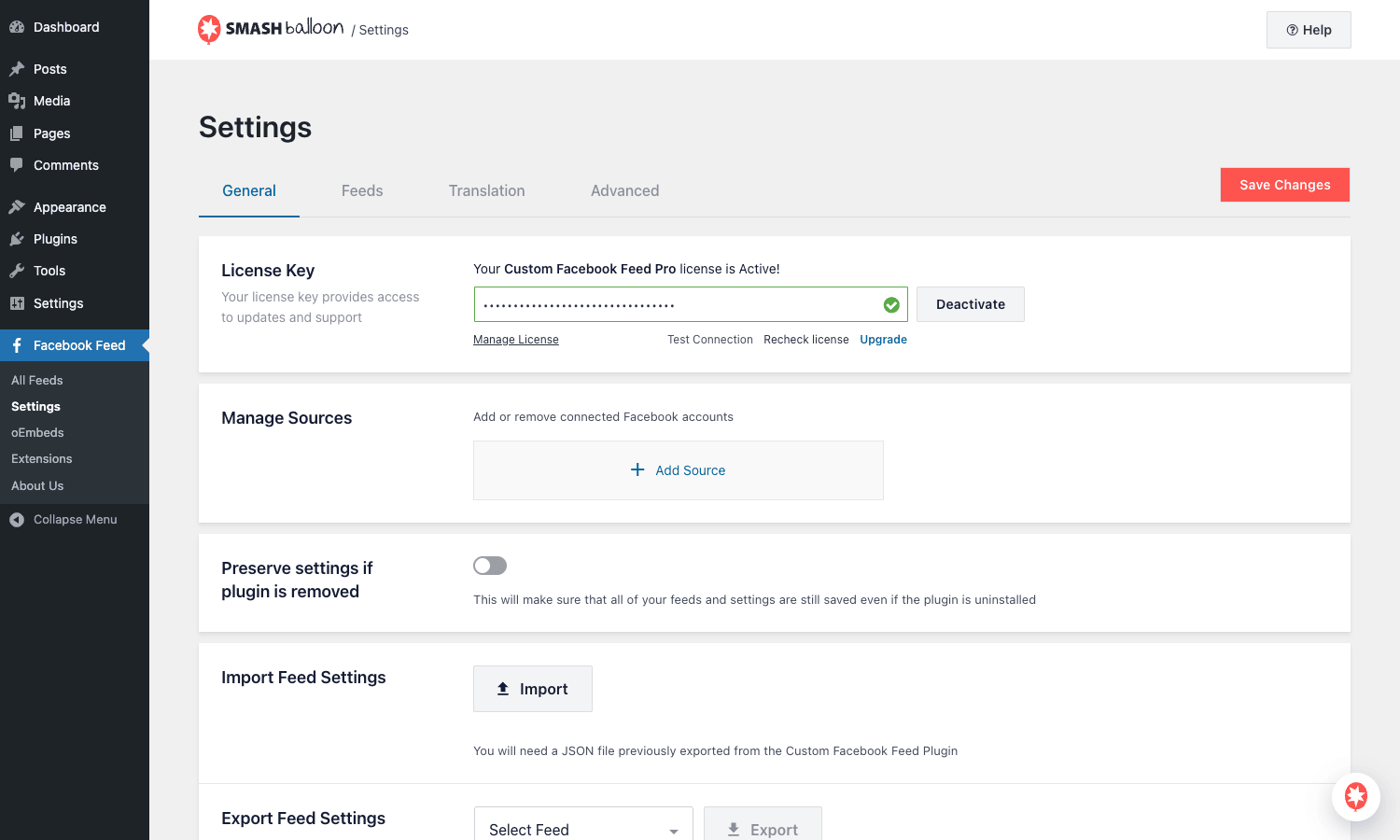
Step 3: connect a Facebook source. From Settings → General, click Add Source. The plugin opens a Smash Balloon-hosted connector that asks you to log into Facebook, pick the page or group you want to pull from, and grant the required permissions. When you come back, the page or group shows up in Manage Sources.
For Facebook pages, you have to be an admin of the page (or have one of the elevated page roles).
For Facebook groups, there is an extra step: Facebook requires that the Smash Balloon Facebook App be added to the group as a moderator or admin tool. You add the app from inside Facebook’s group settings, then Smash Balloon can pull the feed. That extra step is Facebook’s, not the plugin’s, and it applies to any third-party Facebook group tool.
Step 4: confirm the connection. Once a source is added, the dashboard at Facebook Feed → All Feeds shows the new source and offers a Create Feed call to action. If you ever need to revoke access, you can do it both inside Facebook and from the plugin’s Manage Sources panel.
Building your first feed
Now the fun part. Go to Facebook Feed → All Feeds and click Add New.
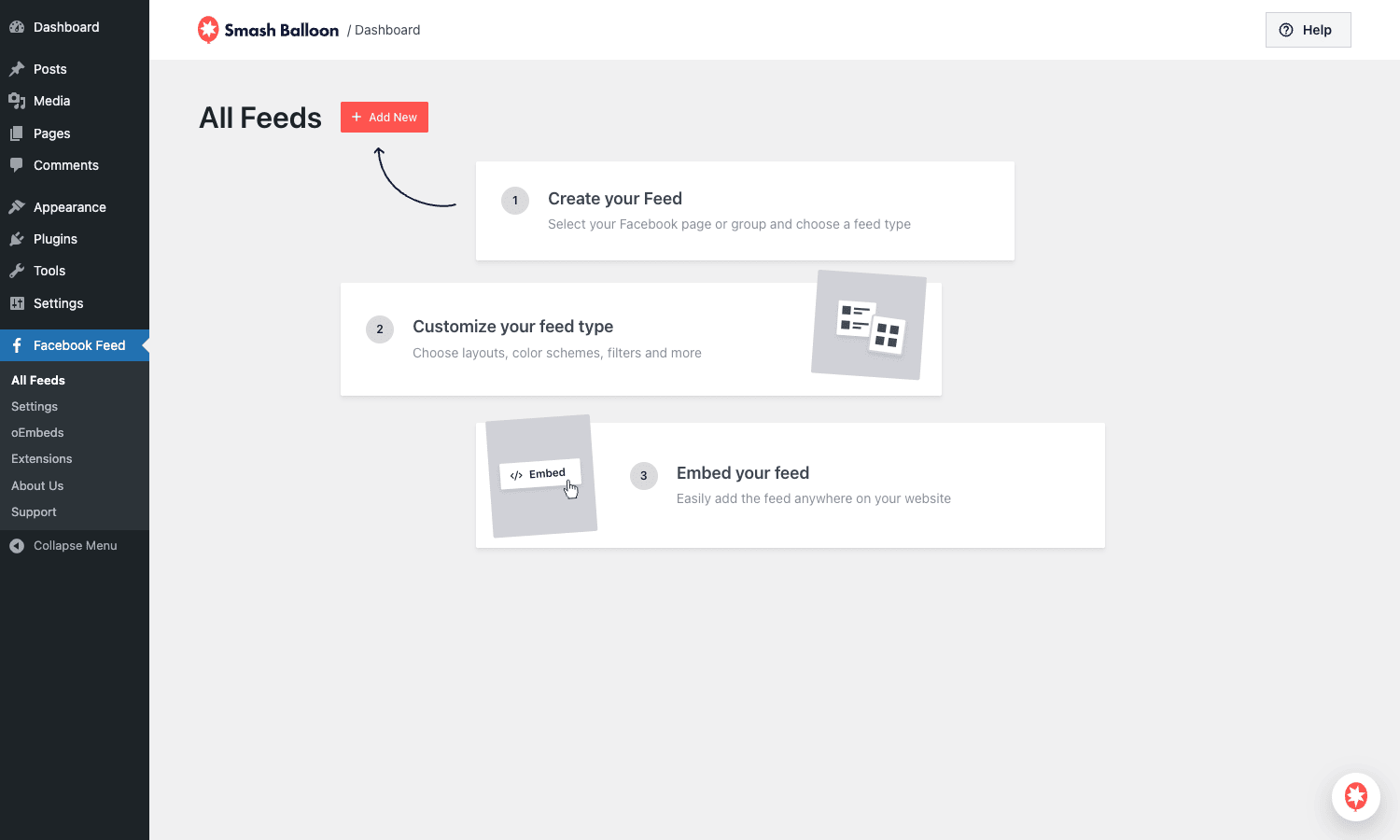
The builder is a multi-step wizard. The first step picks the feed type.
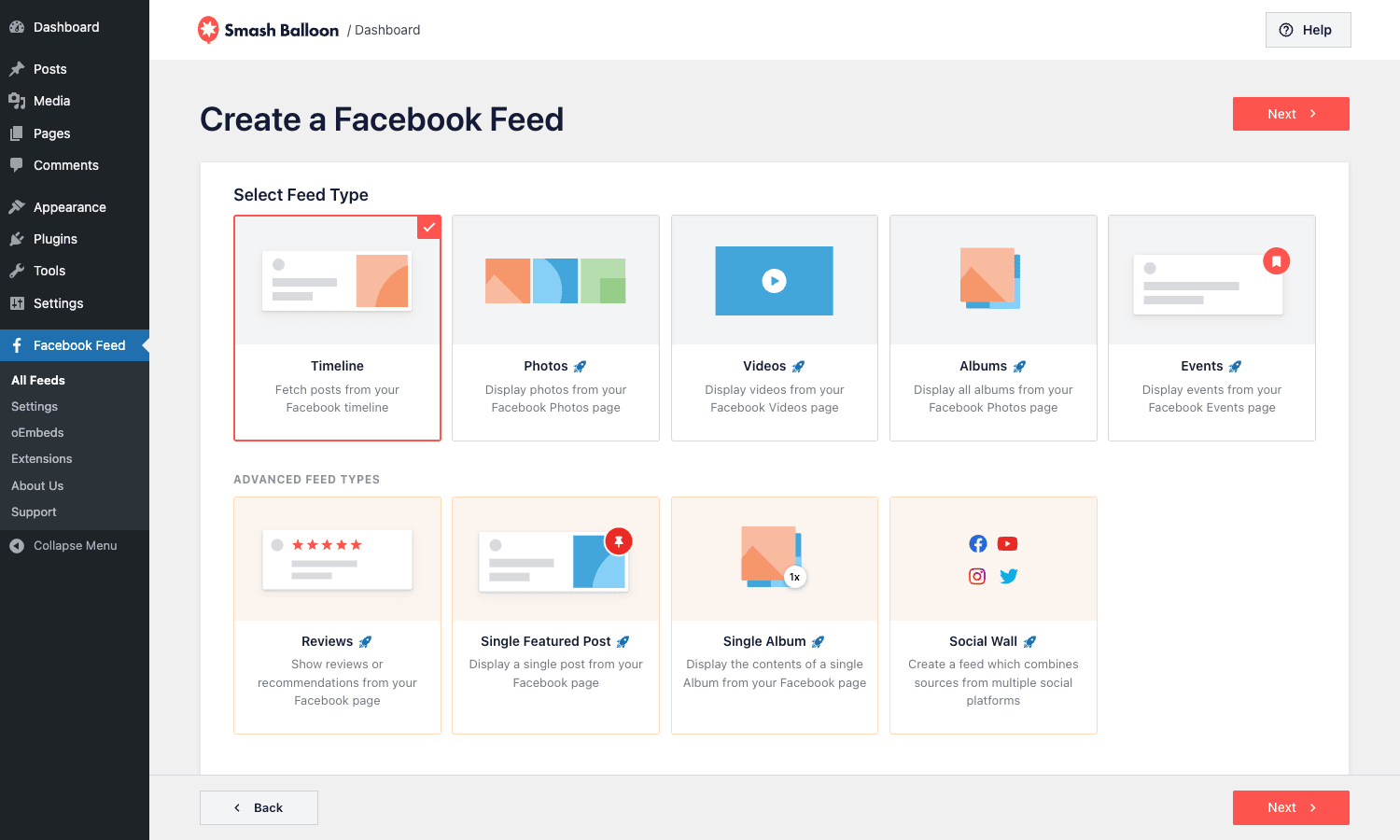
You get nine options:
- Timeline. All posts from the page or group in reverse chronological order. The default and most common.
- Photos. Image-only posts. Good for visual brands.
- Videos. Video-only posts. Pulls native Facebook video, not embedded YouTube links.
- Albums. Shows the cover photo and post counts for every album on the page.
- Events. Upcoming and past events the page is hosting.
- Reviews. What Facebook now calls "recommendations" – the star ratings and written reviews left on the page.
- Single Featured Post. Pin one specific post by ID. Useful for highlighting an announcement.
- Single Album. Drop into one album and show its photos as a gallery.
- Social Wall. A combined feed that mixes Facebook with the other Smash Balloon feeds (requires those plugins). Renders multiple platforms side by side.
Pick one and click Next. The second step asks which source to use.
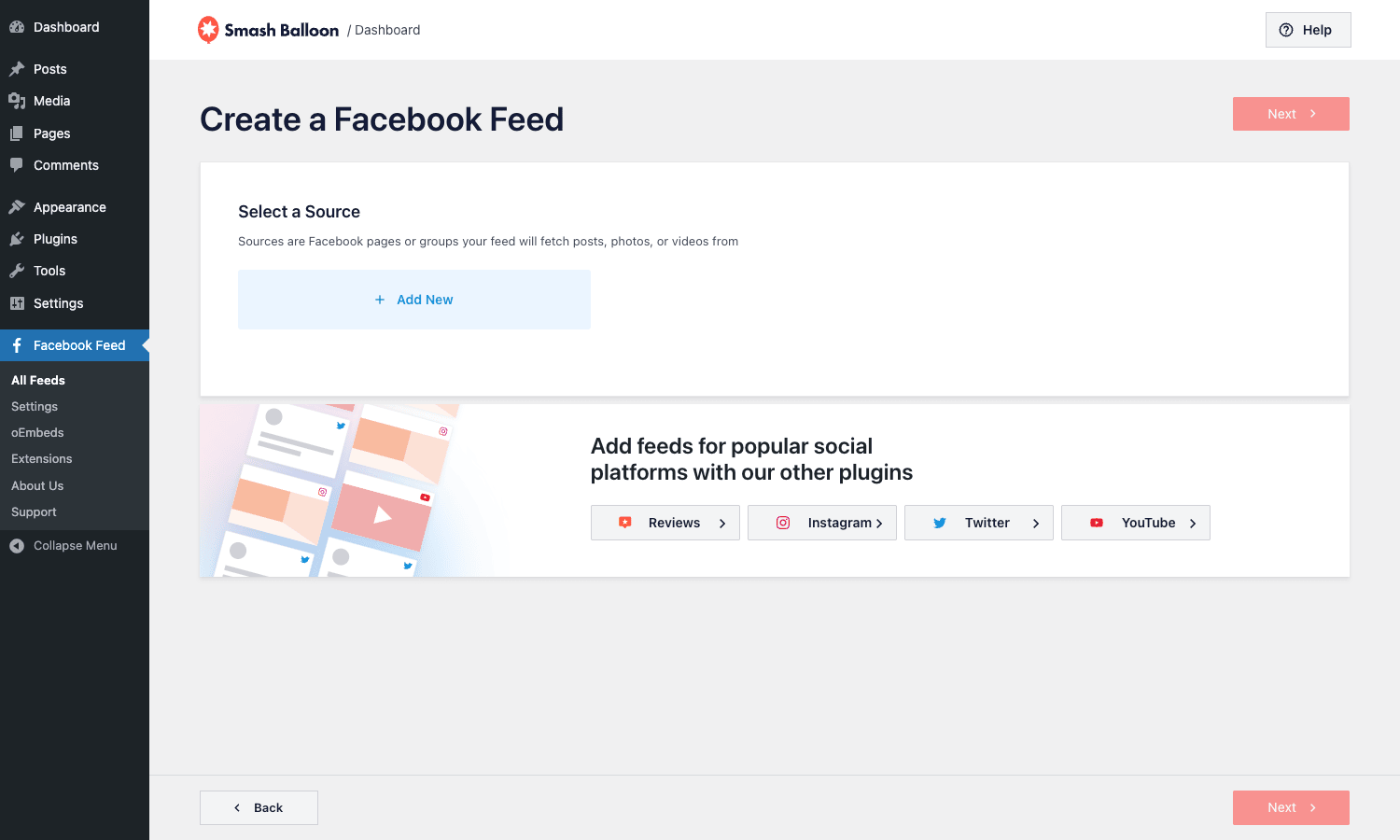
If you connected a source already in Settings, it shows up here. If not, Add New runs the same Facebook OAuth flow inline. You can also tick multiple sources for combined feeds.
Hit Next and you land in the customizer. The customizer is split into a feed preview on the left and a stack of settings panels on the right. The panels group settings by the part of the post they affect (header, post style, like box, lightbox, etc.). Every change updates the preview as you make it.
The first time through, you don’t need to touch most of these. The defaults are sensible and you can always come back. What you do want to set:
- Layout. Pick News Feed, Posts Grid, Photo Grid, Carousel, Masonry, or List. Each one has a thumbnail preview so you can eyeball the look before committing.
- Number of posts. How many posts to fetch from Facebook. The default is 25, which is plenty for most pages. You can raise it but caching becomes slightly slower.
- Posts to display. How many of those fetched posts to show before the "load more" button kicks in.
- Color scheme. Light, dark, or custom. Custom lets you set background, text, and accent colors per-feed.
When you’re happy, hit Save in the top right. The feed gets a numeric ID, and the customizer reveals an Embed button. Click it and you get the shortcode for this feed, plus a one-click "embed in a page" helper.
Layouts and feed types explained
Layout decides how your posts visually stack, independent of what kind of posts you’re pulling. Some pairings work better than others.
News Feed is the safest default. Posts render in a vertical list with the avatar, name, date, body text, attached media, and engagement counts. This is what most people mean when they say "embed my Facebook page on my site." It works for timeline, group, single-post, and event feeds.
Posts Grid turns each post into a card and stacks the cards in a CSS grid (configurable columns). Good for visual brands. Long-text posts get truncated to fit the card height; you can set how many lines before the "see more" link appears.
Photo Grid is for image feeds only. It strips everything except the photo and renders a clean grid. The lightbox is what makes this layout good: click any thumbnail and you get a full-screen viewer with arrow-key navigation.
Carousel is the Pro flagship layout. Posts slide horizontally in a Swiper.js carousel with autoplay, dots, and arrows you can show or hide per feed. Looks great in a hero or sidebar. Loads only the visible slides for performance.
Masonry is the Pinterest-style "no uniform height" grid. Photos render at their natural aspect ratio, which means tall portraits and wide landscapes both look right. Use this when you’re pulling photos from a mix of phones and DSLRs.
List is the most compact view. Thumbnail on the left, title and date stacked on the right, no body text. Useful for sidebar widgets where you want "Latest 5 Facebook posts" without taking up much vertical space.
Feed types and layouts are independent. You can do a Reviews feed in News Feed layout (one review per row with stars and quote), a Reviews feed in Carousel layout (sliding testimonials), or a Reviews feed in Masonry (review wall). The customizer’s preview shows you exactly what each combination looks like, so try a few.
Customization options that matter
The customizer has dozens of panels but most of the work is in five of them.
Header. Toggle the page avatar, page name, follow button, and the "see more posts on Facebook" link at the bottom of the feed. You can also override the displayed name with custom text, useful when your Facebook page has a long legal name but you want the feed to say something friendlier.
Post style. This is where the visual feel of each post is set. Background color, text color, link color, padding around content, separator between posts, border radius, drop shadow. The defaults look like Facebook’s own design; brand sites usually pull this all into their own palette.
Post elements. A long list of toggles for each part of an individual post: author name, profile picture, post date, post body text, post media (photo, video, link preview), comments, likes, shares, "see more" expander, "view on Facebook" link. Turn off whichever ones you don’t want.
Filters. This panel does include and exclude. Show only posts containing certain words (e.g. only your "Webinar" announcements), or hide posts containing certain words (e.g. skip auto-posted "we’re hiring" notices). You can also filter by type if your timeline mixes photo, link, and text posts but you only want photos. And you can pin one specific post by ID to the top of the feed.
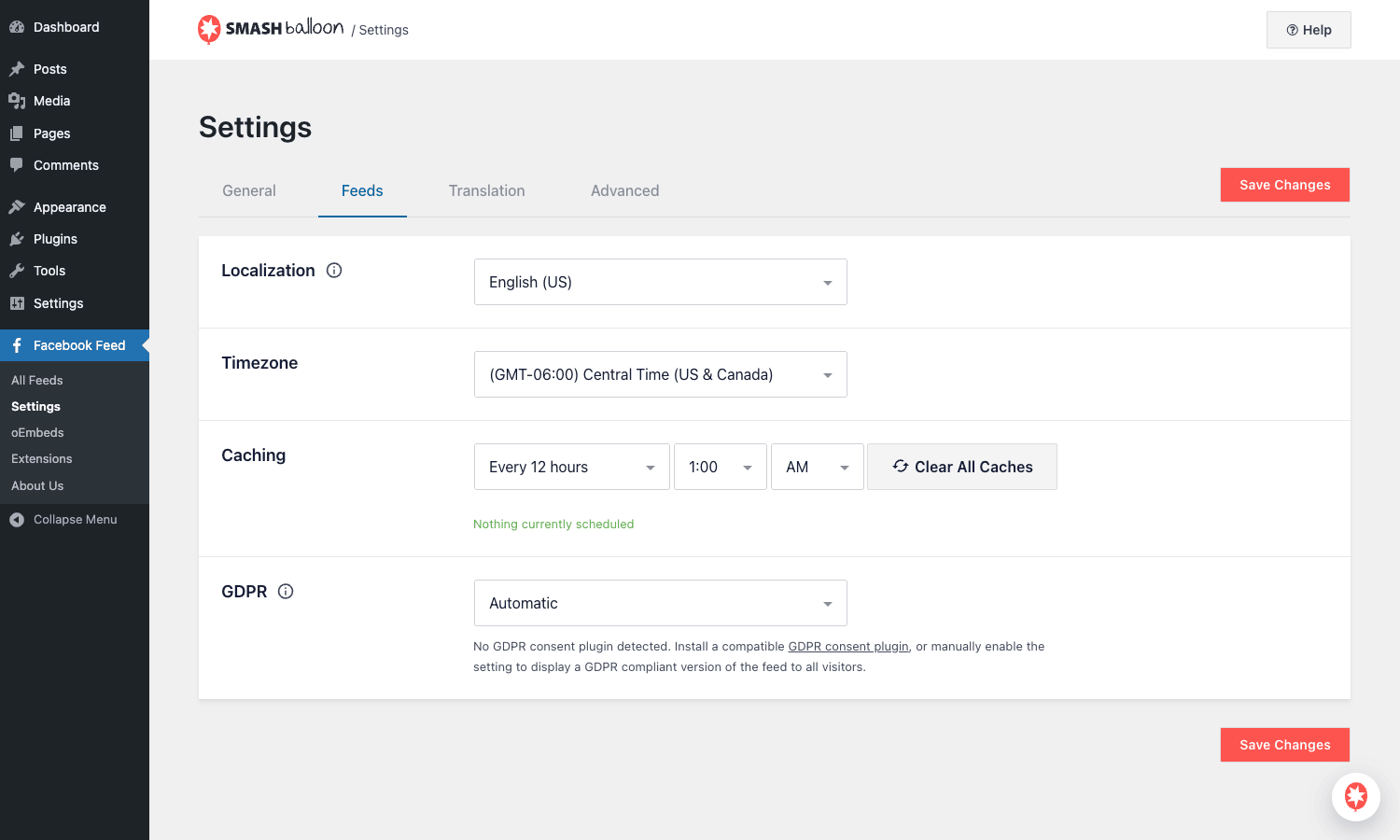
Caching. Sets the refresh cadence (the default Pro setup is every 12 hours, configurable down to 5 minutes), the cache type (background WP cron refresh vs. on-demand), and gives you a Clear All Caches button for when you’ve published a new post and don’t want to wait.
Below those there’s a Translation panel (rewrite every UI string), an Advanced panel (custom CSS, custom JS, asset enqueue mode, raw shortcode), and a Lightbox panel.
Embedding a feed on your site
Once a feed exists, there are three ways to put it on a page.
Shortcode. The most portable option. Every saved feed has a shortcode of the form [custom-facebook-feed feed="1"], where 1 is the feed ID. Paste that into a post, page, widget, or template file via do_shortcode(). The shortcode also accepts inline attribute overrides:
[custom-facebook-feed feed="1" num="6" showheader="false" layout="grid"]
That tells the feed to show only six posts, hide the page header, and force a grid layout for this one embed, without touching the saved feed settings. Useful when one page wants a smaller version of the same feed.
Gutenberg block. Inside the post editor, insert the Facebook Feed block from the inserter. The block opens a small configurator that lists your saved feeds. Pick one and the block renders a live preview right in the editor.
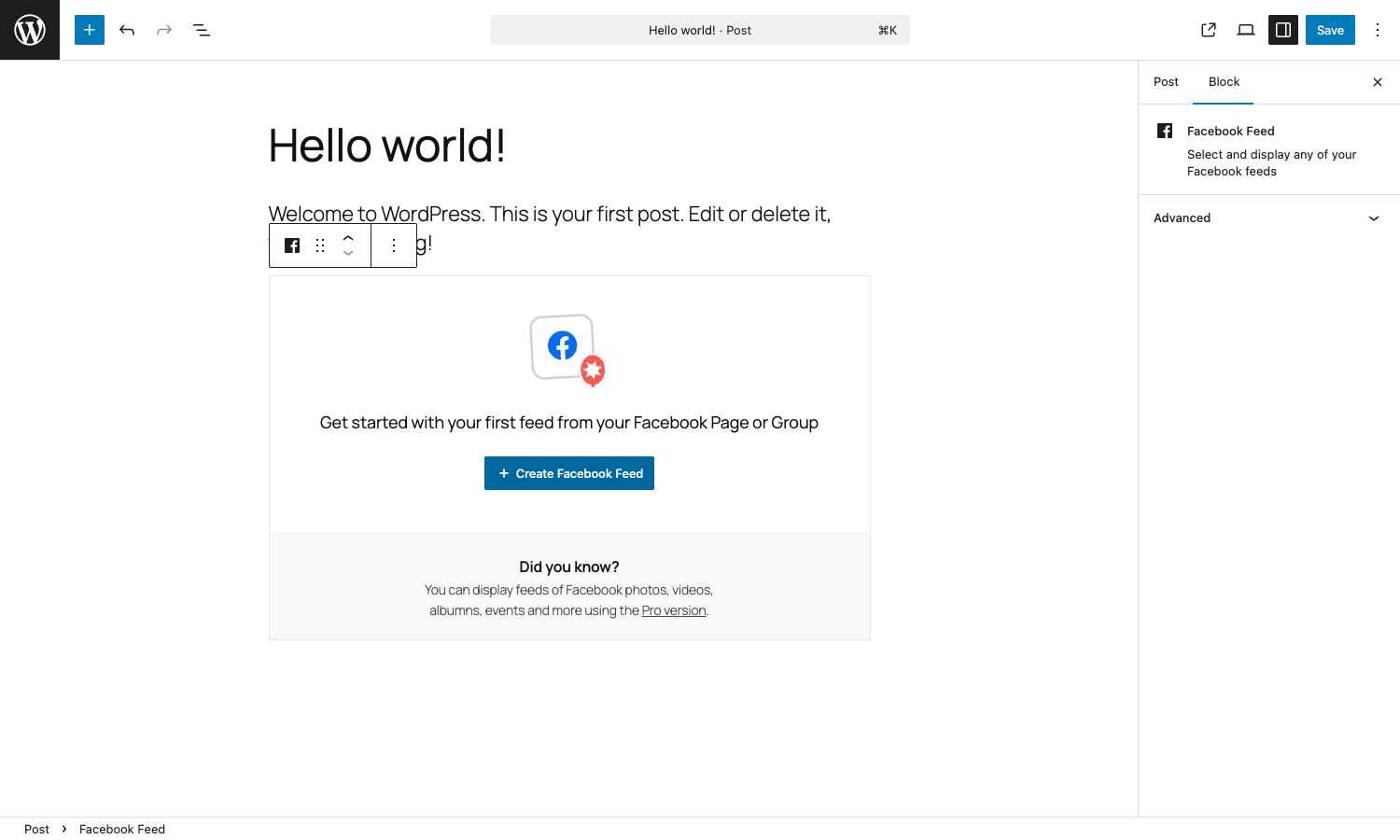
Widget. The plugin registers a Custom Facebook Feed widget for the classic widget areas. Drop it into your sidebar or footer widget area, pick a feed, done.
In all three cases, the plugin tracks where each feed appears via the cff_feed_locator table. That table powers the "Where is this feed used?" link in All Feeds, so when an editor asks "is this feed embedded anywhere?" you can answer in two clicks instead of grepping the database.
Real-world use cases
A few patterns that come up repeatedly:
Restaurant or event venue’s homepage. Use a Timeline feed in News Feed layout, pinned below the hero, showing the page’s last 5 posts. Keeps the homepage feeling alive without anyone having to manually update it.
Photographer’s portfolio. Use a Photos feed in Masonry layout pulling from the studio’s Facebook page. The portfolio page now updates itself every time the photographer publishes a new shoot on Facebook.
Conference or meetup site. Use an Events feed in Posts Grid layout to show the next four upcoming events. When an event passes, Facebook removes it and your site updates automatically. Pair this with MonsterInsights Pro to track which event cards actually get clicks.
Local-business reviews wall. Use a Reviews feed in Carousel layout on the "Why us" page. Five-star reviews slide past automatically, with a "Leave a review on Facebook" CTA underneath.
Community group portal. Use a Group Timeline feed in News Feed layout to surface the latest member posts on the public-facing club website. Members on Facebook stay engaged, non-members see what they’re missing.
Album archive. Use a Single Album feed for each big shoot or trip, then create a parent index page that links to each album-feed page. Cheaper than a dedicated portfolio plugin if Facebook is already where the photos live.
Developer reference: shortcode, block, hooks, filters
Now for the parts I actually use every time I drop the plugin onto a build.
The shortcode and its attributes
The single registered shortcode is [custom-facebook-feed]. With no attributes it falls back to the first feed in the database; in practice you always pass feed="ID". Useful inline attributes:
[custom-facebook-feed feed="1"] <!-- saved feed -->
[custom-facebook-feed feed="1" num="3"] <!-- show 3 posts -->
[custom-facebook-feed feed="1" showheader="false"] <!-- hide page header -->
[custom-facebook-feed feed="1" layout="grid"] <!-- override layout -->
[custom-facebook-feed feed="1" filter="Webinar"] <!-- include filter -->
[custom-facebook-feed feed="1" exclude="hiring"] <!-- exclude filter -->
[custom-facebook-feed feed="1" type="photos"] <!-- override feed type -->
Inline attributes win over the saved settings, which is what makes this shortcode powerful for ad-hoc embeds. Use them when you want one variation without polluting your saved feeds.
The Gutenberg block
The plugin ships two blocks. The classic cff/cff-feed-block is the bridge between the legacy shortcode and the block editor, and is hidden from the inserter (supports.inserter: false); it gets inserted programmatically when you use the "embed via block" helper from the feed builder. The modern block is registered through the bundled Smash Balloon framework as the searchable Facebook Feed block (the one in the screenshot above). Both are wired up via register_block_type() and render server-side through the same get_feed_html() callback, which means whatever you see in the front end matches the preview in the editor.
Hooks: actions the plugin fires
These are the most common ones you’ll want to hook into. All of them use cff_ or sb_ prefixes (the latter come from the shared Smash Balloon framework).
Action: cff_before_display_facebook
Runs before any feed renders on the front end. Use it to inject extra markup or to fire an analytics ping.
add_action( 'cff_before_display_facebook', function( $feed_id ) {
 if ( function_exists( 'monsterinsights_mp_track_event' ) ) {
 monsterinsights_mp_track_event( 'facebook_feed_view', [
 'feed_id' => $feed_id,
 ] );
 }
} );
Action: cff_api_connect_response
Fires after the Facebook OAuth callback returns. Useful if you want to log when a new source was added or to send yourself a Slack ping.
add_action( 'cff_api_connect_response', function( $response ) {
 error_log( '[CFF] Facebook source connected: ' . wp_json_encode( $response ) );
} );
Action: cff_app_permission_revoked
Fires when the Graph API returns an access_token_invalid error. Hook this to alert someone before all your feeds quietly go blank.
add_action( 'cff_app_permission_revoked', function( $source_id ) {
 wp_mail(
 get_option( 'admin_email' ),
 'Facebook source needs reconnecting',
 sprintf( 'Source %d has lost its access token. Reconnect at %s.', $source_id, admin_url( 'admin.php?page=cff-settings' ) )
 );
} );
Action: cff_before_delete_old_data
Runs right before the daily cron clears expired caches. Useful if you want to back up a feed’s HTML for an audit log first.
add_action( 'cff_before_delete_old_data', function() {
 do_action( 'qm/debug', 'CFF cache cleanup running' );
} );
Filters: data you can modify
Filter: cff_output
The most powerful one. Filters the entire rendered HTML of a feed right before it’s returned. Use it to wrap the output in your own container, add JSON-LD, or do any HTML rewrite.
add_filter( 'cff_output', function( $html, $feed_id ) {
 return '<div class="my-fb-wrap" data-feed-id="' . esc_attr( $feed_id ) . '">' . $html . '</div>';
}, 10, 2 );
Filter: cff_filter_api_data
Mutates the raw Graph API response before it gets cached. Use it to enrich posts with custom data, or to strip fields you don’t want stored.
add_filter( 'cff_filter_api_data', function( $data ) {
 if ( empty( $data['data'] ) ) {
 return $data;
 }
 foreach ( $data['data'] as &$post ) {
 // Drop link-preview snippets from cached payload to save space.
 unset( $post['description'] );
 }
 return $data;
} );
Filter: cff_passes_filter
Runs per-post. Return false to drop a post from the rendered feed; this runs after the include/exclude word filter and before output. Useful when you want logic that the keyword filter can’t express.
add_filter( 'cff_passes_filter', function( $passes, $post ) {
 // Hide posts older than 90 days, even if they're within the fetched count.
 $age_in_days = ( time() - strtotime( $post['created_time'] ) ) / DAY_IN_SECONDS;
 if ( $age_in_days > 90 ) {
 return false;
 }
 return $passes;
}, 10, 2 );
Filter: cff_post_text
Filter the body text of a post before it renders. Common use is to autolink hashtags or @-mentions, or to strip a particular promotional string.
add_filter( 'cff_post_text', function( $text ) {
 // Autolink #hashtags to your local archive page.
 return preg_replace( '/#(\w+)/', '<a href="/topic/$1">#$1</a>', $text );
} );
Filter: cff_img_alt
Filter the alt text of a feed image. The default uses the post’s message text truncated to 100 chars; you can plug in something more SEO-friendly.
add_filter( 'cff_img_alt', function( $alt, $post ) {
 $page = get_option( 'cff_page_name', 'Our Facebook page' );
 return $alt ? $alt : sprintf( 'Photo from %s on Facebook', $page );
}, 10, 2 );
Filter: cff_settings_pages_capability
By default, only users with manage_options (administrators) can view and edit Custom Facebook Feed settings. Lower the bar for an editor or a marketing manager:
add_filter( 'cff_settings_pages_capability', function() {
 return 'edit_others_posts'; // Editors can now manage Facebook feeds.
} );
Filter: cff_license_key
Override how the license key is resolved at runtime. Handy on multisite networks where you set the key as a constant in wp-config.php.
add_filter( 'cff_license_key', function( $key ) {
 if ( defined( 'CFF_LICENSE_KEY' ) ) {
 return CFF_LICENSE_KEY;
 }
 return $key;
} );
Filter: cff_new_from_link
Filter the URL on each "View on Facebook" link in a feed. Use it to rewrite to a tracking URL or to swap the destination domain on staging.
add_filter( 'cff_new_from_link', function( $url ) {
 return add_query_arg( 'ref', 'website-feed', $url );
} );
Custom database tables
The plugin creates four tables on activation, all prefixed with your WordPress table prefix:
| Table | What’s in it |
|---|---|
cff_feeds |
Saved feeds. One row per feed. Stores the feed’s title, settings as JSON, shortcode HTML, and timestamps. |
cff_feed_caches |
Cached Graph API responses, keyed by feed. One row per cache slice. |
cff_sources |
Connected Facebook pages and groups, along with their long-lived access tokens. |
cff_feed_locator |
Maps each feed to the posts and widget areas it appears in. Powers the "Where is this feed used?" link in the dashboard. |
If you uninstall the plugin without ticking Preserve settings if plugin is removed in Settings, all four tables get dropped. If the option is on, the tables stay so you can re-install later without losing your sources or feeds.
oEmbeds: replacing WordPress’s broken Facebook handler
Facebook deprecated its public oEmbed endpoint back in 2020. Since then, pasting a Facebook URL into the WordPress editor has produced a broken embed (or nothing at all). Custom Facebook Feed Pro can take over the oEmbed handler for Facebook URLs and render a feed-style preview instead.
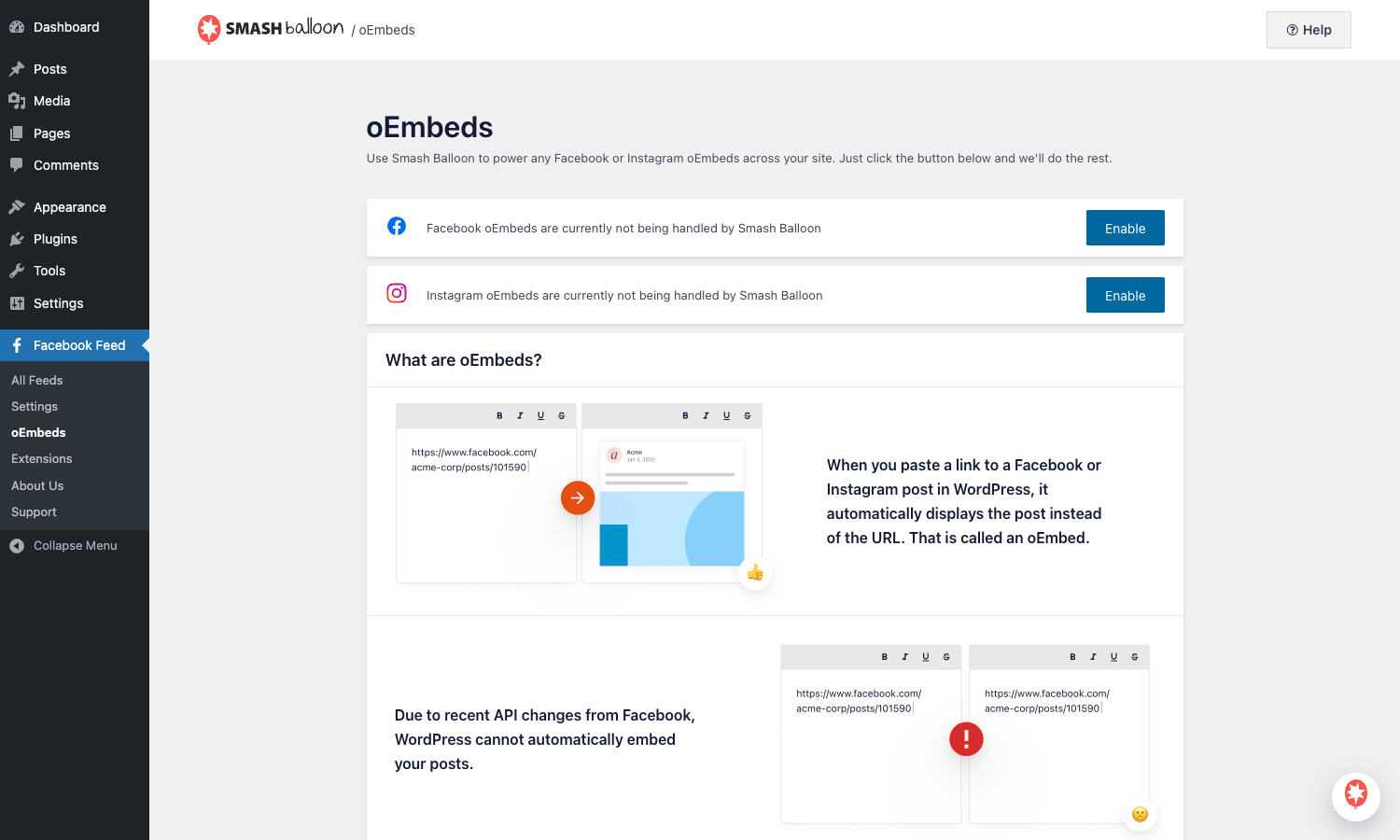
To turn it on, go to Facebook Feed → oEmbeds and click Enable next to Facebook. The plugin replaces the WordPress oEmbed handler for facebook.com URLs. Now any Facebook URL pasted into a post renders a real, styled embed pulled through the plugin’s Graph API connection.
Performance, caching, and GDPR
By default the plugin caches the Graph API response for 12 hours, which is sensible for most pages. You can tune it down to 5 minutes for sites that publish constantly, or up to 24 hours for sites where Facebook is a quieter source.
Caching is two-layered. There’s a database cache (the cff_feed_caches table) that holds the API response, and there’s a transient that holds the rendered HTML. Both refresh on the schedule you set. There’s also a Clear All Caches button in Settings → Feeds that wipes both immediately.
For performance, the plugin proxies all photo URLs through its own resizer. Facebook serves images at huge native sizes; the resizer downscales them to feed-appropriate dimensions and stores the resized versions in your uploads/cff/ folder. That means the first page view after a cache refresh is slow (the resizer runs), but every subsequent view is fast.
If you’re running WP Rocket or another page-caching plugin, the rendered feed HTML gets baked into the page cache, so most visits skip the plugin entirely. The plugin ships a litespeed_purge integration that fires when you clear feed caches manually, so the page cache stays in sync.
On the GDPR front, the GDPR setting in Settings → Feeds can be set to Yes, No, or Automatic. Automatic checks for a known consent plugin (Cookie Notice for GDPR, Cookiebot, or CookieYes) and only renders the feed once the visitor consents. When consent is missing, the feed is replaced with a placeholder that triggers a load on consent. If you’re hand-rolling consent, set it to Yes and add your own JS to flip the consent flag.
Compatibility and gotchas
A few practical things to know before you ship.
Group feeds need the Smash Balloon Facebook App added to the group. This is Facebook’s policy, not the plugin’s. Without it, the API call returns "no access." Once added, it stays added.
Facebook periodically rotates required Graph API permissions. When that happens, your existing access tokens stop working and you see a "reconnect source" notice in the admin. Reconnecting is one click but it does require an admin who has Facebook page access to be present. Plan ahead if the site is managed by someone who doesn’t have those credentials.
Page reviews and recommendations require that the page be a Local Business or similar review-eligible category. Personal-brand pages and global businesses don’t always have reviews enabled. If the Reviews feed renders empty, check the page category in Facebook first.
Big group feeds have an undocumented rate limit. If you set the cache interval to 5 minutes and your group has thousands of active members, you’ll occasionally hit the Graph API’s rate limit and see an empty refresh. 30 minutes is a safer floor for very active groups.
Don’t put more than ~3 feeds on a single page. Each feed runs its own Swiper or grid CSS and its own data attributes. Three is fine, ten is sluggish. If you genuinely need ten, the Carousel layout is your friend because it lazy-loads slides.
The plugin works with all major page builders. Elementor, Beaver, Bricks, and Divi all happily accept the shortcode or the Gutenberg block. The Custom CSS panel is the right place to override per-builder spacing tweaks.
Compatibility with social plugins. If you’re already using WPForms for newsletter signups or Pretty Links for affiliate redirects, there’s no conflict. The plugins live in completely different namespaces.
Pricing and licensing
Smash Balloon sells Custom Facebook Feed Pro on annual subscriptions tiered by site count, with the typical "Personal", "Business", and "Agency" rungs. The license unlocks Pro feed types, the visual customizer’s premium controls, the Carousel layout, multi-source feeds, and the auto-update channel.
If you bought a license from Smash Balloon, it works as documented: paste the key into Settings → General and Pro features unlock immediately.
It’s licensed under the GPL (the same license Smash Balloon uses to release the plugin), so you’re free to use it on as many of your own sites as you want. If you go into production and want official vendor support and the auto-update channel, buy a license from Smash Balloon directly.
Frequently asked questions
Does Custom Facebook Feed Pro work with private Facebook pages or groups?
Yes for groups (you have to add the Smash Balloon Facebook App as a moderator first). For private pages, "private" isn’t really a Facebook page concept; pages are public by definition. If you mean an unpublished page, the plugin can still fetch it as long as you’re authenticated as an admin of that page.
Can I display posts from someone else’s Facebook page?
Only if Facebook’s API allows it, which usually means a page you have admin access to. You can’t pull arbitrary public pages because Facebook restricted that capability in 2018. The plugin abstracts the limitation but doesn’t bypass it.
Will the feed slow down my site?
Not noticeably. The Graph API call happens in the background on a cron schedule, and the rendered HTML is cached. Each page view serves cached output, so the marginal cost of having a feed is similar to having a large image on the page. The image proxy means images are properly sized for the layout instead of Facebook’s giant native sizes.
How often does the feed update?
The default is every 12 hours. You can tune that from 5 minutes to 24 hours in Settings → Feeds → Caching. The "Clear All Caches" button does an immediate refresh whenever you need it.
What happens if I deactivate the plugin?
If Preserve settings if plugin is removed is on (in Settings → General), your feeds and sources stay in the database so you can pick up where you left off. If it’s off, the four custom tables are dropped on uninstall.
Can I use Custom Facebook Feed Pro alongside the free Custom Facebook Feed plugin?
No, they’re the same code base. The Pro plugin replaces the free one. Deactivate and delete the free version before installing Pro; the Pro version covers everything the free one did, and your existing feeds carry over.
Does the plugin work with Gutenberg full-site editing themes?
Yes. The Facebook Feed block works in template parts, theme.json patterns, and standalone post content. If you’re inside a query loop or another scoped context, the block still resolves to the right feed based on the feed ID you pick in the configurator.
Is the plugin compatible with multilingual setups?
Yes. The Translation panel inside the customizer lets you override every UI string per feed, which means a French feed can say "Voir plus de publications" instead of "See more posts." For WPML or Polylang, you’d typically create one feed per language and switch which feed renders based on the active language via a small conditional in your theme.
Final thoughts
Custom Facebook Feed Pro doesn’t do anything you couldn’t build yourself if you really wanted to. The Facebook Graph API is documented, OAuth flows are documented, caching strategies are documented. What the plugin actually saves you is the dozens of small decisions in between: how to handle a revoked token, how to proxy a 1600px Facebook image down to 400px without re-uploading it, how to detect Cookie Notice for GDPR and only render the feed once consent fires, how to make a Swiper carousel responsive and accessible.
The visual customizer hides all of that under a clean interface, but the developer hooks expose the same machinery to anyone who wants to tweak it. That combination, easy enough for a non-developer to spin up in 15 minutes and flexible enough for a developer to reshape, is what makes it the default Facebook plugin on WordPress.
If you’ve been pasting Facebook iframes by hand or asking visitors to "visit our Facebook page" because the WordPress oEmbed for Facebook doesn’t work anymore, this plugin is the fix. Drop it on a staging site, connect a source, build one feed in the customizer, and decide if the result is the look you want. The whole evaluation should take under half an hour.