

It’s 9:58 PM. A seller is staring at one listing, a signed first-edition book, watching the countdown tick under three minutes. Two people have been trading bids all evening. The price is sitting at a number that already makes the seller smile. Then, with eleven seconds left, a third bidder no one saw coming drops a bid that beats both of them, and the clock runs out before anyone can answer.
That whole drama, the countdown, the back-and-forth, the last-second snipe, is exactly what a store running on WooCommerce cannot do out of the box. WooCommerce sells things at a fixed price. It does not run auctions. That is the gap YITH WooCommerce Auctions fills, and it fills it by turning any WooCommerce product into a timed, bid-driven listing.
I’ve set up a few auction sites over the years, two for collectors and one for a charity fundraiser, and the difference between a plugin that "supports bidding" and one that handles the messy edges (sniping, reserve prices, unpaid winners, automatic proxy bids) is enormous. This is a long, honest walk through how this one behaves once you put real money and real bidders through it.
Table of Contents
- What is YITH WooCommerce Auctions?
- Key features
- How an auction actually runs
- Setting up your first auction
- Proxy bidding and tiered increments explained
- Reserve price, Buy Now, and sealed auctions
- What happens when an auction ends
- Watchlists, followers, and bidder emails
- Rescheduling and the global auction settings
- Don’t run an auction site like this
- YITH WooCommerce Auctions vs WooCommerce Simple Auctions
- Developer reference
- Performance, compatibility, and gotchas
- Pricing and licensing
- FAQ
- Final thoughts
What is YITH WooCommerce Auctions?
YITH WooCommerce Auctions is an auction engine for WooCommerce, made by YITH, the team behind a long catalog of WooCommerce extensions. It needs WooCommerce running underneath it. There’s no free wp.org base plugin you have to bolt it onto, so it’s self-contained once WooCommerce is active.
Here’s the part that matters technically, and it trips people up: it does not create a new "Auction" post type. Instead it adds a new product type to WooCommerce, sitting right next to Simple, Variable, Grouped, and External in the product-data dropdown. You create a normal product, switch its type to "Auction," and a panel of auction settings appears. That design choice is smart. It means your auctions live in the same products list, inherit your product categories and tags, show up in your shop loop, and reuse WooCommerce’s checkout, taxes, and shipping. You’re not learning a parallel system. You’re flipping one switch on a product you already know how to make.
So when somebody asks "where do auctions show up in my admin?" the honest answer is: in Products, like everything else. The product type is the whole trick.
On top of that product type, the plugin layers everything an auction actually needs: a start price, a minimum bid increment, an optional reserve, an optional Buy Now price, start and end dates, a live countdown, AJAX bidding with no page reload, proxy (automatic) bidding, anti-sniping overtime, entry fees, commissions, watchlists, follower emails, and a full close-and-collect-payment flow. It’s the classic eBay-style setup, rebuilt to live inside your store.
Key features
Rather than reprint the marketing list, here’s what genuinely changes how an auction store runs.
- An "Auction" product type, not a separate system. Any WooCommerce product can become an auction. It uses your existing catalog, categories, checkout, and emails. Nothing parallel to maintain.
- Two auction modes: normal and reverse. Normal means the highest bid wins, which is what most people picture. Reverse means the lowest bid wins, which is how a procurement or "name your lowest service price" listing works.
- Proxy (automatic) bidding. A bidder sets the maximum they’re willing to pay and the system bids on their behalf, one increment at a time, only as high as it needs to. This is the feature that makes a store feel like a real auction site instead of a glorified comment thread.
- Tiered bid increments. Set a small increment while the price is low and a bigger one once it climbs. For example plus five under one hundred, then plus ten under five hundred. It stops the painful "raise by a dollar twenty times" grind on a high-value item.
- Reserve price and Buy Now. A hidden floor below which the item doesn’t sell, and an optional instant-purchase price that ends the auction early.
- Sealed auctions. Every bid is hidden from other bidders. Nobody can see the current high bid, so they bid their honest number. Great for tenders and silent auctions.
- Anti-sniping overtime. Any bid placed in the final few minutes extends the clock, so a last-second snipe can’t steal the win uncontested.
- Entry fees and commissions. Charge bidders a participation fee, and attach a percentage or flat commission to the winning price (useful in a marketplace).
- Automatic winner and order creation. When the clock hits zero, the plugin picks the winner, can create a pending-payment order, and emails them a "Pay now" link.
- Watchlists and follower emails. Buyers save auctions to a watchlist in My Account and can subscribe to get an email on every new bid.
- Automatic rescheduling. Auctions that end with no bids, or below reserve, can relist themselves on a schedule instead of dying quietly.
- Builder support. Five dedicated Elementor widgets, Gutenberg blocks, a classic WP widget, and a stack of shortcodes for placing auction grids and bid forms anywhere.
Most of these are off until you switch them on, which I appreciate. You’re not forced into fees and overtime on day one.
How an auction actually runs
Before the settings, here’s the lifecycle, because every option later only makes sense once you’ve seen the flow end to end.
You list the item. You create a product, set its type to Auction, and fill in a start price, a minimum increment, start and end dates, and optionally a reserve and a Buy Now price. The product publishes like any other and appears in your shop.
The auction goes live at the start time. Before that, the product page shows "This auction has not been started yet" with a countdown to when bidding opens. You can publish a listing days early to build interest and let it open itself.
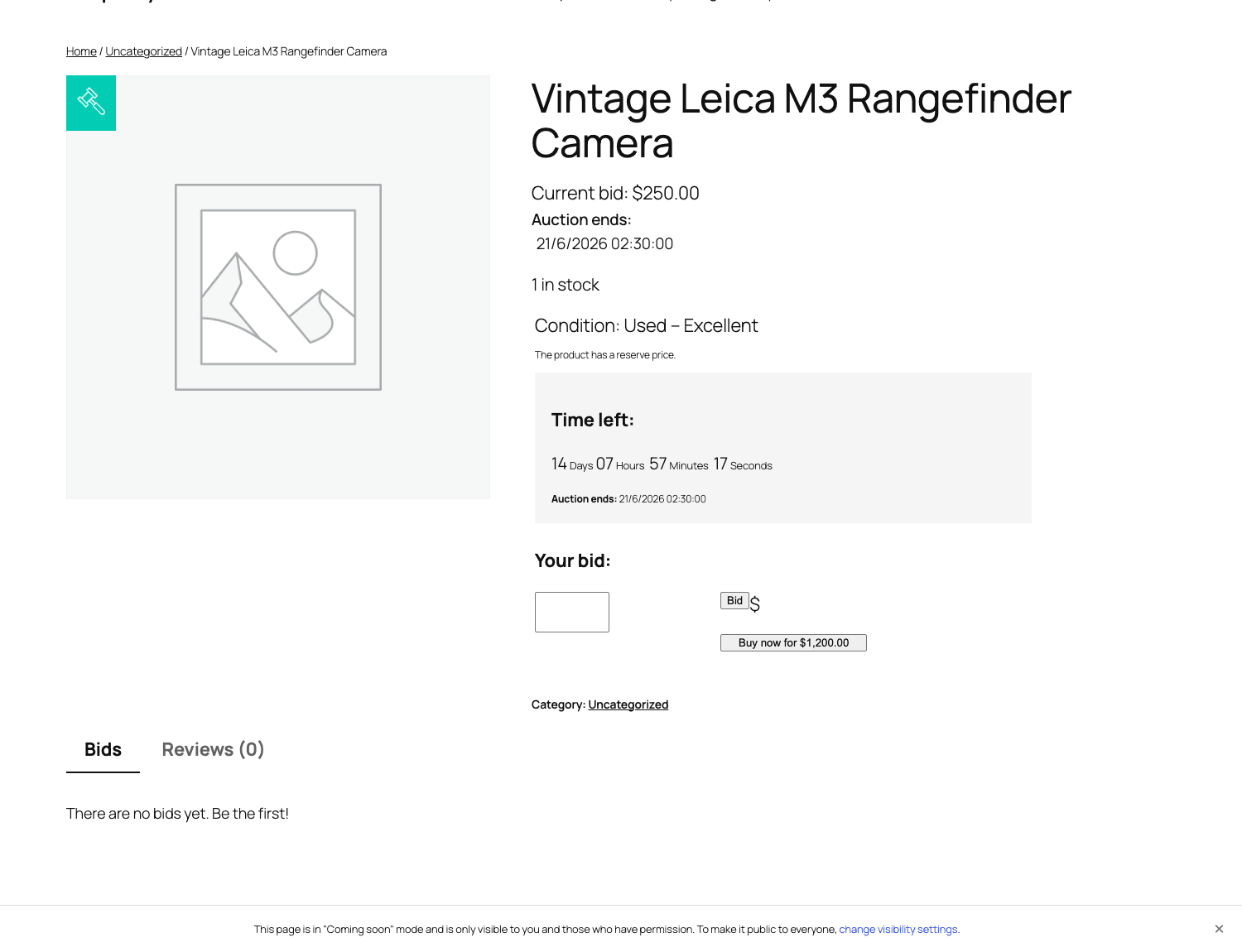
Bidders bid. On the live auction page a buyer sees the current bid, the item condition, a reserve-price notice if one is set, and a "Time left" countdown down to the second alongside the exact end date. There’s a Your bid input, a Bid button, and, if you enabled it, a Buy now button. Bidding happens over AJAX, so the current bid and the bid list update without a page reload. A separate Bids tab lists the bid history (or hides it entirely in a sealed auction).
The clock runs down. If overtime is on and a bid lands in the final window, the end time pushes out to give other bidders a chance to respond. This repeats every time a late bid arrives, so the auction only really ends when the bidding has genuinely stopped.
The auction closes and a winner is chosen. In a normal auction the highest bidder wins. In a reverse auction the lowest does. If a reserve was set and the top bid never cleared it, there’s no winner and the item can be rescheduled instead.
The winner pays. The plugin can automatically create a pending-payment order for the winning bidder and email them a "Pay now" link that drops them straight at checkout with the item already in their cart. They complete payment through your normal WooCommerce gateways. A winner badge appears on the auction image so everyone can see it’s been won.
That’s the full arc. Now let’s set one up properly.
Setting up your first auction
Installation is the boring part and it’s two steps, so I’m folding it in here rather than giving it its own section. Upload the plugin zip under Plugins » Add New » Upload Plugin, activate it, and make sure WooCommerce is already active. The plugin creates its own database tables on activation (more on those in the developer section) and adds a YITH » Auctions panel to your admin. That’s it. No setup wizard to sit through.
Now create your first listing. Go to Products » Add New, give it a title, description, and a featured image, then find the Product data dropdown (it normally says "Simple product") and switch it to Auction. The product-data box changes to show three auction sub-tabs: General, Prices, and Extras.
The General sub-tab
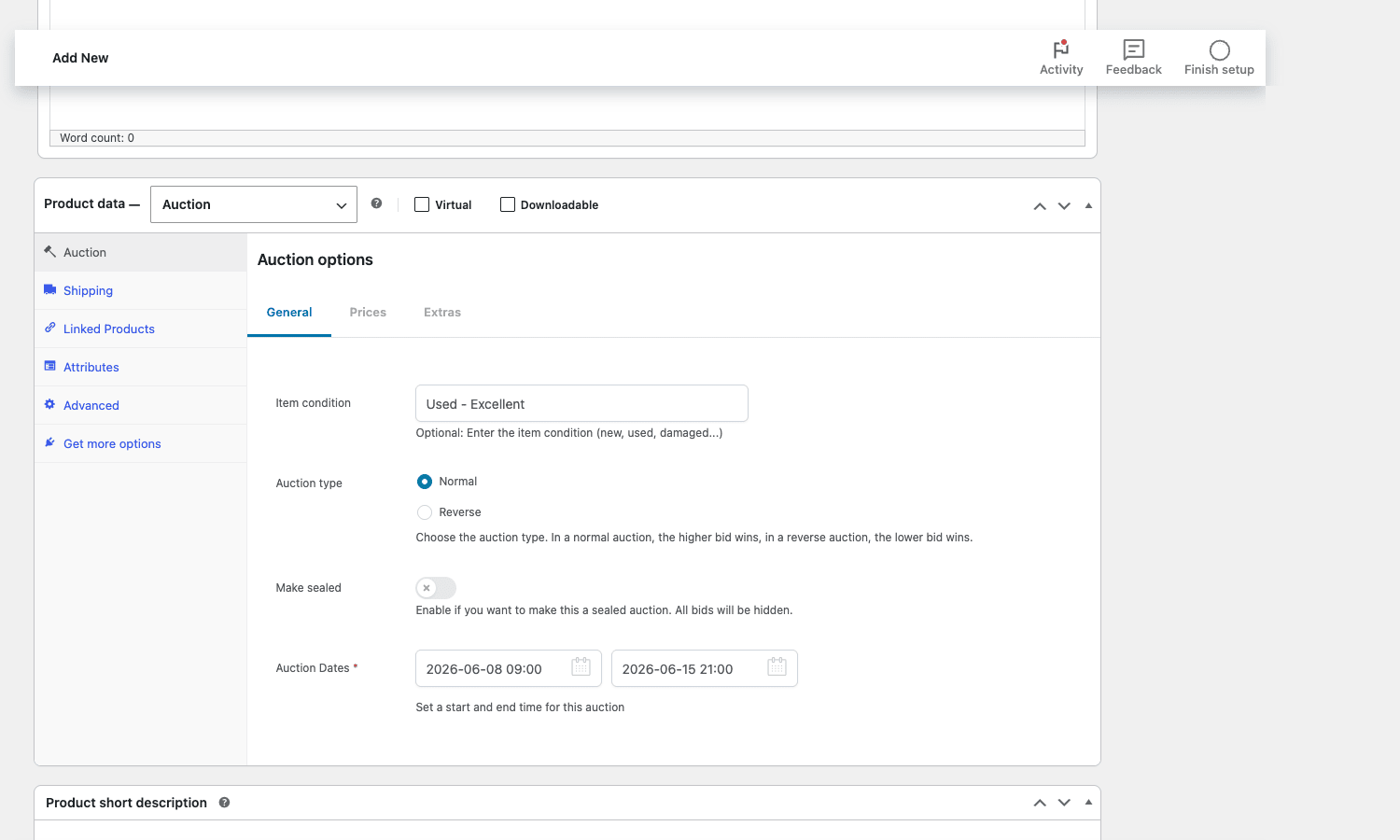
This is where you describe the auction itself.
- Item condition is a free-text field. Write what you’d write on a real listing: "Used, excellent" or "New, sealed in box." It’s the kind of detail bidders look for first.
- Auction type is the normal/reverse choice. Leave it on Normal for a standard highest-bid-wins auction. Switch to Reverse only when you genuinely want the lowest bid to win.
- Make sealed hides all bids from everyone. Turn this on for silent auctions and tenders, leave it off for the public eBay feel where bidders can see what they’re up against.
- Auction Dates is the start and end datetime, and it’s required. The start can be in the future to schedule a listing in advance. The end is your close time, the moment the countdown is racing toward.
Tip: set your WordPress time zone correctly under Settings » General before you publish anything. Auction close times follow your site time zone, and a misconfigured zone is the single most common reason an auction "ends at the wrong time."
The Prices sub-tab
This tab does the financial heavy work.
- Start price is the opening bid. Set it low to attract early action, or higher to filter out tire-kickers. There’s real psychology here, a low start price draws a crowd and the crowd drives the price up.
- Minimum increment amount is how much each new bid must beat the last one by. Too small and bidding crawls. Too large and you scare off casual bidders.
- Reserve price is the hidden floor. The item only sells if bidding clears it. Bidders see a "this auction has a reserve" notice but never the number.
- Buy Now is a toggle plus an amount. When on, a buyer can skip the auction entirely and purchase outright at that price, which closes the listing.
- Bid type is the big one: manual bidding (each bidder types each bid) or automatic (proxy) bidding. With proxy on, you can use a single simple increment or the advanced tiered increment table. We’ll get into both next.
- Entry fee lets you charge a participation fee, with an option to ask for it before the first bid is allowed.
- Commission fee attaches a value (percentage or fixed) to the winning price, with a label. This matters most in a marketplace where the platform takes a cut.
The Extras sub-tab holds the overtime / anti-sniping controls and a few odds and ends. I’ll cover overtime properly in the anti-pattern section, because it deserves the spotlight.
Proxy bidding and tiered increments explained
This is the section I wish every auction plugin explained clearly, because proxy bidding is where the magic and the confusion both live.
Manual bidding is the obvious one. A bidder types a number, clicks Bid, and that becomes the new high bid. Simple, and fine for low-stakes or short auctions. The downside is it punishes people who can’t sit at their screen. If you’re at dinner during the final hour, you lose, even if you’d happily have paid more.
Automatic (proxy) bidding fixes that. A bidder enters the maximum they’re willing to pay, and the system bids for them. It only ever raises their bid by one increment above the next-highest bidder, never straight to their max. So if you set a max of two hundred and the current bid is fifty, you become the high bidder at fifty plus one increment, not at two hundred. Your true ceiling stays private. When someone else bids, the system answers automatically up to your limit. This is exactly how eBay works, and it’s why eBay auctions don’t feel like a constant refresh war.
Here’s the part bidders need explaining, and you should put it in your site’s help text: proxy bidding does not mean "I’ll pay my max." It means "bid for me, one step at a time, but never above my max." A surprising number of first-time bidders assume entering two hundred means they’ll be charged two hundred. They won’t, unless someone pushes them there.
Tiered increments make proxy bidding feel natural across a wide price range. Instead of one fixed increment for a whole auction, you define a table: an increment that applies in one price band, a different one in the next. The fields are a from value, a to value, and the increment value for that band.
| Current price band | Increment | Why |
|---|---|---|
| Under 100 | +5 | Small steps keep early bidders engaged |
| 100 to 500 | +10 | Bigger jumps as the item gets serious |
| 500 and up | +25 | Stops a high-value item climbing by trivial amounts |
Without tiers, a five-dollar increment on a thousand-dollar lot means two hundred bids to get there. Painful for everyone. With tiers, the steps grow as the price climbs, and the auction reaches a fair number in a sensible number of bids. If you sell across a range of values, this single feature is worth the install on its own.
Reserve price, Buy Now, and sealed auctions
These three pricing tools change the shape of an auction, and using the wrong one is how sellers lose money. Let me be specific about when each fits.
Reserve price is your safety net. It’s a hidden minimum, and the item only sells if the top bid clears it. Use it on anything you can’t afford to give away cheap. A no-reserve auction is genuinely thrilling for bidders (everyone knows the item will sell), so it drives participation, but it’s only safe when you’d accept any price. The classic disaster is a no-reserve listing that attracts one five-dollar bid on a six-hundred-dollar camera, and now you’re contractually on the hook to sell it for five dollars. Reserve prevents that. The trade-off: a reserve that’s set too high frustrates bidders who pile in, clear what they think is a winning price, and then learn the reserve wasn’t met. Set it honestly, near the lowest number you’d actually accept.
Buy Now is the impatience tap. It puts an instant-purchase price on the auction so a buyer who doesn’t want to wait can end it on the spot. It works best when there’s a clear "market price" the item is worth and you’d happily take that price today rather than gamble on the auction running higher. The plugin even lets you decide what happens to Buy Now once bidding heats up: you can hide it after the first bid, or hide it once a bid exceeds the Buy Now amount (because at that point it makes no sense to offer it). Those toggles live in the global Auction Options.
Sealed auctions hide every bid. No bidder can see the current high, so each one submits their genuine best number rather than playing the "just enough to win" game. This is the format for silent charity auctions, government-style tenders, and any situation where you want true valuations instead of incremental gamesmanship. The catch: sealed auctions lose the spectator drama that drives a public auction’s price up, so use them when honesty matters more than excitement.
Note: you can combine these. A sealed auction with a reserve is a perfectly normal tender setup. Buy Now plus reserve is fine too. The plugin doesn’t stop you mixing them, but think through what each does to bidder behavior before you stack three at once.
What happens when an auction ends
The ending is where weak auction plugins fall apart, and where this one does its best work. Most of these controls live under YITH » Auctions » General » Auctions Payments.
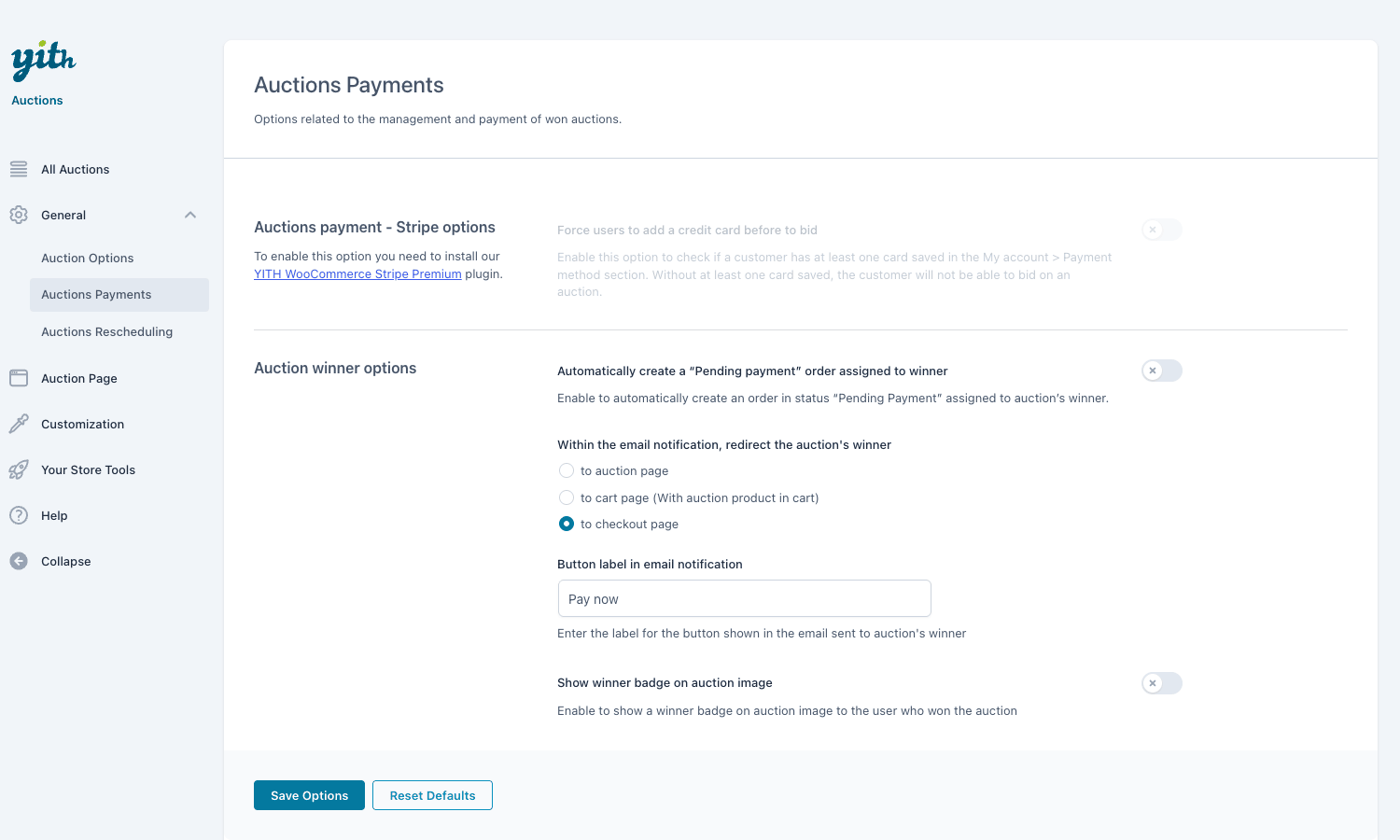
Winner selection. When the end time passes, the plugin determines the winner: highest bidder in a normal auction, lowest in a reverse one. If a reserve was set and never met, there’s no winner and the auction moves to the rescheduling logic instead.
Automatic order creation. Turn on "Automatically create a pending-payment order assigned to the winner" and the plugin builds a WooCommerce order for the winning bidder the instant the auction closes, with the item and the winning price already in it. The order sits in "pending payment" until they pay. This is a real convenience, but it has a sharp edge I’ll come back to in the anti-pattern section.
Redirecting the winner. You choose where the "Pay now" link in the winner email sends them: to the auction page, to the cart (with the product already added), or straight to checkout. Checkout is usually what you want, fewest clicks between winning and paying.
The "Pay now" email. The winner gets an email with a button whose label you set ("Pay now" by default). One click and they’re paying. The faster that path, the more winners actually complete.
Winner badge. You can show a winner badge on the auction image so the listing visibly reads as "won."
Managing unpaid winners. This is the grown-up feature. Under the Rescheduling tab there’s a "Manage unpaid auctions" option that lets you reschedule the listing, or contact the second-highest bidder and offer them the item. Every auction site eventually deals with a winner who vanishes, and having a built-in "offer it to the runner-up" path beats relisting from scratch.
Watchlists, followers, and bidder emails
A good auction site keeps bidders coming back, and the engagement features are how you do that. Most of these toggle on in the General » Auction Options area.
Watchlists. Buyers can add an auction to a personal watchlist (there’s a watchlist button on the product, and a watchlist section under My Account » Auctions). It’s the "I’m interested but not ready to bid yet" gesture, and it’s how a casual visitor becomes a returning bidder. The watchlist updates live over AJAX, so adding and removing items doesn’t reload the page. Enable it with the watchlist setting in the options.
Followers. Separate from the watchlist, a bidder can follow an auction to get emailed on every new bid. This is the "tell me the moment someone outbids me" feature, and it’s what pulls people back to defend their position. You control whether followers get notified on new bids, and whether all bidders get emailed when a new bid comes in.
The My Account "Auctions" section. Logged-in users get a dedicated Auctions area in My Account showing the auctions they’re bidding on, watching, and have won. It’s the dashboard that turns a one-off bidder into a regular.
Outbid handling. When someone is outbid, the plugin fires its outbid logic so you can email them "you’ve been outbid, bid again." That single email is responsible for a huge share of the price-driving back-and-forth on any auction site, so don’t disable it lightly.
All of this rides on the live AJAX layer: placing a bid, refreshing the bid list, loading more bids, and adding to the watchlist all happen without a reload, which is exactly what makes an auction page feel alive rather than static.
Rescheduling and the global auction settings
Beyond the per-auction product data, there’s a global settings panel under YITH » Auctions that governs how every auction behaves. I’ll walk the meaningful options tab by tab, because these are the toggles that quietly shape your whole store.
General » Auction Options
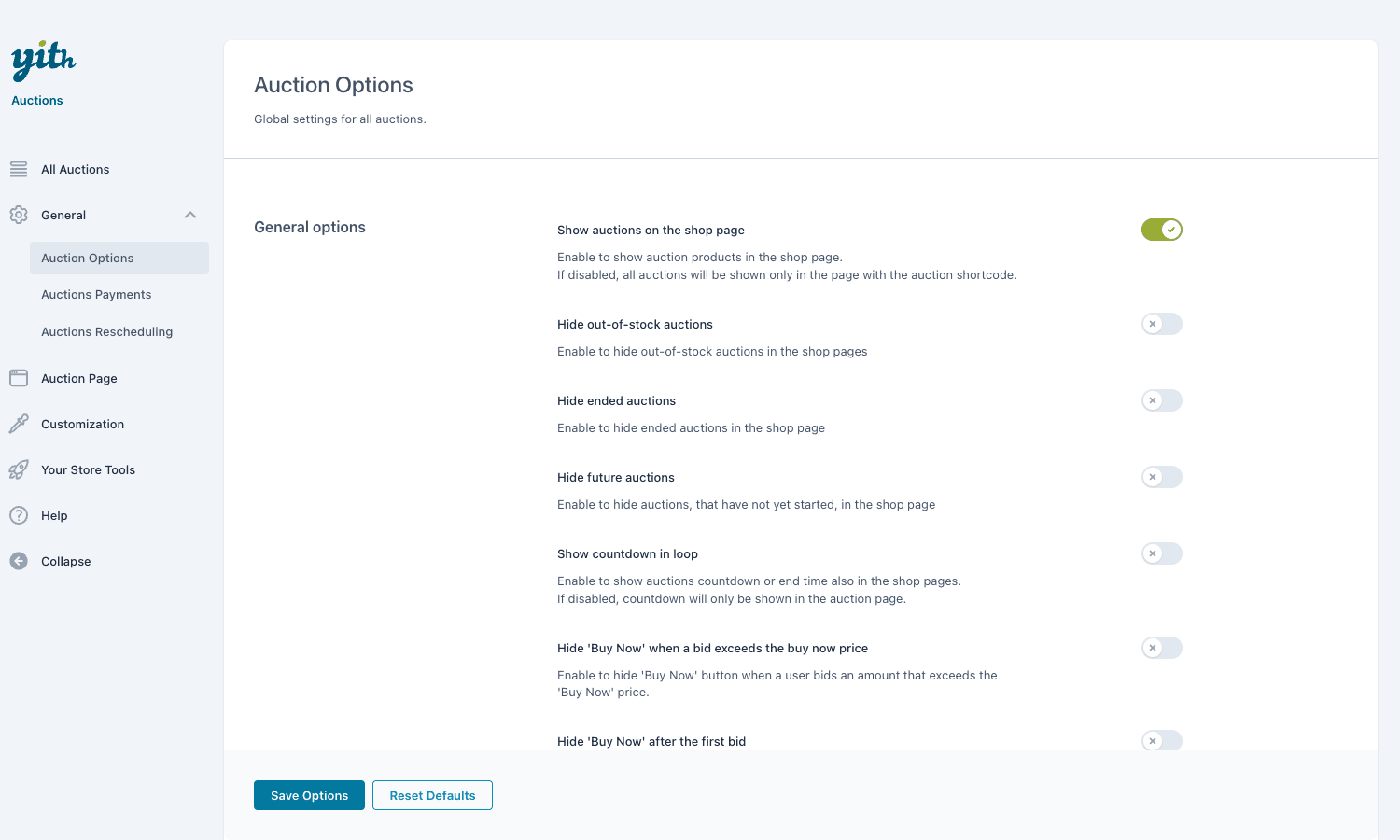
This tab controls visibility and shop-loop behavior. You can show auctions on the shop page (or keep them separate), hide out-of-stock auctions, hide ended auctions, and hide future auctions that haven’t started yet. There’s a show countdown in loop option so the timer appears on shop and category pages, not just the single product page, which is great for urgency across your catalog. Two Buy Now rules live here too: hide Buy Now when a bid exceeds the Buy Now price and hide Buy Now after the first bid. The watchlist toggle and the follower/new-bid email settings also sit in this area.
General » Auctions Payments
Covered above: the Stripe "force a credit card before bidding" option (greyed out until YITH WooCommerce Stripe is installed), the automatic pending-payment order, the winner redirect destination, the "Pay now" button label, and the winner badge toggle.
General » Auctions Rescheduling
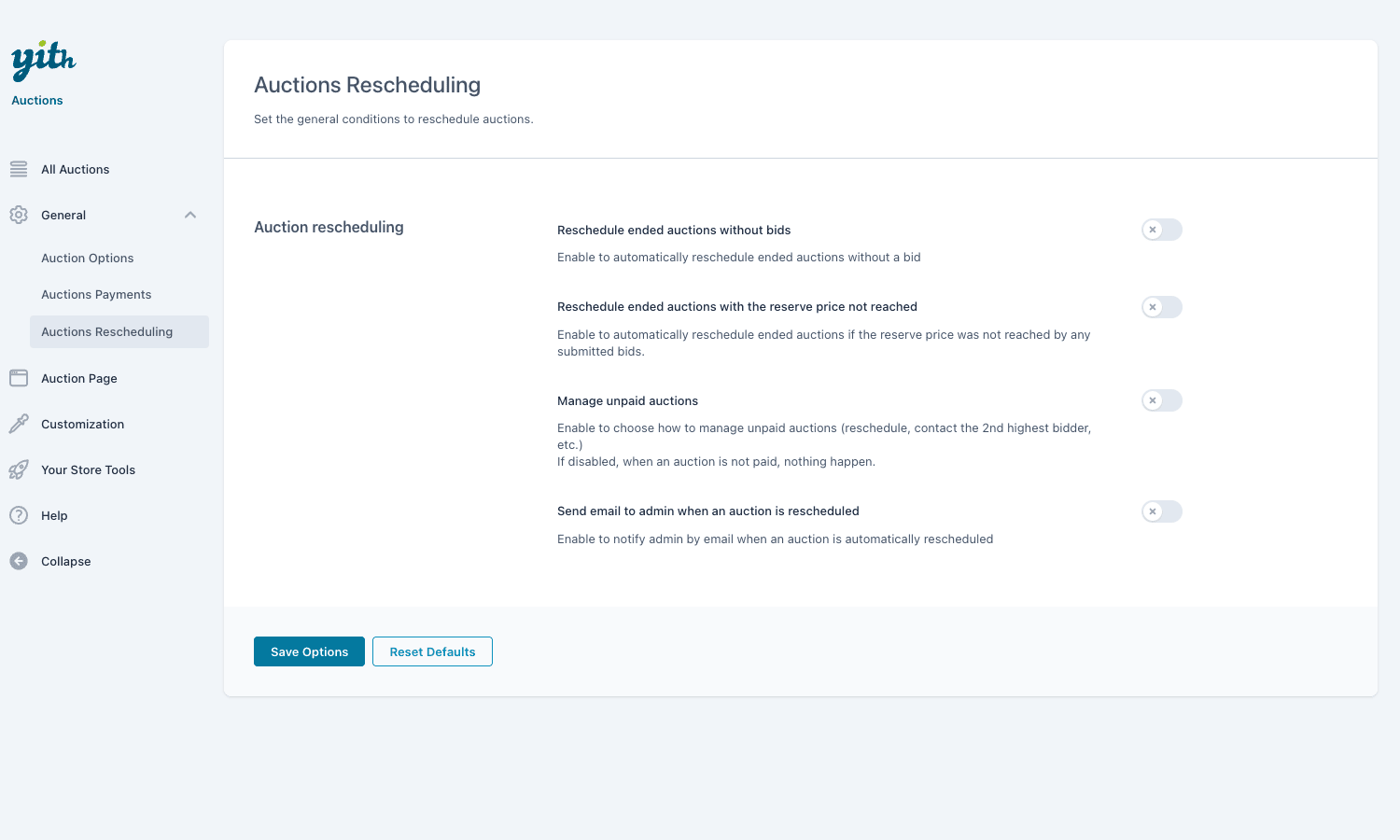
The relisting brain. You can reschedule ended auctions that got no bids and reschedule auctions where the reserve price wasn’t reached, so a quiet auction relists itself instead of just dying. Manage unpaid auctions controls what happens when a winner doesn’t pay (reschedule, contact the second-highest bidder). And you can email the admin when an auction is rescheduled so you’re never surprised by a listing quietly relisting.
Auction Page
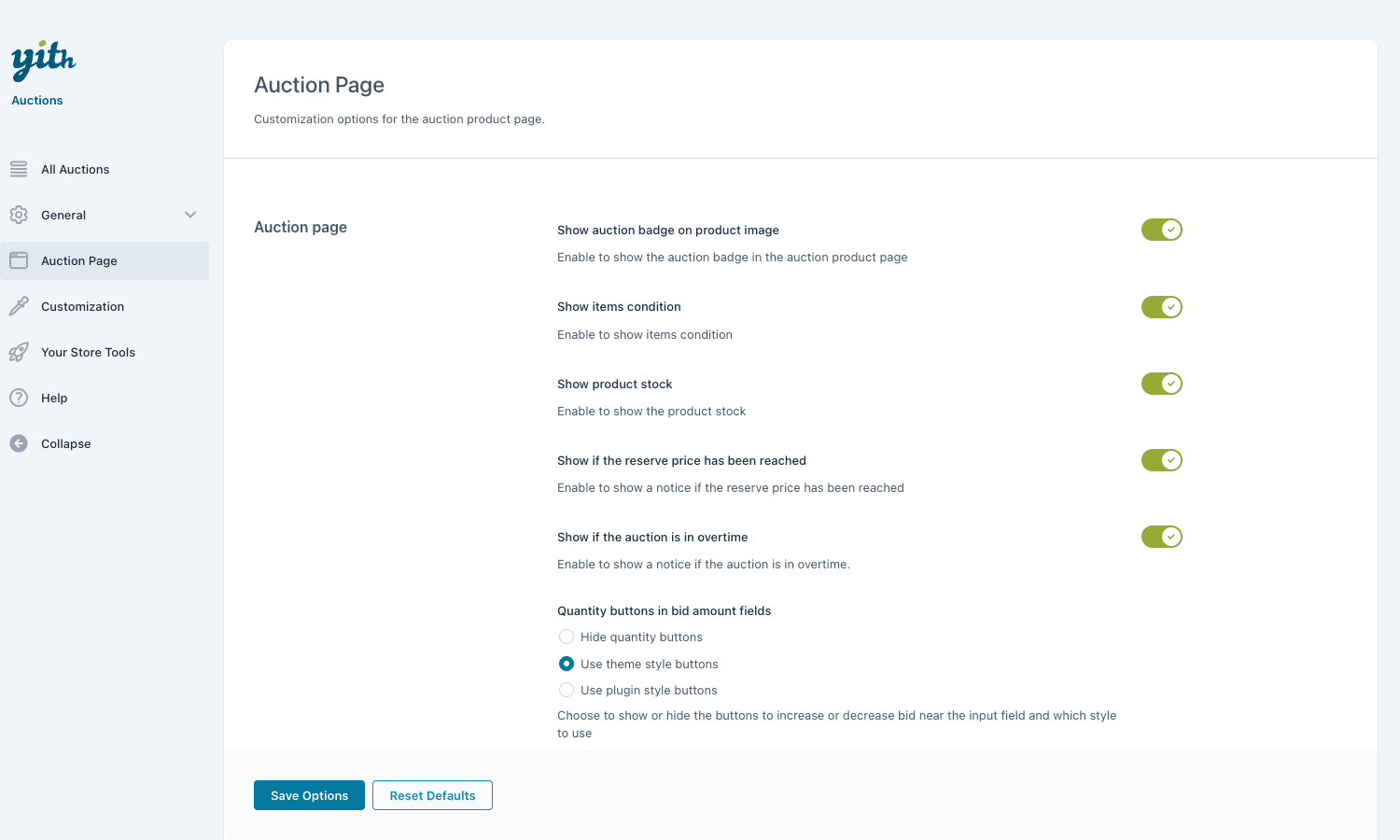
Front-end display controls for the single auction page. Toggle whether to show the auction badge on the product image, show the item condition, show product stock, show whether the reserve has been reached, and show whether the auction is in overtime. There’s also a setting for the quantity buttons in the bid amount fields: hide them, use your theme’s style, or use the plugin’s style. Showing the "reserve reached" and "in overtime" states is worth turning on, both nudge bidders to act.
Customization
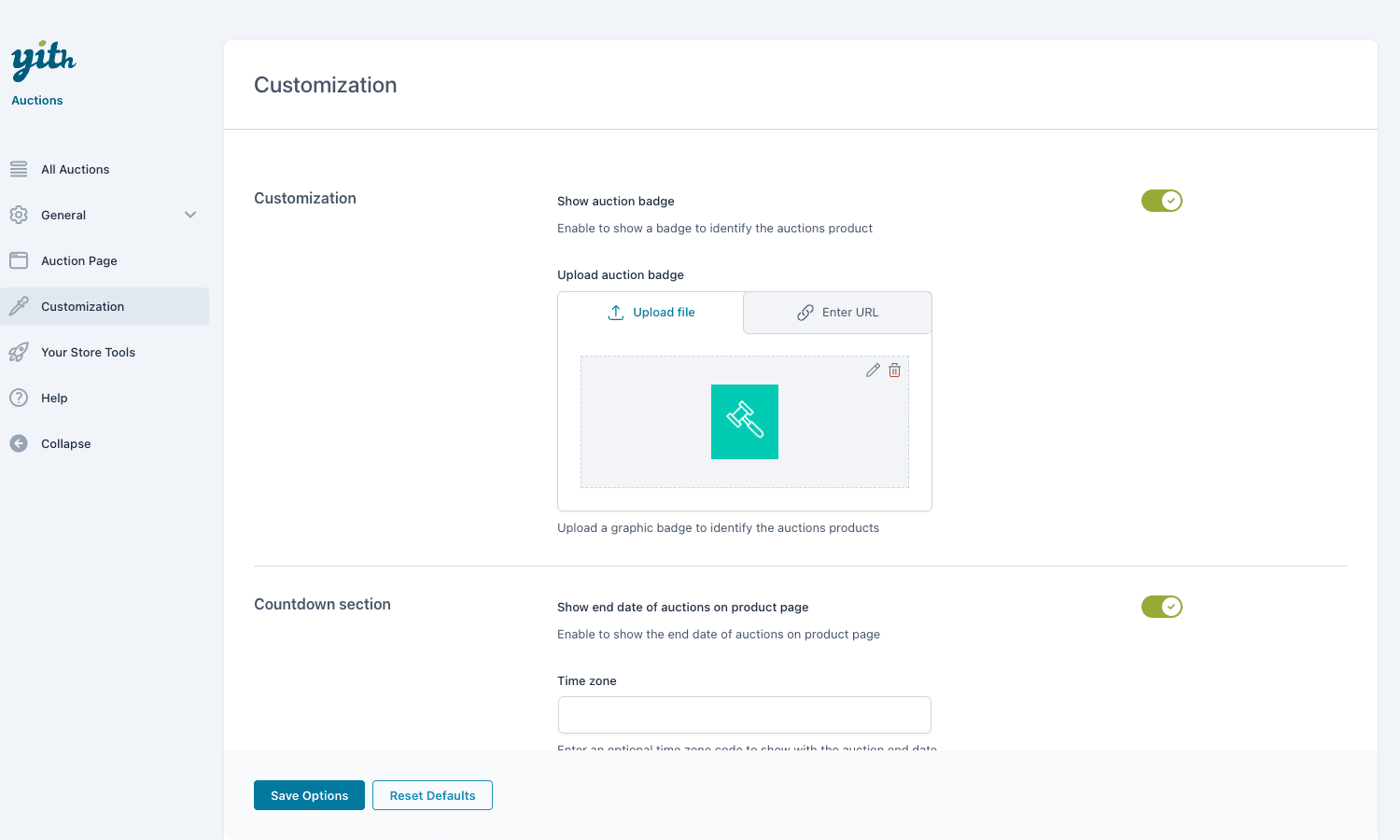
Branding touches. You can show the auction badge and upload your own badge image (by file or URL) instead of the default gavel. The countdown section lets you show the end date on the product page and optionally display a time zone code next to the countdown, which removes any ambiguity for bidders in different regions about when an auction actually closes.
Don’t run an auction site like this
Don’t launch an auction store without thinking through the four mistakes that wreck them. I’ve watched every one of these cost a real seller real money.
Don’t run auctions without anti-sniping overtime. With overtime off, a sniper drops a winning bid in the final second and honest bidders never get to answer. Prices come in low, regulars feel cheated, and they stop coming back. Turn overtime on so any bid in the last few minutes extends the clock, and your final prices climb to where they should be.
Don’t skip the reserve price on items you can’t afford to give away. A no-reserve auction that draws a single low bid legally obligates you to sell at that price. One five-dollar bid on a six-hundred-dollar item is a real, expensive lesson. Set a reserve near your true floor, and let the item reschedule rather than ship when bidding doesn’t clear it.
Don’t auto-create-and-charge a winner’s order without a captured payment method. Turning on automatic pending-payment orders is convenient, but if you never required a card, the "winner" can simply disappear and you’re left chasing payment or relisting. Either require a card before bidding (the Stripe integration does this) or lean on the "manage unpaid auctions, contact the second-highest bidder" fallback.
Don’t trust WordPress cron to close auctions on a low-traffic site. Auction close, "about to end" emails, and rescheduling all run on WP-cron, which only fires when someone visits a page. On a quiet store, an auction can close minutes late and a sniper bid can sneak in after the official end time. Set up a real server cron hitting wp-cron.php on a fixed schedule so closes happen on time, every time. This one is invisible until it bites you on launch night.
YITH WooCommerce Auctions vs WooCommerce Simple Auctions
The usual question is how this stacks up against WooCommerce Simple Auctions (the CodeCanyon rival, also available on GPL Times) and against the cheaper "make an offer" plugins people reach for first. Let me give you numbers, not vibes.
Both YITH and Simple Auctions add 1 new auction product type to WooCommerce and both handle the core loop of bidding, countdowns, and winner selection. Where they part ways is depth. YITH ships 2 auction modes (normal and reverse) where most rivals only do normal. It stores bidding data across 4 custom database tables (bids, fees, watchlist, followers) rather than stuffing everything into post meta or comments, which keeps bid history queryable and fast as volume grows. It includes proxy/automatic bidding with tiered increments (raise the next bid by +$5 while it sits under $100, then +$10 under $500, then +$25 above that), anti-sniping overtime, entry fees with percentage or fixed commission, automatic rescheduling, and 5 Elementor widgets plus Gutenberg blocks for placing auctions anywhere.
On price, WooCommerce Simple Auctions is a one-time CodeCanyon purchase (around $49) versus YITH’s yearly license. If a single up-front payment is all you want and you only need basic bidding, Simple Auctions is the cheaper path. But YITH leans on the wider YITH catalog, the Stripe integration for card-before-bid and the Multi Vendor integration for marketplaces, and it gets ongoing updates against new WooCommerce releases. You’re paying yearly for that maintenance and integration depth.
And a "make an offer" plugin? It’s not in the same category. No live bidding, no countdown, no automatic winner or order, no watchlist, no proxy bidding. It collects a single private offer. If you want the auction experience, the urgency and the back-and-forth that drives price up, an offer plugin won’t get you there. Pick it only if all you really want is haggling, not auctions. If quoting is genuinely what you need (B2B buyers asking for a price rather than competing on one), our YITH Request a Quote review walks through that model instead.
Developer reference
This is the section developers came for. The plugin exposes a healthy set of filters and actions, a stack of shortcodes, builder widgets, and its own database tables. A few honest limits first: there is no REST API (the only register_block_type calls are for the Gutenberg blocks, not REST routes) and no WP-CLI commands. And again, an auction is a WooCommerce product type, not a custom post type, so you query and extend it as a product.
The four custom tables
On activation the plugin creates four custom database tables: a bids table (the full bid history, keyed by user and auction), a fees table (entry/participation fees paid), a watchlist table (auctions a user is watching), and a followers table (users subscribed to an auction’s new-bid emails). It also caches the current_bid as post meta on the auction product so the automatic-increment math is fast, and flags a yith_wcact_new_bid meta when a bid lands. Don’t assume bids live in wp_comments or post meta, query the bids table.
Actions worth hooking
The single most useful action is the one that fires after a valid bid:
add_action( 'yith_wcact_successfully_bid', 'my_sync_bid_to_crm', 10, 3 );
function my_sync_bid_to_crm( $user_id, $product, $args ) {
    // Fires after a valid bid is placed. Sync to a CRM, log it, push a webhook.
    $payload = array(
        'user'      => $user_id,
        'auction'   => $product->get_id(),
        'bid'       => isset( $args['bid'] ) ? $args['bid'] : null,
        'timestamp' => current_time( 'mysql' ),
    );
    wp_remote_post( 'https://crm.example.com/hooks/auction-bid', array(
        'body' => $payload,
    ) );
}
When a bidder gets outbid, you can run your own logic on top of the built-in email:
add_action( 'yith_wcact_better_bid', 'my_custom_outbid_alert', 10, 4 );
function my_custom_outbid_alert( $user_id, $product, $bid, $previous_bid ) {
    // The user who held $previous_bid has just been beaten by $bid.
    // Fire an SMS, a push notification, anything beyond the default email.
    my_send_sms_to_user( $user_id, sprintf(
        'You were outbid on %s. New high bid: %s',
        $product->get_name(),
        wc_price( $bid )
    ) );
}
Other actions you’ll reach for: yith_wcact_auction_winner( $product, $user, $max_bidder ) (3 args, fires when a winner is set at close), yith_wcact_end_auction( $user_id, $product_id ) (2 args, fires when an auction ends), yith_wcact_finished_without_any_bids( $product ) (1 arg), and yith_wcact_not_reached_reserve_price( $product ) (1 arg). The last two are perfect hooks for custom relist-or-notify behavior.
Filters worth knowing
Tune the anti-sniping window:
add_filter( 'yith_wcact_interval_minutes', 'my_overtime_window', 10, 3 );
function my_overtime_window( $minutes, $interval_seconds, $product ) {
    // Extend the overtime window to 5 minutes for high-value lots.
    if ( $product->get_price() > 1000 ) {
        return 5;
    }
    return $minutes;
}
Control the manual bid field bounds:
add_filter( 'yith_wcact_min_bid_manual', 'my_min_bid', 10, 2 );
function my_min_bid( $min, $product ) {
    // $min is current bid minus one increment by default.
    return $min;
}

add_filter( 'yith_wcact_max_bid_manual', 'my_max_bid', 10, 2 );
function my_max_bid( $max, $product ) {
    // Cap how high a single manual bid can jump, to discourage typos.
    return min( $max, $product->get_price() * 10 );
}
Decide per-product whether the winner’s order is auto-created:
add_filter( 'yith_wcact_automatically_create_order', 'my_auto_order_rule', 10, 2 );
function my_auto_order_rule( $create, $product ) {
    // Only auto-create orders for products in the "trusted" category.
    if ( has_term( 'trusted-bidders', 'product_cat', $product->get_id() ) ) {
        return true;
    }
    return $create;
}
Add or alter the product-type registration if you’re building on top of it:
add_filter( 'yith_wcact_product_type_selector', 'my_type_selector' );
function my_type_selector( $types ) {
    // $types is the array the plugin adds 'auction' to. Inspect or relabel.
    return $types;
}
There are many more one- and two-arg filters worth grepping the source for: yith_wcact_actual_bid_add_value (1 arg, the increment applied to the suggested next bid), yith_wcact_show_watchlist_button_on_product (2 args, toggle the watchlist button per product), yith_wcact_admin_auction_bid_limit (2 args, how many bids show in the admin list), yith_wcact_change_button_auction_shop_text (3 args, the shop-loop button label), plus yith_wcact_auction_product_price, yith_wcact_get_price_for_customers, yith_wcact_is_product_visible, yith_wcact_auction_price_html, and yith_wcact_redirect_url. Grep the source for the exact arg counts before you wire one up.
Shortcodes
For laying out auction listings without a page builder, the plugin registers a set of shortcodes. Wrap them in code when you paste them so nothing executes by accident:
[yith_auction_products]prints a grid of auction products.[yith_auction_current]shows currently-running auctions.[yith_auction_non_started]lists auctions that haven’t started yet.[yith_auction_out_of_date]lists ended/expired auctions.[yith_auction_show_list_bid id="123"]prints the bid list for one auction (theidattribute targets the product).[yith_auction_form]outputs the bid form.[yith_wcact_add_to_watchlist]renders the watchlist button.[yith_wcact_other_auctions]and[yith_wcact_out_of_stock]show related and out-of-stock auctions.[yith_wcact_unsubscribe_auction]is the unsubscribe-from-emails list used inside follower emails.
Builders
For Elementor there are five widgets: Auction Form, Current Auctions, End Auctions, List Bids, and Not Started Auctions. There are dynamic Gutenberg blocks registered under the yith/ namespace, and a classic WP widget for sidebars. So whatever editor your theme leans on, you can place auction surfaces without touching a shortcode.
Performance, compatibility, and gotchas
A few realities to plan around before launch.
WP-cron is the timing engine, and it’s the biggest gotcha. As covered in the anti-pattern section, auction close, "about to end" emails, and rescheduling all run on WordPress cron, which fires on page visits rather than on a real clock. On a busy store this is a non-issue. On a quiet one it’s a problem. Disable WP’s pseudo-cron and wire up a real system cron hitting wp-cron.php every minute, and your closes land on time.
Custom tables scale better than you’d fear. Because bids, fees, watchlists, and followers live in their own tables rather than in post meta or comments, a high-volume auction with hundreds of bids stays fast and queryable. This is a genuine architectural plus over plugins that abuse post meta.
Theme compatibility of the bid form. The bid input, button, and countdown are injected into the WooCommerce single-product template. On a well-behaved WooCommerce-compatible theme this just works. On a heavily custom theme that overrides product templates, you may need to adjust where the auction box renders, and the Auction Page settings (quantity button style, badge display) help you blend it in.
Stripe for card-before-bid. The "force users to add a credit card before bidding" option is greyed out until YITH WooCommerce Stripe Premium is installed. If you want guaranteed payment from winners, that’s the integration that captures a card up front. Without it, you’re relying on the post-auction "Pay now" flow and the unpaid-winner fallback.
Multi Vendor for marketplaces. If you run a multi-seller marketplace, the YITH Multi Vendor integration lets each vendor run their own auctions, with the commission settings feeding the platform’s cut. That’s how you build an eBay-style marketplace rather than a single-seller auction store.
Multisite. It behaves like a normal WooCommerce extension on multisite, activated per-site. Each site gets its own tables. There’s nothing network-special to configure, but as always, test on a staging copy before flipping it on across a network.
Pricing and licensing
YITH sells this as a yearly license through yithemes.com, which gets you updates and support for the term. That’s the standard YITH model, and for a busy auction store the ongoing updates against new WooCommerce releases matter.
It’s also available as GPL on GPL Times. If you’re spinning up an auction site, YITH WooCommerce Auctions on GPL Times gets you the same premium plugin with its bid engine, proxy bidding, and rescheduling logic intact, ready to drop into your store. For anyone running collectibles, charity lots, or a multi-vendor marketplace, that’s the fastest way to get a working auction engine onto WooCommerce without rebuilding bidding from scratch.
If you later want the card-before-bid guarantee, pair it with YITH WooCommerce Stripe, and for a marketplace add YITH Multi Vendor. Each is a separate purchase, so budget for the integrations you actually need rather than assuming they’re bundled.
FAQ
Can winners pay automatically the moment an auction ends?
Not fully automatically, unless you capture a card up front. The plugin can auto-create a pending-payment order and email the winner a "Pay now" link the instant the auction closes, which is one click from payment. For an actual automatic charge, you need the YITH WooCommerce Stripe integration with "force a card before bidding" turned on. Without that, the winner still has to complete checkout themselves.
Does YITH WooCommerce Auctions work with any theme?
With most WooCommerce-compatible themes, yes, because the bid form and countdown hook into the standard WooCommerce single-product template. The honest caveat is heavily customized themes that override product templates, where the auction box may need positioning help. The Auction Page settings (badge, quantity button styles) let you blend it in, and testing on a staging copy first is the safe move.
Does it support reverse auctions where the lowest bid wins?
Yes. In the product’s General sub-tab you set Auction type to Reverse, and the lowest bid wins at close instead of the highest. It’s the right format for procurement-style "name your lowest price" listings, though most stores will only ever use Normal mode.
How do I stop last-second sniping?
Turn on anti-sniping overtime in the auction’s Extras settings. Any bid placed in the final window pushes the end time out, so honest bidders get a chance to respond. You can tune the window length in code with the yith_wcact_interval_minutes filter. Running auctions without overtime is the fastest way to frustrate your regulars.
Can people bid without creating an account?
Bidding is tied to WordPress users, so bidders need an account (the watchlist, follower emails, and the My Account auctions section all depend on a logged-in user). You can let buyers register at the point of bidding, but true anonymous guest bidding isn’t the model here. For an auction with payment and winner tracking, that account requirement is reasonable.
What happens if the winner never pays?
This is where the unpaid-auction tools come in. Under the Rescheduling settings you can reschedule the listing to run again, or contact the second-highest bidder and offer them the item. Combined with auto-created pending orders that simply stay unpaid, you have a clear path that doesn’t involve manually rebuilding the listing. It’s one of the better-handled edges in the plugin.
Can vendors run their own auctions in a marketplace?
Yes, with the YITH Multi Vendor integration. Each vendor can create and manage auction products, and the commission settings route the platform’s cut. Without Multi Vendor, you have a single-seller auction store. The integration is a separate purchase, so factor that in if a marketplace is your goal.
Does it need Stripe to work?
No. The core auction loop (bidding, winners, orders, emails) runs on whatever WooCommerce payment gateways you already use. Stripe is only required for the optional "capture a card before bidding" guarantee. If unpaid winners aren’t a concern for your audience, you can run the whole thing without it.
Can I charge bidders an entry fee?
Yes. In the Prices sub-tab you can set a participation fee, with an option to require it before the first bid. You can also attach a commission (percentage or fixed) to the winning price. Both are off by default, so a standard free-to-bid auction works without touching them. Entry fees suit high-value or limited lots where you want serious bidders only.
Will auctions close exactly on time?
Only if your cron is reliable. Because close events run on WP-cron (which fires on page visits), a low-traffic site can close auctions late. Set up a real server cron hitting wp-cron.php and closes happen on schedule. On a busy store with steady traffic, the default behavior is usually fine.
Can I show countdowns on my shop and category pages?
Yes. The "show countdown in loop" option in the General Auction Options puts the timer on shop and category listings, not just the single auction page. It’s a strong urgency cue across your whole catalog, and worth turning on if auctions are a core part of your store.
Final thoughts
After putting real bids through it, my honest read is that YITH WooCommerce Auctions does the hard parts of running auctions, not just the easy demo-able ones. Plenty of plugins can show a countdown and accept a bid. The features that separate a working auction store from a frustrating one are proxy bidding, tiered increments, anti-sniping overtime, reserve handling, and a real plan for unpaid winners, and this plugin has all of them.
It isn’t flawless. The reliance on WP-cron for closing is a genuine trap on quiet sites, the card-before-bid guarantee costs you a second YITH plugin, and bidding requires accounts. None of those are dealbreakers, but they’re things you want to know before launch night rather than discover during it.
If you’re selling collectibles, running charity lots, or building a marketplace where sellers compete on price, this is the auction engine I’d reach for on WooCommerce. Turn on overtime, set honest reserves, wire up a real cron, and let the bidding do what bidding does best, push the price to where the market actually values the item.